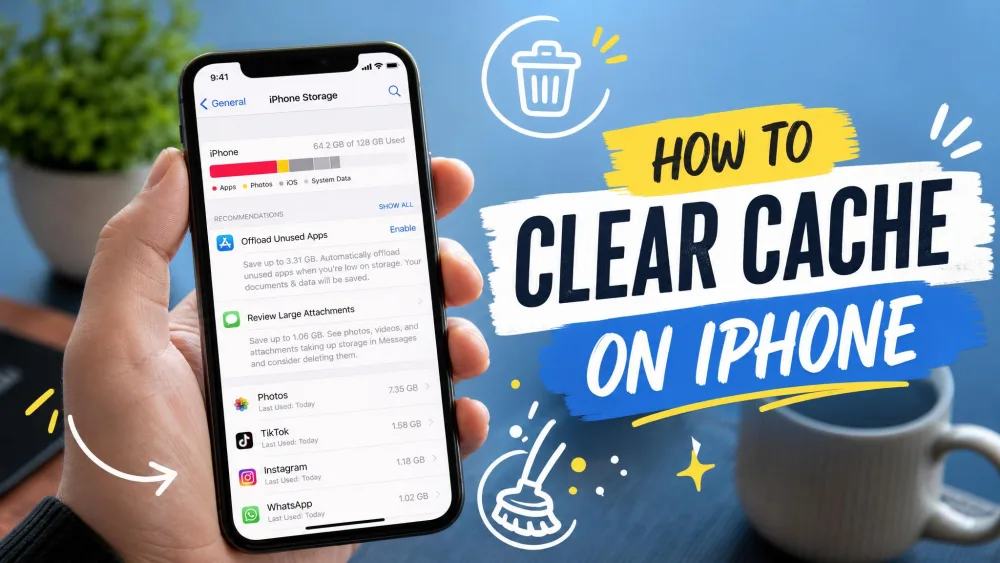
If your iPhone feels sluggish or storage keeps filling up no matter how many photos you delete, clearing app cache is one of the fastest fixes you can try. Bloated cache files sit quietly in the background, and a few heavy apps can quietly take up several gigabytes before you ever notice.
The good news is you do not need a third-party cleaner or a factory reset. iOS gives you a handful of built-in ways to clear cached data, some gentle and some aggressive. We walked through each method on our own test iPhones so we can tell you what actually frees up space, what leaves your data alone, and what to expect afterward.
Below we cover the per-app methods first, since that is where most storage hides, then a quick version for Safari and browsers, and the habits that keep cache from piling back up.
What Is App Cache on iPhone (and Why It Builds Up)
App cache is the pile of temporary files an app saves so it can load faster next time. Think of streamed music, downloaded images, web pages a browser has already fetched, and offline data your apps keep on hand. It is meant to speed up performance, and most of the time it does exactly that.
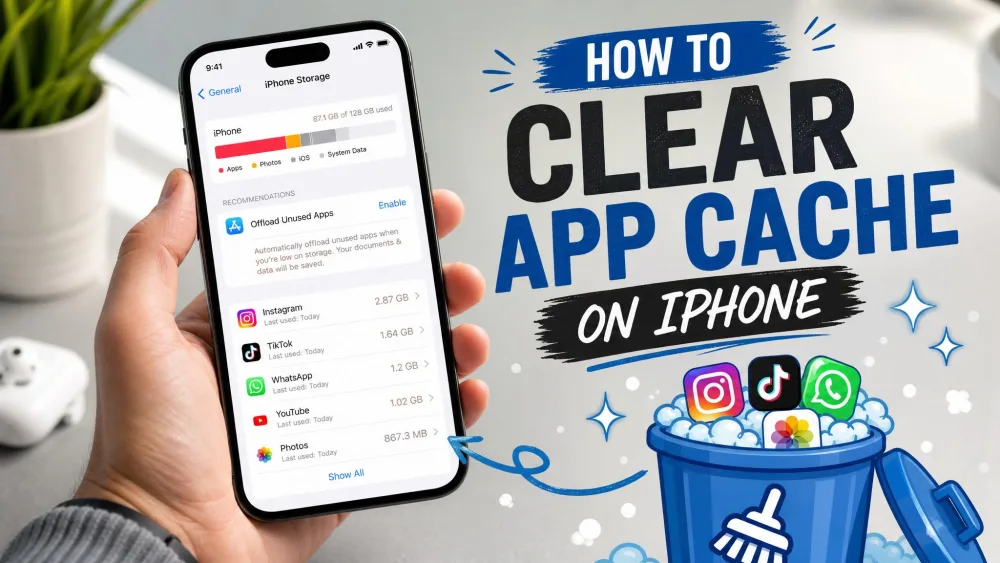
The problem is that cache grows. Heavy apps like social media, streaming, and messaging keep adding cached data, and that data rarely shrinks on its own. Over weeks and months, a few of these apps can balloon into many gigabytes. When your storage is nearly full, everything can start to slow down, and that is usually the point where people go looking for a fix.
iOS does manage a lot of this automatically, clearing older cached data when space gets tight. But it does not always move fast enough for a nearly full phone, and that is where clearing cache yourself helps.
There is no universal one-tap clear-cache button on iPhone. iOS handles most cached data behind the scenes, and there is no bulk "clear all apps" function, so every method below works one app at a time.
Does Clearing App Cache Delete Your Data? What to Know First
This is the question worth answering before you tap anything, because the answer depends on the method. Two of the approaches below are safe for your data, and one is not.
Offloading an app removes the app itself but keeps its documents and data. When you reinstall, that data comes back. Deleting an app is the opposite: it removes the app and everything it stored, so a reinstall gives you a fresh, empty copy. In-app clear-cache options usually sit in between, clearing only cached files while leaving your account and content in place.
One thing to expect across the board: after you offload or delete an app, you will almost always have to sign back in, since cached logins get cleared along with everything else. Clearing cache can also reset in-app preferences and language choices back to their defaults, so the app may feel brand new the next time you open it.
Before you delete and reinstall an app, make sure anything important is backed up or synced to your account or iCloud. Deleting removes all of the app's data, and a reinstall will not bring it back.
How to Clear App Cache on iPhone
Here are the four methods, ordered from safest to most thorough. Start at the top and only move down if you need to free more space.
Method 1: Offload the App (Keeps Your Data)
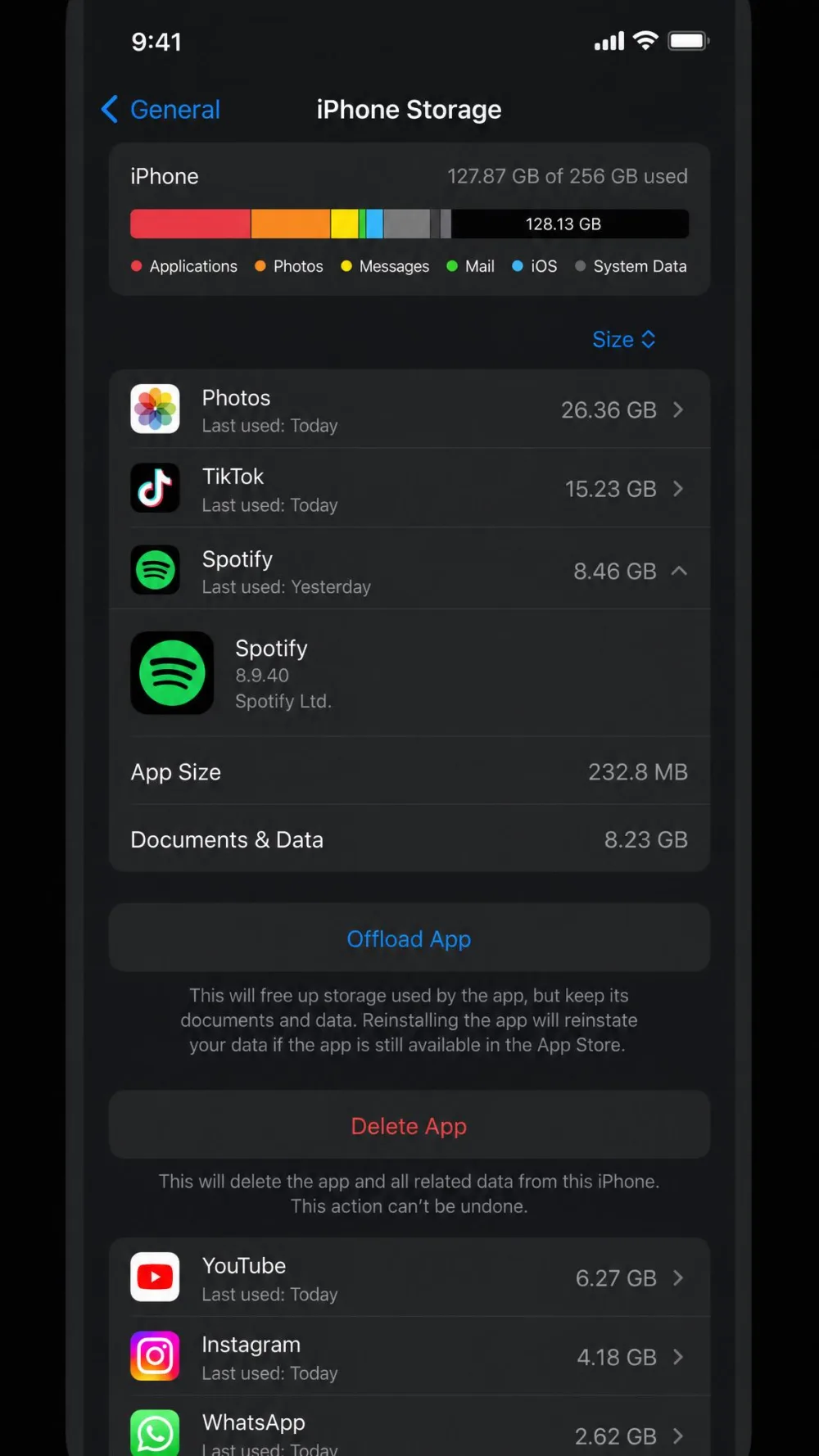
Offloading is the move we reach for first, because your files and settings stay put while the cached bulk of the app goes away. To do it, open Settings > General > iPhone Storage, tap the app you want to clear, then tap Offload App. The app icon stays on your Home Screen with a small cloud symbol, and tapping it re-downloads the app with your data intact.
If you would rather let iOS handle this for you, you can turn on Offload Unused Apps under Settings > Apps > App Store. From then on, iOS automatically offloads apps you have not used in a while when storage runs low, and preserves their data so nothing is truly lost.
Offloading clears the app's storage but does not remove all of its data, so it frees less than a full delete-and-reinstall. Offload your biggest, least-used apps first: that is where you reclaim the most space for the least disruption.
Method 2: Delete and Reinstall the App
When offloading does not free enough, deleting and reinstalling is the nuclear option. It wipes the app and all of its cached data, then you download a clean copy from the App Store. This frees the most space of any method here, because it clears not just the cache but every saved file the app was holding.
The trade-off is real inconvenience. You lose local data, you sign in again, and any settings you had tuned go back to defaults. Reserve this for a specific misbehaving app or one that has grown unreasonably large, not as a routine cleanup.
Method 3: Clear Cache From Within an App's Own Settings
Some apps let you clear their cache directly, without touching the app itself. Messaging, social, and streaming apps such as Facebook, Instagram, and Spotify often include a clear-cache or clear-storage control somewhere in their own settings menu. When an app offers it, this is the cleanest option, since it targets only the cached files and leaves your account and content alone.
Not every app has this, though. If you dig through an app's settings and find nothing, fall back to offloading or reinstalling for that one.
Method 4: Restart Your iPhone to Flush Temporary Files
The simplest step of all is a restart. Powering your iPhone off and back on flushes temporary caches held in memory, and it is the zero-risk first thing to try before you touch individual apps. It will not clear the multi-gigabyte storage caches the methods above target, but it often clears small slowdowns for the cost of a minute.
How to Clear Safari and Browser Cache on iPhone (Quick Version)
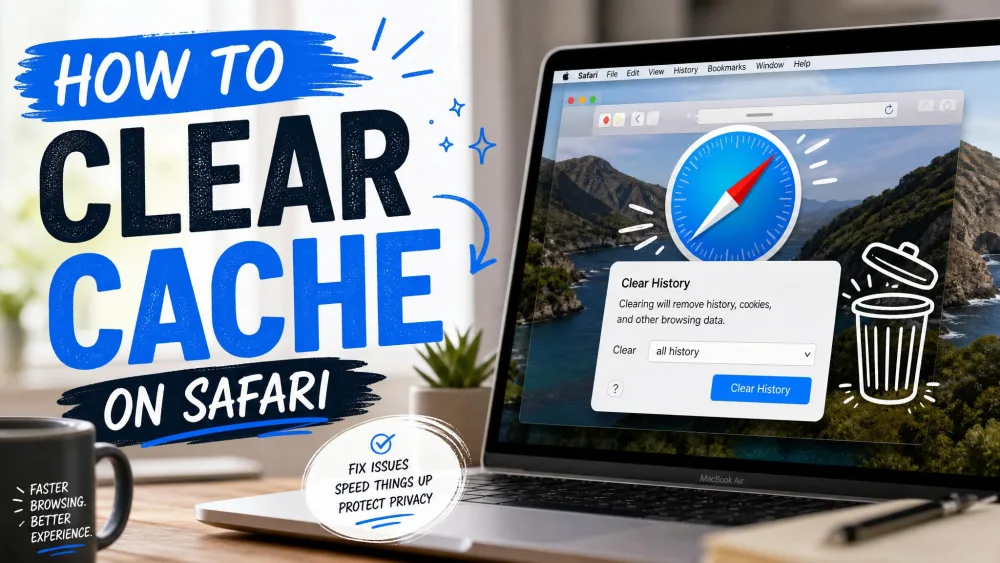
Browser cache is its own topic, so here is the short version. For the full walkthrough across every browser and device, see our guide on how to clear cache on iPhone.
Clear Safari History and Website Data
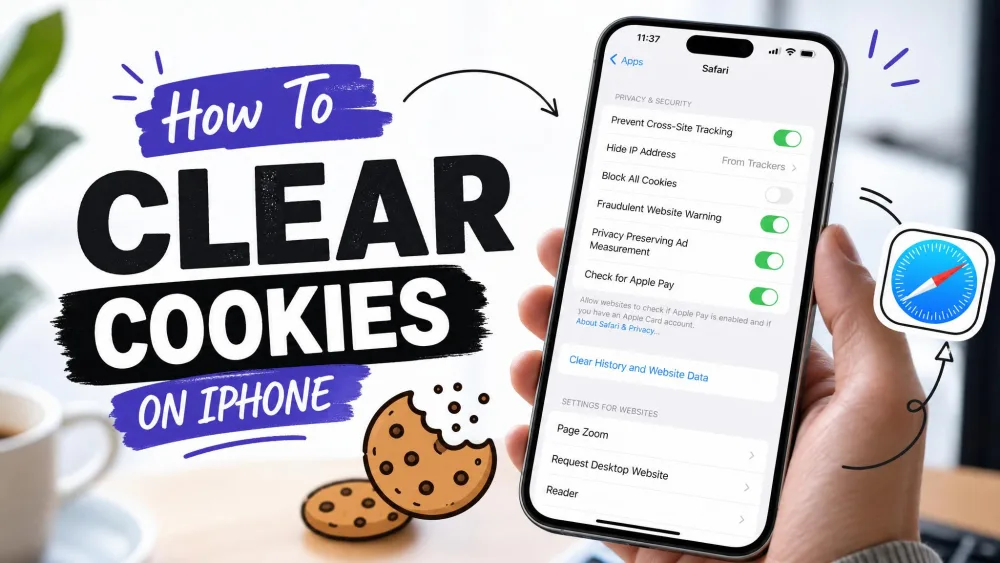
To clear Safari, open Settings > Apps > Safari > Clear History and Website Data, then choose the timeframe and tap Clear History. This removes cached pages and website data, though it does not change your saved AutoFill information. If you want to go further, Block All Cookies under Settings > Apps > Safari > Advanced removes all existing cookies and website data. Apple's own iPhone User Guide covers these Safari steps in detail if you want the source.
Clear Chrome and Other Browser Caches
Third-party browsers keep their own separate cache, so clearing Safari does not touch them. In Chrome, open the three-dot menu, then Delete Browsing Data, choose Cached Images and Files, and confirm. Most other browsers bury a similar option under their history or privacy settings.
Clearing browser cache and website data will likely sign you out of sites you were logged into, since the stored session data goes with it. Have your passwords handy before you clear.
Signs It's Time to Clear Your iPhone App Cache
You do not need to clear cache on a schedule, but a few signals tell you it is worth doing. Watch for these:
- Your storage is nearly full and photos or apps will not download.
- A specific app is slow, crashing, or showing stale content that will not refresh.
- One app is taking up far more space in iPhone Storage than it reasonably should.
- Your iPhone feels generally sluggish and a restart did not help.
If none of these apply, your cache is probably doing its job of speeding things up, and there is no reason to clear it.
Tips to Keep App Cache From Building Up
A little maintenance keeps you out of the nearly full trap. Turning on Offload Unused Apps lets iOS quietly reclaim space from apps you have stopped using, without you lifting a finger. Beyond that, glance at Settings > General > iPhone Storage every so often and offload the one or two heaviest apps you rarely open.
Fold cache clearing into a roughly monthly cleanup rather than a daily habit, or simply do it when an app starts acting up or before a sensitive transaction. Clearing daily gives up the speed benefit that cache exists to provide, so a light touch is the right call.
| Method | Keeps your data | Storage freed | Sign in again |
|---|---|---|---|
| Offload App | Yes, documents and settings stay | App itself, data stays | Usually no |
| Delete and Reinstall | No, all data removed | App plus all cached data | Yes |
| In-app Clear Cache | Partial, clears cache only | Cached files only | Sometimes |
Frequently Asked Questions
Will clearing app cache delete my photos, data, or logins?
How often should I clear cache on my iPhone?
Can I clear the cache for all apps at once?
Is app cache the same as cookies?
Will clearing cache actually speed up my iPhone?
Final Thoughts
Clearing app cache on iPhone comes down to picking the right tool for the job. Start with a restart, offload the heavy apps you rarely use, and only delete and reinstall when you need to reclaim the most space and are ready to sign in again. Because iOS references iOS 26 in its current guidance and manages much of this automatically, you mostly just need to step in for the few apps that grow out of control.
Keep it light. A monthly check of iPhone Storage, plus Offload Unused Apps working in the background, keeps your phone fast and your storage under control.