A page that will not update, a login that keeps breaking, a browser that feels heavier than it did a month ago: these are the everyday signs that your Mac is holding on to stale browsing data. Cache and cookies pile up quietly in the background, and most of the time you never notice. When something goes wrong, though, clearing them is usually the first fix worth trying, and it takes only a minute or two per browser.
We put every step below through the current macOS interface on our test Macs before writing it down, so the menu paths and shortcuts match what you will actually see on screen. This guide walks through Safari, Chrome, and Firefox in turn, then covers the wider macOS system cache and a couple of optional advanced steps. Wherever a step signs you out or changes behavior, we flag it, so nothing here catches you by surprise.

What are cache and cookies on Mac?
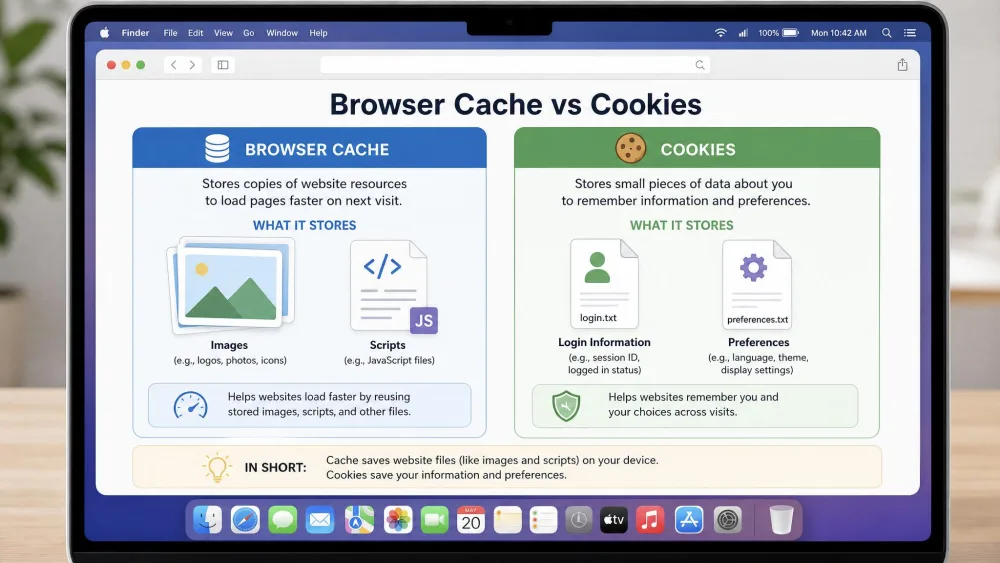
Your browser saves two very different kinds of data as you move around the web, and it helps to know which is which before you start deleting anything. Both live on your Mac, both build up over time, and both are safe to clear, but they do separate jobs.
The cache is a local copy of the pieces that make up a website: images, stylesheets, scripts, and fonts. Your browser stores them so that the next visit loads faster, because it can pull those files from your disk instead of downloading them again. That speed comes at a cost, since an old cached copy can leave you looking at a stale version of a page that has since changed.
Cookies are small files that websites use to remember you. They hold your login sessions, your language and layout preferences, items in a shopping cart, and the tracking identifiers that follow you between sites. Clearing them tidies up that stored state, which is why it can fix a broken login just as easily as it can log you out of one.
Cache vs. cookies (quick definitions)
Keep this simple distinction in mind as you work through the steps below:
- Cache stores website files to speed up loading. Clearing it forces a fresh download and fixes pages that display incorrectly. It does not log you out.
- Cookies store your sessions and preferences. Clearing them protects privacy and resolves login glitches, but it signs you out of sites and resets those preferences.
Why clear cache and cookies (and what's safe to delete)
There are two everyday reasons to clear this data: speed and privacy. On the speed side, cache and cookie data can get corrupted over time, and that corruption is a common cause of pages that stall, load strangely, or refuse to refresh. Clearing it out gives the browser a clean slate and keeps it functioning properly. It can also free up space, though how much varies widely by how you use your Mac.
On the privacy side, cookies are what let advertisers and analytics tools recognize you across sites. Removing them may reduce that tracking, and it wipes the stored session data that a shared or public Mac would otherwise leave behind.
One honest caveat: emptying the cache does not make your Mac permanently faster. In our testing, the first visit to a site after a clear-out actually loads a little slower, because every element has to be re-downloaded. Speed then settles and improves on repeat loads. So think of clearing as maintenance and troubleshooting, not a magic performance boost.
As for what is safe to delete, cache and cookies are both fair game, and clearing them will not touch your bookmarks, saved passwords, or autofill entries. The one place to be careful is the macOS system cache, which we cover further down. For now, keep in mind the golden rule: clear browser data freely, but leave system files alone unless you know exactly what you are removing.
Clearing cookies signs you out of nearly every website you are logged into, and it resets saved preferences like language and layout. Before you clear cookies, make sure you know your passwords, or that they are saved in a password manager, so you are not locked out of anything that matters.
How to clear cache and cookies in Safari on Mac
Safari splits this into a few different tools, and choosing the right one saves you from signing out when you did not need to. We ran each of these on the current version of Safari on our test Macs.
Clear history, cookies, and website data
To wipe your browsing history along with related data, use the History menu. Go to History > Clear History, then choose a timeframe from the pop-up menu before confirming. This is the broad option: it removes your visited-page history, back and forward lists, frequently visited sites, recent searches, webpage icons, and your download list, though the downloaded files themselves stay put.
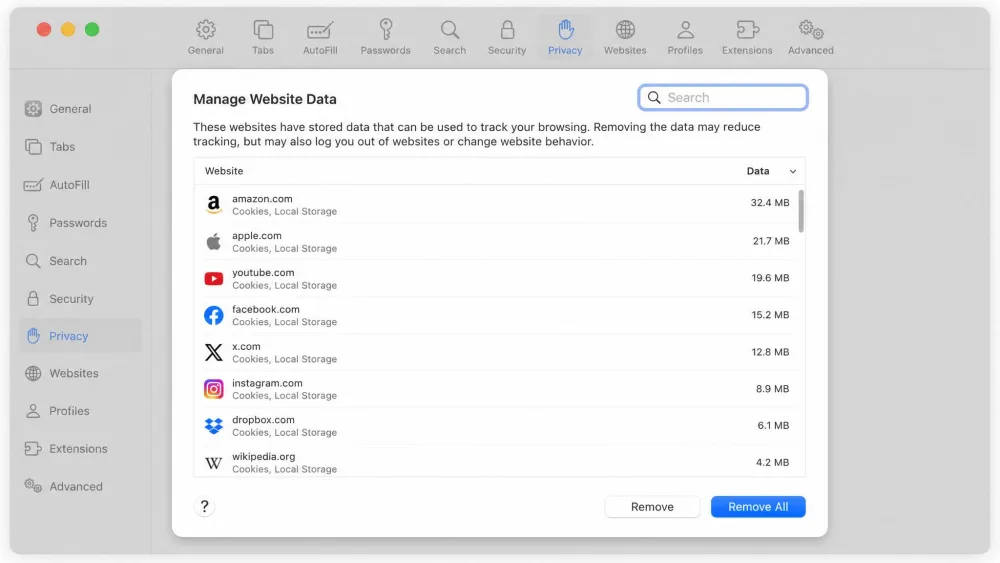
For a more targeted cleanup of cookies specifically, Apple's own steps to manage cookies and website data in Safari point you to Safari > Settings > Privacy > Manage Website Data. Open that panel, and you will see every site storing data on your Mac.
Remove data for a single website
The Manage Website Data panel is also where you fix one misbehaving site without disturbing the rest. In that list, select the site you want and click Remove, or click Remove All to clear everything at once. This is the move we reach for when a single page is glitching but we would rather stay logged into everything else.
Clearing Safari's cache this way is also the reliable fallback when cookies seem to keep reappearing after you delete them. If stored cookies come back, emptying the cache usually settles it.
Empty the cache with the Develop menu (Cmd+Option+E)
If a page is stalling or rendering strangely and you do not want to lose your history or get signed out, empty just the cache. This is the cleanest fix in Safari: using Develop > Empty Caches clears the cached files while leaving your history and active sign-ins untouched, so a page that was loading strangely comes back to life without any collateral damage.
You need the Develop menu enabled first. Go to Safari > Settings > Advanced and check Show features for web developers (older versions of macOS label this "Show Develop menu in menu bar"). Once the menu appears, you can empty the cache from Develop > Empty Caches or with the keyboard shortcut.
The fastest way to empty the Safari cache is the keyboard shortcut Option+Command+E. Once the Develop menu is enabled, press it any time a page looks broken, and Safari clears the cache without signing you out or clearing your history.
How to clear cache and cookies in Chrome on Mac
Chrome keeps everything in one dialog, which makes it quick once you know where it lives. We tested this on the current Chrome build on macOS.
Clear browsing data
Open the three-dot menu (labeled More) in the top-right corner, then choose Delete browsing data. Older builds of Chrome label this same option "Clear browsing data," so do not worry if the wording differs slightly on your Mac.
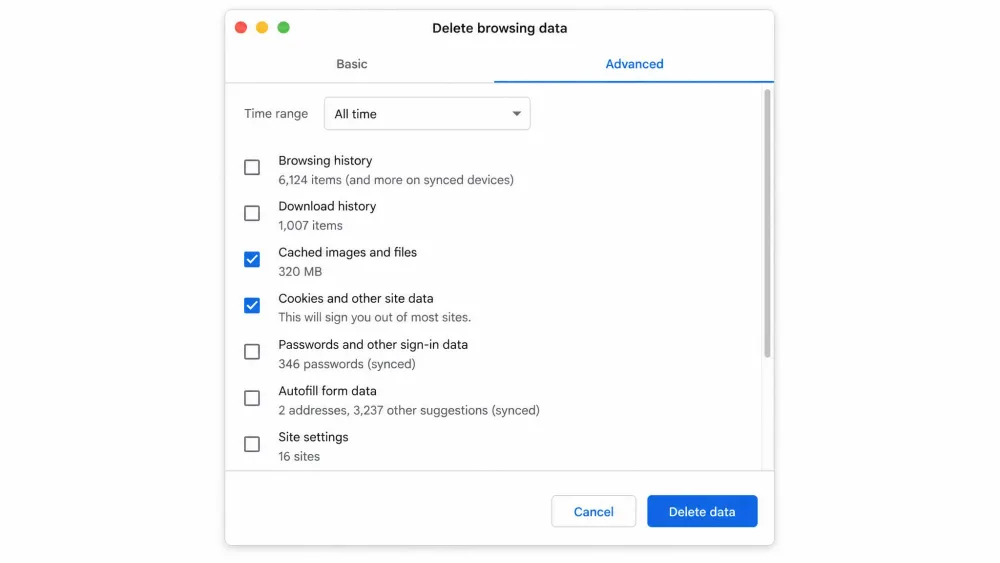
In the dialog, open the Advanced tab and check Cached images and files along with "Cookies and other site data," then choose a time range such as "Last hour" or All time. Click Delete data to finish. One thing worth knowing: if you are signed in to Chrome, deleting cookies refreshes the Google cookies that keep you signed in, so sign out first if you want those removed too.
Chrome keyboard shortcut
You can skip the menus entirely. The keyboard shortcut Cmd+Shift+Delete opens the Delete browsing data dialog directly, which is the shortcut we use most, since it drops you straight onto the checkboxes.
How to clear cache and cookies in Firefox on Mac
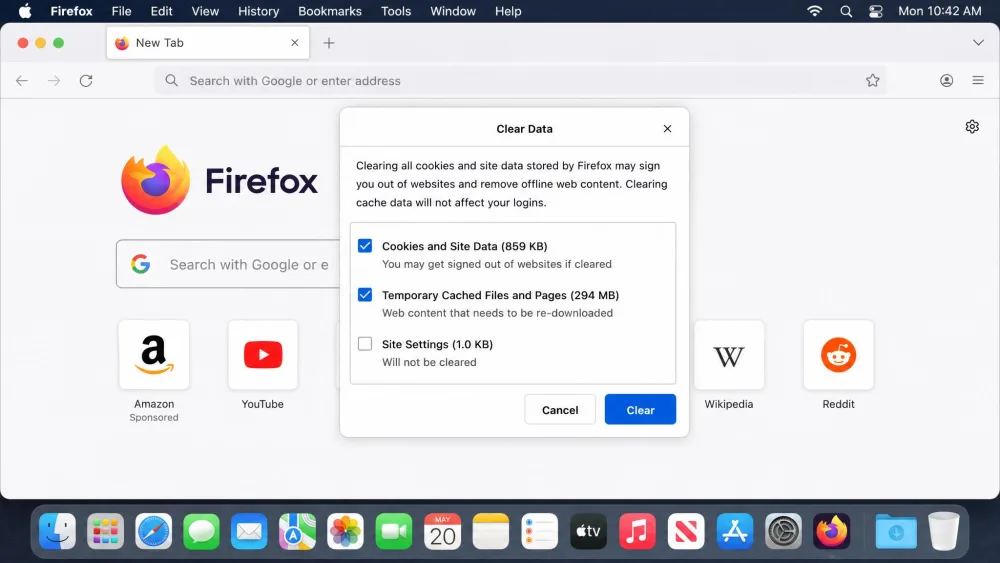
Firefox tucks the controls inside its settings, but the process is just as short. To clear data, open the menu (the hamburger icon), then go to Settings > Privacy & Security > Cookies and Site Data > Clear Data. Check "Cookies and site data" and "Temporary cached files and pages," then click Clear. Mozilla's guide to clear cookies and site data in Firefox covers the same steps, and the exact checkbox labels can vary by version (you may see "Cached Web Content" instead of "Temporary cached files and pages").
There is also a second path if you prefer to clear by timeframe. Open the menu button, then go to History > Clear Recent History, set When to "Everything," and select the Cookies and cache boxes before confirming. Either route gets the same result, so use whichever you land on first.
How to clear the macOS system and app cache (and when to)
Browsers are not the only thing that caches data. macOS and your installed apps keep their own cache files, and clearing those occasionally can help when an app misbehaves or you are hunting for disk space. This is a bigger topic in its own right, and we cover it fully in our guide on how to clear the system and app cache on Mac, but here is the safe short version.
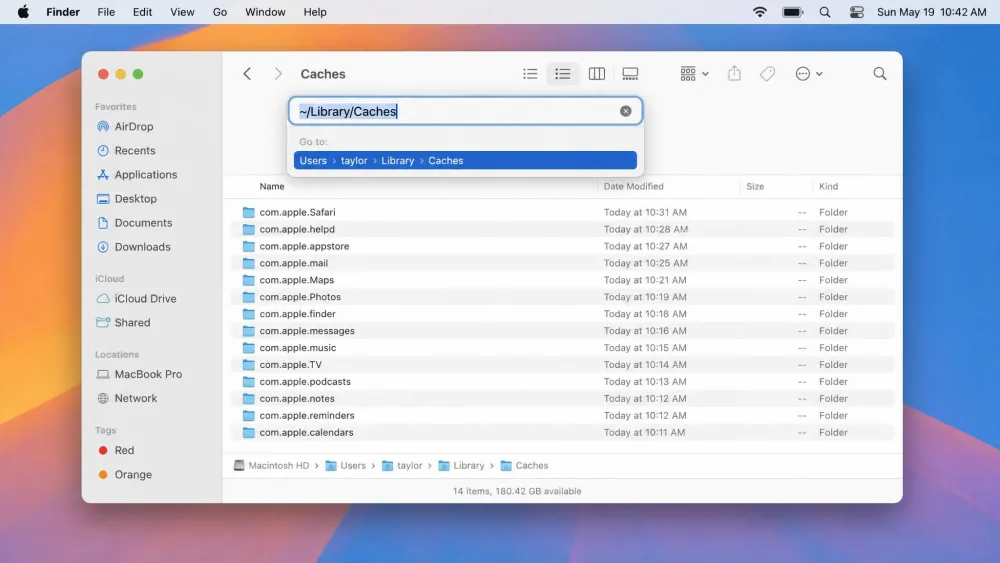
Your user cache lives at ~/Library/Caches. To open it, use Finder > Go > Go to Folder and paste that path. Inside, you will find folders named for individual apps. The rule that keeps you out of trouble is simple: delete only the contents of these cache folders, never the folders themselves.
Just as important, leave /System/Library/Caches alone. That location is essential to macOS. In our testing, removing the wrong system cache, either by deleting the folders or clearing that protected location, is exactly what triggers "Permission Denied" errors, "Files in use" warnings, and in some cases app crashes. When in doubt, close the app first, clear only its user cache contents, and reopen it.
Keep in mind that after clearing, your Mac may take a little longer to start up or open apps the first time, because it is rebuilding those cache files. Performance settles and improves once the rebuild is done, so that brief slowdown is expected rather than a sign something went wrong.
Advanced: flush the DNS cache or use a cleaner app (optional)
Two optional steps round things out for anyone who wants more control.
The first is flushing the DNS cache, which helps when a site refuses to load correctly even after a browser clear-out, often because your Mac is holding an outdated address for it. Open Terminal and run this command:
sudo dscacheutil -flushcache; sudo killall -HUP mDNSResponder
You will be asked for your password, and no output means the command worked. It is harmless, and it forces your Mac to look up fresh addresses on the next connection.
The second option is a dedicated cleaner app. These tools bundle browser, system, and app cache cleanup into one interface, which spares you the manual folder-digging above. They are convenient but not required for anything in this guide, and the manual steps here cost nothing. If you go that route, stick to a reputable name and let it clear only the cache locations it clearly identifies.
How often should you clear cache and cookies?
For most people, there is no need to make this a frequent chore. A browser clear-out every one to two months keeps things tidy without constantly signing you out or slowing that first page load. The better trigger, though, is symptom-based: clear cache and cookies whenever a page will not update, a login keeps failing, or a browser starts feeling sluggish.
If you use a shared or public Mac, treat cookies differently and clear them at the end of each session, since they hold your login sessions. And if you are chasing disk space, remember that the amount you reclaim varies with how heavily you browse, so it is a nice side effect rather than a reason to clear on a fixed schedule.
Frequently asked questions
Will clearing cache delete my passwords or bookmarks?
Will clearing cookies log me out of sites?
Does clearing cache speed up my Mac?
Is there a keyboard shortcut to empty the Safari cache?
How often should you clear cache and cookies?
Conclusion
Clearing cache and cookies on a Mac is one of the most reliable first fixes in your toolkit, and now you have the exact path for every major browser. Reach for Safari's Option+Command+E when you only need to refresh a stubborn page, and use the fuller Manage Website Data or Delete browsing data routes when you want a clean privacy sweep. Keep the macOS system cache off-limits, lean on the symptom-based rhythm rather than a strict schedule, and your browsing stays fast, current, and private with almost no effort.