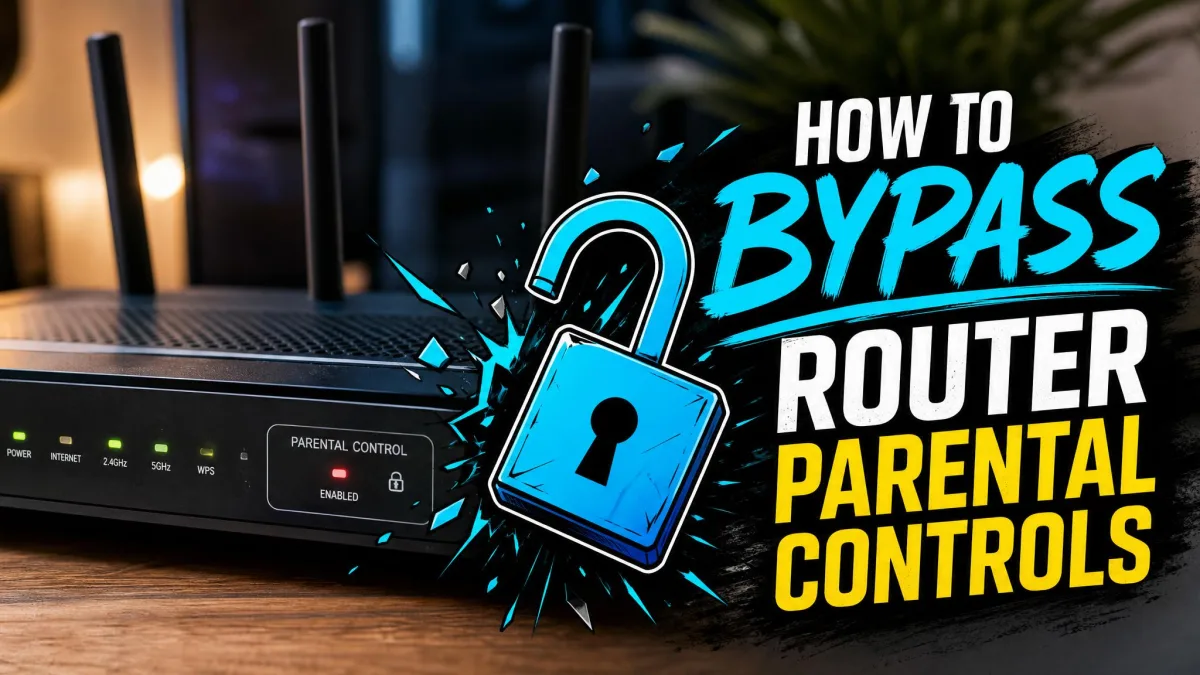
Router parental controls are the most common way families filter the home network. They're also among the easiest to get around, since they block at the network level rather than on each device. If a rule is cutting you off from sites you need, there are usually four main ways around it. You can disable controls in the router's settings, switch your device's DNS server, route traffic through a VPN, or give your device a new MAC address. We'll also cover the risks.
We tested these methods on real home networks running TP-Link, NETGEAR, ASUS, and Linksys routers, with the brand-specific steps following each manufacturer's documentation.
Method 1: Disable Parental Controls Through the Router Admin Panel
The cleanest route is to switch the filters off at the source. If you have the admin password, the router's settings page turns parental controls off in a few clicks. The steps below cover the most popular router brands.
How to Find Your Router's IP Address and Log In
Most routers answer at a default IP you type into a browser. TP-Link commonly uses 192.168.0.1, with 192.168.1.1 as a fallback. NETGEAR answers at routerlogin.net. ASUS and Linksys usually use 192.168.1.1. If nothing loads, check the router's sticker, since the exact address varies by model. Our guide to accessing your router settings covers the login steps for other brands.
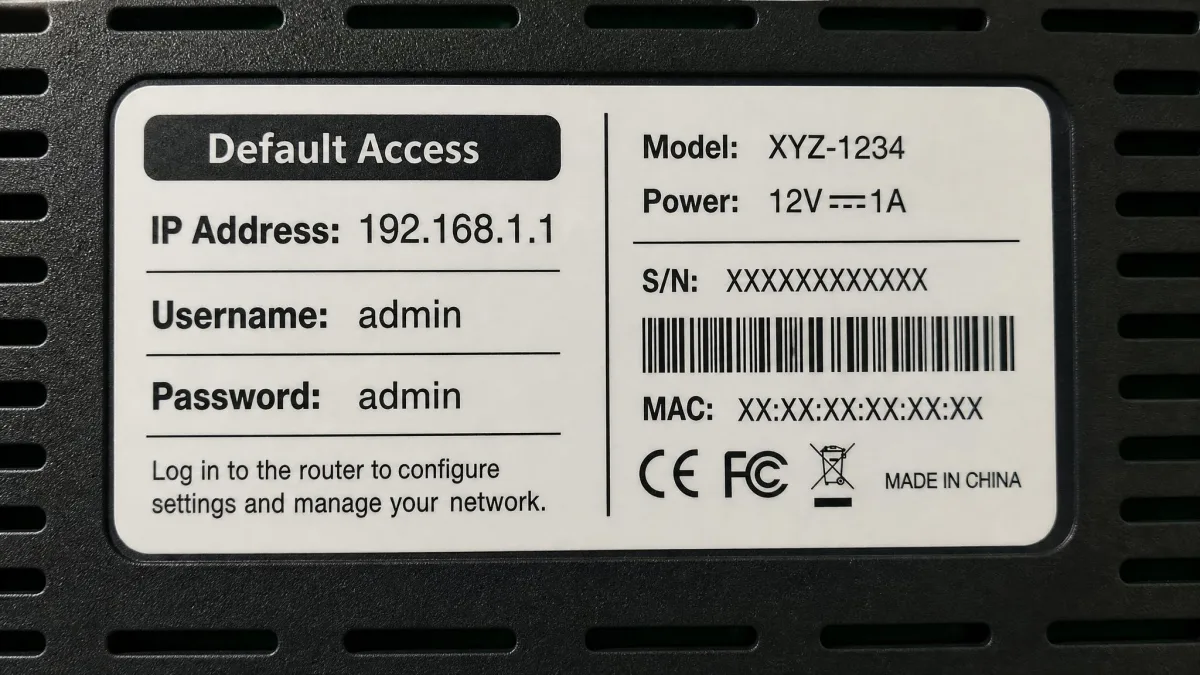
Default credentials vary by brand. Older TP-Link routers use admin/admin, and ASUS has historically used the same pair. NETGEAR's default is admin/password, which is case-sensitive. Newer routers force a custom password on first login. TP-Link's admin access FAQ spells out the options.
Disabling Parental Controls on Popular Routers (TP-Link, NETGEAR, ASUS, Linksys)
The parental-control section usually lives under Advanced or Security. On TP-Link routers, open Advanced and then Parental Controls. You can switch the feature off or remove devices from a profile. The path varies by firmware, so TP-Link parental control settings is the reference to follow.
NETGEAR runs controls through NETGEAR Smart Parental Controls, managed in the app or at routerlogin.net. The free tier pauses the internet for a device or the whole network. Filtering may sit behind the $4.99 premium plan.
ASUS keeps the tools in the ASUS Router App parental controls. Open the app and delete per-device profiles or turn off filtering.
Linksys routes you through the web interface. Log in, open Parental Controls, and slide the enable toggle off. The Linksys Parental Controls (Velop) page covers per-device blocking.
For phones and tablets, our guide to delete parental controls on any device covers the device-level options.
If you don't know the admin password, you're not stuck. Factory resetting the router restores the defaults, and we cover the trade-offs in Method 5.
Method 2: Bypass Router Filters With a VPN
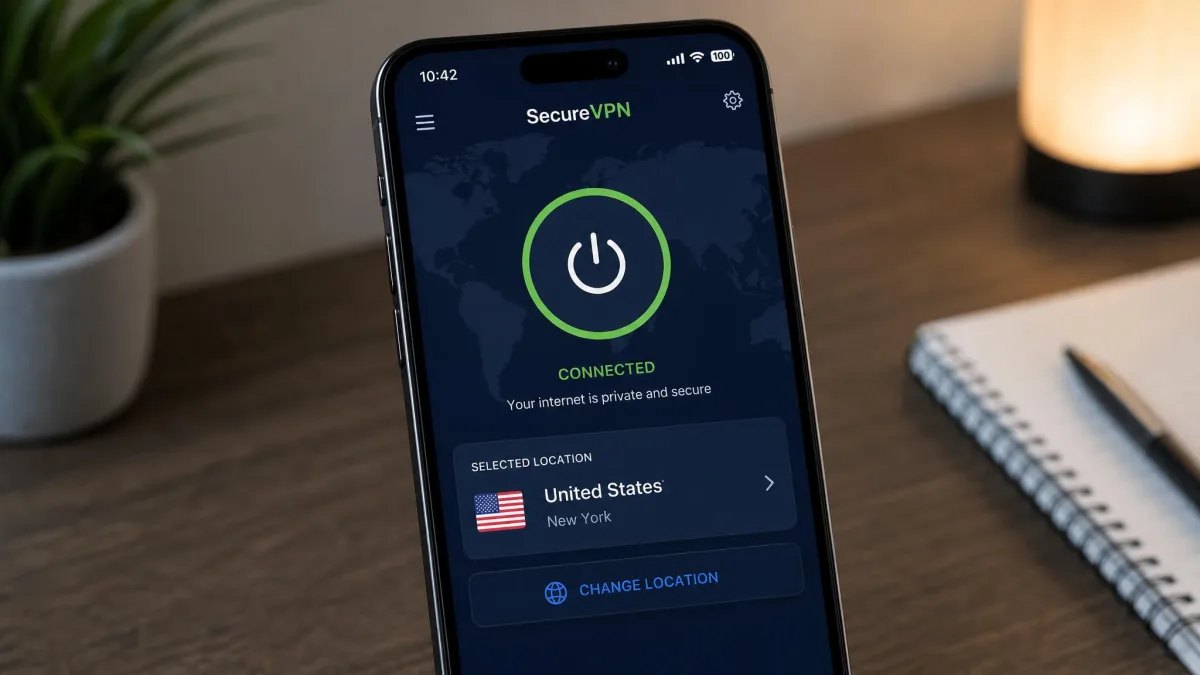
A VPN clears most router filters, and it's the method kids tend to discover first. If you're new to them, here's how to use a VPN on any device.
Why a VPN Gets Around DNS and URL Filters
A VPN sends your traffic through an encrypted tunnel to a server you choose. The router can no longer see which sites you're asking for. It only sees data flowing to one server, so filtering rules have nothing left to match.
In a TP-Link Deco household we tested, the WiFi pause for a profile did nothing while a free VPN app ran. Only blocking the device outright cut the connection.
How to Choose the Right VPN for Bypassing Parental Controls
Not every VPN clears a strict filter. Look for a kill switch, obfuscated servers for deep packet inspection, and an app on the device you actually use, since a phone VPN beats a router config.
VPN vs. Proxy: Which Works Best for Bypassing Router Blocks?
Free web proxies look like a shortcut, but most forward your requests without encrypting them. The router still reads the destination and applies the same blocks. A VPN hides both the IP and the DNS traffic, so it clears filters a proxy can't.
Test a VPN on the blocked device before you change any router settings. If the site loads, the filter was network-level, and the workaround is holding.
Method 3: Change Your Device's DNS Settings
If the router's filter is DNS-based, you can often get around it without touching the router. Just point your device at a different DNS server.
Parental-control filters often hand every device a filtered DNS server. Change the DNS on the device itself, and those queries go somewhere the filter can't see.
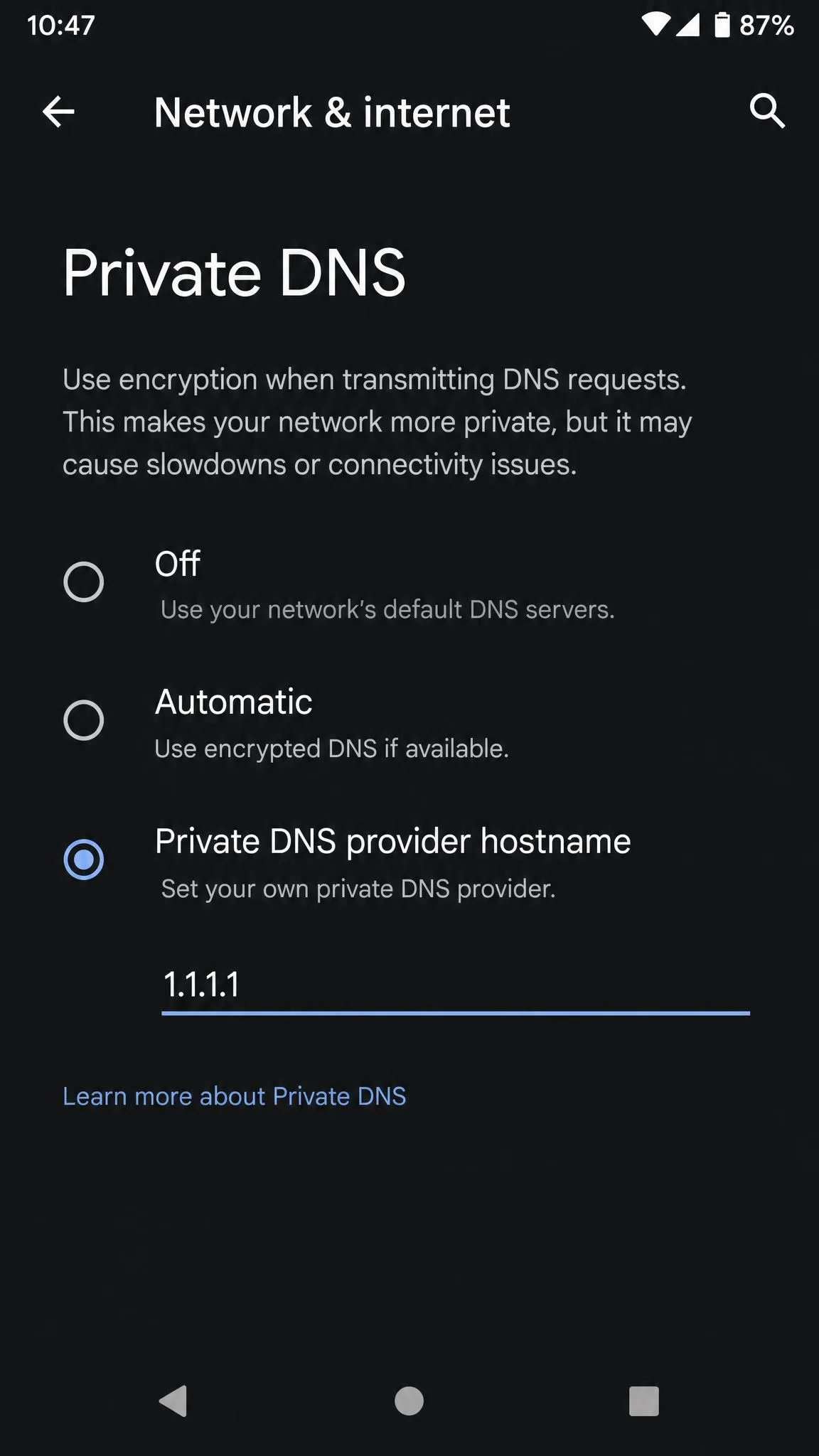
The unfiltered Cloudflare 1.1.1.1 resolver answers at 1.1.1.1 and 1.0.0.1. Google Public DNS at 8.8.8.8 and 8.8.4.4 works the same way. On Android, set a custom Private DNS. On iPhone, set Configure DNS to Manual.
Run a quick test first. If a site loads on mobile data but fails on home Wi-Fi with a "blocked by policy" page, the router's filter is the blocker. If switching DNS clears the page, the filter was DNS-based. If not, you'll want the VPN or admin-panel route.
Want to keep some filtering? OpenDNS FamilyShield blocks adult content at 208.67.222.123 and 208.67.220.123.

Method 4: Spoof a New MAC Address to Escape Device Blocking
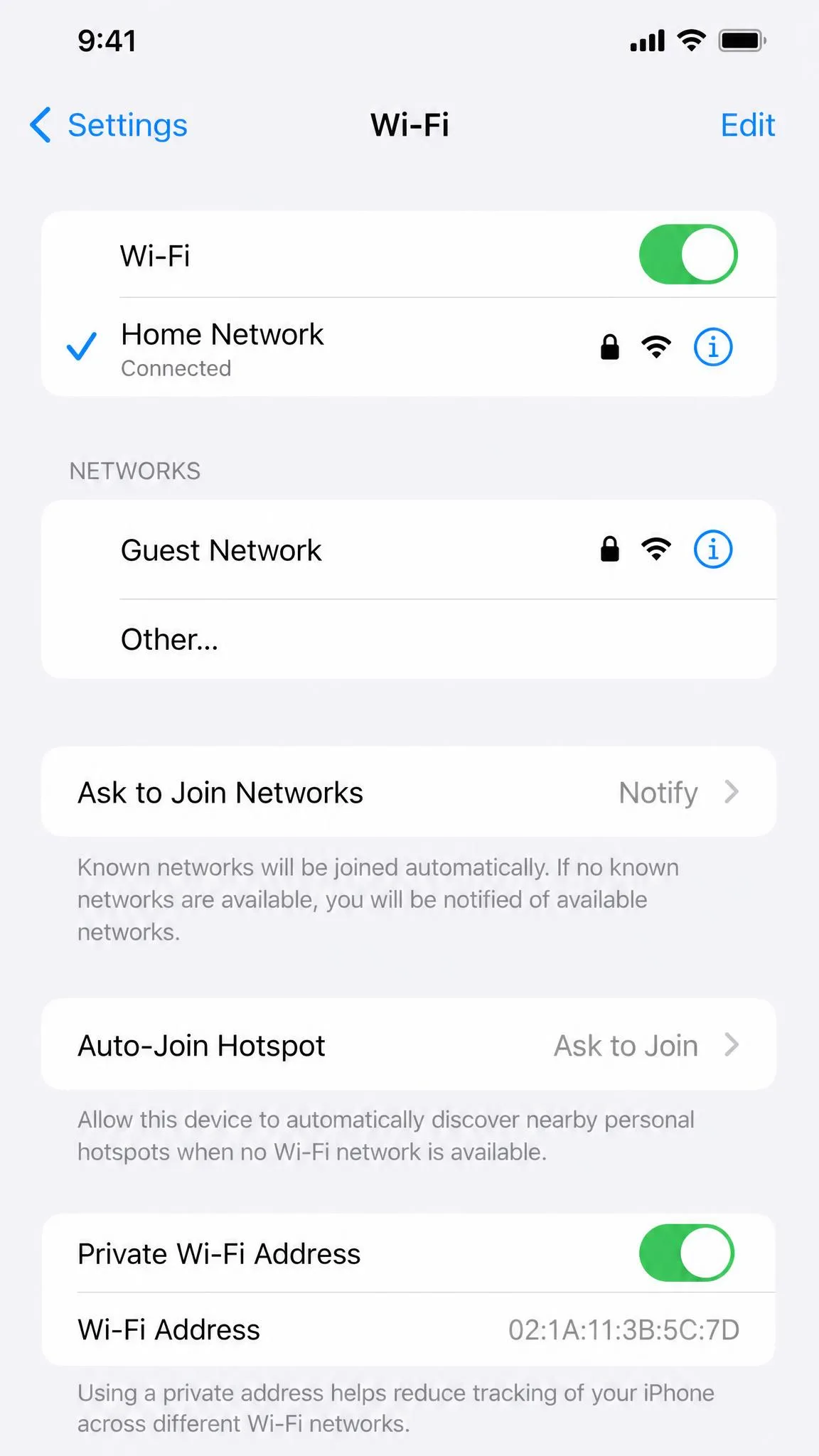
Router profiles, schedules, and pauses are keyed to a device's MAC address, the hardware identifier the router uses to tell devices apart. Change it, and the router treats your device as brand new. A VPN won't do this on its own, as our piece on whether a VPN changes your MAC address explains.
Modern phones make this easy. iOS offers a Private Wi-Fi Address that changes the MAC the router sees. Android can use a random MAC per network. When a device rejoins with a fresh address, it lands outside every profile and schedule.
We've seen NETGEAR households lose this fight. A teenager spoofed a fresh MAC and impersonated an always-connected device like an IP camera. Smart Parental Controls had no way to stop it, since MAC filtering is unavailable while the feature is on.
eero applies an unassigned profile to unassigned devices, so a fresh MAC still gets filtering. TP-Link notes that controls won't apply until a device's Private MAC Address is off.
Method 5: Other Bypass Workarounds (Factory Reset, Mobile Data, Portable Browsers, Web Proxies)
When the router is fully locked down, these workarounds still get traffic moving. None need the admin password.
- Mobile data or a hotspot. Router filters only cover the home network.
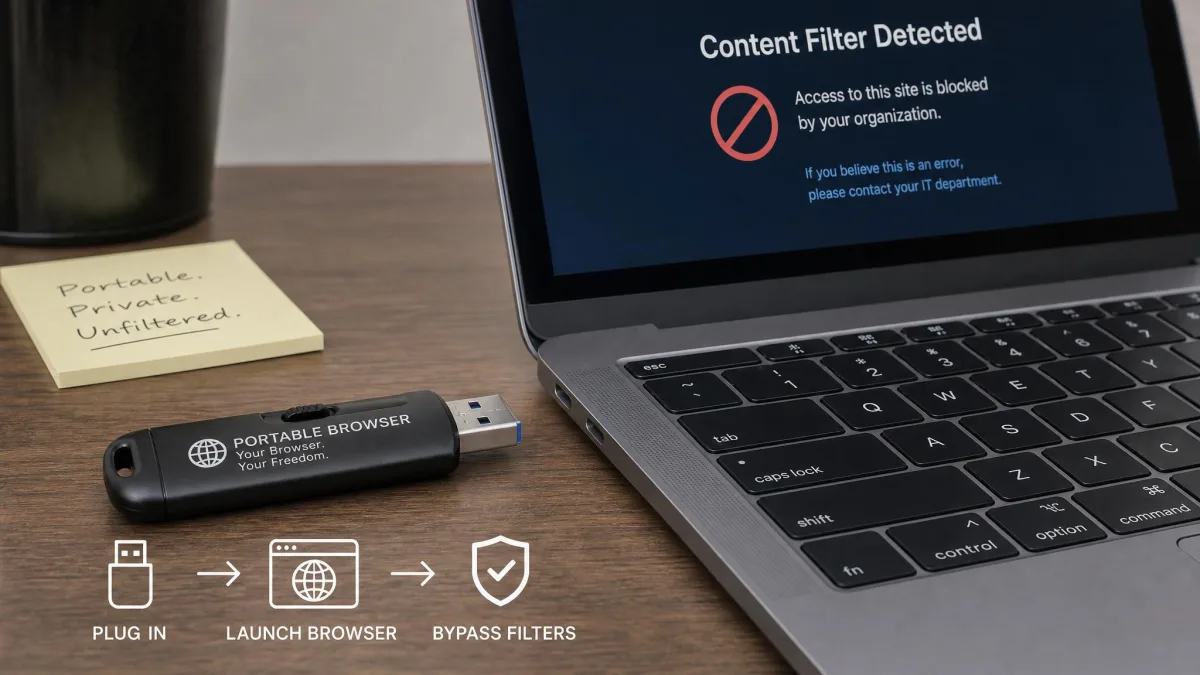
- A portable browser like Tor Browser on a USB stick. It routes around content filters without installing anything.
- Free web proxies and in-app browsers. Quick but weak, and many sites break.
- A factory reset of the router. The nuclear option, covered below.
Factory resetting the router needs care. Holding the reset button for about 15 seconds wipes the admin password, filter rules, and every custom setting. On NETGEAR routers that's the documented recovery path, and NETGEAR's reset guide walks through it.
Two warnings before you reset. A reset is obvious to anyone who checks, because every family setting disappears. And resetting a phone does nothing for router-level controls, since those live on the router, not the device.
What Router Parental Controls Are and How They Work
Router parental controls are filters that live on the network device, so they apply to every connected gadget before any app has a say. That distinction explains why some bypass methods work and others don't.
How Router-Level Controls Differ From Device-Level Controls
Device-level controls like Screen Time and Family Link run on the phone. They enforce limits even on another network. Router-level controls stop at the front door, but they cover every device at once. For the mechanics, our guide to how parental controls work fills in the detail.
Common Router Parental Control Features: URL Filtering, Time Limits, Device Scheduling
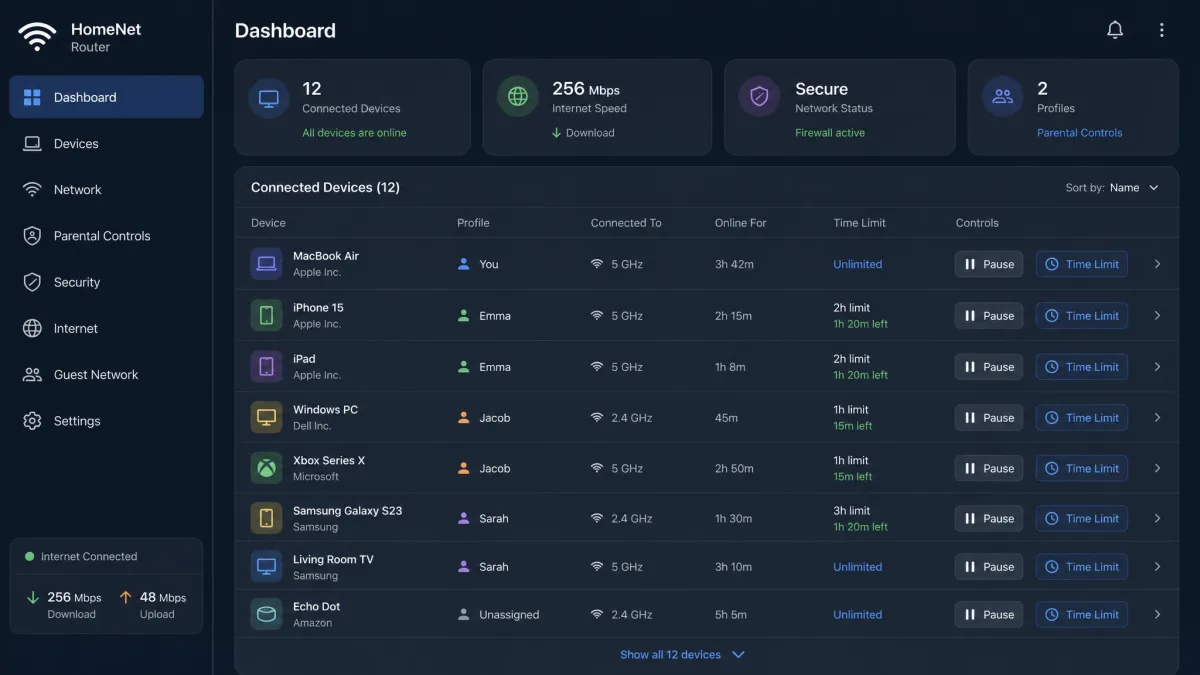
Most router parental controls share a toolbox. URL filtering blocks websites by address or keyword. Time limits cap how long a device can be online. Device scheduling pauses a gadget during set hours. Profiles group devices so one rule covers a household.
The flaws live in the details. Broad keywords like "social" can break logins on legitimate sites. We've seen a NETGEAR router serve "blocked by policy" pages because a keyword rule, a schedule, and a content category were stacked. Returning DNS to Automatic restored the sites.
Which Router Parental Controls a VPN Can't Get Around
A VPN is powerful, but it has hard limits. It can't extend time limits, because the router still enforces when a device may connect. It can't help when a device is blocked from the internet entirely. A leaky VPN can also expose DNS queries to the router. And it can't override device-level controls like Screen Time, which run on the device itself. A VPN also leaves your browsing history on the device, where a parent can still find it.
Childnet's 2025 report found 16% of kids who use a VPN do so to get around parental controls. A 2026 UK government survey of 2,299 children found 26% have used one.
Is It Safe to Bypass Parental Controls? Risks and Things to Consider
Bypassing isn't technically dangerous, but it has real consequences. The biggest is trust. Parents tend to notice when a carefully built filter stops working. Router logs also record connection times and data volume, so a VPN isn't as invisible as it feels.
Security matters too. Free VPNs and random proxies can be sketchy. Some log your traffic, and a few are outright scams. If you use a VPN, pick a provider with a no-logs policy and a kill switch. If you'd rather remove the filter instead, our guide to turn off parental controls on any device covers every platform.
Bypassing parental controls without permission can break family trust and may violate the rules of a school or work network. We're not telling you not to do it. We're telling you to think about what happens after the block comes off.
How to Talk to Your Parents About Router Restrictions
The fastest route past a router block is often a conversation, not a workaround. Parents set filters to feel in control, so acknowledge that. Start with what you're trying to do and why the block gets in the way. Offer a deal, like a time limit you'll respect in exchange for one unlocked site.
Parents relax a rule far more readily than they forgive a bypass. Pew Research found 65% of parents take away phones or internet access as punishment when kids push back. Gabb's guide to how kids get around parental controls is worth a read. If they'll tune rather than remove, our guide to set up parental controls to keep kids safe online shows how.

For Parents: How to Stop Kids From Bypassing Router Parental Controls
If you're on the parent side, most bypasses are preventable. The bad news is they take work, because kids keep finding new angles. If you're shopping for stronger hardware, see our picks for the best parental control routers.
A solid start to prevention is removing MAC-spoofing apps, turning off MAC randomization, and using an admin account the child doesn't control. Even then, a motivated kid can re-enable randomization, so treat that step as a speed bump.
The strongest MAC-level countermeasure is a whitelist. If the router only accepts approved MAC addresses, a spoofed newcomer can't join. That's heavy-handed for most families, but it works. On NETGEAR, our walkthrough on how to set parental controls on a Netgear router shows where those options live.
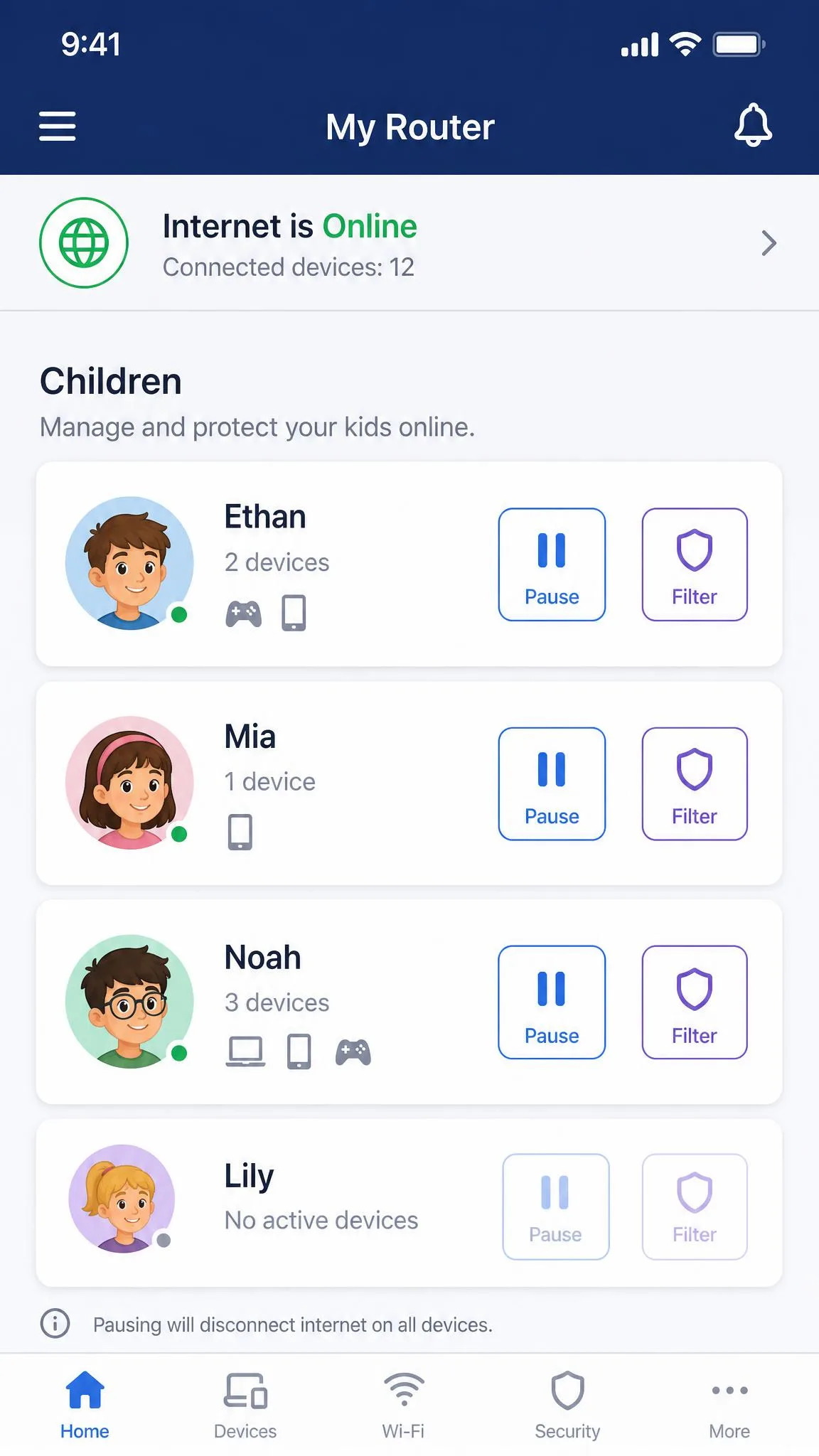
Router controls also have blind spots. Kids sidestep phone-level restrictions with consoles and in-app browsers. Device-level controls like Screen Time close the mobile-data and VPN gaps, because they enforce on the device. If you need to cut a device off, our walkthrough on block a device from your WiFi router shows the router-side way.
Frequently Asked Questions
Can My Parents See What I Do Online if I Use a VPN?
A VPN hides the sites you visit from the router, but it doesn't make you invisible. Parents can still see that your device is connected and roughly how much data it uses. The router's admin log records connection events even while a VPN is on. Our guide to what parents can see on parental controls walks through the detail.
How Do I Bypass Parental Controls Without a Password?
If the admin password is a mystery, the admin-panel route is closed. Your options are the network-side methods in this guide: a VPN, a DNS change, or MAC spoofing. All three work without touching the router's settings. A factory reset restores default credentials, but it also wipes every rule and profile.
Can a Factory Reset Remove Router Parental Controls?
Yes for controls stored on the router, no for controls on the device. A factory reset clears filter rules, schedules, and the admin password. Controls that live on the phone, like Screen Time, survive a router reset untouched.
How to Bypass Parental Controls on Android, iPhone, and Nintendo Switch
Android phones can set a custom Private DNS like 1.1.1.1. iPhones can enable a Private Wi-Fi Address or run a VPN app. The Nintendo Switch has no native VPN client. The console's network settings expose only IP, DNS, proxy, and MTU fields with no VPN option at all, so its bypasses have to be router-side changes or MAC methods. Our setup guide for parental controls on Android mirrors the settings screen.
Can my parents see what I do online with a VPN?
How do I bypass parental controls without a password?
Can a factory reset remove router parental controls?
Can I use a VPN on my Nintendo Switch at all?
Can I use a VPN to bypass Screen Time?
Why is my router still blocking sites after I disabled controls?
The Bottom Line
Router parental controls are filters, and filters can be worked around. The real cost is rarely technical; it's the trust you spend to get around them. When you have the admin password, the router's own settings page is the cleanest off switch. When you don't, every workaround in this guide carries a limit worth knowing. Decide whether any of them beats a conversation about why the filter exists.