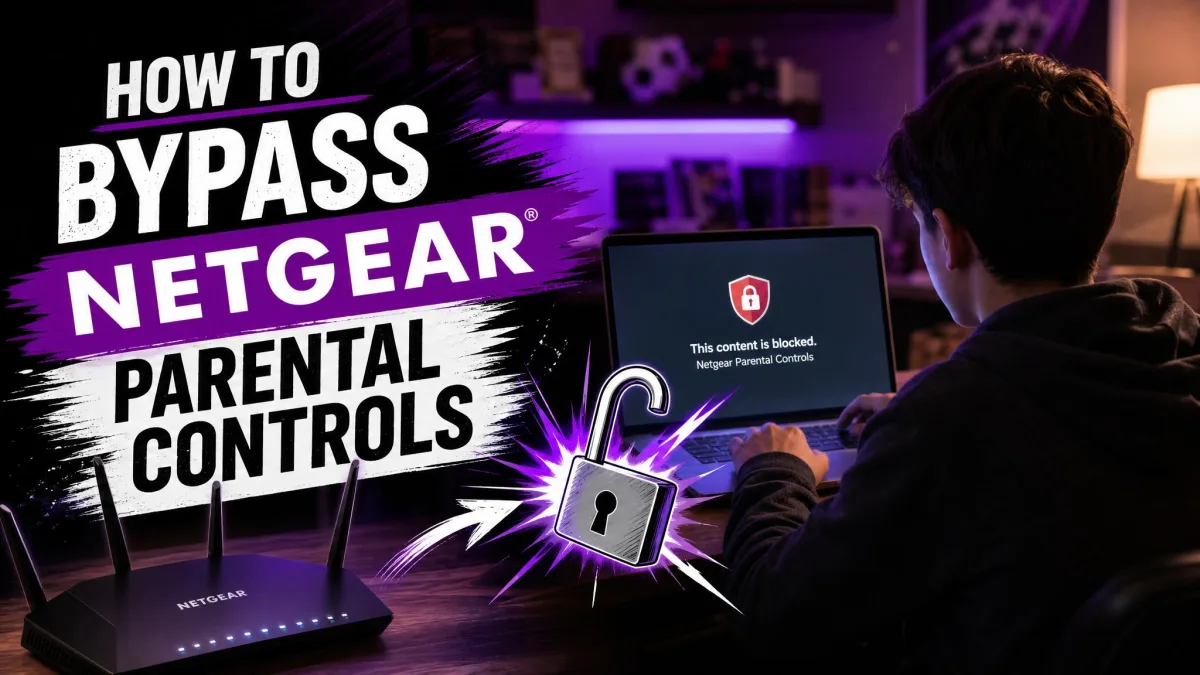
If your Netgear router's parental controls are blocking a device you manage, or you're locked out of the admin password, the fix depends on how the controls were set up. NETGEAR runs two separate filtering systems, and the workaround that defeats one often leaves the other untouched.
We've tested these methods against current firmware so we can tell you which ones work and which are dead ends.
A Quick Note Before You Start
Before you try anything, work out which system your router runs. Smart Parental Controls is the current, app-based system; Live Parental Controls is the legacy, OpenDNS-powered one.
Getting around parental controls usually breaks the router's terms of service, and on a device you don't own it can cross into unauthorized access. Nothing replaces talking to the person who set the controls up.
Is This Legal?
Bypassing parental controls is not a crime by itself, and NETGEAR treats it as a terms-of-service matter. On a device you don't own, circumventing the software can be treated as unauthorized access; if you're a child, talk to the parent first.
How Netgear Parental Controls Work (Genie, Smart Parental Controls, OpenDNS)
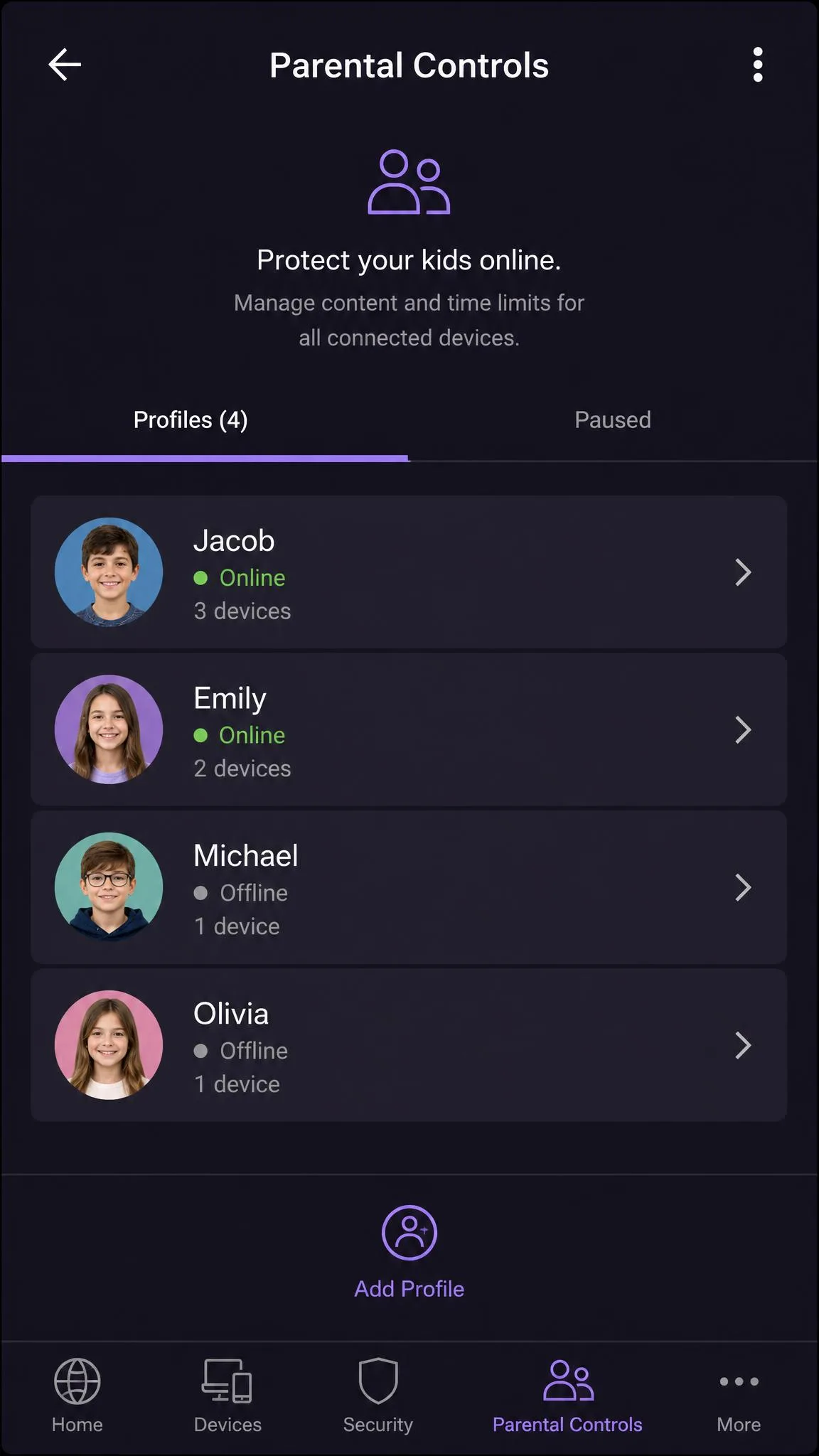
The current system is managed from the Parental Controls tile in the NETGEAR Nighthawk app or the NETGEAR Orbi app. The free tier pauses the internet across devices; Premium adds tracking, filtering, and time limits at $7.99 per month or $69.99 per year, with a 30-day free trial. Support varies by model and firmware.
The legacy system, NETGEAR Live Parental Controls, is free and powered by OpenDNS, configured with the Netgear Genie app at netgear.opendns.com. Both filter at the router, so a bypass on one device is invisible to the rest of the network.
Method 1: Use a VPN
The most reliable workaround is a VPN. NETGEAR's filtering inspects DNS requests and URLs, not the inside of an encrypted tunnel, so a VPN app on any device slips straight past the router.
- 1. Install a VPN app on the device.
- 2. Open the app and sign in.
- 3. Tap Connect and pick a server.
- 4. Load the blocked site in your browser.
Proton VPN's free tier is enough to test this on one device.
Method 2: Use a Proxy or Unblocking Site
A proxy or unblocking site fetches a page for you in a relay window, so the router only ever sees the proxy. Free proxy apps such as Hotspot Shield carry kids past NETGEAR's blocks in practice.
- 1. Open a web browser.
- 2. Go to a proxy or unblocking site.
- 3. Type the blocked URL into the proxy's address box.
- 4. Browse the site from inside the proxy page.
Free proxies are slow and ad-heavy, and many sites block known proxy traffic. Use this for a quick read.
Method 3: Factory Reset the Netgear Router
The nuclear option, and the one that needs no passwords. A factory reset deletes every personalized setting, including the admin login, the Wi-Fi name, and every parental-control profile.
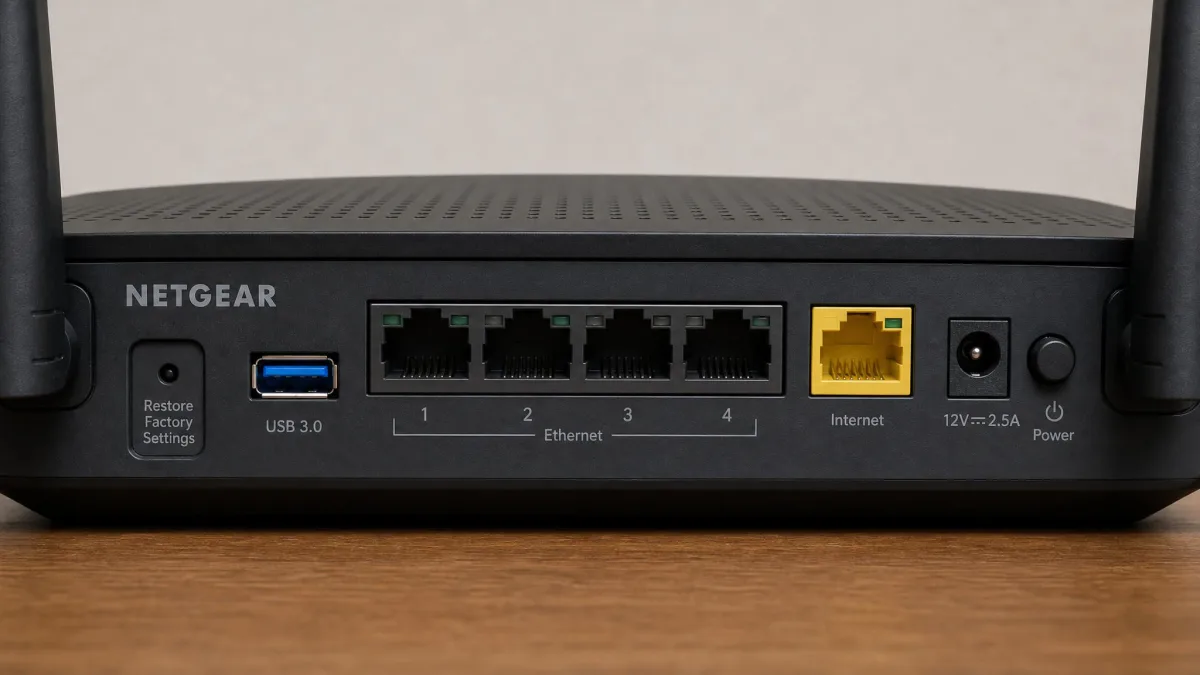
- 1. Find the Restore Factory Settings button on the back of the router.
- 2. Press and hold it with a paper clip for 7 seconds.
- 3. Release and wait for the router to reboot.
- 4. Log in at routerlogin.net with the default admin/password login.
After the reset, Smart Parental Controls and Netgear Armor must be reactivated through the app. If only the admin password is lost, NETGEAR's password-recovery flow at routerlogin.net can restore it without a reset.
A reset also wipes the Wi-Fi name, the Wi-Fi password, and every security setting. Every device has to rejoin, and the router is set up again from scratch.
Method 4: Factory Reset the Device (iPhone/iPad or Android)
If the restrictions live on the device, resetting the router changes nothing. Device-level controls such as Screen Time and Family Link are tied to the device and its parent account; wiping the device removes both.
- 1. On iPhone or iPad, go to Settings > General > Transfer or Reset.
- 2. Tap Erase All Content and Settings. Apple's factory-reset instructions walk through the flow.
- 3. On Android, go to Settings > System > Reset options.
- 4. Tap Erase all data (factory reset).
- 5. Set the device up as new, or restore a backup made before the controls were added.
A reset deletes photos, messages, and every account, so back up first.
Method 5: Change DNS Settings to Defeat OpenDNS Filtering
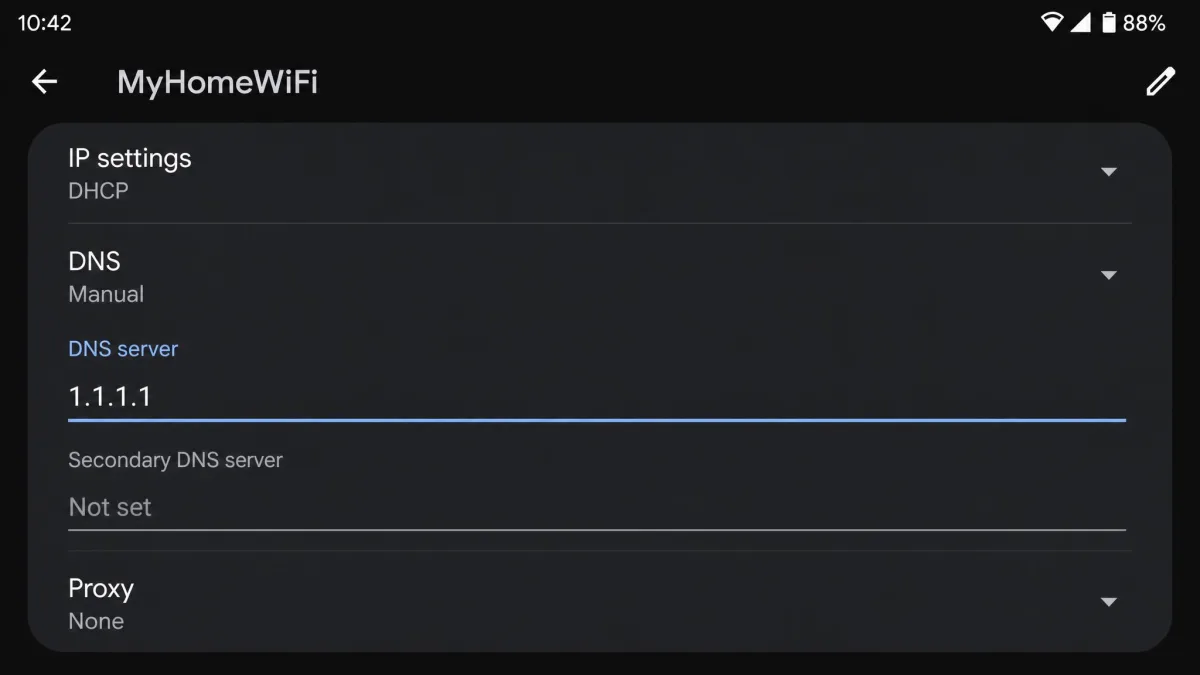
NETGEAR's Live Parental Controls filters by DNS, so a device that asks a different server stops obeying the router's block list. Pointing a device at a public resolver such as Cloudflare 1.1.1.1 or Google 8.8.8.8 bypasses the filtering for that device.
- 1. Open the Wi-Fi settings for the current network.
- 2. Edit the connection and switch DNS to manual.
- 3. Enter 1.1.1.1 or 8.8.8.8 as the DNS server.
- 4. Save, disconnect, and reconnect.
On some routers, Smart Parental Controls grays out the router's manual DNS fields; device-level DNS changes usually still work.
Clear the cached lookups after switching DNS. On Windows, type ipconfig /flushdns. On a phone, toggle airplane mode on and off.
Method 6: Use a Netgear Bypass Account
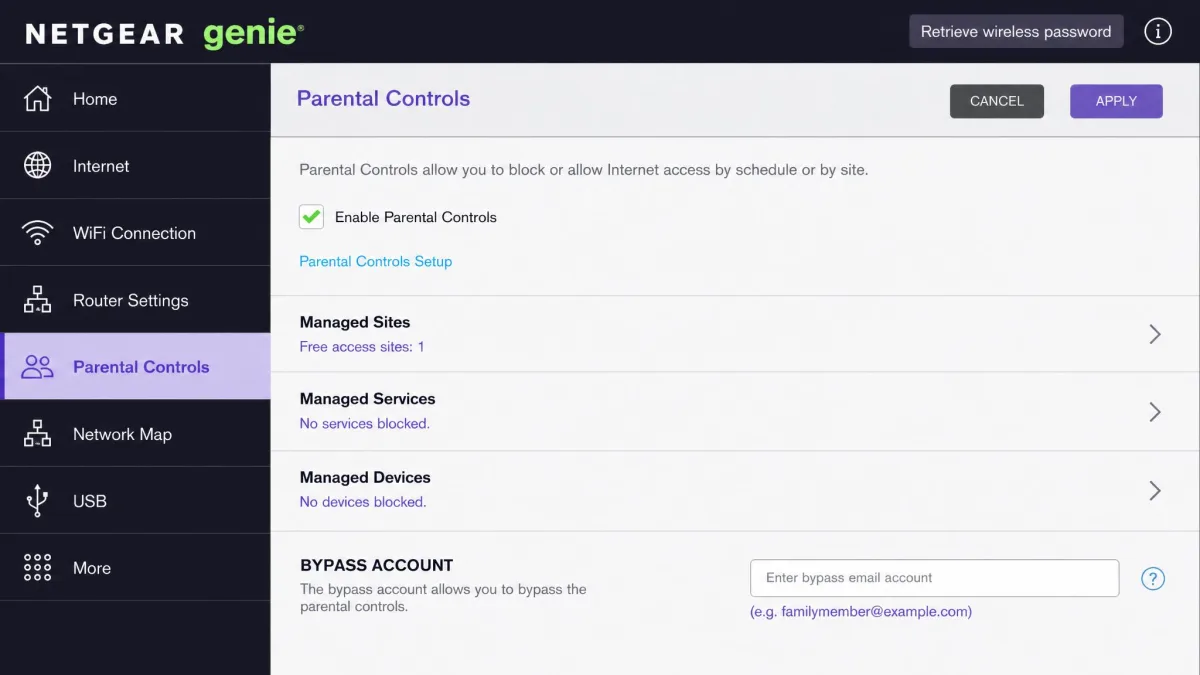
The legacy Genie system includes an official-looking way to exempt a device: a bypass account. It lets a parent lift filtering on one device, and it works the same way for anyone who can reach the account.
- 1. Open the Netgear Genie app on Windows, macOS, Android, or iOS.
- 2. Go to Parental Controls, then Advanced Settings.
- 3. Open the NETGEAR parental controls portal and sign in with the OpenDNS account.
- 4. Add a Bypass Account and set a username and password.
- 5. Choose the filtering level, and add a time block if you want one (a 15-minute minimum).
- 6. Back in Genie, open the BYPASS ACCOUNT field, select the account, enter the password, and log in.
Bypass accounts only work on devices that can run the Genie software. And Genie sometimes fails to sign in to the OpenDNS account after a firmware update; reinstalling it clears the failure.
Method 7: Use an Alternate Browser or Private Browsing
An honest caveat: this does not defeat NETGEAR's router-level filtering. Every browser resolves DNS the same way, so incognito and alternate browsers change nothing at the network level; it only helps when the block lives inside a browser or a device-level app.
- 1. Install a different browser, such as Firefox or Brave.
- 2. Open it and load the blocked site.
- 3. If the block came from the previous browser, the alternate browser slips past it.
Method 8: Use Google Translate to Reach Blocked Sites
The oldest trick here, and one that still works for simple pages. Google Translate shows a page inside a translation frame that loads from Google's servers, so the router sees Google rather than the blocked domain.
- 1. Open Google Translate.
- 2. Paste the blocked URL into the translation box.
- 3. Leave the language pair on automatic.
- 4. Tap the link in the translation to open the site in the frame.
The frame breaks modern JavaScript-heavy sites in practice, so this suits simple articles.
Method 9: Create a New User Account on a Shared Device
If the controls are attached to one user profile on a shared device, a second local account sidesteps them. This works on Windows and macOS computers and some tablets where controls are account-based.
- 1. Open the user account settings.
- 2. Add a new local account not linked to the parent-managed profile.
- 3. Sign in to the new account and test the blocked site.
The router still filters the new account, so pair this with a VPN.
Method 10: Change the System Time to Escape Time-Based Blocks
The clock trick is one of the most searched and most misunderstood methods here. It defeats time limits on older phones and tablets where the schedule is enforced on the device, but not NETGEAR's own schedules, which the router tracks itself.
- 1. Open the date and time settings.
- 2. Turn off automatic time.
- 3. Set the clock past the blocked window.
- 4. Test whether the restricted site or app unlocks.
Against a Netgear bedtime or internet break, this changes nothing; use it only where the limit is device-level.
How Parents Can Prevent These Bypasses (and Spot a Child Doing It)
In our testing, the news for parents is blunt: the router cannot reliably stop device-level bypasses. Blocking the VPNs and Proxies category does not stop a VPN. The router's VPN service setting only governs clients of its built-in VPN server, not a commercial VPN app. A MAC-address change also defeats per-device blocks.
The stronger lock is device-level. Screen Time and Family Link can require a parent password before an app installs, which stops a VPN app from appearing. See our guide to setting up parental controls on iPhone or Android.
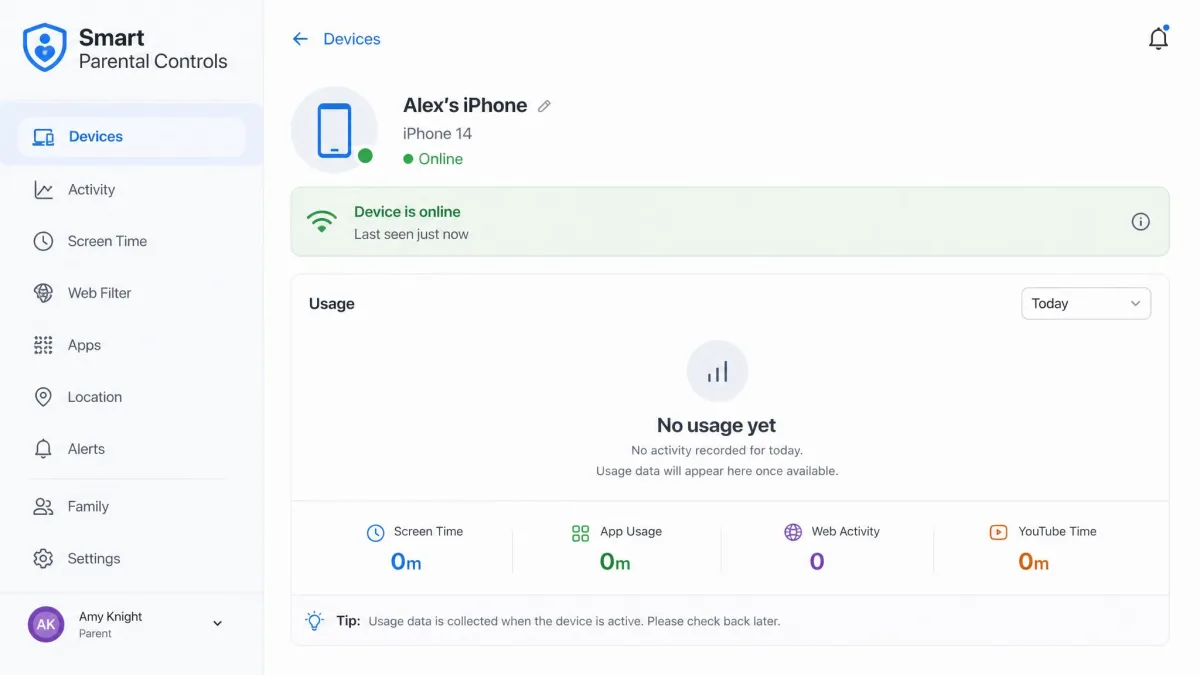
Two tells give a bypass away: a profile with no usage data, and a device that shows as blocked but still reaches the internet. Check the device list in the app regularly and keep the admin passwords private. If you want a router that filters more, see our best parental control routers.
Frequently Asked Questions
Is it legal to bypass parental controls?
Will a factory reset remove Netgear parental controls?
Do VPNs really get around Netgear filtering?
How do I turn off parental controls without a password?
How do parents block VPN and proxy bypasses?
Does a Netgear bypass account work on any device?
The Bottom Line
The honest bottom line: router-level parental controls from Netgear are a first line of defense, not a lock. A VPN app defeats the filtering on any device, no NETGEAR setting reliably stops it, and the app cannot even show a parent what got through. If you're a parent, the enforcement that holds is device-level: a parent password on app installs and regular device-list checks.
If you're a child or student, every method here is either visible, against the terms, or both. The clock trick won't beat a router schedule, the alternate browser won't beat DNS, and a working VPN leaves an obvious hole in your profile. Our guide to turning off parental controls on any device covers the non-Netgear side.