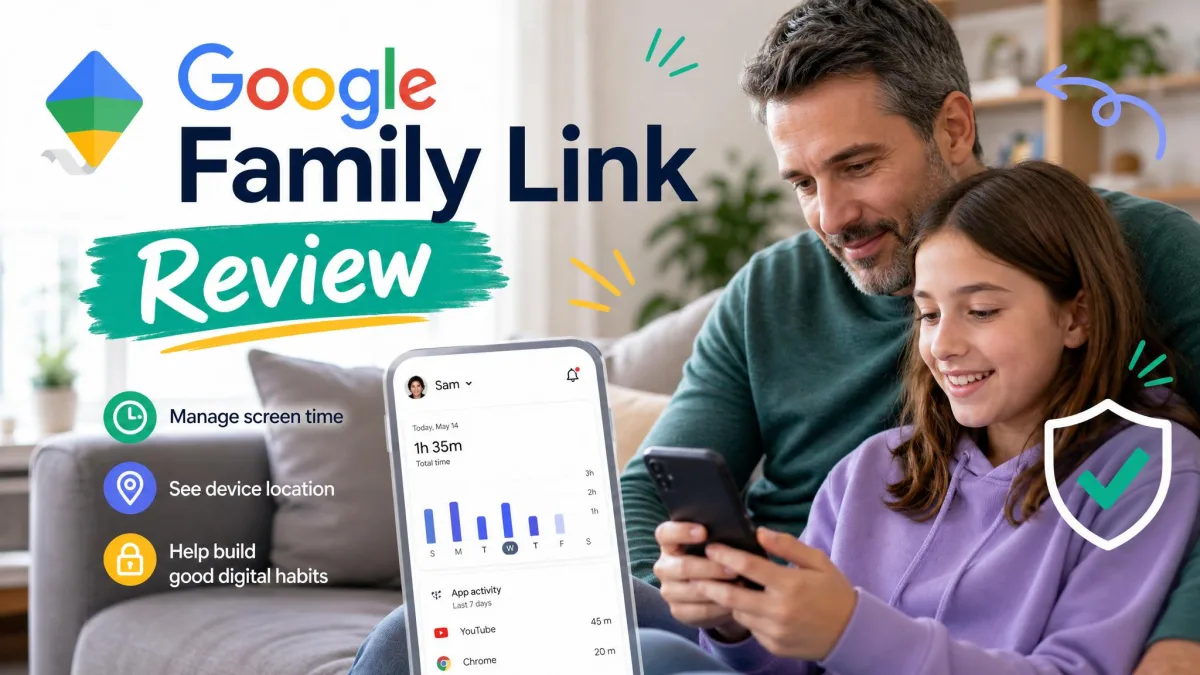
Google Family Link is Google's parental-control app that lets parents set screen-time limits, approve apps, and monitor activity on a child's device. It launched in 2017, has been built into Android since Android 10, and it supervises devices for free.
Here are the six methods we've found actually work to end supervision or get past a restriction, the limits each one hits, and the age rules that decide which route is open. We tell you plainly where each one stops working.
Can You Bypass Family Link Without Parent Knowing? (Short Answer)
Yes, in several ways, but every one of them has limits. A child cannot simply delete the app or reset the phone, because supervision lives on the Google Account. The official route stops supervision once the child reaches the applicable age, and local tricks such as clearing Play Store data and using Secure Folder hold until the controls re-apply. For a child under 13, the official route locks the device and notifies the parent.
What Is Google Family Link and How Does It Work?
Google Family Link is Google's free parental-control service for families with children and teens, and its Google Family Link (Play Store listing) is where most parents download the app. It can set daily screen-time limits and schedules, add per-app time limits, filter content across Chrome, Play, YouTube, and Search, and track location.
The key detail for this guide is where the enforcement lives. Family Link applies many controls locally on the device rather than through Google's servers, and a local change holds until the controls re-apply. The parent app runs on Android 7.0 or newer, or on iOS 16 or newer, and the child device needs Android 7.0 or newer.
Method 1: Stop Supervision the Official Way (When You're Old Enough)
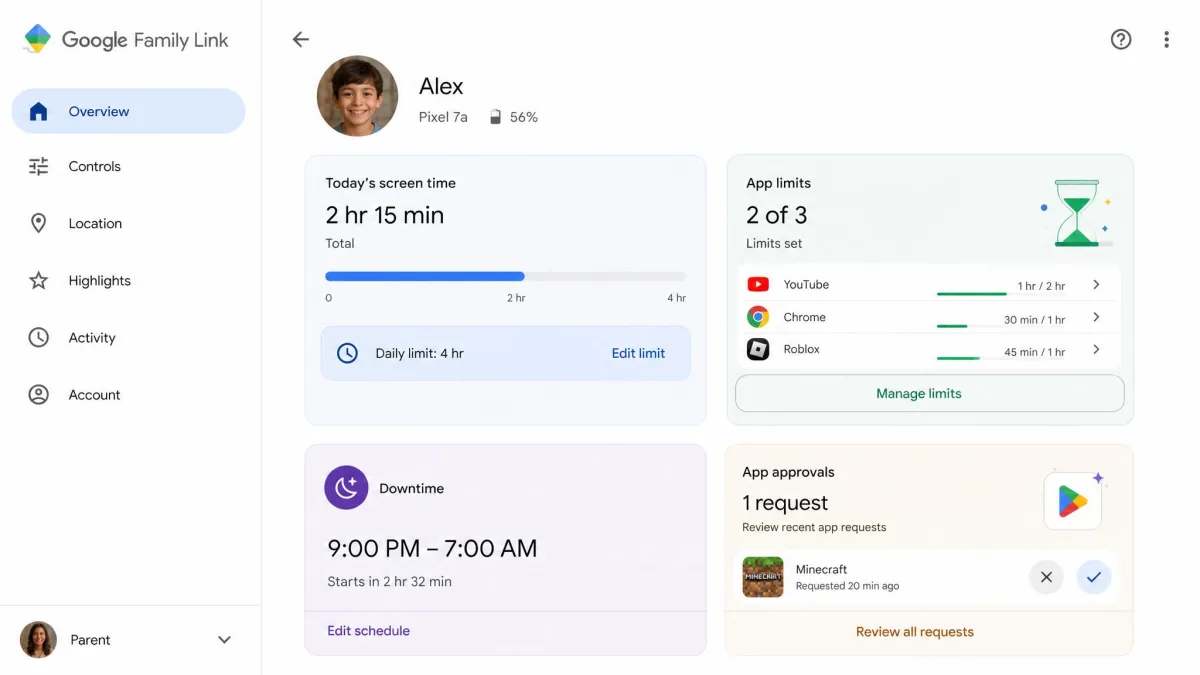
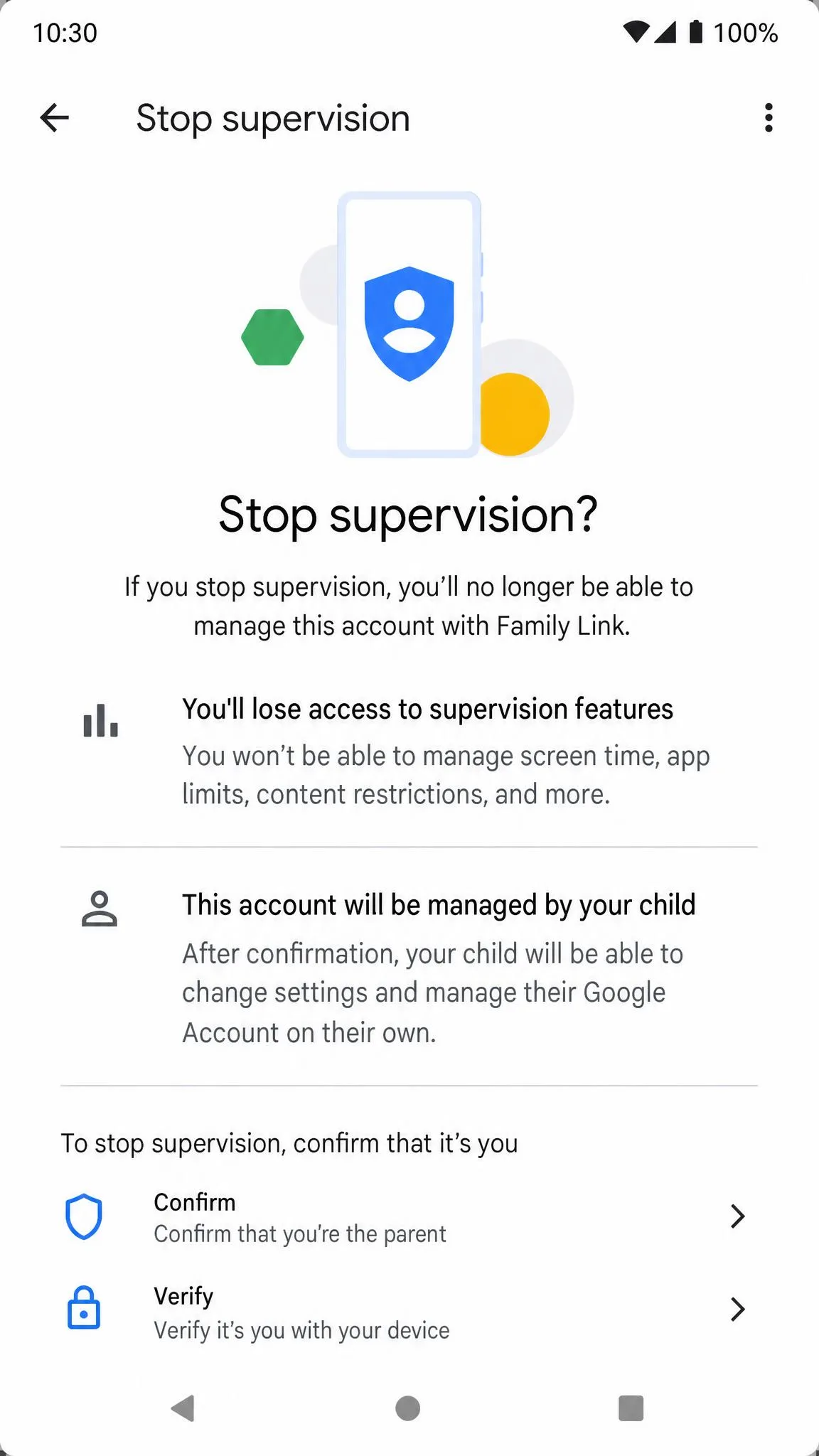
The cleanest way out is the one Google built. A child who has reached the applicable age can stop supervision on their own, and a parent can do it at any time from the parent app. Under 18, the child needs a parent's approval to end it.
From the child's device:
- Open Settings → Digital Wellbeing & parental controls.
- Tap More, then Stop supervision.
- Confirm you are the parent by signing in or entering the Parent Access Code.
From the parent side, open the Family Link app, choose the child, and go to Controls → Account Settings → About supervision → Stop supervision. Google's Family Link Help Center documents the full flow.
When a child who is old enough starts the flow, the device locks for 24 hours and the parent is notified immediately. The parent cannot override the delay, so plan for a day without the phone.
In our research, the flow does not always finish cleanly. One case we tracked had the restrictions linger for roughly three hours before the device cleared.
Family Link Age Rules by Country
A child stops supervision on their own once they reach the minimum age Google uses for managing an account. That is 13 in most countries, including the United States, and 14 in Spain, South Korea, and several others. It rises to 15 in France, Greece, and Denmark, and to 16 in the Netherlands, Germany, Ireland, Poland, and other EU states. Until the child turns 18, stopping without a parent's approval is not part of the official flow, and the child's device must run Android 7.0 or higher.
The applicable age decides which route is open to you. Under the minimum age, the stop-supervision flow locks the device and alerts the parent, so the local workarounds in this guide are the only path that needs no approval.
Method 2: Disable Family Link by Clearing Google Play Data
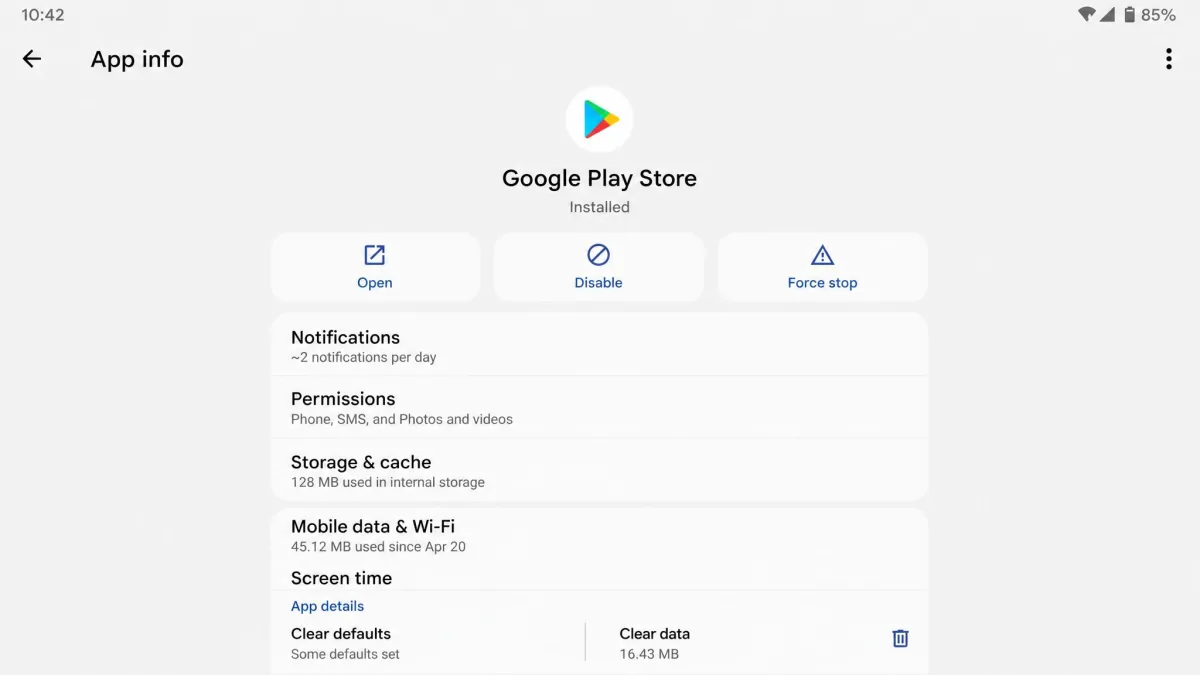
Clearing the Play Store app's data does not end supervision, but it quietly drops the restrictions that gate downloads. It resets the content restrictions and the Play Store PIN, removing the download-approval gate and the age filters. It does not touch screen-time limits, app blocks, or location tracking.
- Open Settings → Apps → See all apps → Google Play Store → Storage → Clear data.
- Reopen the Play Store and sign back in.
In our testing, clearing the data sent no alert to the parent account, which is why this trick is popular with teens. It is reversible, because the parent can restore the filters and set a fresh PIN the same day. Google's Play Store parental controls help describes clearing the app data as the way to reset the PIN.
Method 3: Factory Reset the Device
A factory reset is the method everyone tries first and the one that fails most often. It clears the local phone, but it does not by itself end account supervision, because the supervision lives on the child's Google Account. When the child signs the same account back in during setup, the restrictions follow.
Factory resetting is also not always available while supervision is active. On a supervised phone we tried, the factory reset attempt returned an Action Not Allowed error until we removed the child's account from the device first. On some Xiaomi and Redmi models, the Wipe Data option disappears from recovery entirely.
A factory reset erases everything on the phone, and Factory Reset Protection can lock the device on the next boot by demanding the last Google Account's credentials. Back up first.
What a Factory Reset Does — and Its Limits
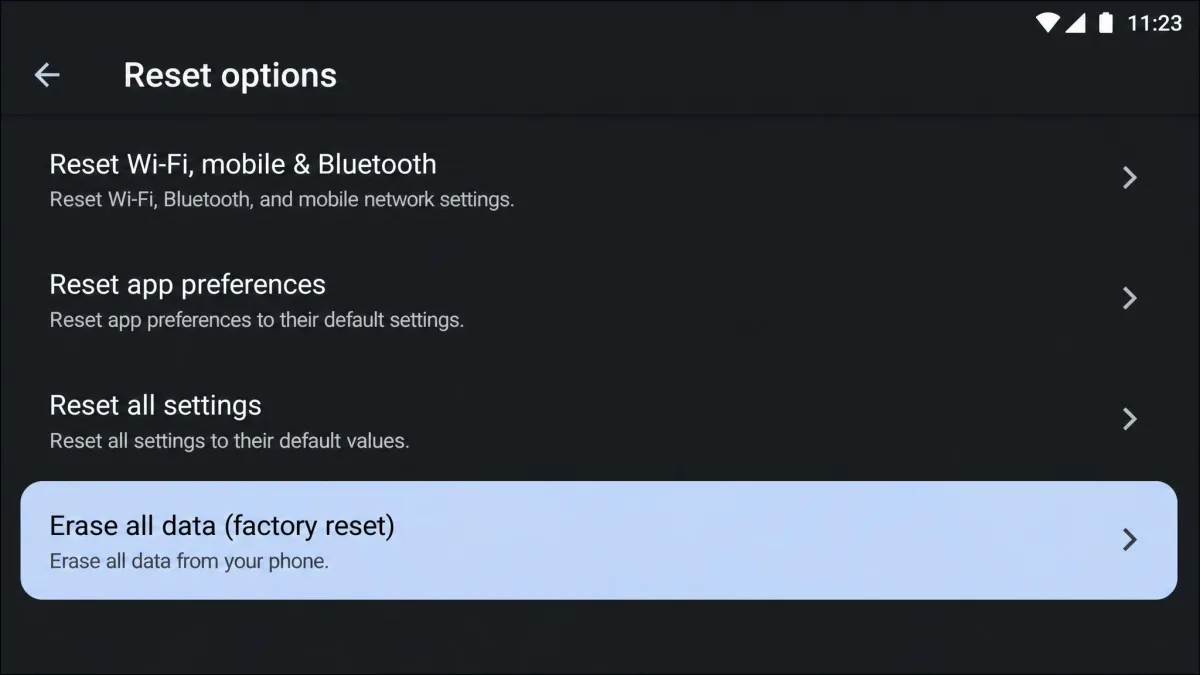
- Back up anything you want to keep.
- Open Settings → System → Reset options → Erase all data (factory reset).
- Complete setup with the original Google Account when asked.
Even when a factory reset succeeds, the child's account stays supervised. Stopping supervision officially first is the only reliable route, because a reset alone will not end it.
Method 4: Use Developer Options and ADB Commands
This is the method you will find on Reddit and GitHub, and it has the widest gap between theory and reality. The idea is to use Android's developer bridge to remove the Family Link package.
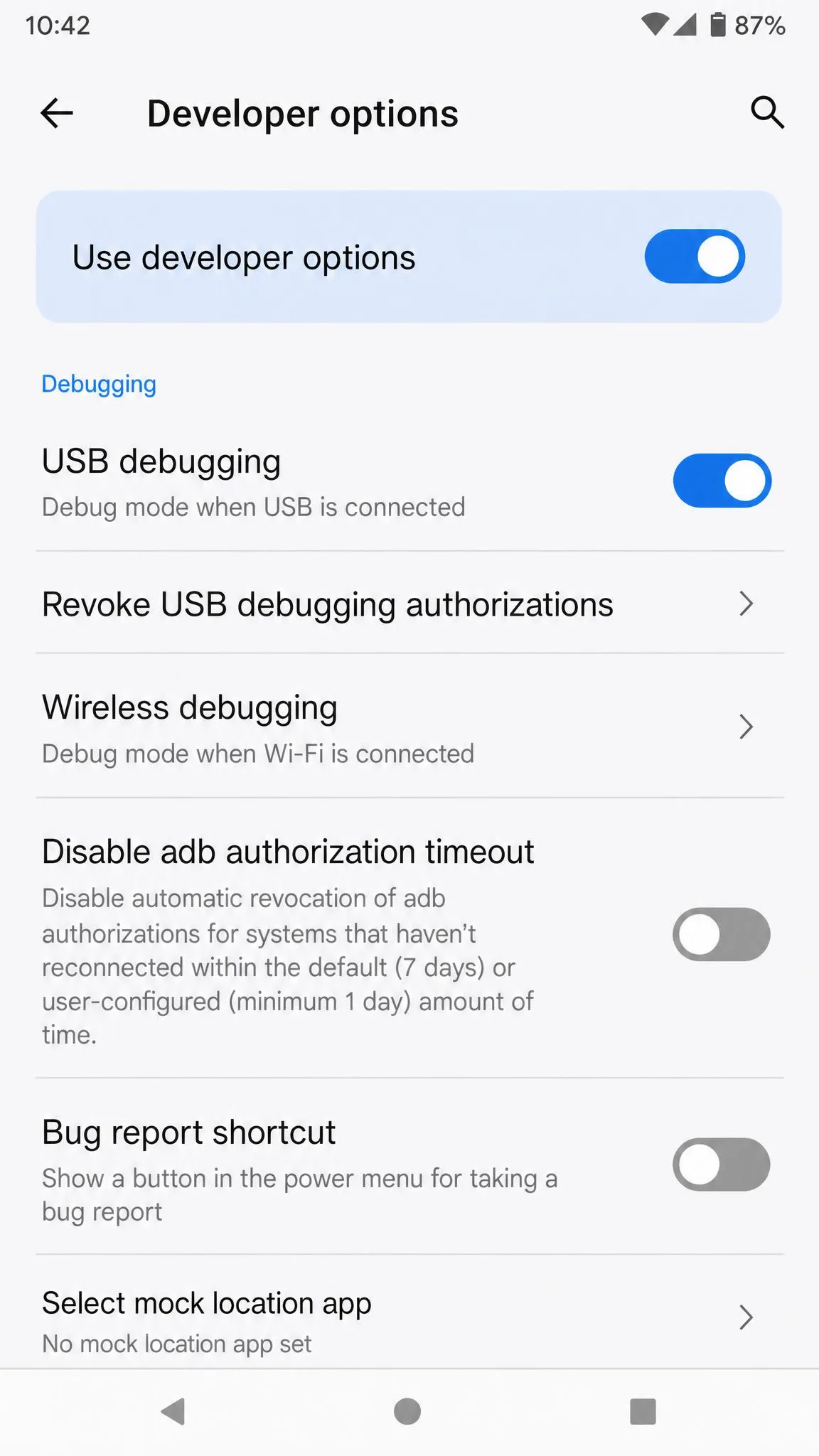
- Open Settings → About phone → tap Build number seven times to unlock Developer Options.
- Open Settings → System → Developer options → switch on USB debugging.
- Connect the phone to a computer, run adb pair with the pairing code, then run pm uninstall -k --user 0 com.google.android.apps.kids.familylink.
- Reboot the device.
On an actively managed device, this method usually fails before it starts. Developer Options and USB debugging are blocked while Family Link is active, and when the ADB uninstall does run, it returns DELETE_FAILED_USER_RESTRICTED. Enforcement lives in the Google Play Services profile owner rather than in the Family Link app, so removing the app does not lift the restrictions anyway.
Treat the ADB route as a last resort. It needs a computer, a USB cable, and developer tools, and on most managed devices it fails. A misstep can leave the account signed in with the restrictions still active.
Method 5: Use Secure Folder or App Cloning
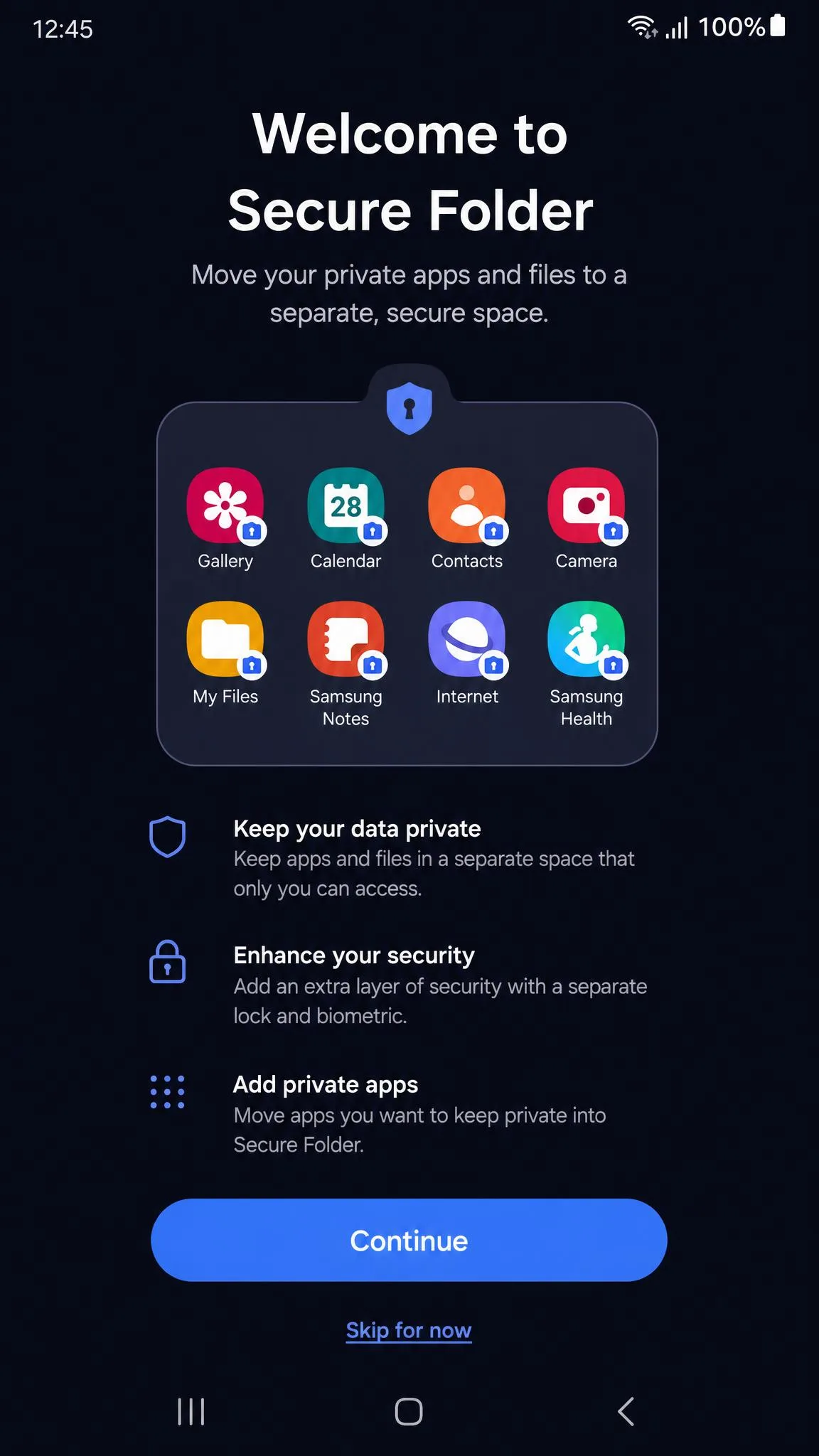
Samsung, OnePlus, and several other manufacturers ship a private-space feature that keeps apps and files in a separate area. On Samsung it is Secure Folder, on OnePlus it is Private Safe, and the general term is Dual Apps or app cloning. Because these spaces sit outside the main profile, apps moved into them run outside Family Link's reach.
In our testing, an app moved into Secure Folder ran without any matching activity in the parent app. The catch is that the workaround is local, and the controls re-apply after a reboot or a re-synced phone.
Method 6: Bypass Family Link on iPhone or iPad (iOS Methods)
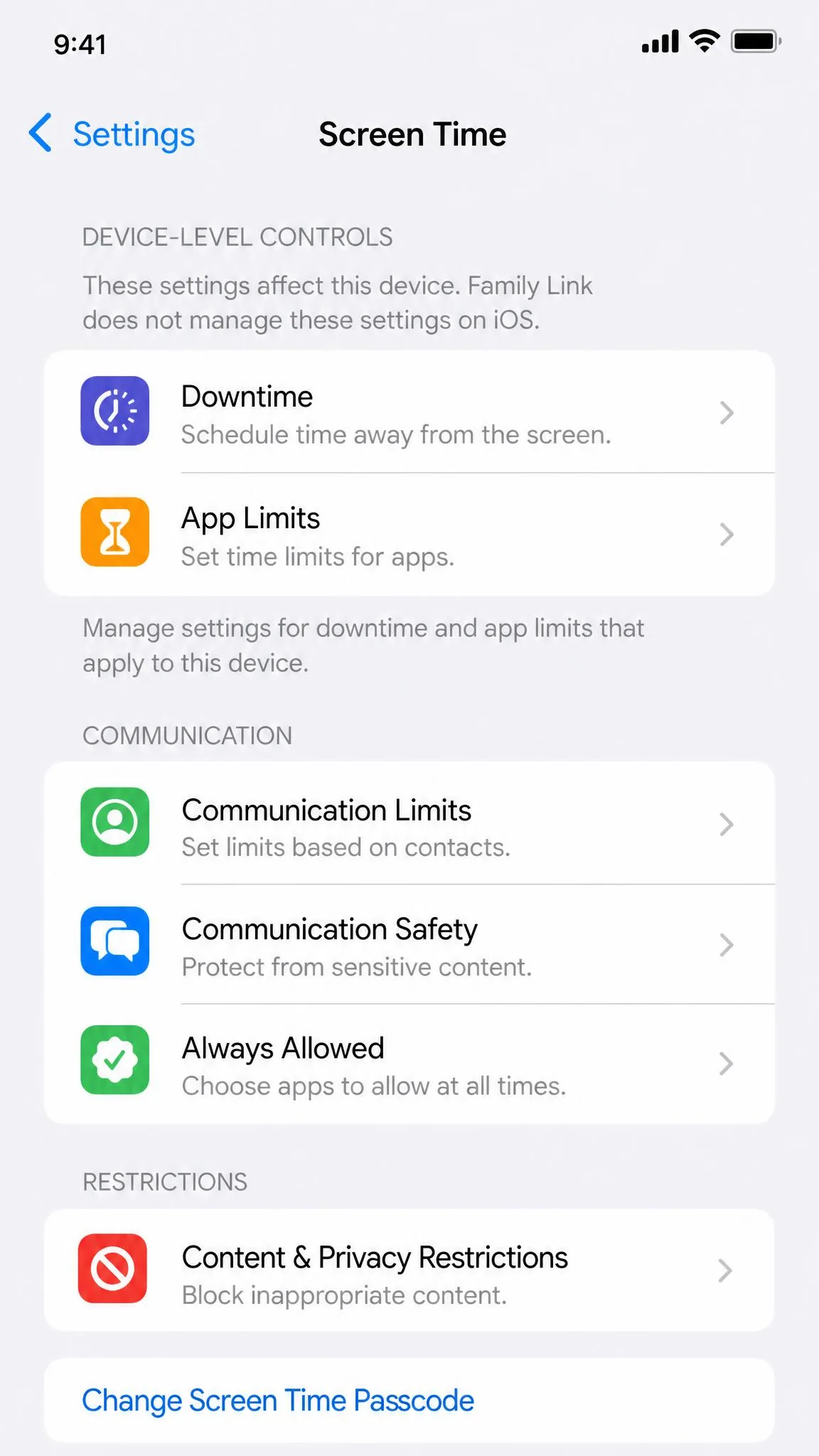
Family Link is an Android product for device-level supervision. On an iPhone or iPad, the app only manages the child's Google services, meaning YouTube, Chrome, and Google Play activity. It does not control the device itself, so the limits a child sees on iOS come from Apple's Screen Time rather than from Family Link.
Ending Family Link on iOS uses the same account step as on Android, because supervision follows the Google Account. Device-level limits belong to Screen Time, and for a clean handover Apple's guidance to restore to factory settings wipes the local Screen Time passcode with everything else.
How Kids Actually Bypass Family Link (and How Parents Can Stop It)
Kids do not wait for permission to test the edges of Family Link, and the routes they find are shared openly on Reddit, GitHub, XDA, and YouTube. The tricks that survive are the local ones, because Family Link applies many controls on the device itself and a local workaround holds until the controls re-apply.
The common ones we have seen are clearing Play Store data, moving apps into Secure Folder, changing the clock, and editing the account's birth date. Changing the birth date is the least reliable, because Google often keeps blocking the change for days.
Parents can close most of these gaps:
- Check the child's age settings and fix any wrong birth date.
- Look for hidden app areas such as Secure Folder or Dual Apps and remove cloned restricted apps.
- Keep the Parent Access Code and parent password private and change them if they leaked.
- Scan the activity report for gaps, because apps in Secure Folder show no activity.
The non-technical half matters just as much. Research such as Pew Research Center's teen technology research and the Council of Europe parenting guide points the same way: teenagers handle limits better when they understand the reasoning behind them.

What Happens to the Google Account When Family Link Is Removed
For a child at or above the minimum age, stopping supervision keeps the Google Account and its data intact. The account becomes a regular, independent account with the same email, photos, files, and app purchases. The parent app stops receiving activity reports, and the parent can no longer change settings or reset the password.
For a child under the minimum age, the outcome is different. Google can pause or delete the account rather than convert it, and the email, photos, and purchases in it can become inaccessible.
After supervision ends, existing payment methods are no longer available for Google payments, and the child loses access to Family Library content and family subscriptions such as Google One shared storage.
Family Link vs Parental Control Alternatives
Family Link covers the basics well, and it is free, which is hard to beat. It has no social or message monitoring, it does not supervise an iPhone at the device level, and support is limited to Google's help pages. Families that need more usually move to a paid app.
| Product | Buy | Free tier | Best for | Price |
|---|---|---|---|---|
 |
Check price → | Yes | Built-in Android and Chromebook supervision | Free |
 |
Check price | Basic (2 devices) | Budget multi-platform controls | $2.99/mobilled annually |
 |
Check price | No | Social and message monitoring | $14/moor $99/yr |
 |
Check price | 1 device | Restriction-first filtering | about $59.95/yr |
 |
Check price | No | Web and time supervision | $49.99/yr |
Mobicip keeps the entry price low and covers iOS, Android, Windows, Mac, and Chromebooks. Bark is built around social media monitoring across more than 30 apps. Qustodio offers the strongest restriction-first filtering, and Norton Family is the reliable web-and-time option at $49.99 a year. All add the social and message monitoring Family Link lacks.
If you would rather hand back full control than upgrade, our guide to turning off parental controls covers the account-level removal steps.
Frequently Asked Questions
Can my child remove Family Link by themselves?
Can Family Link see browsing and app history after removal?
Is it legal to bypass Family Link?
What happens if I disable Family Link and my child is under 13?
How do I remove Family Link without the parent's PIN?
Will removing Family Link delete my apps and data?
Final Thoughts
The six methods here sort into two honest categories. The official stop-supervision route is the only one that ends supervision permanently, and it opens up once the child reaches the applicable age. The local workarounds, clearing Play data, factory resetting, and hiding apps in Secure Folder, buy freedom until the controls re-apply.
For parents on the other side, the strongest countermeasure is not a stricter setting. It is knowing which workarounds exist, closing the obvious ones, and keeping the conversation with the child open enough that a bypass stops being necessary.