If your WiFi drops only on your device, or the network goes dark at the same time every night, your parents have likely restricted your access. Here's how to tell for sure, and what to do about it.
A dropped connection is rarely proof on its own. Your internet provider can hiccup, the router can reboot, and a phone can quietly lose its network lease. This guide separates the signs of a parental block from the signs of a plain glitch. It shows you where to check and how to raise the subject without starting a fight.
We write about parental controls and home networking, and this is one of the questions we hear most from teens. One pattern stands out: when the network goes dark at the same time every night, usually around 10 PM, it's almost always a scheduled restriction, not a random outage.
Signs Your Parents Kicked You Off WiFi
Parental WiFi blocks leave fingerprints. In most cases the network stays up and the router keeps working, because the restriction is a rule about who gets internet, not a hardware failure. Here are the three signs to look for.
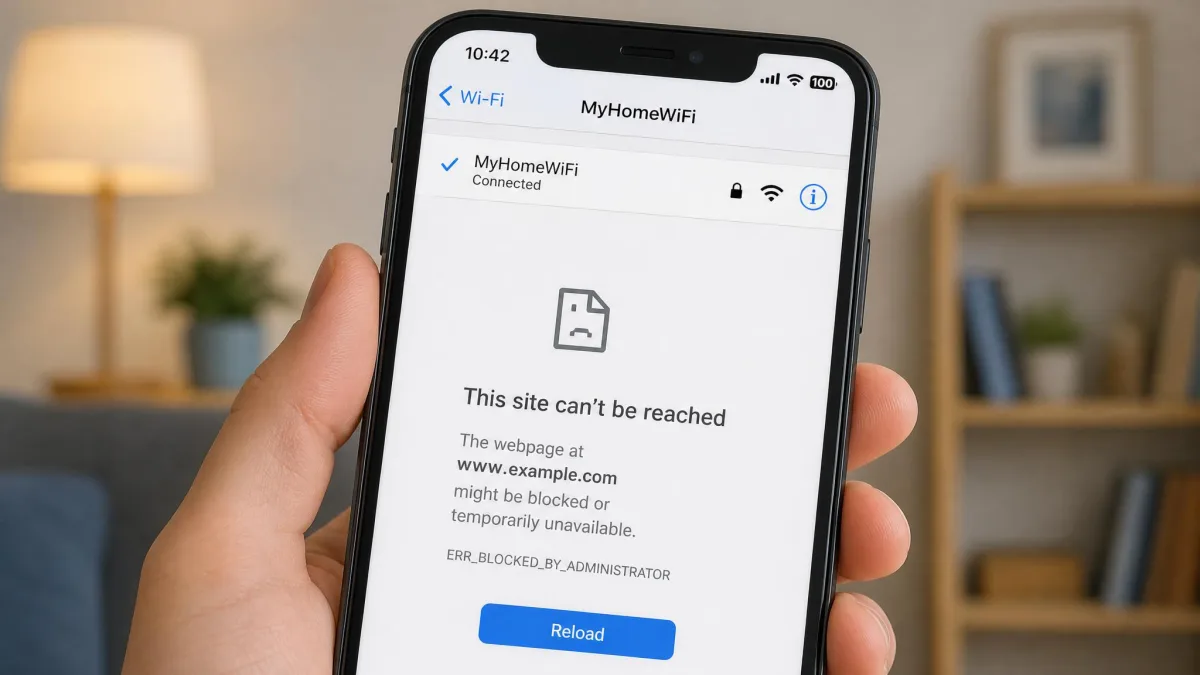
Your Device Connects but the Internet Does Not
The classic sign is a network that shows up with a full signal while nothing loads. Your device has joined the router at the radio level, which is why the bars stay full, but the router is refusing to hand it a path to the internet. That radio layer follows standards set by the Wi-Fi Alliance, which govern how devices join a network, not whether a parent lets you browse.
Check whether everyone else in the house still has internet. If the whole network is down, it's an outage. If your device is the only one that loads nothing, the restriction is pointed at you.
The clearest fingerprint is the IP address your device reports. A self-assigned address in the 169.254 range means your device joined the radio but never received a real address from the router, which is exactly what a blocked or removed device looks like. You'll find it in your network settings, often labeled 169.254.x.x. Before you assume the worst, rule out a fault on your end; Apple's Wi-Fi troubleshooting steps cover the quick checks to run.
Your Devices Were Removed From the Network
A second sign is that your device stops appearing in the network, or it joins and drops a moment later. Routers that use access control identify devices by their MAC address, the hardware identifier built into every network card. Netgear's access control can block a device from the internet while it still works on the local network, which is why the router's list, not your signal bars, is the place to check.
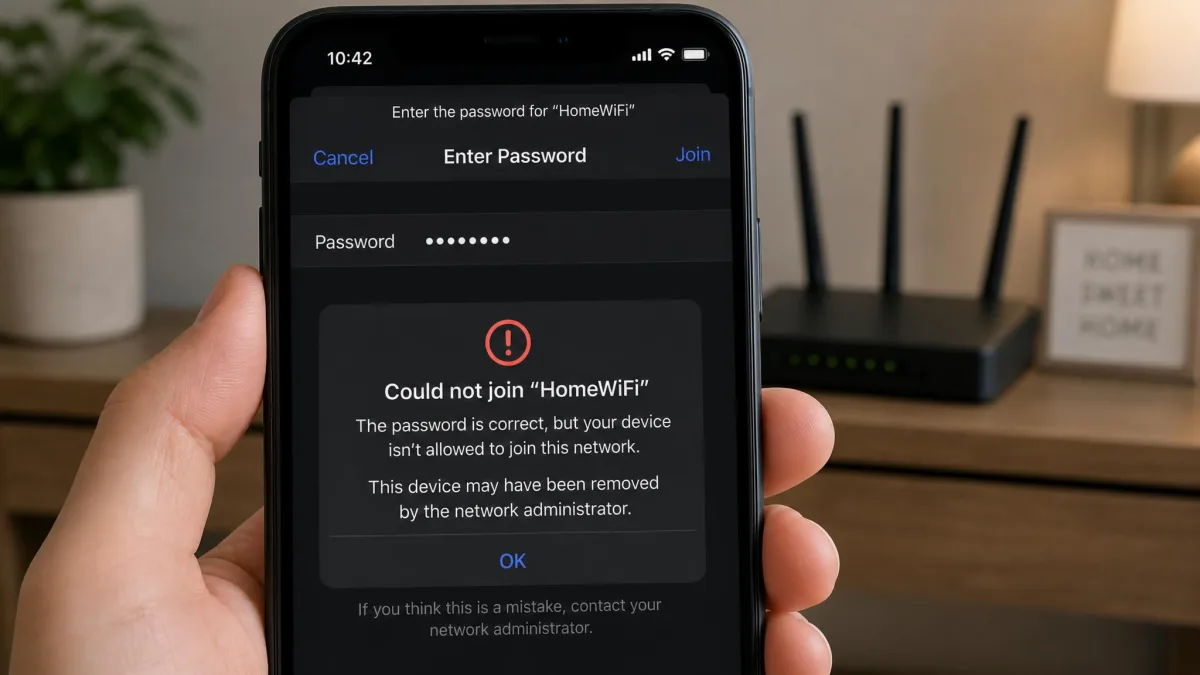
WiFi Turns Off at the Same Time Every Day
The third sign is timing. If the network goes dark at the same time every night, commonly around 10 PM, you're almost certainly looking at a scheduled restriction, not an outage. Scheduled WiFi cutoffs are a standard parental-control feature across router brands, from Google Nest Wifi and eero to Netgear, TP-Link, and Asus. Some households enforce the same cutoff by plugging the router into a programmable smart plug.
How the network behaves when it drops tells you where the block lives. If the network name disappears for every device at a set hour, the restriction is router-level, a schedule that applies to everyone. If the network stays visible but only your device loads nothing, the restriction targets your device. Screenshot the moment it drops and note whether the network name is still there; that record shows whether it's a schedule or a glitch. To understand how such schedules work, how to restrict internet access at certain times walks through the mechanism.
Why Parents Restrict WiFi in the First Place
It helps to see the restriction from the other side first. Parents limit WiFi because they worry about time, sleep, and schoolwork. In a 2024 Pew survey, 47% of parents said they limit how long their teen can be on their phone. That share rises to 62% among parents of 13- and 14-year-olds, compared with 37% for parents of 15- to 17-year-olds.
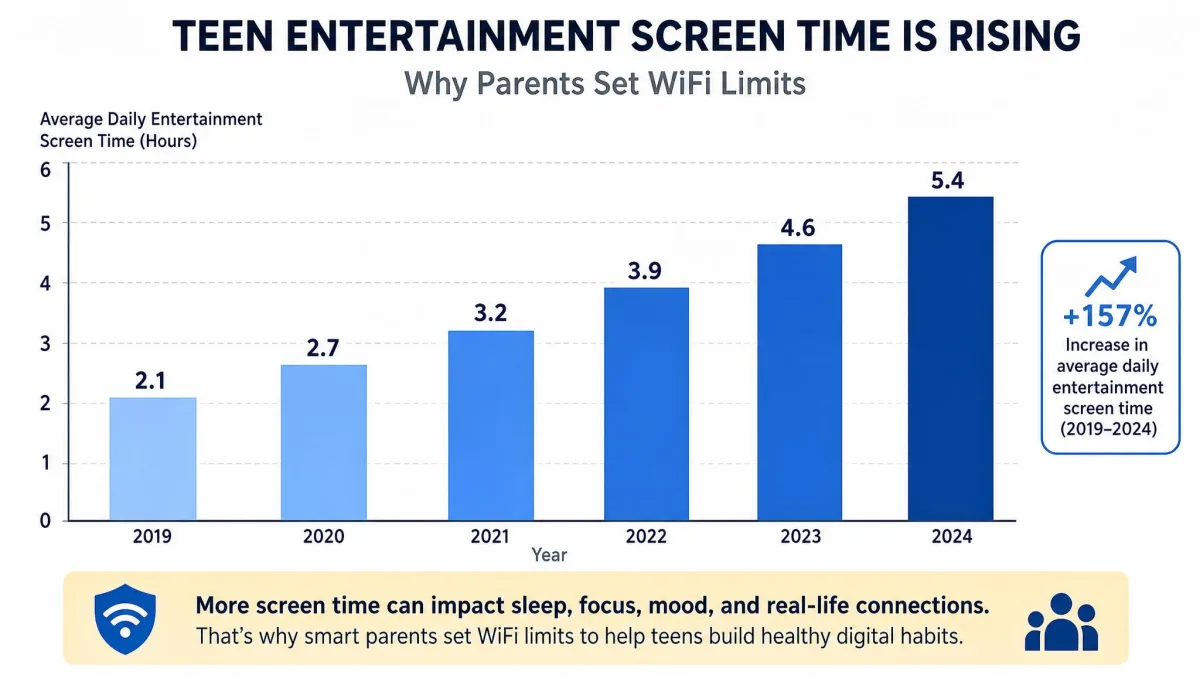
An earlier Pew survey found 57% of parents limit the times of day their teen can go online, and another 57% have taken away phone or internet privileges as punishment at least sometimes. Add a Common Sense Media estimate that teens averaged 8 hours 39 minutes of entertainment screen time a day in 2021, and the motivation is clear. The block is rarely aimed at you; it's usually a household rule aimed at a behavior.
Screen Time, Late-Night Use, and Schoolwork
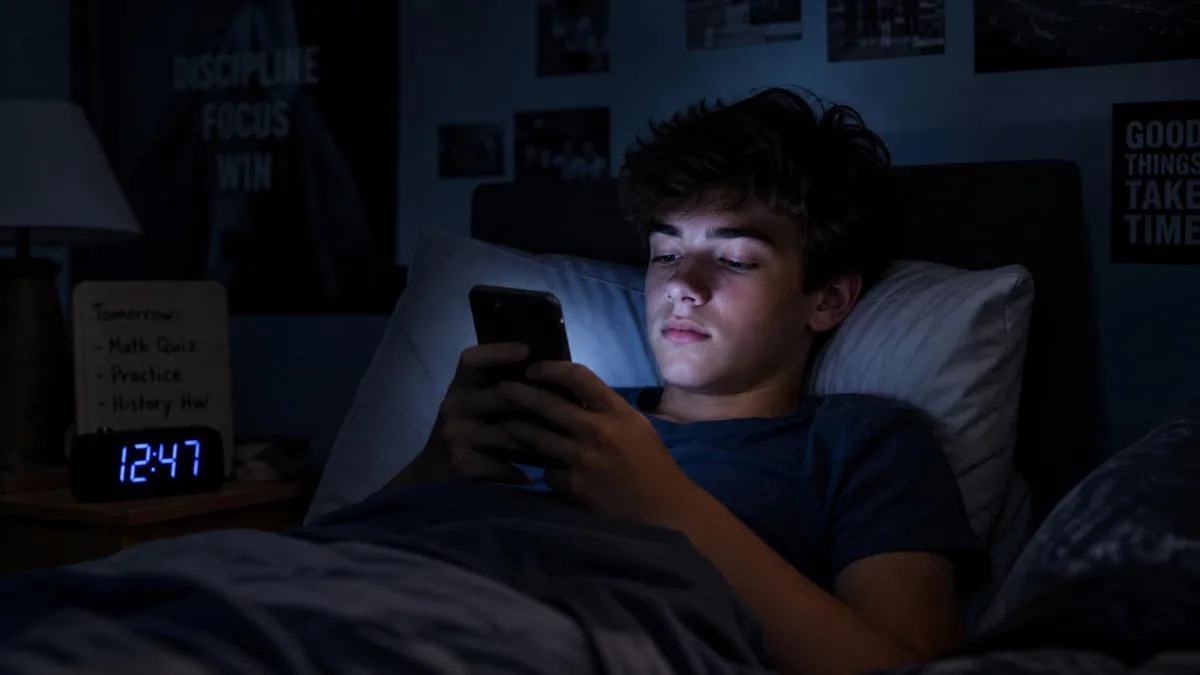
The most common trigger is time itself. Screen time that runs late into the night cuts into sleep, and the "go to sleep" conversation is where many cutoffs start. That's why a block at 15 might never have existed at 12. A cutoff is often tied to a specific trigger, like staying up late on a school night, so listen for what they name when they bring it up.
Online Gaming, Streaming, and Social Media
Gaming, streaming, and social apps are the other big triggers. When a block follows a long gaming session, the restriction is usually about time, not the game itself. A permanent block can even push a teen to look into buying their own connection, an escalation that helps no one. Knowing the trigger gives you something concrete to negotiate with.
How to Confirm It on the Router
Signs can point, but only the router can prove it. The router is where parental controls live, so confirming a restriction means getting into its settings. That takes the admin password, the ISP account, or access to the app the household uses to manage the router. If none are yours, you can't confirm it yourself, and that's the moment to ask rather than guess.
Don't guess the router password. Modern routers usually invalidate the old default credentials during first setup, and repeated guesses can trip the router's security. Ask the person who set up the network to look at the settings together.
Log Into Your Router's Admin Panel
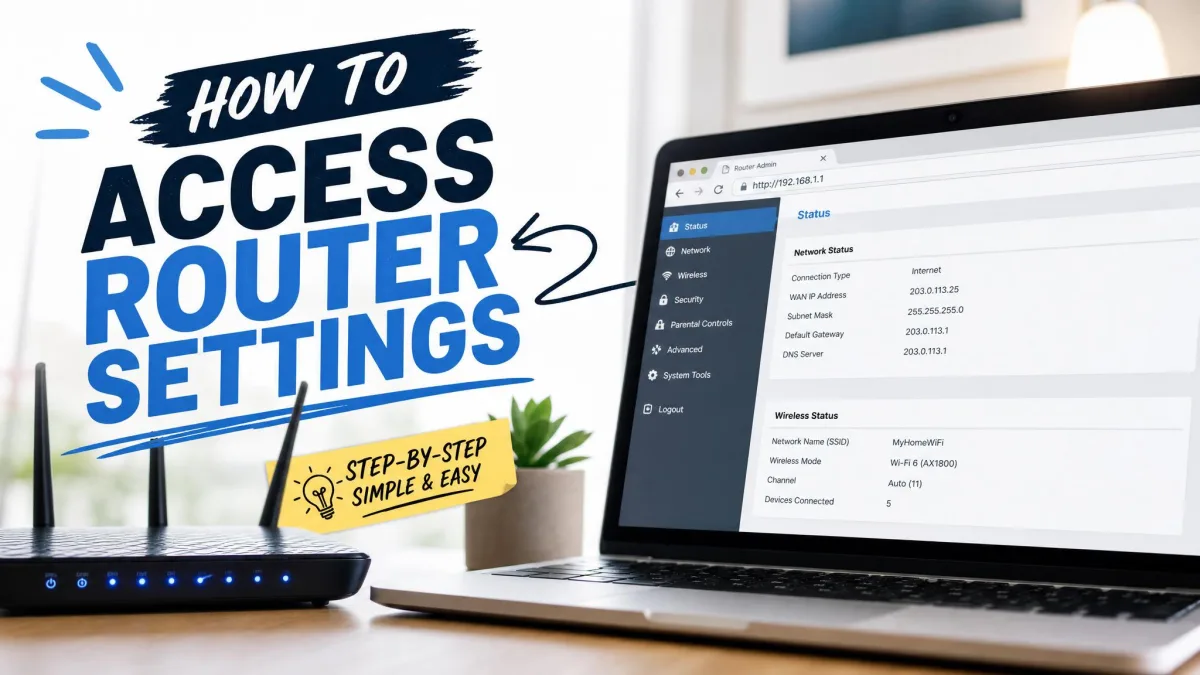
Most routers are reached through a browser at a default address. The two most common are 192.168.1.1 and 192.168.0.1, with 192.168.0.254, 10.0.0.1, and 10.0.1.1 as other defaults. To find yours, open your device's network settings: on Windows it's labeled Default Gateway, on Mac and iOS it's Router, and on Android and Chrome OS it's Gateway. Type it into a browser to reach the login page.
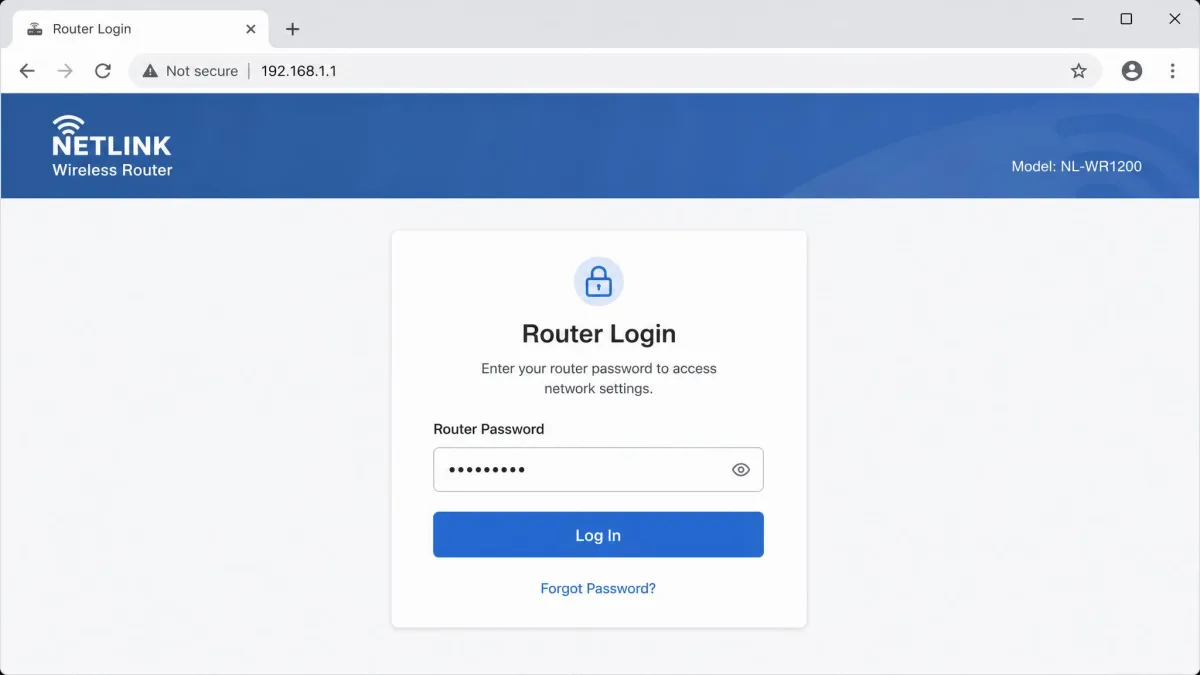
From there you need the router's admin password. Default credentials like admin/admin were common on older routers, but modern routers usually invalidate them during first setup, so a working login means someone in the house knows it. If you don't have it, ask. Some routers don't offer a browser login at all; the Google Home and eero apps are the only way into those systems.
Check Device Lists, Blocking Rules, and Schedules
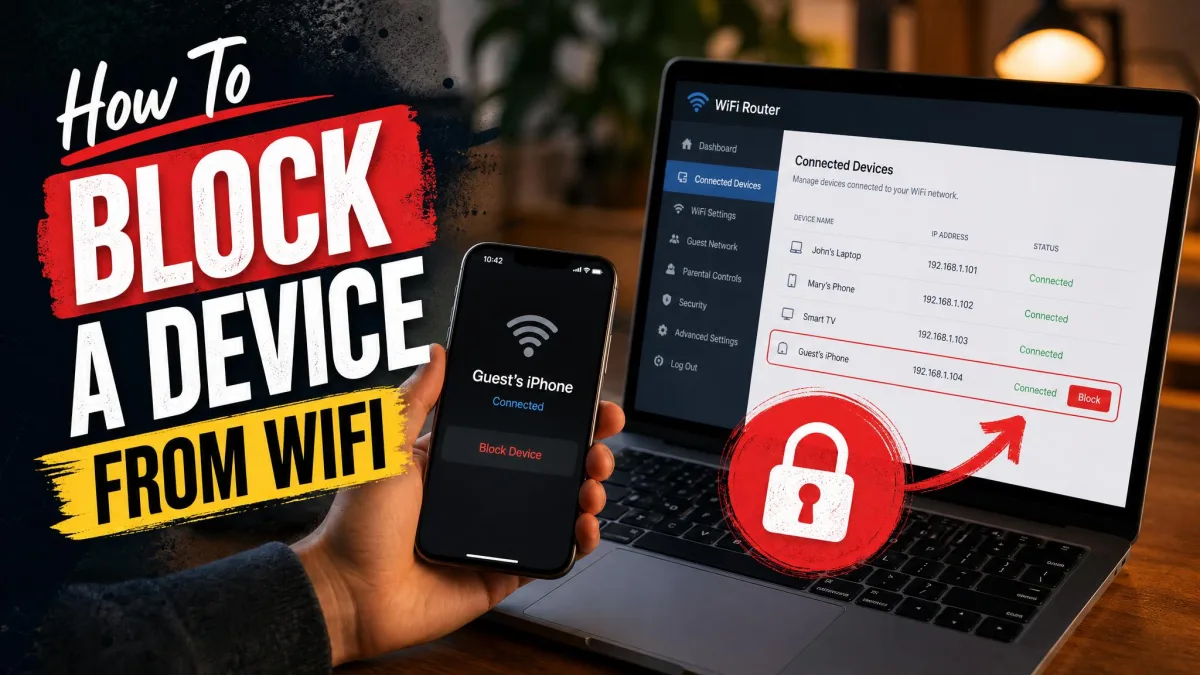
Once you're in, open your router's settings and find the connected-devices page. On a Google Nest Wifi network, the app shows the list of connected devices in your router settings. That list covers devices that connected in the last 30 days, with each device's connection status, IP address, and MAC address.
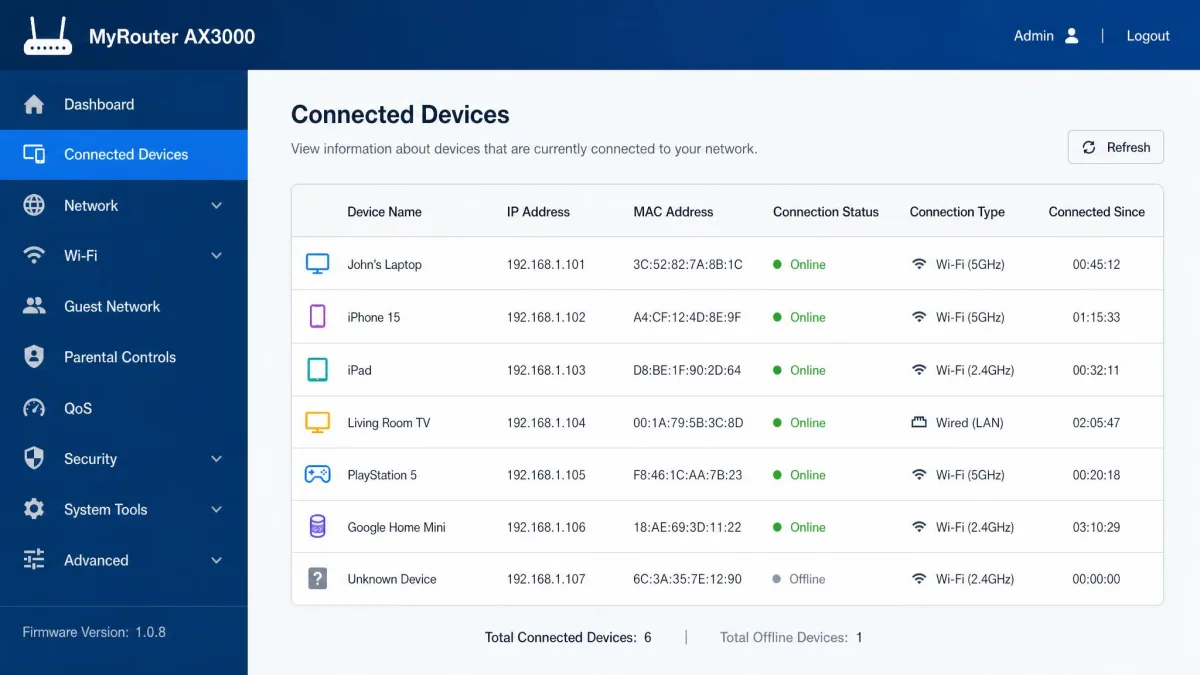
Then check three things: whether your device appears in the list, whether a blocking rule or parental-control entry covers it, and whether a schedule turns the network off at the hours you've noticed. The location varies by brand: on Netgear, open ADVANCED > Security > Access Control for the blocklist and ADVANCED > Security > Schedule for times. On Google Nest Wifi, check Home > Wi-Fi > Devices. To understand the mechanism, how to block a device from your WiFi router explains access control step by step.
One more check before you blame the router. If the block only hits one device while everything else works, it can be a device-level limit instead, enforced by Apple Screen Time or Google Family Link on the device itself. Those apps cut off internet after hours, independent of the router.
What to Do Next: Talk Before You Bypass
Once you've confirmed a restriction, or even if you can't, the next step matters more than the diagnosis. In every family-network discussion we've read, the advice is to talk first and skip the workarounds. A bypass you're caught using usually makes the next restriction stricter, and it burns the trust a fair conversation depends on.
How to Raise It With Your Parents
Bring it up calmly, when nobody is mid-argument, and ask directly if there's a restriction in place. Frame it as wanting to understand the rule, not as a challenge to it. "The WiFi drops at ten, is that a schedule?" opens a conversation, where "you blocked me again" slams one shut.
Listen for the reasoning before you push back. Restrictions are often paired with a fixed device window, like phone access only during set hours, or the device stored in the parents' room at night. Knowing the full rule shows you what they're trying to protect, which is usually sleep and schoolwork.

Negotiating a Fair Schedule or Rules
Propose specifics instead of demanding freedom. A dedicated homework window where school sites stay accessible is the compromise that comes up most in these conversations. Offer a set end time on school nights, a looser one on weekends, and homework first.
Tie your offer to what's worrying them. If the trigger is gaming, agree to a cap on sessions. If it's staying up late, commit to handing the phone over at a set hour. A house rule you help design beats a block you keep fighting, and it usually ends with a later curfew, because your parents can trust the agreement.
Watch out for the escalation spiral. Overly strict monitoring strains trust on both sides, and a cutoff that gets fought rather than negotiated tends to keep tightening. A fair conversation is the only path that leaves you with more freedom, not less.
Staying Connected While WiFi Is Off
While you work out a schedule, you still need a connection for homework and for reaching people. The standard fallback is your phone's mobile data; its limits are the only real constraint.
Mobile Data and Hotspots
Chances are you have a smartphone, roughly 95% of teens do, and your data plan is the first lifeline. For a laptop or tablet, switch on your phone's hotspot and join it like any other network. Just watch the data cap, since streaming video can burn a monthly allowance in an afternoon.
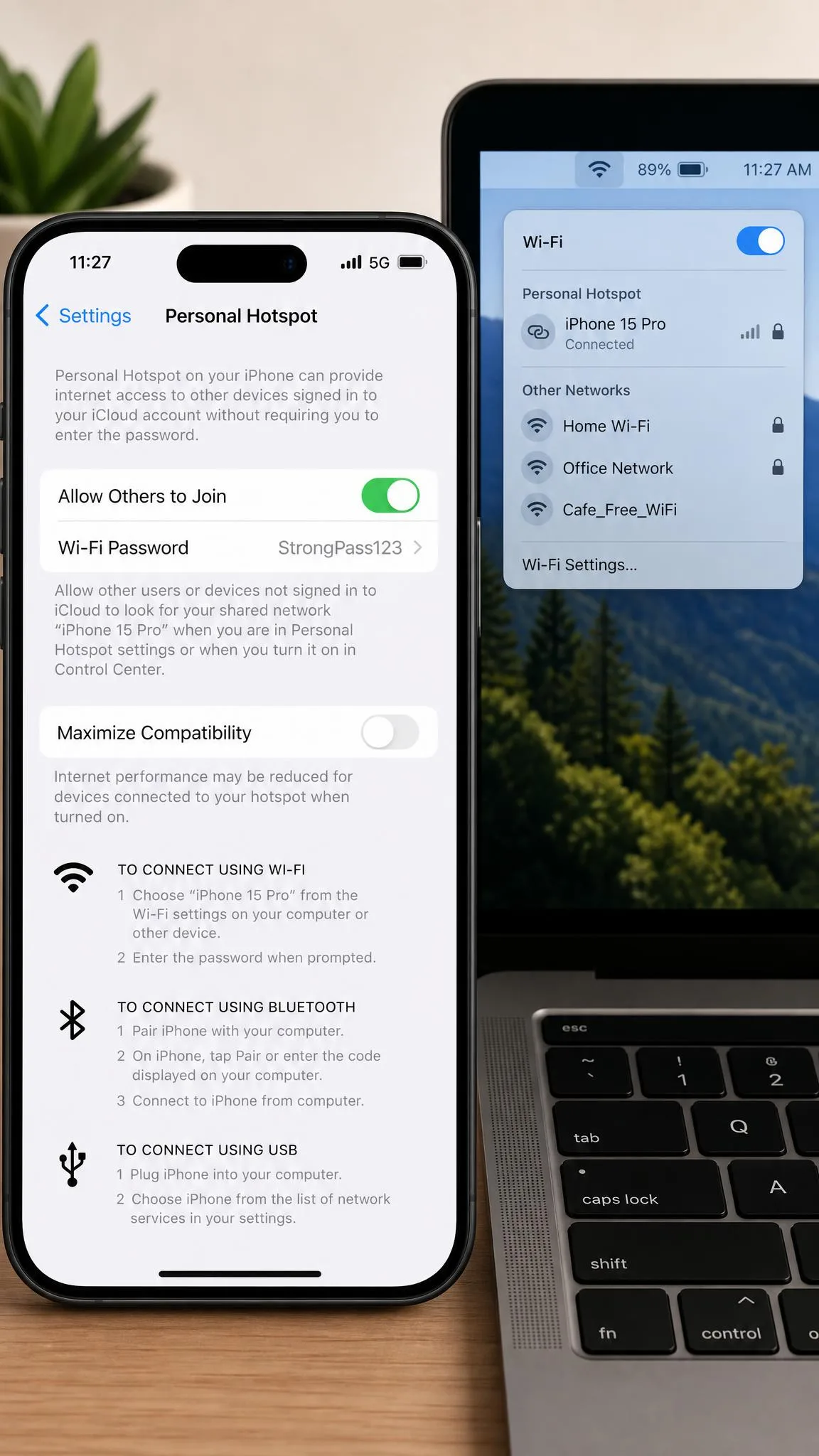
It also helps to understand the mechanism. If the block only disables the wireless radio, a wired ethernet cable to the router can still work. But if access control blocks your device by MAC address, or a smart plug cuts the router's power entirely, a cable won't help.
Public WiFi, School, and Library Options
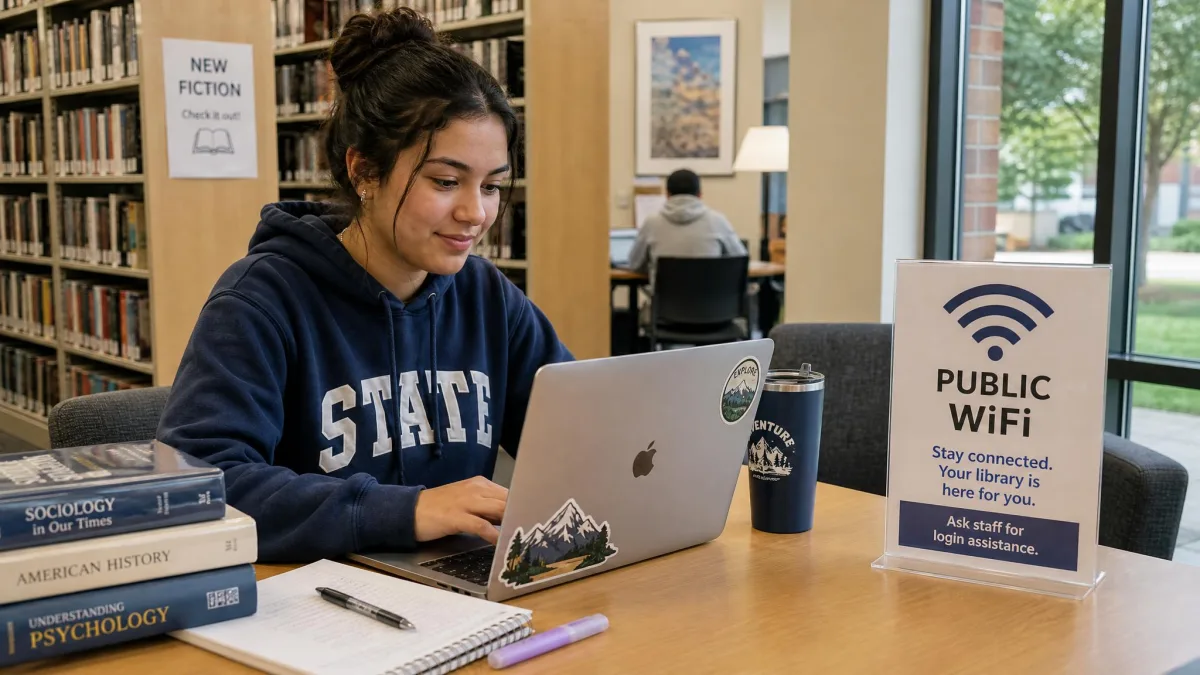
If your data runs out, public networks fill the gap. School campuses and public libraries offer free WiFi, and most are fine for homework, email, and messaging. Treat them like any public network: trust the sites you visit and skip banking on an unsecured connection.
The Bottom Line
Here's the honest bottom line. If your WiFi goes dark only for your device, or the whole network cuts at the same time every night, the most likely cause is a parental restriction. The router's admin panel is the only place to confirm it. Don't hunt for a workaround before you've had the conversation. The families that end up with workable rules are the ones who negotiate them together, and a schedule you help shape beats a block you keep dodging.