Access Control is a Netgear Nighthawk feature that filters which devices can reach the Internet by MAC address. When a device trips the rule, it shows "This device is blocked by Access Control". That error is the most common reason people want the feature off.
This guide shows how to disable Access Control from the router web interface and how to recover if the option is missing.
What Is Access Control on a Nighthawk Router?
Access Control uses a MAC-address access control list, or ACL, to allow or block devices from reaching the Internet. NETGEAR's official guide to Access Control on Nighthawk and Orbi explains it in full. By default it is off, so any device with the correct WiFi passphrase can connect.
How Access Control and MAC Filtering Work
Every device on your network carries a MAC address assigned at the factory. Access Control checks those addresses against the rule you choose. The same idea is called MAC filtering on many NETGEAR routers, and NETGEAR's configuration guide for Access Control and MAC Filtering walks through the setup.
Before You Begin: Log In to Your Nighthawk Router
Find Your Router's Login Address
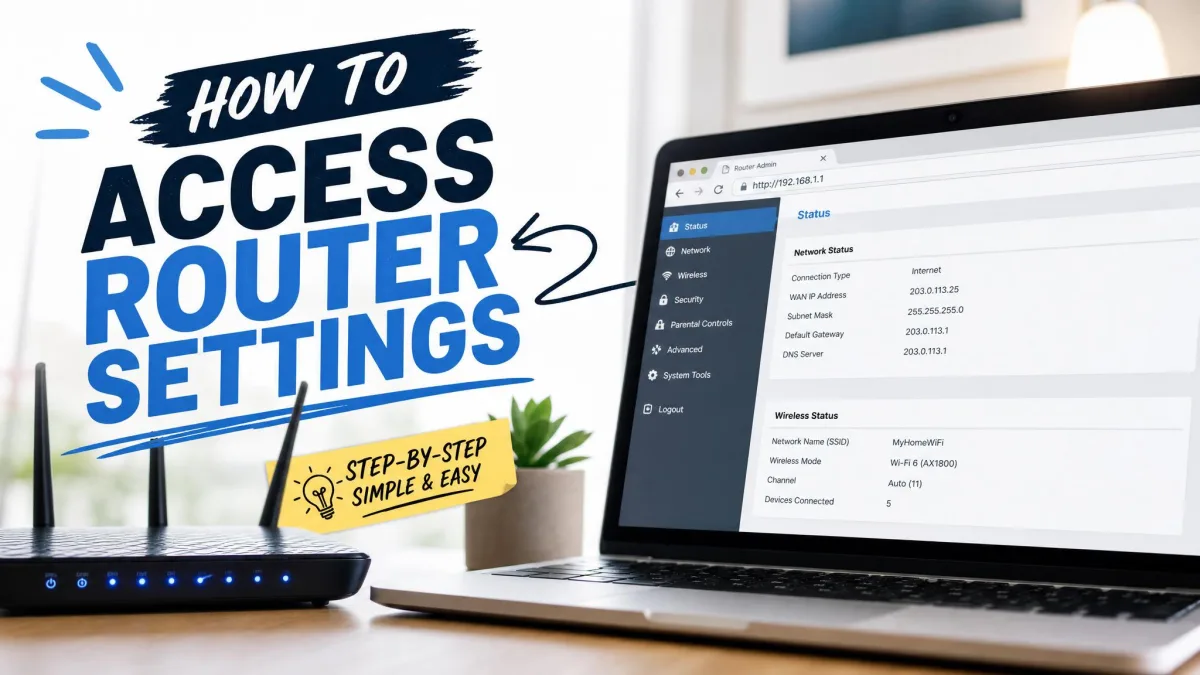
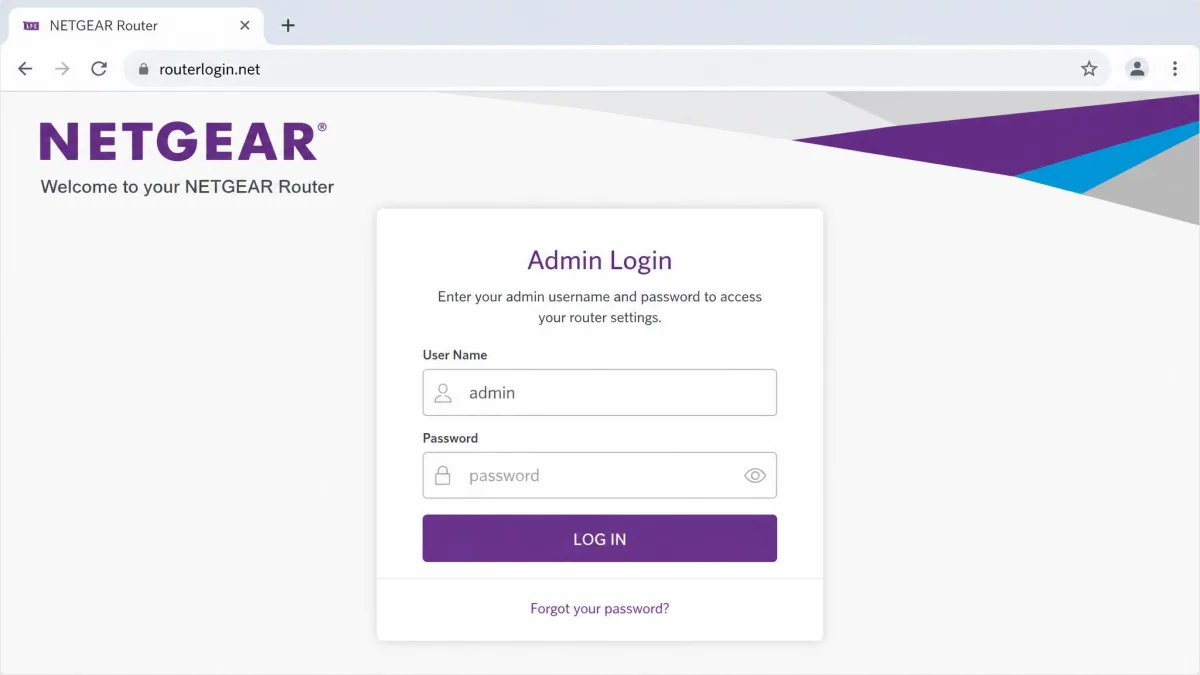
Open a browser on a device connected to the router and go to routerlogin.net. The address 192.168.1.1 opens the same window on most models.
Default Nighthawk Login Credentials
The user name is "admin", case-sensitive. Newer units use the password you created during initial setup. The factory default "password" applies only until setup is done, or after a factory reset.
How to Disable Access Control on Your Nighthawk Router
We verified these steps on a Nighthawk R7000-series router, and the same menu path appears on most other models.
Step 1: Log In to the Router Web Interface
Go to routerlogin.net in a browser and sign in with your admin credentials.
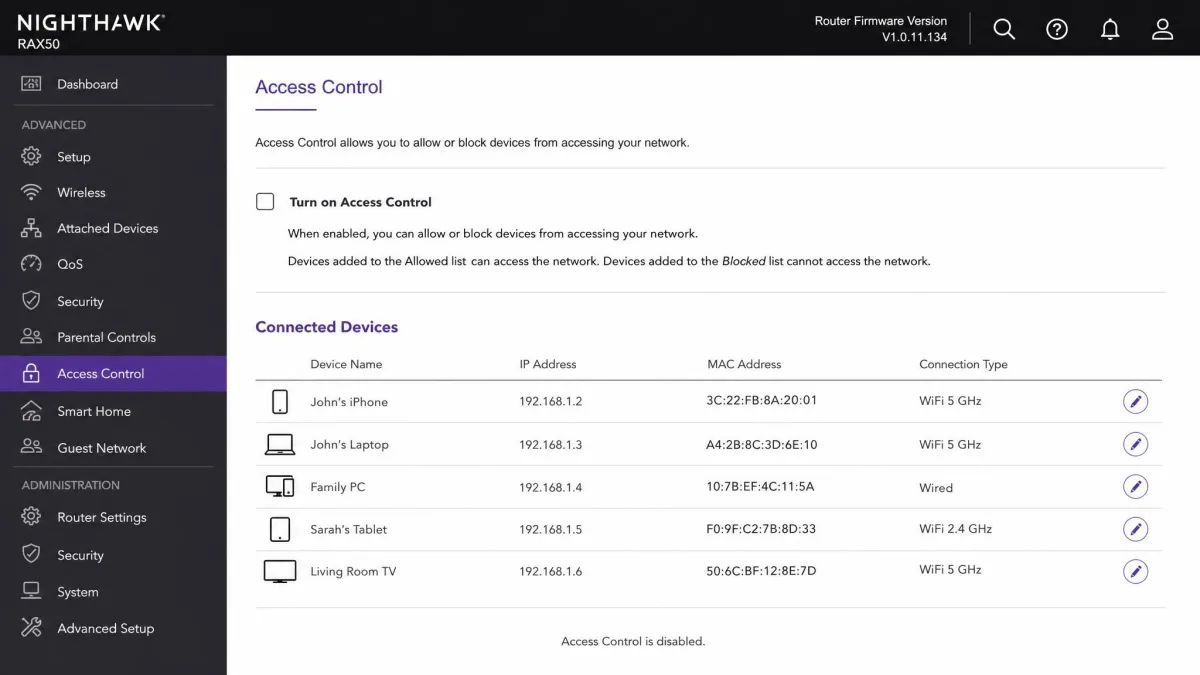
Step 2: Go to ADVANCED > Security > Access Control
Select ADVANCED, then Security, then Access Control from the top menu. If you cannot find Security, see the missing-option section below.
Step 3: Clear the Turn on Access Control Check Box
Clear the "Turn on Access Control" check box. The Allow and Block buttons only work while it is selected.
Step 4: Apply and Save Your Settings
Click Apply. Access Control is now off.
Clearing the check box lets every device on your WiFi reach the Internet, including anything on the blocked list. Re-enable it if the block was deliberate.
Allow All New Devices vs. Block All New Devices
The two access rules decide what happens to devices that join after you click Apply.
Allow all new devices to connect lets new devices join without a MAC entry while you block specific ones manually, and NETGEAR recommends it for everyday use. Block all new devices from connecting is a whitelist, and new devices stay offline until their MAC address is added to the allowed list. It suits filtering a child's device or keeping unknown hardware offline.
When to Re-enable Access Control
Re-enable the feature if the block was deliberate. Our guide to setting up Netgear Access Control covers the allow and block rules. For schedules and content filters, NETGEAR Smart Parental Controls is a separate subscription feature.
Access Control vs. Anywhere Access (Remote Management)
Access Control is often confused with Anywhere Access, NETGEAR's renamed Remote Management feature. The first filters which devices reach the Internet; the second manages the router remotely over a secure NETGEAR Cloud connection and opens no external ports. The two coexist.
Why the Nighthawk App Won't Always Show the Option
Access Control is a web-interface feature, and the Nighthawk app does not reliably expose a toggle for it. The gap runs the other way too: Anywhere Access cannot be turned off from routerlogin.net; open the app on the router's WiFi and go to Menu > SETTINGS > Anywhere Access.
How to Unblock a Single Device Instead of Disabling Access Control
If only one device is offline, unblock it instead. Select the device's check box on the Access Control page and click Allow. For a device that is not connected, add its MAC address manually.
A device can show as allowed yet still be blocked, because the app can set hidden attributes the web interface cannot change. If the banner "This device is blocked by Access Control in the router" persists, disable and re-enable the device in the app.
What If the Access Control Option Is Missing?
Some Nighthawk firmware versions, including those on the XR450 and XR700, never show the ADVANCED > Security > Access Control option at all.
Update the Router Firmware First
Update the firmware first. A hotfix resolved Access Control problems on affected units, and the XR450 is End of Service at firmware 2.3.4.148.
Check Your Specific Nighthawk Model
The modern interface covers WiFi 5 through WiFi 7 Nighthawk models and Orbi systems. On older Smart Wizard routers, open Advanced > Wireless Settings > Setup Access List to configure Access Control. MAC filtering is unavailable in access point mode.
Troubleshooting: Locked Out of Your Nighthawk Router
When every device is locked out, the router is usually in whitelist mode with nothing allowed. Your two recovery paths are changing a MAC address or factory-resetting the router.
Factory Reset the Nighthawk Router (What You'll Lose)
Press and hold the Reset button for at least seven seconds, about ten on some models, until the Power LED blinks. A factory reset wipes the admin login, WiFi network name and password, and every Access Control rule.
After the reset you log in with the default admin and password credentials, then set a new password. Reactivate paid services such as NETGEAR Armor and Smart Parental Controls.
Change Your Device's MAC Address as a Workaround
To avoid a reset, change the MAC address your device presents. Phones with randomized MAC addresses can repeatedly land in the blocked list, so turn off WiFi MAC randomization first.
Frequently Asked Questions
How do I turn off Access Control on my NETGEAR router?
Why is the Access Control option missing or grayed out on my Nighthawk?
Does disabling Access Control allow all devices to connect?
Will a factory reset disable Access Control?
Bottom Line
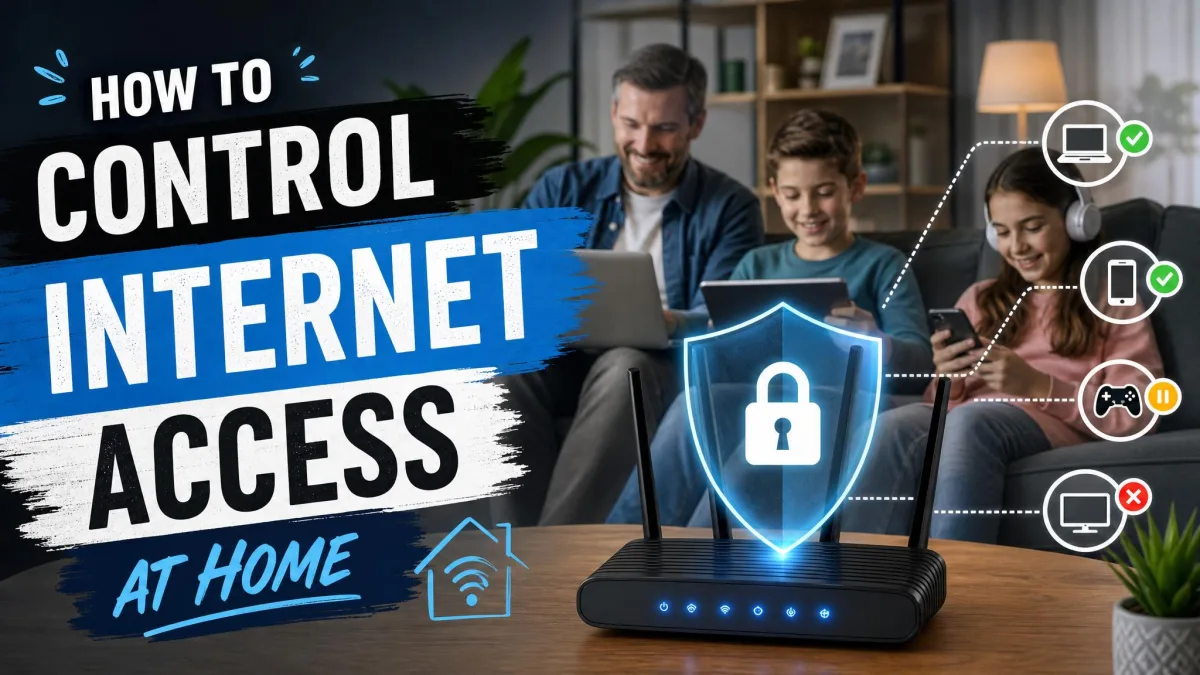
Access Control is useful when you need to keep a specific device offline, but the moment it blocks something you use, the fix is quick. Log in, clear the check box, and click Apply. Update the firmware if the option is missing, and treat the factory reset as a last resort. For broader family controls, see our guide on how to control internet access at home.