A WiFi owner can see more of your browsing than you expect. Router logs record the domain of every site you visit. They also record when you connect, how much data you move, and the DNS requests your device makes. What the owner cannot see, on modern encrypted connections, is the exact search query you typed. This guide explains that difference. It walks through the four methods that actually hide your search history from a WiFi owner.
We're the HTS review team, and we research privacy and safety tools for a living. In this guide, we'll explain what router logs capture, what HTTPS protects, and which privacy methods hold up on a network you don't control. We'll also cover the limits honestly. A tool that hides your sites from the owner still leaves traces that matter.
The Short Answer
A WiFi owner can see which sites you visit, when you connect, and how much data you use. That information lands in the router's logs. On HTTPS sites and search engines, your exact search queries stay hidden. The best way to hide your search history is a VPN, which encrypts everything before it leaves your device. DNS-over-HTTPS, HTTPS-Only mode, and mobile data are useful additions. Incognito mode does nothing for this problem.
What Can a WiFi Owner Actually See? (Router Logs, DNS & Metadata)
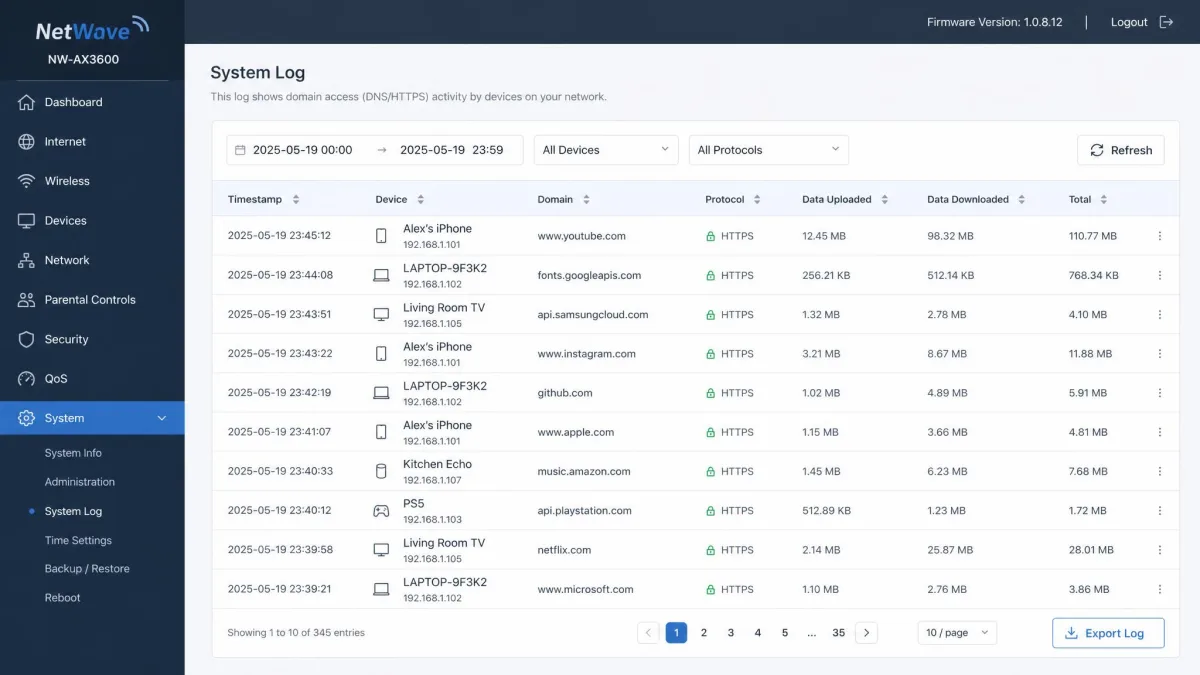
The short version is simple: the owner sees where you go, not what you do there. Router logs record the domains you visit, along with connection timestamps, data volumes, and your device's MAC address. DNS requests are logged too. Since every app talks to a server by name, those lookups can reveal which apps you use. The owner can tell that you opened WhatsApp or Netflix, but they cannot see your messages.
What Router Logs Record: Domains, Apps, and Timestamps
A consumer router logs more than most people expect. For every session it records the domain you connected to, the timestamps, and the data transferred. The device's MAC address appears in the logs too. That is how the owner tells which phone or laptop made each request. DNS queries are logged too, and those lookups reveal which apps you use. End-to-end encrypted apps like WhatsApp and Signal keep message content unreadable, though the fact that you opened the app can still show up. If you want to keep the messages themselves out of sight, our guide to hiding text messages on iPhone and Android covers the options.
What HTTPS Hides, and What It Doesn't
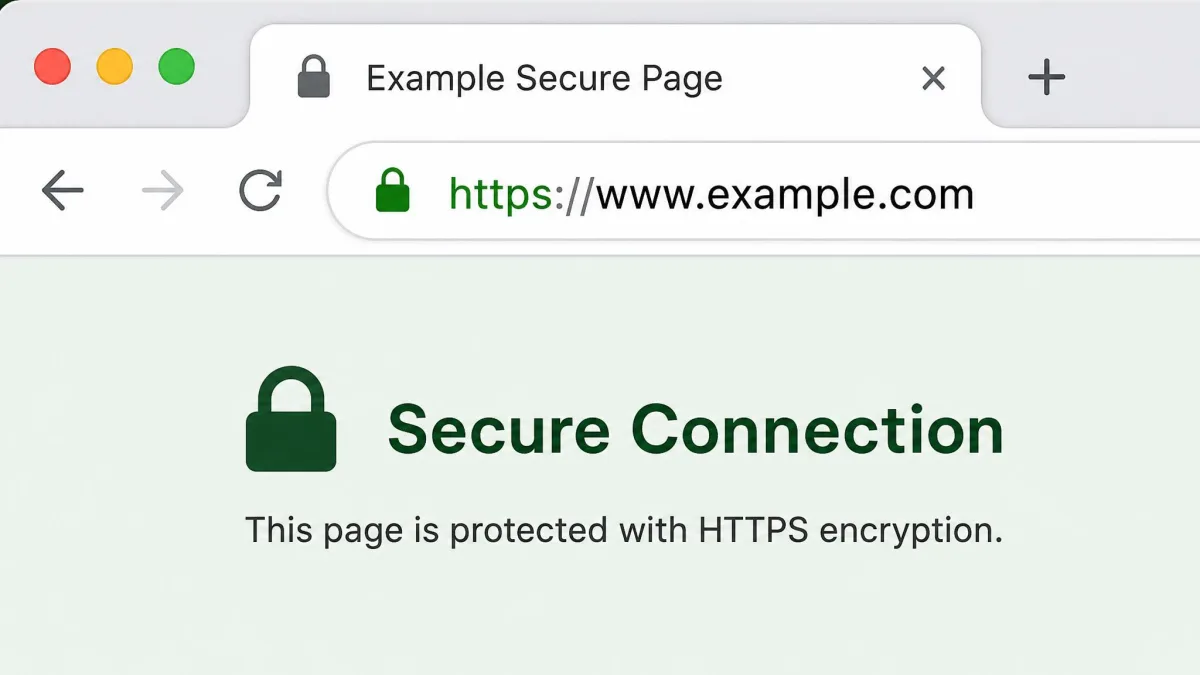
HTTPS encrypts page content, search queries, logins, and form entries. The owner cannot read the words on a page or the passwords you type. It does not hide which site you visited, because the router still sees the domain. It knows you went to youtube.com, but not which video you watched. On any HTTP site, full URLs and page content cross the router in plain text. Search terms and passwords are fully visible too, and HTTPS-Only mode closes that gap.
Search Queries and Google History: What the Owner Can't See
On an HTTPS search engine like Google or Bing, the owner sees only that you visited the search engine, not what you searched for. After you click a result, the landing site's domain appears in the DNS logs. The owner can see that you searched on google.com and then visited a specific site, but the terms that connected the two stay hidden. On any HTTP-only search engine, queries are visible in plain text. If you are signed in to a Google Account, your searches are saved there. They can be reviewed from any device signed in to that account.
The WiFi Bill Myth: Your Search History Isn't on Your Bill
A common fear is that the monthly WiFi bill lists the sites you visited. It does not. The bill shows billing details and a summary of data used, with no mention of which sites you visited or what you searched for. The data total is a rough signal. A month of heavy streaming shows up in the usage numbers, even when the destinations do not.
The 4 Best Ways to Hide Your Search History from a WiFi Owner
No single setting hides everything, but these four methods cover the parts that matter. They are ordered by protection and ease of setup.
If you use a VPN, choose a paid service. Free VPN apps often pay their bills by harvesting and selling browsing history. That trades the WiFi owner for an advertiser that profits from your data.
1. Use a VPN (Best Overall)
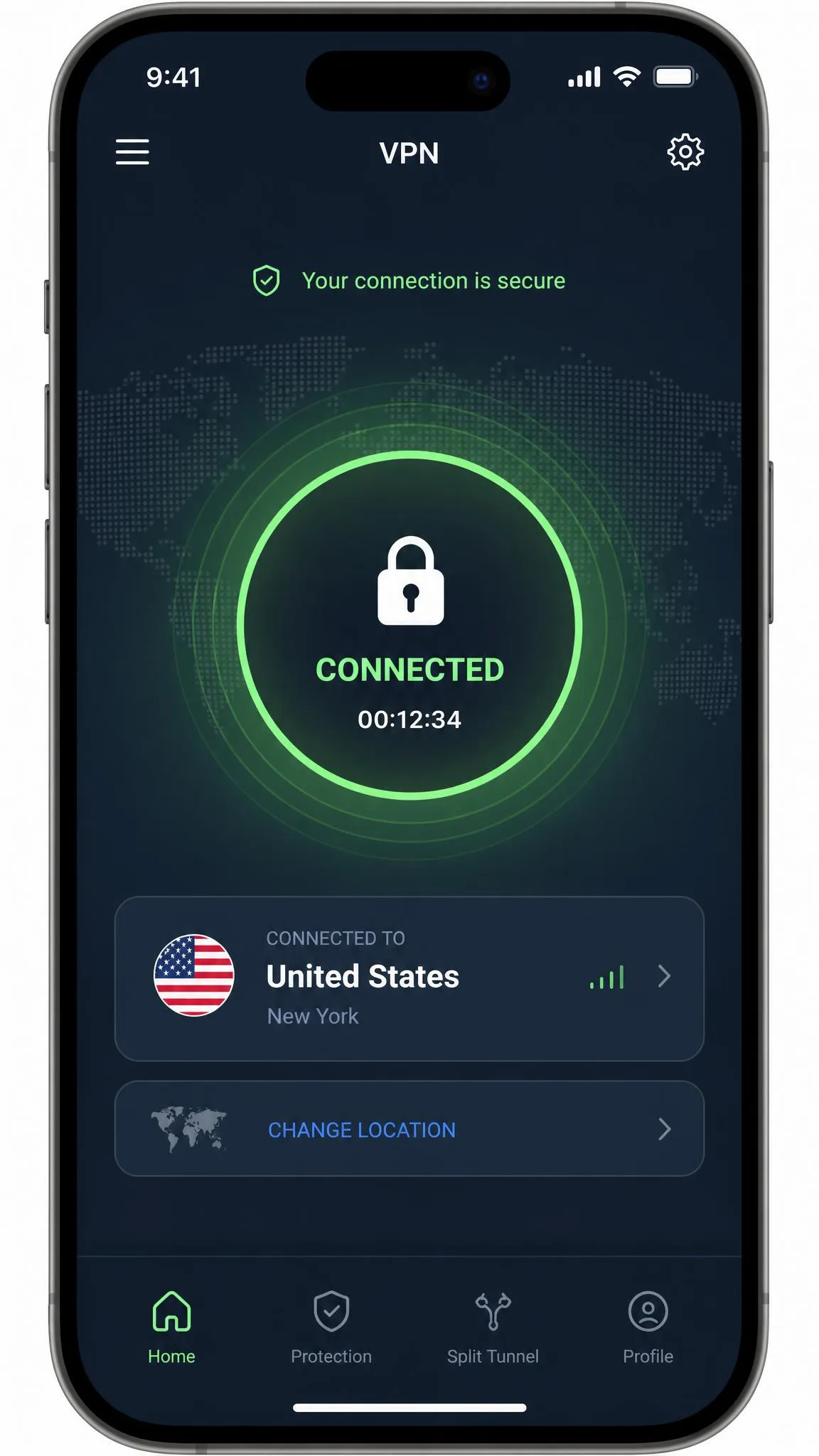
A VPN is the only method that hides your sites, searches, downloads, and apps at the same time. It encrypts all of your traffic before it leaves the device, then routes it through a remote server. The router sees only an encrypted stream. DNS resolution happens inside the encrypted tunnel, so the lookups that normally reveal which sites you visit never reach the network's own DNS servers. That protection holds even on non-HTTPS sites, which makes a VPN the strongest single tool here.
A VPN does not hide your local browser history, and it does not stop account-level tracking. If you are signed in to Google, Facebook, or Amazon, they track you through your account, cookies, and browser fingerprinting. That happens no matter which network you're on. On a work or school laptop with monitoring software, activity is logged on the device before traffic is encrypted. A VPN cannot help there.
2. Enable DNS-over-HTTPS (Encrypted DNS)
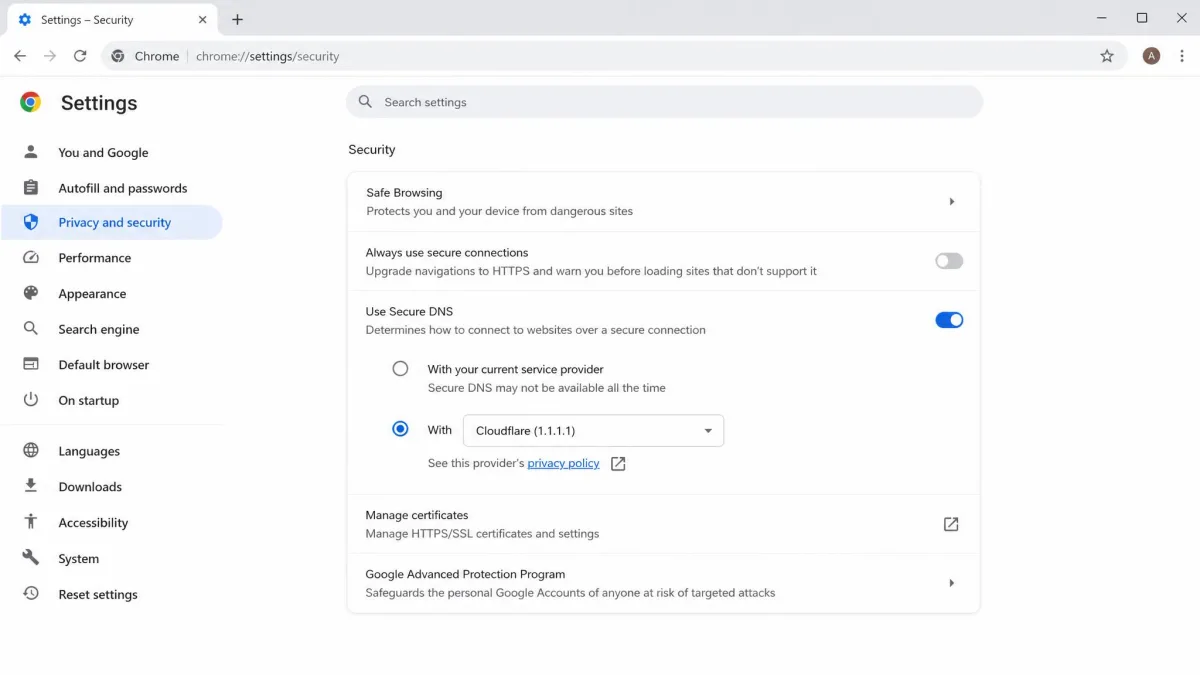
Where a VPN hides everything, DNS-over-HTTPS targets one layer. DoH encrypts your DNS queries, so the router can no longer log the domains you look up. It does not hide your other activity, your IP address, or your data volume. But it removes one of the biggest pieces of information the router collects. DNS-over-HTTPS is the standard that makes this work.
For the protection to hold up against your ISP, use a public resolver such as Cloudflare 1.1.1.1. If your ISP operates the DNS server, it still sees your requests. DoH is easy to switch on. In Chrome, open Settings, then Privacy and Security, then Security, and turn on Use Secure DNS. Firefox and Edge offer the same toggle under their Privacy and Security settings. Cloudflare is the default provider. One caveat: some routers have hardcoded routes that conflict with 1.1.1.1, so enabling it can cause connectivity issues until the route is fixed.
3. Use HTTPS-Only Mode
HTTPS-Only mode builds on the encryption idea. It forces your browser to use HTTPS on every site that offers it, hiding page content, search terms, and logins from the owner. Domain names stay visible, so this is a content shield rather than a full privacy fix. On any HTTP site, every search term and password crosses the router in plain text, which is why this mode matters more than people expect. Firefox enables it under Privacy and Security, while Chrome has it under Always use secure connections.
4. Switch to Mobile Data
The simplest option is also the most complete. Switching to mobile data routes your traffic through the cellular carrier instead of the WiFi router. The owner can no longer see or log any of your activity. It is one tap on most phones and bypasses the router entirely. The visibility shifts to your carrier, and heavy streaming can quickly use up your monthly allowance. Use this for short or sensitive sessions, not as a permanent setup.
What a VPN Hides, and What It Still Can't
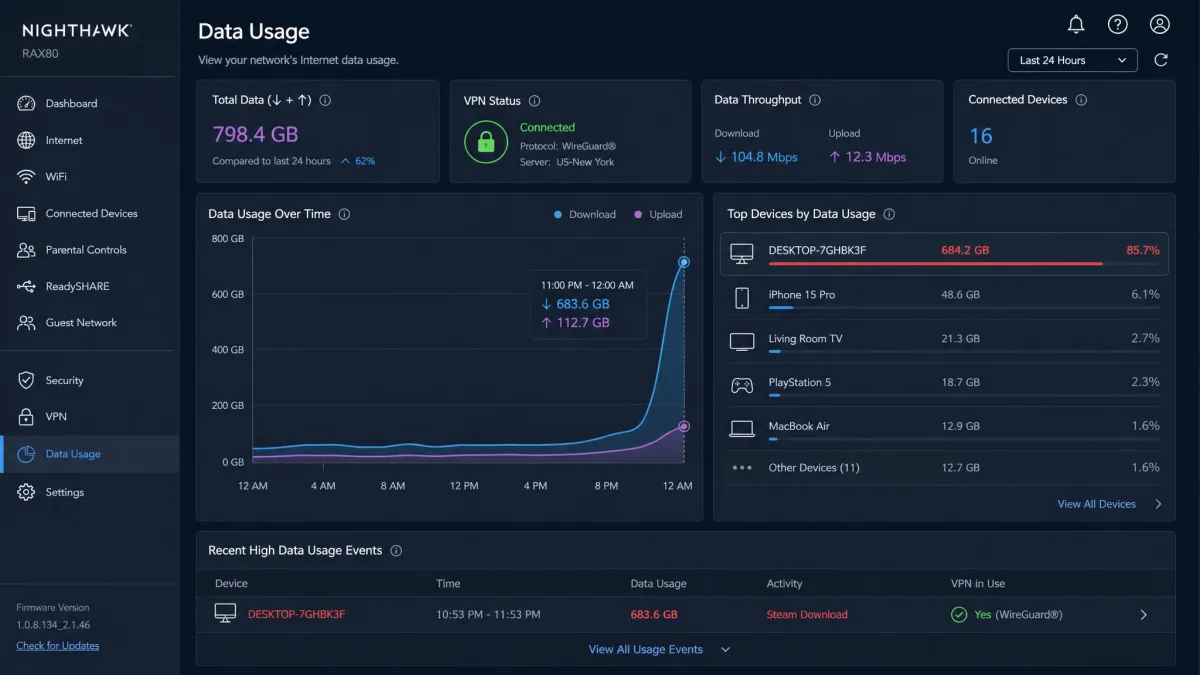
A VPN hides the content of your traffic, which is the vast majority of what people mean by search history. It is not invisibility. The owner still sees that you are connected to a VPN. They also see the VPN server's IP address, your data volume, your MAC address, and your connection timestamps. None of those reveal what you looked at, but they do reveal that you are actively hiding something. On sophisticated networks, Deep Packet Inspection (DPI) can sometimes infer which apps you use, such as Netflix or Zoom. That depends on the router's firmware. Ordinary consumer routers rarely do this.
| What's still visible | Why it's visible | What you can do |
|---|---|---|
| VPN usage and server IP | The tunnel endpoint is visible to the network | Accept it, or use mobile data for sensitive sessions |
| Data volume | The router measures the bytes you transfer | Keep sessions short; stream on mobile data |
| MAC address | Exposed below the tunnel at the router | Enable per-network MAC randomization on iOS or Android |
| Connection timestamps | The router logs when you connect | Use mobile data when timing matters |
| App inference (DPI) | Advanced analysis of traffic patterns | Rare on home routers; use Tor for the highest sensitivity |
MAC Address: The Often-Forgotten Identifier
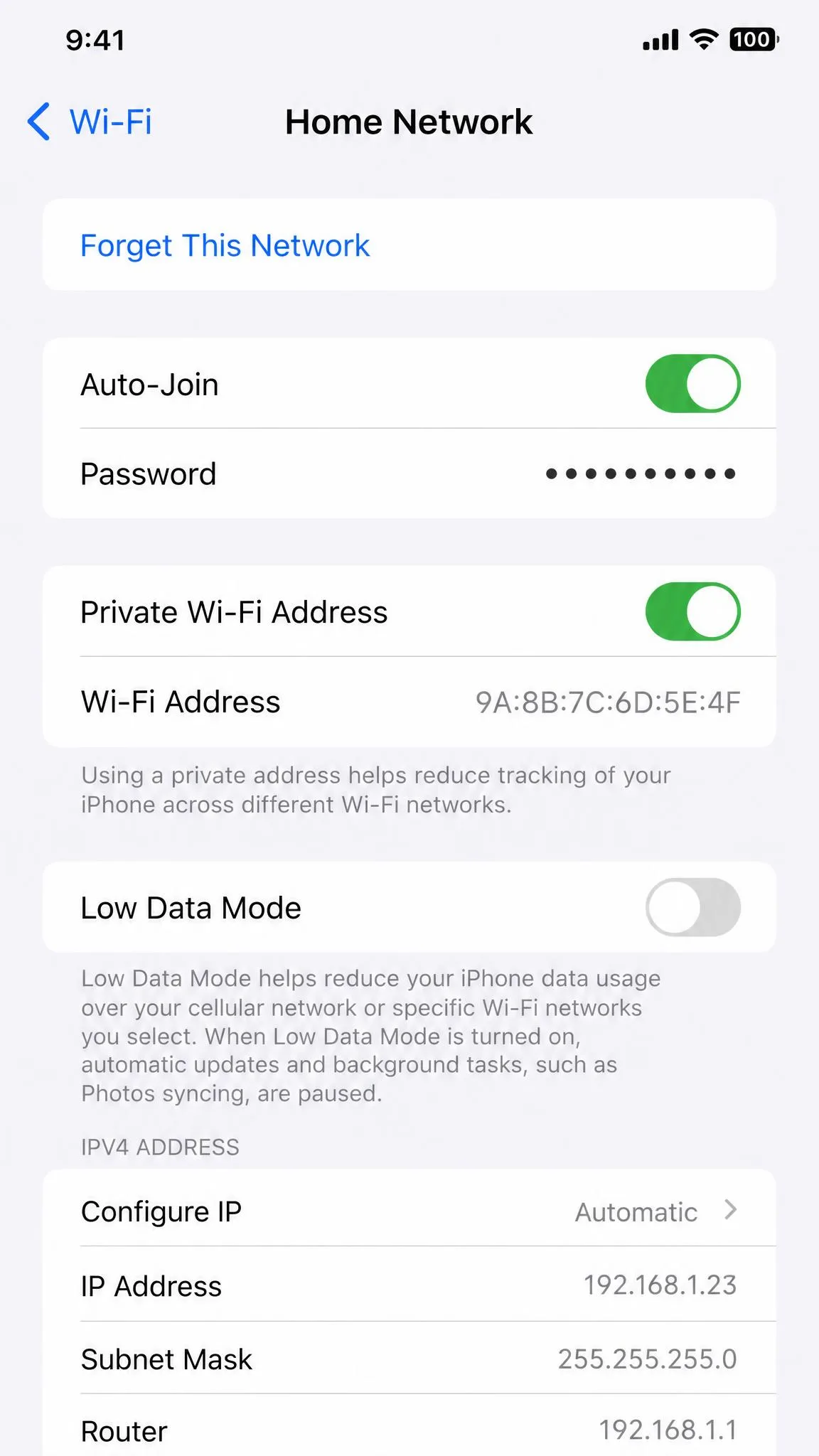
Every device has a MAC address, a hardware identifier the router sees on the local network. A VPN does not hide it. The MAC address sits below the VPN tunnel and is dropped at the router. If the owner keeps device-level logs, they can tie that address to the exact phone or laptop that connected.
Modern operating systems give some cover. iOS 14 introduced Private Wi-Fi Address, a per-network MAC randomization that is on by default. iOS 18 adds a Rotating option that changes the address roughly every two weeks. Android 10 and later randomize the MAC address by default for each network. Windows does not, so changing it requires Device Manager, then Network Adapters, then Advanced, then Network Address. The adapter must be re-enabled afterward.
Other Privacy Tools That Help (Tor, Private Browsers, Private Search Engines)
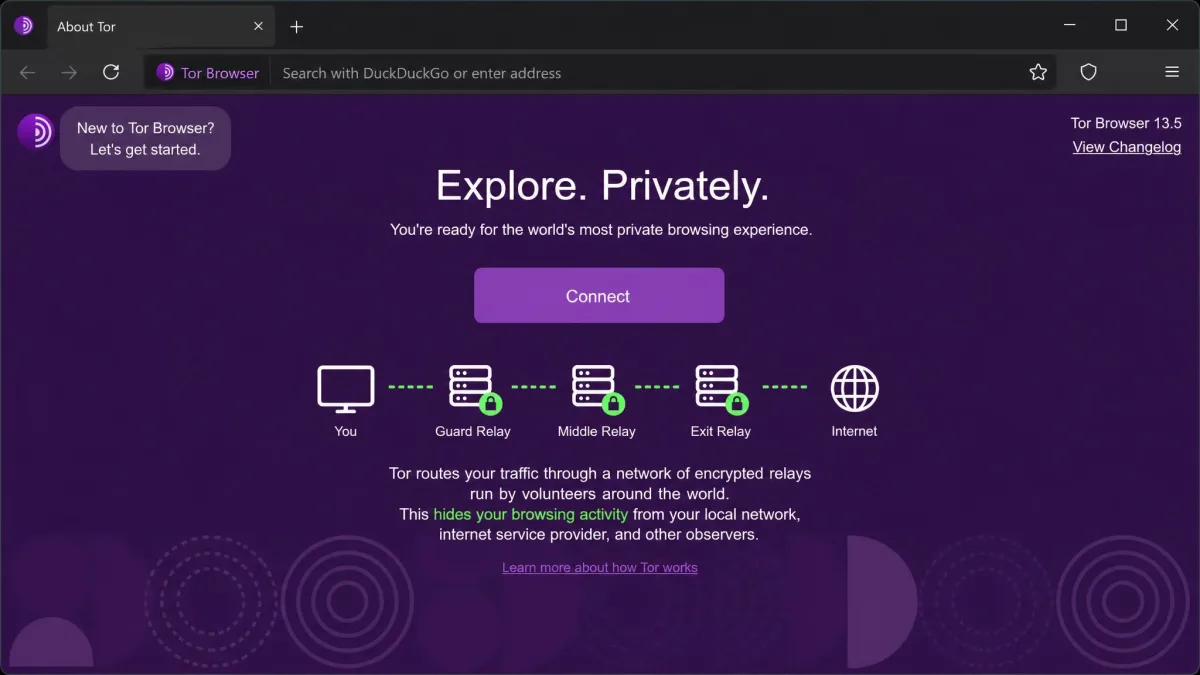
Beyond the four main methods, a few tools fill specific gaps. Tor Browser is a free, open-source browser that routes your traffic through a decentralized network of volunteer-run encrypted relays. That masks both your origin and destination from the local network. It is the strongest option for very sensitive browsing, but it is significantly slower than a normal connection. It is not practical for streaming video or large downloads.

Private search engines and browsers such as DuckDuckGo, StartPage, and Brave do not hide your traffic from the WiFi owner by themselves. They only stop that specific tool from building a profile of you. Combine them with a VPN or HTTPS-Only mode. Reach for DuckDuckGo when you want the search-profile benefit.
Can Your Employer, School, or Parents See Your History?
Employers and schools have more visibility than a home router owner. They can combine network logging with device management software that records keystrokes, screenshots, and app usage, plus content filters and enterprise firewalls. Some organizations install a custom root certificate, so your browser still shows the padlock while the network decrypts and reads your traffic. On your own device on a home network, an employer generally cannot see your browsing. That changes only if you connect to the company VPN or their monitoring software is installed.
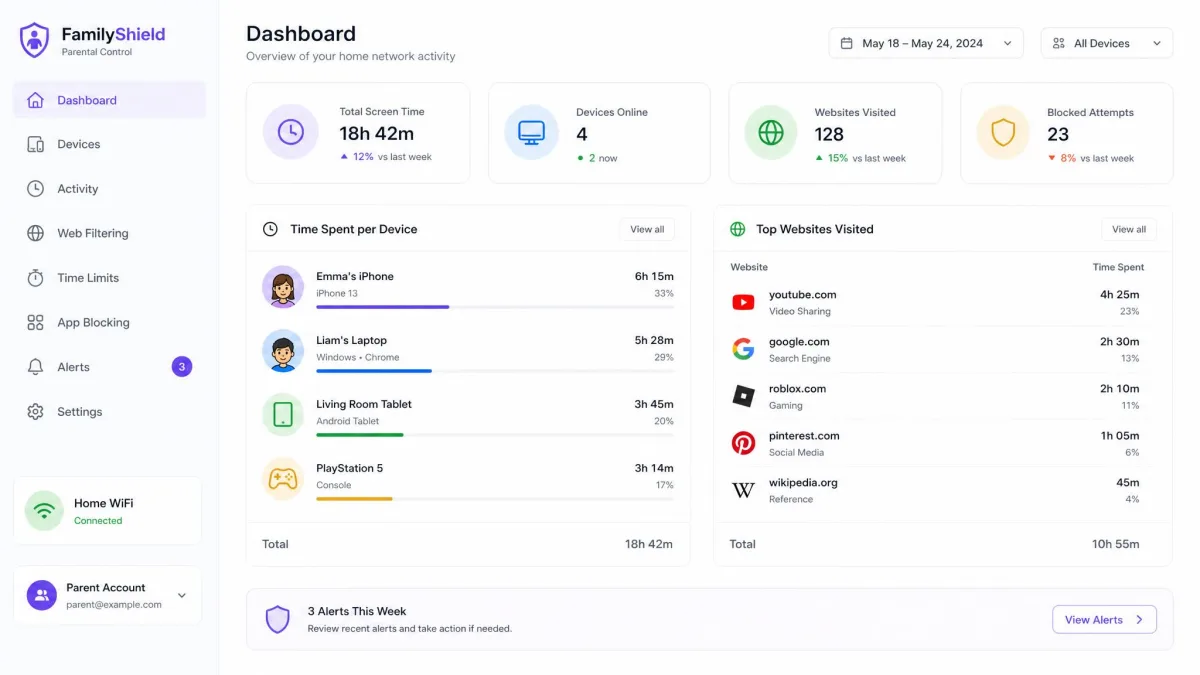
Parents on a home network can see a lot. They can log into the router admin panel to review logs. They can also use parental-control software that reports sites visited, time spent, and activity even in incognito mode. The honest answer is that on a network someone else administers, the admin usually has the upper hand. A VPN keeps your own browsing private, but it cannot stop software installed directly on your device.
Public WiFi: Coffee Shops, Hotels, and Airports
Public WiFi carries different risks than a friend's home network. These networks are often unencrypted, so packet-sniffing software can intercept data in the air. Attackers routinely set up rogue hotspots with deceptive names. Advertisers also pay for the stored browsing data on free networks, which is why a VPN matters most here.
How to Clear Router History and Logs (If You Have Access)
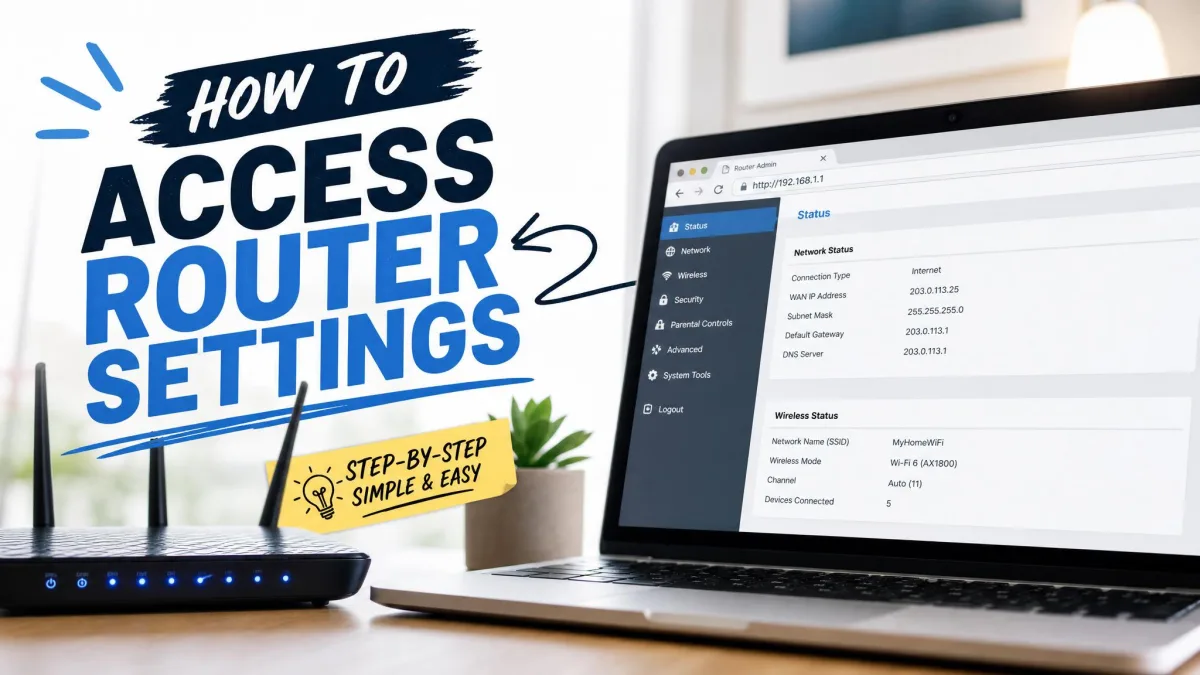
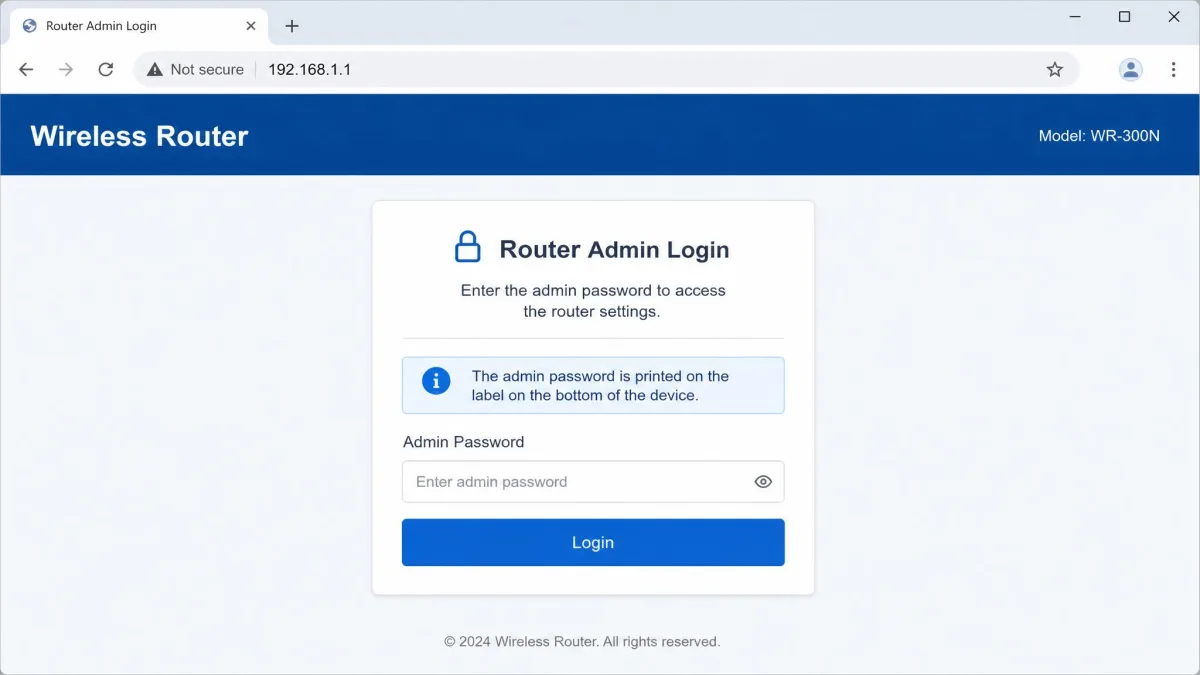
If you administer the router, you can clear its logs. Log in to the admin panel at the router's IP address, commonly 192.168.1.1 or 192.168.0.1 and printed on a label on the device. Open System Tools or Advanced Settings, find the Logs or System Logs section, and choose Clear or Delete. A factory reset erases everything. Holding the reset button for 10 to 30 seconds does it, but it also wipes your network settings.
Clearing the router's logs only erases the copy stored on the router. ISPs and government agencies may still hold their own records. Home routers commonly keep their logs for at least several weeks before overwriting, though retention varies by make and firmware. If you do not have access to the router, there is no way to clear its logs. That is why prevention matters more than cleanup.
Does Incognito Mode Hide Your Browsing from the WiFi Owner? (No)
Incognito mode is the most common misunderstanding in this whole topic. Private browsing only stops your device from saving history, cookies, and form data locally. It does not hide your traffic from the WiFi owner, your ISP, or the sites you visit. The router logs the same domains and timestamps it always does. Chrome's own incognito disclaimer warns that your employer, school, or ISP may still see your activity.
People overestimate incognito because Google had to correct the record. Google settled a class action over Incognito tracking, agreeing in April 2024 to delete billions of browsing records for more than 136 million users. It paid no cash damages. Private browsing is a local convenience, not a network privacy tool.
How to Delete Your Device & Incognito History
Clearing your device's browsing history is worth doing for your own privacy, but it does nothing to the router's logs. The records a parent or admin can see stay put until the router's own logs are cleared or overwritten. Here is where the delete options live.
iPhone & iPad
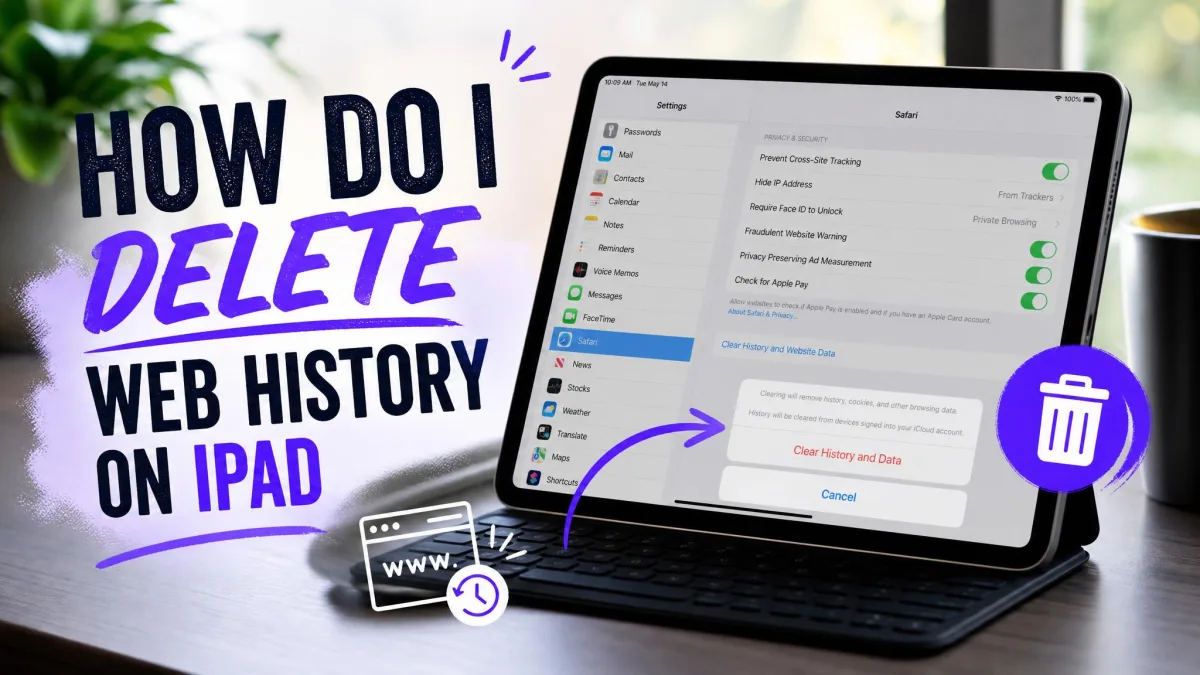
In the Settings app on iOS 18 and later, open Apps, then Safari, and tap Clear History and Website Data. On iOS 17 and earlier the same option sits directly in Settings > Safari. You pick a time range, from Last hour up to All history, and confirm with the red Clear History button. This wipes the local copy of your history, cookies, and cached pages. One catch: clearing Safari history also deletes it on every other Apple device signed into the same iCloud account. Turn off Safari sync first to avoid that.
Android
In Chrome for Android, tap the three-dot menu (More) at the right of the address bar, then tap Delete browsing data. Pick a time range, from 15 minutes by default up to All time, and confirm with Delete data. The full path is More > Settings > Privacy and security > Delete browsing data.
Windows & macOS
On a desktop browser, Ctrl+Shift+Delete opens the clear-browsing-data panel in Chrome, Edge, and Firefox. On a Mac, use Command+Shift+Delete instead. In Safari on macOS, use the History menu and choose Clear History. These files are your local record only, not anything the router or the ISP recorded.
Who Else Can Track Your Internet History? (ISPs, Government, Advertisers)
The WiFi owner is just one observer. Your ISP can log your browsing, and in many countries ISPs are legally allowed to collect and even sell anonymized browsing data. Websites and search engines track you through cookies and saved searches. Government agencies can obtain records through warrants, access often cited under the USA PATRIOT Act.
Hiding from a WiFi owner is not the same as hiding online. A VPN hides your activity from the network owner and your ISP. It does not stop the sites you visit from tracking you, or account-level tracking from Google, Facebook, or Amazon. For broader online privacy, pair a VPN with a private search engine and sign out of accounts you do not need.
FAQs
Can the WiFi owner see my Google search history?
Does a VPN hide my browsing from the WiFi owner?
Can my parents see what I browse on home WiFi?
Does deleting my history remove it from router logs?
If the bill can't name sites, can it still reveal anything?
Can the WiFi owner see what I download or what apps I use?
Final Thoughts
Hiding your search history from a WiFi owner comes down to one honest principle. The owner sees where you go, not what you do, and the right tools keep even the where private. A VPN is the single best option, and the free layers of DoH and HTTPS-Only mode, plus mobile data, round it out.
No tool hides everything, and knowing the limits keeps you safer than believing in one. Incognito mode will not help, and deleting device history will not help. On a managed work or school device, the software usually wins. Use the combination that fits your situation, and you can browse on someone else's WiFi without handing them your digital footprint.