Netgear access control is a router setting that lets you block or allow which devices can connect to your network and the internet, based on each device's MAC address. Turn it on and you decide what gets on your Wi-Fi. A blocked device cannot reach the internet, while anything you allow stays connected. It is free and built into most modern Netgear routers and Orbi systems.
For this guide we tracked the edge cases that show up in real homes: phones that randomize their MAC address get re-blocked, and NETGEAR's own documentation disagrees about what a block does. Here is how the feature works, how to set it up in the router web interface, and how to fix a device when access control goes wrong.
What Is Access Control on a Netgear Router?
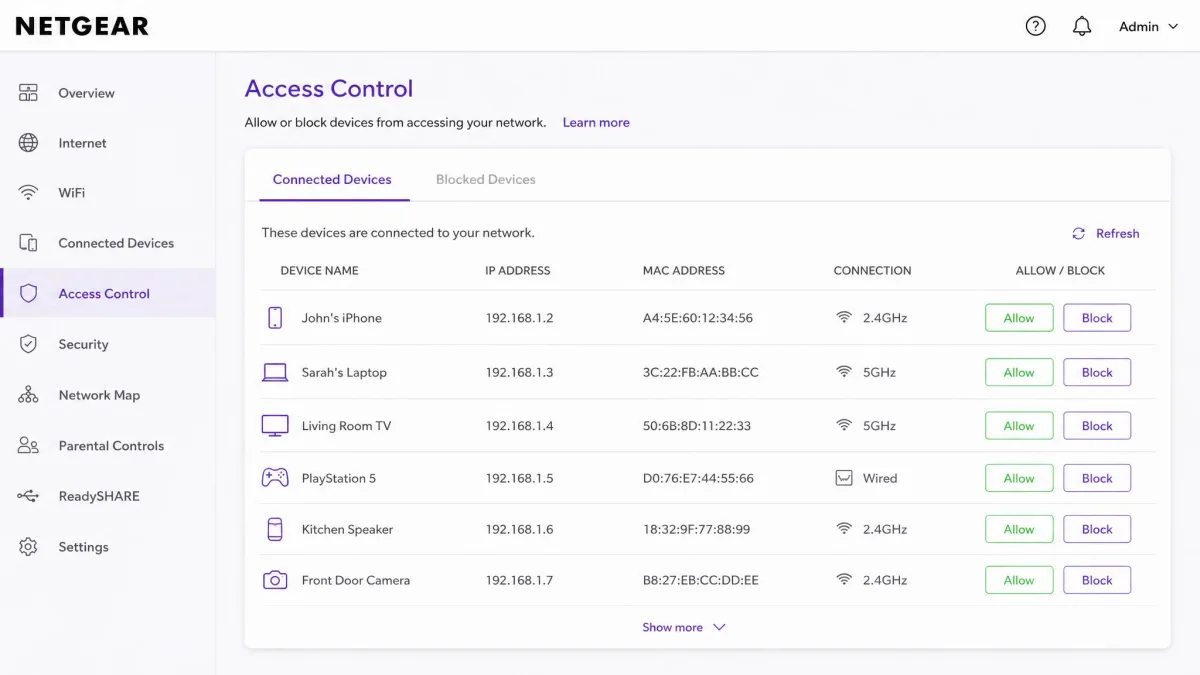
Access control is the name Netgear uses for the router feature that blocks or allows devices on your network with a network access control list, or ACL. The router matches every device that connects by its MAC address rather than its IP address, which is what makes a block stick even when a device picks up a new IP lease. See NETGEAR's official Access Control guide for the full walkthrough across Nighthawk routers and Orbi systems.
How Netgear Access Control Works: ACLs, MAC, and IP Filtering
The ACL sits at the heart of the feature. When you switch it on, the router checks every device that asks to join against the list you have built. A device you allow joins normally. A device you block is refused before it can reach the internet.
Each entry in the list is tied to a MAC address, the hardware identifier printed on a device's network interface. Because a MAC address stays the same for the life of the hardware, access control keys on it instead of an IP address, which can change every time a device reconnects.
What Access Control Can and Cannot Block (Internet vs. Local Network)
The point that confuses most people is what a block actually stops. NETGEAR's own documentation contradicts itself on this, and behavior can differ by model. The official Access Control guide says a blocked new device keeps local-network access, with only internet access denied. Other Netgear help pages say a blocked device cannot communicate with other devices at all. Test it on your own router rather than trusting either description.
On many routers, access control blocks the internet rather than the local network, so a blocked device may still reach a shared drive or a printer.
Here is what the feature can and cannot do:
- It can block a whole device, including devices it has never seen before under the deny-all rule.
- It cannot filter web content or stop malware already running on a device.
Access control also does not reach a Netgear Wi-Fi extender. A phone removed from the allowed list can still connect through the extender, so check its own settings too.
How to Set Up Access Control on a Netgear Router
Setup takes only a few minutes from the router's web interface. You need one device already connected, because you manage the router from a browser on it. NETGEAR's Access Control and MAC filtering guide walks through the same steps.
Update Your Router Firmware Before You Begin
Before you start, check that the router is running current firmware. If the Access Control option is missing from the Security menu, an outdated firmware version is usually the cause. Some older routers do not support it at all.
Firmware updates also fix access-control bugs, including devices that stay blocked long after you allow them. Run the update check in the router admin page or the Nighthawk app first.
Step 1: Log In to Your Router (routerlogin.net / routerlogin.com)
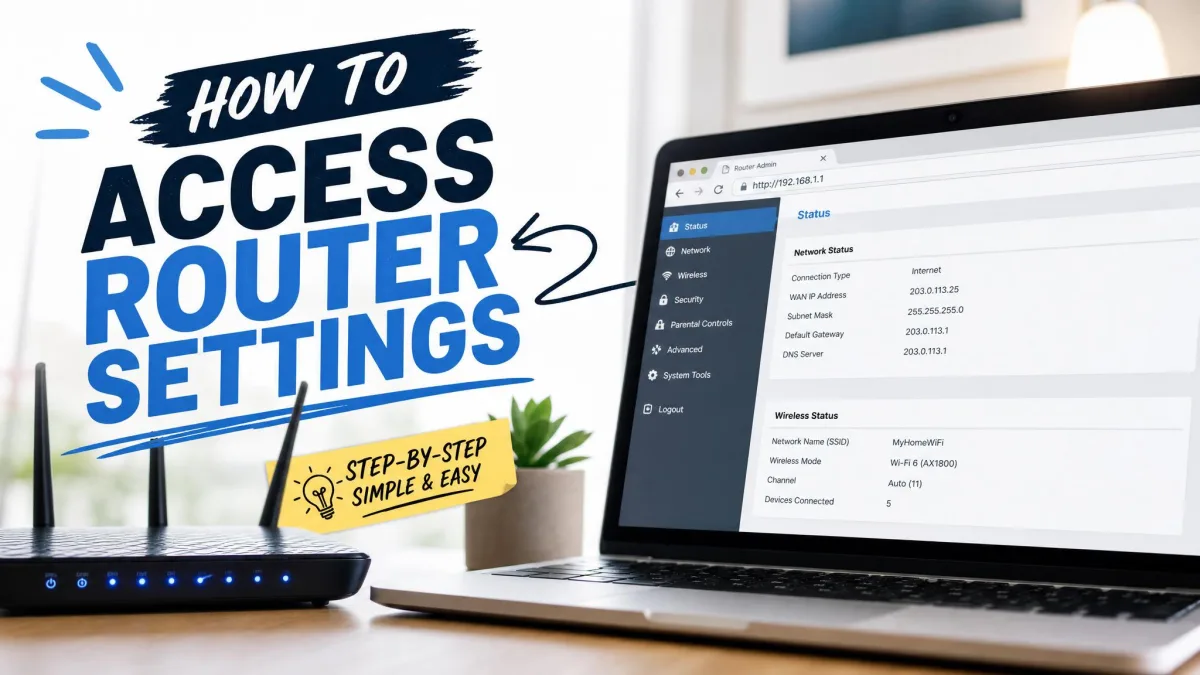
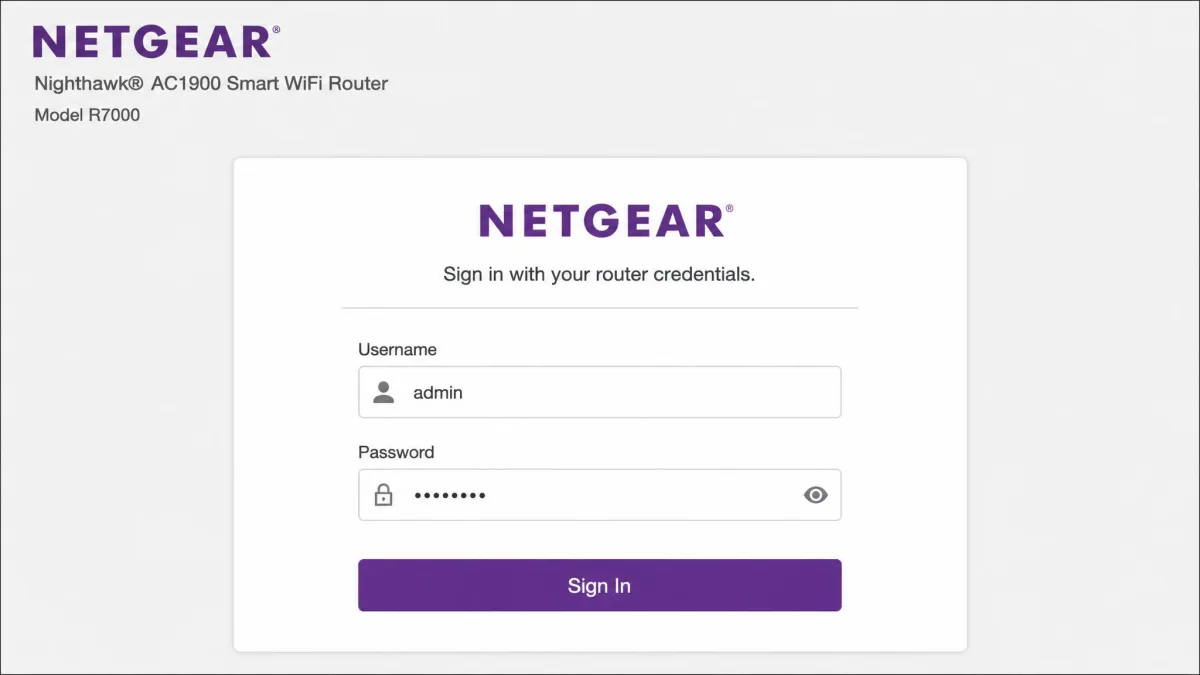
Open a browser on a connected device and go to your router's login page at routerlogin.net. Some models also answer at your router's login page at routerlogin.com. If neither loads, type 192.168.1.1 or 192.168.0.1 in the address bar instead.
The default login is admin for the user name and password for the password, both case-sensitive. If you set your own credentials when you installed the router, use those. Orbi systems log in through the Orbi admin page at orbilogin.com.
If you still use the default admin and password login, change it before you configure access control. The router login guards the access rules you are about to set.
Step 2: Open the Access Control Settings
In the router admin page, go to ADVANCED > Security > Access Control. The path is the same on Nighthawk routers and most Orbi systems.
Step 3: Turn On Access Control
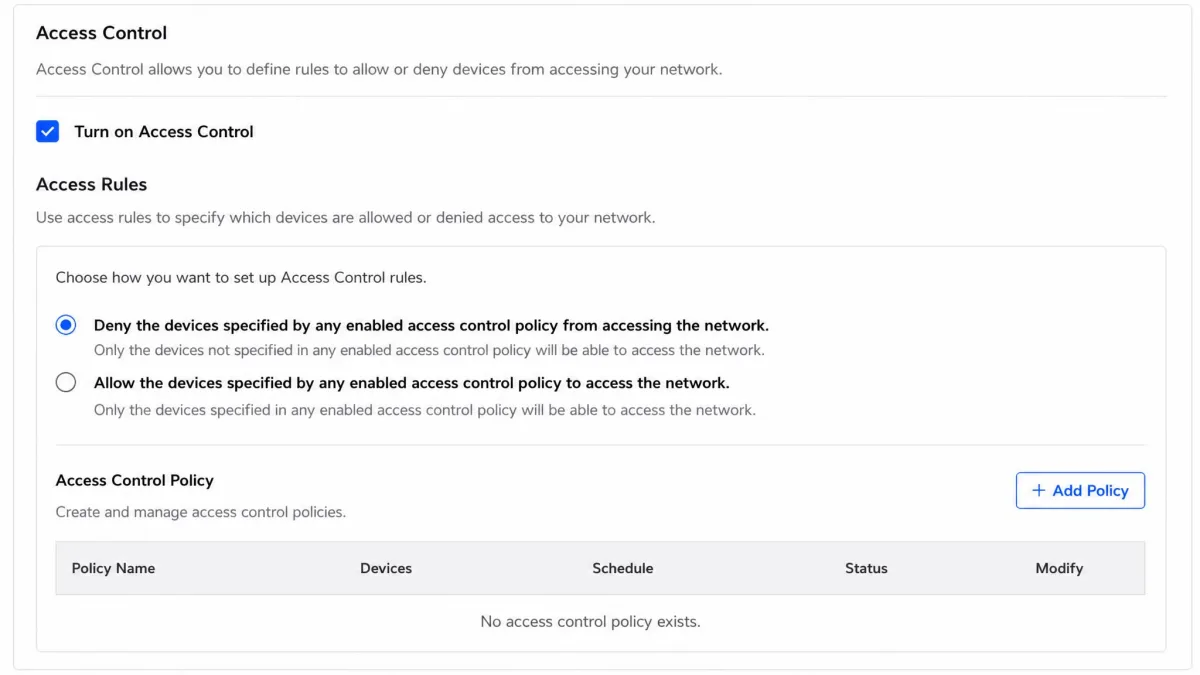
Select the Turn on Access Control check box. This is the master switch. Until you select it, the Allow and Block buttons stay inactive, and every device can connect even if its name sits on the blocked list.
Step 4: Choose an Access Rule (Allow or Block New Devices)
Next, choose what happens to new devices. Two rules are available:
- Allow all new devices to connect is the Netgear-recommended default and the right choice for most homes.
- Block all new devices from connecting locks the network down to devices you already allowed.
The rule applies only to new devices; devices you have already allowed or blocked are unaffected.
Step 5: Allow or Block Specific Devices
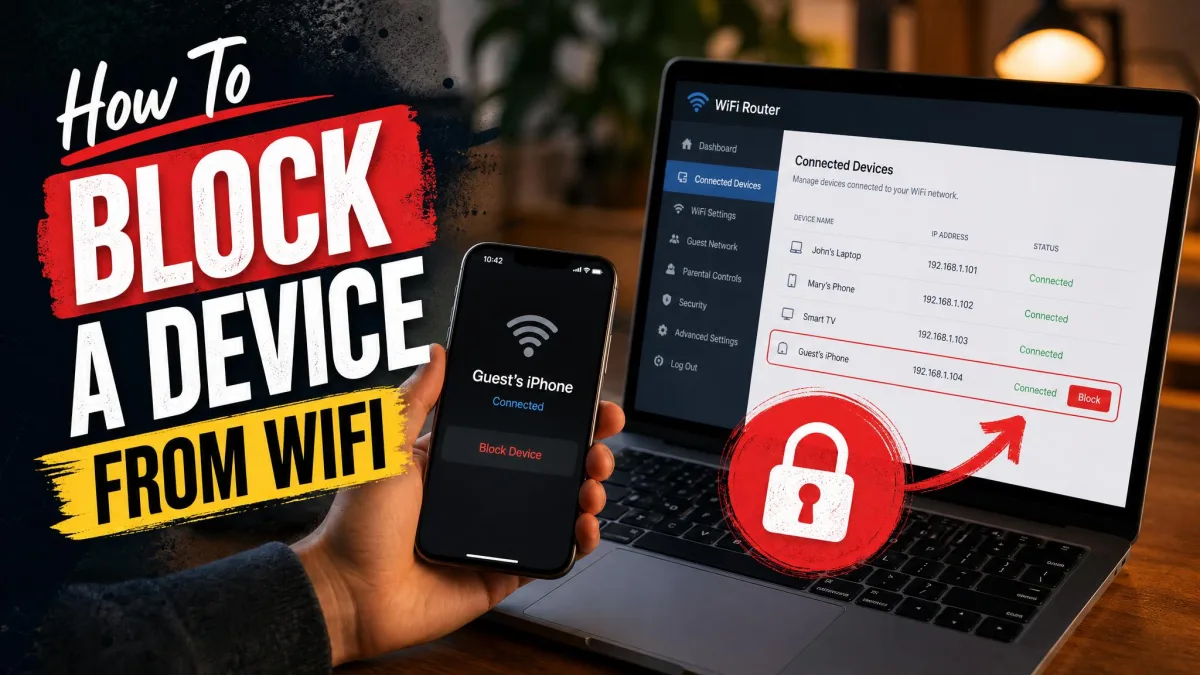
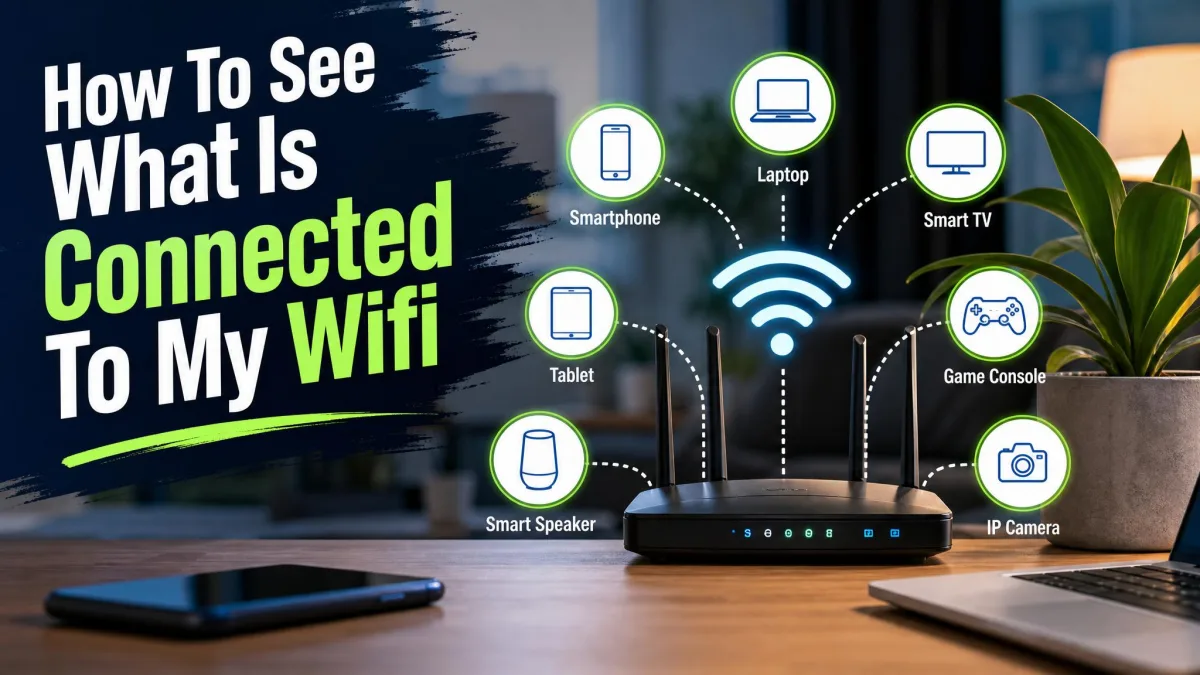
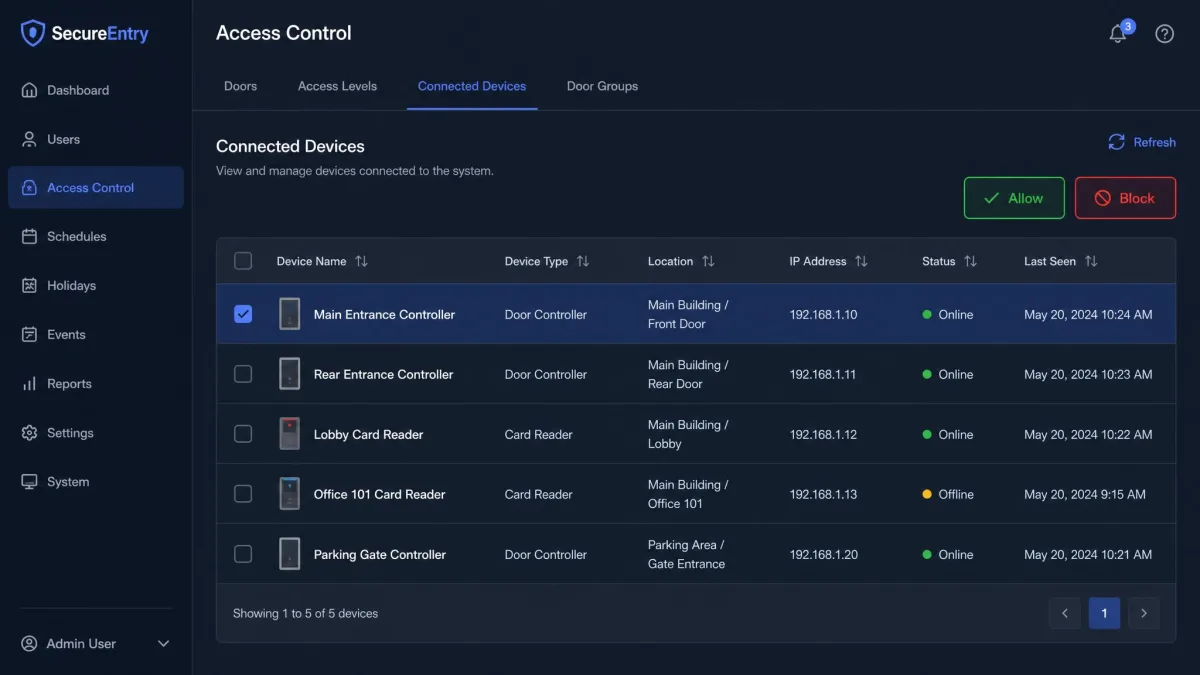
The page lists the devices on your network, with each device's name and MAC address. Select the check box next to a device and click Allow or Block. When you start, allow the device you are using so you do not lock yourself out. Then click Apply. Your changes take effect immediately.
Why Use Netgear Access Control?
Improve Network Security
Access control earns its keep when unknown devices keep joining your Wi-Fi. Set the rule to Block all new devices, add your own devices to the allowed list, and the network is closed to hardware you do not recognize. Good uses include:
- Keeping a neighbor's phone off your Wi-Fi.
- Stopping a smart device you no longer trust.
One caveat from our testing: a device set to use private DNS can get around router-level internet blocking, so treat access control as a layer, not a lock.
Parental Control: Manage Children's Internet Access
Access control doubles as a basic parental control. Block a child's device and it cannot reach the internet at all, which makes it a simple off switch for homework time or bedtime. That hard stop is useful but blunt: it covers the whole device, so there is no way to allow browsing while blocking video. For schedules, time limits, and per-device profiles, use NETGEAR Smart Parental Controls or Armor. And if you want to control which devices get online at all, our guide to how to control internet access at home covers the full router-level toolkit.
Troubleshooting: Device Blocked by Access Control
The most common problem is a device that stays blocked when it should be allowed. Try the fixes in order, from the gentlest to the most drastic. If the blocked device is your only one, the router admin page is unreachable, so skip to the fix that does not need it.
Fix 1: Turn Off Access Control
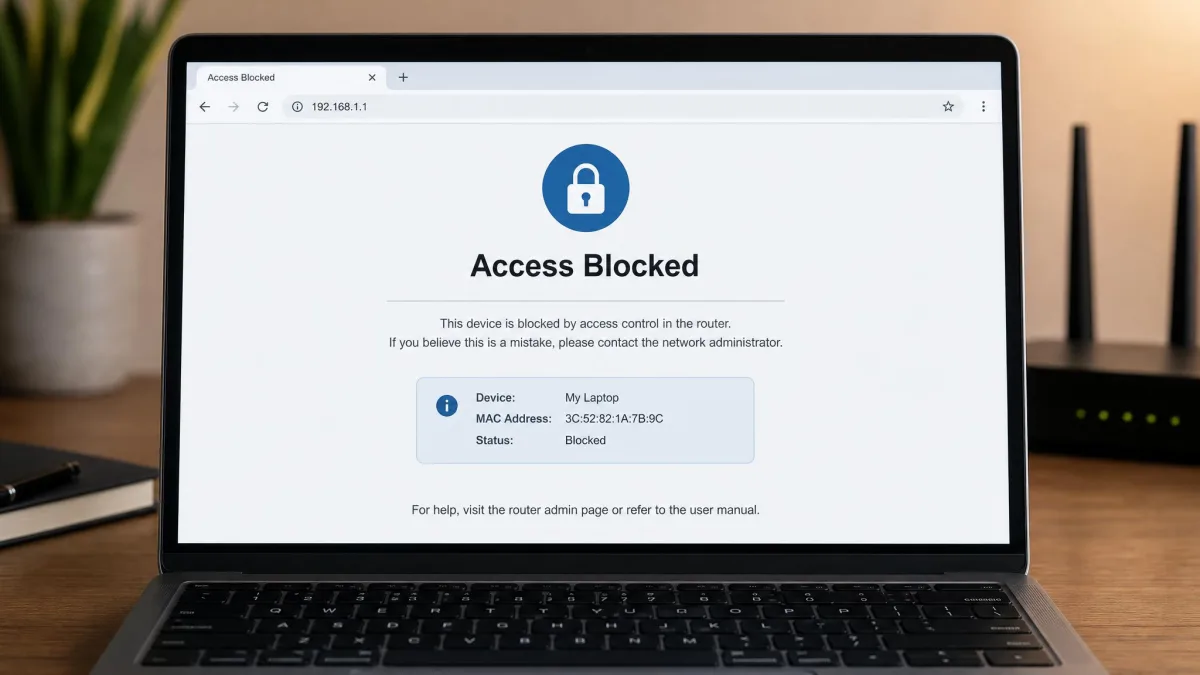
To turn off access control, log in from a device that is still connected, go to ADVANCED > Security > Access Control, and clear the Turn on Access Control check box. With the master switch off, every device can connect, even one on the blocked list. If you cannot reach the admin page from the blocked device, log in from a phone or a second computer instead.
In our testing, access control sometimes switched itself back on when a new device connected, and an Allow change occasionally failed to save. If that happens, the device's MAC address is the likely cause, which Fix 3 covers. If you are still seeing the error after Fix 1, try Fix 2.
Fix 2: Factory Reset the Router
If you cannot log in at all, reset the router to factory defaults. Hold the reset button for about 10 seconds until the LEDs blink. The reset clears every access control rule, restores the default admin login, and forces you to reconfigure the router, so treat it as the last resort. If that is too drastic and only one device is affected, Fix 3 avoids the reset.
Fix 3: Change the Device's MAC Address
Because access control matches devices by MAC address, changing the blocked device's MAC address gets it back online. Phones do this on their own: Apple's Private WiFi Address and Android's randomized MAC hand the router a new address at intervals, which is why a device under Block all new devices keeps getting re-blocked even after you allow it. To keep a phone allowed, add its current MAC address, or turn off MAC randomization for that network in the phone's Wi-Fi settings.
How to Use the Nighthawk App for Access Control
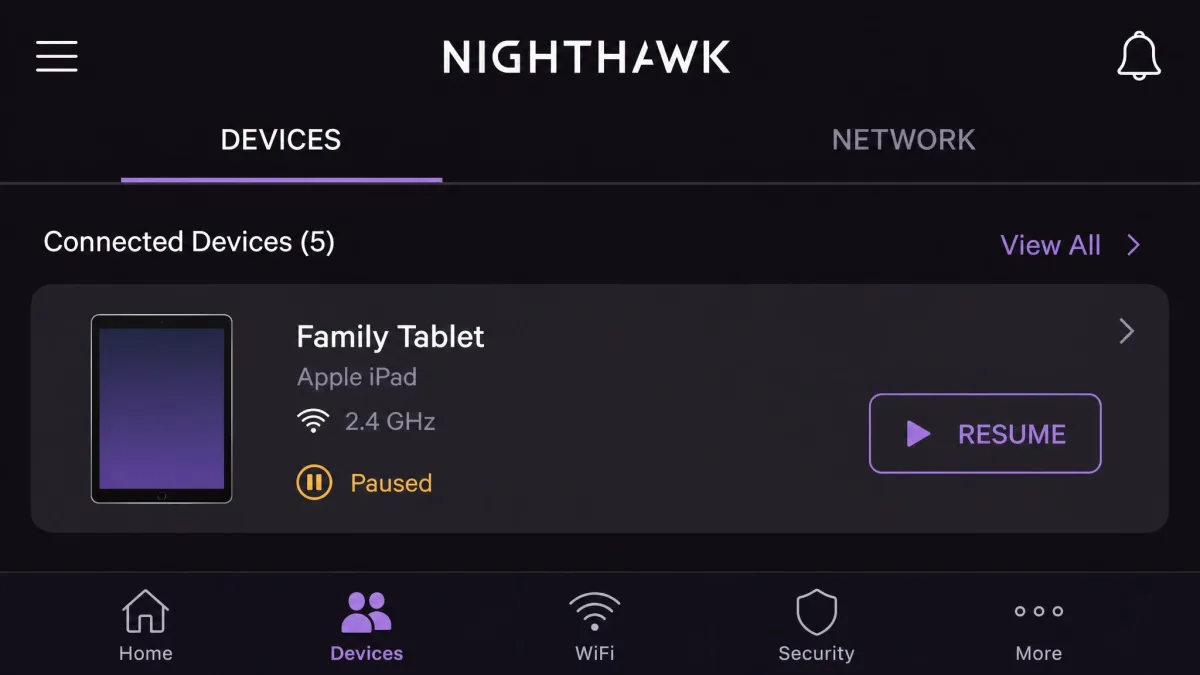
The Nighthawk app puts network management on your phone. Its dashboard lists connected devices, and the Pause the internet function stops a device's internet access with one tap. Pausing is free while the device is on your network; blocking a device away from home requires Smart Parental Controls Premium with the My Time app. You can read more about the Nighthawk app on Netgear's site.
The app also manages access control directly. We found that toggling a blocked device in the app can unblock it when the web interface keeps showing it as blocked. One caveat from our testing: on recent firmware, the app showed a device as paused with a red Blocked indicator while it kept full internet access, so double-check the app against the router's own settings.
Frequently Asked Questions
Why do NETGEAR's own pages disagree about what a block does?
What's the difference between access control and MAC filtering?
How do I unblock a device on my Netgear router?
Can access control control the guest network?
Does access control stop malware?
Conclusion
Netgear access control is a free, built-in router feature that blocks or allows devices by MAC address, and it is the fastest way to keep unknown devices off your Wi-Fi or cut a device off the internet. It is a blunt tool, so pair it with content filtering for real parental control, and remember that a blocked device's local-network access varies by model. Keep the firmware current, and test the block on your own router.