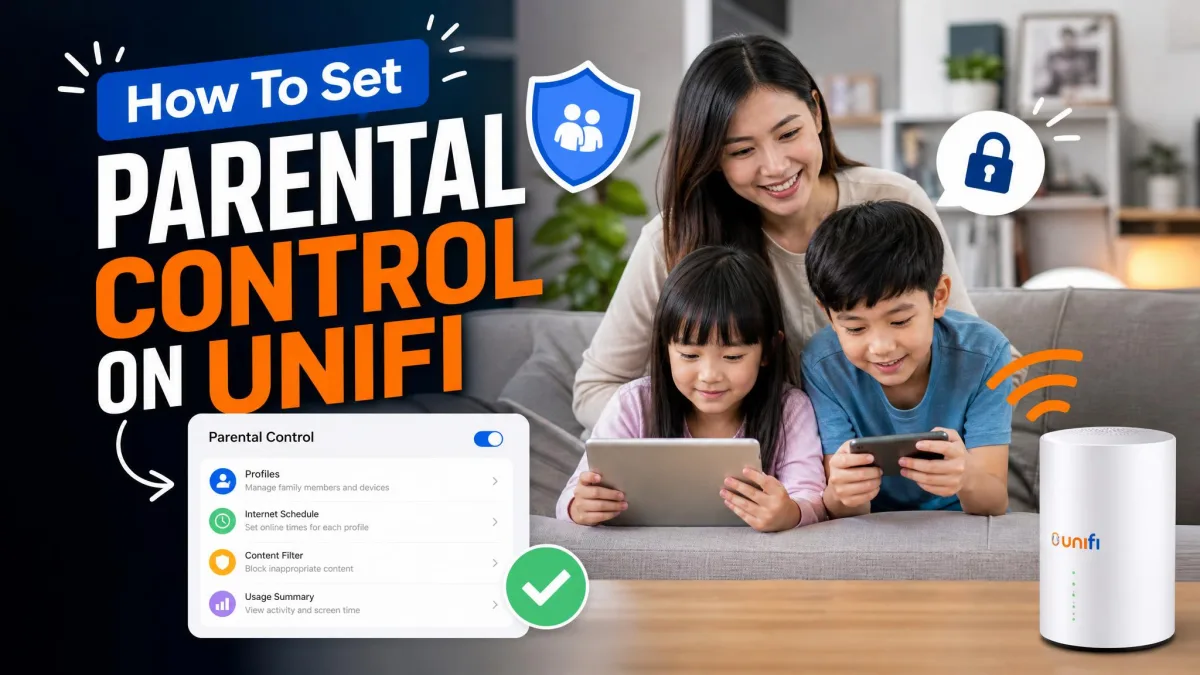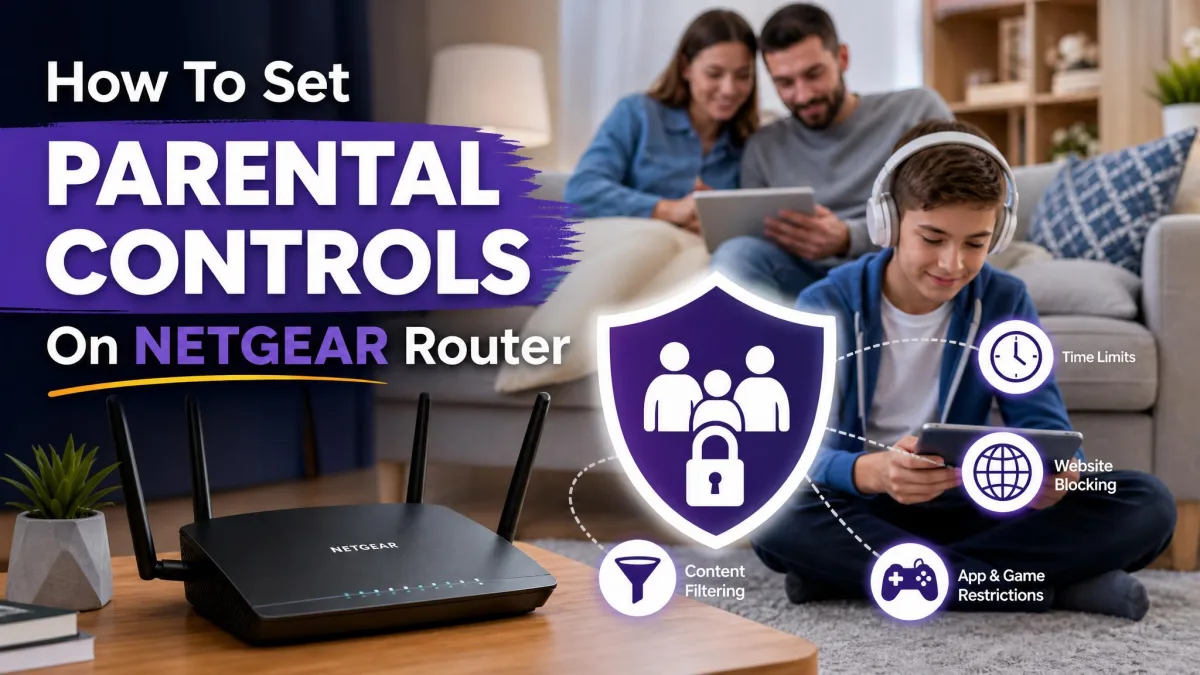
NETGEAR Smart Parental Controls is the built-in filtering and monitoring service on Nighthawk and Orbi routers. It blocks websites and apps by age group, applies time limits and access schedules, and tracks what each child does online. Everything runs through profiles, so each child gets their own rules on their own devices. This guide covers the full setup in the Nighthawk or Orbi app, plus the router web interface and the legacy OpenDNS portal. We follow the steps NETGEAR documents for how to set up NETGEAR Smart Parental Controls and note what you need before you start.
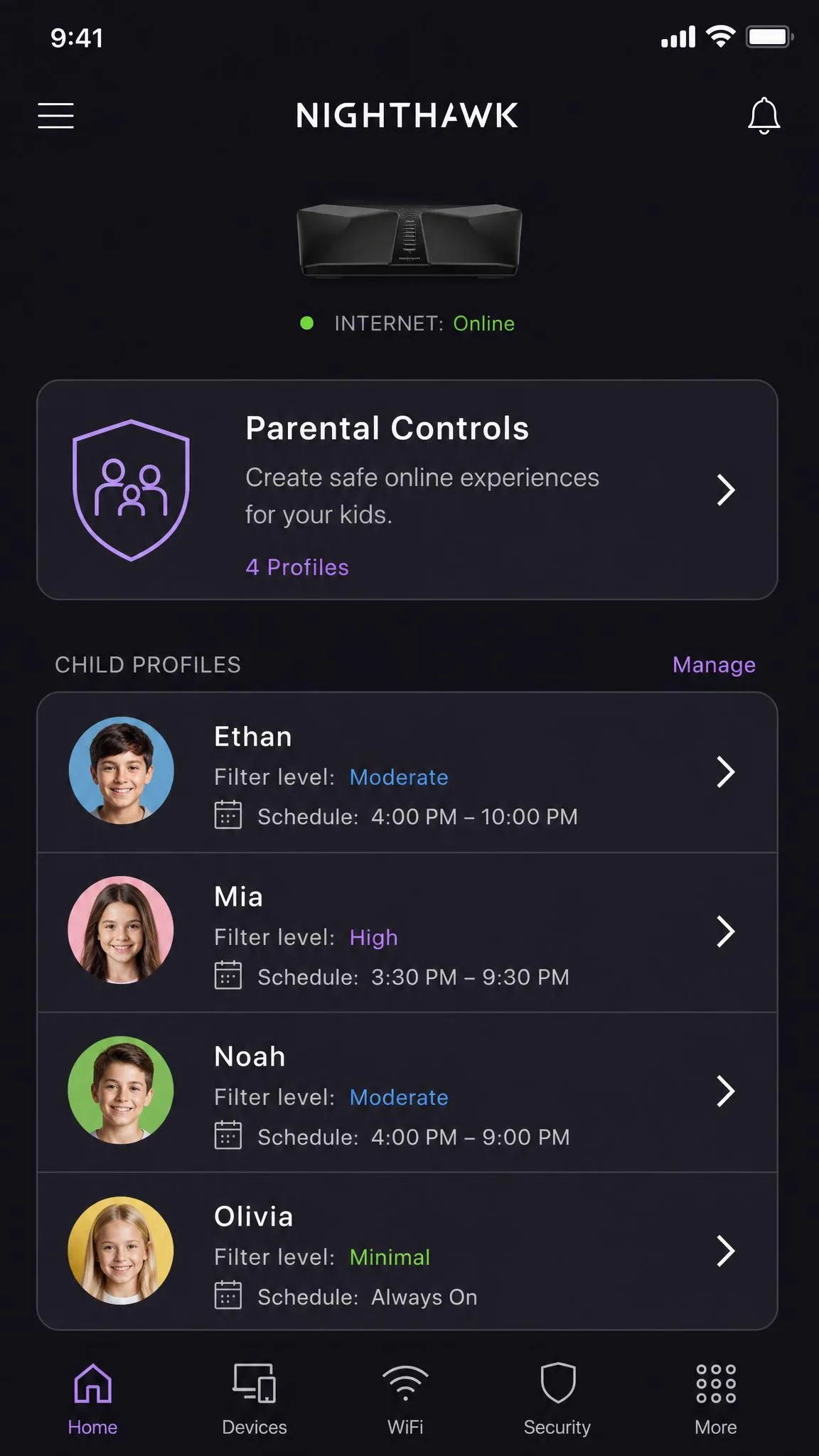
What Are NETGEAR Smart Parental Controls?
Smart Parental Controls is the cloud dashboard inside NETGEAR Smart Parental Controls. It does the filtering at the network level, so every device on the Wi-Fi follows the rules you set. You create one profile per child, assign their devices to it, and set a content filter level, time limits, and a schedule. The service needs the Nighthawk or Orbi app and a compatible router.
Free vs Smart Parental Controls Premium (what you get with the 30-day trial)
Creating a profile starts a 30-day free trial automatically with no credit card. The free tier, after the trial, covers two things: pausing the internet and assigning which devices each child can use. Premium adds content filtering, automatic time limits, bedtimes, scheduled breaks, screen-time rewards, and the My Time companion app.

Before You Start: What You'll Need
Install the Nighthawk or Orbi app and make sure you can log in to your NETGEAR account. Have the router admin password ready for routerlogin.net. List the devices each child uses, like phones, tablets, and consoles. New router setup routes through the app, and some models configure over cellular because the router blocks the internet until setup finishes.
Method 1: Set Up Parental Controls in the Nighthawk or Orbi App
This is the primary method, and all the setup lives here.
Set up one profile per child, since filters, time limits, and schedules are per-profile.
Step 1: Launch the app and open the Parental Controls tile
Install the Nighthawk app on the App Store or the Nighthawk app on Google Play. Open the app and log in. Tap the Parental Controls tile on the home screen. If the tile is missing, update the router firmware and confirm the model supports Smart Parental Controls.
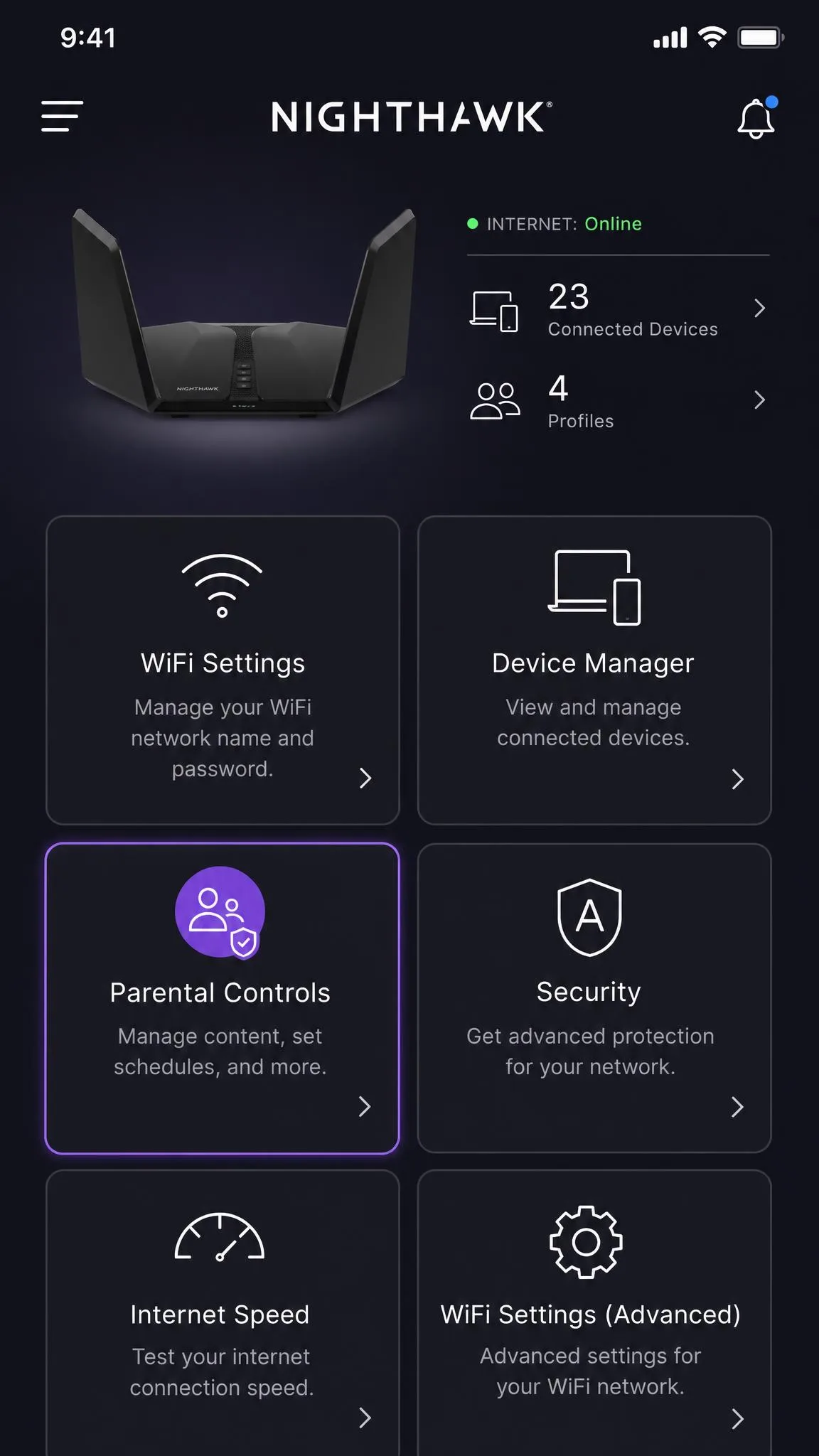
Step 2: Create a profile for each child
Tap Add New Profile and choose Set Up. Enter a profile name, like a first name, and tap Continue. Repeat for every child, since each profile carries its own rules.
Step 3: Assign devices to each profile
Select the devices that child may use from the connected-device list. The list shows online and offline devices, so you can assign a tablet that is currently asleep. Tap Save when the list is correct.
Step 4: Pick a content-filtering level
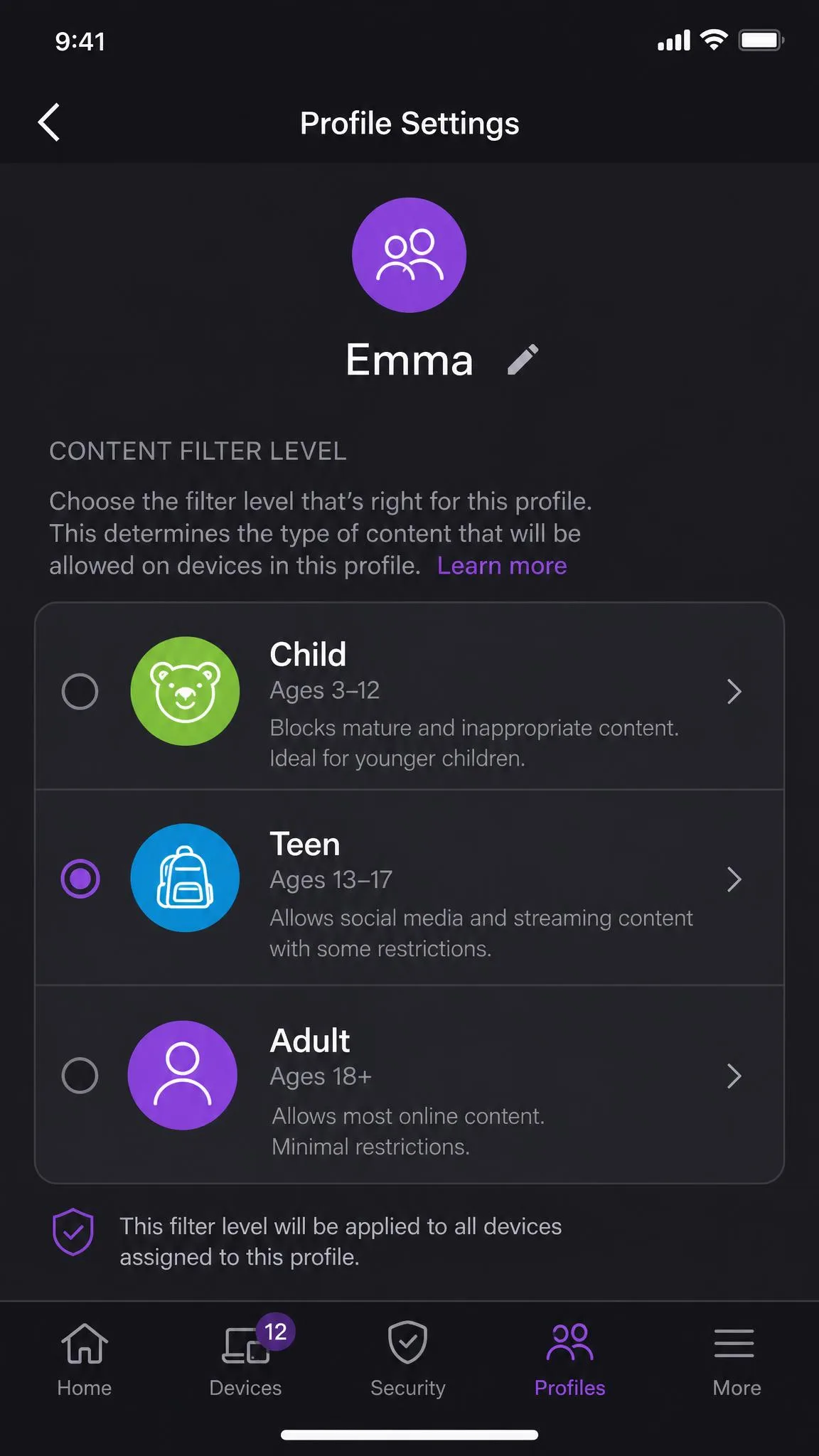
Choose a filter level that fits the child's age. Child suits kids up to 12, Teen suits ages 13-17, and Adult is the lightest filter. Tap Continue. You can change the level later from the profile.
Step 5: Set time limits and access schedules
Set a daily time limit and an access schedule to control when the child goes online. These rules require Premium and work during the trial.
Step 6: Activate the 30-day free trial
Tap START 30 DAY FREE TRIAL to begin. No credit card is required, and after the trial the free tier still pauses the internet and controls device assignment.

Smart Parental Controls is easy to switch on, but it runs as a cloud service, and that shows under load. During one outage we watched the Orbi app lose its device list and refuse profile edits for hours, and turning the feature off threw an SPC-DISABLE-FAIL error. The rules came back once the service recovered, but it was a reminder to keep a fallback plan.
Method 2: Set Up Parental Controls from the Router Web Interface
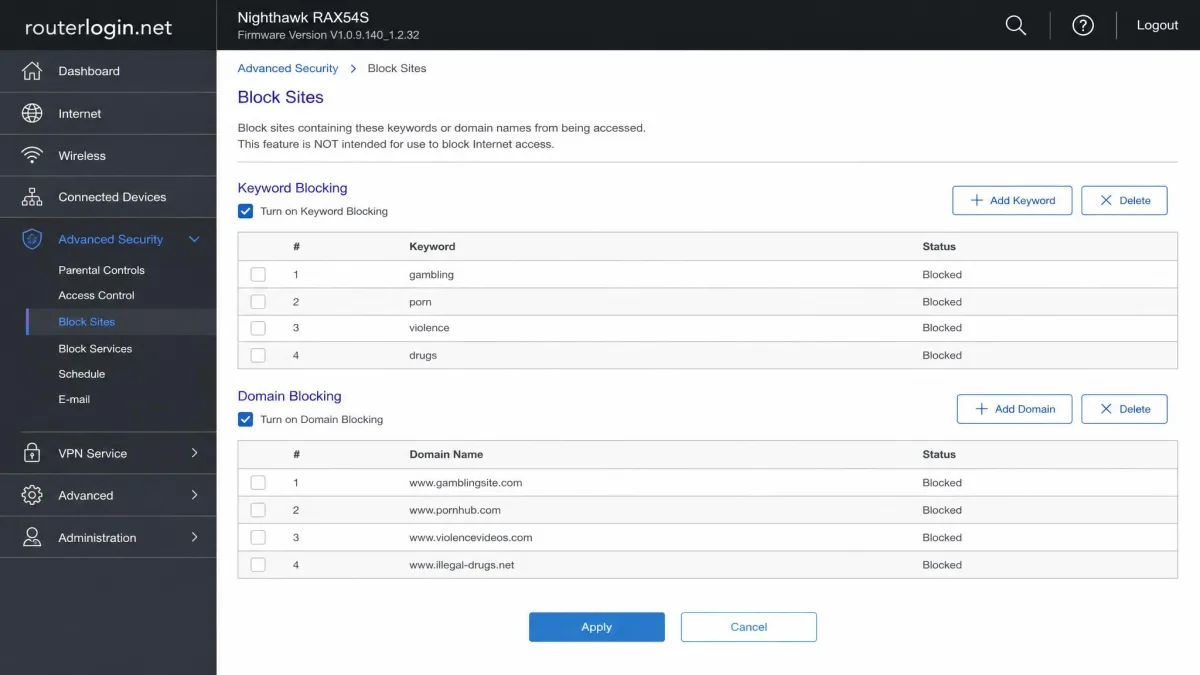
The web interface does not create Smart Parental Controls profiles; profile management is app-only. Its strength is simple network-wide site blocking. Open a browser, go to routerlogin.net, and log in with the admin password. Open the Advanced menu, choose Security, and select Block Sites. Some models place this under Settings and Content Filtering. Choose Always, Never, or Per Schedule, then block sites by keyword or domain, like Roblox or www.youtube.com.
Method 3: Legacy Live Parental Control via OpenDNS (Web Portal)
Older routers and app versions used a different service, called Live Parental Controls, built on OpenDNS. NETGEAR removed it from firmware in April 2021, and support ended in December 2021, so only follow this route on legacy hardware that never received the update. Install the Genie app from NETGEAR's Live Parental Control portal and create an OpenDNS account. Pick a default network-wide filter level, then set per-device levels from the Network Map. Create bypass accounts at the OpenDNS filtering portal for NETGEAR to let certain people override the filter.
Content Filtering Explained: What Each Filter Block Level Does
Filter levels map to age bands. Child suits kids up to 12 and is the strictest setting. It blocks social apps like Facebook, Instagram, Snapchat, and Twitter, plus categories like dating, explicit content, gambling, and VPNs, and it forces Safe Search on. Teen allows all apps but still blocks dating, explicit content, gambling, and mature material. Adult allows nearly everything and blocks only explicit content. None allows everything while the pause button still works. The levels stack, so anything allowed at the Child level stays allowed at the Teen and Adult levels.
The filter only works when traffic stays on your network. In our testing, a VPN client on a child's phone got around the blocks even when VPNs and proxies were blocked in that profile. Independent testing also found about a third of the domains blocked at the Adult level still loaded under the stricter Child setting. Treat the filter as a helper, not a guarantee.
Setting Time Limits and Internet Access Schedules
A time limit caps the hours a child can spend online each day. An access schedule controls when internet is available at all, like only between 3 PM and 7 PM on weekdays. A bedtime is a nightly cutoff that switches the connection off after a set hour. Scheduled breaks pause internet for dinner or homework time. All of these live in the child's profile under time controls, and they require Premium after the trial ends.
Monitoring Your Child's Online Activity (My Time app)
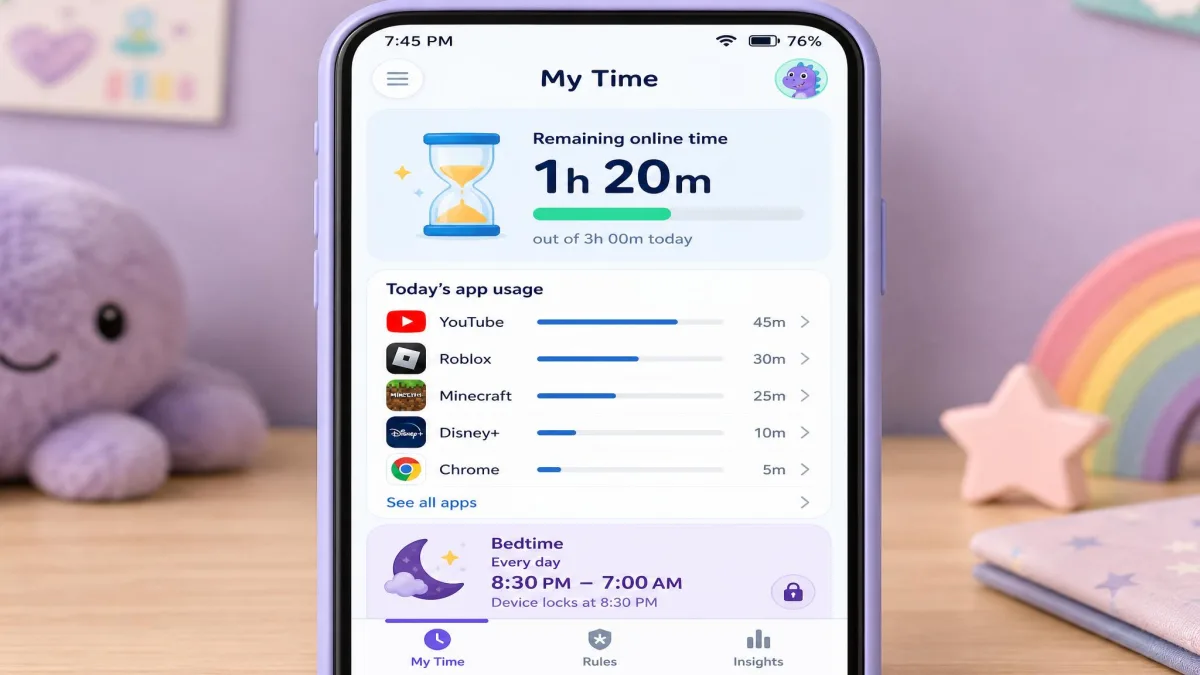
My Time is the child's companion app, included with SPC Premium on iOS and Android. It shows the child their remaining online time and per-app usage, and it keeps bedtime, off time, pause, and time-limit rules active even when the device leaves home Wi-Fi. Parents see usage and website history in the Parental Controls dashboard. Usage counts in roughly five-minute chunks and drains against connection activity, so background notifications from chat apps can eat into the daily limit. Bedtime follows the parent's phone time zone, not the child's.
How NETGEAR Smart Parental Controls Compares to OpenDNS and Circle
Smart Parental Controls sits between a free DNS filter and a dedicated hardware box. OpenDNS Family Shield is free and blocks adult and phishing sites at the DNS level for every device, using servers like 208.67.222.222. It offers no time limits, no per-app blocking, and no per-child profiles. Circle adds profiles, time limits, and rewards like SPC, but it costs $9.99 per month after a 14-day trial, and Circle's own pages disagree on the annual price at $99.99 and $89.99. In our experience, Circle's reliability is the weak spot, with devices showing offline without cause and filters that stop applying. On a NETGEAR router, Smart Parental Controls is the more complete fit for per-child profiles.
| Feature | NETGEAR SPC | OpenDNS | Circle |
|---|---|---|---|
| Price | Free tier; Premium $7.99/mo or $69.99/yr | Free | $9.99/mo Premium |
| Free trial | 30-day | n/a | 14-day |
| Content filtering | Child/Teen/Adult profile levels | DNS category filtering | App-based filtering |
| Time limits and schedules | Premium | Not offered | Premium |
| Per-child profiles | Yes | No | Yes |
| Works off home Wi-Fi | Yes, via My Time | No | No |
Troubleshooting Common NETGEAR Parental Controls Problems
Start simple. If a profile or schedule is not applying, update the router firmware and confirm the trial or subscription is active in the app. Some families saw enforcement stop after the trial expired and a paid plan started, with no usage history, no site blocking, and profile restrictions ignored. In that case, disable the service and start it again, or contact NETGEAR support. If the app cannot add or edit profiles, wait a few minutes and retry, since cloud outages pass on their own. For My Time, unpausing from the Nighthawk app sometimes fails, and reinstalling the app usually reconnects it. The filter can also block or unblock sites like Wikipedia on its own, which is a known bug in the companion app. Some models never gain the feature. The RAX10 still lacks it after firmware updates, so use the web interface or a DNS filter instead.