Most people come to this question from one of two places. Either a child has an Android phone or tablet and keeps finding inappropriate content, or an adult wants a few time-sink websites gone so the distractions stop winning the afternoon.
Android has no single switch for either job. What it has instead is a stack of options: a third-party app, browser settings, Google's parental controls, a device-wide DNS filter, and your Wi-Fi router. Each one blocks a different slice of internet access, and each one fails in a different way.
The seven methods below run from easiest to most thorough. Method 1 is the fastest route for most people, so start there.
Which Method Should You Use?
The right method depends on whose device it is, whether you can install an app, and how hard someone will try to get around the block. This table sums up the trade-offs.
| Method | Needs an app? | Free? | Works across all browsers? | Can a child bypass it? | Difficulty |
|---|---|---|---|---|---|
| Yes | Free tier, paid upgrades | Yes | Yes, by uninstalling | Easy | |
| No | Yes | No, Chrome only | Yes, by typing the URL | Easy | |
| Add-on in Firefox | Yes | No, per browser | Yes, by switching browsers | Easy | |
| Yes, parent and child app | Yes | Chrome and Google services | Harder, parent PIN required | Medium | |
| No | Yes | Yes, device-wide | Yes, by changing the setting | Medium | |
| No | Yes | Yes, on that Wi-Fi | Yes, by using mobile data | Medium | |
| Yes | Usually paid | Yes | Harder with uninstall protection | Medium |
If you only try one thing, start with Method 1.
Menu names and paths shift between manufacturer skins and Android releases, and router admin pages are worse again, so we have written the steps below as close guides rather than pixel-perfect maps. Where a setting has moved on your phone, the wording we use is usually close enough to search for in the Settings search box.
Method 1: Block Websites With a Free Blocker App
A dedicated blocker is the only approach that covers every browser on the phone in one step. BlockSite is the best known of these, with roughly 12 million downloads on Google Play. If you want to compare it with other Android app blockers, we tested seven of them.
Once a site is on the blocklist, BlockSite replaces the page with its own block screen no matter which browser you open it in. It also blocks apps alongside websites, which matters if the site you want gone also has an app on the same device.
Setting Up BlockSite Step by Step
- Open the Play Store, search for BlockSite, and tap Install.
- Open the app and work through the welcome screens. The first run asks for a stack of permissions, including accessibility access, before any blocking starts.
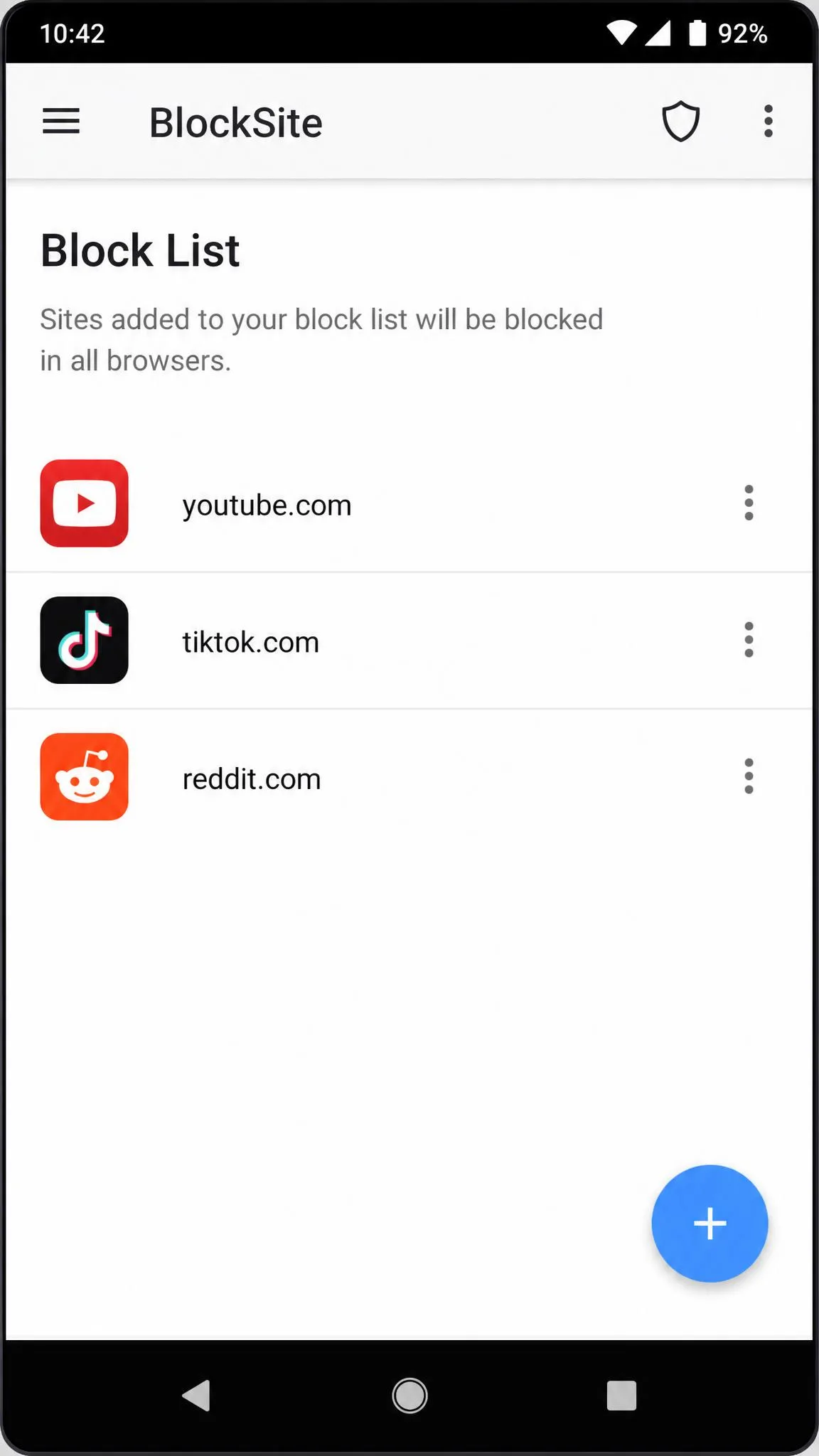
- Tap the plus button on the Block List screen.
- Enter the website address you want blocked, such as
facebook.com, and select it from the suggestions. - Tap Done to save the entry. Repeat for each site you want to add.
BlockSite ships with no starter blocklist, so every site has to be typed in by hand before the app does anything useful. You can also block whole categories, including Adult, Social, News, Sports, Shopping and Gambling, which saves a lot of typing when the goal is broad adult content filtering rather than three specific sites.
Scheduling Blocks and Setting a Password
Two settings turn a soft block into something that actually holds.
Open the app's Settings and turn on password protection, then set a PIN or connect your email so the blocklist cannot be edited casually. Next, open the Schedule tab and pick the days and hours you want the block active, which is how you leave social media open in the evening but closed during work or homework.
Focus Mode adds a Pomodoro timer if the goal is your own concentration rather than someone else's browsing.
Add the mobile version of any site you block. Blocking www.instagram.com still leaves m.instagram.com reachable unless you enter that subdomain separately.
Pricing is the awkward part. BlockSite's in-app purchases are listed anywhere from a couple of dollars to a large one-time unlock, and the published tiers are inconsistent with each other, so check the current price in the Play listing before you commit. The free tier may also cap how many websites you can add, depending on the app version you install.

Method 2: Block Websites in Chrome on Android
Chrome on Android has no built-in site blocklist, so a browser-only setup always leans on another tool or on Google's safety settings. What Chrome does give you is content filtering at the search layer plus a set of per-site permissions.
Turning On Google SafeSearch
SafeSearch strips explicit results out of Google Search. To switch it on, open Chrome, go to google.com, tap your profile picture, then select Settings and turn on the SafeSearch filter. You can also turn on Google SafeSearch from your account settings so it follows you across devices.
SafeSearch only filters search results. A blocked-looking site stays reachable if someone types the URL directly, so treat this as a first layer and not the whole defence.
Chrome's Safe Browsing and Site Settings
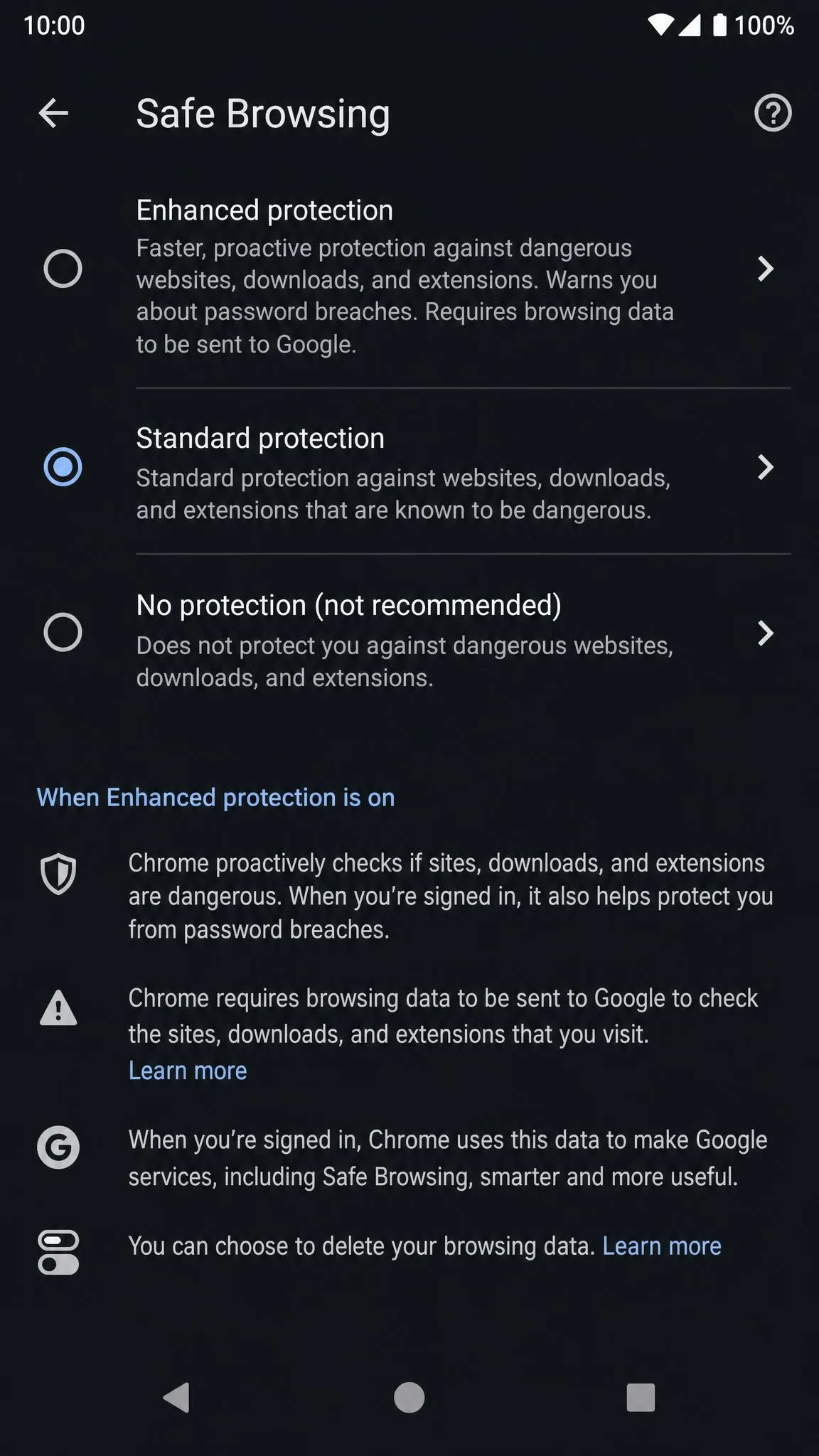
Chrome's Safe Browsing warns you away from phishing and scam sites before the page loads. Open Chrome, tap the three-dot menu, then choose Settings, Privacy and security, and Safe Browsing, and select Enhanced protection.
From the same Settings menu, open Site settings to revoke a specific website's access to the camera, microphone, location, notifications or pop-ups. That will not block the site outright, but it does cut off the parts that most often cause trouble.
Method 3: Block Websites in Firefox, Opera, Edge and Samsung Internet
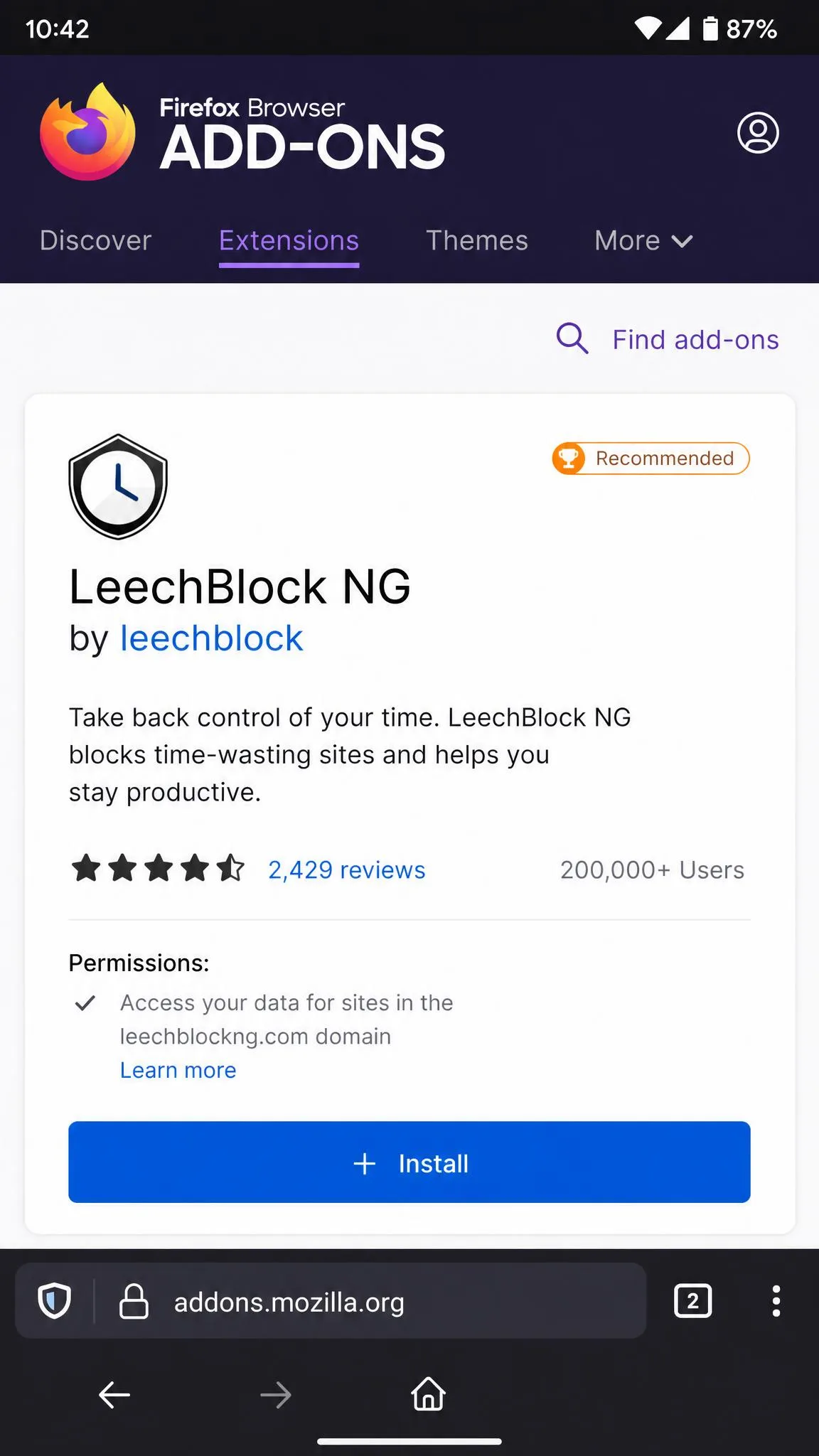
Firefox for Android is the one mainstream mobile browser that still runs extensions, which makes it the only place you can install a proper blocking add-on. LeechBlock NG blocks up to 30 sites by domain or keyword and supports scheduling, so you can lock a site down during working hours only. It is listed on the Firefox for Android add-on catalog, where it holds a 4.8 out of 5 rating, so you can install it directly on the phone: open Firefox, tap the three-dot menu, choose Add-ons, and add it from there. Bear in mind that an Android extension cannot prevent its own removal, so anyone with the menu can switch the block off.
Opera includes an ad and tracker blocker rather than a site blocklist, so pair it with one of the other methods here. Microsoft Edge can filter websites through a child account in Microsoft Family Safety, though the setup runs through several steps before any filtering applies. Samsung Internet offers a protected browsing mode that warns on dangerous sites, a feature that arrived in version 7.2, so update the browser first if you cannot find the setting.
An add-on block covers only the browser it is installed in. Any other browser on the phone keeps full access, which is why per-browser blocking works best on a device where you control which browsers exist.
Method 4: Block Websites for a Child With Google Family Link
Google Family Link is Google's free parental control system, designed for children under 13 or the applicable age in your country. It runs as a parent app on your phone and a supervised account on the child's device, which is what makes the settings hard for a child to undo.
Install Family Link on both phones, sign in with your Google account on yours, and follow the prompts to create or link the child's account. Our guide to setting up parental controls on Android walks through the full process. The child's device then reports into your app.
Filtering Chrome Sites for a Supervised Account
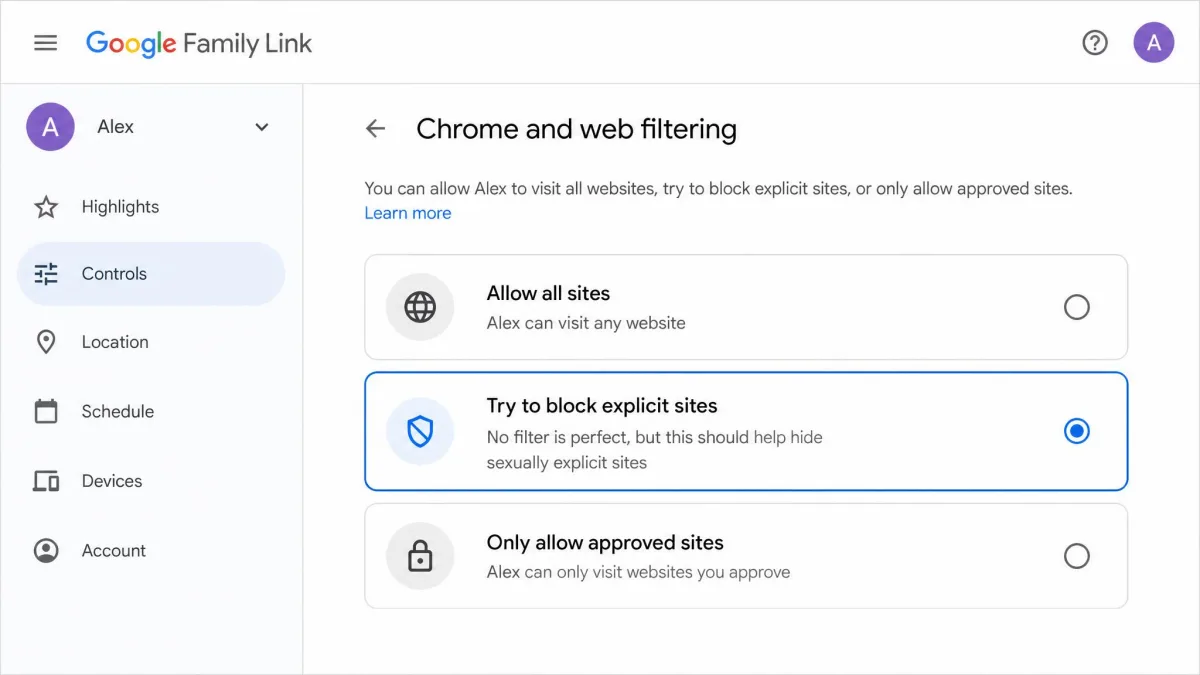
Open Family Link, pick the child, tap Controls, then Google Chrome and Web. You get three filtering choices: allow all sites, try to block explicit sites, or only allow approved sites.
The middle option is the sensible default for most families. The strictest option builds a whitelist, so nothing loads unless you add it, and you can enter specific websites to allow or block from that same screen.
Blocking Apps and Setting Screen Time
The same Controls menu handles daily screen time limits, Downtime and School Time schedules, and per-app time limits. You can approve or block individual apps from the Play Store, manage app permissions, and see the device location on a map.
Family Link's content controls cover Google apps and services, so a non-Google browser or a sideloaded app needs restricting separately. Block or remove the other browsers from the child's phone and the Chrome filter suddenly does far more work.
Anyone who can unlock the phone can uninstall a blocker app, which wipes the protection entirely. Password-protect the app's settings, and on a child's device use a supervised account so removal needs your approval.
Method 5: Block Websites Without an App Using Private DNS
Private DNS is the strongest option that installs nothing at all. It is built into Android 9 and later, it applies across every browser and app, and it keeps working on both Wi-Fi and mobile data. You point the phone at a filtering DNS provider, and requests for blocked domains simply never resolve.
Choosing a Filtering DNS Provider
CleanBrowsing runs three free tiers. The Family filter blocks adult and explicit sites plus proxies, VPNs and mixed-content platforms. The Adult filter blocks pornography but leaves proxies and sites like Reddit alone. The Security filter blocks phishing, spam and malware domains only.
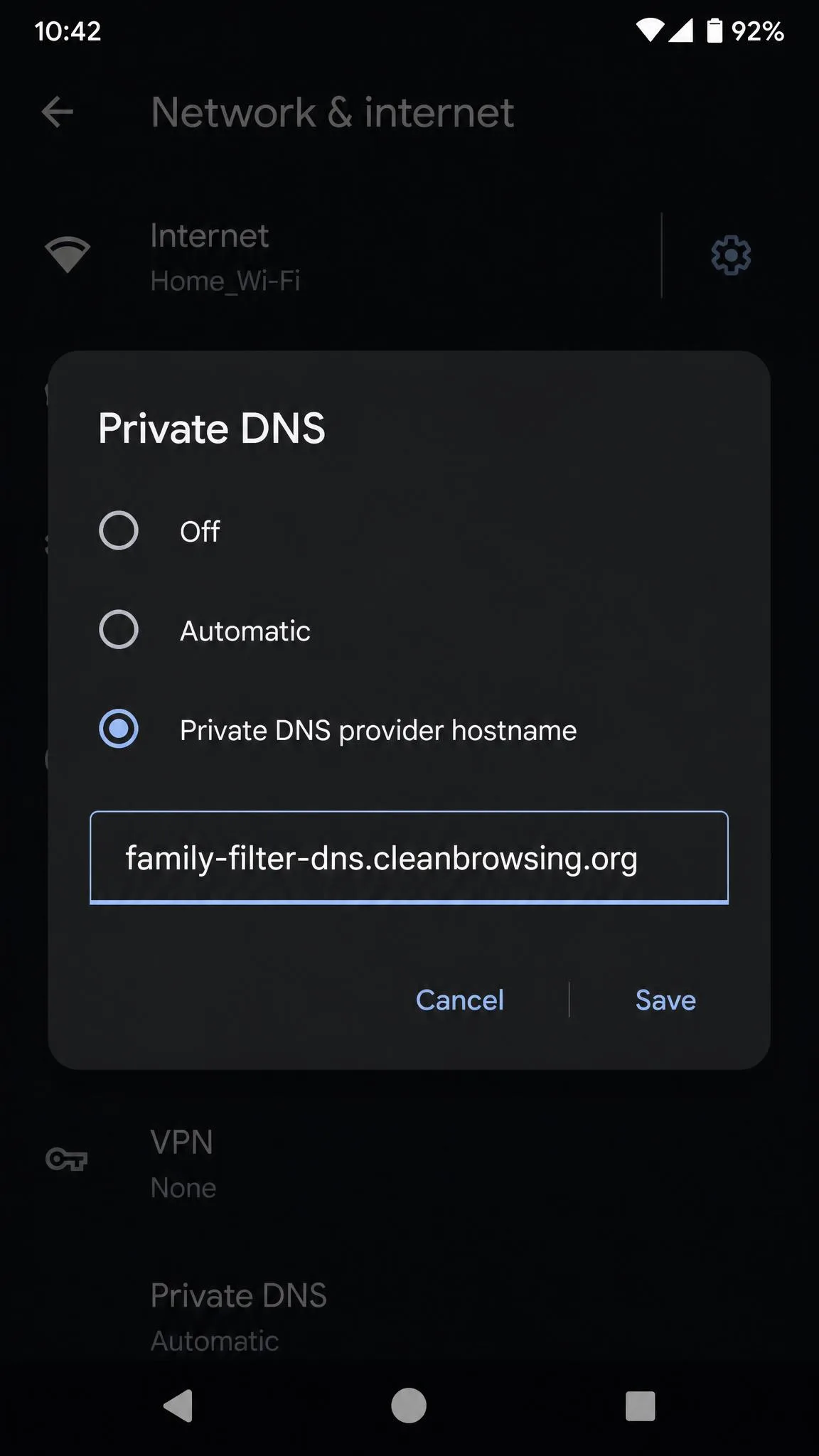
The hostnames are family-filter-dns.cleanbrowsing.org, adult-filter-dns.cleanbrowsing.org and security-filter-dns.cleanbrowsing.org.
Two alternatives are worth knowing. The OpenDNS FamilyShield setup guide covers its adult-content nameservers at 208.67.222.123 and 208.67.220.123, with the unfiltered OpenDNS Home service on 208.67.222.222. Cloudflare for Families blocks malware and adult content on 1.1.1.3, or malware alone on 1.1.1.2, though those are IPv4 addresses for router use rather than Private DNS hostnames.
Entering the DNS Hostname in Android Settings
- Open Settings, then Network and internet, then Private DNS.
- Select "Private DNS provider hostname".
- Enter the hostname, for example
family-filter-dns.cleanbrowsing.org. - Tap Save.
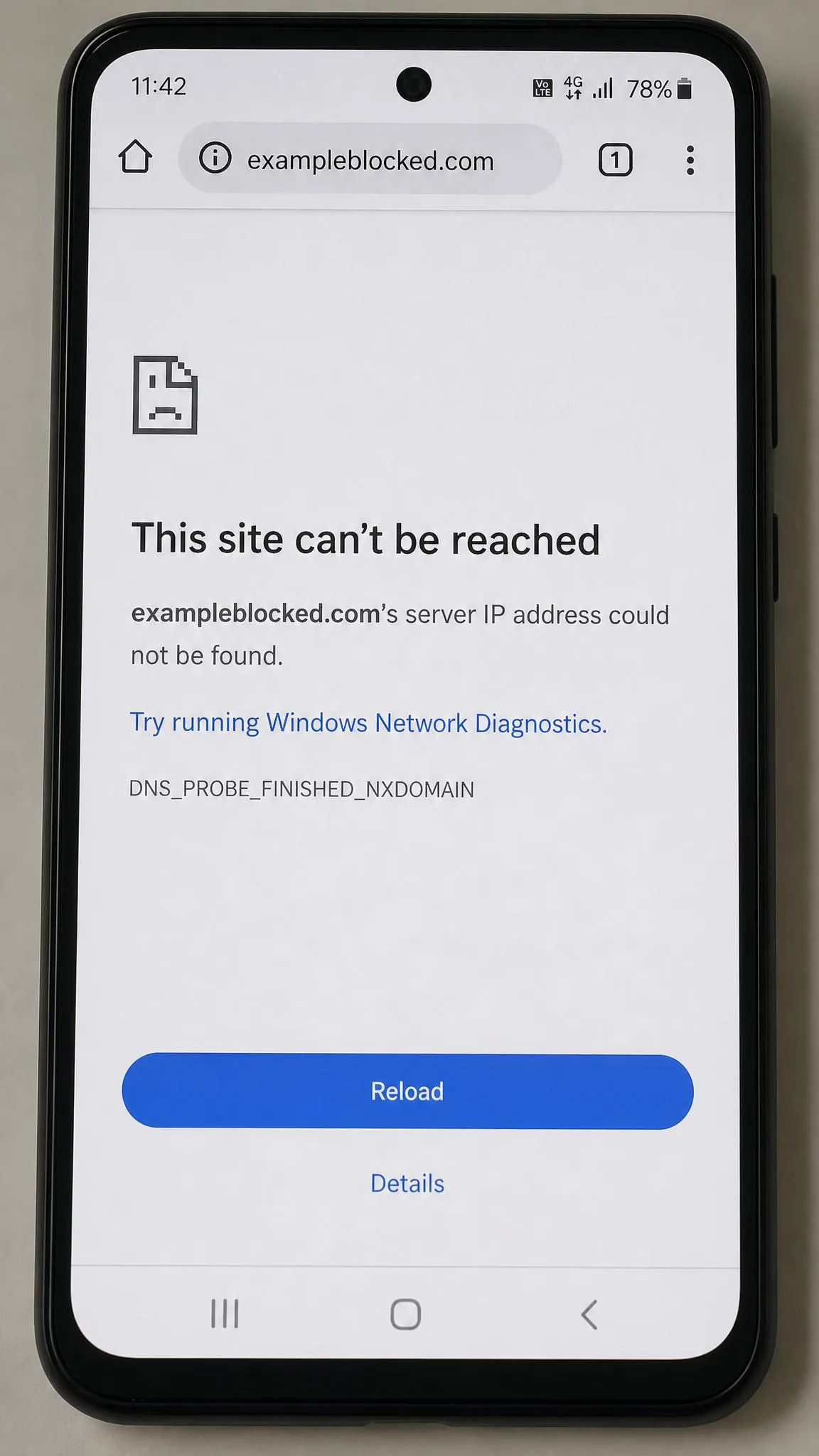
Test it straight away by opening a browser and visiting a site the filter should catch. A blocked domain fails to load rather than showing a friendly block page, which is worth explaining to a child so they do not assume the phone is broken.
Setting DNS on the Wi-Fi network alone is not enough. Android will not apply per-network DNS to the cellular connection, so the filter stops the moment the phone drops to mobile data. Use the Private DNS setting instead, which applies everywhere.
Method 6: Block Websites Network-Wide on Your Router
Everything so far lives on the phone. Router blocking moves the job onto the network, which covers every device in the house at once.
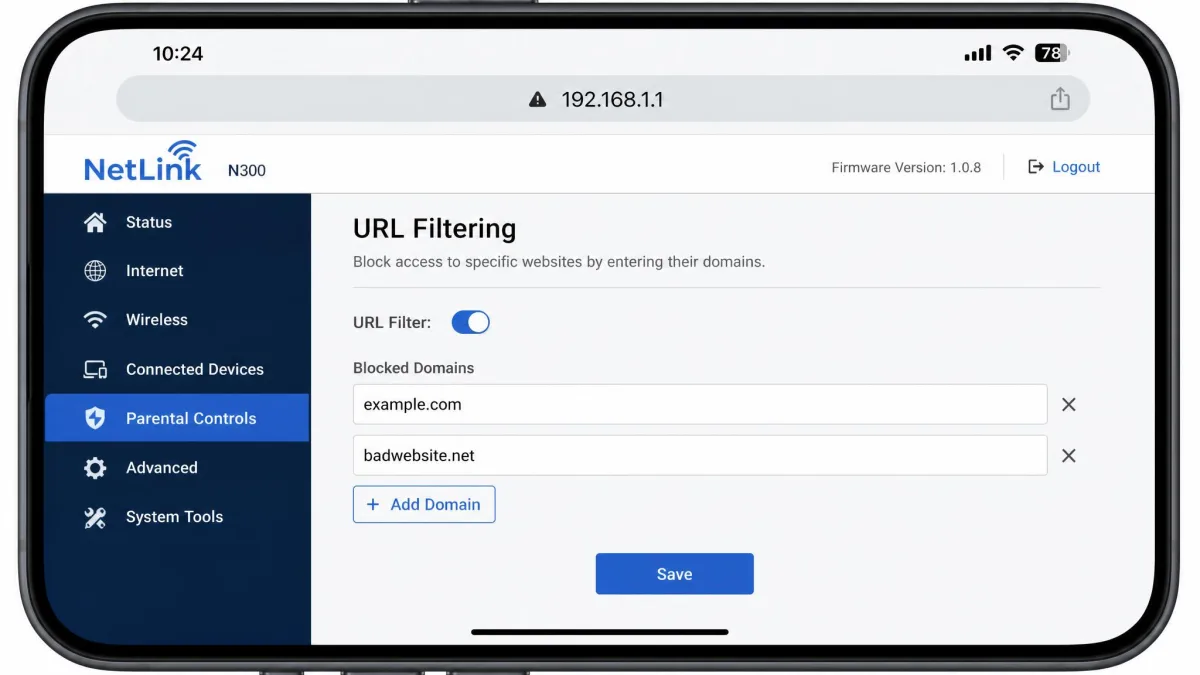
Open a browser on a computer or phone connected to your Wi-Fi and enter the router's address, usually 192.168.1.1 or 192.168.0.1, then sign in with the admin credentials printed on the router. Look for a section named Parental Controls, Access Restrictions, URL Filtering or Content Filtering, add the websites you want blocked, and save the settings.
Router menus bury these controls under different names depending on the model, so expect to hunt, or consider one of the routers with built-in parental controls. Many routers also let you set the DNS servers for the whole network, which is where the OpenDNS or CleanBrowsing addresses above pay off. If you would rather cut a device off completely, you can also block a device from your WiFi router.
Router controls only govern devices on that Wi-Fi. A phone on cellular walks straight around them, so pair this with Private DNS on the handset itself.
Method 7: Use Parental Control or Antivirus Apps With Web Filtering
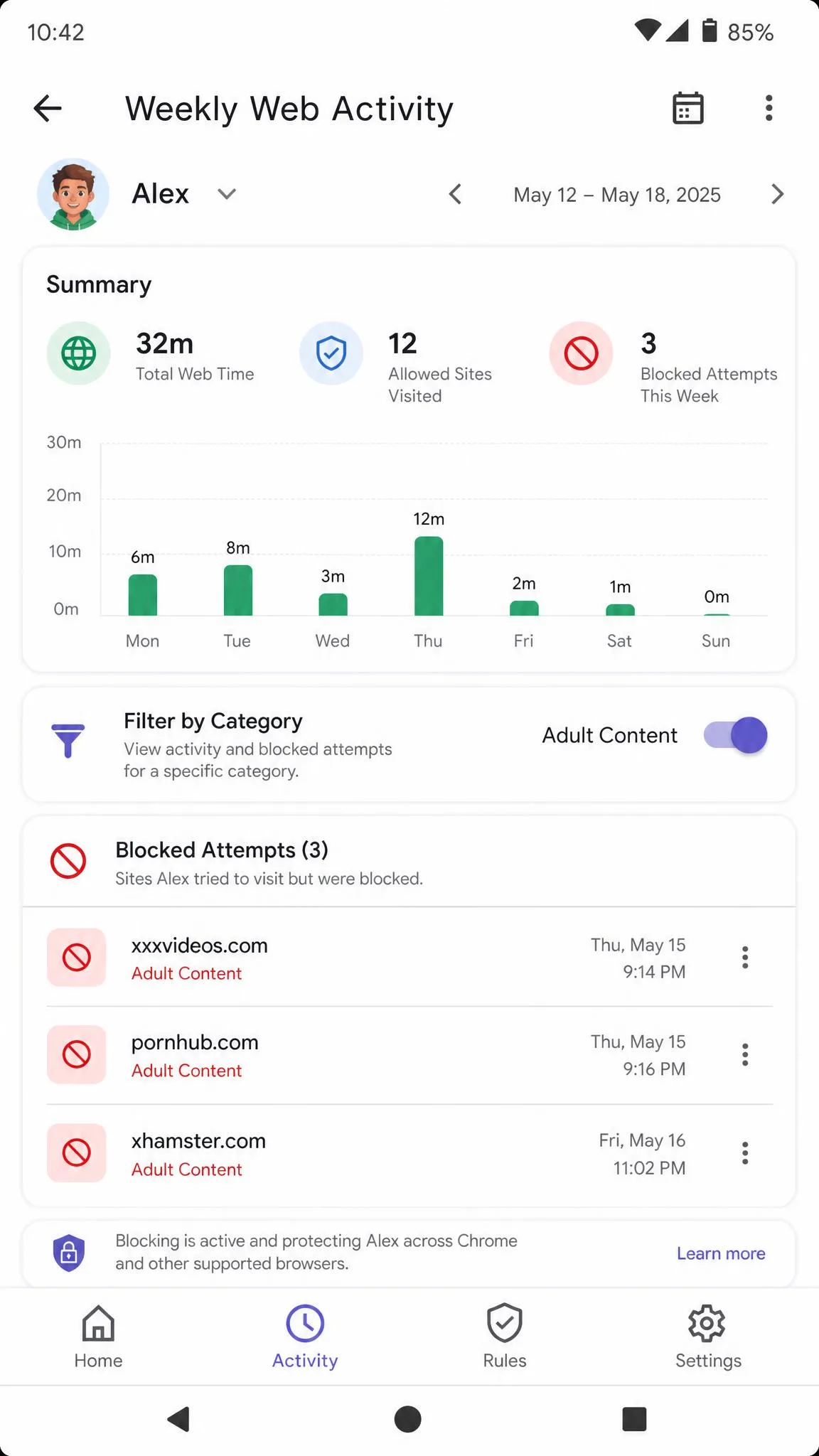
Paid parental control suites such as Qustodio, Net Nanny and Norton Family, along with mobile antivirus apps, bundle web filtering with reporting, app limits and location features. They cost money, but they add the thing free tools lack: uninstall protection that stops a child removing the app. Our roundup of the best parental control apps for Android ranks nine of them.
Firewall apps are the other branch of this method. NoRoot Firewall filters by domain, IP and hostname without root access, though it does not support IPv6, so it can go quiet on LTE and 5G connections. Several VPN services now include threat-protection filtering that blocks malware and adult domains network-wide, which is useful if you already pay for one.
The Play Store carries lookalike blocker apps with copied names and icons. Stick to well-known listings with a long review history, and check the developer name before you install. On the same theme, you may want to block apps permanently on Android rather than just their websites.
How to Unblock a Website You Blocked
Reversing each method takes the same route you used to set it up.
In BlockSite, open the Block List, swipe or tap the delete icon next to the entry, and enter your PIN if you set one. In Family Link, open Controls, then Google Chrome and Web, and either move the filter to "Allow all sites" or remove the site from your blocked list. For Private DNS, open Settings, then Network and internet, then Private DNS, and select Off or Automatic.
Router blocks come off in the same admin page where you added them, and browser add-ons are removed from the browser's own Add-ons menu.
Switching a blocker between blocklist and whitelist mode usually means clearing and re-entering the sites by hand, so export or write down your list before you change modes.
Why These Blocks Get Bypassed (and How to Harden Them)
No method here is bypass-proof. A determined user usually finds another route to the site, and knowing the common routes tells you where to add a second layer.
The easy escapes are switching to another browser, using incognito mode, turning mobile data on when the block lives on Wi-Fi, or installing a VPN that tunnels past DNS filtering. Kids use these and other ways around parental controls all the time. Uninstalling the blocker app is the simplest of all.
Some guides suggest editing the hosts file to redirect domains. That needs root on Android, which costs you Play Store access and warranty cover and leaves the phone more exposed, so we do not recommend it for a family device.
Harden a setup by stacking layers instead. Put Private DNS on the phone, remove the browsers you do not need, password-protect the blocker, and use a supervised account so app installs and removals need approval. Pair that with clear screen-time guidance for children and an honest conversation, because the technical block buys time rather than settling the issue.
The same layered approach works on other hardware, including how to block websites on iPhone.
Frequently Asked Questions
Which app-free block survives a factory reset or a new browser install?
Does blocking a site also block its app?
Can incognito mode bypass these blocks?
Can a VPN get around DNS filtering?
How do I permanently block a site?
Can I block sites only during certain hours?
Do I need to root my phone?
The Bottom Line
Pick your method by who owns the device. For your own distractions, a blocker app with a schedule and a password takes five minutes and covers every browser on the phone.
For a child, Family Link plus Private DNS is the combination worth the setup time, because one covers Google services and screen time while the other filters the whole device on any network. Add router controls if you want the rest of the house covered, and revisit the settings every few months as the phone, the browsers and the workarounds all change. For a wider look at blocking inappropriate websites on any phone, see our guide.