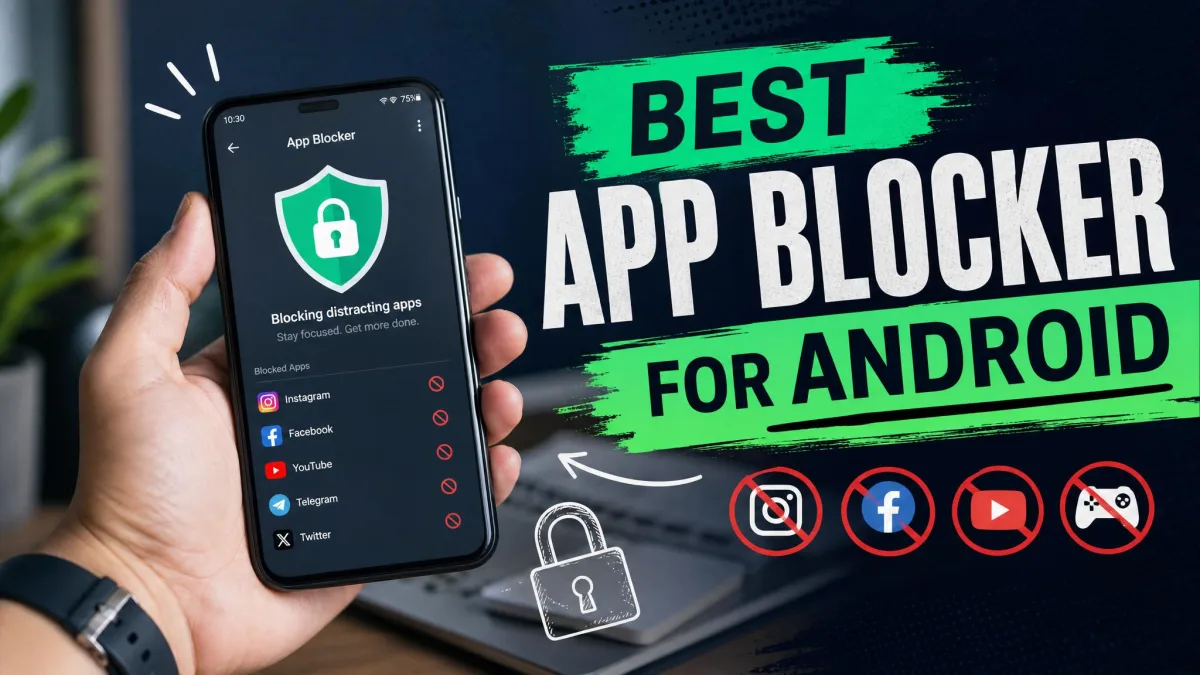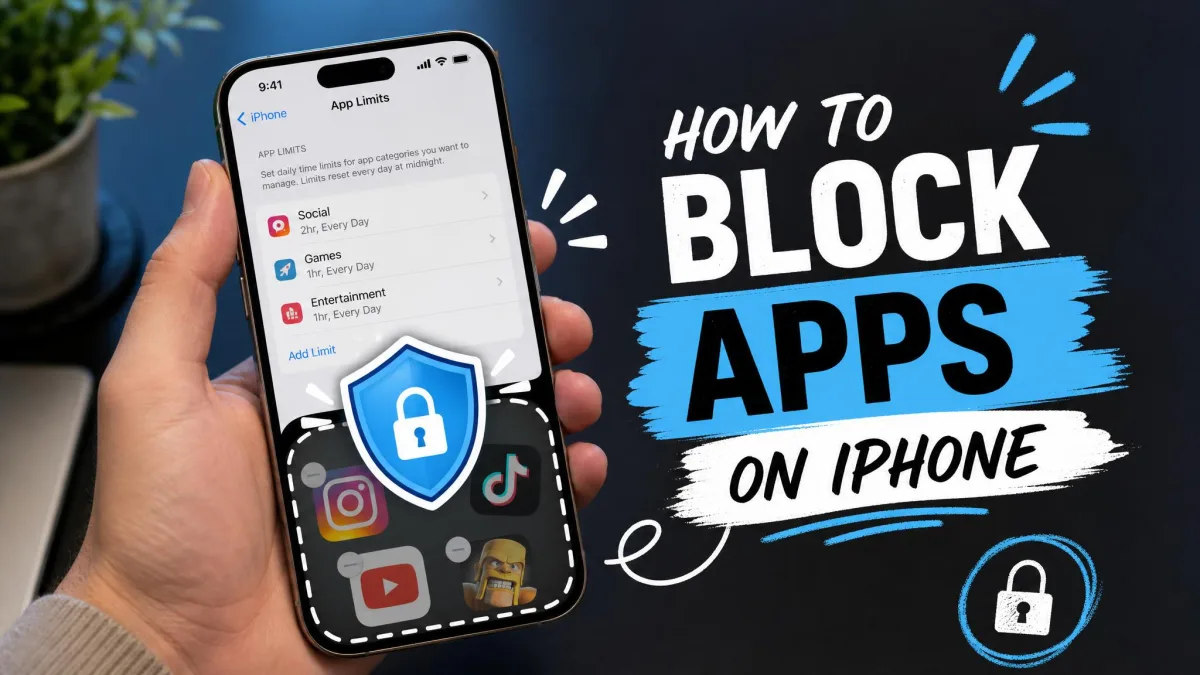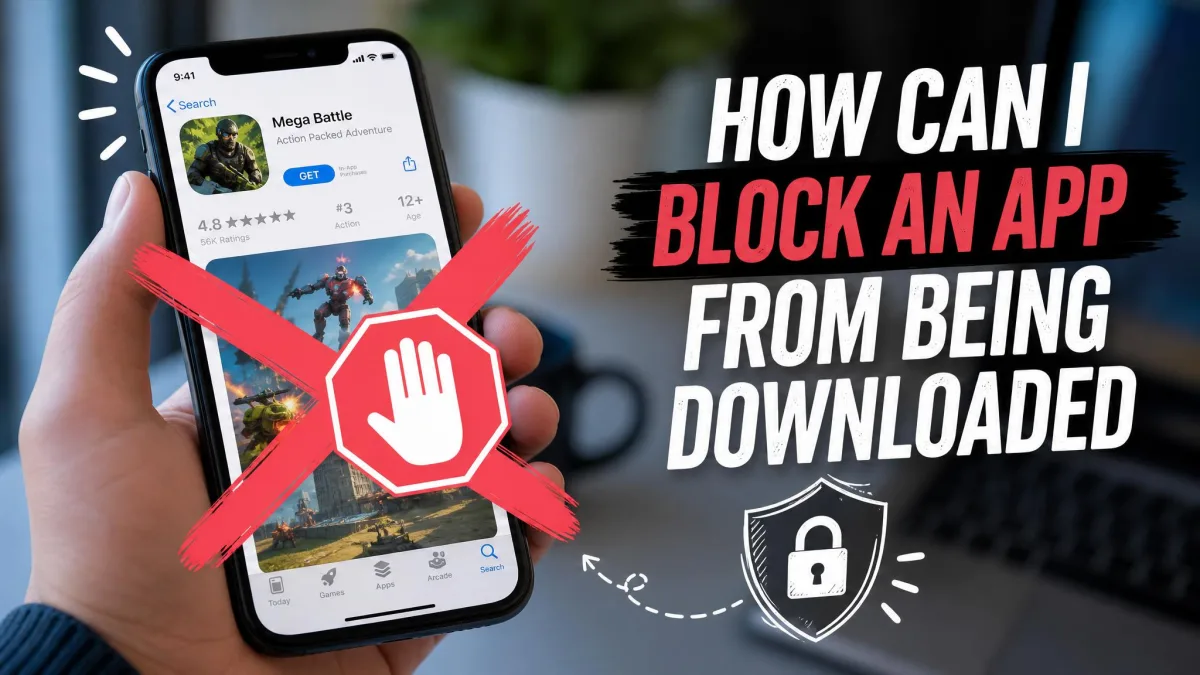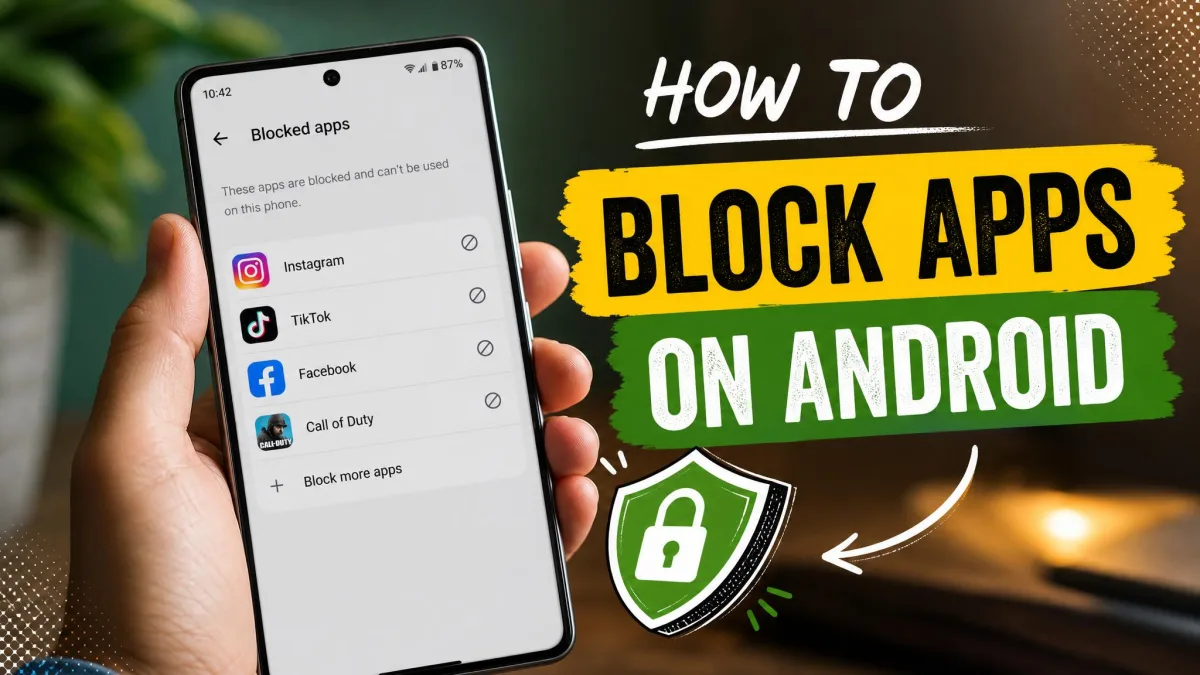
Whether it's cutting down on screen time, keeping kids away from certain apps, or stopping endless scrolling, there are times when you need to block apps on Android. Android hides most of the tools in settings you rarely open, so this guide covers seven effective ways to restrict, disable, or lock apps, from built-in tools to third-party blockers.
We tested each method on a Pixel 6 running Android 14 and a Samsung Galaxy A54 running Android 13, leaving every block in place for a few days of normal daily use before we judged it. The built-in app timers dismissed with an "ignore for today" tap on both phones, which is exactly why a timer reads as friction rather than a real lock. Family Link behaved differently: removing access to an app was instant, but a child's phone switched to flight mode dodged the block entirely, because app limits and lock commands only apply at the next sync. No single method fits every situation: some blocks last a day, some hold until you remove them, and some a determined teenager can work around in minutes.
Why Block Apps on Android? (Parental Controls, Screen Time, Privacy, Productivity)
Most people block apps for one of four reasons: to keep kids away from content they are not ready for, to cut their own screen time, to stop a chatty app collecting too much data, or to reclaim focus in the workday. Security is a fifth reason: researchers at Bitdefender found 35 malicious ad-serving apps on Google Play with over 2 million installs.
The methods below split into three groups: Digital Wellbeing and third-party blockers for your own phone, Family Link and Play Store controls for someone else's device, and disabling, hiding, permissions, and MDM for narrower problems.
Method 1: Use Digital Wellbeing to Block and Limit Apps
Digital Wellbeing is the built-in starting point when the goal is self-control, so its App timers are the quickest way to put a limit on a single app.
Set an app timer with Digital Wellbeing
Open Settings → Digital Wellbeing & parental controls → App timers, pick an app, and set a daily time limit. When the daily time runs out, the app closes and its icon dims until the next day, as app timers reset at midnight.
The practical catch, we found, is that a timer is friction rather than enforcement: the 4-digit App limits PIN can change or remove the limit later, so a determined user can lift a self-imposed block in seconds. To turn a timer into a real lock rather than a nudge, set it to zero and enable the PIN.
Block apps entirely with Focus mode
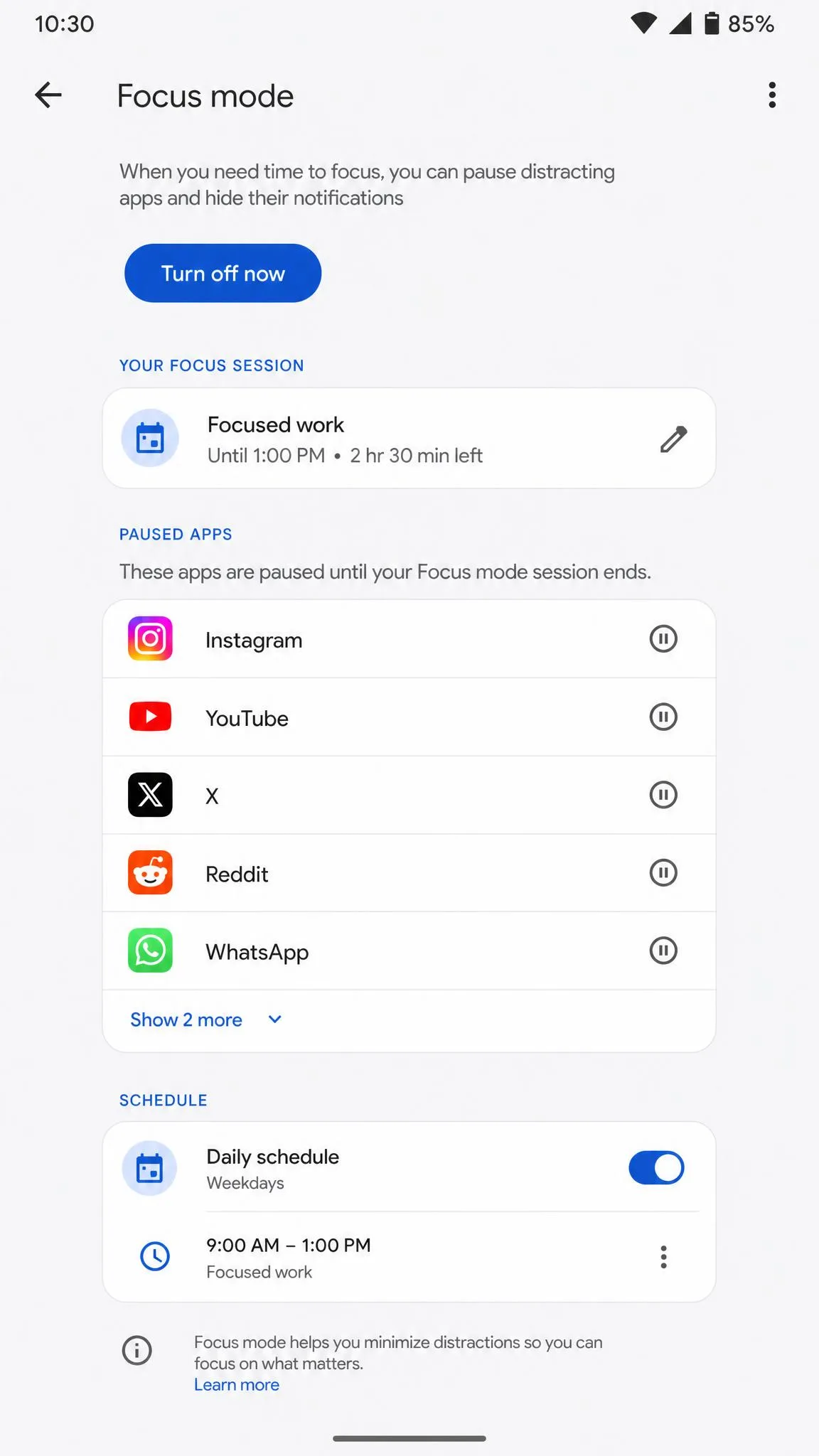
Focus mode takes a firmer line: choose the apps to pause, then switch it on from Digital Wellbeing or Quick Settings. While active, you cannot open those apps or see their notifications, and you can schedule it.
Because Focus mode works on a schedule, it holds through the day in a way app timers do not.
Method 2: Block Apps with Google Family Link
When the phone belongs to someone else, typically your child, Google Family Link lets you block apps from your own phone, and it is free. Our Google Family Link review covers how it holds up in daily use.
Set up Family Link on your child's device
The parent installs the app and creates a supervised Google account for the child, who needs an Android 6.0 or later device and has to agree to be supervised; the supervising parent must be 18 or older, and children under 13 in the US need parental consent.
Block specific apps remotely
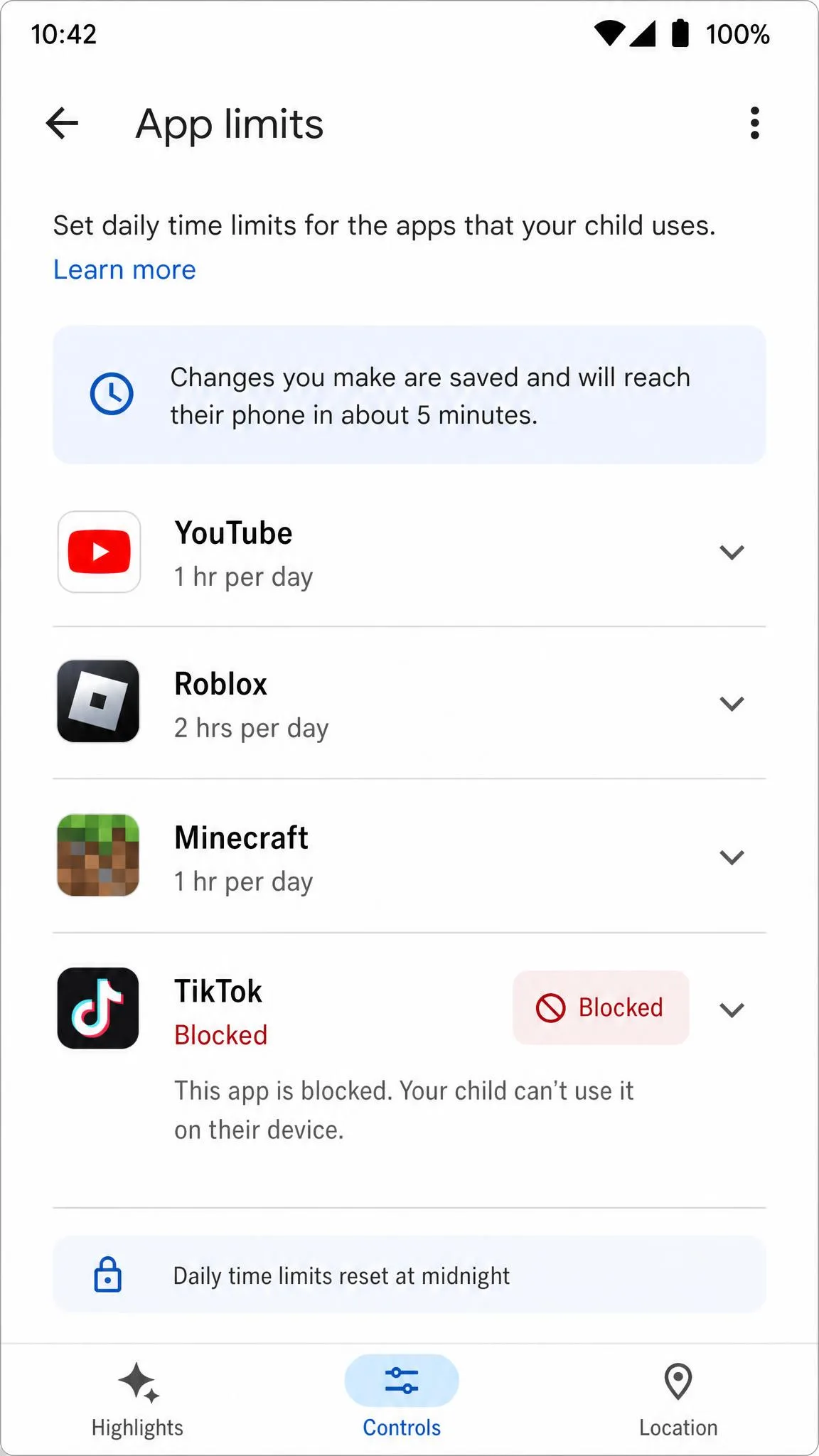
From the parent's phone, open Family Link, select the child, and go to Screen time → Time limits → App limits. Choose an app and flip Allowed to Blocked; the block reaches the child's device in about 5 minutes.
If the child is using the app when the block lands, they get a 1-minute warning before it closes. System apps cannot be limited, and some supervision-required apps cannot be blocked at all. Family Link enforces many controls locally on the device, and determined workarounds exist, so treat it as strong supervision, not an unbreakable lock.
Method 3: Block App Downloads with Google Play Parental Controls
To stop new apps from reaching a device, set up Google Play parental controls, which filter downloads by content rating rather than blocking installed apps.
Turn on Play Store restrictions (PIN required)
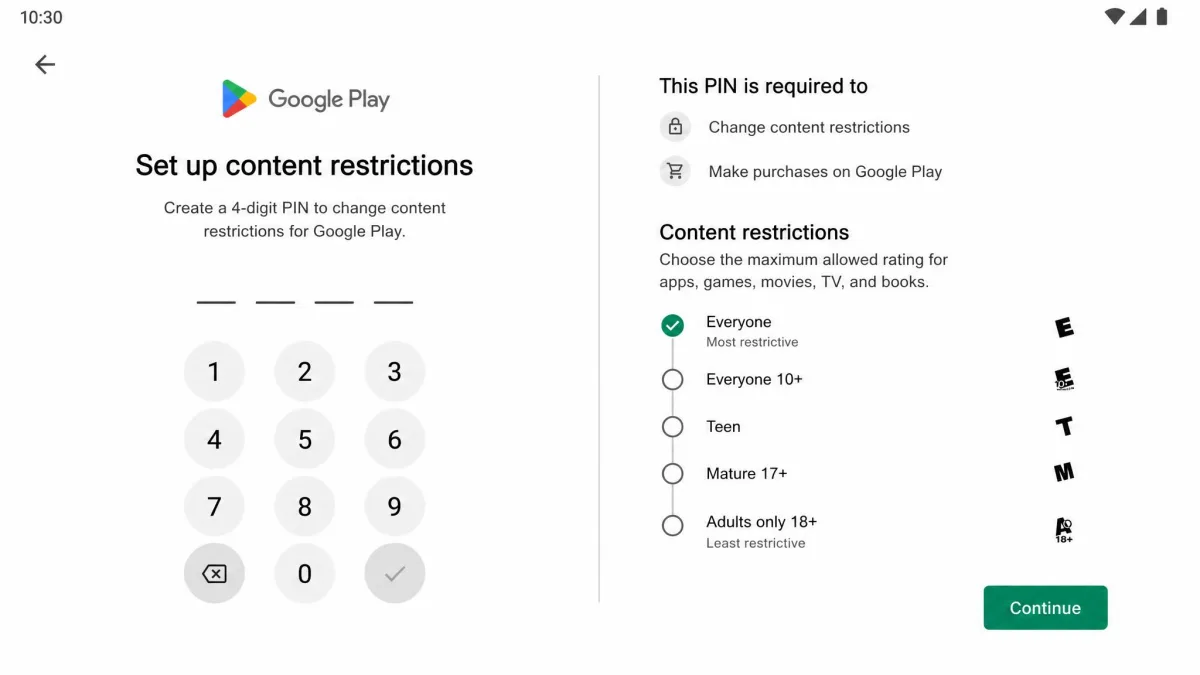
Open the Play Store app, tap your profile icon, and go to Settings → Family → Content restrictions. Create a parental controls PIN of at least 4 digits and keep it secret. Then choose the highest allowed content rating for Apps and Games, Movies, TV, and Books; downloads above that rating are blocked.
Restrictions apply only to the device where you set them, and an update to a version rated above your limit will fail until you raise it; Google is also unifying this PIN with device-level parental controls, so the exact path varies by device.
Block automatic app updates
Automatic updates can quietly reinstall an app you removed, or push a new version past a content restriction. To stop them, open the Play Store, tap your profile picture, and go to Settings → Network preferences → Auto-update apps, then choose Don't auto-update apps; the path has not moved as of 2026. There is also a per-app toggle on each app's page, under the three-dot menu, that switches auto-update off for that app alone, though blocking updates is not the same as blocking downloads, so keep the content PIN.
Method 4: Use a Third-Party App Blocker
When the built-in tools are not enough, a third-party blocker (see our best app blockers for Android for alternatives) adds repeating schedules, website blocking, and stricter enforcement.
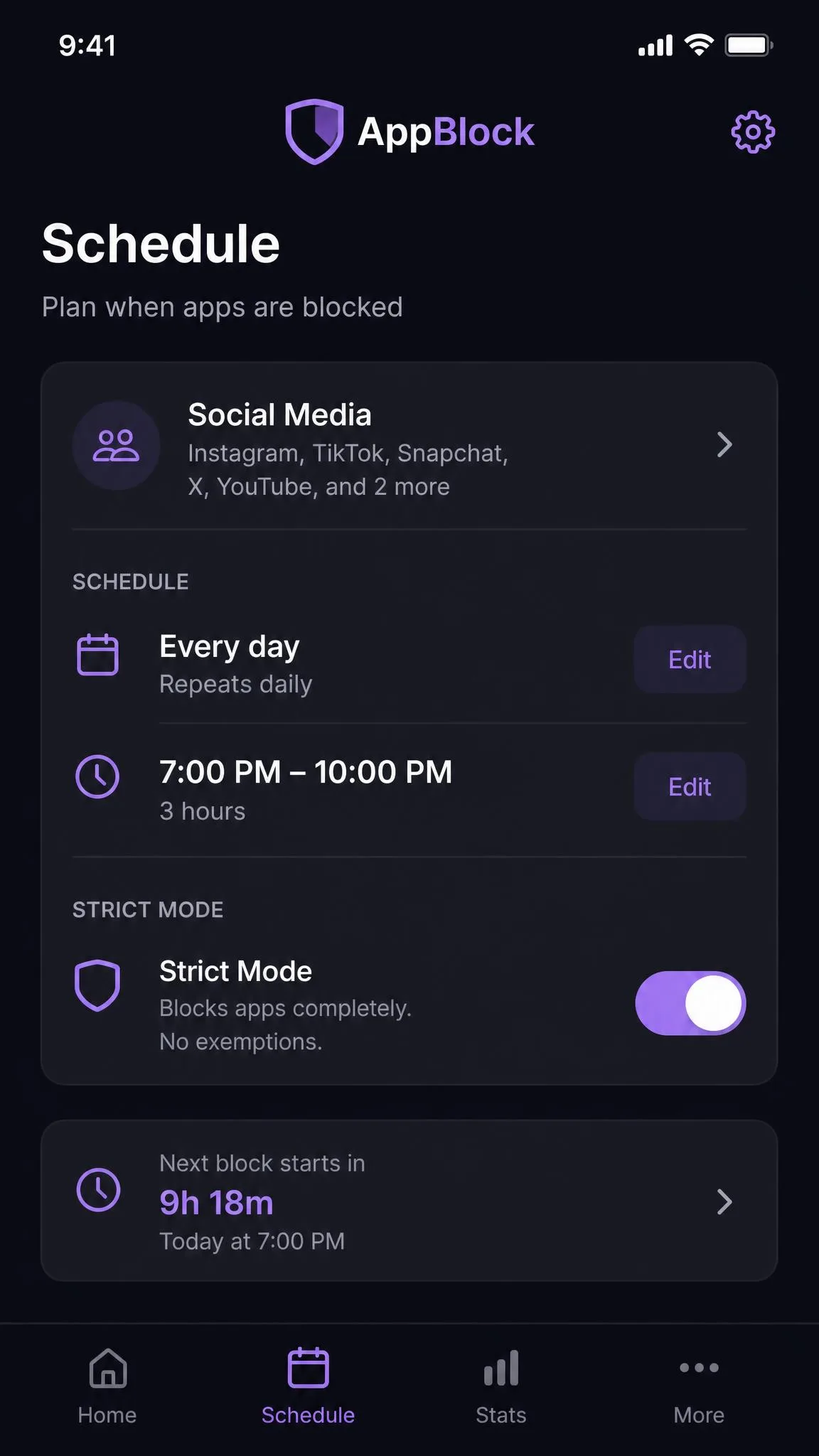
AppBlock (free with premium options)
We set up a repeating weekday block in AppBlock and it held on the Pixel 6 until the schedule window passed, which the built-in timer never managed across more than a single day. On the Galaxy A54, the same schedule silently lifted in the afternoon, and reopening the app showed the block had stopped running rather than the window having ended. Exempting AppBlock from battery optimization and pinning it in Recents fixed that, and the schedule held from then on.
AppBlock is the third-party blocker we would start with, and it blocks apps, websites, and social media through schedules and Strict Mode. The free tier is capped but usable, and Premium removes the caps, adds blocking for newly installed apps and adult-content blocking, at $4.99 a month or $29.99 a year with a 7-day free trial.

Block Apps & Sites Wellbeing
The free alternative to AppBlock, Block Apps & Sites Wellbeing, is worth knowing, and we stress-tested its strict mode claim by rebooting the phone mid-block. When the Galaxy A54 came back up, the schedule was still enforcing, which is the behavior the vendor describes strict mode as designed to deliver. That reliability is why it ranks among the more dependable hard-block options, though it asks for more permissions than most alternatives.
Block Apps & Sites Wellbeing blocks apps and websites on a schedule, sets usage limits, and shows weekly reports, free with ads.
Method 5: Hide or Disable Apps Without Uninstalling Them
Sometimes the goal is not to block an app's data but to get it out of sight.
Disable pre-installed apps
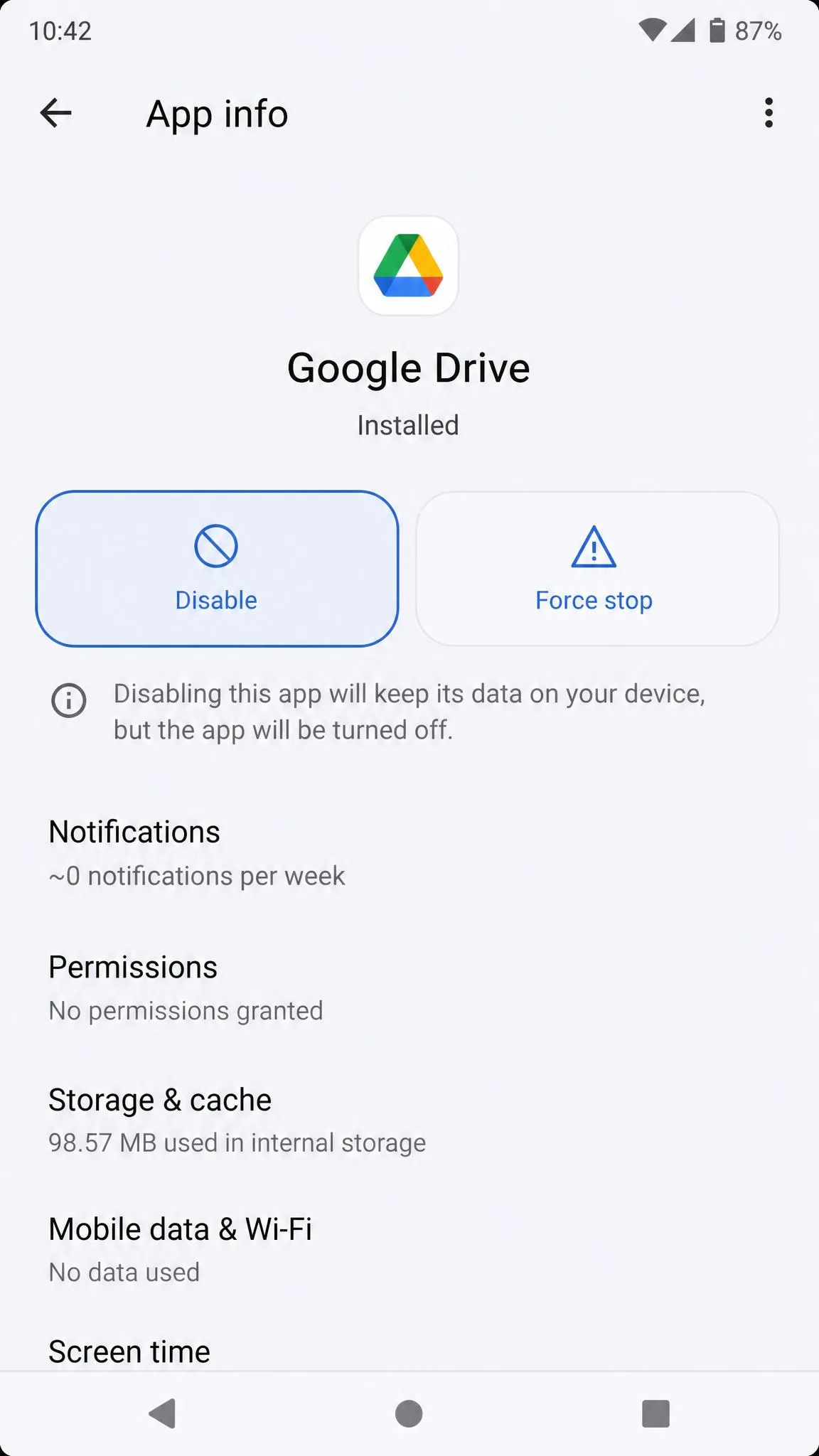
For a pre-installed app you never use, open Settings → Apps, select the app, and tap Disable, which keeps the app installed with its data while stopping it from running, removing it from the app drawer, and blocking its updates. Some system apps cannot be fully disabled; if you see Uninstall updates instead of Disable, the app is locked.
Disabling an app does not free storage. The app and its data stay on the device, so if space is the goal, uninstall the app instead.
Hide apps from the app drawer
Hiding removes the icon but leaves the app installed and fully functional, and since a hidden app is still runnable it suits your own phone. On Samsung phones, touch and hold an empty spot on the Home screen, tap Settings, and choose Hide apps on Home and Apps screens.
Method 6: Restrict App Permissions (Location, Camera, Notifications)
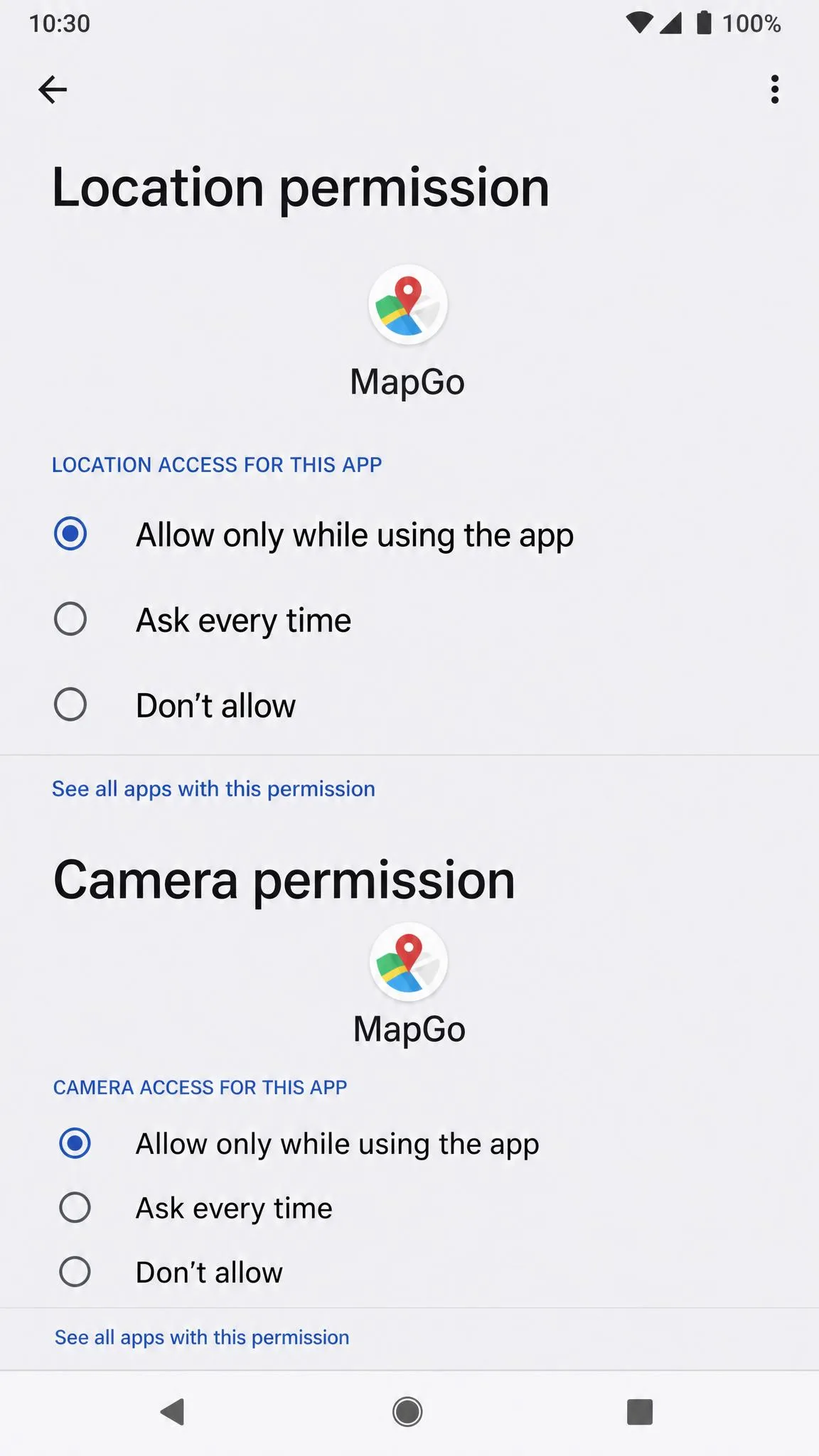
Restricting permissions is a different kind of block: the app stays installed, but you cut its reach to location, camera, microphone, and notifications, and on Android 12 and higher precise location can be granted separately from approximate location.
For a single app, open Settings → Apps, select the app, and choose Permissions; there you can set each permission to Allow only while using the app, Ask every time, or Don't allow, with an All the time option for location.
Method 7: Block Apps at the Enterprise Level (MDM & Kiosk Mode)
For company phones, school tablets, or a shared device that must run one app only, consumer methods are not enough.
Use an MDM for fleet-wide app blocks
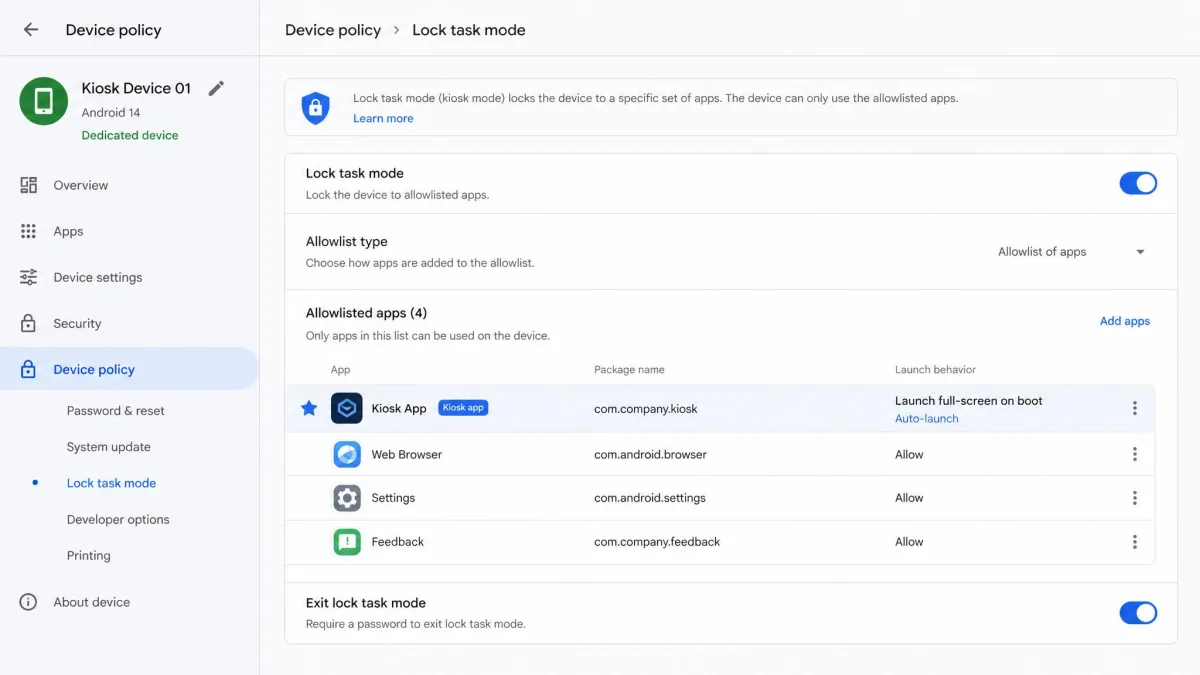
Mobile device management (MDM) is the enterprise version of app blocking, where an administrator sets a policy through a device policy controller that can block installs outside Google Play, stop users from uninstalling apps, and keep a device in kiosk mode. Lock task mode restricts the device to an allowlisted set of apps, and anything outside that list cannot open at all.
Kiosk mode for single-app devices
Kiosk mode locks a device to one app, such as a checkout terminal or a tablet running a single exam. The Android Management API can mark one app as a kiosk app so it launches full-screen on boot. Lighter still is screen pinning, which keeps one app in view but lets the user exit, so treat it as a convenience lock.
FAQs
Can app blocks be bypassed?
Does blocking an app delete it?
Can I block apps without parental controls?
Do app blockers work after a factory reset?
Can I block apps remotely on Android?
Conclusion
Android gives you more ways to block apps than most people expect, from a simple daily timer to an enterprise kiosk lock. On your own phone, start with Digital Wellbeing timers and Focus mode, then add a third-party blocker for schedules that need to hold, starting with AppBlock, and for a child's device pair Family Link with Play Store parental controls.
Every method here is reversible, and the strongest blocks are tied to an account or a management layer.
If a routine fits your life better than a hard block, Google's Modes and Routines on Pixel devices and Samsung Modes and Routines on Galaxy phones can automate focused time without blocking anything at all.