Worried about what your child can find on their Android? It is a fair worry, and the good news is that fixing it is easier than you think. Every filter you need is free, and most can be set up in an evening.
We tested these seven methods on a mix of standard Android and Galaxy phones. Then we tried to work around each one the way a curious teenager would. That testing made one thing clear: no single setting blocks every adult site. But a few layers working together make them very hard to reach, which is the realistic goal.
Below, we walk through all seven methods in the order we would set them up. Start with the quickest fix, then stack the deeper layers.
1. Turn On Google SafeSearch and Lock It
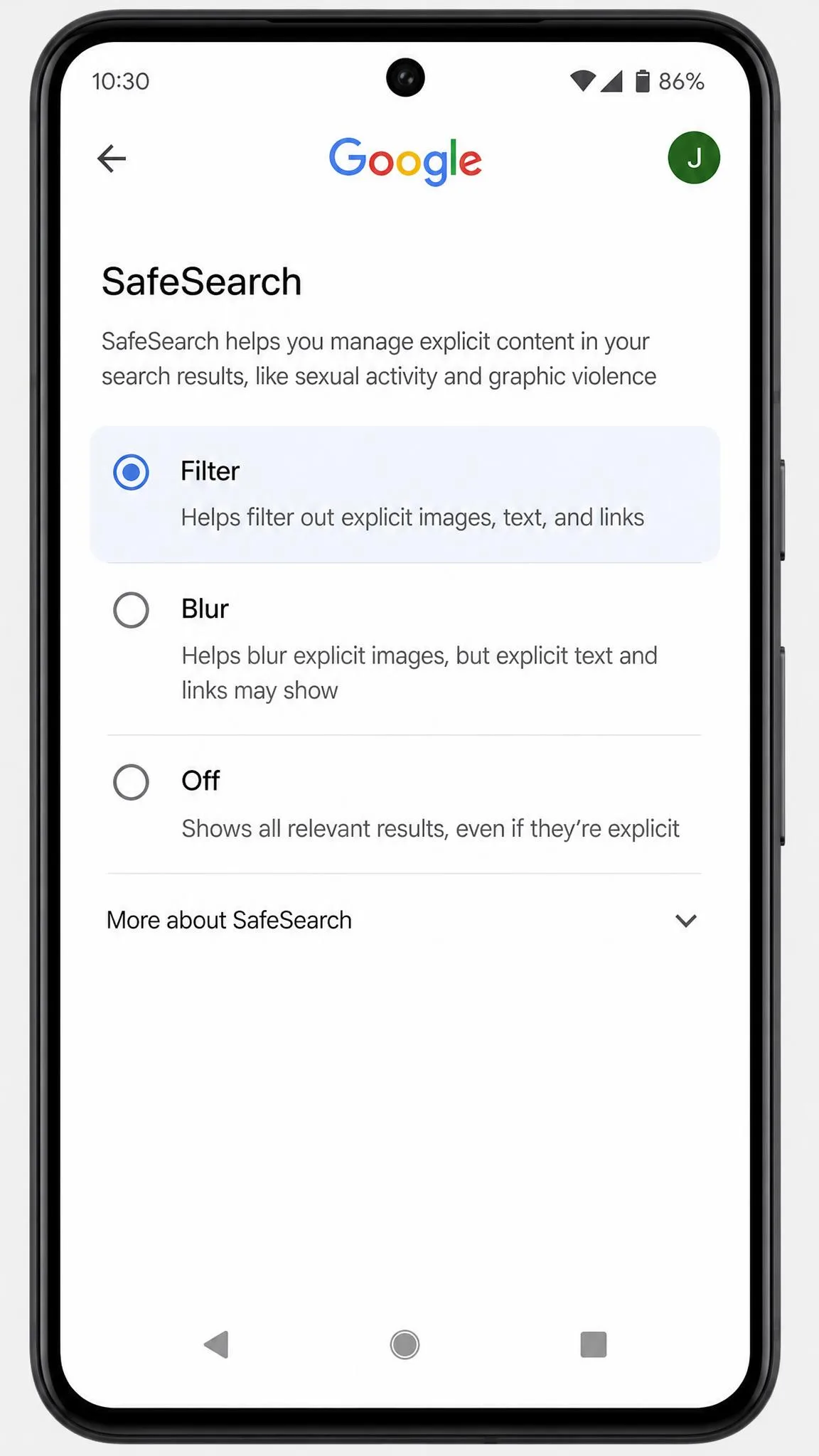
SafeSearch is Google's own search filter, and it is the fastest block to set up. It has three levels: Filter, which blocks all explicit results; Blur, which hides explicit images but lets explicit text and links through; and Off, which shows everything.
Enable SafeSearch in the Google app
Open Google SafeSearch in a browser, or tap your profile icon on Google Search results, and set the filter to Filter. Google makes Filter the default for anyone it believes is under 18, so on many accounts it is already on.
Lock SafeSearch in Chrome
On a supervised child account, SafeSearch stays locked to Filter and only a parent can change it. For other phones, the reliable way to lock it is to route Google search through forcesafesearch.google.com, which forces the strict filter. That mapping happens at the router or DNS level, so it applies to every browser on the device.
What SafeSearch does and doesn't filter
Keep in mind that SafeSearch only works on Google Search. It does not affect other search engines or websites, and it will not block adult sites your child visits directly or opens from a link inside another app. Treat it as the search layer, not the whole answer.
2. Set Up Google Family Link for Parental Controls
If you only set up one layer, make it this one. Google Family Link is Google's free parental-control app, and it is the closest thing to a complete solution for a child's phone.
Create a supervised child account
Download Family Link on Google Play, then create a supervised Google Account for your child. Children under 13, or the applicable age in their country, get a supervised account, and older children manage their own. Family Link runs on most Android phones from the last several years, though Google does not publish a single minimum Android version.
Block adult websites with Family Link
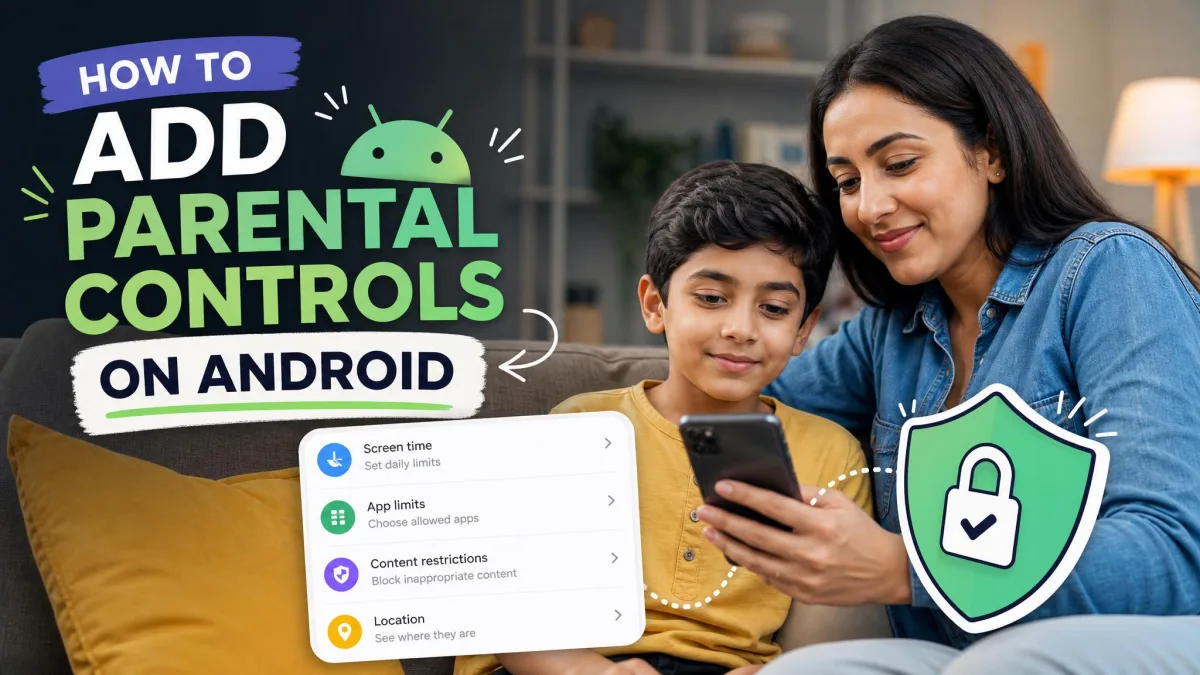
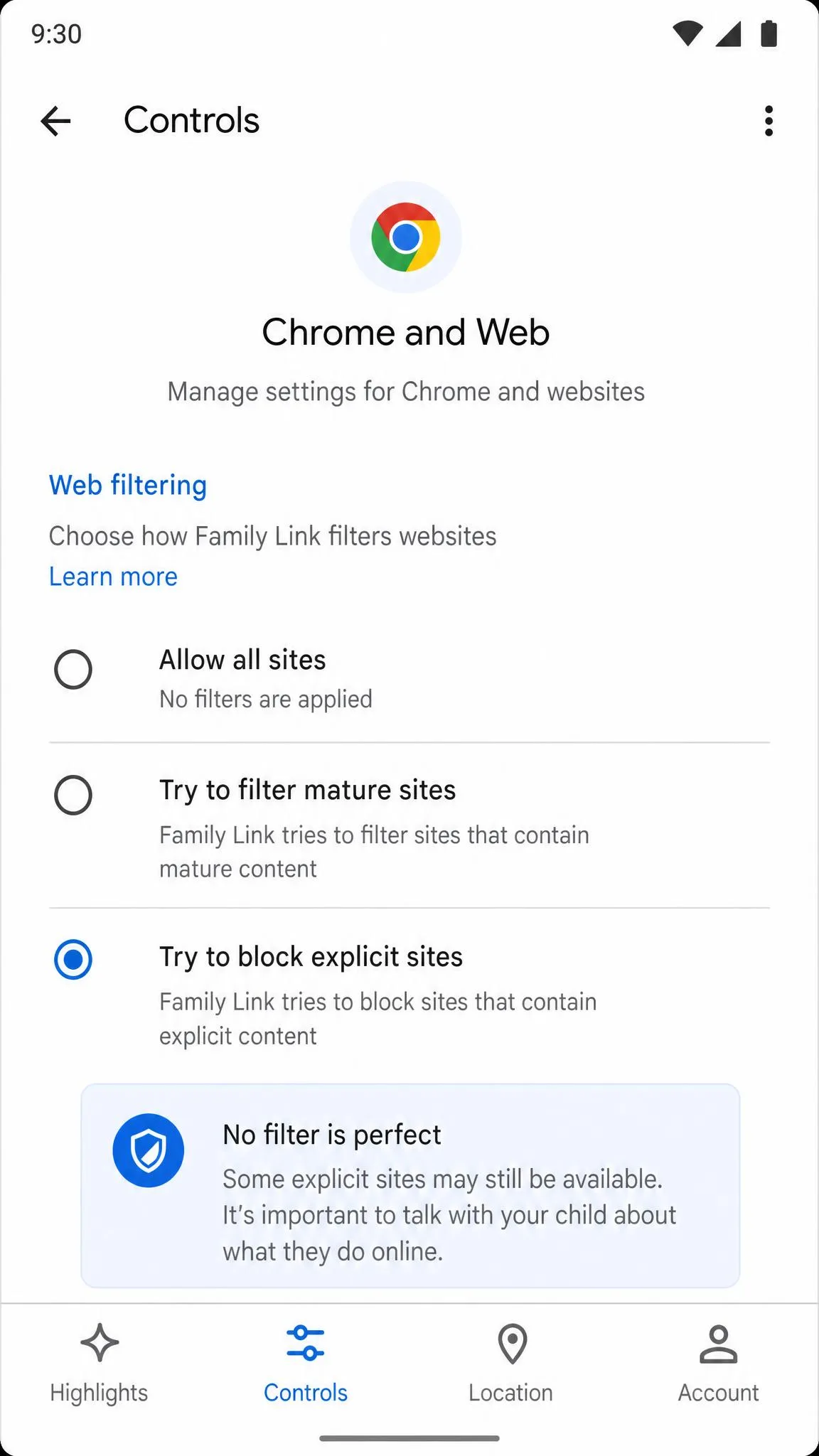
Open the Family Link app, tap Controls → Chrome and Web, then choose "Try to block explicit sites". Under Manage sites you can approve or block specific sites by name, entering just the domain. Google's own wording for the filter is "try to block", and its guidance is honest: no filter is perfect, but this should help hide sexually explicit sites. See how to set website restrictions in Family Link for the full controls.
If you want the complete walkthrough, our guide on how to set up parental controls on Android covers the same ground on other Android versions.
Block app downloads and purchases
Family Link can block app downloads entirely, require your approval for new apps, and set a Play Store content-rating cap for the child's account. You can also stop in-app purchases and require a password for paid content. This is the setting that keeps your other layers from being uninstalled.
Make Family Link harder for kids to bypass
While the child is signed in with the supervised account, incognito mode is switched off in Chrome automatically. The catch is that Family Link's filter only applies inside Chrome, and a child can install another browser that Family Link does not manage. Blocking new app installs closes that door, which is why the app-approval setting matters as much as the web filter.
Require parent approval for every new app in Family Link. A browser that Family Link does not manage is the easiest workaround a curious kid will find, and app approval is what keeps it off the phone.
3. Restrict the Google Play Store and YouTube
The Play Store and YouTube are where most kids run into adult content first. Restricting both takes about ten minutes.
Turn on Play Store parental controls
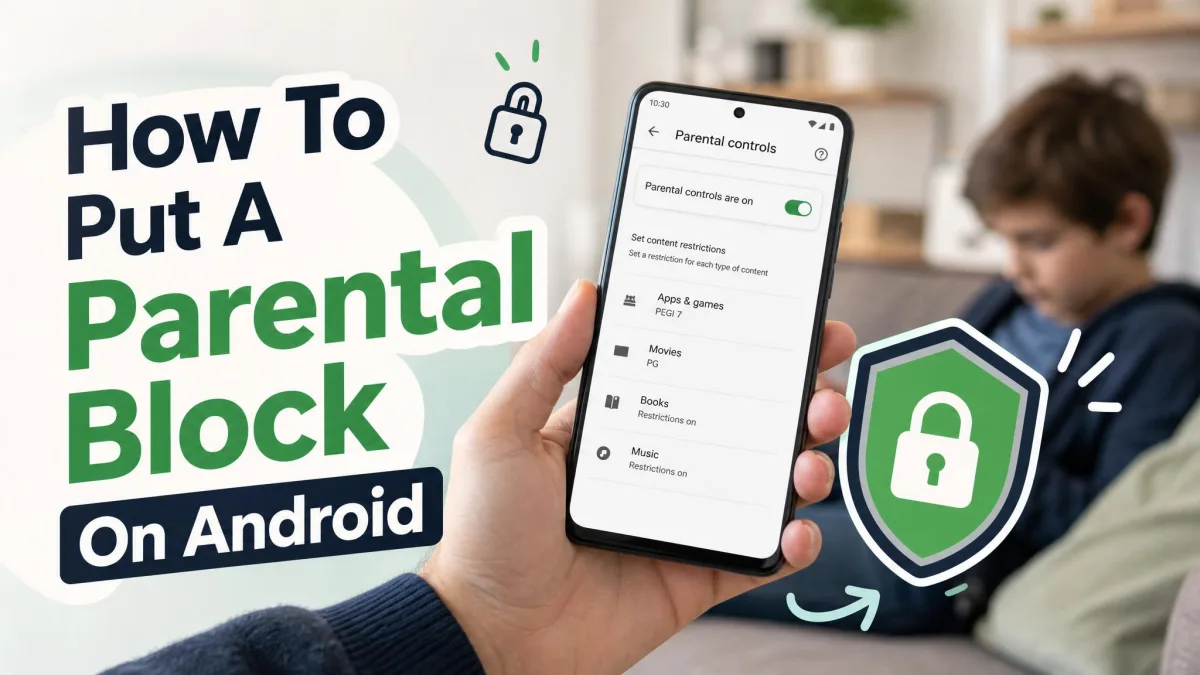
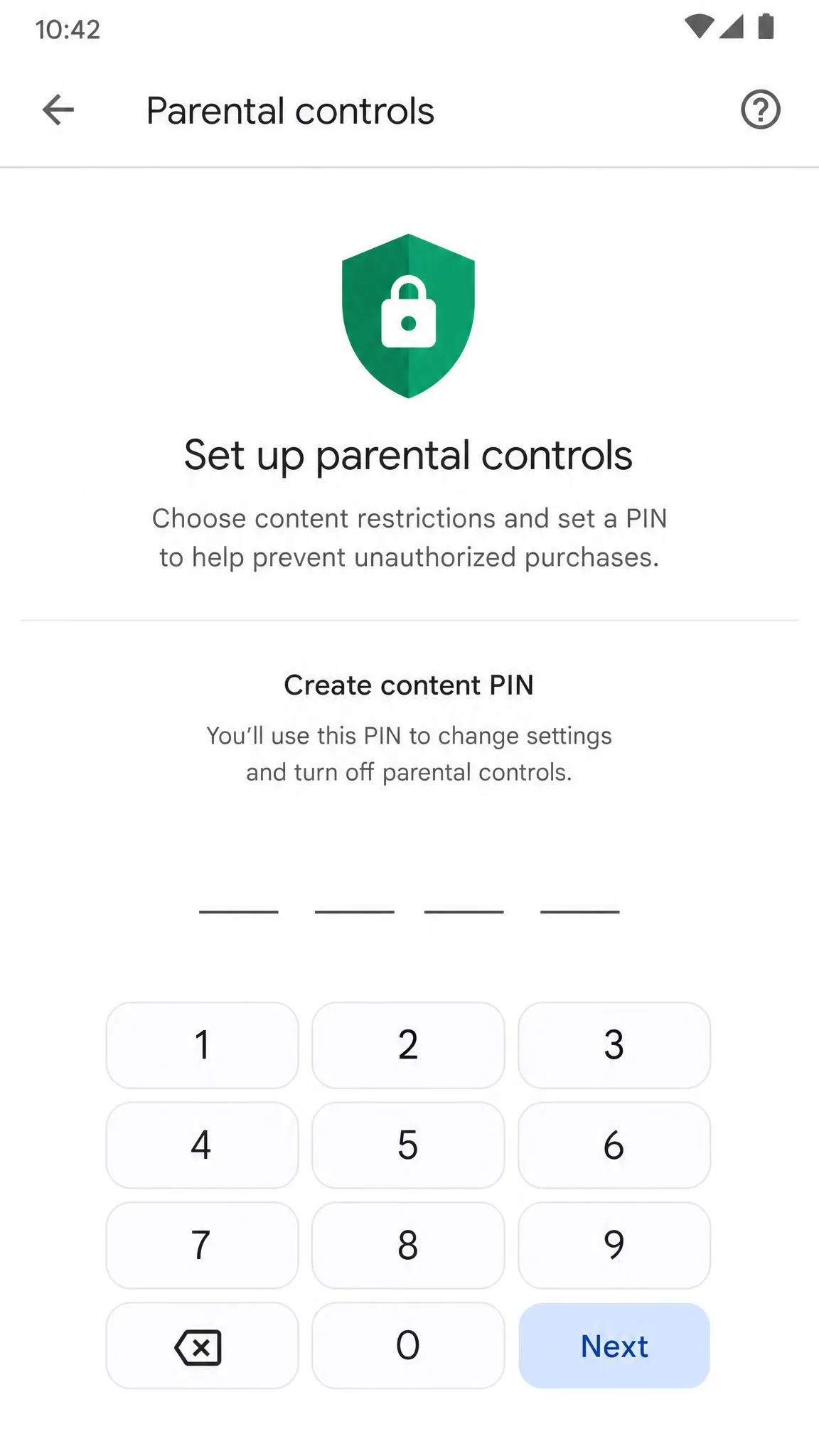
Open the Play Store app, tap your profile icon, then Settings → Family → Content restrictions → Go to Parental controls. Set a PIN, then choose rating limits for apps and games, movies, TV, and books. Google's Google Play parental controls guide walks through the full setup.
Keep in mind the limits have edges. They apply per device, they do not stop restricted content from a direct link or a search result, and they do not police what happens inside apps. If you forget the PIN, clear the Play Store's data to reset the restrictions and start again.
Enable YouTube Restricted Mode
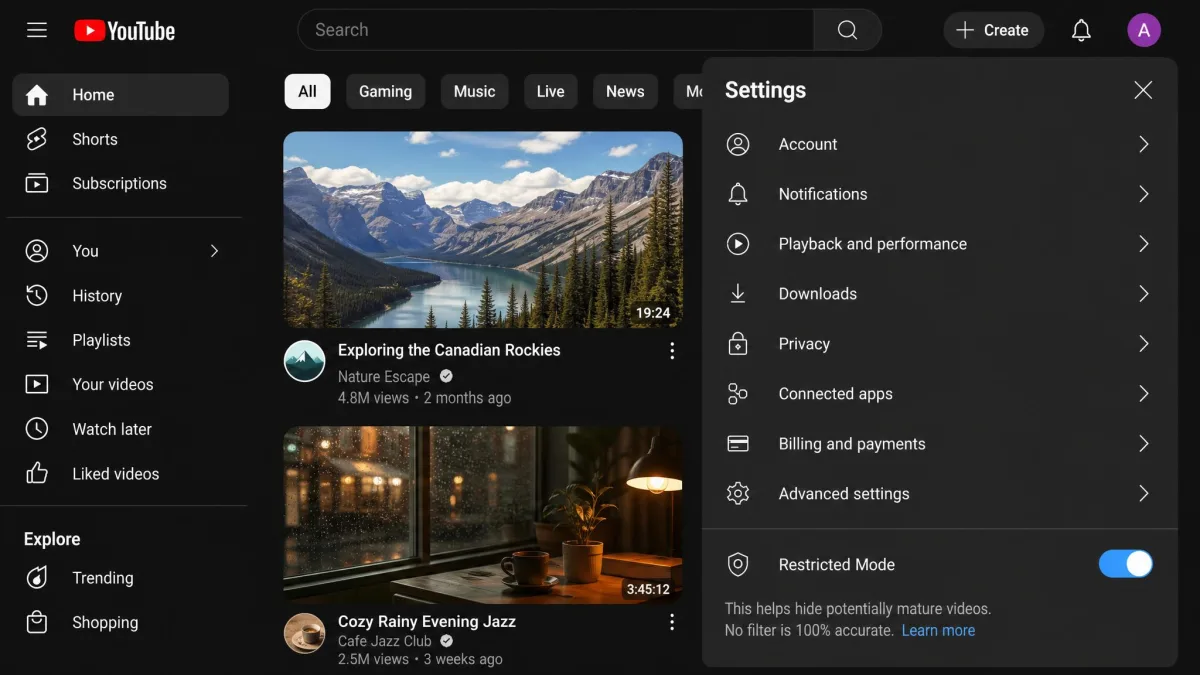
YouTube Restricted Mode screens out potentially mature content and turns off comments. Turn it on from YouTube's settings, and note that it must be enabled separately in each browser and profile. Parents using Family Link can switch it on for the child's account, and the child cannot change it on any device they are signed in to. Here is Google's YouTube Restricted Mode guide.
Reduce mature recommendations
Restricted Mode is the main lever for cleaning up YouTube's home feed and search suggestions, and the Family Link lock keeps the child from turning it off. It is worth knowing the filter reduces exposure rather than removing every mature video, so occasional gaps are normal.
4. Use Private DNS to Block Adult Sites at the Network Level
Search and app filters only reach so far. Private DNS stops adult sites at the network level, before a browser ever loads them, and it covers every browser at once.
Pick a free adult-blocking DNS filter (OpenDNS, NextDNS, AdGuard)
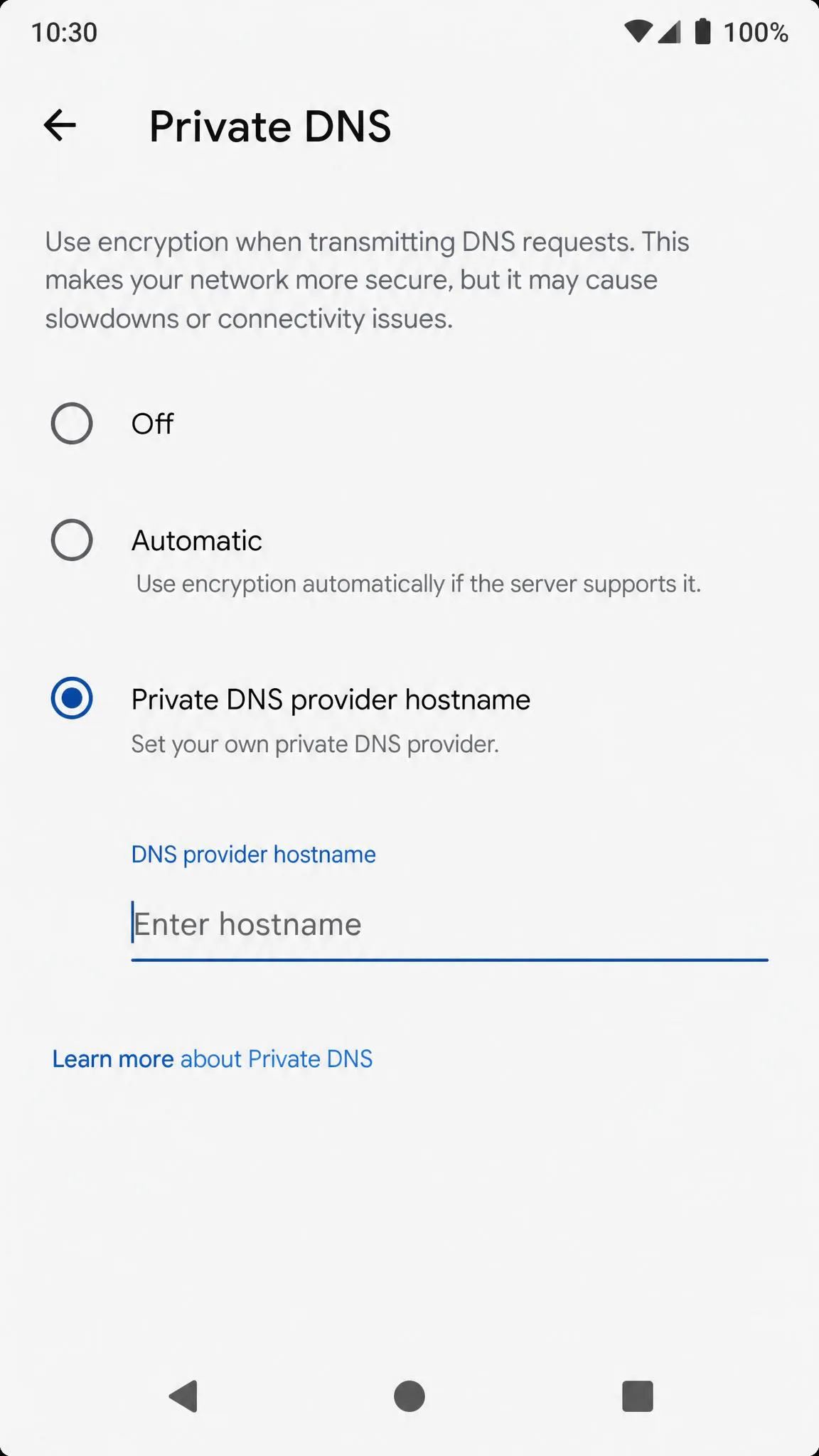
OpenDNS FamilyShield is a free filter that blocks adult content, phishing, and malware, with no account required. On Android you enter its hostname, familyshield.opendns.com. AdGuard DNS Family Protection is a similar free option that blocks ads, trackers, and adult content, and it also enables Safe Search and YouTube Safe Mode where possible. Its hostname is family.adguard-dns.com. NextDNS offers a free tier with the same kind of adult-content blocking and a monthly query allowance.
Set Private DNS on Android 9 and up
Private DNS arrived in Android 9, so it works on virtually every phone sold in the last several years. Open Settings → Network & internet → Private DNS, choose Private DNS provider hostname, type the hostname, and tap Save. On Samsung phones the option lives under Connections → More connection settings instead. One detail that trips people up: Private DNS takes a hostname like familyshield.opendns.com, not an IP address.
Test that DNS blocking is working
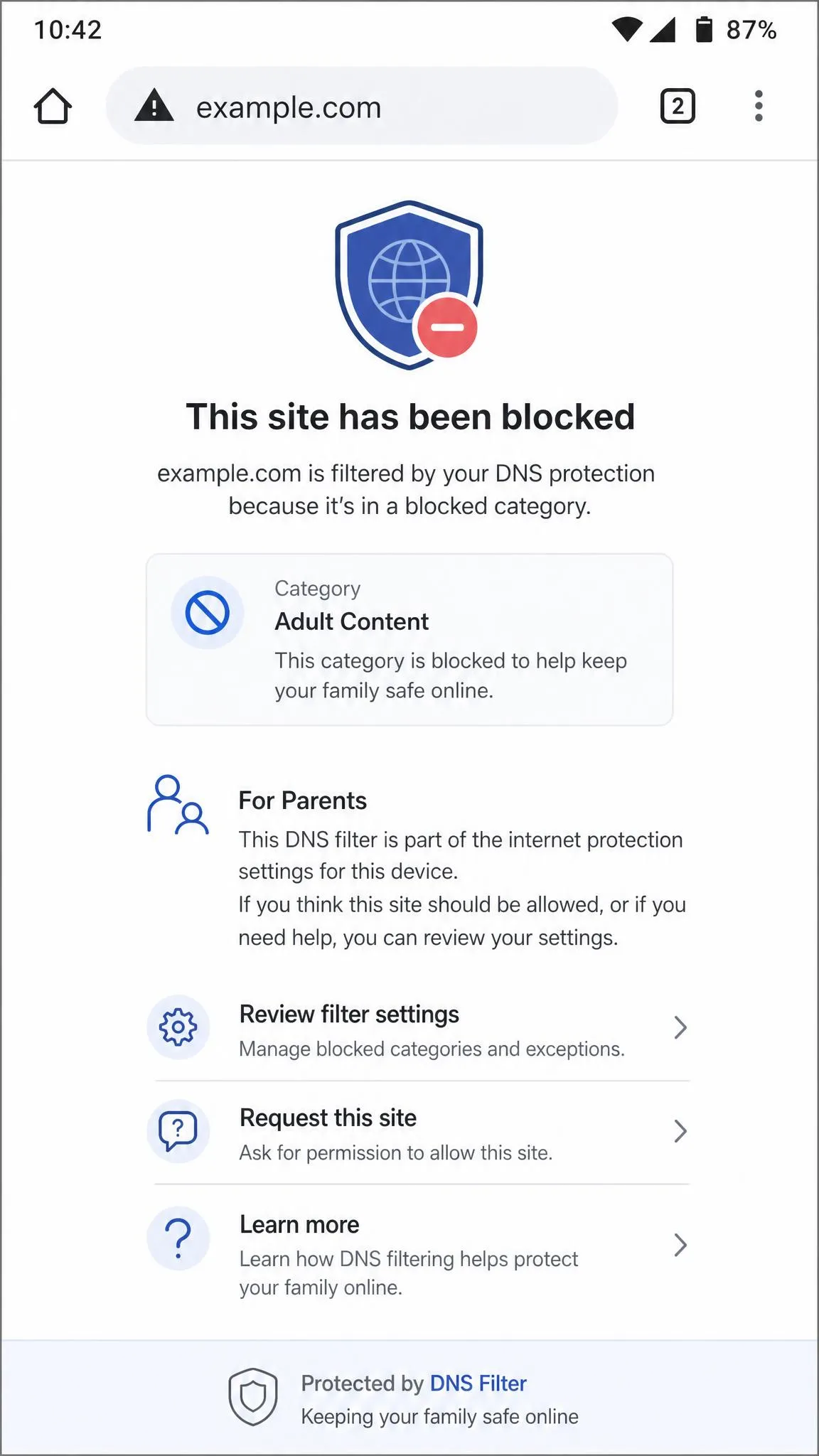
After you save the hostname, open www.internetbadguys.com in the phone's browser. A blocked-page message confirms the filter is active. If the page loads normally, recheck the hostname and the connection.
A DNS filter only works while the device actually uses it. If your child installs a VPN, traffic can route around the filter entirely, which is why VPN apps belong on your blocked list. We explain how to close that gap in the FAQ.
5. Switch to a Safe Browser and Secure Android Settings
Filters that live in one browser leave the rest of the phone open. The fix is to pick one managed browser and lock the settings around it.
Choose a safe browser and make it the default
Filtering one browser leaves the door open: Firefox, Opera, Edge, or any other installed browser can bypass Chrome filtering unless app installs are restricted too. Pick the browser your child uses, make sure the filter applies to it, and remove the others. On a Family Link-managed account, Chrome is the browser Google already manages.
Use Samsung Kids / secure user profiles
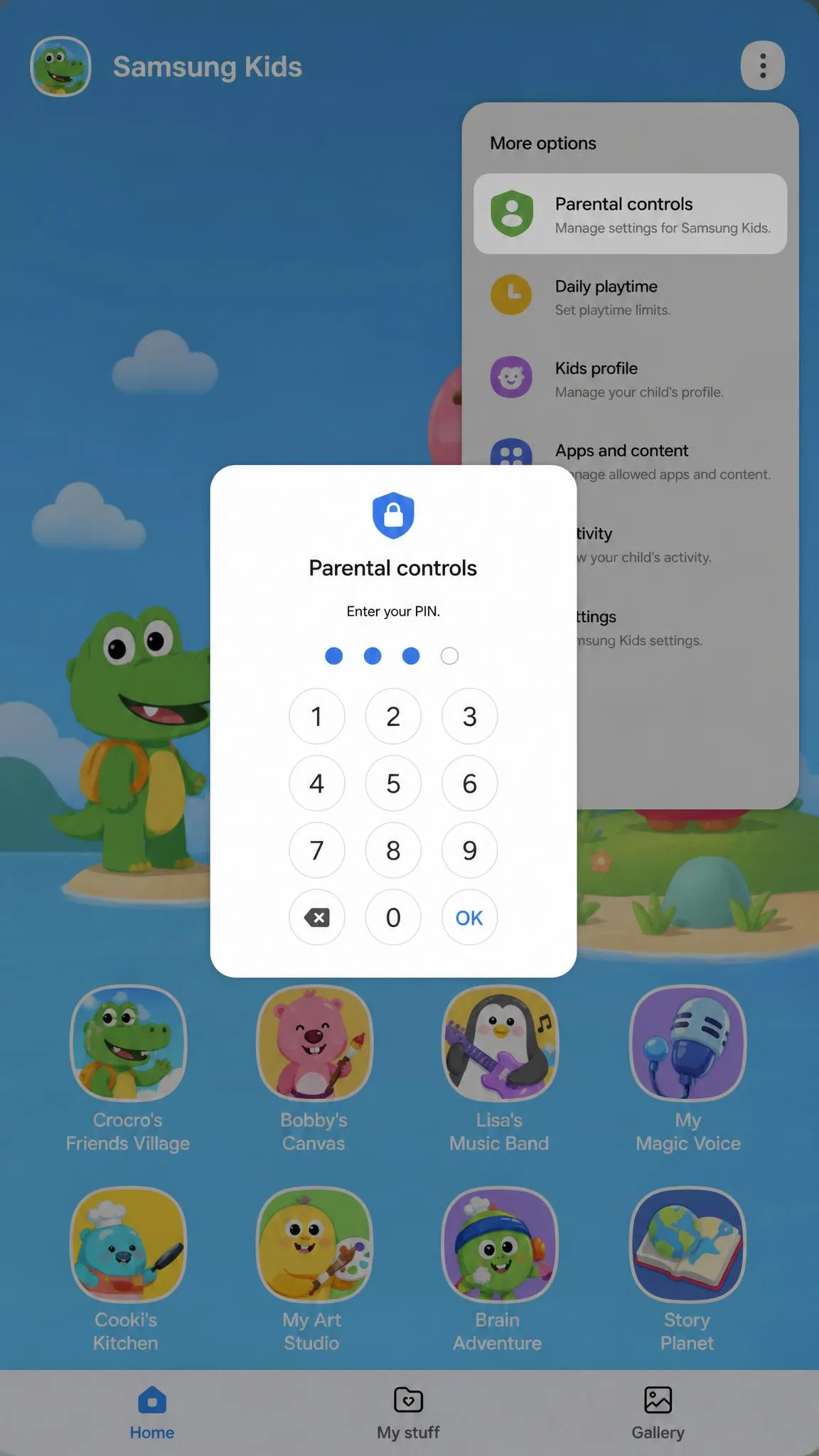
On Galaxy phones, Samsung Kids comes pre-installed. First use creates a PIN-protected kids home, and parental controls let you pick allowed apps, set screen-time goals, and set a bedtime. A dedicated Samsung Kids PIN can be separate from the phone unlock. Samsung also offers child accounts that need One UI 5.1 or higher, while Galaxy devices on One UI 2.0 or later can use Google Family Link. Samsung's Samsung parental controls support page has the details.
Keep in mind that Samsung Internet's Secret Mode may sit outside Samsung's web content controls, so it is worth testing on the child's phone.
Block unknown sources and risky apps
Keep Play Protect on and install apps only from the Play Store. Some free blocking apps on the Play Store are fakes or carry malware, so checking that an app passes Play Protect matters as much as the app's promises.
6. Add a Free Porn-Blocking App for Extra Protection
Android's built-in controls cover the Google side of things well, but they do not protect non-Google apps on their own. A blocker app adds a category-based filter across the whole device.
What a blocker app adds beyond Android's built-in settings
Play Store content ratings do not police what happens inside apps, so a social app can still surface adult posts even with every restriction on. Blocker apps filter apps and sites by category device-wide, and a few use real-time filtering that removes explicit images from otherwise legitimate sites instead of blocking whole domains.
Free apps for kids vs. self-control
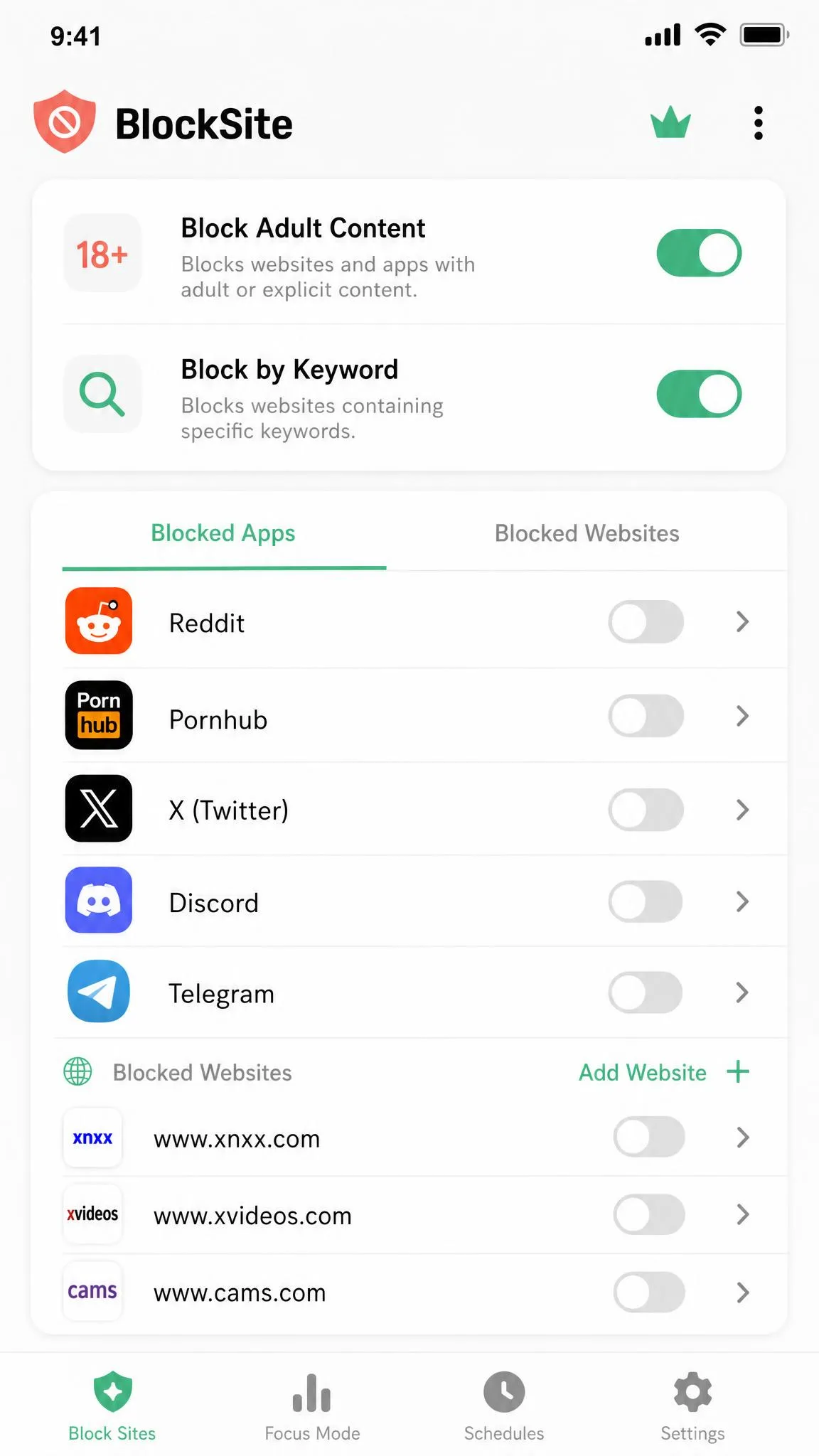
BlockSite is the most-downloaded free option on Google Play, with over 10 million installs. It blocks apps and websites, and it offers keyword blocking, schedule-based blocking, an adult-content category, and a focus mode. Its Play rating varies by region and shifts over time, so read recent reviews rather than trusting any single score.
Two quirks are worth knowing before you rely on it alone. Keyword blocking over-matches, so blocking a word like "key" also blocks any word containing those letters. And syncing between devices can occasionally undo a saved list. Like any app-based block, it only holds while the PIN stays a secret.

Top features to look for
Whatever app you pick, look for device-wide app and site blocking, an adult-content category, keyword blocking you can review, a PIN that survives an app uninstall, and sync that does not silently undo your lists. Free is fine for most families, and the paid tiers add advanced scheduling and better reporting. For more options, see our roundup of the best parental control apps for Android.
7. Layer the Methods for a Permanent Block
Here is the honest part: no single method is foolproof, and "permanent" realistically means making adult sites much harder to reach, not impossible. Layering the methods is what actually holds up.
Which combinations close the most gaps
The table below shows what each layer blocks and where it falls short.
| Layer | What it helps block | Main weakness | Best role |
|---|---|---|---|
| Most gaps at once | Not foolproof | The permanent setup | |
| Explicit search results | Search results only; direct sites slip through | Search layer | |
| Sites and app installs via a supervised Google account | Google-only, and "try to block" is best-effort | Core child supervision | |
| Apps, movies, and TV by rating; mature YouTube | No effect on in-app content or direct links | App-store guard | |
| Adult domains at the network level | Bypassed by a VPN | Network-wide backstop | |
| App and site access inside a kid profile | One browser or profile at a time | Kid's daily browsing | |
| Apps and sites by category | PIN must stay a secret; the app can be uninstalled | Extra protection for non-Google apps |
In our setup, the combination that covered the most ground was Family Link for the account, Private DNS for the network, and a blocker app for the non-Google gaps. On a Samsung phone, Samsung Kids or a child account replaces the browser layer.
How to test your whole setup
Once everything is on, spend a few minutes testing each layer on the child's account. Check that SafeSearch holds on a test search, that the DNS filter shows a blocked page on internetbadguys.com, and that Restricted Mode stays on in the child's YouTube app. Then try to install an unapproved app and confirm it asks for your permission.
What to do when something still gets through
Expect gaps, and know the main ones. A router-level filter covers home Wi-Fi but not mobile data, so the same phone can be filtered at home and unfiltered on a cellular connection. Keep the child's account supervised, and you close most of the remaining holes.
Set a strong screen lock or passcode on the child's phone. Private DNS and several filter settings can be changed by anyone holding the device, so the screen lock is what actually keeps the block in place.
Frequently Asked Questions
Can I block porn on Android without an app?
Does incognito mode bypass porn filters?
How do I block adult content permanently on a Samsung phone?
Can my child bypass these blocks with a VPN?
Can I block adult sites on an iPhone or iPad too?
Final Thoughts
Blocking porn on a child's Android is not a one-switch job, and anyone who promises a permanent block is overselling it. The seven methods above are free, they set up in an evening, and they make adult content genuinely hard to reach. That is the realistic win, and it is worth setting up.
Start with SafeSearch and Family Link today, add Private DNS this week, and keep the conversation with your child going. The filters do the heavy lifting, but oversight plus trust is what actually keeps them safe. If you want a single tool to begin with, Family Link is the one we would hand a parent first.