Are you tired of adult sites slipping through your phone's filters? Blocking them permanently is easier than you think. This step-by-step guide walks through the seven methods that actually work on iPhone and Android, from built-in settings to free DNS filters and dedicated blocking apps.
Here is the honest part, and we found it in our own testing: no single phone setting blocks adult websites permanently on its own. Every native method has at least one workaround. The realistic goal is a layered setup that makes adult content much harder to reach in everyday use, then a quick recheck every few months as new sites and workarounds appear.
The good news is that most of these methods are free. You can start with SafeSearch and Screen Time or Family Link, add a DNS filter, and finish with a parental control app if you want stronger protection.
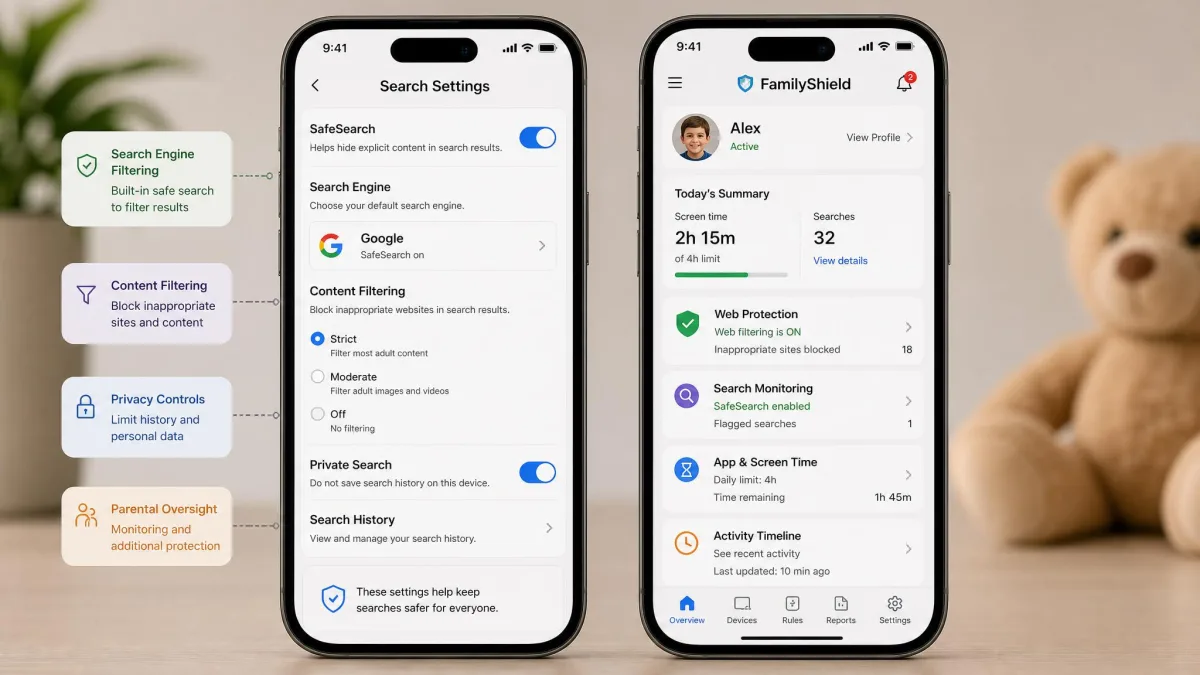
Method 1: Turn On SafeSearch in Google and Bing
SafeSearch filters explicit content out of search results before they load. It is the fastest free block you can switch on today, and it works on any phone because it lives in the search engine, not on your device.
Google SafeSearch
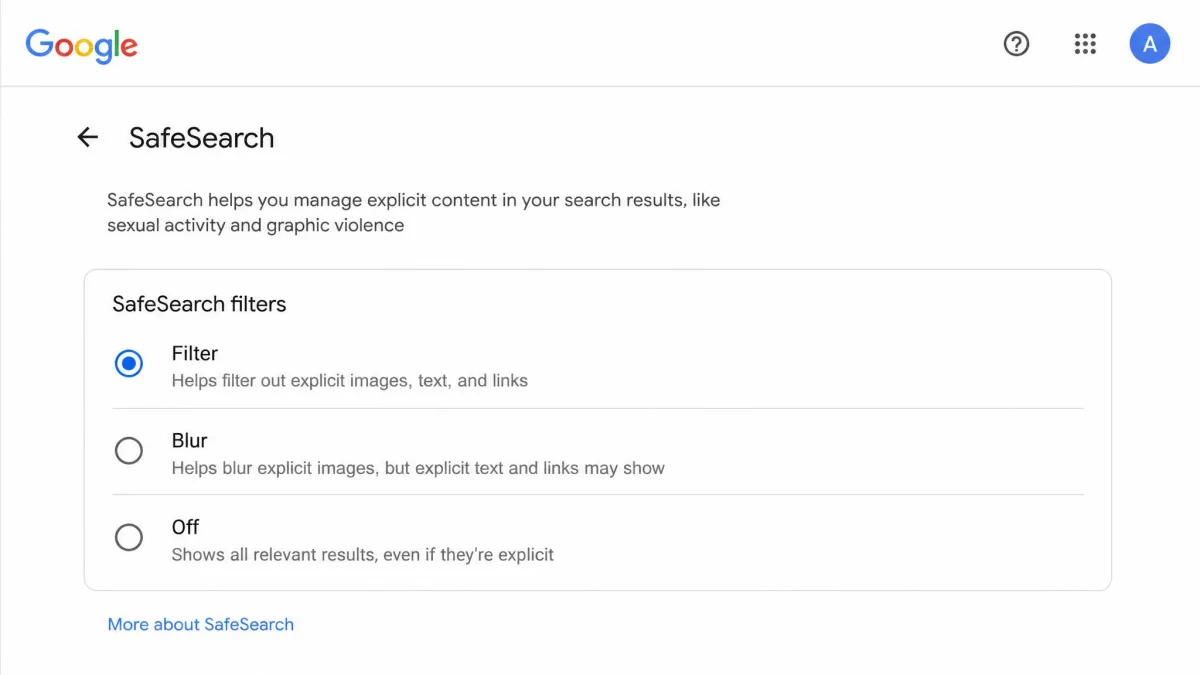
Open google.com or the Google app, tap Settings, then Search settings, and set SafeSearch to Filter. Filter hides explicit images, text, and links. The Blur option blurs explicit images but lets explicit text and links appear. Keep it on Filter for a child's device.
One limit matters. Google SafeSearch only affects Google Search. Typing an address directly or clicking a shared link skips the filter, and it does not cover other search engines.
Bing SafeSearch
Open bing.com, tap the menu, then Settings, and choose SafeSearch. Set it to Strict to filter explicit text, images, and videos. Moderate, the default, filters images and videos but not text, and turning filtering off requires a step that confirms you are 18 or older. Microsoft's guide to Bing SafeSearch walks through both options.
Lock SafeSearch so a child cannot change it. When a child is supervised through Google Family Link, SafeSearch turns on automatically and is locked on their account. Only a parent can adjust it from the Family Link app.
Method 2: Block Adult Websites on iPhone with Screen Time and Built-In Settings
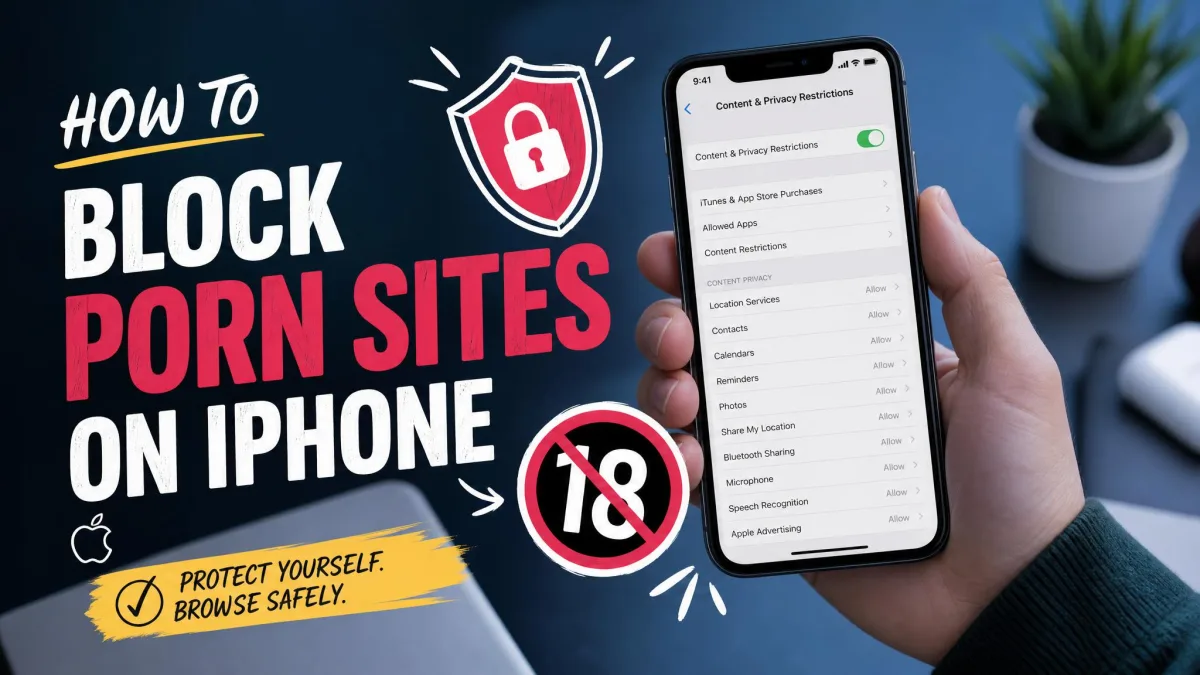
Screen Time, which Apple built into iOS starting with iOS 12, is the closest thing iPhone has to a built-in adult-site blocker. It works across Safari and every other browser on the phone.
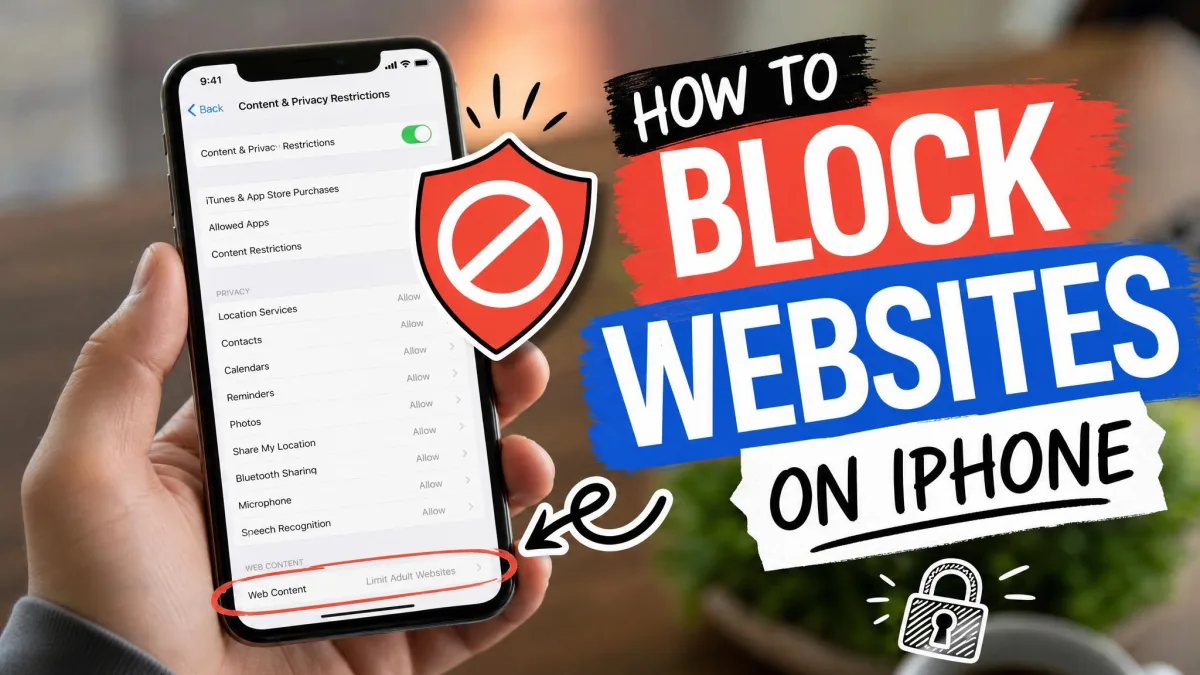
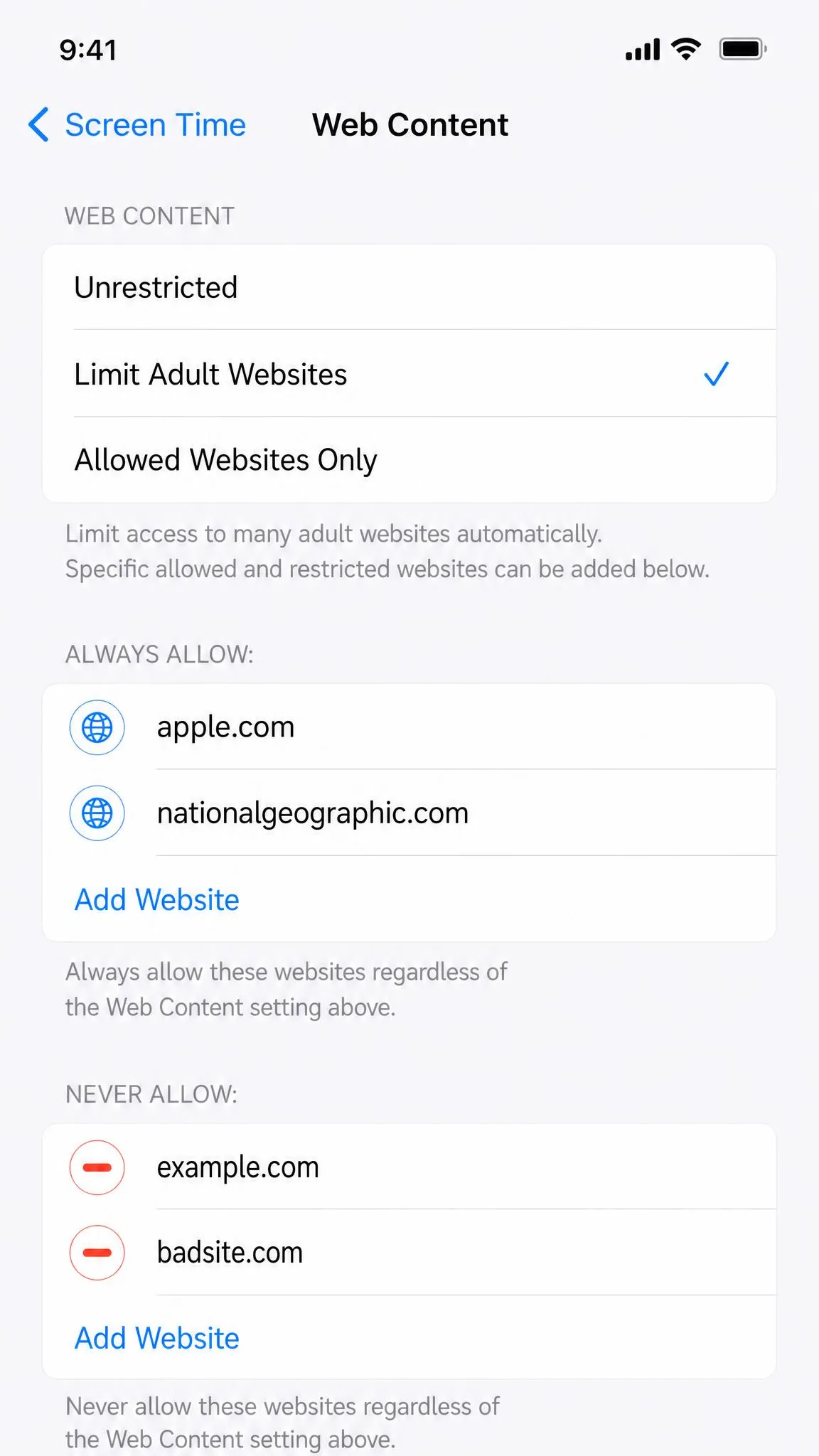
Set it up like this. Open Settings → Screen Time → Content & Privacy Restrictions, then turn on Content & Privacy Restrictions. Tap App Store, Media, Web, & Games, then Web Content, and choose Limit Adult Websites. Safari now blocks adult sites automatically, and you can add extra sites to Always Allow or Never Allow.
Then protect the setup with a passcode. Open Settings → Screen Time → Use Screen Time Passcode, and choose a code the child does not know. Without it, the restrictions can be switched off from Settings without a password.
If your child is in your Family Sharing group, you can manage Screen Time remotely. Open Settings → Screen Time on your own iPhone, choose your child's name, and adjust the restrictions from there. The settings apply across all of the child's iOS devices. Apple's Screen Time web-content filtering guide covers every option in detail.
In our testing, two limits kept coming up. Screen Time is easy to disable once the passcode is known, and a determined user can bypass it by switching to mobile data. The filter also misses some content. Even with Limit Adult Websites on, social apps like Reddit or X can still surface explicit material, because the filter catches web pages, not everything inside apps. That is why we suggest you also set up parental controls on iPhone to cover the gaps.
Method 3: Block Adult Websites on Android with Google Family Link and Play Store Restrictions
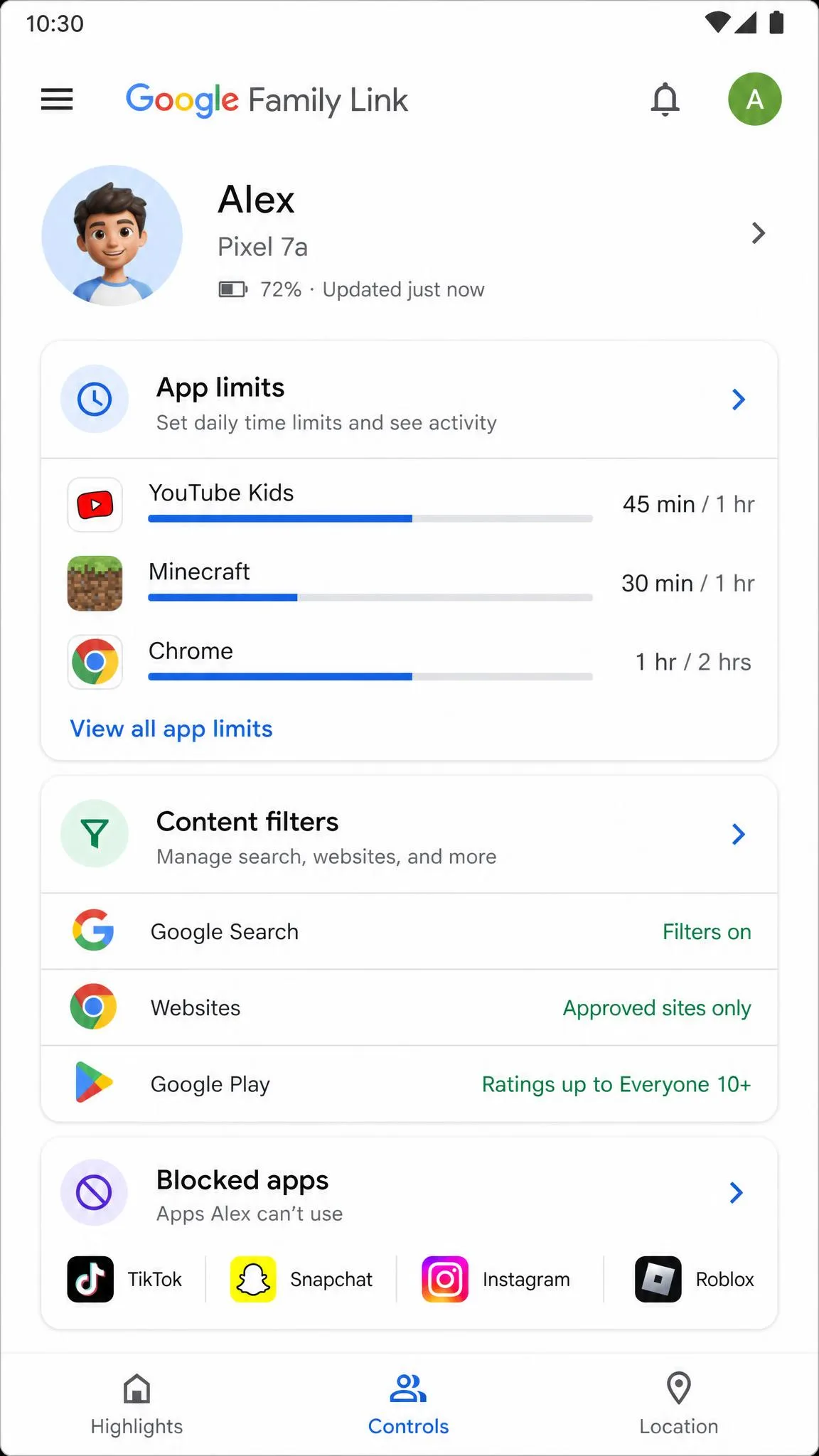
Family Link is Google's free parental control tool, and it is the main way to block adult content on Android. The child's device needs Android 6.0 or later, and you manage everything from the Family Link app on Android, from an iPhone or iPad with iOS 16 or newer, or at familylink.google.com.
Set up Family Link
Install the Family Link app, create a supervised Google Account for the child, and link the device. Then open the app, select the child's profile, and go to Controls. From there you can manage apps, content filters, and screen time in one place.
Restrict the Google Play Store
Open Family Link → select the child → Controls → App and content settings. You can approve or block app downloads and in-app purchases, so an adult site or a VPN app cannot be installed without permission.
Block apps and set time limits
Open Family Link → select the child → Screen time → Time limits → App limits, and toggle specific apps to Blocked. The change applies within about five minutes, and the child gets a one-minute warning when a just-blocked app is open.
Here is an important limit we confirmed in testing. Family Link's web filter works only inside Chrome on Android. Firefox, Brave, Opera, Samsung Internet, and in-app browsers are not filtered, and there is no category filter for adult content. Google locks SafeSearch on the child's Google Account, which helps, but a child can still reach adult sites through an unfiltered browser.
Known bypasses for Family Link include VPN apps, Samsung Secure Folder, guest or secondary accounts, and a factory reset. A child can also request to end supervision on their own once they turn 13; you get a notification but cannot prevent it. Google's Family Link requirements page explains the account and device rules.
Block VPN apps early. Because a VPN routes traffic around Family Link's filters, approving app downloads from Google Play is the simplest way to close that bypass before it starts.
Method 4: Block Adult Sites at the DNS Level (OpenDNS, Private DNS, AdGuard DNS)
A DNS filter blocks adult sites before a page ever loads, because every website visit starts with a domain lookup. Point your phone's DNS at a filtering provider, and every browser and app on the device gets the block.
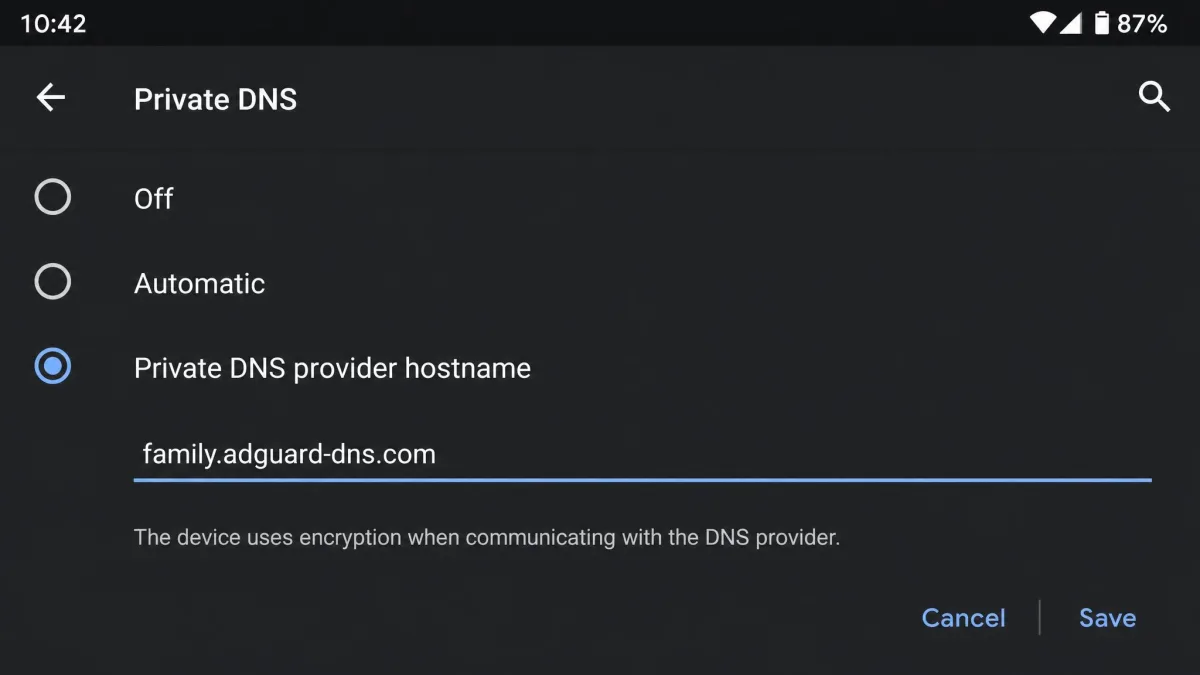
Set Private DNS on Android
Private DNS is built into Android 9 and later. Open Settings → Network & Internet → Advanced → Private DNS, choose Private DNS provider hostname, and enter a hostname such as family.adguard-dns.com rather than an IP address. The setting applies on every network the phone joins. Google's Private DNS setup page has the details.
Set DNS on iPhone
Open Settings → Wi-Fi, tap the (i) next to your network, tap Configure DNS, choose Manual, and add the provider's server. This applies only to that Wi-Fi network and reverts on cellular. For system-wide coverage, install a .mobileconfig profile from a provider such as AdGuard DNS.
The free filters worth knowing
OpenDNS FamilyShield is a free, pre-configured filter that blocks pornography, tasteless, and sexuality categories, plus proxy and anonymizer sites, phishing, and malware. Its servers are 208.67.222.123 and 208.67.220.123, and it protects every device on a network when set at the router.
AdGuard DNS Family Protection blocks ads, trackers, and adult content and enables Safe Search where possible. The public servers are free with no account needed, and the family profile runs at family.adguard-dns.com on Android Private DNS.
CleanBrowsing Family Filter blocks adult, pornographic, and explicit sites, plus proxy and VPN domains used to bypass filters, and it enforces SafeSearch on Google, Bing, and YouTube. The free tier is throttled but needs no account.
Cloudflare's 1.1.1.1 for Families runs at 1.1.1.3 and 1.0.0.3, which block malware and adult content. When a domain is blocked, Cloudflare returns 0.0.0.0 instead of the real address, so the page simply fails to load.
| Provider | Buy | Free | Blocks adult content | Enforces SafeSearch | Android Private DNS hostname | Best for |
|---|---|---|---|---|---|---|
 |
Yes | Yes | No | IPs only | Set-and-forget whole-network filter | |
 |
Yes | Yes | Yes, where possible | family.adguard-dns.com | Adult and ad blocking with Safe Search | |
 |
Yes, throttled | Yes | Yes, on Google, Bing, YouTube | family-filter-dns.cleanbrowsing.org | Family categories plus a SafeSearch lock | |
 |
Yes | Yes | No | family.cloudflare-dns.com | Free adult and malware filter at scale |
In our testing, DNS filtering proved a useful extra layer, but it is not a complete solution. Filters block adult sites only while the device actually uses the filtered DNS server, and a VPN or a switch to another network routes around them. Some apps also bypass DNS settings depending on how they connect. When you change DNS, clear your DNS cache on the phone so the new servers take effect. For whole-home coverage, the router-level filter in the next method is the strongest option.
Method 5: Block Adult Websites at the Router Level
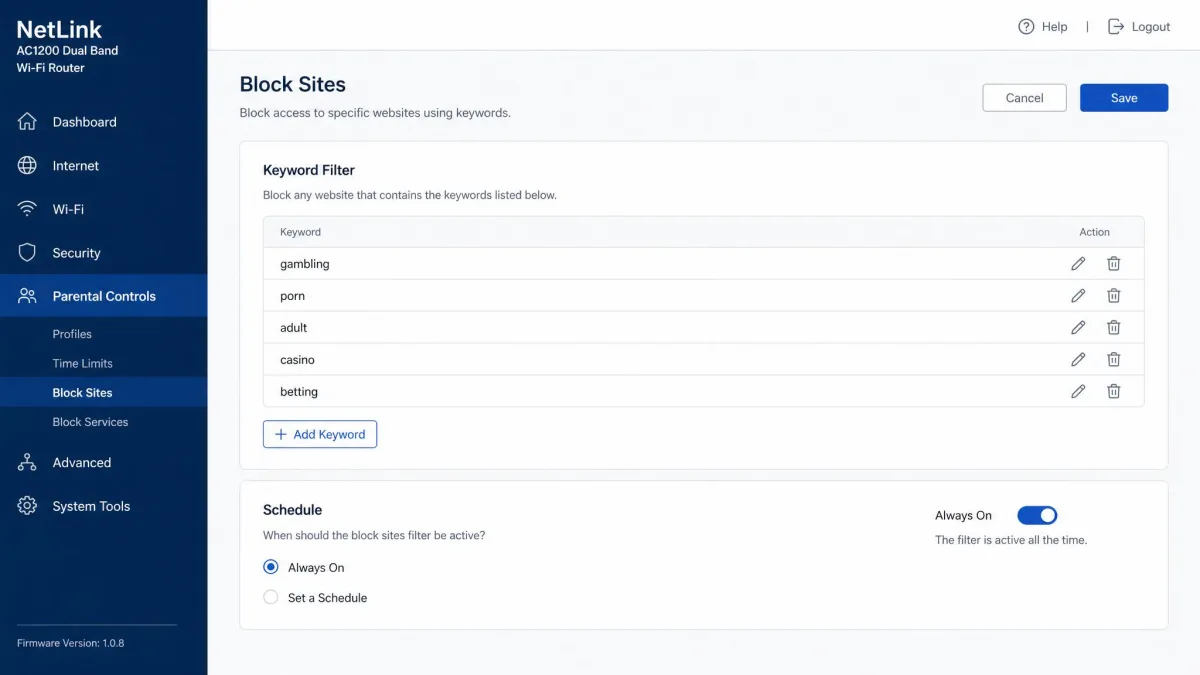
Router-level filtering is the whole-home option. Set it once in your router's admin page, and every device on your home network, phones included, gets the block. It also covers devices you cannot install anything on, like a smart TV or a gaming console.
The steps depend on your router, but the controls are common. On a Netgear router, open the admin page, go to Advanced → Security → Block Sites, and block by keyword or domain, running Always or on a schedule. Netgear's Block Sites documentation shows the exact steps. On a TP-Link router, open Advanced → Parental Controls, set up a profile per family member, and use blacklist or whitelist keyword modes with daily time limits. TP-Link's parental controls guide covers the profile setup.
One limit is built into this method. Router filters work only while the phone is on your home network. The moment a device switches to mobile data or joins another Wi-Fi network, all protection is lost. In our testing, that made router blocking a strong base layer, but never the only layer for a phone that leaves the house.
Treat the router as the base layer, not the finish. Pair it with a per-device DNS setting or a parental control app so the protection follows the phone when it leaves home.
Method 6: Use a Parental Control App for Permanent Blocking
Built-in settings only hold for so long, as we found in testing. A dedicated parental control app adds category-based blocking, scheduling, and monitoring that the built-in tools skip, and it is the closest thing to a permanent block on a phone.
The app we recommend starting with: BlockSite
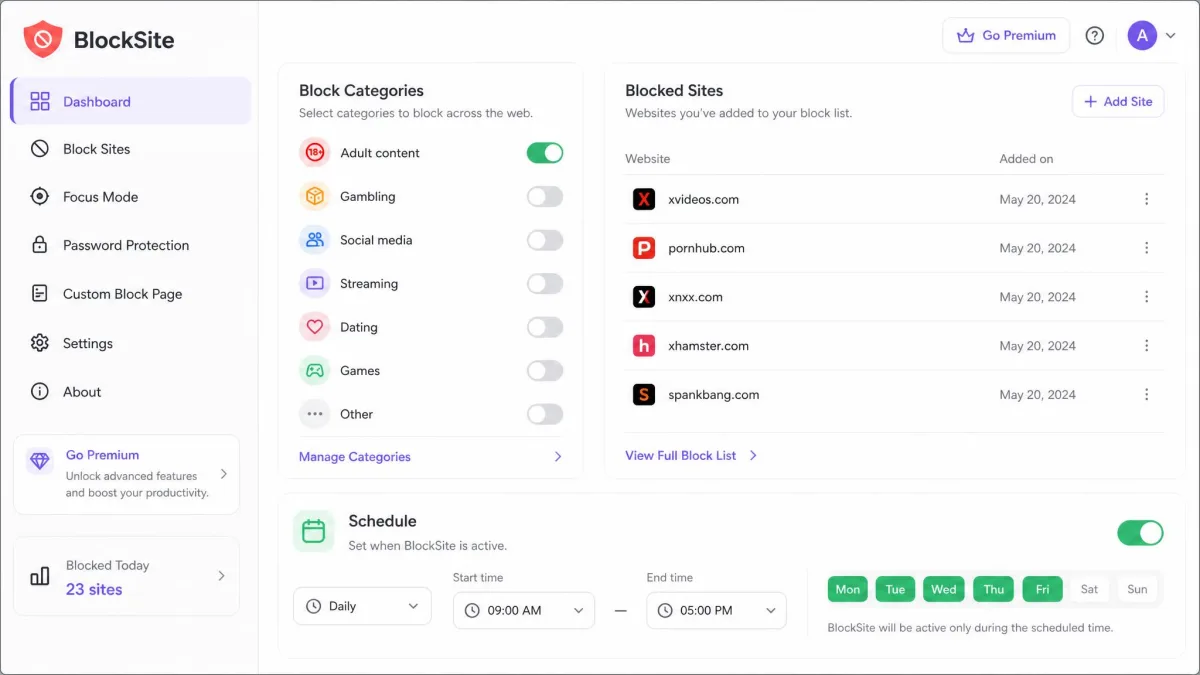
BlockSite on Google Play blocks websites, apps, and keywords, including a whole Adult content category. It adds scheduling, Focus Mode, cross-device sync, and password protection. The free plan covers one device and a small number of blocked items with ads. The premium tier unlocks unlimited blocking, category filters, and scheduling, with pricing that varies by region and promotion.
In our testing, BlockSite's accessibility service could silently switch itself off on some Android devices because battery optimization suspended it, and the block stayed down until the app was reopened and re-enabled.
Pros
- Blocks whole content categories, not just individual sites
- Scheduling and Focus Mode for distraction-free time
- Cross-device sync on the paid tier
Cons
- Covers only the browsers it is installed in
- A blocked site can still open in private mode unless incognito blocking is enabled
- Password protection does not stop the app being uninstalled
Fuller-featured options
For deeper monitoring, Qustodio and Norton Family are the names we usually point parents to. Qustodio's web filter spans around thirty content categories with allow, block, and alert modes, and it blocks VPN and proxy bypass attempts. Norton Family costs $49.99 a year for unlimited devices with a 60-day money-back guarantee, and it filters websites by category with total-block, warn, or allow-and-monitor options, plus app control and location tracking.

Method 7: Harden Your Browsers (Chrome, Safari, Firefox)
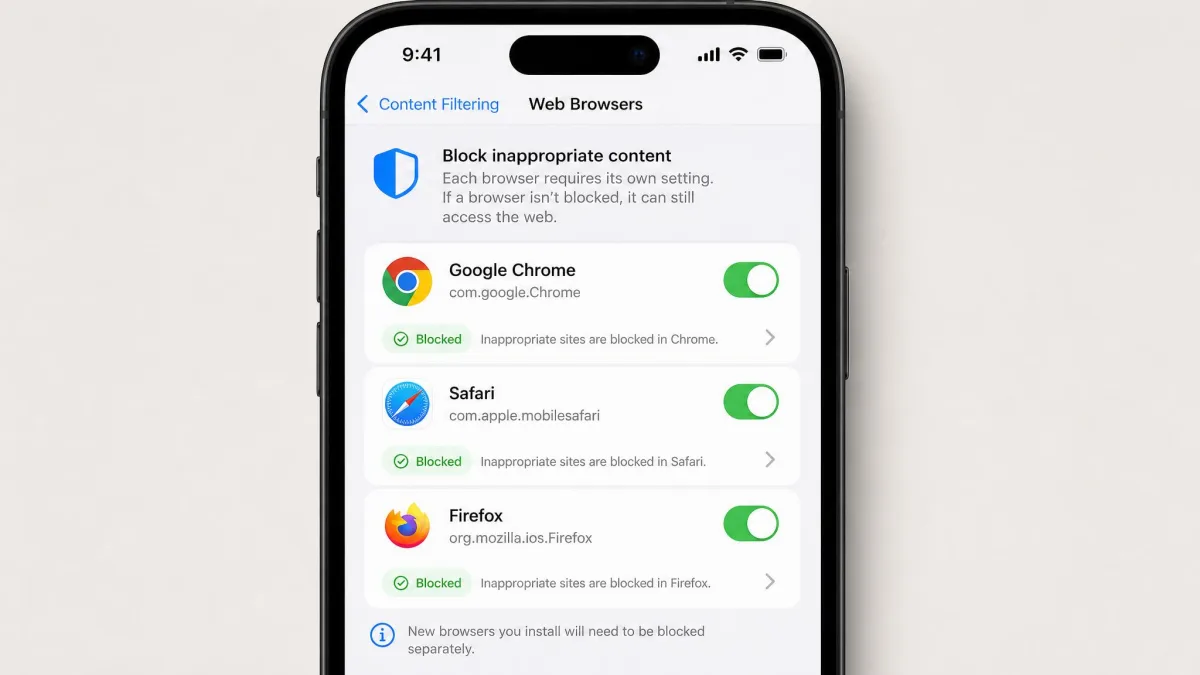
Browser-level controls are the last layer, and they are narrower than the others. Each one filters only inside its own browser, so a setting in Chrome does nothing in Firefox or Safari.
Chrome
Chrome on Android and iOS does not support extensions, so extension-based blockers like uBlock Origin exist only on desktop Chrome. On Android, the filter that applies to Chrome comes from Family Link, and Chrome is the only browser Family Link filters. On iPhone, Screen Time's web-content setting governs Chrome the same way it governs Safari. To block Chrome specifically, layer Family Link or Screen Time over the browser rather than hunting for an extension.
Safari
Safari on iPhone is covered by Screen Time's Limit Adult Websites setting, and content-blocking extensions for Safari exist in the App Store. Those extensions control Safari only, not Chrome or any other browser.
Firefox
Firefox has its own strict content and tracking blocking, and its filters apply only inside Firefox. A block set in another browser does not carry over.
Two blind spots are worth knowing about. In our testing, browser-level blocking never travelled beyond its own app, and Samsung's Secret Mode and Knox-protected secure spaces sit outside Samsung's own web controls. A determined user also tries private browsing tricks or a different browser to get around blocks, so treat browser hardening as the finish on top of the DNS and app layers, not the block itself.
How to Test Your Setup and Handle Bypass Attempts
A filter you never verify is a filter you cannot trust. Run a quick check on the phone itself after each method.
Start with a search test. Open Google and Bing and search for explicit terms. Filtered results confirm SafeSearch is working. Then test a direct visit: try opening a known adult site and confirm it fails to load or shows a block page.
Check every browser separately, because a block in Chrome does not cover Firefox or Safari. Then turn off Wi-Fi and test on mobile data. If adult sites load over cellular, the router and Wi-Fi DNS filters are doing nothing for that phone, and you need a per-device method instead.
Recheck the setup every few months. New adult sites appear and new workarounds are found, so a setup that blocks everything today can leak next quarter.
Here is the honest reality check. No single setting on any phone is un-bypassable, and every method here has a workaround a determined person can find. Permanent does not mean impossible to reach; it means much harder to reach in everyday use. Layer several methods, and treat the periodic recheck as part of the routine, not a failure.
Why You Should Block Adult Content on Your Phone
Most parents start looking for these filters after a scare: a search result that should never have appeared, a shared phone, a child old enough to browse alone. Filtering adult content early is easier than cleaning up after an accidental exposure.
The numbers show how common exposure is. Common Sense Media's research on teens and pornography found that 73% of U.S. teens aged 13 to 17 have watched online pornography, and more than half first saw it by age 13. The average age of first exposure is 12, and 15% first saw it before age 11.
Beyond the numbers, filtering gives you practical peace of mind. It cuts the risk of a stray click on a shared device, it keeps explicit material out of ordinary searches and app feeds, and it keeps one conversation in your control.
FAQs About Blocking Adult Websites on Your Phone
How do I block adult websites on my phone permanently?
Can I block adult content on my phone without an app?
Does Google SafeSearch block adult websites?
How do I block 18+ content on Chrome permanently?
Can I permanently block a specific website on my phone?
What's the best free app to block adult websites on Android?
Bottom Line: Build a Layered Defense
Here is the approach we recommend. Start with the free built-in methods: SafeSearch on Google and Bing, Screen Time on iPhone, and Family Link on Android. Add a DNS filter such as OpenDNS FamilyShield or CleanBrowsing so every browser and app on the device gets a network-level block. Set the router to filter the whole home network, and finish with a parental control app such as BlockSite if you want stronger bypass resistance.
The order matters less than the layering. No single method blocks adult websites permanently on its own, but two or three together make adult content genuinely hard to reach, which is what permanent blocking means in practice. Run the test routine above, and recheck the setup every few months.
Done properly, this gives you the thing most parents are really after: peace of mind, without turning the phone into a fortress. The methods are almost entirely free, they are quick to configure, and they keep working long after you finish reading this guide.