Norton Family is Gen Digital's parental control service, covering web filtering, screen time, location tracking, and search and video supervision on Windows, Android and iOS. It's worth it if you want tamper-resistant filtering across a house full of devices for one flat annual fee, and it's the wrong buy if you need to read what your kids say inside messages or social apps.
We spent our time with the parent portal, the Android and iOS child apps and the Windows client: blocking categories, setting school-hours rules, timing how long an app block took to bite, and trying to break the filter with a VPN and private browsing.
Verdict: Who Norton Family Is Right For
Norton Family earns its place for one reason above all others: the web filter is genuinely hard for a child to get around, and it costs the same at renewal as in year one. The gaps all sit in social media, messaging and iOS.

Norton Family Pros and Cons
Here's what we liked, and what we'd want fixed.
Pros
- Filtering held up against three VPNs, incognito mode and Firefox's private mode
- Up to 15 child profiles, with the standalone plan listed as unlimited devices
- Renews at the same $49.99 you pay in year one
- School Time locks a device down to education sites
- Geofences stretch to 2 miles, with near-instant entry and exit alerts
- A 30-day free trial and a 60-day money-back guarantee
- Included at no extra cost with Norton 360 Deluxe and above
Cons
- No social media content monitoring, and no call or SMS monitoring
- No macOS or Chromebook support for a child device
- App Supervision doesn't work on iOS at all
- No per-app time limits, so you can block an app but not ration it
- Annual billing only, with no monthly plan and no free tier
- A dated portal, and mobile parent apps that are weaker still
What Is Norton Family?
Norton Family is a subscription service that sits between your child's device and the internet, filtering what they reach and reporting back what they did. Like most parental control software, it has two halves: a dashboard you control, and a supervised app your child cannot quietly remove.
How the parent portal and child app work together
You run everything from the portal in a browser or the parent app, and every child profile opens onto the same six categories:
- Web supervision
- Time supervision
- Mobile App supervision
- Location supervision
- Search supervision
- Video supervision
You install and sign in to the child app on each of your child's devices. Activation runs off a QR code, a Play Store link or an emailed link plus a short code.
Standalone subscription vs bundled with Norton 360
You can buy it on its own, or get the same features inside a Norton 360 plan, where Norton brands them as Parental Control. Only the device allowance changes.
Already paying for Norton 360 Deluxe or above? Sign in to your Norton account and look for Parental Control before you buy anything on this page. Setting up a child profile from there costs nothing extra.
Norton Family Features We Tested
The feature list is long, and the interesting part is which features hold up on which platform.
We worked through Norton Family on Windows, Android and iOS child devices alongside the web portal and the parent app, covering setup, each supervision category and a run of deliberate bypass attempts. The timings below came out of that work rather than Norton's marketing copy.
Web supervision and content filtering
Web filtering is the strongest part of the service and the reason most parents buy it. Norton publishes no category total anywhere on its own site, so count on the mid-40s, still far wider than Net Nanny's 14 categories. Four age presets do most of the work:
- Very High, up to age 8, allowing 20 categories
- High, ages 8 to 11, allowing 22
- Moderate, ages 12 to 14, allowing 26
- Low, ages 15 to 17, allowing 30
Each can be set to Monitor, Warn or Block, and overridden per site.
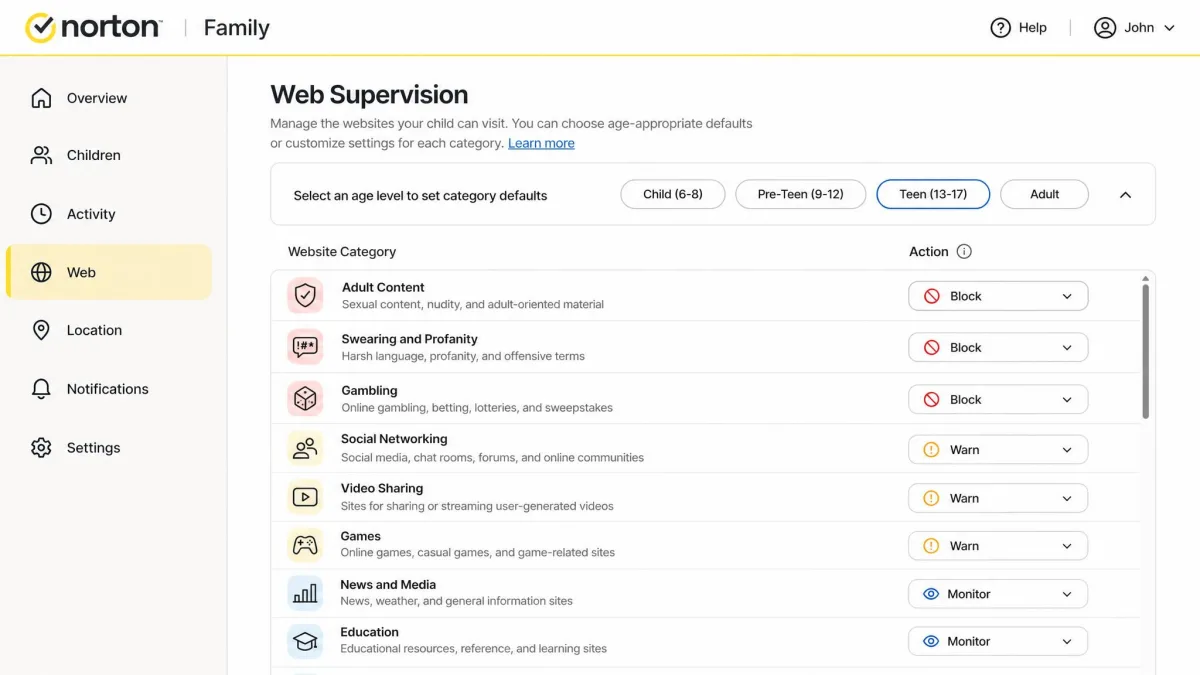
Blocking a single URL takes effect immediately, and you can set it in 10 to 15 seconds. A whole-category block is slower, taking around 10 minutes to bite.
Time supervision and screen time limits
You set the weekly schedule in 30-minute blocks, though the daily allowance drop-down can offer only whole-hour steps. The limitation that bites is that time is counted per device rather than pooled, so a child who uses up an allowance on a tablet can move to the PC and carry on. Kids can request extra time once they are under 15 minutes remaining.
School Time
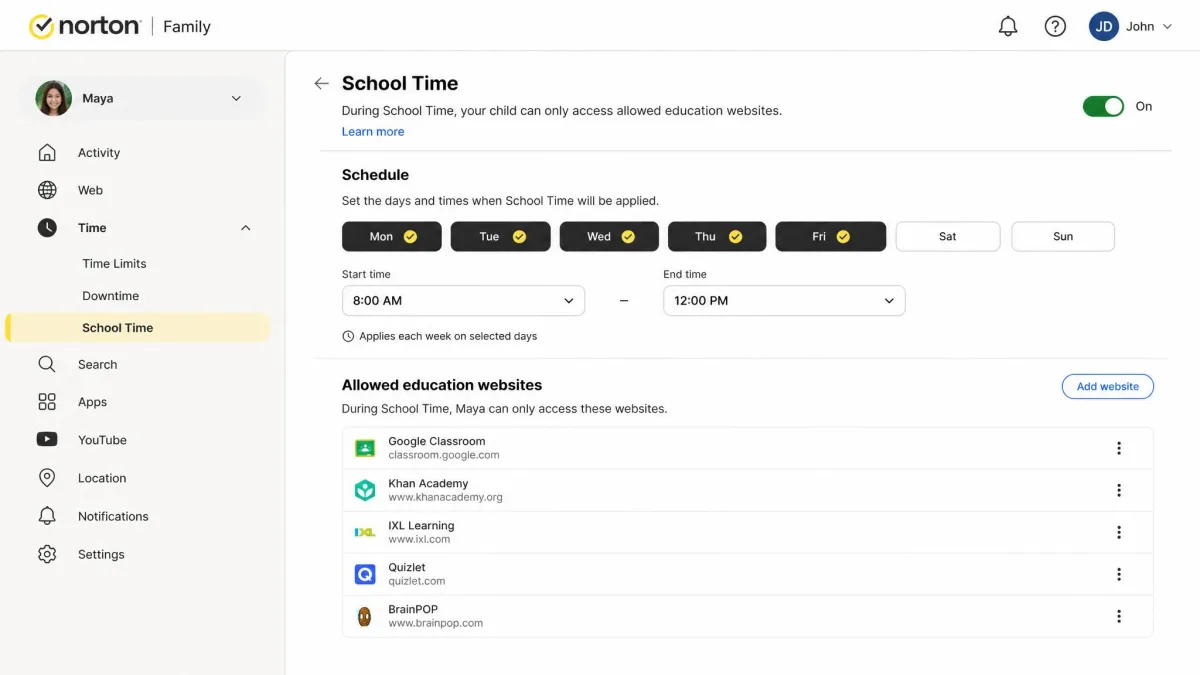
School Time is Norton Family's best idea. Turning it on strips your child's device back to education-friendly categories such as Technology, Sport and Reference, and it left YouTube, Reddit and 4chan unreachable on our test devices. The hours default to 8am to 12pm, the whitelist covers 30 or more education sites, and Instant School Time runs for up to 8 hours.
Two catches. It doesn't block apps, so a child can stay inside one to sidestep it, and the Android app lists sites visited while iOS only reports time spent online.
Location supervision and geofencing
A Favorite Locations geofence can extend up to 2 miles, or 3,200 meters, from the point you set, wide enough to cover your child's whole school campus without constant false alerts. Routine updates land every 20 to 30 minutes, so this isn't live tracking, but entry and exit alerts are near instant. History was accurate enough to pin a specific restaurant visit.
Location Supervision is unavailable in more than 25 countries, including Germany, France, Italy and the Netherlands. If you're outside the US, confirm your country is covered before you pay for the year.
App supervision and app blocking
App Supervision lists what's installed on Windows and Android child devices and lets you block anything you don't want opened. Blocked apps stay on the home screen and throw a full-screen notice when tapped. Speed is the weak spot: blocks can take a couple of minutes to reach an Android device, and we've seen one register immediately while failing to enforce for roughly 30 minutes.
Search supervision
Search supervision logs the terms your child searches for and enforces safe search on the major engines, a useful early warning signal. Coverage isn't complete: DuckDuckGo searches aren't covered, and filtering depends on the desktop extension staying enabled.
Video supervision on YouTube and Hulu
Video supervision reports what your child watched on YouTube, with Hulu tracking on Windows only. Tracked videos take 20 to 30 minutes to reach you, and clips embedded in other pages stay invisible, so a restricted video is still reachable elsewhere.
Activity reports, email alerts and Instant Lock
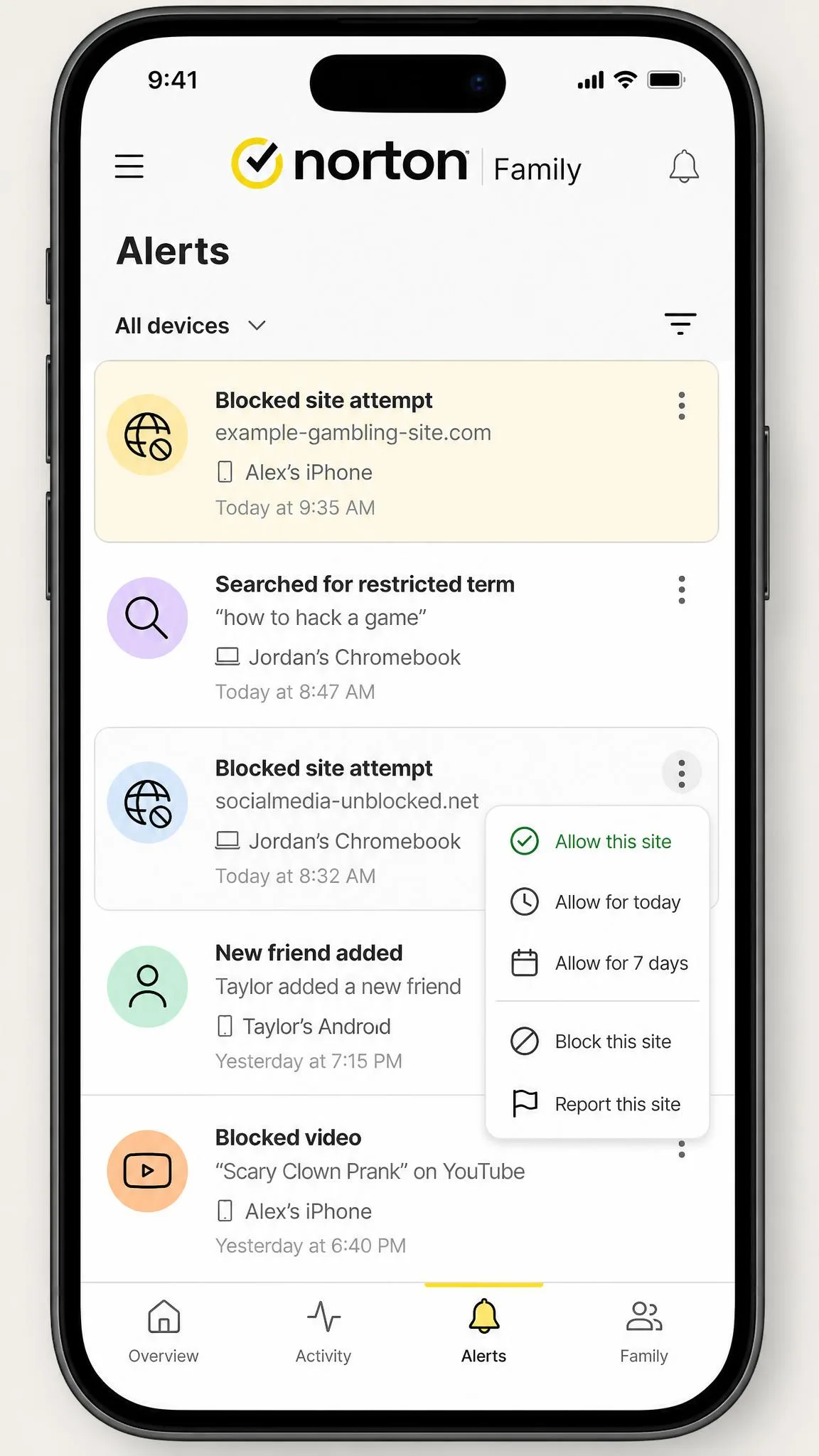
The portal shows your child's activity for the past 30 days, and summaries go out by email weekly or monthly. Alerts are actionable in place, so when a child hits a blocked site you can allow it from the alert's own menu. One reached us within about 15 minutes. Instant Lock leaves an Android phone unusable and a Windows PC fully locked, and on an iPhone it strips everything except the core Apple apps.
Any activity you can see is deleted automatically once it's more than 100 days old. It's worth reading what the FTC's rules require of apps that collect a child's data before you decide how much history to keep.
Norton Family Pricing and Plans
Pricing is straightforward on its own, but the value calculation changes if you already pay for Norton 360.
| Product | Buy | First-year price | Renewal price | Devices covered | What else is included |
|---|---|---|---|---|---|
 |
Check price → | $49.99 | $49.99 | Listed as unlimited | Parental controls only, 30-day trial, 60-day refund |
 |
$39.99 | $124.99 | 5 | Antivirus, VPN, password manager, 50 GB backup, Parental Control | |
 |
$139.99 | $149.99 | 10 | Deluxe features plus 100 GB cloud backup | |
 |
Not sold in the US | Not sold in the US | 10 in the UK | Premium features plus identity restoration, 200 GB backup |
Standalone price and what happens at renewal
Norton Family costs $49.99 a year, and here's the surprise: Norton Family's official pricing page lists the renewal at $49.99 as well. Billing is annual only, with no monthly plan and no free tier. The standalone plan is listed as unlimited devices, while the bundles cap coverage at 5 or 10.
Norton 360 Deluxe, Premium and Advanced bundles
Norton 360 Deluxe covers 5 devices with 50 GB of cloud backup and renews at $124.99 a year, though its first-year figure is a promotional rate that moves, and we've seen it between $39.99 and $59.99. Premium steps up to 10 devices and 100 GB and renews at $149.99. Advanced isn't currently a US shelf product at all.
Free trial and the money-back guarantee
You get a 30-day free trial, more generous than Bark's 7-day trial, and annual subscriptions then carry a full refund within 60 days. The general policy allows 14 days on monthly plans, but this service is sold annually.
How Norton Family's price compares to rival parental control apps
Against the rivals we tested, Norton lands at the cheap end for what it covers:
- Qustodio: $59.95 Basic, $104.95 Complete
- Bark: $49 for Bark Jr, $99 for Bark Premium
- Net Nanny: $54.99 for 5 devices, $89.99 for 20
Fifteen child profiles on one $49.99 plan works out at a little over $3 per child per year.
Installing and Setting Up Norton Family
Setup takes more work than the marketing suggests, mostly because of the permissions each mobile platform asks you for. Before you start on Windows, check Norton's list of issues with third-party security products, which names 14 security tools that interfere with its traffic filtering.
Creating the parent account and adding child profiles
The parent side takes about 2 minutes. Sign into your Norton account, add a child profile with a name and birth year, and Norton picks an age preset you can adjust. Add every child before you touch a device, because activation ties a device to a specific profile.
Installing the child app on Android
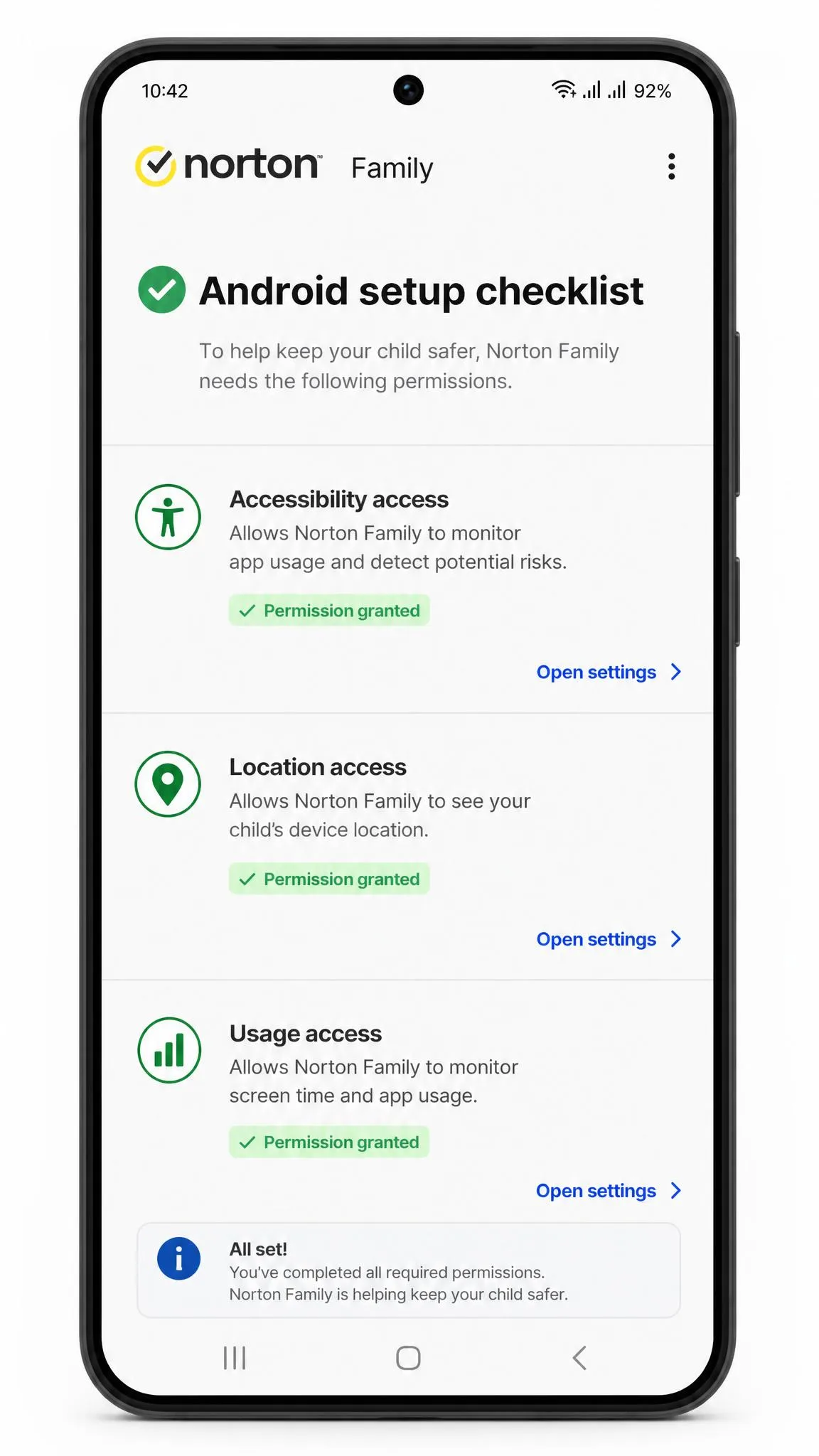
Budget about 10 minutes per device, including the conversation with your child about what's being monitored. The Android setup hands you a checklist that links straight into each permissions screen. One permission won't set itself: neither Android nor iOS grants permanent location access from the install dialog, so switch that permission to Always by hand in system settings afterwards.
Installing the child app on iOS
iOS is messier, because it needs both a VPN profile and a mobile device management profile before supervision works at all. You're not finished when those are in. Open Settings, then go to Screen Time, turn on Content and Privacy Restrictions, disable Safari and any other browsers, block app deletion, and set a 12+ age restriction so new browsers can't be downloaded.
Installing on Windows
The Windows installer weighs 64 MB and finishes in roughly 20 seconds, the fastest of the three. Put it on a non-admin login, because on an administrator account the software is easy to remove. Behavior can be inconsistent between machines, and the time zone doesn't always update by itself.
The child app has to be installed and signed in on the child's own device, and the desktop browser extensions need to stay enabled. Site blocking survives without them, but search filtering and video monitoring quietly stop working.
Ease of Use: Parent Dashboard and Mobile Apps
The dashboard is simple to navigate and every feature carries an inline explanation, so you won't need a tutorial. It's also dated. Changing a rule means clicking a small gear icon inside a category rather than the category name, and the schedule uses a half-hour timeline rather than the grid most rivals use. The portal logs you out after a few minutes of inactivity, which stops a child lifting their own restrictions and irritates you mid-task. The mobile parent apps are weaker still, so keep them for checking alerts and do the real configuration in a browser.
Device and Platform Support
Your child's devices can run Windows, Android or iOS, and you manage them from the iOS or Android parent app or the web portal. Coverage isn't identical across the three.
| Supervision feature | Windows | Android | iOS |
|---|---|---|---|
| Web supervision | Yes | Yes | Yes |
| Time supervision | Yes | Yes | Yes |
| Search supervision | Yes | Yes | Yes |
| Location supervision | Yes | Yes | Yes |
| Video supervision (YouTube) | Yes | Yes | Yes |
| Video supervision (Hulu) | Yes | No | No |
| App supervision | Yes | Yes | No |
| Instant Lock | Yes | Yes | Yes |
Windows, Android and iOS coverage
The requirements you need to meet are undemanding:
- Windows 7 with Service Pack 1 or later through Windows 11, but not Windows in S Mode
- Android 8 or later
- The current and previous two versions of iOS, with the App Store listing asking for iOS 15.0 or later
Why there is no macOS child device support
Norton states plainly that its Parental Control features aren't supported on macOS. A Mac can be a parent device through the web portal, but never a monitored child device, and Chromebook isn't supported either. That's a hard stop.
Where the iOS app falls short
App Supervision doesn't work on iOS, so you can't block individual apps or see app activity for an iPhone in Norton's reports. Most blocking there is carried out by Apple's Screen Time, which Norton Family configures rather than replaces. On an iPhone, Chrome and YouTube were completely inaccessible in our testing, but Instagram and a freshly downloaded Snapchat only produced a Website Blocked alert and stayed usable.
Customer Support and Help Resources
On paper Norton offers one of the best support line-ups in this category: 24/7 live chat, 24/7 phone support in 50 or more countries, an active community forum, and a video-backed help library.
In practice it's inconsistent, and the answer you get depends on which representative picks up. Live chat is reached through a form and a chatbot, and most agents fall back on generic copy-paste replies. Phone reps failed to answer questions about App Supervision on two separate calls. The forum is the strongest channel by a distance, where a question about a broken Instant Lock drew a working fix within hours.
Can Kids Bypass Norton Family?
This is the question that decides whether any parental control app is worth the money, and it's the one most reviews skip. We came at it the way a tech-savvy teenager would.
VPNs, alternate browsers and incognito mode
Norton Family held up better than we expected. Filtering stayed active with Proton VPN, ExpressVPN and Private Internet Access running, across more than 10 restricted sites. Blocked sites also stayed blocked in Chrome's Incognito mode and Firefox's private mode, and switching Incognito on triggered an alert. The routes that still work are narrower:
- Unsupported desktop browsers such as Brave get around the Windows filter
- Unsupported mobile browsers have to be blocked by hand, where Qustodio blocks them automatically
- New app downloads are allowed on both iOS and Android child devices
Norton Family can't block desktop applications on Windows, so a child who installs virtualization software such as VirtualBox can run an unfiltered system inside the supervised one. Check what's installed before you rely on the filter alone.
Uninstall protection and what happens if a child removes the app
Removing a child app demands your parent account credentials on every platform, so your child can't quietly delete it. The extensions are the softer target: they aren't on by default and can be removed easily. Blocking survives without them, but search filtering and video monitoring stop working. Account security is better than average, with two-factor authentication and an automatic logout.
Limitations: What Norton Family Cannot Do
Three gaps come up again and again, and none is a setting you can configure around.
No social media content monitoring
Norton Family can block social apps, but it can't read the posts or messages inside them. You'll know Instagram was opened. You won't know what was said. A concerning conversation inside a gaming app's chat function was completely invisible to the service.
No call or SMS monitoring
You get no call or SMS monitoring on any platform. Norton Family used to monitor texts and block calls on Android and withdrew the feature after Google changed its permissions policy, so this is a capability the service lost.
No app-level time limits
You can block or allow apps, but you can't give them individual time budgets. You can't say "45 minutes of TikTok a day", only yes or no. Qustodio offers per-app limits, and for parents of older kids that difference can decide the purchase.
What Real Users Say About Norton Family
One-star reviews cluster on location tracking accuracy and on the app failing to sync, which is the one area where our own experience ran better: the map pins were accurate, and the lag we kept hitting was on app blocks rather than location. Among specialist testers it still rates well, with SafetyDetectives scoring it 8.8 out of 10 and ranking it 2nd of the 27 apps it tracks.
Norton Family vs the Competition
Norton Family competes on price and filtering, not on breadth. Here's how it lines up against the rivals we're asked about most.
| Compared on | Norton Family | Qustodio | Bark | Net Nanny | Kaspersky Safe Kids |
|---|---|---|---|---|---|
| Price per year | $49.99 | $59.95 to $104.95 | $49 Jr, $99 Premium | $54.99 to $89.99 | About $14.99, not sold in the US |
| Devices covered | Listed as unlimited | 5, or unlimited on Complete | Unlimited | 5 or 20 by plan | Unlimited |
| Child accounts | Up to 15 | Not capped | Unlimited | Tied to device count | Unlimited |
| Platforms (Windows / macOS / Android / iOS) | Yes / No / Yes / Yes | Yes / Yes / Yes / Yes | Yes / Yes / Yes / Yes | Yes / Yes / No / Yes | Yes / Yes / Yes / Yes |
| Web filter categories | Mid-40s, no published total | Not published | Keyword alerts | 14 | Not published |
| Screen time limits | Yes, per device | Yes, plus per-app limits | Yes | Yes | Yes |
| Location and geofencing | Yes, up to 2 miles | Yes, about 200 meters | Yes, live GPS | Yes | Yes |
| Social media monitoring | No | Alerts on WhatsApp and Instagram | Yes, 30+ apps | Activity view for TikTok | Limited |
| Call and SMS monitoring | No | Yes on Complete | Yes | No | No |
| Free trial | 30-day | Free tier for 1 device | 7-day | Not published | Free tier |
Norton Family vs Qustodio
Qustodio is the more complete app and the more expensive one, adding per-app time limits, call and SMS tracking, macOS and Chromebook coverage, and social alerts. Norton wins on three points: its filter held with a VPN running where Qustodio's failed, it lets a child request access or extra screen time, and it has live chat. If breadth matters more than price, read our Qustodio review first.
Norton Family vs Bark
Bark solves the exact problem Norton Family can't. It scans texts, emails and 30 or more apps for bullying, predators, self-harm and sexual content, and sends you snippets of concerning messages rather than only blocking access. Bark Premium costs $99 a year against Norton's $49.99, and Bark Jr at $49 drops that message scanning. See how Bark compares if content alerts are your priority.
Norton Family vs Net Nanny
Net Nanny's filter is narrower at 14 categories, but it runs on macOS as well as Windows and iOS, which is the gap that rules Norton Family out of a Mac household. It doesn't cover Android at all. Our Net Nanny review goes deeper on the filtering engine.
Who Should Buy Norton Family (and Who Should Skip It)
Buy it if your children are primary school or early secondary age, your household runs on Windows and Android, and web filtering plus screen time is the job you need doing. The per-child price is unbeatable with three or more kids. Skip it if any of these describe you:
- You need to see message or social media content, in which case buy Bark
- Your child's main machine is a Mac or a Chromebook, where Net Nanny covers macOS
- An iPhone is the only device you're supervising, since App Supervision doesn't run there
Our guides to the best parental control apps for Android and the best parental control apps for iPhone go wider, and if budget is the sticking point, start with the free parental control apps built into the platforms you already own.
Frequently Asked Questions
Is Norton Family free?
How much does Norton Family cost?
Is Norton Family included with Norton 360?
Does Norton Family work on iPhone and iPad?
Does Norton Family work on Mac or Chromebook?
Can my child delete or uninstall Norton Family?
Can a VPN or incognito mode bypass Norton Family's web filtering?
Does Norton Family monitor text messages, calls or social media?
How many devices and child accounts does Norton Family support?
Is Norton Family safe to install?
Final Verdict
Norton Family does the fundamentals better than its price suggests. The web filter held against every VPN and private-browsing trick we tried, and the routes that still work need an unsupported browser or a virtual machine. School Time is the cleanest homework tool in this category, because it strips a device back to reference material for the hours you choose instead of leaving you to build a blocklist by hand.
What holds it to 7.8 rather than higher is message visibility. Norton has the filtering engine and the price to lead this category, and it has moved away from reading message content rather than toward it, so the parents who need that are pushed to a second subscription.
One last thing to check before you reach for a card. If you already pay for Norton 360 Deluxe or above, Parental Control is sitting inside that subscription doing nothing, so switch it on and run it for a couple of weeks before you spend anything at all. A fair number of parents shopping for a filter this year are already paying for one.