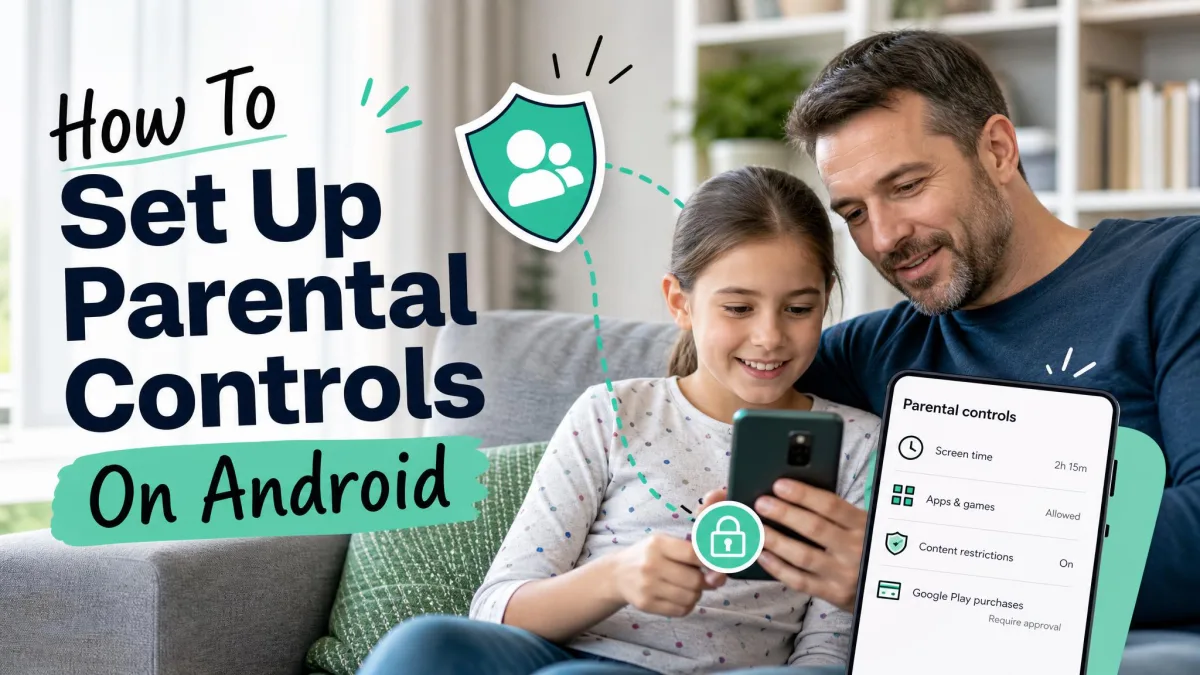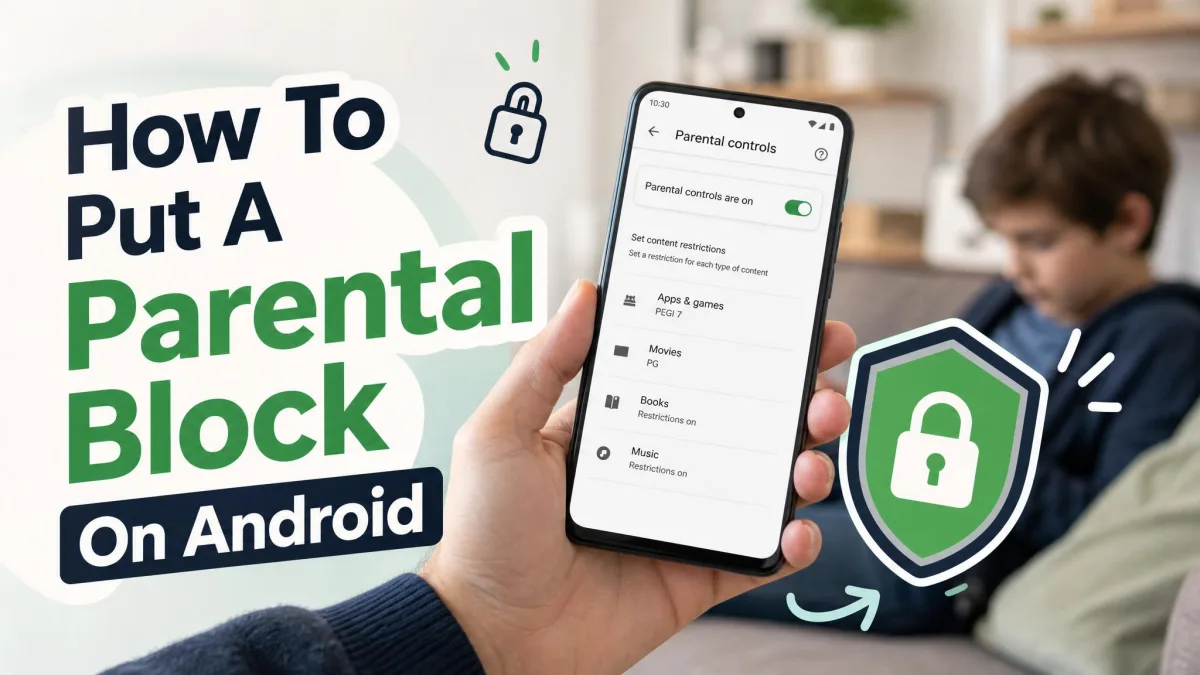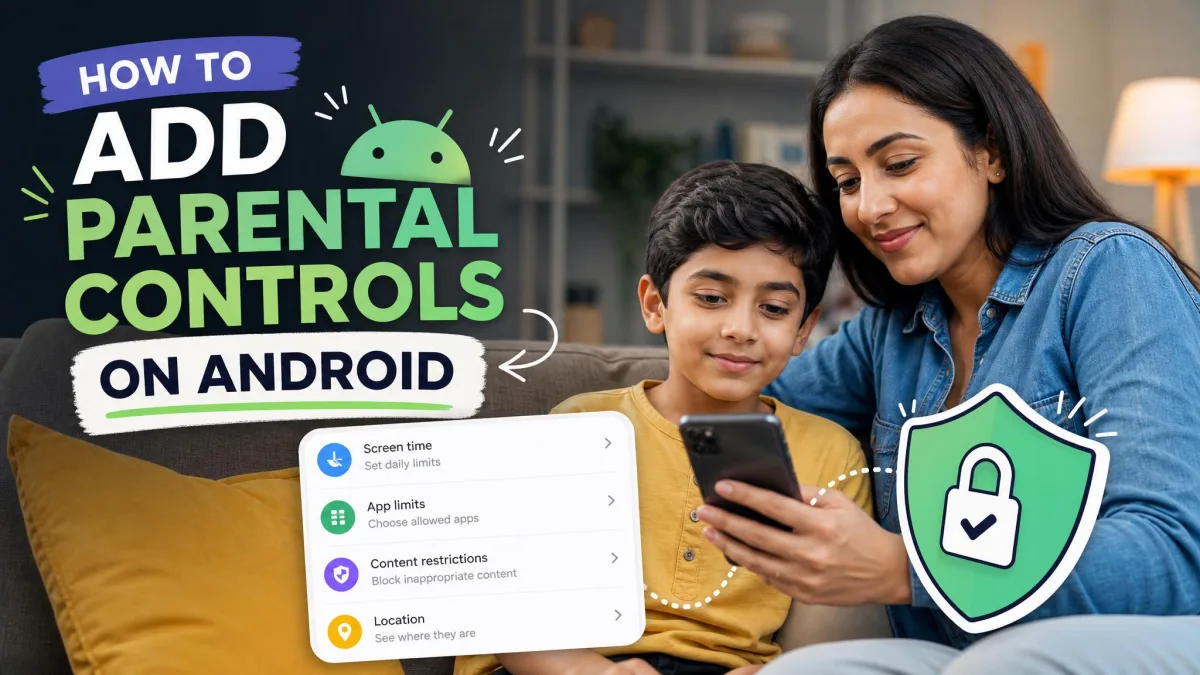
Android parental controls limit how much time your child spends on a phone. They also control which apps your child can open and what content is safe to see online. Google gives you two free ways to manage all of it. Use the on-device controls in Settings, or use Google Family Link, a free app that manages the child's device from your own phone.
This guide walks you through both paths step by step, from screen time limits to Play Store, Chrome, and YouTube filters.
What Are Parental Controls on Android?
Parental controls are restrictions that govern how a device gets used. They set limits on screen time, on which apps run, and on what content comes through. Android has two systems for this work.
On-device controls vs. Google Family Link
The on-device controls are built into the operating system. They live in Settings and protect the device itself, and you set them up on the child's phone with a PIN.
Google Family Link manages the device from your phone instead, with location sharing, app approval, and activity reports. You can run both together.
Before You Start: What You Need
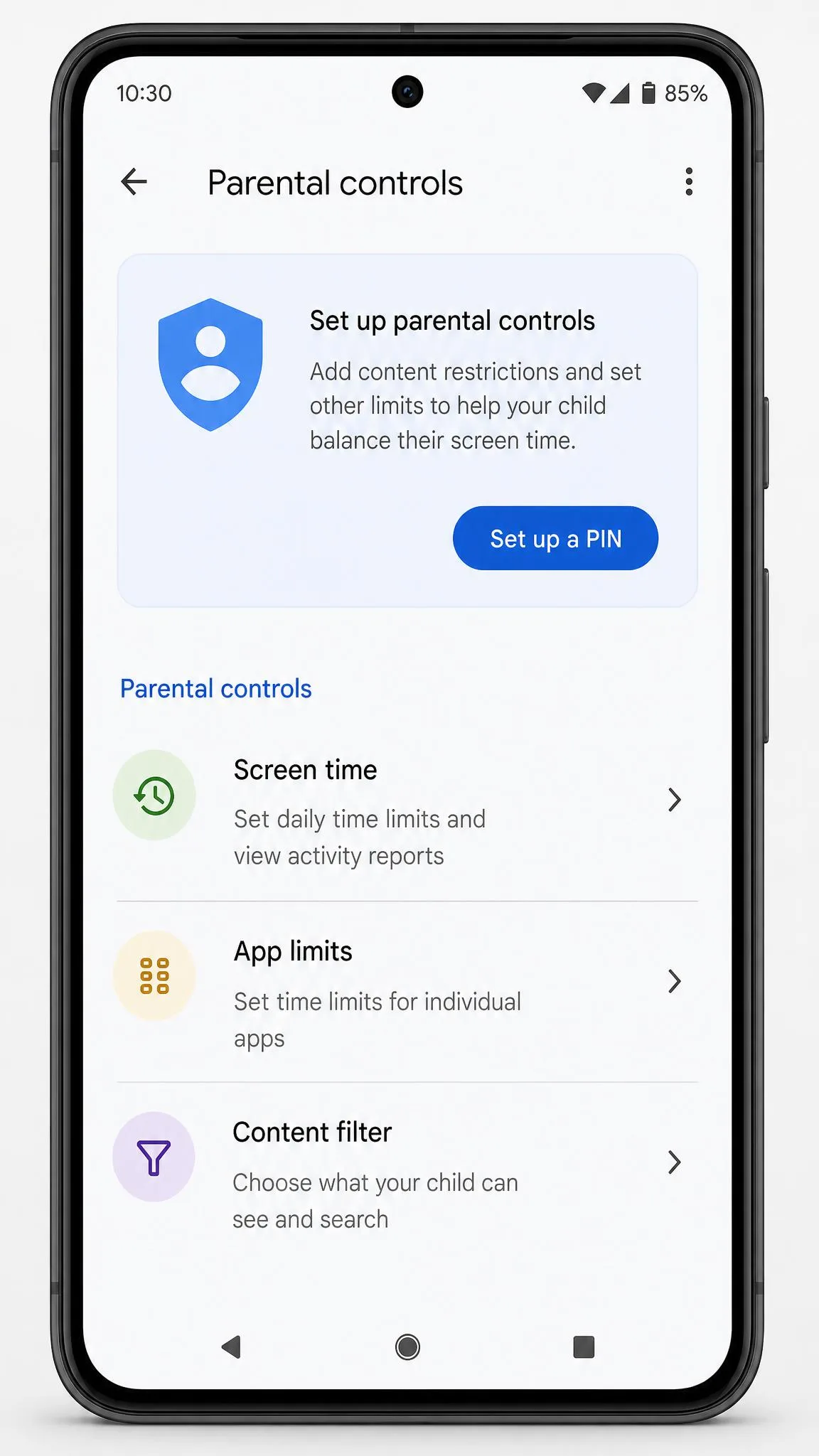
Check two things before you start: the Android version and your Google account.
Which Android versions support parental controls
The on-device controls debuted with Android 16 and are now standard on Android 17 and newer. On older phones, Family Link still works.
Google account setup for your child
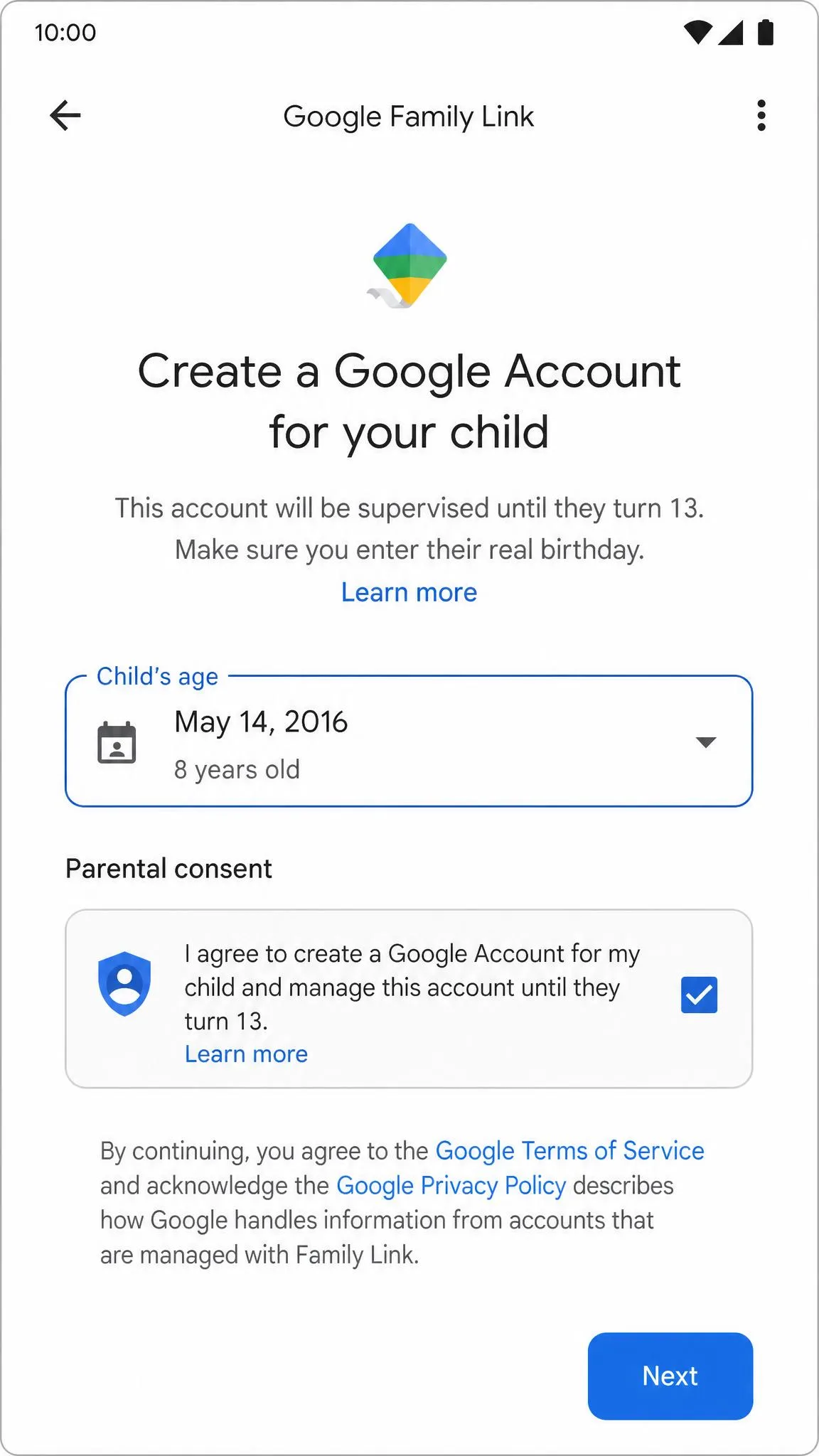
For a child under 13, you create a supervised Google Account through Family Link. A teen 13 or older can add supervision to an existing account, but the teen must agree to it. The managing account must be yours, and you must be 18 or older.
How to Set Up On-Device Parental Controls (Android 16 and Newer)
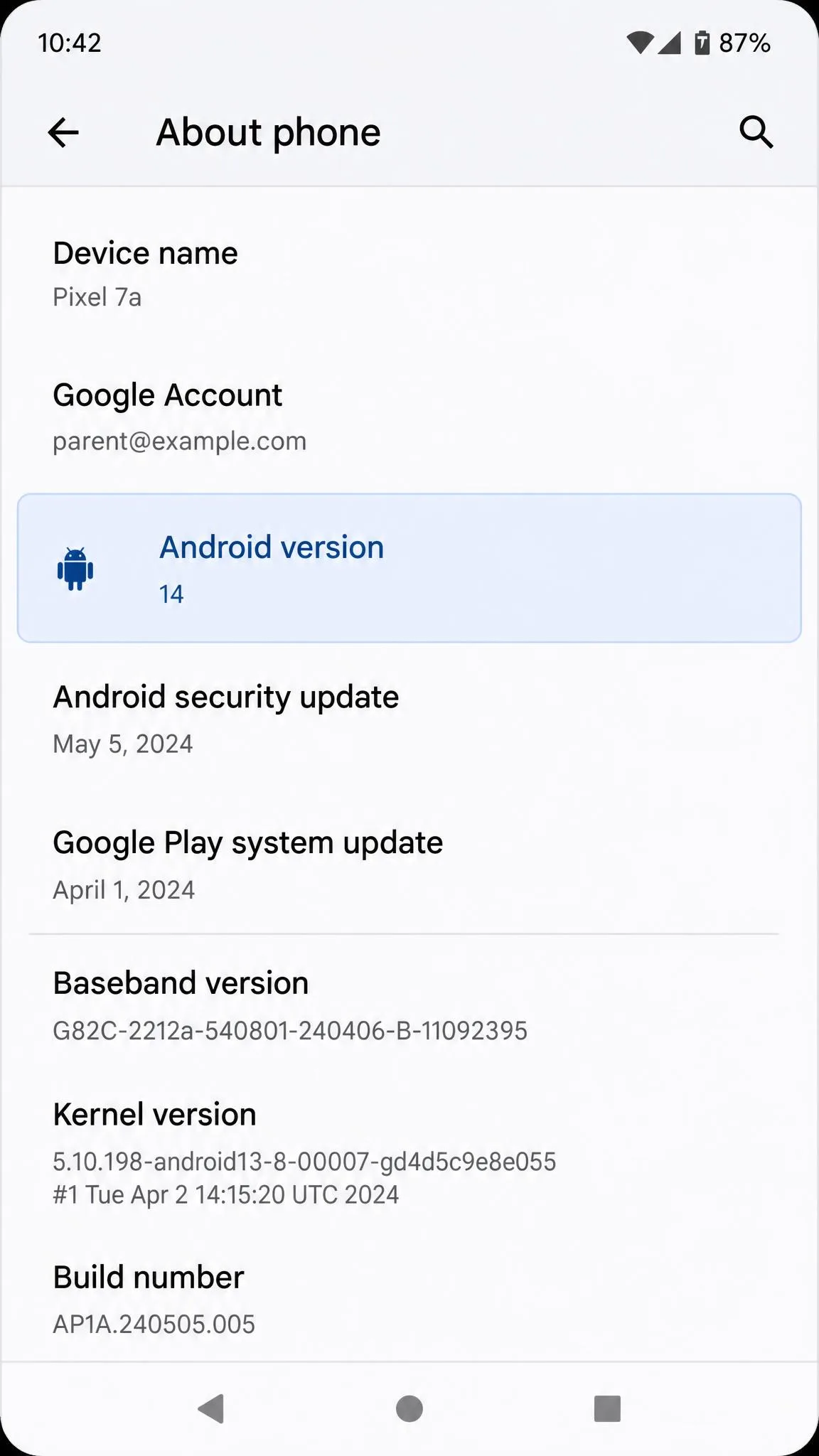
The on-device controls keep everything on the child's phone. There is no extra app to install. One PIN guards every parental setting.
Step 1: Open Parental Controls in Settings
- Open Settings on the child's device.
- Scroll to Parental controls and tap it.
- Tap Set up a parental controls PIN to start.
Step 2: Set a Parental Controls PIN
The PIN must be at least four digits. Keep it private from your child.
- Choose a four-digit PIN.
- Enter it again to confirm.
- Tap Done.
Step 3: Set a Daily Screen Time Limit
When the daily budget runs out, the device locks on the spot. Only emergency calls and PIN-granted time keep working.
- Tap Daily limit.
- Choose the hours allowed per day.
- Tap Add more time when the limit hits, then enter the PIN.
Step 4: Schedule Downtime
During downtime, the lock screen shows a moon icon and only the alarm clock works.
- Tap Downtime.
- Pick the days and the start and end times.
- The device locks on its own at the first minute of downtime.
Step 5: Manage or Block Individual Apps
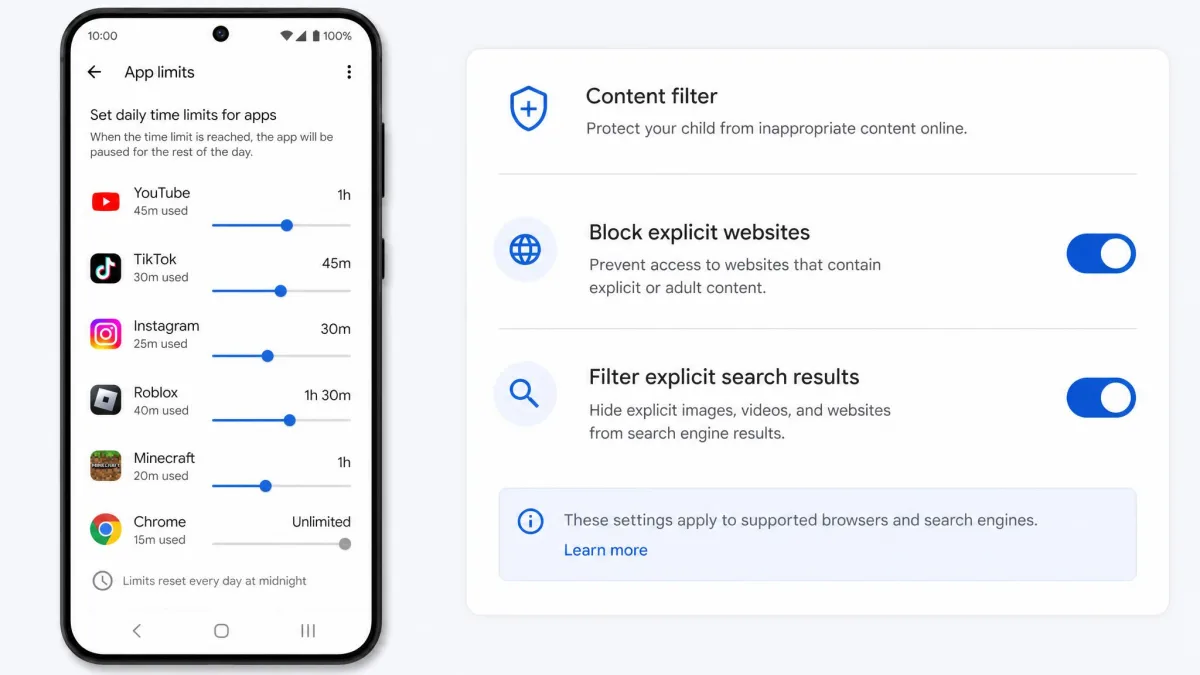
You can give one app its own time limit, or block it completely. A blocked app disappears from the app list.
- Tap App limits.
- Choose an app.
- Set a time limit, or turn off Allow app to block it.
Step 6: Filter Web and Play Store Content
Web filters block explicit sites and search results. App store filters stop new installs that exceed the rating you choose, but not apps already on the device.
- Tap Web content filters, then turn the filter on.
- Tap App store filters, then pick the highest rating to allow.
- Confirm the filters work in Chrome, the Google app, and other browsers.
Set a recovery email the same day you create the PIN. A forgotten PIN is a real pain point, and the recovery account is the only escape from a factory reset.
How to Set Up Google Family Link
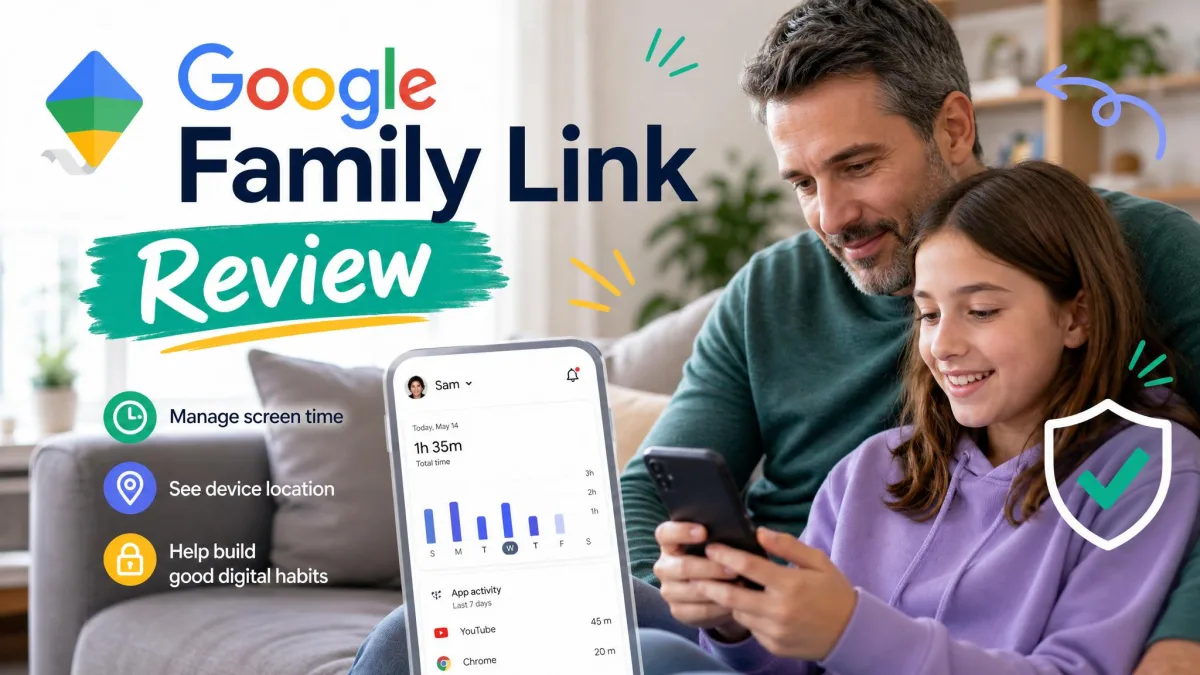
Family Link is Google's dedicated parental control app. It manages the child's device from your own phone. In our testing, a full Family Link setup takes roughly 30 minutes.
Google Family Link setup and account linking
Age decides the path. For a child under 13, you create a supervised Google Account in the app. For a teen 13 or older, you link their existing account, and the teen must agree.
- Open Family Link on your phone.
- Create a supervised account for a child under 13.
- For a teen, add supervision to the existing account instead.
- Have the child or teen accept the prompt on their device.
Install Family Link and connect your child's device
You need the app on both phones. Setting up Family Link signs the child's supervised Google Account into the device and removes other accounts, so back up any files you want to keep first.
- Sign in with your own account and follow the connect steps.
- Sign the child into their supervised account on their device.
App limits / app blocking / restricting apps
For a child under 13, every Play Store download needs your approval by default. For a teen, approval requests are off unless you turn them on. Approval is a one-time decision in our experience.
- Open Family Link, then tap Controls.
- Turn on app approval requests under Google Play.
- Tap a specific app to block it or give it a time limit.
Set screen time limits and downtime schedules
Family Link also offers School Time, which silences the device during school hours.
- Tap Controls, then tap Daily limit or Downtime.
- Set the hours and the apps that stay allowed.
- Use School Time to quiet the device during class.
Content filtering (Play Store, Chrome, YouTube)
Play Store apps carry age ratings from 3+ up to 18+. Google Play parental controls let you cap the highest rating your child can install. Chrome offers three filtering modes.
- Tap Controls, then tap Content restrictions.
- Set parental controls in the Google Play Store by choosing the highest rating to allow.
- Choose a Chrome filtering mode for the child's browser.
Use location sharing and Find My Device
Family Link shows the child's device on a map and alerts you when they arrive or leave. Updates stop when the device is offline.
- Tap Controls, then tap Location.
- Turn on location sharing and set up place alerts.
- Use Find My Device to ring or lock a lost device.

Parental Controls on Samsung Devices (Samsung Kids)
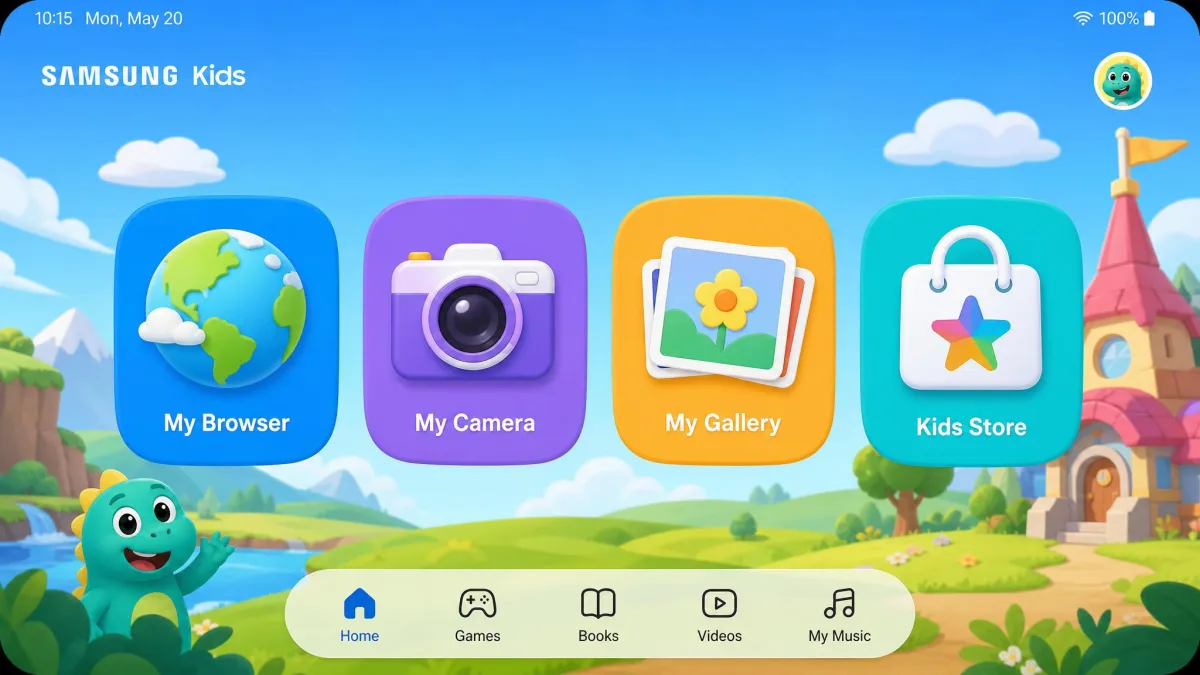
Samsung Galaxy owners get a third option. Samsung Kids is a free, preinstalled kid-safe home screen for children ages 3 to 8. Kids cannot leave it without your PIN, so keep that PIN safe. You can set daily playtime limits, a bedtime lock, and allow lists for apps, contacts, and media.
Built-In Controls vs. Family Link vs. Third-Party Apps
The built-in controls and Family Link are both free, but they differ in reach. Built-in controls stay on the child's device. Family Link adds remote management, location, and activity reports. Third-party apps add deeper monitoring, and they cost money.
| Approach | Cost | Managed from your phone | App limits | Web filtering | Location |
|---|---|---|---|---|---|
| Free | No | Yes | Yes | No | |
| Free | Yes | Yes | Yes | Yes | |
| Paid | Yes | Varies | Varies | Yes |
When to consider a third-party parental control app
Most families can start with Family Link. Paid apps like Bark or Qustodio add social media monitoring and deeper reporting that Google leaves out. Our Android parental control apps roundup covers the options.
How to Change or Remove Parental Controls
Open Settings, tap Parental controls, and enter the PIN to change any limit. In Family Link, open Controls on your phone and adjust the same settings from there.
To remove the controls, delete the parental controls PIN, which turns off every on-device restriction at once. In Family Link, remove the child from your family group or end supervision. A teen can also end supervision once they turn 13, and Google notifies you.
Troubleshooting Common Problems
Most problems come down to a forgotten PIN or a filter that lets something through.
For a forgotten PIN, try the recovery email first. Without a recovery account, a factory reset is the only way back, and that wipes the child's device.
In our testing, SafeSearch and YouTube filters are not 100% reliable, and inappropriate content can still slip through. Keep the filters on and keep talking with your child.
Many Family Link limits are enforced on the device, and kids have worked around them with factory resets, clock changes, app cloning, and private spaces. Check the activity reports if you suspect it.
For a forgotten Play Store PIN, clear the Play Store app's data to reset the PIN and the restrictions. Open Settings, tap Apps, tap Google Play Store, tap Storage, then tap Clear data.
Treat the parental controls PIN like a house key. A child who knows the PIN can change every limit on the device, so keep it private and change it if it leaks.
Tips for Building Healthy Digital Habits
Controls work best when they support habits instead of feeling like punishment. Set the daily limit together, so the number feels fair. Use School Time during class and study hours. For younger kids, keep location sharing on and ease it off as they get older. Review the weekly activity report together and adjust the limits as your child shows they can handle more.
FAQ / Troubleshooting Common Problems
Q: How do I set up parental controls on Android?
Q: Does Family Link work for teens over 13?
Q: Can my child turn off or bypass the controls?
Q: Which Android versions have built-in parental controls?
Q: Do I need the Family Link app?
Q: How do I restrict apps and content?
Q: Can I control my child's phone from my own phone?
Q: How do I change a limit later?
Q: Will this work on a tablet?
Final Thoughts
Parental controls are a starting point, not a finish line. Start with the built-in controls or Family Link, then review the activity reports every couple of weeks. Keep the PIN safe, keep the recovery email updated, and keep talking about why the limits are there. That combination beats any app on its own.