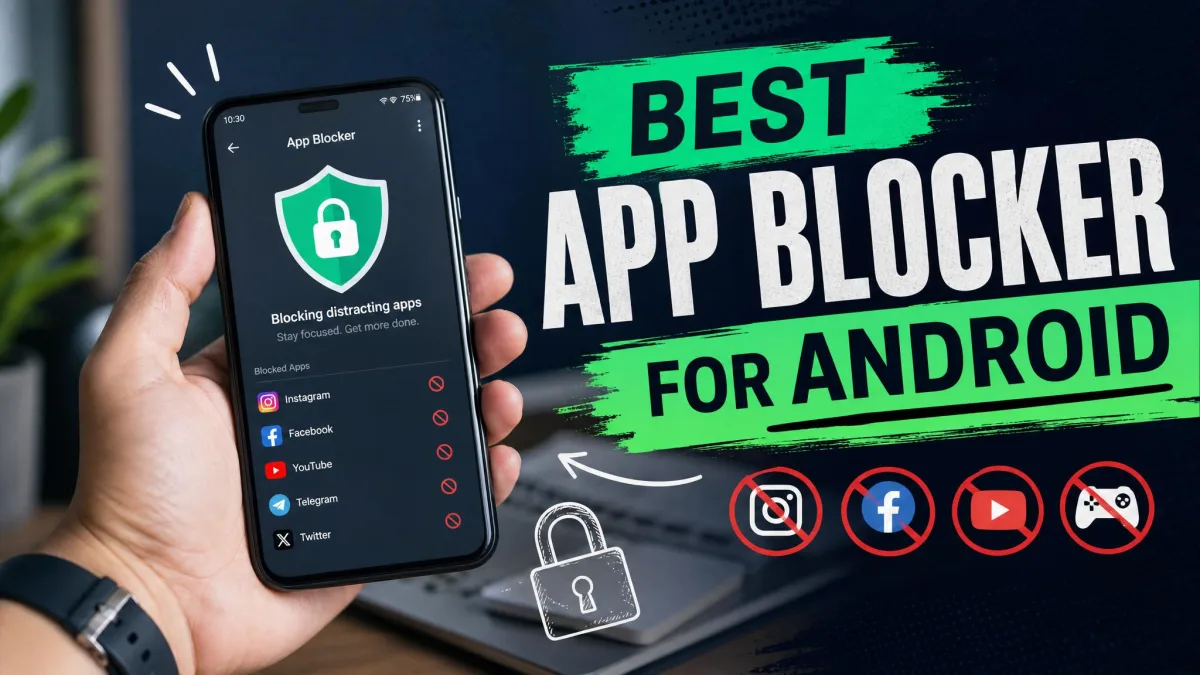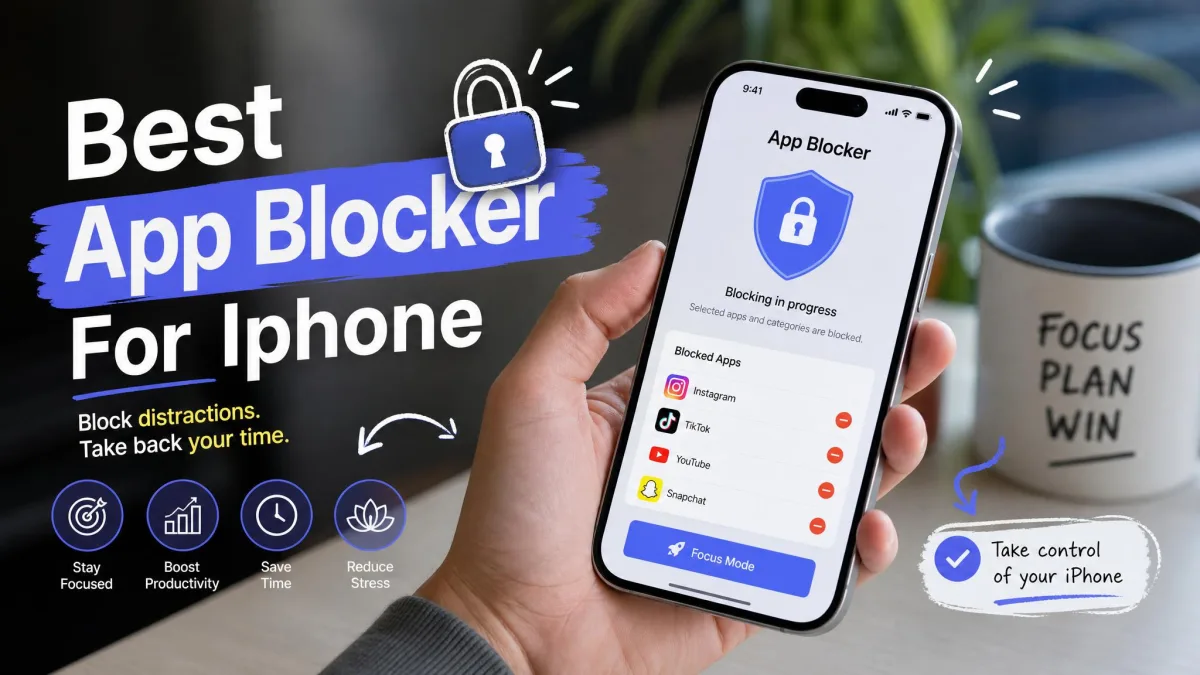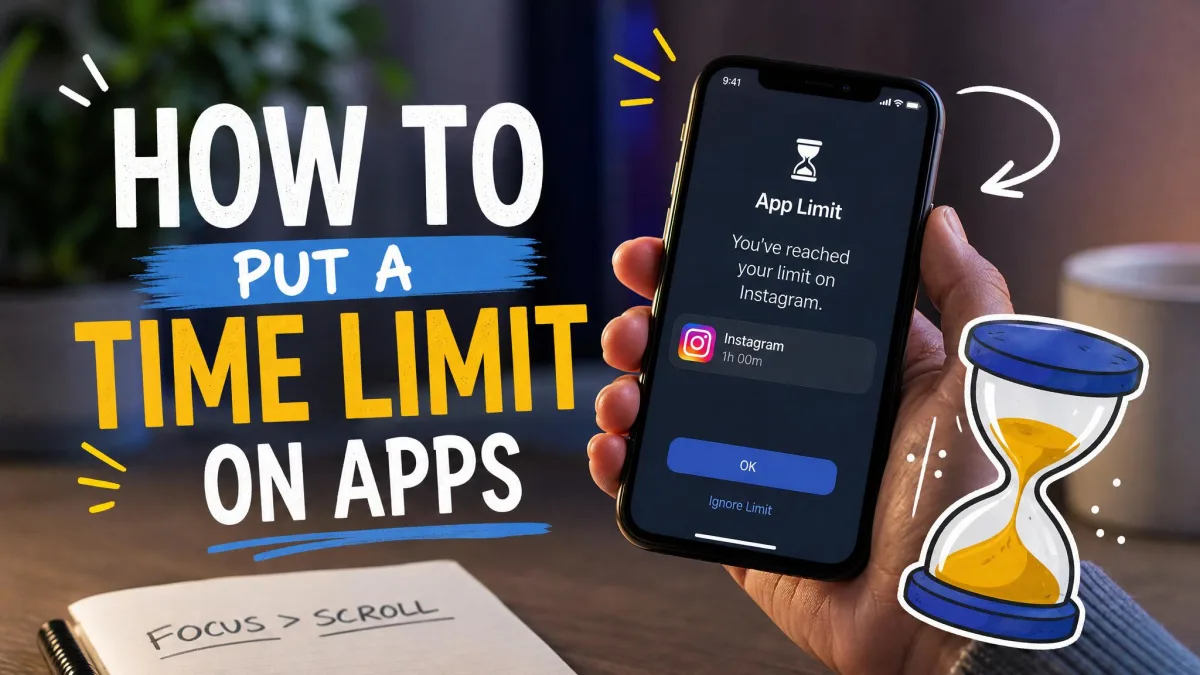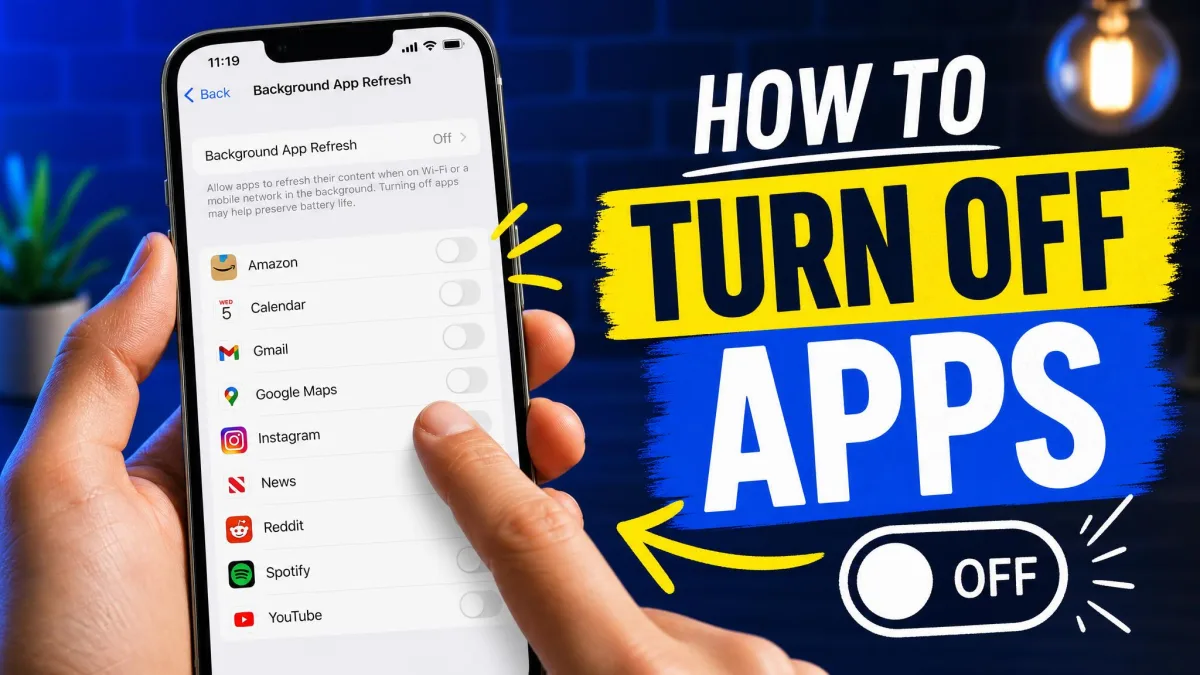
We felt very disciplined the afternoon we set a one-hour timer on a social app with Android's Digital Wellbeing. The discipline lasted about a day. The next time the urge hit, the timer took seconds and no password to delete, and the app was open again before we had finished arguing with ourselves. That is the central problem with blocking apps permanently: every tool that keeps you out is also built to let you back in.
These options are free and stronger than most people realize. We walk through six methods that work, step by step, from the screen time tools on Android and iPhone to third-party blockers and DNS filtering, plus the mistakes that quietly undo blocks.
Quick Answer: How to Block an App Permanently
The fastest route to a block that holds is a daily limit locked behind a passcode you do not hold. On Android, open Digital Wellbeing, set the app's timer to zero, and lock it with an App limits PIN. On iPhone, set an App Limit to 1 minute with Block at End of Limit, and give the Screen Time passcode to a partner or parent.
Both are free and built in. For a child's device, use the parental versions, Google Family Link or Screen Time through Family Sharing, because the parent-held passcode makes a block stick.
The passcode is the difference between a block that holds and one that is undone. If you are blocking apps on your own phone, hand the Screen Time or App limits PIN to a partner, a parent, or a friend, and keep it out of your reach.
Why You Might Want to Block an App Permanently
There are two very different reasons to block an app, and each calls for a different setup. The first is self-control: a social app or a game can quietly absorb hours, and a soft timer is easy to click past, so a permanent block has to put the decision out of reach. The second is parenting: keeping a child away from a specific app needs enforcement the child cannot override. If you want to block apps on a child's device, parental controls like Google Family Link and Screen Time were built for exactly this.
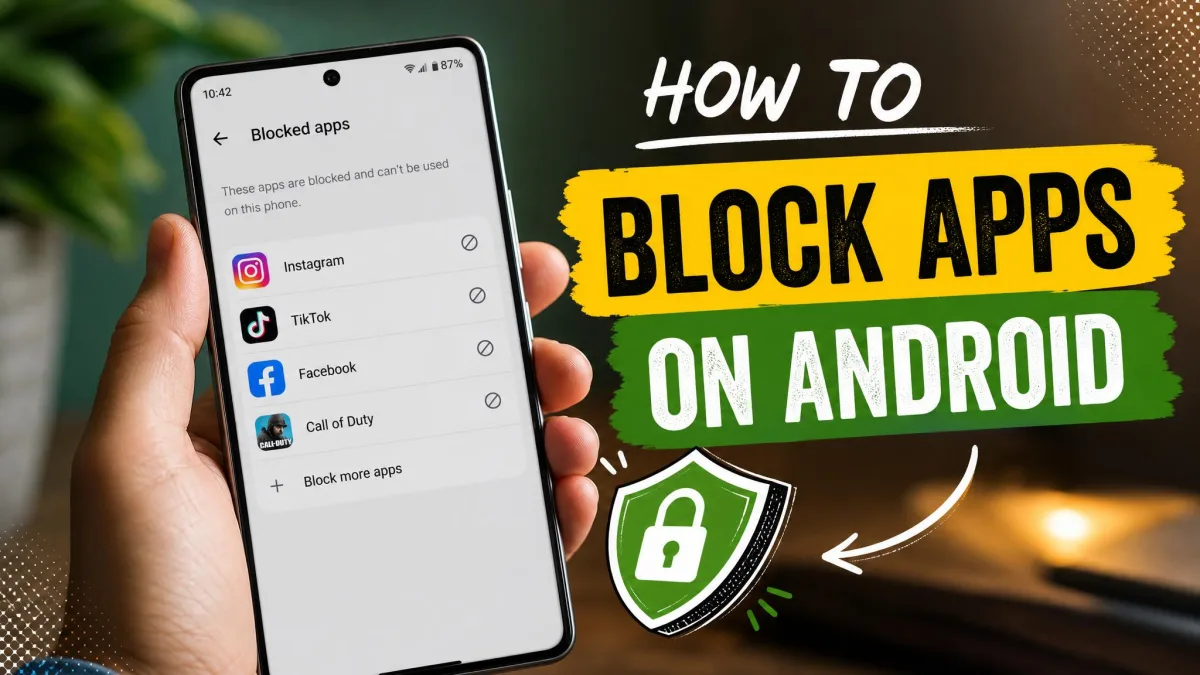
Method 1: Block Apps on Android with Digital Wellbeing
Android's free, built-in answer is Digital Wellbeing, part of Android since version 9.
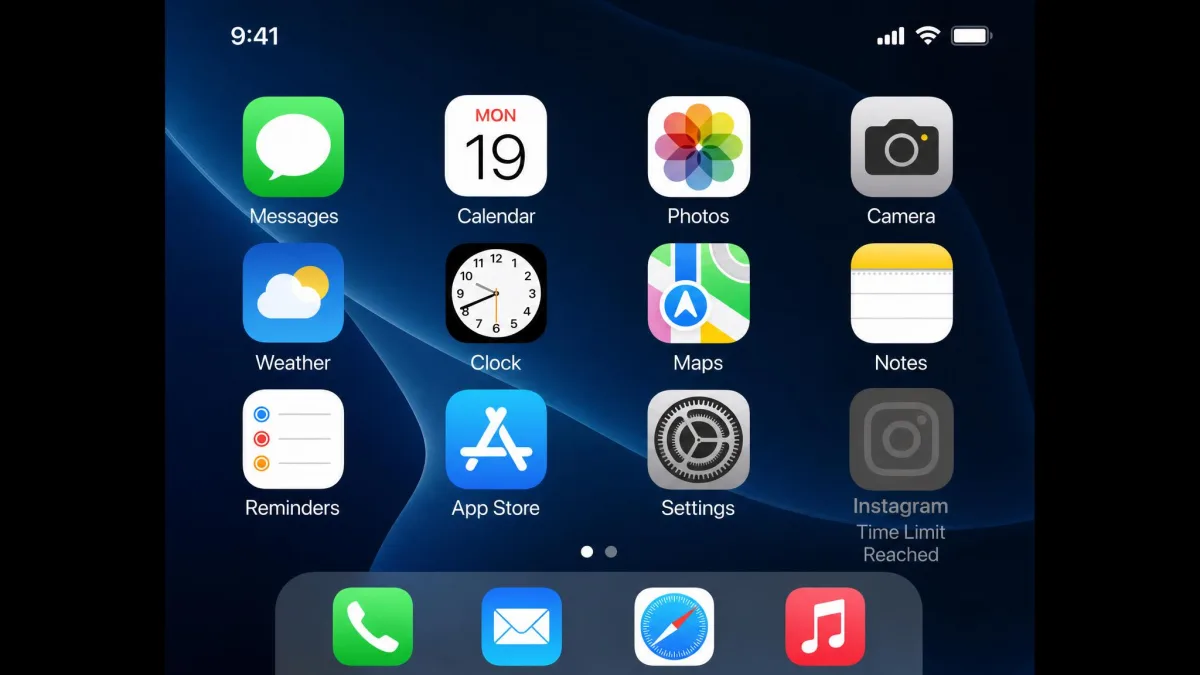
Set an app timer and understand its limits
- Open Settings → Digital Wellbeing & parental controls.
- Choose App timers and pick the app.
- Set a daily limit in 5-minute steps, from 5 minutes up to 23 hours and 55 minutes.
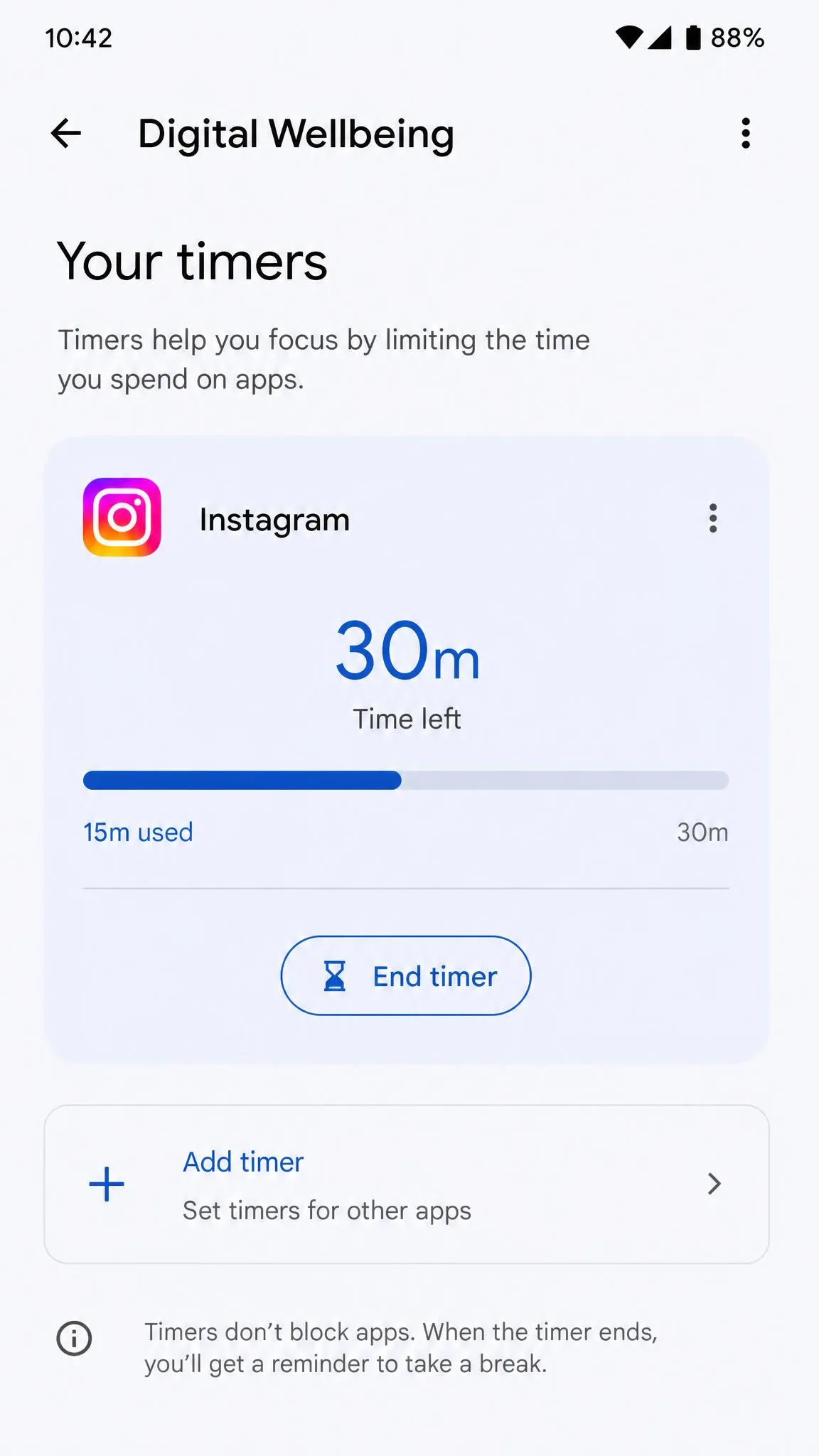
- When time runs out, the app closes and its icon dims until the timers reset at midnight.
A timer is a request, not a lock. It takes about three taps and no password to delete, and we learned that the hard way.
For a real block, set an App limits PIN first. This unique 4-digit PIN is separate from your device unlock code and turns a soft timer into a hard limit. Create the PIN, then set the app's time limit to 0 minutes. Google documents this as the way to block another user's access.
Method 2: Block Apps on iPhone with Screen Time
Screen Time is Apple's answer, and one menu allows you to hide apps, block downloads, and restrict purchases.
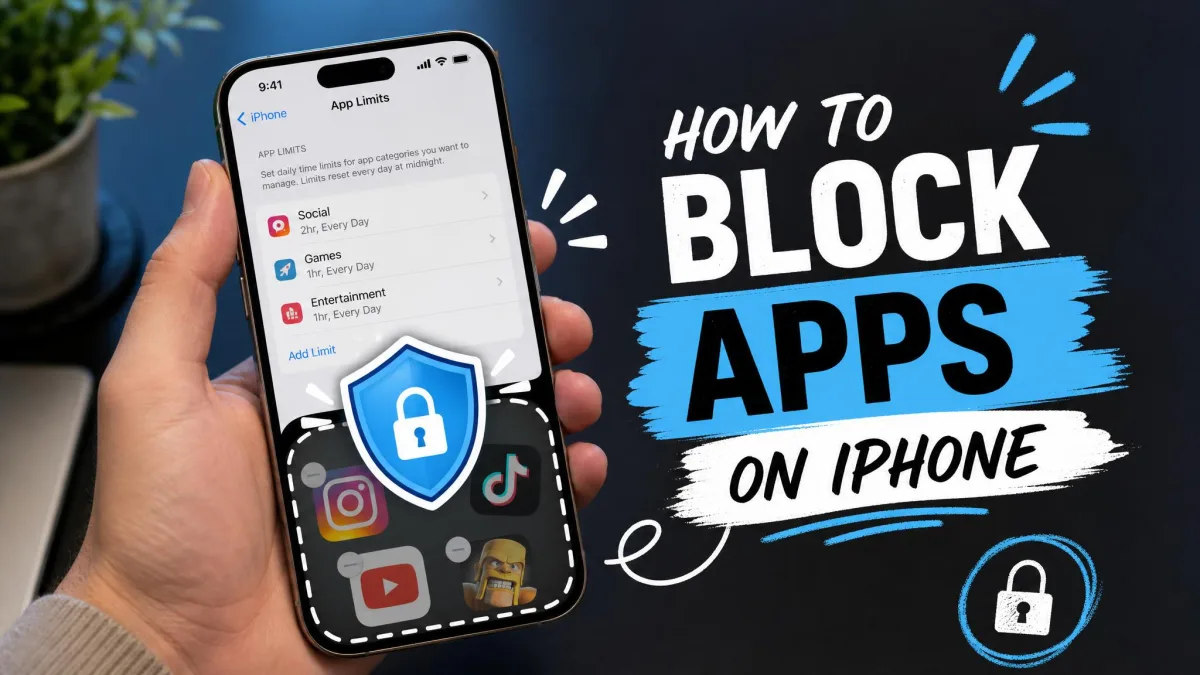
Set an App Limit
- Open Settings → Screen Time and set a 4-digit passcode on first use.
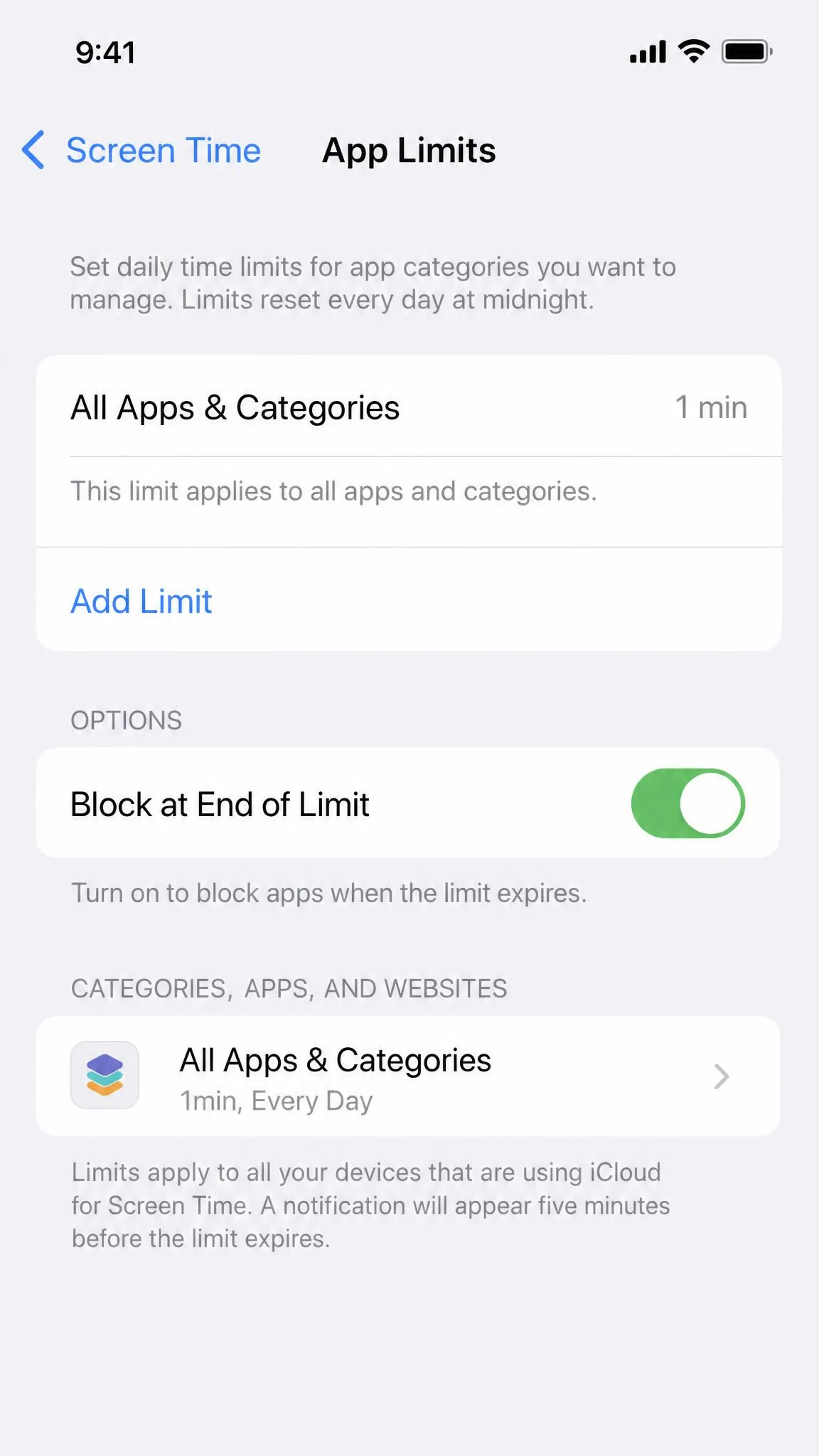
- Tap App Limits → Add Limit, pick the app or category, and set the daily time.
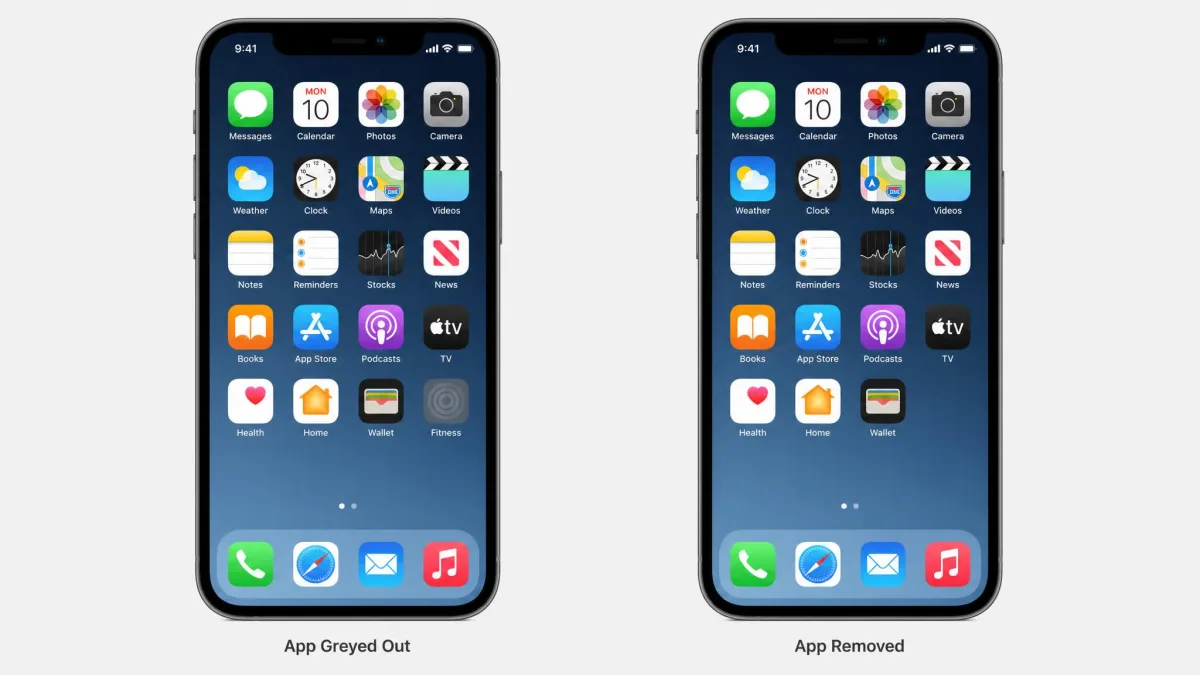
- Turn on Block at End of Limit so the icon greys out when time runs out.
There is no block toggle, but a 1-minute limit with Block at End of Limit is the closest Apple allows. After that minute of daily use, the app locks; Ask for More Time grants a one-minute grace period before the Screen Time passcode is required for 15 minutes, an hour, or the rest of the day.
One gap is worth knowing. Reinstalling an app resets its Screen Time usage counter, so a determined user can clear an App Limit by deleting and re-adding it. Setting Deleting Apps to Don't Allow closes that loophole.
Block apps entirely with Content & Privacy Restrictions
For a full block, use the Allowed Apps list. Open Settings → Screen Time → Content & Privacy Restrictions, then switch off any built-in Apple app. It is not deleted, just hidden from the Home Screen until you switch it back on. Allowed Apps only covers Apple's own apps.
Restrict mature content and in-app content
The same screen holds Apple's content and purchase controls, all behind the Screen Time passcode. Apple's official guide to blocking apps on iPhone walks through the full menu, which governs what the phone can install, delete, and buy.
Method 3: Use Parental Controls and Family Tools
If the phone belongs to a child, the personal tools above are the wrong tool, because the child can undo them.
Google Family Link on Android
- Open the Family Link app and pick the child's account.
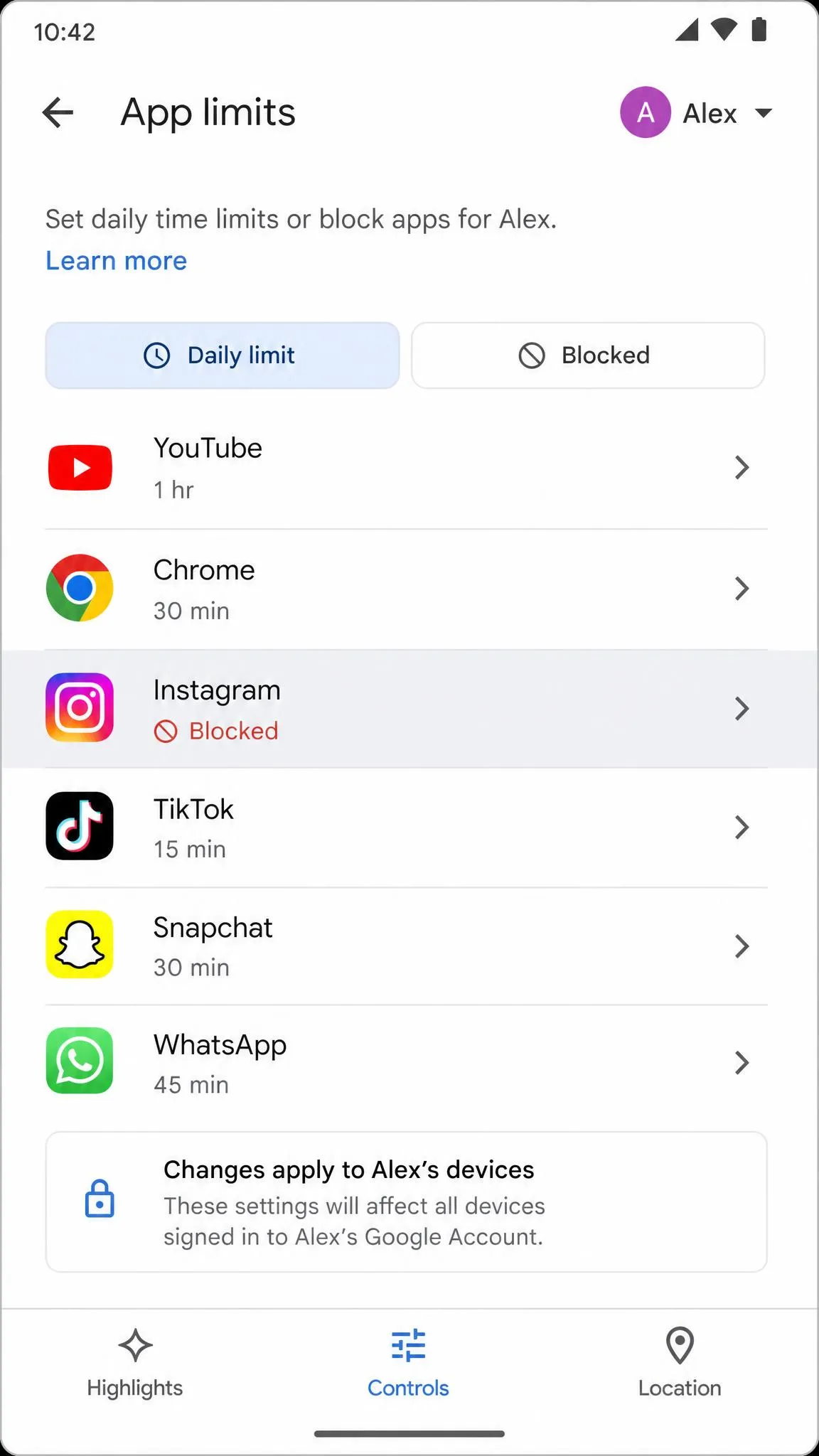
- Tap Controls → App limits, select the app, and switch the toggle to Blocked.
The block applies to supervised devices running Android 6.0 and later, plus Chromebooks, and takes effect within about 5 minutes of connecting to the internet. If the child is using the app when it blocks, they get a 1-minute warning. Per-app time limits need Android 7 or later, and supervision ends when the child turns 13.
Family Link is powerful but not perfect. Settings can lag or fail to reach the child's device, and a tech-savvy child can reset the phone, install a VPN, or use a hidden browser. We treat it as a guardrail rather than a wall.
Screen Time for a child / Family Sharing on iPhone
On iPhone, the equivalent runs through Family Sharing. The parent configures Screen Time for the child with App Limits, Downtime, and Content & Privacy Restrictions, locked behind a parent passcode the child never sees.
Method 4: Block App Downloads and Installations
Blocking an app you already have is only half the job.
Block downloads in the Google Play Store
- Open the Play Store and tap your profile icon.
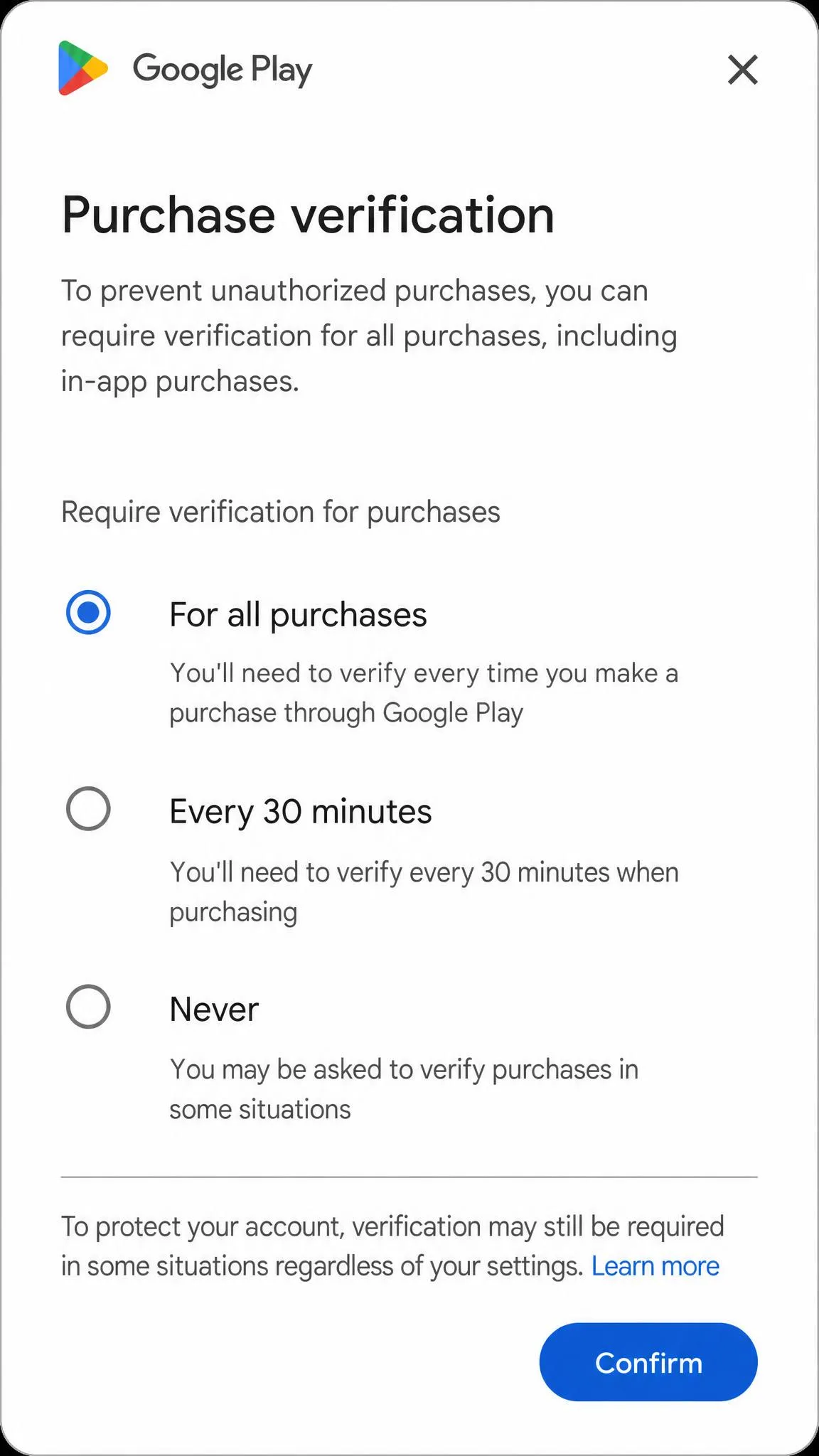
- Go to Payments & subscriptions → Purchase verification → Verification requirement.
- Choose For all purchases through Google Play on this device, Every 30 minutes, or Never, then confirm with your Google Account password.
This is a purchase gate rather than a download block. It stops paid downloads and in-app purchases but not free installs; blocking free downloads needs Family Link's approval or the Play Store's parental controls, which filter by maturity rating behind a PIN.
Disable installs from unknown sources (APKs)
Android 8.0 and later grant install permission per source app, so any browser or file manager can install APKs until you tell it otherwise. Open Settings → Apps → Special app access → Install unknown apps, then switch off Allow from this source for each one. Some pre-installed system apps can be disabled instead: open Settings → Apps → pick the app → Disable.
Block app downloads in the App Store
On iPhone, the same screen does the download blocking. Open Settings → Screen Time → Content & Privacy Restrictions → iTunes & App Store Purchases → Installing Apps → Don't Allow. That blocks all downloads and installs, and Apple's guide to blocking app downloads shows the same menu.
Method 5: Block Apps at the Network Level (DNS or Firewall)
Every method so far lives on the phone, so the person holding it can undo it. Network-level blocking moves the decision off the device. A DNS content policy filters the domains an app connects to, blocking the app and every server it talks to at once, including the web version, with whole-category blocking, allowlists, schedules, and locked rules.
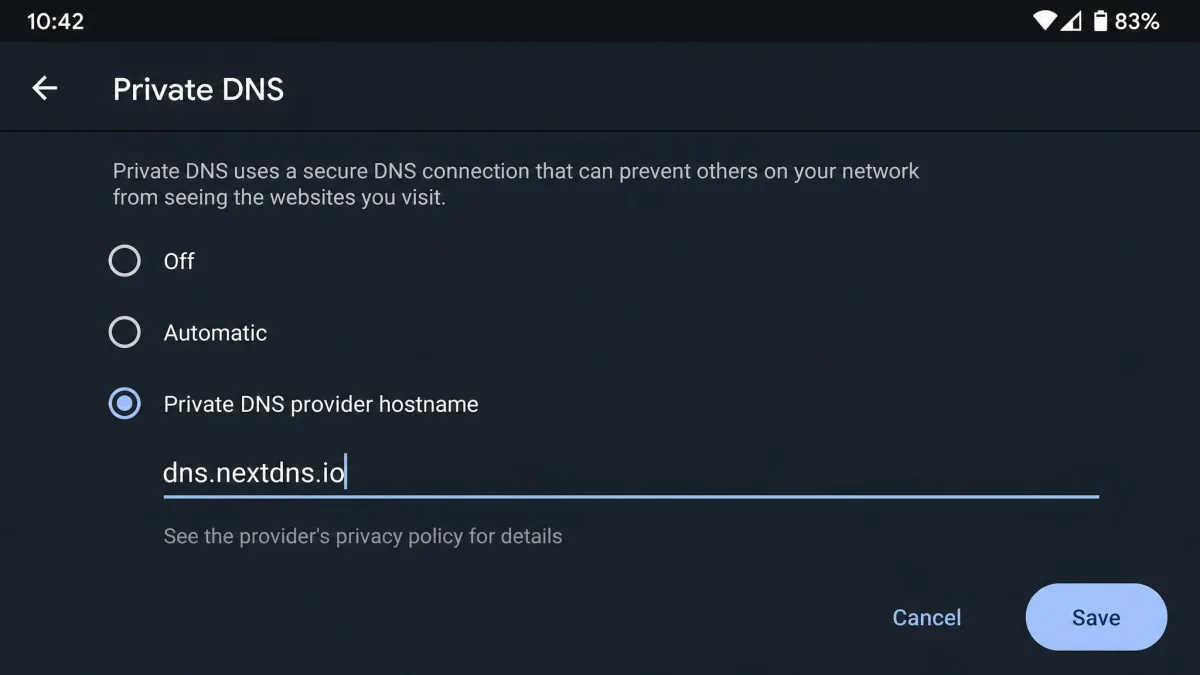
Since Android 9, this is easy to set up. Open Settings → Network & Internet → Private DNS and point it at a filtering provider such as NextDNS, Quad9, or OpenDNS.
DNS filtering has limits. It cannot block content that shares a first-party domain with the app, such as ads inside YouTube, and a home-router filter only protects devices on that network.
Method 6: Use Third-Party App Blockers
When the built-in tools are not enough, dedicated app blockers add session scheduling and harder locks.
Blockers for Android and iPhone (AppBlock, Freedom)
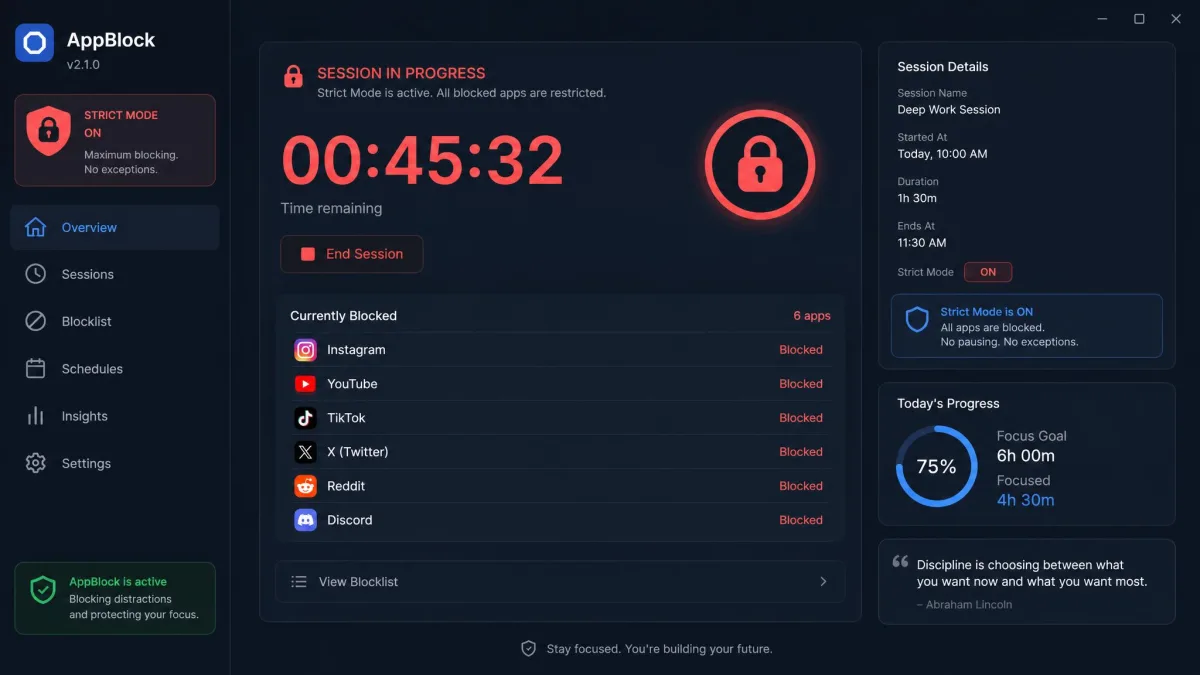
AppBlock is the Android specialist. It is free to use, with Premium at $4.99 a month, $29.99 a year, or an $89.99 lifetime purchase after a 7-day trial, and it carries a 4.6-star rating on Google Play from 213,000 reviews. Its standout is Strict Mode, which locks the settings, stops the app being uninstalled, and blocks the usual workarounds. We found two caveats: battery optimization on some OnePlus and budget models can lift a block early, and the app and browser extension do not fully sync.
Freedom covers iPhone, Android, and desktop. It is free to download, with Premium at $8.99 a month or $39.99 a year after a 7-day trial, and it rates 4.4 out of 5 on the App Store from 5.7K ratings. On iPhone it needs iOS 16.1 or later. It blocks apps and websites with pre-made or custom blocklists, and runs on-demand or scheduled sessions. Freedom enforces blocks through a VPN-style mechanism, which has rough edges: removing the VPN profile, toggling Airplane Mode, or uninstalling the app undoes a block, the Chrome extension can silently disconnect, and its Trustpilot page runs to a roughly 2.9 out of 5. Locked Mode reduces the easy routes out.
Common Mistakes to Avoid When Blocking Apps
Using a soft timer where a hard block belongs. A Digital Wellbeing timer is gone in seconds, so if the app has to stay off, use the App limits PIN with a 0-minute limit.
Letting a child watch you enter the passcode. Kids learn the Screen Time passcode by watching a parent type it, and "it was a glitch" becomes a believable excuse when a limit vanishes.
Skipping the recovery route. A forgotten Screen Time passcode never linked to an Apple Account for recovery leaves restrictions locked with no supported way to reset them.
Assuming the block follows the phone everywhere. A DNS filter on your home router protects only that network, and Family Link's web filtering only applies inside Chrome.
Forgetting the download door. A block on an installed app means nothing if the app can be reinstalled or sideloaded.
Blocking vs. Uninstalling: What's the Difference?
Blocking keeps the app installed and restricts access to it. Uninstalling removes the app and its local data. Both stop the app from being used, but they serve different purposes.
Uninstalling is right when you want the storage back, the app is a security risk, or you want the icon gone. The cost is that your account settings live in the app, so a reinstall means setting up again. Blocking is the better move when the app needs to stay installed for work, school, or family, or when you want a time limit rather than a removal.
| Method | What it does | Can you undo it | Best for |
|---|---|---|---|
| Removes the app and its local data from the phone | Reinstall from the store at any time | Freeing storage or removing a risky app | |
| Closes the app at the daily limit and dims the icon | Yes, a few taps away | A gentle nudge on your own Android | |
| Fully blocks the app until the PIN is entered | Yes, with the PIN | A hard block on your own Android | |
| Locks the app after a minute and greys the icon | Needs the Screen Time passcode | A hard block on your own iPhone | |
| Parent-enforced block on a child's device | Child workarounds exist; ends at age 13 | A child's phone |
Frequently Asked Questions
What's the easiest way to block apps on iPhone?
What's the easiest way to block apps on Android?
Can a permanent block survive an app update or a device reset?
Does blocking downloads also stop app updates?
Is it better to block an app or uninstall it?
Bottom Line
Blocking an app permanently comes down to one question: who holds the passcode. On your own phone, lock the built-in tools: a Digital Wellbeing App limits PIN with a 0-minute timer, or a 1-minute Screen Time App Limit with Block at End of Limit and a passcode held by someone you trust. On a child's phone, Family Link or Family Sharing does the enforcing. Add the download restrictions from Method 4, and the whole combination survives the moment of weakness that defeats most blocks.