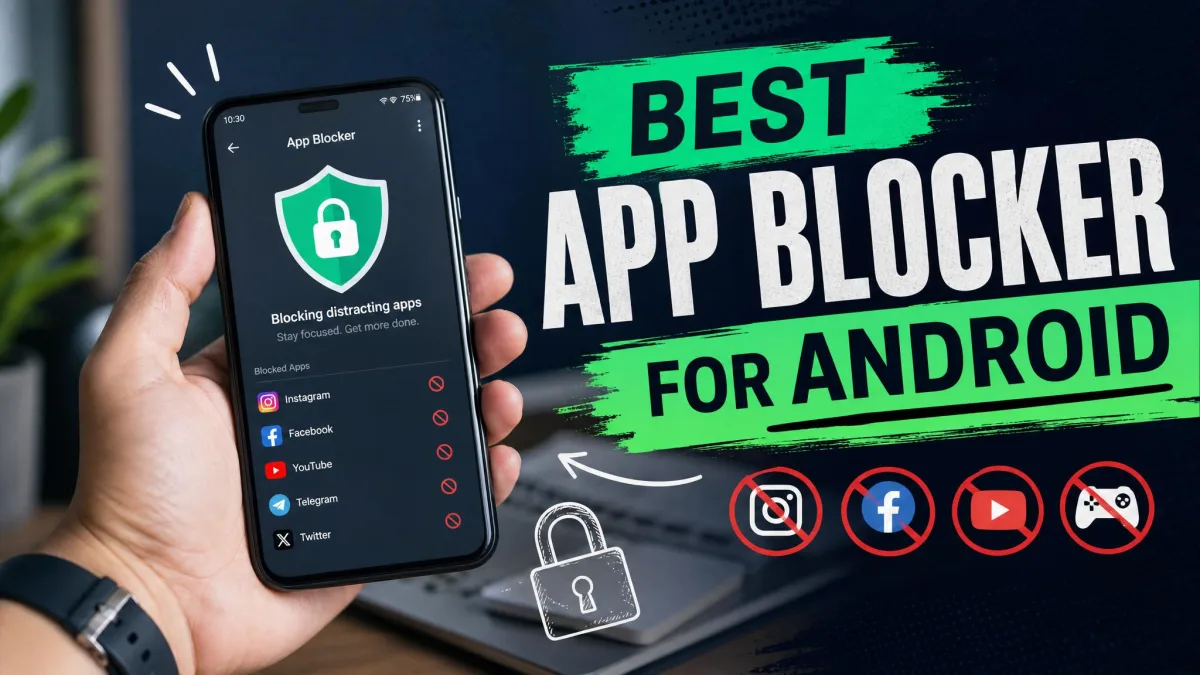
You install an app blocker on a Sunday night, feeling determined. By Wednesday you have found the off switch, and by Friday the app is gone from your phone. That loop is the real problem with blocking distracting apps on Android, and it is the reason most "best app blocker" lists are useless: they rank features instead of asking whether a blocker survives contact with a tired brain at 11pm.
So this list is built around one question. When you genuinely want to open Instagram and the blocker says no, what happens next? Some of these apps make that moment slightly awkward. A couple make it genuinely difficult. One of them, the free tool already sitting on your phone, waves you through in two taps.
Below are seven Android app blockers we would actually recommend, with honest notes on price, blocking method, and how easy each one is to defeat. Let's dive in.
How We Picked and Tested
We looked at every blocker through the eyes of someone who has already failed at this once. Feature lists are cheap on Google Play. What matters is whether the app keeps working after the novelty wears off, how much of the useful behaviour sits behind a paywall, and whether Android itself gets in the way.
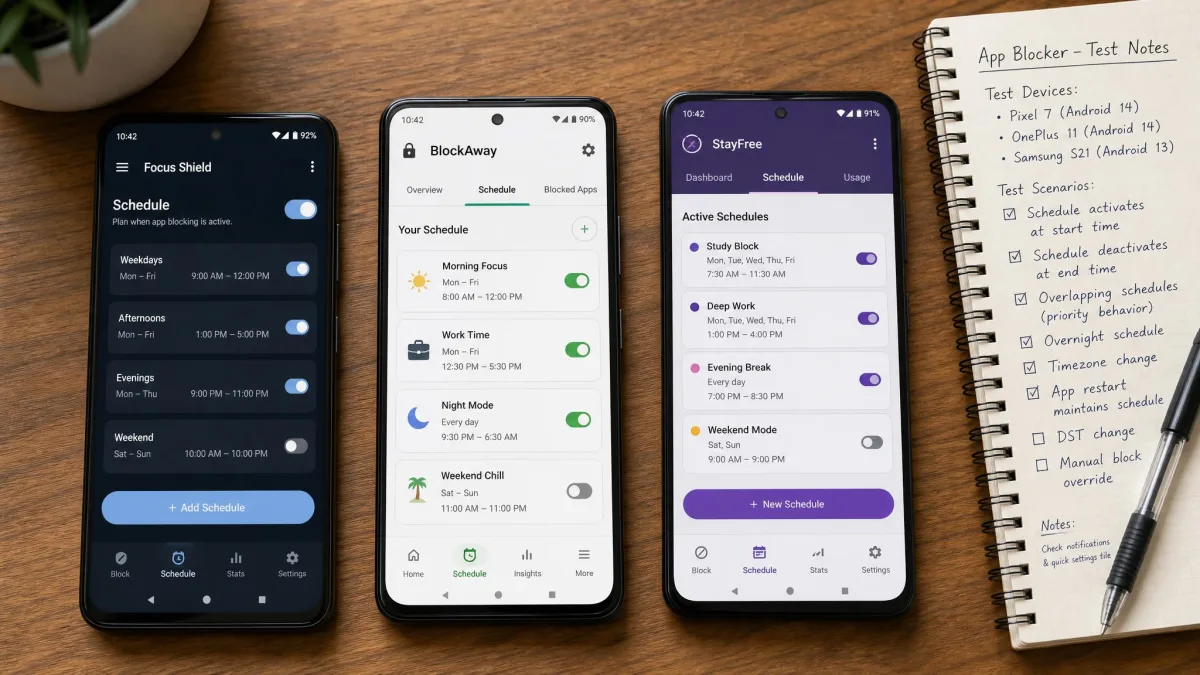
Our scoring weighted four things: blocking strength and bypass resistance, what the free tier honestly gives you, how much setup friction stands between install and a working schedule, and whether the app respects your privacy while it watches your screen. We also checked how each one behaves on the manufacturer skins most people actually own, because a blocker that works on a clean Pixel build does not automatically work on a Samsung.
One pattern shaped the whole list. Across AppBlock, Freedom, One Sec and Opal, the specific feature you install the app for usually sits behind the paywall. Free tiers here are demos more often than they are products, and we have said so in every entry where it applies.
The other pattern is a device problem rather than an app problem. On Samsung, Xiaomi and Huawei phones, aggressive battery management shuts down a blocker's Accessibility Service in the background unless you exempt the app from battery optimisation. If your blocker keeps "forgetting" to block, that setting is almost always the culprit, and we hit it more than once before we learned to set the exemption during install rather than after the first failure.
Every pick here is a tool we would put on a real family phone, not a spec sheet we admired from a distance. Where a blocker is easy to defeat, we say so plainly, because a blocker you can beat is worse than no blocker at all: it teaches you that the rules are optional.
The Best App Blockers for Android at a Glance
AppBlock is our overall pick because its profiles give you the widest range of blocking strength, from a gentle weekday schedule to a lockdown you cannot casually undo. ScreenZen is the best free app blocker on Android. Freedom is the choice if your distraction problem spans a phone, a laptop and a work machine.
If you want the shortest possible answer: install ScreenZen if you are curious, install AppBlock if you are serious, and open Digital Wellbeing tonight if you just want daily limits without another app.



With the shortlist set, here is how each pick performed in detail.
1. AppBlock, Best Overall for Schedules and Strict Mode
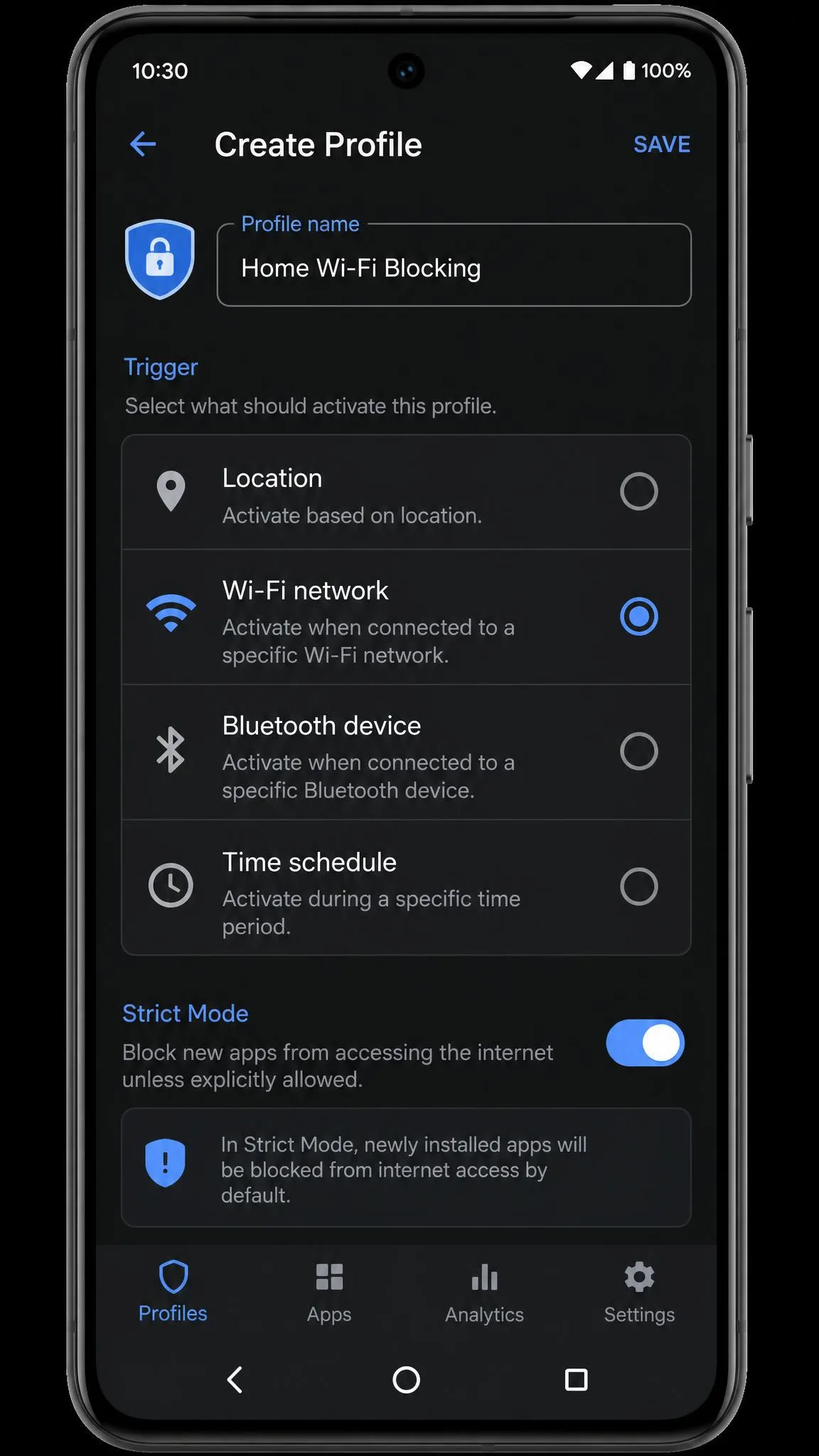
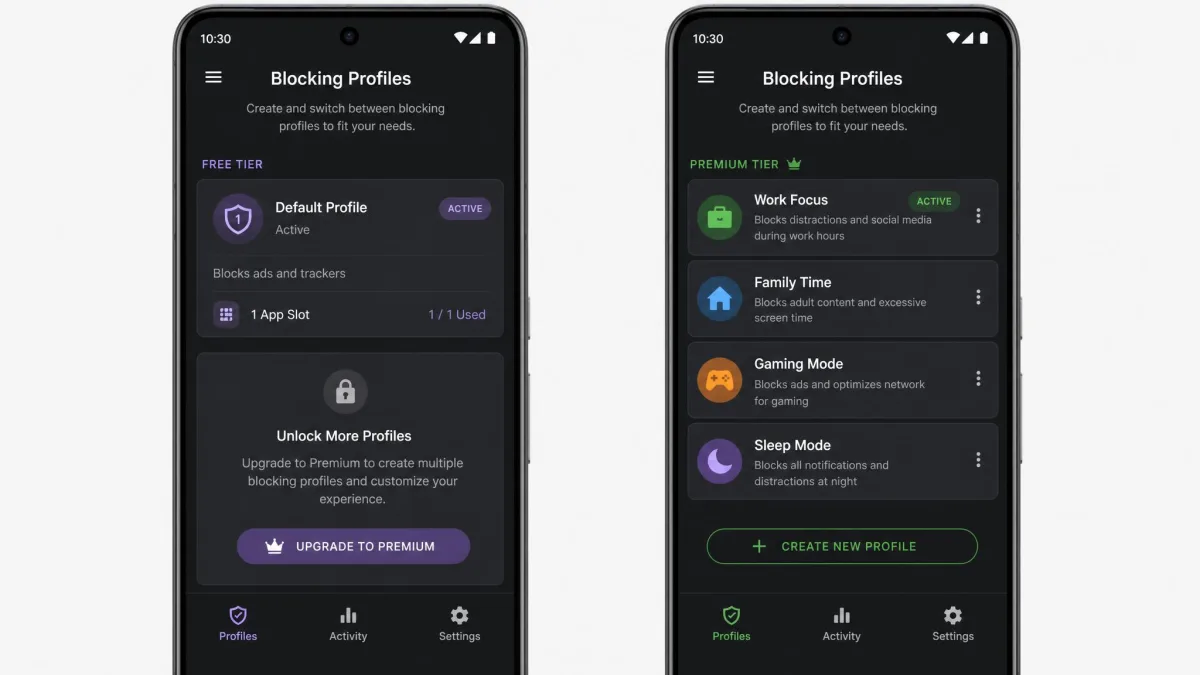
AppBlock is the most complete app blocker on Android, and the only one on this list where the blocking strength scales with how serious you are. Its profiles can fire on a time, a day, a location or a Wi-Fi network, so your work blocklist can start when you connect to the office router rather than when you remember to press start.
The install is where we lost our first hour. AppBlock asks for an unusually long chain of device permissions, and the prompts arrive one after another until dismissing them starts to feel like the reasonable thing to do. We dismissed one of them and the app still reported itself as ready. The schedule ran on time, the blocklist looked correct, and the apps we had blocked opened anyway. Nothing warned us; the blocking was simply incomplete until we went back through the permission list and granted the one we had waved away. Work through the whole chain in a single sitting, and check a block actually fires before you trust it.
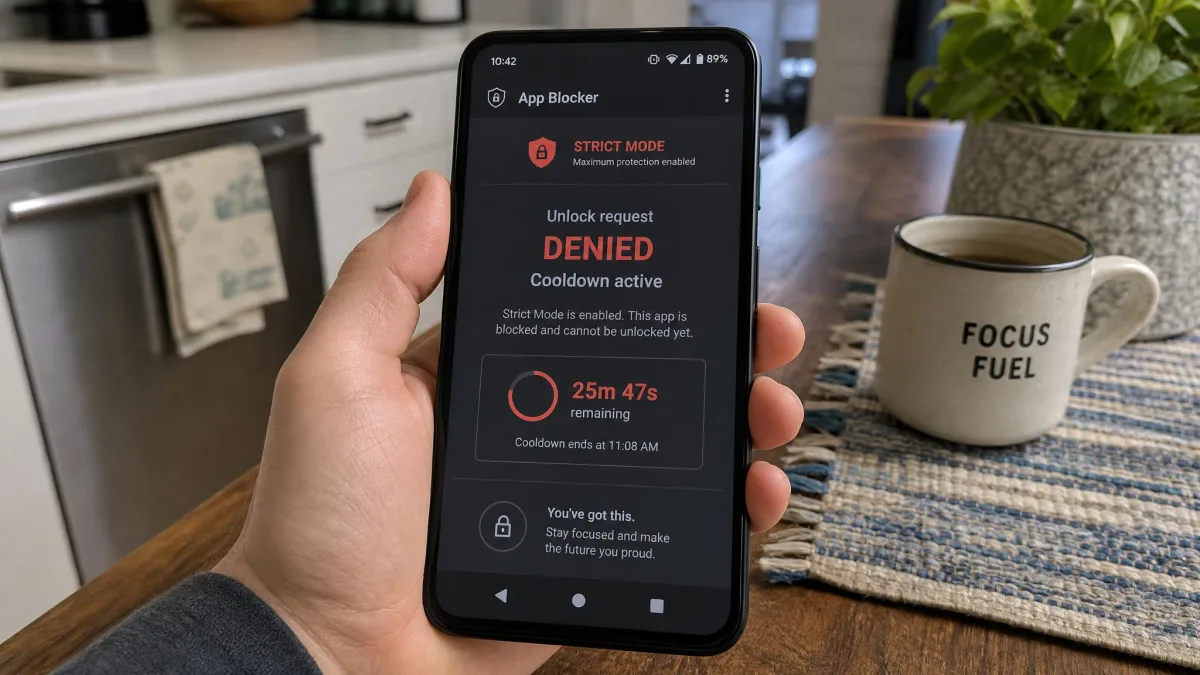
Strict Mode is what earns AppBlock the top spot on our list. With a cooldown or third-party approval required to unlock, you cannot simply reverse the decision you made an hour ago. The catch is that it is opt in, so it tends not to be switched on during exactly the tired or bored moments when blocking matters most. Turn it on once, at the start, while you still have willpower to spare.
The other honest limitation is the gap between sessions. Once a strict session ends, the phone hands back full admin control, and binge use often resumes immediately. AppBlock manages your schedule well, but it does not manage the hours in between. Google Play's community rates it 4.6 out of 5 across roughly 220,000 ratings, with 10 million downloads on the store listing.
What the profiles can do
App and website blocking, URL and keyword blocking, and an allowlist mode for when you want everything off except two apps. Custom profiles trigger by time, day, location or Wi-Fi. Strict Mode adds a cooldown and optional third-party approval. You also get usage reports, daily limits, an adult content filter, and browser extensions for Chrome, Edge and Brave alongside the Android and iOS apps.
Pricing
There is a free tier, but multiple profiles and the stricter blocking modes sit behind the paid version, so the free build handles only basic scheduling. Premium runs about $30 per year. A monthly option sits at roughly $5, though AppBlock's in-app purchase tiers vary by region and by promotion, so the monthly figure moves. AppBlock's official site claims Strict Mode cuts screen time by 63% in the first month, though that is a vendor marketing figure from self-reported user data rather than an independently measured result.
Pros
- Profiles that trigger on location or Wi-Fi, not just a clock
- Strict Mode is the hardest lockdown of any Android blocker here
- Keyword and URL blocking catches websites, not only apps
- Browser extensions extend the same blocklist to a desktop
Cons
- The permission list at setup is long and easy to get wrong
- Multiple profiles and strict blocking need the paid tier
- Nothing restrains you between scheduled sessions
2. Freedom, Best for Cross-Device Blocking
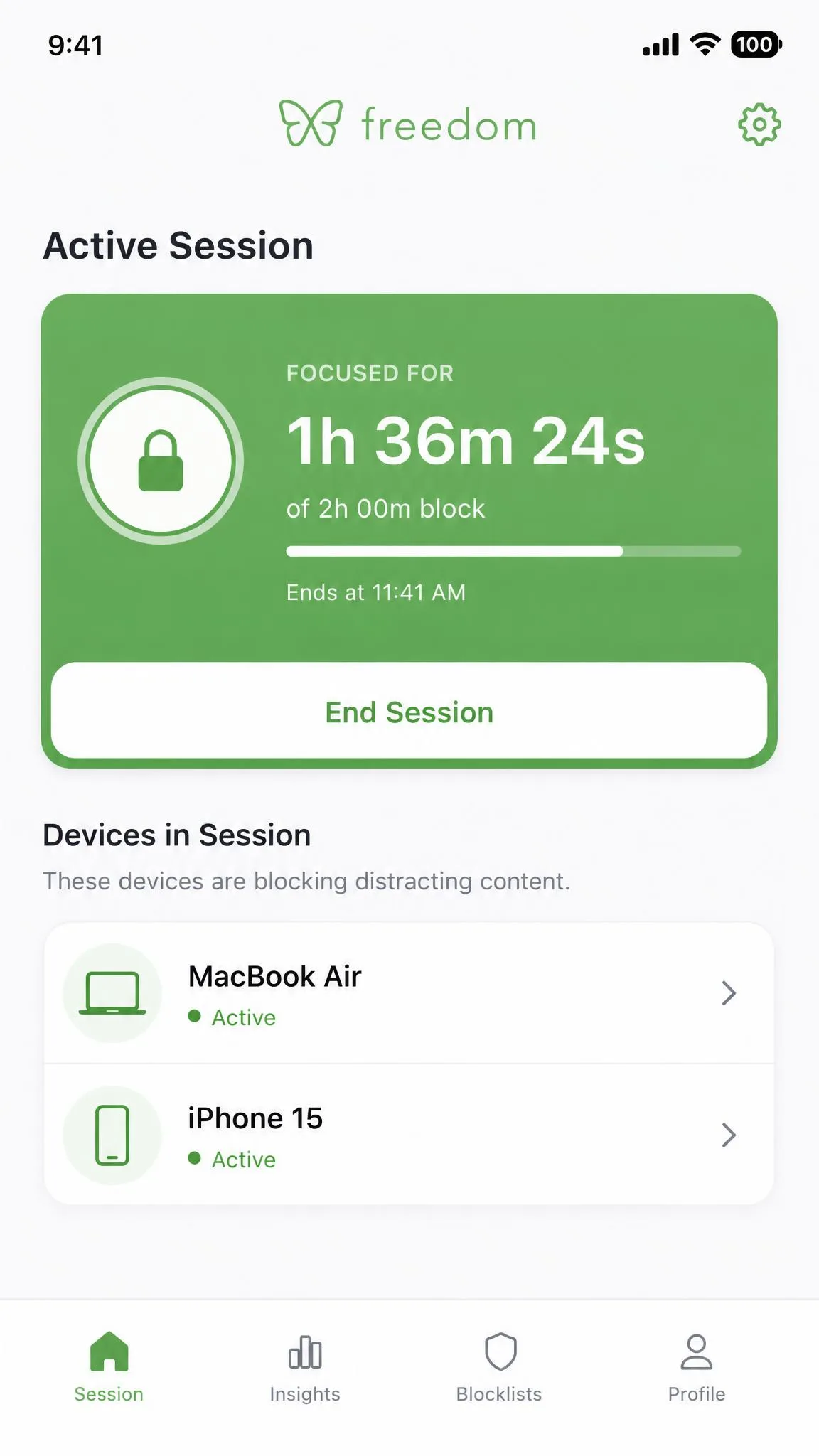
AppBlock guards one phone very well. Freedom for Android exists for the person whose scroll simply migrates to the nearest laptop, and it does that by blocking through a local VPN rather than through Accessibility permissions. That architecture is both its strength and its weakness.
The weakness showed up on the first phone we set it up on, which already had a work VPN configured. Android allows only one active VPN at a time, so starting a Freedom session dropped the other tunnel, and reconnecting for work quietly ended the block. On a phone with no VPN conflict the session ran as promised, but a long afternoon block left the battery noticeably lower than an equivalent afternoon with an Accessibility-based blocker. The bigger problem was how the session ended. Locked Mode implies a session you cannot abandon, and in practice we walked out of one in about fifteen seconds: open Android's own settings, find the VPN entry, switch it off. No cooldown, no prompt, nothing that felt like a decision.
Sessions occasionally fell out of sync between a phone and a laptop, so a block that had ended on one device was still running on the other. The Chrome extension is the weakest part of the package. Setup itself is simple and takes a couple of minutes.
What a cross-device session covers
Scheduled and recurring sessions of unlimited length, Locked Mode to discourage early exits, and combined website and app blocking through the local VPN, applied at once across Android, iOS, Windows, macOS and Chromebook.
Pricing
Freedom costs $8.99 per month, or $3.33 per month billed annually, which works out to about $39.99 per year. There is a 7-day trial on the yearly premium plan. A lifetime licence is listed at $99.50 on the current promotion against a $199 regular price, so what you pay depends on when you buy.
Pros
- One session blocks your phone, laptop and tablet together
- Locked Mode plus recurring schedules suit a fixed work routine
- No Accessibility Service permission required
- A 7-day trial on the annual plan lets you test properly
Cons
- The local VPN cannot coexist with a work or privacy VPN
- Noticeable battery drain during long sessions
- Turning the VPN off in Android settings ends a session early
- The Chrome extension lags behind the mobile apps
3. ScreenZen, Best Free App Blocker
Freedom asks for a subscription before it does anything. ScreenZen asks for nothing at all, and that is why it is our free pick. It has been on Google Play since 2023 and has passed about 1 million Android downloads, with a 4.7 out of 5 community rating.
Instead of a hard wall, ScreenZen inserts friction. Tap Instagram and you get a configurable pause, and optionally a typed phrase or a question you have to answer before the app opens. Setup was the fastest of any app here, and we ran a full evening block with the phone in airplane mode to confirm the core blocking does not depend on a connection. It held.
What did not hold was our attention span for the pause itself. In the first days the countdown genuinely stopped us and we closed the app instead of waiting. By the third week the pause had become part of the gesture: thumb down, type the phrase without reading it, scroll. Nothing after that point limits the session, so a cleared pause is a full evening's scrolling. We also went looking for a way to keep Instagram messages while blocking Reels, and there is no such setting, because ScreenZen decides at the app boundary and nowhere inside it. Add to that its need for Accessibility Service, which grants broad access to on-screen content, and the free price starts to look like a privacy trade rather than a gift.
Pricing
Free. No paid tier, no trial timer, no upsell.
Pros
- Genuinely free with no premium tier at all
- The pause plus challenge combination beats a plain timer
- Works offline once configured
- Setup takes minutes, not an evening
Cons
- The pause loses its effect after a few weeks of habit
- App-level blocking only, so no blocking within an app
- Accessibility Service access is a meaningful privacy cost
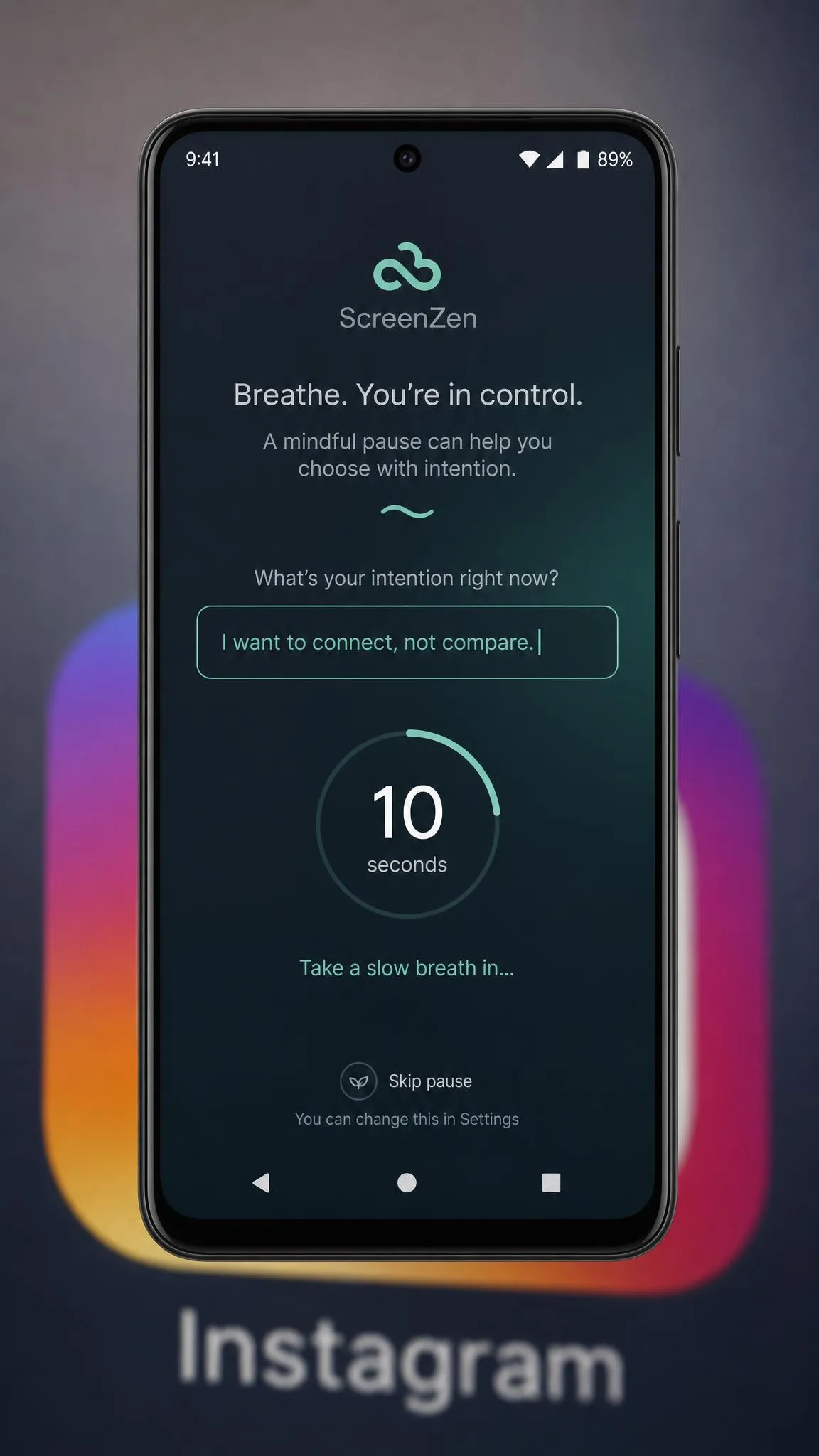
4. One Sec, Best for Breaking Reflex Habits
ScreenZen builds its friction into a schedule you configure. One Sec strips the idea back to the reflex itself: tap a distracting app, hold still through a short breathing pause, then answer whether you still want to continue. The app cites an average 57% reduction in app usage from an academic research collaboration, though that figure reflects short study windows rather than long-term use.
Our test ran into the free tier's ceiling almost immediately. One Sec covers one app or website without paying, and we spent a genuinely awkward few minutes deciding whether to protect Instagram or the browser, because the browser was where the blocked habit simply reappeared. Choosing either one left the other wide open, which is enough to prove the concept works and not nearly enough to change a real habit. And as with ScreenZen, the pause faded: what stopped us in week one had become a breath we took on autopilot by week three. Treat it as a companion to a stricter blocker rather than a line of defence on its own.
Feature-wise you get the breathing pause, optional strict blocks, time limits, intention prompts, emotion tracking, usage analytics, and unlimited apps once you pay. In the US store, One Sec pro costs $2.99 per month, $19.99 per year, or $99.99 once for a lifetime unlock, with a family plan at $3.99 per month, $29.99 per year, or $149 lifetime.
Pros
- The pause interrupts the reflex rather than punishing you
- Emotion tracking shows which mood drives your pickups
- A lifetime option exists if you dislike subscriptions
Cons
- The free tier covers a single app
- The pause becomes routine after weeks of use
- Weak as a standalone blocker for serious cases

5. Stay Focused, Best for Usage Analytics
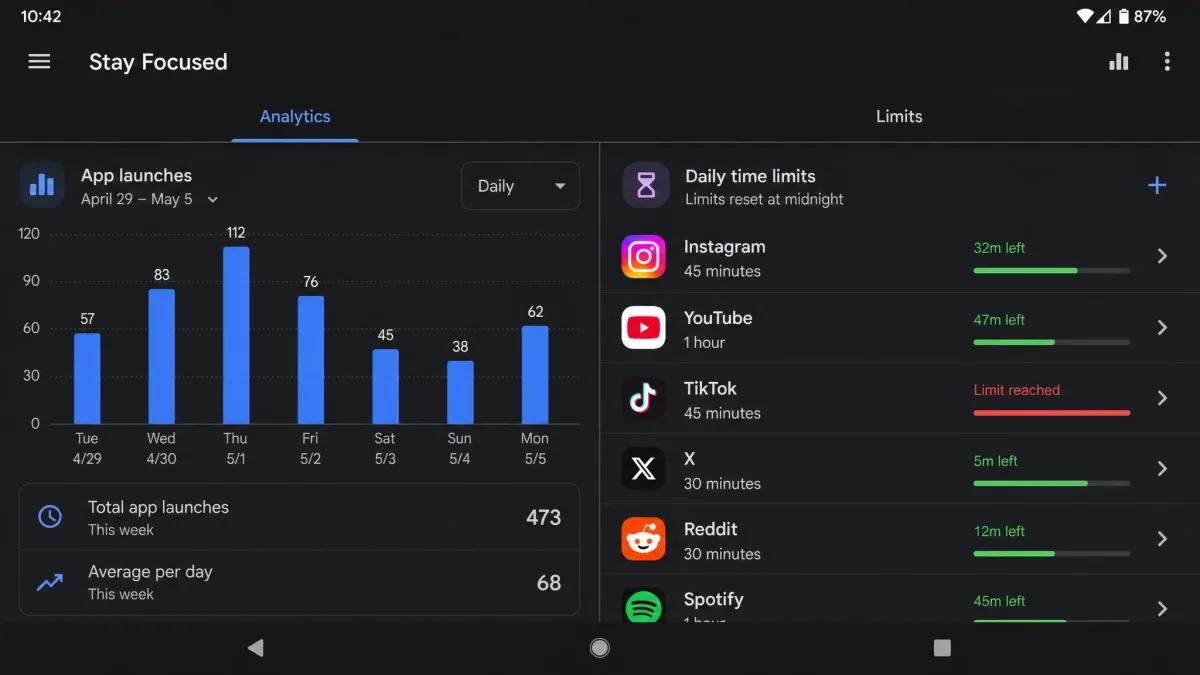
Where One Sec interrupts the habit, Stay Focused measures it. The app has been on Google Play since 2017 and has about 5.8 million downloads with a 4.5 out of 5 rating, and its strength is data. It counts launches as well as minutes, so you can cap how many times you open an app per day rather than only how long you stay. For anyone whose problem is compulsive checking rather than long sessions, that distinction is the whole game.
The measuring is excellent and the holding is not. We set a strict block, waited for it to fire, and then tried to get past it the way a bored person would rather than the way a hacker would. It did not take a clever trick or a rooted phone: a short detour through the phone's own settings put us back in the blocked app, and the block itself never escalated or asked for anything. That is the most common complaint from long-term Android users hunting for a Cold Turkey equivalent, and our own attempt matched it.
What the launch counter actually shows you
Launch-count limits, per-app and per-category daily limits, blocklists covering apps and websites, schedules, a Strict Mode, uninstall protection, more than fifteen restriction modules on Pro, and the detailed usage statistics that make the rest worth reading.
Pricing
There is a free tier, and a one-time Pro licence sits around $24 alongside several subscription options. Stay Focused sells several overlapping one-time and subscription tiers whose prices differ by region and promotion, so check the in-app price before you commit. Some buyers of the Lifetime Premium plan have been prompted to pay again later.
Pros
- Launch-count limits target compulsive checking directly
- The deepest usage analytics of any pick here
- A one-time licence option avoids another subscription
Cons
- Easier to bypass than its Strict Mode suggests
- Confusing overlapping price tiers
- Lifetime buyers have reported repeat payment prompts

6. Opal, Best for Focus Sessions and Reporting
Stay Focused shows you the habit. Opal tries to structure it, replacing permanent blocklists with focus sessions you start from a preset, with deep focus lockdown available when you want the session to be difficult to abandon. Streaks, reports and gamification keep the habit visible, and sessions sync across devices.
The gap between the marketing and the Android build is what stayed with us. Opal is an iOS-first product, and Android has no equivalent of Apple's system-level Screen Time API, so the blocking here is simply the weaker half of the app. We started a free session on Android and got an ad in a product whose annual price is the highest on this list. If you live in both ecosystems, that gap matters less because the iOS side carries the experience. If you are Android only, you are paying premium money for the side of Opal that Apple's platform is doing the heavy lifting for elsewhere.
Sessions, scheduled sessions, deep focus lockdown, app and website blocking, screen time reports, streaks and cross-device support all ship in the box. Pricing is $99.99 per year, which works out to about $8.29 per month. A monthly plan is quoted at $19.99, though Opal's monthly and annual-equivalent rates are quoted interchangeably across listings, so the sticker price depends on which plan you land on.
Pros
- The best session reporting and streak tracking on the list
- Deep focus lockdown is meaningfully strict
- Presets make starting a session a one-tap decision
Cons
- The highest price here by a wide margin
- Android blocking is weaker than the iOS version
- The Android free tier shows ads

7. Google Digital Wellbeing, Best Built-In Option
Every pick so far asked you to install something. This one is already there, and it is the weakest blocker on the list by design. We set a 30-minute timer on a social app, used it up, and watched the icon dim and the app close on cue. Then we tapped the icon again. Two taps later, using the ignore-for-today option Android offers on the spot, we were back inside with the timer switched off for the rest of the day. There was no cooldown and no second thought, which tells you exactly what these limits are: information, not enforcement.
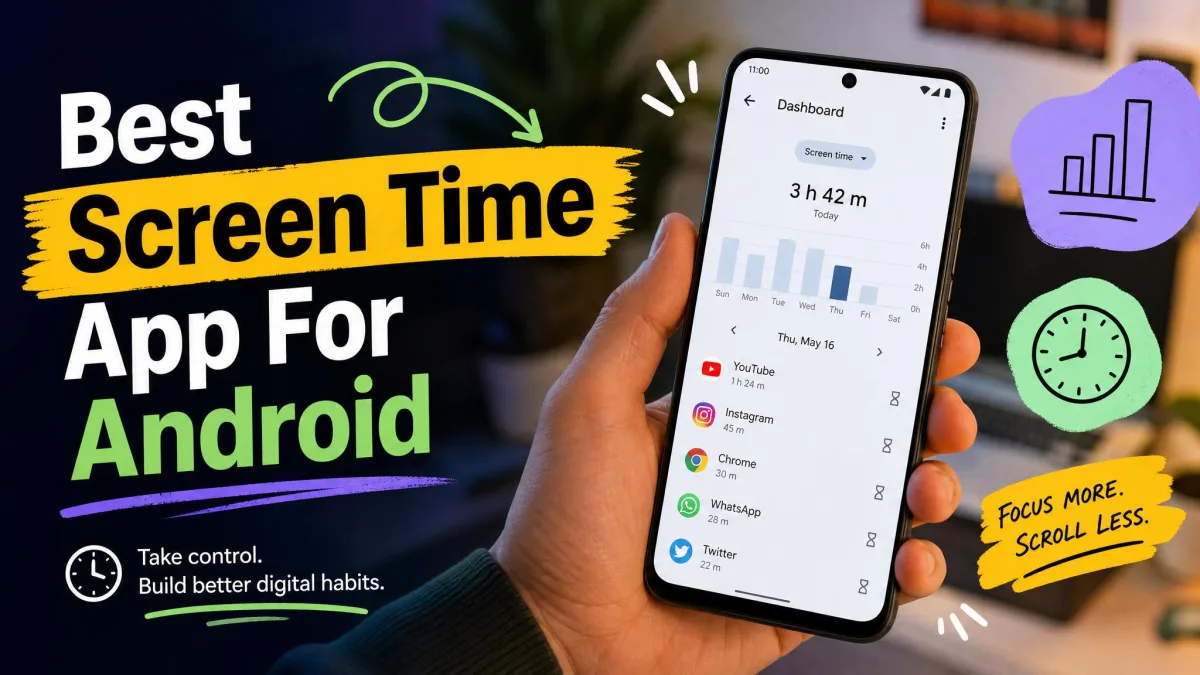
Taken as information, they are good. Google's built-in Digital Wellbeing tools are free, pre-installed on most Android phones, and require no setup at all, because the feature ships with the phone and is tied to the Google account you are already signed into. You get daily app timers, a Focus mode that pauses selected apps on a schedule, Bedtime mode with grayscale and wallpaper dimming, an app usage dashboard, Chrome website activity, and notification controls, all at no cost. Treat Digital Wellbeing as the measurement layer that tells you which apps deserve a real blocker.
Pros
- Zero setup and zero cost
- The dashboard is the fastest way to see where your time goes
- Bedtime mode's grayscale is quietly effective
Cons
- Timers can be ignored in two taps
- Android only, with no cross-device sessions
- No strict mode or bypass resistance of any kind

Side-by-Side Comparison: Price, Platforms, Blocking Method
| Product | Price / free tier | Platforms | Blocking method | Bypass resistance | Standout feature |
|---|---|---|---|---|---|
|
Free tier; premium about $30/yr | Android, iOS, Chrome/Edge/Brave | Accessibility-based schedules and profiles | High with Strict Mode | Profiles triggered by time, place or Wi-Fi |
|
$8.99/mo or $3.33/mo annual | Android, iOS, Windows, macOS, Chromebook | VPN-level cross-device sessions | Medium, VPN can be switched off | One session across every device |
|
Fully free | Android, iOS | Friction pause and per-app limits | Low to medium | Free with no paywall at all |
|
Free for one app; $19.99/yr pro | Android, iOS | Breathing-pause friction | Low | A one-second pause before an app opens |
|
Free tier; one-time Pro around $24 | Android | Accessibility blocklists and limits | Medium with Strict Mode | Deep usage analytics |
|
$99.99/yr | Android, iOS | Focus sessions and deep lockdown | Medium | Session reporting and streaks |
|
Free, pre-installed | Android only | Advisory timers | Very low, two taps | Zero setup, already installed |
What to Look For in an Android App Blocker
Start with bypass resistance, because everything else is decoration if you can undo a block in five seconds. Look for a strict mode with a cooldown, uninstall protection, or approval from a second person. Anything that lets you disable the block from the same screen that shows the block is a suggestion, not a barrier.
Then check what the free tier actually includes. A free version that caps you at one app or one profile is a demo, and you should price the app at its paid rate when you decide.
Blocking method matters more than most lists admit. Accessibility-based blockers intercept an app as it opens and can block precisely, at the cost of granting broad screen access. VPN-based blockers filter at the network level and block websites well, but they occupy Android's single VPN slot. Advisory tools like Digital Wellbeing only warn you.
Finally, think about scope. If you need blocking on a laptop as well as a phone, buy for both from the start; our roundup of the best app blockers across platforms includes desktop tools like Cold Turkey.
Before you trust any Accessibility-based blocker, open your phone's battery settings and exempt the blocker from battery optimisation. On Samsung, Xiaomi and Huawei devices this single step is what stops the blocker from quietly dying in the background.
Free vs Paid App Blockers: What You Actually Get
Free tiers on Android split into two honest categories. ScreenZen and Digital Wellbeing are genuinely free products. Everything else here uses free as a trial: One Sec gives you one app, AppBlock gives you basic scheduling without multiple profiles or stricter modes, and Opal's free Android tier carries ads.
That is the pattern worth internalising. The feature you install for, whether that is a strict lockdown, several profiles, or blocking more than one app, is usually the paid feature.
Paid is worth it when you have already failed with a free tool and know exactly which limitation beat you. It is not worth it as a first step. Spend two weeks with ScreenZen, note where you slipped, then buy the blocker that closes that specific gap.
How App Blockers Work on Android
Pricing explains what you get. The underlying method explains why a blocker behaves the way it does, and there are three approaches to know about.
Accessibility Service and Usage Access blockers watch what opens on screen and intercept a distracting app the moment you launch it. This is the most precise method and the one AppBlock, ScreenZen and Stay Focused use. The trade-off is that Accessibility permission grants broad access to on-screen content, so you should only grant it to an app you trust.
VPN-based blockers, such as Freedom, route traffic through a local filter and stop requests before they load. This blocks websites well and works without Accessibility permission, but Android allows only one active VPN at a time.
Advisory tools sit on top of Android's own usage data and warn or time you out. Digital Wellbeing works this way, which is why its limits are simple to ignore. Brailovskaia and colleagues, writing in Computers in Human Behavior in 2020, found that reducing use through an active intervention shifted behaviour in a way that simple information about usage did not, which matches what we see across these three methods.
How to Block Apps on Android Without a Third-Party App
If that last section convinced you to start with what Android already ships, you can do a surprising amount with it. Open Settings, find Digital Wellbeing and parental controls, and tap the app dashboard to see your daily usage. From there, set a daily timer on any app and the icon dims and the app closes when the limit is reached.
Turn on Focus mode next and select the apps to pause, then schedule it for your working hours or your evenings. Bedtime mode adds grayscale and dims your wallpaper on a schedule, which removes most of the visual pull without blocking anything.
For a stricter version at no cost, create a second user profile or a work profile on the device and simply do not install the distracting apps there. Android's Digital Wellbeing settings cover the timers and Focus mode in detail. Our guide to blocking apps on Android also covers Family Link, Play Store download limits and disabling apps.
Why App Blockers Get Uninstalled, and How to Make Yours Stick
None of those free routes fix the underlying problem, which is a human one. Blockers fail for a predictable reason: the person who set the rule and the person who wants to break it are the same person, holding the same phone, with the same admin rights. Every setting you can change in a calm moment you can also change in a weak one.
Three things help. Turn on strict mode or uninstall protection during setup, while motivation is high, rather than promising to do it later. Give the unlock a cost, whether that is a cooldown, a typed phrase, or approval from someone else. And plan for the gap between sessions, because once a strict session ends the phone hands back full control and the old pattern resumes quickly.
Pairing a software blocker with a physical trigger works well for a lot of people. Locking the blocker's own settings behind another device puts a real-world step between you and the unlock, and that step is usually enough.
Which Android App Blocker Should You Choose?
Choose AppBlock if you want one app to cover every scenario, from a light weekday schedule to a lockdown you cannot casually reverse. It is the most capable Android blocker here and the one we would install first.
Choose ScreenZen if you want to spend nothing and still get real friction, or if you are not yet sure how serious your problem is. Choose Freedom if the distraction follows you onto a laptop, and accept the VPN limitation as the price of that reach. Choose One Sec as a companion to a stricter blocker rather than a replacement for one, and Stay Focused if you want to see the numbers behind your habit. Opal suits people already inside its ecosystem on iOS, and Digital Wellbeing is where everyone should start tonight, for free, to find out which apps deserve a blocker at all.
If you want to compare picks across platforms, our roundup of the best app blockers for iPhone covers the iOS side of the same problem.