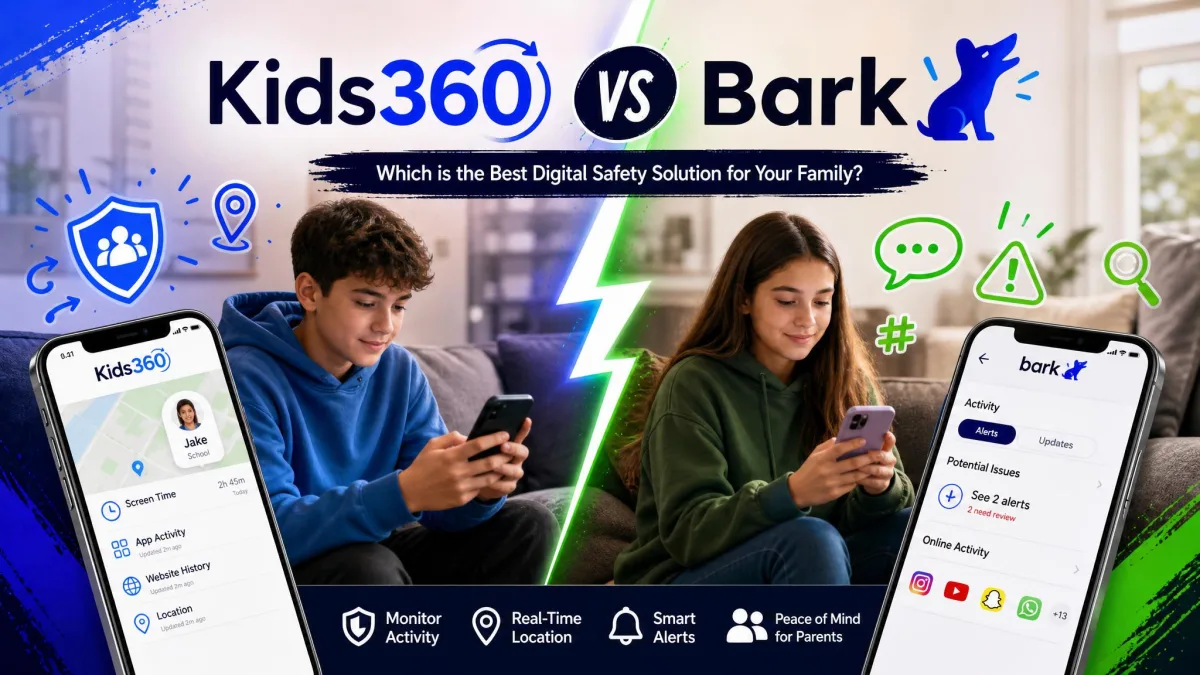
Most parents shopping for a parental control app are trying to answer one narrow question: do I want to limit how long my child is on the phone, or do I want to know what they are saying and seeing on it? Kids360 and Bark sit on opposite sides of that question, and picking the wrong one means paying every month for a tool that never does the job you bought it for.
Kids360 is a screen time, app blocking and location app. Bark is a content monitoring service that reads messages and social activity and alerts you when something looks risky. Both cover the middle ground of filtering and location, so the marketing pages can look similar at a glance. The day-to-day experience is not similar at all.
We set both up on family iPhones and Android handsets, ran them side by side, and compared what each one actually reports back to a parent. Below is the short answer, the full feature breakdown, current pricing, and the honest rough edges we hit on both.
Kids360 vs Bark: Quick Verdict
Bark is the better app for most families who want to know what is happening in their child's messages and social apps. Its detection engine reads what Kids360 cannot, the actual content of messages, email and social apps, and tells you when something in there needs your attention. Nothing in Kids360 does that.
Kids360 is the better app if your concern is time rather than content. It gives you per-app limits, scheduled blocks, whole-device blocking and a reward loop that lets children earn extra minutes, and it costs a fraction of Bark's price. For a younger child with a first phone and no social accounts, that is often all you need.
We ran Kids360 and Bark on real family devices rather than a clean test handset, because both apps behave differently once a child is genuinely trying to get around them. Setup, alerts, blocking reliability and location accuracy were all judged on that basis.
Kids360 vs Bark at a Glance (Comparison Table)
| Product | Buy | Location tracking | Content monitoring | Screen time limits | Web filtering | Alerts and reports | Platforms | Free tier | Price |
|---|---|---|---|---|---|---|---|---|---|
 |
Check price → | Real-time GPS with check-ins and place alerts | Texts, email, YouTube and 30+ apps across 29+ risk categories | Schedules and internet pause, no per-app limits | Category filtering plus individual site and app blocking | Alert-only, with a context snippet | iOS and Android, plus Bark Phone, Bark Watch and Bark Home | No free tier, 7-day trial with card | $14/moor $99/yr |
 |
Check price | Yes, with location history | None, no message or social scanning | Per-app and per-device limits, schedules, earn-more-time tasks | Adult-site filtering | App usage statistics and limit notifications | iOS and Android (Kids360 parent app, Alli360 child app) | Basic features free, 7-day trial on paid | About $4.99/movaries by region |
What Is Kids360?
Kids360 is a screen time and location app published by Mindcare Lab Ltd, a Cyprus-registered company, and marketed alongside the Findmykids family of apps. It uses a two-app model: parents install Kids360 on their own phone, and children install the companion Alli360 app on theirs. The vendor claims more than 1M+ parents use it, and the parent app has around 12 million Google Play downloads.
Its store ratings are strong on the vendor's own badges, at 4.6 on the App Store and 4.7 on Google Play. Independent sentiment is more divided. Trustpilot's community rates Kids360 3.6 out of 5 across 204 reviews, a strongly split score with roughly 40% five-star and 41% one-star. That split matched what we saw: when Kids360 works it is genuinely pleasant to live with, and when it misfires it does so in ways that are hard to ignore.
Our Android setup showed both halves of that split in one sitting. Installation itself took a few minutes, but the permissions we granted on the child's handset read back as failed in the parent app, so we granted them a second time before the dashboard agreed anything was connected. The price only became clear after that child-side setup was finished, which is a sequencing choice we dislike, and later in the week the parent and child apps stopped syncing altogether until a reinstall cleared it.
For the full breakdown of the app on its own terms, see our Kids360 review.
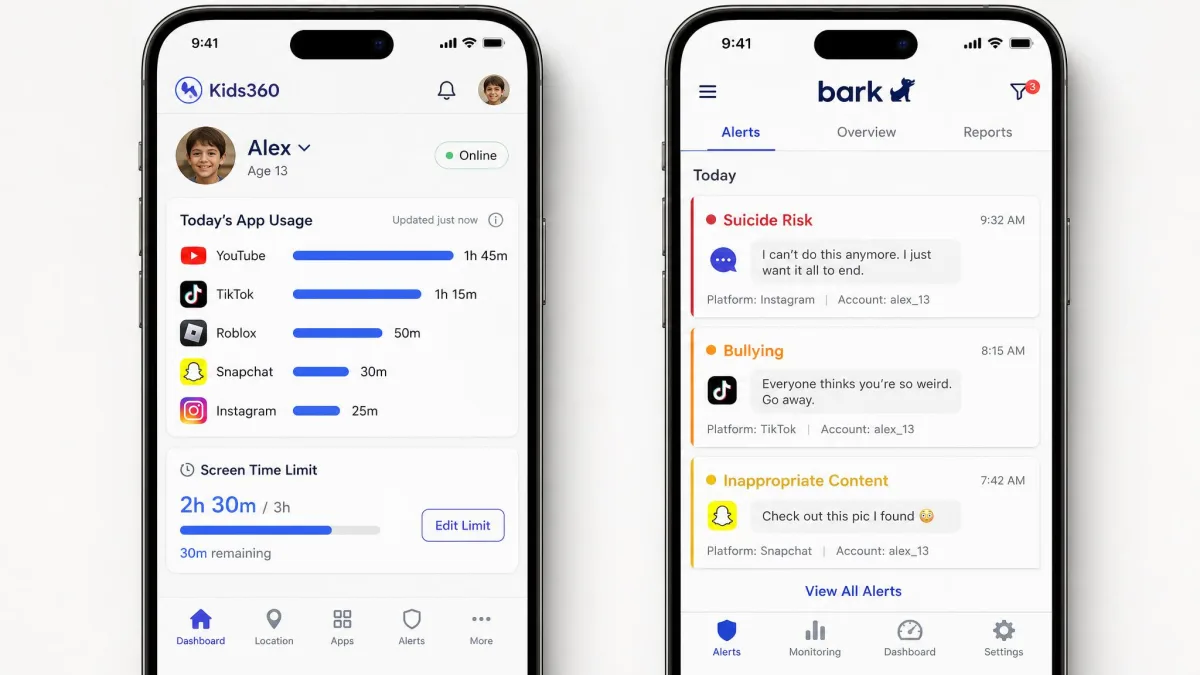
Core Features
- Screen time limits with automatic scheduling
- App blocker plus a whole-device block
- Internet safety filtering of adult websites
- Location tracking with location history
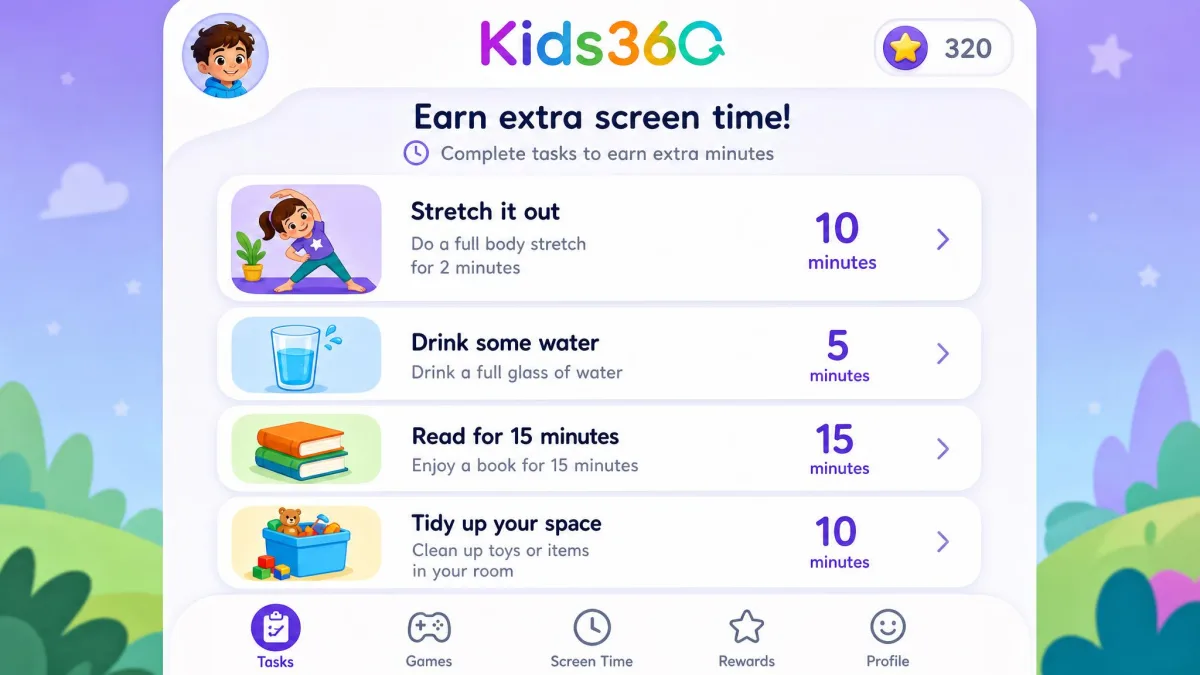
- Developmental tasks that earn a child extra screen time
- Parent-created custom tasks with time rewards, including exercise-based ones
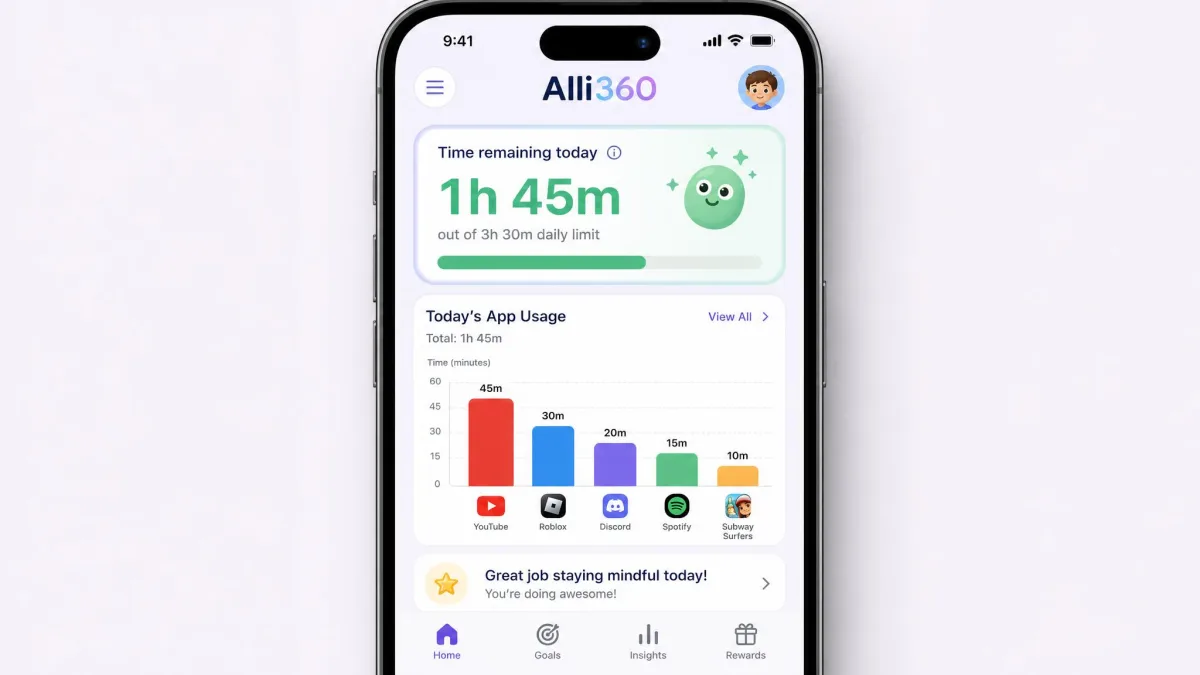
- App usage statistics, which the child can also see
The task-and-reward loop is the part parents warm to most. Children earn extra minutes by finishing exercises or chores, which turns a hard cut-off into a negotiation. In a house where screen time is a nightly argument, that one feature changes the tone of the conversation more than any block does.
Who It's Best For
Kids360 fits parents of younger children whose phone use is mostly games, video and a handful of apps, and whose worry is hours rather than messages. It also fits families who want a low monthly cost and are happy to talk to their child about content rather than have software read it for them.
What Is Bark?
Where Kids360 counts minutes, Bark reads words. Bark is a content monitoring service built around one idea: rather than showing you everything your child does online, it watches quietly and tells you when something needs your attention. Its engine scans text, images, video and audio across texts, email, YouTube and 30+ social media apps and browsers, flagging across 29+ issue categories including cyberbullying, adult content, predatory behaviour and self-harm. Scanning currently works in English, Spanish and Afrikaans.
Bark's App Store community rates it 4.2 out of 5 across roughly 35,000 ratings. That reporting-by-exception design is what makes it tolerable to an older child, and it is the thing to weigh against the price.
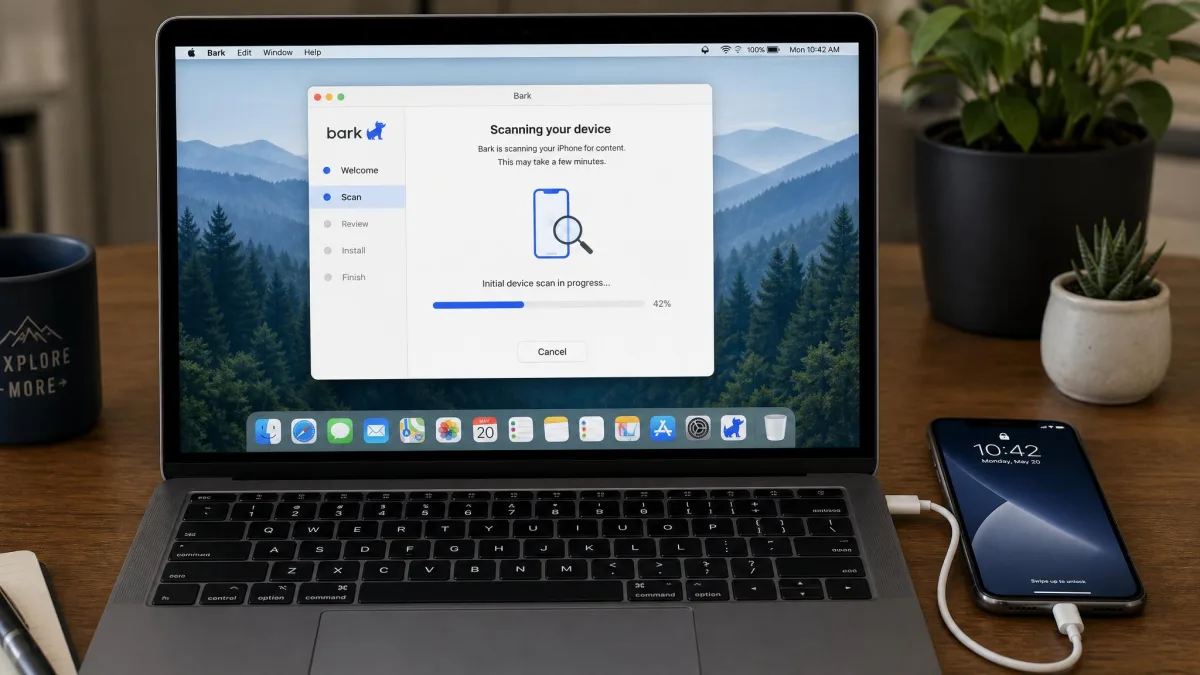
Getting there took the longest evening of this comparison. Setting Bark up on an iPhone meant installing the desktop app, connecting the handset by cable and waiting out a first scan that ran close to 45 minutes, and the app crashed once while we were typing the activation code in. The first week after that was category tuning rather than monitoring: the sensitivity flagged messages that plainly needed no parent, and we dialled several categories down before the alert feed settled into something a parent would actually read.
Our standalone Bark review goes deeper on the alert system.
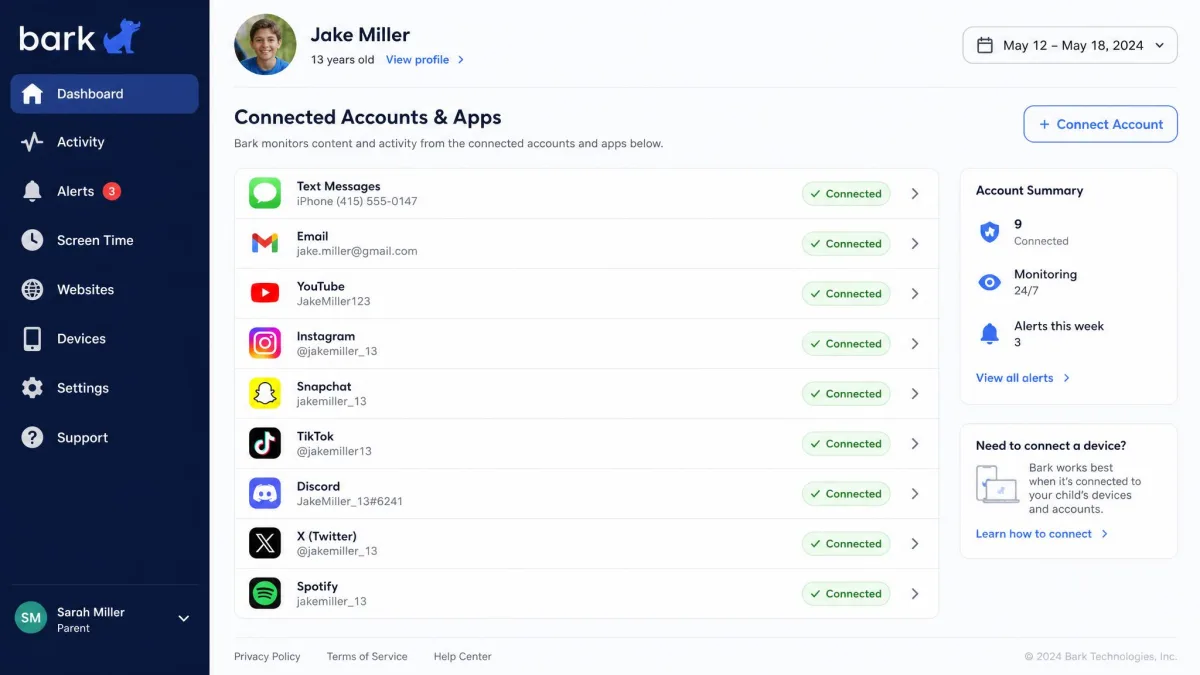
Core Features
- AI content monitoring of texts, email, social apps and browsers
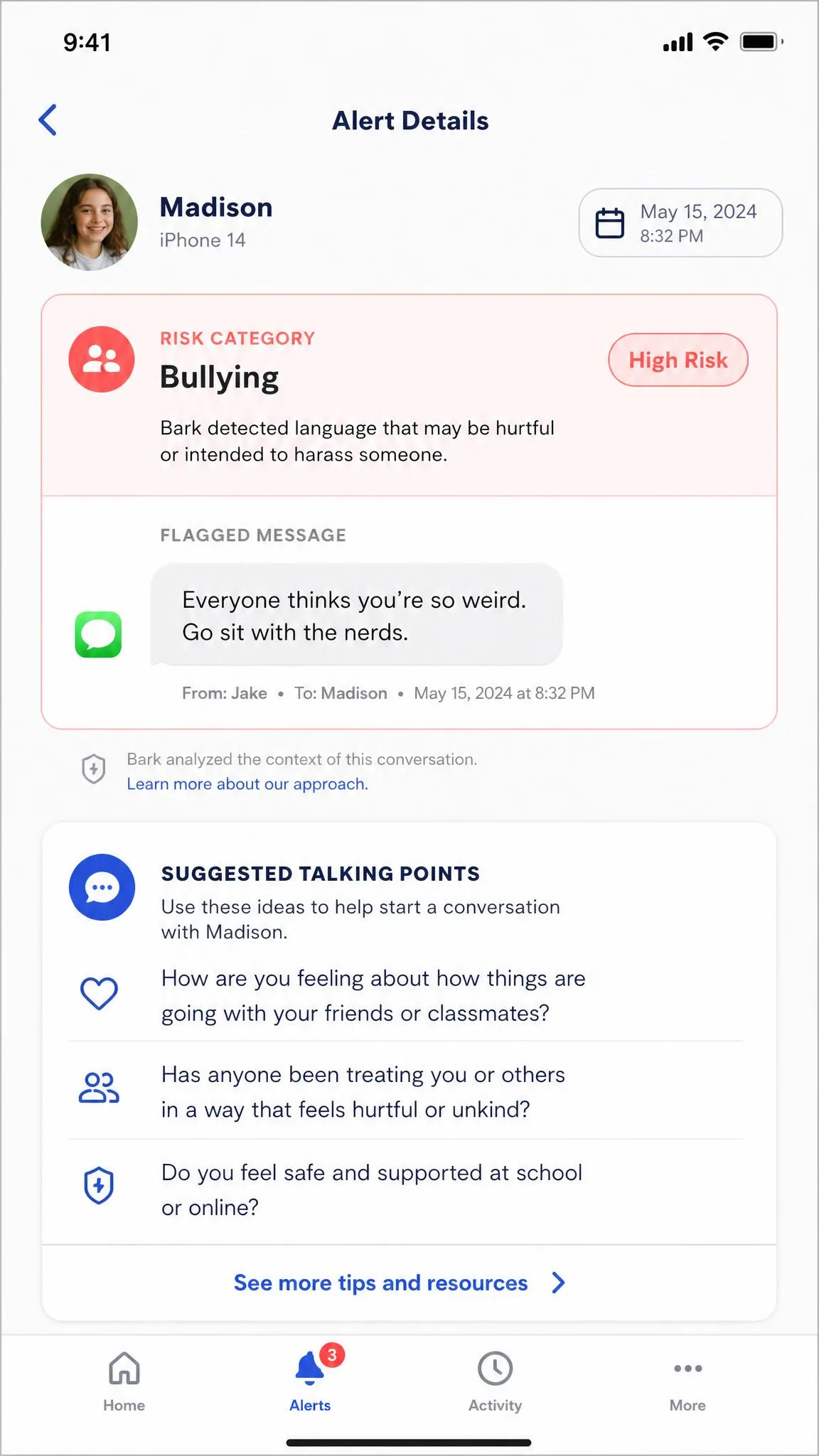
- Alert notifications that include a context snippet
- Screen time schedules and a whole-internet pause
- App and website blocking by category
- Real-time GPS location with location alerts and check-ins
- Settings that copy from one child to a sibling
- Optional Bark Phone, Bark Watch and Bark Home hardware
Who It's Best For
Bark suits parents of tweens and teens who already have social accounts and group chats. If the thing keeping you up is who is messaging your child rather than how many hours they spent on the phone, Bark is the only one of these two that addresses it.
Feature-by-Feature Comparison
Location Tracking and Geofencing
Both apps track a child's phone and both keep a history. Bark's location is a real-time GPS feed with place alerts and a check-in feature, so a child can confirm arrival without a parent having to ask. Kids360 offers tracking with location history, which is enough for the everyday question of whether a child made it to school.
The difference showed up in freshness. Kids360's location data can lag badly, sometimes showing a position that is days old rather than a live fix, which is the single most frustrating failure in an app of this type because a stale pin looks exactly like a current one. It is also worth knowing that turning off location services on the child's phone defeats Kids360 GPS tracking outright, so the feature depends on settings a child can reach.
Content and Social Media Monitoring
This is where the two products stop being comparable. Kids360 does not scan message text, email or social media conversations. Its monitoring covers app usage, screen time and location, so it will tell you that your child spent two hours on a chat app and nothing whatsoever about what was said.
Bark reads the content and reports by exception. Alerts arrive with a snippet of the triggering message and a category label. That design is deliberate, and it is the main reason older children tolerate it: Bark shows only the alert-triggering snippet, not a full conversation history, so context has to be asked for rather than read. Some parents want the whole log and find that limiting. We think it is the right trade, because it keeps the app from becoming a surveillance feed of every joke a fourteen-year-old makes.
Two caveats. Bark's sensitivity can produce alerts on harmless messages, so expect to spend the first week tuning categories down. Bark's own positioning is that alerts fire only on genuine risk, and our experience sat between the two: the volume is manageable after tuning, noisy before it. Monitoring can also be sidestepped on an unsupported browser such as Brave, which is worth checking on your child's device.
Screen Time and App Limits
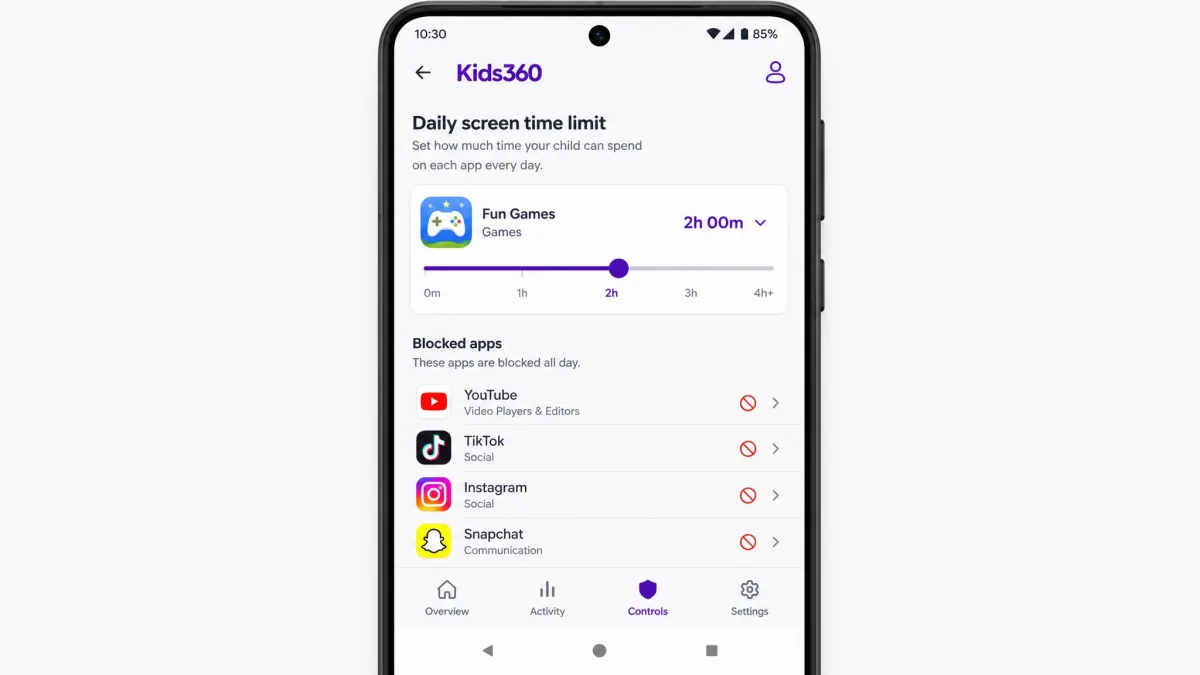
Kids360 wins this one clearly. It offers per-app and per-device limits, automatic schedules, a whole-device block, and the reward tasks that let a child earn additional minutes. Bark has no per-app time limits at all; screen time is handled with schedules and a whole-internet pause, which is a blunter instrument. Pausing the internet stops everything at once, which works for dinner and bedtime and does not help if you want to cap one game while leaving homework apps open.
Reliability cuts the other way. Kids360 screen time schedules do not always fire, and a child can keep using an app past the limit that was set. The behaviour is inconsistent rather than uniformly broken: some setups block right on schedule while others see schedules fail outright. That inconsistency is the reason we would not recommend Kids360 as the only guardrail for a child who actively tests boundaries.
Whichever app you pick, set the limits with your child in the room and explain what the app does and does not see. Every parent we know who did this quietly, then got found out, spent longer repairing that than they ever spent on setup.
Web Filtering and Website Blocking
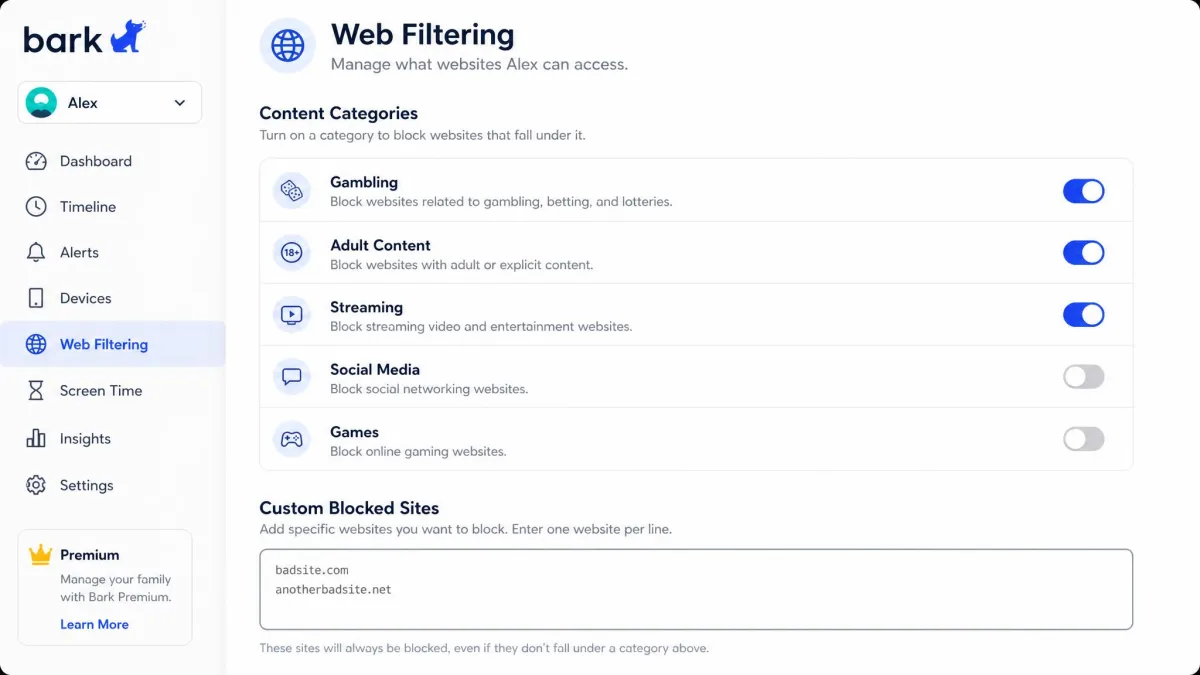
Kids360 filters adult websites as a category, which is a straightforward on-or-off safety net. Bark goes further, letting you block by category and also block an individual website or app, and its Bark Home device pushes the same filtering to the router so it covers a games console or a smart TV that no phone app can reach.
If website blocking is your main goal, Bark gives you finer control. If you simply want adult content off a young child's phone, Kids360 covers it at a lower price.
Alerts, Reports and Notifications
Kids360 reports usage. You get app usage statistics and notifications when a limit is reached, and the child sees their own statistics too, which is a nice touch for building self-awareness rather than resentment. Bark reports risk. You get nothing at all on a quiet day, and an alert with context when something trips a category.
Neither is instant. Bark alerts are not always instant, and some arrive well after the activity that triggered them, so treat the alert feed as a daily review rather than a live wire. Kids360 can freeze or lag while syncing between the parent and child devices, and clearing that has sometimes taken a reinstall.
Ease of Setup and Device Compatibility
Kids360 runs on iPhone and iPad, plus Android handsets including Samsung, Xiaomi, Huawei, Vivo, Sony and LG. Installation is quick, but the price only becomes clear after setup on the child's phone is finished, which is a sequencing choice we dislike. On Android, permissions can revert or read as failed even after they were granted, which forces you to grant them again.
Bark's setup is the heavier of the two. On iOS it involves a desktop app and a cable connection, and the first scan can take up to about 45 minutes. On Android the app installs from Bark's own site rather than Google Play, so the phone throws a security warning mid-install that you have to click past deliberately. Bark can also crash while the activation code is being entered. Once you are through it, the payoff is that copying one child's settings across to a sibling saves a real chunk of setup time.
One iOS limitation matters more than any setup friction: on iPhone and iPad, Bark only scans texts, photos and videos while the device is on the same Wi-Fi network as the parent's setup. That is a stated functional limit rather than a bug, and it means an iPhone-only household gets meaningfully less monitoring than an Android one.
Pricing and Plans Compared
Those capability gaps price out about how you would expect. Bark Premium is $14 per month or $99 per year, and the annual plan works out near $8.25 a month. Both include a 7-day free trial, which requires a credit card at sign-up, and one subscription covers unlimited children and unlimited devices, so a family of four pays what a family of one pays.
| Plan | Price | What it covers |
|---|---|---|
| Bark Premium (monthly) | $14 per month | Content monitoring, screen time, filtering, location, unlimited devices |
| Bark Premium (annual) | $99 per year | The same set of features, at about $8.25 a month |
| Bark Home | $6 per month or $79 one-time | Router-level filtering for consoles, TVs and anything else on the network |
| Bark Watch | $15 per month plus $10 per month device payment | Cell service and controls for a kid-safe watch |
| Bark Phone | $29 per month plus $10 per month device payment over 24 months | A managed phone including Bark Premium for the whole family |
| Kids360 (paid) | About $4.99 per month in the US | Screen time, app blocking, filtering, location, reward tasks |
| Kids360 (free tier) | Free | Basic functionality, with advanced controls behind the subscription |
Kids360 is the cheaper app, but the number you see at checkout depends on where you are and which plan you are shown. On the US App Store we found several 12-month tiers running concurrently, from $49.99 up to $79.99, alongside monthly options at $9.99 and $12.99, and a UK guide quotes GBP 79.99 a year. Kids360 sells several annual tiers at once and the price offered depends on the plan and storefront shown at checkout, so the yearly figure varies. Check the price in your own storefront before you commit rather than trusting any review's single figure.
Bark's entry-level tier is the other soft spot. Bark's lower tier has been renamed and repackaged more than once, so the entry-level option and its price differ depending on which sign-up flow you land in. If you only want screen time and filtering from Bark, look for a cheaper tier at sign-up before defaulting to Premium.
Cancellation is worth a line each. Kids360 subscriptions can be cancelled by emailing support@kids360.app, and requests are processed within 5 business days. EU customers are told they waive the right to withdraw once digital content delivery has begun, so post-purchase refunds are not offered. Bark publishes no money-back guarantee window; the 7-day trial is the trial mechanism, so use it properly rather than counting on a refund.
Run the free trial during a normal week, not a holiday. A quiet week of school-night routine tells you far more about whether the alerts and limits fit your family than a week when nobody is at school.
Privacy and What Your Child Sees
Neither app is invisible, and that is a good thing. Kids360 installs a visible child app, Alli360, and shows the child their own usage statistics. Bark tells the child it is running and reports by exception, which older kids generally find easier to accept than an app that logs every message for a parent to read at leisure.
The consent conversation matters legally as well as domestically. If you are monitoring a child under 13, COPPA limits what companies may collect about them, and that limit is a useful frame for thinking about what you are comfortable collecting yourself.
Monitoring a teenager's messages without telling them is legal in most households and rarely wise. Both apps can be discovered, and the discovery costs more trust than the monitoring buys. Tell your child what is installed, what it reads, and why.
Both apps can also be defeated, which is worth knowing before you rely on either. The Alli360 child app can be switched off by the child, which quietly ends monitoring until a parent notices. Bark's coverage drops on an unsupported browser. Software is a floor, not a ceiling.
Kids360 Pros and Cons
Pros
- Per-app and per-device screen time limits with automatic schedules
- Earn-more-time tasks turn a hard limit into a negotiation
- Location tracking with history included at the base price
- Around $4.99 a month in the US, well under Bark
- A free tier covers the basics before you pay anything
- Cancellation is a documented email process handled within 5 business days
Cons
- No message, email or social media content monitoring of any kind
- Location data can show a position that is days old
- Screen time schedules do not always fire
- The child can switch off the Alli360 app and end monitoring
- Android permissions can revert and need re-granting
- Support is chat-only with no phone line
Bark Pros and Cons
Pros
- Content monitoring that reads messages, email, social apps and browsers
- Scanning covers text, images, video and audio, not just typed words
- Unlimited children and unlimited devices on one subscription
- Alerts arrive with a context snippet, not a raw log dump
- Settings copy from one child to a sibling
- Optional Bark Home, Watch and Phone extend coverage beyond the phone
- Customer support answers quickly when something needs a human
Cons
- $14 a month is nearly triple Kids360's US rate
- No per-app time limits, only schedules and a whole-internet pause
- iOS scanning needs the child's device on the parent's Wi-Fi network
- Setup is heavy: a desktop app and cable on iOS, a security warning on Android
- Alerts can be over-sensitive before you tune the categories
- Battery drain on the monitored device is a recurring complaint
Which App Should You Choose?
The question is not which app is better in the abstract. It is which risk you are actually trying to reduce.
Choose Kids360 If...
- Your child is younger and does not yet have social media accounts.
- Your main problem is hours on the phone, not who is on the other end of it.
- You want per-app limits rather than an all-or-nothing internet pause.
- You want a reward system that gives a child a way to earn time back.
- Monthly cost is a deciding factor and $14 is more than you want to spend.
- You are comfortable handling content through conversation instead of software.
Choose Bark If...
- Your child has group chats, social accounts, or a phone you no longer see.
- You want to know about bullying, self-harm or predatory contact early.
- You have several children, because the price per child falls fast in a bigger household.
- You want website and app blocking with real granularity.
- You are on Android, or you can accept the same-Wi-Fi limitation on iPhone.
- You would rather get a handful of meaningful alerts than a full activity log.
If you are on the fence, run both 7-day free trials back to back on the same child's phone. A week of each answers the question faster than any comparison table, including ours.
Alternatives Worth Considering
Neither app is the only reasonable answer, and a couple of others solve the same problems differently. Canopy leans hard on real-time image filtering, which suits parents whose main concern is what a child stumbles into rather than who they talk to. We cover the head-to-head in Canopy vs Bark and Canopy vs Kids360.
Kaspersky Safe Kids is the value option, bundling screen time, filtering and location at a price close to Kids360 with a more established support operation behind it. See Kaspersky Safe Kids vs Bark and Kaspersky Safe Kids vs Kids360.
Mobicip sits between the two, with strong web filtering and a family-wide dashboard that works well when several children share a household network. Our comparisons are Mobicip vs Bark and Mobicip vs Kids360. Families who mainly want to see where everyone is, with no content monitoring at all, often end up on a location-only solution such as Life360 instead of either app here.
What Parents Get Wrong When Choosing
Whichever of these you land on, the same two mistakes recur. The most frequent one we see is buying for the child you have this year rather than the one you will have in eighteen months. A nine-year-old with a locked-down first phone needs Kids360's kind of help; the same child at eleven with a group chat needs Bark's. Paying annually for the wrong stage is an expensive way to learn that.
The second mistake is treating either app as a settled decision. Set it up, then check a month later that the schedules are actually firing and the alerts are actually arriving. Both apps have soft spots that only show up in normal use, and the whole point of a free trial is to find yours before the first charge lands.