Most parents reach for a parental control app after the same small crisis: a phone that never goes down at bedtime, a game that appeared without permission, or a child who cannot be found on a Saturday afternoon. Kids360 and Google Family Link both promise to fix that, and they go about it in very different ways. To compare them fairly, we worked through both apps against the same set of everyday family questions, checked every published limit and price against the vendors' own documentation, and weighed what parents report after living with each app for months rather than minutes.
The short answer is that Google Family Link is the better starting point for most Android families because it is free, built-in and reliable, while Kids360 earns its subscription only if you want habit coaching, rewards and controls that keep working after your child turns 13. The rest of this comparison shows exactly where each app pulls ahead.
Key Takeaways
Kids360 vs Google Family Link at a Glance
Both apps sit on the same shelf, but they answer different questions. Family Link is Google's own supervision layer for a child's Google account, so it controls the account first and the device second. Kids360, published by MINDCARE LAB LTD, is a standalone monitoring app that installs on both phones and tries to shape digital habits rather than simply fence them in.
That difference shows up everywhere. Family Link's controls are quiet, native and free, and they lean on approvals: you approve an app, you approve a purchase, you set a bedtime. Kids360 leans on visibility and motivation, because your child can see their own usage statistics, and finishing tasks earns extra screen time instead of triggering an argument.
Quick Comparison Table
| Feature | Kids360 | Google Family Link |
|---|---|---|
| Price | Free download, in-app purchases $7.99 to $79.99 | Free, no paid tier |
| Screen time limits | Daily limits plus automatic schedules | Daily limits, Downtime and School Time schedules |
| App blocking | One-tap app blocking, per-app limits | Full app blocking, per-app limits, install approval |
| Web filtering | Adult-content blocking | Chrome, Search, YouTube and Play content controls |
| Location tracking | Live location plus location history map | Shared map, arrive and leave alerts, ring device |
| Activity reports | App usage statistics, also shown to the child | App activity by day, week and month |
| Works after age 13 | Yes, no account-age cutoff | No, the child can end supervision at 13 |
| Rewards / tasks | Yes, tasks and activity earn screen time | No |
| iOS support | Child app needs iOS 17.0 or later, with gaps | Parent app on iOS 16 or later, iPhones cannot be supervised |
| Android support | Broad OEM coverage | Android 6.0 or later |
| Ease of setup | Slower, price revealed after setup | Fast inside an existing Google account |
What Is Kids360?
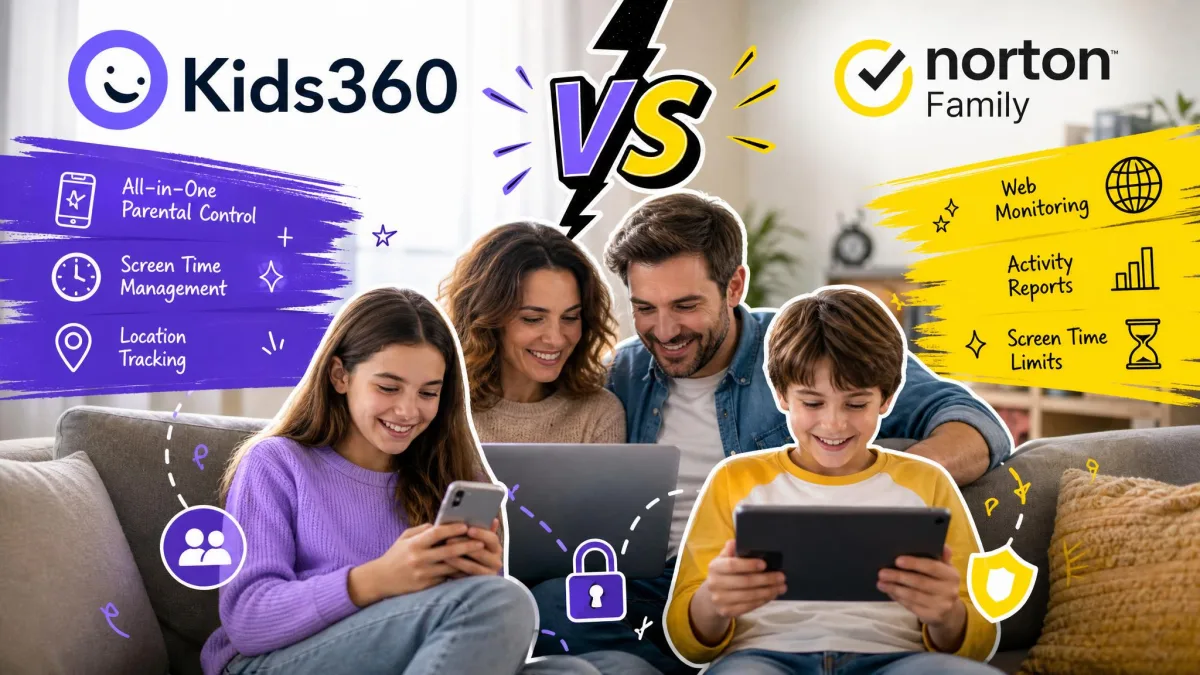
Kids360 is a subscription parental control app built around the idea that children respond better to feedback than to locks. The parent installs a controlling app on their own phone, the child installs the companion app, and the pair sync so you can watch usage, set limits and see where the phone is. It is aimed squarely at families who want to keep an eye on digital habits without simply confiscating the device, and the vendor says more than 1M parents use it.
Key Features of Kids360
The feature set is broad for a single app, and it covers most of what a parent asks for in the first week:
- Screen time limits with automatic scheduling, so weekdays and weekends can follow different rules
- A one-tap app blocker for the game or social app that has taken over the evening
- Adult-content web blocking
- App usage statistics that the child can see too, which is unusual and deliberate
- Location tracking with a location history map rather than a single live pin
- Developmental tasks that earn extra screen time, plus custom tasks you write yourself
- Physical-activity rewards, so steps and movement convert into minutes
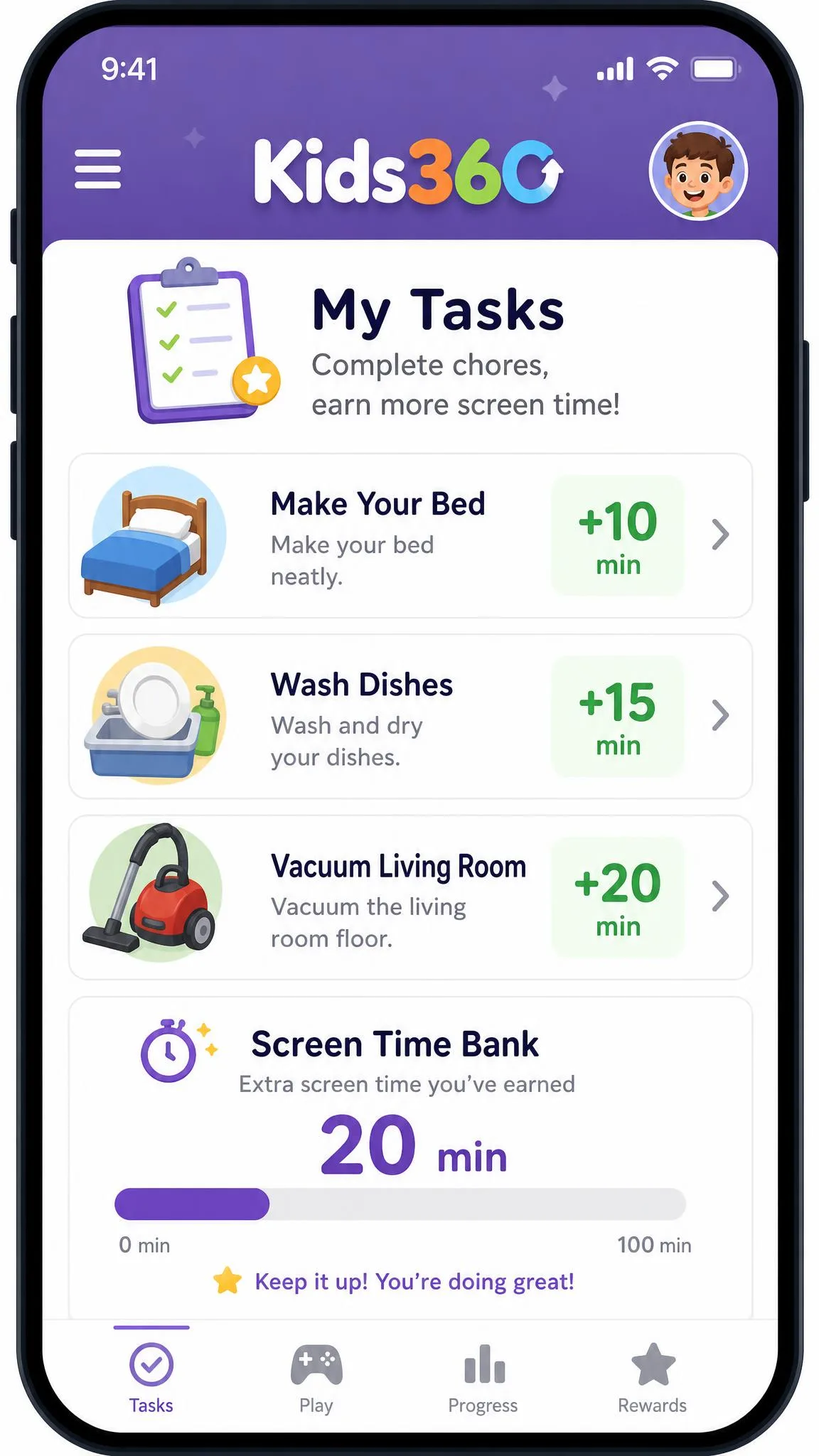
The tasks and rewards are the part parents warm to fastest. Earning screen time by finishing chores or reading softens the nightly argument in a way that a hard cut-off never does, and it is the clearest reason to pay for this app rather than use a free one.
Kids360 Pricing and Plans
Kids360 is free to download, with in-app purchases running from $7.99 to $79.99 on the App Store, where $79.99 is the top tier. The vendor publishes no pricing page, so the exact plan you are offered depends on your region and on the paywall you land on. Reported subscription figures sit around $4.99 per month in the US and GBP 9.99 per month or GBP 79.99 per year in the UK, but the subscription price varies by region and by the offer shown after setup, so the figure a parent sees at checkout can differ. A 7-day free trial is commonly offered, though the trial is presented through the app-store paywall rather than documented on the product site, so the offer shown can vary.
One thing is worth knowing before you start. Kids360 downloads free and only reveals its subscription price once setup is finished, so you will have both phones paired and permissions granted before you see what it costs.

Platform Support and Setup
Kids360 runs on iPhone, iPad and Android, with broad handset coverage across Samsung, Xiaomi, Huawei, Vivo, Sony and LG, and it is distributed through the Huawei AppGallery and the Galaxy Store as well as the mainstream stores. The iOS build requires iOS 17.0 or later, and the Android app requires Android 7.0 or later.
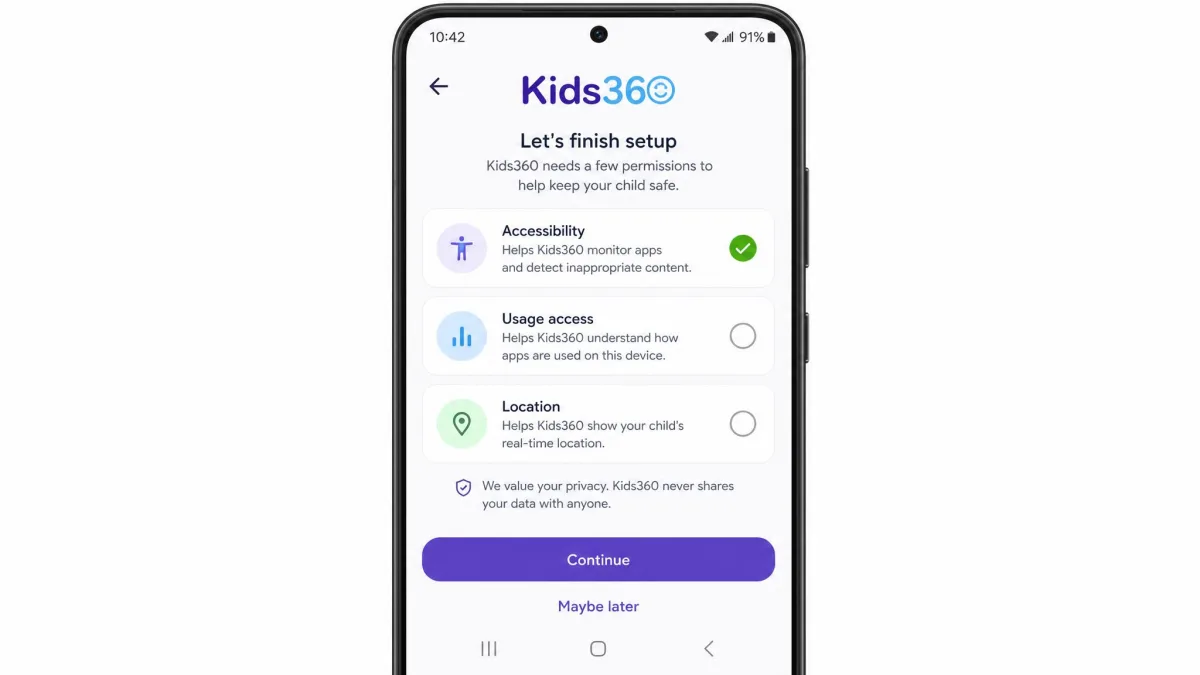
Setup takes longer than Family Link's because nothing is pre-wired. You install on both devices, pair them with a code, then grant a long run of Android permissions covering accessibility, usage access and location. On iPhone, some advertised controls such as app blocking and time limits can stay unavailable even after setup completes, which is the single biggest reason to test the app on your child's actual handset before you commit to a year.
What Is Google Family Link?
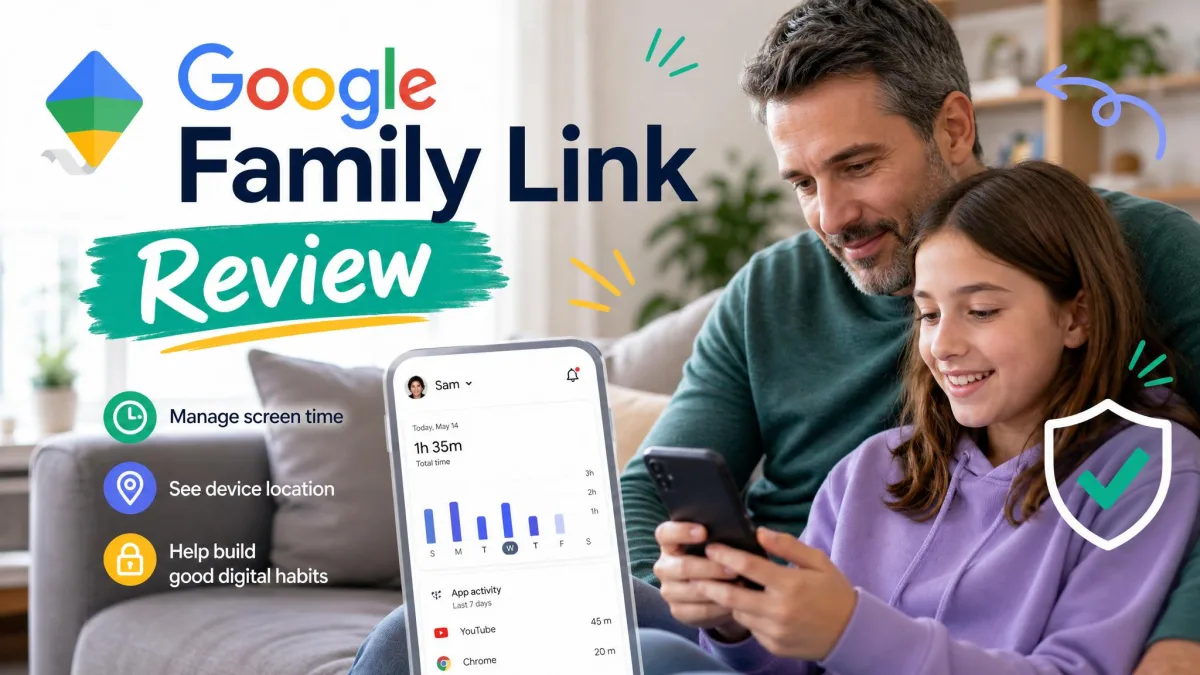
Family Link is Google's own supervision system, and it is free with no paid tier. Instead of installing a separate monitoring product, you create or convert a Google account for your child, mark it as supervised, and manage it from the Family Link app on your phone. Because it hooks into the account rather than bolting onto the device, it reaches into Chrome, Search, YouTube and Google Play in a way no third-party app can match.
Key Features of Google Family Link
- Daily device time limits, plus Downtime and School Time schedules
- Per-app time limits, or unlimited access for the apps you class as educational
- Full app blocking on the child's device
- Content controls for Chrome, Google Play, YouTube and Search
- App install approval, so nothing new arrives without your tap
- App permission and communication management
- A shared location map with arrive and leave notifications
- Ring the device and check its battery level
- Account password and data management for the child's Google account
Setup runs quickly and smoothly for families already inside the Google ecosystem, since it hangs off accounts parents already have. If your child uses an Android phone and a school Chromebook, most of the plumbing is in place before you start.
Google Family Link Pricing and Availability
There is no pricing decision to make here. Family Link is free, permanently, with no premium tier waiting behind a feature you will eventually need. You can read the full feature list on Google Family Link and download the parent app from Family Link on Google Play.
Availability has conditions, though. The parent and child must live in the same country, and Family Link is not offered in every country or region.
Platform Support and Setup
The requirements for supervised accounts on Android are clear. A supervised child device needs Android 6.0 or later, a supervised Chromebook needs Chrome OS 71 or higher, and the supervising parent must be 18 or older, or the appropriate age in their country. Parents can run the app on iPhone or iPad with iOS 16 or later.
The catch is what that iOS support does not mean. A parent can manage from an iPhone, but iPhones and iPads cannot be supervised through Family Link as child devices. On an iPhone child device the controls barely function, with no app blocking, no device location and no app-activity view. If your child carries an iPhone, Family Link is not a serious option and Apple's own Screen Time is the better free route.
Feature-by-Feature Comparison
Screen Time Limits and Daily Schedules
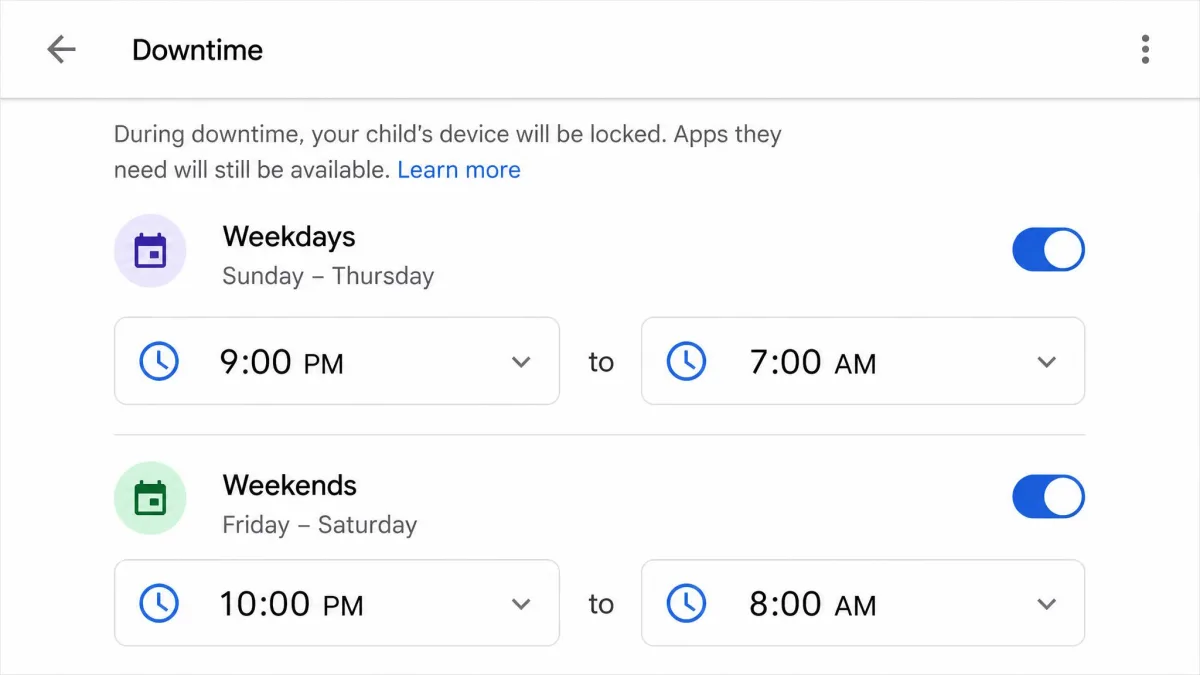
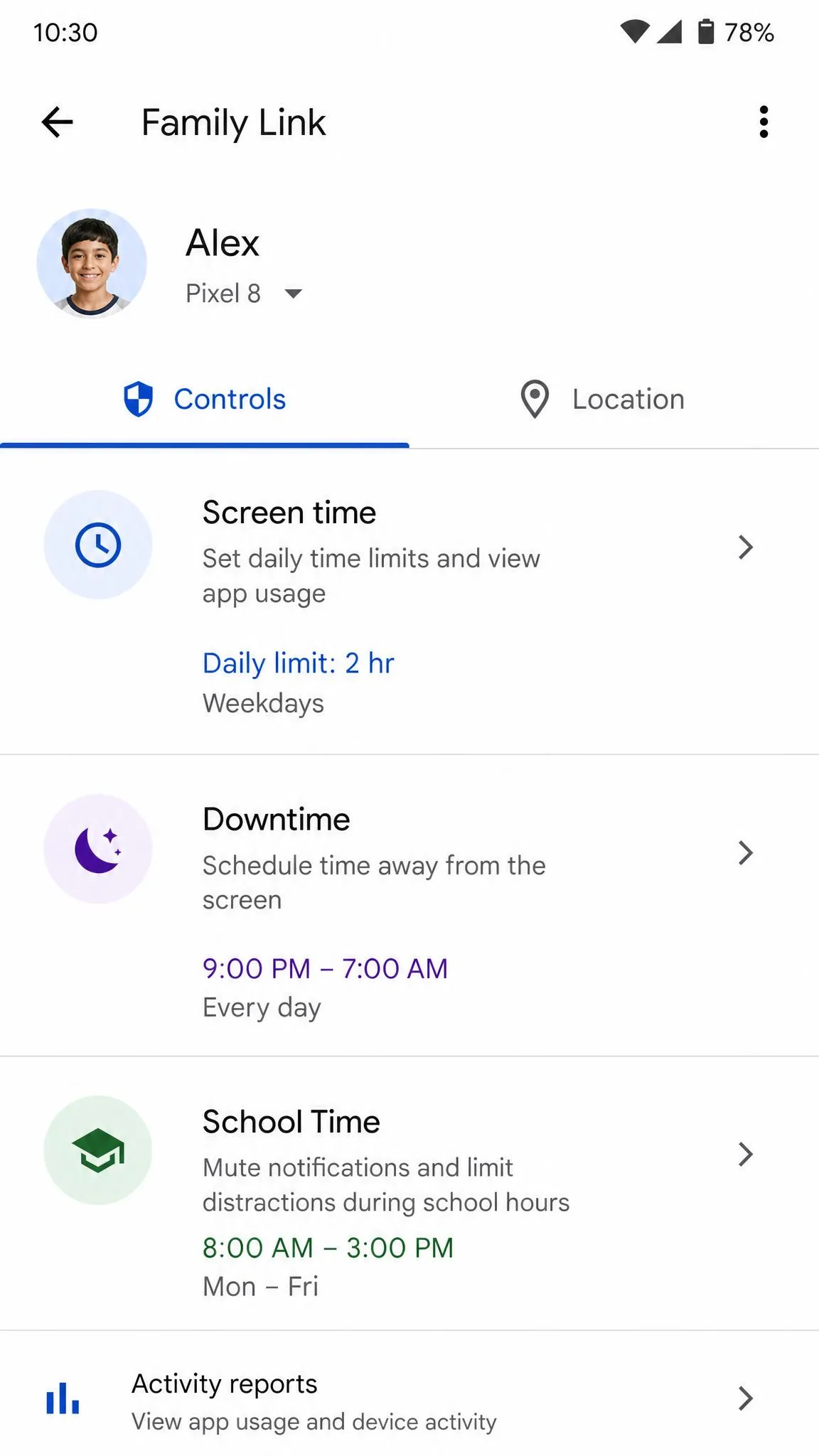
Both apps handle the basics, meaning a daily allowance and a bedtime. Family Link goes further on structure, splitting the day into Downtime and School Time so the phone can be locked during lessons without touching the evening allowance, and letting you exempt individual educational apps from the daily cap.
Kids360 covers daily limits with automatic scheduling, and its limits are more visible to the child, who can watch their own remaining time. The reliability is the problem. Kids360 screen-time schedules can fail to apply, letting a child keep using the phone well past the daily limit, which is the worst possible failure in a paid app. Family Link's own weakness is milder, because its settings can take a while to propagate, so a changed limit or a granted bonus does not always unlock the device right away.
Test any limit before you rely on it. Set a five-minute cap on a single app, hand the phone back, and watch what happens when the timer runs out. A limit you have not verified is not a limit.
App Blocking and App Management
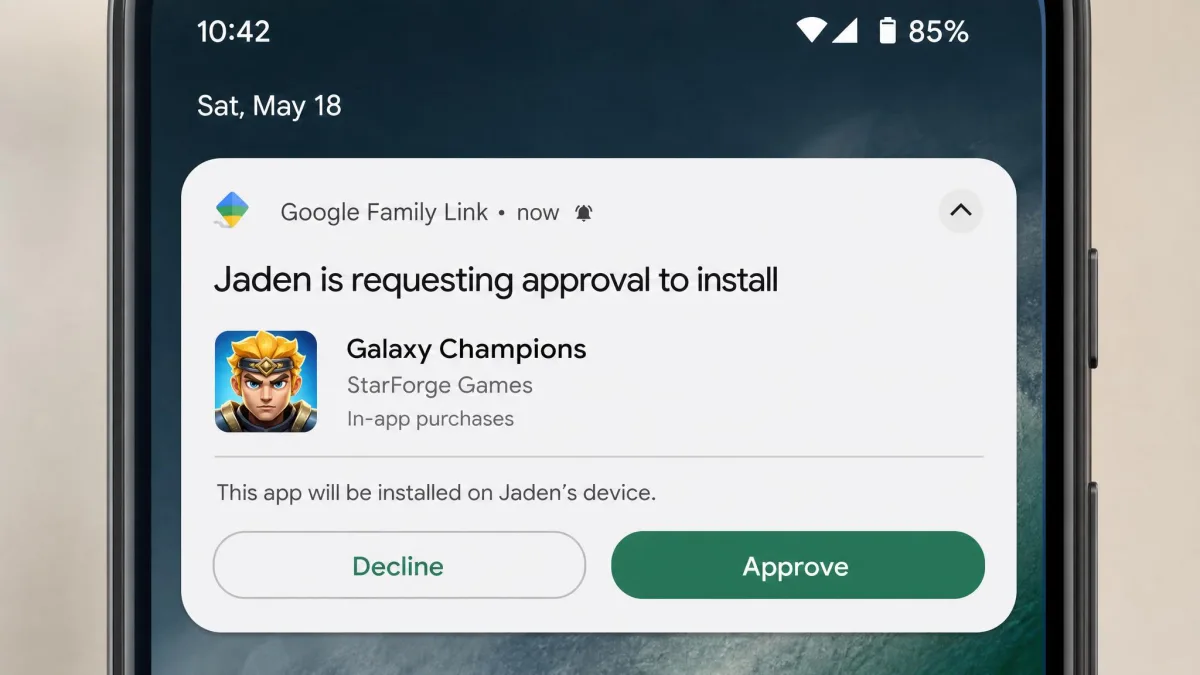
Family Link is the stronger enforcer here. You can block any installed app outright, set per-app time limits, manage app permissions, and approve or refuse every new install from Google Play before it downloads. That approval step is the feature parents miss most when they leave Family Link, because it stops the problem before it lands.
Kids360 answers with a one-tap app blocker, which is genuinely quick when a game needs to go dark right now, and per-app limits alongside it. What it does not do is gate installs, so a child can still download something new and you find out from the usage statistics afterwards rather than from an approval request beforehand.
Web and Content Filtering
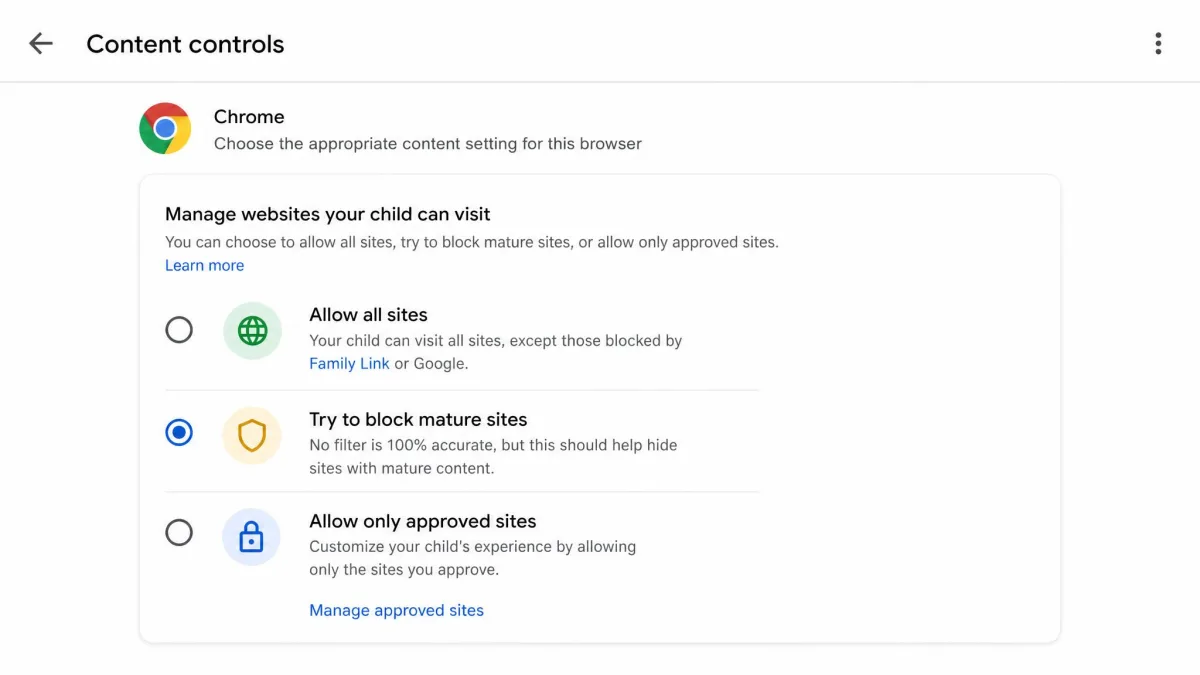
Because Family Link controls the account, its filtering reaches into places Kids360 cannot. You get content controls for Chrome, Google Play, YouTube and Search from one screen, with SafeSearch enforced and Play ratings capped by age.
Kids360 offers adult-content web blocking, which is the coarser tool, aiming at the obvious category rather than tuning what a child sees inside each Google service.
Family Link has a real gap of its own, though. Its web restrictions only bite while the child is signed into their Google account, so a child who simply does not sign in on a shared family computer walks straight past them. If your household shares a laptop, plan on router-level filtering or separate computer profiles as well.
Google supervision is designed around children under 13, or the applicable age in your country. That threshold reflects the Children's Online Privacy Protection Rule and its local equivalents, and the Family Link child privacy policy explains what Google collects from a supervised account.
Location Tracking
Family Link shows the child's device on a shared map, sends arrive and leave notifications for saved places, lets you ring the phone when it has vanished into the sofa, and reports its battery level. The battery reading matters more than it sounds, because Family Link location only updates while the child's phone is powered on, recently active and online. A dead battery blanks the map.
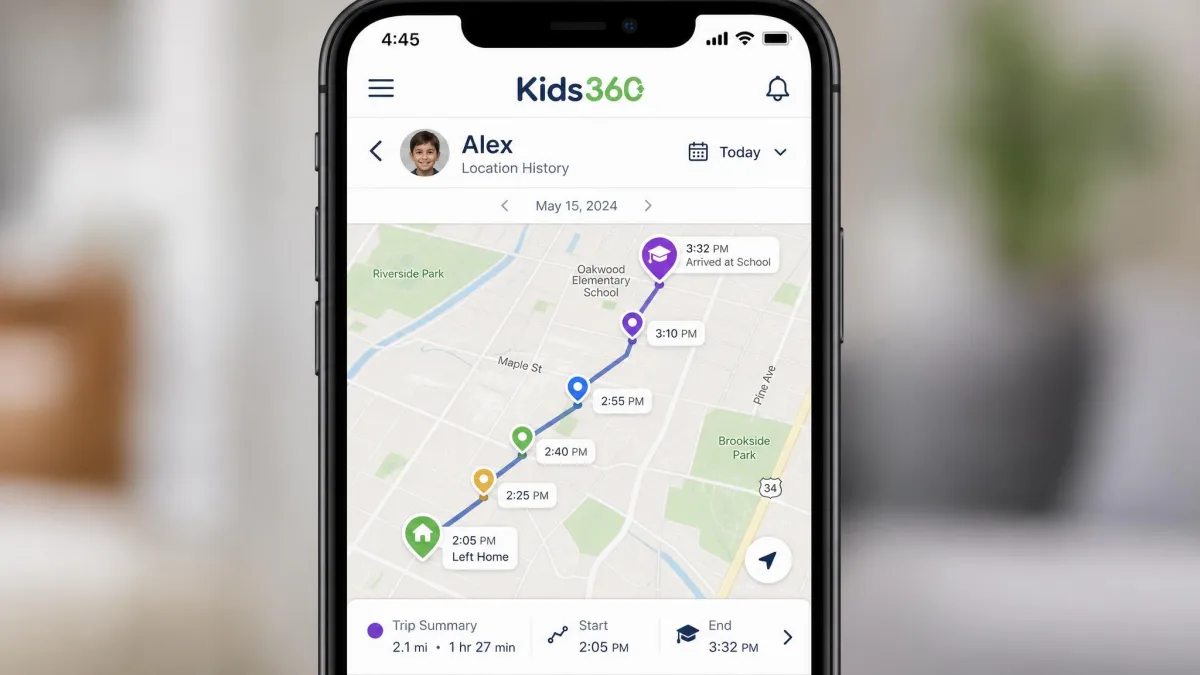
Kids360 adds location history, so you see where the phone has been rather than only where it is, which is the more useful view when you are reconstructing an afternoon. Accuracy is the weak point, because the location reading often lands as an approximate area rather than an exact spot, and it can show a position that is hours or days stale. Turning off location services on the child's phone also silently defeats Kids360's tracking, with no alert to tell you the map has gone cold. The vendor describes the map as updating in real time but publishes no refresh interval, and in practice the pin can sit unchanged for long stretches, so a check-in often tells you where your child was rather than where they are.
Activity Reports and Usage History
Family Link reports app activity by day, week and month, which is enough to spot a pattern and start a conversation. It stops there. Family Link does not monitor texts, calls, social media or detailed web history, and it sends no real-time alerts about worrying activity, so it works as a usage dashboard rather than a safety net.
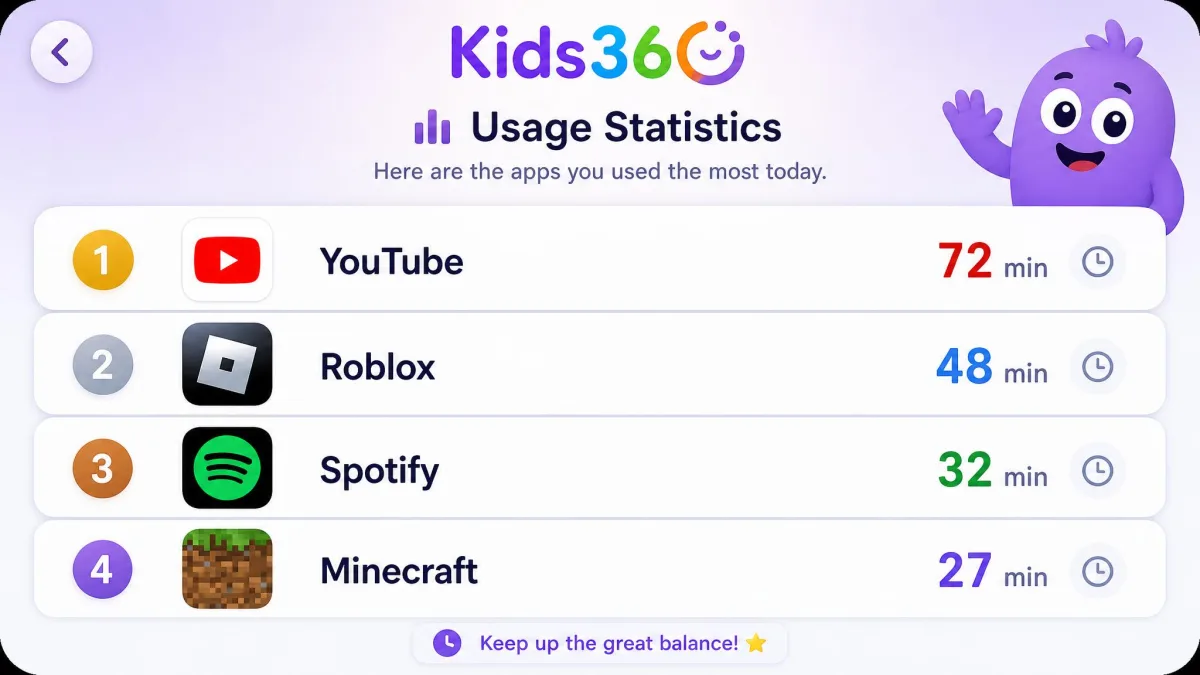
Kids360 shows app usage statistics too, and makes the deliberate choice of showing them to the child as well. Handing a 12-year-old their own weekly numbers does more to change a habit than a quiet parental dashboard ever does. The sync that feeds those numbers is not always prompt, since Kids360 can freeze or lag while syncing between the parent and child devices, which undercuts a real-time check.
Rewards, Tasks and Child Buy-In
This is the clearest win for Kids360 and the reason some families pay for it. Developmental tasks, custom tasks you write yourself, and physical activity all convert into extra screen time. The child earns minutes instead of losing them, and the parent stops being the only source of the answer no.
Family Link has no equivalent. You can grant bonus time manually, but there is no mechanism that lets a child earn it, so every extension is a negotiation with you.
Family Link decides what your child can do. Kids360 tries to change what your child wants to do. The second is harder, and it is the only thing worth paying for here.
Privacy, Trust and How Intrusive Each App Feels
Family Link is the less intrusive of the two by design. It manages an account, tells the child their device is supervised, and does not read messages. Kids360 sits closer to monitoring, and although showing usage statistics to the child is an honest touch, the app still watches more and reports more.
The right level of oversight changes with age. The pressure to monitor heavily is understandable for younger children, whose heavier early screen use has been linked to later depression and anxiety, but a tech-savvy teenager who discovers covert tracking will route around it and trust you less afterwards. Tell your child what is turned on.
Ease of Use and Setup Experience
Family Link wins the first hour comfortably. If the family already uses Google accounts, you create or convert the child account, sign in on their device, and the controls are live in minutes. The interface groups everything under one menu, so to set a bedtime you open Family Link, tap Controls, then tap Screen time and pick the days.
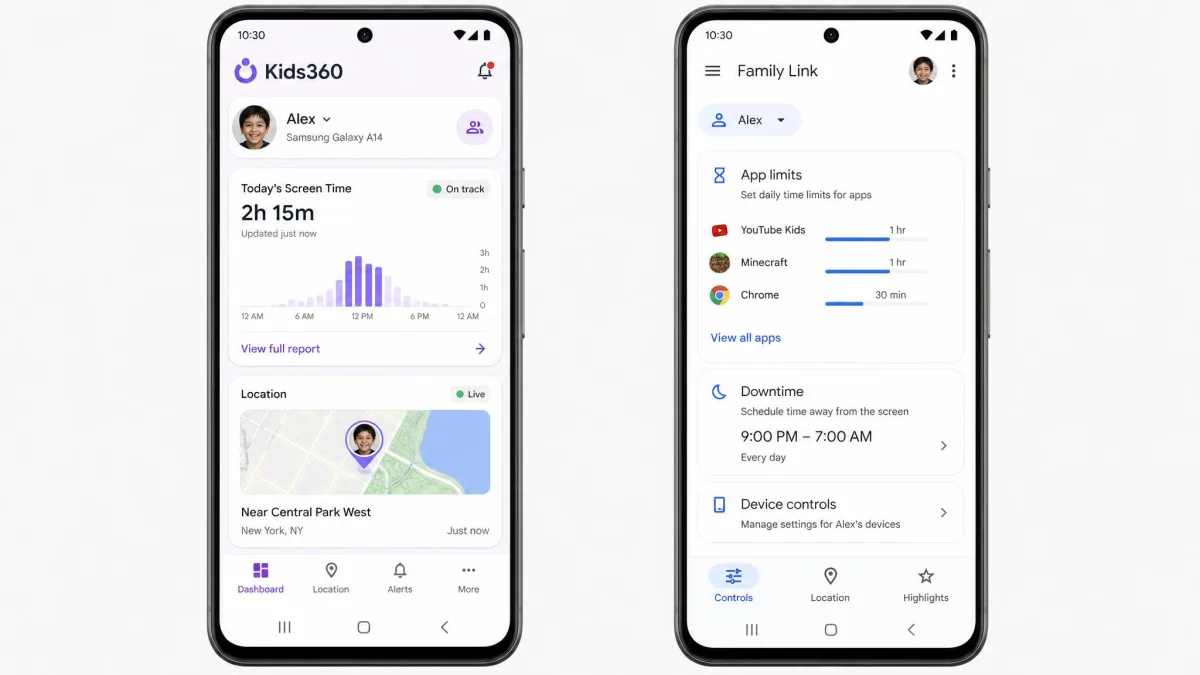
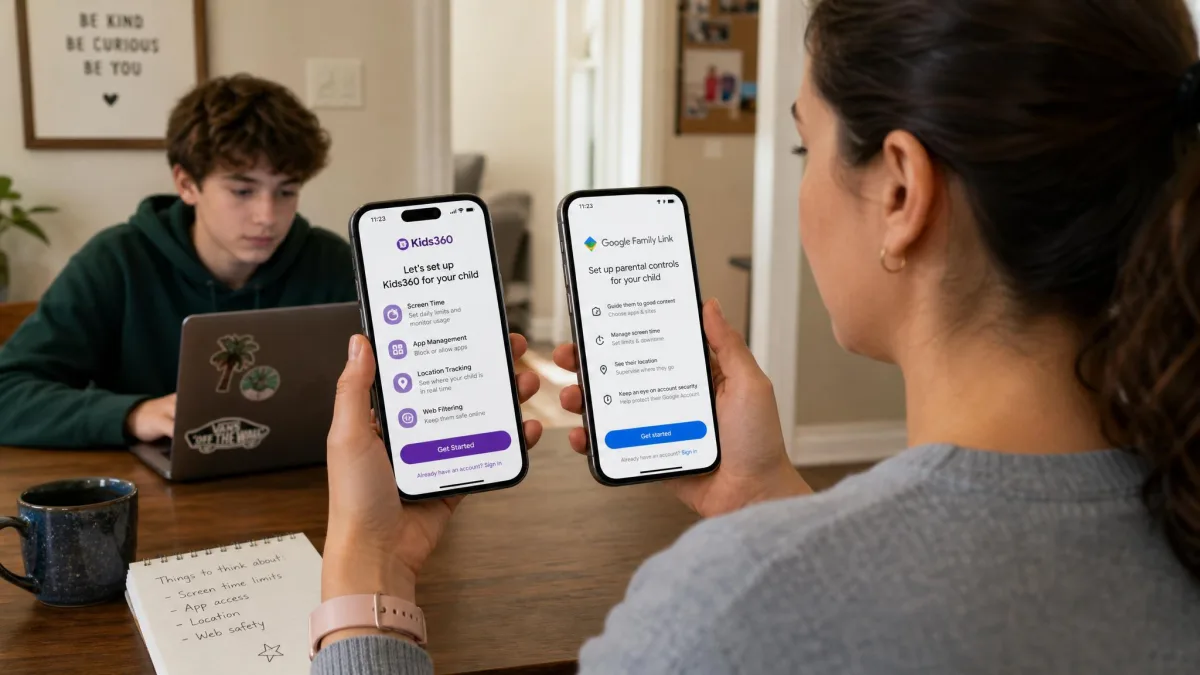
Kids360 asks more of you. Install on both phones, pair with a code, grant the permission stack on Android, and only then meet the paywall. Once running, the parent dashboard is clean and easy to read. The friction shows up later instead, because controls can behave inconsistently across multiple child profiles, fully restricting one device while leaving another unmanaged, and support replies slowly and often with generic automated answers, with subscription renewal a recurring sore point.
We compared these two apps against the same everyday questions a parent actually asks, and weighted what families report after months of daily use above first-day impressions, because both apps look equally capable on day one.
The ratings tell the same split story. Kids360 holds 4.6 out of 5 across 8.9K App Store ratings and 4.7 in Google Play, while Trustpilot's 204-review community rates it 3.6 out of 5, with 41% of those reviews sitting at one star against 40% at five. Store ratings capture the honeymoon. Complaint-led review sites capture the renewal.
Limitations: What Each App Cannot Do
Both apps are easy enough to live with day to day, and what separates them is where each one stops.
Limits of Google Family Link
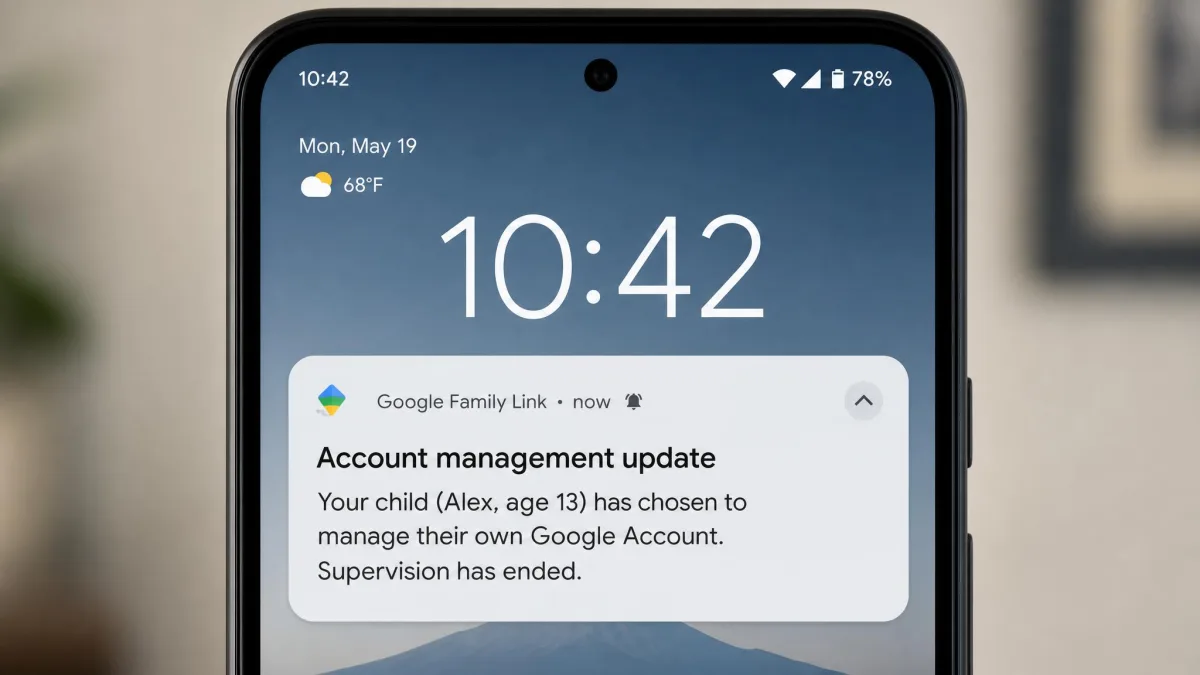
- Supervision is built for children under 13, or the applicable local age, and an older child can manage their own account and end supervision.
- iPhones and iPads cannot be supervised at all, only used as the parent device.
- Web restrictions apply only while the child is signed into their Google account.
- No message, call, social media or detailed web-history monitoring, and no real-time alerts.
- Parent and child must live in the same country, and the service is not available everywhere.
- Setting changes can take a while to reach the child's device.
Limits of Kids360
- The subscription price is only revealed after setup is complete.
- Screen-time schedules can fail to apply, letting a child run past the daily limit.
- Location can be approximate and hours or days stale, and switching off location services defeats it silently.
- Advertised iPhone controls such as app blocking and time limits can stay unavailable after setup.
- Controls can behave inconsistently across multiple child profiles.
- Syncing between parent and child devices can freeze or lag.
- Support responses are slow and often automated, especially around renewals.
Pros
- Google Family Link is free forever, with no feature held back behind a paid tier
- Family Link's install approval stops unwanted apps before they arrive
- Kids360 shows children their own usage statistics, which shifts habits faster than a silent parental dashboard
- Kids360's tasks and rewards give children a way to earn screen time
Cons
- Kids360's screen-time schedules can fail to apply, so a limit you set may not hold
- Neither app properly supervises an iPhone child device
- Kids360's location readings can be approximate or hours out of date
- Family Link's setting changes can take a while to reach the child's device
Which App Should You Choose?
Best for Younger Kids (Under 13)
Google Family Link, on an Android device, without much hesitation. It is free, it is built-in to the account your child is already using, install approval covers the most common problem, and the content controls for YouTube, Search and Play do real work at this age. Add Kids360 later only if you want the rewards system.
Best for Teens (13 and Up)
Kids360. Once a child turns 13 the Google model stops fitting, and an app with no account-age cutoff is the only one still standing. A teenager will also respond better to earning time than to a bedtime lock they know they can dissolve.
Best if You Want a Free Option
Family Link, and it is not close. Free with no paid tier and no upsell is rare in this category, and its feature list beats plenty of paid apps on app management and content filtering.
Best if You Want Deeper Insight and Fewer Fights
Kids360, provided you test it on your child's exact handset first. The combination of usage statistics the child can see and screen time the child can earn is what changes behaviour, and it is why some families keep paying despite the reliability complaints.
Can You Use Kids360 and Google Family Link Together?
Yes, and for a lot of families this is the sensible answer. The two apps do not compete for the same job, since Family Link handles account-level control, app install approval and content filtering, while Kids360 handles the tasks, rewards and location history on top.
Run both and expect some friction. Two apps enforcing separate daily limits will confuse a child about which timer is actually counting, and Kids360's Android permissions can collide with Family Link's app restrictions if Family Link blocks the Kids360 companion app. Set the limits in one app only, use the other for what it uniquely does, and check that neither is blocking the other after each Android update.
Alternatives Worth Considering
If neither app fits, three others are worth a look. Qustodio covers iOS more completely and reports far more detail, at a subscription price. Bark takes the opposite approach and watches for worrying content in messages and social apps instead of counting minutes, which suits older teens. Net Nanny remains the strongest pure web filter if content, rather than time, is your concern. For an iPhone household, Apple's own Screen Time is free, native and more capable than anything Family Link can do on that platform.
Common Mistakes Parents Make
Whichever of these tools you land on, including the alternatives above, the same handful of errors cause most of the disappointment. The most common one is installing an app and never testing it. Every failure described in either product, from a limit that did not apply to a location that never refreshed, would have surfaced in ten minutes of deliberate checking on the child's own device.
The second is buying for the wrong age. Family Link is excellent value and useless the day your child turns 13 and taps to end supervision. If your child is 11 or 12, plan the handover now rather than discovering it later.
The third is hiding the app. Both products work better when the child knows what is turned on and why, and Kids360's decision to show usage statistics to the child is the healthier model. Covert monitoring buys a few weeks of peace of mind and costs the conversation you actually need. Our Google Family Link review covers the enforcement gaps in more detail.
Frequently Asked Questions
Is Kids360 better than Google Family Link?
Is Google Family Link really free?
Does Family Link stop working when my child turns 13?
Can my child uninstall or bypass either app?
How do I supervise a mixed household with one Android child and one iPhone child?
What happens to Kids360 if I cancel the subscription?
Which one tracks location more accurately?
Final Verdict
Whichever way you lean, spend the Kids360 trial week testing rather than exploring. Set a five-minute cap on one app on your child's actual handset and watch what happens when the timer expires, then walk somewhere with the phone and see whether the map follows within a few minutes or sits on yesterday's pin. Those two checks tell you more than the feature list does, and they cost nothing while you can still cancel.
There is one household this comparison does not serve, and that is the all-iPhone family. Neither of these apps supervises an iPhone properly, so the honest answer there is Apple's own Screen Time, which is free, native and can do things no third-party app is permitted to do on iOS. Add one of these apps afterwards only if you want a location map on top.