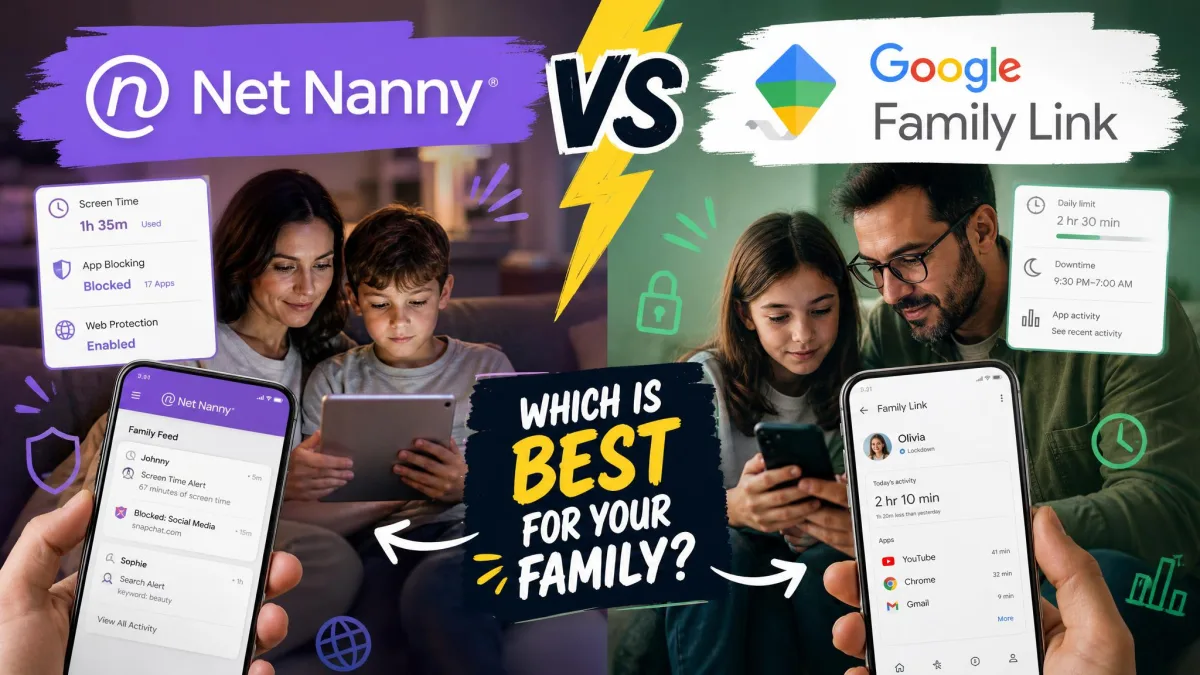
Most parents shopping for a parental control app are really choosing between two different jobs. One job is watching: knowing what your child is saying and reading, and getting a nudge when something looks wrong. The other job is blocking: keeping adult content off the screen in the first place. Bark is built for the first job, and Net Nanny is built for the second.
For most families in 2026, Bark is the better buy. It monitors texts, email and more than 30 social platforms, it covers unlimited children and devices on one subscription, and it works on every platform your kids are likely to own. Net Nanny still has the stronger real-time web filter, and it is cheaper if you only need to lock down one Windows PC. Below is what we found when we went through both apps feature by feature.
Bark vs Net Nanny: The Short Answer
Bark wins on breadth. A single Bark subscription covers every child and every device in the house, monitors more than 30 apps and platforms, and sends AI alerts for bullying, self-harm, predators and drugs. Net Nanny does none of that, because watching what a child says was never the job it was built for.
Net Nanny wins on filtering. Its real-time filter reads pages as they load and blocks explicit content before it reaches the screen, and it cleans up YouTube thumbnails and search results rather than switching the whole platform off. If your worry is stumbled-upon adult content on a family iPad or a shared Windows laptop, that is a genuine advantage.
The catch is platform support. Net Nanny's current product listing covers Windows, macOS and iOS only. There is no Android client, no Chromebook client and no Kindle client, which rules it out for a large share of families before the feature comparison even starts.
Bark vs Net Nanny: Side-by-Side Comparison Table
Here is the head-to-head at a glance. Everything in this table is unpacked in the sections that follow.
| Feature | Bark | Net Nanny |
|---|---|---|
| Best for | Families who want AI monitoring of texts and social media | Families who want strict web filtering on iPad and Windows |
| Starting price (monthly/annual) | $5/mo Bark Jr, $14/mo Premium; $49 or $99 per year | No monthly option; from $39.99 per year |
| Devices covered | Unlimited children and devices | 1, 5 or 20 devices by plan |
| Platforms | iOS, Android, Windows, Mac, Chromebook, Amazon Fire | Windows 10 and 11, macOS 10.13 and up, iOS 11 and up |
| Web content filtering | Yes, 20-plus blockable categories | Yes, real-time dynamic filtering |
| Social media and text monitoring | Yes, 30-plus apps and platforms | No |
| AI alerts | Yes, for bullying, self-harm, predators and drugs | No |
| Screen time scheduling | Yes, schedules by time of day | Yes |
| App blocking | Yes | Yes |
| Location tracking | Yes, with 7 days of history | Yes |
| Geofencing | Yes, place alerts up to a 656-foot radius | No |
| Free trial | 7-day free trial | No listed free trial; 14 day return policy |
| Customer support channels | Email and live chat in business hours, help center | Chat and email, no published phone line |
What Is Bark and How Does It Work?
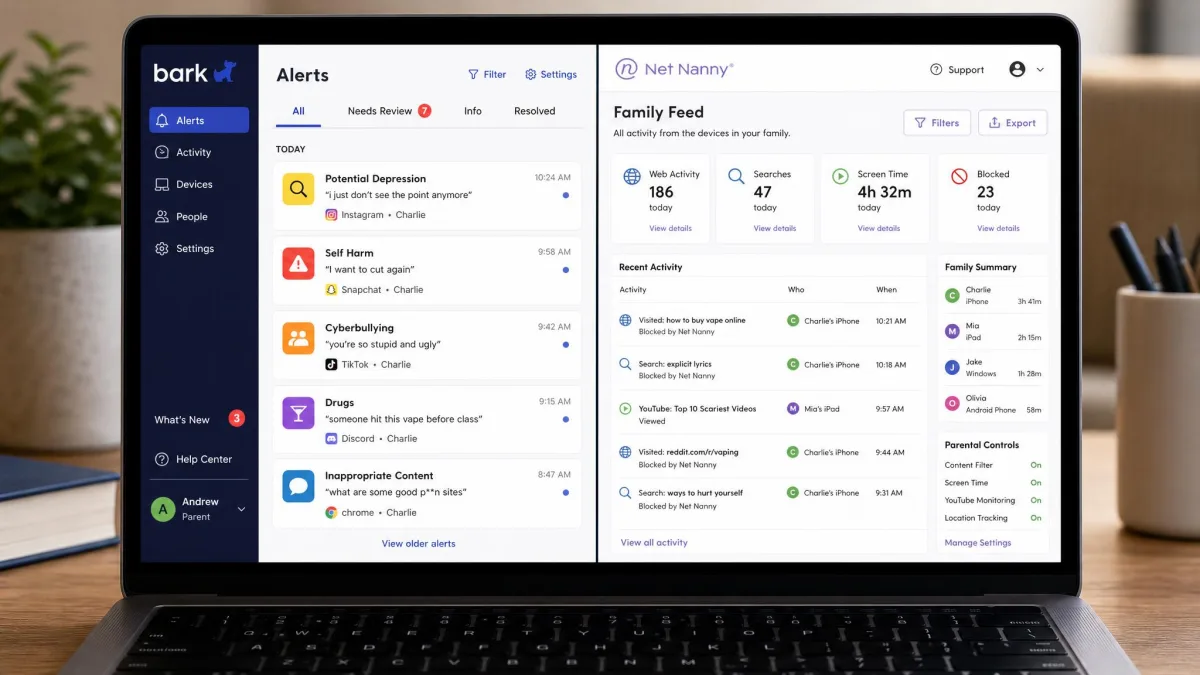
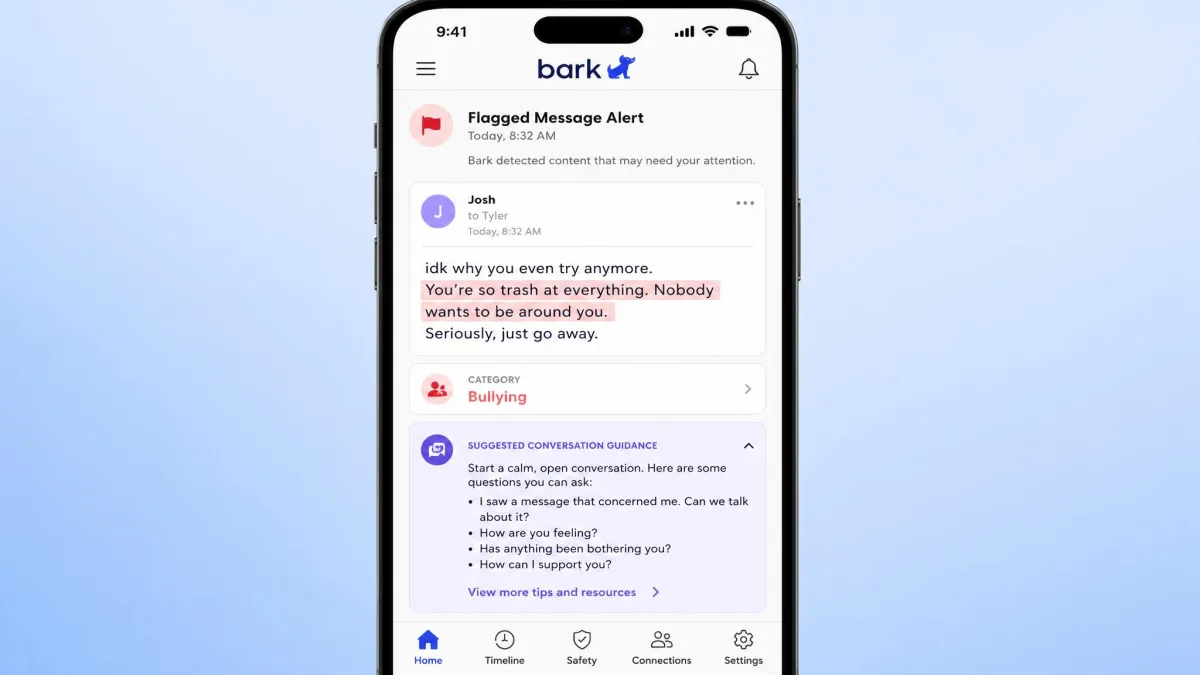
Bark is a monitoring service first and a blocking tool second. You connect your child's accounts and devices, and its AI reads the content flowing through them: texts, email, YouTube and more than 30 apps and platforms including Instagram, TikTok, Snapchat and Discord. Instead of handing you a transcript of everything, it flags the messages that look concerning and sends you the excerpt plus guidance on how to talk about it.
That design choice is the whole point. Bark is aimed at parents who want oversight without reading every message their teenager sends, which is a meaningfully different bargain from full surveillance. On top of monitoring it adds website and app blocking across 20-plus content categories, screen time schedules, and location tracking with place alerts and check-in requests. Setup includes a 60-day scan of connected social history, so you get context from day one rather than starting from an empty feed.
Bark's Strengths
Coverage is the standout. One subscription covers unlimited children and unlimited devices, so a family with four kids pays what a family with one kid pays. It also runs on every platform that matters in a normal household: iOS, Android, Windows, Mac, Chromebook and Amazon Fire.
Installation is guided rather than left to you. Bark walks parents through a step-by-step to-do list, and on Android the whole process takes about 5 minutes. Live support agents will help tune alert sensitivity, which is more useful than it sounds once alerts start arriving.
Where Bark Falls Short
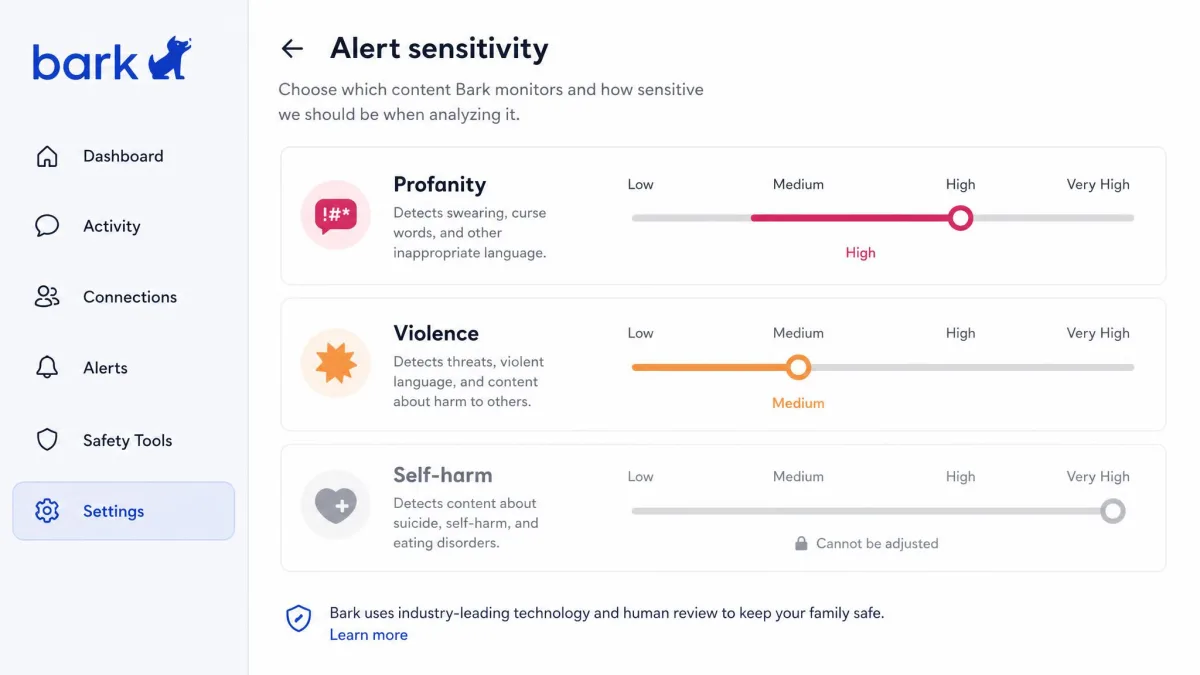
At high sensitivity, Bark cries wolf. We left the sliders at maximum for the first day, and the alert feed had filled up by lunchtime. An emoji-heavy text containing a beer mug came through as alcohol content, a haircut confirmation email came through as a self-harm risk, and a busy group chat kept flagging the same unknown numbers as risky contacts, which was the highest-volume nuisance alert of the lot. Pulling the sliders down category by category cleared most of that noise the next day, but not every category has a slider to pull, so a handful of the repeat alerts stayed exactly where they were.
The standard Bark app also has no browsing history, no call logs and no contact management, so it is not the tool for a parent who wants a full activity record of every site visited.
Pros
- One price covers unlimited children and devices
- Monitors 30-plus apps and platforms, including texts and email
- AI alerts for bullying, self-harm, predators and drugs
- Runs on iOS, Android, Windows, Mac, Chromebook and Fire
- 7-day free trial before you commit
Cons
- False alarms at high sensitivity, especially on emoji and group chats
- No browsing history, call logs or contact management in the standard app
- Fuller iOS monitoring needs the paid Bark Sync add-on
- Live support is business hours only
What Is Net Nanny and How Does It Work?
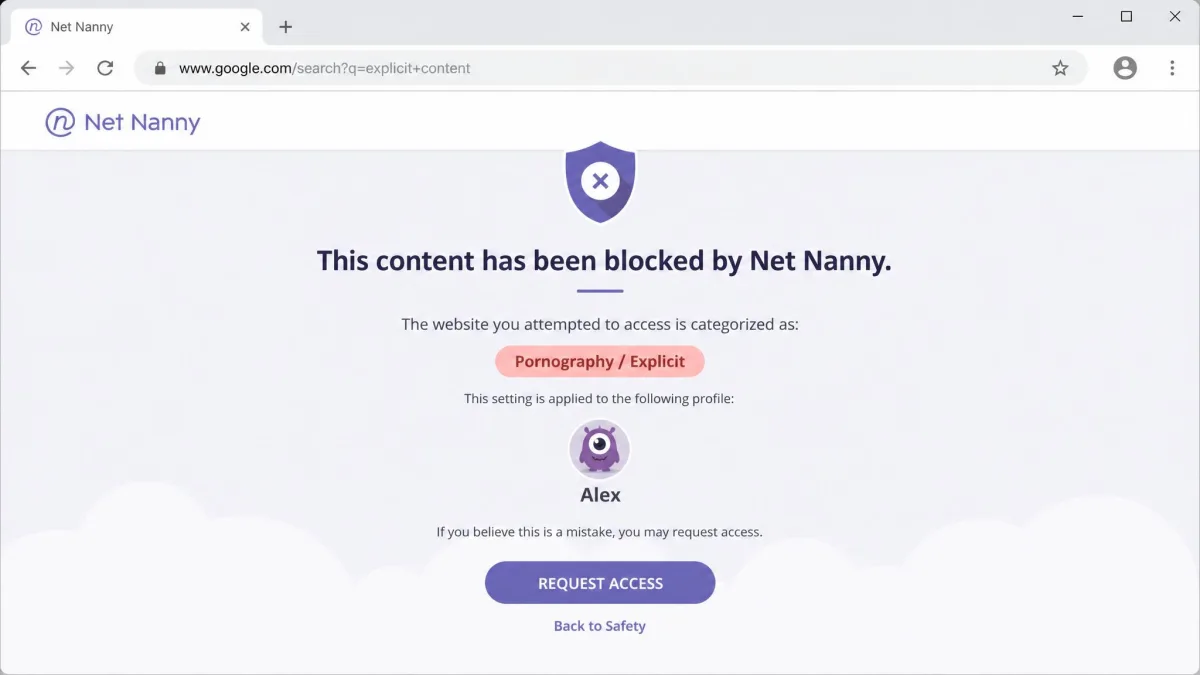
Net Nanny is a content filter with a parental dashboard attached. Its core technology reads web pages in real time as they load and decides whether to allow, warn or block, rather than checking a URL against a list of banned domains. That distinction matters on sites where one page is harmless and the next one is not.
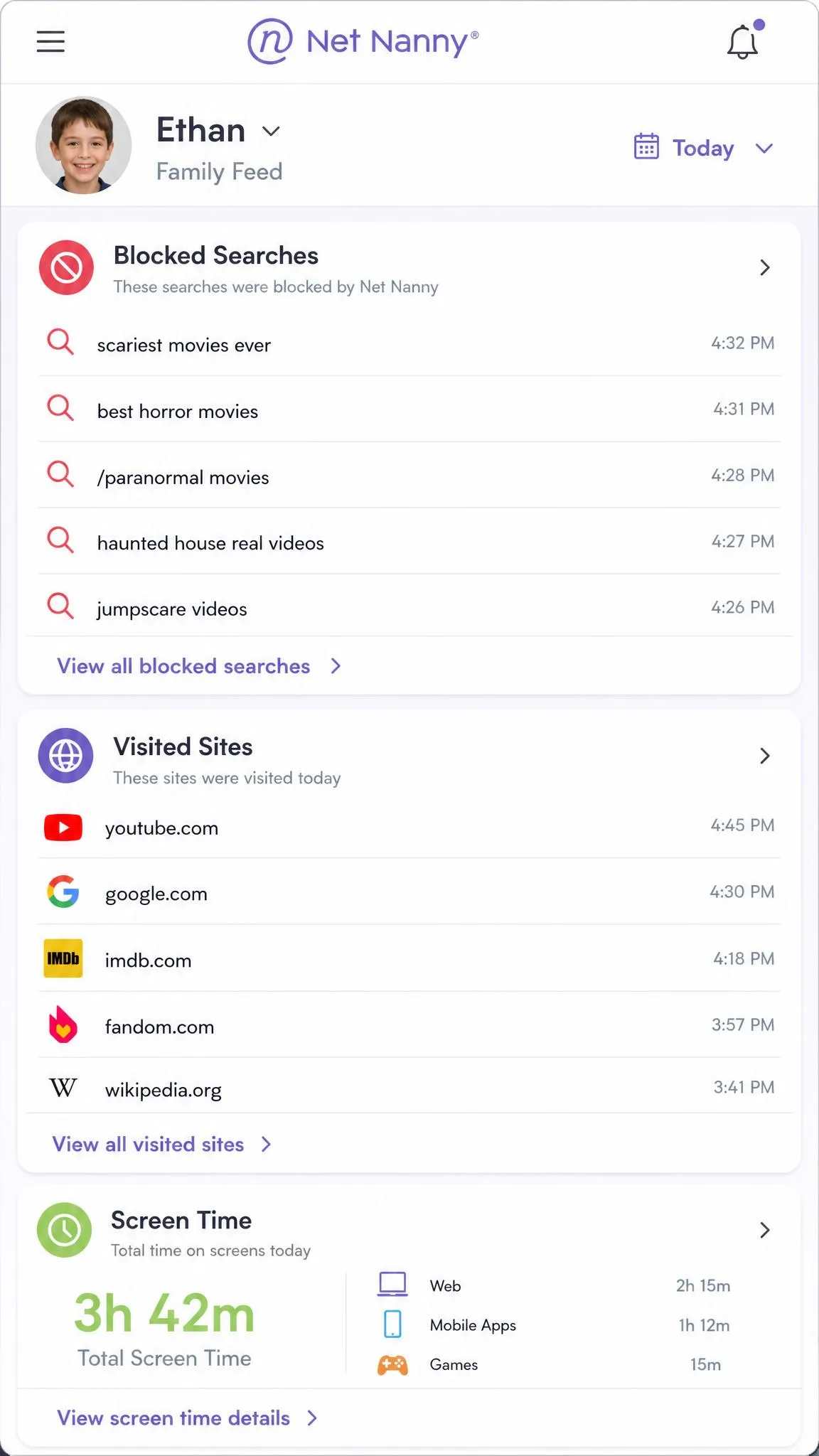
Around the filter sits a familiar set of controls: pornography blocking, app blocking, screen time management, YouTube monitoring, location tracking, alerts and reporting, per-profile settings, and a parent dashboard with a Family Feed summarising the day. Each child gets their own profile, so you can run a strict setup for a nine-year-old and a looser one for a sixteen-year-old on the same account. Setup on iOS and Windows takes roughly 15 minutes.
Net Nanny's Strengths
The filter is the reason to buy it. It blocks explicit pages before they load, and it cleans up YouTube thumbnails and search results instead of forcing an all-or-nothing block on the whole site. For younger kids who mostly browse and watch, that is exactly the right control to have.
Pricing is also simple to read. Everything is annual, there is no add-on ladder to climb, and a one-desktop plan is genuinely cheap.
Where Net Nanny Falls Short
The gaps in the feature set are large. Net Nanny has no geofencing, no per-app time limits, and no social media or message monitoring at all. Custom keyword filtering also misses explicit language in some searches, so the automatic filter carries more of the load than the settings screen suggests.
Reliability issues are the bigger concern, and the desktop install is where they begin. Finishing the Windows install puts a filtering certificate in place that browsers do not trust, and Firefox then refuses to load pages rather than quietly passing them through the filter. Nothing in the dashboard adjusts that certificate, so there is no setting to go and change once it bites. Time limits get ignored by some apps, and dashboard activity reporting comes back inaccurate on newer devices. Account signup can only be completed on mobile, and moving around the dashboard afterwards is confusing. Cancelling online is difficult, and auto-renewal charges can continue after a parent believes they have stopped. Trustpilot's community rates Net Nanny 1.9 out of 5 across 14 reviews, with 93 percent of them one star, though that score sits on a very small review base and shifts with each new rating.
Pros
- Real-time filtering that blocks explicit pages before they load
- Cleans up YouTube thumbnails and search results
- Per-child profiles with independent settings
- Cheap for a single Windows or Mac computer
- 14 day return policy on direct purchases
Cons
- No Android, Chromebook or Kindle client
- No social media or message monitoring
- No geofencing and no per-app time limits
- Desktop certificate can break Firefox
- Cancelling online is difficult and renewals can continue
Web and Content Filtering: Net Nanny's Home Turf
This is the one category where Net Nanny clearly beats Bark. Real-time analysis means a page is judged on what it actually contains, not on whether someone has already added the domain to a blocklist, and new sites get caught the day they appear. The YouTube handling is the practical proof: thumbnails and search results are cleaned rather than the whole platform being switched off, which is the difference between a filter your child tolerates and one they fight.
Bark's filtering is category-based. You switch off 20-plus website and app content categories, and Bark blocks anything falling inside them. It works, and for most families it is enough. However, it is a blunter instrument than reading the page as it loads.
The caveat on Net Nanny's side is keyword filtering. Its custom keyword lists miss explicit language in some searches, so treat them as a supplement to the automatic filter rather than a control you can lean on by itself.
On iPhone and iPad, both apps run inside Apple's rules. Net Nanny filters through a device profile, and Bark cannot read texts, calls or browser history on iOS at all. Instagram, TikTok and Discord stay out of reach unless you connect each account directly, or add Bark Sync for $6 per month.
Social Media and Message Monitoring: Bark's AI Alerts
Here the comparison stops being close. Net Nanny does not monitor social media or messages, full stop. Bark's entire product is built around doing exactly that.
Bark reads texts, email, YouTube activity and more than 30 apps and platforms, then flags what looks like bullying, self-harm, predator contact or drug references. You get the excerpt that triggered the alert plus guidance for the conversation that follows, which is more useful than a raw log because it tells you where to start.
The trade-off is noise. At high sensitivity the false alarms are constant, and it takes a week or two of tuning the sensitivity sliders before the alert feed becomes something you actually read rather than dismiss. Budget that time when you set the app up. A family that gives up on tuning ends up ignoring alerts, which defeats the purpose entirely.
Bark tells you what your child said and why it worried an algorithm. Net Nanny tells you what your child could not reach. Which one you need comes down to your family's priorities.
Screen Time Management and Scheduling
Both apps schedule screen time by time of day, and both let you build different rules per child. Net Nanny's version is the more conventional one, with daily allowances and blocked periods that apply across the device.
Bark's approach is schedule-first. You create routines such as school hours, homework and bedtime, and choose which apps and sites are available during each. What Bark will not do on a standard phone is enforce a flat daily hour total. That only arrives if the family is on a Bark Phone, which is a meaningful limit if your rule at home is "two hours a day, whenever you like" rather than "nothing after nine".
Net Nanny's limits are not airtight either. Some apps ignore them, and dashboard activity reporting comes back inaccurate on newer devices, so the number of minutes you see is not always the number your child spent.
Location Tracking and Geofencing
Both apps track location. Only Bark does geofencing.
Bark lets you set place alerts with a radius of up to 656 feet, so you get a notification when your child arrives at school or leaves a friend's house, and it keeps 7 days of location history so you can look back rather than only forward. It also offers check-in requests, though those depend on your child opening the app and choosing to answer, so location on demand is not guaranteed.
Net Nanny reports where a device is and nothing more. There are no arrival and departure alerts and no saved places, which for parents of younger kids is often the single feature they wanted most.
Device and Platform Support (iOS, Android, Windows, Mac, Chromebook)
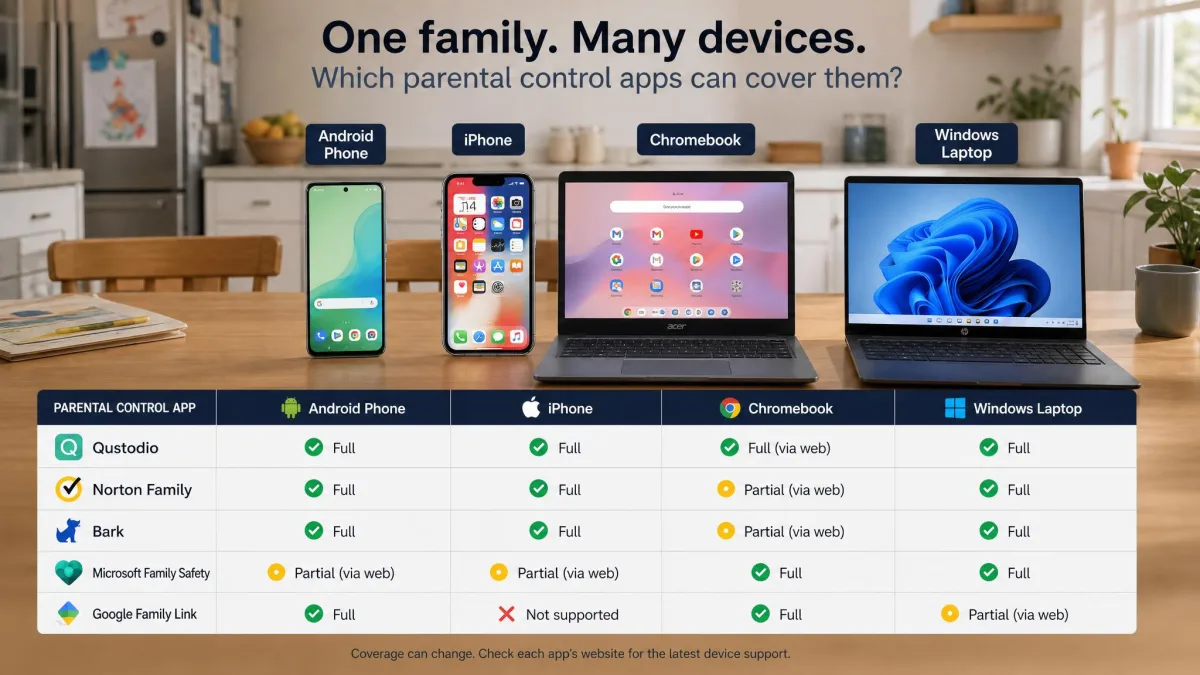
For many families this section ends the comparison. Bark runs on iOS, Android, Windows, Mac, Chromebook and Amazon Fire. Net Nanny's current product listing covers Windows 10 and 11, macOS 10.13 and up, and iOS 11 and up, with no Android, Chromebook or Kindle client.
Net Nanny's Android client no longer appears in its product listing, and where an Android child app can still be installed it often fails to finish connecting on tablets, leaving the dashboard showing no activity at all. Whatever the status is behind the scenes, the practical advice is the same: do not buy Net Nanny for an Android phone or tablet.
Chromebooks matter here too. School districts hand them out by the thousand, and a filter that cannot see a Chromebook is filtering the wrong screen.
Setup, Dashboard, and Day-to-Day Ease of Use
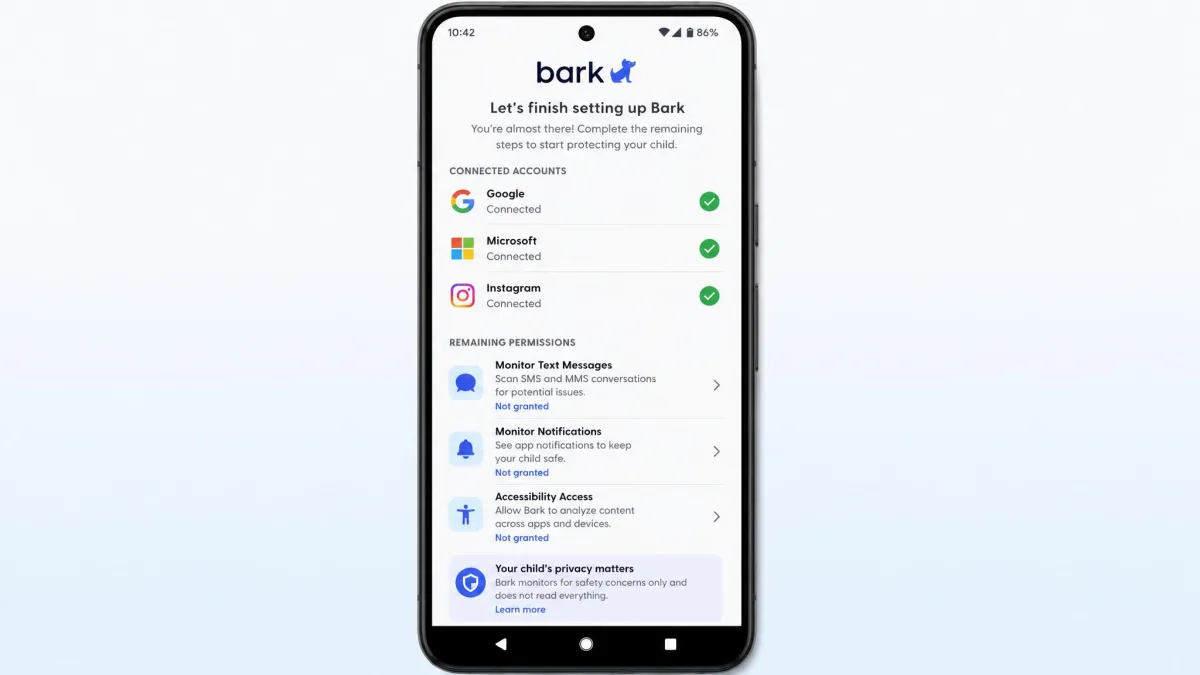
Those different priorities show up again the moment you install either app. Bark's Android setup takes about 5 minutes. iOS is the slow one, running somewhere between 15 and 45 minutes, and setup time swings widely with how many social accounts get connected during the first history scan. The iOS install also needs the desktop app and a cable connection to the iPhone, which is the slowest part of getting set up and the step most likely to strand a parent halfway. Once you are through it, Bark's guided to-do list keeps the rest of the process clear.
Net Nanny's 15 minute setup is quicker on paper, with a catch at the front. Account signup can only be completed on mobile, so a parent starting on a laptop has to switch devices to finish. Moving around the dashboard afterwards is confusing, and the Family Feed is the only screen most parents will find genuinely readable at a glance.
Day to day, the two apps ask different things of you. Bark asks for attention, because alerts arrive and need judging. Net Nanny asks for setup and then mostly gets out of the way, which some parents will prefer and others will find too quiet.
Set alert sensitivity low for the first week on Bark, then raise it category by category. Starting at maximum sensitivity buries the alerts that matter under haircut emails and beer-mug emoji.
Customer Support Compared
Once the apps are running, support becomes the next thing separating them. Bark offers email and live chat, with live support limited to business hours for existing customers, plus a help center you can search. Agents do help tune alert sensitivity, which is the request most new Bark parents have in their first fortnight.
Net Nanny runs support through chat and email with no published phone line, and responses can be slow. The harder problem is billing. Cancelling a subscription online is difficult, and auto-renewal charges can continue after a parent believes they have stopped. If you buy Net Nanny, note the renewal date somewhere you will see it and cancel with time to spare rather than on the day. Support hours run 8:00 am to 5:00 pm Mountain Time, customer service Monday through Saturday and technical support Monday through Friday. Net Nanny publishes no first-response time for chat, and the only turnaround it commits to covers messages sent outside those hours, which get a reply by the end of the next business day. In-hours waits therefore vary, and you have nothing to hold the company to. Bark, by comparison, lists support availability daily from 8am to midnight ET, a noticeably wider window.
Can Kids Bypass or Uninstall Either App?
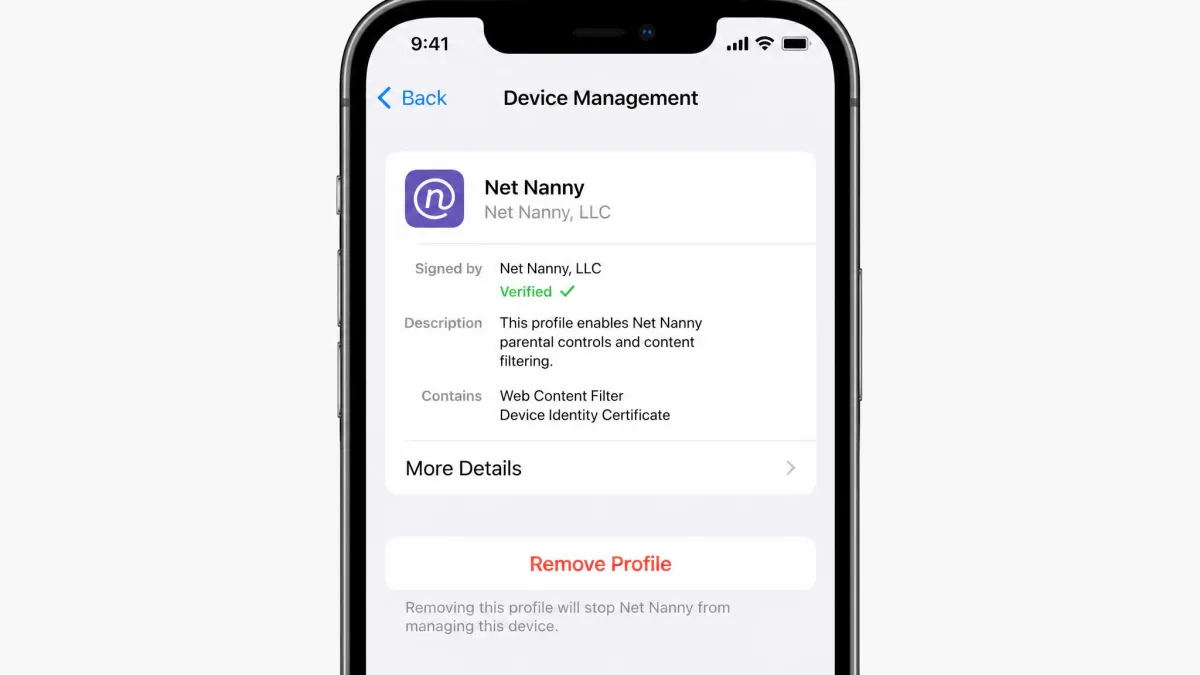
No parental control app is tamper-proof, but these two fail in different ways. Net Nanny's tamper protection asks only for the account email and password to switch off, and parents get no alert when a child tries. On an iPhone, removing the device management profile takes a few taps and drops Net Nanny's controls entirely.
Bark's weak points are quieter. On iPhone it cannot see texts, calls or browser history in the first place, so a determined teenager does not need to uninstall anything to move a conversation somewhere Bark cannot read. Check-in requests can also simply be ignored, with no alarm at your end.
Whichever app you choose, tell your child it is installed and why. A tool that is discovered rather than disclosed gets removed, and a tool your child helped set up tends to get left alone. Explaining the rules does more for compliance than any tamper setting in either dashboard.
Pricing and Plans Compared
All of those differences eventually land on an invoice, and Bark and Net Nanny price on different logic. Bark charges per family, Net Nanny charges per device, and that single difference decides which one is cheaper for you.
| Plan | Price | Covers |
|---|---|---|
| Bark Jr | $5/mo or $49/yr | Unlimited children and devices, no message monitoring |
| Bark Premium | $14/mo or $99/yr | Unlimited children and devices, full monitoring |
| Net Nanny 1 Desktop | $39.99/yr promo, $49.99 list | 1 computer |
| Net Nanny Family Pass 5 | $54.99/yr promo, $79.99 list | 5 devices |
| Net Nanny Family Pass 20 | $89.99/yr promo, $129.99 list | 20 devices |
Bark Pricing
Bark Premium is $14 per month or $99 per year, and annual billing saves 41 percent against paying monthly. Bark Jr, which drops the message and social monitoring and keeps filtering, screen time and location, is $5 per month or $49 per year. Both cover unlimited children and devices. Add-ons sit on top: Bark Sync for fuller iOS monitoring is $6 per month or $49 per year, Bark Home hardware is $79 one time or $6 per month leased, Bark Phone service is $29 per month plus a device payment from $10 per month over 24 months, and Bark Watch is $15 per month plus a $10 per month device payment.

Net Nanny Pricing
Net Nanny is annual only. The 1 Desktop plan is $39.99 per year on the current promotion against a $49.99 list price, the 5-device Family Protection Pass is $54.99 per year against $79.99 list, and the 20-device pass is $89.99 per year against $129.99 list. The current tiers are set out on Net Nanny's plan tiers page.
For a one-computer household, Net Nanny is the cheaper option by a clear margin. For a family with three kids and six devices, the 5-device pass at $54.99 runs out of slots and the 20-device pass at $89.99 lands within a few dollars of Bark Premium's $99, without any of the monitoring.

Free Trials and Refund Policies
Bark offers a 7-day free trial, with a card required at signup. Once that trial converts, Bark documents cancelling, changing or pausing a plan but publishes no money-back window, so any refund appears to be handled case by case rather than under a stated policy and what a buyer gets back varies. Cancel before the trial ends if you are unsure. The one firm guarantee sits on the hardware: the Bark Phone carries a 60-day money-back guarantee on the device itself, which does not extend to app subscriptions.
Net Nanny's position is murkier. Its store page shows no free trial, though a 3-day trial does surface in some signup flows, so what a buyer is offered varies. What is documented is a 14 day return policy on orders bought direct from netnanny.com. Treat that return window, not a trial, as your way out if the app does not suit your family.
Alternatives Worth Considering
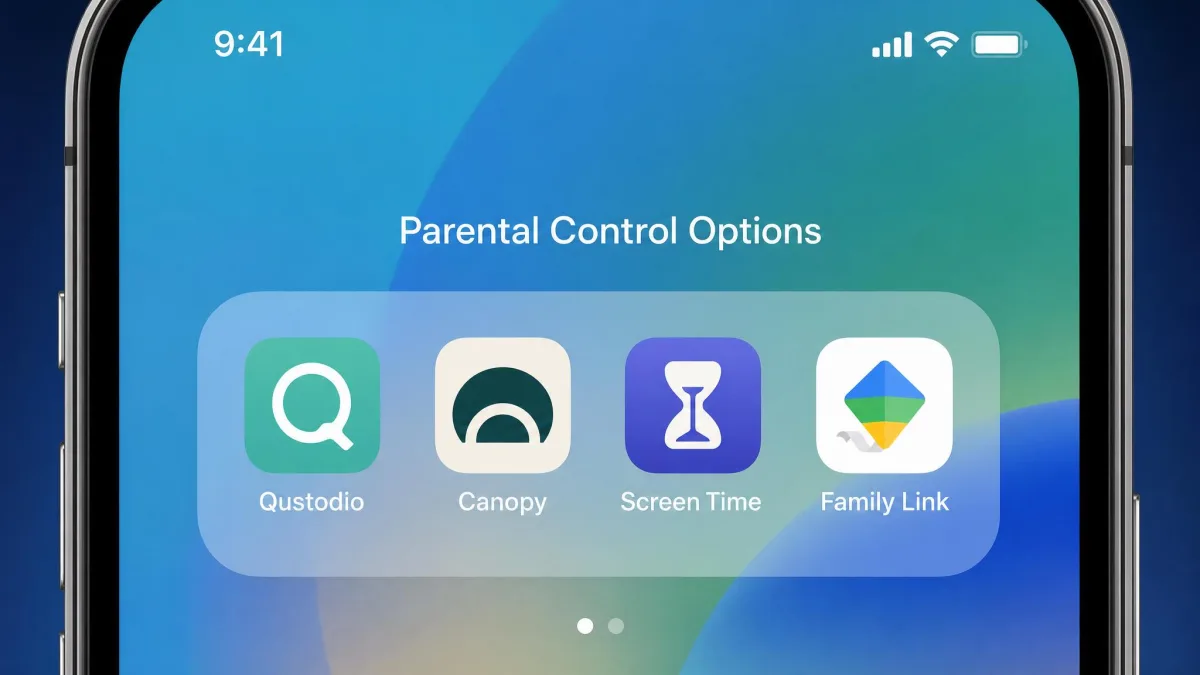
Neither app is the automatic answer for every household, and a third option may match your features and budget better. Qustodio sits between the two, pairing solid filtering with app-level time limits and broader platform coverage than Net Nanny, and it is the closest thing to a compromise pick. Canopy takes a different route again, using on-device image analysis to blur explicit content in real time, which is worth a look for younger children. Apple Screen Time and Google Family Link cost nothing and handle time limits and app approval competently, so start there if budget is the constraint and monitoring is not what you need.
Which App Should You Choose? Our Verdict
Bark is the better parental control app for most families in 2026, and it is not a narrow win. It covers more devices for less money per child, it works on Android and Chromebook where Net Nanny does not, and it does the one thing Net Nanny cannot do at all: tell you what your child is actually saying and reading. Net Nanny's filter is the better filter, but a better filter on fewer devices is a smaller product.
Choose Bark If...
You have more than one child, or more than a couple of devices, and the per-family price starts working in your favour immediately. You have Android phones or Chromebooks in the house. You care about what your child is being sent as much as what they can reach. You want geofenced place alerts and location history. And you are willing to spend a week tuning sensitivity so the alerts stay meaningful.
Choose Net Nanny If...
Your household runs on Windows, Mac and iOS only, and you want the strongest real-time web filtering available on those platforms. Your children are young enough that stumbled-upon content is the risk, not group chats. You are covering one or two computers, where $39.99 per year is hard to argue with. Just go in knowing about the Firefox certificate problem and the cancellation friction, and put the renewal date in your calendar.
Frequently Asked Questions
Is Bark better than Net Nanny?
What happens to the data these apps collected if I cancel?
Which is cheaper for a large family?
How accurate is Bark's location tracking?
Which has better social media monitoring?
Can I set a daily screen time limit on Bark without buying a Bark Phone?
Can kids bypass or uninstall either app?
Does either work fully on iPhone?
Can you use Bark and Net Nanny together?