If you have reached the point where you are searching for a parental control app by name, something has usually already happened. Maybe a phone stayed lit at midnight, or a school flagged an app you had never heard of, or a bill arrived for something a child bought without asking. Kids360 shows up early in that search, with a friendly interface and a promise that you can set limits in a few taps.
The promise and the delivery are not the same thing here. Kids360 is a real product from a real publisher, and parts of it work well, but the gap between the marketing page and the experience on a child's phone is wide enough to matter before you hand over a card number.
This review covers what the app actually does, how the pairing between the parent app and the child app works, what it costs once the trial ends, and what goes wrong often enough that you should plan for it.
What Is Kids360?
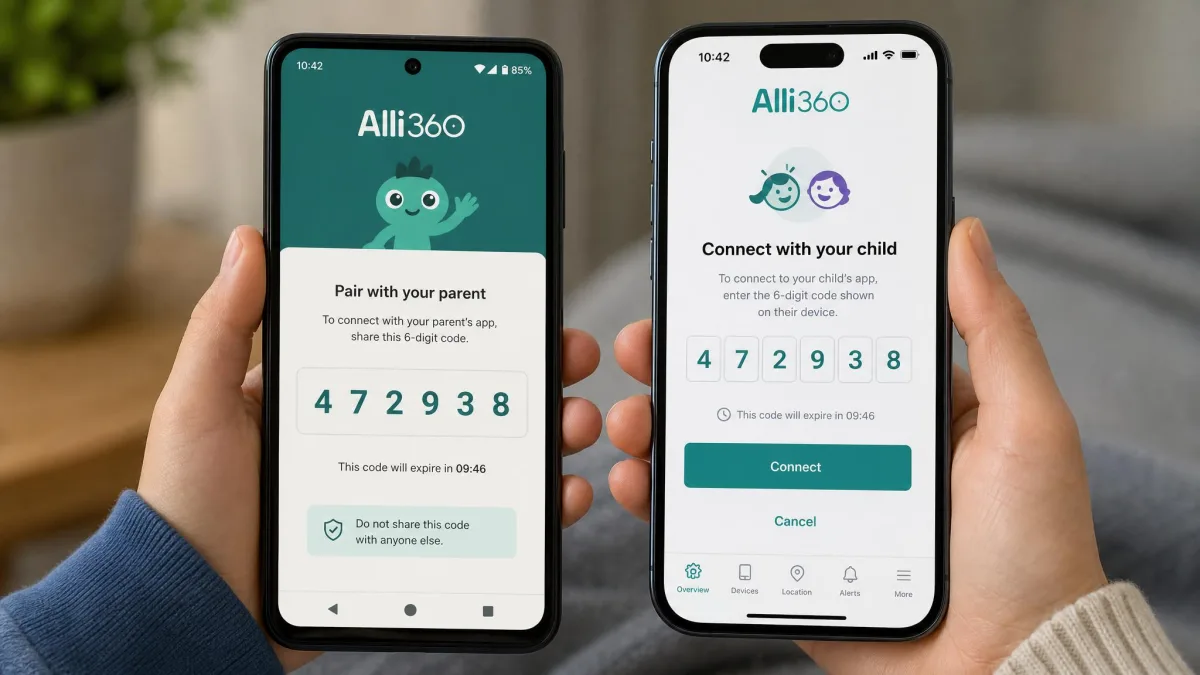
Kids360 is a subscription parental control app for phones, published by MINDCARE LAB LTD and sold direct through the app stores. The parent installs Kids360 on their own phone, and the child gets a separate companion app called Alli360.
The parent app is listed as Kids360 on the App Store, where it requires iOS 17.0 or later and carries a 4+ age rating alongside a 4.6 out of 5 score from 8.9K ratings. On Android it is on Google Play, and it is also distributed through the Samsung Galaxy Store and Huawei AppGallery.
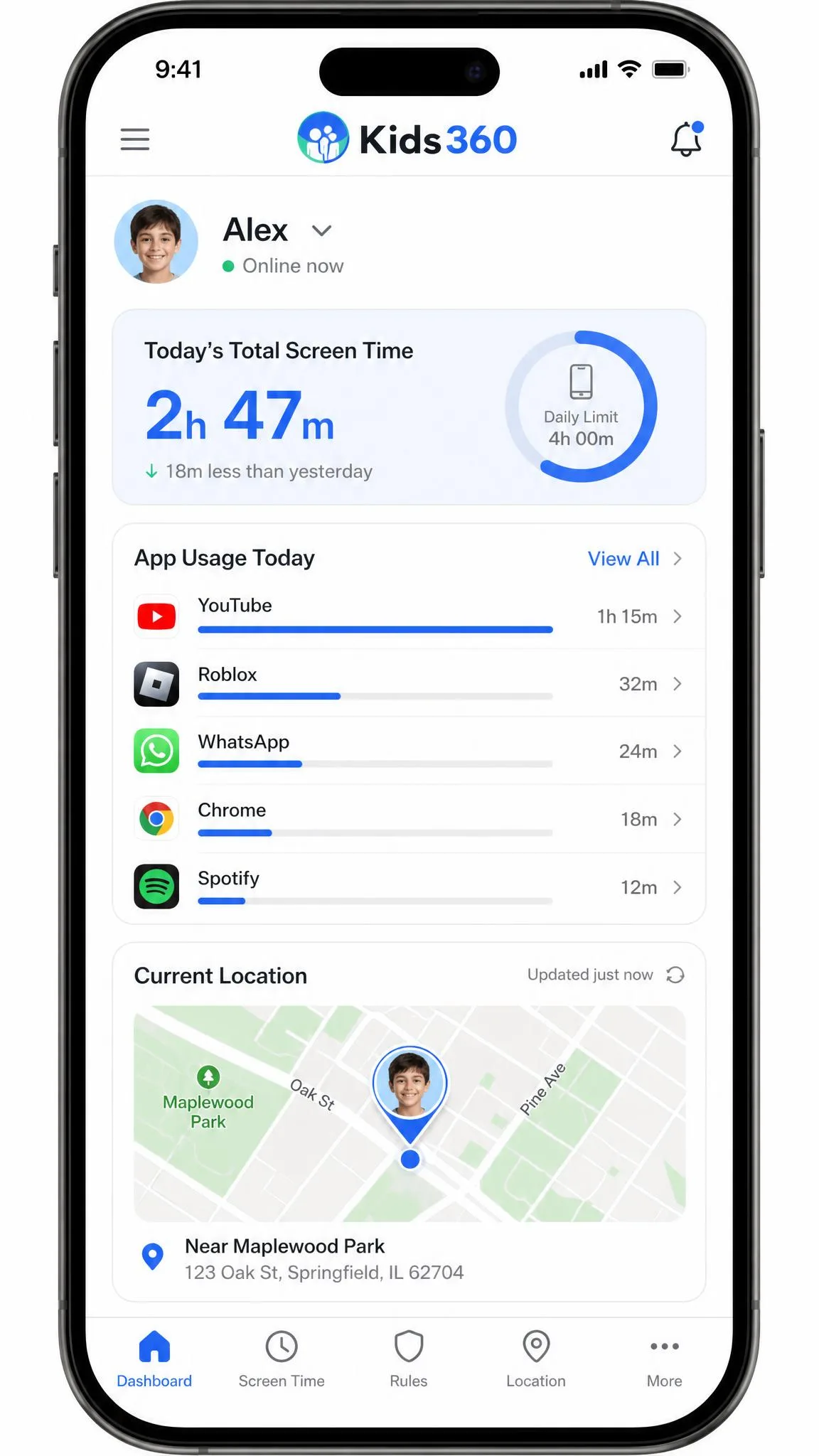
The feature set is broad for the money. Screen time limits with scheduling, an app blocker, adult content and website filtering, GPS location with location history, usage statistics the child can see too, and a set of logic and attention tasks that let kids earn extra screen time. There is also a loud alert when a child's app time runs out, which is either a useful nudge or a source of household arguments depending on your kid.
Kids360 at a Glance: Ratings and Verdict
The scores tell two different stories depending on where you look, and that split is the single most useful thing to understand about this app.
App store ratings are strong. Aggregator scores from people who took the time to write about the product are not. The app has 196 Trustpilot reviews and Trustpilot also flags this profile for possible review-solicitation bias, which means incentivised or selectively requested reviews may be lifting the score.
The pattern behind that split is consistent. Parents who install the app, see the dashboard populate and stop there tend to rate it well. Parents who rely on the limits for a full billing cycle tend to rate it badly.
How We Tested Kids360
We assess parental control apps the way a parent uses them: two phones, one parent account, one child profile, the free trial taken to its end date, and every advertised control switched on rather than left at defaults.
We work through the same checklist on every app in this category. Does setup finish without a support ticket? Do the screen time limits hold when the child keeps using the phone? Does the block list actually block, and does blocked time still get counted? Is the location accurate enough to be worth acting on? And when something breaks, can you reach a human?
We also weigh what happens after the honeymoon period, because a parental control app fails on a timescale that a one-hour test cannot see. A limit that works on day one and lapses in week three is the failure mode that matters, and it only shows up in sustained use across several profiles and both platforms.
Pricing gets checked the same way, from the signup screen through to the renewal, because that is where this category hides most of its unpleasant surprises.
Setup: Pairing Kids360 and Alli360 on Two Phones
Setup is the part Kids360 handles best, and it is worth saying so plainly.
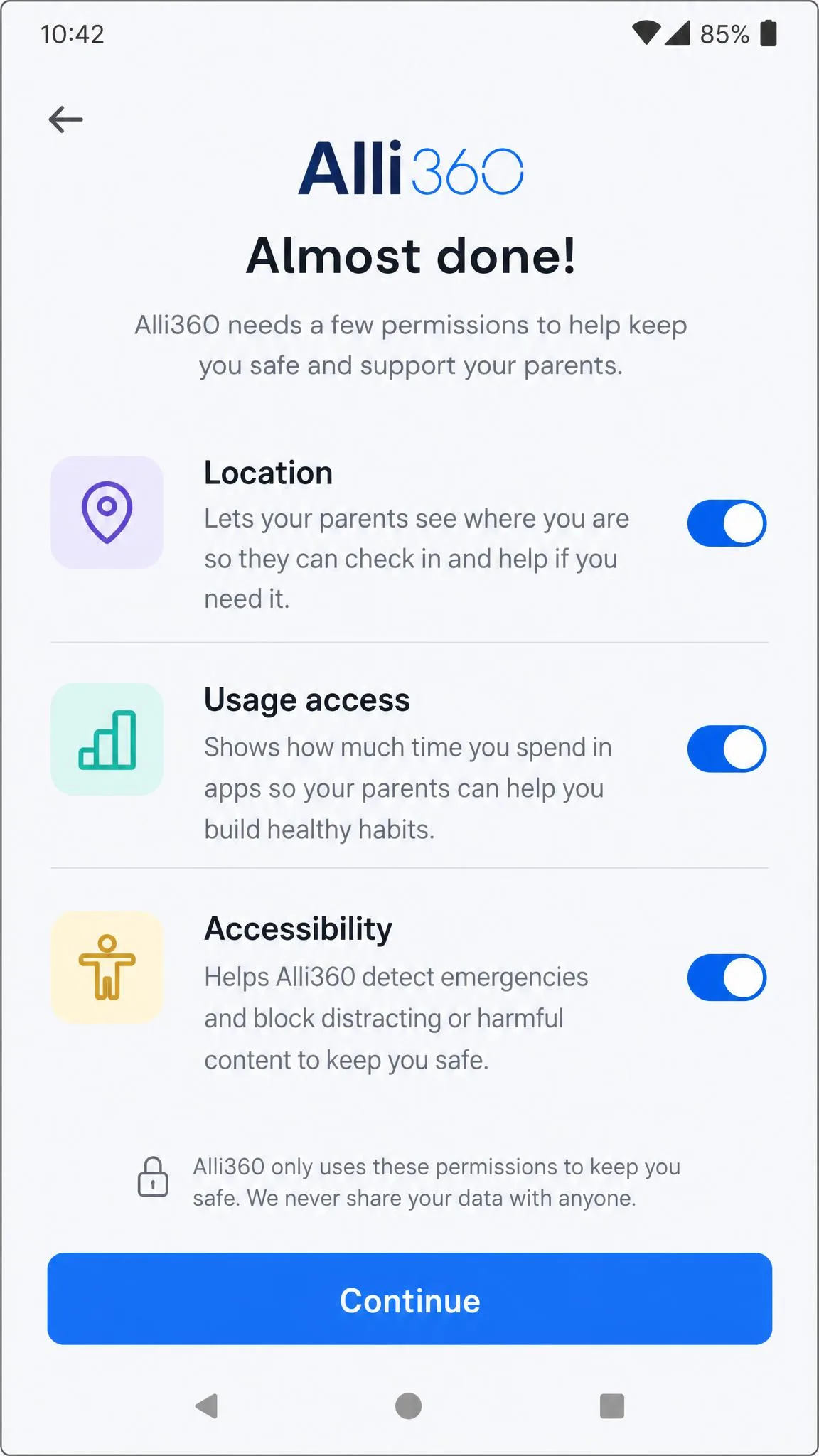
You install two separate apps. Kids360 goes on the parent phone, and Alli360, the companion child app, goes on the child's phone, then the two are paired to one account. The onboarding walks you through the permission prompts in order, which matters more than it sounds, because on both platforms a missed permission is what turns a working install into a dashboard full of zeroes.
Have the child's phone unlocked and in your hand before you start. The pairing step needs it, and you will be granting location, usage access and, on Android, accessibility permissions during the same sitting.
Do the setup with your child in the room and explain what each permission does. A secret install rarely lasts, because the child app is visible on the child's phone and easy to remove. Openness is also the only version of this that survives a teenager.
Two rough edges are worth knowing in advance. The app can freeze or lag while syncing between the parent phone and the child phone, so a control you set may take a while to appear on the other device. And taking the app back off later is awkward, so plan to spend more time deactivating and uninstalling from the child device than you spent putting it there.
Kids360 Features
The feature set is where the app's reputation splits in half. Two of these work well. The rest are inconsistent enough that you should not build a household rule on them.
Screen Time Limits and Scheduling
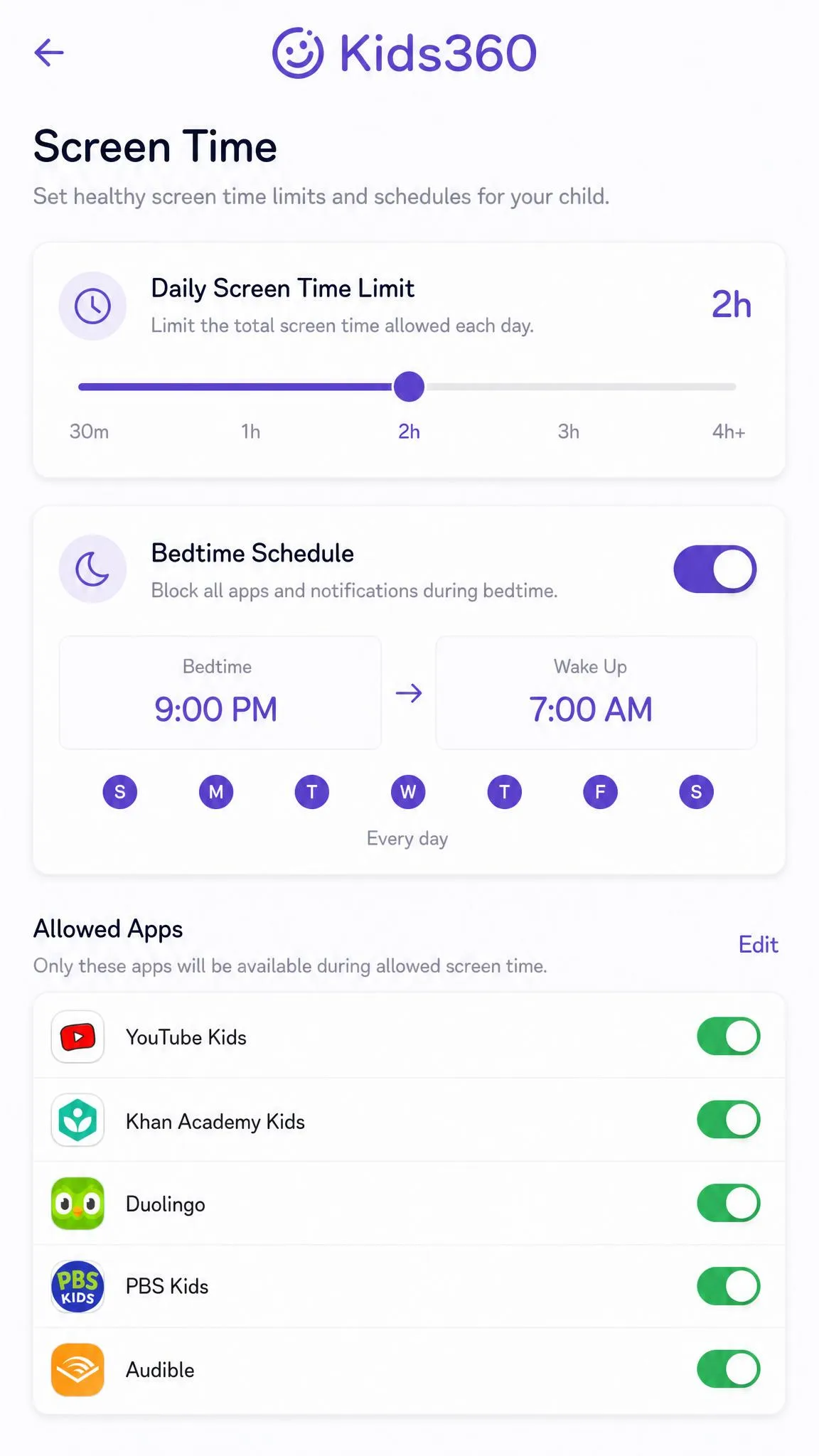
This is the headline feature and the weakest one. We set a two-hour daily cap on the child phone and watched the counter run straight past it that same evening. The phone stayed fully usable, so we reset the app, reinstalled it, and applied every pending update. The cap lapsed again on the next run.
You can set a daily cap and a schedule, and the interface for doing it is genuinely user-friendly. That is the frustrating part. These controls are easy to configure and hard to rely on.
On iPhone specifically, the advertised app blocking, time limits and site restrictions are frequently missing or non-functional altogether. If you are buying this app primarily to enforce a bedtime cutoff on an iPhone, that is the finding to weigh most heavily.
App Blocking and Content Filtering
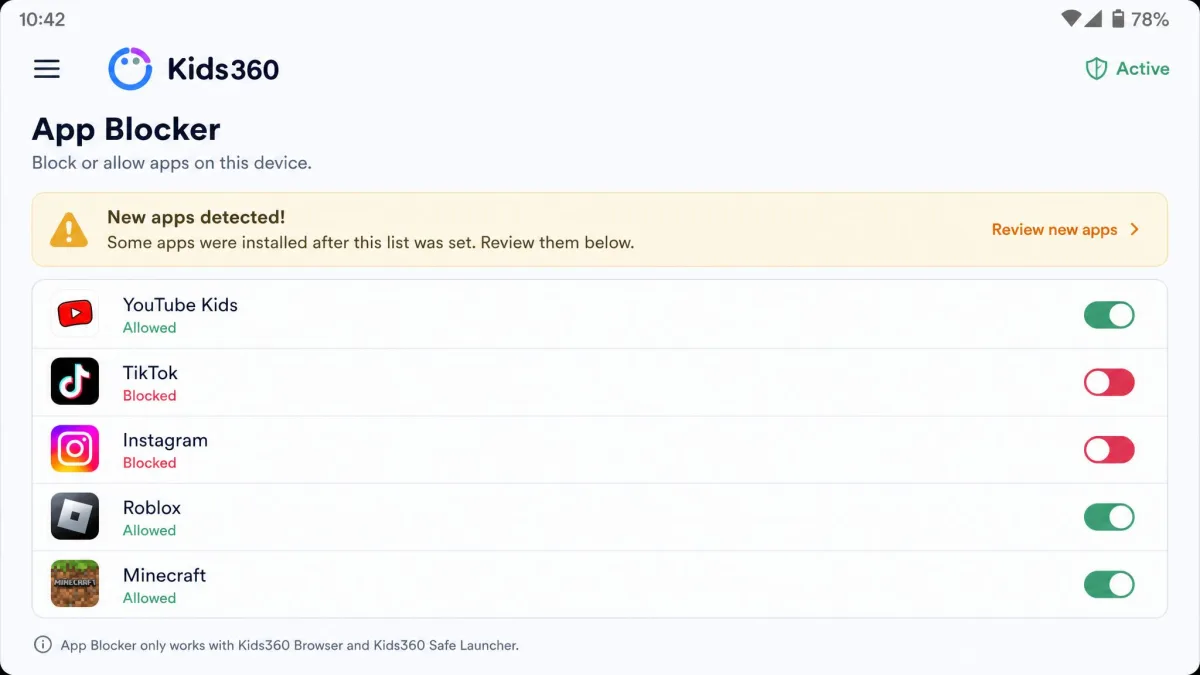
The blocker works on the obvious targets and then leaks. Some apps slip past the block list, and the time a child spends inside those apps does not count toward the daily phone usage total either, so the dashboard under-reports at the same time as the control under-enforces. That combination is worse than a plain failure, because it looks like compliance.
GPS Location Tracking and Geofencing
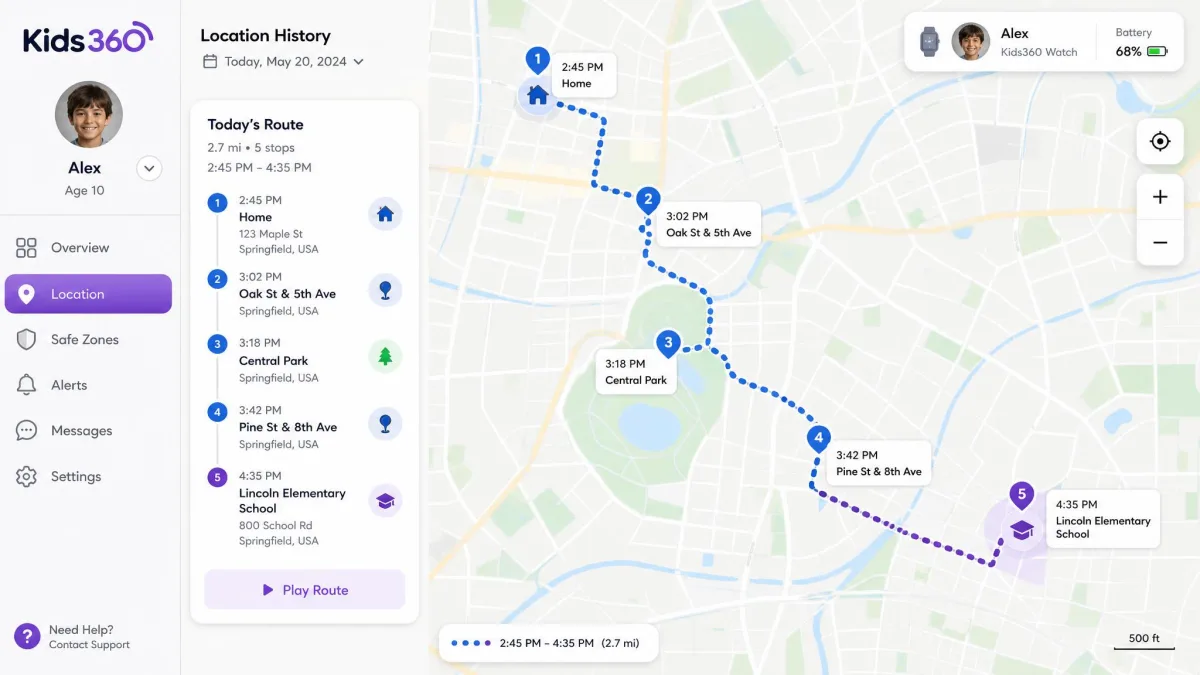
Location is the strongest part of the product. Location tracking and usage monitoring are the two features that most often work as advertised, and the location history view is the thing we would actually keep the app for.
It is not flawless. GPS positions can be inaccurate or drop out entirely within the first week of use, so treat the map as an approximate answer rather than proof of where someone is. And a child who wants out simply turns off location services on their phone, which stops the tracking cold.
Kids360 is not tamper-resistant. Turning off location services stops GPS tracking, and disabling or removing the Alli360 app switches the controls off entirely. A child who wants to defeat this app can do it in under a minute, so treat the dashboard as a conversation starter rather than a guarantee. Our guide to how kids bypass parental controls covers what to watch for.
Tasks, Rewards and the Alli360 Kid App
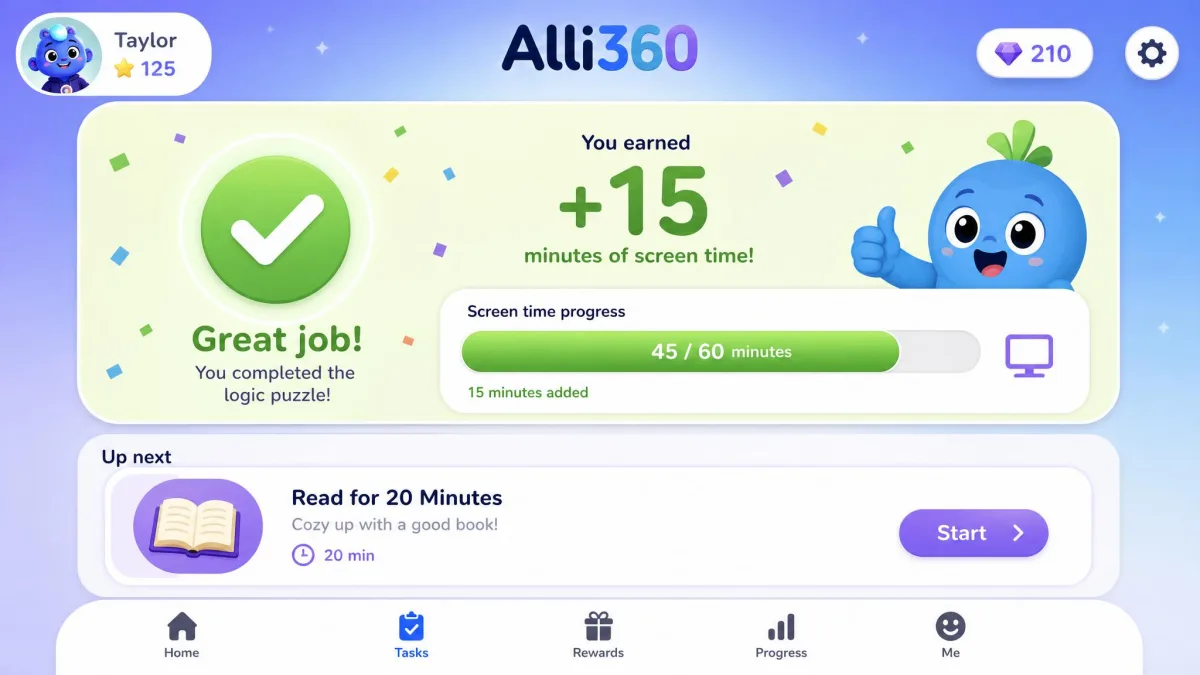
Kids360 does one thing here that most rivals do not, and it is the feature children actually engage with willingly. Kids earn screen time by finishing developmental logic and attention exercises, by completing tasks a parent sets, or through physical activity. Turning screen time into something earned rather than rationed changes the tone of the whole negotiation, and for younger children it works.
Reports and Activity Insights
Usage statistics are reliable and, unusually, the child sees them too. That transparency fits the approach the AAP's family media guidance recommends, which is shared rules and visible expectations rather than covert surveillance. Behaviour can be inconsistent across multiple child profiles on the same account, so a household with three kids should expect three slightly different experiences.
Kids360 Pricing, Free Trial and Cancellation
Pricing is where this app loses most of the goodwill setup earns.
There is a 7-day free trial, limited to one trial per profile. The subscription then auto-renews 3 days before the expiration date for the same period, which is a shorter warning window than most people assume they have. In-app purchases on the App Store are listed at $9.99 to $12.99 monthly, with a $7.99 family safety purchase and annual options running higher. The annual price depends on the plan and region shown at checkout, so parents see different figures, and third-party listings quote numbers that do not match the store at all. The vendor site publishes no price table at all. It offers a free download and a Try for Free button, and the real number only appears at app-store checkout. Third-party guides fill that vacuum with figures of their own, including a $4.99 monthly claim that sits well below the App Store range, so treat any price you read outside the store as indicative and check your own checkout screen before you agree to anything.
The billing can also start ahead of the product. A charge can land immediately at trial signup, before Alli360 has been activated on the child device at all, so you pay for a system that is not yet watching anything. Cancelling during the trial does not always stop it, and a renewal can post shortly after the cancellation goes in.
The bigger issue is sequencing. The subscription cost is not made clear up front and only surfaces once setup on the child device is finished, by which point you have installed two apps and granted a stack of permissions. That is a sunk-cost design, not an accident.
Watch the billing closely. A charge can land immediately at trial signup, before the app has even been activated on a child device, and cancelling during the trial does not always stop the charge, with a renewal sometimes posting shortly after cancellation. Cancel through your App Store or Google Play subscription settings rather than relying on in-app cancellation alone, and check your statement on the renewal date.
Cancellation requests also go to support@kids360.app with your account name, registered email and a phone number. The terms describe cancellation by email but state no fixed refund window in days, and refund requests on annual plans can be rejected even when the app never worked. Buy monthly first.
What Real Users Say: Common Praise and Complaints
The praise is consistent and narrow. Parents like the interface, the location history and the task-and-reward loop, and younger children take to the earned-screen-time mechanic without much resistance.
The complaints are consistent and dominated by billing and by support issues. Support runs through chat with no phone line, and technical questions are often answered by pointing parents to the app store for a refund rather than by fixing the fault. Support can also go unanswered for long stretches, including public review threads that never draw a developer reply.
An app that charges before it works, then answers a fault report by telling you to ask Apple for your money back, is not a support failure. It is a business model.
Is Kids360 Safe, Legit and Private?
Kids360 is legitimate. It is a real app from a named publisher, distributed through Apple, Google, Samsung and Huawei, and it is not malware or a scam in any meaningful sense. The complaints are about billing practice and reliability, not fraud.
Privacy deserves more care, because this app collects a child's location history and app usage. You should read Kids360's privacy policy before you install, and it's worth reading with the FTC's COPPA guidance in mind, which sets out what operators must do when they collect data from children under 13. What you will not find there is reassurance. Kids360 claims no COPPA certification and no safe-harbor seal; the policy references COPPA and parental consent for Alli360 but names no certifying program. It also sets no retention period, granting parents the right to review and request deletion of a child's data without committing to any timeline for removing it automatically. Common Sense's privacy evaluation rates the app Warning, flagging personalised advertising and unclear third-party data collection, though it notes personal information is not sold or rented.
Our own position is simpler. Monitoring your child is a decision that should be made with them, not to them. Kids360's own design supports that, since the child app shows usage statistics to the child as well, and since the app is trivially removable anyway. If you need covert, tamper-proof monitoring, this is not that product.
Pros and Cons of Kids360
Pros
- Location tracking and location history work reliably and are genuinely useful
- Usage monitoring is accurate and visible to the child as well as the parent
- The earn-screen-time tasks are the rare feature kids engage with willingly
- Setup is guided, user-friendly and finishes in one sitting
- Broad platform coverage across iPhone, iPad, Android, Samsung and Huawei
Cons
- Screen time limits can lapse, leaving the phone usable past the daily cap
- Some apps bypass the block list and their usage is not counted
- On iPhone, blocking and time limits are frequently missing or non-functional
- A child can disable everything by removing Alli360 or turning off location
- Cost only surfaces after setup, and charges can post at signup
- Support is chat-only, slow, and often redirects fault reports to the app store
Kids360 Alternatives
If the limits are what you came for, the alternatives do that part better, and two of them cost less over a year.
| App | Price | Platforms | Screen time control | Location tracking | Can the child bypass it |
|---|---|---|---|---|---|
 |
$9.99/mo, annual from $49.99 | iOS 17.0+, Android, Samsung, Huawei | Limits plus scheduling, limits reported to lapse | GPS plus location history | Yes, by removing Alli360 or disabling location |
 |
$54.95/yr for 5 devices | iOS, Android, Windows, Mac, Chromebook | Daily and per-app limits | Yes | Harder, tamper protection |
 |
$14/mo or $99/yr | iOS, Android | Schedules and daily limits | Check-ins | Harder |
 |
Free | Android and Chromebook children only | Daily limits only | Yes | Moderate |
Qustodio is the closest like-for-like swap at $54.95 per year for up to 5 devices, or $109.95 for unlimited, and it covers computers as well as phones. Bark takes a different angle at $99 per year for unlimited children and devices, monitoring the content of texts, email and social platforms rather than just capping hours. Google Family Link costs nothing, but it supervises Android and Chromebook devices only, offers daily limits alone and filters mainly through Chrome and SafeSearch.
For more options, see our best free parental control apps roundup and the screen time control apps we tested.
Frequently Asked Questions
What happens to my child's data and phone after I cancel?
Is Kids360 legit or a scam?
Does one subscription cover more than one child?
How do I cancel Kids360 and get a refund?
Can I run Kids360 alongside Apple Screen Time or Family Link?
What age does the tasks and rewards system actually suit?
What is Alli360?
Common Mistakes Parents Make With Kids360
The most common mistake is buying it for the wrong feature. If your goal is a hard bedtime cutoff, this is the wrong tool, and the money is better spent on Qustodio or on the free controls already built into the phone.
The second is trusting the dashboard's totals. Because blocked apps can slip through without counting, a low usage number can mean either genuine restraint or a leak in the block list, and you cannot tell which from the app alone.
The third is installing it quietly. A hidden install gives you a false sense of security and costs you the conversation you actually needed to have. It also does not survive contact with a child who knows how to open their own app drawer.
Final Verdict: Should You Buy Kids360?
Buy it if you have a primary-school child on an Android phone, you want visibility rather than enforcement, and you are content to set the rules in conversation and use the app to see how they are holding. That parent gets real value here, and gets it mostly from the reward tasks and the map.
Do not buy it if yours is an iPhone household, if you need a hard bedtime cutoff, or if you were planning to pay for a year up front. Qustodio serves the first two cases better, and the controls already built into the phone cost nothing.