We compared these two parental control apps the way a parent actually meets them, by setting each one up on a child's phone and living with the alerts, limits and blocks that follow. Everything below is grounded in that hands-on work and in vendor documentation we checked directly.
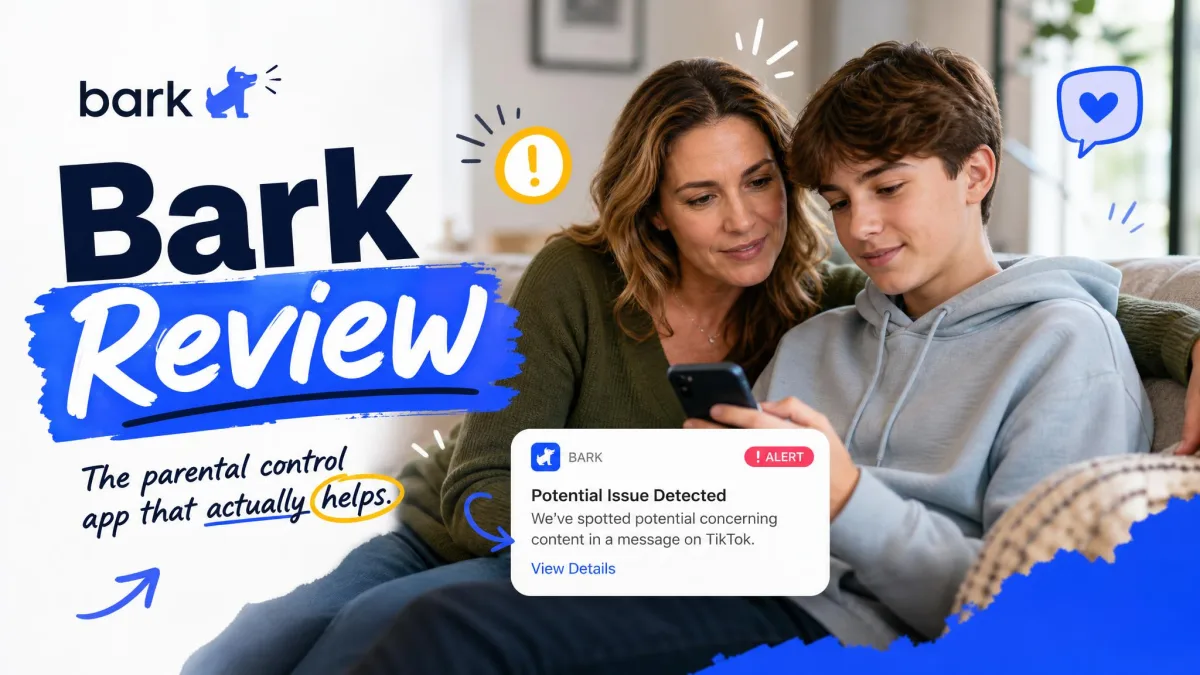
Bark is a paid content monitoring service. It reads what your child writes and receives across texts, email and social apps, then sends you an alert when something looks like bullying, self-harm, depression or contact from a predator.
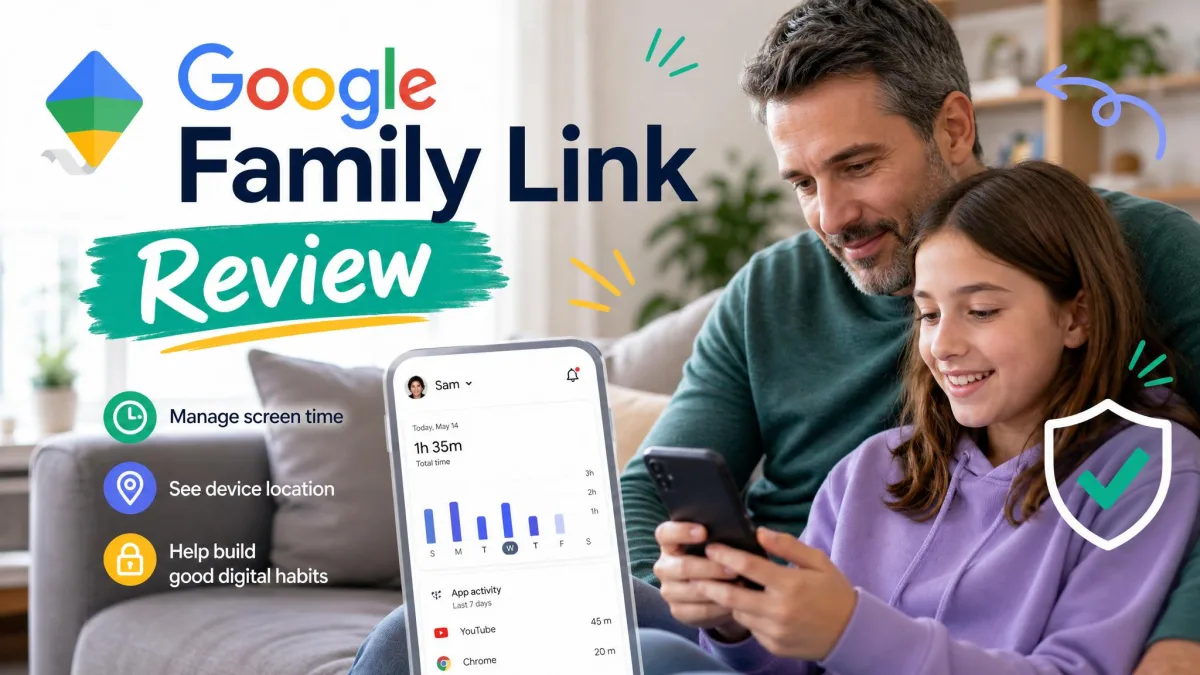
Family Link is Google's free supervision tool. It does not read content at all. Instead it controls the device: daily screen time, per-app limits, app installs, web filters and a location map.
That difference is the whole comparison. One app watches what your kid says. The other controls what your kid does.
Bark vs Google Family Link at a Glance
These two products get compared constantly, but they were built to solve different problems. Reading them side by side only makes sense once you see what each one is actually for.
What Bark Is Built to Do
Bark is an alerting service first. Its artificial intelligence scans texts, email, photos and social messages, then raises a risk alert when the language matches patterns tied to bullying, self-harm, depression or predatory contact.
Around that core it adds screen time schedules, website and app category blocking, location check-ins and place alerts, and driving reports. Bark also sells hardware: the Bark Phone, the Bark Watch, and the Bark Home network device.
One subscription covers unlimited children and unlimited devices, which matters if you have three kids and six screens between them.
What Google Family Link Is Built to Do
Family Link supervises a child's Google account and their Android device. You get daily screen time limits, per-app time limits, Downtime and School Time schedules, and approval over every app your child tries to install.
It also manages app permissions, turns on SafeSearch and content filters in Chrome, Play, YouTube and Search, blocks individual websites, shows a location map with arrival and departure alerts, reports the child's battery level, and lets you ring a misplaced phone.
What it never does is read a message. There are no keyword alerts and no content scanning of any kind.
Feature Comparison Table
Here is the head-to-head view before we get into the detail of each area.
| Row | Bark | Google Family Link |
|---|---|---|
| Content monitoring | AI scanning of texts, email, photos and messages | None |
| Social media and text alerts | Alerts across 30+ apps and platforms | No content or keyword alerts |
| Screen time limits | Custom daily schedules, no per-app timers | Daily limits, per-app limits, Downtime, School Time |
| App blocking | Block apps by category or individually | Approve or block every install |
| Web filtering | 19 website categories | SafeSearch plus site-by-site blocking in Chrome |
| Location tracking | Check-ins, place alerts, driving reports | Live map, arrival and departure alerts |
| Platform support (Android/iOS) | Full on Android, iOS scanning limited and needs the desktop app or Bark Home | Full on Android and Chrome, limited on a child's iPhone |
| Price | $14/mo or $99/yr Premium, $5/mo or $49/yr Jr | Free |
Content and Message Monitoring
This is the single biggest gap between the two apps, and for many parents it decides the whole question.
How Bark Scans Texts, Email, and Social Media
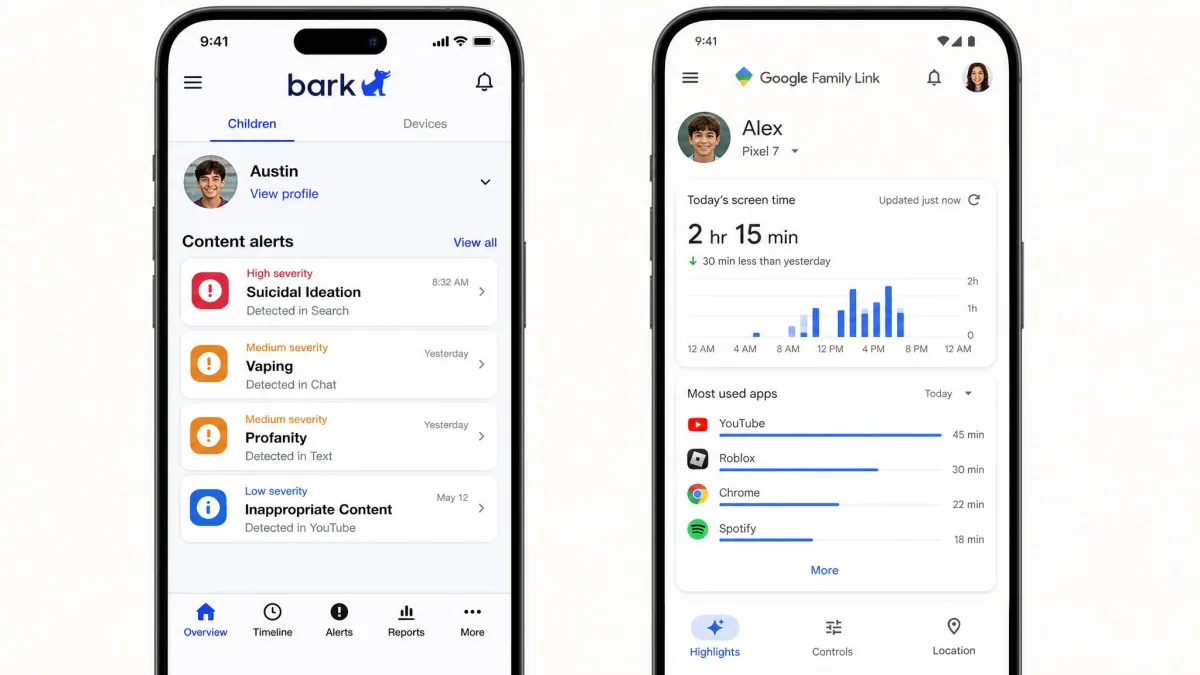
Bark connects to your child's accounts and scans the content flowing through them across 30+ apps and social media platforms. You do not read every message yourself. You get an alert with the flagged excerpt and some context, which is a deliberate middle ground between total surveillance and total blindness.
In practice the alert feed needs tuning before it earns its place on your phone. Ordinary basketball chat has been flagged as violence, and alcohol or gambling references sitting inside banner ads can trigger alerts on their own.
Turning the sensitivity up makes that worse, producing more false positives rather than better ones. The misses run in both directions too, because automated scanning raises false alarms and also lets some content through unflagged.
None of that makes Bark useless. It means you should treat the alerts as prompts for a conversation rather than as verdicts.
What Family Link Does Not Monitor
Family Link does not read texts, emails or social media messages, and it offers no keyword or content alerts at all. There is no setting to turn on, because the capability is not there.
You can see which apps your child uses and for how long. You cannot see what happens inside them.
If your main worry is who your child is talking to rather than how long they are on the phone, Family Link alone will not answer that question, no matter how carefully you configure it.
Screen Time Controls and Scheduling
Both apps limit device time, but they work at different levels of precision.
Family Link's Daily Limits and Bedtime
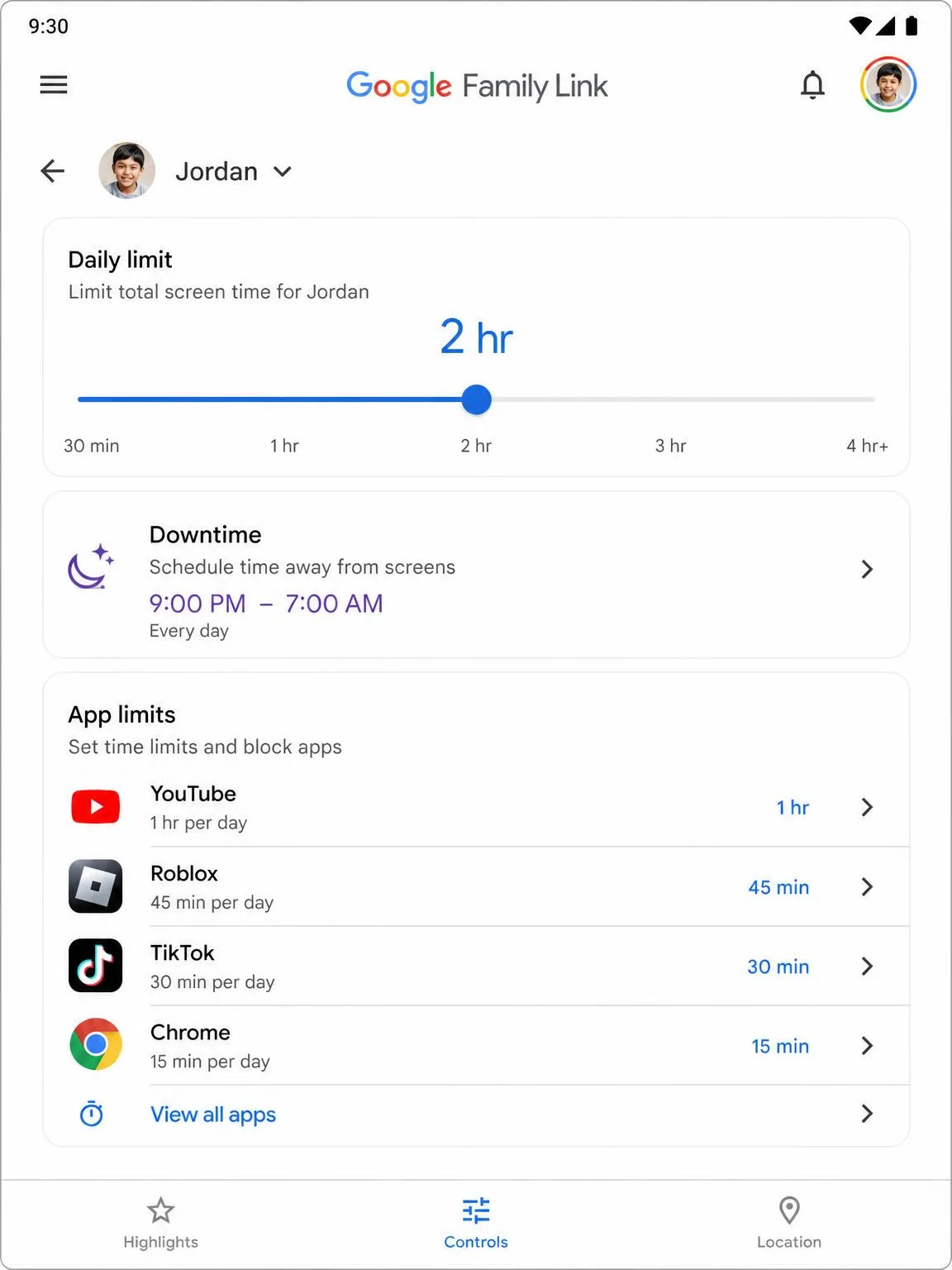
Family Link gives you a daily screen time cap, per-app time limits, and two schedule types. Downtime locks the device during set hours, and School Time restricts it to approved apps during the school day.
Per-app limits are the standout here. You can leave a homework app running while a game stops at forty minutes, which is the control most parents actually want.
The catch is reliability. Family Link suffers sync delays, so a limit or permission you change on the parent phone can take a while to land on the child's device.
We also saw the glitches families complain about most: phones locking at random, apps closing on their own, and timers resetting after they have been adjusted.
Bark's Custom Screen Time Schedules
Bark handles screen time by schedule. You build custom daily rules that decide when the internet and specific app categories are available, which works well for a bedtime cutoff or a homework block.
What Bark cannot do is set a time limit on an individual app. It manages overall screen time and schedules, so if you want a per-game timer, Family Link is the tool with that feature.
App Blocking and Web Filtering
Family Link's app approval flow is the strongest thing it does. Every download needs a parent tap, so a risky install gets stopped before it lands rather than being caught afterwards.
On the web side you get SafeSearch plus Google's content filters in Chrome, Play, YouTube and Search, and you can block individual sites by hand.
That manual approach is thorough but slow. It also over-blocks sometimes, and we watched it catch legitimate activity such as redeeming a gift card or opening age-appropriate content.
Bark works by category instead. It offers 19 website categories you can switch off in one move, and it blocks apps either by category or one at a time.
Category blocking scales better across several kids of different ages. App approval catches the thing you never thought to categorise. Neither approach wins outright.
Location Tracking
Blocking decides what a child can open; location answers the other question parents ask, which is where they are while they open it. Family Link shows a live map of the child's device, with arrival and departure alerts for places you set, plus the battery level and a ring-the-device button.
Bark handles location through check-ins and place alerts, and adds driving reports, which is genuinely useful once a teenager starts driving.
Where Family Link asks for patience is the freshness of what it shows you. Google publishes no refresh interval and no accuracy figure, and the map behaves accordingly. A phone that has been idle or screen-off for a while keeps reporting its last known position until it wakes, so the dot you are looking at may be several stops behind the child.
Accuracy swings with signal quality, tightening to something close to street level with a good GPS fix and Wi-Fi, and widening to a rough neighbourhood blob indoors. Battery saver and background-activity restrictions on the child's phone will quietly suppress updates altogether, and the location permission has to be set to allow access all the time before the map keeps moving reliably.
Place alerts have their own catch. Draw the saved radius too wide and the arrival alert fires while the child is still a street away; draw it too tight around a school or an apartment block and it never fires at all.
None of that makes it useless. For a younger child on Android who mostly travels between home and school, the free option is already enough, as long as you read the map as a recent position rather than a live one.
Platform Support: Android, iOS, and Beyond
Android is where both apps are at their best, and iPhones are where both get complicated.
Family Link runs its parent app on Android and iOS, but child supervision works properly only on Android and Chrome devices. On a child's iPhone you get limited controls, because Apple reserves that ground for its own Family Sharing and Screen Time tools.
Bark is fuller on Android too. Looking at what Bark can monitor on iOS, TikTok, Instagram, Snapchat, Roblox and Discord can be blocked but not scanned, and texts, photos, videos, notes and voice memos are readable only through the Bark desktop app or the Bark Home device.
That is a real workflow cost. Monitoring an iPhone with Bark means keeping a Windows or Mac machine running the desktop app, or buying Bark Home, and the phone has to be on your home Wi-Fi to be scanned at all.
As phones spend more of their day on cellular instead of home Wi-Fi, those scans run less often and the coverage gets patchier. Bark's advertised platform coverage does not always match what the app scans in practice either, and support can be slow to sort that out.
If your child uses an iPhone, test both apps inside the trial window before you commit. iOS is where advertised features and delivered features drift furthest apart.
Pricing: Free vs Bark Premium and Bark Jr
Those iPhone workarounds carry a cost, and cost is where the two products separate hardest. Family Link is free, with no paid tier, no upsell and no seat count. That is the strongest argument in its favour and the reason so many families start there.
Bark Premium costs $14 per month or $99 per year and includes the full content monitoring. Bark Jr costs $5 per month or $49 per year and drops the monitoring, leaving screen time, filtering and location for younger kids.
There is a 7-day free trial, though you have to hand over payment details up front. Two add-ons sit alongside the subscription: Bark Sync for deeper iPhone monitoring at $6 per month or $49 per year, and the Bark Home device at $79 as a one-time purchase.

Setup and Ease of Use
Family Link is the faster install by a wide margin. Supervision hooks into the Android first-run setup wizard, so a child's device gets enrolled during initial configuration instead of through a separate app install.
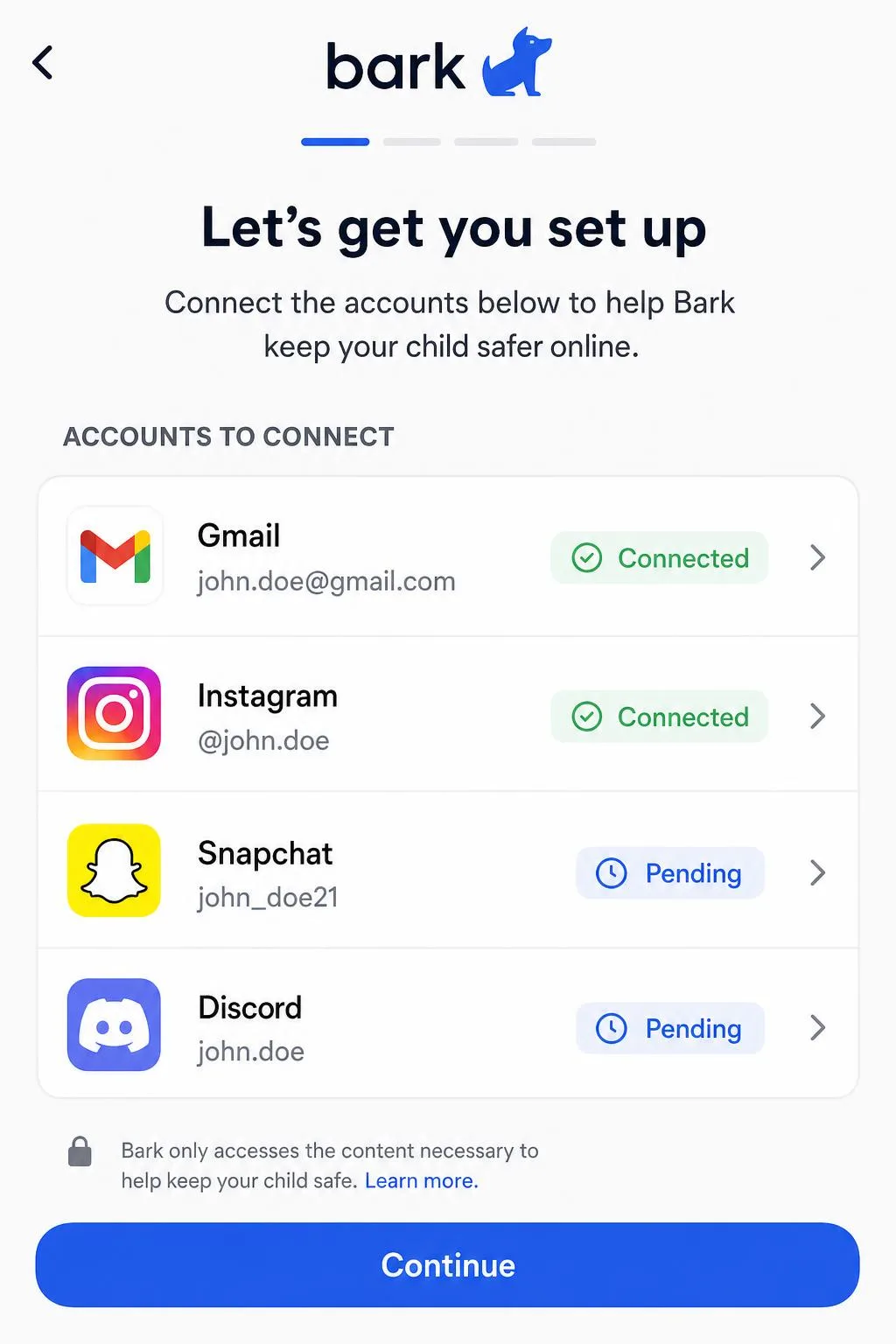
Bark takes noticeably longer, because every social and email account has to be connected one at a time. Budget an evening rather than ten minutes, especially for a teenager with a long list of accounts.
Day to day, Family Link asks less of you. Bark asks more, and gives you more back.
Privacy Tradeoffs for Your Child
Setting either app up is a decision your child lives with, not just a configuration step, because content monitoring is not a neutral act. Bark's design softens it by surfacing flagged excerpts rather than a full message log, but your child is still living under a system that reads what they write.
Family Link is less invasive by construction, since it sees usage rather than content. It is also the app your child is more likely to accept without resentment.
Whichever you choose, tell your child what is being monitored and why. Both vendors work far better as part of an agreed family media plan than as a secret.
Age matters here too. Google's supervision settings on a child's Google account change once a child turns 13, or the applicable age in their country. Since January 2026, teens aged 13 to 17 need parental approval before supervision can be switched off, where previously they could end it on their own.
Can Kids Bypass Either App?
Both apps can be defeated, and any parent should plan for that rather than assume otherwise.
Family Link's controls sit at the operating-system level on Android, which makes casual workarounds harder than with an add-on app. It has no hardware-level enforcement such as Samsung Knox integration though, so its tamper protection stops at the software layer.
The documented routes around it are real. Clearing the Google Play Store's app data strips the parental control settings and lets the restriction be removed without the PIN. On Samsung handsets, Secure Folder hides apps and files from supervision entirely. Supervision also breaks if the child's Google account is removed from the device or the phone is factory reset.
Bark's monitoring depends on connected accounts, so a new account you do not know about is invisible to it. On iOS, simply staying off home Wi-Fi is enough to thin out the scanning.
Neither app replaces knowing your child's phone and talking about what is on it.
Pros and Cons of Each App
Google Family Link Pros and Cons
Pros
- Supervision rides on the child's Google account, so there are no separate accounts to connect
- Per-app time limits, Downtime and School Time schedules
- Every app install needs a parent approval
- OS-level integration on Android is harder to work around casually
- Live location map with arrival and departure alerts
Cons
- No content monitoring of texts, email or social messages
- Sync delays between the parent app and the child's device
- Random device locks, apps closing and timers resetting
- Over-blocks legitimate activity at times
- Only limited controls on a child's iPhone
Trustpilot rates Family Link 1.7 out of 5 across 58 reviews, 81% of them one star. That score reflects the reliability complaints above rather than the feature set, which is genuinely good for a free product.
Bark Pros and Cons
Pros
- AI content monitoring of texts, email, photos and social messages
- Risk alerts for bullying, self-harm, depression and predators
- One subscription covers unlimited children and devices
- 19 website categories blockable in one move
- Driving reports and place alerts for older teens
Cons
- The 7-day trial asks for card details before you can try anything
- False positives are common until you tune the sensitivity
- No per-app time limits
- iPhone monitoring needs the desktop app or Bark Home, plus home Wi-Fi
- Setup is slow because each account connects separately
Read the two lists together and the split is plain: everything Family Link does well concerns the device itself, and everything Bark does well concerns the conversation happening on it. Neither list contains an item the other product could add with a settings change, which is why so many households end up running both.
SafeWise's family safety team reviewed 30 parental control apps and named Bark its best overall pick for covering almost any device, which matches what we found on Android.
Which Should You Choose? Recommendations by Age
Choose Google Family Link If
Your child is under about 11, uses an Android phone or Chromebook, and the job is limiting hours and gatekeeping app installs. Start free, because the paid features you might later want are the ones you cannot yet describe.
Choose Bark If
Your child is 12 or older, active on social media, and your worry has shifted from screen time to who is on the other end of the conversation. That is the moment content monitoring starts earning its price.
Use Both Together If
You have a teenager on Android and want device rules that stick plus content alerts that catch what the rules cannot. The two apps do not conflict, and running Family Link for limits alongside Bark for alerts is the most complete setup either product supports.
Frequently Asked Questions
Does Family Link work on a shared family tablet?
Does Bark work on iPhone?
Can my child uninstall Bark or Family Link?
What is the least disruptive way to run both apps at once?
Do I need both apps?
What does the alert actually show me?
The Bottom Line
The calculation shifts once a second child or a second platform joins the house, because one product charges per household while the other only supervises what Google can see.