Most parents shopping for parental controls end up choosing between two very different philosophies. One is a security vendor's control suite that watches every device in the house and enforces rules from a single dashboard. The other is a phone-first app that tries to change how a child uses screens by turning time into something they earn. Both promise to keep your kids safe online, and both will happily take your money, but they solve different problems and they fail in different ways. We put the two side by side across pricing, screen time controls, web filtering, app management and location tracking, working from the vendors' own documentation and from hands-on findings on Android and iPhone.
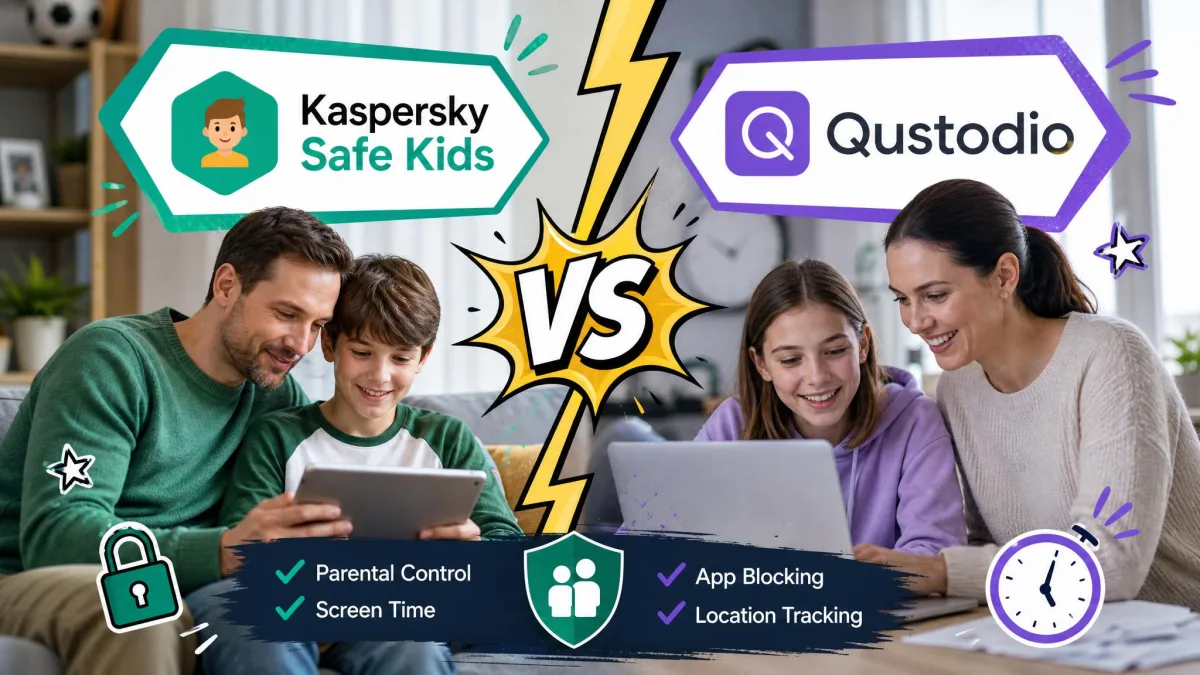
Kaspersky Safe Kids vs Kids360 at a Glance
Here is how the two apps line up on the features parents actually shop for. The pricing row is the one to read twice, because the gap is wide and it is not obvious from either product page.
| Row | Kaspersky Safe Kids | Kids360 |
|---|---|---|
| Price (free / premium) | Free tier available; premium bundled from $28.99/yr with Kaspersky Premium | No usable free tier; about $79.99/yr |
| Free trial | 7 days of premium features | 7-day free trial |
| Refund | 30-day money-back guarantee | Handled through App Store or Play billing |
| Screen time limits | Daily limits on free; scheduling premium only | Daily limits plus task-earned extra time |
| Web filtering | Content filter and safe search on the free tier | Internet safety filters |
| App blocking | App usage control on the free tier | App blocking, weaker on iOS |
| Location and geofencing | Premium only, GPS plus geofence alerts | Real-time GPS on a map, no geofence parity |
| YouTube and search monitoring | Search monitoring free; YouTube search history premium | Not offered |
| Reports and alerts | Activity reports free; real-time alerts premium | App usage statistics |
| Platforms supported | Windows 7-11, macOS 11-14, Android 11-16, iOS 18/26 | iOS 17.0+, Android 7.0+ only |
| Device limit | Up to 100 child profiles and 500 devices | Not published |
| Kid-facing rewards | None | Tasks earn extra playtime |
Quick Verdict: Who Each App Is For
Kaspersky Safe Kids is the better default choice for most families. It costs less, it covers computers as well as phones, it lets you set meaningful restrictions without paying anything, and it stays useful as a child grows into a laptop. Its weak spots are an iOS build that does less than the Android one and a parent dashboard that tests your patience.
Kids360 makes sense in a narrower case: a single child, a single phone, and a parent who wants cooperation rather than lockdown. Its earned-time system is the one genuinely different idea in this comparison, and children respond to it in a way they do not respond to a hard cutoff. But it is more than twice the price, it has no desktop presence at all, and the controls that matter most were the ones we found least reliable.

Pricing: Free Plans, Premium Tiers, and What You Actually Pay
Price is where these two separate hardest, and it is worth understanding what each company counts as free before you install anything.
| Plan | Kaspersky Safe Kids | Kids360 |
|---|---|---|
| Free tier | Content and search monitoring, app usage control, screen time management, website blocking | Not offered in any practical form |
| Trial | 7 days of full premium features | 7-day free trial before billing |
| Paid price | From $28.99/yr bundled with Kaspersky Premium | About $79.99/yr, with App Store tiers from $7.99 to $79.99 |
| Refund | 30-day money-back guarantee | Through the app store's own refund process |
Kaspersky Safe Kids pricing and free plan
Safe Kids has the more generous entry point on the market. The free version covers content and search monitoring, app usage control, screen time management and website blocking, which is a real set of parental controls rather than a teaser. What sits behind the paywall is scheduling, location control and geofencing, battery tracker alerts, YouTube search history and real-time alerts.
The trial gives you the same features as Premium for 7 days, after which the app quietly reverts to the free version rather than locking you out. If you do pay, Kaspersky Premium's one-year plan starts from $28.99 per year and includes a free one-year Safe Kids subscription, so the parental controls effectively ride along with an antivirus purchase. There is also a 30-day money-back guarantee, which takes most of the risk out of trying it.
Standalone yearly pricing is messier. Figures around $28.25 for a first year circulate widely, but the yearly price shifts by region and by first-year-versus-renewal terms, so the figure at checkout may differ from anything you read in a comparison table, including ours.
US availability has been in flux since the federal ban tied to the vendor's Russian ownership, so purchase options for American buyers may be limited even though Kaspersky still publishes Safe Kids product pages for the US market. Check that you can complete a purchase before you build your household setup around it.
Kids360 pricing and free trial
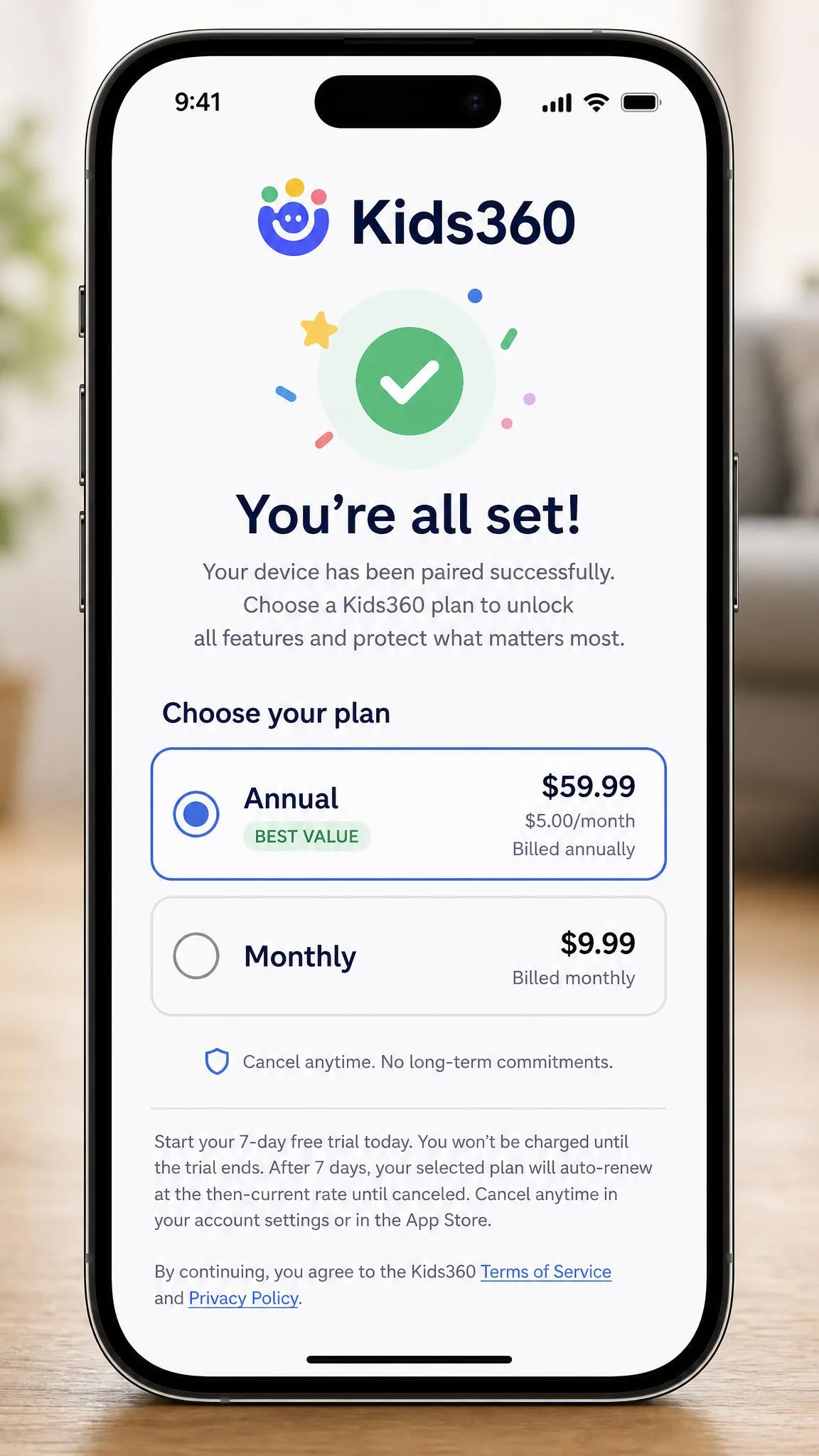
Kids360 runs roughly $79.99 per year, with App Store in-app purchase tiers spanning $7.99 to $79.99, and a 7-day free trial before billing starts. That is close to three times the Kaspersky bundle price for an app that covers fewer devices.
The bigger issue is when the price appears. Kids360 does not disclose what it costs until after the parent and child apps are paired, so the charge lands at the end of setup rather than the start, once you have already installed software on two phones and talked your child through granting permissions. We also found that subscriptions can renew after a cancellation attempt, producing a charge parents did not expect. If you trial it, cancel early and confirm the cancellation in your app store's subscription list rather than in the app.
Screen Time Limits and Scheduling
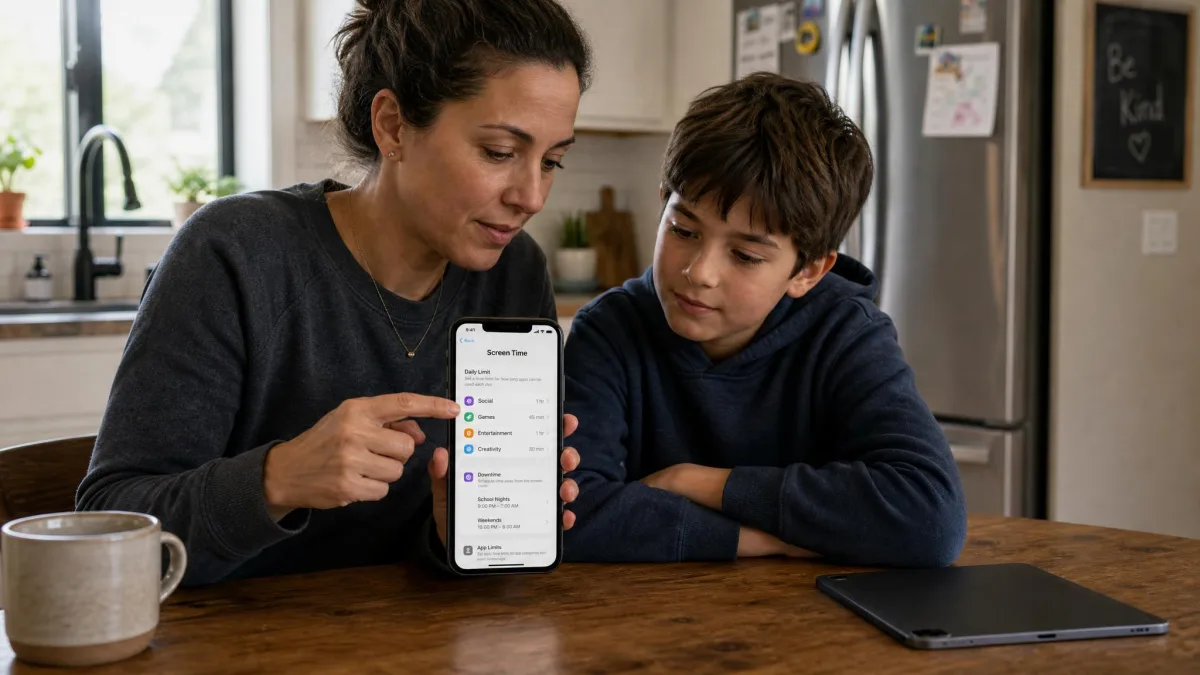
Both apps cap daily use. Only one of them tries to make the child want to stay under the cap.
How Kaspersky Safe Kids handles daily limits
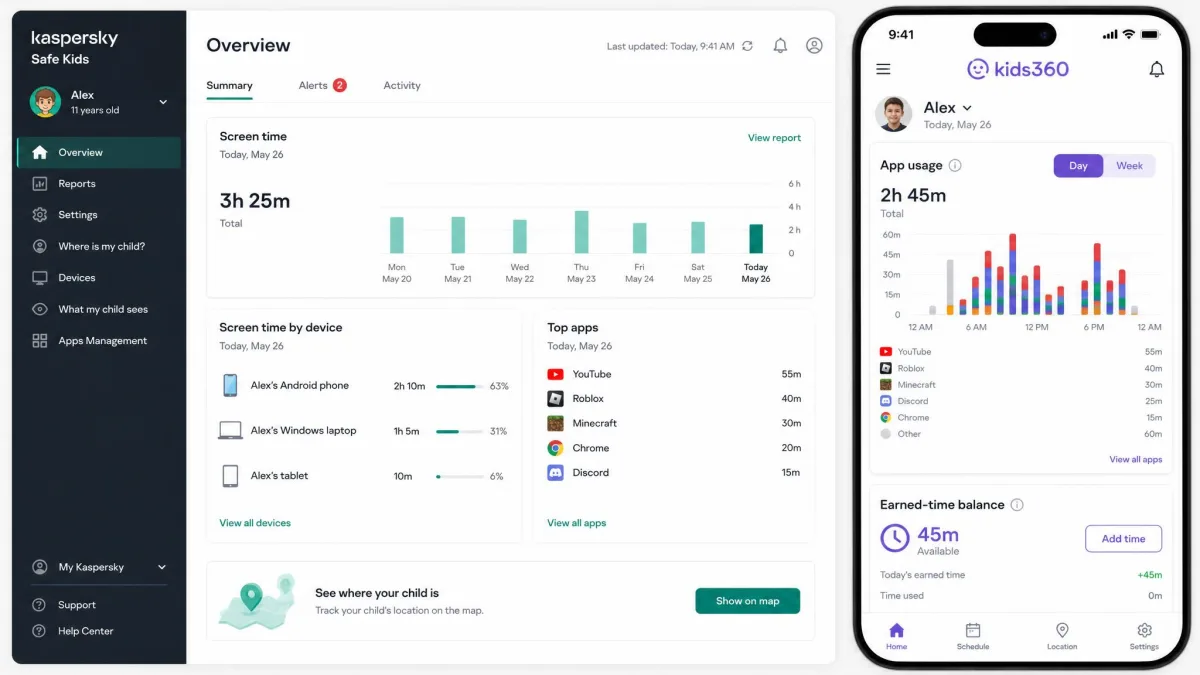
Safe Kids gives you a daily allowance per device on the free tier, which is the control most parents reach for first. Set the number of hours, and the child gets a warning as the balance runs down before access closes. Scheduling, meaning the ability to say no phone between 9pm and 7am on school nights rather than just two hours a day, is a premium feature, and it is the single most persuasive reason to upgrade. A daily total does not stop a child from spending all of it at midnight.
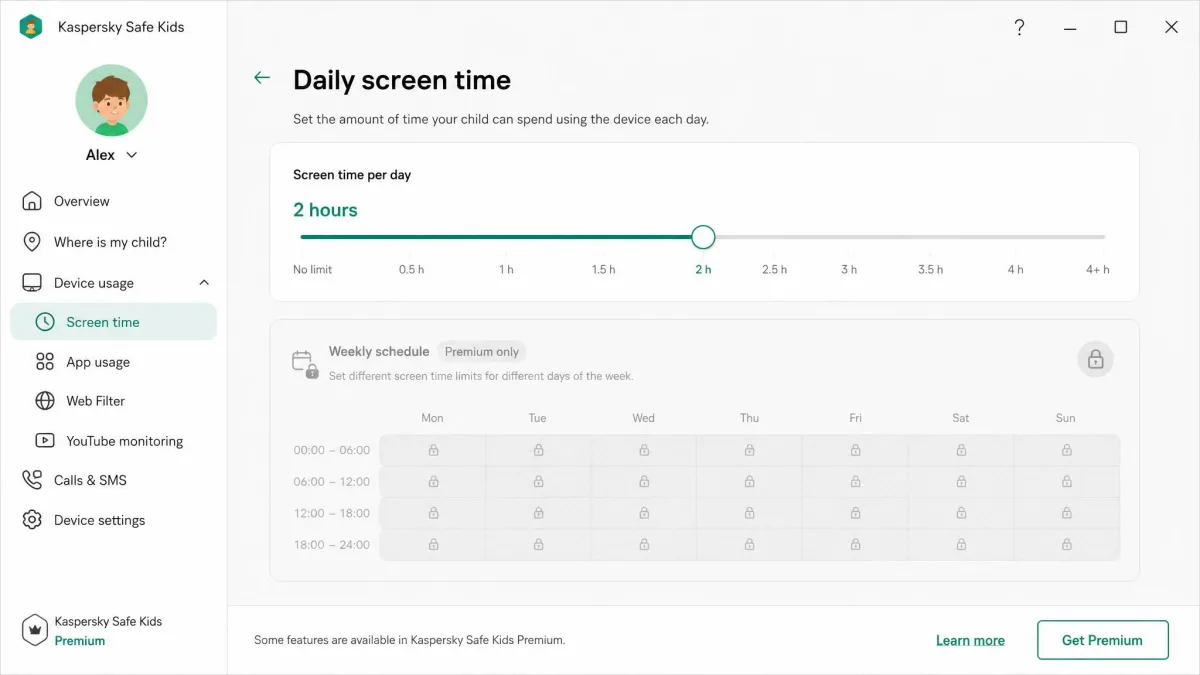
Managing those limits from the parent side is functional rather than pleasant. The Safe Kids dashboard is slow to load between tabs, which grates when you are switching often to adjust one child's allowance and check another's activity.
How Kids360 turns screen time into earned time
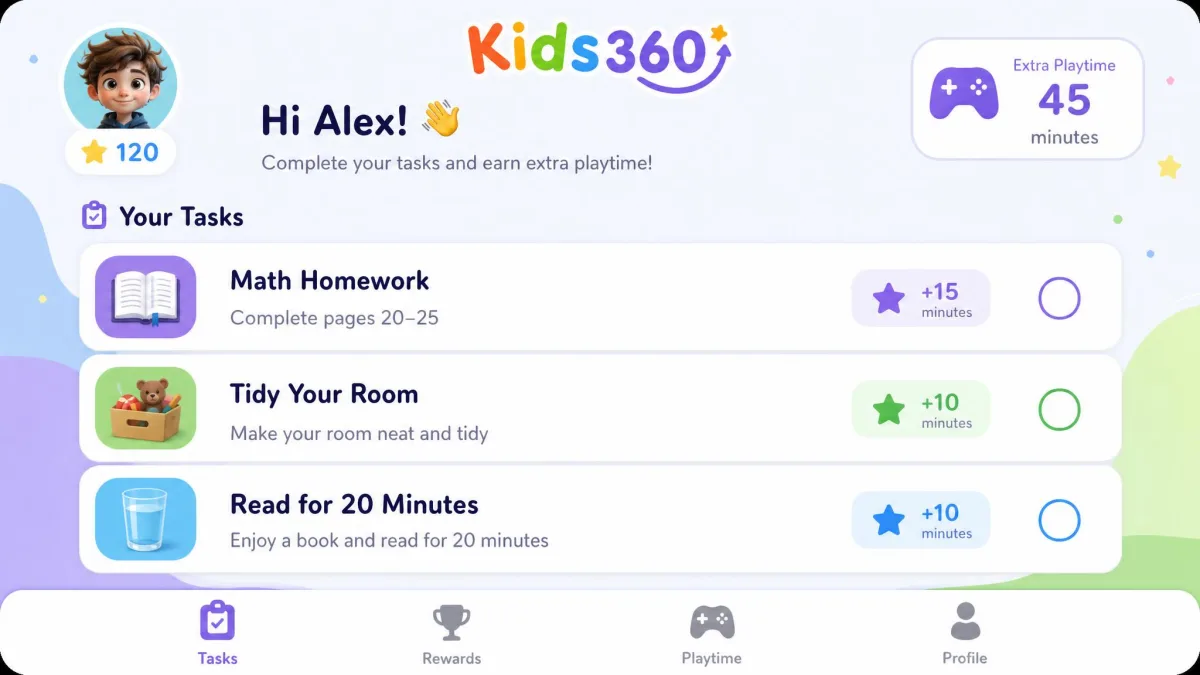
This is the Kids360 differentiator and it deserves credit. Alongside standard daily limits, the app hands out developmental and custom parent-set tasks that earn extra playtime. A child who finishes homework or a chore unlocks more minutes, so the negotiation moves from "give me my phone back" to "here is what I did". The company advertises a 2.5x reduction in screen time, though that is a vendor marketing figure with no published methodology behind it, so treat it as a claim rather than a result.
The mechanism only helps if the cap underneath it holds, and that is where we ran into trouble. Kids360 daily usage caps can fail to hold, letting a device stay in use well past the set limit even after reinstalls and resets. A reward system built on a limit that does not enforce itself loses most of its point.
On iPhone specifically, several advertised Kids360 controls, including time limits and app blocking, can show up as unavailable. If your child is on iOS, verify the features work on their exact device during the trial week rather than after you have paid.
Content Filtering and Blocking Inappropriate Websites
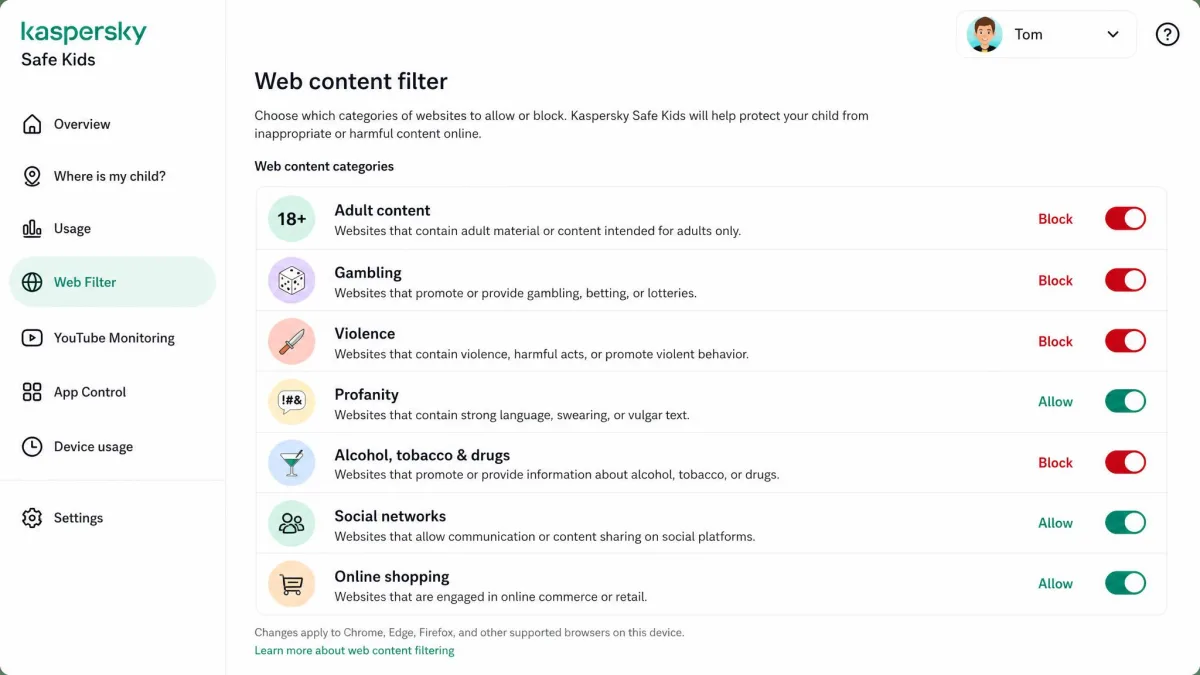
Safe Kids ships a web content filter and safe search on the free tier, which means you can block inappropriate sites and categories without paying. Kaspersky groups content into categories you toggle rather than making you build a blocklist by hand, and you can add specific websites as exceptions. In our checks the filter held up in a place many tools leak: Safe Kids still catches restricted searches made in an incognito browser window, which is the first workaround most children find.
Kids360 offers internet safety filters, but filtering is not what the app is built around, and the controls are shallower than Kaspersky's category system. If keeping a child away from adult content online is your main goal, Safe Kids is the stronger tool by a clear margin.
Search and YouTube monitoring
Safe Kids monitors search activity on the free tier and adds YouTube search history at the premium level, so you can see what a child is looking for rather than only which sites they reached. That said, recent-search reporting was inconsistent between runs for us, working in one round and not the next, so treat it as a signal rather than a complete log.
Kids360 does not offer YouTube or search monitoring at all. Neither app monitors messages or conversations, and Safe Kids' social network tracking covers VK rather than Instagram or TikTok, which makes it close to irrelevant for most Western families. If reading a child's chats is the requirement, neither of these apps is the answer.
App Blocking and App Management
Safe Kids includes app usage control on its free tier, letting you block individual apps outright or cap how long each one runs. The control is stronger on Android than on iPhone: app filtering on iOS is thinner, so iPhone households get less out of a paid Safe Kids plan than Android households do. That is a limitation of Apple's platform as much as Kaspersky's engineering, but it still changes the value calculation.
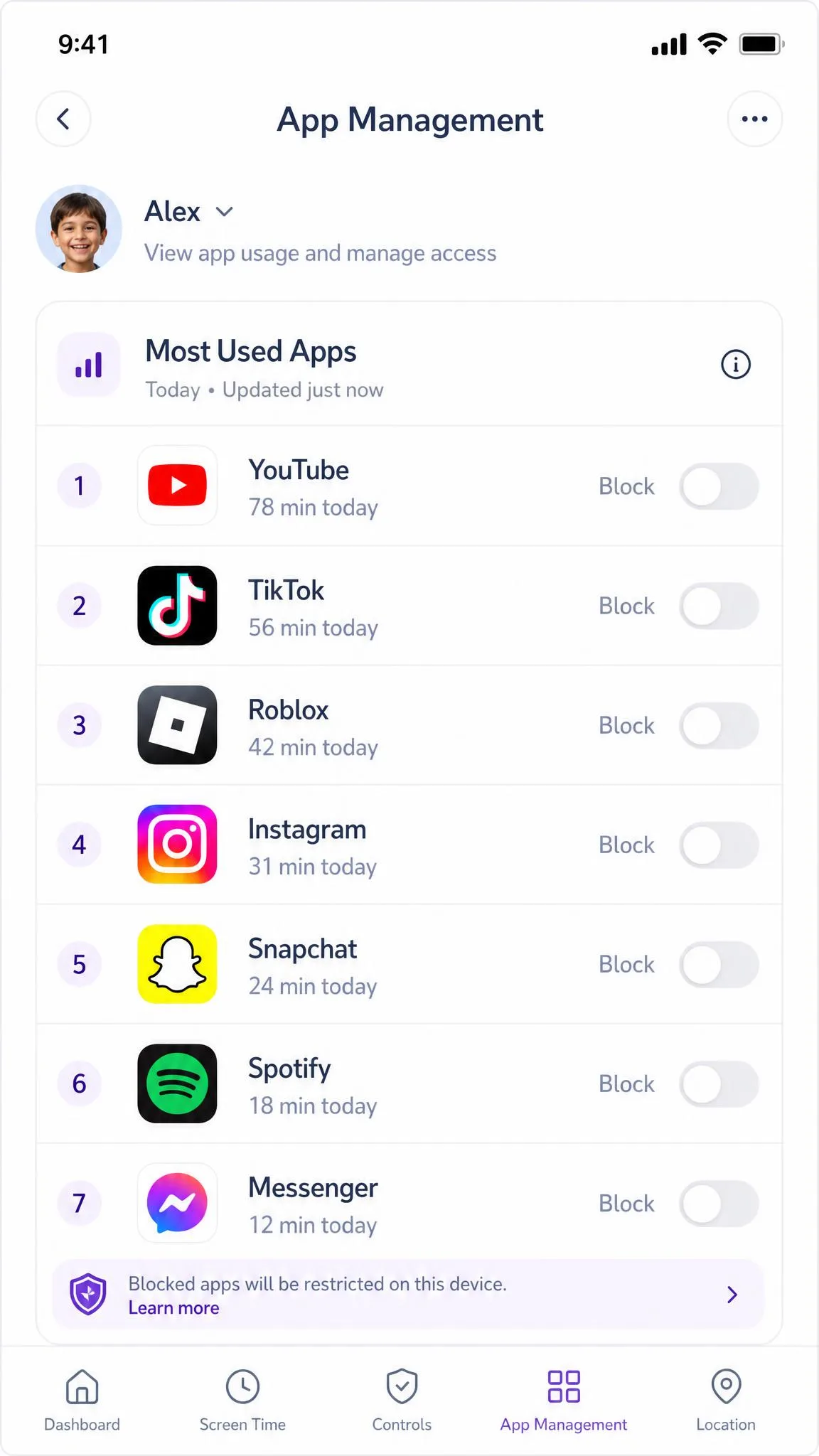
Kids360 blocks apps too and pairs the blocking with app usage statistics, so you can see which apps eat the day before deciding what to restrict. On Android that combination works well. On iPhone it is the feature most likely to appear as unavailable, which is a hard problem for an app whose entire premise is phone management.
Pros
- Safe Kids blocks apps and sets per-app time limits without a paid plan
- Kids360's usage statistics make it obvious which apps to restrict first
- Both let you adjust app restrictions remotely from the parent phone
Cons
- Both apps lose meaningful app-blocking depth on iOS
- Safe Kids has no message or conversation monitoring
- Kids360 offers no app management on Windows or Mac at all
Location Tracking and Geofencing
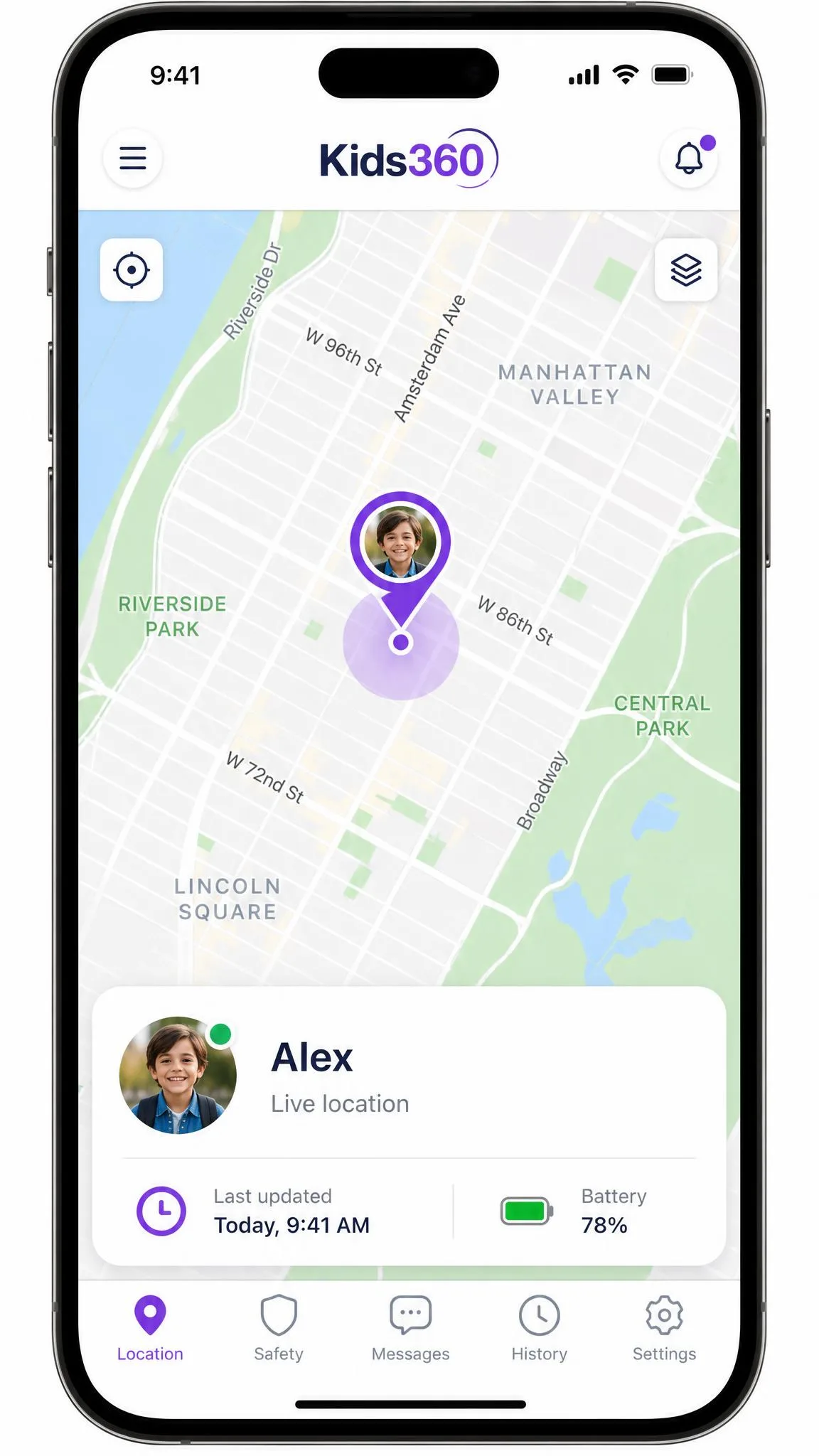
Kids360 shows real-time GPS location on a map and treats tracking as a headline feature rather than an upsell. The catch is basic: location tracking stops working the moment location services are switched off on the child's phone, and any child who wants to disappear for an afternoon will work that out.
Safe Kids puts its GPS locator and geofencing behind premium. When it works, geofencing is the better implementation, because you get arrival and departure alerts around defined areas rather than a dot you have to check manually. When it does not work, it fails silently. We saw allowed areas disappear after being saved, with no arrival or departure alert firing afterwards. Set a geofence, then confirm it still exists an hour later before you rely on it.
Neither app should be your only safety net for a child's whereabouts, and both depend on a charged phone that stays with the child. Safe Kids at least adds battery tracker alerts at the premium tier so a dying phone does not surprise you.
Reports, Alerts, and Remote Management
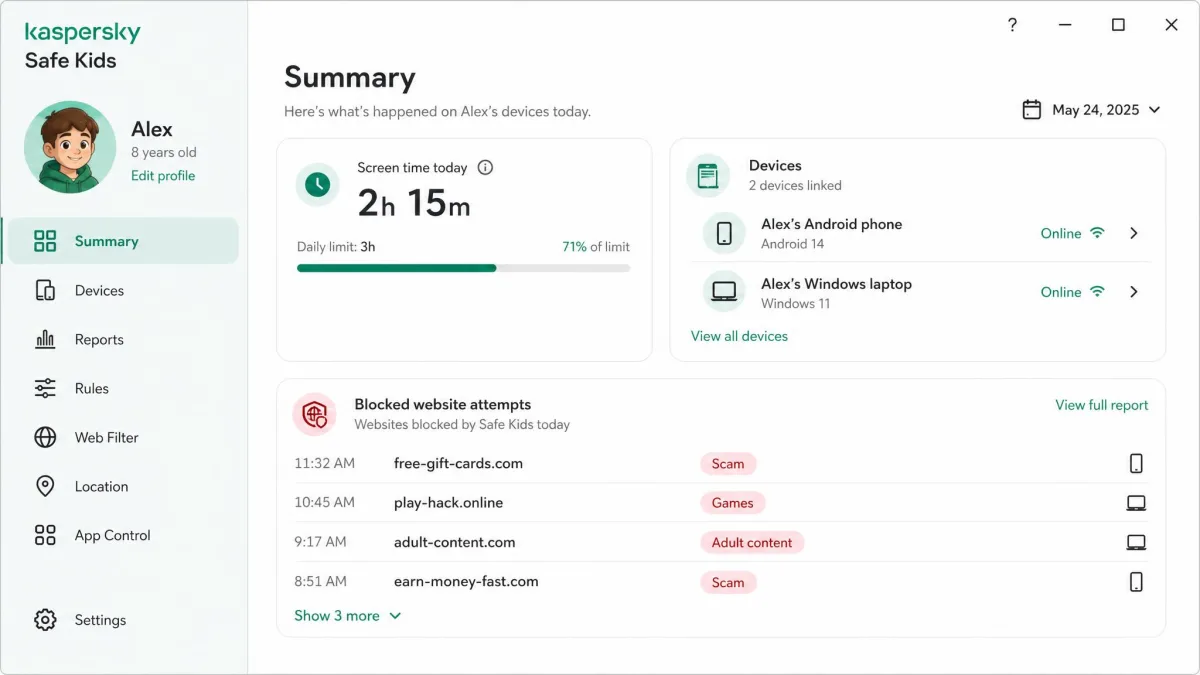
Safe Kids sends activity reports on the free tier and adds real-time alerts when you upgrade, so you find out about a blocked site attempt when it happens rather than the next morning. Everything is managed from the My Kaspersky account, which supports up to 100 child profiles and up to 500 devices. For a normal household those numbers are academic, but they tell you the platform was built for scale rather than for one phone.
Kids360 reports through app usage statistics on the parent phone. The reporting is clear and readable, but we found the parent and child apps can fall out of sync, with freezing and lagging updates between the two, which undermines confidence in whatever number you are looking at. When something goes wrong, support can be slow or unresponsive, including no reply to detailed public store complaints, so plan on solving problems yourself.
The most useful thing you can do in either app's first week is test the controls yourself on the child's device. Set a limit, hit it, and see what actually happens. Both apps have features that read well on the product page and behave differently on a real phone.
Device and Platform Support (Android, iOS, Windows, Mac)
This section decides the comparison for a lot of families.
Safe Kids supports Windows 7, 8, 8.1, 10 and 11, macOS 11 through 14, Android 11 through 16, and iOS 18 and iOS 26. The Android install needs about 270 MB of storage, which its Play Store listing confirms alongside the supported Android versions. That coverage means one subscription manages a child's phone, their school laptop and the family desktop from the same dashboard.
Kids360 requires iOS 17.0 or later or Android 7.0 or higher, is distributed through the App Store, Google Play, Huawei AppGallery and Samsung Galaxy Store, and has no Windows or macOS client. Its iOS download is about 372MB. Its lower Android floor of 7.0 makes it the better fit for an old hand-me-down handset that Safe Kids will not run on.
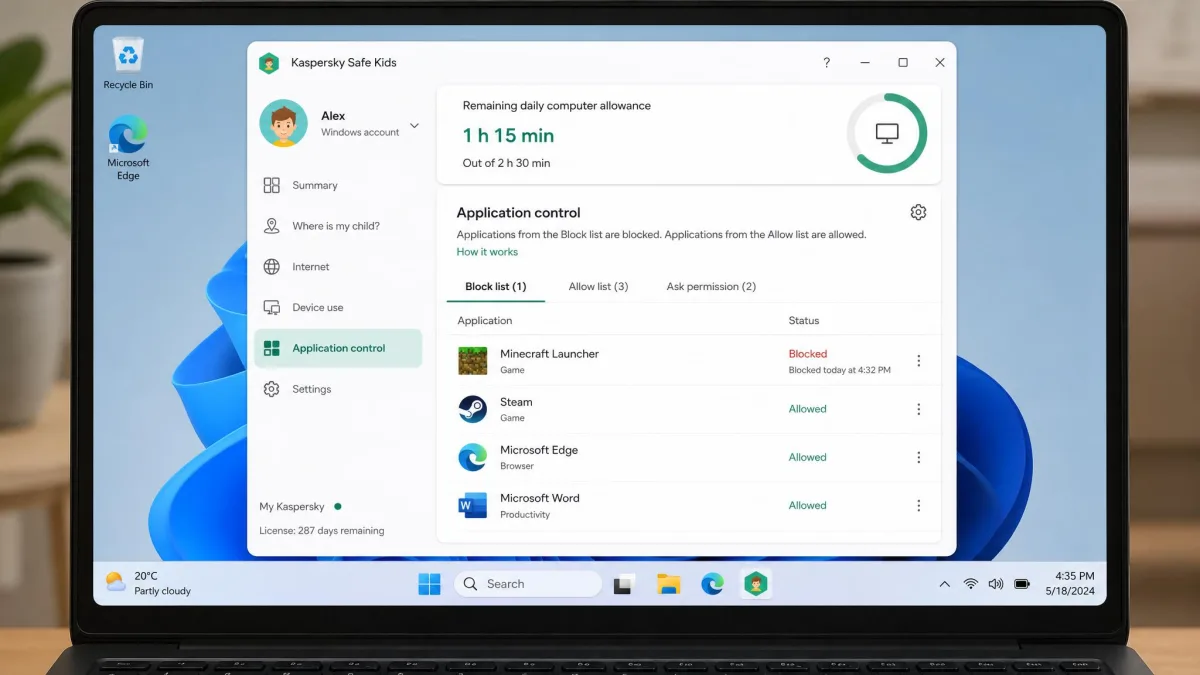
If there is a computer in your child's life, Kids360 cannot help you with it. That is not a small gap, it is a category difference.
Setup and Ease of Use
Installing on the parent device
Both apps start on the parent phone and both are beginner-friendly at this stage. Safe Kids ties into a My Kaspersky account you may already have from an antivirus subscription. Kids360 installs as a standalone parent app with no account baggage, which is the smoother of the two openings.
Installing on the child device
Android setup on Safe Kids is straightforward: scan a QR code on the child device and grant a short list of permissions, and you are running in a few minutes. Setting Safe Kids up on an iPhone takes noticeably more work, because it requires creating a new child Apple ID first, and that is a detour worth budgeting time for on a school night.
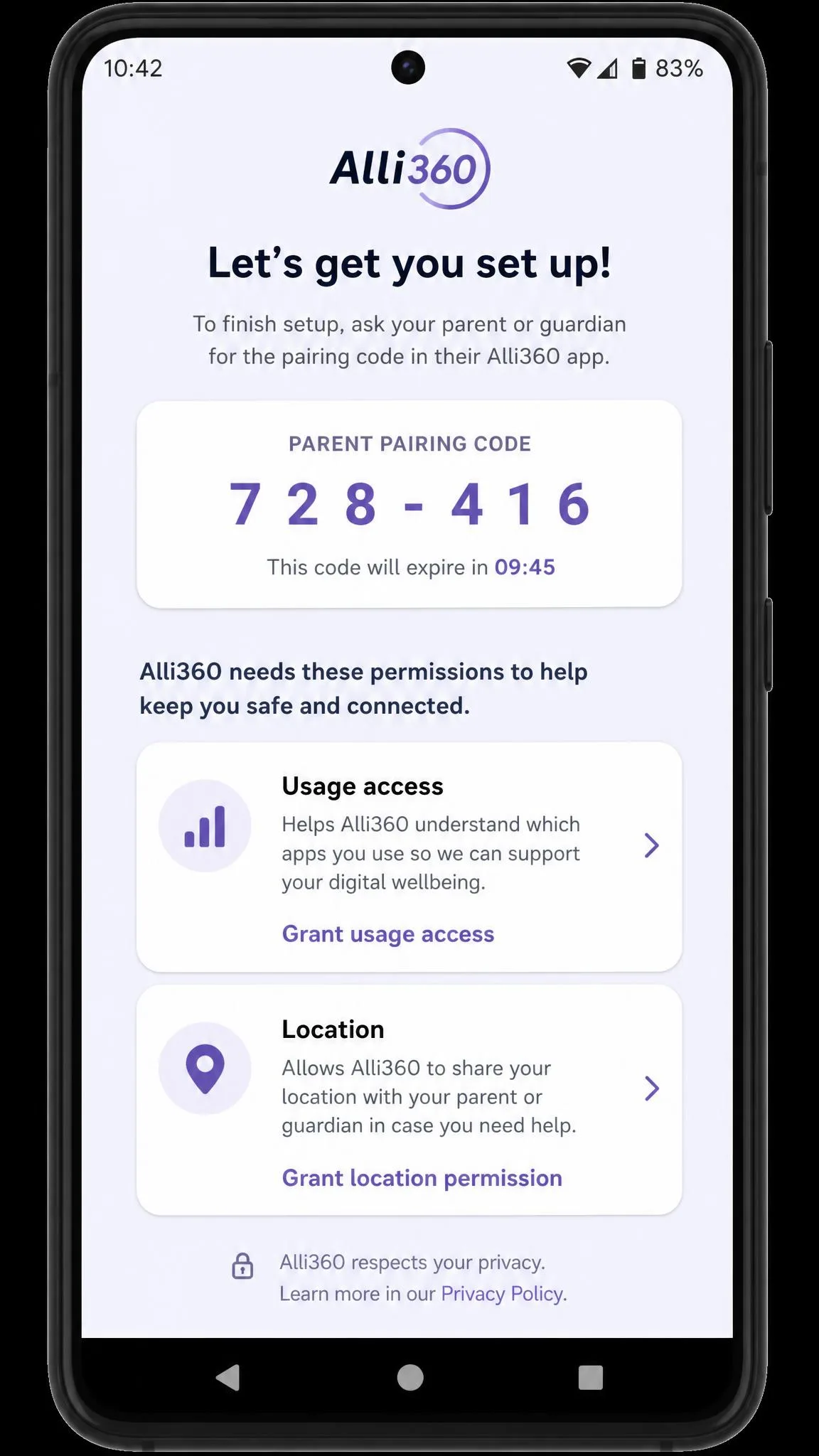
Kids360 needs two apps rather than one. The parent installs Kids360 on their own phone and the companion app Alli360 on the child's device, and the pairing has to complete on both ends before anything works. It is not difficult, but it does mean the child has to be present and cooperative during setup, which is a meaningful requirement for the ease of use of the whole system.
The Kid's Experience: Cooperation vs Control
Safe Kids is built to be enforced. The child sees blocks, warnings and a countdown, and there is no path within the app for them to earn anything back. For younger children that clarity works fine. For a tech-savvy teenager it reads as surveillance, and teenagers respond to surveillance by routing around it.
Kids360 is built to be negotiated. Tasks earn extra playtime, and the app adds a Loud Signal feature for finding a silenced phone plus camera-based exercise recognition that ties movement to rewards. The App Store community rates Kids360 4.6 out of 5 across roughly 8,900 ratings, and Google Play shows 4.7 across 100K+ reviews, with the company claiming 1 million parents on board. Those scores sit alongside a JustUseApp safety score of 40.1 out of 100 drawn from 7,947 user reviews, and opinion is sharply split, with the same feature set drawing both strong praise and open frustration. That split matches what we found: when Kids360 works, families love it, and when the sync or the limits fail, the whole arrangement collapses.
The reward system is the best idea in this comparison, and it only pays off when the limit underneath it actually holds.
Can Kids Bypass Either App?
Every parental control app is a speed bump, not a wall, since kids bypass parental controls on phones in predictable ways, and both of these have known weak points.
Kids360 is the easier of the two to defeat. Alli360 can be disabled from the child's phone in minutes, which unwinds every limit set on the parent side, and location tracking dies the moment location services are toggled off. Oddly, the reverse problem also shows up: some Kids360 installs become hard to remove, with the app refusing deactivation or uninstall from the child's phone, which is its own kind of headache when you are trying to hand a phone on.
Safe Kids holds up better on Android, where uninstall protection and device administrator permissions make removal a deliberate act rather than a two-tap decision. It also catches incognito searching, which closes the most common workaround. Its own failures are less about the child defeating it and more about features quietly not working, such as a geofence that vanishes after you save it.
Independent lab work is thin in this category, and even an independent AV-TEST evaluation of parental control software will not tell you how a given build behaves on your child's handset. The honest answer is that no app substitutes for the conversation. Controls buy you time and visibility. They do not buy compliance.
Which One Should You Choose?
Choose Kaspersky Safe Kids if you want the widest coverage for the least money, if there is a Windows PC or a Mac in the picture, if you want real web filtering and search monitoring, or if you want to run useful controls at no cost while you decide whether to pay. It is the more complete parental control app of the two and the safer default.
Choose Kids360 if you have one child on one phone, if what you want is a system that changes screen habits rather than one that only blocks, and if you are comfortable paying around $79.99 a year for that idea. Use the trial week hard, verify that the daily cap holds on your child's actual device, and cancel through your app store if it does not.

Whichever way you go, treat the app as one layer. Device-level settings, router filtering and a shared understanding of the rules all do work that no subscription does, and it is worth being clear-eyed about what these apps are collecting on your behalf.
Frequently Asked Questions
Is Kaspersky Safe Kids free?
Is Kids360 free?
Which is better on iPhone?
Can kids uninstall or bypass either app?
Does either monitor YouTube?
Does either track location?
Which suits teens versus younger children?
Can I run both at once?