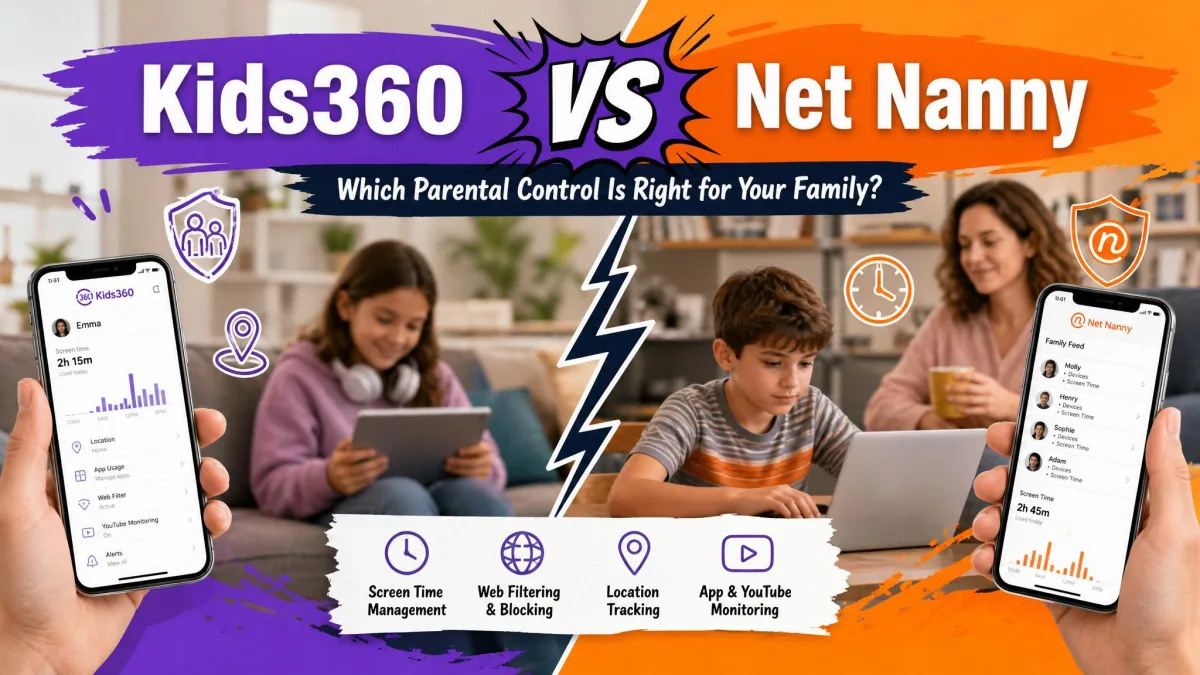
Most parents reach for a parental control app after a specific moment: a browser history that should not be there, a bedtime that keeps sliding, or a phone that never leaves a hand at dinner. Kids360 and Net Nanny both promise to fix that, and they go about it in almost opposite ways. To sort out which one belongs on your family's devices, we worked through both products against the same set of questions parents actually ask: what does it filter, how tightly can you cap screen time, what does it run on, and what does it cost once the trial talk is over. Our findings below combine hands-on use with the published feature and pricing details from each vendor, and we have flagged every place where the two disagree with each other or with reality. One warning up front, because it decides the whole comparison for many families: Net Nanny does not support Android.
Kids360 vs Net Nanny at a Glance
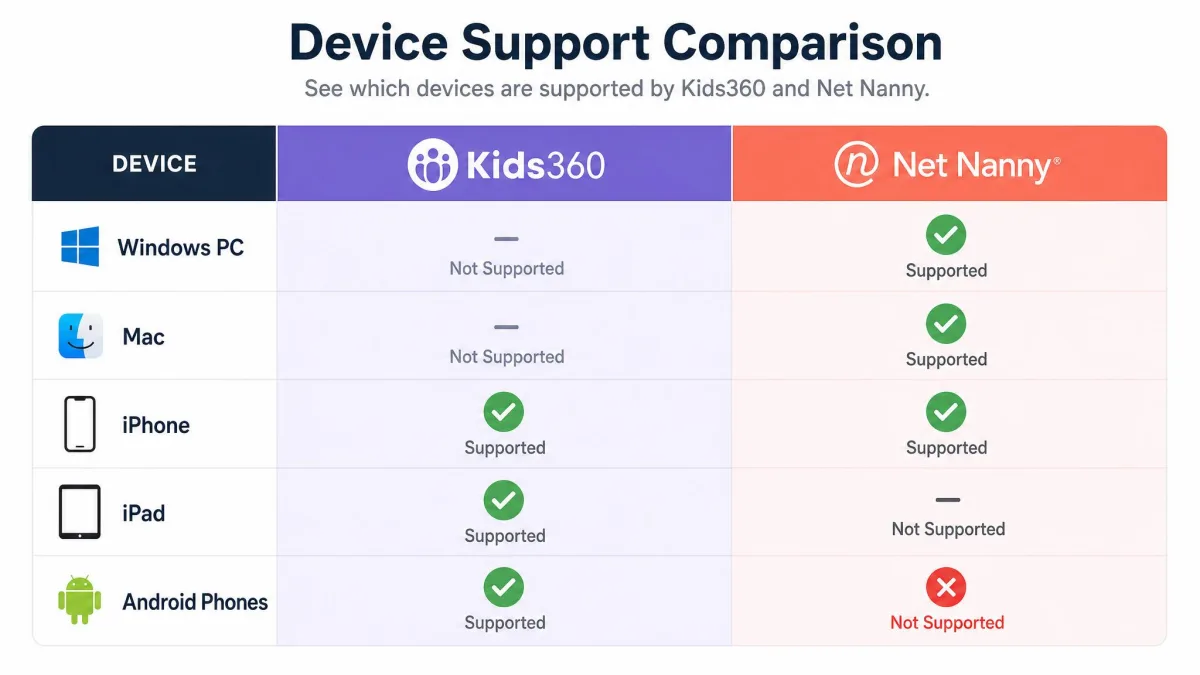
Kids360 is a mobile-only parental control app built around screen time, app blocking and location. It runs on iOS 17.0 or later and on Android, it is free to download, and it charges through in-app purchases that run from $7.99 to $79.99. Net Nanny is a filtering product first. It is built around a content filter that reads pages as they load, and it covers Windows, macOS and iOS. Android, Kindle Fire and Chromebook are not supported.
That single platform gap does most of the sorting. If your child carries an Android phone, Net Nanny is not an option, no matter how good its filter is. If your family runs iPhones and laptops and you want web filtering that reaches the browser, Kids360 has nothing comparable to offer, because it has no desktop app at all.
Quick Verdict: Who Each App Is For
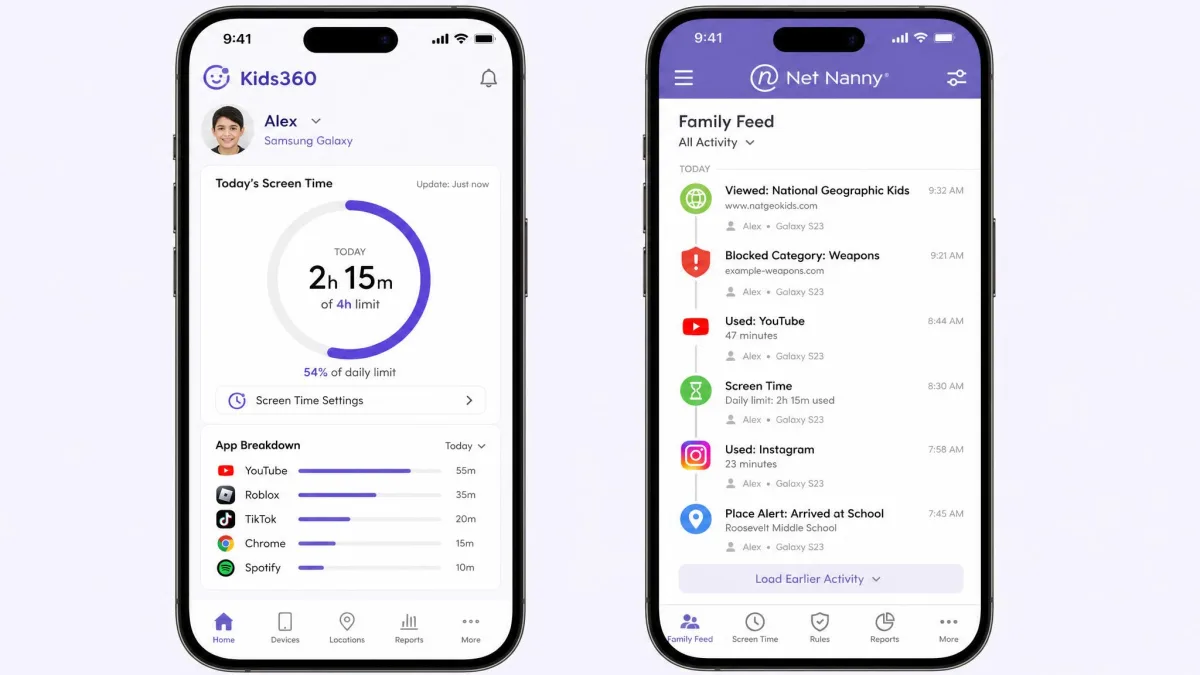
Side-by-Side Feature Comparison
The table below is the short version of everything we checked. Every row reflects what each app actually delivered for us, not what the marketing pages promise.
| Feature | Kids360 | Net Nanny |
|---|---|---|
| Price / plans | Free download, in-app purchases $7.99 to $79.99 | $39.99/yr (1 desktop), $54.99/yr (5 devices), $89.99/yr (20 devices) |
| Devices covered | Per-child pairing, no published device cap | 1, 5 or 20 devices by plan |
| Platforms | iOS 17.0 or later and Android | Windows, macOS, iOS (no Android) |
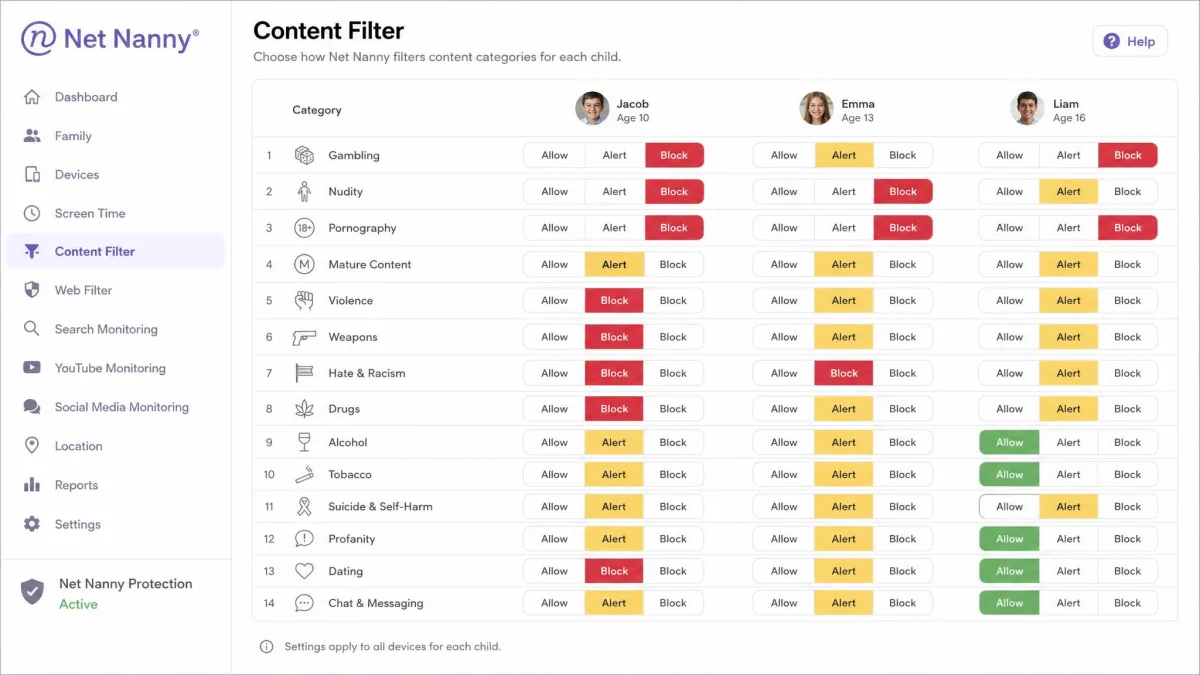
| Content filtering | Adult site and inappropriate content blocking | 14 preset categories plus custom keyword filters |
| App blocking | Yes, by tap or schedule | Yes, but no per-app time limits |
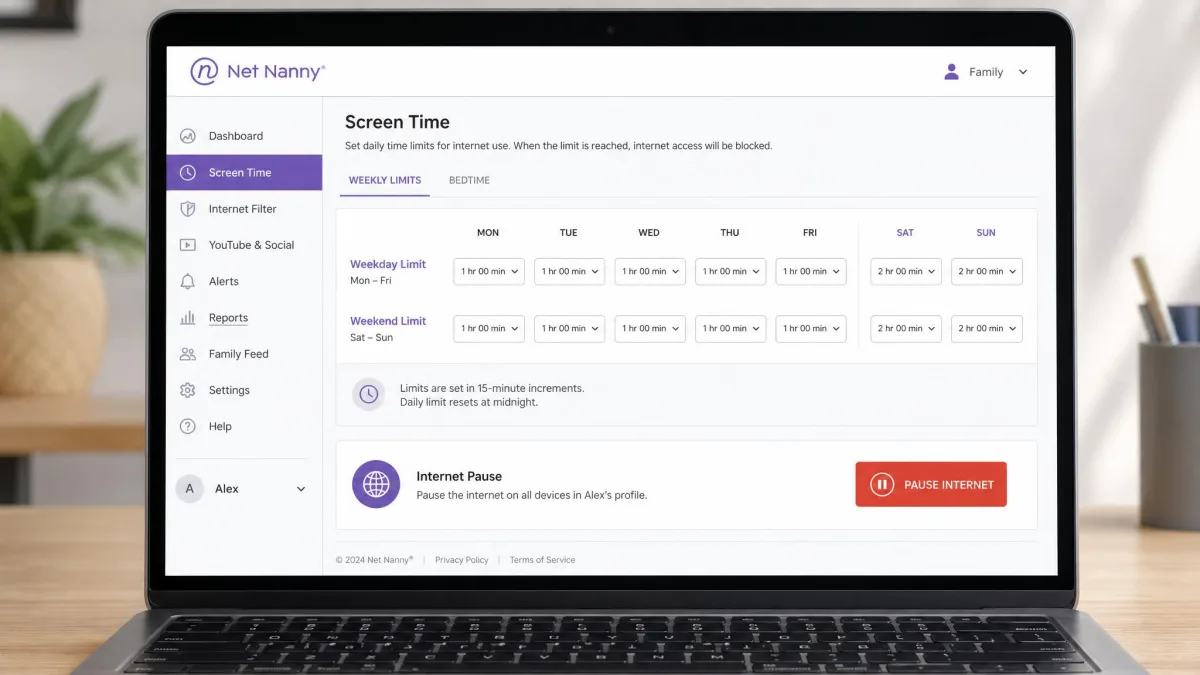
| Screen time limits | Daily and per-app limits | 15-minute increments or minute-level |
| Scheduling | Yes | Yes |
| Location tracking | Yes, with location history | Real-time plus history, iOS only |
| Geofencing | Not confirmed | Not confirmed |
| Social / YouTube monitoring | App usage statistics only | YouTube search and watch history, social media protect mode |
| Activity reports | App usage statistics | Family Feed |
| Alerts | Time-remaining signal on the child device | Real-time parent alerts |
| Tamper resistance | Weak, a child can remove the app | Weak, no uninstall alert, removable iOS profile |
| Free tier | Free download, subscription needed for controls | No free version |
We put both apps through the same routine on a real family phone: pair the child device, set a school-night schedule, block a game, then try to break it the way a determined eleven-year-old would. Neither app survived that last step cleanly, which is the most useful thing we can tell you.
Kids360 Pros and Cons
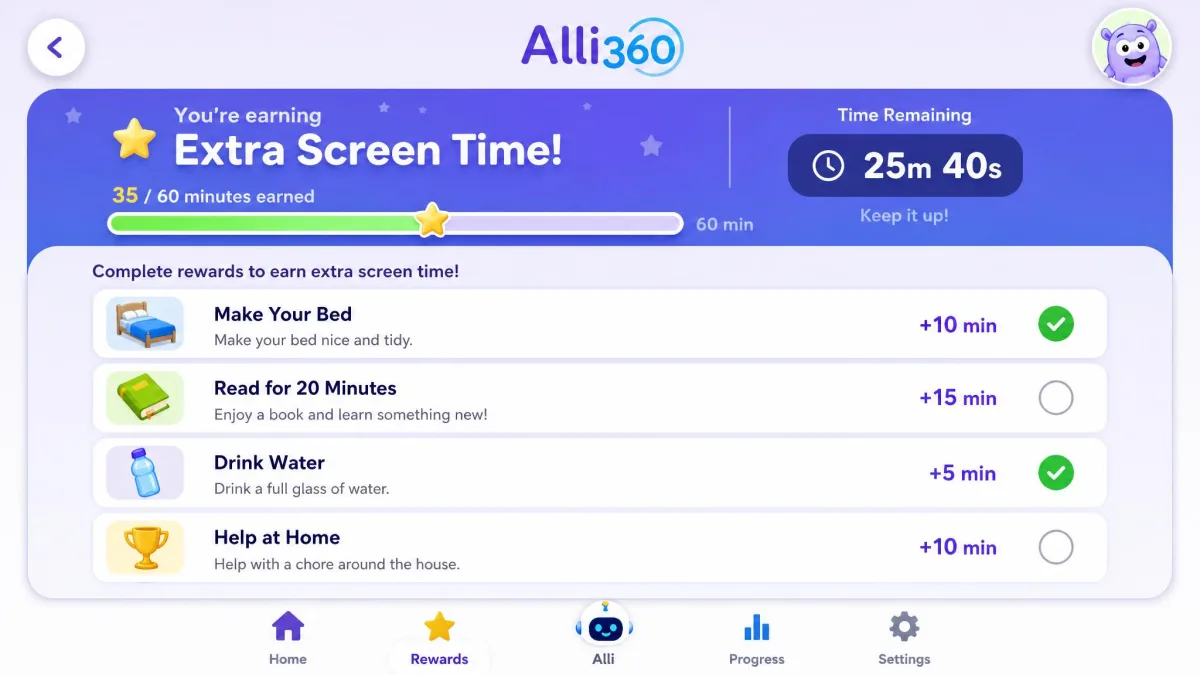
Kids360 is published by MINDCARE LAB LTD and splits into two apps, Kids360 for the parent and Alli360 for the child. Its App Store community rates it 4.6 out of 5 across roughly 8.9K ratings, and the vendor says more than 1 million parents use it. Trustpilot's 204-review community score is far cooler, at 3.6 out of 5, an "Average" rating, though that average shifts as new reviews land. The gap between the two is not noise. The App Store crowd is rating a friendly app that installs easily, and the Trustpilot crowd is rating what happens weeks later with billing and day-to-day reliability.
Pros
- Works on both Android and iOS, which Net Nanny cannot match
- Free to download, so you can see the interface before you pay
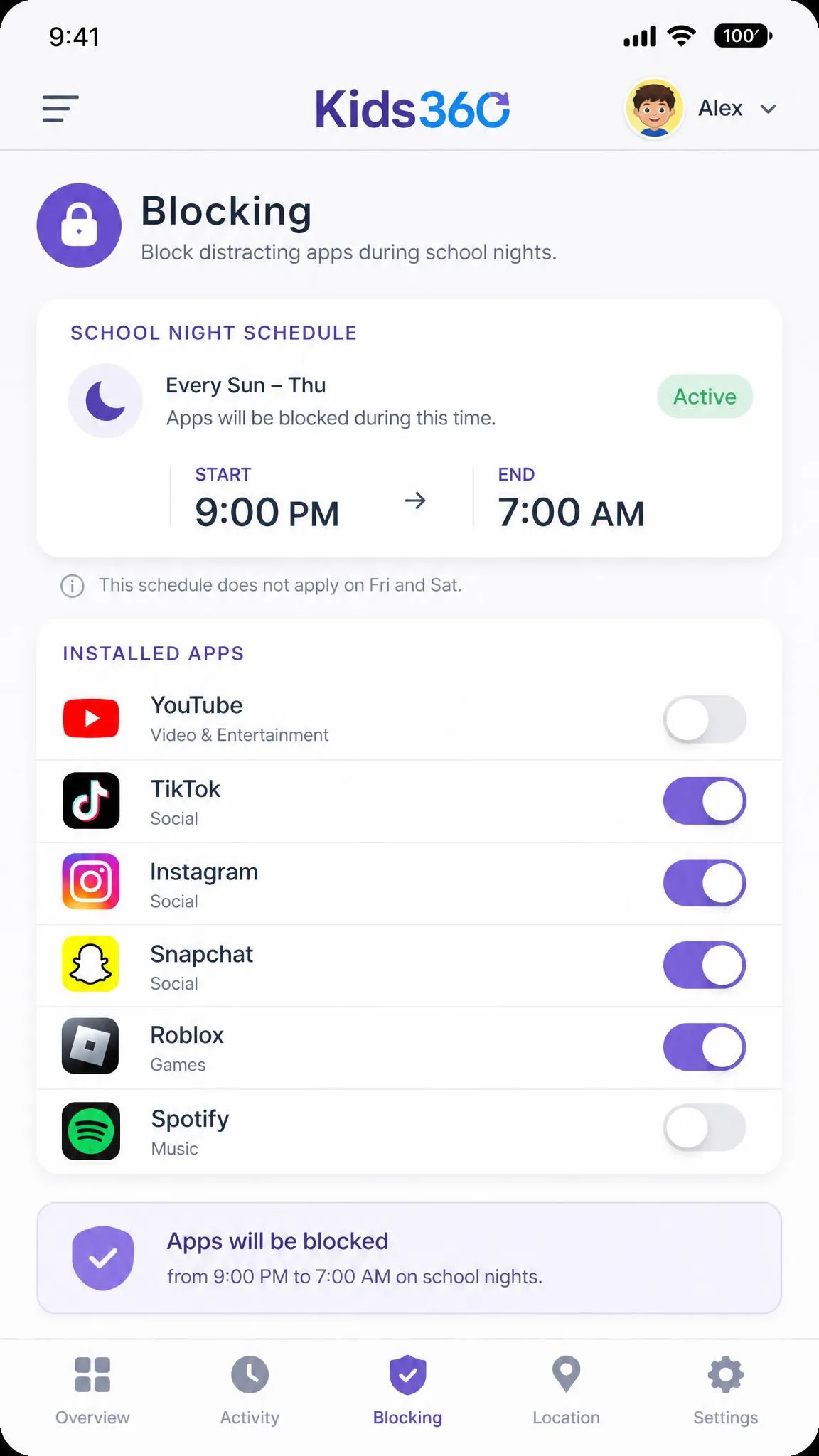
- App blocking by tap or schedule is quick and genuinely useful day to day
- GPS location tracking includes location history
- Reward tasks let a child earn extra screen time rather than only losing it
Cons
- No published US price list, and the cost only appears once setup is finished
- Screen time schedules sometimes fail to apply, letting a child keep using the phone past the daily limit
- Permissions on the child device can quietly stop working while still showing as enabled
- No desktop app for Windows or Mac
- Support is chat and email only, with canned replies
In daily use, app blocking and location tracking are the two features parents lean on most, and they are the two Kids360 does best. The friction shows up around them. Connections can drop when several child profiles run under one parent account, and unlocking a device is sometimes slow enough that a child notices before you do.
Net Nanny Pros and Cons
Net Nanny is the older, more serious filtering product, and it shows in what it covers. Its filter reads page content in real time rather than only checking a site against a blocklist, and it comes closest of the parental control apps we have tested to feature parity across its platform versions. What it does not do is Android.
Pros
- 14 preset filter categories including drugs, gambling, nudity, porn, weapons and tobacco
- Custom keyword filters on top of the presets
- Covers Windows, macOS and iOS with a consistent feature set
- YouTube search and watch history monitoring, plus social media protect mode
- Public, predictable pricing starting at $39.99 per year
- 14-day money-back guarantee
Cons
- No Android, Kindle Fire or Chromebook support
- No text message monitoring, no call blocking and no per-app screen time limits
- The interface still lists Android options that do nothing
- No alert when the child app is uninstalled
- Billing can misfire, and support answers are not always consistent
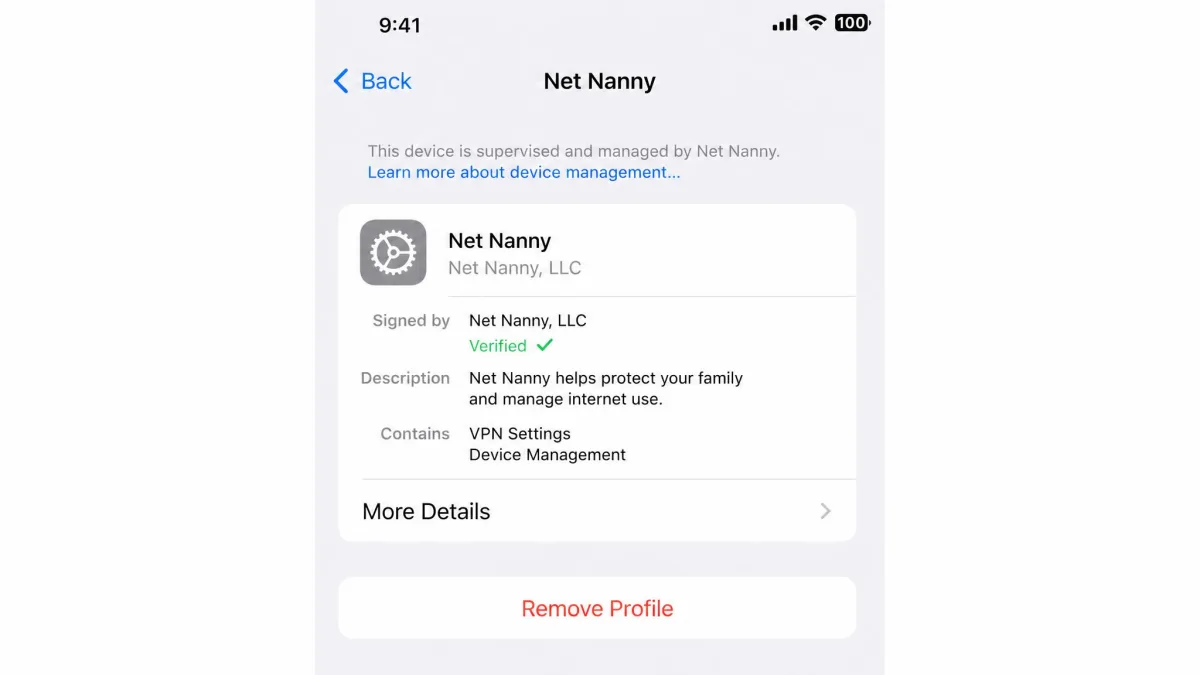
On iOS, Net Nanny's controls depend on a management profile installed on the child's iPhone. A child who finds and removes that profile switches off every control, and you get no alert that it happened. Check the profile is still in place from time to time rather than assuming silence means compliance.
Content Filtering and Website Blocking
This is the clearest win in the comparison, and it is not close.
How Net Nanny Filters Content
Net Nanny analyses page content as it loads and sorts it into 14 categories, so a page that has never appeared on a blocklist can still be blocked on what it contains. You can allow, alert on, or block each category per child, then layer custom keywords on top. In practice the category filter is the part that carries the load. The custom keyword filter is weaker than it sounds: it misses explicit language inside song lyrics and long articles, so it catches whole sites far more reliably than it catches individual words.
Two other rough edges are worth knowing. The filter can block a site while still letting related search results through, so a curious child still sees the snippet even if the page will not open. And website blocking often needs specific sites entered by hand rather than trusting the preset categories to catch everything. Neither is a dealbreaker, but both mean the filter needs an hour of your attention in the first week rather than being a set-and-forget job.
How Kids360 Handles Blocking
Kids360 blocks adult sites and inappropriate content, and that is roughly the extent of the description. There are no preset category controls to tune, no keyword layer, and no equivalent of Net Nanny's per-category allow, alert or block choice. What Kids360 gives you instead is app-level control: block a specific app with one tap, or block it on a schedule. For younger children whose internet access happens almost entirely inside a handful of apps, that is often enough. For a tech-savvy teen with a browser, it is not.
If your main goal is keeping your kids safe online in a browser, judge these apps on filtering. If your main goal is getting the phone out of a hand at 9 pm, judge them on screen time and app blocking. Very few families need both to be excellent, and neither app here is excellent at both.
Screen Time Management and Daily Limits
Both apps cap daily use, and both let you build a schedule. The difference is granularity and reliability.
Setting Schedules and Daily Limits
Net Nanny sets daily limits in 15-minute increments, or to the minute if you open the dial pad. You can build a weekday schedule that differs from the weekend, and you can pause the internet outright when you want attention at the dinner table. It is a clean system, and the numbers you set are the numbers you get.
Kids360 sets daily limits and schedules from the parent app, and it adds a small touch we liked: the child device gives a loud time-remaining signal before the limit hits, so the shutdown is not a surprise. The app also lets a child earn extra time by completing developmental tasks or reward tasks you create. That turns screen time into something negotiated rather than confiscated, which is the single best idea in either product.
The catch is dependability. Kids360 schedules sometimes fail to apply, and when that happens a child simply keeps using the phone past the limit you set. We would not build a household rule on a limit you have not spot-checked for a week.
App Blocking and App Limits
Kids360 is the stronger app here. You can block any installed app by tapping it, block it on a schedule, and set per-app limits, then read app usage statistics to see where the day actually went. Net Nanny blocks apps too, but it has no per-app screen time limits at all, so your only choices are on, off, or scheduled. If you want your child to have thirty minutes of a game rather than none of it, Kids360 is the app that can express that.
Location Tracking and Geofencing
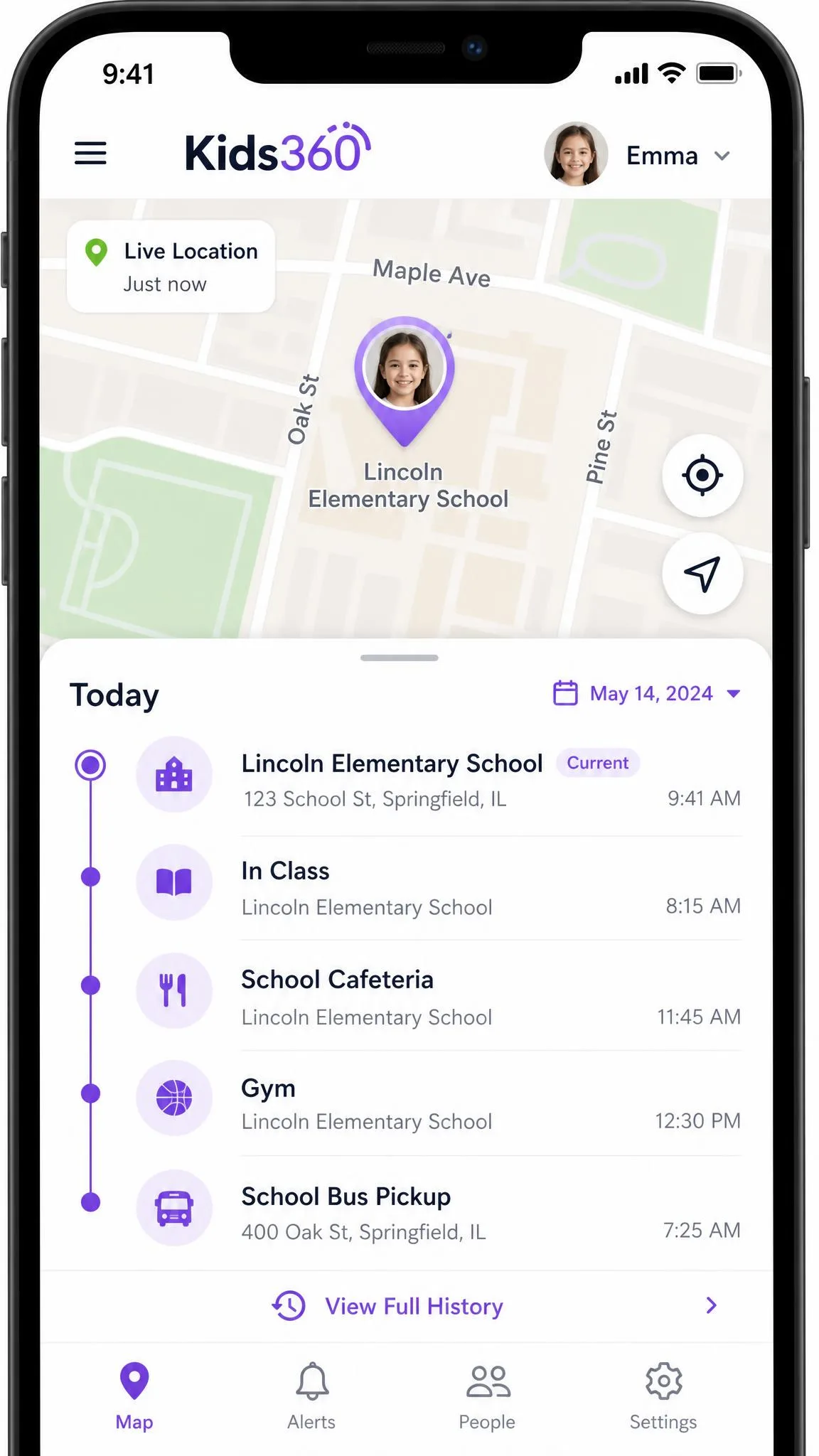
Both apps track a child's location and keep a location history. Net Nanny's real-time tracking and history run on iOS, which is consistent with the rest of its platform story. Kids360 offers GPS tracking with history on both mobile platforms, and location is one of the two features parents use most.
Accuracy is the thing to set expectations around. Kids360 location updates can be delayed or approximate rather than pinpoint, which is fine for "did they get to school" and unreliable for "which building are they in right now". Neither vendor documents geofenced zone alerts on its official pages, so if arrival and departure notifications are essential to you, treat that capability as unconfirmed on both sides and ask support before you pay.
Social Media and YouTube Monitoring
Net Nanny is the only one of the two doing real social monitoring. It records YouTube search and watch history, so you can see what a child looked for as well as what they watched, and its social media protect mode extends filtering into the major platforms. It stops short of full message surveillance: there is no text message monitoring and no call blocking, which reads as a deliberate line rather than an oversight, and one we happen to agree with.
Kids360 has no social or YouTube monitoring feature. What it reports is app usage statistics, which tells you a child spent two hours in a video app without telling you a single thing about what was in those two hours. For a nine-year-old that is usually the right amount of oversight. For a fourteen-year-old, it is a blind spot.
Activity Reports and Alerts
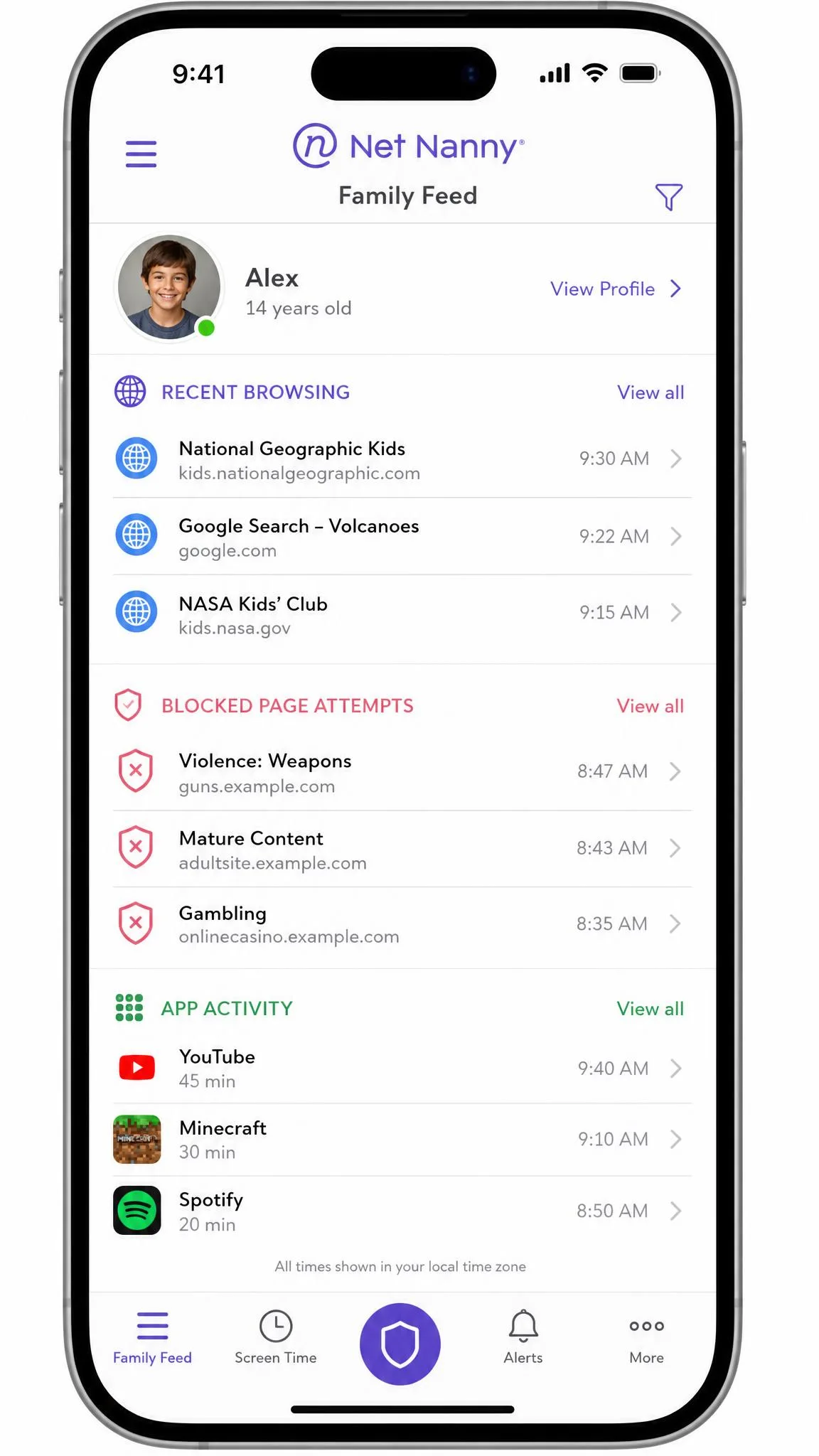
Net Nanny's Family Feed is the better reporting surface. It gathers browsing, blocked attempts and app activity into one running list per child, and it fires real-time alerts when a child tries to reach something you flagged. Reading it takes a minute a day and gives you something specific to talk about, which is the point.
Kids360's reporting is quieter. You get app usage statistics per child and the time-remaining signal on the child device, but there is no live feed of attempts and no equivalent alert stream. The gap that matters most sits on the tamper side, and it applies to both apps: Net Nanny sends no alert when the child app is uninstalled, and a determined child can remove Kids360 from their own phone as well.
Neither app tells you when a child removes it. Whichever one you choose, the check that matters is opening the parent app once a week and confirming the child device is still reporting in.
Device Support: iOS, Android, and Desktop
This section decides the purchase for most families, so read it before the pricing.
Net Nanny runs on Windows, macOS and iOS. Android, Kindle Fire and Chromebook are not supported, and there is no announced release date. Worse, the interface still shows Android options that do nothing, which makes it genuinely easy to buy the wrong plan for an Android child device and only discover the problem afterwards. If your household is iPhones and laptops, that coverage is excellent, and it includes real desktop filtering that a mobile-only app cannot touch.
Kids360 is Android and iOS only, with no Windows or Mac software. On iOS it requires iOS 17.0 or later, which rules out older hand-me-down iPhones. You can download it from the App Store, Google Play, Huawei AppGallery and the Galaxy Store, and it supports phones from Samsung, Xiaomi, Huawei, Vivo, Sony and LG alongside iPhone and iPad. If your child's schoolwork happens on a laptop, Kids360 will not see any of it.
Setup and Ease of Use
Installing the Parent and Child Apps
Both products use the two-app model: one app for you, one for the child's device. With Kids360 you install Kids360 on your phone and Alli360 on theirs, pair them, then grant a stack of permissions on the child device. Grant them all in one sitting, because the app depends on every one of them.
Net Nanny's account creation only works from the mobile app, so start there even if you plan to manage everything from a laptop later. Once you are in, opening a child's profile settings requires double-tapping their avatar, which is not signposted anywhere and cost us a few minutes of hunting.
Set both apps up while the child device is in your hands and charged, and finish every permission prompt in one go. On Kids360, come back a week later and confirm the permissions are still working, because they can quietly stop functioning while the settings screen still shows them as enabled.
The Child Experience and Kid Buy-In
Kids360 is the friendlier of the two from the child's side. The time-remaining signal warns before a cutoff instead of ending a game mid-round, and the reward tasks give a child a way to earn time back. Framed as a deal rather than a punishment, that lands much better with a nine or ten-year-old.
Net Nanny is quieter and more clinical. A blocked page shows a block screen, and that is the whole conversation. It is arguably the more honest design for an older teen, who will not be won over by a rewards mechanic anyway, but expect a negotiation rather than buy-in.
Pricing and Plans Compared
Kids360 Pricing
Kids360 does not publish a US price list. The app is free to download and billing happens in-app after setup, which means the price only appears once you have finished onboarding, and it lands as a surprise mid-setup. The only US-denominated figure we can point to is the in-app purchase range of $7.99 to $79.99 shown for Kids360 on the App Store. The offer you see varies by region and promotion.
Two billing patterns are worth going in aware of. Refunds have been refused even when cancellation was attempted within hours of purchase, and a monthly selection can still bill as a full year once a trial ends. Read the confirmation screen carefully before you tap. Device compatibility problems can also surface after payment rather than before, so test the pairing on the actual child device early in whatever refund window you have.

Net Nanny Pricing
Net Nanny publishes its prices, and they are simple. One desktop costs $39.99 per year against a regular price of $49.99, which works out to about $3.33 per month. The Family Protection Pass covers 5 devices at $54.99 per year, regular $79.99, or 20 devices at $89.99 per year, regular $129.99. There is a 14-day money-back guarantee. Free trial availability is inconsistent, so treat any trial you are offered as a bonus rather than a plan.

Which Offers Better Value
For a family with three devices, Net Nanny's 5-device pass at $54.99 per year is the more transparent deal: you know the number before you commit, you can compare it against every rival, and the money-back guarantee gives you a real exit. Kids360's value is harder to judge precisely because you cannot see the price until you are already invested in the setup, and we treat that as a mark against it regardless of what the final number turns out to be.
The honest calculation looks like this. If Net Nanny works on your devices, it costs less per feature. If it does not, comparing prices is beside the point.
Privacy, Security, and Tamper Resistance
Neither app is hard to defeat, and any parent choosing between them should plan for that. A determined child can remove Kids360 from their own phone. On Net Nanny, the child app can be uninstalled with no alert to you, and the iOS management profile can be removed to switch off every control at once.
There is a broader point here that both vendors soft-pedal. These apps work best as a visible agreement with your child, not as surveillance they are unaware of. Tell your child the app is there and why. A control they know about and mostly accept outlasts one they discover and delete.
Support is the other reliability question. Kids360 has no phone line, only chat and email, and chat replies tend to be canned help-centre articles that miss the question asked. Net Nanny does answer, but different agents have given conflicting guidance on the same question, and its billing has charged a single subscription more than once after auto-renewal was switched off. Keep your receipts either way.
Alternatives Worth Considering
If neither app fits, the near neighbours are worth a look before you commit. Google Family Link is free, covers Android well, and handles app approval, daily limits and location without a subscription. It is thinner on content filtering than Net Nanny, but for an Android household on a budget it is the obvious first stop.
Beyond that, Qustodio covers more platforms than either app here and is the usual recommendation for mixed-device families. Bark takes the opposite approach to Kids360, watching messages and social accounts for concerning content rather than capping time. Canopy competes with Net Nanny directly on filtering quality, and Mobicip is the middle ground on price and coverage. Our Net Nanny review goes deeper on the filter than we can here, and our Kids360 review covers its setup and billing in full.
Which Should You Choose?
Choose Kids360 If...
Your child uses an Android phone, or you want the phone itself managed rather than the whole internet filtered. Kids360 is the better tool for capping daily use, blocking specific apps on a schedule, setting per-app limits and seeing where the hours went. The reward tasks make it the easier app to get a younger child to accept. Go in expecting an opaque price, and spot-check the schedule for a week before you trust it.
Choose Net Nanny If...
Your household is iPhones, Windows PCs and Macs, and content filtering is the thing you actually care about. The 14-category real-time filter is the strongest feature in this comparison, the desktop coverage is something Kids360 cannot offer at any price, and the pricing is public. Just confirm that no Android device needs covering before you pay, because the interface will happily let you believe otherwise.