Most parents shopping for a parental control app are choosing between two very different ideas of what the software should do. Kids360 treats screen time as something a child can earn back through logic puzzles, math tasks and exercise, which makes it feel less like surveillance and more like a deal you strike at the kitchen table. Qustodio treats the same problem as a filtering and reporting job, covering more devices, more browsers and more of the web, and handing you a timeline of what actually happened.
We compared the two on the things parents ask about first: screen time limits, content filtering and app blocking, location tracking, social monitoring, alerts, platform coverage, price and how long each one takes to get running on a child's phone. Everything below is drawn from the vendors' own documentation, current store listings and the pattern of what families report after living with each app.
Kids360 vs Qustodio at a Glance
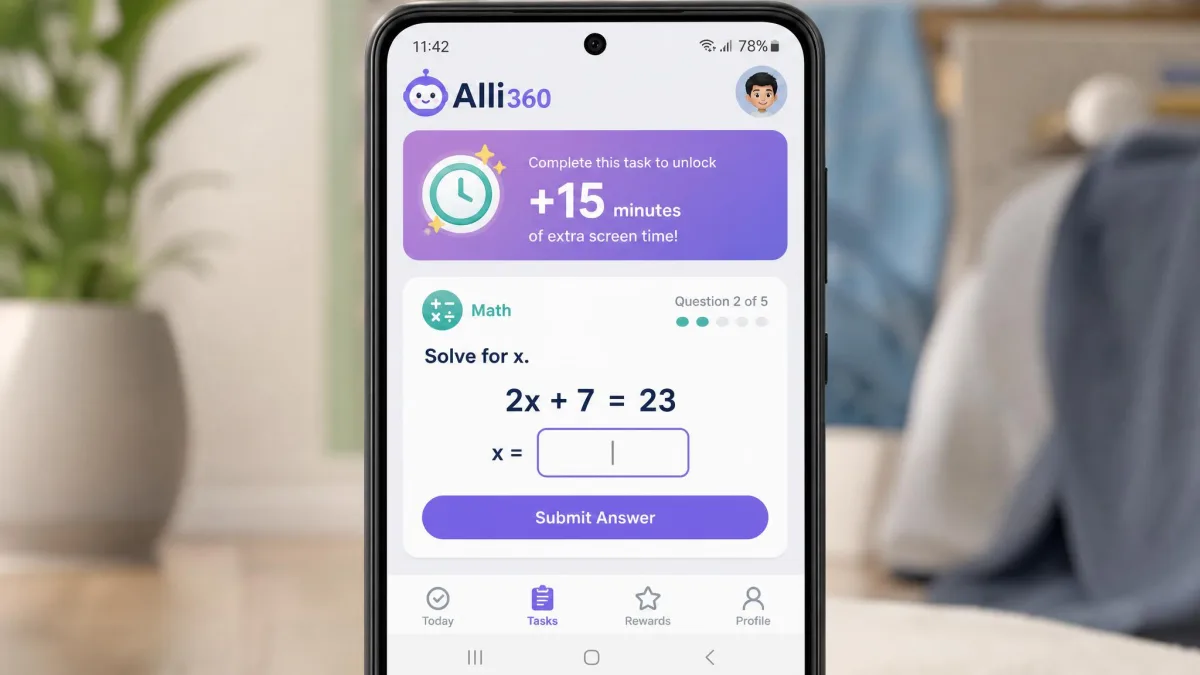
Kids360 runs on two apps: parents install Kids360 on their own phone, and the companion app Alli360 goes on the child's phone. It covers iOS and Android only, with no Windows, macOS or Chromebook client at all. Its distinguishing feature is the reward loop, where the child completes developmental tasks to unlock extra minutes.
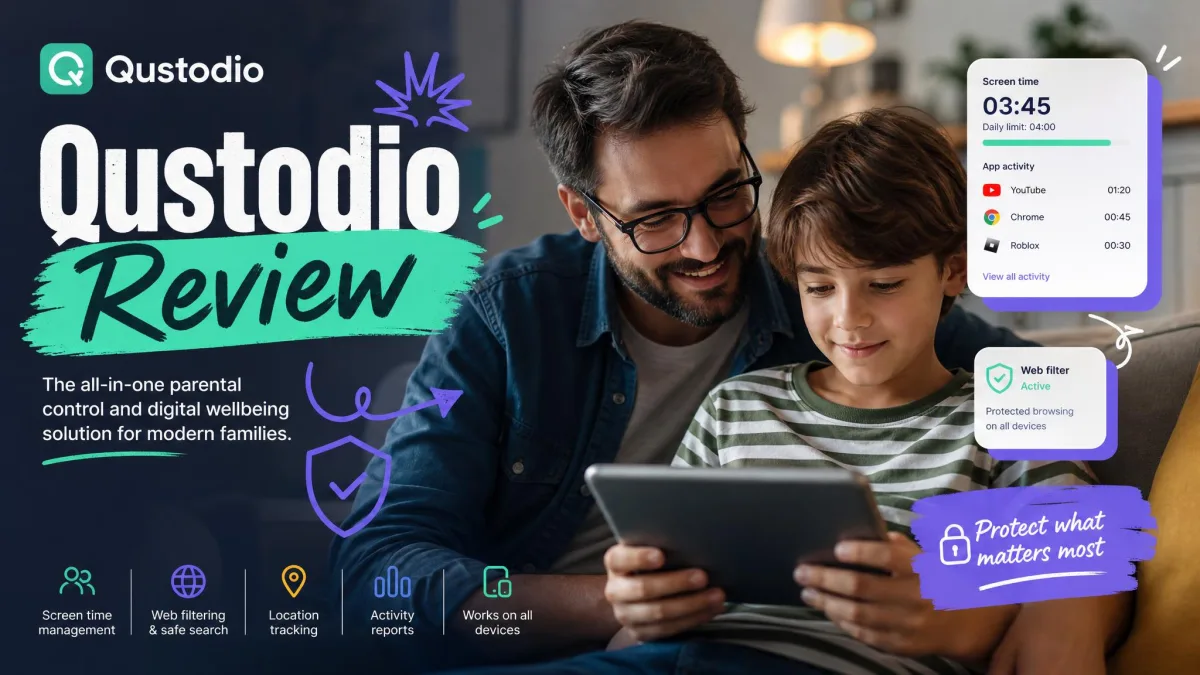
Qustodio's parental control app runs on Windows, macOS, Android, iOS, Chromebook and Kindle, and the company says it protects 6 million families. It leads with web and app filtering, screen time schedules, YouTube monitoring, calls and SMS tracking on Android, geofenced places and a panic button.
Quick Comparison Table
| Feature |  |
 |
|---|---|---|
| Free plan | Free trial only, then in-app subscription | Yes, free forever on 1 device |
| Starting price | In-app purchases from $7.99 up to $79.99 | Basic listed at $59.95 per year |
| Platforms | iOS and Android only | Windows, macOS, Android, iOS, Chromebook, Kindle |
| Devices per plan | Not published | Basic 5 devices; Complete unlimited |
| Screen time limits | Yes, plus earn-time tasks | Yes, with multiple daily schedules |
| App blocking | Yes | Yes, on paid tiers |
| Web content filtering | Yes | Yes, across major browsers |
| Location tracking / geofencing | Location and location history | Location plus geofenced places and alerts |
| Social media and message monitoring | No | Calls and SMS on Android; not on iOS |
| Activity reports | App usage statistics | Timeline activity reports on paid tiers |
| Parent alerts | Yes | Yes, including a panic button |
| Child-facing rewards and tasks | Yes, logic and math tasks plus exercise rewards | No |
How We Compared These Apps
We compared Kids360 and Qustodio feature by feature against the questions parents actually search for, working from each vendor's own documentation and pricing pages, current App Store and Google Play listings, and the consistent pattern of what families report after months of daily use. Where two sources disagreed, we kept both figures rather than picking the flattering one, which is why the pricing and battery numbers below appear as ranges.
We weighted reliability heavily. A parental control app that lists a feature but fails to enforce it is worse than one that never offered it, because you stop checking. That principle is what moved Kids360's limit enforcement and location lag from footnotes into the main comparison, and it is what kept Qustodio's late geofence alerts in view despite its stronger feature list. With that yardstick in hand, here is what each app actually is, starting with Kids360.
What Is Kids360?
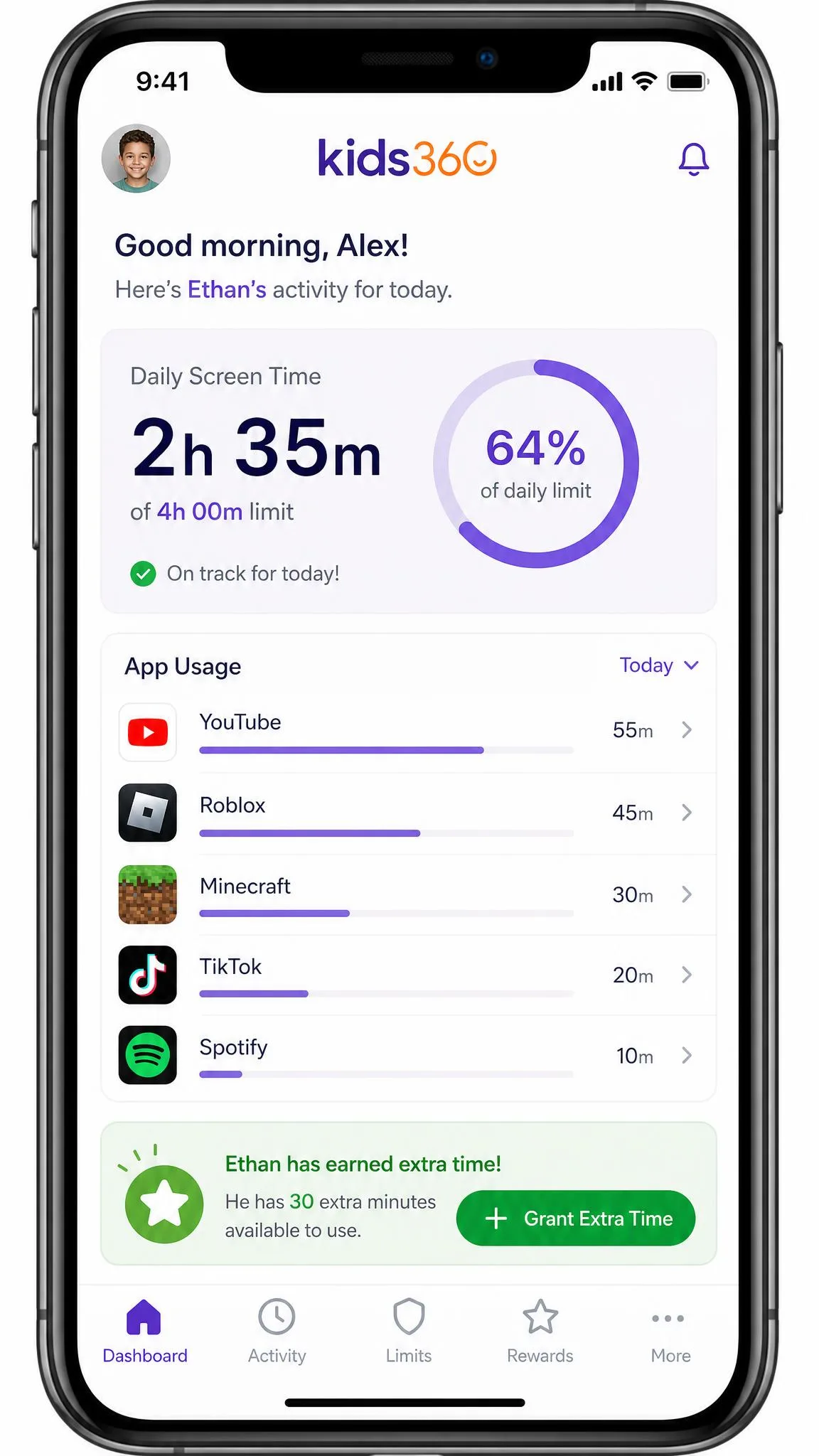
Kids360 is a phone-first parental control app built around the idea that a child should have some agency in how much screen time they get. The parent app shows usage statistics, sets limits and schedules, and blocks apps or categories of web content. The child app, Alli360, shows the same usage statistics back to the child, which is a small design decision that does a lot of work in practice.
Key Features
Screen time limits, an app blocker, web content filtering, GPS location with location history, app usage statistics shown to the child, developmental logic and math tasks that earn extra screen time, custom parent-set tasks, exercise rewards, and sleep and study schedules. The iPhone version requires iOS 17.0 or later, so older hand-me-down devices are out. It holds a 4.6 rating on the US App Store across roughly 8,900 ratings, and you can also find Kids360 on Google Play.
Who It's Best For
Households with one or two children aged roughly 6 to 12, on modern phones, where the fight is about how long rather than about what. The reward tasks land well with that age group. Children do engage with the logic and math tasks that unlock extra minutes, and that takes some heat out of the usual hand-the-phone-back argument.
What Is Qustodio?
Qustodio is a full parental control platform rather than a phone app with extras. It installs on every family device you own, filters the web at the browser and DNS level, logs activity into a readable timeline, and gives you a single dashboard for every child in the household.
Key Features
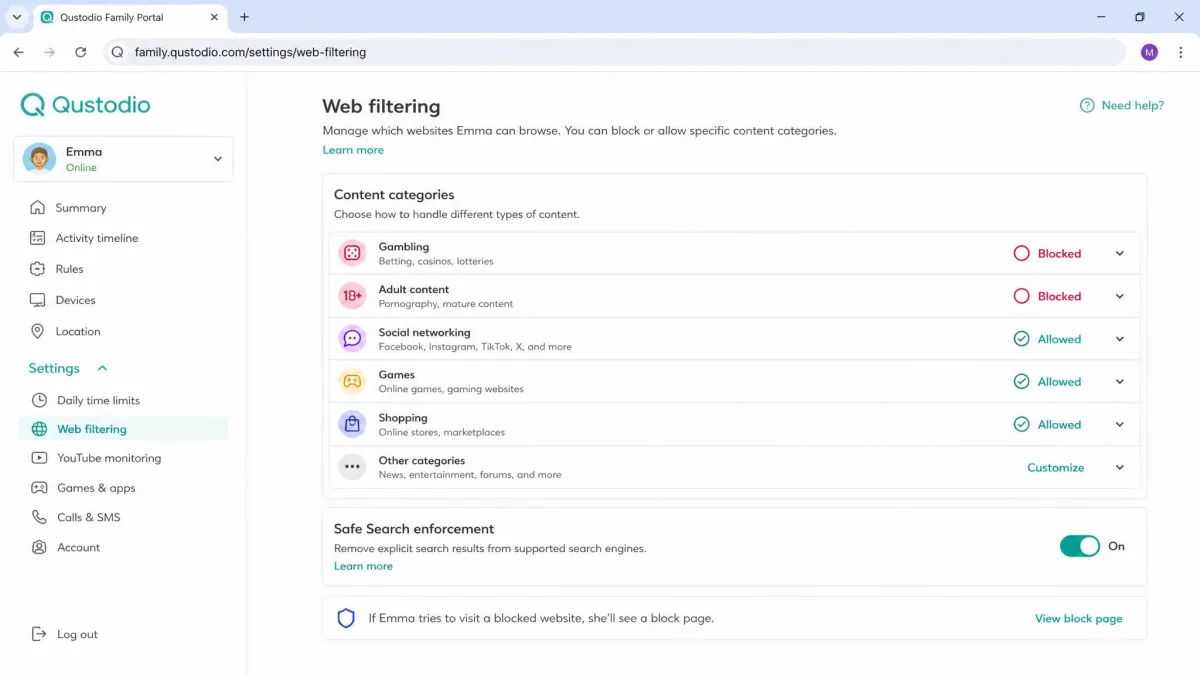
Web and app filtering, screen time limits and schedules, activity monitoring and timeline reports, calls and SMS tracking on Android, family location tracking and geofencing, a panic button, YouTube monitoring, safe search enforcement and parent alerts. You can install Qustodio on the App Store or on any of its desktop platforms.
Who It's Best For
Families with mixed hardware, several children, or teenagers. The reporting depth matters more as children get older and the questions shift from how long to what and where. Wirecutter points Android households with children 13 and older toward Qustodio, partly because it allows more than two screen time schedules.
Screen Time Limits and Scheduling
Both apps do the basic job: a daily allowance, a bedtime cutoff, and blocked hours during school. The difference is in what happens when the allowance runs out and in how reliably the cutoff actually fires.
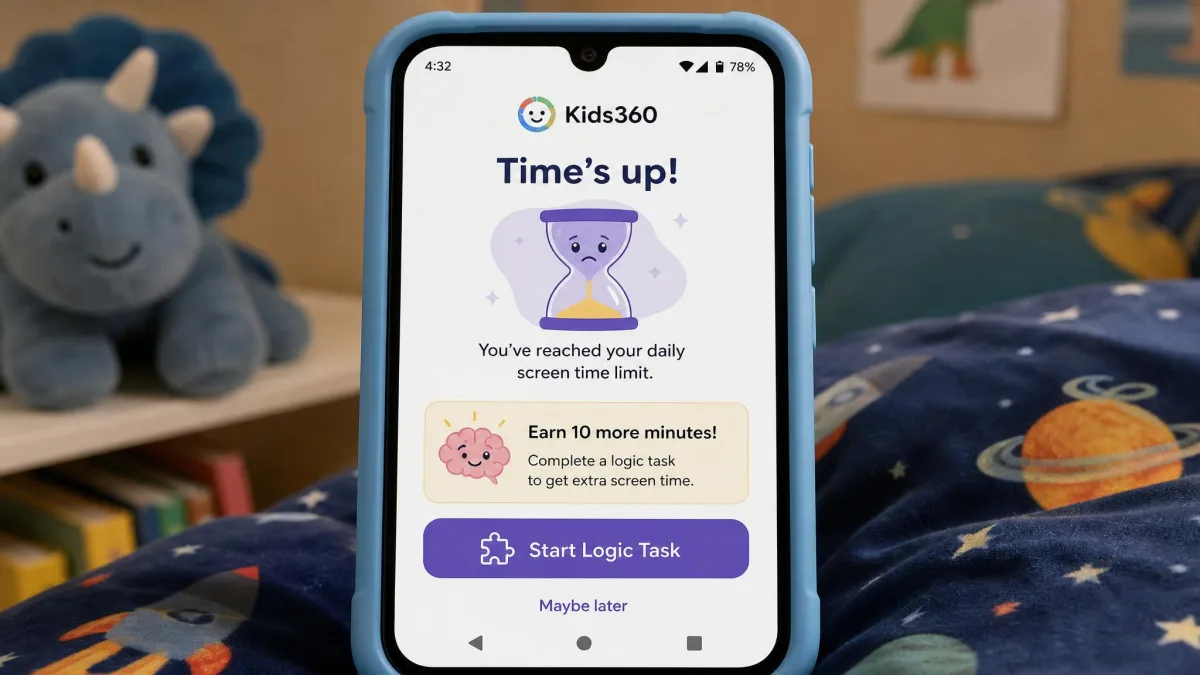
Kids360 turns the end of the allowance into a transaction. The child can complete a logic or math task, a parent-set chore, or an exercise goal, and earn more minutes. That is a genuinely different behavioural model, and for younger children it works. Reliability is the weak point. A strict Kids360 daily limit can fail to enforce, leaving the child on the phone past the cutoff even after a reinstall and an app update, and the app behaves inconsistently across sibling profiles in one family account, offering app-level restrictions on one child and only whole-phone blocking on another.
Qustodio has no reward mechanic at all, but its scheduling holds up once configured, and its dashboard and timeline reports stay easy to read day to day. It also allows multiple daily schedules, so a weekday routine and a weekend routine can coexist without you editing anything on Friday night. If you are setting age-appropriate limits for the first time, the AAP family media plan is a better starting point than either app's defaults.
Set the schedule and the daily total together, not separately. A 3-hour daily allowance with no bedtime cutoff simply moves the whole allowance to 11pm, which is the outcome most parents are trying to avoid.
Content Filtering and App Blocking
Qustodio is the stronger web filter, and it is not close. It filters across major browsers, enforces safe search, monitors YouTube specifically, and blocks apps by name on paid tiers. It also actively blocks VPN workarounds and demands administrator credentials to uninstall on desktop. Kids360 filters inappropriate web content and blocks apps too, but the coverage is narrower and there is no YouTube-specific layer.
On iPhone, both apps are constrained by what Apple allows. Kids360 on iPhone can complete setup and still leave the advertised app blocking and time limits non-functional, which is worth knowing before you pay. Qustodio's iOS build is more predictable but still gives up detailed app insight.
No filter survives a determined teenager. Even with Qustodio's protections in place, a child can delete the iOS VPN profile, switch to an unmonitored browser, move to mobile data to dodge DNS blocking, or factory reset the phone. Alli360 is easier still: it can be removed from an iPhone through the device's own management settings using only the child's passcode, with no parent passcode required.
Location Tracking and Geofencing
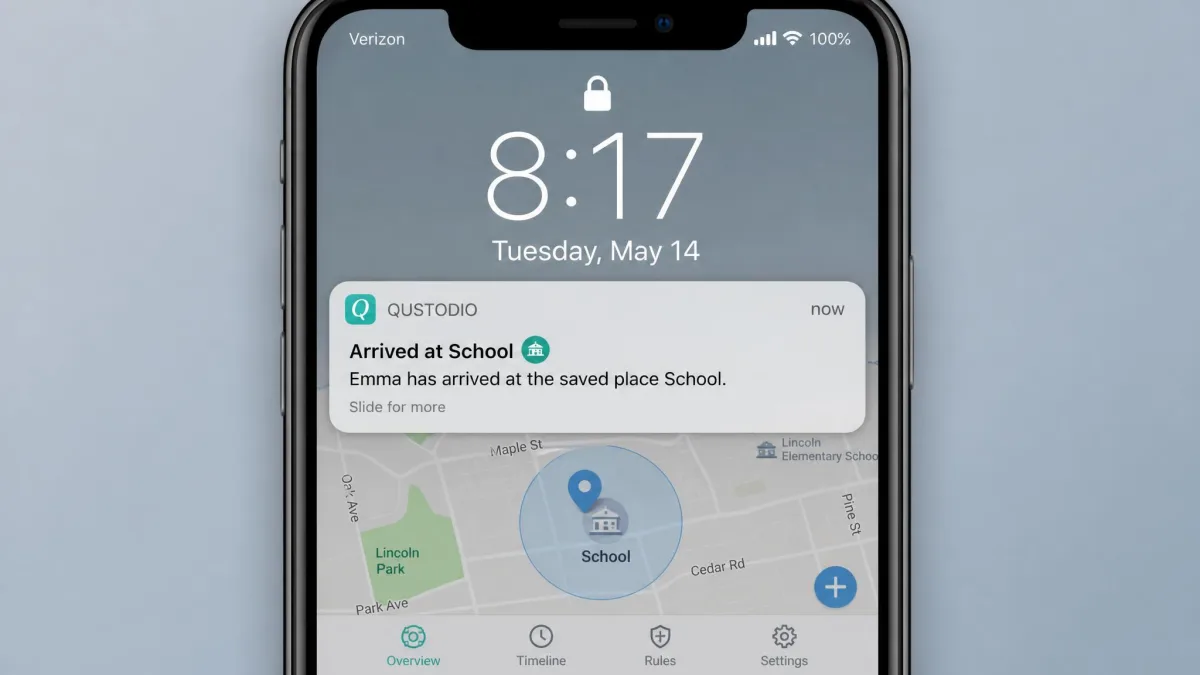
Location is where the two apps diverge again. Kids360 offers GPS location and location history. Qustodio offers the same plus geofenced places with arrival and departure alerts, and setting one up is quick: drop a pin, set a radius, name the place.
Accuracy and timeliness separate them more than the feature lists do. Qustodio's location typically lands within 10 to 30 metres depending on device and GPS signal, though that range loosens indoors and in dense urban areas. Its geofence alerts land 2 to 5 minutes after the boundary crossing, stretching to about 10 minutes when the child's Wi-Fi is off or the signal is weak, and sometimes they fail to fire at all when a device leaves a saved place.
Kids360's location reporting is the app's clearest weak spot. Updates lag badly, and the parent map can show a fix from two days earlier instead of the child's current position. Both apps share one hard limit: GPS tracking stops working the moment the child turns off location services on their phone.
Social Media and Message Monitoring
This is a one-sided comparison. Kids360 does not monitor messages or social media at all. Qustodio tracks calls and SMS on Android, monitors YouTube activity, and reports app usage into its timeline.
The catch is platform. iOS withholds the system access Qustodio needs, so SMS monitoring and detailed app insight are unavailable on iPhone, and iPhone families pay the same price as Android families for a smaller feature set. Qustodio's message and call-log monitoring can also silently stop reporting, so if you are relying on it, check the timeline against reality every few weeks rather than assuming silence means nothing happened.
If message monitoring is your main reason for buying, understand what you are trading. Transparent, agreed monitoring consistently produces better outcomes with teens than covert surveillance does.
Alerts and Parent Notifications
Qustodio's alerting is the more developed of the two. You get notifications for blocked attempts, geofence entries and exits, and suspicious search activity, plus a panic button the child can press to send their location to nominated contacts. Alerts arrive in the app and by email, and the daily and weekly summaries are readable enough that most parents will actually open them.
Kids360 sends parent alerts too, mostly around limits, task completion and location, but there is no panic button and no equivalent to Qustodio's activity timeline.
iOS vs Android: Platform Support Compared
That platform gap runs deeper than the alerting one. Kids360 supports iOS and Android only. There is no Windows, macOS or Chromebook client, so a laptop or school Chromebook sits entirely outside its coverage. The iPhone build requires iOS 17.0 or later.
Qustodio covers Windows, macOS, Android, iOS, Chromebook and Kindle. For most families that single fact settles the decision, because homework happens on a laptop and YouTube happens on a Chromebook.
Android gives both apps deeper access than iOS does. Qustodio's calls and SMS tracking is Android-only, and Kids360's app-level blocking behaves more consistently on Android too. If your child is on an iPhone, expect a thinner feature set from whichever app you choose.
Pricing: Free Plans and Paid Tiers Compared
Qustodio has a real free plan. It covers a single device and gives you a basic web filter, a daily time limit, the ability to pause the internet and a short activity history, with no app blocking, no scheduled screen time, no YouTube monitoring, no live location and no multi-device management. There is also a 3-day Premium free trial that requires no credit card, and a 30-day money-back guarantee on paid plans.
Kids360 has no true free tier. It offers a free trial and then bills through in-app purchase, with in-app purchases listed at $7.99 to $79.99 on the App Store. Trial length differs between offers, so the countdown shown at signup is the one that bills.
| Plan | Kids360 | Qustodio |
|---|---|---|
| Free | Trial only, length varies by offer | Free forever on 1 device |
| Entry paid | In-app purchase from $7.99 | Basic, $59.95 per year, 5 devices |
| Top tier | In-app purchase up to $79.99 | Complete, $104.95 per year, unlimited devices |
| Phone support | Chat and messages only | Care Plus, included with Complete or $12.99 as a Basic add-on |
| Money back | Not published | 30-day money-back guarantee |
Qustodio's list prices move with regional pricing and frequent promotional discounts, so check Qustodio's pricing page before committing. Kids360 publishes no US price list on its own site, so the numbers live in the App Store listing instead. There you will find monthly subscriptions at $9.99 and $12.99, three separate 12-month tiers at $49.99, $59.99 and $79.99, and a separate Family safety purchase at $7.99. Several of those price points run at once, and which one you are shown depends on the offer served inside the app, so the figure in the purchase sheet is the one that bills.
Device coverage is less clear. One Kids360 account manages several children's devices with per-child rules, but no cap on devices or children per subscription is published anywhere, so a large family should confirm coverage with support before paying for a year. Qustodio, by contrast, states its limits plainly: 5 devices on Basic, unlimited on Complete.
Cancel through the store, not just inside the app. Kids360 billing can continue after a trial cancellation, and support is reachable only by chat or message, which slows refunds considerably.
Setup: Connecting Your Child's Device
Both apps need physical access to the child's phone at least once. Neither can be installed remotely, and any product claiming otherwise is not doing what it says.
Setting Up Kids360
Install Kids360 on your own phone, create the family account, then install Alli360 on your child's phone and pair it with the code the parent app shows you. Grant the Android accessibility and usage-access permissions when prompted, or the screen time features will report nothing. The vendor states setup takes about 5 minutes, which is fair on a clean device. Budget more than that for the maintenance: schedules and permission grants fail intermittently, and re-granting Android permissions after an update becomes a routine chore.
Setting Up Qustodio
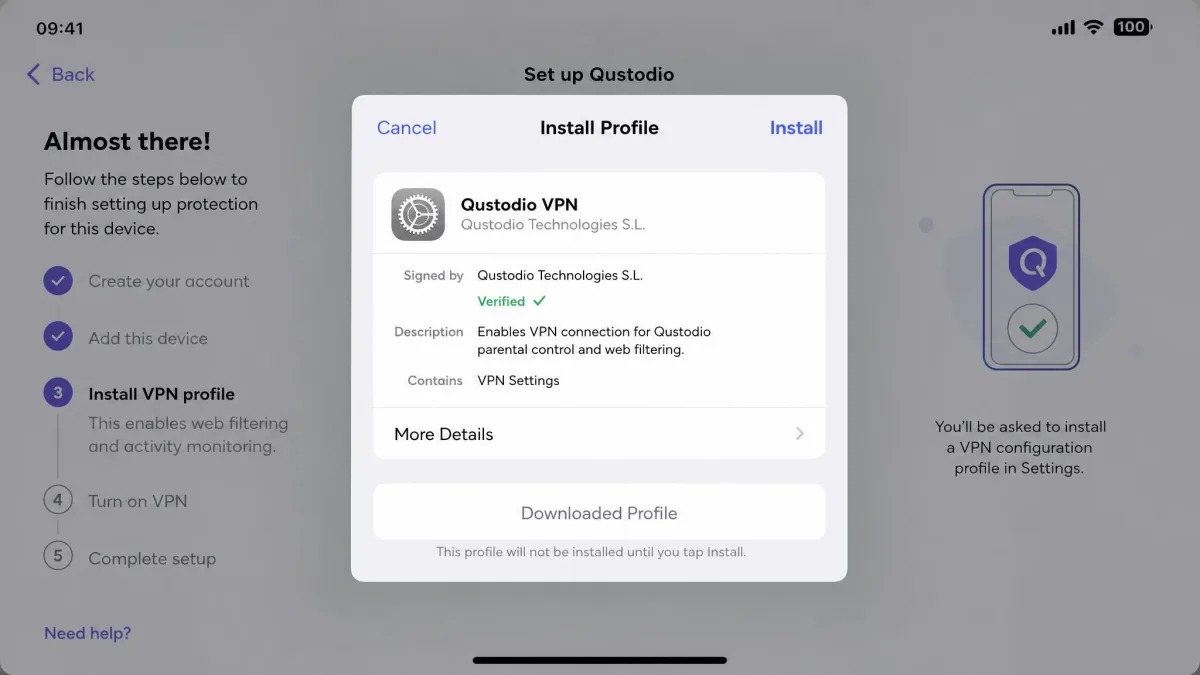
Create the parent account, add each child profile, then install the app on each device and sign in. Qustodio setup takes longer than most competitors. On iOS you install an extra VPN profile, which is the step most parents stall on, and a Windows install runs about 10 minutes.
The single most useful thing you can do during setup is do it with your child in the room, not after they go to bed. The families who get long-term value from either app agree the rules first and install second. Discovery after the fact is what turns a parental control app into a game of removal and reinstallation.
Ease of Use and the Child Experience
Kids360 wins this section clearly. Showing the child their own usage statistics, then letting them earn minutes back through tasks, reframes the app as something they participate in. Younger children accept it far more readily than a silent blocker.
Qustodio makes no attempt to be fun, and it does not need to be for the parent side, where the dashboard is genuinely well organised. On the child's device it is close to invisible until something is blocked, which is fine for a teenager and slightly demoralising for an eight-year-old. There is a cost to running it too: battery impact reports range from roughly 10 to 15 percent extra drain with GPS tracking on, down to nearer 4 to 7 percent per day on newer hardware, and older Android phones show noticeable lag.
Privacy, Data Handling and Parental Consent
Both apps collect a lot about a child: location, app usage, browsing and, on Qustodio's Android build, calls and messages. That data needs a clear reason to exist and a clear retention limit.
Qustodio publishes Qustodio's privacy policy covering what it collects and how long it keeps it. Kids360's privacy policy is thinner on both counts. It describes Alli360 as a children's app usable only with parental consent, but that consent is a self-declaration: the adult confirms at signup that they are the child's parent, and nothing verifies it. The policy never mentions COPPA and sets no minimum child age.
Retention is the bigger gap. No storage period is stated anywhere in the policy, so how long a child's location trail and app history survive after you cancel is simply undefined. Deletion is possible on request, by writing to support@kids360.app under a right-to-erasure clause, with the policy noting that the service cannot then be provided. Set against that, the App Store privacy label declares User Content, Identifiers, Usage Data and Diagnostics as data used to track the family across other companies' apps and websites. A monitoring app that names no retention limit while declaring cross-company tracking is asking for more trust than it documents.
In the US, services directed at children under 13 fall under the Children's Online Privacy Protection Rule, which sets requirements on consent and data handling that are worth understanding before you install anything on a young child's phone.
Pros and Cons
Kids360 Pros and Cons
Pros
- Earn-back tasks and rewards that children actually engage with
- Shows usage statistics to the child, not just the parent
- 4.6 rating on the US App Store across roughly 8,900 ratings
- Setup is quick on a clean device
- Cheap entry point through in-app purchase
Cons
- Location updates lag, sometimes showing a fix from two days earlier
- No Windows, macOS or Chromebook support
- No message or social media monitoring
- Limits and permissions can fail after updates
- Trustpilot sits at 3.6 from 204 reviews, with 41% of them one-star
Qustodio Pros and Cons
Pros
- The stronger web filter, with YouTube monitoring and safe search
- Geofenced places with arrival and departure alerts
- A 30-day money-back guarantee on paid plans
- Readable timeline reports and multiple daily schedules
Cons
- Slower setup, including a VPN profile step on iOS
- Measurable battery cost on the monitored device
- SMS and detailed app monitoring unavailable on iPhone at the same price
- Geofence alerts arrive late and occasionally do not fire
- Trustpilot sits at 2.5 from 626 reviews, with 48% at one star
Neither Trustpilot score flatters its app, and both skew toward billing and reliability complaints rather than the day-to-day product. Qustodio at least answers: the company replies to 99% of negative Trustpilot reviews, usually within a week, though support can still be slow to resolve anything.
Alternatives to Consider
Google Family Link is free from Google and handles screen time limits, app approval and location on Android and Chromebook. For an Android-only household that mainly wants time limits, it does most of what Kids360 charges for. It is weaker on web filtering and does nothing on Windows or macOS.
Bark is the better choice if your central worry is what your teenager is saying and reading rather than how long they are on the phone. Mobicip and Kaspersky Safe Kids both sit between Family Link and Qustodio on price and capability, and both cover desktop platforms that Kids360 ignores entirely.
Which Should You Choose? Our Verdict
Kids360 wins a narrower case, and wins it well: one younger child on a modern phone, where the goal is building a screen time habit rather than keeping watch on a teenager. Nothing in Qustodio's toolkit does what those earn-back tasks do for a cooperative six-year-old, so buy Qustodio if you need coverage and evidence, and buy Kids360 if you need cooperation.