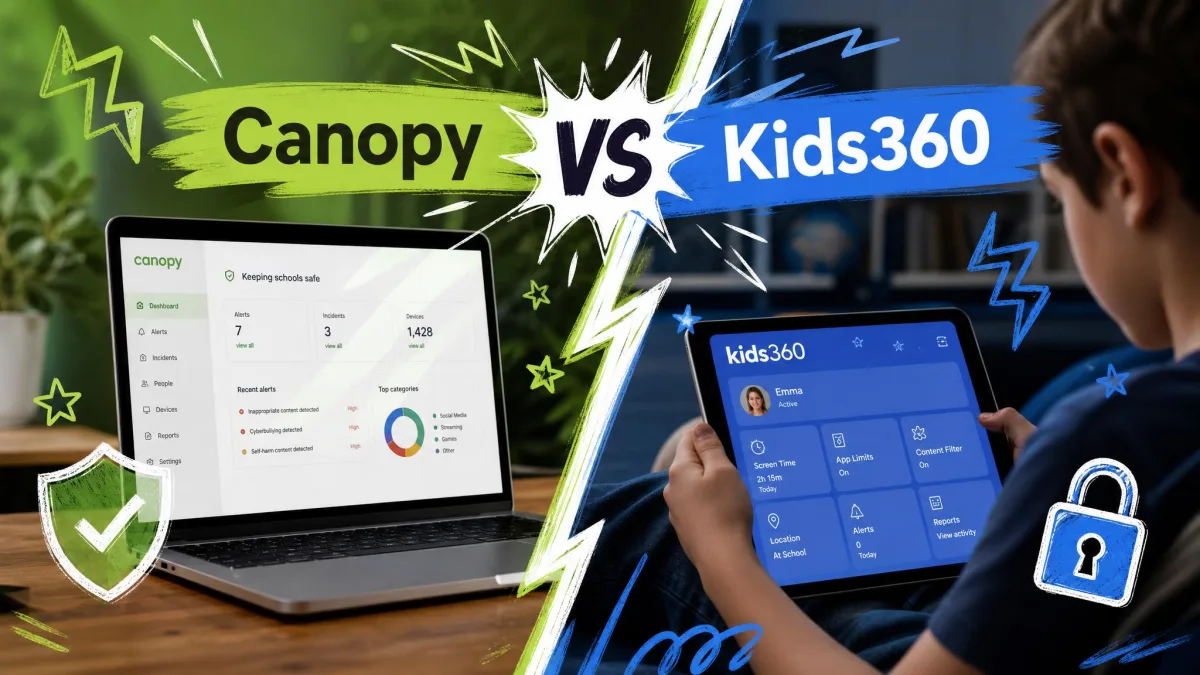
Most parents reach for a parental control app after a specific moment: a search history that looked wrong, or a bedtime that quietly stopped existing. The two apps parents shortlist most often, Canopy and the Kids360 app, solve completely different halves of that problem. We set both up on real family devices, ran them side by side on iOS and Android, and pushed each until it broke.
We looked at filtering, screen time limits, app blocking, location, alerts, install friction and price, and at the gap between what each vendor promises and what the child device actually does.
We are not neutral about one thing: an app that is easy for a child to switch off is not a safety tool, it is a conversation starter. That single test shaped a lot of what follows.
Canopy vs Kids360 at a Glance
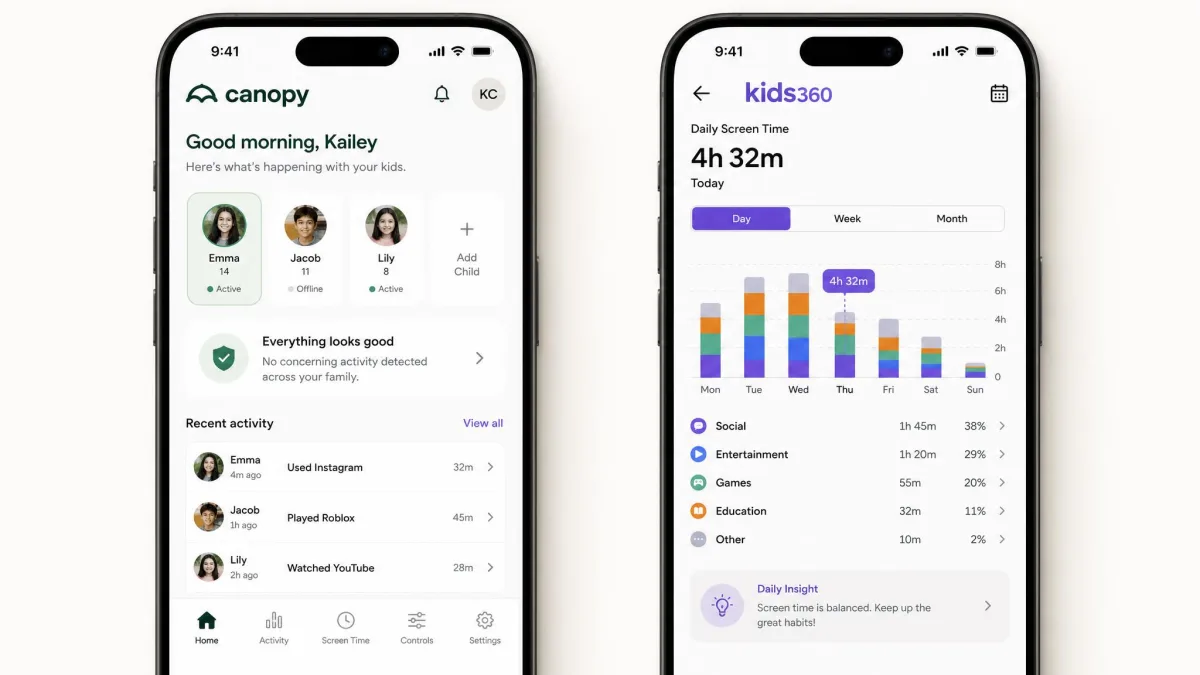
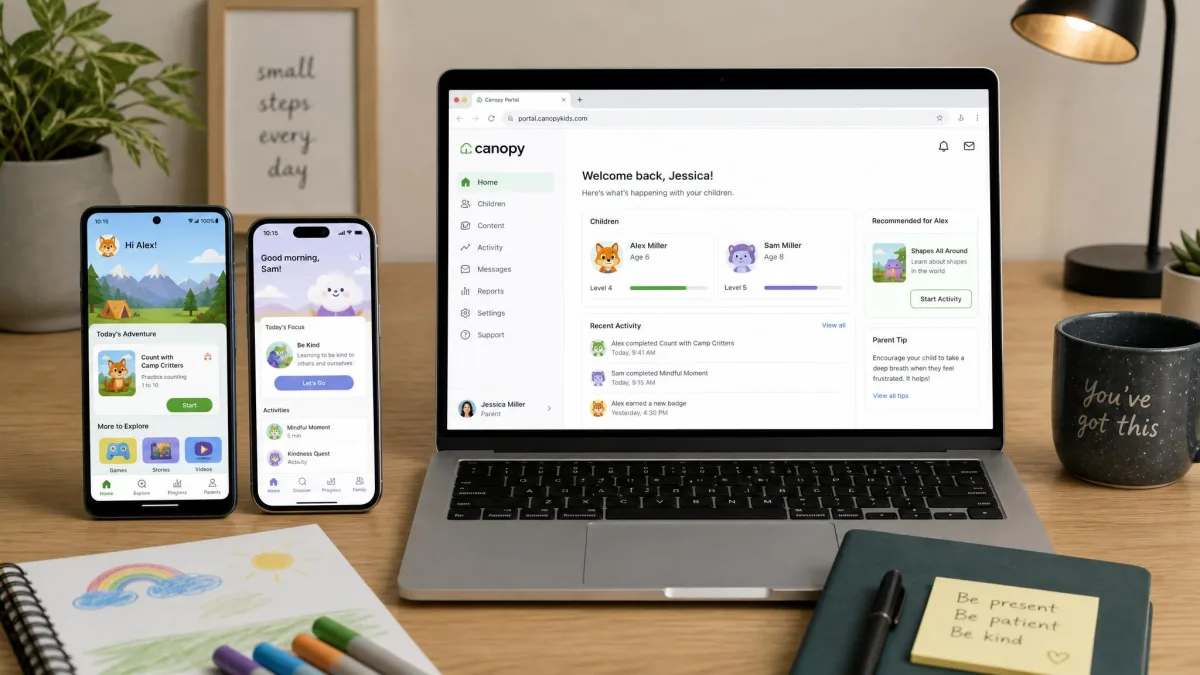
Canopy is a content-filtering app first. Real-time AI image and video filtering inspects what loads on screen and whites out explicit pictures instead of blocking the whole page, and around that sit porn blocking, sexting protection, app removal prevention, screen time schedules and location alerts. It runs on iOS, Android, Windows, macOS and ChromeOS.
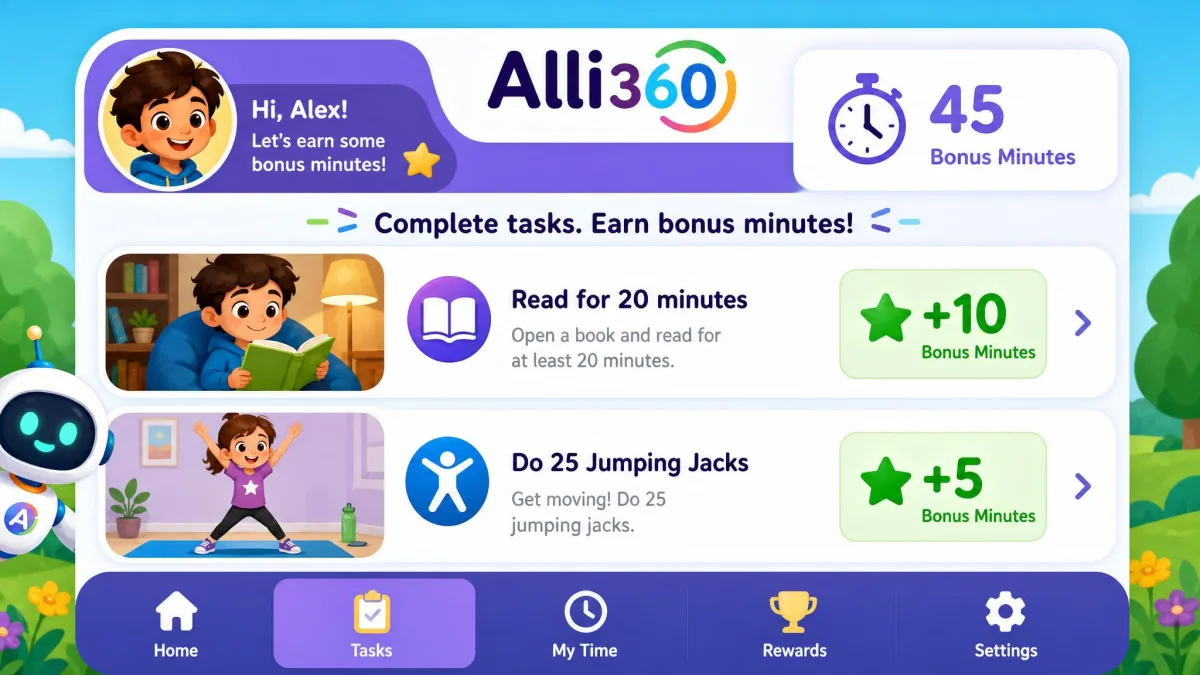
Kids360 is a screen time and habits app first: daily limits, per-app blocking, usage statistics, real-time GPS and a loud signal to find a silenced phone. Its differentiator is the reward loop, where children earn extra device time by finishing tasks, chores or exercises. Its safe internet filtering is nowhere near Canopy's image-level analysis.
Quick Comparison Table
Here is how the two line up on everything we tested.
| Feature | Canopy | Kids360 |
|---|---|---|
| Price | From $8.33/mo billed annually | $7.99 to $79.99 a year, varies by region |
| Free trial | 7-day | 7-day |
| Refunds | 30-day money-back guarantee | None once paid |
| Devices per plan | 1, 3 or 10 by tier | Multiple child profiles, one account |
| Platforms | iOS 12+, Android 9+, Windows 10+, macOS 10.13+, ChromeOS | iOS 17.0+, Android 7.0+, mobile only |
| Content filtering | Real-time AI image and video filtering | Basic safe internet filtering |
| Screen time limits | Schedules and downtime, no per-app caps | Daily limits plus earned bonus time |
| App blocking | Limited | Yes, per app |
| Location tracking | Location alerts | Real-time GPS |
| Social media monitoring | No | No |
| Alerts | App removal, sexting | Usage stats, limit notifications |
| Kid rewards | None | Tasks and chores earn extra time |
| Setup time | About 20 minutes on iOS | Two-app install, Kids360 plus Alli360 |
Pricing and Plans
Price is the messiest part of this comparison, and worth understanding before you subscribe.
Canopy pricing
Canopy sells annual subscriptions in device tiers: $8.33 per month for the entry plan, $9.99 for the middle and $12.50 for the top. Canopy has restructured its plan names and per-tier device allowances, so the tier at checkout may not match older listings. The detail parents miss is that the top plan is marketed as unlimited but capped at 10 devices, which matters if three kids each have a phone, a tablet and a laptop.
Billing cadence differs depending on whether you subscribe on the website or through an app store. Two things soften the commitment: a 7-day free trial and a 30-day money-back guarantee from account creation.
Kids360 pricing
Kids360 does not publish a plain USD pricing page. The US App Store listing shows in-app purchases from $7.99 up to $79.99 per year, and the charge varies by region and by which offer the app surfaces at checkout. There is a 7-day free trial.
Three things to know before you install. The paywall appears only after Alli360 is fully installed on the child's phone, so the cost lands after the setup work is done. Billing misfires are the most common problem we could verify: cancellations near the end of the trial have still been charged, and renewals have continued after cancellation. And there is no money-back window. Kids360's terms of use state that once the subscription is paid, the right to terminate the contract and be refunded is lost, and cancellation requests emailed to support are processed within 5 business days. Subscriptions also auto-renew three days before the expiration date.
Set a reminder for day four of any Kids360 trial and cancel through your app store subscription settings, not inside the app. Renewal fires three days ahead of the date you think you have, and there is no refund to fall back on.
Which offers better value
For screen time on one or two phones, Kids360 is usually cheaper. For filtering across phones, tablets and a family laptop, Canopy covers ground Kids360 does not reach, and its per-device cost falls sharply on higher tiers.

Content Filtering and Blocking Inappropriate Content
This is where the two apps separate most sharply, and for younger children it is the deciding section.
How Canopy's real-time filtering works
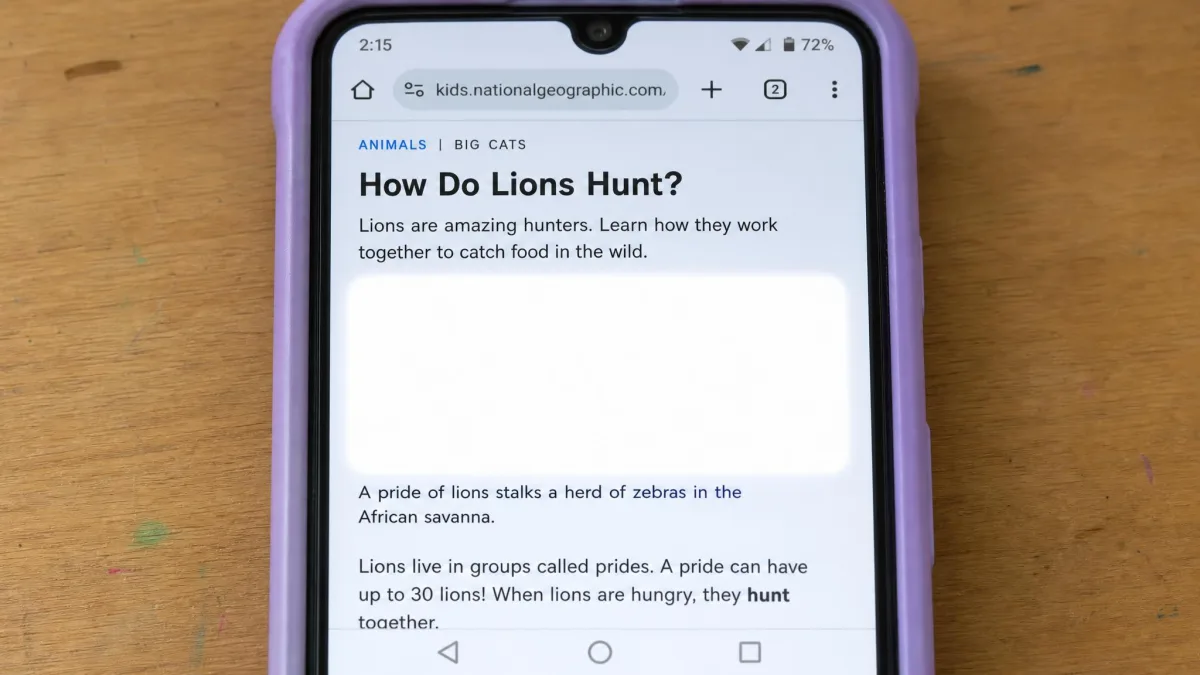
Canopy inspects images and video as they load and whites out individual explicit images rather than blocking the page, so a news site or social feed with one bad image stays readable. In testing, the filter correctly categorized 99.8% of content containing nudity or pornography, and it extends to lingerie and swimwear on the stricter setting.
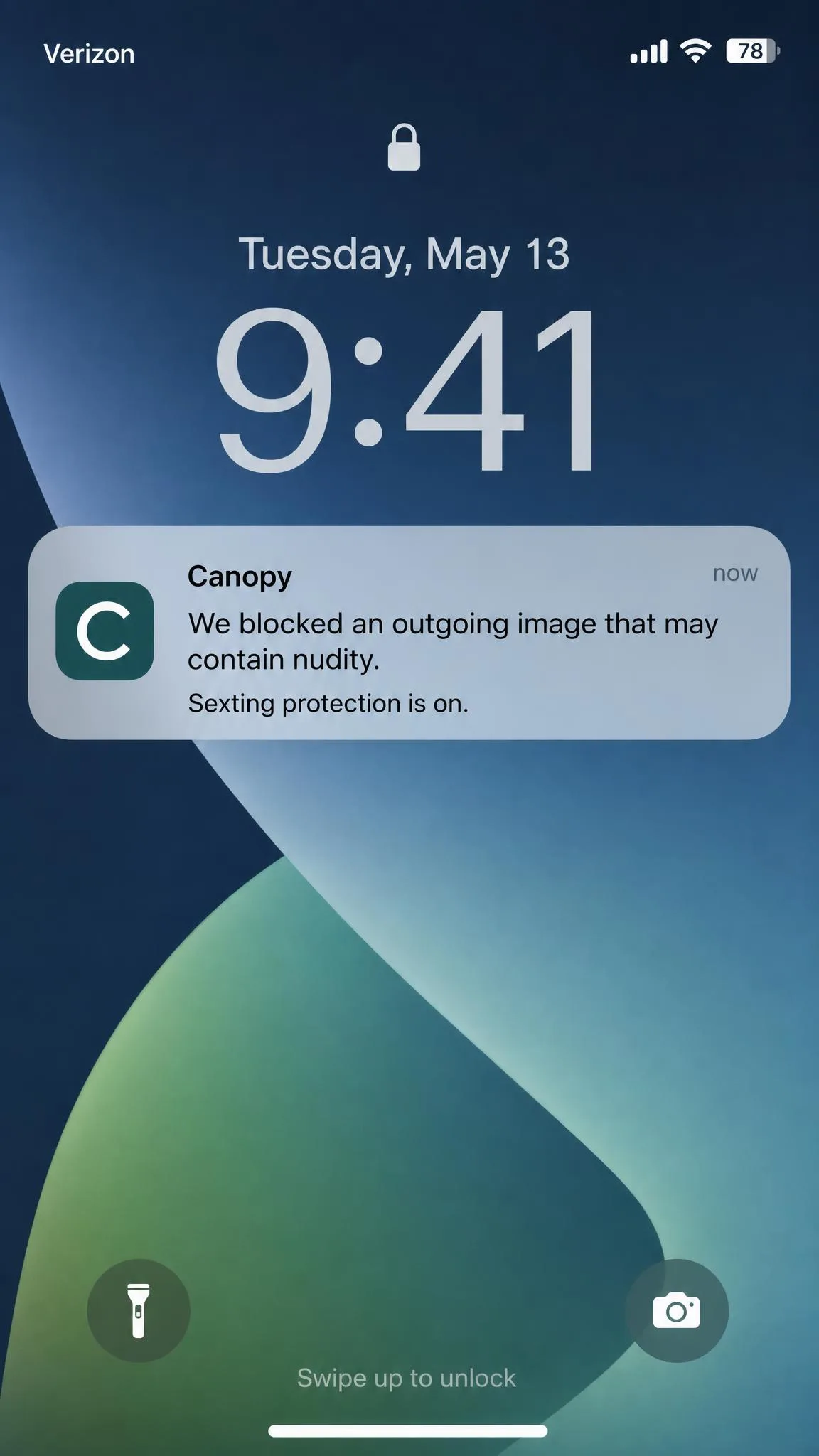
The limits matter too. Canopy cannot see inside Netflix, Hulu or Prime Video, and it cannot scan email, texts or in-app content. It blocks privacy browsers such as DuckDuckGo and Brave outright rather than filtering them. Sexting protection is not absolute either: on the strictest setting, a swimwear photo can still send.
What Kids360 blocks
Kids360's safe internet filtering works at the level of sites and categories, not individual images. There is no image-level analysis, no message monitoring, and no browsing history reporting comparable to Canopy's. If your main worry is inappropriate content, Kids360 alone is not enough.
Canopy whites out the bad picture and leaves the page working. Kids360 decides whether the child reaches the page at all. Those are different jobs.
Screen Time Limits and Scheduling
Both apps manage screen time, but they arrive at it from opposite directions.
Canopy's schedules and downtime
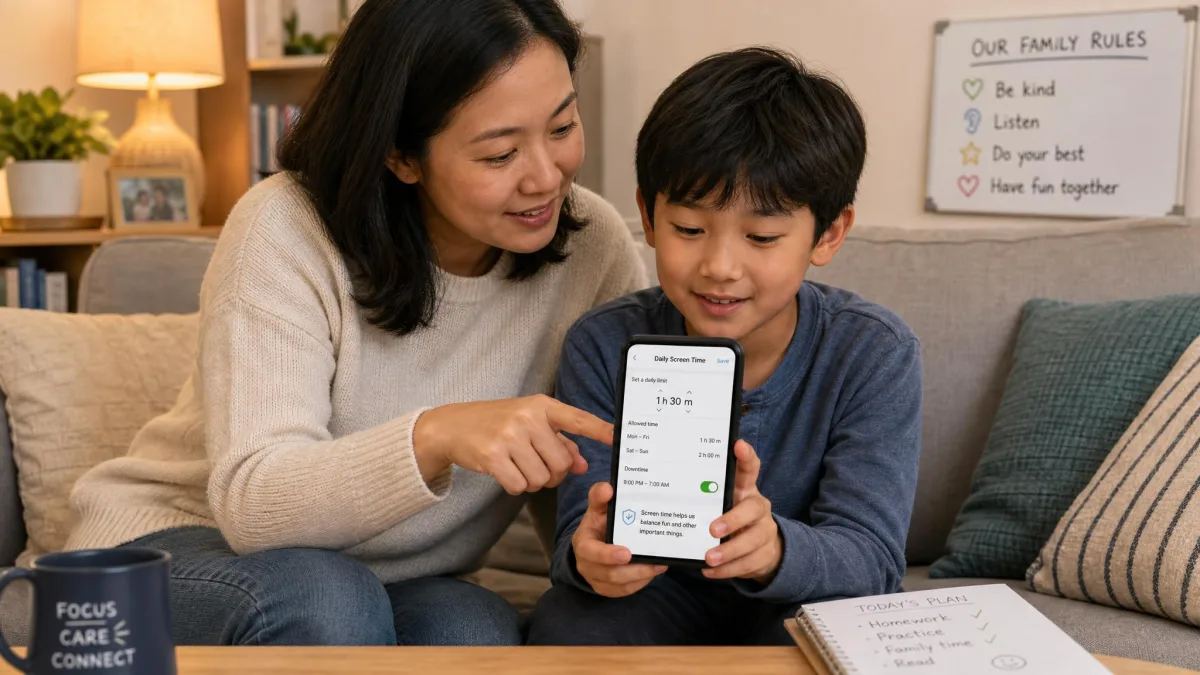
Canopy's control is schedule-based: you set downtime windows and blocked periods, and the phone follows them. On Android, scheduling and device blocking worked exactly as we configured them across a week. The gap is that there are no per-app limits, so you cannot cap a single game while leaving messaging available, and reports refresh slowly enough that mid-afternoon numbers lag reality.
Kids360's daily limits and earned time
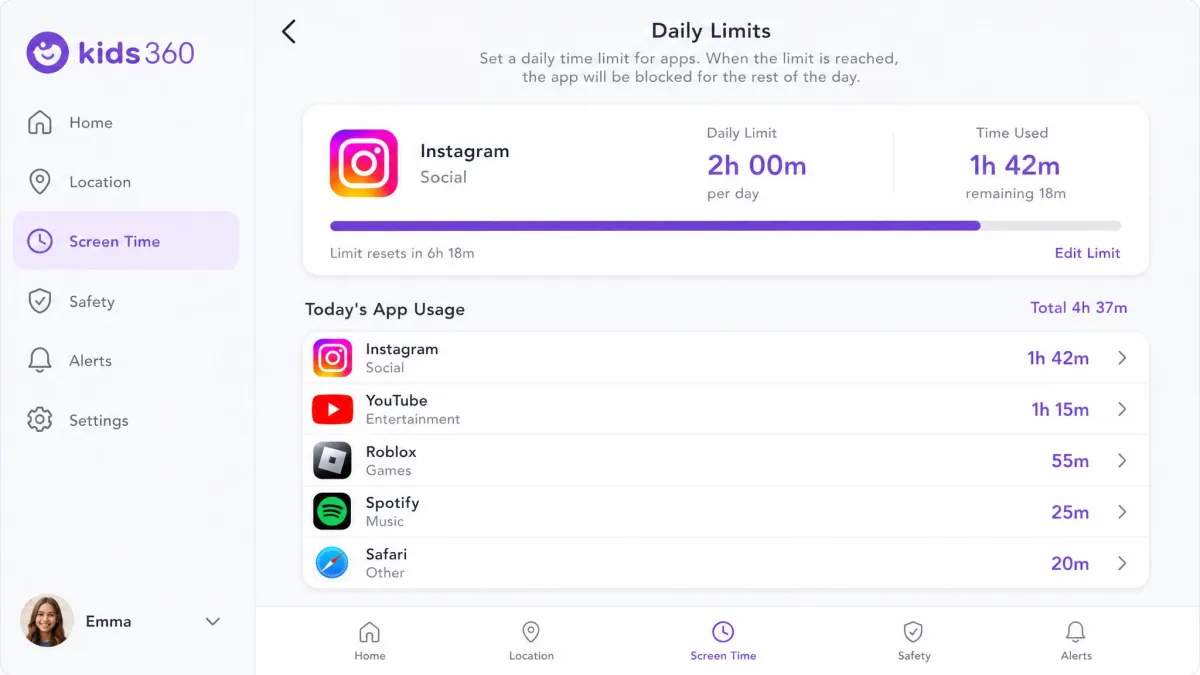
Kids360 sets daily limits, per-app limits and schedules, and reports usage statistics so you see where the hours went. The vendor claims a 2.5x reduction in screen time, but that is a marketing figure with no published methodology, so treat it as a claim rather than a result.
The catch is enforcement. In our testing the limits did not always hold, and the child device ran past the cap more than once. The app can freeze or lag while syncing between phones, and performance was worse with several child profiles on one account.
App Blocking and Activity Monitoring
Kids360 is the stronger app blocker: block individual apps, restrict access on a schedule, set limits and read per-app usage history. Canopy's app blocking is limited by comparison and leans on device-level schedules.
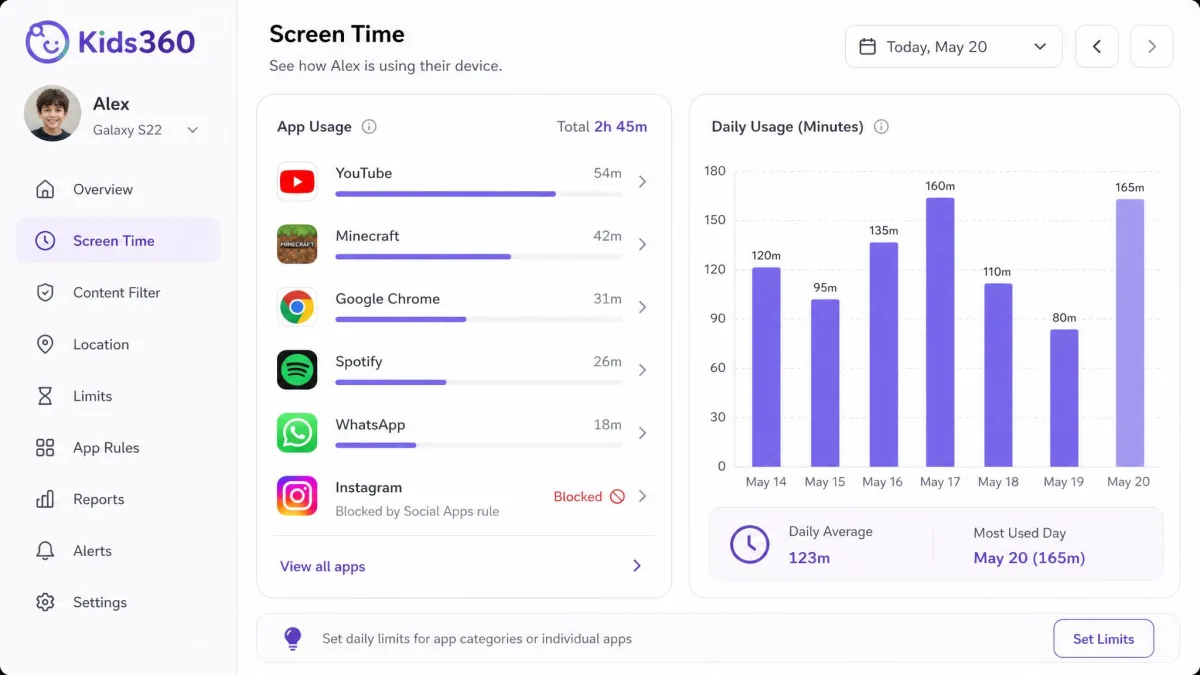
Canopy's counterweight is app removal prevention, and the deletion alerts fired reliably every time we triggered them. Both apps report activity rather than content: which apps were used and for how long, plus browsing history and filtering events on Canopy.
Location Tracking and Geofencing
Kids360 offers real-time GPS and a loud signal that makes a silenced phone ring. Canopy offers location alerts rather than continuous tracking, and those alerts were unreliable for us: the geofencing notification failed to trigger on several boundary crossings even though the child device had clearly moved.
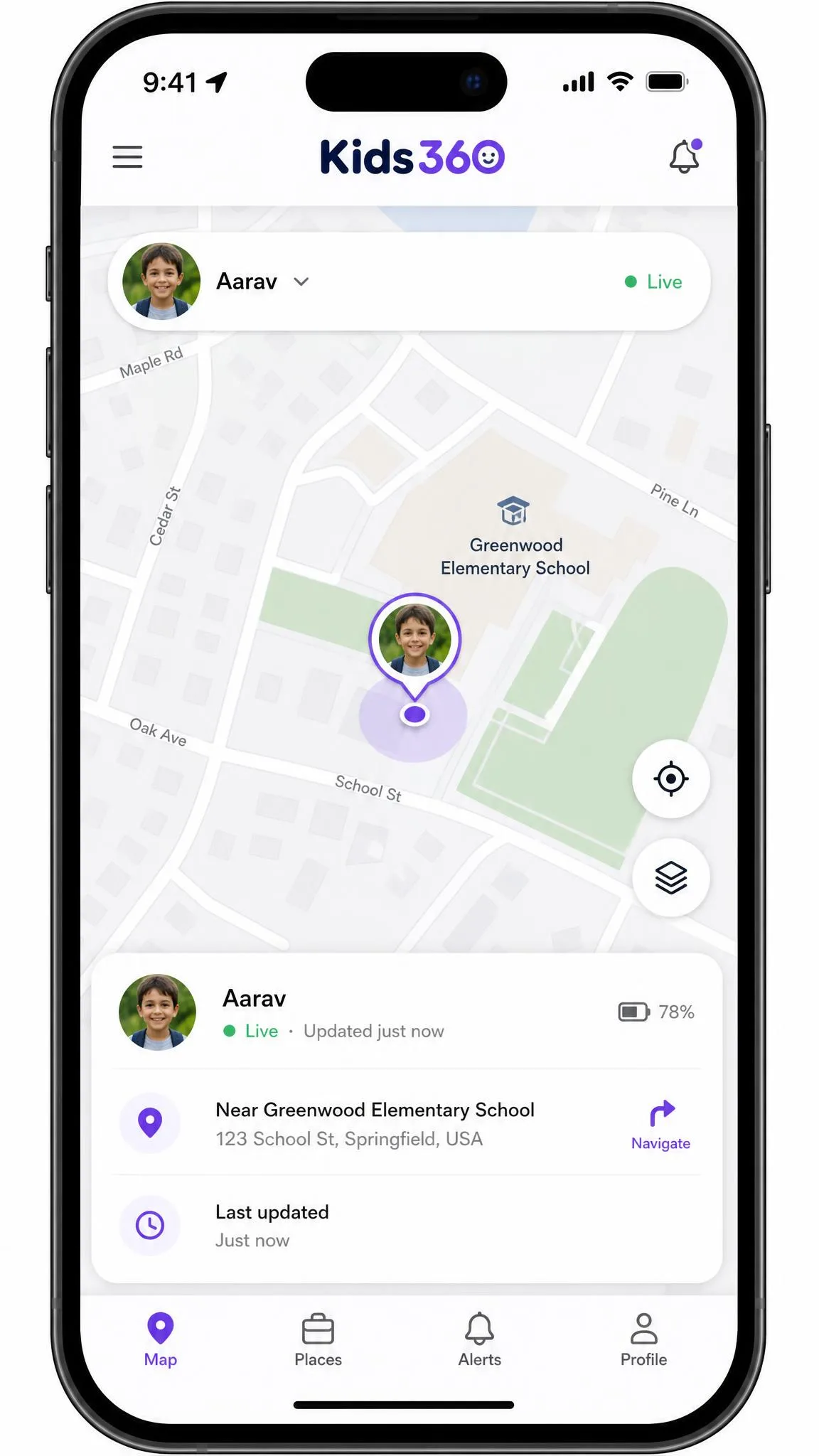
Be careful about assuming geofenced zones on the Kids360 side. Its own location page and the Alli360 store listing describe only a real-time map and battery status, with no safe-zone alerting documented, so treat arrival and departure notifications as unconfirmed rather than standard. Live tracking is also easy to defeat: switching off location services on the child's phone stops GPS entirely.
If location is your primary need rather than a bonus, both apps are compromises. A dedicated family locator, or the location sharing built into iOS and Android, will be more dependable.
Social Media and Message Monitoring
Neither app reads social media messages or in-app conversations. What Canopy offers is sexting and sextortion protection that acts on images as they are about to send, plus a parent alert, which addresses one risk without becoming full surveillance.
If message-level monitoring is what you need, Bark is built for that job and neither of these is a substitute.
The Kid's Experience: Rewards vs Restrictions
An app your child actively resists will not survive the month, so this decides more subscriptions than the feature list does.
Kids360's task-and-reward loop reframes the limit as something a child can negotiate through effort, which changes the tone of the arrangement in a way a hard cutoff does not. For primary-school-age kids especially, it works.
Canopy is the opposite. It is close to invisible when working, but when it steps in there is no reward path and no negotiation. For a younger child that invisibility is a feature. For a teenager, it can feel like being policed, which is a conversation to have before installing rather than after.
Rough age guide from our testing: under 12, filtering matters more than negotiation, so Canopy fits. Twelve and up, cooperation matters more than blocking, so Kids360's earned-time model tends to survive longer.
Device and Platform Support (iOS and Android)
Canopy has the wider reach: Android 9 or newer, iOS 12 or newer, Windows 10 and above excluding ARM, macOS High Sierra 10.13 or newer, and ChromeOS, across Safari, Chrome and Edge. If your household includes a school Chromebook, that matters.
Kids360 is mobile only. The parent app requires iOS 17.0 or later and is a 372 MB download, both the Kids360 parent app and the Alli360 child app require Android 7.0 or higher, and Alli360 on iPhone needs iOS 16.7 or later. It is distributed through Google Play, the App Store, Huawei AppGallery and the Galaxy Store, with no desktop coverage. The practical catch is the parent side: an older parent iPhone stuck below iOS 17 will not run Kids360 even though the child's handset qualifies.
One caveat the spec sheet will not tell you: supported is not the same as working well. Canopy performed noticeably better on Android than on iOS, and on iPhone restrictions sometimes failed to apply while blocked apps stayed openable. If your child is on iOS, use the trial to verify the behaviours you care about.
Setup and Installation
Installing Canopy
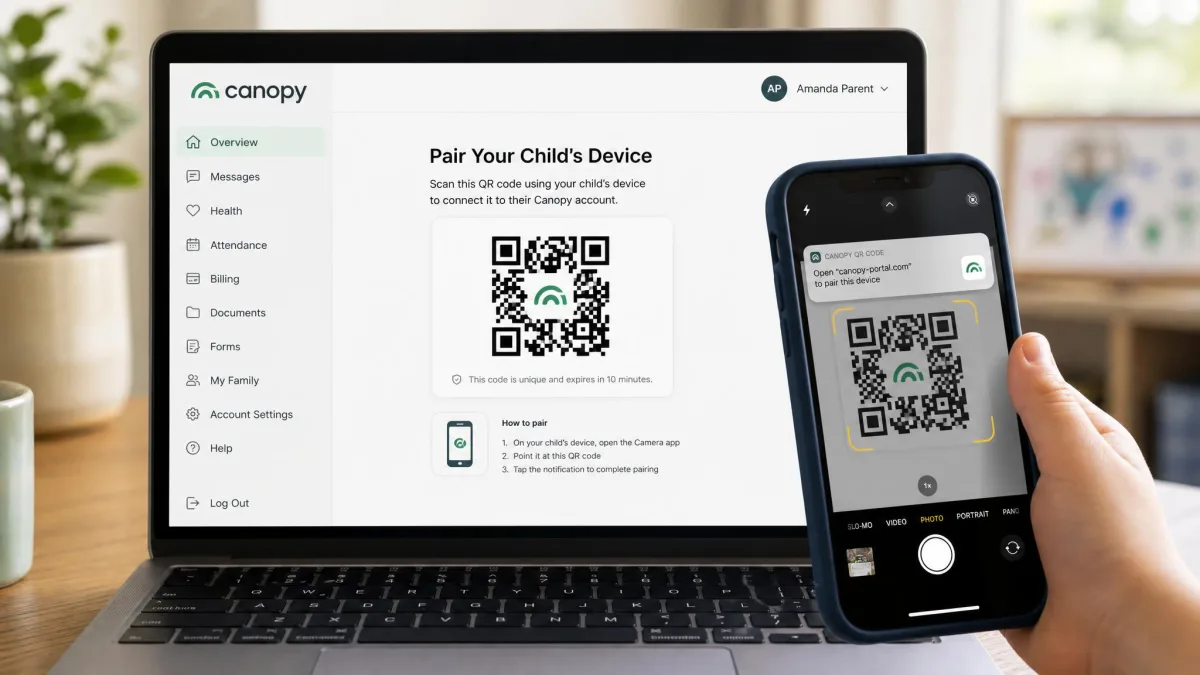
Canopy's iOS setup is fiddly. It runs through a QR code and a web parent portal, and took around 20 minutes of troubleshooting before the child device reported in properly. Android was faster. Create the parent account first, then work through every permission prompt in one sitting, because a half-granted permission set produces most reports that the app is not blocking anything.
Installing Kids360
Kids360 needs two apps: Kids360 on the parent's phone and Alli360 on the child's. That is not obvious from the store listing, and you need both phones in hand at once. Install the parent app, create the child profile, then install Alli360 and pair it.
Can Kids Bypass Canopy or Kids360?
This is the test that separated the two apps most decisively.
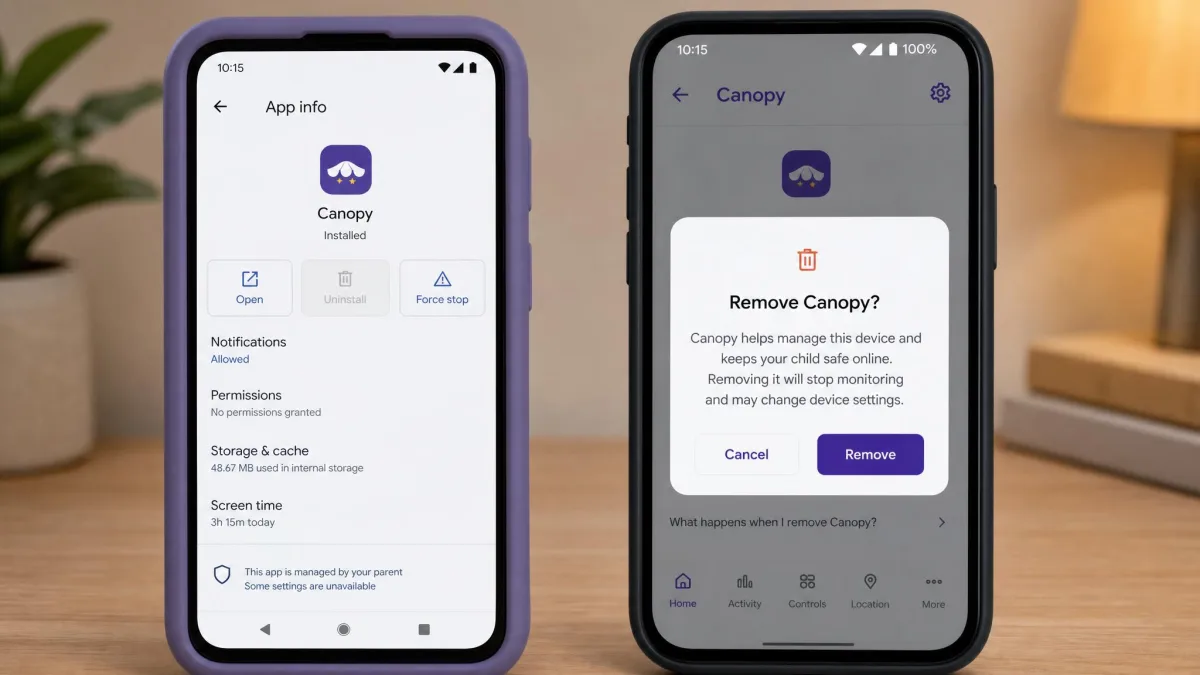
Canopy prevents children uninstalling the app without a parent's permission, which closes the most common bypass route, and alerts you if a removal is attempted. Blocking privacy browsers outright closes a second route. It is not unbeatable, but a child has to work at it.
Kids360 is considerably weaker. Alli360 can be disabled from the child's phone within a couple of minutes, and turning off location services defeats GPS. With the enforcement failures we saw, it is best understood as a cooperative tool: it works with a child who has agreed to the arrangement, and poorly against one who has not.
Customer Support and Reliability
Canopy offers phone and chat support, and its email support replied to us within about an hour, which partly offsets the setup friction.
Kids360's support is chat-only with no phone line, and the replies we received read like canned bot responses. The App Store community rates Kids360 4.6 out of 5 across more than 8,900 ratings, and the vendor reports 4.7 stars on Google Play alongside more than 1M parents. Those numbers stand, and so do the sync failures and billing misfires we documented, so satisfaction is polarized rather than uniformly poor. Canopy sits at 4.2 out of 5 in independent review scoring, a lower headline number attached to a more consistent product.
How We Compared These Apps
We subscribed to both apps ourselves and ran them on real family devices rather than clean test handsets, because a phone with a hundred apps on it behaves differently from a factory-reset one. Each went onto an Android phone and an iPhone, with the parent app on a separate device, across roughly two weeks of daily use.
We scored six things: filtering accuracy, whether limits enforced, how granular the app blocking was, whether location alerts fired, how long setup took, and how quickly a determined child could switch the thing off. We also timed each support reply, and where a number comes from a vendor rather than our own use, we say so.
Pros and Cons
Canopy pros and cons
Pros
- Best-in-test filtering, whiting out explicit pictures instead of blocking whole pages
- Correctly categorized 99.8% of nudity and pornography in testing
- Covers phones, tablets, Windows, macOS and ChromeOS
- Very hard for a child to uninstall, with alerts if they try
- Fast email support, replying within about an hour
- 30-day money-back guarantee on top of the 7-day trial
Cons
- No per-app time limits, so schedules are all or nothing
- Noticeably less reliable on iOS than on Android
- Geofencing alerts failed to trigger in our testing
- Screen time reports refresh slowly
- Cannot scan email, texts, in-app content or streaming services
- Fiddly iOS setup, around 20 minutes with troubleshooting
Kids360 pros and cons
Pros
- Earned screen time through tasks, chores and exercises, which children cooperate with
- Genuine per-app blocking and per-app usage statistics
- Real-time GPS plus a loud signal to find a silenced phone
- Low entry price and a 7-day free trial
- Strong store ratings, 4.6 on the App Store and 4.7 on Google Play
Cons
- Screen time limits do not always enforce
- The child app can be disabled from the child's phone in a couple of minutes
- No image-level filtering and no message monitoring
- Mobile only, with no desktop or ChromeOS support
- Chat-only support with canned-feeling replies
- No refund once paid, and renewals fire three days early
Which Should You Choose?
Choose Canopy if...
Choose Canopy if your primary worry is inappropriate content rather than hours. It is the right pick for younger children, for households mixing phones and computers, and for any parent who wants filtering a child cannot quietly remove, especially on Android where it performed most consistently for us.
Choose Kids360 if...
Choose the Kids360 app if the problem in your house is time rather than content, and your child is old enough to be part of the arrangement rather than subject to it. The earned-time model is the best version of that idea we have used. Go in knowing the limits need spot-checking, a motivated teenager can switch the child app off, and there is no refund route once you have paid.

Alternatives Worth Considering
Neither app is the only route, and two alternatives are free.
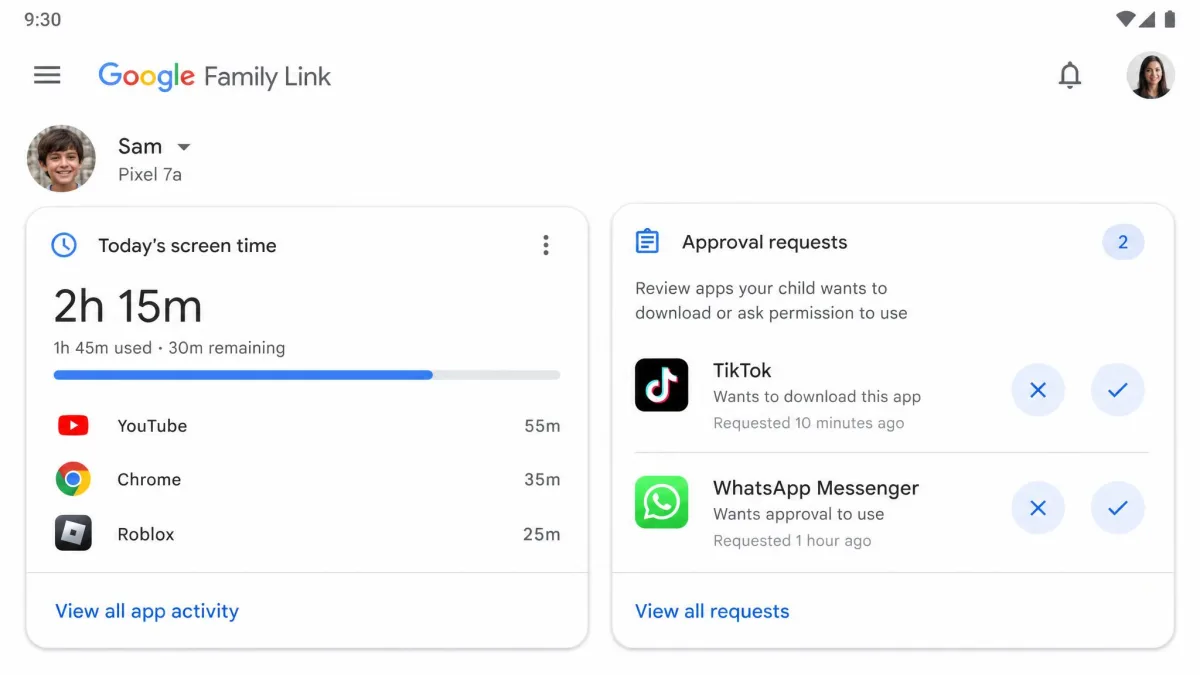
Google Family Link costs nothing and handles app approval, limits and location for Android and Chromebook households. Qustodio sits between our two picks, with solid filtering plus per-app limits and desktop coverage. Bark is the pick if message monitoring is the real requirement, and Norton Family is worth a look if you already pay for Norton.
Frequently Asked Questions
Is Canopy or Kids360 better for younger children?
Can kids uninstall or bypass Canopy or Kids360?
Do both apps work on iPhone and Android?
Is there a free version of either app?
Which is cheaper for multiple children?
Can Kids360 filter web content the way Canopy does?
What happens if I cancel a Kids360 subscription after paying?
Final Verdict
Canopy wins this comparison, but only for the job it is built to do. If you want your child protected from inappropriate content across every device they touch, and protection they cannot uninstall on a whim, nothing in Kids360 competes. In exchange you accept slow reports, unreliable geofencing and a weaker experience on iOS.
Kids360 is the better app for a narrower and very common problem: too much screen time, and a child who will negotiate. The earned-time system builds healthy digital habits in a way a blunt cutoff never does, and per-app limits give you control Canopy does not offer. But the enforcement gaps and the two-minute bypass mean it works with your child's cooperation, not instead of it.
Our recommendation: start with Canopy if your kids are under twelve, and with Kids360 if they are older and the argument at home is about hours. Use both trials, watch what the dashboards actually report in week one, and remember that Canopy's 30-day money-back guarantee gives you a runway to change your mind, while a paid Kids360 year gives you none.