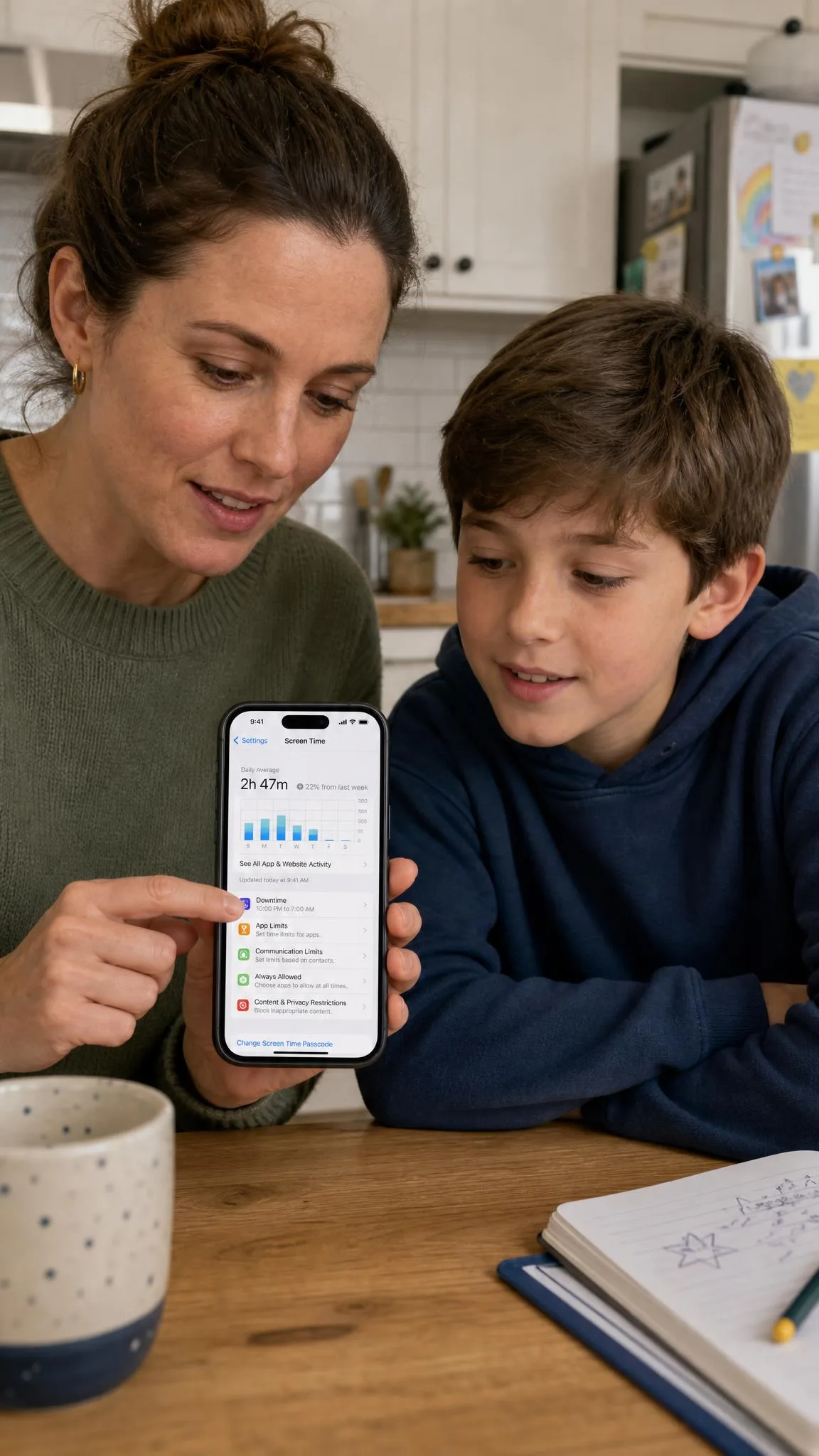
Most people who want Safari gone are in one of two situations. Either you are setting up a child's iPhone and want the open web off the table, or you are cutting your own impulsive browsing and keep reaching for the same blue compass icon.
Either way, you hit the same constraint straight away. Safari cannot be uninstalled the way you delete a third-party app. It can, however, be hidden, blocked, and effectively removed from daily use through Screen Time.
This guide covers four methods, from a full block to a simple time limit, then the gaps every one of them leaves open.
Can You Actually Delete Safari From an iPhone?
No. Safari is a core system app, so it stays installed on the device whatever you do in Settings.
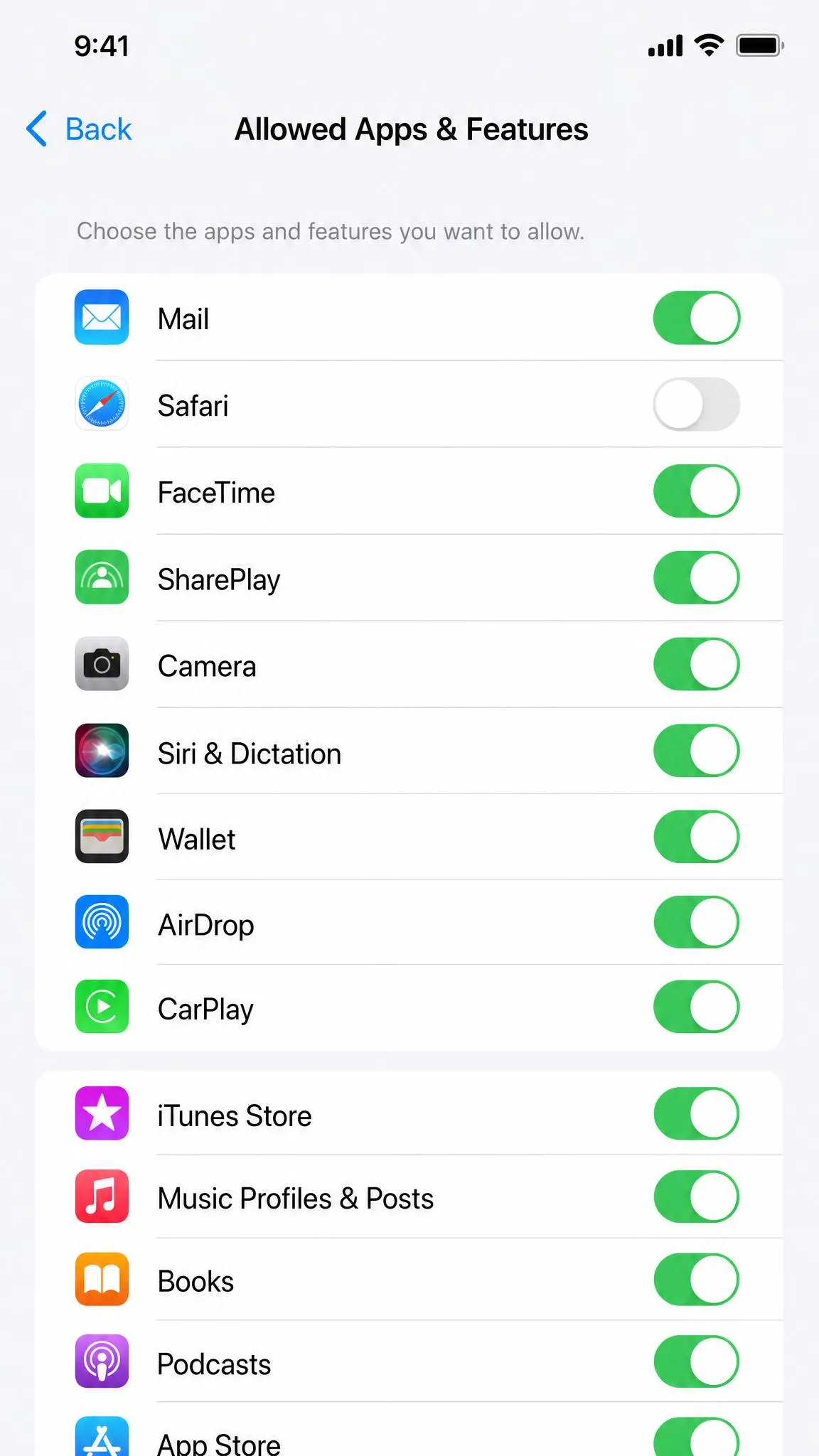
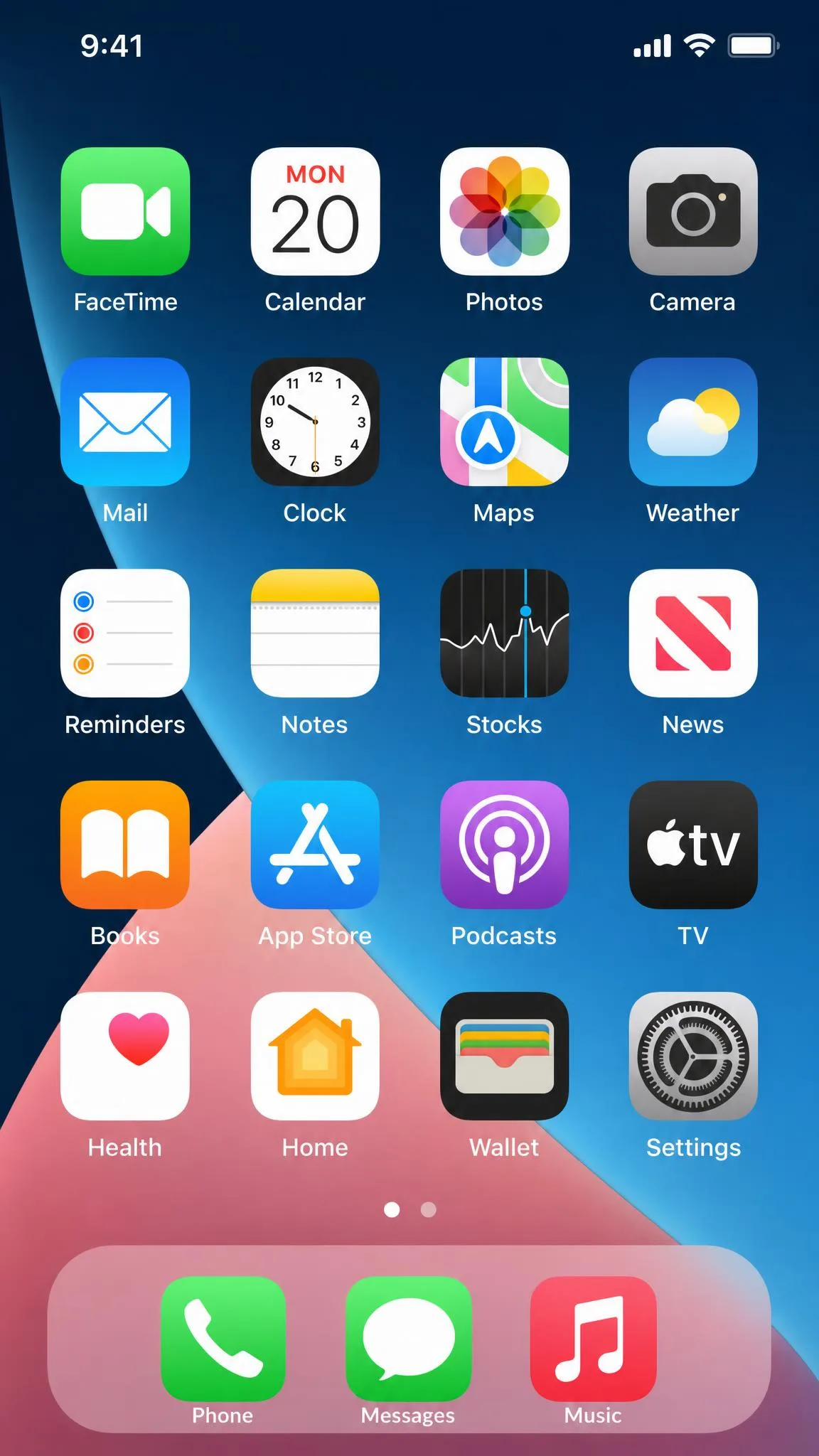
What you can do is disable it. Toggle Safari off under Allowed Apps & Features and the icon disappears from the Home Screen and from the App Library, so the app looks deleted even though it is still there.
For most parents that difference does not matter. Your child cannot open Safari, cannot find it by scrolling, and cannot tap a link that hands them a browser window.
These steps are written against iOS 26, the current iPhone release generation. A few menu labels have shifted across recent updates, but the path through Screen Time has stayed the same for years.
Before You Start: What You Need
- Access to the iPhone you want to restrict. You can manage a child's device remotely through Family Sharing, but the first setup is easier hands-on.
- A Screen Time passcode nobody else knows. This is the single point of failure in the whole system.
- Ten minutes. The block takes two. Closing the gaps around it takes the rest.
Make sure the passcode is not the code you use to unlock the phone. A child who has watched you type that one already has the keys to every restriction below.
Method 1: Block Safari Completely With Screen Time
This is the method that works for almost everyone. It is free, built into iOS, and it takes Safari off the device rather than nagging about it.
Step 1: Turn On Screen Time and Set a Passcode
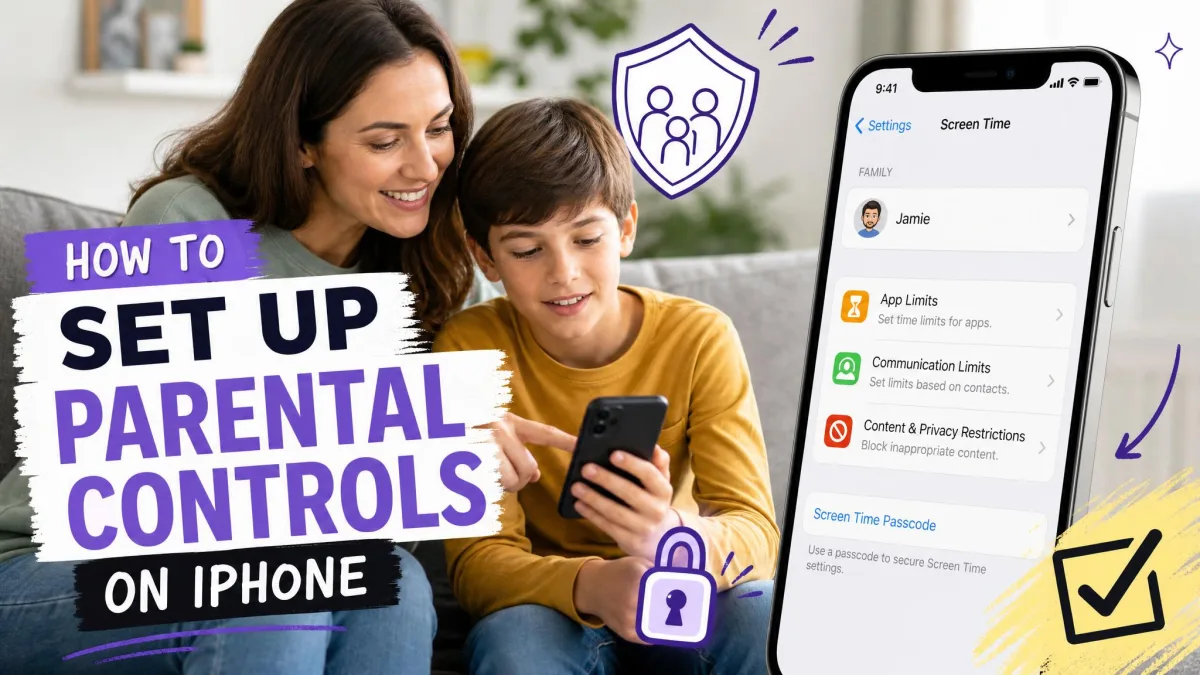
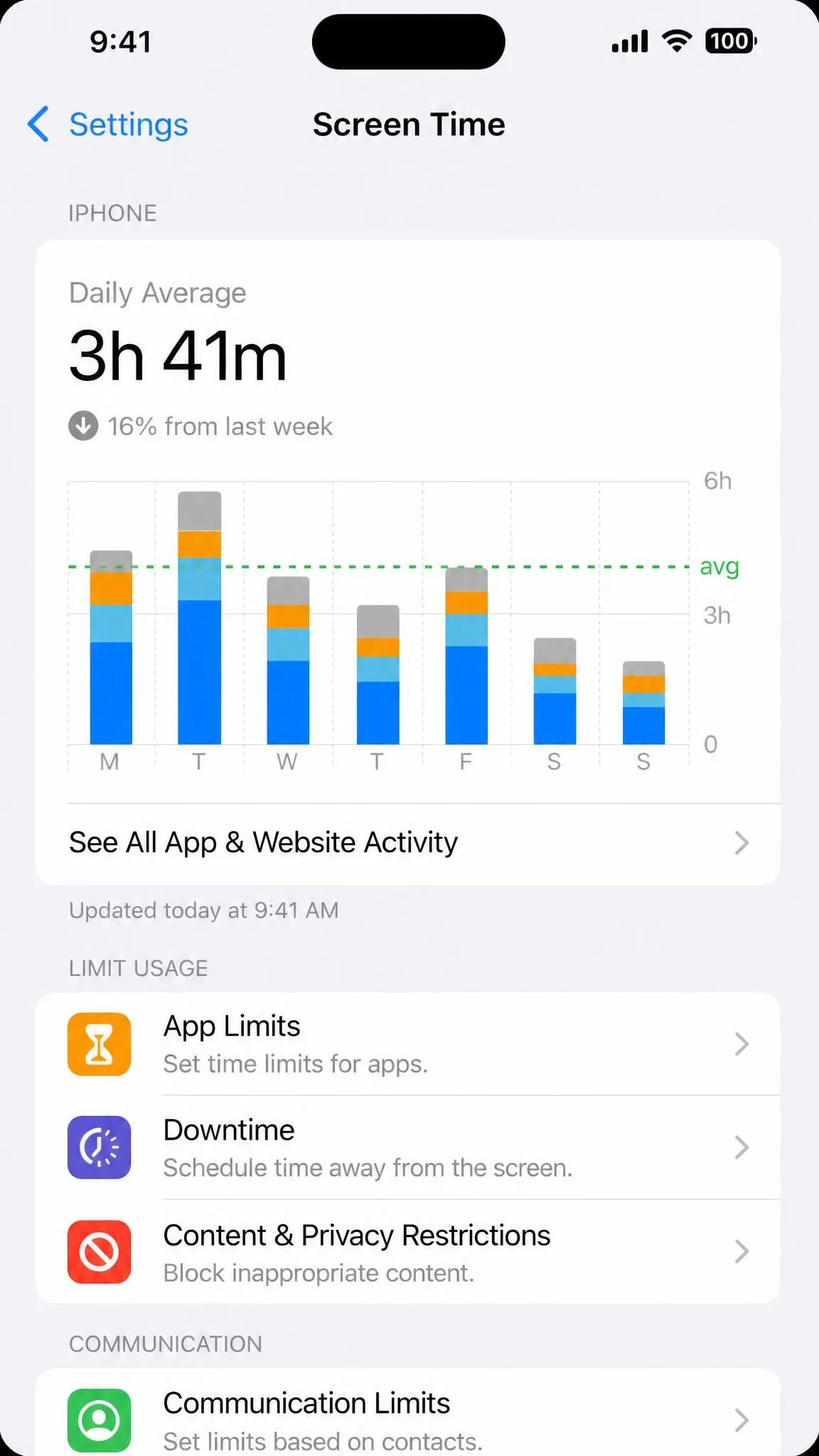
Go to Settings > Screen Time. If you have never used it, tap to turn it on.
When you are asked whether the iPhone belongs to you or to a child, answer honestly. The child option surfaces the parental controls you want.
Then tap Use Screen Time Passcode and set a four-digit code. Apple asks for an Apple Account so the passcode can be recovered later, so enter one you control and note which it was.
If you forget the Screen Time passcode and cannot remember the Apple Account you linked to it, the reset will not work. Recovery only accepts the account used when the passcode was created, and the wrong one fails without a useful error. Erasing the iPhone and restoring from a backup can then be the only route left.
Step 2: Open Content & Privacy Restrictions
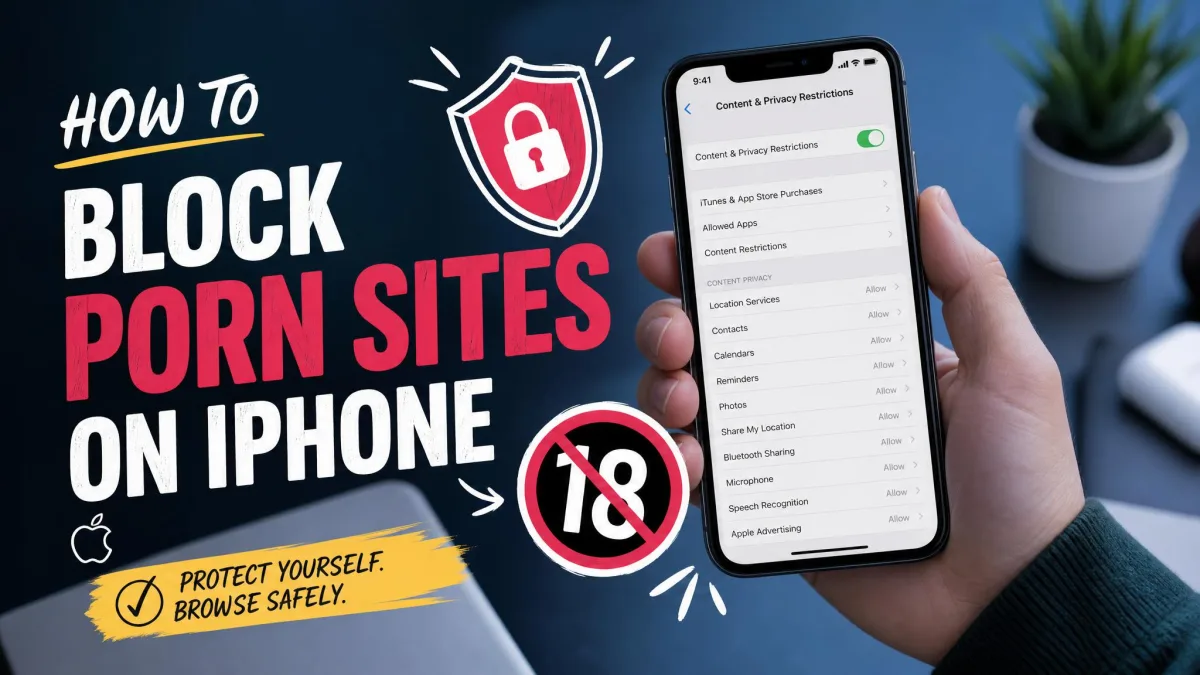
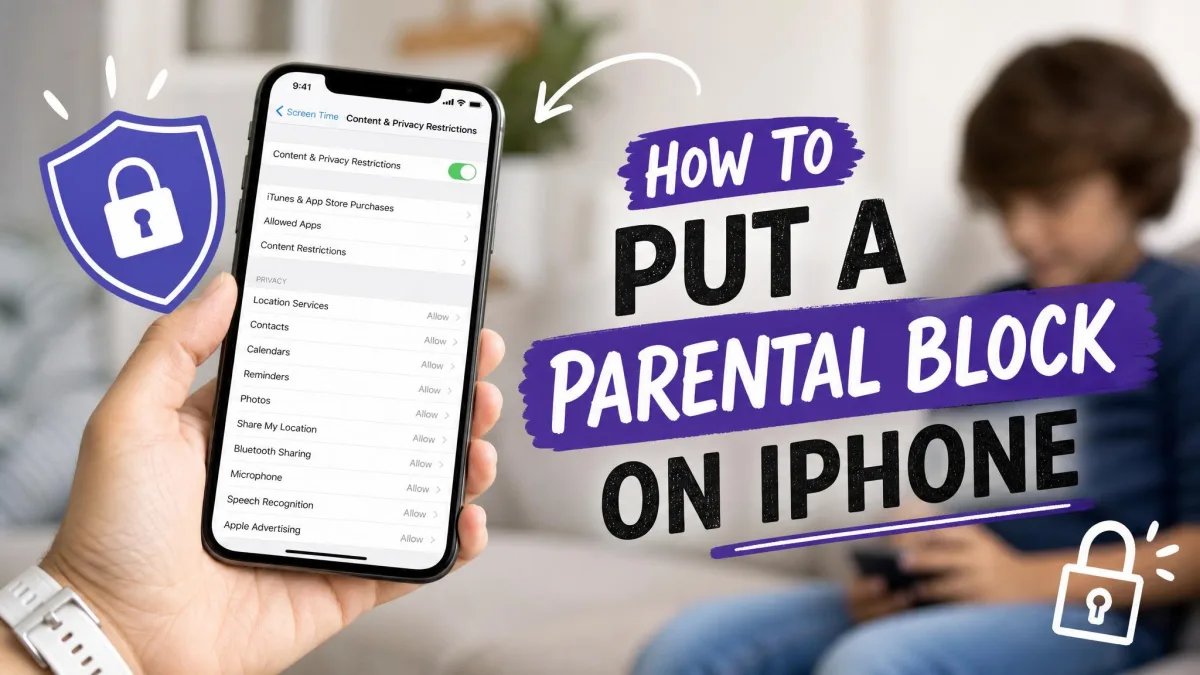
Still in Screen Time, tap Content & Privacy Restrictions and turn on the switch at the top of the section.
Nothing is restricted yet. That toggle wakes up the controls underneath, which is where every block in this guide lives. Apple's guide to Content & Privacy Restrictions lists what else you can lock down from the same screen.
Step 3: Toggle Safari Off Under Allowed Apps
Tap Allowed Apps & Features, find Safari in the list, and turn off the switch beside it.
That is the whole block. It takes effect immediately, with no restart and no confirmation. The same list controls Camera, Mail, and AirDrop, so it is worth a scroll while you are here.
Step 4: Confirm Safari Is Gone From the Home Screen
Back out and check. The Safari icon should be missing from the dock, and swiping into the App Library or running a search should not turn it up either. Tap a web link in Messages now and iOS has no browser to hand it to, so the link does nothing.
Method 2: Allow Only Specific Websites in Safari
Sometimes a full block is too blunt. A twelve-year-old who needs the web for homework still needs a browser, just not an unfiltered one.
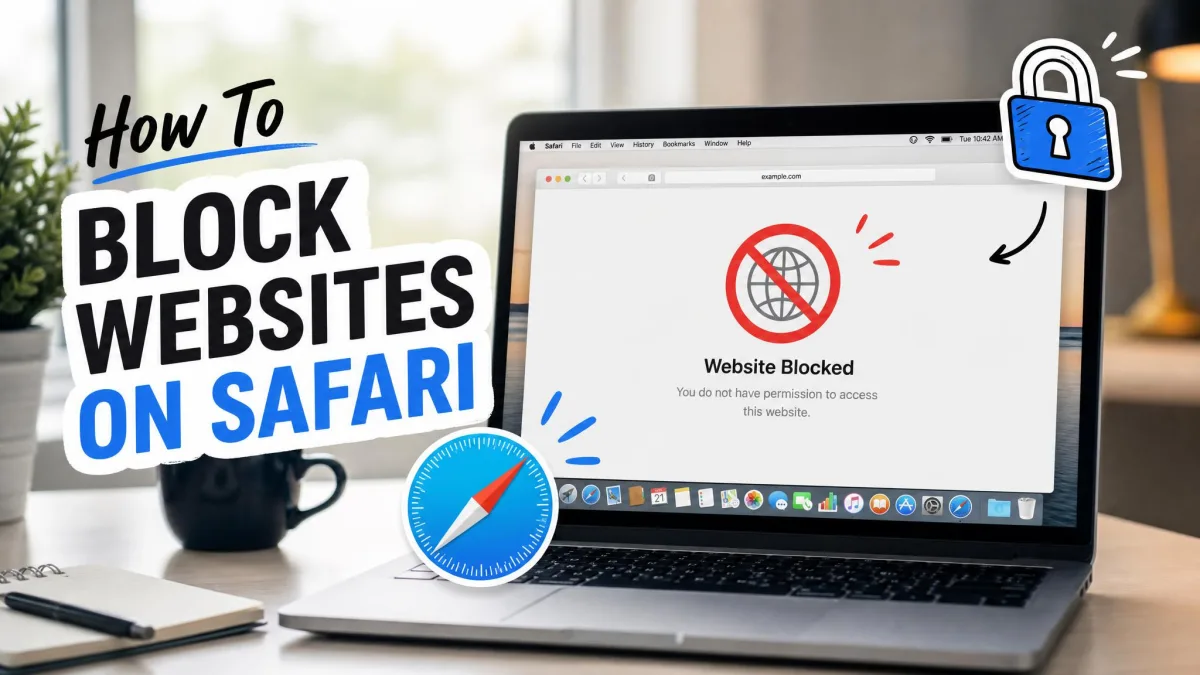
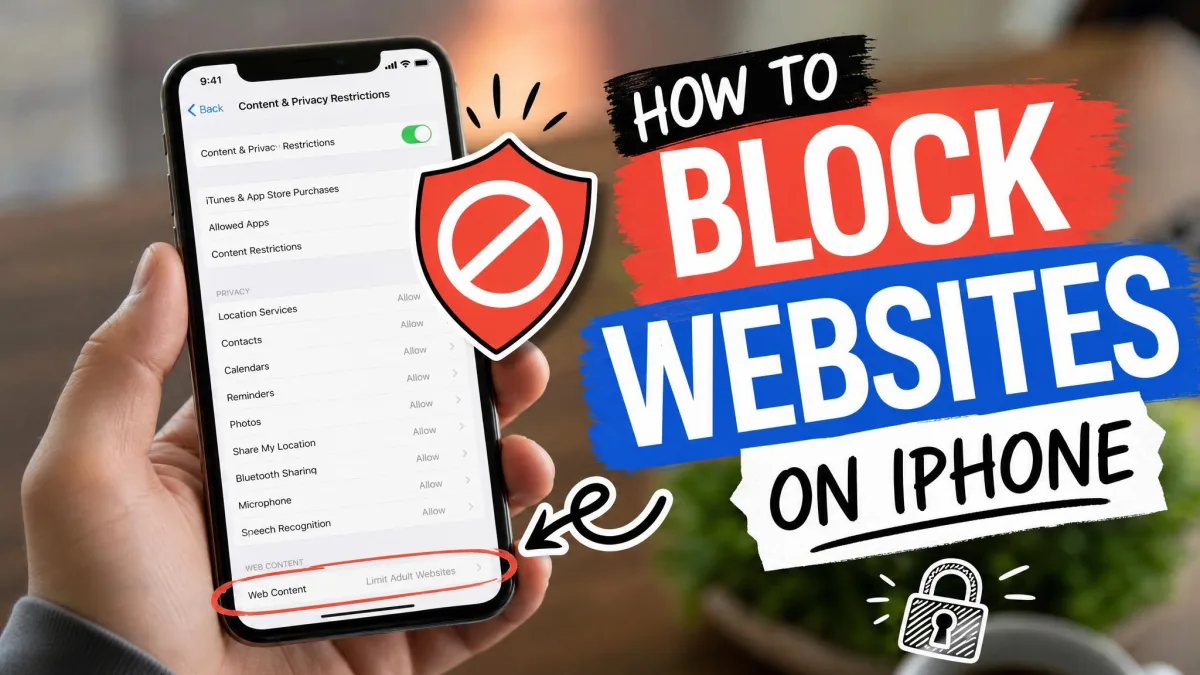
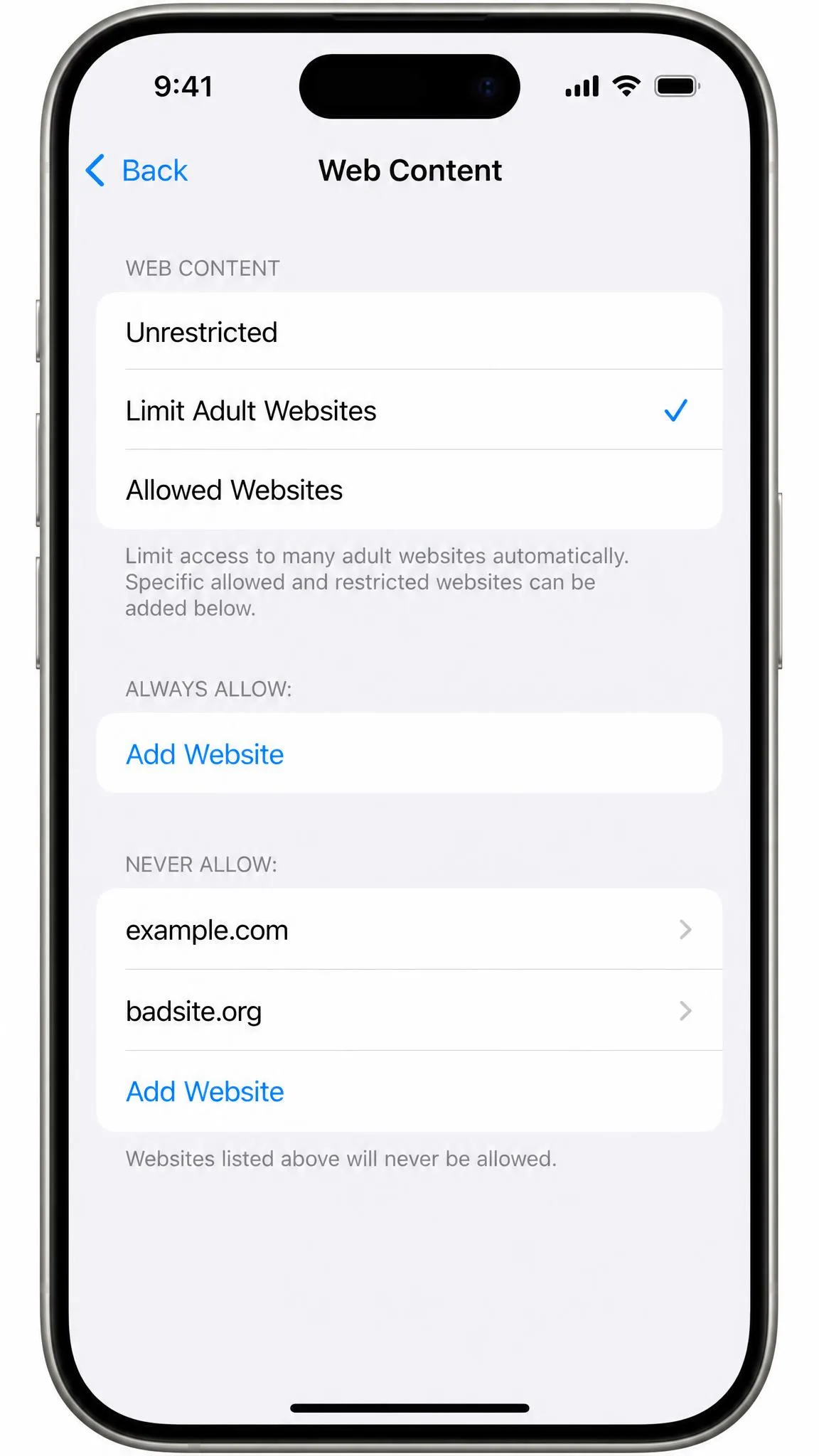
Leave Safari switched on for this method, then go to Settings > Screen Time > Content & Privacy Restrictions > App Store, Media, Web, & Games and tap Web Content. Our guide to blocking websites on iPhone covers the other methods. Apple's official steps describe the same screen on older iOS releases.
Limit Adult Websites
This middle setting is where most families should start. Apple filters known adult sites automatically (see how to block porn sites on iPhone for the full setup), and you add exceptions underneath.
Tap Add Website under Never Allow to block something specific, or under Always Allow to whitelist a site the filter catches by mistake. The automatic filter is decent rather than perfect, so expect to add a few sites yourself.
Allowed Websites Only (Whitelist Mode)
The strictest option limits Safari to a list you build by hand, and everything else returns a block page.
In practice it is restrictive to the point of friction. Anything outside the allowlist throws an error popup, and because modern pages pull assets from dozens of domains, those popups keep appearing on sites you thought you had allowed. We would reserve it for a young child's first iPhone.
Block One Specific Site
To prevent access to one time-sink (our Safari website-blocking guide goes deeper), set Web Content to Limit Adult Websites and add the single domain under Never Allow. It is the lightest touch available, and it leaves the rest of the web alone.
Add both the plain domain and the www version when you block a site. iOS treats them as separate entries more often than it should, and a child who finds the gap will not tell you about it.
Method 3: Set a Time Limit Instead of a Full Block
A time limit suits older teenagers better, because it treats browsing as something to budget rather than something forbidden.
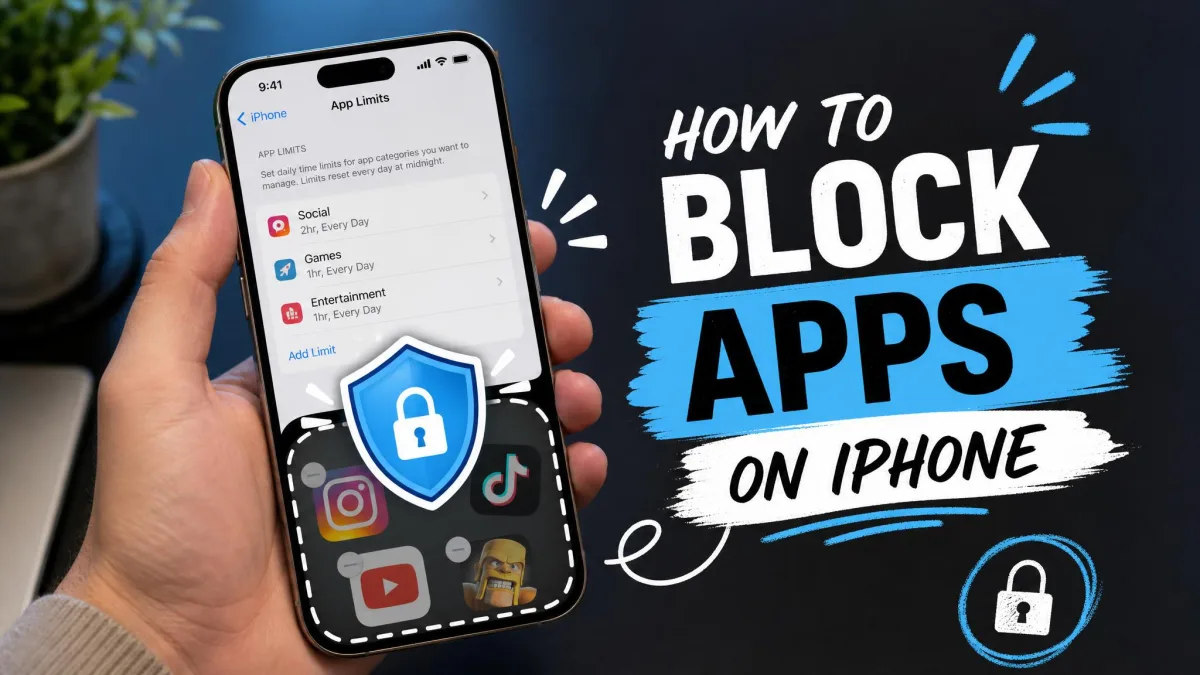
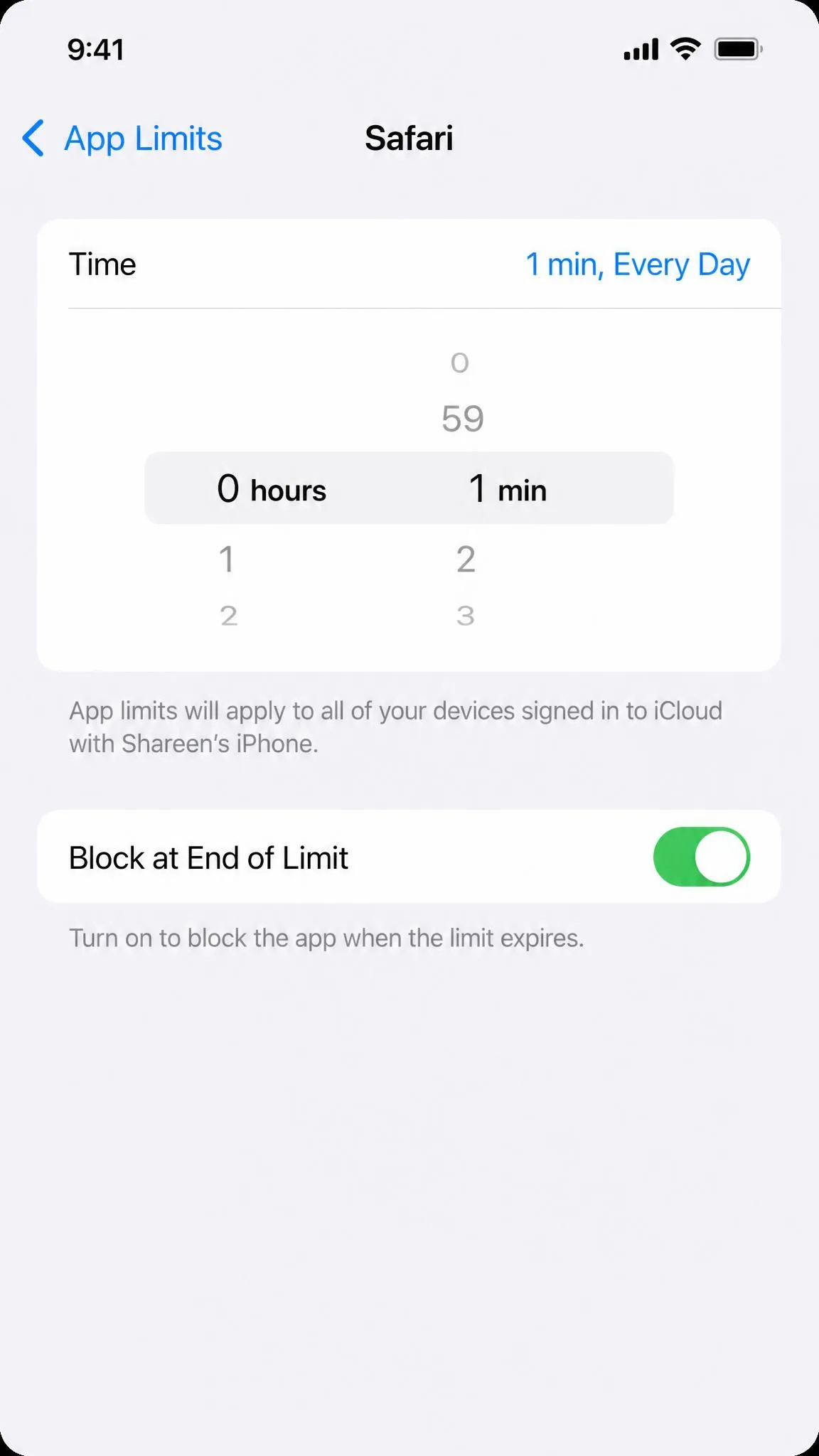
Go to Settings > Screen Time > App Limits, tap Add Limit, choose Safari, set your allowance, and turn on Block at End of Limit so the limit stops rather than warns.
An App Limit of 1 minute per day with that switch enabled works as a near-total block while leaving the icon visible, which some parents prefer to an app that silently vanishes.
The scheduled version lives under Settings > Screen Time > Downtime. Set your hours, then remove Safari from Always Allowed so it disappears during that window and returns afterwards.
One caveat. Hitting an app time limit does not close the loop, because the same service can usually be reopened as a website. Limit a social app and you need to limit Safari too, or the block just moves.
Method 4: Lock It Down With Supervised Mode or a Parental Control App
Screen Time has one structural weakness. Every restriction it sets can be undone by anyone holding the device who knows the four-digit passcode.
Supervised Mode answers that. A supervised iPhone carries restrictions that cannot be lifted even by the person using it, which is why schools manage devices this way. Setting it up means erasing the iPhone and enrolling it through Apple Configurator or a device management service.
When Screen Time Alone Is Enough
For most families, it is. If your child is under about eleven and has no friend willing to look up bypasses, Screen Time will hold. The signal that you need more is repetition: when the block keeps coming undone and you keep resetting it, the tool is not the problem.
Screen Time vs. a Dedicated Parental Control App
A third-party parental control app buys you coverage across other browsers, a remote dashboard, and reporting Screen Time does not offer. Getting one running on an iPhone is markedly more work: you turn off some Screen Time features first, then install a VPN profile by hand so the app can see web traffic at all. Expect roughly 10 to 15 percent faster battery drain, and activity taking 10 to 15 minutes to reach the parent dashboard.
| Feature | Screen Time (free) | Qustodio or Bark |
|---|---|---|
| Blocks Safari | Yes, Allowed Apps toggle | Yes, app blocking or filtering |
| Blocks other browsers | No, filtering is Safari-centric | Partly, needs a VPN profile |
| Blocks in-app web views | No | Partly, VPN filtering catches some |
| Survives app re-download | Only with Installing Apps off | Yes, enforced by the app |
| Remote management | Yes, via Family Sharing | Yes, parent dashboard |
| Reporting and history | Basic usage reports | Detailed, 10 to 15 min delay |
| Cost | $0 | Qustodio from $54.95/yr; Bark iOS $148/yr |
Qustodio's free plan covers 1 device, Basic is $54.95 per year, and Complete is $99.95 per year, with a 3-day trial and a 30-day money-back guarantee. Bark charges $148 per year on iOS and $99 per year on Android after a 7-day free trial, and Bark Home adds router-level filtering for $79.
Try Screen Time first. Pay for an app once you have watched a specific restriction fail.
What Blocking Safari Does NOT Stop
This is the section most guides skip, and the reason parents conclude Screen Time is broken. It is not broken. It is narrower than it looks.
Other Browsers (Chrome, Firefox, DuckDuckGo)
Turning Safari off does nothing to Chrome, Firefox, or DuckDuckGo. Screen Time's Web Content filter is built around Safari because Safari is a system app, so it does not reliably filter third-party browsers even when they are installed.
Privacy-focused browsers and apps rated 17+ sidestep the filter, which makes "install another browser" the first workaround any teenager finds. The complaint runs through Apple's own community threads from parents who assumed one toggle covered everything.
In-App Browsers and Web Views
Instagram, Snapchat, YouTube, and most other apps open links in a browser built into the app itself, and those web views are frequently not covered by the adult-content filter at all. A device with Safari fully blocked can still reach almost any page, as long as the link arrives inside another app.
Re-Downloading Safari From the App Store
This one looks most like a bug. If App Store installs are still permitted, Safari can be found through a search and downloaded again, which looks exactly like the restriction failing. Screen Time can also only block apps already on the device, so anything installed later slips through until you revisit the rules.
How to Close Each Gap
- Block other browsers. Allowed Apps carries only Apple's own apps, so use App Limits to put a 1 minute daily limit on every third-party browser.
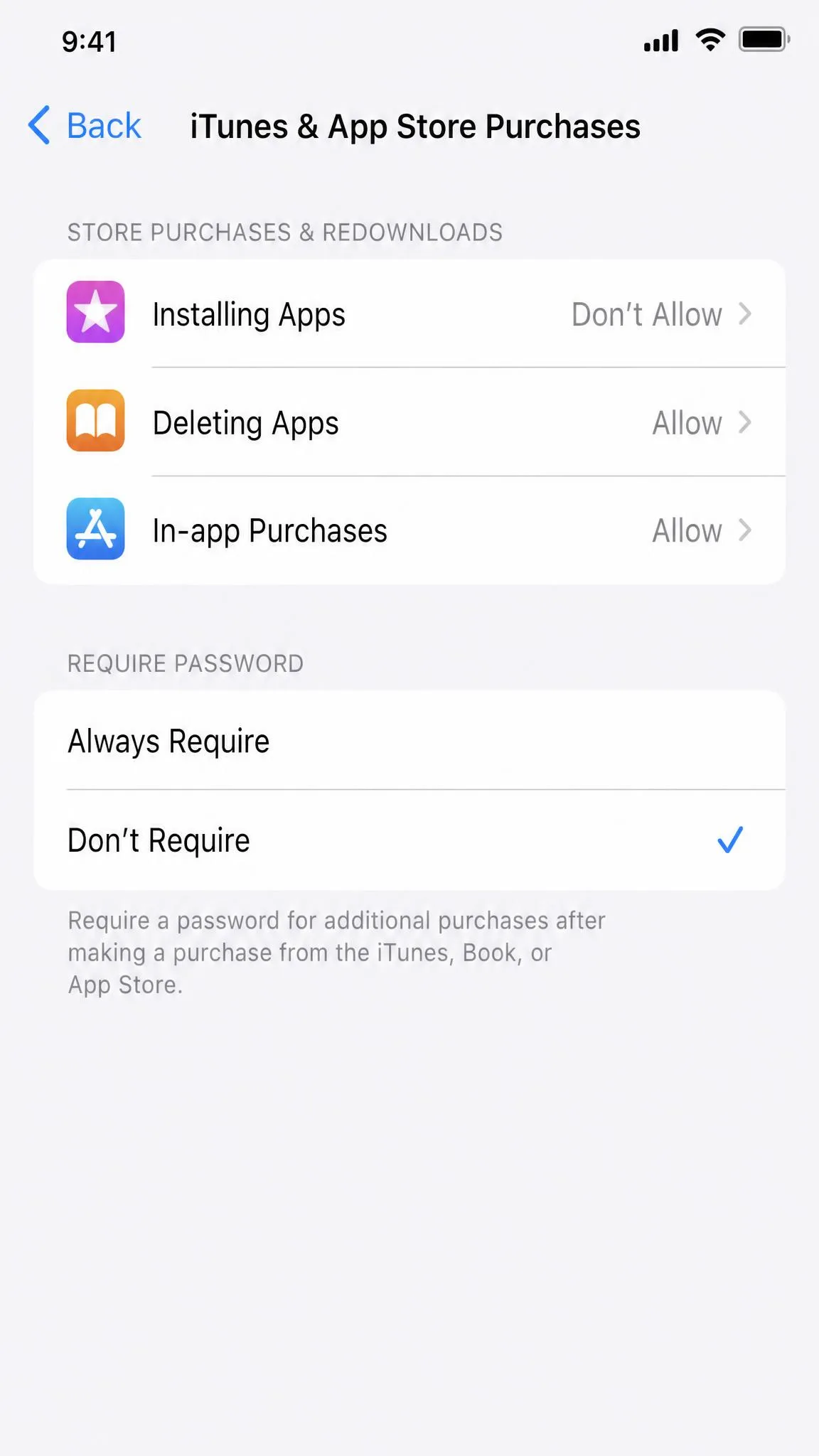
- Stop new browsers appearing. Go to Settings > Screen Time > Content & Privacy Restrictions > iTunes & App Store Purchases and set Installing Apps to Don't Allow. This also prevents Safari being re-downloaded.
- Handle in-app browsing. There is no clean toggle, so limit or remove the apps whose web views concern you.
- Change the default browser. If you leave one browser available, go to Settings > Apps, pick it, and set Default Browser App so external links land where you expect.
Setting Installing Apps to Don't Allow removes the App Store icon from the Home Screen entirely. That is intended behaviour rather than a fault, and it reverses the moment you set the option back to Allow.
How to Stop Your Child From Undoing the Block
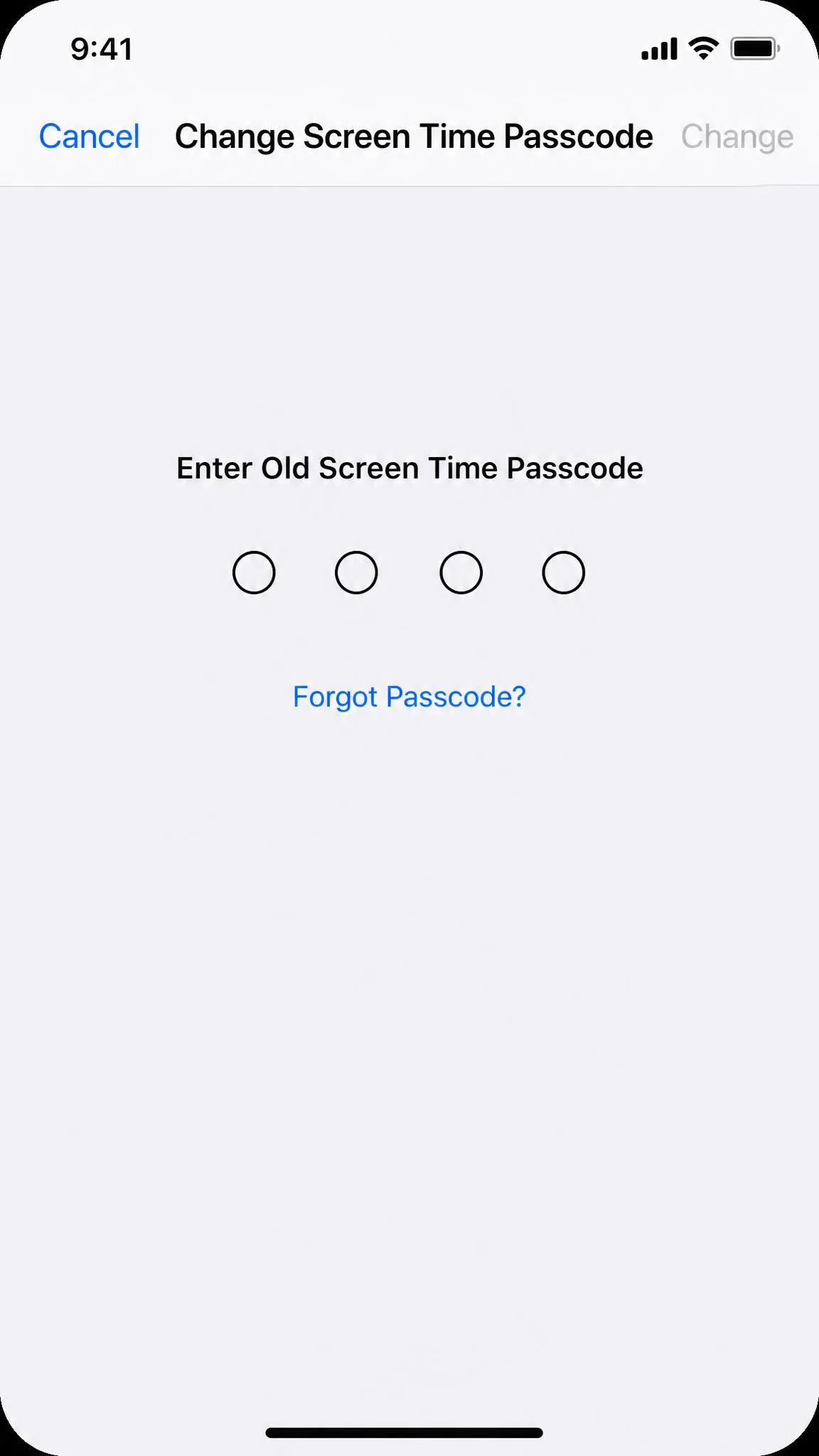
A block that keeps coming undone almost always traces back to the passcode. Change it from Settings > Screen Time > Change Screen Time Passcode, and choose digits that are not a birthday, not your unlock code, and not the code on the iPad.
Then check who else can change things. If your child's Apple Account can reach the recovery flow, the passcode is a formality.
Be realistic about what four digits buy you. Against a determined teenager with time and an internet connection, it is a speed bump rather than a wall (see how kids bypass parental controls), and that is the honest case for Supervised Mode where the stakes are high.
Troubleshooting: Safari Still Showing Up or Won't Block
- Check you toggled the right device. Screen Time settings can apply somewhere other than where you set them, so open Screen Time on the iPhone itself and confirm the switch there.
- Check whether it was re-downloaded. An icon that reappeared, rather than never leaving, means App Store installs are still allowed.
- Check the master switch. With the top-level Content & Privacy Restrictions toggle off, every setting underneath is inert while still appearing configured.
- Check for a second Apple Account. A child signed into a different account than the one you manage will never receive your Family Sharing restrictions.
If the passcode screen refuses input and no keypad appears, the device is likely managed by another profile, which has to be removed first.
How to Unblock Safari and Reverse the Change
Go to Settings > Screen Time > Content & Privacy Restrictions > Allowed Apps & Features and turn Safari back on. The icon returns to the Home Screen straight away, with tabs and browsing history intact, so a block you set for exam week costs nobody their open pages.
To undo web filtering, set Web Content back to Unrestricted Access, as covered in turning off web content restrictions on iPhone. To undo the App Store change, set Installing Apps back to Allow. To remove Screen Time altogether, turn the feature off from the top of the section, which needs the passcode.
Frequently Asked Questions
Can you permanently delete Safari from an iPhone?
Why does Safari come back after I block it?
Can my child turn off Screen Time restrictions?
Does blocking Safari block Chrome too?
How do I block only one website in Safari?
What is the Screen Time passcode and what if I forget it?
Does blocking Safari stop in-app browsers?
The Bottom Line
For most people, Method 1 is the whole answer. Toggle Safari off under Allowed Apps & Features, set Installing Apps to Don't Allow, and pick a Screen Time passcode nobody has watched you type. That combination takes five minutes and holds up well for younger children.
If you need the web available but filtered, Method 2's adult-content filter with a short Never Allow list is the sensible middle ground. Where Screen Time falls short is other browsers and in-app web views, and if those matter on your child's device, a parental control app or Supervised Mode is the honest next step. We are happy to help you narrow that choice in our related guides below.