
A site that loads on your phone but not your laptop, a "DNS server not responding" error, a page stuck on an address that moved last week: these are the classic symptoms of a stale DNS cache. The DNS cache is a local store of recent domain-to-IP lookups your device keeps so it does not have to ask a DNS server every time you open a site. Clearing it forces your device to fetch fresh records, and on most platforms it takes one command and under a minute.
Below are the exact steps for every platform, tested on our own machines across current Windows 11, macOS, a systemd Linux box, an iPhone, and an Android phone.
What Is the DNS Cache (and Why Clear It)?
Every time you visit a website, your device asks the Domain Name System to translate the name into an IP address. To save time, your operating system stores that answer in a local DNS cache and reuses it for a set period. The cache is what makes your second visit to a site feel instant.
The trouble starts when a record goes stale. If a website moves to a new server, your cached entry still points at the old address until it expires. That is when you see connection failures, security warnings, or a site that refuses to load. Flushing the cache deletes those saved entries so your next request pulls a current record. On Windows, the flush also discards negative entries, cached "this name does not exist" answers that can linger after a domain starts working.
When You Should Clear Your DNS Cache
Clearing the cache is worth trying in a few specific situations: when a site has recently changed hosts and still fails to load, when you have just edited your hosts file or switched DNS providers, or when you see a DNS error on one device but not another. It also helps after a domain's records were updated and you do not want to wait out the remaining time-to-live. It is a reasonable privacy step too, since the cache is a readable log of the domains you have visited.
Flushing does not delete cookies, saved passwords, or browsing history, and it will not log you out of anything. It only clears the domain-to-IP lookup table.
How to Clear DNS Cache on Windows 11 and 10
Windows gives you two ways to flush, both working from Windows 7 through Windows 11.
Using Command Prompt (ipconfig /flushdns)
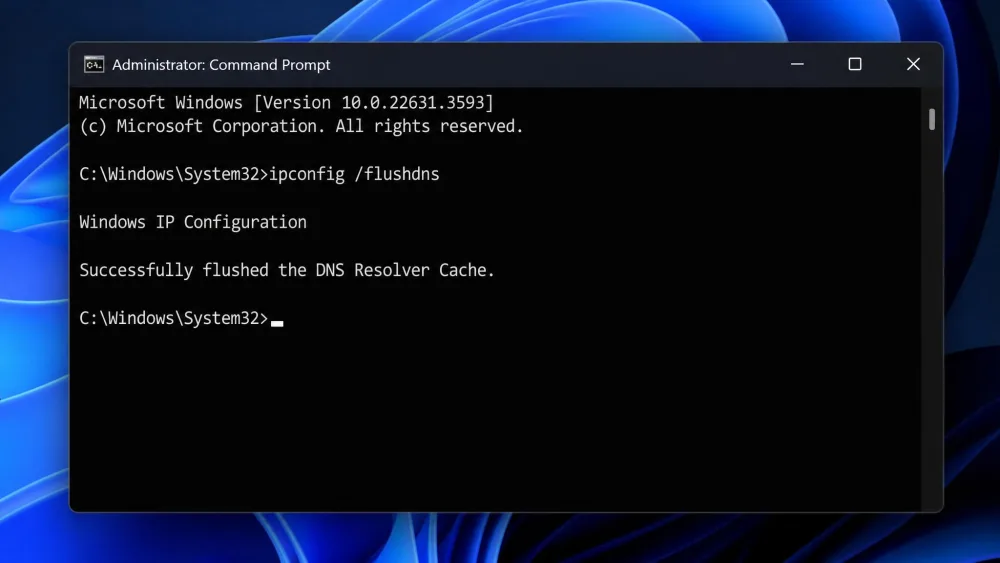
Open the Start menu, type cmd, select Command Prompt, and run:
ipconfig /flushdns
When it works, Windows prints a single line: Successfully flushed the DNS Resolver Cache. That is the only feedback you get. There is no progress bar, and the command finishes in under a second. To inspect the cache first, ipconfig /displaydns prints its current contents.
Run Command Prompt as Administrator. On some Windows builds a non-elevated prompt returns "The requested operation requires elevation" or fails to clear the cache without an obvious error. Right-click Command Prompt and choose "Run as administrator" to be safe.
Using PowerShell (Clear-DnsClientCache)
If you prefer PowerShell, a native cmdlet does the same job:
Clear-DnsClientCache
PowerShell returns silently to the prompt on success. To confirm, run Get-DnsClientCache, which should come back empty.
How to Clear DNS Cache on macOS
macOS hides the DNS cache behind Terminal. The command is a two-part line you paste as one.
Terminal command for current macOS versions
Open Terminal from Applications, Utilities, and run:
sudo dscacheutil -flushcache; sudo killall -HUP mDNSResponder
Enter your admin password when prompted. This works on macOS Sierra (10.12) through the current release. One thing surprises people: macOS gives no success message. The command simply returns to the prompt, and that silence is the confirmation.
Commands for older macOS versions
On older releases the command is shorter. From OS X Lion (10.7) through Mavericks (10.9), use just sudo killall -HUP mDNSResponder. Yosemite (10.10) is the awkward one: releases 10.10.0 through 10.10.3 used sudo discoveryutil mdnsflushcache, while 10.10.4 and later reverted to the dscacheutil form.
How to Clear DNS Cache on Linux
Linux is the one platform where you have to know what is doing the caching before you flush anything.
systemd-resolved (resolvectl)
On most modern distributions running systemd 239 or newer, the command is sudo resolvectl flush-caches. To confirm, run resolvectl statistics and check that Current Cache Size reads 0. On older systemd releases the command was sudo systemd-resolve --flush-caches. That form was renamed, and on current distros it now returns "command not found," which sends people hunting for a problem that isn't there. If you hit that, switch to the resolvectl form.
nscd / dnsmasq
Not every Linux box uses systemd-resolved. If yours runs nscd, restart it with sudo /etc/init.d/nscd restart. For dnsmasq, use sudo /etc/init.d/dnsmasq restart.
Flushing systemd-resolved does nothing if your machine is actually caching through dnsmasq or nscd. Check what is really running with systemctl status systemd-resolved first, then flush the resolver that is doing the work.
How to Clear DNS Cache on iPhone and iPad
iOS does not expose a DNS flush command, so you clear the cache indirectly. The quickest way is to open Control Center, turn on Airplane mode, wait a few seconds, then turn it off. Dropping and restoring the connection flushes the cached lookups. If that does not do it, go to Settings, General, Transfer or Reset iPhone, Reset, then Reset Network Settings. That also clears saved Wi-Fi passwords, so use it only when the toggle isn't enough.
The Chrome app on iPhone has no DNS cache of its own to clear. Visiting chrome://net-internals/#dns there just returns an INVALID_URL error, so on iOS the Airplane mode toggle is your only real option.
How to Clear DNS Cache on Android
Android works much like iOS. Toggle Airplane mode on, wait about ten seconds, then toggle it off to reset the connection and flush the system cache. If a specific site still fails in Chrome for Android, clear Chrome's own DNS cache: go to chrome://net-internals/#dns, select DNS, and tap Clear host cache.
How to Clear DNS Cache in Your Browser (Chrome, Edge, Firefox)
This is the step most people miss. Browsers keep a DNS cache separate from your operating system, so flushing the OS cache does not clear Chrome's, and vice versa.
In Chrome, go to chrome://net-internals/#dns and click Clear host cache. In Edge, the address is edge://net-internals/#dns, then Clear host cache. In Firefox, open about:networking#dns and use the Clear DNS Cache button, though the exact label varies by version. Safari has no dedicated control; on a Mac you clear Safari's DNS by flushing the macOS cache at the OS level.
If a site still fails after you flush the operating system cache, clear your browser's DNS cache too. A stale entry hiding in Chrome's own store is the single most common reason a page keeps failing after you thought you cleared everything.
Quick Reference: DNS Flush Commands by Platform
| Platform | Flush command / action |
|---|---|
| Windows 11/10 | Command Prompt (Admin): ipconfig /flushdns (or PowerShell Clear-DnsClientCache) |
| macOS | Terminal: sudo dscacheutil -flushcache; sudo killall -HUP mDNSResponder |
| Linux (systemd) | Terminal: sudo resolvectl flush-caches |
| iPhone / iPad | Toggle Airplane mode off and on (or Reset Network Settings) |
| Android | chrome://net-internals/#dns > Clear host cache, or toggle Airplane mode |
| Chrome (desktop) | Address bar: chrome://net-internals/#dns > Clear host cache |
| Router | Reboot or power-cycle the router |
For the full command reference, see Microsoft's ipconfig documentation.
What to Do If Clearing DNS Doesn't Fix the Problem
Flushing is a fast fix, but it does not solve every DNS symptom and often is not the real cause. If a site still will not load, the problem usually lives somewhere the flush cannot reach. The common culprits are the router or modem holding its own stale cache, a VPN intercepting DNS, DHCP-assigned DNS overriding your manual settings, or a broken IPv6 path where AAAA records fail while IPv4 works fine. Power-cycling the router clears its cache and rules one of those out at once.
To diagnose rather than guess, ping and nslookup tell you a lot. A "Request timed out" means connectivity is broken, not your DNS cache. SERVFAIL points to an upstream DNS server, and NXDOMAIN means the record is missing or the zone is misconfigured. Those answers tell you whether flushing was ever going to help.
Frequently Asked Questions
Does flushing DNS speed up my internet?
How often should I clear my DNS cache?
Is flushing DNS safe?
How do I know the cache is actually cleared?
resolvectl statistics, where Current Cache Size should read 0.Does restarting my router clear the DNS cache?
Conclusion
For most people, clearing the DNS cache is a one-command job: ipconfig /flushdns on Windows, the dscacheutil and mDNSResponder line on macOS, and sudo resolvectl flush-caches on Linux. On phones, an Airplane mode toggle does the same thing. The one step to remember is that your browser keeps its own separate DNS cache, so if a site still fails after an OS-level flush, clear Chrome or Edge at chrome://net-internals/#dns first. If it is still down after that, the cause is almost certainly your router, a VPN, or the connection itself, not a stale record on your machine.