Whether you want to protect your child's iPhone or keep adult content off your own, you can lock it down in a few settings changes. Apple builds content restrictions into iOS, so the iPhone is one of the easier devices to filter. Screen Time blocks adult websites in Safari and WebKit-rendered apps. DNS filters stop porn before it loads in any browser. SafeSearch and Restricted Mode clean up search and video. Some of these methods take less than a minute to set up, and the strongest combination is completely free. We'll walk you through all seven, starting with the built-in option.
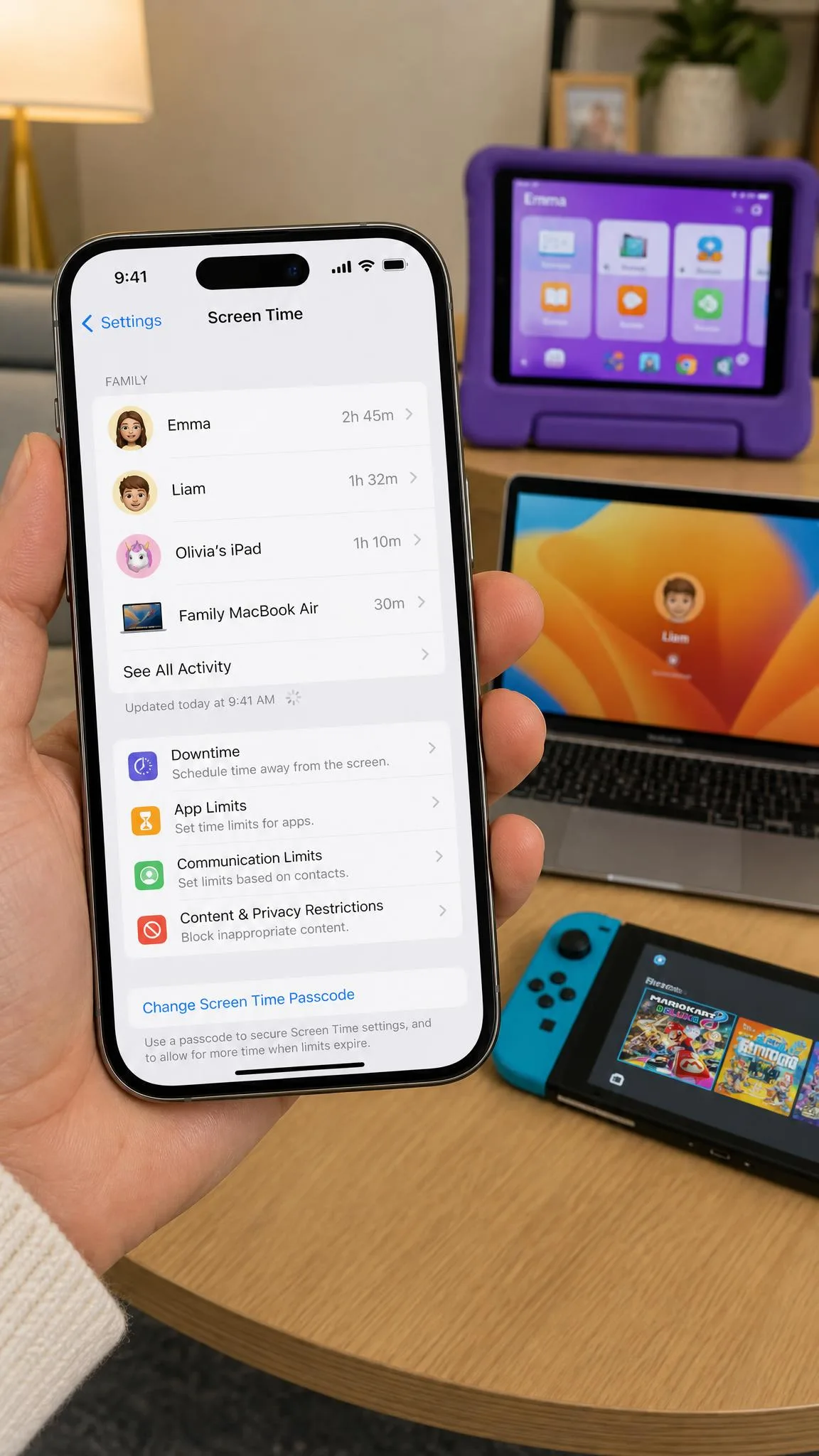
Quick Summary: What Actually Works
The fastest and most reliable setup is a layered one. Screen Time blocks adult sites in Safari and WebKit-rendered apps, and it is free. A DNS filter, like CleanBrowsing, OpenDNS FamilyShield, or Cloudflare 1.1.1.1 for Families, stops porn in every browser. That includes Chrome, which Screen Time cannot reach.
Here is the combination we recommend for most families:
- Screen Time with Limit Adult Websites turned on, protected by a passcode only you know.
- A free DNS filter on the iPhone itself, plus the same DNS on your home router if you can change it.
- SafeSearch locked on your child's Google account and Restricted Mode on each YouTube profile.
- A third-party app only if you want activity reports or your child can work around the free layers.
Start with Screen Time and the DNS filter. Together they cover the sites you can name and the ones you cannot.
Method 1: Block Adult Content with Screen Time (Built-in, Free)
Screen Time is Apple's built-in content filter, free on every iPhone and iPad since iOS 12 in 2018. It is the first layer we reach for. It blocks adult sites in Safari and apps that render through Apple's WebKit engine.
Enable Screen Time and Content & Privacy Restrictions
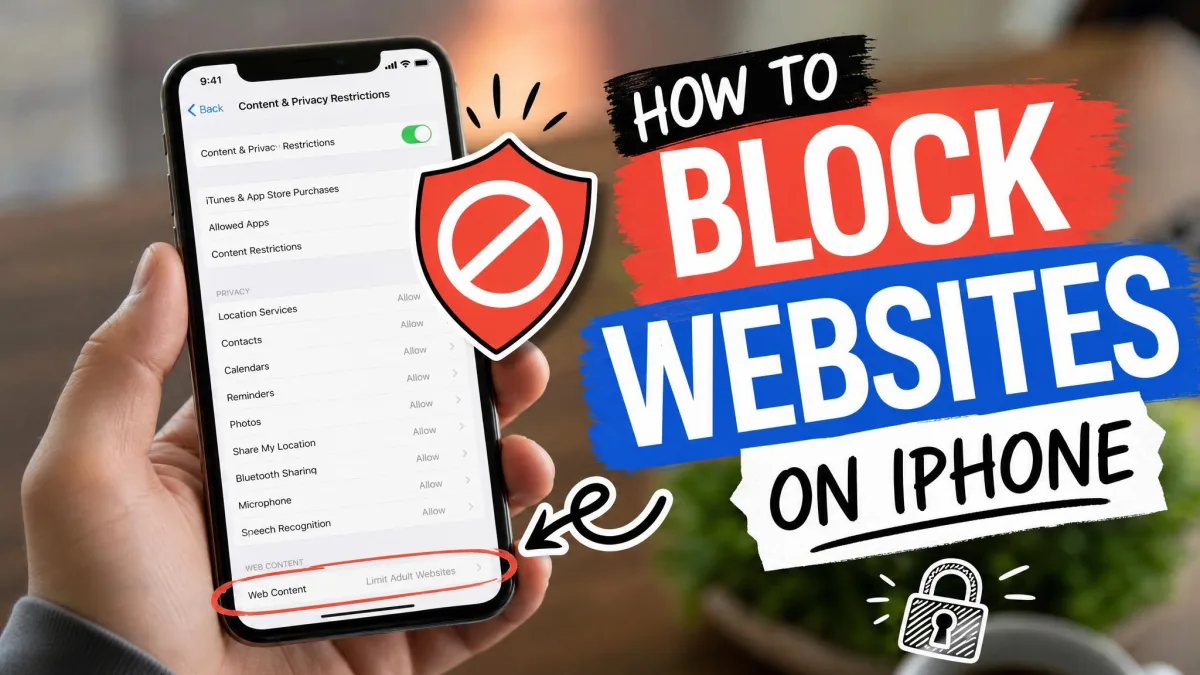
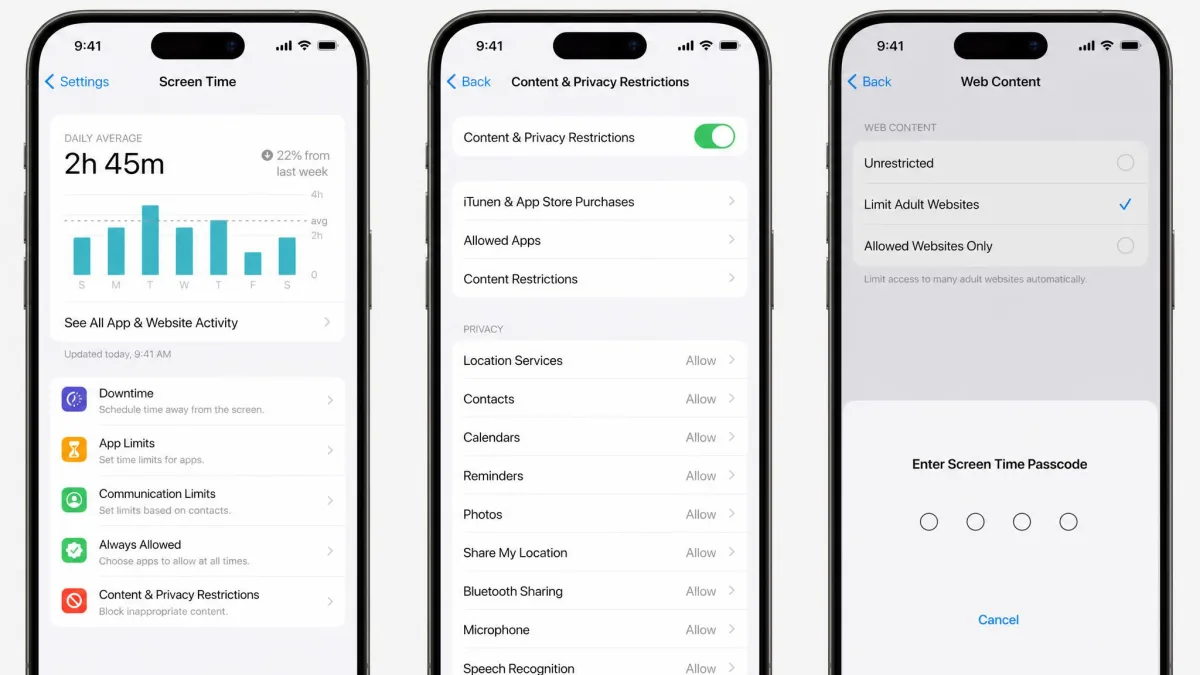
Open Settings > Screen Time and tap Turn On Screen Time. Choose This Is My Child's iPhone on a child's device, then set a Screen Time passcode. Next, open Settings > Screen Time > Content & Privacy Restrictions and turn the switch on. From there, go to App Store, Media, Web & Games > Web Content and pick the level you want. Limit Adult Websites is the setting most parents want; Allowed Websites Only locks browsing to a list you approve.
Add Specific Sites to the Blocklist
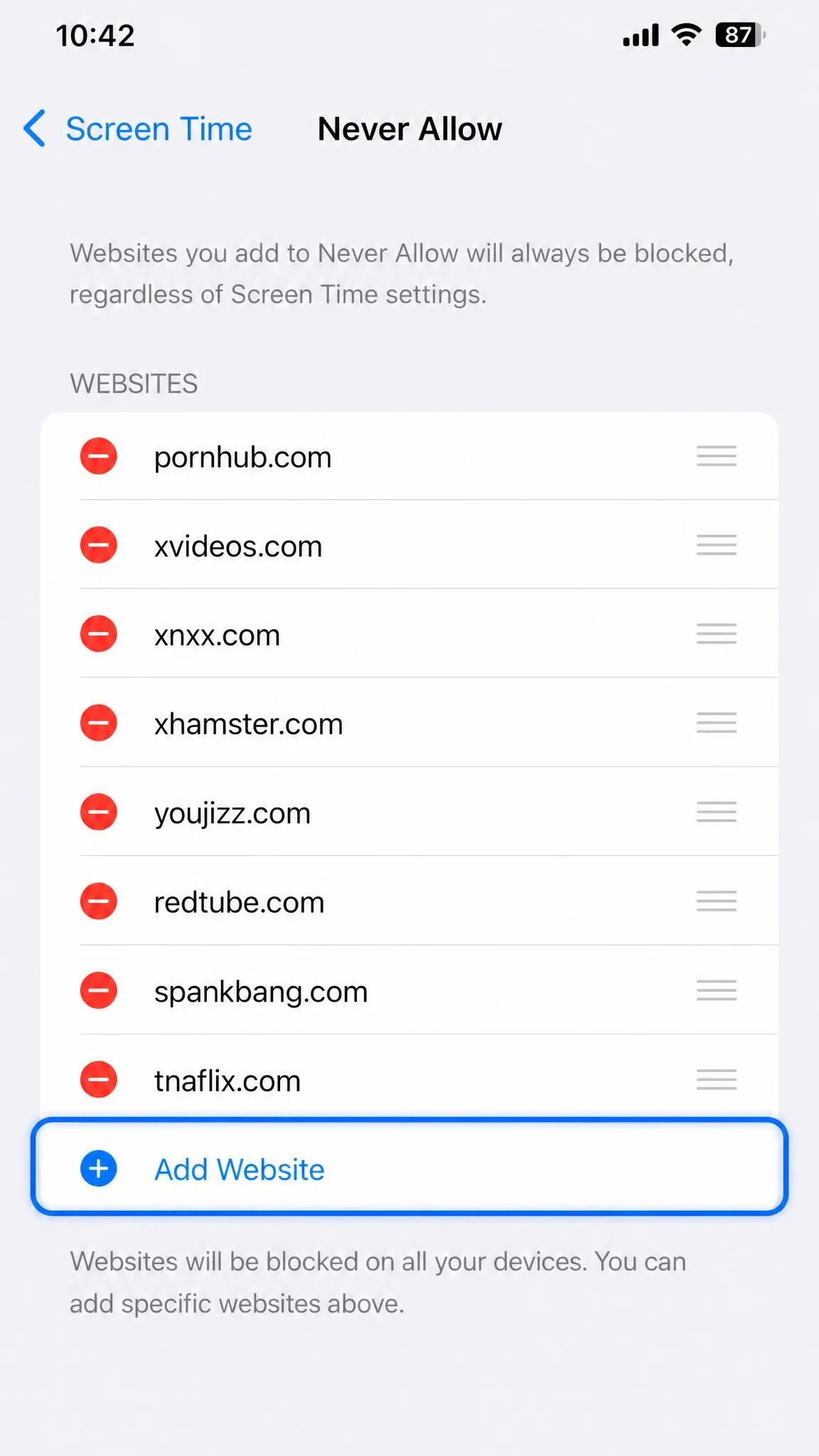
Choose Limit Adult Websites and iOS automatically blocks known adult sites. You can add your own too: tap Web Content > Never Allow, tap Add Website, and type the address. Blocked sites stay blocked even when the automatic filter misses them. Turning on Limit Adult Websites also switches off Safari's Private Browsing. There is no incognito mode to hide in.
The "Allowed Websites Only" Option
For younger children, Allowed Websites Only is the strictest mode. The iPhone lets traffic through only to sites you approve, so every new site needs your approval first. It needs more maintenance than Limit Adult Websites, but removes the guesswork.
Lock Screen Time Settings with a Passcode
A Screen Time passcode keeps your child out of these settings. It can only be reset with the Apple ID used when Passcode Recovery was enabled at setup. Without that setup, the fallback is erasing the device, so record the passcode somewhere safe.
Set a Screen Time passcode that is different from the device passcode, and write it down somewhere your child cannot find it. A child who knows the passcode can turn the whole filter off in seconds.
Method 2: Block Porn with a DNS Filter (CleanBrowsing / OpenDNS / 1.1.1.1)
What Is a DNS Filter and How Does It Block Porn?
A device asks a DNS server for every site it loads. A filtering DNS server checks the address against a blocklist of adult domains. If the site is on the list, the page never loads. Because it sits below the browser, it covers Safari, Chrome, and everything else.
Set Up a DNS Filter on an iPhone (Wi-Fi and Cellular)
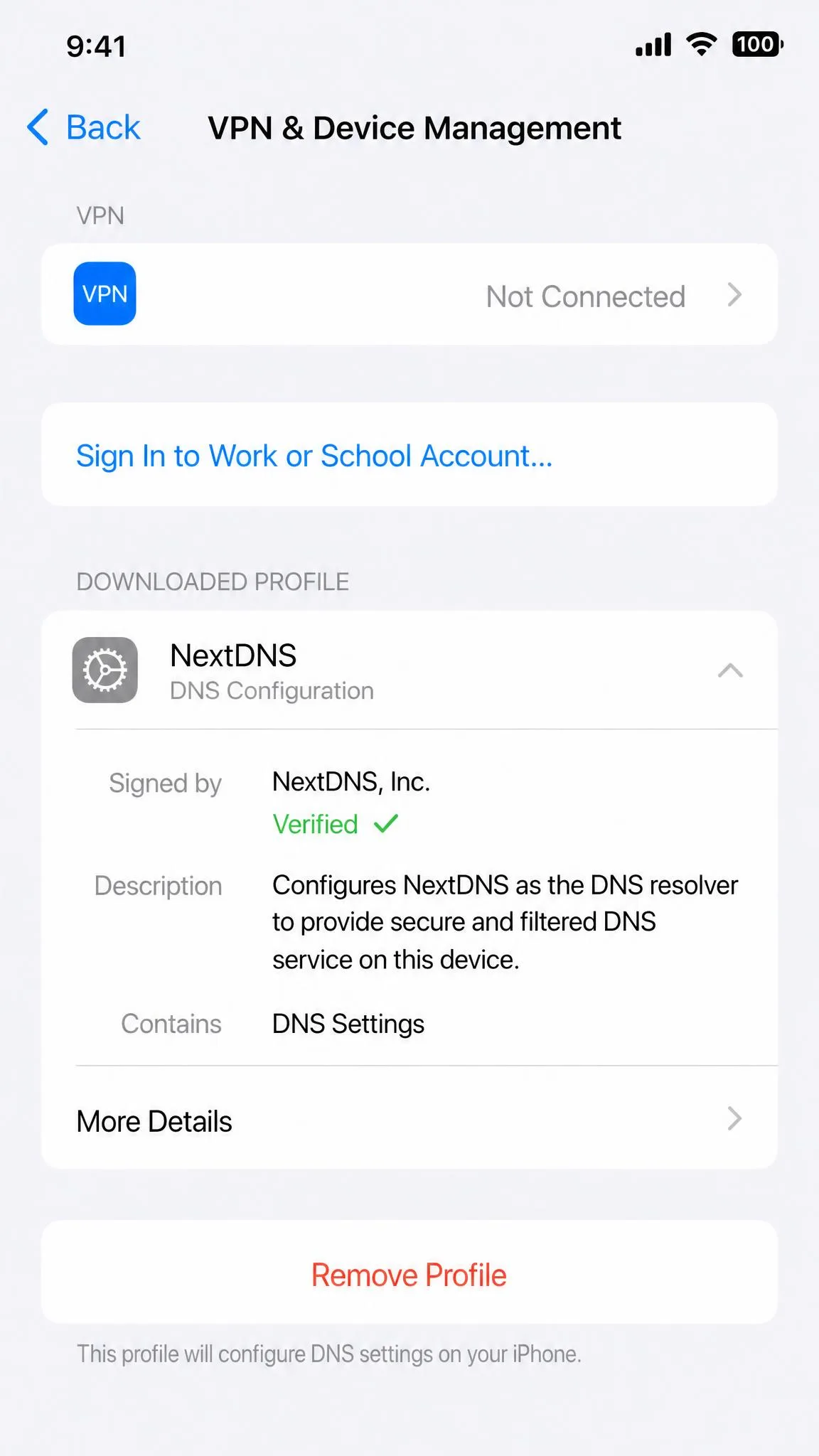
iPhone applies a DNS filter by installing a configuration profile. CleanBrowsing, OpenDNS, and Cloudflare each offer a free filter that works this way.
- CleanBrowsing Family Filter uses 185.228.168.168 and 185.228.169.168. It blocks adult sites plus proxy and VPN domains, and mixed-content sites like Reddit. It also forces SafeSearch on Google, Bing, and YouTube. Download the iOS profile from CleanBrowsing's adult-content filter page.
- OpenDNS FamilyShield uses 208.67.222.123 and 208.67.220.123. It blocks porn, phishing, and malware, needs no account, and cannot be customized. OpenDNS FamilyShield is the simplest set-and-forget free option.
- Cloudflare's free 1.1.1.1 for Families uses 1.1.1.3 and 1.0.0.3 for its adult-and-malware tier. The Cloudflare 1.1.1.1 on the App Store app installs the profile and works on iOS 13.0 or later.
Once the profile is installed, find it under Settings > General > VPN & Device Management. It filters on Wi-Fi and cellular. One thing to know: an active VPN overrides the filter, because tunnel traffic resolves against the VPN's DNS servers. More on that in Method 4.
Router-Level Setup to Protect Every Device at Home
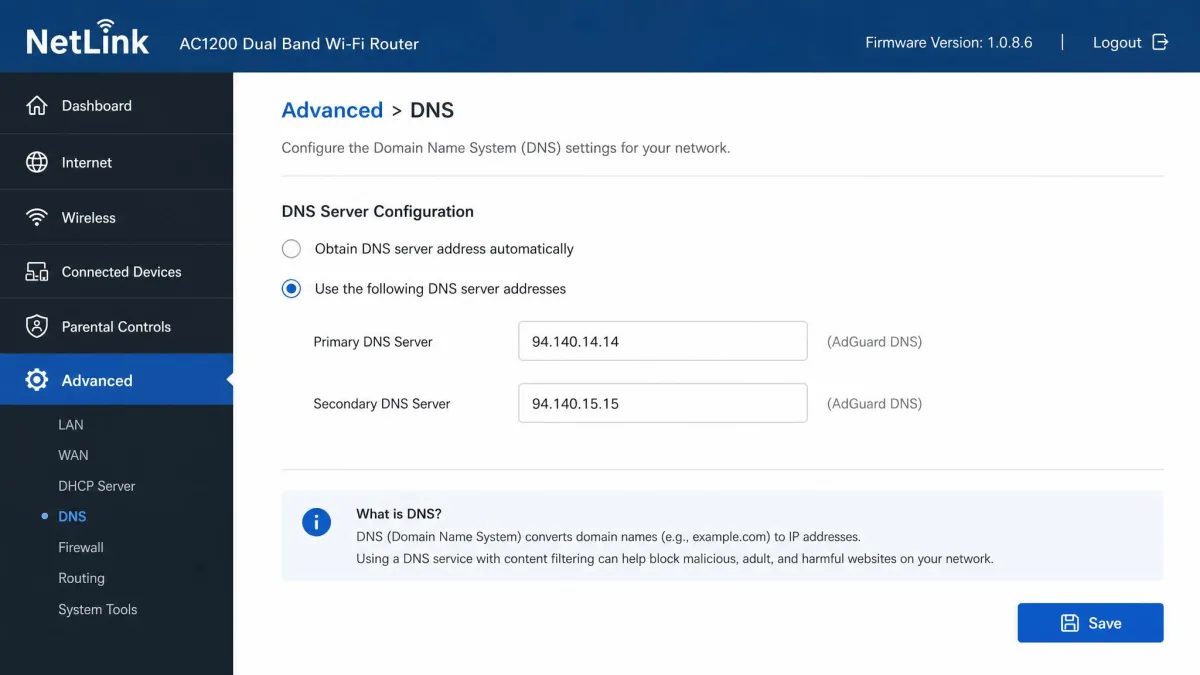
You can also apply the same DNS at the router. Log in to your router's admin page, find the DNS or DHCP settings, and enter one of the filter addresses above. Every device on the home Wi-Fi is then filtered without installing anything. But router-level DNS covers only the home network, so the iPhone on cellular stays unfiltered without the profile.
Method 3: Force SafeSearch and Restricted Mode (Google, YouTube, Bing)
Search engines and video apps have their own adult-content settings. SafeSearch filters explicit results on Google and Bing, and Restricted Mode does the same for YouTube. None block whole websites; treat this layer as cleaning up results.
Google SafeSearch
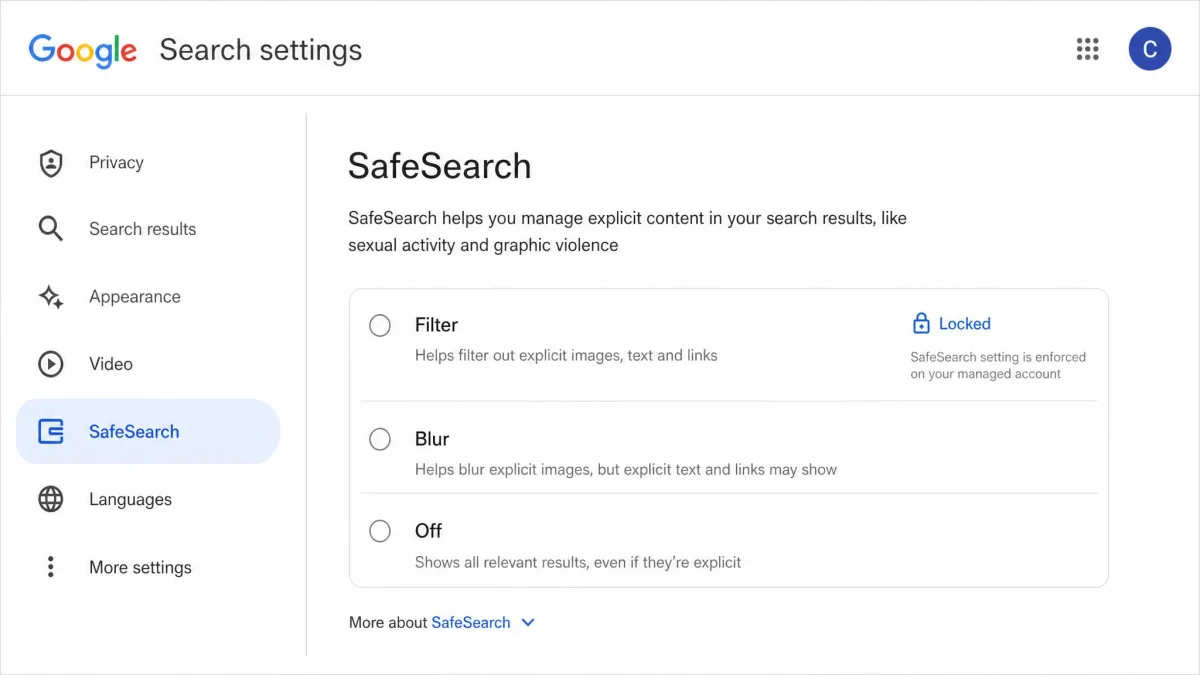
Google SafeSearch has three levels: Filter, Blur, and Off. Filter removes explicit images, text, and links. Open the Google app, go to Search Settings, and pick Filter. For a Family Link-managed child account, SafeSearch is locked to Filter and only the parent can change it. In most regions that lock starts under 13, though the exact age varies by country.
YouTube Restricted Mode
On the YouTube app, sign in, tap your profile photo, then go to Settings > General > Restricted Mode and turn it on. Restricted Mode screens out potentially mature videos using titles, metadata, and age restrictions, and it hides comments while active. It is per-device, so turn it on in each browser. Because it relies on flags and metadata, it is not a perfect filter. It still catches the vast majority of mature content.
Bing SafeSearch
Bing offers Strict, Moderate, and Off. Set it to Strict in Bing's search settings, and use Microsoft Family Safety to lock it for a child's Microsoft account. One catch: Microsoft Family Safety web and search filters apply only inside Microsoft Edge signed into the child's account. On iPhone, Edge is not what most kids use, so pair this with a DNS filter.
Method 4: Use Third-Party Porn-Blocker Apps
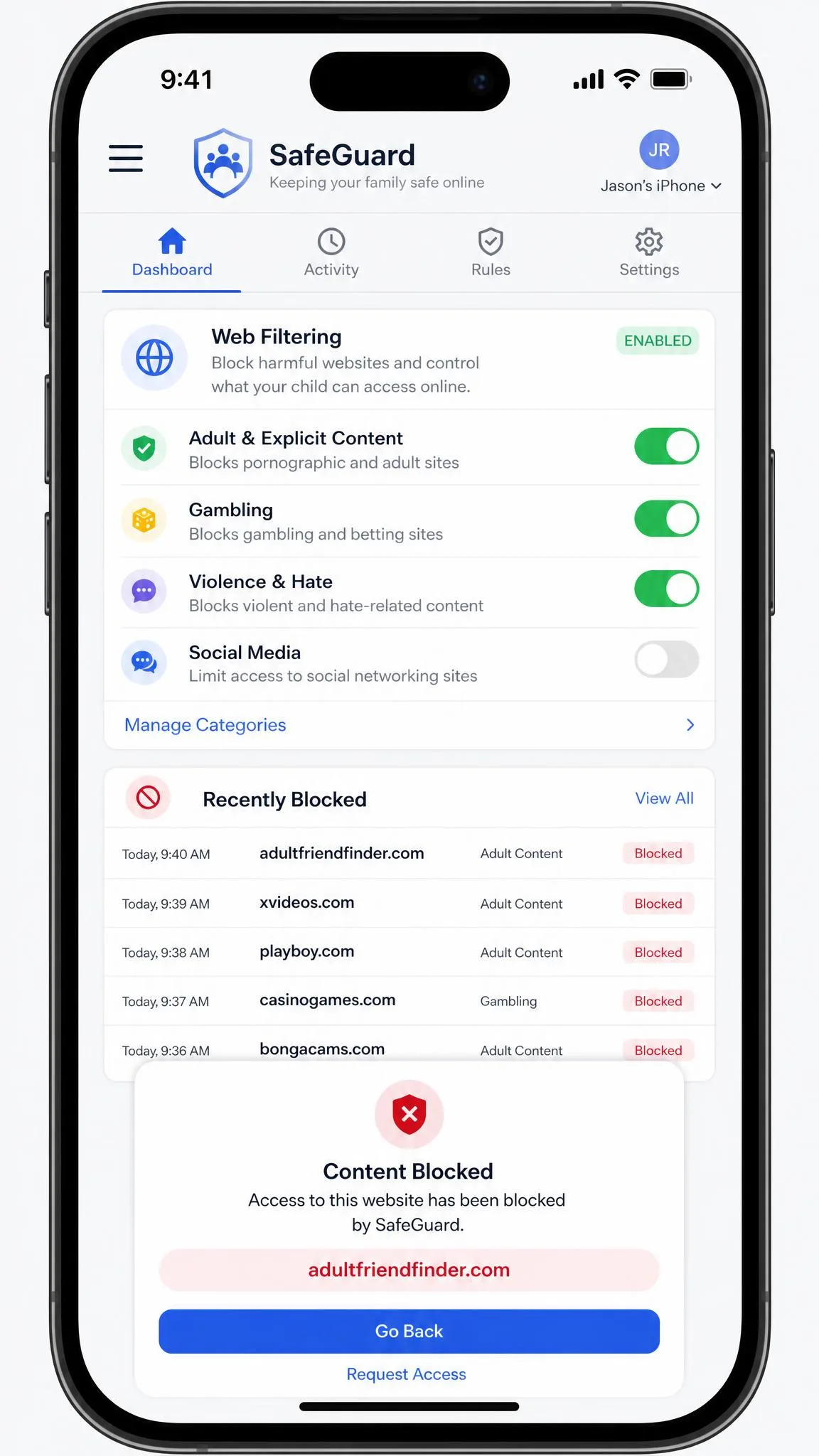
Every iPhone porn blocker works through one of four mechanisms: Apple Screen Time, a VPN or filtered-DNS tunnel, an on-device network filter, or a managed configuration profile. Knowing that helps you spot what a given app can and cannot do.
What to Look For in a Porn-Blocker App
Look for an app that locks its own settings behind a passcode, covers every browser through a VPN or DNS tunnel, and gives you readable reports. On iPhone, app-based blocking is more limited than on Android, because iOS sandboxes apps. The best ones work with Screen Time, not instead of it.
The Best Porn Blockers for iPhone at a Glance
The prices below are annual list prices, and the iPhone coverage notes are what matter most.
| App | Buy | Price | What it does on iPhone |
|---|---|---|---|
 |
$54.99/year for 5 devices | Dynamic content filtering that catches brand-new sites in real time; best paired with Screen Time | |
 |
$59.99/year for up to 30 devices | App and web filtering on iOS 11 or later, no jailbreak needed | |
 |
About $99.99 to $149.99/year | Real-time image and video filtering through a VPN, with a 7-day free trial | |
 |
Free tier; premium roughly $38.99 to $47.90/year | Website and app blocking through a VPN; requires iOS 17.6 or later |
Pitfalls: Bypassing, Deletion, and VPN Workarounds
No on-device blocker survives a factory reset, and any VPN or DNS profile can be deleted from Settings. A determined user can install a second VPN to tunnel around a filtering one. Any app promising to be impossible to bypass is overselling. A paid app adds convenience: better reporting, real-time filtering, and support, but not a guarantee. Pair the app with Screen Time and guard the passcodes.
Method 5: Block at the Router Level (Covers Every Device on the Network)
If you control the router, this is the highest-coverage method in the guide. Open the router's admin page, find the DNS or DHCP settings, and enter the same CleanBrowsing Family or OpenDNS FamilyShield addresses from Method 2. Every device on the home Wi-Fi is then filtered, including consoles, smart TVs, and a friend's phone, with nothing installed. The trade-off is coverage: router-level DNS protects only the home network, so the iPhone on cellular or school Wi-Fi sits outside the filter. We recommend it as a supplement to the on-device DNS profile. To cut a specific device off the network entirely, see our guide to blocking a device from your WiFi router.
Method 6: Restrict Chrome and Other Browsers (Family Link, Safe Browsing)
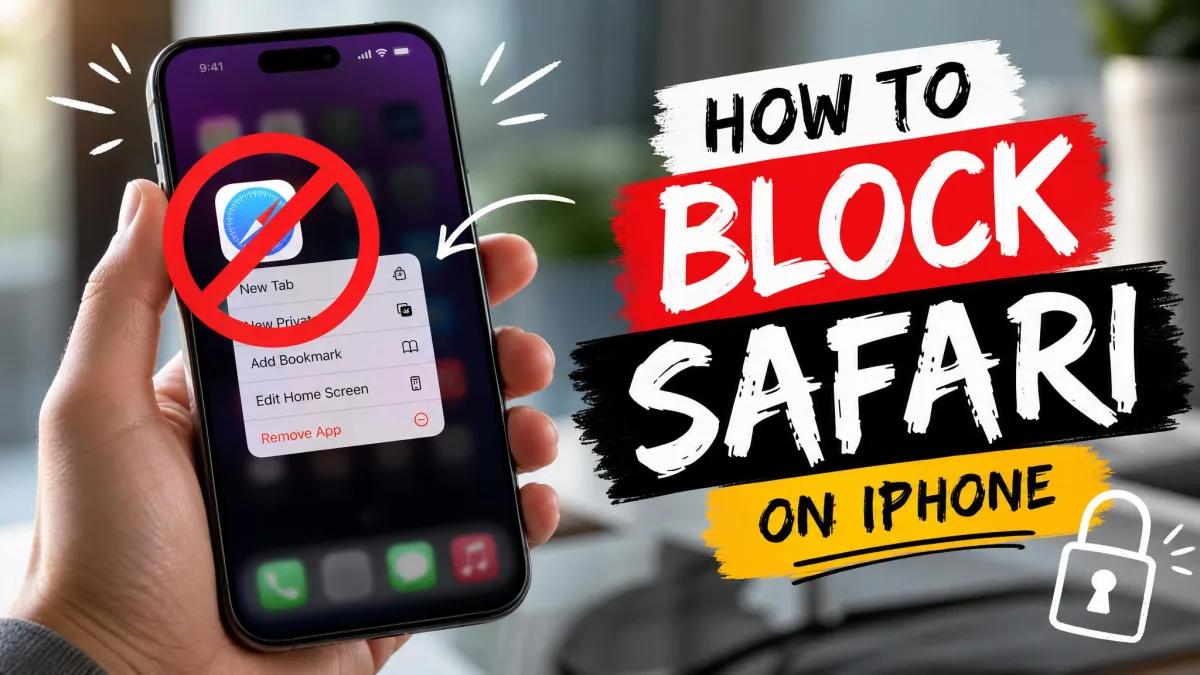
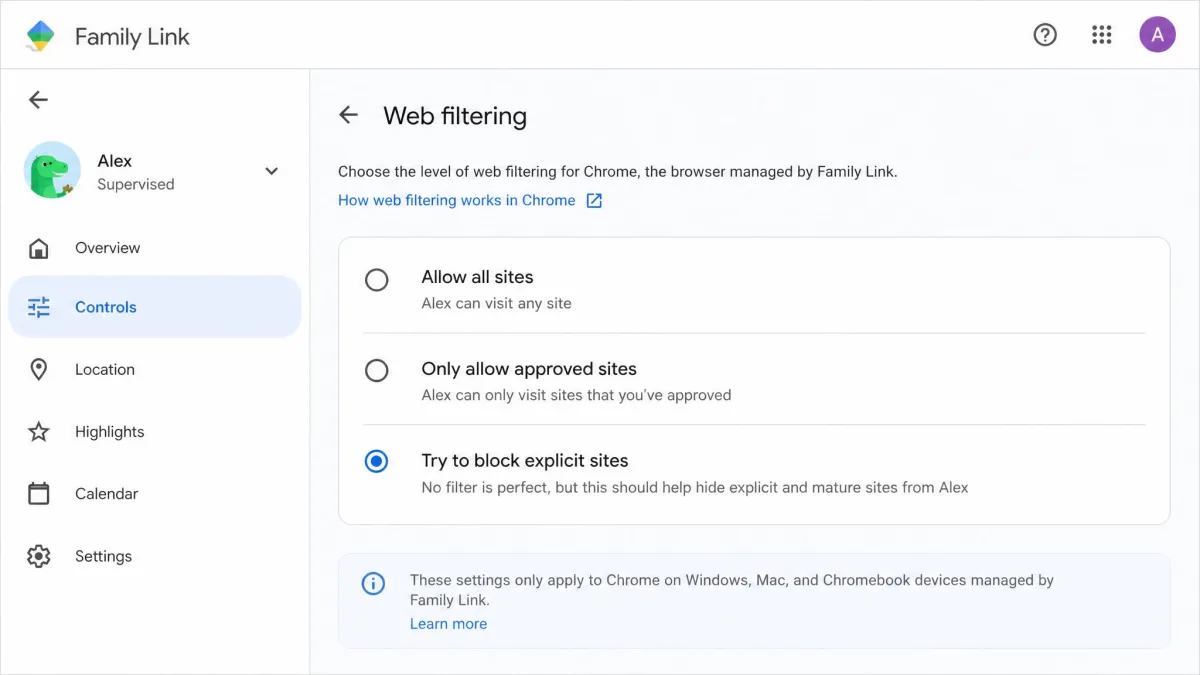
Chrome is the known gap in Screen Time. Apple's web-content filter covers Safari and apps that render through WebKit. It does not apply to Chrome, so an adult site opened there is not blocked. Use Google Family Link, which manages Chrome for a child's Google account. You pick one of three options: Allow all sites, Only allow approved sites, or Try to block explicit sites, plus approved and blocked lists. Two limits matter: the child can sign out of Chrome to escape the settings, and Family Link does not cover other browsers. So keep Screen Time running, add a DNS filter, and treat Chrome as a reason to stack layers.
Method 7: Advanced (Supervised Mode and Content-Filtering VPNs)
Supervised mode is the strongest lock iOS offers, and the most effort. It is set up before activation using a Mac with Apple Configurator or a mobile device management service. On a supervised device you can lock the DNS profile so the user cannot disable it, a feature available since iOS 14.0. You can also block profile installation entirely and use App Lock. The catch is commitment: changing supervision later requires erasing and re-preparing the device. Content-filtering VPNs are a lighter version. They route and filter traffic in one step on any iPhone, but can be switched off in Settings and tunneled around with a second VPN. For most parents, Screen Time plus a DNS filter delivers most of the result with none of the setup cost.
Why Blocking Porn on an iPhone Matters
Blocking adult content is less about the sites themselves and more about what they replace. Time online is time away from sleep, homework, and real conversation, and for children the exposure is the concern. Parents should not have to wonder what a child's device is showing them.
The Impact of Adult Content on the Brain
Research on how high-frequency porn use affects the brain is still early, and the evidence so far is measured. A 2025 study in Frontiers in Human Neuroscience compared heavy and light users in a small group of college students. The heavy-use group showed prefrontal connectivity patterns that resembled drug addiction, responded slower on a memory task, and scored higher on addiction, depression, and anxiety scales. The peer-reviewed research on dopamine and compulsive porn use is one line of evidence: the heavy-use subgroup was very small, and the authors describe the study as exploratory. Treat it as a reason to be thoughtful about habits, not as proof of harm for every viewer.
Parental Controls: Protecting Your Child's iPhone
For parents, the practical goal is simple: keep adult content off the device your child uses, and keep the controls out of the child's reach. Screen Time is the anchor, because it is free, built in, and manageable from a parent's own device through Family Sharing. Layer the DNS filter on top and you cover Chrome, in-app browsers, and the sites you never thought to block. You need three settings, a passcode, and a conversation with your child about why the filter exists.
What Screen Time Cannot Block (Known Gaps)
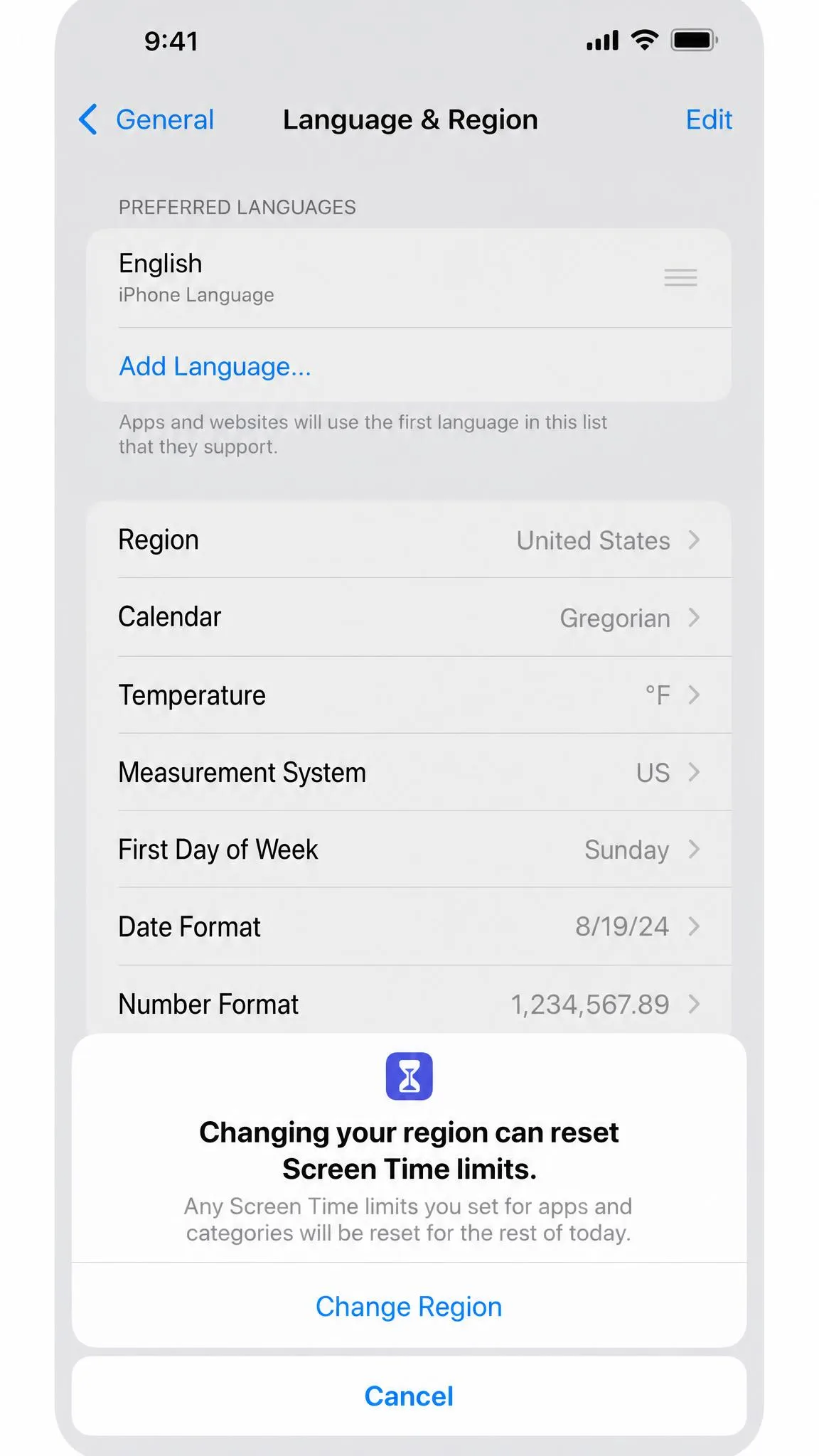
Screen Time is a parental-management tool, and Apple has said it is not a security boundary. The web-content filter does not apply to Chrome. It also filters web content rather than everything an app shows, so an adult image inside a social app is out of its reach. Known bypasses have come and gone. A Safari address-bar trick that let children type around content restrictions was patched in iOS 17.6, but iPhones still running iOS 16 remain exposed. On iOS 18, go to Settings > General > Language & Region and change the region, or simply restart the iPhone. Either can reset Screen Time limits for the rest of the day. Changing the time zone is a classic way to switch off Downtime, so close that route. Turn off Setting Time Zone under Settings > Screen Time > Content & Privacy Restrictions > Location Services > System Services, then set Location Services to Don't Allow Changes.
A VPN or private browsing can slip past filters. DNS filtering stops working while a VPN tunnel is active, and no on-device blocker survives a factory reset. If your child is motivated to work around the controls, the passcodes and Apple ID password matter more than the filter itself.
FAQ
Does Screen Time block adult websites in Safari?
What is the best DNS filter for families?
Can parental controls block all porn on iPhone?
How do I block adult content on Chrome for my child?
How do I block porn on an iPhone for free?
Will a porn blocker be easily disabled?
Final Thoughts
Blocking porn on an iPhone comes down to three settings, a passcode, and a DNS filter. Start with Screen Time and add a free DNS filter on the device and the router if you can. Lock SafeSearch and Restricted Mode on the accounts your family uses. That combination is free, covers every browser, and survives most of the workarounds kids actually try. Review the filters after iOS updates and keep the passcodes to yourself.