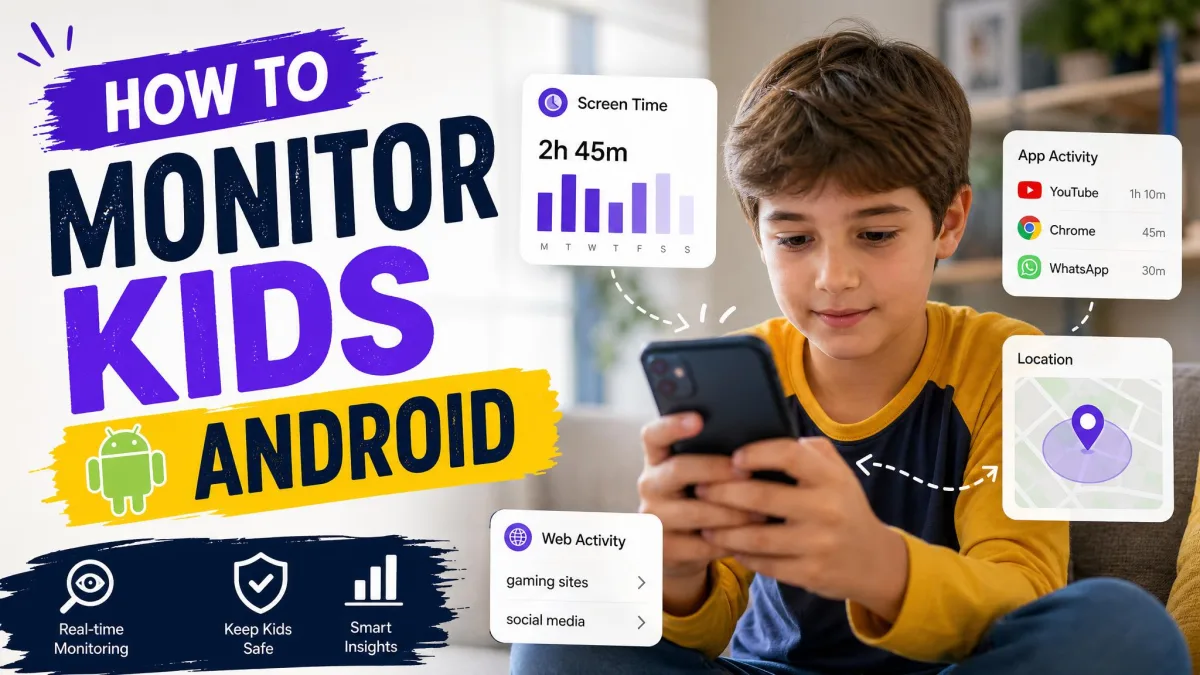
You handed your child an Android phone, and now you have no idea what happens on it. That gap is uncomfortable, and it is why most parents start looking for a way to monitor the device.
The short answer: you have three layers to work with. Android's own on-device parental controls handle screen time and content filtering without any extra software. Google Family Link adds free remote control from your phone, including app approvals and location. A paid monitoring app is the only layer that reaches message content and social media alerts.
Below we walk through seven steps in order, from the settings you can turn on this afternoon to the conversation you should have before any of it goes live.
What You Can and Cannot Monitor on an Android Phone
Every parental control question starts here, because the limits are stricter than most parents expect.
What Android Lets Parents See Natively
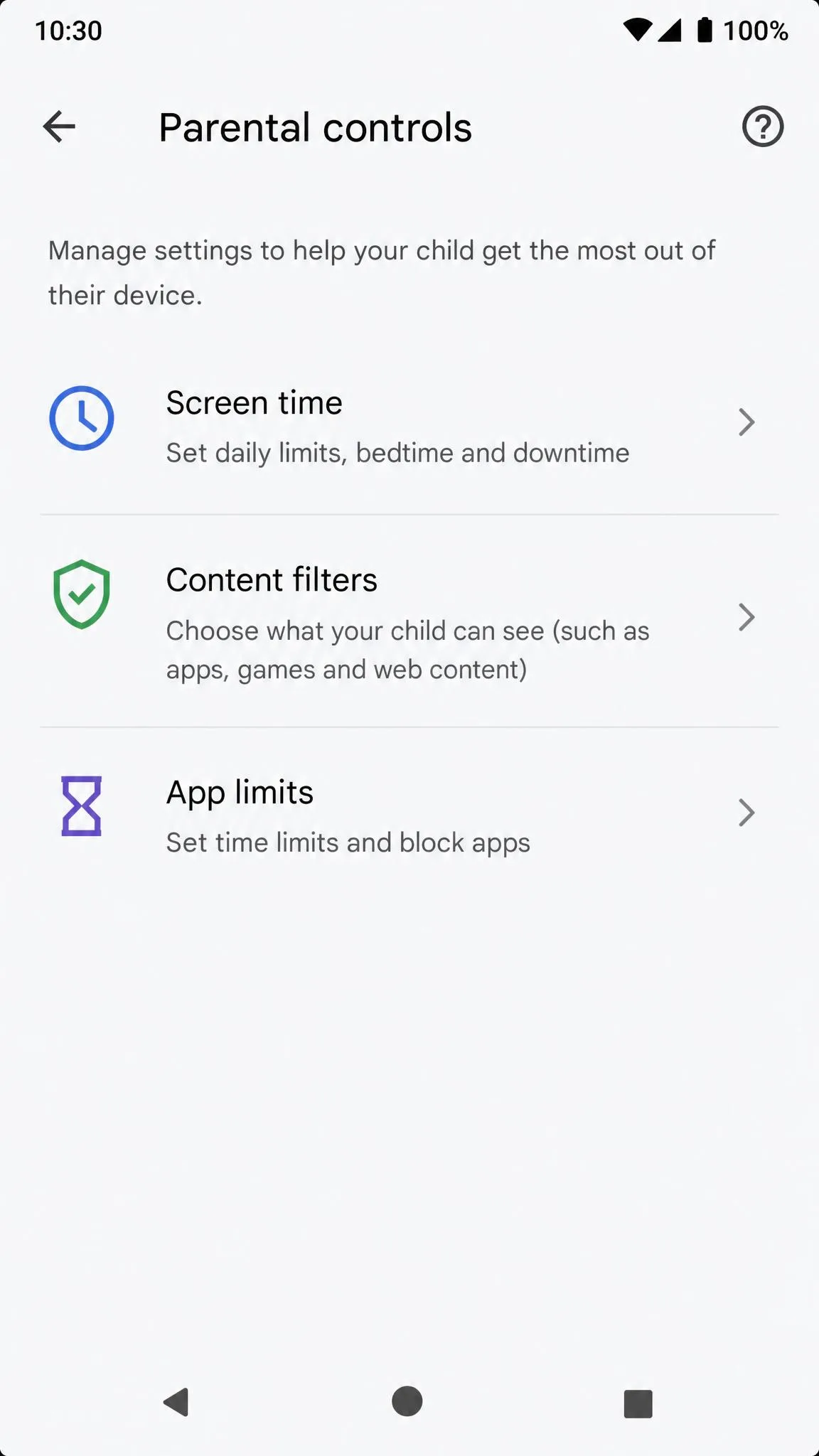
Modern Android ships with on-device parental controls built into Settings. Google's documentation for Android's built-in on-device parental controls lists daily screen time limits, downtime schedules, per-app time limits, app blocking, explicit web content filtering in browsers and search, and age filters for Google Play plus manufacturer and carrier app stores. All of it sits behind a PIN.
Check the Android version your child's phone reports before you rely on these controls, because the on-device parental controls menu only appears on recent releases.
What Needs a Third-Party App
Nothing Google makes will show you the words inside your child's messages. Family Link cannot display message contents, and it cannot see what happens inside third-party chat apps. Alerts on what a conversation actually says require a dedicated monitoring app.
Location history, driving reports and social media content scanning also sit outside Google's free tools.
Where the Legal and Consent Line Sits
Monitoring your own minor child's device is generally lawful, and for children under the age of consent, parents are required to manage their Google Accounts anyway. Covert monitoring is a different question.
Tell your child the phone is monitored. Undisclosed monitoring is hard to defend once a child reaches their teens, and it costs you the trust you will need later.
Decide What You Actually Need to Monitor First
Parents who turn everything on at once end up drowning in alerts and switching it all off within a month. Pick your goals first.
Screen Time and App Usage
This is the most common need and the easiest to meet. Android's built-in controls and Family Link both cover daily limits, downtime windows and per-app caps at no cost.
Location and Arrival Alerts
If your worry is whether they got to school, you need location and place alerts, not content filtering. Family Link covers both for free.
Web Content and Play Store Purchases
Content filtering and install approvals are separate settings. A child can be blocked from adult websites and still download whatever they like from the Play Store unless you set the age filters too.
Messages and Social Media
This is the only category that forces a paid app. Be honest about whether you will read what you find, because message monitoring generates far more data than most parents ever review.
Method 1: Turn On Android's Built-In On-Device Controls
Start here, because it costs nothing and needs no second phone.
Requirements Before You Start
You need physical access to your child's phone and a few uninterrupted minutes. One important limit: on-device controls cannot be switched on at all when the phone carries a work profile or a private space. If your child's device has either, skip to Method 4.
Set a Parental Controls PIN
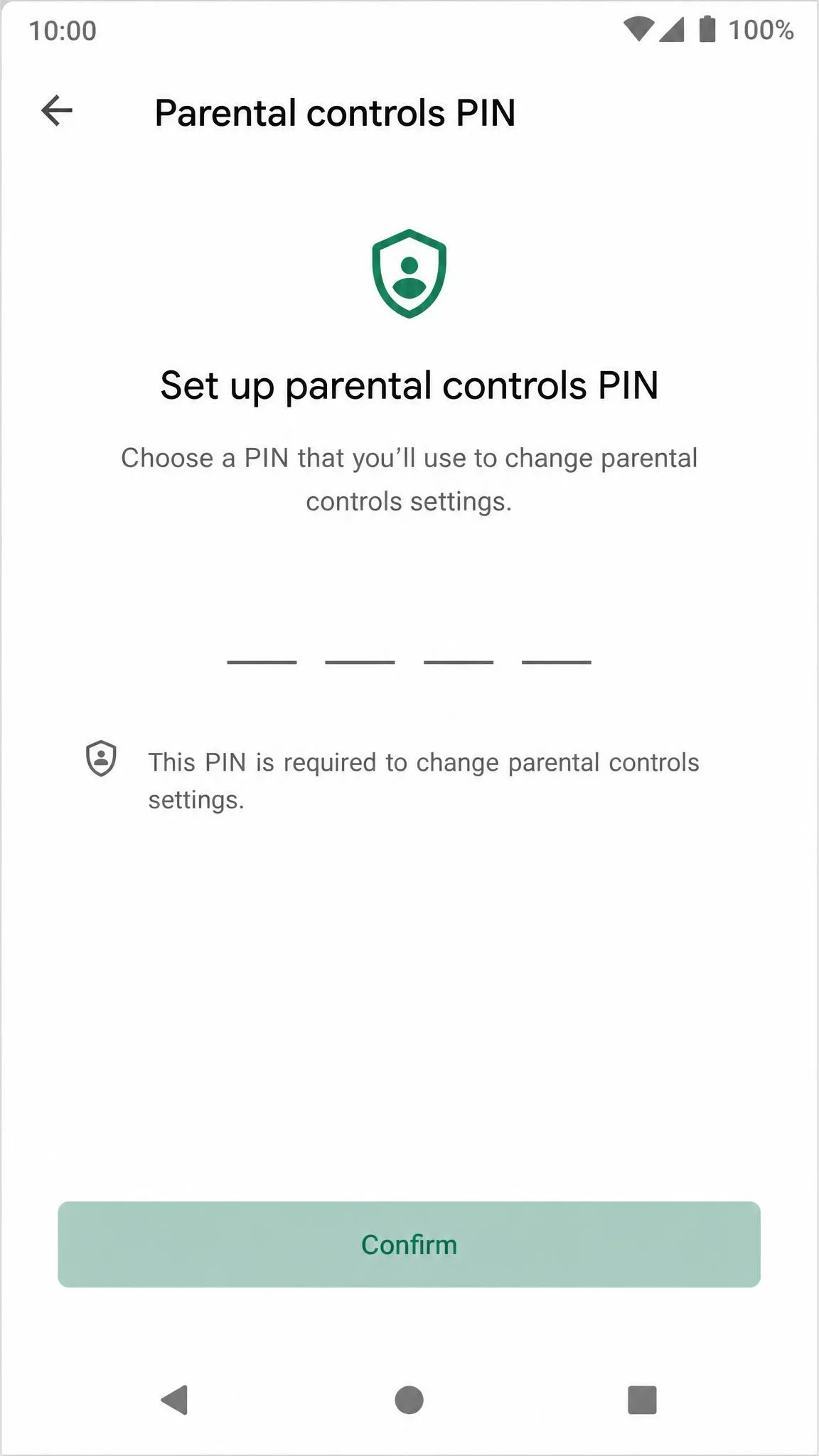
Open the Settings app on your child's phone, tap Parental controls, and follow the setup prompts. Android asks you to create a 4-digit PIN as a minimum before it will let you change anything.
Choose something your child cannot guess. That one PIN applies to every user on the device, so a shared tablet is covered by the same code.
Do not reuse the PIN your child already knows from the lock screen or the TV. A shared code undoes the whole setup in seconds.
Set a Recovery Account So You Do Not Lock Yourself Out
Android offers to attach a recovery account during setup. It is optional, and worth doing: without it, a forgotten parental controls PIN leaves you no clean way back in. The recovery account is never signed in on the device itself, so adding it gives your child no access to your email.
Method 2: Restrict What They Can Download in the Play Store
On-device controls cover the settings menu. The Play Store needs its own pass, because a permissive store undoes a strict filter.
Set Content Ratings for Apps, Games, Movies and Books
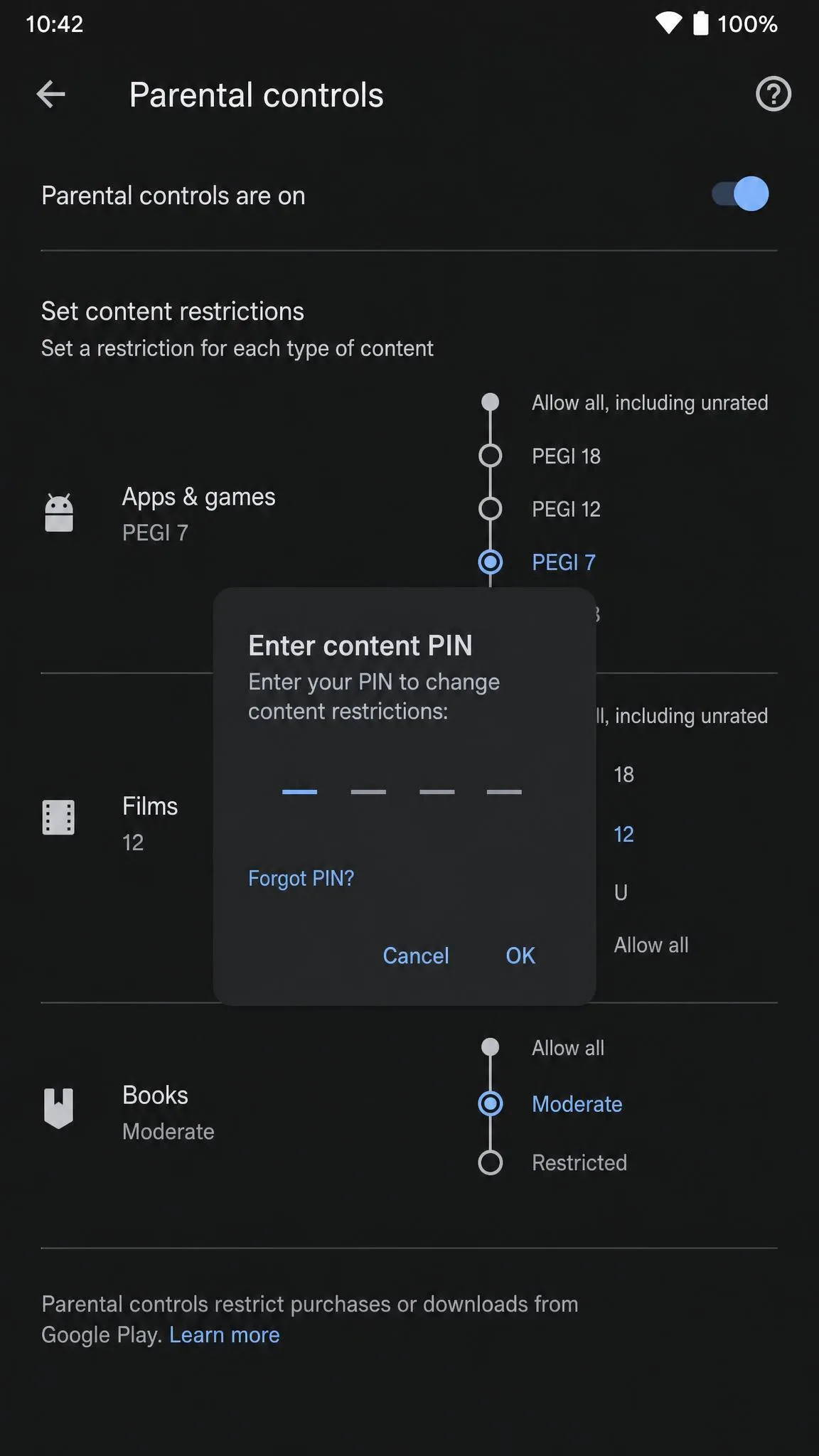
Open the Play Store on your child's device, tap the profile icon, then Settings, then Family, then Parental controls. Turn the toggle on and set a rating ceiling for each content type separately.
Apps and games, films, TV and books all have their own slider. Set them one at a time.
Require a PIN for Purchases
In the same Play Store settings, switch on authentication for purchases. Do this even if no card is attached, because gift card balances and carrier billing both work without one.
Method 3: Filter Web Content in Chrome and Search
Filtering is the layer parents overestimate most, so it helps to know what it actually does.
Turn On SafeSearch and Site Restrictions
Inside Android's parental controls, turn on explicit web content filtering. That applies SafeSearch to Google Search and blocks adult sites in supported browsers. In Family Link you will find the same controls under the child's Chrome and Search settings, where you can also allow or block individual sites by hand.
What Filtering Still Misses
Filters are leaky by design. Search filtering can be sidestepped simply by signing the Google account out before searching, and it does not follow the child into an unsupported browser.
Filtering reduces accidental exposure to inappropriate content. It does not stop a determined teenager, and no product should claim otherwise.
Method 4: Set Up Google Family Link (Free)
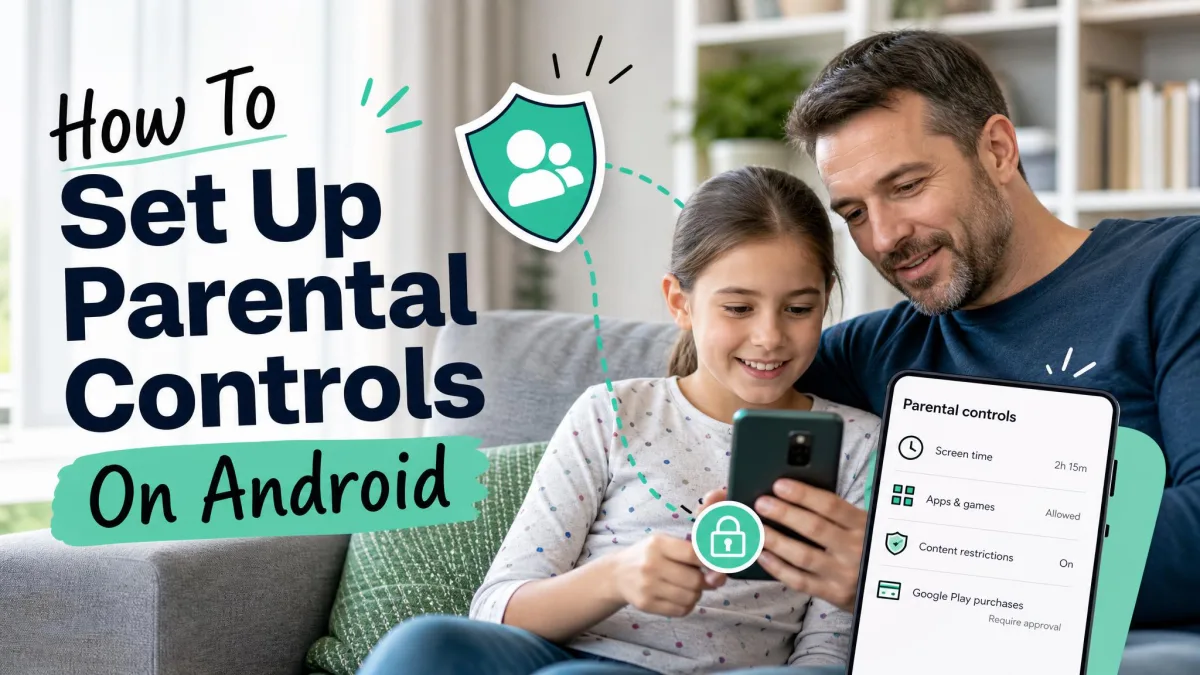
Family Link is where most parents will spend their time. It is Google Family Link, Google's free parental controls app, and it does the remote work that on-device settings cannot.
Create or Link Your Child's Google Account
Supervision is built around children under 13, or the applicable age of consent where you live. If your child has no Google Account yet, create one through Family Link and it arrives supervised. An existing account can be brought under supervision instead, though your child has to accept the request on their device.
Install Family Link on Your Phone
Family Link needs Android 7.0 or above on the parent's phone, or iOS 16 and later on an iPhone. There is also a web dashboard, which is genuinely useful if you do not want another app running. Sign in with your own account, then choose Add child.
Install and Configure It on Your Child's Android
On the child's phone, sign in to their supervised account and follow the link prompts. Family Link asks for a stack of Android permissions during setup, and it will not report accurately if you skip any of them.
Expect a wait after that. In our experience, Family Link settings do not always apply instantly, and changes can take a while to sync across both devices.
Family Link puts a visible supervision notice on the child's device. There is no version of this that your child will not notice, which is fine, because disclosure is the goal.
Set Screen Time Limits and Downtime Schedules
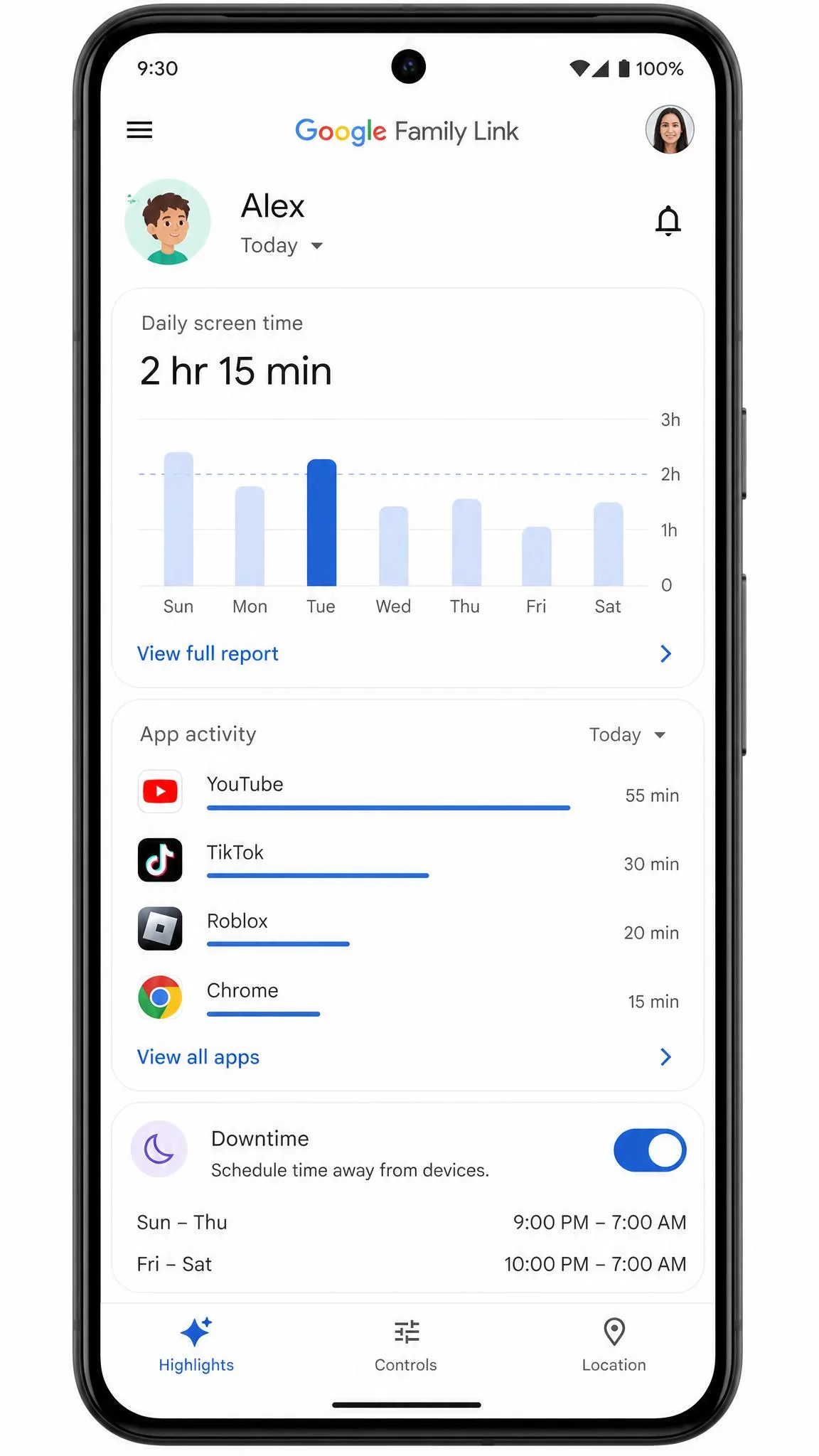
From the parent app, open your child's profile and set a daily screen time cap, then add Downtime and School Time schedules. Per-app limits sit one level down, under the app list.
Start looser than you think you need. Tightening a limit later is a much easier conversation than loosening one.
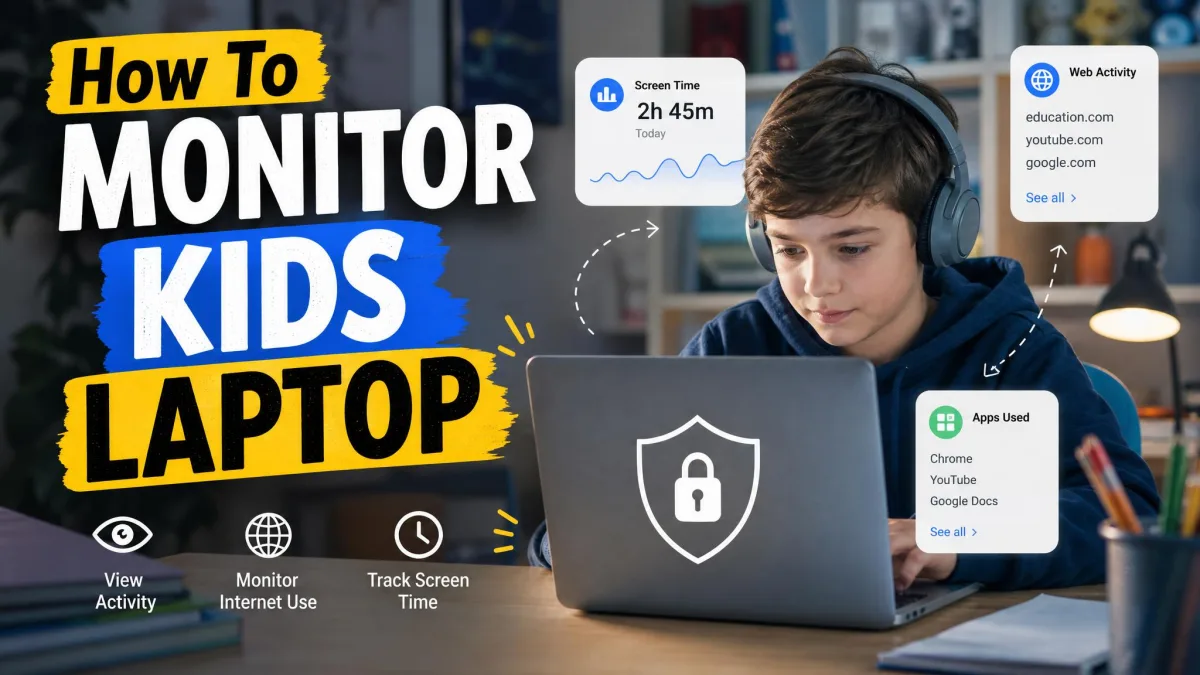
View Activity Reports and Approve App Installs
The activity tab shows usage per app by day and week. Turn on install approvals so every Play Store download lands as a request on your phone. You can also reset your child's password from here, which saves a bad evening more often than you would guess.
What Family Link Cannot Do
Family Link shows you nothing about message content or third-party chat apps, so it works best alongside a dedicated monitoring app if that is your worry. It also drains battery noticeably on the child's phone, which becomes a bargaining chip your teenager will use.
Supervision narrows once a child turns 13. YouTube content controls and Google Pay payment methods are the two you will miss first.
Method 5: Turn On Location Sharing and Arrival Alerts
Location is the feature parents keep long after they abandon the rest.
Family Link Location vs Google Maps Sharing
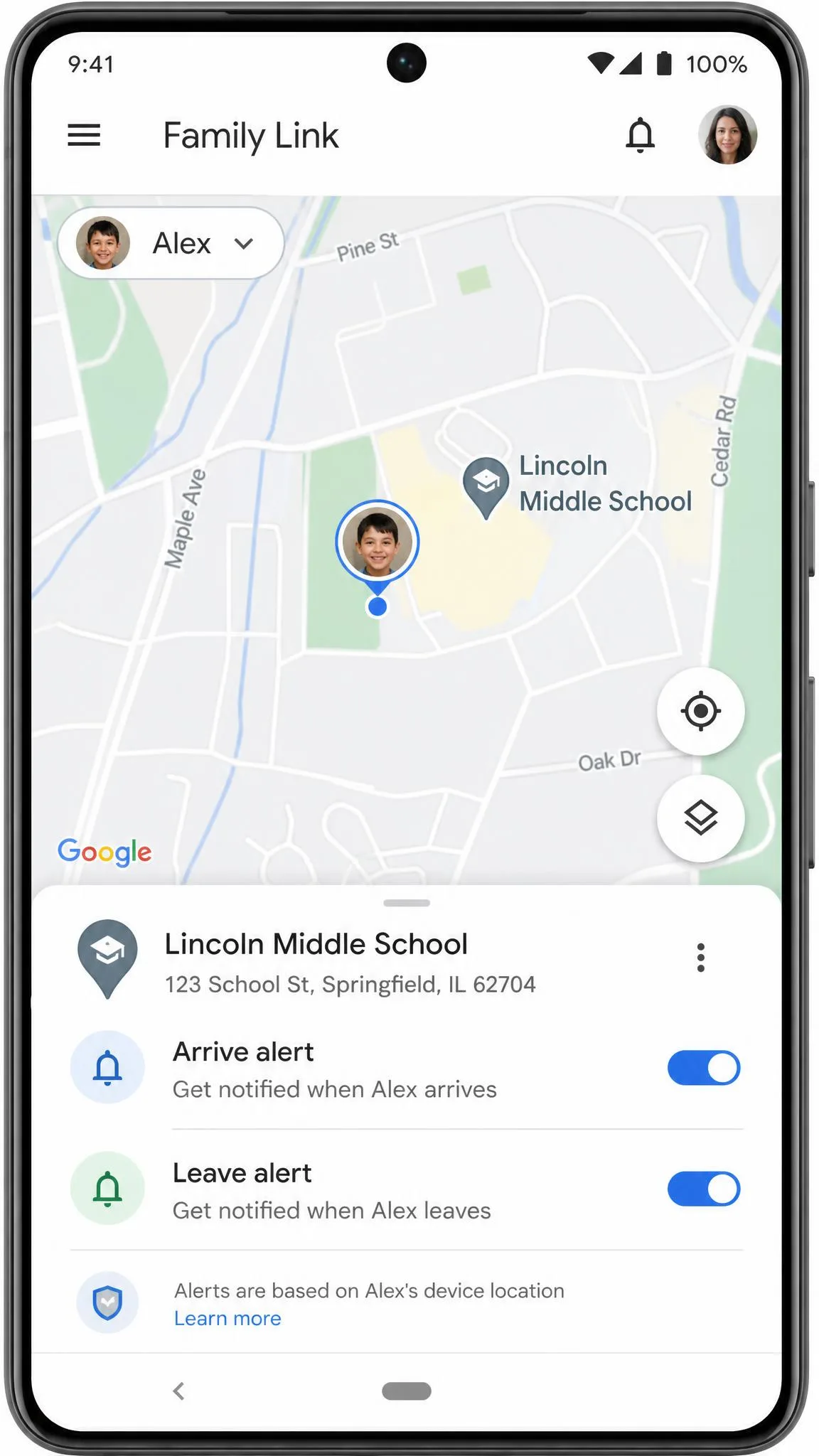
Family Link puts the child on a shared map inside the parent app, with no separate subscription. Google Maps location sharing is the lighter alternative, and the better fit for an older teen who has agreed to share but resents being supervised.
Google's guide to finding and managing your child's location with Family Link walks through switching it on.
Set Up Place Alerts for School and Home
Add home and school as places, then enable arrive and leave alerts for each. You get a notification when the phone crosses the boundary, which answers the "did they get there" question without a single text.
One caveat is worth internalising. Location only reports when the child's device is powered on, recently active and connected to the internet, so a stale pin usually means a dead battery or no signal rather than a broken app. We have chased that false alarm before checking the obvious.
Method 6: Add a Dedicated Monitoring App
Everything so far is free. This is the layer you pay for, and only some families need it.
When a Third-Party App Is Actually Worth It
Buy a monitoring app when you need message and social media content alerts, cross-platform coverage across several kids and devices, or uninstall protection that survives a curious teenager. If your needs stop at screen time and location, Family Link already covers you.
How to Install It and Grant Android Permissions
In some cases you install from the vendor's own link rather than the Play Store, and Android will warn you about it. None of the mainstream apps require rooting.
Qustodio's Android setup takes real effort, with sideloading and extra permission steps for some monitoring features. Budget half an hour, and do it on your child's phone with the charger plugged in.
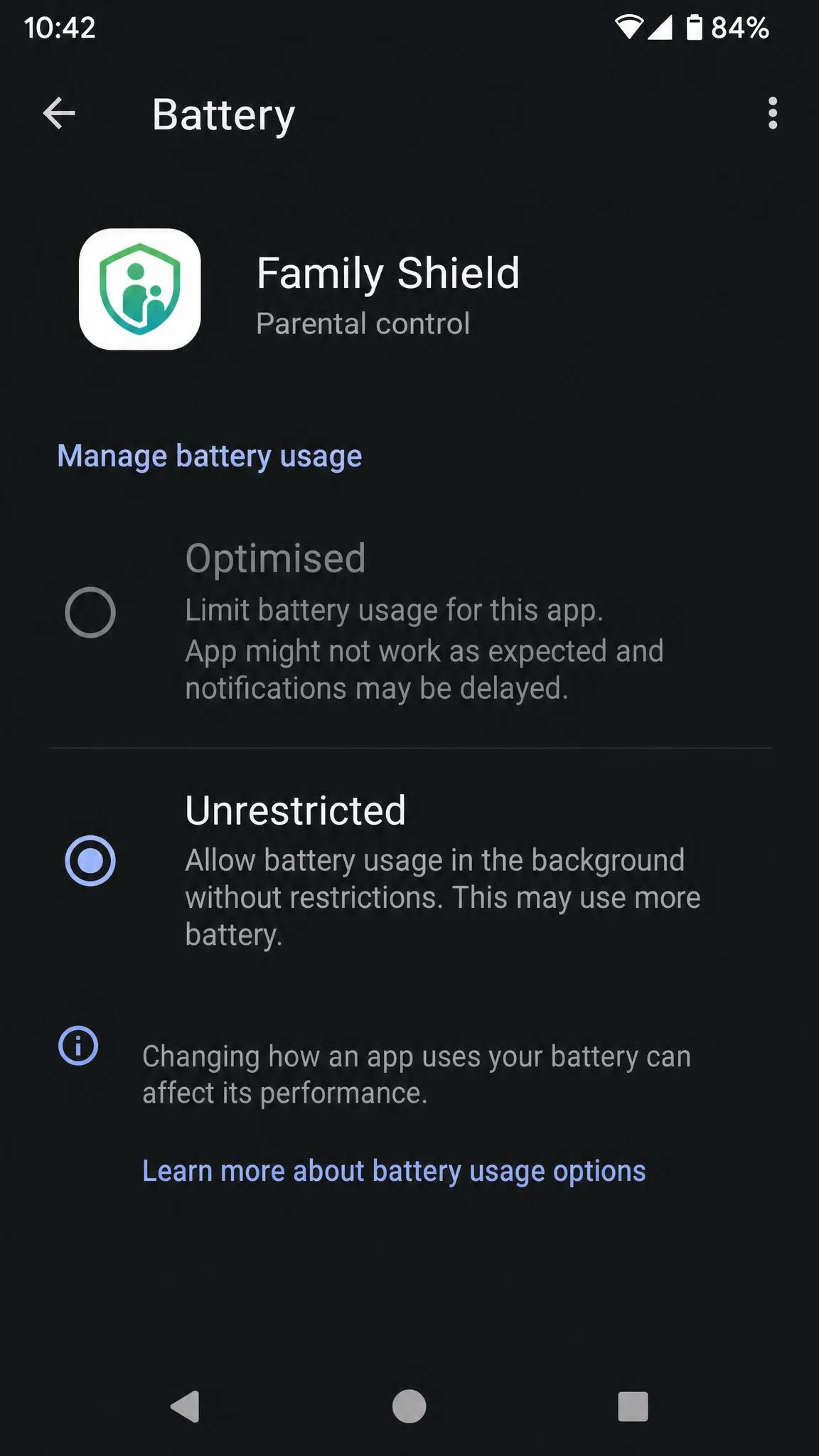
Android 15 tightened how background apps behave, so exempt the monitoring app from battery optimisation while you are still in setup rather than weeks later.
Monitoring App Choices for Parents
Four apps cover almost every parent's needs, and they are genuinely different products rather than four versions of the same thing.
Best Overall
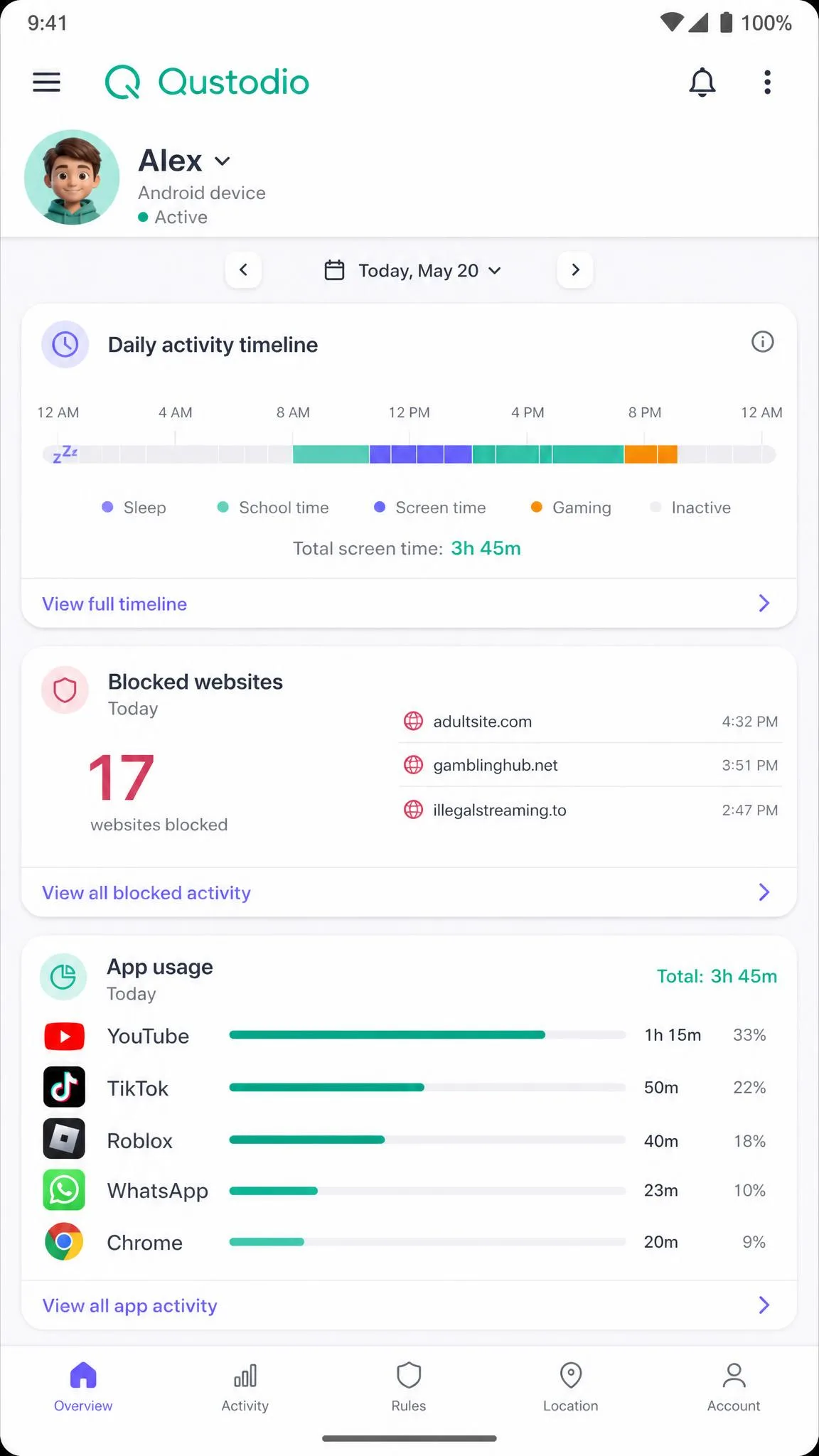
Qustodio is the most complete single package. Basic covers up to 5 devices at $59.95 per year, and Complete covers unlimited devices at $109.95 per year. A free plan protects 1 device with basic features, and a free trial of the premium features needs no credit card.
It runs quietly in the background on Android without obvious slowdown, and it does not stand out in the child's list of running apps. The trade-off is power: its VPN profile and GPS tracking cut battery life noticeably on older Android phones.
Best Free Option
Family Link, again. No paid app beats free for screen time, app approvals, web filtering and location, and most families never need to spend anything. Qustodio's free tier is the fallback if you want one device covered with a different feature mix.
Best for Location Tracking
Life360 does one job properly. Gold is $14.99 per month or $149.99 per year and covers the whole circle, with real-time location, place alerts, location history, driving reports and SOS alerts.
The free plan is capped at 2 Places, which is enough for home and school. Life360 does no app blocking, no screen time limits and no message monitoring, so treat it as a companion to Family Link rather than a replacement.
Best for Message and Social Media Alerts
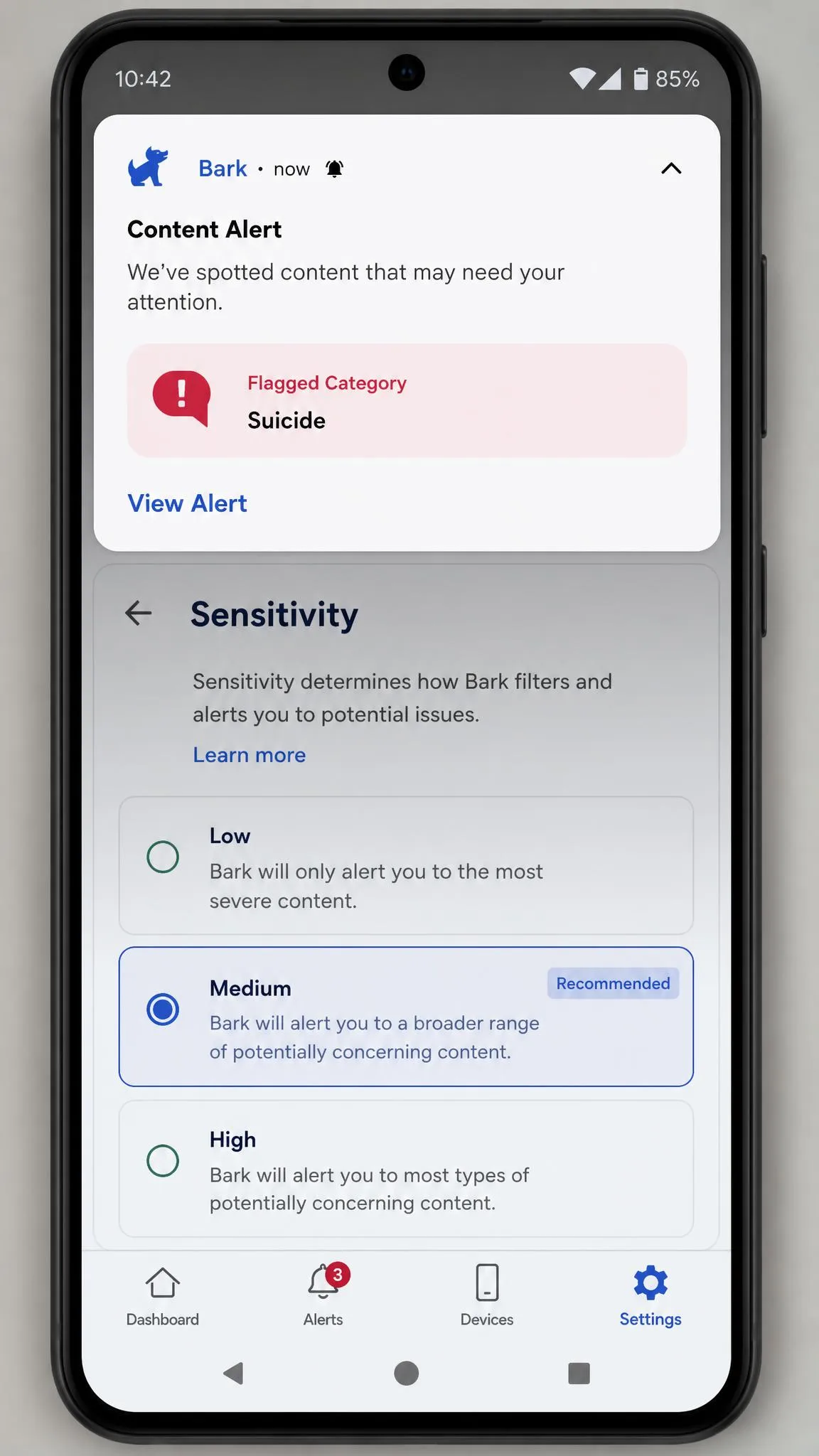
Bark takes the opposite approach to everyone else. Rather than showing you every message, it scans for bullying, self-harm and predatory contact, then alerts you only when something matters. Bark Jr is $5 per month or $49 per year plus tax and covers unlimited children and devices, while Bark Premium is $14 per month or $99 per year plus tax.
It installs easily and the parent dashboard is clean. Connecting each social account and device is the slow part. At the highest sensitivity setting it raises false alerts on innocent wording, and lowering the content filter sensitivity settles it down. Bark is strong at spotting risky content and weaker at blocking, bypass prevention and real-time control. TikTok monitoring is available on Android but not on iOS, which makes Android the better platform for it.
Best for Teenagers
Net Nanny suits the age where you want oversight without a lockdown. The 5-device Family Protection Pass is $54.99 per year and the 20-device pass is $89.99 per year, covering web and app filtering, screen time, location, activity reports and uninstall protection on Android.
Pros
- Filtering and screen time in one subscription, with uninstall protection on Android
- Device counts scale to a whole family without a per-child fee
- Activity reports are readable enough to discuss with a teenager
Cons
- No message content scanning of the kind Bark offers
- Pricing is frequently discounted, so the list price is hard to pin down
Method 7: Agree on a Phone-Use Contract Before You Monitor
Every parent who skips this step ends up having the same argument later.
What to Put in Writing
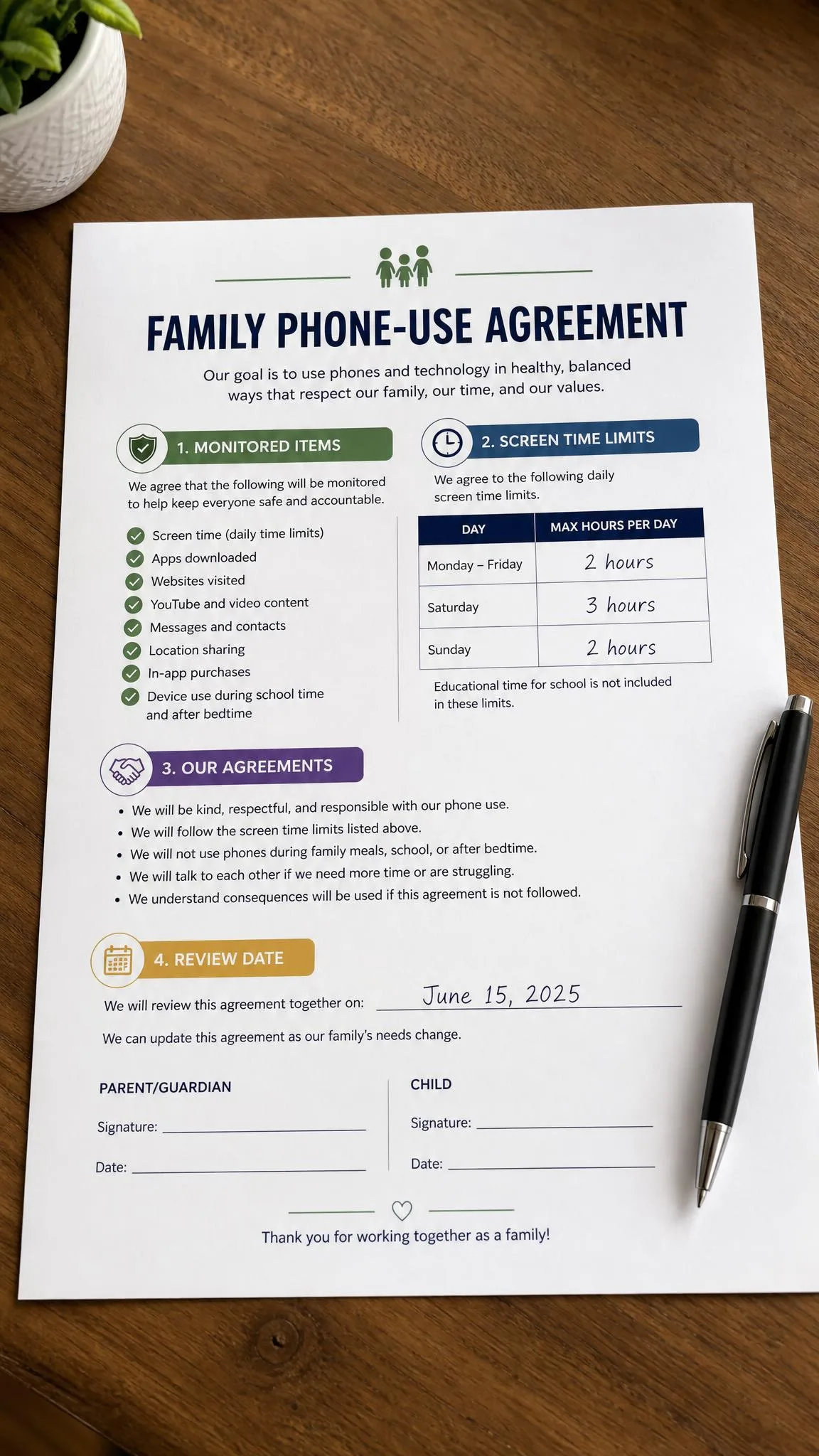
Write down four things: what is monitored, what is not, what happens when a limit is hit, and when the monitoring gets reviewed. Give the review an actual date, because rules that never expire feel like a sentence. Include your side of the deal too, such as not reading messages unless an alert fires.
Transparent Monitoring vs Covert Monitoring
Covert monitoring fails for practical reasons before it fails for ethical ones. Teenagers openly share bypass methods online, and the common routes on Android are simple: install a VPN or proxy app, switch to an unsupported browser, or use incognito mode.
Kids under monitoring apps frequently describe them as invasive, and a child who discovers hidden software usually reacts by defeating it. Disclosed monitoring survives discovery. Hidden monitoring does not.
Quick Comparison: Android Monitoring Options
| Product | Price / free tier | Screen time limits | Location tracking | Message / social monitoring | Web filtering | Works without the child noticing | Minimum Android version |
|---|---|---|---|---|---|---|---|
 |
Free | Yes | Yes | No | Yes | No, supervision notice shows | Android 7.0 on parent's phone |
 |
Free | Yes | No | No | Yes | No, PIN prompt visible in Settings | Recent Android releases only |
 |
Free for 1 device; $59.95/yr Basic | Yes | Yes | Yes (Complete) | Yes | Low profile but installed and visible | Not published |
 |
$49/yr Jr, $99/yr Premium | Yes | Yes | Yes (Premium) | Yes | No, app is visible | Not published |
 |
Free tier; $14.99/mo Gold | No | Yes | No | No | No, child installs it | Not published |
 |
$54.99/yr for 5 devices | Yes | Yes | Yes | Yes | No, uninstall protection makes it visible | Not published |
How to Choose the Right Approach for Your Child's Age
The right setup at nine is the wrong setup at sixteen.
Young Children (Ages 8 to 12)
Use everything Google gives you. Built-in controls plus Family Link, with install approvals on, content ratings set and a firm downtime schedule.
At this age the account has to be parent-managed anyway, so supervision is not a negotiation. Add a paid app only if a specific incident makes you need message alerts.

Teenagers (Ages 13 to 17)
Supervision options narrow at 13, and so should your ambitions. Drop to location sharing, keep an agreed screen time boundary, and use an alert-based tool like Bark rather than a read-everything tool.
The goal shifts from control to healthy digital habits, and a teenager who understands why the app is there is the only kind who leaves it installed.
Troubleshooting: Why Monitoring Data Goes Missing
Almost every "the app stopped working" report comes down to one of three causes.
Battery Optimization Is Killing the App
This is the first thing to check. Open Settings on the child's phone, find the monitoring app under Apps, then Battery, and set it to Unrestricted. Some manufacturers add a second power-saving layer on top of stock Android, so check the phone maker's own battery menu too.
Permissions Were Revoked
Android revokes permissions for apps that go unused, and a system update can reset them. Reopen the app on the child's device and step through its permission checklist again.
Location accuracy in particular depends on the always-allow setting, not the while-using-the-app setting.
Your Child Uninstalled or Bypassed the App
Check whether the app is still installed before assuming a technical fault. If it is gone, the fix is a conversation, not a reinstall.
Bypass usually looks like a new VPN app, an unfamiliar browser or heavy incognito use. Blocking new browser installs at the Play Store level closes most of that door.
Frequently Asked Questions
Do the built-in controls, Family Link and a paid app conflict if I run all three?
How do I monitor my child's Android for free?
Is it legal to monitor my child's Android without them knowing?
Can my child uninstall or bypass a parental control app?
Will my child know I am monitoring their device?
Does Family Link work on all Android phones?
The Bottom Line
Set up Family Link first, before you spend anything. It is free, it covers screen time, app approvals, web filtering and location, and for most families it is the whole answer.
Add Android's on-device controls on top for the PIN-protected settings lock. Then, only if you specifically need message or social media alerts, add a paid app: Bark for alert-based content monitoring, Qustodio for the fullest feature set, Life360 if location is all you want.
Whatever you choose, tell your child what is monitored and when you will review it. Every tool on this page can be worked around by a motivated teenager. The agreement is the part that keeps working.
Before you conclude that any of this has broken, check the child's phone is on, charged and online. Location reporting goes stale the moment a device is off, offline or simply idle, and to a worried parent a frozen map pin looks exactly like an app that has stopped working.