Your child has a laptop for schoolwork, the bedroom door is closed most evenings, and you have no reliable way of knowing whether the last two hours went to a history essay or to a game server full of strangers. That gap is the reason most parents start looking for a monitoring tool, and it is a fair thing to want to close. You are not trying to read every message. You want to see roughly where the day went, block the worst of the internet, and get a nudge when something genuinely worrying shows up.
We built this guide around the parental control apps and built-in controls that actually run on a laptop rather than only on a phone, checking each one's platform support, filtering behaviour and known weak points against vendor documentation and hands-on reports before recommending it. Below you will find the fastest setup, the five tools worth your money, the free options already sitting on the computer, and the honest limits of each.
Quick Answer: The Fastest Way to Monitor a Kid's Laptop
If you want this handled in the next fifteen minutes, do three things. Create a separate child account on the laptop so the operating system knows whose activity it is watching. Turn on the free built-in controls for that platform, which means Microsoft Family Safety on Windows, Screen Time on a Mac, or Google Family Link on a Chromebook. Then install one paid parental control app on top if you need web filtering that follows your child across browsers, activity reports you can read from your phone, and alerts that reach you without you having to go looking.
For most families with more than one kind of device in the house, Qustodio is the tool we would set up first, mainly because its parent dashboard stays readable once several devices are reporting into it.

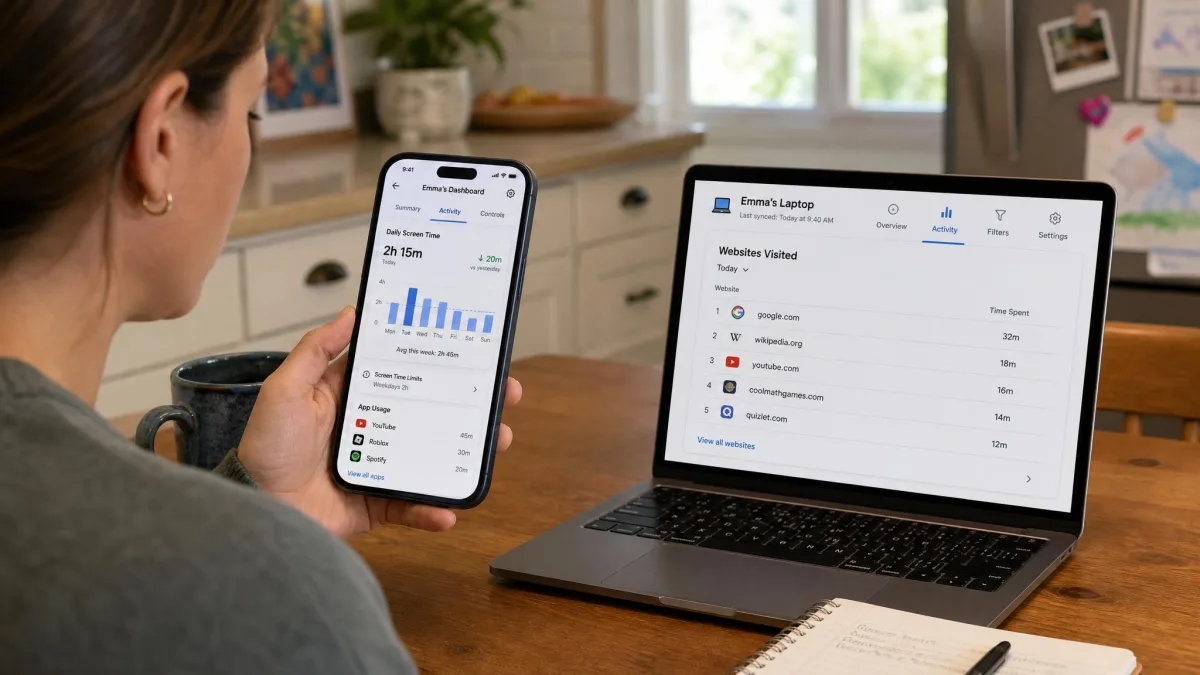
Best Software to Monitor a Kid's Laptop or Computer
These five are the tools we would actually put on a family computer. We ranked them on how much of a laptop they can genuinely see, how hard they are to work around, how clearly the reports read, and what they cost across the number of computers a typical household owns. If you want a wider survey of desktop options, our guide to the best parental control software for PC goes deeper on Windows specifically.
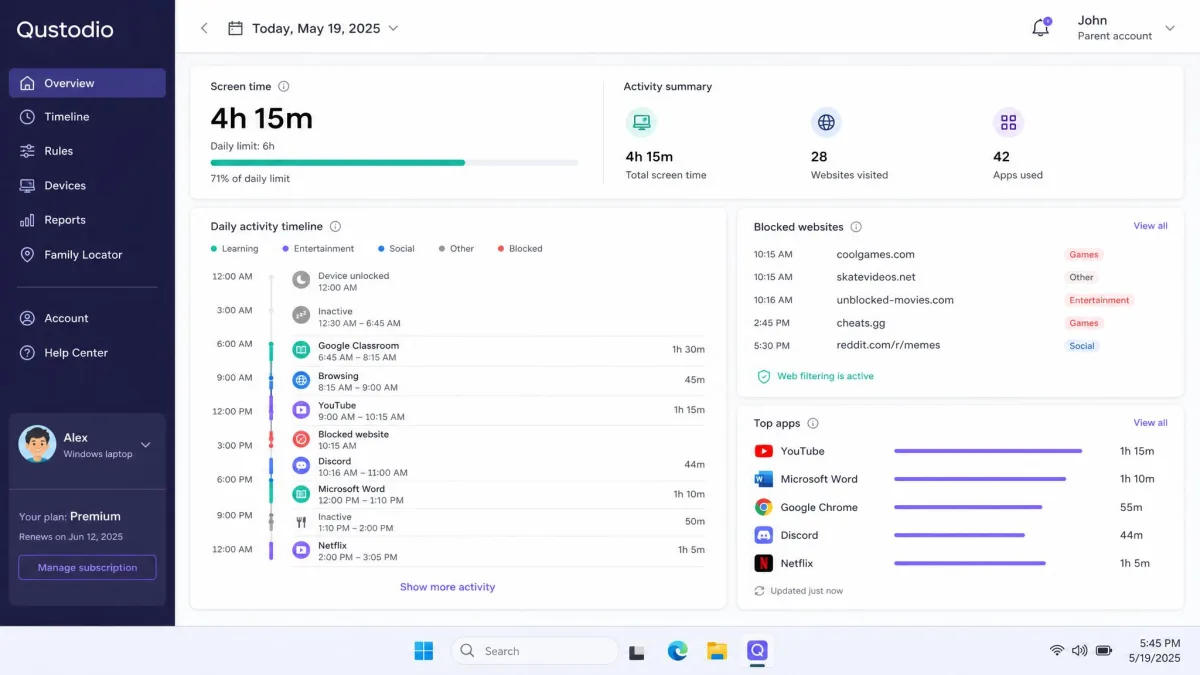
Qustodio: best overall for mixed-device homes
Qustodio is the one we reach for when a household has a Windows laptop, a MacBook and a couple of phones. Its Windows installer walks straight through the permissions it needs, so protection is live within a few minutes of the download finishing. It runs as a system-level Windows service rather than a browser extension, which means it sits quietly in Task Manager with a small memory footprint and keeps filtering whichever browser your child opens.
Feature coverage is the widest here: web filtering, per-app time limits, daily screen time limits, custom routines and schedules, activity reports, and call and text monitoring on the Complete tier. Removing it takes the parent account username and password plus administrator credentials, which closes the obvious uninstall route a determined teenager tries first.
It is not perfect. Its rules can be worked around on a PC, and we have seen Roblox slip past app limits and Discord keep running after a time limit expired. The VPN profile and location tracking also shorten battery life noticeably on older machines. Pricing is the other wrinkle: the Basic plan runs about $54.95 to $59.95 a year for up to 5 devices, though that figure moves with device count and with the promotion running at checkout, so confirm it on the plan page before you buy. The Complete plan for unlimited devices is quoted between $99.95 and $109.95 a year depending on the promotion in force, so treat it as a range rather than a fixed price. There is a 30-day money-back guarantee either way, and a free trial of premium features that is reported as either 3 days or 30 days. The trial window differs by signup path and region, so check the length shown on your own account before you plan around it.
Pros
- Covers Windows, macOS, Chromebook, Android, iOS and Kindle from one dashboard
- System-level filtering that does not depend on which browser is open
- Uninstall protection tied to the parent account password
- Clear daily and weekly activity reports
Cons
- Some apps, including Roblox and Discord, have slipped past its time limits
- Battery drain on older laptops when the VPN profile is active
- Pricing shifts with promotions and device counts
Norton Family: best web filtering on Windows
Norton Family is the cheapest credible paid option at $49.99 per year, roughly $4.16 a month, and it covers an unlimited number of your children's devices under that one price. On a Windows computer it does the core jobs well: web supervision and content filtering, time supervision and schedules, search and video tracking, plus email alerts and weekly or monthly reports that land without you logging in.
Two limits matter before you buy. It leaves a MacBook uncovered entirely, so a mixed Windows and Mac household needs a second tool alongside it. And its web filtering, video tracking and search tracking are comparatively easy to sidestep on Windows, so treat it as a guardrail rather than a wall. It also does not run on Windows 10 in S mode, and its iOS tracking only works while your child uses the Norton Family browser.
Pros
- Lowest annual price of the paid tools here at $49.99
- Strong web supervision and scheduling on Windows
- Weekly and monthly report emails you do not have to go looking for
Cons
- No macOS monitoring at all
- Filtering and search tracking are relatively easy to work around
- Does not support Windows 10 in S mode

Bark: best for message and content alerts
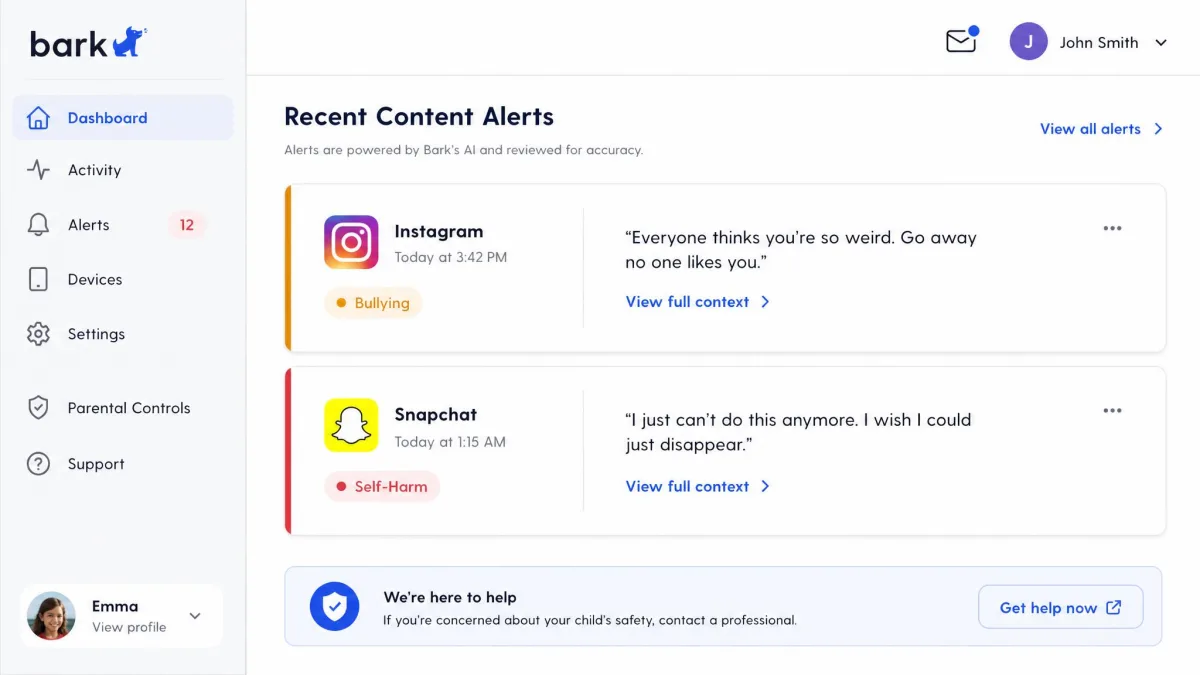
Bark takes a different approach. Instead of showing you everything, it watches for content that suggests bullying, self-harm or a predator, and it alerts you when something crosses the line. Its desktop app installs on Windows PCs, MacBooks and Chromebooks, and it covers texts, email and social platforms across more than 30 apps, plus YouTube, web searches and saved photos and videos. Screen time management and website and app filtering come with it.
The practical caveats are worth knowing. Its alerts are not real-time on the desktop side, because the app scans back through content once your child's device reconnects to the same Wi-Fi. Desktop coverage only reaches Chrome and Edge, so a child who switches to another browser drops out of the alert feed. Setup takes longer than rival apps and alerts can arrive late. The parent side lives in a web control panel rather than a full desktop app, so you enforce filtering and screen time rules from a browser. Pricing splits by platform: the Bark App for Android is $99 a year, the iOS version is $148 a year and ships with the Bark Sync charger, and the Bark Home router device is $79 one time or $6 a month. A lower Bark Jr tier has been listed from about $5 a month, but Bark has reshuffled its plan lineup, so that junior tier may not be on sale under that name when you look.
Pros
- Content alerts for bullying, self-harm and predator contact across 30+ apps
- Desktop app runs on Windows, macOS and Chromebook
- Covers email, saved photos and video alongside browsing
Cons
- Desktop alerts are not real-time and depend on a Wi-Fi reconnection
- Only monitors Chrome and Edge on a computer
- Setup takes longer than competing apps

Kaspersky Safe Kids: best budget option
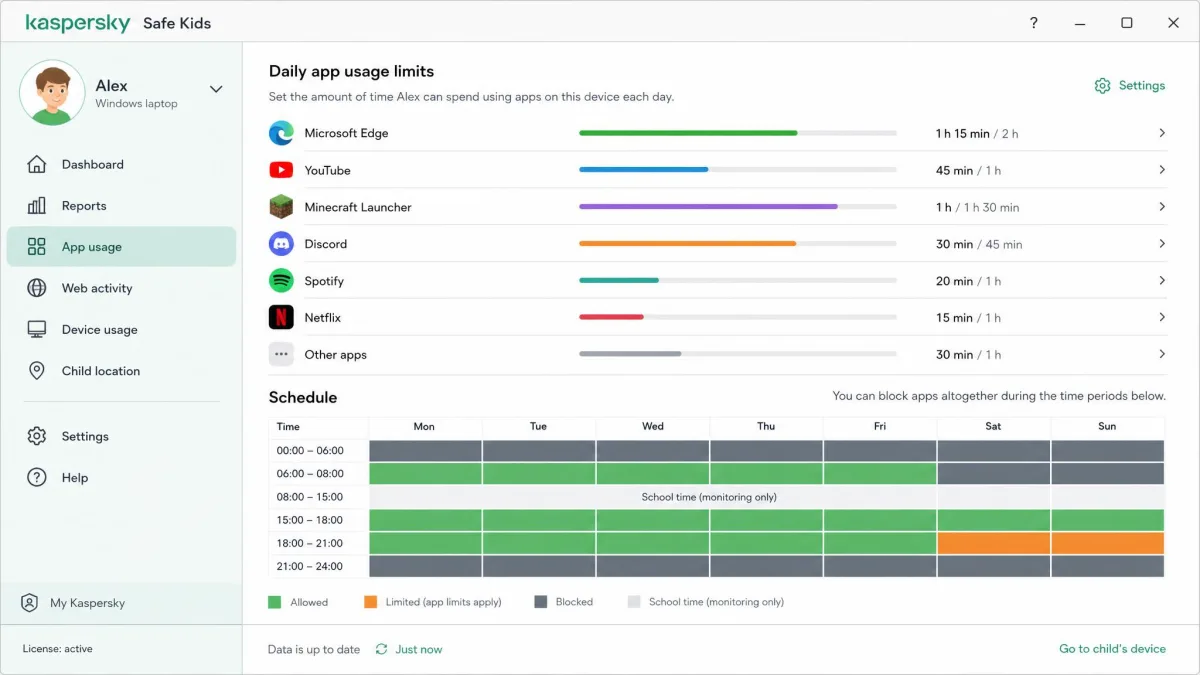
At around $14.99 a year, Kaspersky Safe Kids is the cheapest way to get proper parental controls onto a Windows laptop or MacBook. It provides web and YouTube content filtering, app usage controls and scheduling, daily app limits, device schedules, GPS location on phones, battery alerts, and activity reports for apps, websites and YouTube. A nice touch we like is the child-visible limit bar, which shows kids how much time they have left instead of cutting them off without warning.
There is a 7-day trial with the full premium feature set and a 30-day money-back guarantee behind it. You may also see a permanently free tier described with basic filtering and screen time, but that free version is not offered everywhere and Kaspersky's own product page now leads with paid plans only, so do not count on it in your region.
Pros
- By far the lowest price of any paid tool here
- Covers Windows, macOS, Android and iOS
- Child-visible limit bar reduces arguments about time running out
Cons
- Reporting is less detailed than Qustodio's
- The free tier is inconsistently available
- No message content alerts

Microsoft Family Safety: best free option
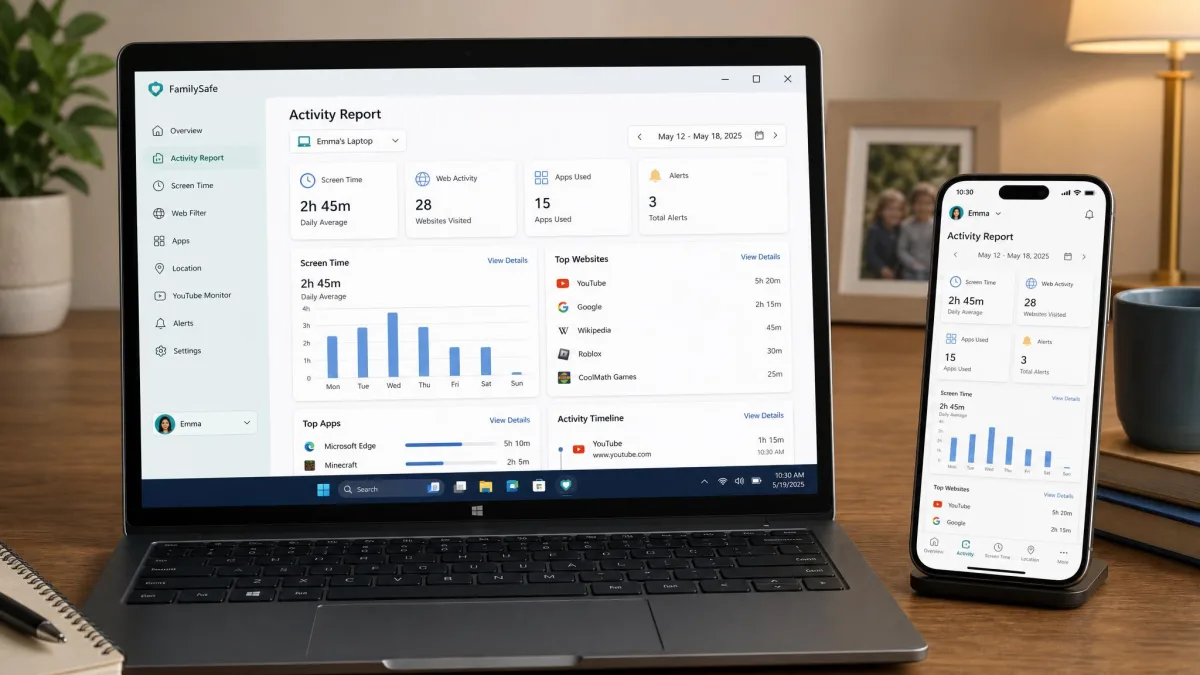
If everyone in the house is on Windows, Microsoft Family Safety may be all you need. It runs on Windows 10 and 11, Xbox One and Series X|S, Android, and iOS for the parent app. You get app and game screen time limits, device-level screen time limits on Windows and Xbox, a screen time request and approval flow your child can use to ask for more, app and game content filters, web and search content filters enforced natively in Microsoft Edge, and activity summaries.
The enforcement model is the thing to understand. Filtering works inside Edge, and Family Safety blocks unsupported third-party browsers to keep that filtering intact. Through mid-2025 some of those browsers crashed or refused to launch rather than failing gracefully, and there was a bypass that let kids around the block entirely. Microsoft confirmed a service-side fix for that unsupported-browser bypass on February 10, 2026, rolling out over the following weeks. Two smaller gaps remain worth testing yourself: the allow-list has failed open before, letting a child browse freely in Edge until the setting was rebuilt, and creating a fresh profile inside Edge can escape the allow and block lists, because the new profile carries none of the restricted profile's rules.
Pros
- No extra subscription on top of a Microsoft account
- Screen time request and approval flow built into Windows
- Covers Xbox as well as the laptop
Cons
- Web filtering effectively requires your child to use Edge
- A new Edge profile can escape the allow and block lists
- Nothing for macOS or a personally owned Chromebook
Whichever tool you pick, sign in on your own phone as well as the laptop. Every one of these apps has a parent view that works from a phone, and you are far more likely to actually read a weekly report if it arrives where you already are.

Comparison Table: Features, Platforms, and Pricing
| Product | Buy | Platforms | Screenshots or screen view | Web filtering | Screen time limits | Alerts | Price |
|---|---|---|---|---|---|---|---|
|
Check price → | Windows, macOS, Chromebook, Android, iOS, Kindle | No live screen view; activity timeline | Yes, system level | Daily limits, per-app limits, routines | Email and push alerts, activity reports | $99.95/yrComplete |
|
Windows, Android, iOS (no macOS) | No | Yes on Windows, browser dependent on iOS | Time supervision and schedules | Email alerts, weekly and monthly reports | $49.99/yr | |
|
Windows, macOS, Chromebook, Android, iOS | No | Chrome and Edge only on desktop | Screen time management | Content alerts across 30+ apps, not real-time on desktop | $99/yrAndroid app | |
|
Windows, macOS, Android, iOS | No | Yes, web and YouTube | Daily app limits and device schedules | Real-time alerts on paid tier | $14.99/yr | |
|
Check price | Windows 10 and 11, Xbox, Android, iOS | No | Yes, native in Microsoft Edge; other browsers blocked | Device and app limits on Windows | Activity summaries and screen time requests | Includedwith a Microsoft account |
None of these tools takes screenshots or gives you a live view of your child's screen, which surprises a lot of parents. That capability sits with workplace employee-monitoring software, and we would not put it on a family computer. Activity timelines and category reports tell you what you need without turning the laptop into a camera pointed at your child.
Free Built-In Options on Windows, macOS, and Chromebook
Before you pay for anything, spend twenty minutes with what is already installed. Our walkthrough on setting up parental controls on a computer covers the wider ground; here is the short version for each platform.
Microsoft Family Safety on a Windows laptop
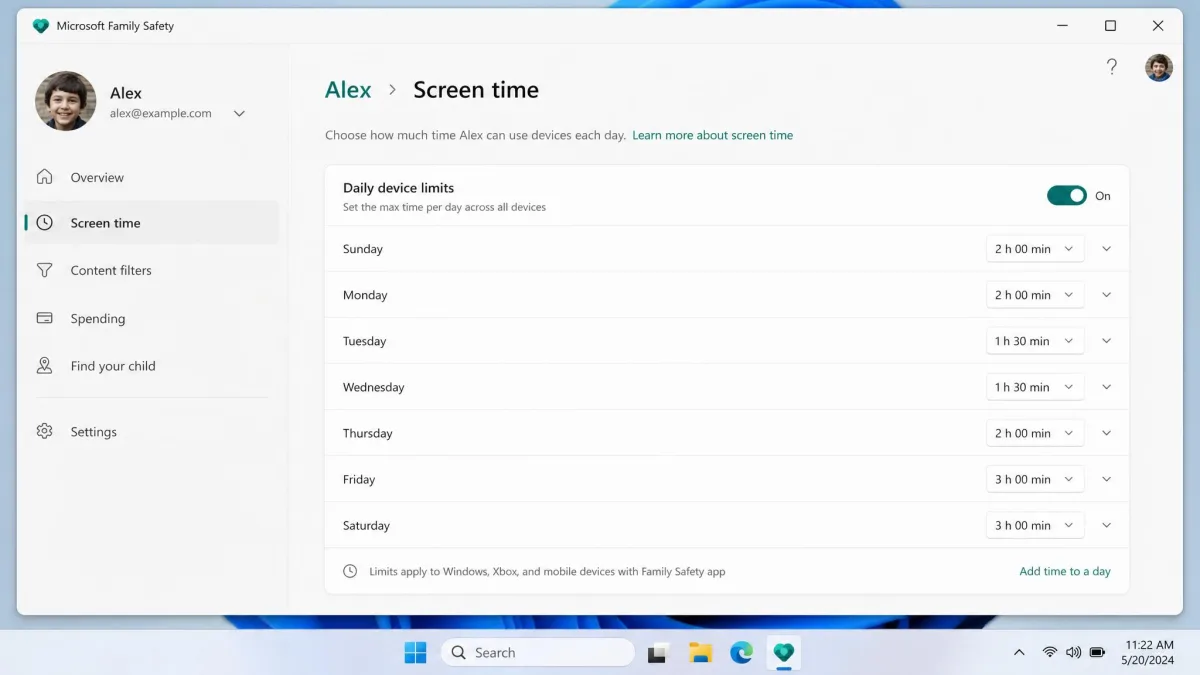
Sign in to family.microsoft.com with your Microsoft account, add your child as a family member, and have them sign in to the laptop with that account. From the family dashboard you can set device and app screen time limits, switch on content filters for apps, games and websites, and turn on activity reporting. Screen time requests then come to you rather than turning into an argument at the kitchen table.
Screen Time on a MacBook
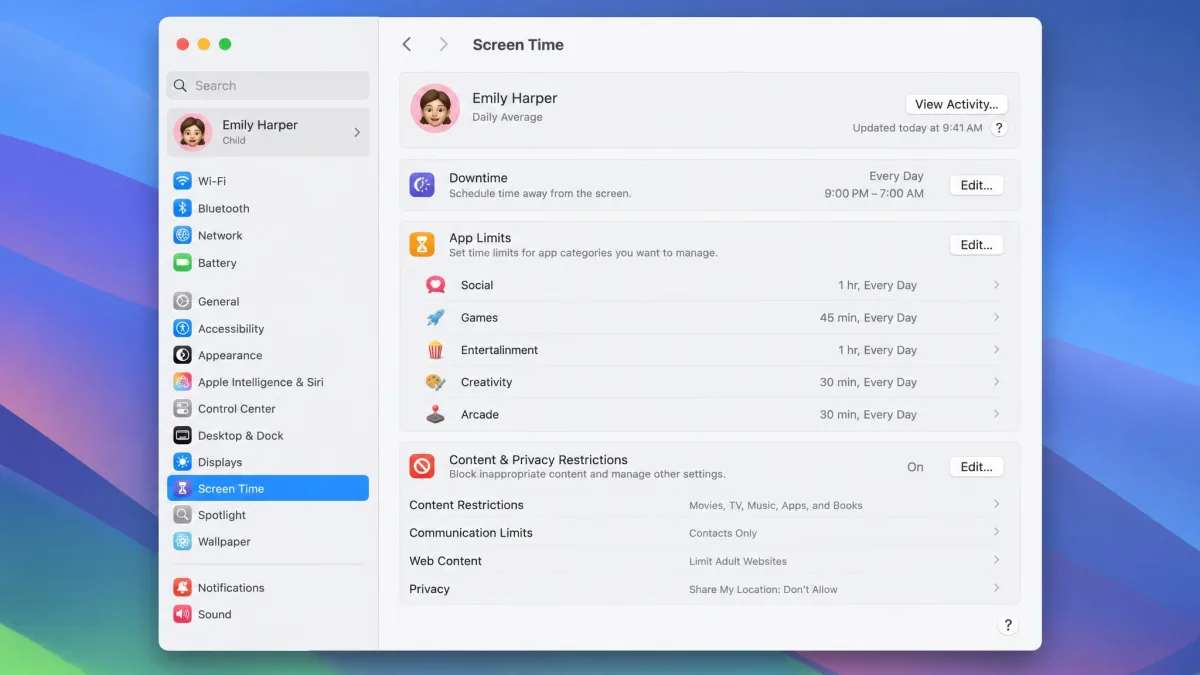
Open System Settings, then Screen Time, then choose your child's account. Set Downtime for the hours the computer should be quiet, App Limits per app or category, Communication Limits, and Content and Privacy Restrictions for web content filtering. Turn on Share Across Devices so usage pools across all of your child's Apple devices under one Apple Account.
Two things go wrong often enough to plan around. Screen Time reporting on a Mac breaks most often when Share Across Devices is off on one device or a second Apple Account is signed in, so check both. Usage reports can also lag several hours before a Mac's activity shows up on your device, and Downtime and app-limit changes pushed remotely from a guardian's device sometimes never land on the managed machine. Screen Time has shipped regressions after major OS updates too, including limits that fail to fire and usage totals that read as impossibly high. Verify a new rule on the laptop itself rather than assuming the dashboard is telling the truth.
Google Family Link on a Chromebook
On a personally owned Chromebook signed in with a supervised child account, Family Link provides daily screen time limits, downtime and bedtime, Chrome site filtering, app approval for anything installed from Play, and locked SafeSearch. A supervised account accepts only one extra school account, which conveniently keeps a child from switching profiles to install Play apps without your approval.
You cannot layer parental controls onto a school-issued Chromebook. The district's management profile takes precedence, and adding yourself as a supervisor does not behave the way it does on a personal device. If school-hours browsing worries you, raise it with the school rather than fighting the device, and read the FTC guidance on children's online privacy before you install anything that captures messages.
Decide What You Actually Need to Monitor
Prices and platform grids only get you so far. Buying the most featured app you can find is how parents end up with a dashboard nobody reads. Work out which of these four things you actually care about, then pick the tool that does that one thing well.
Web and app activity
This is the baseline. Every tool here logs which sites were visited and which apps ran, and groups those activities into categories so you are reading a summary rather than a raw log. Good filtering keeps inappropriate content off the machine without you having to name every site yourself. Check whether the filtering is system level, like Qustodio's, or tied to one browser, like Microsoft's Edge-based approach and Bark's Chrome and Edge coverage. That single detail decides whether a curious child can escape by installing a different browser.
Screen time and schedules
Daily caps, per-app limits and bedtime schedules do more for a household than blocking ever will. Look for a tool that lets you set different limits for weekdays and weekends, and one that warns your child before time runs out. Kaspersky's visible limit bar and Microsoft's request-and-approve flow both defuse the moment when the screen goes dark mid-game.
Messages, games, and social apps
If your worry is cyberbullying or contact from strangers rather than time management, alert-based monitoring fits better than filtering. Bark is built for exactly this and watches more than 30 apps for concerning content. Qustodio's Complete tier adds call and text monitoring. Neither reads every conversation to you, which is the point.
Screenshots and remote screen viewing
Parents ask for this constantly and almost nobody should use it. None of the mainstream family tools offer live screen viewing, and the products that do are employee-monitoring software with a very different consent model. Activity reports answer the same question with far less damage to the relationship.
The most detailed monitoring tool is not the most useful one. The useful one is the tool whose weekly report you will actually open on a Sunday evening.

How to Set Up Monitoring on Your Kid's Laptop, Step by Step
Step 1: Create a separate child account
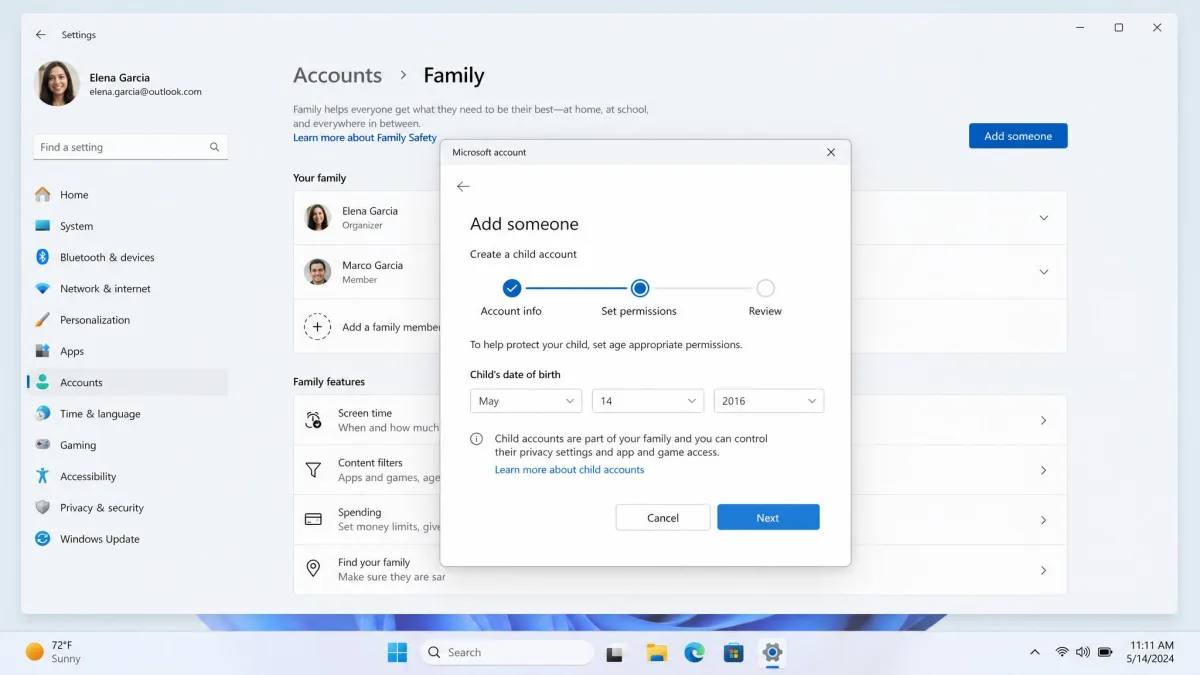
On Windows, open Settings, then Accounts, then Family, and add your child as a family member. On a Mac, open System Settings, then Family, and add a child with their own Apple Account. On a Chromebook, sign the device in with a supervised Google account. Do this first: monitoring a shared account produces reports that mix your browsing with your child's and helps nobody.
Step 2: Install the monitoring app
Install from the vendor's own site while signed in to the laptop as an administrator, then sign in to the app with your parent account rather than your child's. Most installers ask for permissions that need an administrator password, so have it to hand. Keep the child account a standard user, not an administrator, or the app you just installed can be removed by the person it is watching.
Step 3: Turn on filtering and time limits
Start looser than you think you need. Block the categories you genuinely object to, set a daily screen time limit that reflects the schedule you already have, and leave everything else open. Rules you tighten later, after a conversation, hold far better than rules you impose on day one and then quietly relax because they broke homework.
Step 4: Set up alerts and reports
Choose a weekly summary by email plus alerts for the handful of events you actually want interrupted for. Turning on every alert type guarantees you will mute them within a fortnight. If your tool supports it, add your partner's email so two people see the same information.
Step 5: Test it before you rely on it
Sign in to the child account yourself and try to break your own rules. Open a browser the tool might not cover. Create a second browser profile. Run the app you just limited and see whether it stops. Wait for the activity to appear on your phone and note how long the lag is. Fifteen minutes here is worth more than any feature list, because every gap we described above shows up in this test.
The gaps worth testing first are the ones we have seen fail: a new Edge profile slipping past Microsoft's allow and block lists, an app like Discord continuing after a Qustodio limit expires, and Mac usage reports arriving hours late. If those three hold up on your setup, the rest usually does too.
How to Monitor Your Kid's Laptop Remotely from Your Phone
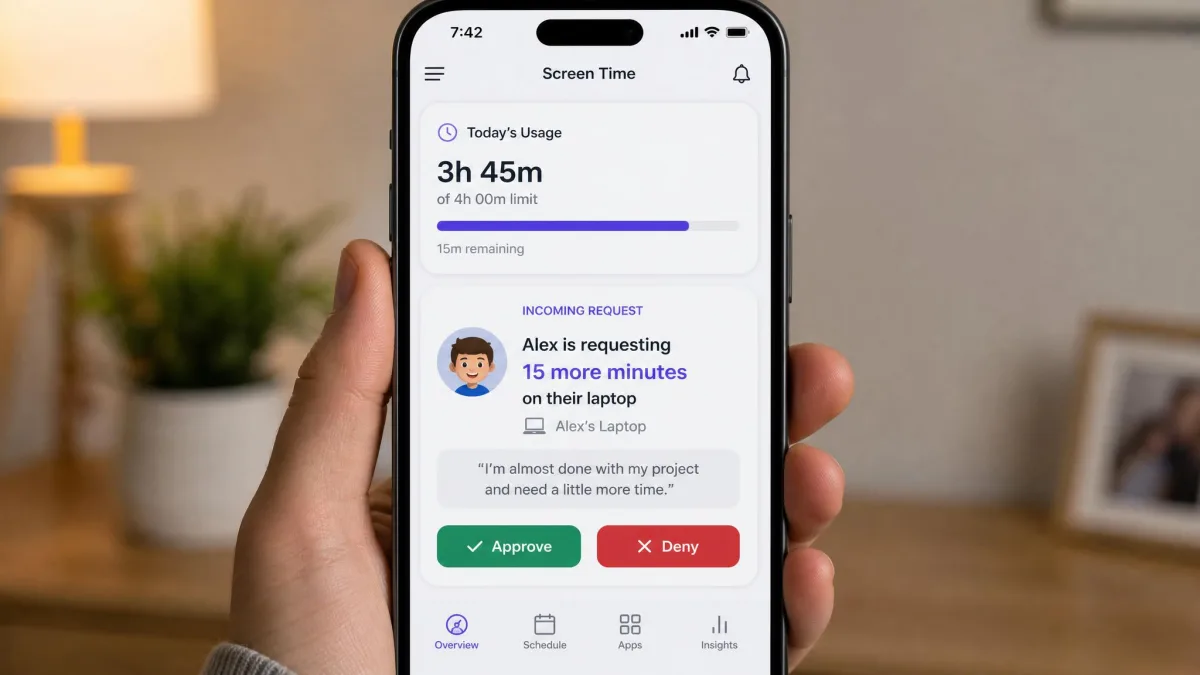
That last test is easier to repeat once you can do it from the sofa, which is where the parent apps come in. Remote monitoring is less exotic than it sounds. Every tool here has a parent app or web dashboard that shows the laptop's activity from wherever you are, and every rule change you make is pushed to the computer over the internet. Install the parent app, sign in with your parent account, and you can review the day's activity, extend or cut screen time, and approve a request for extra minutes without touching the laptop.
Set your expectations on timing. Data flows when the computer is online, so a laptop that is closed or off the network reports nothing until it reconnects. Bark's desktop scanning waits for the device to rejoin the same Wi-Fi, and Apple's Screen Time totals can trail several hours behind. Remote access here means convenience, not a live feed, and it is worth being clear about that with yourself before you start refreshing a dashboard at nine in the evening.
Monitoring vs Spying: Where to Draw the Line
The difference is not what the software can do. It is whether your child knows it is there and why.
What to tell your child, and when
Tell them before you install, not after they find out. A short, specific explanation works better than a policy: you are filtering the worst of the internet, you will see roughly how long the laptop is used and which categories of site come up, and you are not reading their messages. Then keep that promise. Pew Research's survey of parenting in the age of screens found monitoring is common and normal in family life, which makes it much easier to frame as ordinary rather than as an accusation.
Age-appropriate monitoring levels
For a primary-school child, filtering and screen time limits do nearly all the work and content alerts are rarely needed. For an eleven to fourteen year old, keep the filters, add alerts for the serious categories, and start narrating why. For a fifteen or sixteen year old, most of the value has moved to time boundaries and conversation, and heavy content monitoring tends to cost more in trust than it returns in safety.
Privacy and legal considerations
You can generally monitor a minor child's device that you own and pay for. The picture changes with a device the school owns, with a child who is legally an adult, and with anyone else's data caught in the capture, which is where message monitoring gets complicated.
Signs You Should Tighten Monitoring
Most of the time you should be loosening, not tightening. These are the signals that justify going the other way:
- Screen time climbing sharply with no change in schoolwork or hobbies to explain it
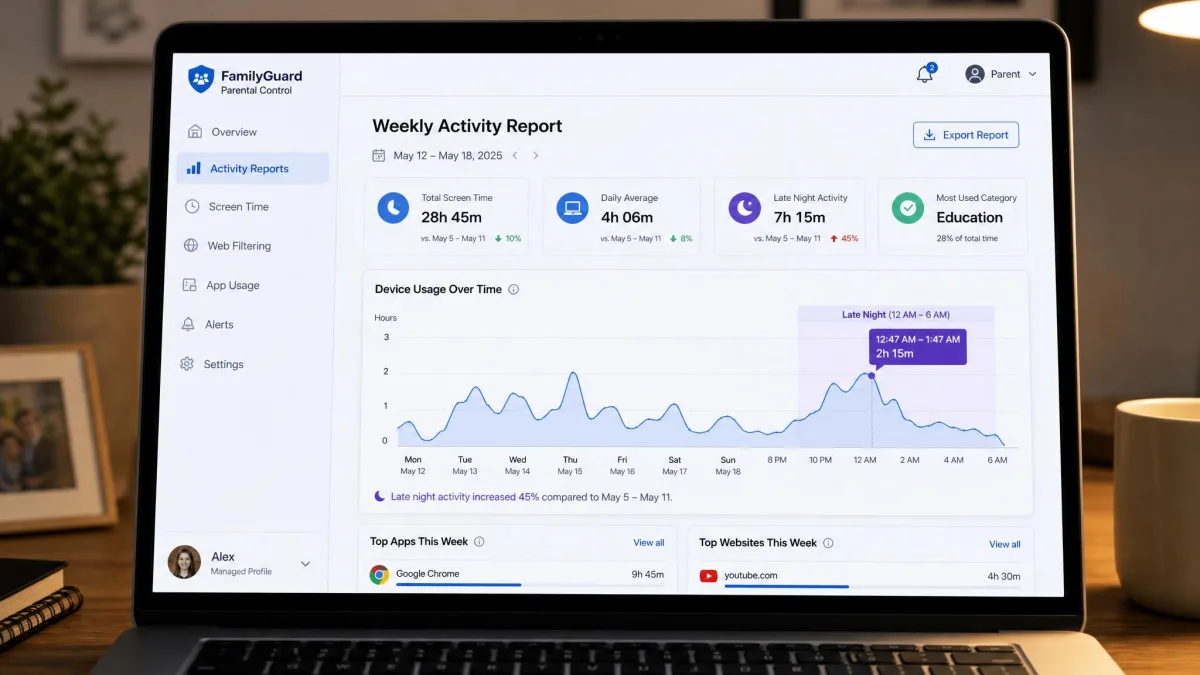
- Late-night activity appearing in reports that used to end at bedtime
- Sudden secrecy about the computer, such as closing the lid whenever you walk in
- New apps or a new browser appearing shortly after you set a rule
- Mood changes tied to being online, which can point to cyberbullying
- Contact with accounts you do not recognise showing up in alerts
Sleep is the one worth watching most closely, since WHO guidance on teens, screens and mental health links problematic use to worse sleep and wellbeing outcomes. If your reports show the laptop is live at one in the morning, that is a bigger finding than any website in the log.
Mistakes Parents Make (and How to Avoid Them)
Leaving the child account as an administrator. Everything else you set up is decorative if the person being monitored can uninstall the software. Make the child a standard user.
Trusting the dashboard without testing. Allow-lists fail open, new browser profiles escape rules, and app limits get bypassed. Assume nothing works until you have tried to break it yourself.
Monitoring in secret. Discovery is close to inevitable, and the fallout costs more than the information gained. Say what you are doing.
Buying for the feature list. The tool with forty features and an unreadable dashboard loses to the one that emails you a clear weekly summary you keep an eye on.
Filtering one browser and calling it done. If your filtering only covers Edge or Chrome, a two-minute download undoes it. Either block other browsers or choose a system-level tool.
Setting rules once and never revisiting them. A limit that made sense for a ten year old is an insult to a fourteen year old. Review it every school year.

Frequently Asked Questions
Can I monitor my kid's laptop without them knowing?
Is it legal to monitor my child's laptop?
What is the best free way to monitor a kid's laptop?
Can I monitor a school-issued Chromebook?
How do I monitor my child's laptop from my phone?
At what age should I stop monitoring?
Will a VPN or incognito mode defeat monitoring?
Final Thoughts
The honest summary is that monitoring software solves a narrower problem than parents hope. It will tell you where the hours went, keep the worst of the internet away from a younger child, and raise a flag when something serious shows up in a message. It will help you steer a young person's digital life, but it will not tell you what your child is thinking, and every tool here can be worked around by a teenager who is determined enough.
Start free, on the platform you already have. Add Qustodio if the house runs more than one operating system, Norton Family if everyone is on Windows and the budget is tight, Bark if content alerts matter more than logs, or Kaspersky Safe Kids if you want the essentials for the lowest price available. Then test your own rules, tell your child what you have set up, and revisit it each year. That combination of visible limits and an ongoing conversation is what keeps your child safe online, far more than any feature on a comparison table.