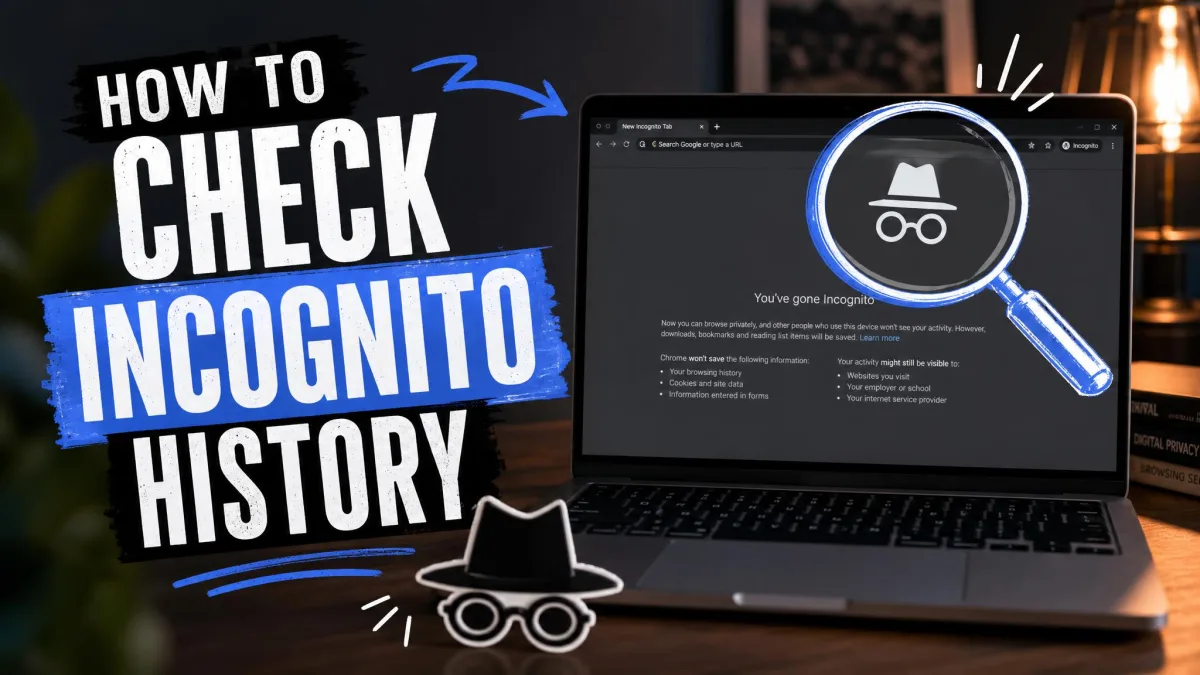
Most people assume incognito mode either erases everything or keeps a hidden list somewhere on the computer. Neither is true. Chrome writes no browsing record to your device once the private window closes, but the network layer underneath still handles every lookup, and some of that lingers where you can read it.
This guide shows what survives a private session, how to check the DNS cache on Windows and Mac, what you can and cannot see on Android and iPhone, and how to clear the traces that remain.
Incognito hides your browsing from the device, not from the network, the websites you visit or your internet provider. Those three still see the same traffic they always did.
What incognito mode does and doesn't save
Private browsing is a local privacy feature, not an anonymity feature. It changes what your own computer keeps, and little else.
What Chrome deletes when you close the window
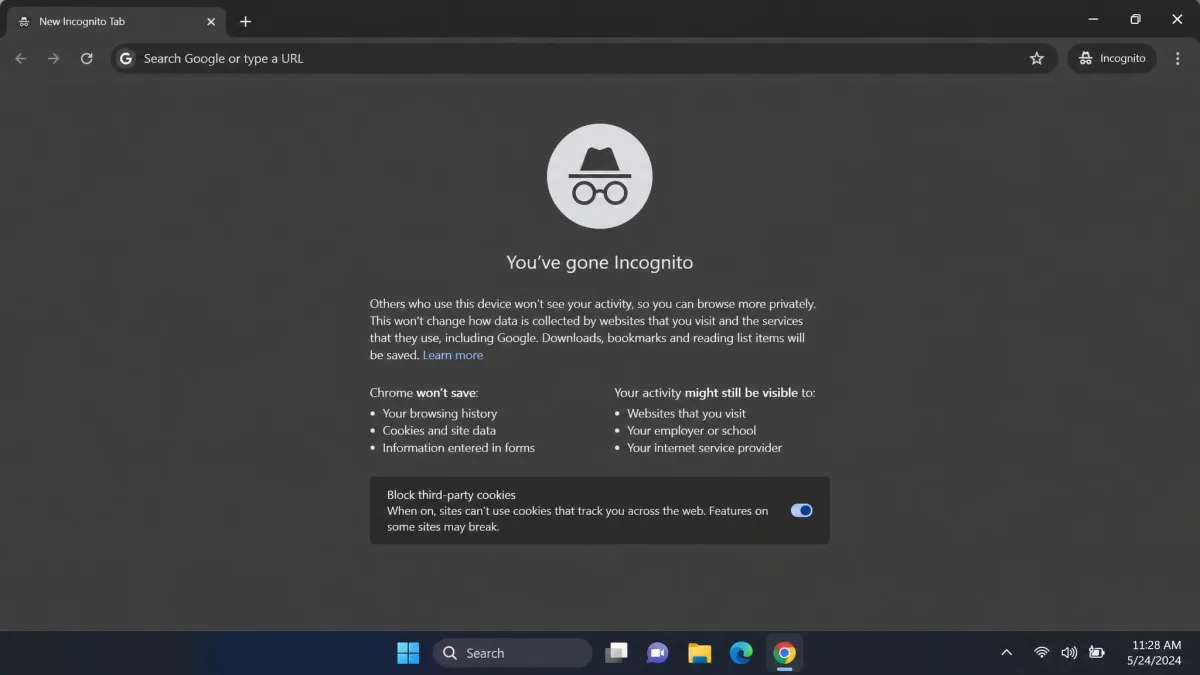
According to Google's Incognito mode documentation, once a session ends Chrome does not retain site data or a record of the sites you visited. Cookies, form entries and the session's history list all go with the window, which is why the normal history page shows nothing afterwards.
Not everything goes. Bookmarks you save and files you download during a private session stay on the device.
What still gets recorded elsewhere
Chrome's help page is blunt about the limits: the websites you visit, and the organisations that manage your network, may still observe your activity. Incognito does not hide your IP address and does not encrypt traffic, so your provider and your network still see which destinations you reached.
What is left on the machine is the DNS cache. Each time a browser opens a site, the operating system asks a name server to turn that domain into an IP address and stores the answer for a while, and that cache does not care which kind of window made the request.
Can you really see incognito history?
Only partially. Checking incognito history is close to impossible by design, because the browser deliberately writes nothing to the PC. The DNS cache is the nearest thing available, and it is awkward to read.
What you get is a list of domain names the machine resolved recently, with no page URLs, search terms or timestamps.
On a machine in real use, that list also comes back littered with old records, so entries from a private session sit buried among background lookups from apps and updates. Treat it as a rough signal about which domains were contacted.
How to check incognito history on Windows
Windows keeps a DNS client resolver cache in memory and gives you a built-in command to print it. This is the most reliable method here, and the only one that produces a readable list.
Step 1: Open Command Prompt
- Press Windows + S and type
cmd. - Right-click Command Prompt in the results and choose Run as administrator.
- Approve the User Account Control prompt.
Run it elevated. Without administrator rights the command can return an empty or truncated listing, which reads like a false "nothing found" result.
Step 2: Run ipconfig /displaydns
- Type
ipconfig /displaydnsand press Enter. - To save the output for easier reading, run
ipconfig /displaydns > dns.txtinstead.
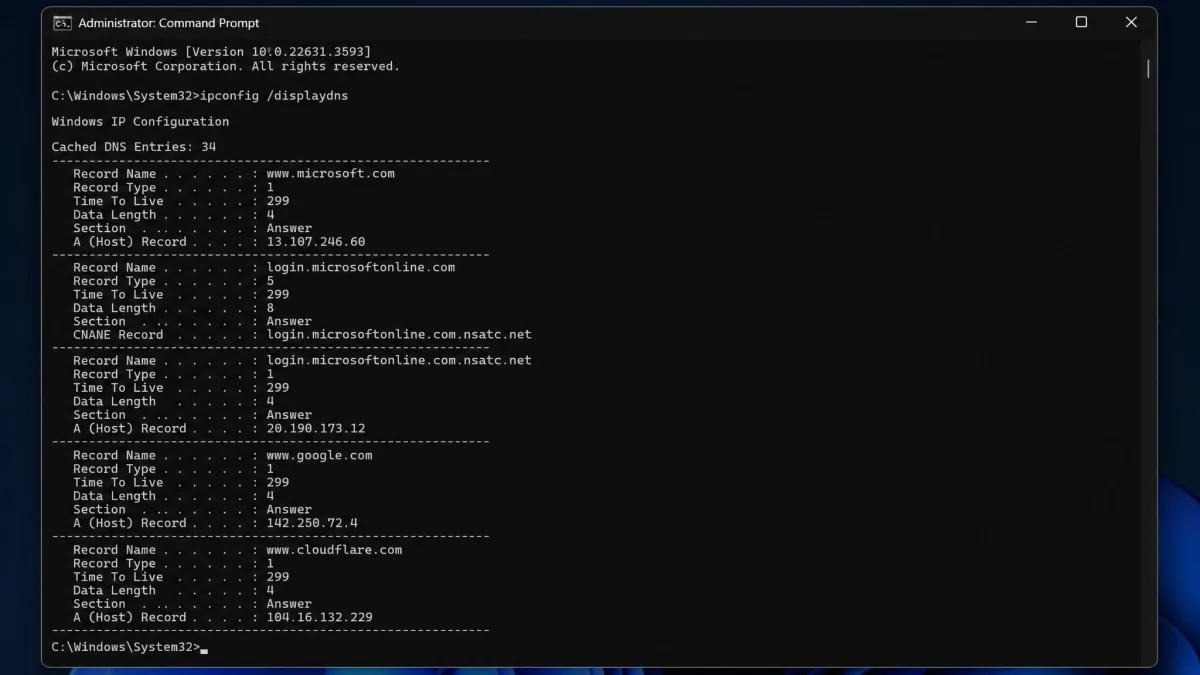
Microsoft's reference for ipconfig /displaydns describes what you get: the contents of the DNS client resolver cache, including entries preloaded from the local Hosts file and recently obtained resource records for names the computer resolved.
Step 3: Read the results
Each entry lists the record name, the record type, the time to live remaining, the data length and the resolved host address. The record name is the part that matters, because that is the domain the device contacted.
Search the saved file for the sites you expect to find, or filter in place with ipconfig /displaydns | findstr example.com.
Running the command on a working Windows laptop straight after a short private session, we found the visited domains in the output, along with dozens of names belonging to ad networks, content delivery servers and telemetry endpoints. Nothing in the listing separates a site someone opened from one an app called in the background.
What the DNS cache will and won't show
It will show domain names the device resolved recently, and not the pages, searches, times or the browser behind them.
It is also short-lived. Windows caps a cached positive entry at the record's time to live, with a default maximum of one day, or 86400 seconds, and failed lookups are held for a default of 5 minutes.
The resolver cache lives in memory, so a restart empties it, and so does a manual flush. What survives depends on how long ago the session ran and whether the machine has been rebooted since.
A clean result usually means flushing the cache first and running the display command again straight after the session, rather than hours later.
How to check incognito history on Mac
macOS has no direct equivalent to the Windows display command. The old sudo killall -INFO mDNSResponder dump no longer returns a cache listing on current releases, and dns-sd -O is the current substitute, so treat the exact command as version dependent.
Watching lookups as they happen works more consistently:
- Open Terminal from Applications, then Utilities.
- Run
sudo log stream --info --predicate 'process == "mDNSResponder"'and enter your password. - Browse in a private window and watch the domain names appear.
The Console app does the same job in a window. Open Applications, then Utilities, then Console, and filter on any:mdnsresponder.
The cache dump route is the fragile part on a Mac, because the Console filter shows live lookups rather than stored history, so it only helps while the browsing is happening.
Safari Private Browsing behaves like Chrome's incognito here, keeping none of the pages visited, search history or AutoFill information from a private window.
How to check incognito history on Android
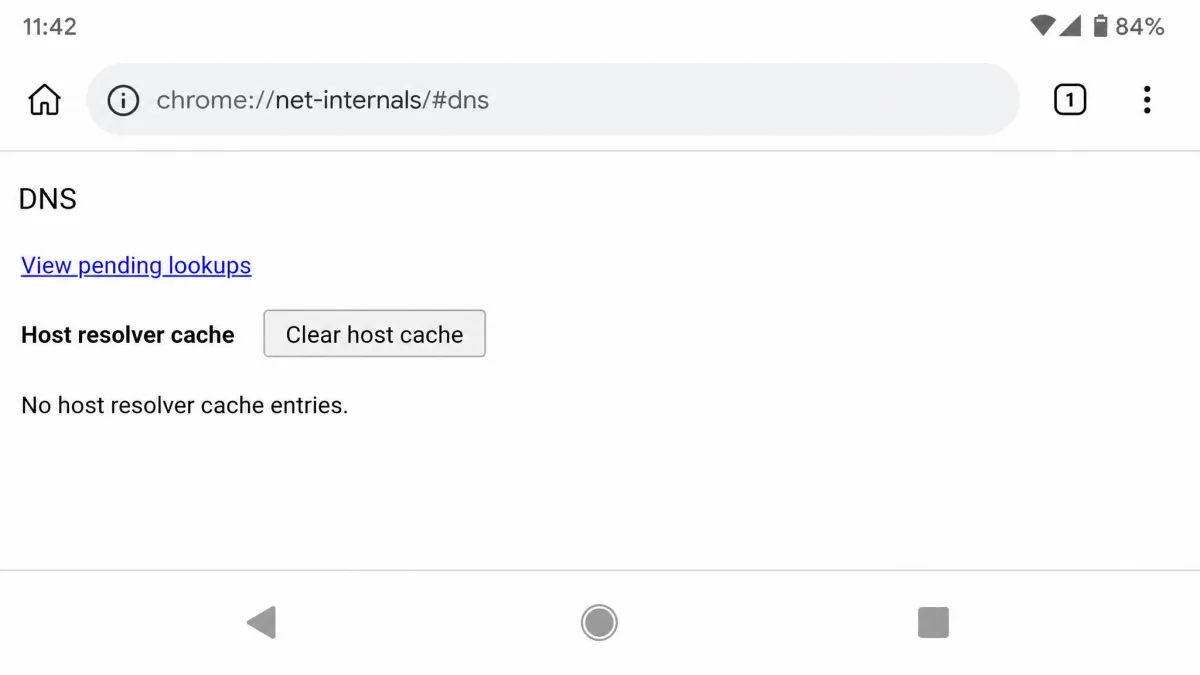
Phones give you the least. Android exposes no user-accessible DNS cache listing, and Chrome's chrome://net-internals/#dns page offers a Clear host cache button rather than a browsable record of visited hosts. What that page shows changes between Chrome builds, so the clear button may be the only control present.
That leaves two realistic options:
- Check the network side instead, using your router's log if it keeps one.
- Check whether a browser extension or a managed work profile is recording activity.
Any app promising to recover a past private session on Android is doing something else, which we cover below.
How to check incognito history on iPhone
iOS is the same story with fewer levers. There is no DNS cache view, no console access and no browser tool that reproduces a private session.
The only on-device list iOS surfaces is under Settings, then Safari, then Advanced, then Website Data. Those entries reflect normal browsing storage rather than a private-session log, so the list rarely maps to what was opened privately. For a record of what an iPhone reached on your network, the router is the more honest place to look.
How to delete incognito traces from your device
If your goal is the opposite one, clearing the residue is quick and works reliably everywhere.
Flush the DNS cache on Windows
- Open Command Prompt as administrator.
- Type
ipconfig /flushdnsand press Enter. - Wait for the line confirming the DNS Resolver Cache has been flushed.
That command flushes and resets the contents of the DNS client resolver cache, which removes the domain list described above.
Clear DNS and cached data on Mac
- Open Terminal.
- Run
sudo dscacheutil -flushcache. - Run
sudo killall -HUP mDNSResponderand enter your password.
That pair clears the cache on Sonoma, Ventura and Monterey, and restarting the Mac does the same thing.
Clear traces on Android and iPhone
On Android, open Chrome, go to chrome://net-internals/#dns, and tap Clear host cache. That is the working delete path on the platform.
On iPhone, restarting the device clears the DNS cache, and so does toggling Airplane Mode on and back off after about 5 seconds. To clear stored site data, visit Settings, then Safari, then Advanced, then Website Data.
Other ways incognito activity gets logged
The device is only one of four places a private session leaves traces, and it is the weakest one.
Router and Wi-Fi network logs
Where a household router keeps logging enabled, its record of resolved domains is often the only thing that survives a device restart. Sign in to the router's admin page and look for a section named logs, security log or DNS history.
Logging is switched off by default on much consumer hardware, though, and where it is on, the log rotates quickly, which limits what a Wi-Fi owner can see.
Browser extensions
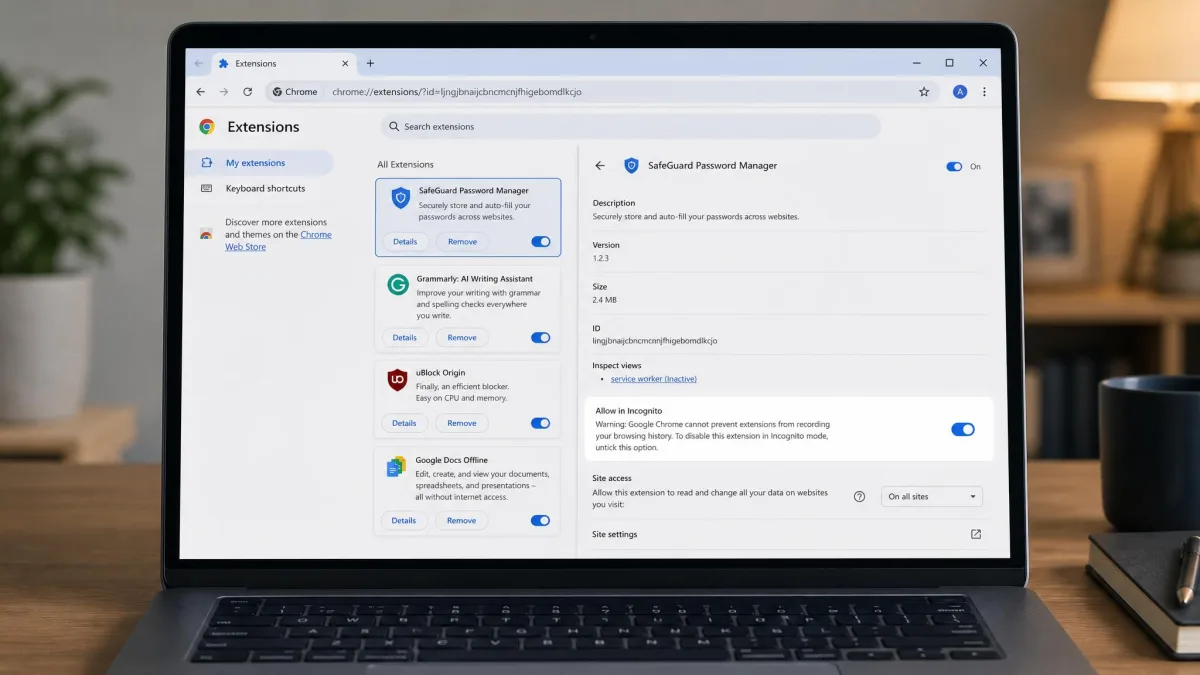
An extension left enabled in incognito can log activity, and it is the one on-device leak that produces a genuinely readable history.
Open the Chrome menu, choose Extensions, then Manage Extensions, and check the Allow in Incognito toggle on each item. Anything switched on there sees your private browsing exactly as it sees the rest.
Parental control and monitoring apps
Products marketed as incognito history recovery tools are monitoring or parental control apps. They have to be installed on the target device in advance and record activity as it happens, so nothing recovers a session after the fact.
Any download promising to recover incognito history you did not already log is at best useless and often spyware. Installing monitoring software on a device you do not own is illegal in many places, and legitimate parental control tools are set up openly on a family device.
Your employer, school or ISP
Managed networks see the traffic whatever browser window it came from. An employer can see incognito activity on a business device or across the company network, because the monitoring sits on the device management layer or the network itself.
The same applies to a school network and, at a coarser level, to your internet provider.
How to browse more privately than incognito
If you want genuine privacy rather than a clean local history, private browsing alone is not enough. A few steps close the gaps:
- Turn on encrypted DNS in Chrome, under Privacy and security, then Security, then Use secure DNS.
- Switch to a browser with stronger tracking protection, such as Firefox or Microsoft Edge in its strict setting.
- Sign out of accounts first, because a signed-in session ties the activity to you whatever window it happens in.
- On your own network, switch router logging off if you do not need it.
On a shared computer, the fastest cleanup is a flush plus a restart. The resolver cache is memory resident, so a reboot removes it whether or not you ran the flush command first.
None of that makes you anonymous. It narrows who can see what, which is a more useful goal than chasing a private mode that was never built to hide you from the network.