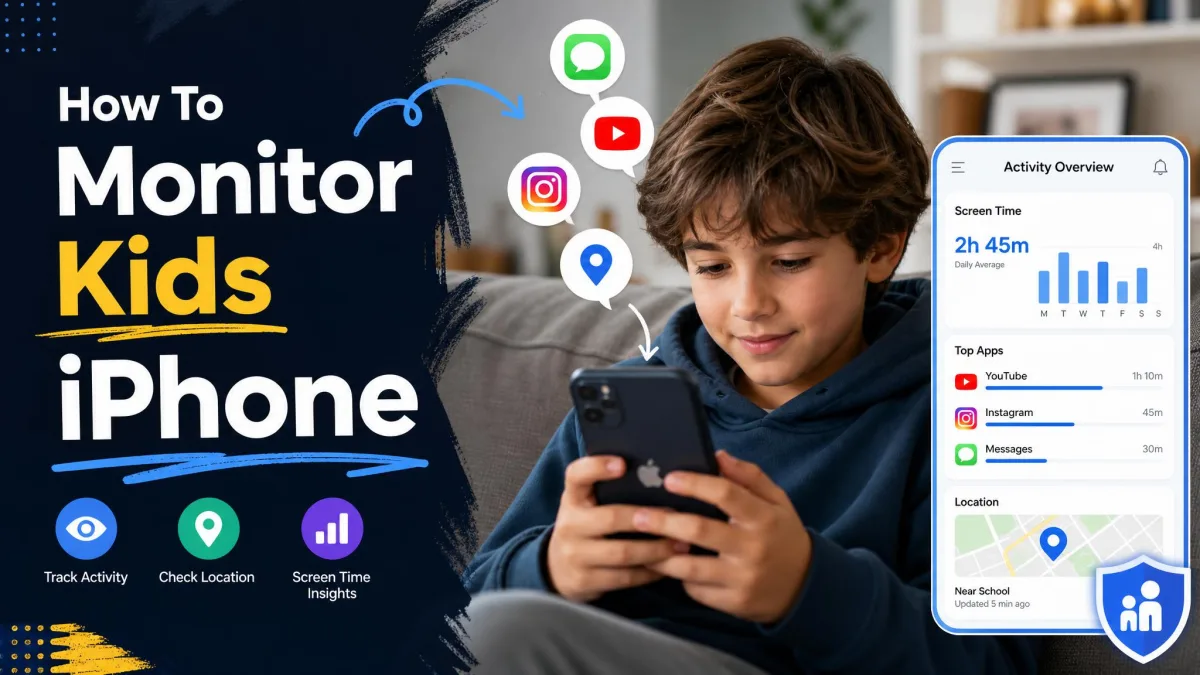
Your child has an iPhone, and you want to know what happens on it without turning your house into a surveillance operation. That is the ordinary version of this problem, and it has an ordinary answer. Apple ships a set of parental controls that cover screen time, app access, content ratings and location, and you can set nearly all of them up from your own phone in an afternoon.
What confuses most parents is not the setup. It is the gap between what these controls promise and what they actually show you. Apple's tools are strong on limits and weak on content, so a parent who expects to read messages will be disappointed, and a parent who wants to cap TikTok at forty minutes will be well served. This guide walks through every setting in order, explains what each one reveals, and is honest about the blind spots that no amount of configuration will close.
What You Can (and Can't) See on Your Child's iPhone
What Apple's built-in tools show you
Screen Time is the reporting engine behind every other control on the device. It records how long each app was open, which categories of app ate the day, how many notifications arrived and from which sender, how many times the phone was picked up, and which new apps were downloaded or purchased. On the web side it logs the domains Safari visited.
That is a genuinely useful picture of a child's day: four hours to social networking, eighty pickups before dinner, a new game on Tuesday.
What no parental control can see
The blind spots are large and they are structural. Message content never appears, and that includes iMessage, Snapchat, Instagram DMs and WhatsApp, no matter how the settings are configured. Individual searches are not recorded, and neither are the specific videos watched inside an app.
Safari activity is reported by domain only, so a busy hour of research or of something less wholesome both read as "google.com" with nothing to say what was actually typed into the box. YouTube is worse: the app and the browser get merged into one line, which makes app time and browser time impossible to pull apart.
Screen Time arrived in iOS 12, replacing the older Restrictions menu. Any iPhone your child is likely to be using in 2026 has it, but an old hand-me-down device stuck on an earlier release will not.
Before You Start: Child Accounts and Family Sharing
Create a Child Account or Apple ID for your kid
Everything else depends on your child having their own Apple Account inside your family group. A Child Account is required for children under 13 and remains available up to age 18, and the parent creates it rather than the child. If your child already signed in with an adult account they made themselves, you will need to sign that account out and start again before any of these controls will apply.
Set up Family Sharing and add your child
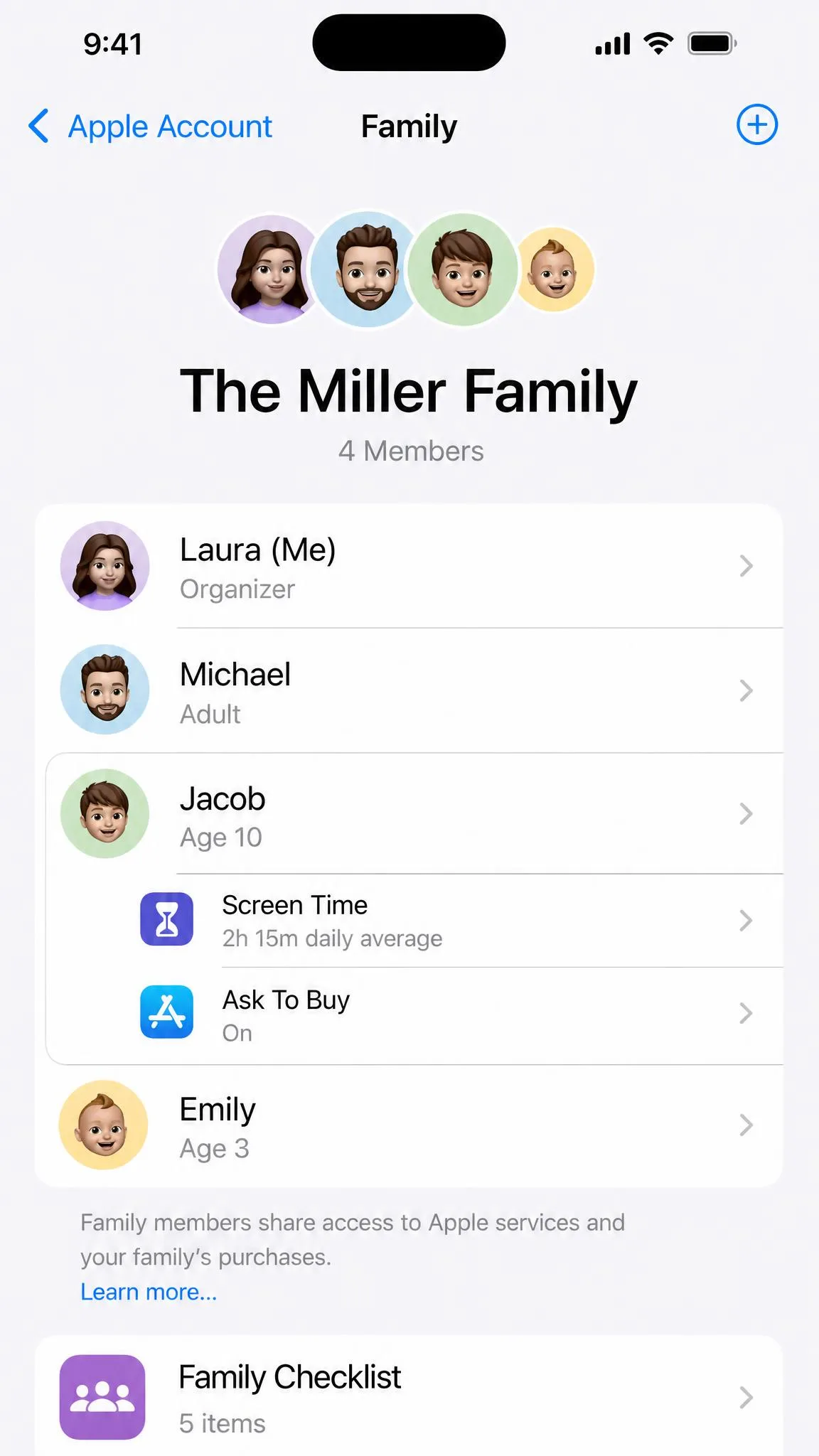
Open Settings, tap your name, choose Family Sharing, and invite your child or create the Child Account from there. One organizer can invite up to five other people, so a family group tops out at six.
Purchase Sharing, Location Sharing and shared subscriptions all hang off this group, so switch location on before you leave the screen.
Prepare the iPhone your child will use
Sign the device in to the child's account, not yours. Set a device unlock passcode that you know, then update to the current iOS release before you configure anything, because updates have a habit of quietly switching parental control settings back off. Recheck the configuration after every major upgrade.
How to Turn On Screen Time for Your Child's iPhone
Set it up from your own iPhone
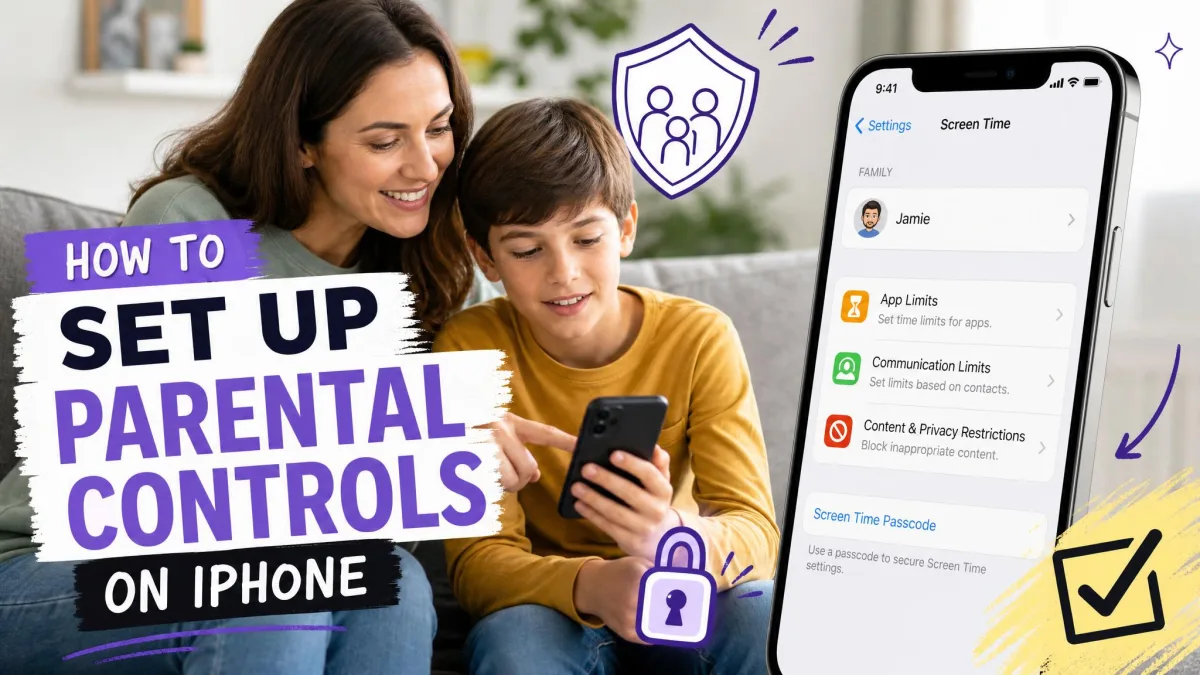
The fastest route skips your child's phone entirely. Open Settings on your device, tap Screen Time, scroll to the family list at the bottom, and select your child's name to configure their limits remotely. Every change you make here lands on their device without you touching it.
Do the whole setup from your own phone while your child is at school. It takes about twenty minutes, and you avoid the negotiation over each individual toggle that happens when a kid watches you do it.
Set it up on your child's iPhone
If you would rather work on the device itself, open Settings, tap Screen Time, and turn it on. Choose the option identifying the phone as a child's, then step through the prompts for Downtime, App Limits and content ratings as they appear.
Set the Screen Time passcode (and keep it private)
The passcode is a 4-digit code, and it is separate from the code that unlocks the phone. Set it to something your child has never seen you type.
Reusing the device unlock code as the Screen Time passcode hands your child the keys to every restriction on this page. The two codes have to be different, or nothing else you set up will hold.
How to Read Your Child's Screen Time Activity Report
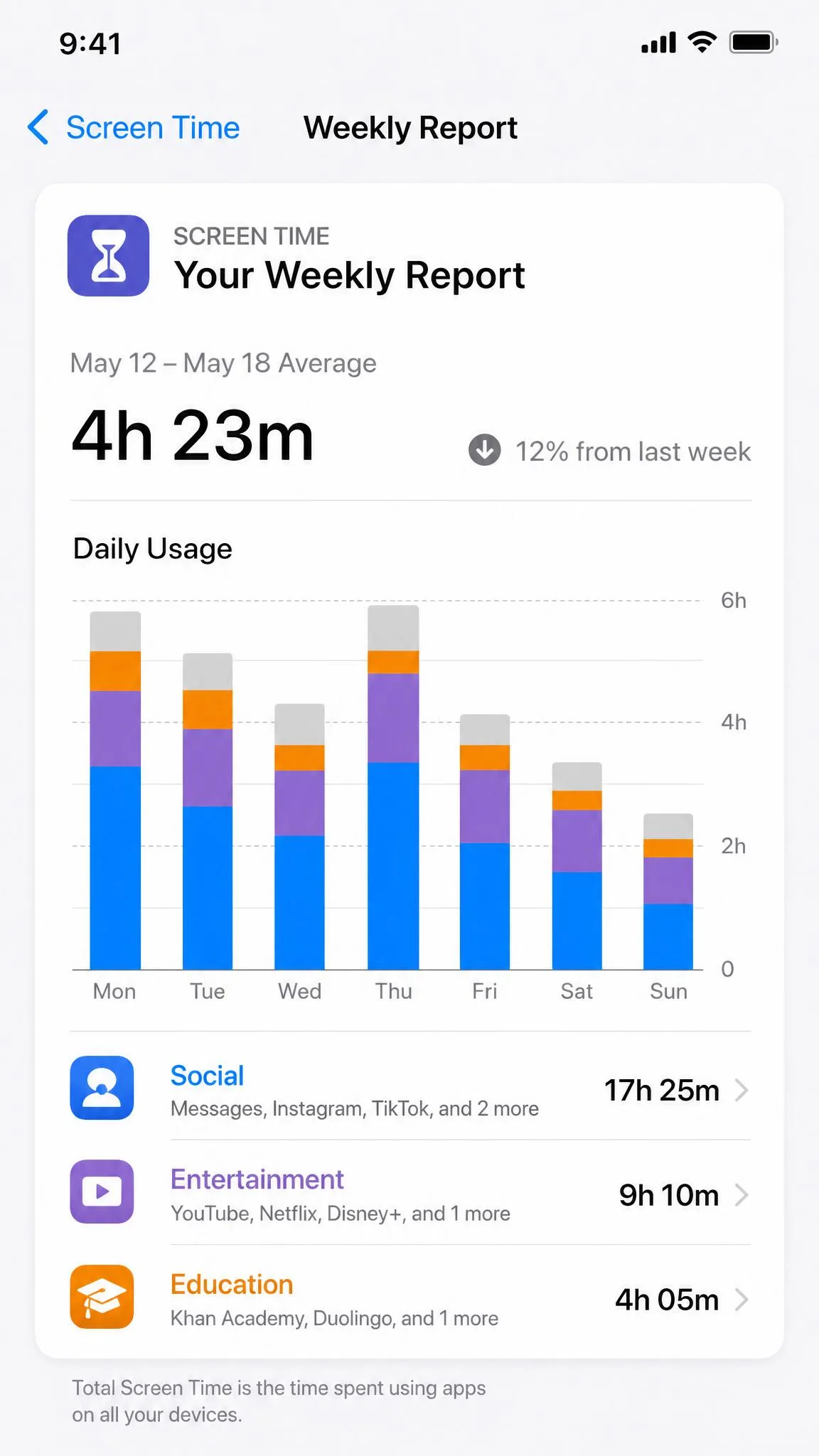
Daily and weekly app usage
The activity view opens on the last 7 days in Week mode. Swipe back through earlier weeks or switch to Day for a single-date breakdown. The report holds roughly 30 days of history, so anything older than the last month is simply gone, and there is no way to export or extend it.
Websites and web activity
Web activity sits in the same list as apps, grouped by domain. Apple allows you to manage what happens next from the same screen, since tapping a listed site offers to limit it. Treat the list as a map of where your child went rather than a transcript of what they did there.
Notifications and first pickups
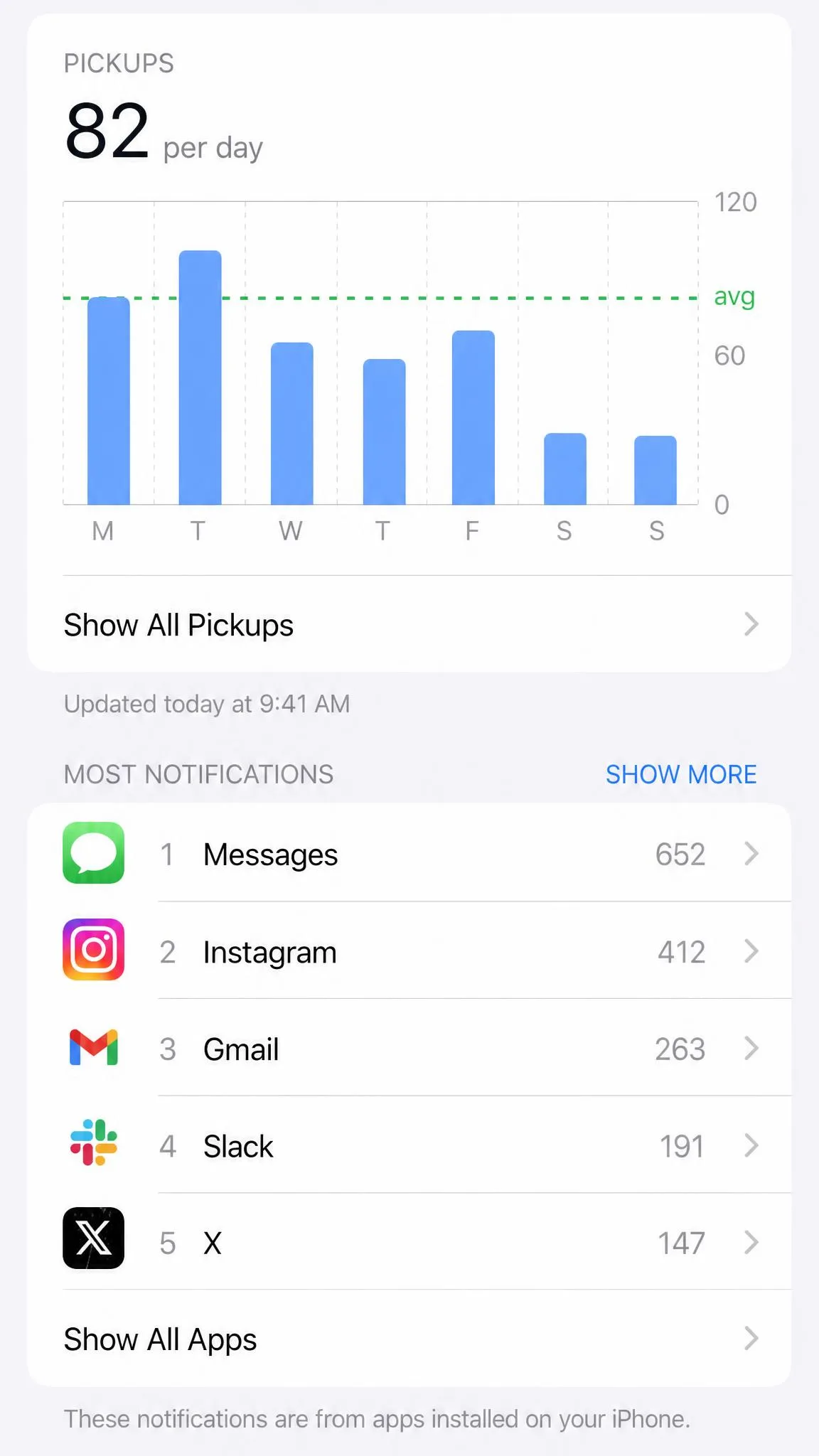
Scroll past the usage chart and you will find notification counts by sender and a pickups figure that includes the first app opened each time. This section tells you more about attention than the usage totals do. A phone picked up a hundred and twenty times is interrupting homework even if the daily screen total looks reasonable.
Setting App Limits, Downtime, and Communication Limits
Downtime: schedule when the iPhone winds down
Downtime turns the phone into a mostly blank screen on a schedule you set. Under Screen Time, tap Downtime, switch it on, and pick either the same hours every day or a custom schedule per weekday. Anything in the Always Allowed list, typically Phone and Messages, keeps working through it.
App Limits: cap time by app or category
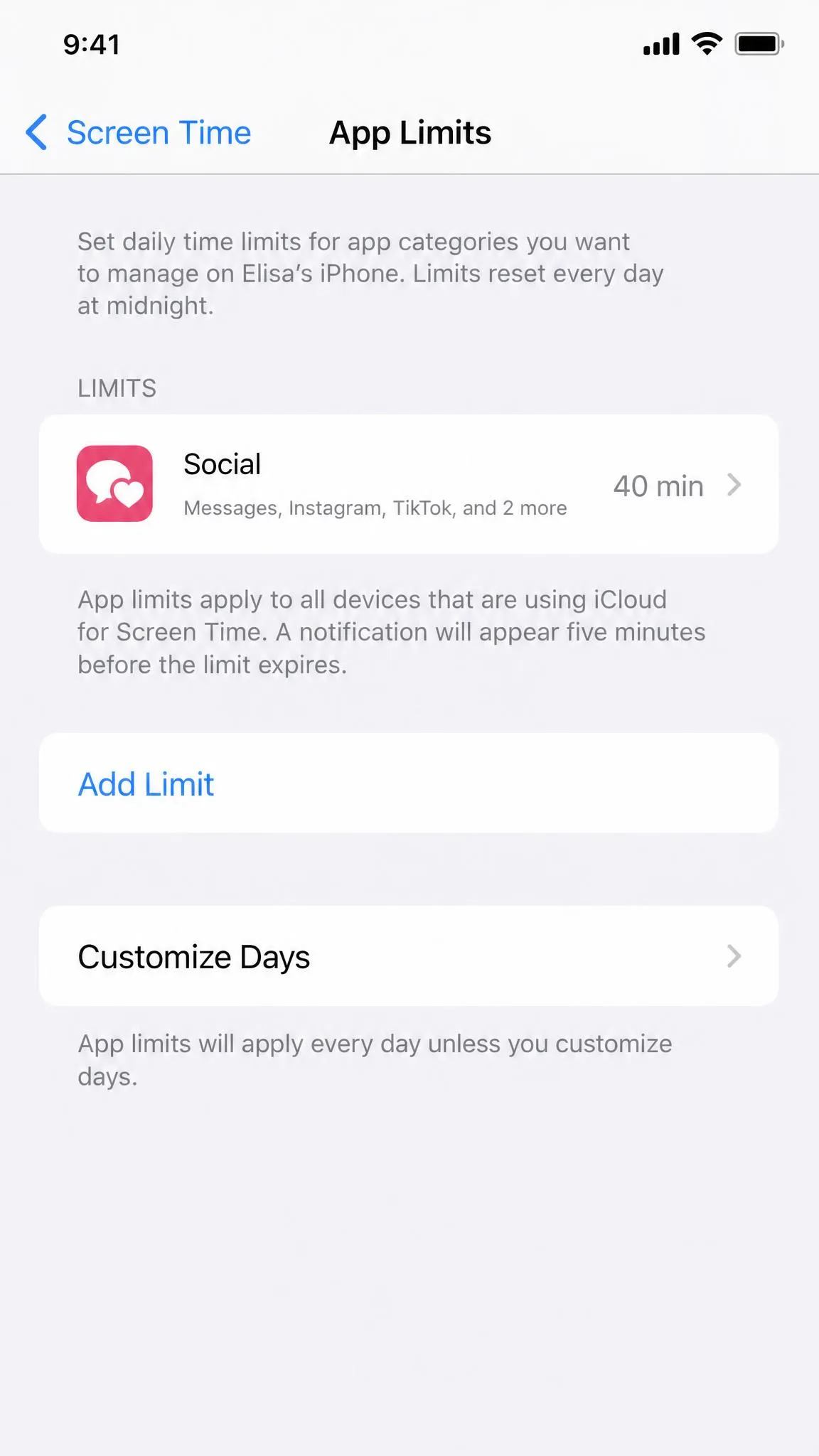
Tap App Limits, add a limit, and choose a whole category such as Social or a single app such as YouTube. You can set different allowances for different days, which is how most families handle the difference between a Tuesday and a Saturday.
Communication Limits and Communication Safety
Communication Limits govern who your child can call or message during allowed hours and during Downtime, and they draw on the contacts stored in the child's account. Communication Safety is the separate feature that blurs nude photos and video in Messages, AirDrop, FaceTime video messages and Contact Posters, and warns the child before viewing or sending. It is on by default for children under 13 who are signed in and part of a family group.
Handling "Ask for More Time" requests
When a limit runs out, your child can tap Ask For More Time and the request arrives on your phone for approval or refusal. The approval options Apple offers vary by iOS release, so check what your own prompt shows the first time a request comes through.
How to Set Content and Privacy Restrictions
Block explicit content and set age ratings
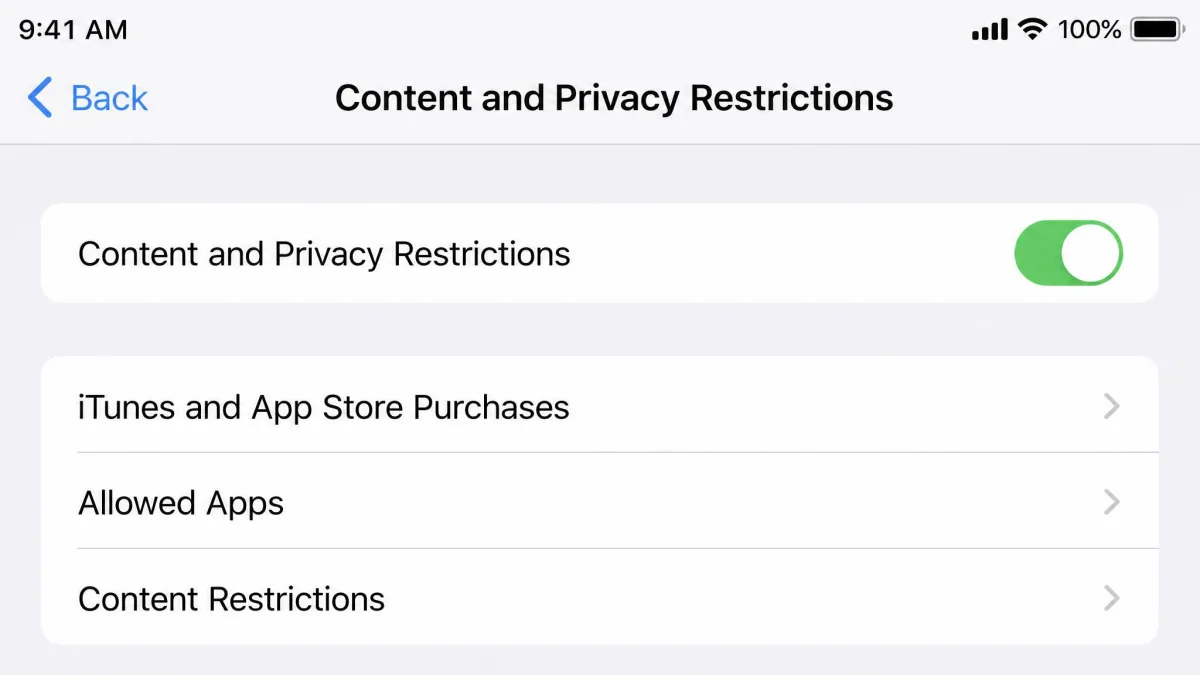
Content and Privacy Restrictions is the switch that governs what the App Store and the media apps will serve. Turn it on, then work down through movies, TV shows, apps, books, music, podcasts and news, setting each to an age-appropriate level. Capping the App Store age rating also hides already-installed apps rated above that tier from the Home Screen, which is a quick way to clear a device you inherited mid-stream.
Filter web content and allow specific sites
Under Web Content you can limit adult websites automatically or restrict browsing to an allow-list of specific sites you approve. The allow-list option is heavy-handed for a teenager and close to ideal for a seven-year-old.
Prevent App Store purchases and downloads
Go to iTunes and App Store Purchases and set in-app purchases and downloads to Don't Allow. This is the setting that ends surprise charges from a free-to-play game.
VPN settings sit outside the Screen Time passcode screen, so a VPN app installed on the device can route traffic straight around your web content filters. Block app installation, or check the VPN section of Settings periodically.
Lock privacy and account settings
Scroll to the bottom of the same screen and set Account Changes and the location toggles to Don't Allow. Apple's wider set of parental controls is only as strong as this last step, because everything above it can be undone by a child who can still reach the settings that define it.
How to Track Your Child's iPhone Location
Find My and Family Sharing location
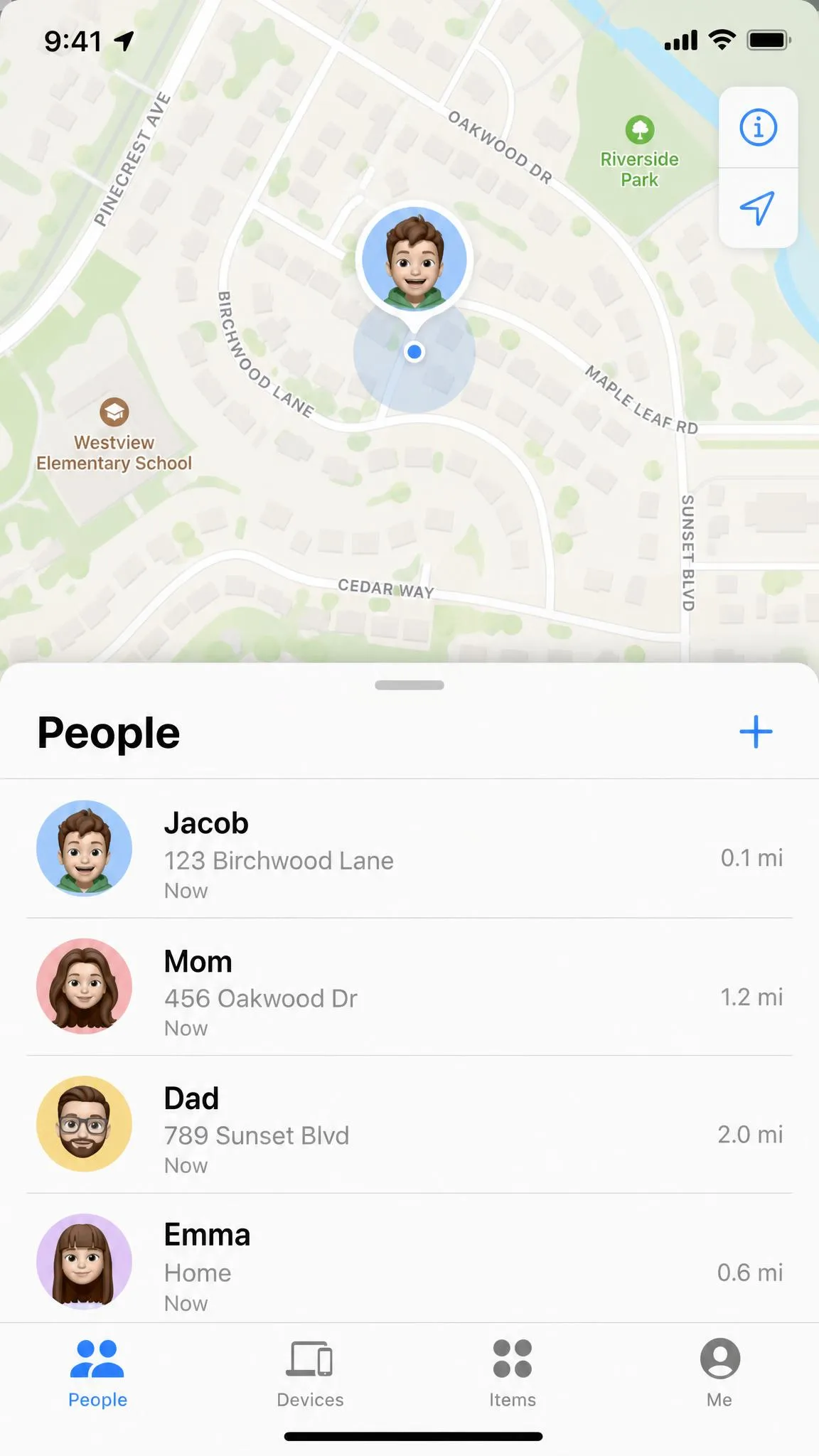
With location sharing enabled in the family group, your child appears on the map in Find My alongside their devices. Tracking also works for a child wearing an Apple Watch even when that child has no iPhone of their own, which suits younger kids well.
Turning on Location Sharing without also setting Location Services to Don't Allow Changes leaves your child free to switch sharing off again from their own device.
Location-based alerts for school and home
Open a family member's card in Find My, add a notification, and choose whether it fires on arrival or departure at a place you pick, with a radius you set. Two alerts, one for school and one for home, answer the daily question without you checking the map at all.
When Built-In Tools Aren't Enough: Third-Party Monitoring Apps
What third-party apps add
Apple gives you limits and location. A paid service adds content scanning, keyword alerts and a longer activity history, and those three features are what parents usually mean when they say the built-in tools are not enough.
Bark's iOS plan runs $148 per year, or $20 per month, covering unlimited devices, with a 7-day free trial that asks for a card up front. The Android plan is cheaper at $99 per year. Qustodio's Complete plan is $109.95 per year for unlimited devices with a 30-day free trial and no card required. The entry Basic tier covers up to five devices for roughly $55 to $60 a year, though that annual price moves with promotions and region, so check the current figure at checkout.
| Capability | Screen Time | Find My | Third-party app |
|---|---|---|---|
| App usage visibility | Yes, totals by app and category | No | Yes |
| Web activity | Domains only, no individual pages | No | Full URL and keyword filtering |
| Message content | No | No | Partial, DM scanning is Android-only on Bark |
| Location | Via Family Sharing | Yes, live map | Yes |
| Geofence alerts | No | Yes, arrival and departure | Yes |
| Works without the child's cooperation | Needs a Child Account in the family group | Needs sharing enabled | Needs an install or profile on the device |
| History window | 30 days | Live only | Longer, varies by plan |
| Cost | Free with the device | Free with the device | $148/yr Bark iOS, $109.95/yr Qustodio Complete |
What to look for (and what to avoid)
The iPhone versions of these services are consistently weaker than their Android counterparts, and the marketing rarely says so. Bark's direct message and search monitoring only work on Android and Amazon Fire tablets, so the headline feature that sells the subscription does not exist on your child's iPhone.
Setup is heavier too. Bark's iPhone install runs through a Windows desktop app and a USB cable, with the first scan taking up to 45 minutes against a few minutes on Android, and several other iOS parental control apps also require a computer connection for the first-time setup rather than an in-app flow.
Pros
- Apple's tools are free, built in, and cannot be uninstalled by the child
- Apple's controls survive without a subscription or a desktop install
- Third-party apps add keyword alerts and a history longer than 30 days
- Third-party services cover Android siblings from the same dashboard
Cons
- Apple shows no message content and no individual searches
- Apple keeps only about a month of activity history
- Third-party alerting is inconsistent, with some content alerts arriving within minutes and others never landing at all
- Third-party apps go blind while the phone is offline, so a dead-zone stretch never syncs
Be wary of any service that asks for your child's iCloud credentials or requires an install from outside the App Store. Those installs trigger repeated security warnings and can crash on activation-code entry, and handing over account credentials undermines the account protections you just spent an afternoon setting up.
Can You Monitor an iPhone Without Them Knowing?
The legal and ethical line for parents
As the legal guardian of a minor and the owner of the device and account behind it, you are generally within your rights to set and inspect these controls. Whether you should do it silently is a different question. Our view, after setting these controls up on family devices, is that disclosure costs you nothing you needed and buys a conversation you will want later.
What the rules actually say about kids' data
The COPPA rules on children's data govern what services may collect from children under 13, not what parents may see. They are also the reason a Child Account exists as a separate thing at all, and the reason a monitoring service should be able to tell you plainly what it stores and for how long. AAP guidance on family media use is the better reference for the household side of the decision.
Why covert monitoring usually backfires
Parenting guidance is consistent on this: controls work as a shared plan and fail as a punishment, and controls without conversation create false security. There is also a practical argument. A child who does not know about the monitoring has no reason to stop looking for the gaps, and the gaps are easy to find. We cover the same ground in more depth in our guide to how to monitor your kid's phone without invading their privacy.
From age 13 a child can leave the Family Sharing group from their own device without your approval, which is a useful reminder that the technical arrangement only lasts as long as the relationship behind it does.
How Kids Get Around Parental Controls (and How to Stop It)
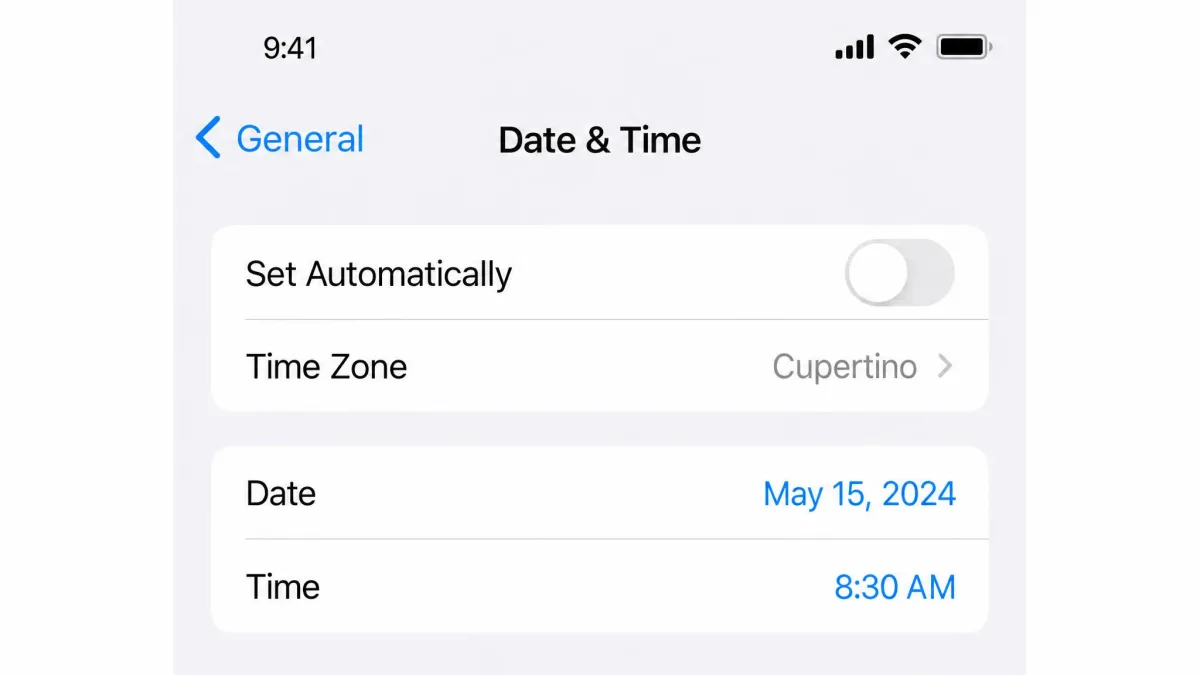
Every workaround below is well known to kids and mostly unknown to parents, which is exactly the wrong way round.
Changing the date or time zone under Settings, General, Date and Time rolls the clock past App Limits and Downtime and restores access, so lock account and system changes under Content and Privacy Restrictions. Deleting and reinstalling an app clears the limit set on that app, though a device-wide Downtime schedule still holds, which is a good argument for using Downtime as your backstop rather than relying on per-app caps alone.
Tapping a social link inside a contact card can open the platform in a limited browser view that App Limits do not catch. A VPN app routes web traffic around your content filters entirely. With a third-party service, the whole arrangement collapses the moment a child learns the parent passcode, and it comes off in seconds.
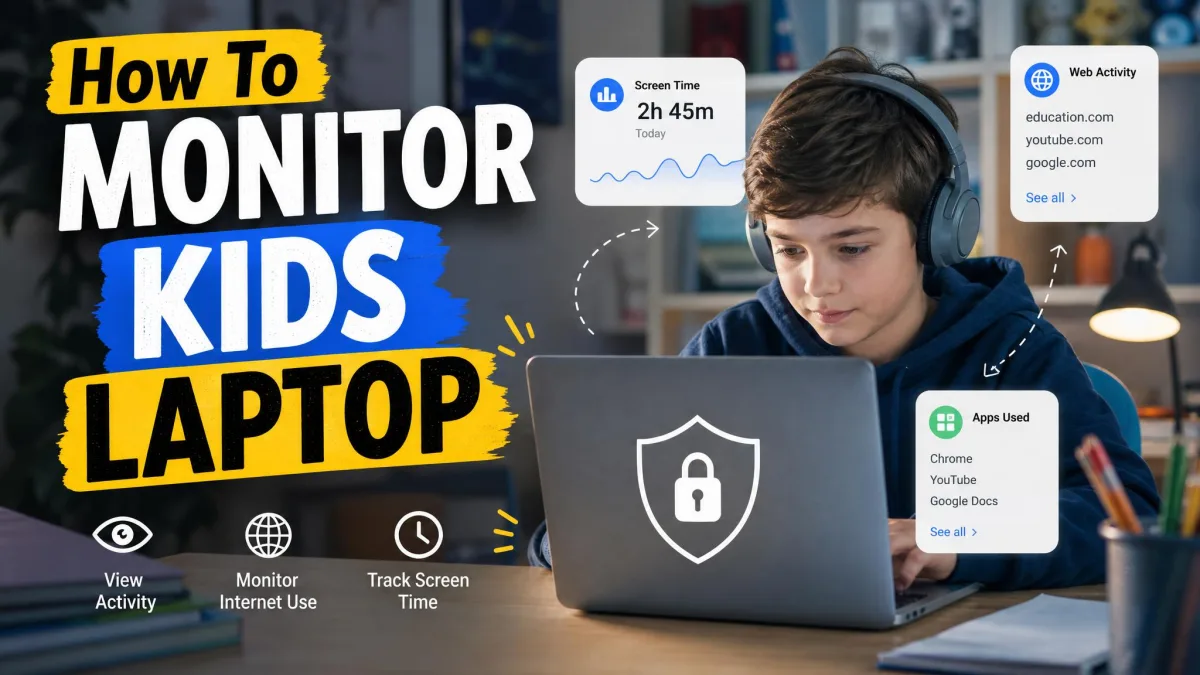
The device you did not configure is the largest gap of all. School-issued laptops and tablets sit outside your family setup entirely, and a tech-savvy kid will find that route long before you think to check it.
Monitoring That Keeps Trust Intact
The setup that works is not the strictest one. It is the one you can explain in a sentence your child would repeat accurately to a friend. Turn on Screen Time from your own phone, set a passcode they do not know, cap the two or three apps that actually cause trouble, lock the content ratings and the account settings, and switch on arrival alerts for school and home.
Then tell them what you did and why. Revisit it every few months as they get older, loosening the limits you no longer need, and recheck the whole configuration after each iOS update. That combination of clear limits and an honest conversation is what buys a parent peace of mind, and it is the part no app can install for you.