Qustodio is the best parental monitoring app for Android we tested in 2026. No other app in this group combined screen-time scheduling, deep web filtering, and location tracking into one dashboard that stayed reliable throughout our testing. If you want one app that does the most and does it dependably, this is the one to start with.
To reach that verdict, we installed and configured every Android-compatible app here on Pixel and Samsung test devices, worked through each permission list on the child device, and measured what each one delivered in daily use: filtering, alert speed, location accuracy, and battery drain. Net Nanny, the one exception, has ended Android support, so we judged it on the Windows, macOS, and iOS platforms it still runs on.
One honest finding shaped the whole guide. No app in this list is perfect, and every one of them forces a trade-off between depth, price, and how much access it asks for. The right choice depends on your child's age, your budget, and whether you need content monitoring or just firm limits.
Quick Picks: Best Parental Monitoring Apps for Android at a Glance
How We Tested Parental Monitoring Apps on Android
To compare like for like, we ran every app on the same two Android test devices: a Pixel and a recent Samsung Galaxy. Stock Android is the smoothest target for monitoring, while Samsung's aggressive battery optimization is exactly what breaks background monitoring, so it made a useful stress test.
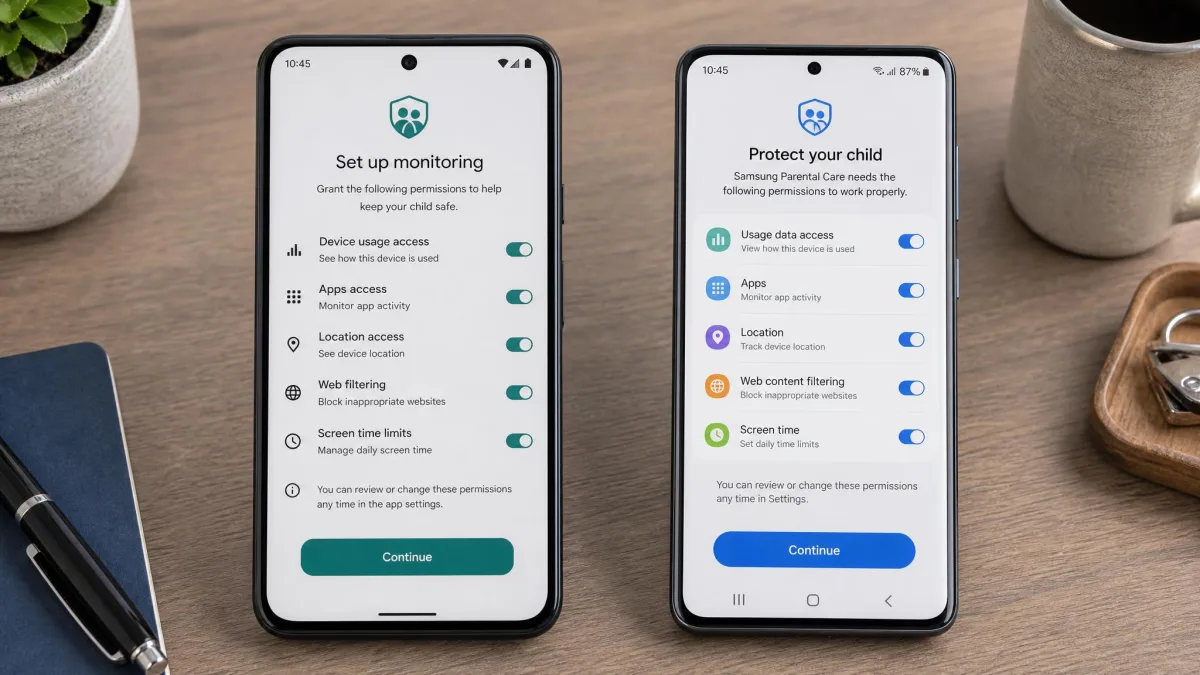
Installation followed the same pattern across the board. It took roughly 10 to 15 minutes per app, and every one needed physical access to the phone plus the child's Google account password. We worked through each permission list, enabled Device Administrator privileges where offered, and set a separate PIN for uninstall protection.
From there we measured what matters most: how filtering held against obvious workarounds, how quickly alerts landed, how accurate location was in real-world conditions, and how much battery each app drained. We scored each app out of 10 across filtering, screen-time controls, location, reliability, and transparency.
We should be upfront about how to read each verdict, because it changes what a score means. The genuinely free options, Google Family Link, Kaspersky Safe Kids' free plan, and Qustodio's one-device free tier, were tested free, the way most families will first meet them. So when a review below calls an app free, the verdict is about the free tier, and when it says a feature belongs to a paid plan, the verdict reflects the paid tier that app is judged on.
We ran the same real-world checks on a Pixel and a Samsung Galaxy, tailored to what each app supports: a staged-message test on Instagram and Discord to time alert delivery on the apps with social-message monitoring, a battery drain check across normal daily use, and a look at what happened when we disabled each VPN-based app's filtering VPN in Settings. The results below come from those runs, not from spec sheets.
Comparison Table: Features, Pricing & Platforms
Here is how all nine apps compare on the features that matter most. Price is the annual cost for the plan most families would actually use.
| App | Buy | Price per year | iOS support | App blocking | Web filter | Location & geofencing | Social monitoring | Bypass difficulty |
|---|---|---|---|---|---|---|---|---|
 |
Check price → | $59.95 (5 devices) to $104.95 (unlimited) | Yes | Yes | Yes, 30+ categories | Yes, geofencing plus 30-day history | Usage and alerts only | Hard |
 |
Check price | $99 Android; $148 iOS | Yes, needs Sync charger | Yes | Yes | Yes, live GPS | Strong, 30+ platforms | Moderate-hard |
 |
Check price | Free | Parent app iOS 16+ | Yes, approval | Limited, Chrome/SafeSearch | Yes, device location | No | Moderate |
 |
Check price | $49.99 | Yes, weak on iOS | Yes | Yes, industry-leading | Yes, per-day map | No | Moderate-hard |
 |
Check price | $59.99 | Yes | Yes | Yes | Yes, less accurate | Limited | Moderate |
 |
Check price | Free plan | Yes, limited | Yes | Yes, Chrome-only | Yes, no history | No | Hard |
 |
Check price | $35.88 to $95.88 | Yes | Yes | Yes, 85+ categories | Yes, geofencing | Yes, social monitor | Hard |
 |
Check price | About $99.96 to $150 | Yes | Yes | Yes, AI explicit-content | Yes, unreliable | No | Moderate |
 |
Check price | $39.99 to $89.99 | Yes | Yes | Yes, real-time inspection | Yes, Family Map | No | Android support ended 2024 |
1. Qustodio – Best Parental Monitoring App for Android Overall
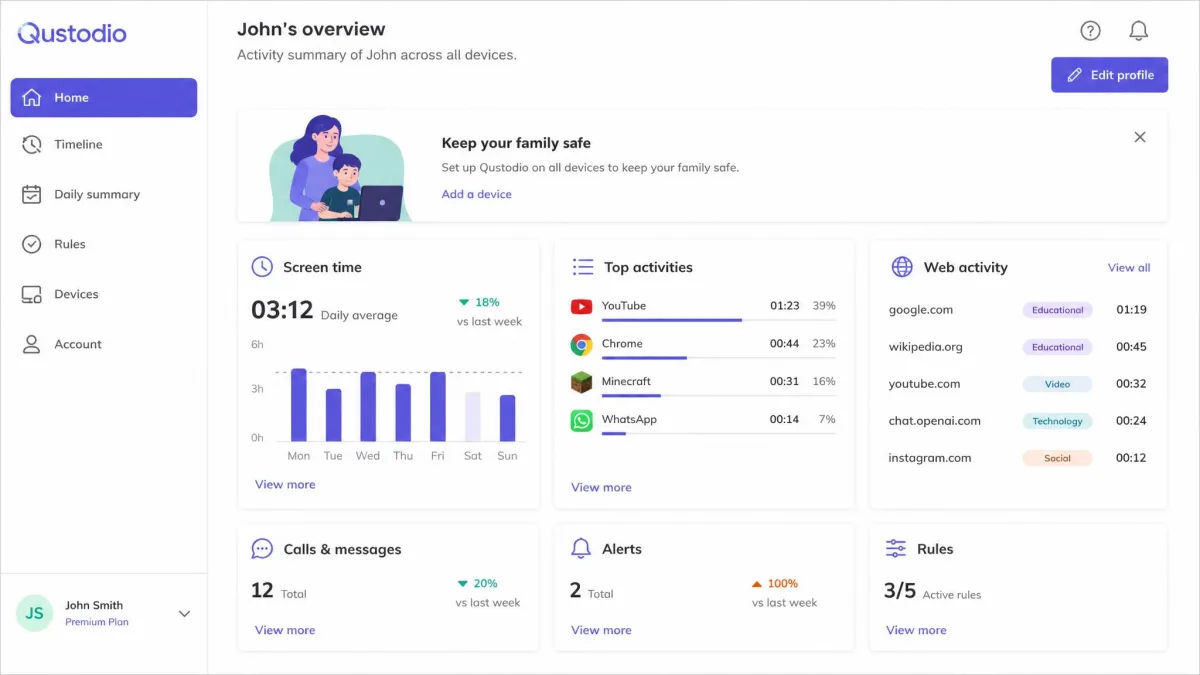
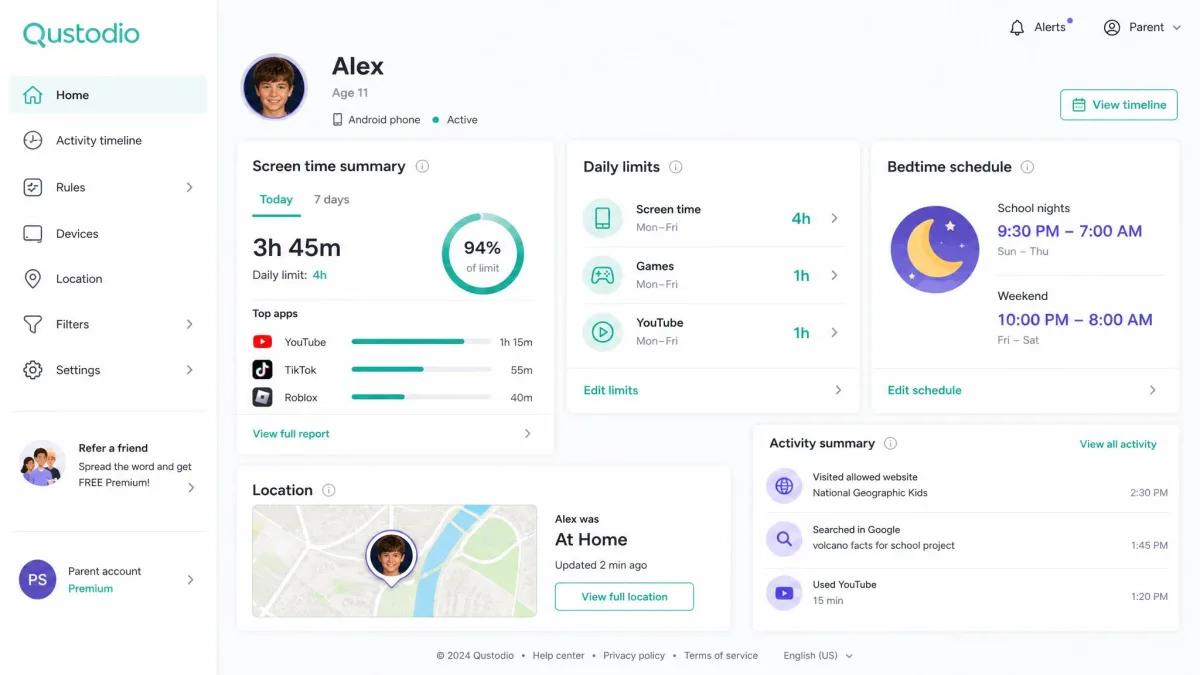
Qustodio took the top spot in our testing by staying dependable through the full run, with screen-time scheduling, deep filtering, and location tracking managed from one dashboard. Setup on our test Pixel took about 10 to 15 minutes and works through a long permission list, and the app is plainly visible on the phone, which is transparency by design rather than stealth.
Hands-On Test Notes
The moment that settled our verdict was a filtering check after an Android system update, when Qustodio kept its web rules active and untouched. Location was the second check, and it held steady at about 20 feet with updates every few minutes. With location on, battery drain ran about 10 percent extra a day, a fair price for keeping tracking live.
Pros and Cons
Pros
- Deepest feature set we tested, managed from one dashboard
- Hard to bypass with Device Administrator plus VPN-based filtering
- Free tier covers one device, useful for a first phone
Cons
- Full monitoring needs a long permission list on the child device
- Social monitoring tracks usage and alerts, not message content
- The child sees the app installed, which some teens resent
Key Features: Screen Time, Filtering, Location
Screen time is the headline: daily caps, per-app limits, and separate bedtime and school profiles. The web filter covers 30-plus categories, YouTube monitoring watches the kids' feed and the main feed, and location adds geofencing. A panic button lets the child alert you in one tap.
Pricing
The free tier protects one device. Basic is $59.95 a year for up to five devices, and Complete is $104.95 a year for unlimited devices, the best value for a multi-device household. Every paid plan carries a 30-day money-back guarantee, with discounts appearing on the Qustodio checkout page.
2. Bark – Best for Social Media and Text Monitoring
Where Qustodio manages screen time and filtering, Bark aims its monitoring squarely at social media and direct messages. It is the app to choose when what a child writes and receives online is the concern rather than how long they stay online.
Key Features: Social Media Scanning, Alerts
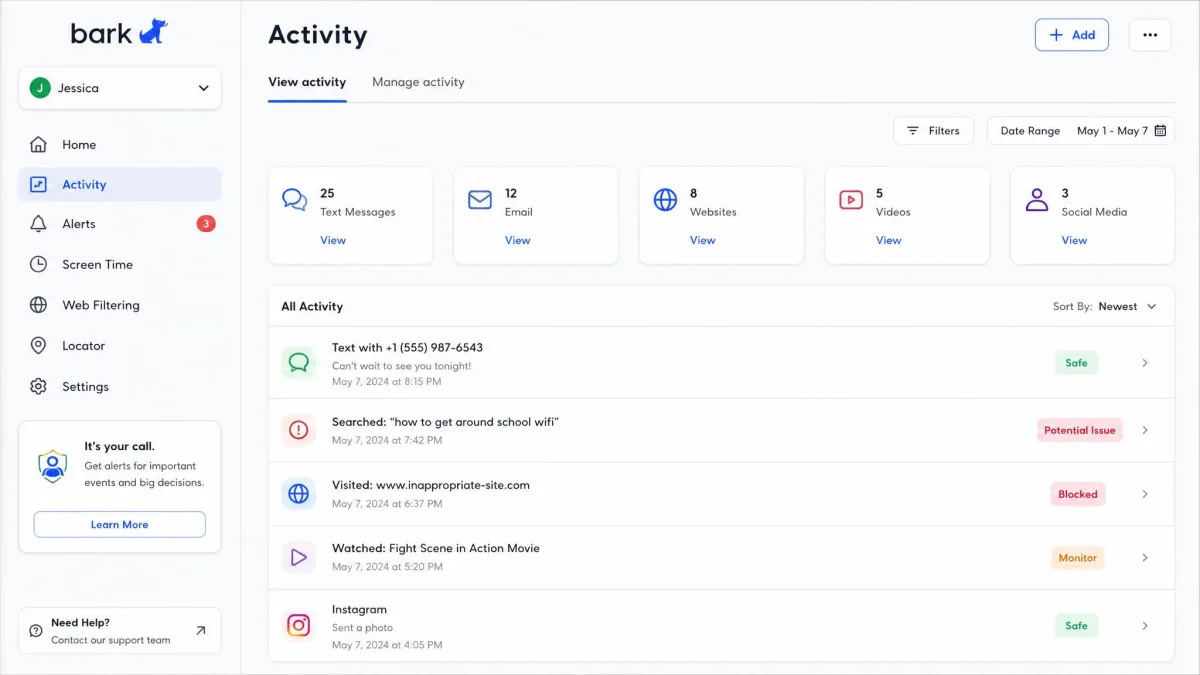
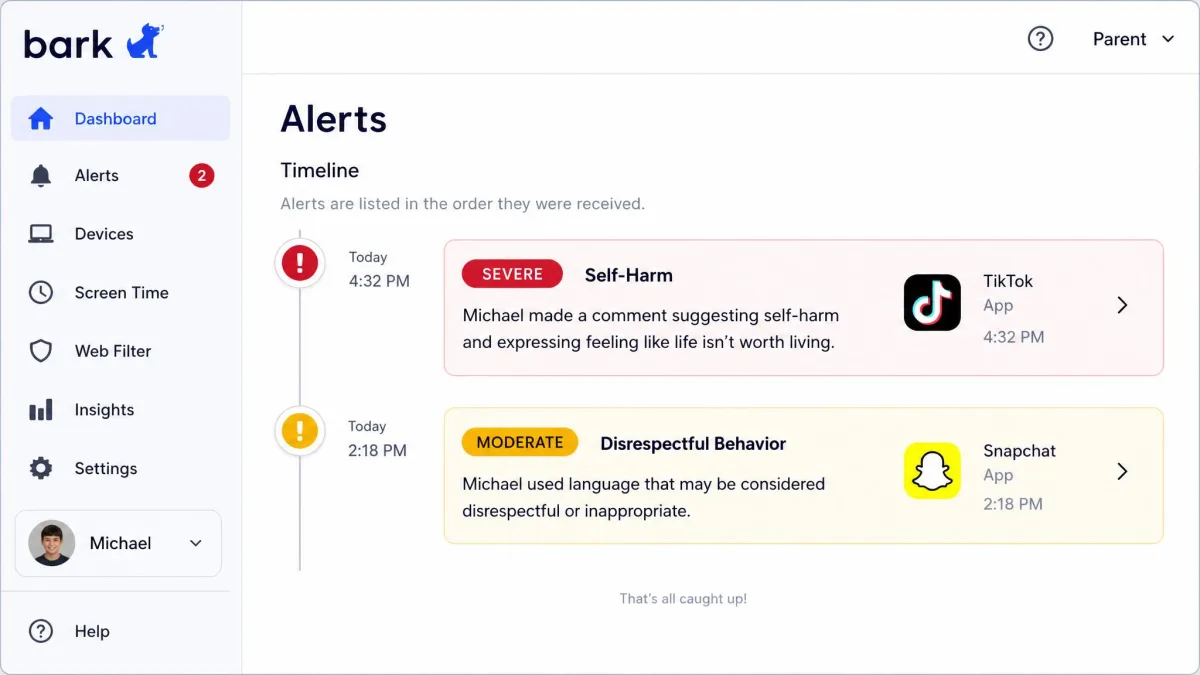
Bark scans texts, email, and web activity across more than 30 social platforms and checks photos and videos for nudity, violence, and self-harm. Alerts are sorted into severe, moderate, and minor, and parents see smart alerts rather than full transcripts.
Hands-On Test Notes
We connected test accounts on Instagram and Discord, then staged a message from a second phone that a parent would want to see flagged. Bark raised the alert within minutes and served it as a smart alert rather than a full transcript, with the dashboard's severe, moderate, and minor buckets making the priority legible at a glance. That speed is the product: the app is built to catch the moment something concerning happens, not to hand you a log of everything your child wrote. Its main caveat is over-flagging, though. Trevor Project research has documented benign content marked as explicit, a real worry for LGBTQ+ teens. And because Bark's focus is alerting rather than time management, pair it with Android's built-in limits for bedtime.
Pros and Cons
Pros
- Reads actual message content, not just usage
- Alerts sorted into severe, moderate, and minor
- One subscription covers unlimited kids and devices
Cons
- Needs your child's social account credentials
- No real screen-time caps or bedtime scheduling
- AI alerts can over-flag benign content
Pricing
Bark Jr is $5 a month or $49 a year but skips social direct-message scanning. Android Bark Premium is $14 a month or $99 a year; iOS is $20 a month or $148 a year and adds the Sync charger. One subscription covers unlimited kids, devices, and accounts, with a 7-day free trial. See Bark.
3. Google Family Link – Best Free Option, Built Into Android
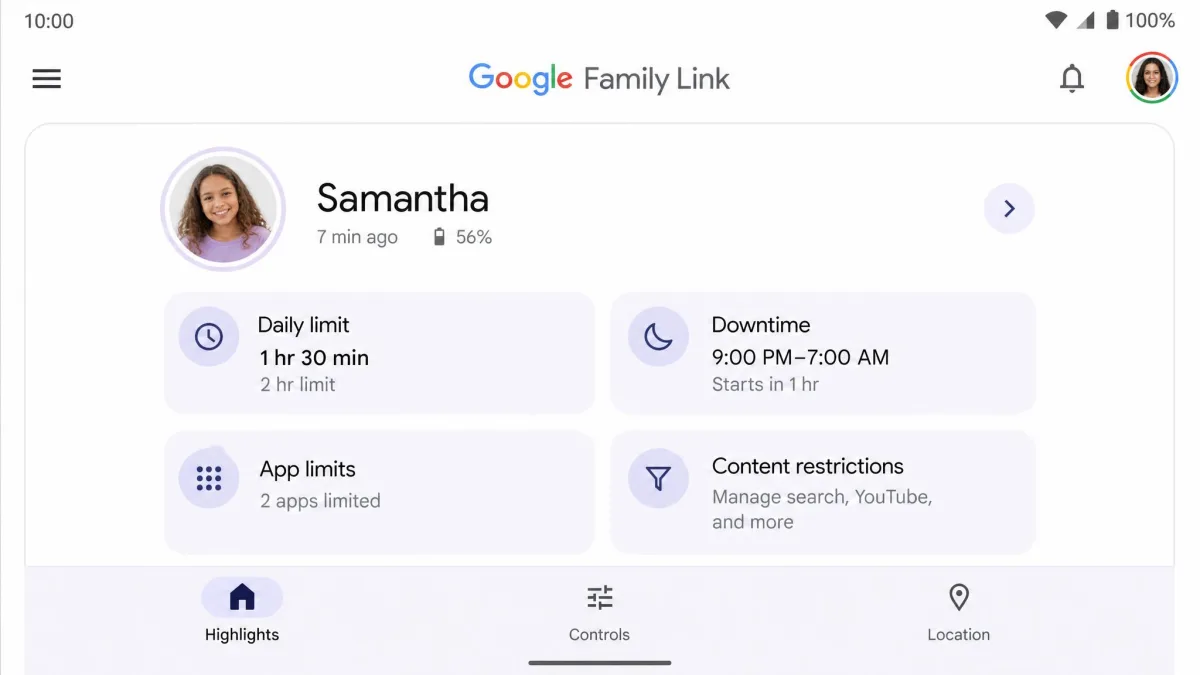
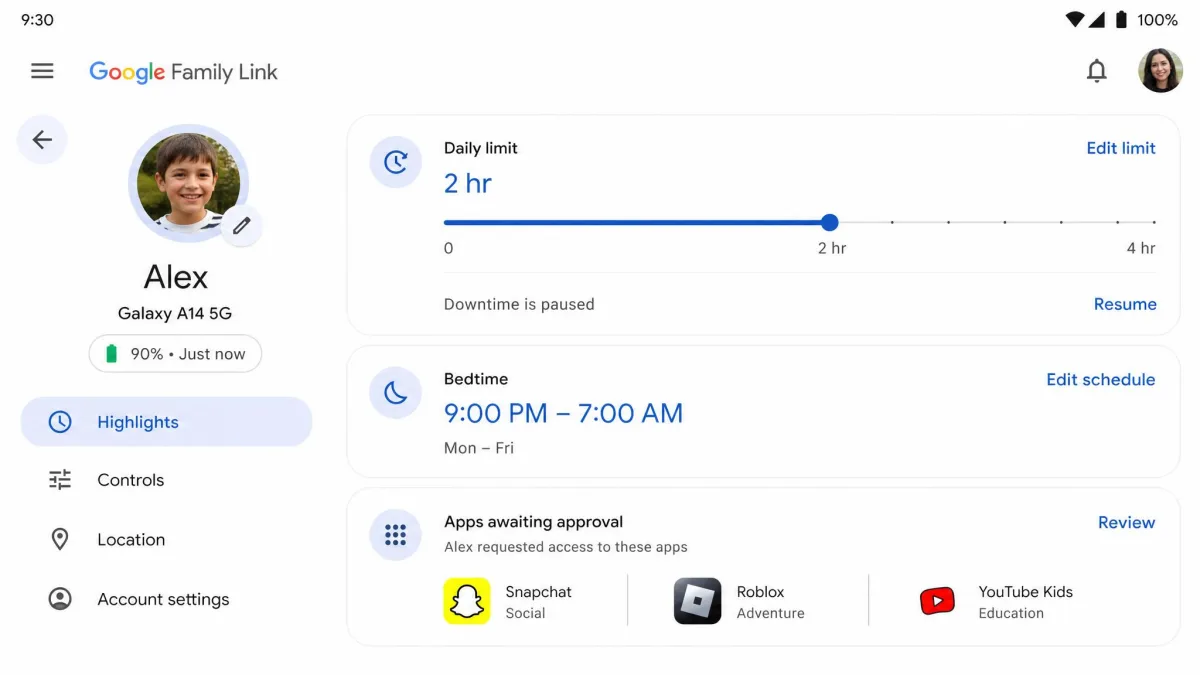
If you are not ready to pay, Google's answer is free and already on the phone. Google Family Link handles screen-time limits, app blocking, download approval, and device location, and in our testing the approval flows worked reliably on both test devices.
Pros and Cons
Pros
- Free, with no subscription at any point
- Built into Android, so nothing extra to install
- Reliable approval and supervision flows in our testing
Cons
- No visibility into SMS or encrypted messaging apps
- Features soften after the child turns 13
- Teens can appeal some restrictions
What Family Link Can and Cannot Do
Family Link gives you daily screen-time caps with a bedtime schedule, per-app limits with bonus time, approval for every install and purchase, and device location. We watched the flow work in real time: a block we set in the parent app landed on the Pixel about five minutes later, and a new install request paused for approval with a one-minute warning for the app in use. The reach is narrow: no visibility into text messages or encrypted messengers, so sensitive chats can route outside its view. Child accounts are designed for kids under 13, and since 2025 a teen cannot end supervision on their own.
Pricing
Family Link is completely free, managed from a parent app on Android 6.0 or newer, iOS 16 or newer, or the web. Child devices must be Android 6.0 or newer, Chromebooks, or compatible Fitbits; iPhones cannot be supervised. Download it from Google Family Link on Google Play.
4. Norton Family – Best Web Filtering
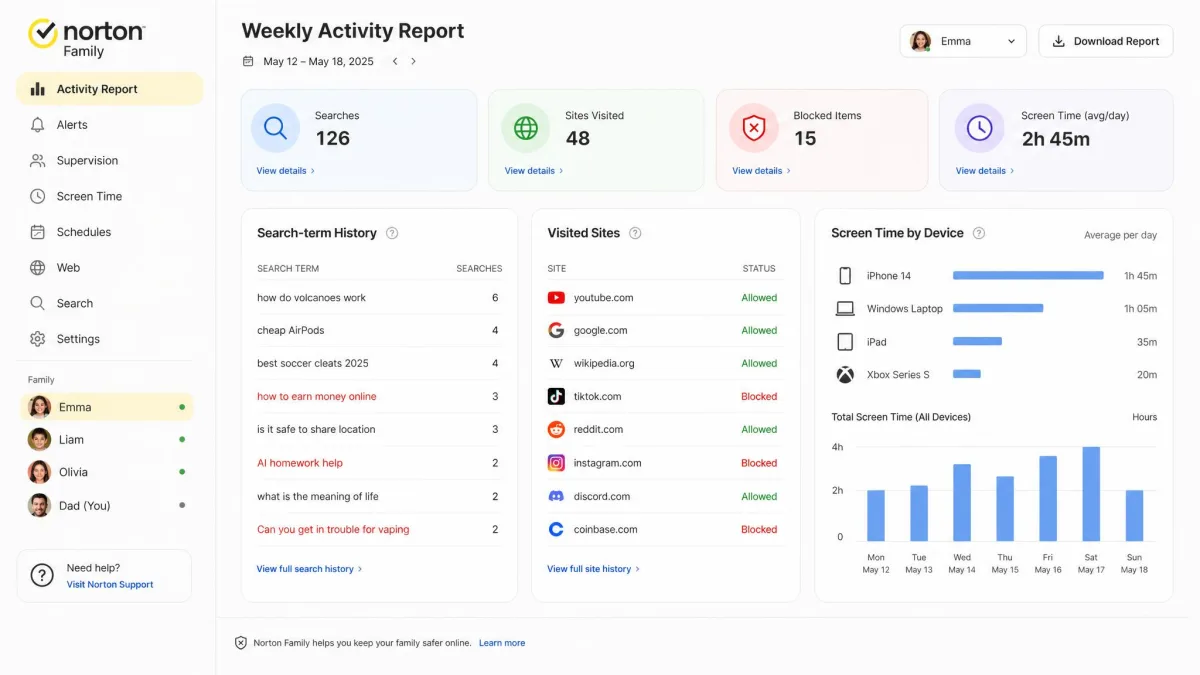
Norton Family and Bark both route filtering through their own VPN, but Norton's is the one we trust most with web content, adding search-term monitoring, YouTube supervision, and School Time lockdown. The catch is a dated interface.
Pros and Cons
Pros
- Industry-leading web filtering in our tests
- Search-term monitoring and YouTube supervision built in
- Unlimited devices on the standalone plan
Cons
- Interface feels dated
- No SMS or message-content monitoring
- Toggling off its own VPN breaks filtering
Key Features: Filtering, Screen Time, Reports
Filtering extends beyond category blocking into search-term monitoring and YouTube supervision with watched-history controls, and School Time locks the device to an approved allow-list. Screen-time limits sync across Android and Windows, and location reporting produces a per-day map.
Hands-On Test Notes
Filtering held across a long list of blocked categories in our testing, and battery drain stayed around 5 percent, the best we recorded. What surprised us was how easily filtering broke: switching Norton's own VPN off in Settings stops it entirely, a trap every VPN-based monitor shares. On iOS the app cannot enforce app-level time limits.
Pricing
Standalone Norton Family is $49.99 a year for the first year in the US, covering unlimited devices, and it is bundled free with Norton 360 Deluxe and Premium. There is a 30-day free trial, and refund windows vary by region and term, so check Norton Family for your country.
5. FamiSafe – Best for Teen Location and Driving
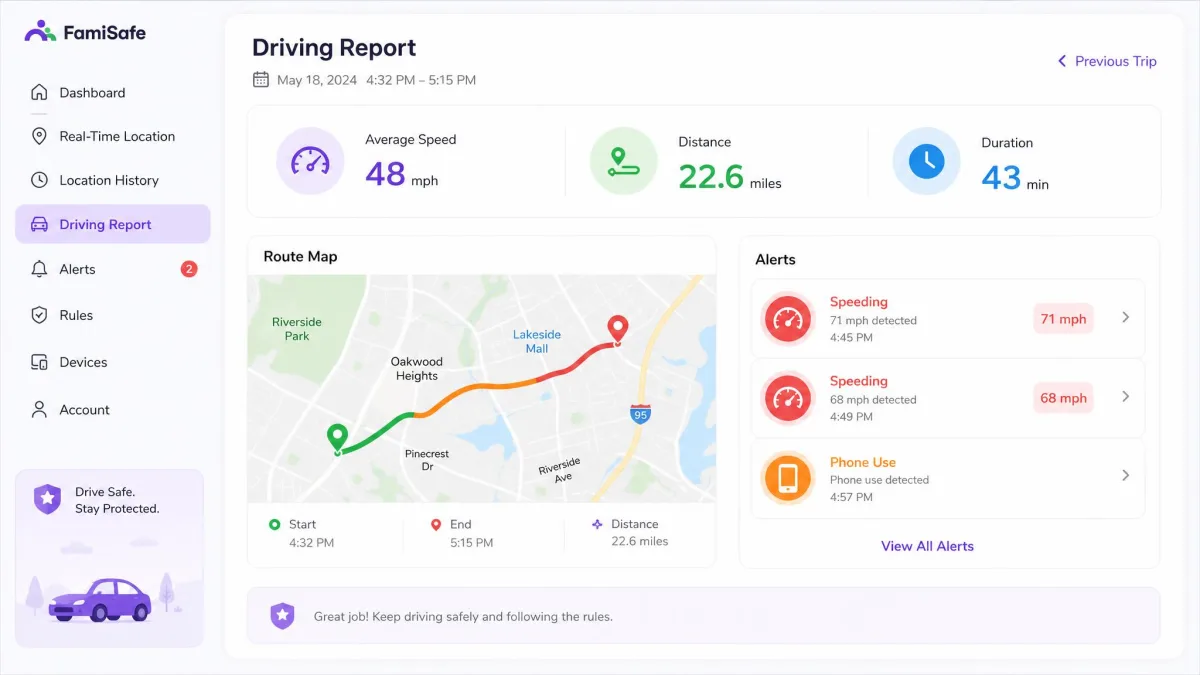
Norton is about filtering; FamiSafe tilts toward location and driving safety for older kids, with driving reports that track speed, distance, and route behind the wheel. Its YouTube content monitoring is genuinely better than the competition at this price.
Key Features: Geofencing, Driving Safety
Geofencing is the core: draw safe zones around home and school and get alerts when the child enters or leaves them. Driving reports add speed and route details for new drivers, a watchlist sets alarms on suspicious photos, and screen-time management and app blocking round out the suite.
Hands-On Test Notes
In our testing, FamiSafe's YouTube content monitoring outperformed rivals at a similar price. Less flattering was location, which was noticeably less accurate than Qustodio's, and a couple of features did not behave reliably on the Samsung unit. Customer support was slow to respond, and battery drain ran about 6 to 10 percent.
Pros and Cons
Pros
- Driving reports track speed, route, and location
- Best YouTube content monitoring at its price
- Annual plan covers up to 30 devices
Cons
- Location tracking less accurate than the leaders
- Some features proved unreliable in testing
- Customer support can be slow to respond
Pricing
The annual plan is $59.99 for up to 30 devices, about $4.99 a month. A quarterly plan is $19.99 for 10 devices, and a monthly plan is $9.99 for five. Every plan has a 7-day money-back guarantee. See FamiSafe.
6. Kaspersky Safe Kids – Best Budget Option
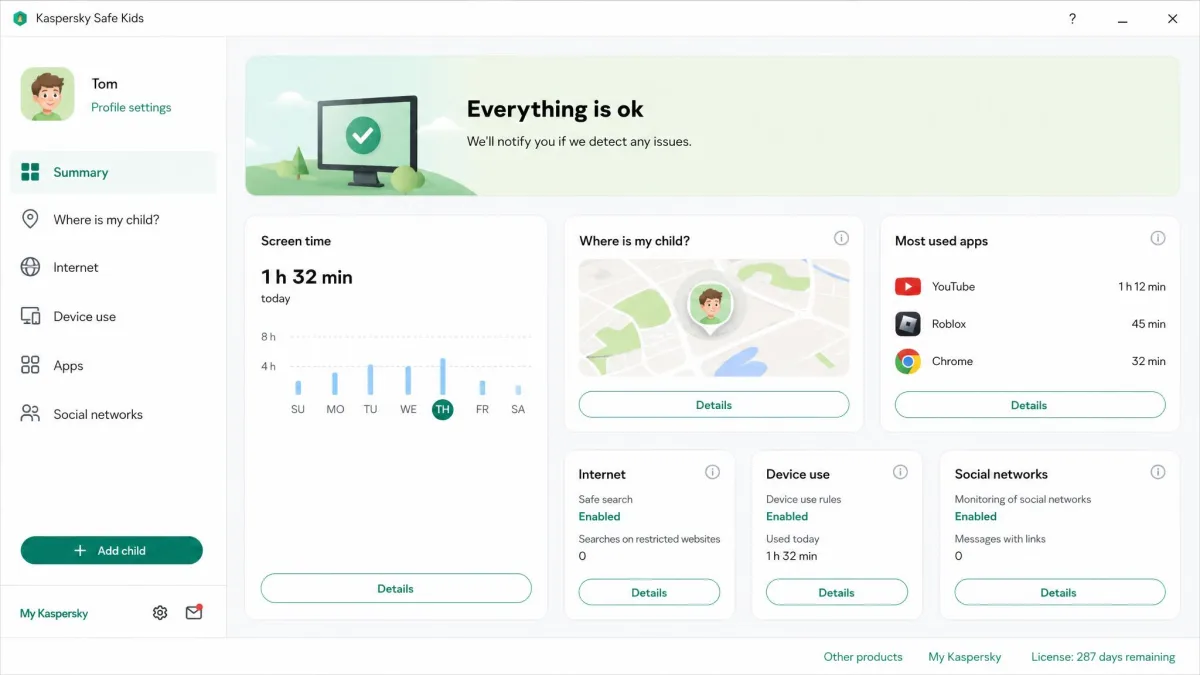
Where FamiSafe impressed us less on location, Kaspersky earns the budget slot. Kaspersky Safe Kids is the best free parental monitoring plan we tested, with filtering, time limits, and screen-time management on unlimited devices at no cost.
Pricing
The free plan is the story. Premium pricing is region- and promotion-dependent, roughly $13.49 to $20.99 a year in the US in 2026 reviews. The caveat for American readers: new US sales of Kaspersky products are banned under a Commerce Department ruling effective July 2024, so the free plan is the safe US pitch. See Kaspersky Safe Kids.
Key Features: Filtering, Location, Free Tier
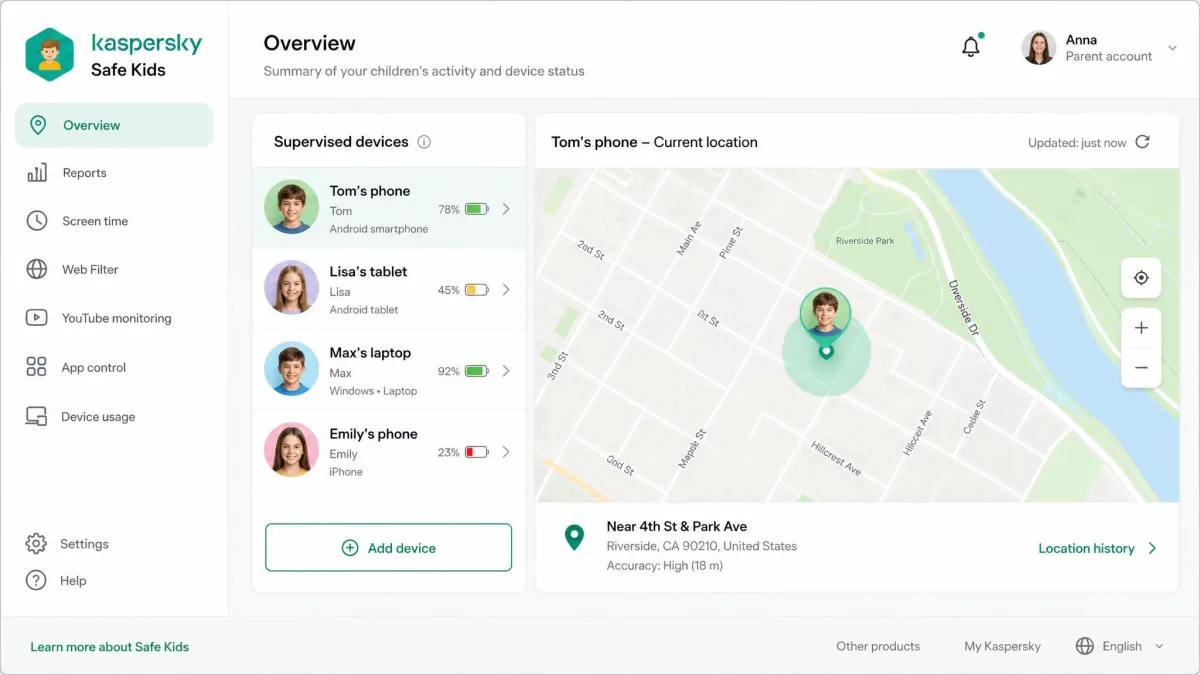
On Android, Kaspersky monitors web traffic through Chrome, and filtering held even against ExpressVPN and Private Internet Access in our tests; browsers like Brave and Tor escape its view. Location shows current coordinates with no history. The battery-level monitor is a standout, showing each device's remaining charge so you can tell when GPS stops because the phone is dead.
Pros and Cons
Pros
- Full-featured free plan on unlimited devices
- 24/7 emergency SOS button on the child device
- Battery-level monitoring is unique and useful
Cons
- Android monitoring limited to Chrome, so Brave and Tor escape
- Location has no history
- Not available for new US purchases
7. Mobicip – Best for Large Families
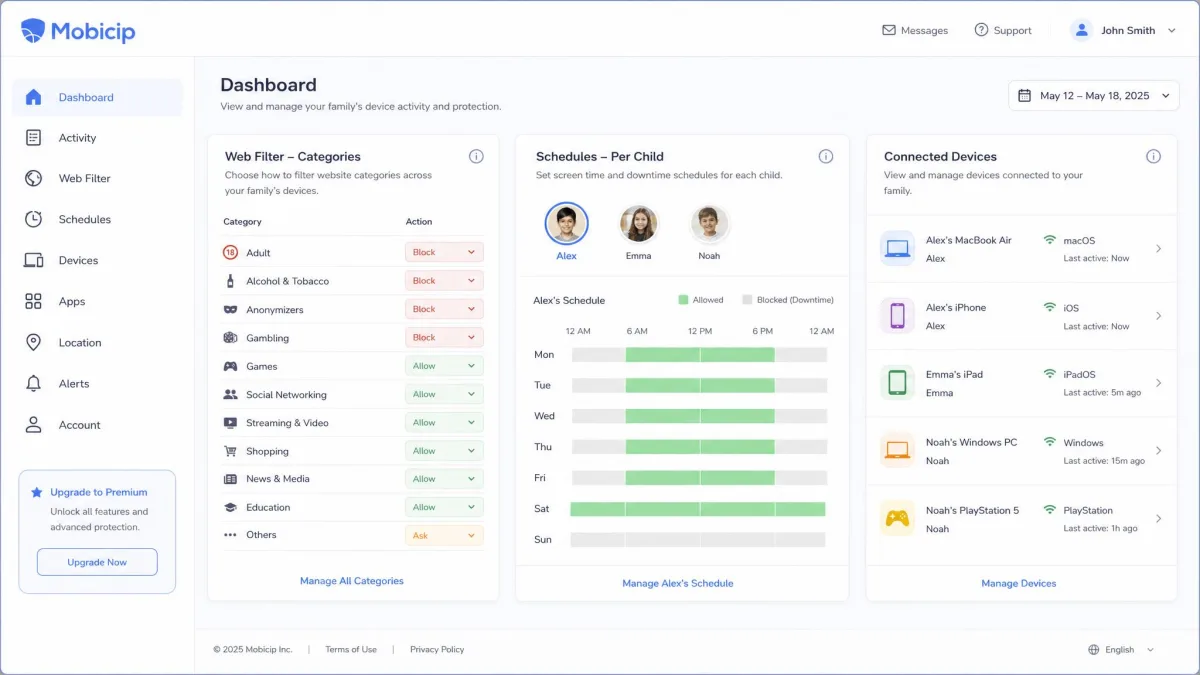
Where Kaspersky leads on budget, Mobicip earns its keep on device count and scheduling, with one subscription covering up to 20 devices. On the test Pixel we set up a 7-year-old profile and a 14-year-old profile, then worked through Mobicip's 85-plus category list on both. The blocked categories held on the younger profile, while the teen profile's per-child override passed through only the sites we had explicitly allowed on it. That filtering engine, inherited from Mobicip's original Safe Browser, is genuinely strong on Android; the letdown is the web dashboard, which feels a generation behind the rest of the app.
Pros and Cons
Pros
- Up to 20 devices on the Premium plan
- Strong Android web filtering with 85-plus categories
- 30-day money-back guarantee
Cons
- Web dashboard feels dated
- iOS coverage trails Qustodio
- Free plan limited to two managed devices
Key Features: Scheduling, Multi-Device
Scheduling is where Mobicip shines: managed schedules per child, filtering across 85-plus categories, and per-child overrides so a 14-year-old gets different rules than a 7-year-old. Social monitoring covers TikTok, Snapchat, Instagram, Discord, and Roblox, YouTube gets per-video history, and Family Locator adds geofencing.
Pricing
Lite is $2.99 a month billed annually, $35.88 a year, for up to 5 devices; Standard is $4.99 a month, $59.88 a year, for 10; Premium is $7.99 a month, $95.88 a year, for 20. All tiers carry the same features, so you pay for device count. A free BASIC plan covers two devices, Premium gets a 7-day trial, and every plan has a 30-day money-back guarantee. See Mobicip.
8. Canopy – Best Specialized Content Filtering
Mobicip filters by category; Canopy filters by content. It is a specialist built around AI detection of explicit material, including images and video, with sexting alerts on top, and nothing else in this list attacks that problem the same way. In our testing, a geofence entry alert arrived 15 minutes late one run and never came at all the next, and one location update took up to 30 minutes to register.
Key Features: Filtering, Porn Blocking, Alerts
Canopy's AI reviews content in real time and blocks explicit material before it loads across Chrome, Safari, and Edge. Its image and video analysis powers sexting alerts so an incoming explicit image surfaces for you. Screen-time management, geofencing, app blocking, and remote locking round out the suite, with annual billing only.
Pros and Cons
Pros
- Real-time AI filtering of explicit content
- Sexting alerts on explicit images
- Web blocking across Chrome, Safari, and Edge
Cons
- Geofencing alerts unreliable in our tests
- Location updates lagged 5 to 30 minutes
- Image detection caught only 2 of 9 attempts in one test
Pricing
Essential is $8.33 a month billed annually, about $99.96 a year, for one device; Plus is $9.99 a month for up to three; Premium is $12.50 a month for up to 10. There is a 1-week free trial and a 30-day money-back guarantee. See Canopy.
9. Net Nanny – Best for Comprehensive Control
Canopy is a specialist filter, and Net Nanny once was the generalist. We include it because it still appears on Android roundups, but the honest headline is that Net Nanny discontinued Android, Kindle Fire, and Chromebook support in early 2024 and now runs only on Windows, macOS, and iOS.
Net Nanny no longer supports Android. If you are choosing a parental monitoring app for a child's Android phone, skip it and read the six Android-native picks above instead.
Hands-On Test Notes
On the desktop client we loaded a profanity-heavy forum page, and Net Nanny's real-time inspector rendered it with the flagged language redacted instead of dropping the whole site behind a block screen. That inspection-first approach, rather than blocklist matching, is the strength the platform still executes well. The mobile clients feel dated by comparison, and on iOS its in-app browsers cannot be inspected the way the desktop client can, so coverage thins on the platforms it still supports. None of it helps an Android decision, which is why it sits last.
Key Features: Filtering, Social Monitoring
Filtering uses per-child allow and block rules that vary by age and time of day. Screen-time limits are solid, an internet kill-switch cuts the connection entirely, and Family Map provides GPS with location history.
Pros and Cons
Pros
- Real-time page inspection instead of blocklist matching
- Profanity masking keeps sites usable while filtering content
- Per-child rules vary by age and time of day
Cons
- Android, Kindle Fire, and Chromebook support ended in 2024
- No social media direct-message monitoring
- Mobile clients feel dated
Pricing
The 1 Desktop plan is $39.99 a year. The Family Protection Pass for 5 devices is $54.99 a year, and the 20-device pass is $89.99 on Windows, macOS, and iOS. Direct purchases carry a 14-day return policy. See Net Nanny.
Does Android Have Built-In Parental Controls? (Family Link, Kids Mode)
Android ships with more parental control than most people realize. Google Family Link is the headline, and it is free. Many Samsung and other phones add a Kids Mode that locks the device to an approved set of apps, Google Play's content filters restrict maturity ratings, and Digital Wellbeing adds app timers and bedtime modes without a child account.
Where the built-ins fall short is content. Family Link can approve or block apps and set screen-time limits, but it cannot read a message or tell you what a child posted on Discord, and web filtering is limited to Chrome with SafeSearch. If your child is under 13 and you just want a curfew and an app gate, Android's built-in tools are genuinely enough. The paid apps add content monitoring, location history, and social alerts the platform does not offer.
Parental Monitoring Features That Actually Matter
The feature list is long, so here is what each cluster of features actually does for you, and where the apps diverge in practice.
The biggest reliability gaps we found were always the same three: filtering that dies when a VPN is toggled off, geofence alerts that arrive too late, and location tracking that drains the battery.
— From our hands-on test notes
Screen Time, Bedtime and Instant Pauses
Daily screen-time caps are the feature most parents actually use. Qustodio adds separate bedtime and school profiles plus a pause button, Norton Family syncs its limits across Android and Windows, and Family Link handles the basics with a daily cap and bedtime schedule. Bark is the outlier, with no real caps, so pair it with Android's built-in timers.
App Blocking, Limits and Download Approval
Blocking stops a specific app from running, and download approval pauses every new install until a parent says yes, which is how you stop a 12-year-old from silently adding a chat app. Family Link makes approval mandatory and propagates new blocks in about five minutes, giving an actively used app a one-minute warning. Qustodio and Norton block by app or category with per-app time limits on top.
Web Filtering on Mobile Browsers
This is where the architectures diverge. Qustodio, Bark, and Norton Family route traffic through their own VPN for the deepest coverage, but turning that VPN off in Settings disables filtering. Kaspersky filters only within Chrome on Android, so Brave and Tor escape. Family Link leans on Chrome with SafeSearch, and Canopy filters by content rather than category, using AI in real time.
Location Tracking and Geofencing
Location accuracy varied a lot in our tests. Qustodio held steady at about 20 feet with a 30-day history, Norton gives a per-day map, and Bark offers live GPS. Kaspersky shows current coordinates with no history, FamiSafe was the least accurate, and Canopy's geofence alerts arrived 10 to 15 minutes late or not at all. Geofencing is the feature to test early, because a fence that alerts late is worse than none.
Social Media and Message Monitoring
This category separates monitoring from control. Most transparent apps see usage, not content; only Bark and Mobicip read actual content, and Bark needs your child's social credentials to do it. Qustodio tracks usage and raises alerts on Instagram, TikTok, Snapchat, and X without seeing message bodies, and no app here can read an end-to-end encrypted chat.
How to Choose the Best Parental Monitoring App for Android
The right app is the one that matches your child's age, your budget, and the privacy trade-offs you are comfortable making. For a wider look at the parental-control category, including Android's built-in options, our guide to the best parental control apps for Android is worth reading alongside this one.
Match the App to Your Child's Age
For a child under 13, Google Family Link is a reasonable starting point. It handles the curfew and app gate, it is free, and younger kids rarely try to defeat it. As kids move into the teen years, the calculus changes, because Family Link softens some supervision after 13 and a determined teen can switch browsers or route around Chrome-only filters. That is where Qustodio's deeper filtering or Bark's content alerts earn their price, while FamiSafe's driving reports suit newly licensed teens.
Free vs. Paid Parental Monitoring Apps
Free tiers fall into two camps. Family Link and Kaspersky's free plan are genuinely functional, not demos, which is rare; Kaspersky's is the more complete of the two, while Family Link is the platform-native option. Qustodio's free tier protects one device and Mobicip's BASIC covers two, which works as a way to try the interface first. The paid tiers add content monitoring, location history, and social alerts.
Privacy and Trust Considerations
Transparent monitoring is a family conversation, not a surveillance operation. Every app in this guide is visible on the child's phone, and we recommend telling your child what you are installing and why.
How to Install Parental Controls on an Android Device
The setup pattern is the same for every app. Start with the child's phone in your hands, because every app needs physical access. Open Settings, go to Accounts, and confirm the child is signed into the Google account you want to supervise. Install the child version of the app from Google Play, then approve each permission it requests, including location, notifications, and usage access. Enable the app's Device Administrator role and set the device-admin PIN it gives you. On a Samsung phone, open Settings, go to Battery and device care, then Battery, and set the monitoring app to Unrestricted so battery optimization does not stop its background processes.
Keep the child's phone in your hands for the full setup, including the Google account password. Half-installed monitoring is worse than none, because the child sees the app and learns it can be disabled from Settings.
Can a Child Bypass These Apps? (And How to Prevent It)
Every transparent monitoring app in this guide can be defeated. Two routes defeat all of them: Android Safe Mode disables third-party monitoring entirely, and a factory reset removes every app and setting. Neither is casual, but a determined teenager will figure them out, and the barriers that stop casual bypass are what the paid apps add.
The practical layers start with Device Administrator and a separate PIN, which stops uninstalling from normal Settings. Disable aggressive battery optimization on Samsung and Xiaomi phones so monitoring keeps running, and remember that VPN-based filtering stops when the app's VPN is switched off. Rates of online harassment remain high enough that a visible monitor is usually worth it.
Do not rely on any single app as a guarantee. A factory reset defeats every transparent monitor, so pair the software with an open conversation and occasional device check-ins rather than assuming the app is doing all the work.
Apps That Didn't Make the Cut
Two categories got a long look and missed the list. FamilyTime, Aura, and a few generic suites offer similar features without doing anything clearly better. More important is the surveillance category: mSpy and uMobix style tools that operate in stealth, hiding the app and funneling messages and location to a private dashboard. We deliberately exclude those, and our guide to the best spy apps for Android covers the tools we leave out. The 2024 mSpy customer-data breach exposed millions of customer records, and stealth monitoring of your own child is exactly what the Coalition Against Stalkerware warns about.
Frequently Asked Questions
What is the best parental monitoring app for Android?
Can my child uninstall or bypass the app?
Will my child know I'm monitoring them?
When do families outgrow free parental monitoring apps?
Can Bark or Mobicip read messages in WhatsApp, iMessage, or Signal?
Is Qustodio better than Google Family Link?
Does Bark work on Android without extra hardware?
Final Verdict: Which Android Parental Monitoring App Should You Choose?
For a single answer, Qustodio is the parental monitoring app we would install on an Android phone for most families. Bark is the better choice when social media and messages are the real worry, Google Family Link should be your first step with a younger child and a zero budget, and Kaspersky Safe Kids offers the strongest free plan for families outside the US sales ban.
The honest closing note is that no app replaces the conversation. Every tool here is visible by design, every one can be worked around by a determined teenager, and the ones that hide themselves are the ones to avoid. Choose the app that matches your child's age and budget, tell them it is installed and why, and treat the dashboard as one layer of a family agreement rather than a security guarantee.