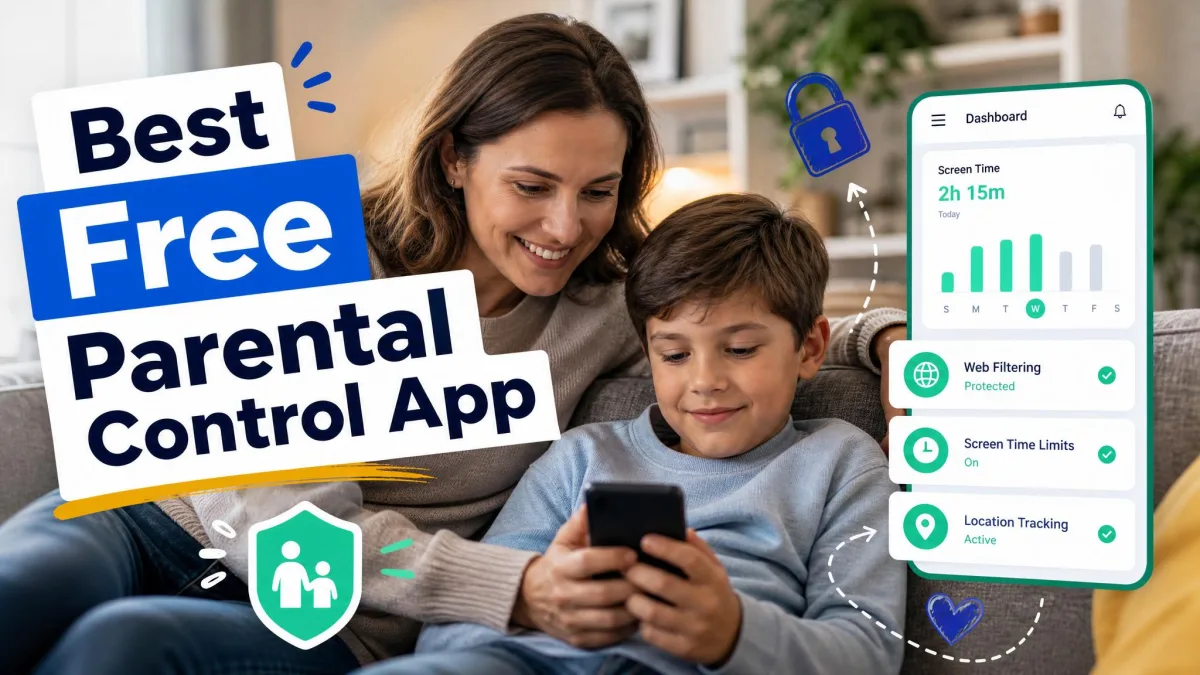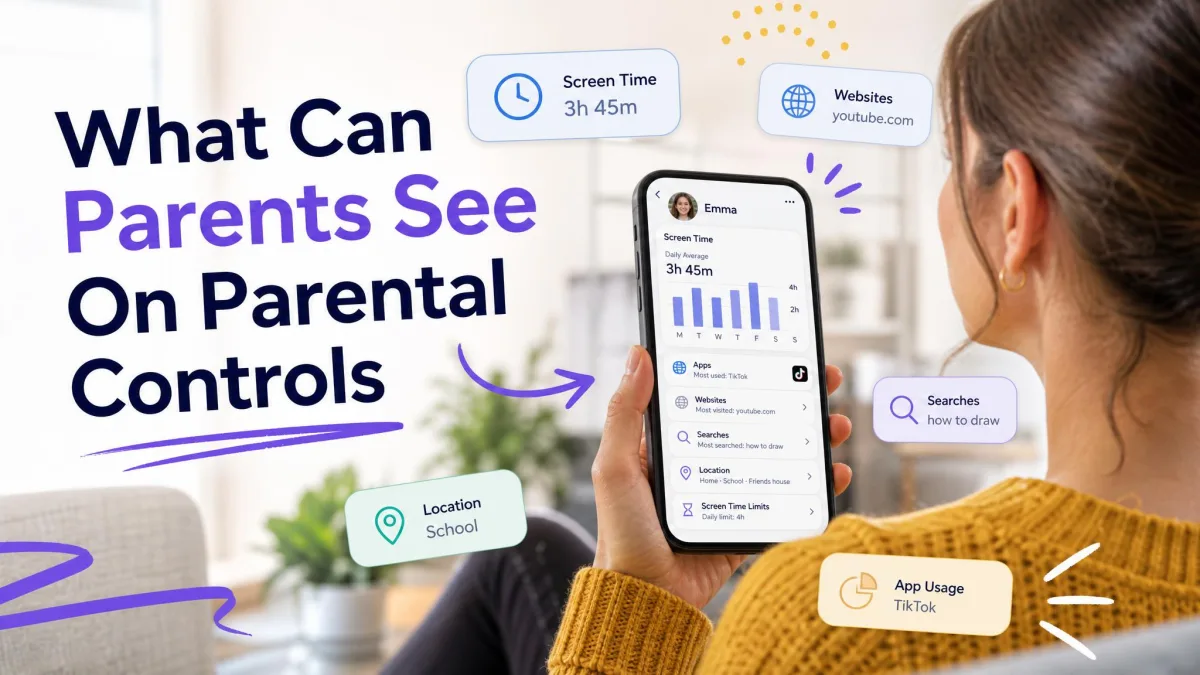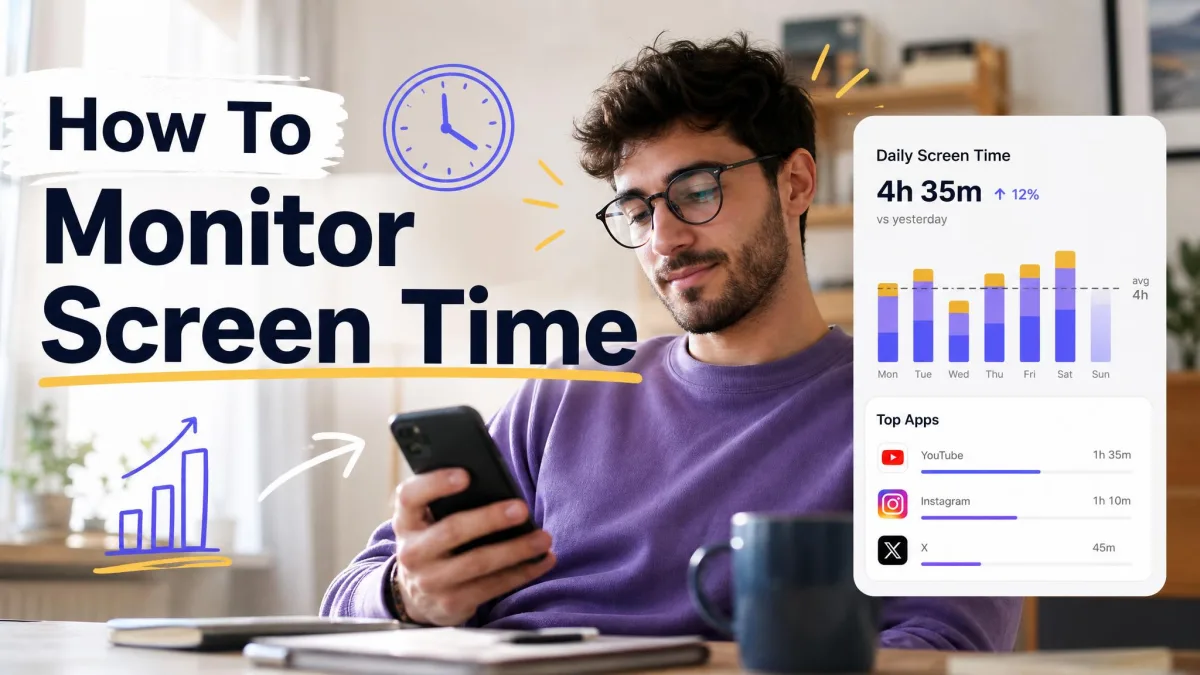
Monitoring your kids' behavior online means knowing enough about what they do on their devices to step in when something goes wrong. In practice it combines three things: an honest conversation about why you are watching, the parental controls already built into your family's phones and laptops, and a monitoring app once those built-in tools stop being enough. The balanced approach is open rather than secret. A child who knows the rules still behaves differently online, but they also come to you when something upsetting happens, and that is the part that actually keeps them safe.
This guide works through that approach in order, from the first conversation to the point where you deliberately pull back.
Start With a Conversation, Not Software
Every monitoring setup that lasts starts with the child knowing it exists. Installing something quietly is faster on day one and far more expensive on the day it gets discovered, because the argument that follows is never about the app. It is about whether you can be trusted.
Open communication also does work that no software can do. Content filters block websites, but they cannot tell a kid that a stranger asking for photos is a stranger asking for photos.
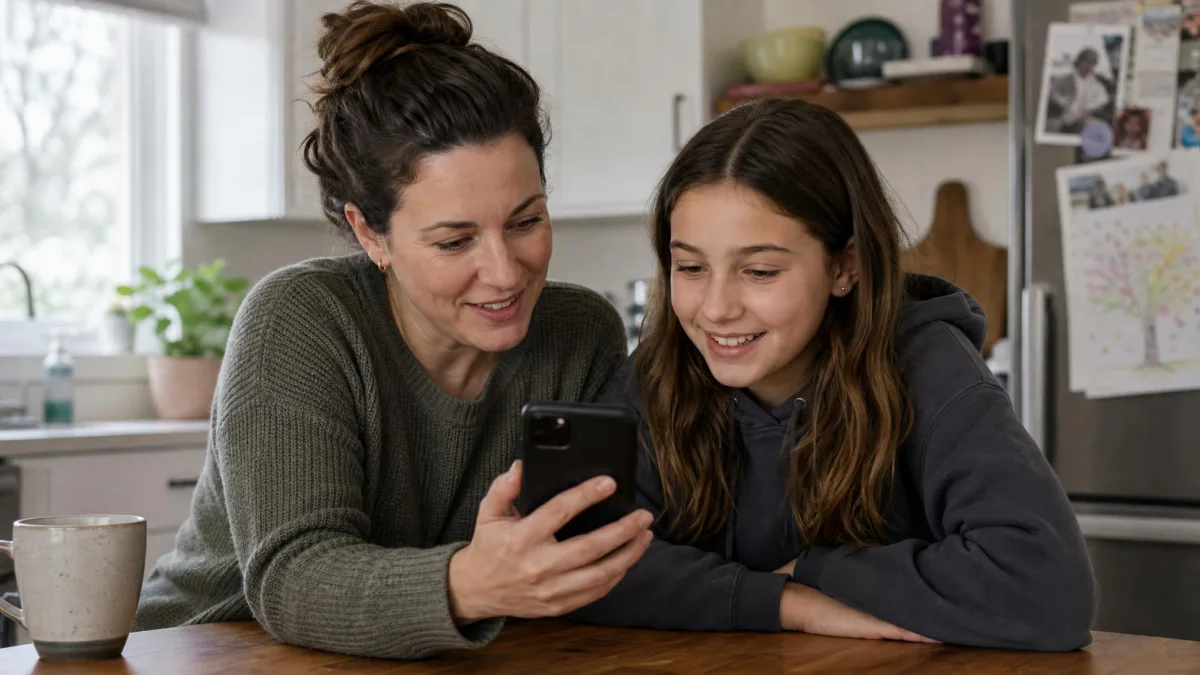
How to Tell Your Child You'll Be Monitoring
Say it before you set anything up. Frame it as a safety measure with a shape: what you will see, what you will not see, and what would make you look more closely. A parent who says "I get an alert if something concerning shows up in your messages" has set a rule. A parent who says "I can see everything" has started a negotiation they will eventually lose.
Give the rule an expiry too. Telling a ten-year-old that alerts get dialed back at thirteen turns monitoring into a stage rather than a permanent condition.
When your child asks why you do not trust them, separate the two ideas out loud. You trust them, and you do not trust the strangers, the algorithms and the group chats they cannot control. That distinction defuses most of the argument on its own.
What to Say at Different Ages
A six-year-old needs one sentence: some websites are not for kids, so the tablet only opens the ones you picked. A ten-year-old can handle the real reason, including the fact that other children send things they should not. A fourteen-year-old deserves the honest version, which is that you are looking at less because they have earned it.
Do not read the same script to all of them. Pitch the conversation to each child's age, which matters most when your children are several years apart.
Why Monitoring Your Kid's Online Behavior Matters
Most parents already do some version of this. The share of US parents who monitored their children's digital activity reached 84 percent in 2021 survey data, up from 78 percent the year before, so a child who complains about being the only one is almost certainly wrong.
The reason it matters is not that the internet is uniquely dangerous. It is that the harms children run into online arrive privately, in a pocket, with no adult in the room.
What Kids Actually Run Into Online
The common problems are unglamorous and constant. Cyberbullying moves from the schoolyard into group chats that run all night. Age-inappropriate content arrives through autoplay and recommendation feeds rather than deliberate searching. Strangers make contact inside games and DMs, usually starting with something ordinary.
Then there is the quieter category: oversharing personal information, in-app spending, and the slow erosion of sleep. Pew Research on parenting children in the age of screens found parents worry about all of these at once, which is why a single-purpose filter rarely feels like enough.
What Monitoring Can and Cannot Prevent
Monitoring is an early warning system, not a shield. It can show you that your child searched something worrying, that a new contact started messaging at 2am, or that time in one app tripled in a fortnight. It cannot stop the message being sent, and it cannot follow your child onto a friend's phone. Treat it as the thing that starts a conversation earlier than you otherwise would have.
Set Clear Rules and Screen Time Boundaries Together
Rules that children help write get followed. Rules that arrive as a finished document get tested immediately. Agree the boundaries before you enforce them with software, because the software should only make an agreed rule stick.
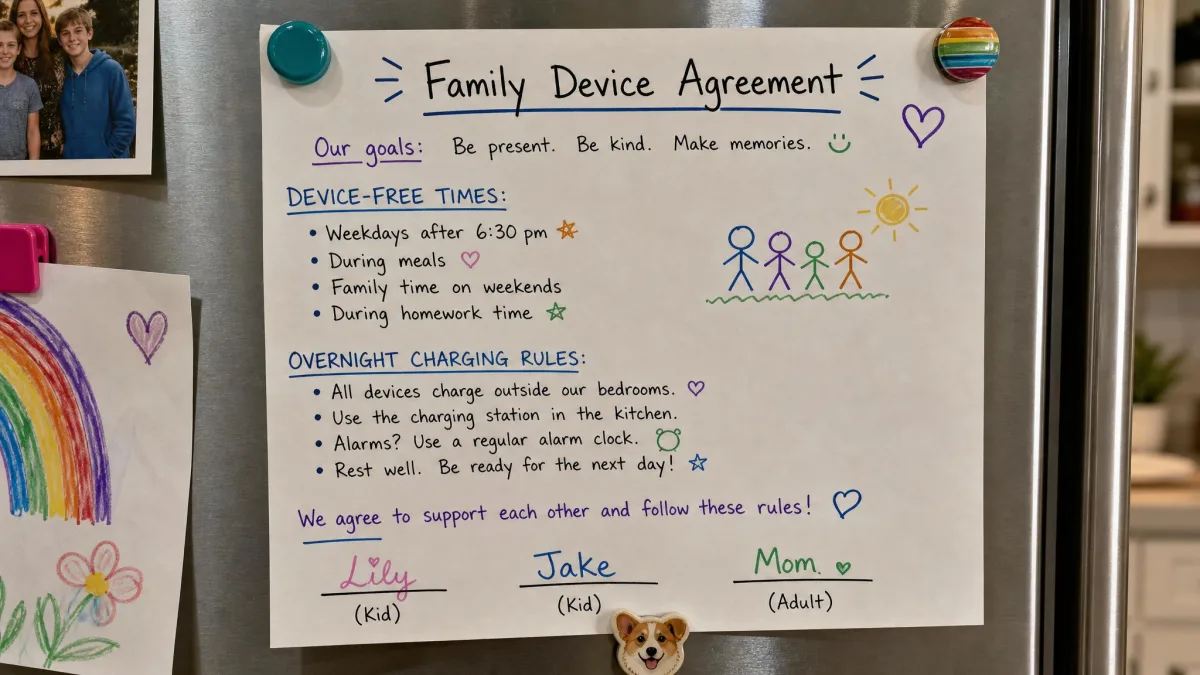
Writing a Family Device Agreement
Keep it to one page and cover the points that cause the most friction:
- Where devices charge overnight, and whether that place is a bedroom.
- Which hours are device-free for everyone, adults included.
- What gets shared publicly, and what counts as personal information.
- Who your child is allowed to accept contact from.
- What happens when a rule is broken, agreed in advance rather than in anger.
- What your child does when something online upsets them, including the promise that reporting it never costs them their device.
That last line matters more than the rest combined. If confiscation is the standard response, children learn to hide the problem instead of raising it.
Screen Time Limits That Actually Stick
Screen time limits work better when they are tied to events rather than raw totals. No devices during meals and none in the hour before bed are rules a child can feel, whereas a 120-minute daily allowance turns every afternoon into a negotiation about the remaining balance.
The American Academy of Pediatrics encourages families to plan around sleep, activity and shared meals rather than chase a universal number of hours. Set the limits together, then let the built-in tools enforce them so you are not the timer.
Use Built-In Parental Controls First
Before paying for anything, turn on what you already own. The controls shipping with iPhones, Android phones, computers, consoles and routers cover time limits, content filtering and purchase approval at no extra cost.
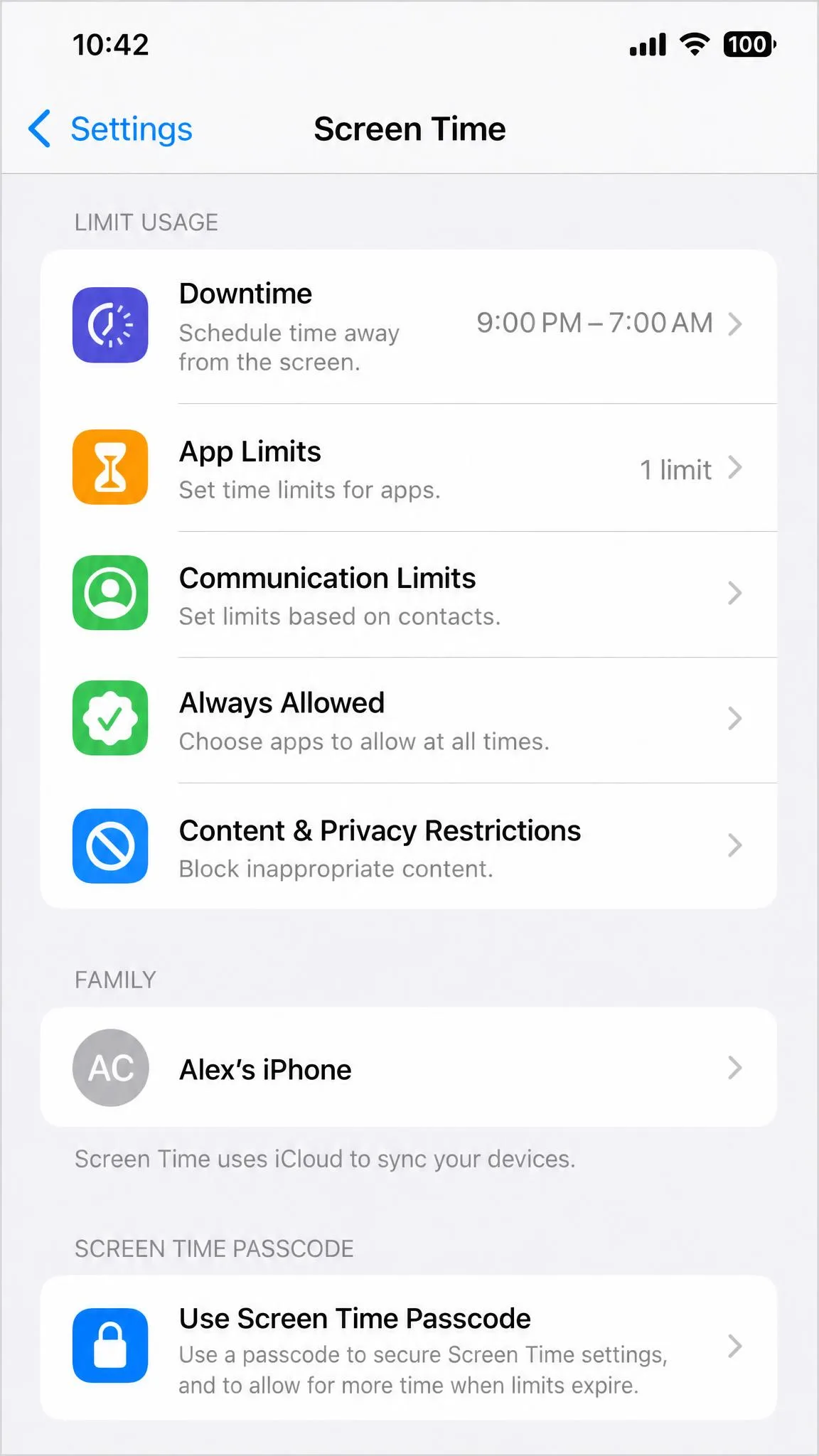
iPhone and iPad: Screen Time
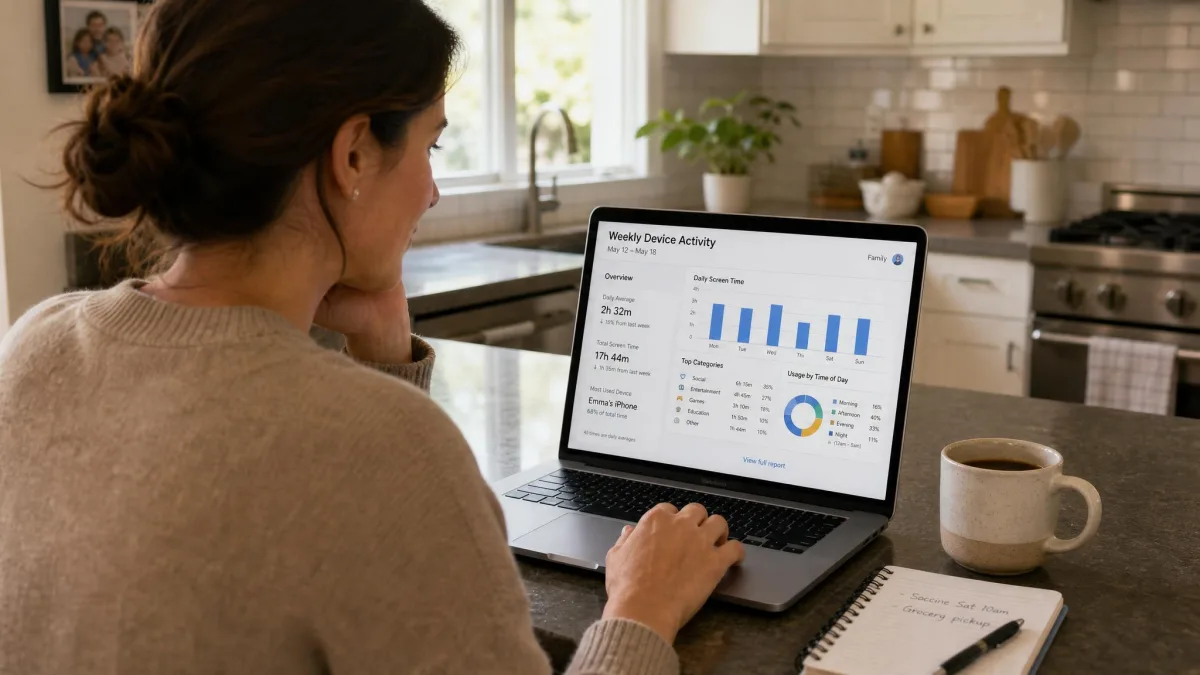
Open Settings, tap Screen Time, then set up your child's device under Family Sharing so you can manage it from your own phone. Use Downtime for the hours devices should be idle, App Limits for individual apps, and Content and Privacy Restrictions to filter web content. Apple sends a weekly activity report, so you can see where the hours went without asking.
Enable purchase approval early. Ask to Buy is on by default for family members under 13, which stops the surprise in-app charges that cause most first arguments about phones.
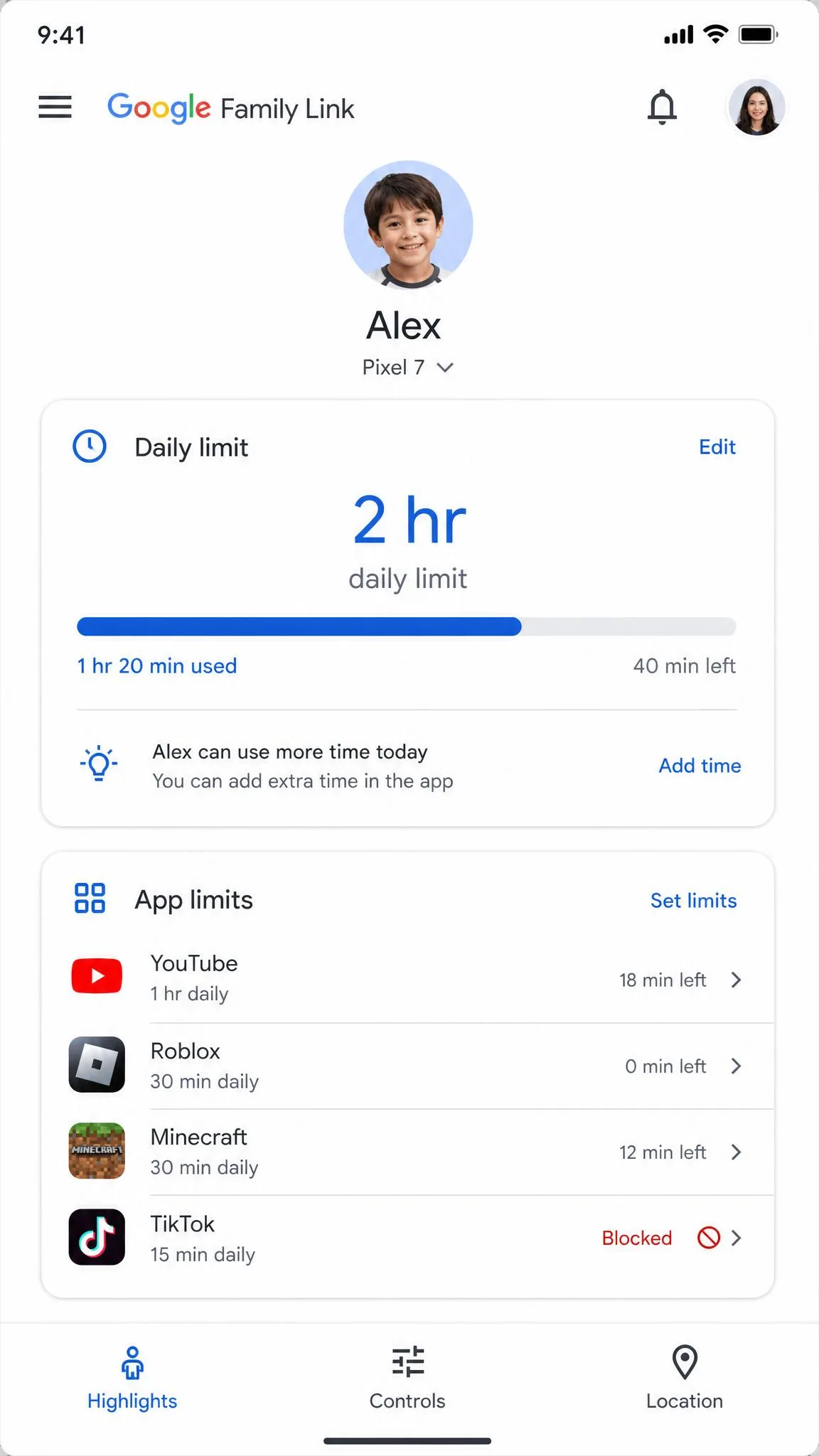
Android and Google Family Link
On Android, Google Family Link is the free equivalent. It handles daily screen time limits, Downtime and School Time schedules, per-app limits and blocking, content controls across Chrome, Play, YouTube and Search, and a map with arrival and departure alerts.
Plan around one limit. Family Link supervision is designed for children under 13, or the equivalent age where you live, and older children can choose to manage their own account. The tool you rely on for a twelve-year-old may not be the tool you rely on eighteen months later.
While you are in Google's settings, turn on Google SafeSearch and lock it for the account so explicit results are filtered from every search on that profile.
Windows, Mac, and Gaming Consoles
Windows family safety settings cover app and game limits, web filtering and activity reports, and macOS carries the same Screen Time controls as the iPhone. Consoles are the ones parents most often forget. PlayStation, Xbox, Nintendo Switch and Steam each have parental control panels covering age ratings, spending limits, play time and who can message your child.
Set the messaging rules on consoles first. Voice and text chat inside games is where most unwanted contact reaches younger children, and no phone-based app can see it.
Every control you set is device-specific. A child with a locked-down phone, an unlocked school laptop and a shared living room console has one supervised device and two open ones, so walk the whole list before you decide the setup is finished.
Router-Level Controls and Browser History Checks
Your router filters everything on the home internet connection at once, including guest devices and smart TVs. Most modern routers include a family profile where you can pause the internet for a device, block categories of websites, and set a schedule. It is the cheapest way to make bedtime rules real.
Checking browser history is still useful, but do it as an agreed part of the routine rather than a raid. Say that you look on Sundays, then look on Sundays. Read an empty history as information rather than proof, because a cleared log usually means your child has learned that history gets checked.
Best Parental Control Apps for Monitoring Kids Online
Built-in controls stop short in one specific place. They manage time and block content categories well, but they show nothing about what is actually said in messages, which is where bullying and unwanted contact live. That gap is the reason to pay for an app.
We use these tools on real family devices rather than a test bench, so the things that decide our recommendations are unglamorous: how long setup takes, how many pointless alerts arrive in week one, and whether the app still works after a phone update.
What to Look For: Activity Logs, Filtering, Alerts
Three capabilities separate the serious apps from the rest.
- Activity logs and reports. You want a readable weekly summary, not a raw feed. Reports that group activity by app and flag changes in pattern are the ones parents still open in month two.
- Content filtering. Category blocking should work across browsers and apps, and it should be adjustable per child rather than per household.
- Real-time alerts. Judge these on how fast they arrive and how many false alarms they generate, because an app that cries wolf gets muted within a fortnight.
Two more things matter almost as much: which platforms the app supports, and whether your child can tell it is running.
Bark
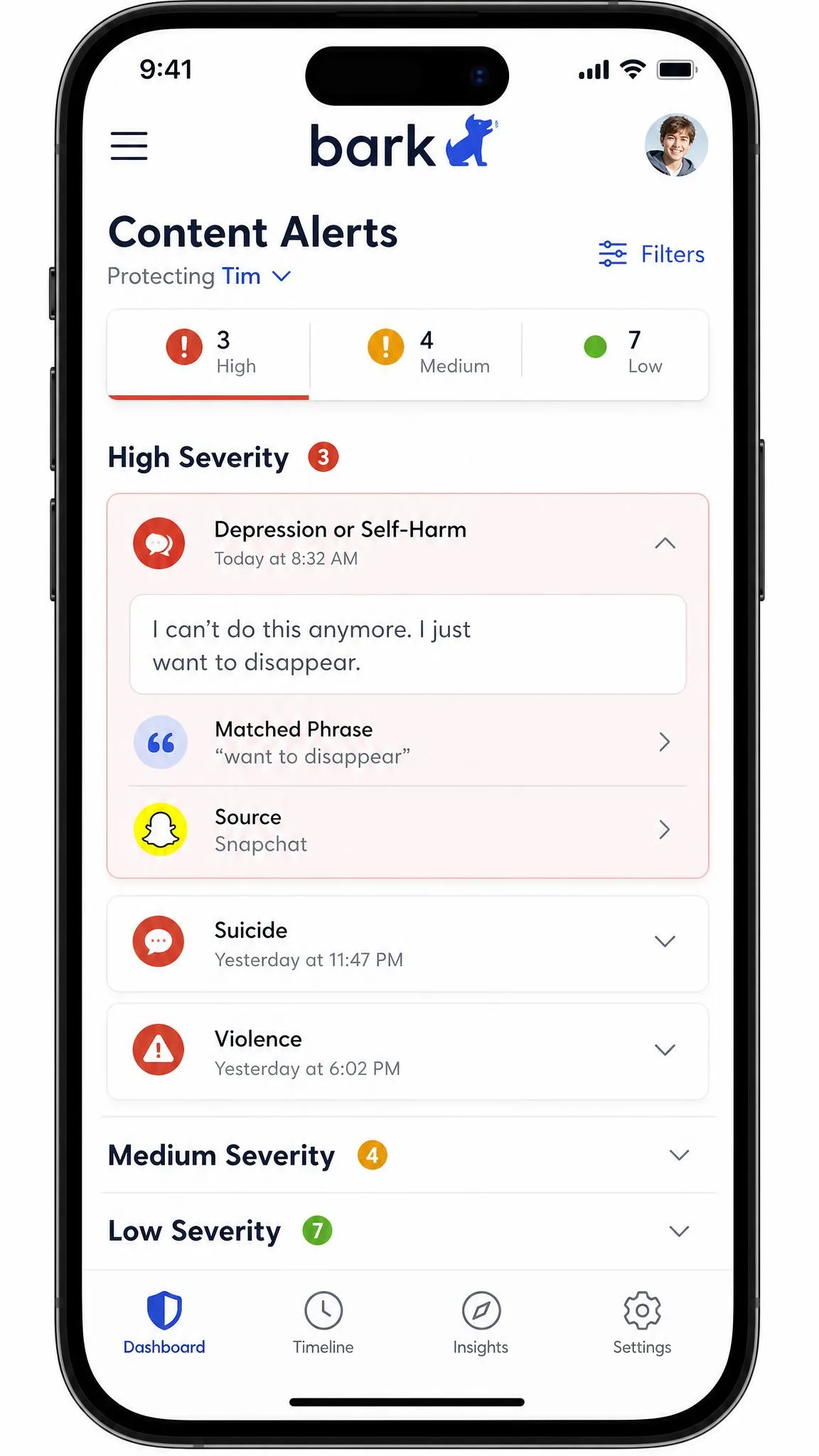
Bark is the one we reach for when messages and social accounts are the concern. Rather than showing you every conversation, it scans texts, apps and social platforms and alerts you only when something looks like bullying, self-harm, sexual content or contact from a stranger.
Setup is the price you pay. Each social account has to be connected one by one, and the process drags out noticeably once several devices are involved, so budget an evening rather than ten minutes. The first week of alerts is also noisy, because the scanner flags jokes, song lyrics and gaming chat as concerning until you dial the sensitivity down. Doing that cuts the volume of low-value flags substantially, and it is the first setting we change on any new install.
Two honest limits. Alerts sometimes arrive later than real time, and the parent app can lose its connection to a child device and need repeated setup prompts to recover. The scanning also misses some content while raising false alarms on other content, so treat Bark as a smoke detector rather than a complete filter.
Pricing is $99 per year on Android and $148 per year on iOS, where Apple's restrictions limit what any third party can see. There is a 7-day free trial, and the Bark Home Wi-Fi device costs $79 one-time or $6 per month for router-level blocking. The Bark Phone starts at $29 per month for service plus a device payment.
Qustodio
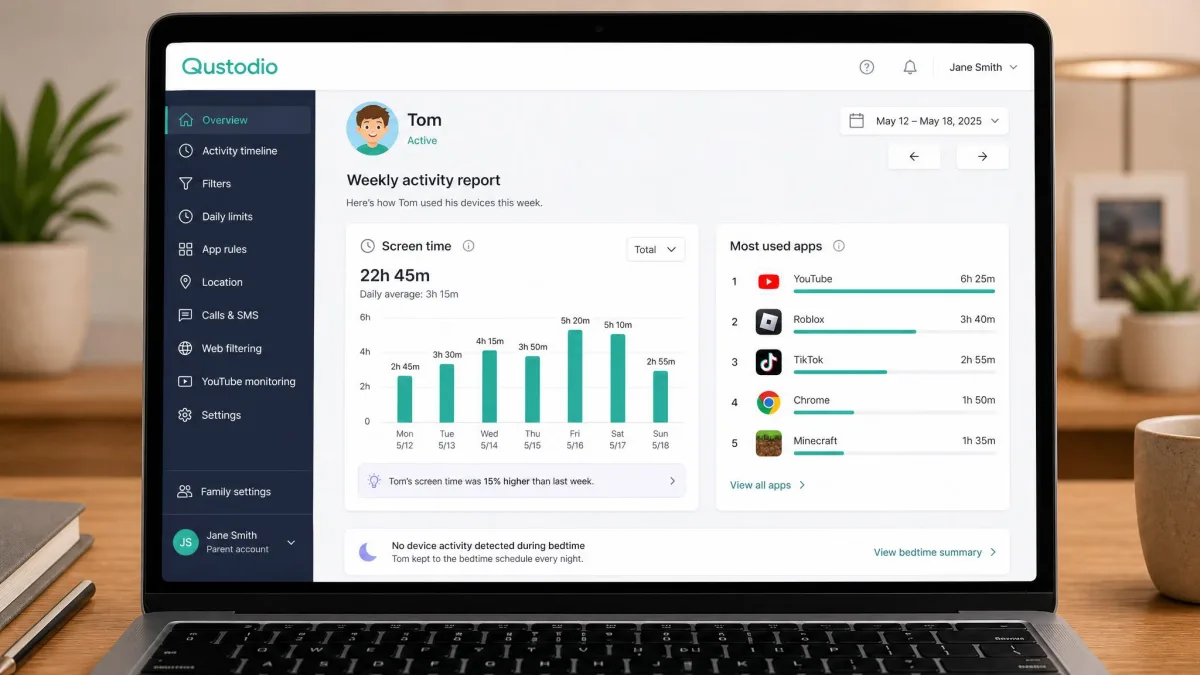
Where Bark concentrates on what is said, Qustodio concentrates on everything else. It runs on Windows, Mac, Chromebook, Android, iOS and Kindle, which makes it the practical choice for a household where the devices do not match. Filtering, screen time schedules with breaks, YouTube monitoring, game voice-chat alerts, family location and an Android panic button sit in one dashboard, and the activity reports are the clearest here.
On Android it ran without noticeable battery drain or app slowdown for us. Older phones are a different story, because the VPN profile and continuous GPS tracking do shorten battery life, so test it on your child's actual handset first. iOS has a separate quirk: app blocking behaves inconsistently because of Apple's background restrictions, and rules take a few seconds to apply.
The Basic plan is $59.95 per year for up to 5 devices, and Complete is listed at $104.95 per year for unlimited devices, though that tier is discounted often enough that the checkout price moves around the list price. Premium plans carry a 30-day money-back guarantee, and Care Plus priority support is $12.99 as an add-on to Basic or included with Complete. Qustodio's community rating across app stores sits at 4.3 out of 5.
One practical warning from living with it. Cancelling is more awkward than it should be, and billing questions draw slow support replies, so cancel early rather than on renewal day.
Norton Family
Norton Family is the budget entry, and it is honest about what it is. Web supervision, daily time limits, search and YouTube supervision, app supervision, location with 30-day history, School Time and an Instant Lock button arrive for $49.99 for the first year. For a primary-school child on a Windows laptop, that covers the ground.
The gaps decide the question for some households. It supports Windows, Android 8 and up, and iOS, but macOS is not supported at all, so a Mac household gets no coverage on the computer that matters most. There is also no conversation or message monitoring, so texts and chats stay invisible. We found the Windows-side web filtering, search tracking and video tracking can be worked around by a determined kid, and support responses tend to be unhelpful once a configuration problem needs escalating.
mSpy
mSpy sits in a different category from the three above, and the difference is not technical. It logs SMS and iMessage, WhatsApp, Facebook Messenger, Instagram and Snapchat, plus GPS, call logs and keystrokes, and it runs in an invisible mode that gives the child no indication the phone is monitored.
That is exactly why it is a poor fit for the approach in this guide. Covert monitoring works until it is discovered, and the discovery costs you the relationship you were trying to protect. mSpy itself states the software is intended for legal use only and that unauthorized installation violates applicable law.
The practical case against it is smaller but real. The advertised no-root social media monitoring does not always work as sold, and full access to images, screen recordings and some chat apps can require rooting or jailbreaking the handset. The 12-month plan works out to $11.67 per month, a 1-month plan is $48.99, and a 3-month plan is $28.00 per month. The 14-day money-back guarantee carries eligibility conditions rather than being automatic, and refunds after the window are difficult to obtain.
Monitoring software is legal for a parent or guardian to install on a device they own and their minor child uses, and the ground shifts once your child turns 18 or owns the phone outright. Installing covert monitoring on another adult's device, including a partner's, is unlawful in most places. Check your local rules before you buy, and read the FTC's online privacy and security guidance for the wider picture on protecting your family's personal information.
Free vs Paid Monitoring Apps
Free parental control tools are not a compromised version of paid ones. Screen Time and Family Link are genuinely good at time limits and content filtering, and for a child under about ten they are usually all you need. You are paying for three things when you upgrade: message and social monitoring, alerts that reach you rather than a dashboard you have to visit, and coverage across mismatched devices.
| Product | Platforms | Social monitoring | Screen time limits | Price per year | Free tier |
|---|---|---|---|---|---|
 |
iOS, Android, tablets, Wi-Fi via Bark Home | Yes, alerts across texts, apps and social | Yes | $99 Android / $148 iOS | 7-day free trial |
 |
Windows, Mac, Chromebook, Android, iOS, Kindle | Yes, WhatsApp and Instagram on Complete | Yes, with scheduled breaks | $59.95 Basic / $104.95 Complete | Free plan for 1 device |
 |
Windows, Android 8+, iOS, no macOS | No conversation monitoring | Yes | $49.99 first year | No free tier |
 |
iOS, Android | Yes, extensive message logging | No | $11.67 per month, 12-month plan | 14-day money-back |
 |
iOS and iPadOS; Android | No | Yes | Free | Built in |
How Much Monitoring Is Age-Appropriate
The right level of oversight drops as your child gets older, and saying so out loud makes the arrangement feel fair rather than permanent.
Ages 5-9
Full oversight, and no need to be subtle about it. Devices stay in shared rooms, content is allow-listed rather than blocked, search is filtered, and purchases require approval. Children this age are not asking for privacy, so you are mostly protecting against accidental exposure and in-app spending.
Ages 10-12
This is the transition. Messaging apps and games with chat arrive, and so does the first real desire for a private space. Keep filtering and time limits, add alert-based monitoring rather than reading everything, and start showing your child what you see. A child who watches you check an activity report learns that monitoring is a routine, not a search.
Teens 13+
Step down deliberately. Most teenagers should keep location sharing, safety alerts and agreed device-free hours, and lose blanket content logging. The goal by sixteen is a young person who manages their own online safety with you as backup, because in two years no app will be doing it for them.
Monitoring Social Media and Messaging Safely
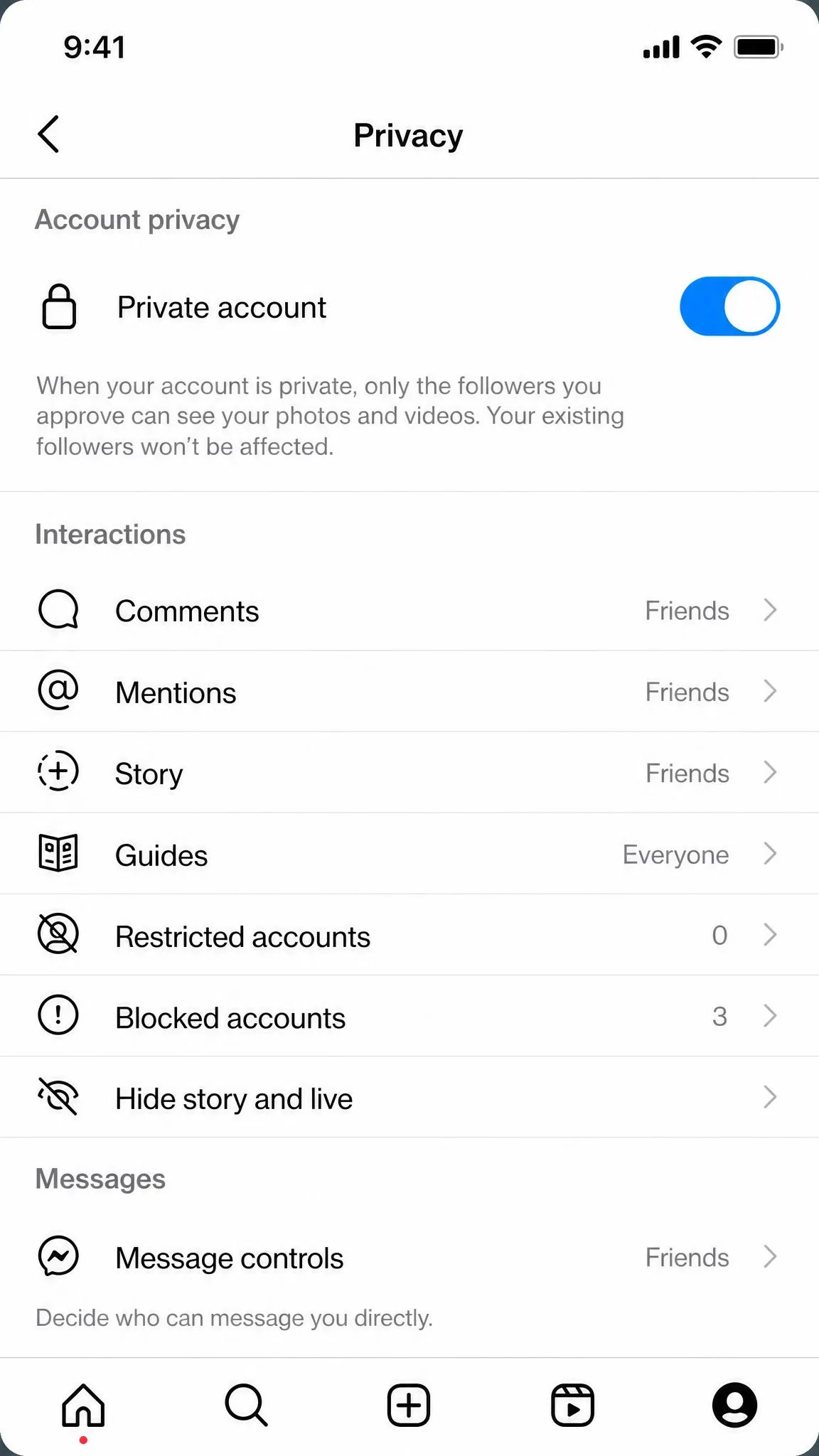
Social platforms are where monitoring gets genuinely difficult, because each app has its own rules about what a third party can see. Start inside the apps themselves. Every major platform has privacy settings controlling who can message your child, who can see their posts, and whether the account is discoverable by phone number.
For messaging, decide what you are actually watching for. Reading every conversation is exhausting and corrosive, whereas alert-based scanning surfaces the small number of exchanges that need an adult. If your child uses a platform your app cannot reach, say so honestly and agree a different rule for it, such as follower approval or joint reviews of the account.
The purpose of watching your child's messages is not to know everything they say. It is to be there for the one conversation that goes wrong.
Red Flags That Call for a Closer Look
Most weeks the reports will be boring, and that is the point. These are the changes worth acting on:
- Secrecy that is new, such as hiding a screen, changing passwords or deleting message histories that were never cleared before.
- Withdrawal from friends, sleep or activities they used to enjoy, especially alongside heavy late-night device use.
- A new contact who messages constantly, particularly an older one your child cannot explain.
- Emotional swings tied to picking up the phone rather than to anything happening at home.
- Unexplained purchases, gift cards or in-game currency on an account.
None of these prove anything alone. Together they are a reason to sit down and ask directly, which works better than escalating the surveillance and hoping the answer appears in a log.
Balancing Privacy, Trust, and Protection
Children have a legitimate claim to privacy, and it grows every year. The workable position is that you monitor for safety rather than for information, and you tell your child which is which. You are looking for danger. You are not reading their conversations with friends because you are curious.
Hold to that in practice, not just in the conversation. Do not raise something you learned from a report unless it genuinely needs raising, because every time you do, your child learns that the alert system is really a surveillance system.
Before you act on something a report showed you, ask whether you would have raised it if a teacher had mentioned it in passing. If the answer is no, let it go. Save your interventions for the things that matter and they will carry weight when you use them.
When to Step Back
Reduce monitoring on a schedule rather than waiting for a fight. Birthdays are a natural checkpoint: each year, remove one control and say why. Location sharing usually survives longest because teenagers find it genuinely useful, while content logging should be the first thing to go.
The end state is not zero oversight. It is a young adult who tells you when something goes wrong because they always have, and a phone you no longer need to check.

Frequently Asked Questions
Is it legal to monitor my child's phone?
Should I tell my child I'm monitoring them?
At what age should I stop monitoring?
Can I see my child's deleted messages?
Are free parental control apps good enough?
How do I monitor an iPhone vs an Android?
Can I check what my child does on the home WiFi?
The Bottom Line
Monitoring your kids' behavior online works when it is open, proportionate and shrinking. Start with the conversation, write the rules together, and turn on the free controls already built into your family's devices before you spend anything. Add a monitoring app only when messages and social contact become the concern, and choose it on alert quality rather than feature count.
Then plan the exit from the beginning. The measure of success is not how much you can see, but whether your child still tells you the things you would never have found in a report.