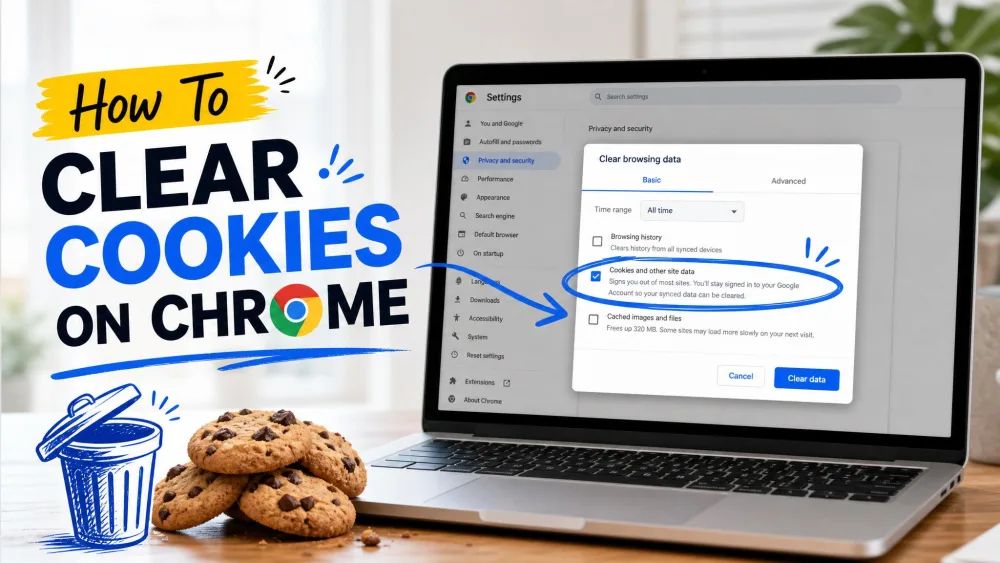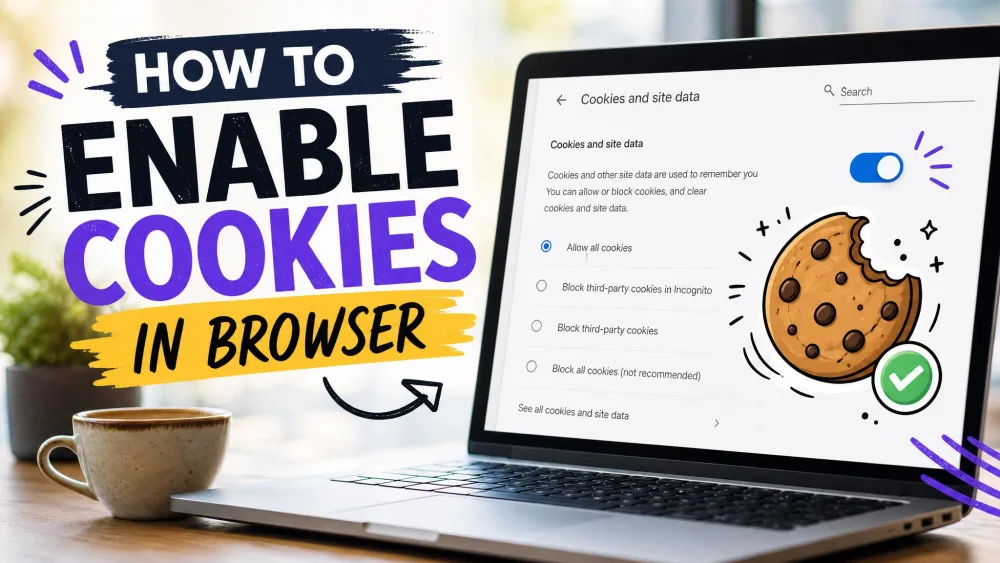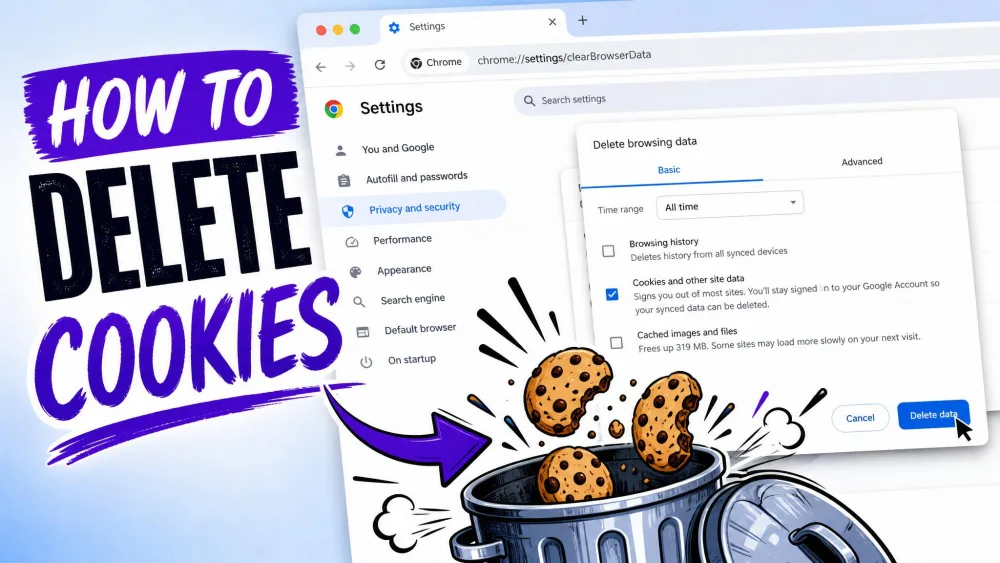
Cookies are small text files that a website saves in your browser to remember things about you. They store your login sessions, language choices, items in a shopping cart, and other small settings so a site loads the way you left it. Some come from the site you are visiting, and others come from outside companies that track you across the web. Deleting cookies clears out that stored data. It is a quick, safe piece of housekeeping, and every browser puts the controls a few clicks from the main menu. We have walked through the current settings in each major browser on our own test machines, so the steps below match what you will see today.
Deleting cookies signs you out of most websites, so you will need to log back in afterward. It can also reset saved preferences like language, dark mode, or a shopping cart. It does not delete the passwords saved in your browser's password manager, so those stay put.
What Are Cookies (and Why Delete Them)?
A cookie is a small file a website stores in your browser to remember you between visits and between pages. Session cookies disappear the moment you close the browser. Persistent cookies stay for a set period, sometimes months or years, which is how a site keeps you logged in for weeks at a time.
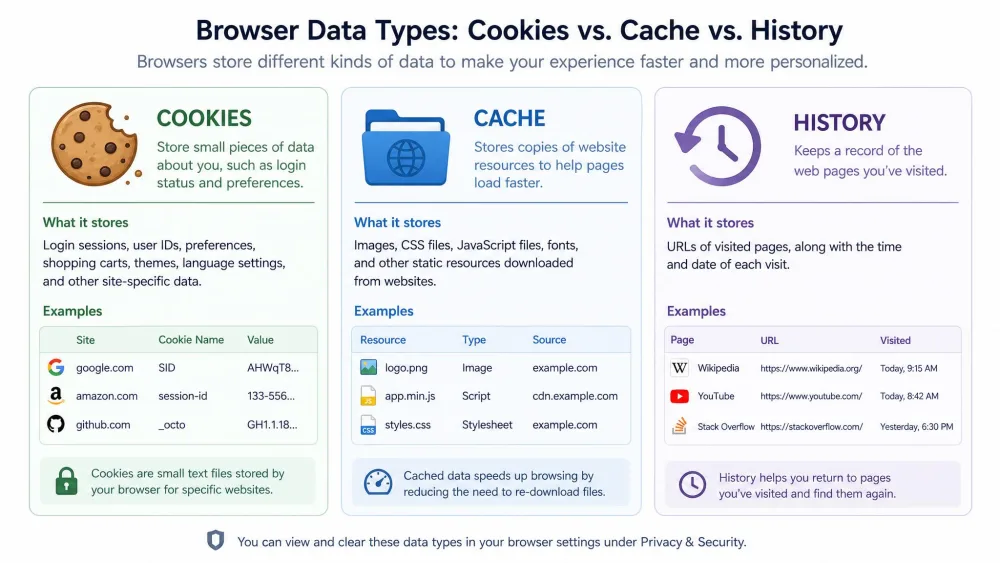
It helps to know how cookies differ from other browser data. Cookies store session and preference data. The cache stores website files like images and scripts so pages load faster. Browsing history is the list of pages you have opened. Clearing the cache fixes broken layouts and loading problems, while clearing cookies fixes login and session problems. People mix these up constantly, and it is the most common reason a "fix" does not work.
First-Party vs. Third-Party (Tracking) Cookies
First-party cookies come from the site you are actually visiting. They are the ones that keep you signed in and remember your settings, so they are generally useful. Third-party cookies are placed by external domains, usually advertisers and analytics companies, and they follow you from site to site to build a profile for targeted ads.
That distinction matters when you decide what to remove. If you only want to cut down on tracking, block third-party cookies and leave the first-party ones alone, which we cover below.
Reasons to Clear Cookies: Privacy, Performance, and Fixing Errors
There are three practical reasons to clear cookies. Privacy comes first: over time, tracking cookies pile up and feed the targeted ads that follow you around. Next is fixing errors, because a stale or corrupted cookie often causes login loops, checkout failures, and pages that refuse to load. Third is a clean handoff on a shared or public computer, where clearing cookies afterward is the highest-value privacy habit you can build.
One honest caveat: clearing cookies only reduces targeted ads temporarily. Advertisers start rebuilding a profile as soon as you browse again, so it is a reset, not a permanent block on tracking.
How to Delete Cookies on Desktop Browsers (Step by Step)
Each desktop browser hides the control in a slightly different menu, but the flow is the same: open the clear-data dialog, tick the cookies box, choose a time range, and confirm. On Windows, Ctrl + Shift + Delete jumps straight to that dialog in both Chrome and Edge.
Google Chrome (Windows/Mac)
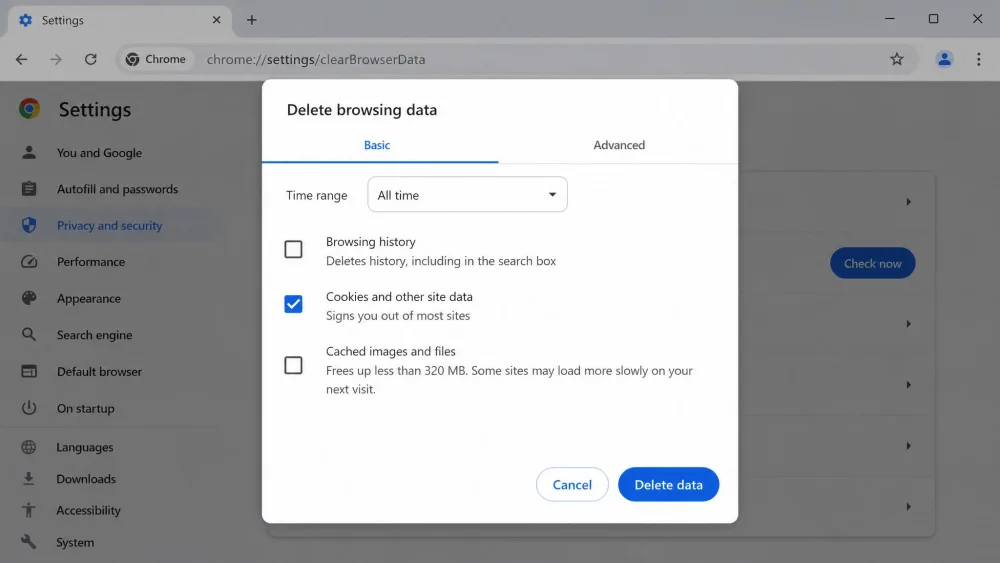
To clear cookies in Chrome, click More, the three dots at the top right, and choose Delete browsing data. Pick Basic or Advanced, check Cookies and other site data, and choose a Time range. Your choices run from Last hour through Last 4 weeks and All time; choose All time for a full sweep. Then click Delete data. You can read the official steps in Chrome's cookie settings.
Microsoft Edge
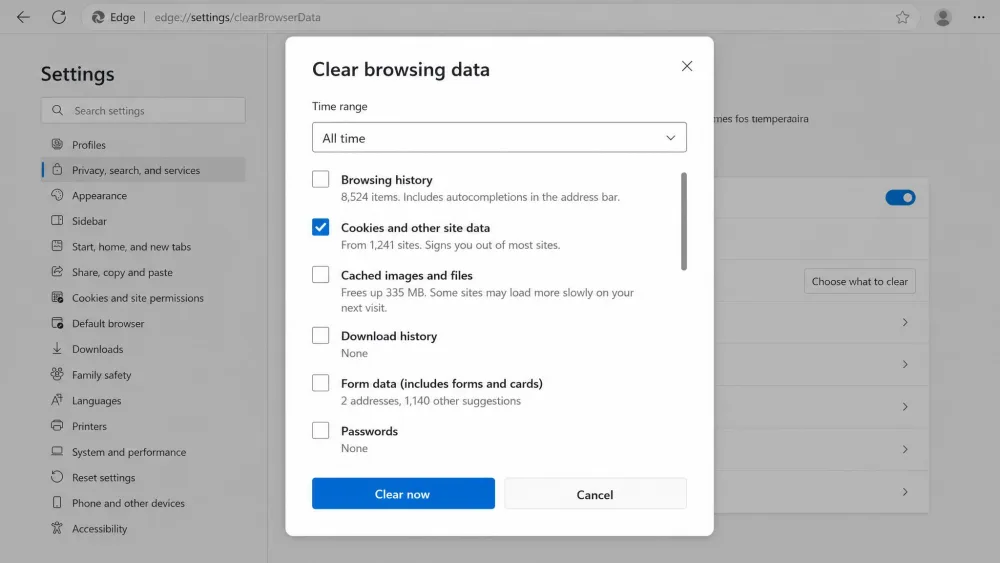
In Edge, open Settings and more at the top right, then go to Settings, then Privacy, search, and services, then Clear browsing data, then Choose what to clear. Pick a time range, check Cookies and other site data, and select Clear now. Microsoft's own walkthrough covers the same path if you want to manage cookies in Microsoft Edge.
Mozilla Firefox
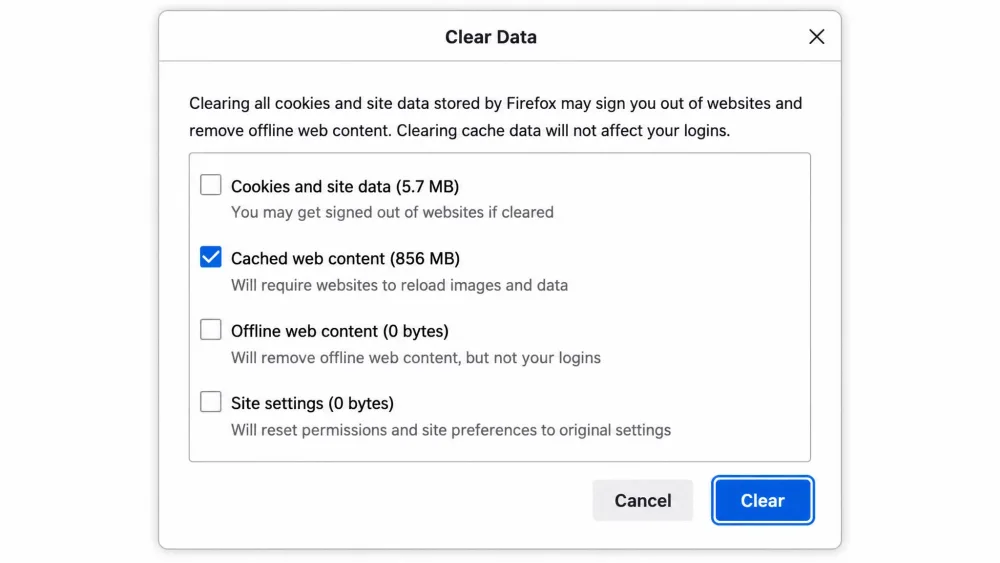
In Firefox, open the menu, the three lines at the top right, then Settings, then Privacy & Security, then Cookies and Site Data, then Clear Data. Set the When menu to Everything or a shorter range, check Cookies and site data, and click Clear. Mozilla's guide has the full detail on how to clear cookies in Firefox.
Safari (Mac)
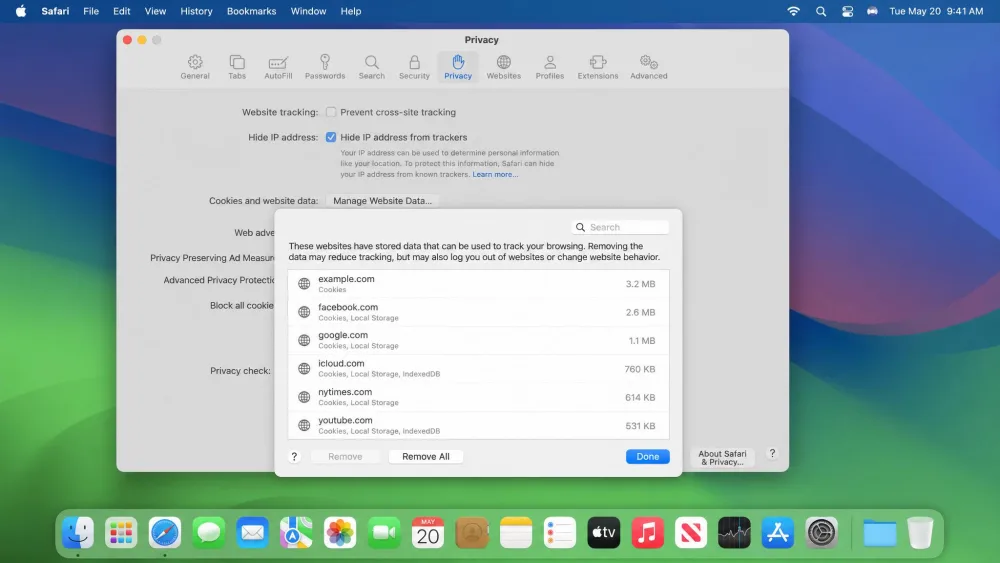
To clear cookies on a Mac, open the Safari menu in the menu bar, choose Settings, click the Privacy tab, then Manage Website Data. From there you can select individual sites and click Remove, or click Remove All to clear everything at once. Apple's support page shows how to clear cookies in Safari if you want to follow along.
Opera
In Opera, press Ctrl + H to open History, then click Clear Browsing Data at the top right. Select a Time Range, check Cookies and other site data, and click Delete data. The layout mirrors Chrome closely, which makes sense given the shared engine.
How to Delete Cookies on Mobile Devices
Phones and tablets keep cookies too, and the process is just as quick once you find the right settings screen.
Chrome (Android & iPhone)
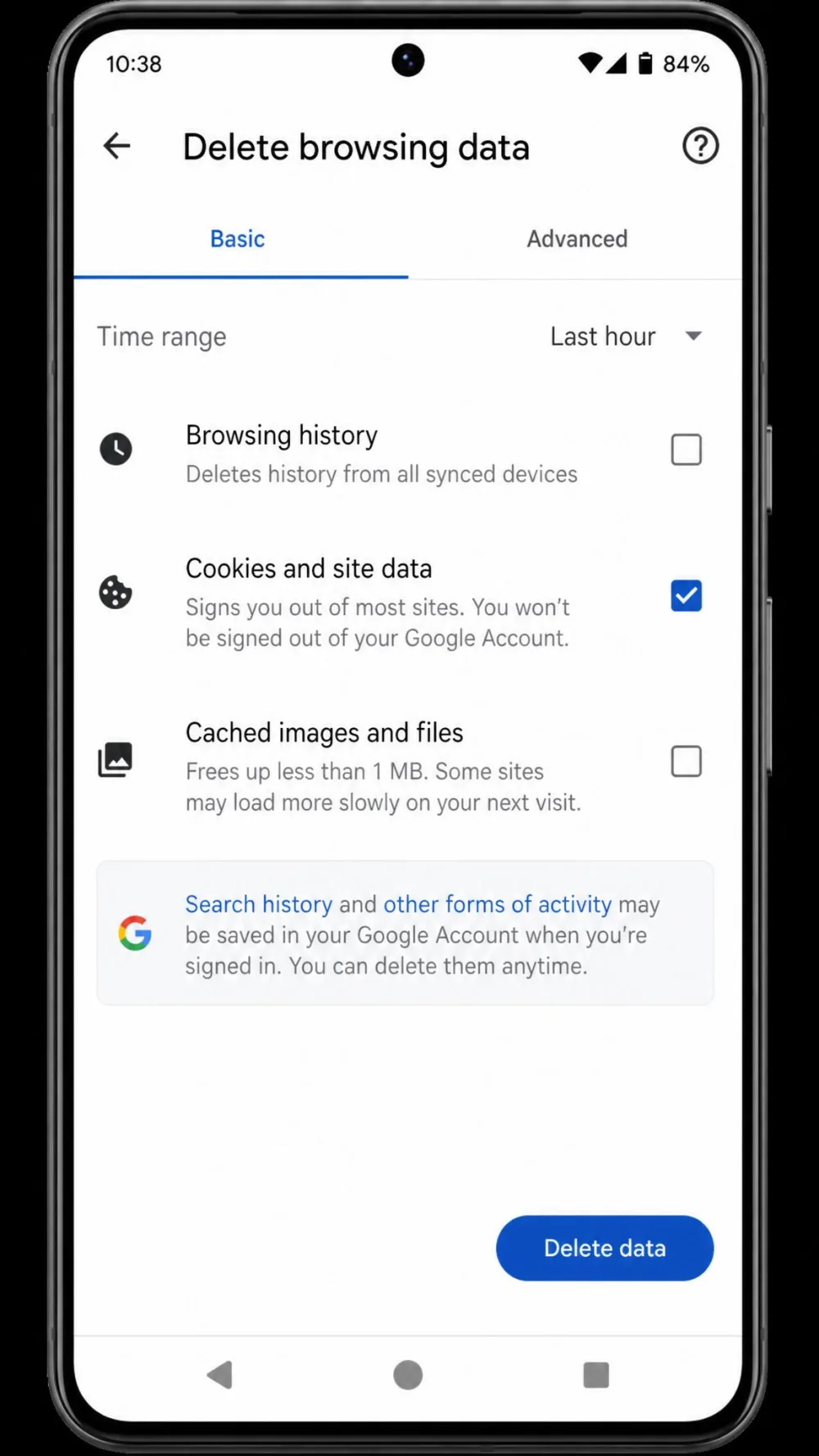
To clear cookies on Android in Chrome, tap More, the three dots, then Settings, then Privacy and security, then Delete browsing data. Pick a time range, check Cookies and site data, and tap Delete data. Android also offers a Last 15 minutes option the desktop version does not. Chrome on iPhone follows the same menu flow inside the app's settings.
Safari (iPhone/iPad)
To clear cookies on iPhone and iPad running iOS 26, open Settings, then Apps, then Safari, then Clear History and Website Data. Pick a timeframe such as Last Hour, Today, Yesterday and Today, or All History, then tap Clear History. If you are on an older iOS version, Safari sits directly under Settings rather than inside the Apps list, so do not be thrown if the menu looks different. The iOS 26 move to Settings then Apps trips up a lot of people who expect Safari right in the main Settings list.
Samsung Internet (Android)
In Samsung Internet, tap the three-line menu at the bottom right, then Settings, then Personal browsing data (or Privacy and security, depending on your app version). Open Delete browsing data, enable Cookies and site data, and tap Delete.
How to Delete Cookies for a Single Website
Sometimes one site misbehaves and you would rather not sign out of everything else. Every major browser lets you target a single domain.
In Chrome, go to Settings, then Privacy and security, then Third-party cookies, then See all site data and permissions, search for the site, and click Delete next to it. In Firefox, open Settings, then Privacy & Security, then Cookies and Site Data, then Manage Data, search the site, and click Remove Selected before you Save Changes. In Edge, open Settings, then Privacy, search, and services, then Cookies, then See all cookies and site data. On Safari for Mac, the same Manage Website Data list lets you pick one site and click Remove.
How to Block or Auto-Clear Cookies Going Forward
Deleting cookies is a cleanup. If you want the effect to last, set your browser to limit or automatically clear cookies so you are not repeating the chore every week.
Turning on tracking protection and clear-on-close does more for your privacy than a manual cleanup ever will, because it works quietly in the background every time you browse.
Block Third-Party Cookies
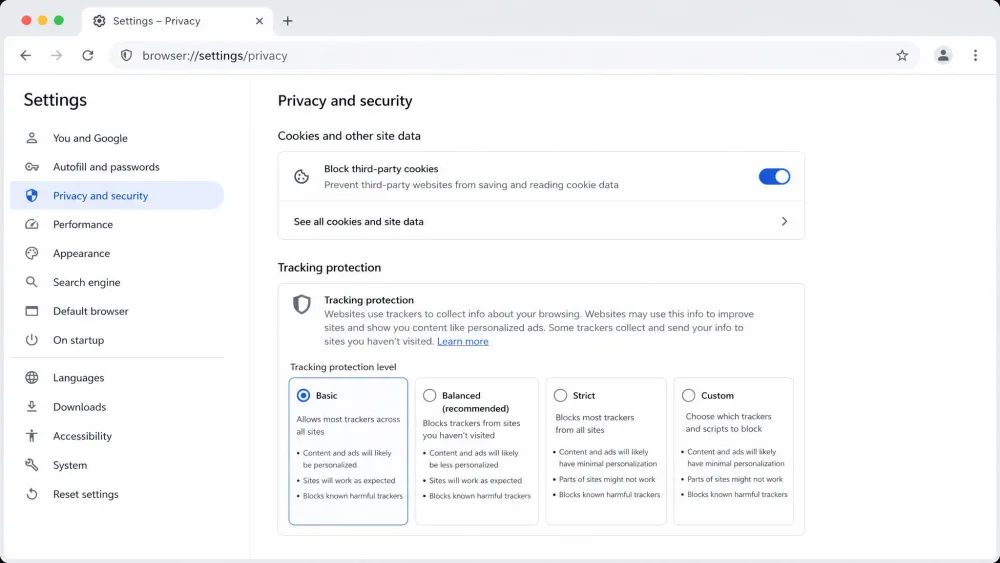
Blocking third-party cookies is the single best setting for cutting tracking while keeping sites usable. In Chrome, go to Settings, then Privacy and security, then Third-party cookies, then Block third-party cookies. In Edge, open Settings, then Privacy, search, and services, then Cookies, and enable Block third-party cookies. Firefox handles this through Enhanced Tracking Protection, which offers Standard, Strict, and Custom levels under Privacy & Security. Safari uses Prevent cross-site tracking, with a Block all cookies option available in its Privacy settings.
Clear Cookies Every Time You Close the Browser
Edge has a built-in switch for this. Open Settings, then Privacy, search, and services, then Clear browsing data, then Choose what to clear every time you close the browser, and enable Cookies and other site data. Firefox offers the same through its History settings. Chrome does not have a native toggle, so you would need an extension or a flag to match it.
How Often Should You Delete Cookies?
There is no single authoritative interval, and honest guidance varies by source. A common recommendation is about once a month, which balances privacy against the convenience of staying logged in. If privacy is your priority, weekly is a reasonable rhythm, and every few weeks is also widely cited. The one time we would not skip it is right after using a shared or public computer.
Frequently Asked Questions
Will clearing cookies log me out?
Does deleting cookies delete saved passwords?
What's the difference between cache and cookies?
How often should I clear cookies?
Does clearing cookies stop tracking?
Conclusion
Deleting cookies is one of the simplest ways to protect your privacy, fix a stubborn site, and keep your browser tidy. The path differs a little between Chrome, Edge, Firefox, and Safari, but the routine is the same: open the clear-data dialog, tick cookies, choose a time range, and confirm. Make sure you are ready to sign back in afterward, and if you would rather not repeat the job, block third-party cookies or set your browser to clear them on close.