FamiSafe is Wondershare's parental control app for iOS, Android, Windows, Mac, Chrome and Kindle Fire, and it bundles screen time limits, app blocking, web content filtering, live location tracking and AI social media monitoring into one subscription that starts at $4.99 per month billed annually. We ran it on real family devices, and our verdict is that it offers the widest feature list you can buy at this price, with a parent dashboard a non-technical parent can actually run. It also falls short in one place that matters: some of the web filters and time restrictions are easier for a determined teenager to work around than the marketing suggests. If you want breadth of monitoring for a young child or a pre-teen, FamiSafe is good value. If your teen is tech-savvy, read the limitations section before you pay.
FamiSafe Review: Quick Verdict
FamiSafe earns its place for parents of younger children who want one app instead of four. In our testing the dashboard was straightforward to run day to day, and the real learning curve sat in deciding which alerts actually matter rather than in the software itself. Explicit-content and social alerts surfaced genuinely concerning contact in a game chat room we had no idea about, which is the moment that justifies the subscription for a lot of families.
The honest counterweight is that the AI content flagging misreads context often enough to produce false positives you have to check by hand, and alerts sometimes lag behind the activity that triggered them. That means the parent dashboard is not always a live picture of what your child is doing right now. Treat FamiSafe as a very good early-warning system rather than a sealed perimeter, and it will not disappoint you.
FamiSafe Pros and Cons at a Glance
Pros
- The widest feature set at this price, including a driving report and ambient sound recording that most rivals do not offer at all
- Live GPS location plus geofencing safe-zone alerts, with location history you can scroll back through
- AI social media monitoring across 30+ apps, with explicit image and suspicious keyword detection
- No rooting or jailbreaking required on either platform
- Works across iOS, Android, Windows, Mac, Chrome and Kindle Fire on one subscription
- The parent dashboard is clear enough for a non-technical parent to use confidently
Cons
- A determined teenager can find gaps in the web filters and time restrictions on Android
- Social media monitoring is much thinner on iPhone, and iOS setup needs a configuration profile
- Continuous monitoring costs roughly 10 to 15 percent of the child device's daily battery
- False positives from the AI flagging need manual checking
- Support response time is the single most frequent complaint about the service
- Cancelling or fully uninstalling is harder than it should be and can require a support ticket
What Is FamiSafe?
FamiSafe is a subscription parental control and monitoring app that pairs a parent app with a kids app installed on your child's device. The parent app is your control panel: you set daily screen time limits, block or schedule individual apps, filter web content by category, draw geofences on a map and read back activity reports. The kids app runs quietly on the child's phone or tablet, reports usage and location, and enforces the rules you create.
What separates FamiSafe from a basic screen time tool is the monitoring layer sitting on top of the controls. Alongside the blocking features you get a real-time screen viewer, call and message monitoring, explicit image detection, suspicious keyword and slang detection, YouTube and TikTok history, ambient sound recording and a driving behaviour report. Few competitors include that much in a single tier.
It supports iOS, Android, Windows, Mac, Chrome and Kindle Fire, so a mixed-device household is not forced into a second subscription. On Android you need Android 4.4 or later, and on iPhone you need iOS 9.0 or later, which means older hand-me-down devices are usually fine.

Who Makes FamiSafe (Wondershare)
FamiSafe is developed by Wondershare Technology, a Chinese software company better known for its video and PDF products. That matters to some parents and not to others, and we think you should decide with the facts in front of you rather than a slogan: you are handing a company detailed location and communication data about your child, so read the privacy policy before you install, the same way you would for any monitoring product regardless of where it is built.
The practical upshot of Wondershare's size is that FamiSafe gets regular feature updates and has real support channels behind it, including live chat, email and business-hours phone support. The practical downside shows up later in this review, because support responsiveness is the most common thing owners complain about.
Who FamiSafe Is Best For
FamiSafe fits best where the child is young enough that the goal is guidance rather than a contest. For a primary-school child on a first tablet, or a pre-teen with a first phone, the combination of app limits, category-based web filtering and a location map covers nearly everything a parent needs without extra tools.
It also suits families spread across different platforms and device types. Because one subscription covers phones, tablets, laptops and Chrome, you can monitor a school Chromebook and a personal Android phone from the same dashboard.
The fit weakens with older teenagers. A 16-year-old who wants to get around the restrictions has a decent chance of doing it, and the trust cost of a screen viewer and ambient recording rises sharply at that age. For teens we would rather see you use the screen time and location features openly, with your child's knowledge, and leave the deeper monitoring switched off.
How We Tested FamiSafe
Before we take those features one by one, here is how we put them under pressure. We test parental control apps the way a parent uses them, on real family devices rather than a clean lab handset, because the things that go wrong tend to go wrong in ordinary daily use. We bought the subscription ourselves, set up the kids app on child devices across both of FamiSafe's mobile platforms, ran the parent app from a phone and a browser, and lived with the alerts long enough for the novelty to wear off and the awkward edges to show.
We are deliberately vague about the exact hardware, because the point of the exercise was ordinary household use rather than a reproducible bench configuration. What matters for reading this review is that both mobile builds were covered, that the app stayed installed long past the setup stage, and that every judgement below comes from living with the alerts rather than from a feature checklist.
Our scoring covered six areas: how long installation and pairing actually take, how accurate the location reporting is, how well the filters and time limits hold up when someone tries to beat them, how quickly alerts arrive, what the battery cost is on the child's device, and how easy the whole thing is to cancel. We also compared the Android and iOS builds feature by feature, since the gap between them is the single most misunderstood thing about this app.
The test that told us the most was not a feature check. We asked a teenager to try to beat the web filters and the daily time limits on an Android phone, without any coaching, and then watched where the gaps appeared. Every parental control app looks perfect until somebody actively pushes on it.
FamiSafe Features Tested
The feature list is long, so we have broken it into the eight areas that decide whether the app earns its money. Each one below reflects what happened when we used it, not what the product page promises.
Screen Time Management and App Limits
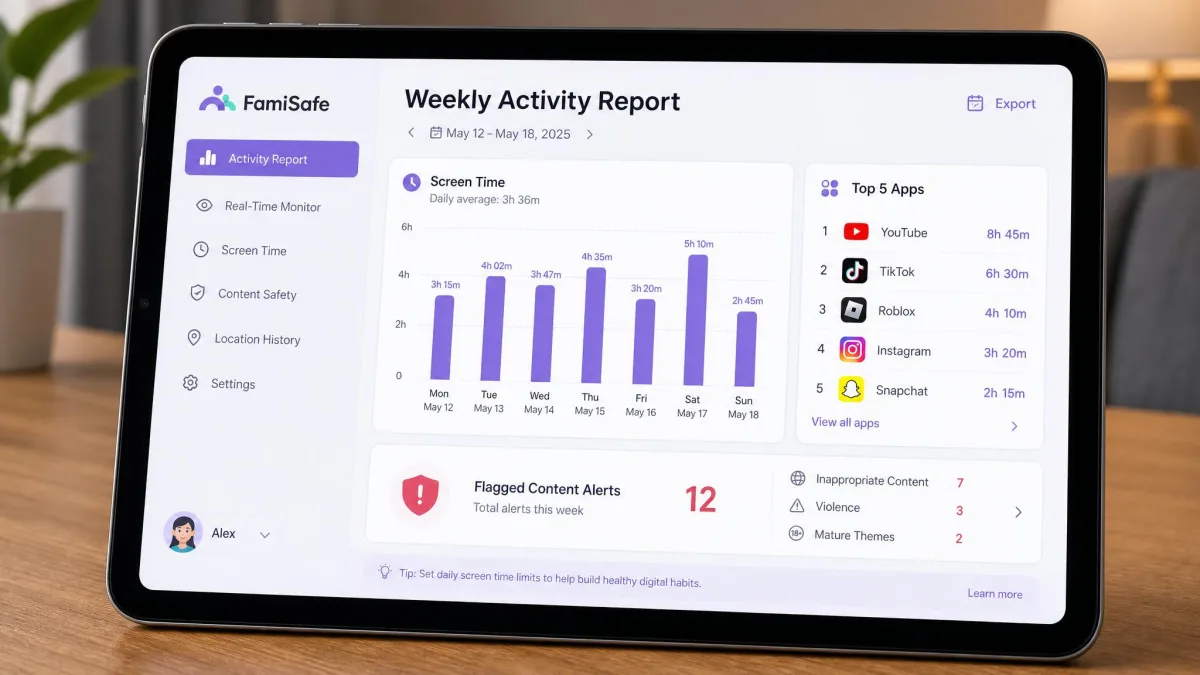
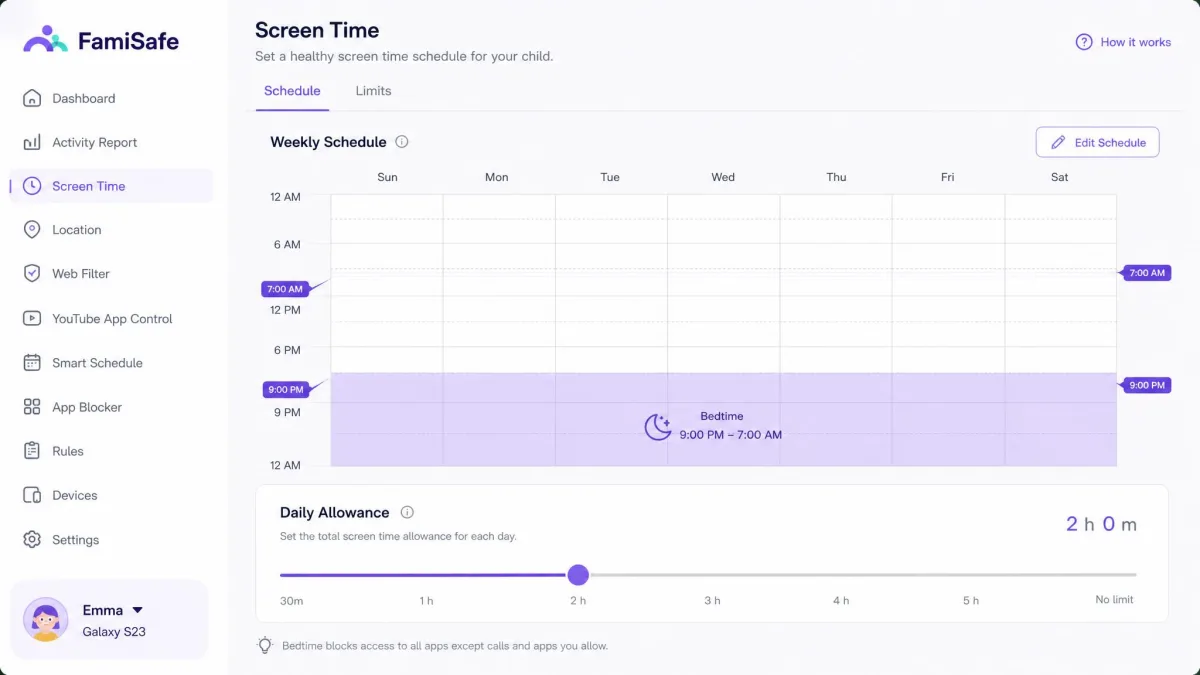
Screen time is FamiSafe's most reliable feature and the one most parents will use daily. You can set a total daily allowance, build a weekly schedule with different limits for school days and weekends, and create separate rules for individual apps. A child who has used up the games budget can still open the calculator and messages, which is the flexibility that makes these rules survivable in a real household.
The schedule builder deserves a mention because of how it is laid out. You drag across a weekly grid to build a bedtime block that cuts everything except calls from 9pm to 7am, and the child's device applies the rule once the two apps have synced. It is one of the few parts of the configuration that does not add much to the 15 to 20 minutes the rest of the setup takes.
Where it wobbles is enforcement under pressure. A teenager who understands Android settings can find gaps in the time restrictions, and the limits are stronger as a nudge than as a wall. For a younger child, that is irrelevant. For an older one, expect to have a conversation rather than rely on the software.
App Blocking and App Filtering
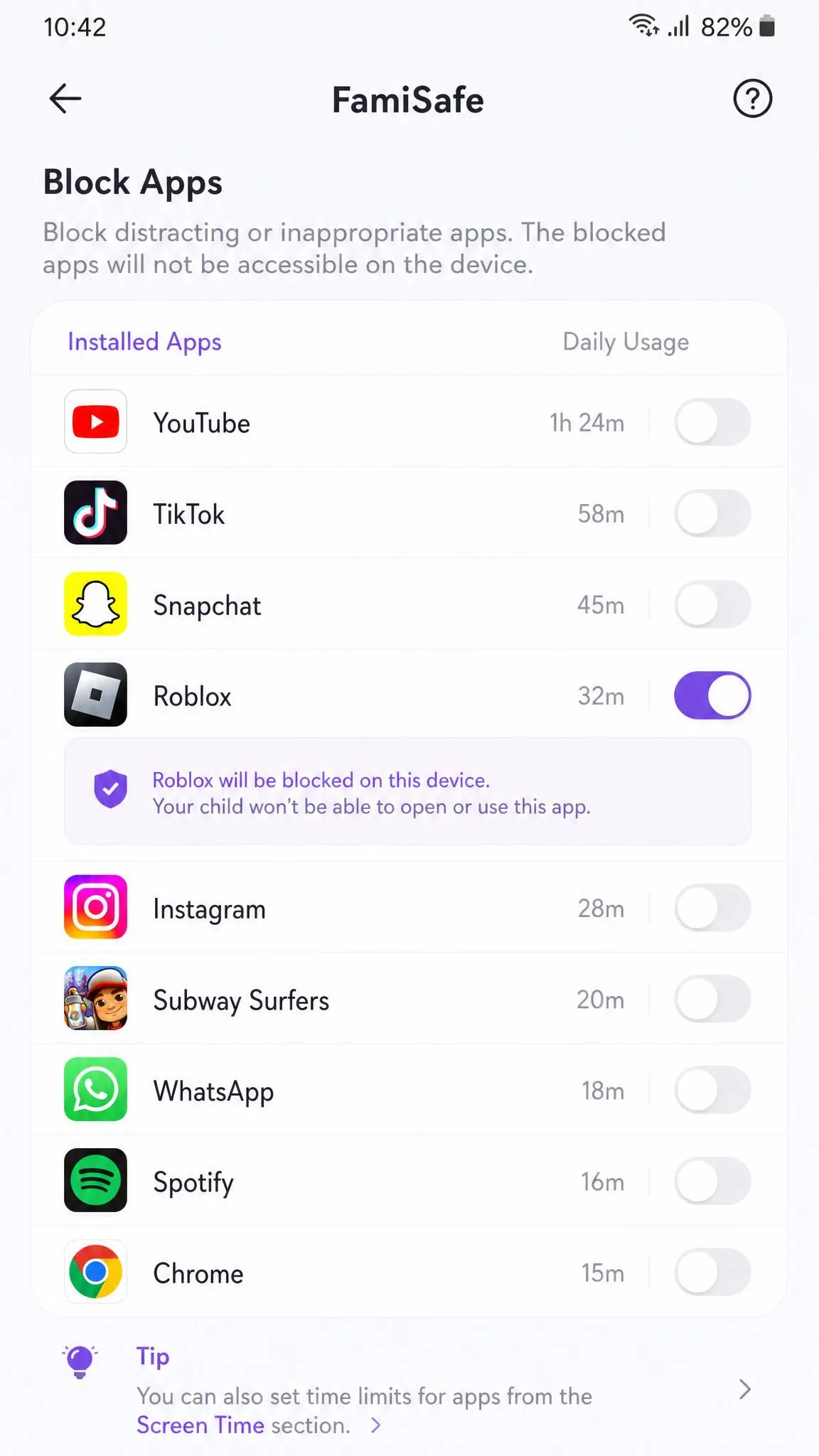
App blocking works on a straightforward allow-and-block model. The parent app pulls a full list of what is installed on the child's device, shows you how long each app was used that day, and lets you block anything with a single toggle. You can also set a per-app time limit instead of an outright block, which is the setting most parents end up using once the novelty of blocking wears off.
The app usage report is more useful than the blocking itself. Seeing that a homework tablet spent 90 minutes in a game and 12 minutes in a browser tells you more than any filter, and it gives you something concrete to talk about rather than a vague sense that there is too much screen time in the house.
Newly installed apps show up in the dashboard and can trigger an alert, so a child cannot quietly add something you have not seen. On Android this is close to complete. On iPhone the picture is less granular, for reasons Apple imposes rather than Wondershare.
Web Content Filtering and Browser History
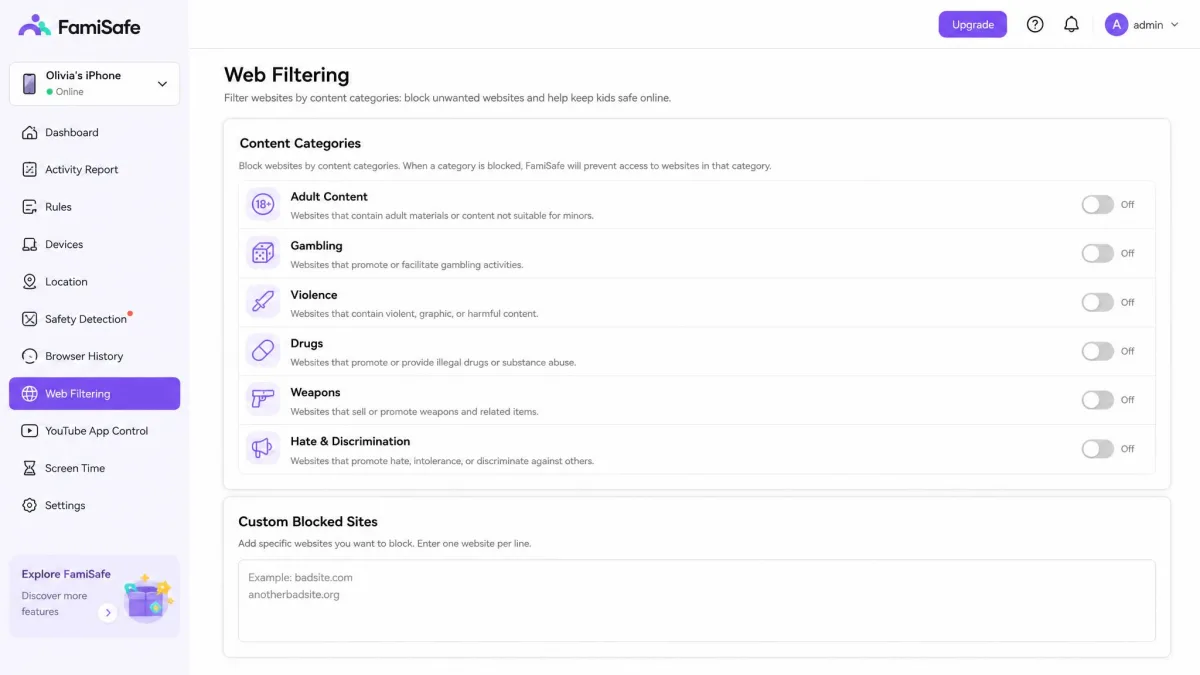
Web filtering runs on content categories, so you switch off adult content, gambling, violence and similar groups rather than maintaining a blocklist by hand. You can add your own blocked and allowed sites on top of the categories, which matters for the specific game or video site that becomes a household issue. FamiSafe lists 10+ inbuilt website categories covering adult content, drugs, violence and similar groups, though the published count differs between Wondershare's own product pages, so treat the number as approximate and check the list in the app.
Browser history reporting sits alongside the filter and is the part parents actually read. It lists visited sites with timestamps, flags anything that hit a blocked category, and makes patterns visible in a way a live block never does.
The weak point is the same as with the time limits. A determined teenager can work around the web filters, whether that is through an alternative browser, a private window or a proxy, and they are easier to get past than the marketing suggests. For a younger child the category switches do their job quietly in the background and you will rarely think about them. For an older one, treat the browser history report as the real safeguard rather than assuming the filter is airtight.
Block or limit any secondary browsers on the child's device at the same time you turn the filter on. A filter that only governs the default browser leaves an obvious door open, and a second browser is the simplest way through it.
Location Tracking and Geofencing
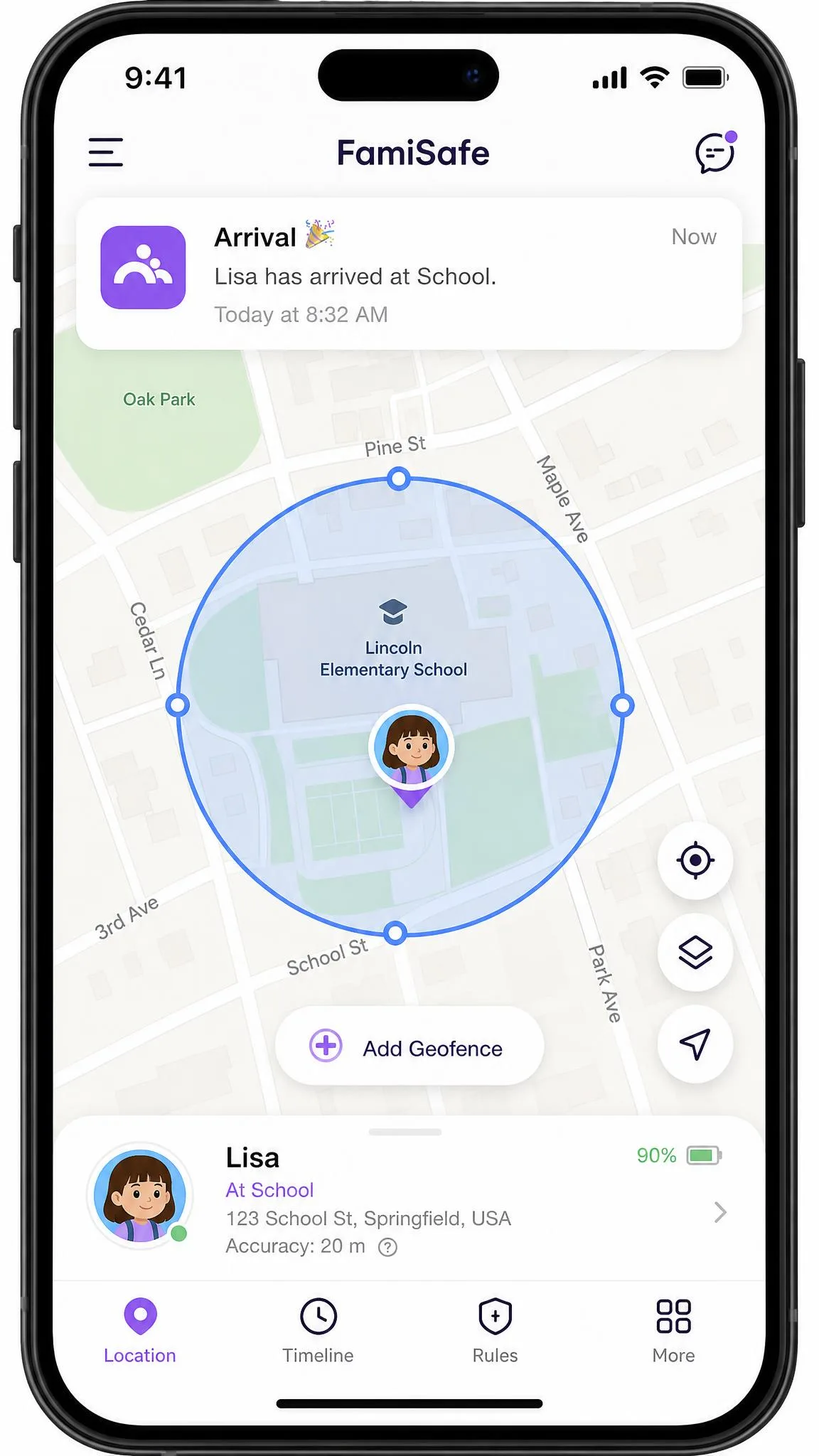
Live GPS location is the feature parents buy this category of app for, and FamiSafe handles it well. The map shows the child's current position, you can scroll back through location history to see where the device has been, and you can draw geofences around home, school or a grandparent's house that trigger an alert on arrival and departure.
Our accuracy findings are mixed and we are not going to flatten them into one number. In day-to-day use, location landed consistently accurate to within a few metres, which is more than good enough to confirm a child arrived at school. At other times the position was less accurate and the dashboard lagged behind where the child actually was, because of sync delays between the two apps. Both things are true, and the pattern seems to depend on signal quality and how aggressively the child's phone is managing background activity.
Geofence alerts were the most useful part for us. An arrival notification when a child reaches school removes the daily uncertainty far more efficiently than opening a map and checking, and it is the setting we would turn on first.
Calls, Messages and Screen Viewer
Call and message monitoring gives you a log of who your child is contacting and lets you flag or block specific numbers. On Android this works as advertised. On iPhone it is much more limited, and some owner complaints about missing call and text monitoring are really complaints about the iOS build rather than the product as a whole.
The real-time screen viewer shows you what is currently on the child's screen. Technically it does exactly what it claims. Editorially, we would tell you to think hard before using it. There is a large difference between knowing which apps your child uses and watching their screen live, and with anyone past about eleven the trust cost usually outweighs the information you gain. Ambient sound recording sits in the same bracket.
Our position is simple: these features exist, they work, and most families should leave them off unless there is a specific safety concern that justifies them. Tell your child what is being monitored. Covert monitoring of a teenager tends to end one way, and it is not with better communication.
Monitoring features like the screen viewer, call logs and ambient recording carry legal weight as well as ethical weight. Monitoring your own minor child on a device you own is generally lawful in most jurisdictions, but recording other people in a conversation may not be, and the rules differ by country and by state. Check your local position before you turn on recording.
Social Media and Explicit Content Detection
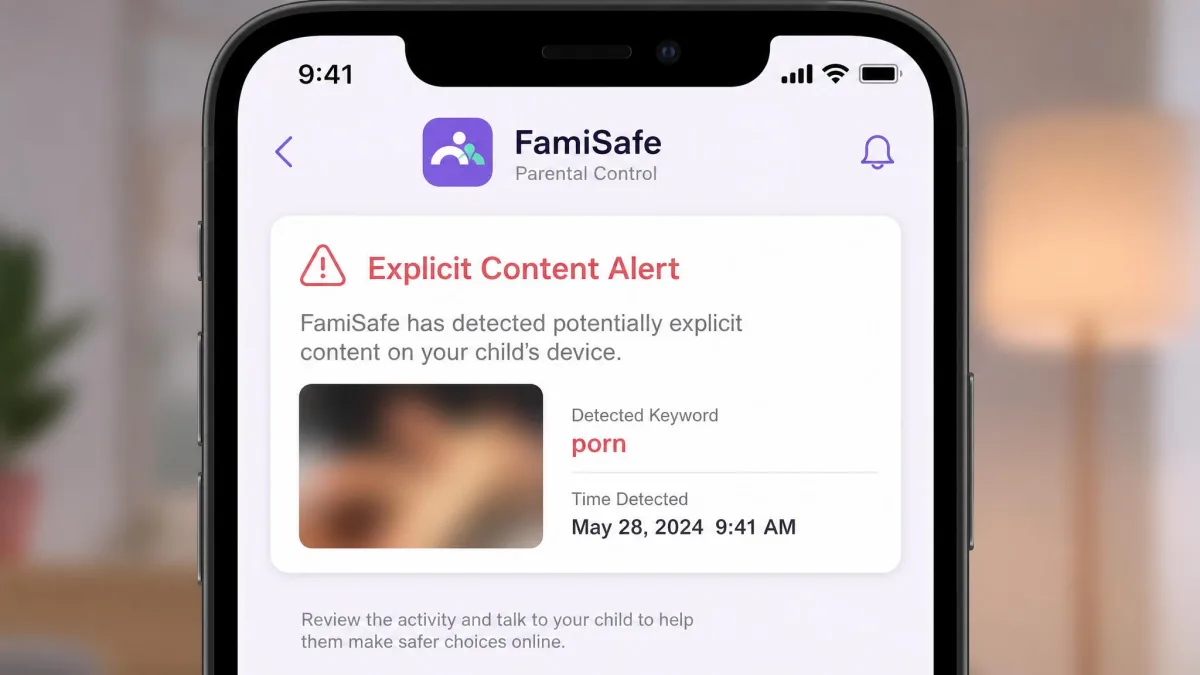
This is FamiSafe's headline feature and the one that separates it from cheaper screen time tools. AI social media monitoring covers 30+ apps, scanning for explicit images, suspicious keywords and the slang that adults do not recognise, then pushing an alert to the parent app when something trips the filter.
When it works, it works well. Explicit-content and social alerts surfaced contact in a game chat room that we would never have found by scrolling through a phone, and that single category of alert is the strongest argument for the subscription.
When it misfires, it costs you time. The AI misreads context often enough to produce false positives that need a parent to check them manually, so song lyrics, in-jokes and gaming trash talk all generate alerts that turn out to be nothing. Expect to triage. Also expect thinner coverage on iOS, where Apple's platform restrictions cut what any monitoring app can see.
Driving Report and Safe-Driving Monitor
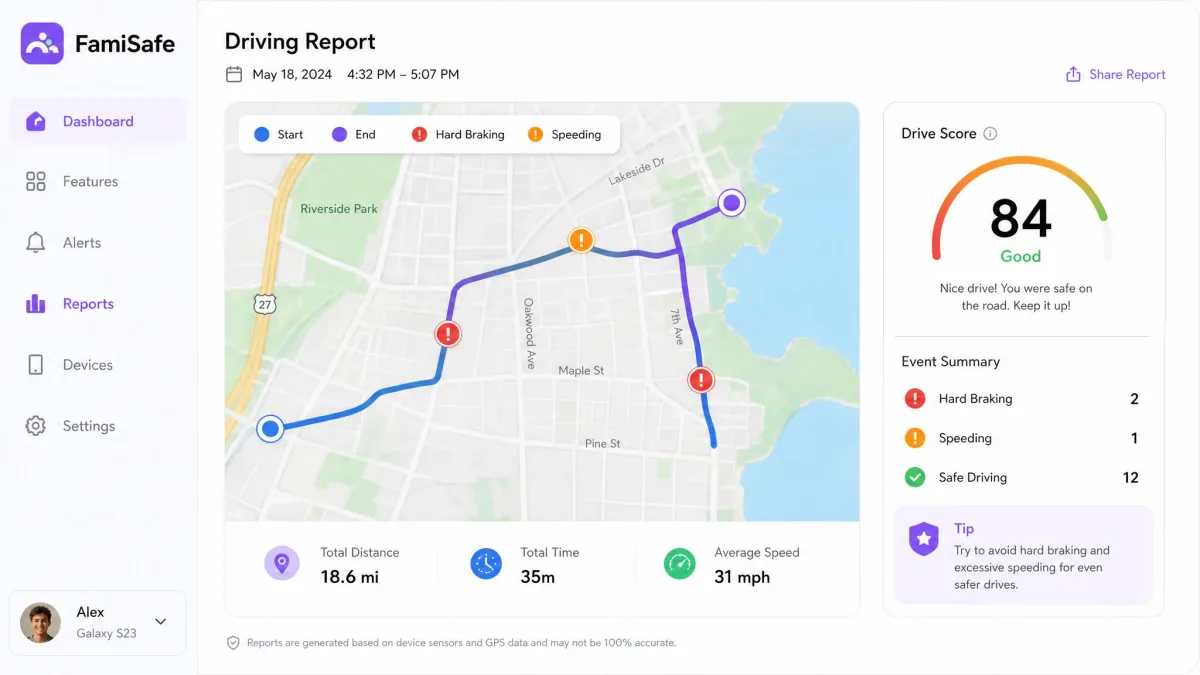
The driving report is a genuine differentiator, because Bark, Qustodio and Net Nanny do not include one. If your child drives, FamiSafe logs trips and flags hard braking, rapid acceleration, speeding and phone use behind the wheel.
For families with a newly licensed teenager, this alone can justify choosing FamiSafe over a rival. The reports are readable, and they give you a factual basis for a conversation about driving habits instead of a suspicion. If nobody in your house drives yet, it is a feature you will never open.
Activity Reports and Alerts
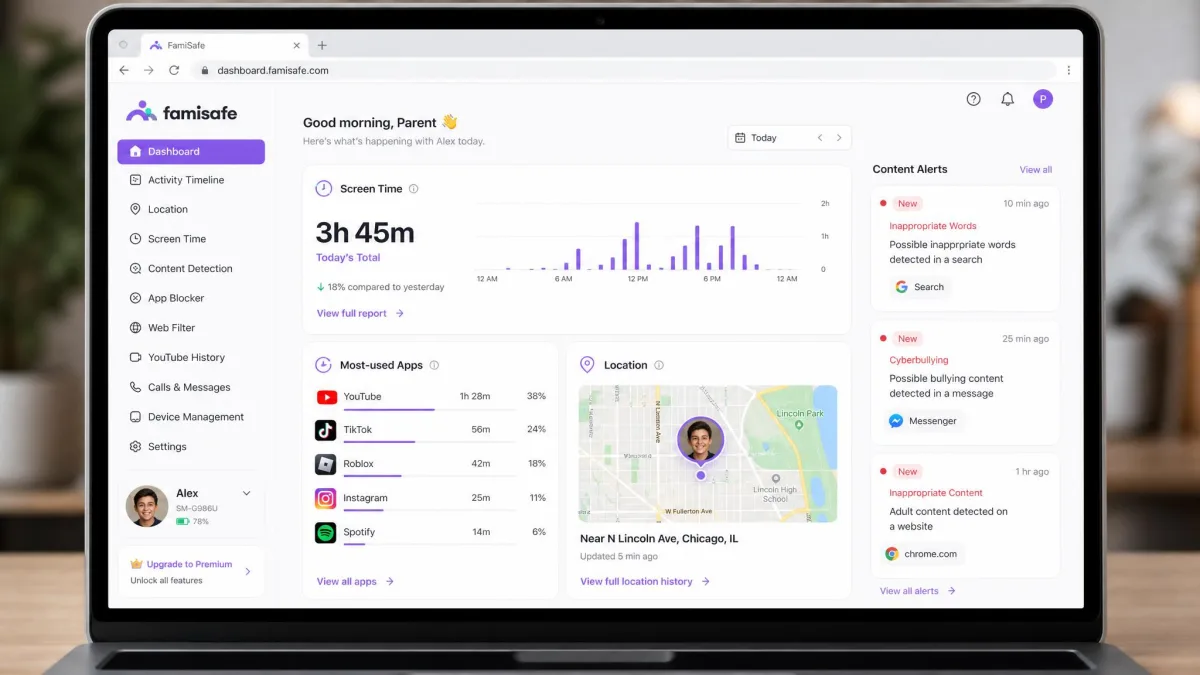
Everything above feeds a daily activity report: screen time totals, app usage breakdowns, browsing history, flagged content and location summaries in one place. This is where FamiSafe is at its best, because the summary view turns a lot of scattered monitoring into something you can read in two minutes over coffee.
Instant alerts handle the urgent end. Geofence entries and exits, explicit content matches, keyword hits and new app installs all push a notification. The caveat we found is timing: alerts and notifications can lag behind the activity that triggered them, so the dashboard is not always a live picture. For safety monitoring that gap is worth understanding before you rely on it.
FamiSafe is an excellent early-warning system and an imperfect perimeter. Buy it for what it shows you, not for what it stops.
— From our hands-on testing notes
FamiSafe Installation and Setup
Every feature above depends on getting the two apps paired properly, and setup is the roughest part of the experience. Installing and configuring FamiSafe takes roughly 15 to 20 minutes per device, and the initial process feels overwhelming before the dashboard makes sense. Nothing about it is beyond a normal parent, but there are more permission screens than most people expect, and getting them wrong is what causes the "it isn't reporting anything" problem later.
Setting Up the Parent App
The parent side is easy. You create an account, choose your plan, and the app walks you through adding your first child profile with a name, age and device type. Age matters more than it looks, because FamiSafe uses it to suggest default filter categories and time limits, and those defaults are a sensible starting point.
You can run the parent side from the mobile app or a browser dashboard. We preferred the browser for the initial configuration, because building schedules and geofences with a mouse is faster, and then switched to the phone app for daily alerts.
Setting Up the Kids App
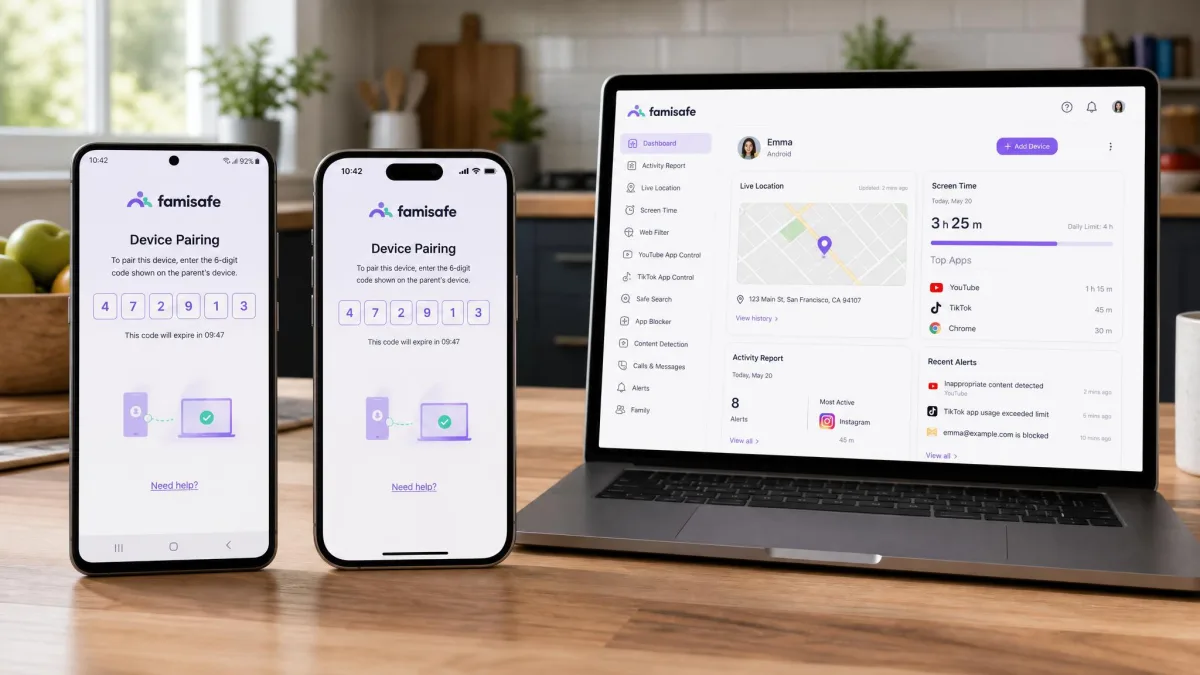
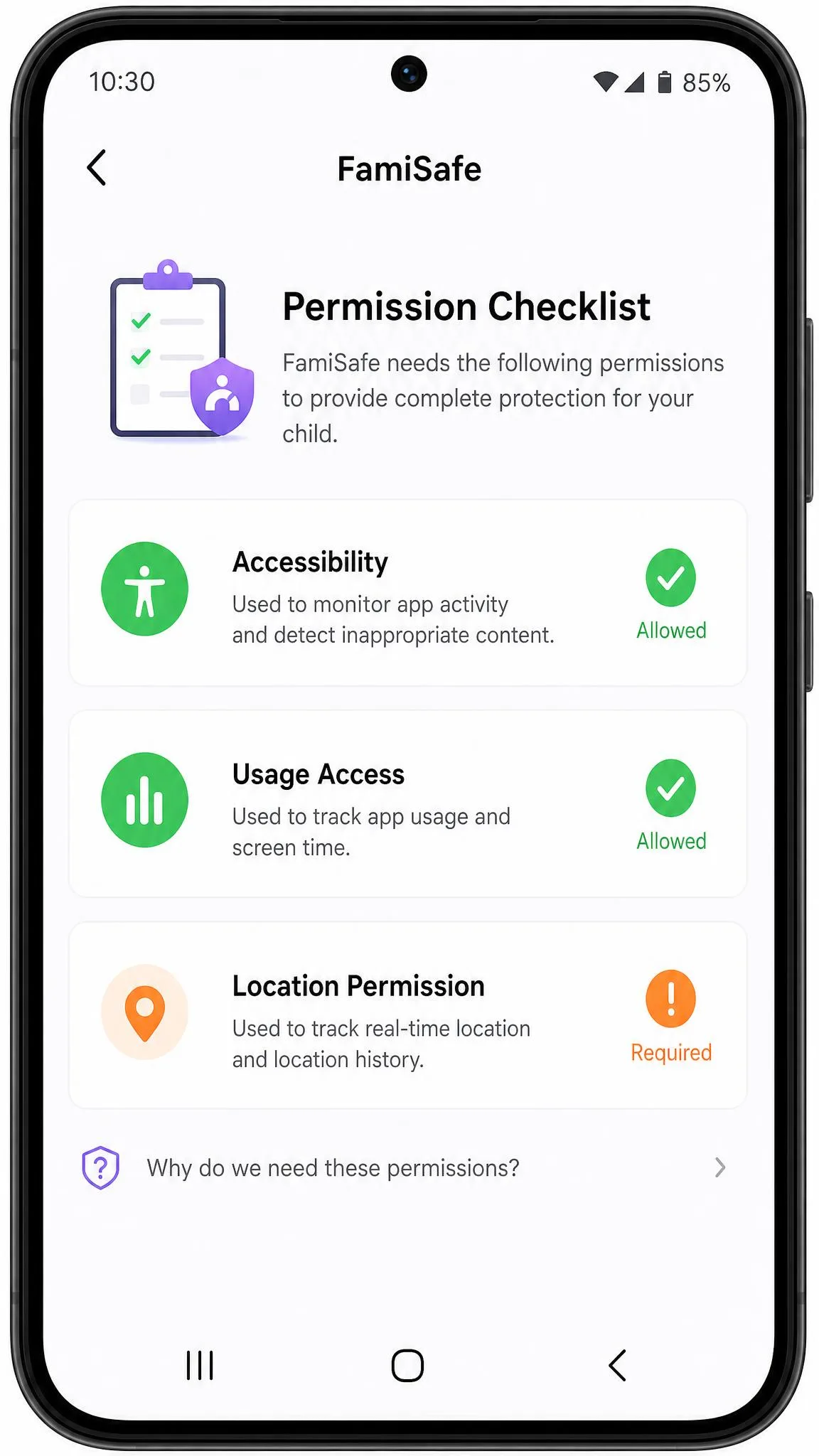
The kids app is where the time goes. You install it on the child's device, sign in with the same account, pair with a code from the parent app, and then grant a long series of permissions: accessibility, usage access, location, notification access and, on Android, permission to draw over other apps. Skip one and a whole feature silently stops working.
Our advice is to do this with the child's device in your hand and unhurried, following the in-app checklist to the end rather than dismissing the prompts. The app tells you which permissions are still missing, and it is worth clearing that list to zero before you walk away.
After pairing, leave the child's device unlocked and connected to Wi-Fi for five minutes before you check the parent dashboard. The first sync populates the app list and location, and most "nothing is showing up" panics are really a device that has not finished its first report.
Android vs iOS: What You Actually Get
This is the single most important section in this review if you have an iPhone household. Android gives you far more granular control than iOS does, and the gap is not small.
On Android you get the full picture: app blocking and usage limits, call and message monitoring, browser history, social media scanning across the widest set of apps, and the tightest enforcement of time limits. On iOS you get screen time, location and geofencing, web filtering and a reduced set of content alerts, all of it constrained by what Apple lets any third-party app see.
iOS also costs you more setup effort. It requires installing a VPN or configuration profile, and this is the step most likely to go wrong. iPhone setup can go badly enough to swallow hours before the child device reports in properly, and if that happens the fix is usually to remove the profile and start the pairing again rather than to keep retrying.
If every device in your family is an iPhone, weigh this carefully. FamiSafe's iOS build is competent for screen time, filtering and location, but the monitoring features that make it stand out are substantially reduced, and you would be paying for a feature list you cannot fully access.
Ease of Use and Interface
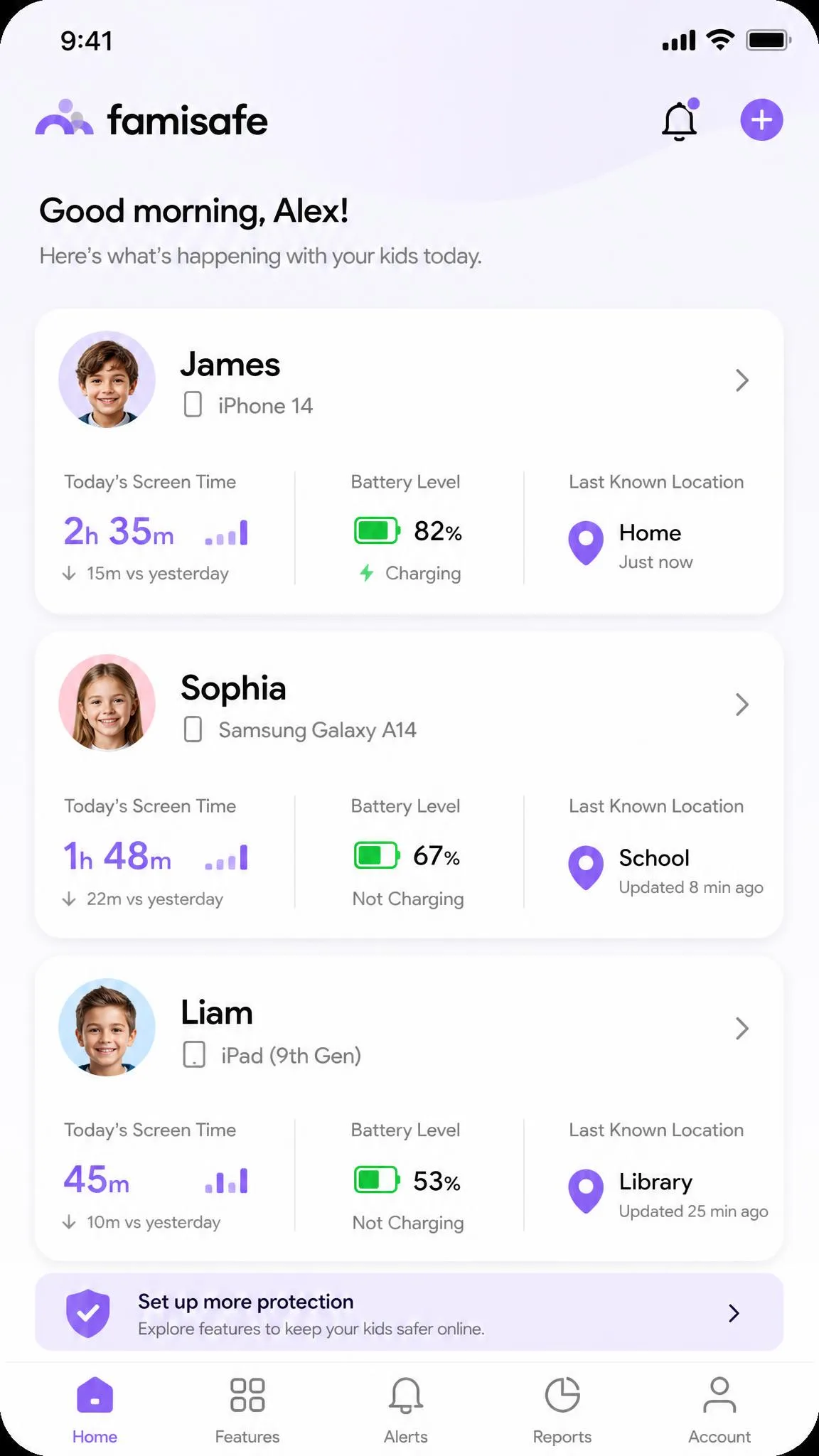
Day to day, FamiSafe is easy to live with. The parent dashboard is straightforward enough for a non-technical parent to run, with a card layout that puts today's screen time, recent locations and unread alerts on the first screen. Nothing important is buried three menus deep.
The learning curve is not in the interface at all. It sits in deciding which alerts actually matter, and that takes a week or two of tuning. Most parents start with everything switched on, drown in notifications, and then dial back to the three or four alert types they genuinely act on. We would suggest starting narrow instead: geofences, explicit content and screen time overruns, then add more if you find gaps.
The mobile parent app and the browser dashboard are consistent with each other, which sounds like a small thing until you use a competitor where they are not. Settings you create in one appear in the other without a refresh dance.
Small friction points remain. Some settings take a sync cycle to reach the child's device, so a change you make is not always instant, and the alert feed could use better grouping when several notifications arrive at once. Neither is a reason to avoid the app.
FamiSafe Pricing and Plans
With the features and the setup effort on the table, the question becomes what all of it costs. FamiSafe is priced in the middle of the parental control market, and the annual plan is where the value is. You can check FamiSafe's current pricing before you commit, because promotional rates move.
Monthly, Annual and Quarterly Costs
The monthly plan costs $9.99 and covers 5 devices. The quarterly plan costs $19.99, which works out at $6.66 per month. The annual plan costs $59.99, which is $4.99 per month billed annually, and that is half the monthly rate for the same software.
| Plan | Price | Monthly equivalent | Devices |
|---|---|---|---|
| Monthly | $9.99 | $9.99 | 5 devices |
| Quarterly | $19.99 | $6.66 | 8 devices, varies by promotion |
| Annual | $59.99 | $4.99 | 10 devices, varies by promotion |
Device counts need a caveat. FamiSafe has shifted the per-tier device allowance more than once, so check the count shown at checkout rather than trusting any review including this one. The yearly plan's allowance in particular has changed between promotions, and published figures range from 10 devices to 30.
One more thing to budget for: any introductory discount applies to the first subscription only, so the plan renews at the full list price. The yearly plan renews at $59.99 a year and the monthly plan at $9.99 a month, and auto-renewal is switched on by default. Set a calendar reminder a week before renewal so the decision is yours rather than the billing system's.
Free Trial and Refund Policy
There is a 3-day free trial, and you can cancel anytime during it. Be realistic about what it shows you: the free tier monitors 1 device and displays limited demo data only, with activity reports and browsing history capped to a single day. That is enough to judge the interface and confirm pairing works on your child's device, and not enough to judge the alerting, which is the thing you are actually buying.
The refund side is where you should read carefully. FamiSafe publishes a 7-day money-back guarantee, but the window quoted varies by region and promotion, so confirm the terms attached to the specific plan you are buying at checkout. Refunds are also not automatic: claiming the guarantee means contacting support directly and waiting for them to process it.
Do your real evaluation inside the money-back window rather than inside the 3-day trial. The trial is too limited and too short to tell you whether the alerts are useful, and a paid week on your own child's device answers the question properly.
Is FamiSafe Worth the Money?
At $59.99 a year, FamiSafe is worth it for most families with children under about thirteen who want monitoring as well as controls. Nothing else at that price includes location history, geofencing, call and message logs, driving reports and AI social scanning across 30+ apps in a single tier. Qustodio's Basic plan is $59.95 for a similar device count with a narrower feature set, and Bark charges $99 a year for Android or $148 for iOS.
It is worth less if you are an all-iPhone household, because you are paying the same price for a reduced feature set. It is also worth less if your child is a tech-savvy teenager and your main goal is enforcement rather than visibility, since that is exactly the scenario where the filters and limits are weakest.

Customer Support
That refund process leads straight into the part of FamiSafe we like least. Support is its weakest area, and we want to be straight about it because it is the most frequent complaint owners make. Response time is the recurring theme: support can be slow to reply, and when a monitoring app stops reporting on your child's device, slow is exactly what you do not need.
The picture is not uniformly bad. Live chat replies can arrive within minutes, and email answers typically land inside 24 hours when the queue is normal. There are live chat, email and business-hours phone channels, which is more coverage than several competitors offer. Wondershare does commit to a target: requests sent in-app or by email are answered within 24 business hours. Our own tickets came back inside about a day of business hours, which does not always match the wait people describe publicly, so the problem is consistency rather than absence.
The support experience that matters most is the one nobody plans for. Cancelling a subscription or fully uninstalling the app is harder than expected and can require a support ticket, so factor that in if you like to try things and back out quickly.
Privacy, Safety and Legality
Any parental control app is a privacy trade, and you should make it deliberately. FamiSafe collects location history, browsing history, app usage, and on Android the contents of calls and messages, then stores it against your account. That is a detailed picture of a child's life sitting on a vendor's servers, which is a reason to use strong account credentials and to switch off the monitoring features you do not actually need.
Is FamiSafe Safe and Legal to Use?
FamiSafe is a legitimate commercial product from an established software company, not malware, and it requires no rooting or jailbreaking, so installing it does not weaken the security of your child's device. That is the safety question most parents are really asking.
Legality is a separate question with a general answer and a lot of local exceptions. A parent monitoring their own minor child on a device the parent owns is lawful in most jurisdictions. Monitoring a spouse, an adult child or an employee without consent usually is not, and recording audio that captures third parties can breach wiretapping rules even inside your own family.
Our editorial line, separate from the legal one, is that age-appropriate transparency produces better outcomes. Tell your child the app is there and what it reports. You lose very little monitoring value and you keep the relationship that actually protects them.
Can a Child Detect or Delete FamiSafe?
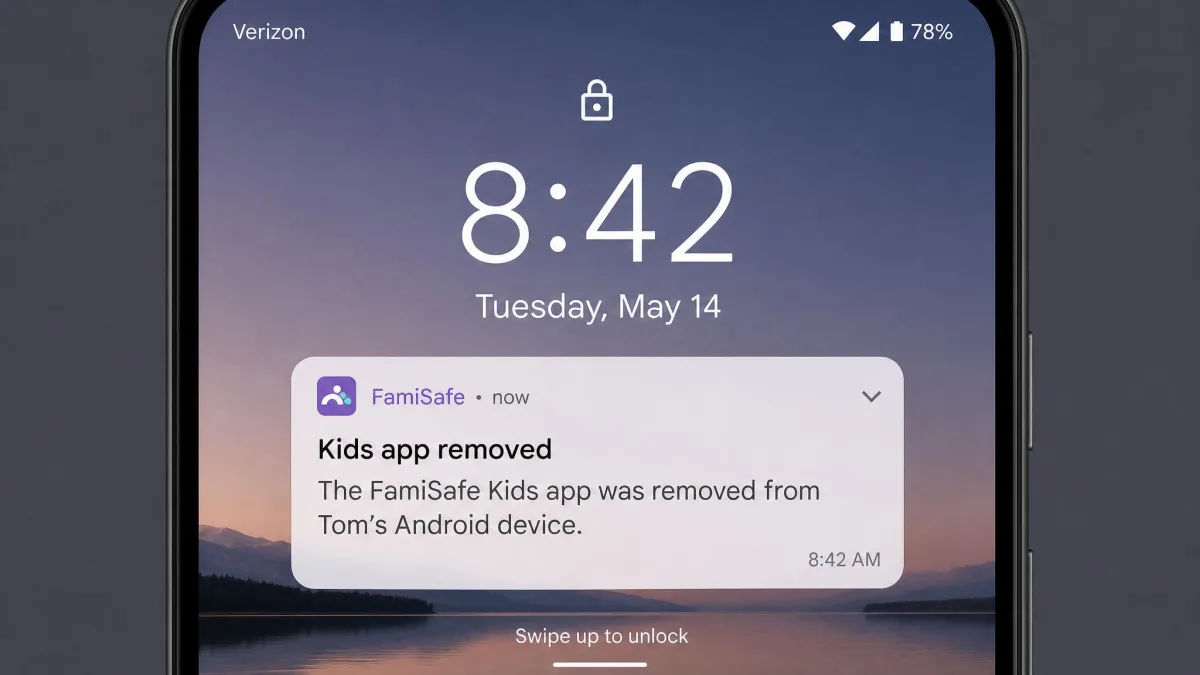
FamiSafe is not a hidden app. The kids app appears in the app list and its permissions are visible in device settings, so a curious child will find it. FamiSafe includes protections that make removal harder, including uninstall alerts to the parent app, but a determined Android user with time can still cause the reporting to stop.
The practical result is that FamiSafe should be used openly rather than covertly. Its uninstall alerting is genuinely useful, because you find out that monitoring has stopped, which is often the more actionable piece of information anyway.
Where FamiSafe Falls Short
Having spent most of this review on what FamiSafe does well, we owe you the two limitations that would genuinely change a buying decision. Neither is visible on the product page.
The enforcement gap is the biggest. When we asked a teenager to push at the time restrictions and the web filters on an Android phone, without any coaching, the gaps appeared without much effort. That does not make the controls worthless, because a nudge is still worth having with a younger child who is not trying to defeat anything. It does mean you should not buy FamiSafe expecting a sealed perimeter around a motivated sixteen-year-old. The software gives you evidence and a reason to have a conversation. It does not give you a lock, and any parental control app that claims otherwise is selling you something.
Alert latency is the second, and it is the one parents underestimate. Notifications can lag behind the events that trigger them, so what you are reading is a recent past rather than the present moment. For screen time totals and browsing history that gap makes no practical difference, because you read those as summaries at the end of a day anyway. For a geofence arrival you are waiting on, or a content flag you would want to act on straight away, it matters, and it is the line between an early-warning system and live supervision. Set your expectations at the former and FamiSafe holds up well.
What Real Users Say
Our findings come from one household, so they are worth checking against a much larger sample. Trustpilot's community has left roughly 129 reviews of Wondershare FamiSafe, and the sentiment splits along predictable lines. Positive reviews centre on the breadth of features and the reassurance of location alerts. Negative reviews are dominated by one theme: customer service response time. Difficulty cancelling a subscription is the second recurring complaint.
Discussion on parenting forums and Reddit tracks the same shape. Parents of younger children report that FamiSafe does what they wanted and gives them peace of mind. Parents of teenagers report a mix, with the most common frustration being that a motivated teen found a way around the restrictions.
We read that pattern as consistent rather than contradictory, and it matches our own findings. FamiSafe is strong at visibility and moderate at enforcement, so satisfaction depends heavily on which of those two things you bought it for.
FamiSafe Alternatives Compared
FamiSafe is not the only good option, and the right pick depends on your child's age, your platform mix and whether you want monitoring or filtering.
| Product | Buy | Screen time limits | Web filtering | Location and geofencing | Call and message monitoring | Social media detection | Driving report | iOS parity | Annual price | Free trial |
|---|---|---|---|---|---|---|---|---|---|---|
|
Check price → | Schedules and daily limits | Yes, plus browser history | Live GPS, history and geofences | Yes on Android | AI across 30+ apps | Yes | Partial, needs a profile | $59.99 | 3-day |
 |
Schedules | Yes | Location check-ins | Text and email alerts | Alerts across major platforms | No | Partial | $99 Android, $148 iOS | 7-day | |
 |
Daily and per-app limits | Yes | Yes | Yes | Social and gaming alerts | No | Partial | $59.95 Basic, $104.95 Complete | Free tier | |
 |
Yes | AI real-time filtering | No | No | Limited | No | iOS supported | $39.99 to $89.99 | None, 14-day return |
FamiSafe vs the Main Competitors
Against Bark, FamiSafe wins on price and on controls. Bark charges $99 a year for Android and $148 for iOS, and its strength is content alerting across texts, email and social platforms rather than blocking. Bark covers unlimited family members on one subscription, which changes the maths for large families, and it offers a 7-day free trial against FamiSafe's 3-day.
Against Qustodio, the two are close on price at $59.95 for Basic versus $59.99. Qustodio's per-app time limits and custom routines are more refined, and its 30-day money-back guarantee is more generous and less ambiguous than FamiSafe's. FamiSafe answers with location history, the driving report and broader social scanning.
Against Net Nanny, the choice is clean. Net Nanny is a filtering product, with strong AI real-time content filtering starting at $39.99 a year for a single desktop and $54.99 for a 5-device Family Protection Pass, rising to $89.99 for 20 devices. It has no location tracking and no call or message monitoring, and there is no free trial, only a 14-day return policy. If you want a filter, it is excellent. If you want to know where your child is, it cannot help.
When to Choose Something Else
Choose Bark if your primary worry is what your child is saying and receiving rather than how long they are on the device, or if you have four or more children and unlimited coverage saves you money.
Choose Qustodio if you want the most polished time management, a clearer refund path, or a free tier to start from without paying anything.
Choose Net Nanny if you only need content filtering on Windows, Mac or iOS, and location tracking is not something you want at all.
Choose FamiSafe if you want the widest feature set for one price, you have Android devices in the mix, and your children are young enough that visibility matters more than airtight enforcement.
Common Setup Mistakes Parents Make
Most FamiSafe problems we see are configuration problems rather than product faults, and four mistakes cause almost all of them.
Skipping permissions is the first. The kids app needs accessibility, usage access, location and notification access to do its job, and a half-granted permission set produces a dashboard full of blanks that looks like a broken app.
Turning on every alert is the second. Parents who enable all alert types on day one stop reading any of them by day four. Start with geofences, explicit content and time-limit overruns.
Installing it secretly on a teenager's phone is the third. It gets discovered, because the app is not hidden, and the fallout costs more than the monitoring gains.
Forgetting the renewal date is the fourth. The introductory rate is promotional, auto-renewal is on by default and the plan renews at full price, so the reminder you set today saves you the annoyance later.
Final Verdict: Should You Buy FamiSafe?
The verdict above covers who should buy it, so this section is for the two groups who should not. All-iPhone households are the first. You pay the same as everyone else for a meaningfully reduced feature set, and you would usually be better served by Apple's own Screen Time for the limits and scheduling, paired with a filtering tool such as Net Nanny for the content side. Parents of tech-savvy teenagers are the second group, though the answer there is less a flat no than a warning about what you are actually buying: visibility rather than enforcement, which is a perfectly reasonable thing to pay for as long as nobody in the house is under the impression it is a lock.
If you do go ahead, four decisions separate a subscription you are glad of from one you resent. Take the annual plan rather than the monthly one. Use the money-back window as your real evaluation period, because the trial is too short and too limited to tell you anything about the alerting. Tell your child the app is installed and what it reports, which costs you almost nothing in monitoring value. And set a calendar reminder before the renewal date, so the decision to continue stays yours rather than the billing system's. You can compare tiers on Wondershare's official FamiSafe site before you decide, and if you want context on how much daily screen time is reasonable in the first place, the World Health Organization guidance on children's screen time is a better starting point than any app default.