If your child is under the applicable age in your country, Family Link won't let you simply switch off supervision from their device. The age rules come first, and they explain why some parents see a Stop supervision button while others don't.
This guide covers the three ways to end Family Link: stop supervision for a child who meets the minimum age, delete the supervised account for a younger child, or transfer supervision to the other parent. We'll also cover removing their account from a device.
Is Your Child Old Enough? Family Link Age Rules
The minimum age to end supervision varies by country
In most countries, a child can stop being supervised once they turn 13. Germany and the Netherlands set the minimum at 16, France at 15, and South Korea and Spain at 14. Check the minimum age to end Family Link supervision in your country to be sure.
If Google suspects a user is under the minimum age, that person has a 14-day window to update the account before it is disabled.
"13" is a shortcut. The real rule is the applicable age in your child's country, and in several countries it's higher.
What changes when your child turns 13 (or the applicable age)
Once your child is old enough, either of you can request to stop supervision, but a child under 18 still needs a parent's approval.
Stopping supervision does not delete the Google Account. Gmail, Drive, Photos, Calendar, and Play purchases all stay.
How to Remove a Child From Family Link: Step by Step
The right method depends on your child's age and your goals. We'll take them in order, starting with the one most families use.
Method 1: Stop supervision for a child who meets the minimum age
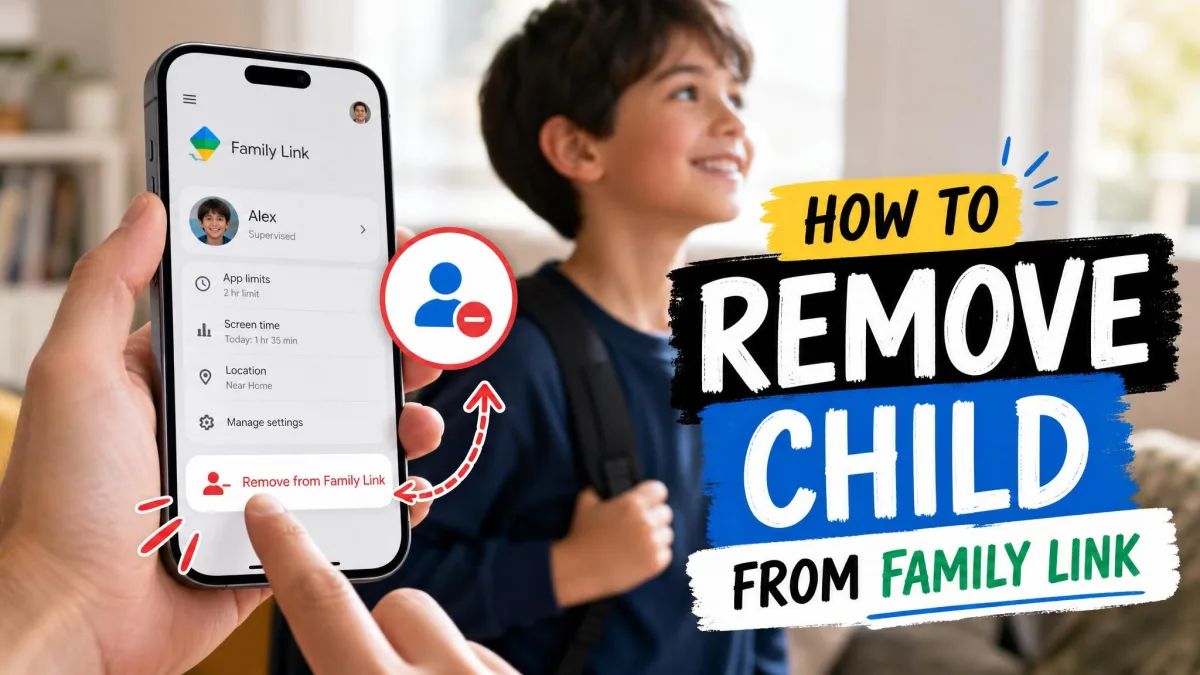
Ending supervision is the fastest route for a child who has reached the minimum age, and it keeps the Google Account intact. Google's help page covers how to remove a child from your family group.
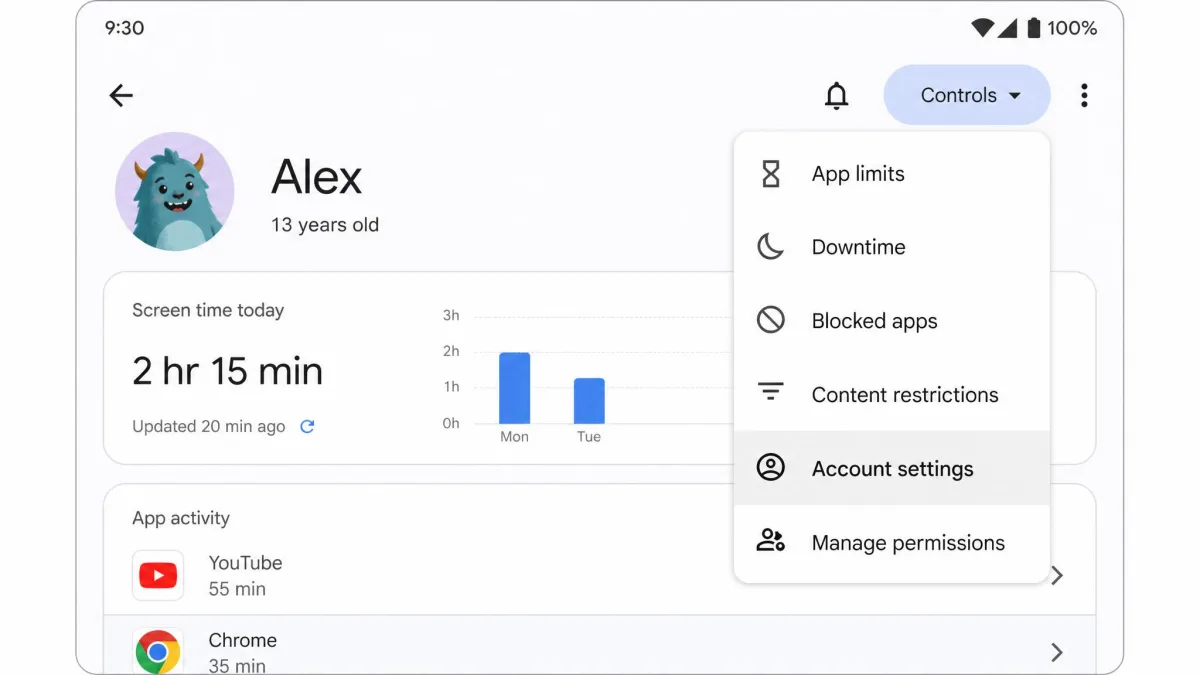
- Open the Family Link app on your phone.
- Select your child's profile at the top left.
- Tap Controls, then tap Account settings.
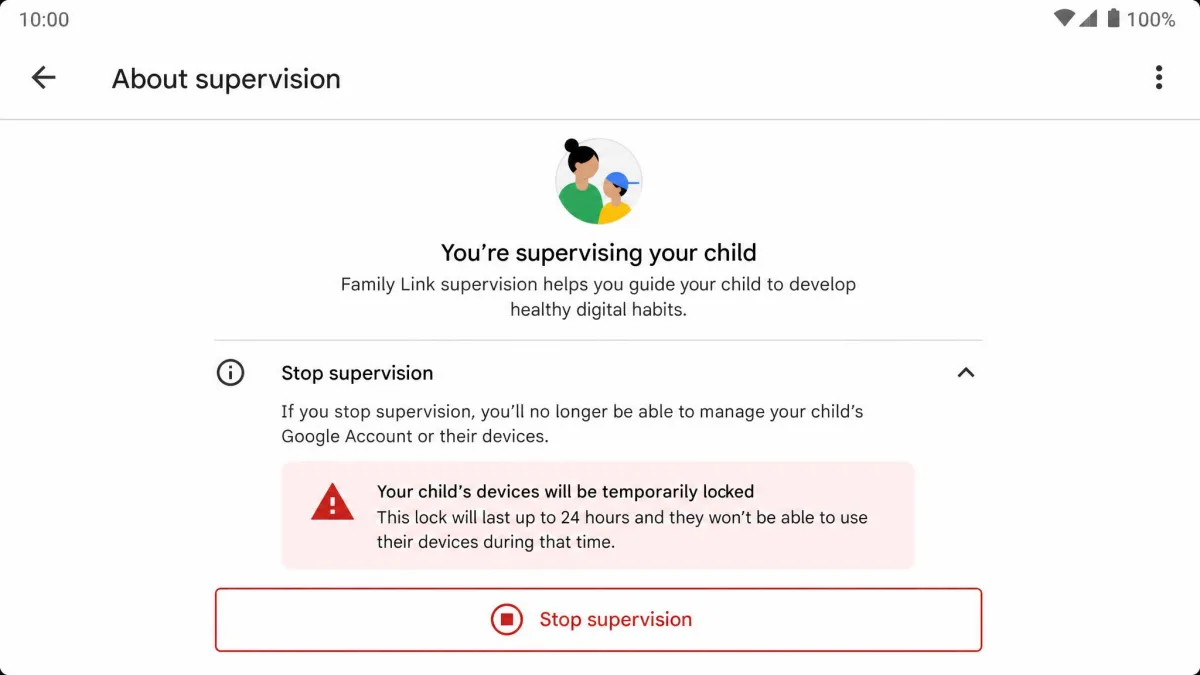
- Tap About supervision and follow the on-screen instructions.
- Tap Stop supervision and confirm.
From a computer, open the Supervision Opt Out flow and select Stop supervision.
Method 2: Delete a supervised Google Account (child under the minimum age)
Deleting the account is permanent, and it works only when you created the account and the child is under 13 (or the applicable age). Older children have to delete their own.
Be certain before you choose it, because it erases everything, including the Gmail address, Drive files, Photos, and Play purchases. Google's guide to delete your child's supervised Google Account has the full steps.
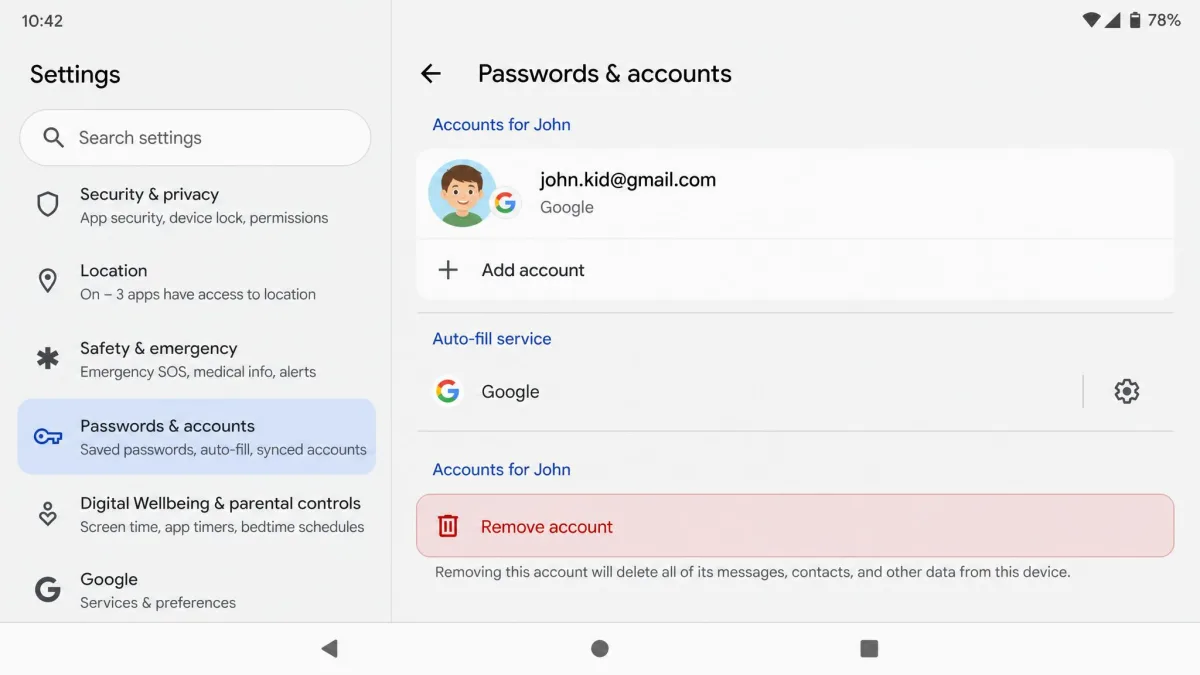
- Remove the child's account from every signed-in Android device and Chromebook.
- Open the Family Link app on your phone, or sign in on the Family Link website.
- Select your child, then tap Controls, then tap Account settings.
- Tap Delete account and follow the instructions.
Deleting the account while a device is still signed in can lock that device and force a factory reset, so do step 1 first.
Method 3: Transfer supervision to another parent instead
Transferring supervision keeps the child supervised while changing who controls it. It helps after a separation or a device change.
- Open the family management page and select the child's account.
- Tap Start transfer and verify your password.
- Confirm the new family manager's email address.
- Tap Start transfer to send the request.
The other parent has a 7-day window to accept. Supervision can only be switched once per 12-month period, and you should keep the child's family group in place until the transfer completes.
How to Remove Your Child's Account from a Device
Ending supervision on the account is separate from removing the account from a device. Skip the device step and the account can keep appearing in your device list even after it loses access.
Remove a child's account from an Android phone or tablet
Open Settings, then tap Passwords, passkeys & accounts (Android 13 calls it Passwords & accounts; older versions say Users & accounts). Select the child's account and tap Remove account.
A supervised child can't remove their own account from a device. The parent-side path is Controls, then Signed-in devices, then Reset device & delete data, which wipes everything. If Family Link is the device administrator, the Wipe Data option can even be missing.
Remove a child's account from a Chromebook (or factory reset)
If the child's account was the first added to the Chromebook, sign out, press Ctrl + Alt + Shift + r, choose Restart, then Powerwash. Otherwise remove it from Account Manager on the sign-in screen.
What Happens After You Remove Family Link Supervision
What you lose access to after stopping supervision
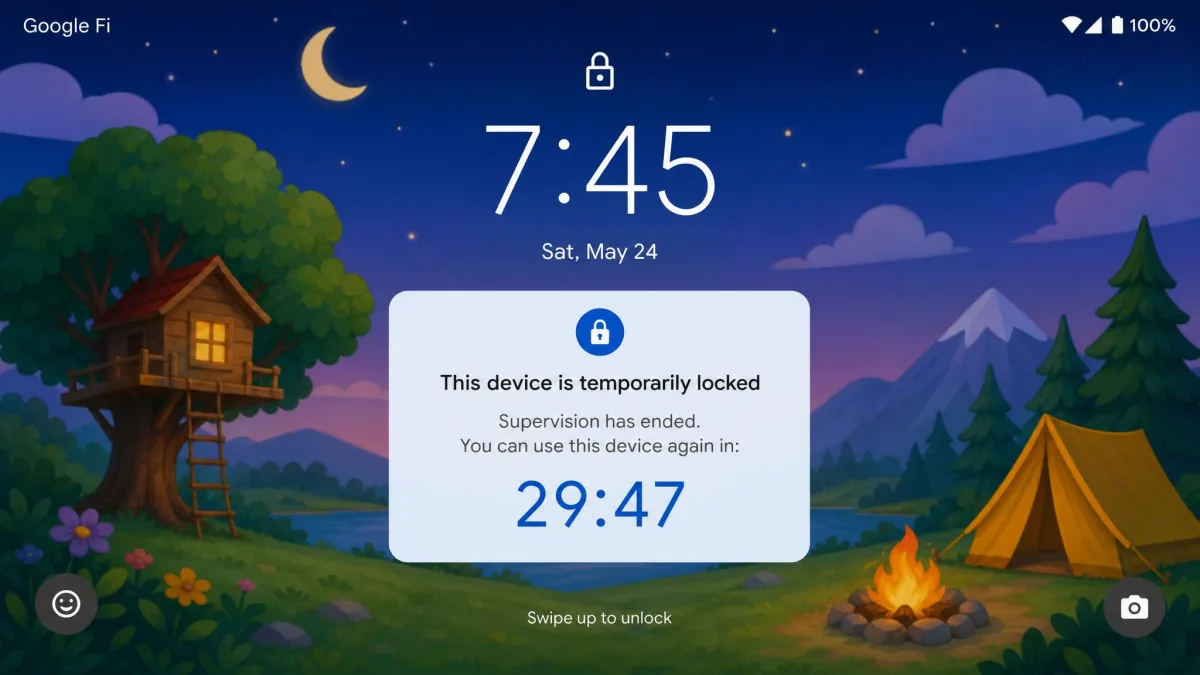
Live location access goes away, Downtime and app-approval settings turn off, and restricted YouTube content can reappear. Both you and your child get a notification, and the supervised devices lock temporarily.
The account data stays put, so nothing saved during the supervised period is lost.
Removing the child from the family group is a separate step. They keep their account and anything bought with the family payment method, but lose Family Library and shared Google One storage and can't make new family-payment purchases. Manage your family on Google covers the details.
Deleting a supervised account is the irreversible step in this guide. Everything in the account goes, and the Gmail address can't be reused. When in doubt, stop supervision first and delete later.
Can you restore or re-add the account later?
Stopping supervision leaves the account in place, so re-supervising later is easy. A deleted account can be restored in a limited window through the family recovery flow, but only if you created it and the family group still exists.
Alternatives to Family Link if you still want monitoring
Most parental-control apps for teens run on the child's phone rather than through Google, covering screen-time limits, app blocking, and location without a supervised account. Or run the device with no monitoring once that feels right.

What to Do If Family Link Won't Let You Remove a Child
Most "can't remove" cases trace back to the age check. If the child hasn't reached the minimum age, the Stop supervision option simply isn't available.
Confirm the age and country rules first
The option can also fail to appear for a child already over 13, leaving the account stuck until the app updates. We've also seen a device keep showing as supervised for a few hours after the confirmation email; it usually cleared within about three hours.
Uninstalling the Family Link app doesn't end supervision. Google's built-in safeguards keep it in place even after the app is gone.
Why changing the birth date is not a reliable fix
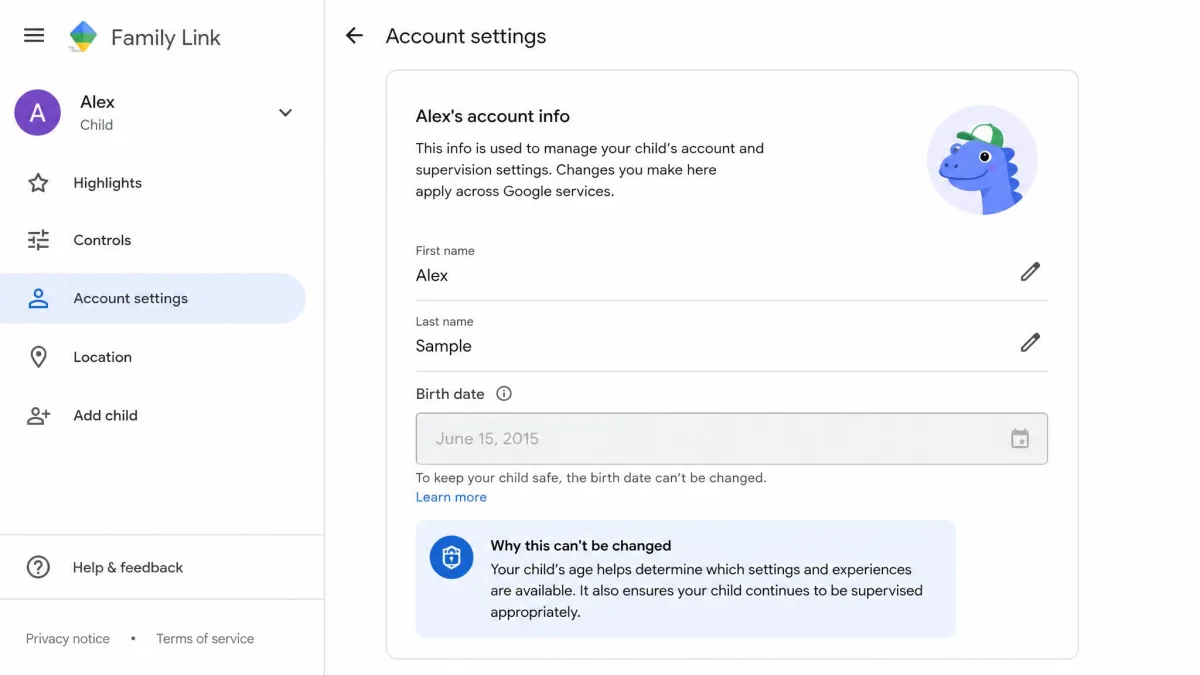
Editing the child's birth date to make them appear older isn't dependable. Google caps the date at 13, and a rapid change is often blocked. When it does land, it can take a day or two.
Frequently Asked Questions
Can I remove a child from Family Link without deleting their Google Account?
Can a child remove themselves from Family Link?
How long does stopping Family Link supervision take?
What happens to the child's apps and purchases after removal?
The Bottom Line
The fastest way to remove a child from Family Link is to stop supervision once they reach the minimum age. It keeps the Google Account and all its data, and it's reversible. Delete the account only when you're certain it should be gone, and transfer supervision when another parent should take over. Check the age rule first, then remove the account from each device.