Most parents want their kids to enjoy YouTube without stumbling into the wrong content. The good news is that YouTube now ships with real parental controls, and they are free. The challenge is choosing among three separate systems and knowing which fits your child's age.
This guide walks you through YouTube Kids, supervised accounts, and Restricted Mode, plus screen time, autoplay, Shorts, and watch history. We recommend YouTube Kids for the under-8s, a supervised account in the pre-teen years, and Restricted Mode with Google Family Link for older teens. Treat the setup as layers of protection rather than one switch.
Key Takeaways
- YouTube Kids, supervised accounts, and Restricted Mode work best as layers, not alone.
- YouTube Kids offers age-based content levels for children up to age 12.
- Supervised accounts give pre-teens more of YouTube behind three content tiers.
- Restricted Mode hides mature videos but must be enabled on every device.
- Family Link locks the settings so your child cannot switch them off.
- No filter is foolproof, so pair the tools with regular conversations.
Why Parental Controls on YouTube Matter
More than 500 hours of new video land on YouTube every minute, a widely repeated figure that Google itself has described differently over the years. No team of reviewers can pre-check that much content, which is why automated filtering and parent-set limits carry so much weight.
A 2025 survey by the Family Online Safety Institute found that only about half of parents use parental controls, and that kids often find their way around the ones that are enabled. That is not a reason to skip them. It is a reason to set them up properly and to know what each tool can and cannot do.
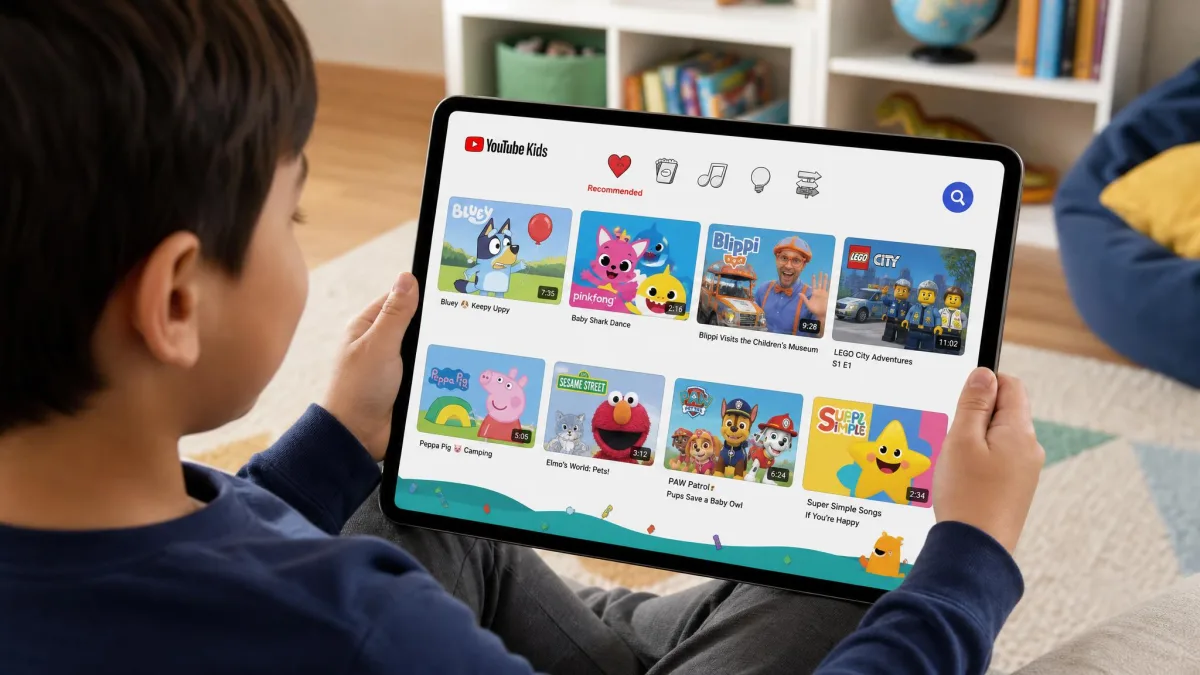
YouTube Parental Control Options: Kids vs Supervised vs Restricted Mode
YouTube gives you three built-in ways to filter what your child watches, and each one suits a different age. Here is how the options compare, and after it we will walk you through setting up each one.
| Option | Best for | What it restricts | Age range |
|---|---|---|---|
| YouTube Kids | Children under 8 who want a separate curated kids app | Curated library by content level; no comments, live streams, or Shorts; search can be off; parents can block videos and channels; built-in timer | Preschool (4 and under), Younger (5-8), Older (9-12), or Approve content yourself |
| Supervised Experience | Pre-teens 9-12 ready to leave the kids app | Three content tiers (Explore, Explore More, Most of YouTube); no age-restricted content; daily Shorts limit; parent-controlled autoplay; screen time via Family Link | Under 13 (or applicable age); tiers align to 9+ and 13+ ratings |
| Restricted Mode | Teens 13+ and shared family devices | Filters potentially mature content by title and metadata; hides comments; filters YouTube Music | Any age; most reliable once Family Link locks it on |
YouTube Kids
YouTube Kids is a separate app built only for children, with its own curated library and a content level you choose by age, from a Preschool level up to a pre-teen level, or Approve content yourself, where your child can only watch videos and channels you hand-pick. The app has no comments, live streaming, or Shorts, and you can switch search off entirely. Google's YouTube Kids parental-controls help page details every setting.
Supervised Accounts (Supervised Experience)
Supervised accounts let a child under 13 use the main YouTube app under a parent-managed account. You pick one of three content tiers: Explore, which roughly matches ratings for viewers 9 and older; Explore More, which steps up to 13 and older; and Most of YouTube, which opens almost everything except age-restricted content. On the two higher tiers the child can read but not write comments. Google's supervised accounts help explains eligibility.
Restricted Mode
Restricted Mode is a filter on a regular YouTube account that screens out potentially mature content using signals such as video titles, descriptions, and metadata. It hides comments on most videos, filters YouTube Music, and is not the same as age-restricting a video. It must be enabled separately on every browser and device, because the setting does not travel with your account. YouTube's official Restricted Mode documentation walks through the details.
Google Family Link
Google Family Link is the management app that ties the options together. From one dashboard you set the supervised content level, manage YouTube Kids settings, toggle Restricted Mode, apply screen-time limits, and block the YouTube app entirely. On iPhone and iPad its controls are more limited than on Android and Chromebooks, leaning on Apple's Screen Time.
Those are the three tools, and the right combination changes as your child grows. Now we will walk you through the setup for each one.
How to Set Up YouTube Kids (Step-by-Step)
YouTube Kids is the most restrictive of the three options, and its setup takes about five minutes: create a profile, pick a content level, and set a parent code.
Create a YouTube Kids Profile
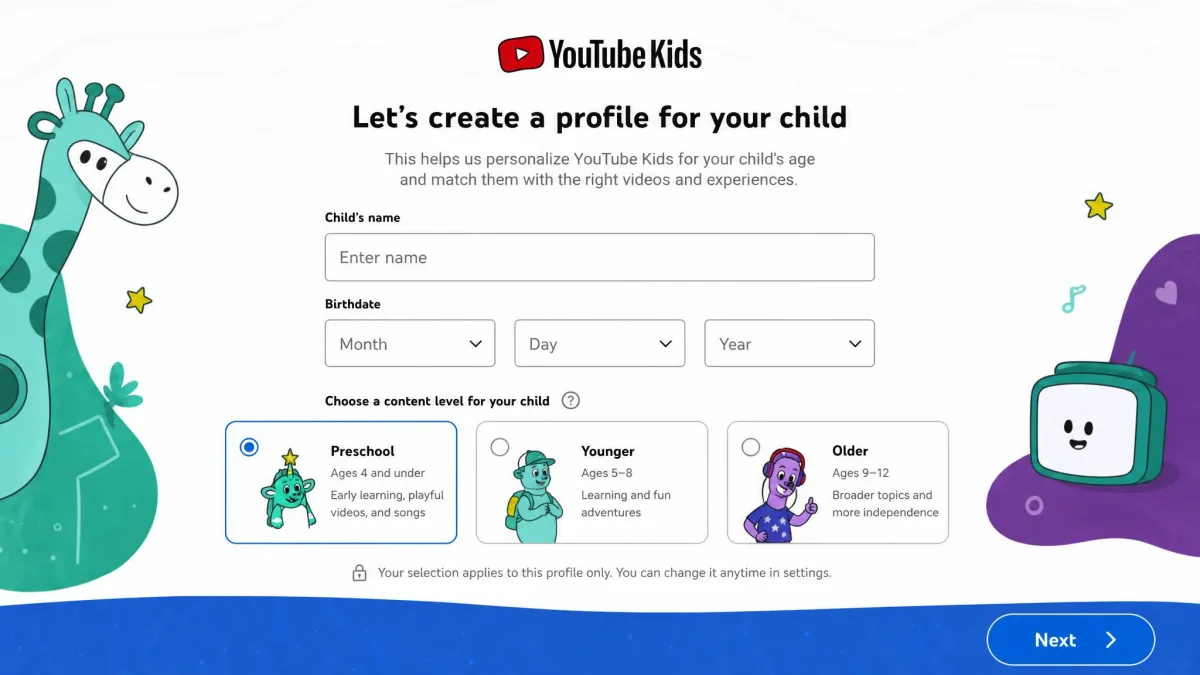
Install the YouTube Kids app on the child's device and sign in with a parent's Google Account that has a verified adult birthday, since the app uses that to confirm who is setting it up. Then create a profile with your child's name and birth year. You can set up to eight profiles per account.
Set the Content Level by Age
Open the parent settings and choose a content level: Preschool suits ages 4 and under, Younger suits 5-8, and Older suits 9-12. Choose Approve content yourself instead to hand-pick every video and channel, which also turns search off and makes the app a good starting level for the youngest viewers. Changing the level later asks you to re-enter the parent code, so keep it handy.
Set a Parent Code
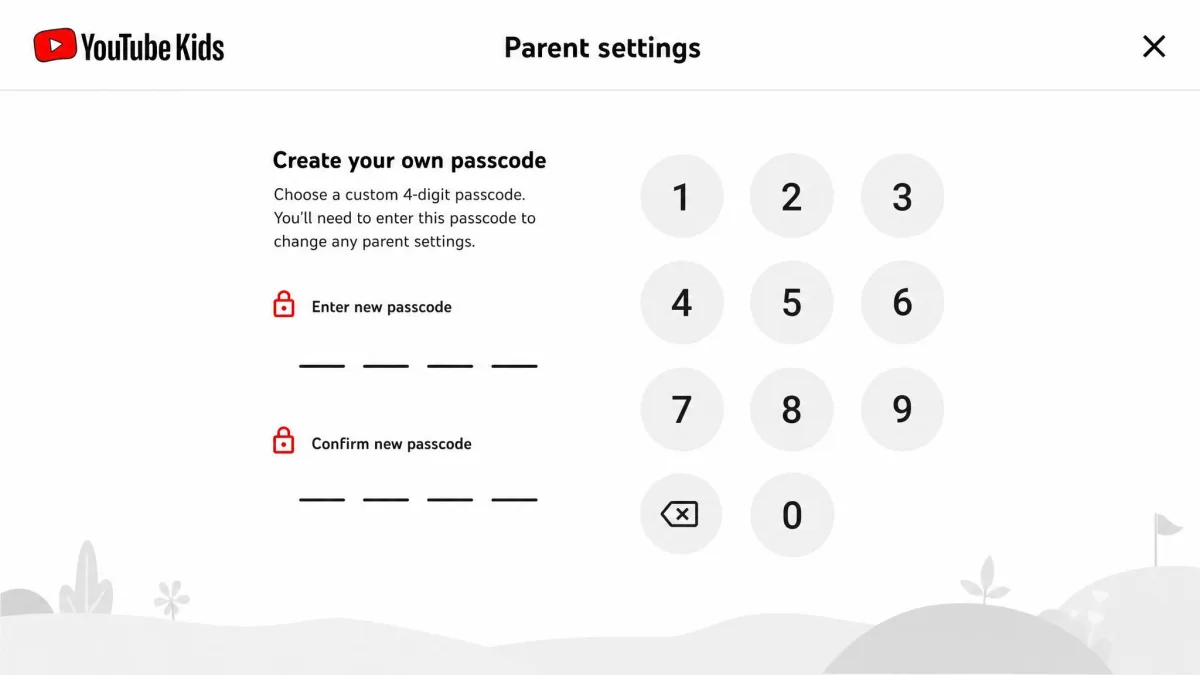
The app is only as safe as the lock on its settings. Set a custom passcode only you know, so your child cannot open the parent menu, change the content level, or switch search back on. Google's page on how to set up a YouTube Kids profile walks through the code step by step.
Block Videos and Channels
Even inside YouTube Kids, a specific video or channel may bother you. Open it and use the block option from the parent area. Blocking a channel only stops that channel, so a re-upload of the same content on another channel can still appear, and signing out makes blocked content available again.
How to Set Up a Supervised Account
Where YouTube Kids feels like a walled garden, a supervised account is a door into the main YouTube app with the parent holding the keys. It suits a child under 13 who has outgrown the kids app.
Create a Child Google Account
Supervised accounts need a child's Google Account managed through Family Link. Create it from the Family Link app on your own device, then link the child's device. If your child already has an account, back up anything you want to keep first, because adding supervision deletes stored subscriptions, playlists, chats, posts, and purchased or rented videos.
Choose Content Settings (Explore / Explore More / Most of YouTube)
At setup you pick one of the three content tiers described above, matched to your child's age. That choice sets how much of the main YouTube app your child can explore on their own.
Manage Settings with Family Link
Everything after setup happens in the Family Link app: change the content tier, pause or clear watch history, disable autoplay, set a daily Shorts limit, and apply screen-time limits. You can change the content setting anytime, and the child stays on the tier you choose. Google Family Link's supervised YouTube accounts help page covers the full list.
How to Enable Restricted Mode
Restricted Mode is the option for teens and shared family devices, and it is the lightest filter of the three.
On Desktop
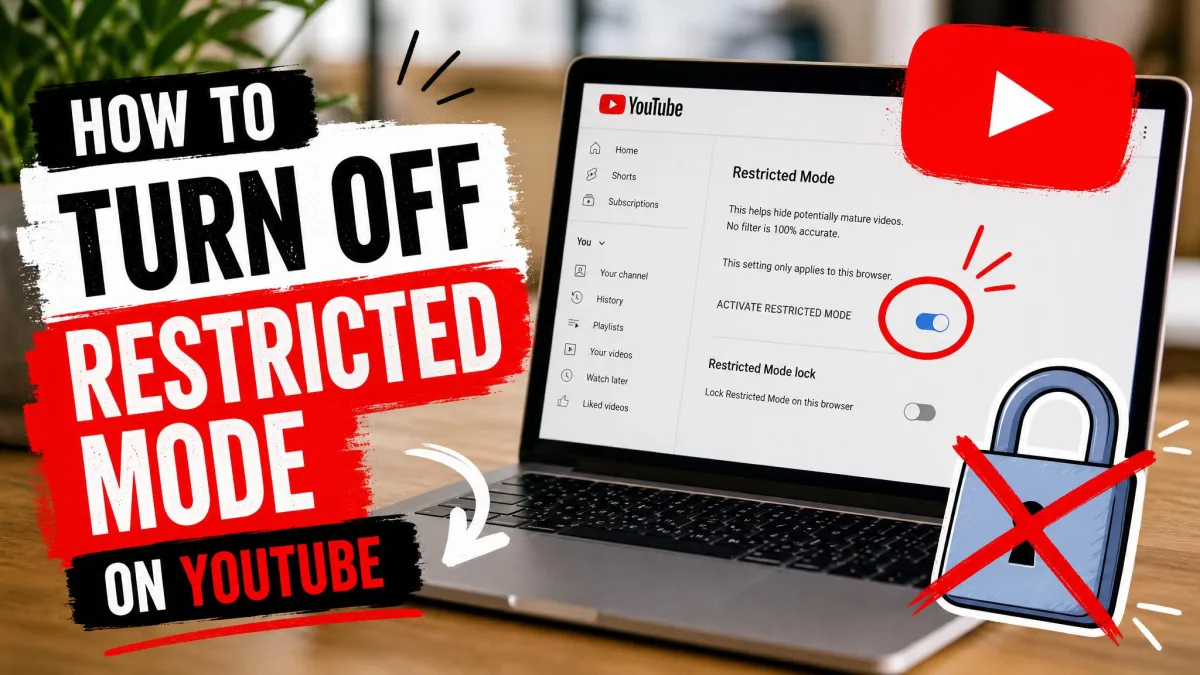
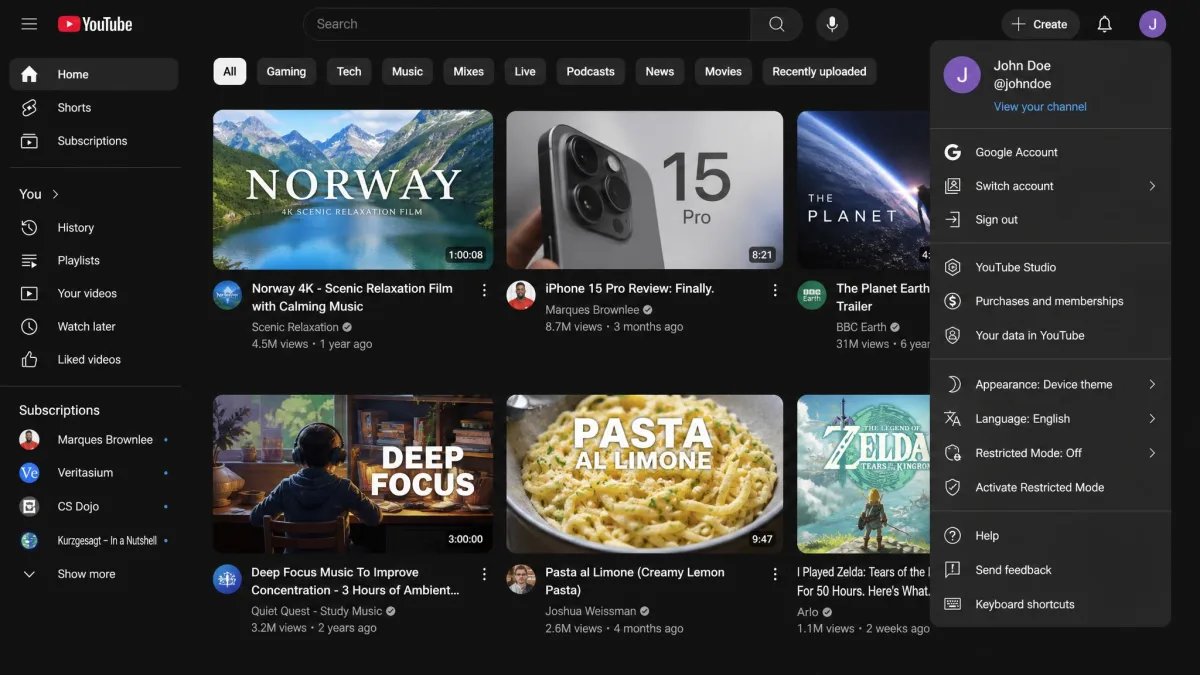
Open YouTube in the browser and sign in. Click your profile photo, click Restricted Mode, then click Activate Restricted Mode. Repeat this in every browser and profile, because the setting does not carry across them.
On iPhone, iPad, and Android
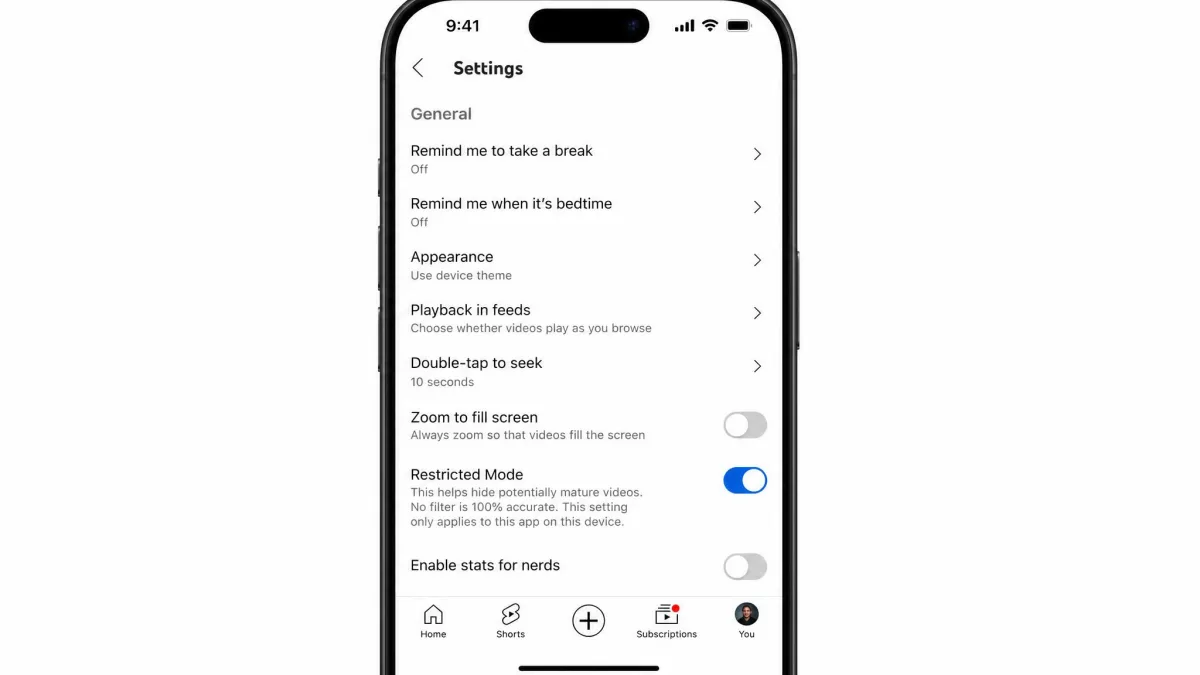
In the YouTube app, tap your profile photo, then open Settings → General and toggle Restricted Mode on. On the mobile website, open Settings → Account instead. The setting is per device, so repeat it on every phone and tablet your child uses. Restricted Mode on a child's phone is only one layer, and for the device-level limits that sit behind it, see how to set up parental controls on Android.
On Smart TV
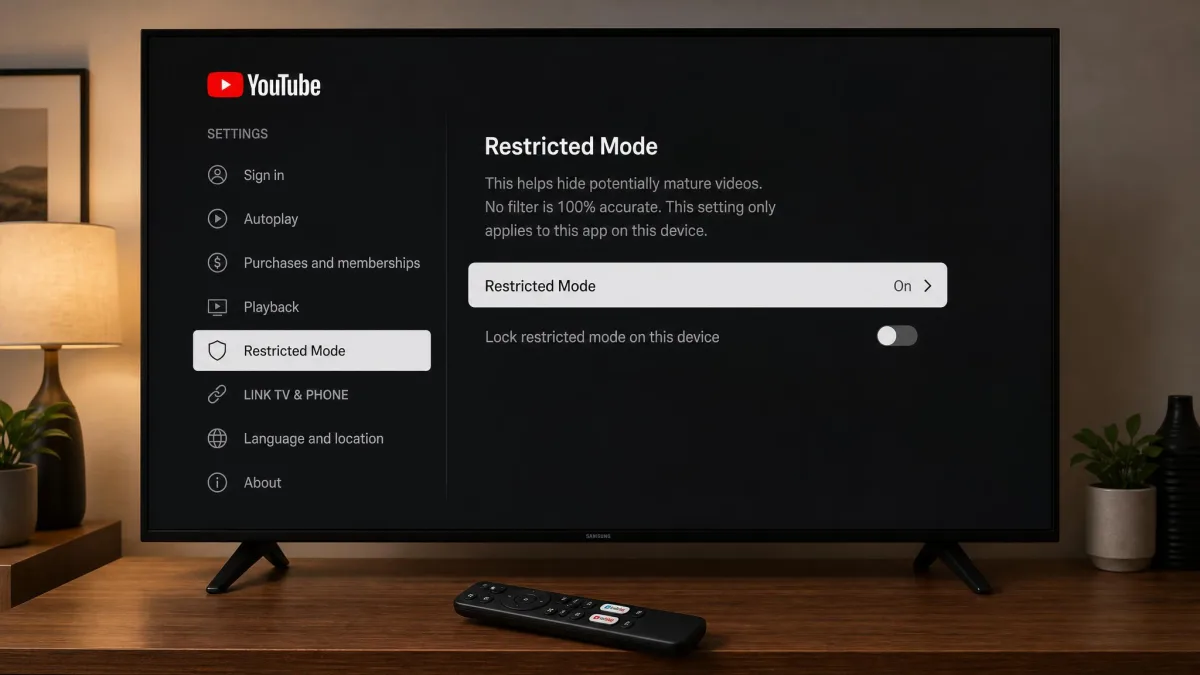
Smart TVs are the trickiest part of the setup. In the YouTube app on the TV, scroll to Settings and turn Restricted Mode on. The setting is device-level and does not carry to other devices, and on a TV that is not signed in, account-level restrictions never apply.
How to Manage Screen Time, Autoplay, and Shorts
Parental filters handle what your child can watch, but how long your child spends watching matters just as much.
Set Screen-Time Limits
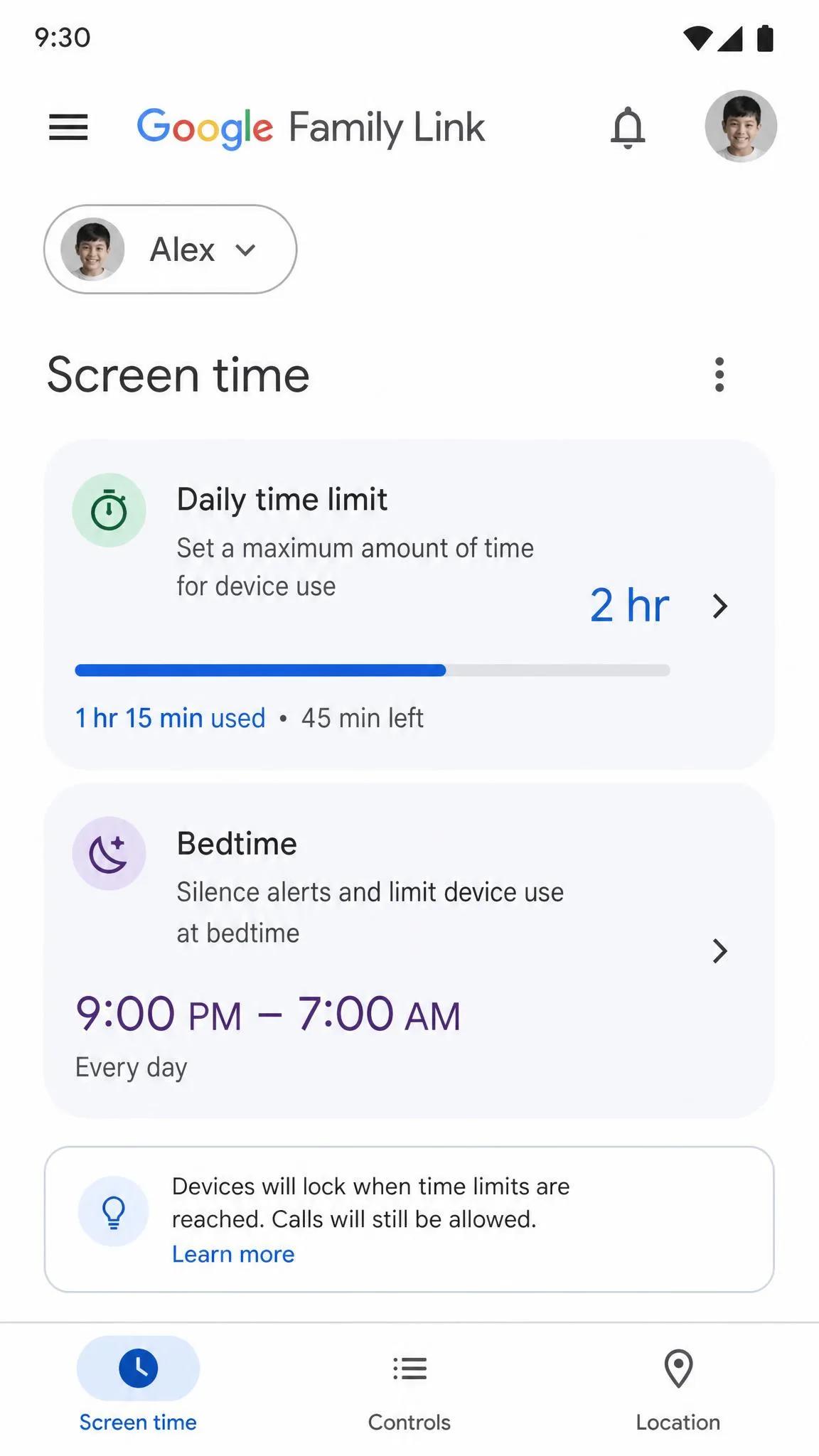
Screen-time limits live in two places. Inside YouTube Kids, use the built-in timer to lock the app after a set number of minutes. For a supervised account, set a daily limit in Family Center under Time management, or apply a family-wide limit in the Family Link app. One honest caveat: the limit applies per device, and some kids work around it by changing the device clock.
Disable Autoplay on the App and Desktop
Autoplay is on by default, which is how a child can drift from a safe video toward something less appropriate in a few clicks. Turn it off in the YouTube app by opening Settings → Autoplay, and on desktop find the toggle in the player settings. In YouTube Kids and on supervised accounts, you can disable it from the parent settings, and the child cannot turn it back on.
Block YouTube Shorts
Shorts are a separate feed, and on a supervised account you can cap or remove it. Open Family Center → Time management and set a daily Shorts feed limit, or set it to zero to block the feed entirely. In YouTube Kids, Shorts never appear.
YouTube Parental Controls by Age
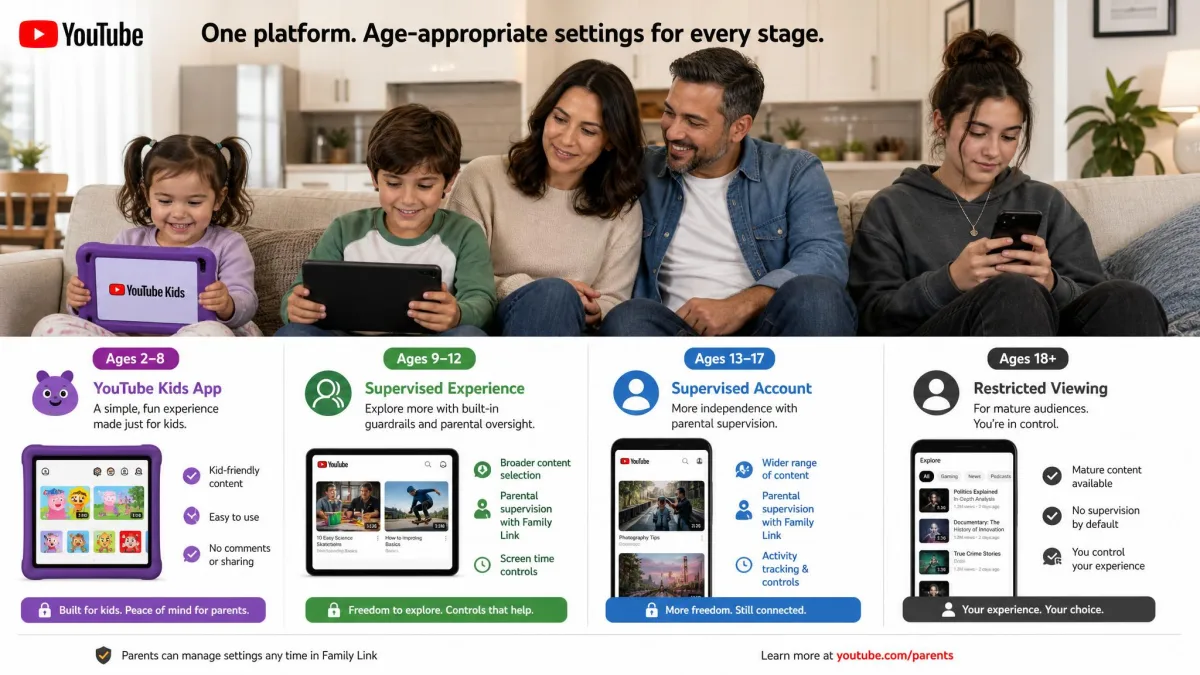
Putting the tools together is easier with a simple age-based plan. Here is the combination we recommend at each stage.
Ages 4–7: Maximum Protection
We recommend YouTube Kids for children under 8, with the content level set to Preschool or Younger and search switched off. Turn on the built-in timer, disable autoplay, and keep the parent code to yourself. At this age the goal is a small, curated world your child can explore safely.
Ages 8–12: Controlled Independence
As your child grows out of the kids app, move to a supervised account with the Explore or Explore More content tier. Keep a daily screen-time cap and a Shorts limit in Family Center, and glance at watch history together now and then. This is the transition age, and the settings can loosen gradually as trust builds.
Ages 13–17: Monitored Freedom
At 13, or the applicable age in your country, a supervised account ends and your child gains regular YouTube access. Lock Restricted Mode on through Family Link so they cannot switch it off, keep screen-time limits in place, and check in about what they watch. Some families add a third-party monitoring app for extra visibility.
How to Monitor Watch History and Activity
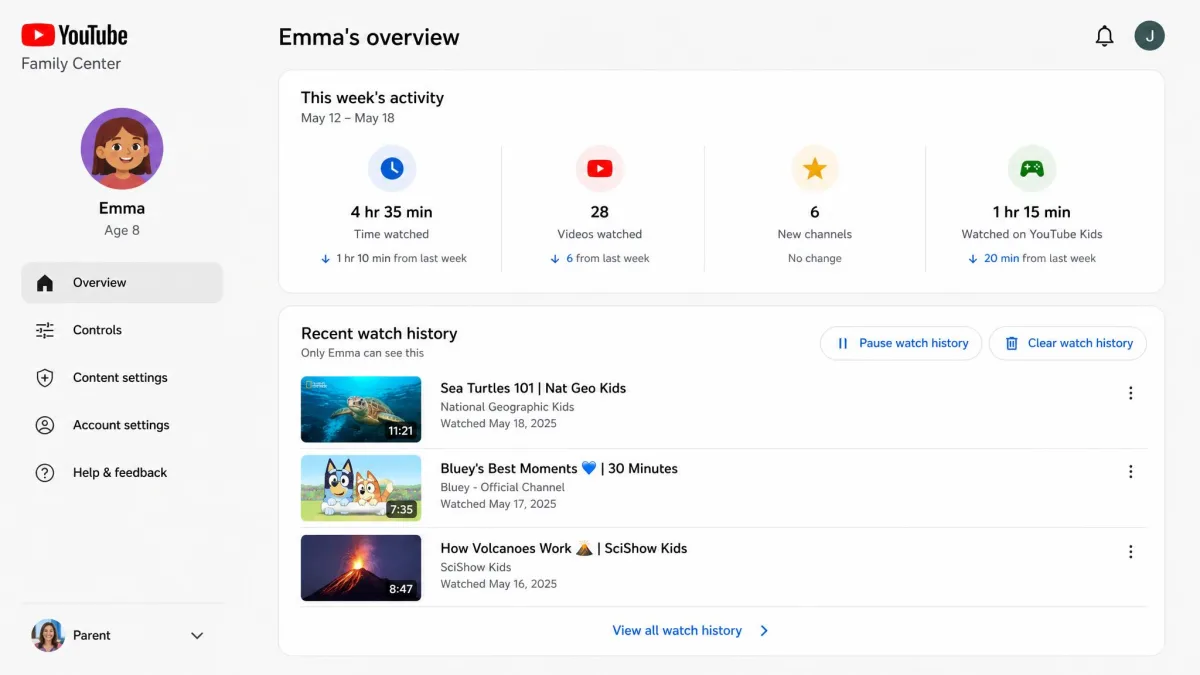
Filters keep content out, but knowing what your child actually watched is just as useful. For a supervised account, open Family Center and pause or clear watch and search history, which also stops new views from feeding recommendations. In YouTube Kids, the same controls sit in the parent settings, and switching search off clears history and resets the recommended feed.
What YouTube Parental Controls Cannot Do
This is the section that keeps your expectations honest. Restricted Mode is not a complete filter, and newly uploaded videos or misleading titles can slip through for days or weeks. YouTube Kids occasionally lets something inappropriate through even at its tightest setting. Blocking a channel does not stop re-uploads of the same video on other channels, and signing out brings blocked content back.
A determined child can also work around age gates with a false birthdate, a private browsing window, another browser, or a second account. One 2026 analysis of parenting-forum discussions found that 67.5 percent of children who tried to bypass parental controls succeeded, though the figure is directional since it comes from studying forum posts rather than a survey. None of this means the controls are pointless. No filter is 100 percent, so treat the tools as layers of protection on top of regular conversations.
School-issued devices are a blind spot your home controls cannot reach. The school's own content policy applies there, and in the 2026 analysis above, school-issued devices ranked as the top way children bypass parental controls.
Third-Party Parental Control Apps: When You Might Need Them
The built-in controls cover most families, but they have limits that third-party apps fill. Monitoring apps add video-level and keyword tracking, activity reports, and app blocking that Google does not provide, with the main names being FamiSafe, Qustodio, Bark, and Net Nanny. Before you pay, start with Google Family Link, which already manages YouTube Kids settings, supervised content levels, Restricted Mode, and screen time for free.
Some monitoring apps run in the background and can slow the child's device down, and their app-blocking is more limited on iPhone and iPad than on Android. They also cost a subscription, so weigh the gaps before you commit.

Troubleshooting Common Issues
Most setup problems fall into a few predictable categories. If Restricted Mode keeps turning back off, your child may have toggled it off on a signed-in device, or it reverted after a sign-out or a switch to another browser. The reliable fix is to lock it on through Family Link.
If YouTube Kids will not finish setup, the parent account's birthday may not be verified as an adult. If a supervised account is not an option, your country or region may not support it, so fall back to YouTube Kids or Restricted Mode.
If screen-time limits are not holding, the daily limit applies per device and the child may have changed the device clock. The Take a break reminder is a soft nudge rather than a hard stop, so rely on the built-in timer and Family Link limits for real enforcement.
Frequently Asked Questions
Q: How do I block inappropriate videos on YouTube for my child?
Q: Can kids bypass YouTube parental controls?
Q: How do I block YouTube Shorts?
Q: What does Restricted Mode actually block?
Q: Is YouTube Kids safer than regular YouTube?
Q: Can I set parental controls on the YouTube app?
Final Verdict
Start with the one tool that fits your child's age today, and add layers as they grow. For most families, that first step is YouTube Kids. Install the app and sign in with a verified adult account, then the setup itself takes about five minutes: create a profile, pick a content level, and set a parent passcode. The supervised account and Restricted Mode walkthroughs above are the layers to add later, when your child is ready for more of YouTube. Keep the parent code private, review watch history from time to time, and you stay in control of what your child sees.