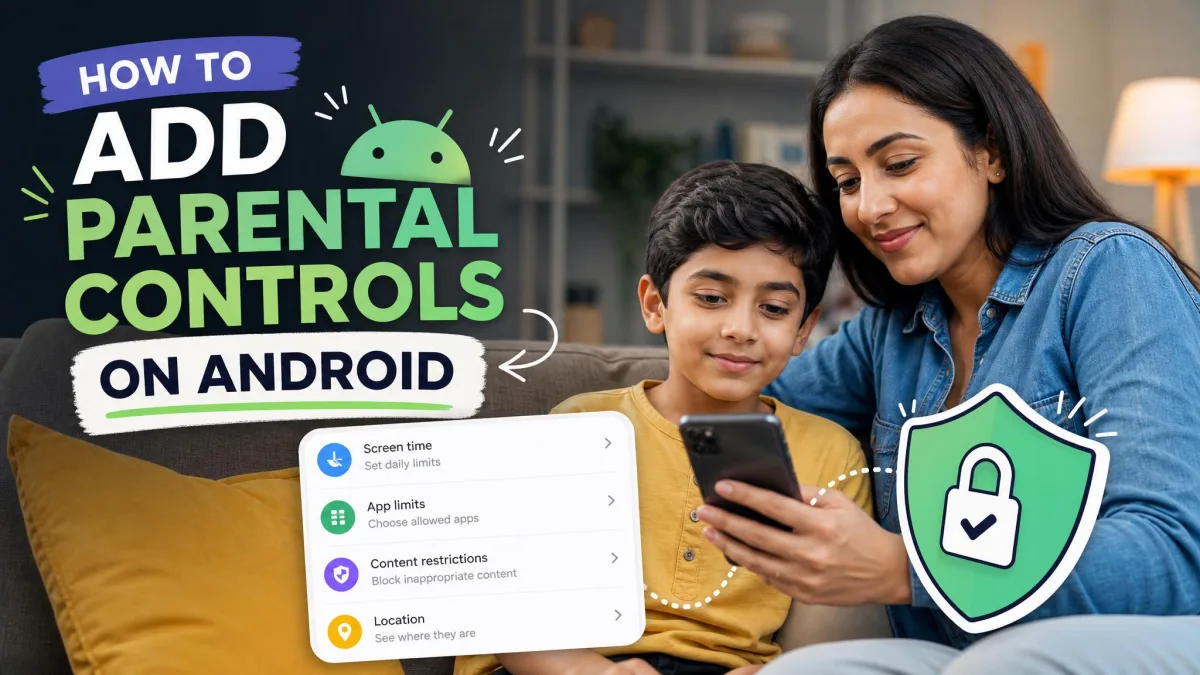
Parental controls let you restrict apps, content, and screen time on an Android device, and they are a good safeguard while your child is young. There may come a time when you no longer need them, though. Your child is older, you trust their judgment, and you want to hand back full access.
This guide walks you through the steps for every removal method, from Play Store restrictions and Family Link supervision to forgotten-PIN recovery and third-party parental control apps.
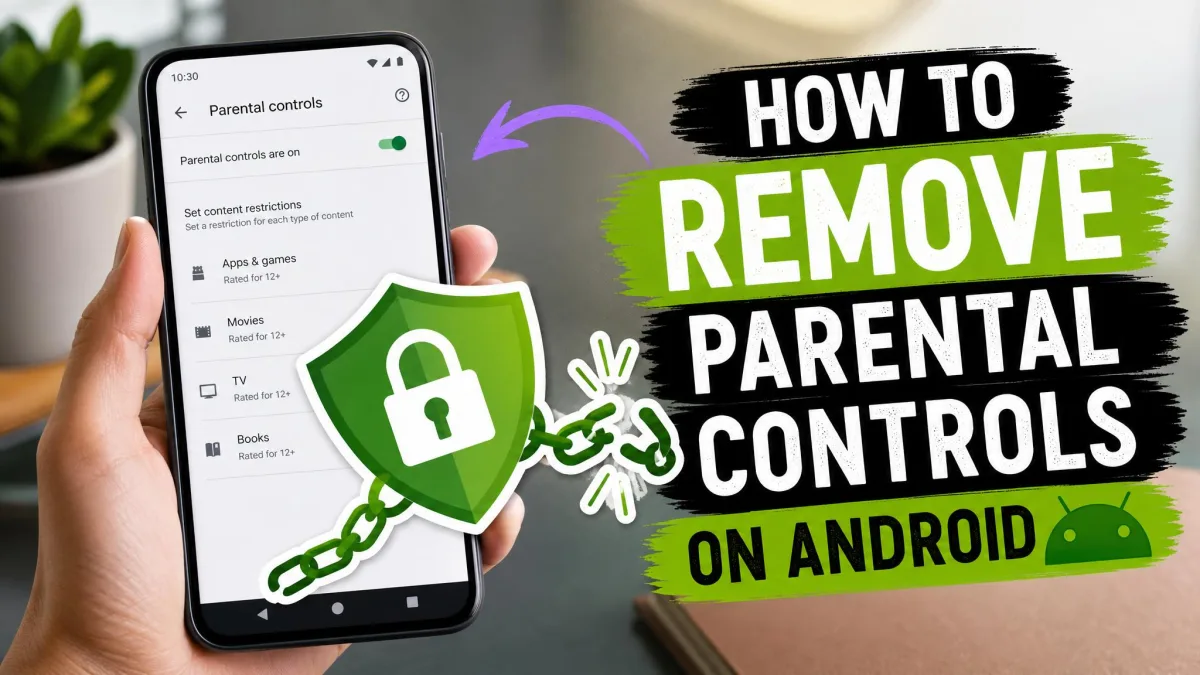
How to Disable Parental Controls in the Google Play Store
The Play Store's parental controls gate mature apps, movies, and books behind a PIN. Turning them off takes about a minute and leaves installed apps untouched.
Find the Parental Controls settings
- Open the Play Store app on your child's device.
- Tap your profile icon in the top right.
- Go to Settings > Family > Parental controls.
Turn off content restrictions
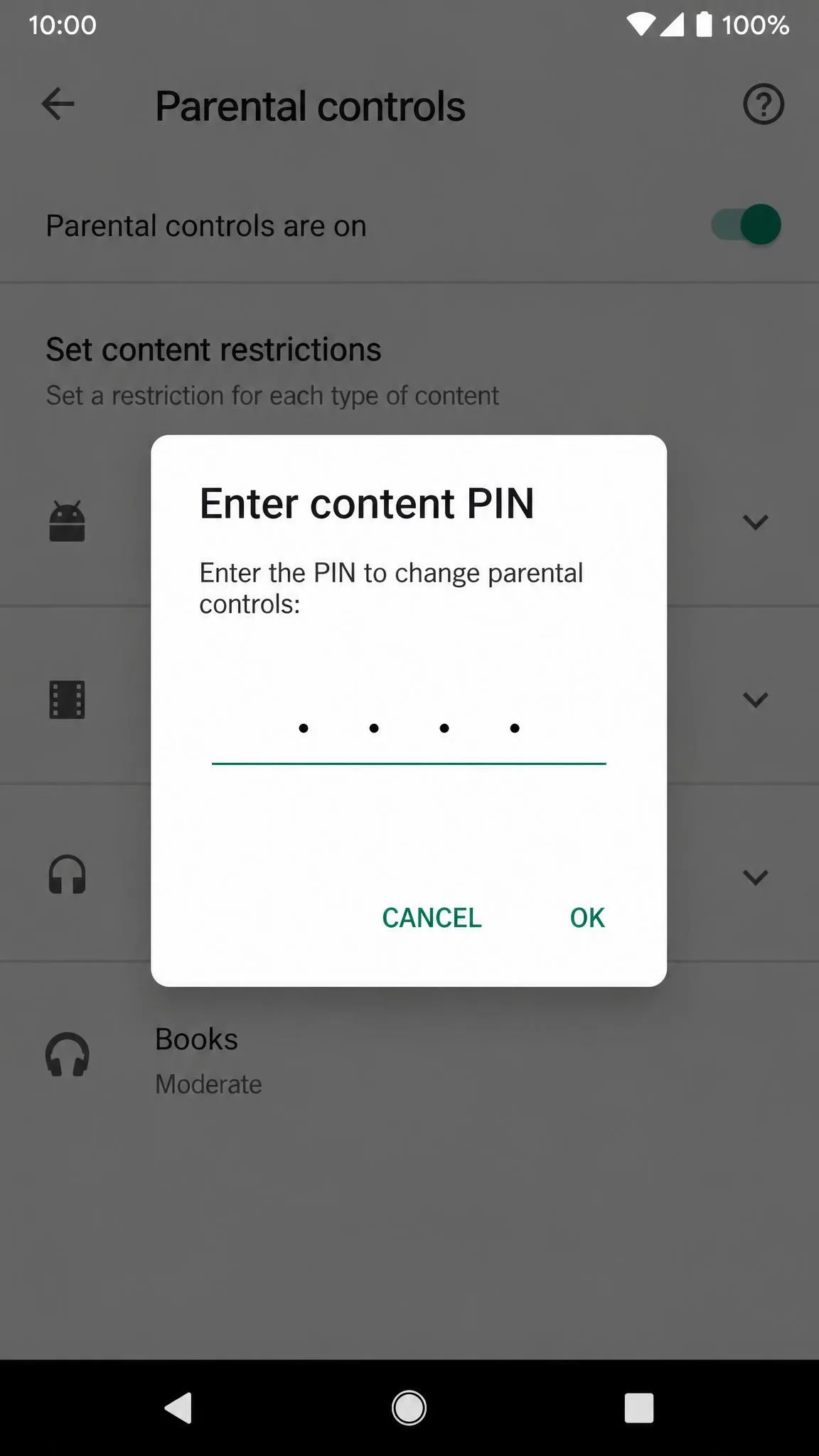
- Enter the parental controls PIN when prompted.
- Switch off the filters for the content you want to open up, such as apps, movies, or books.
Remove the Parental Controls PIN
On current Android versions, the Play Store PIN doubles as the device-level parental controls PIN, so a new PIN set in the Play Store matches the one on the device. Google documents the options in its Play Store parental controls settings.
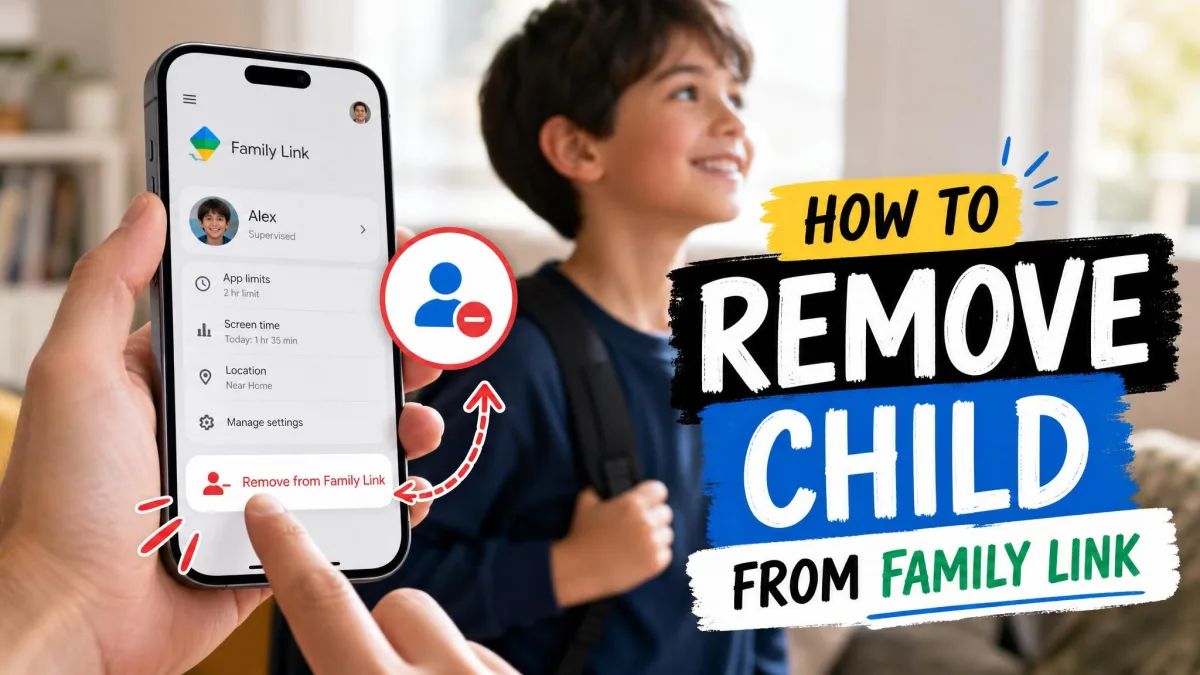
How to Turn Off Google Family Link
Family Link is different. It lives on the child's Google Account, so supervision follows the child across every device. A parent can stop supervision once the child is 13 (or the applicable age of consent), and a child under 18 needs a parent's approval to end it.
Remove supervision from the parent device
- Open the Family Link app on your phone and select the child's profile from the menu.
- Go to Controls > Account settings > About supervision.
- Follow the on-screen instructions and tap Stop supervision.
The child can also start from their device on Android 7.0 or higher. Open Settings > Digital Wellbeing & parental controls, tap More, and choose Stop supervision. You confirm you are the parent with your sign-in or the Parent Access Code. For more detailed information, see Google's guide to removing supervision.
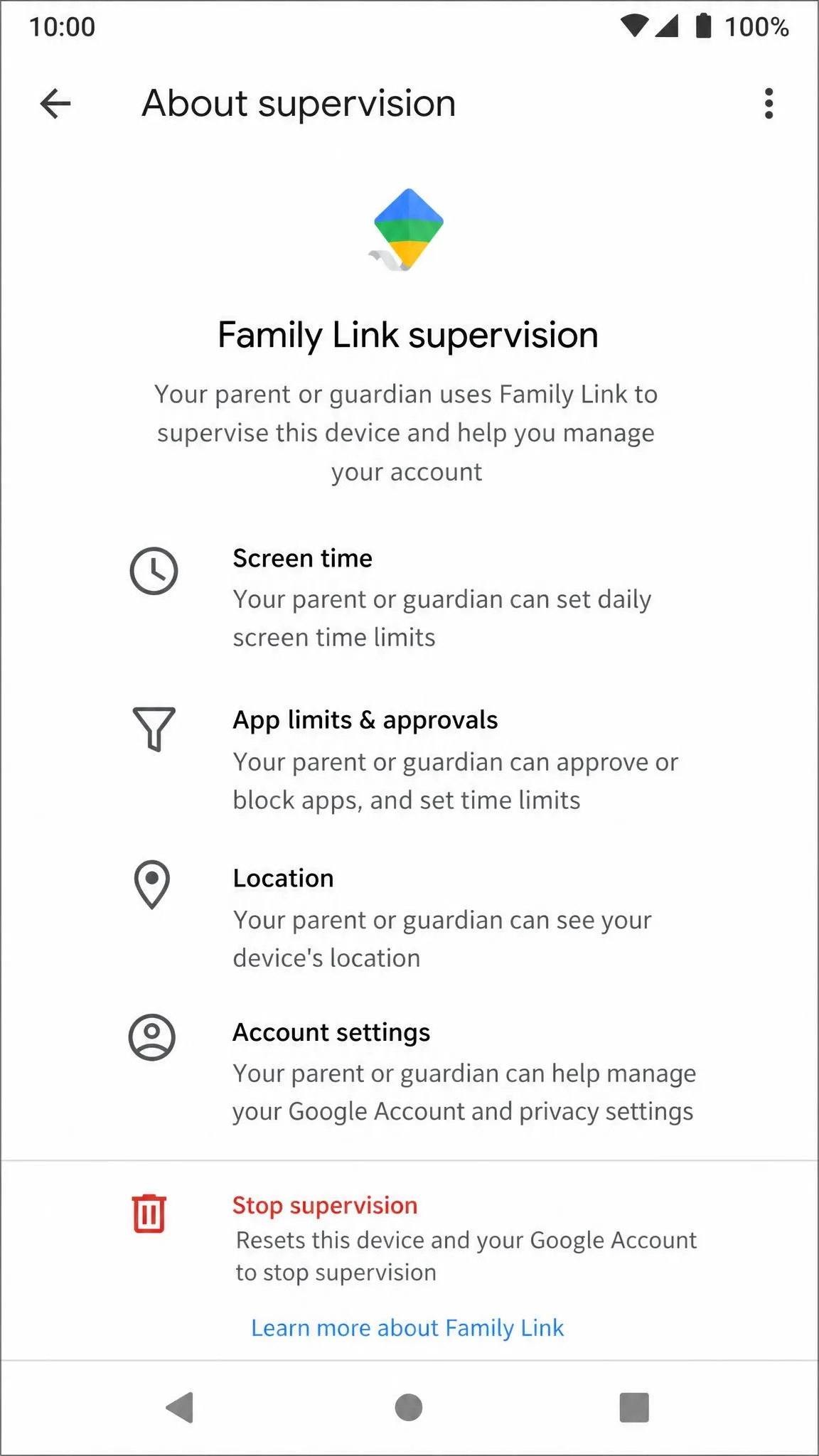
Stopping supervision does not delete the child's Google Account. Emails, photos, and other data stay in place; the account just stops being restricted by Family Link.
Delete the child's Google account (if needed)
Deleting is a bigger step. A parent can only do it while the child is under 13 (or the applicable age of consent); after that the child must delete the account themselves. It also removes emails, files, calendars, and photos.
- Remove the child's account from the device first. Open Settings > Passwords, passkeys & accounts, select the account, and tap Remove account.
- Open the Family Link app, select the child, and go to Controls > Account settings > Delete account.
The order matters. If you delete the child's account before removing it from a signed-in device, the device can lock and require a factory reset. Remove the account from the device first, then delete it.
How to Remove Parental Controls Without a PIN or Password
Forgot the PIN, or lost the parent password? You are not locked out. However, the right route depends on which system holds the controls.
Use the recovery account
On Android 17 and later, the on-device parental controls PIN (at least 4 digits) can be reset through a recovery account; without one, a factory reset is the only way to clear it. For a lost Family Link parent password, Google account recovery is the official route back in.
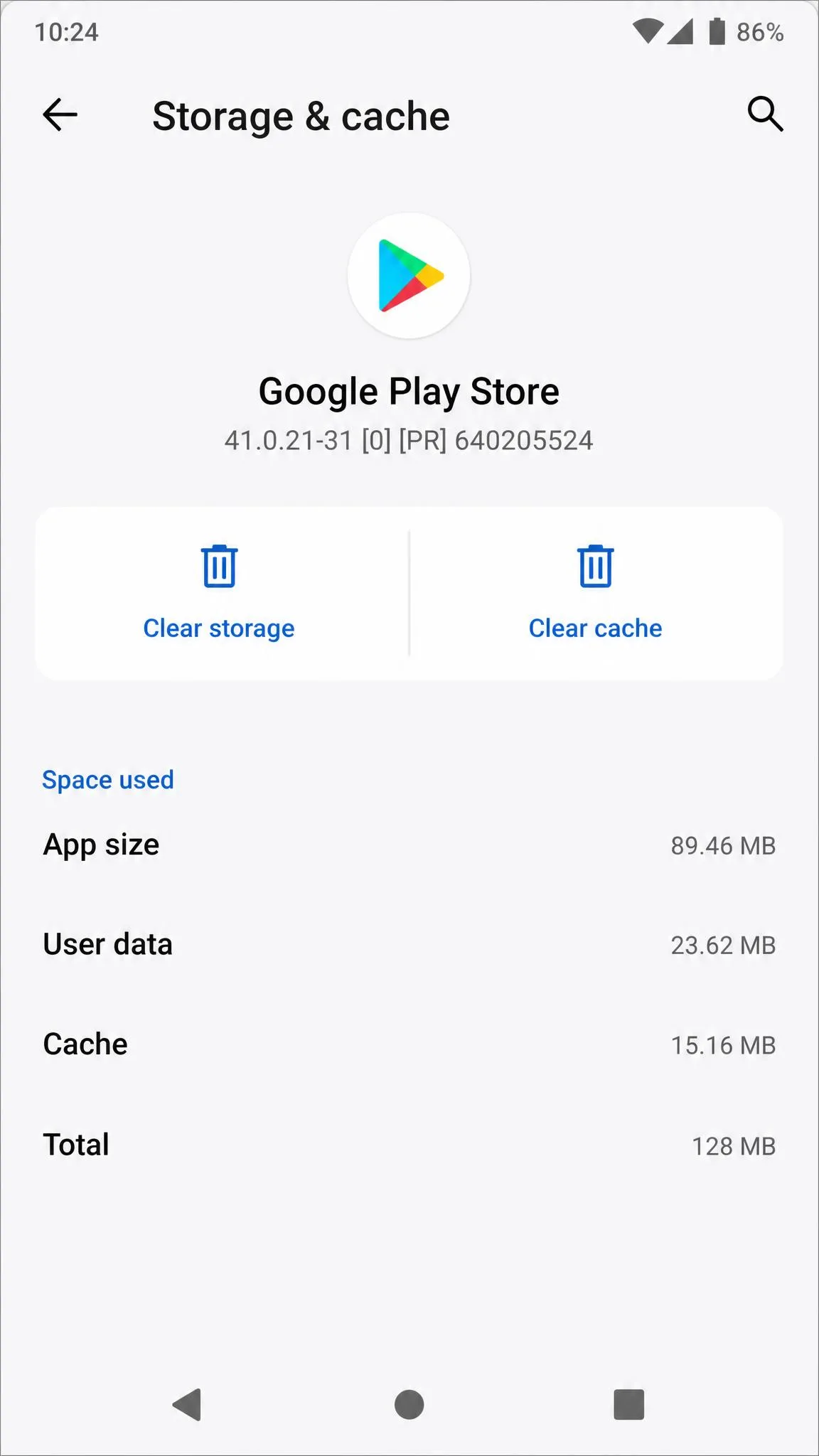
For a forgotten Play Store PIN, clear the Play Store app's data:
- Open Settings > Apps > See all apps > Google Play Store > Storage & cache > Clear storage.
- Reopen the Play Store and create a new PIN.
In our testing, this cleared the forgotten PIN and the content filters together, and a fresh PIN worked right away. The same fix appears in Google's steps for clearing Play Store app data to reset the parental controls PIN, and a Business Insider walkthrough of turning off Android parental controls covers the wider process.
Factory reset as a last resort
A factory reset erases the device and disables every device-level control, but it does not remove Family Link supervision by itself, because that lives on the child's Google Account. After the reset, the device demands the last Google Account's credentials, and paid FRP services are the common workaround when those are lost.
- Back up anything you want to keep.
- Go to Settings > System > Reset options > Erase all data (factory reset).
- Complete setup with the original Google Account when asked.
How to Uninstall or Deactivate Third-Party Parental Control Apps
Google's built-in controls are not the only ones on Android. Apps like Qustodio, Norton Family, and AirDroid Parental Control add monitoring features, and most resist a plain uninstall.
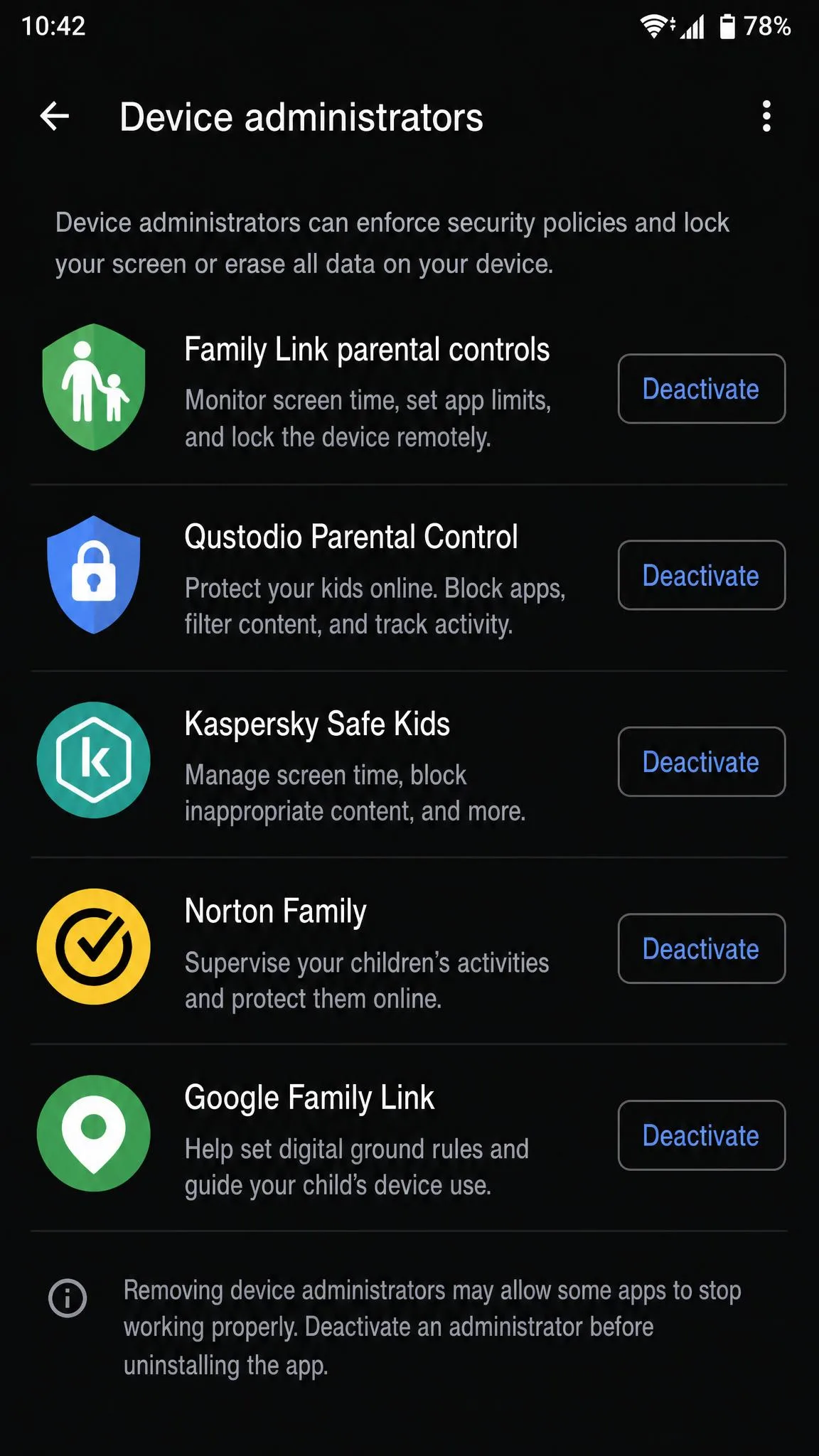
- Open Settings > Security > Device administrators on the child's device.
- Deactivate the app you want to remove. You will be asked for the parent account email and password.
- Uninstall the app from Settings > Apps.
Qustodio and Norton Family register as Device Administrators, so uninstall stays blocked until you deactivate those privileges with the parent password. Cloud-linked apps such as AirDroid Parental Control are removed by unbinding the device: open the app, go to My > My Devices, select the device, enter your password, and tap Unbind.
How Parental Controls Work on Android
Android has no single parental control system, and the three groups below remove in different ways. Google explains the account-level system in its overview of how Family Link works.
Google Play Store parental controls
Play Store controls block mature apps, games, movies, and books from install and purchase. They are PIN-gated and per-device, and restricted content can still surface in search results or via direct links.
Google Family Link supervision
Family Link supervision is account-based, so it follows the child across all Android devices they sign into. When a supervised child turns 13 (or the age of consent), Google emails both parent and child, and supervision stays in place unless the child updates the account.
Third-party parental control apps
Third-party apps add location history, social monitoring, and geofencing on top of Google's basics. They hold Device Administrator permissions to resist uninstall, and on Samsung and Huawei phones battery-optimization settings can quietly break their protection.
Checklist Before Disabling Parental Controls
Removal is quick, so parents should plan before handing back full access.
Consider your child's age and maturity
Google ties the Family Link rules to age for a reason. A parent can stop supervision once the child is 13 (or the applicable age of consent), and a child under 18 needs parent approval. Ask yourself whether your child can manage school work, money, and screen time on their own before you remove the guardrails.
Have an open conversation first
Removing controls works best as a shared decision, not a silent change. Talk through why the restrictions are coming off, what still counts as expected online behavior, and what to do if something goes wrong. Kids notice the shift either way, and a conversation sets the ground rules.
Set up alternative protections
If you are not ready to go fully hands-off, a lighter option can bridge the gap. A third-party parental control app with adjustable rules, such as AirDroid Parental Control, keeps some oversight without the account-level weight of Family Link.

Frequently Asked Questions
What if I forgot the parental controls PIN?
Will removing parental controls delete apps or data?
Can I turn parental controls back on?
Is a factory reset the only way to remove Family Link?
Conclusion
Removing parental controls on Android is quick once you know which system holds them. Turn off Play Store restrictions, stop supervision for Family Link, and clear the Play Store app's data to reset a forgotten PIN. In our testing, the two details that mattered most were removing an account from a device before deleting it and keeping a factory reset as the last option.