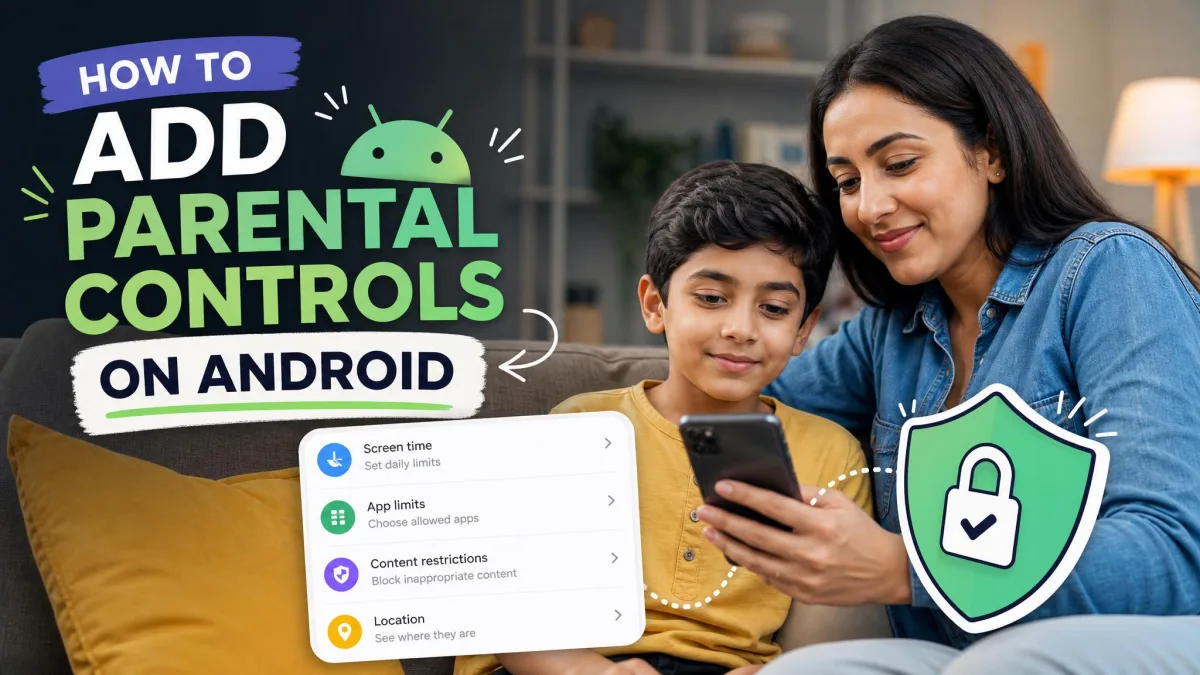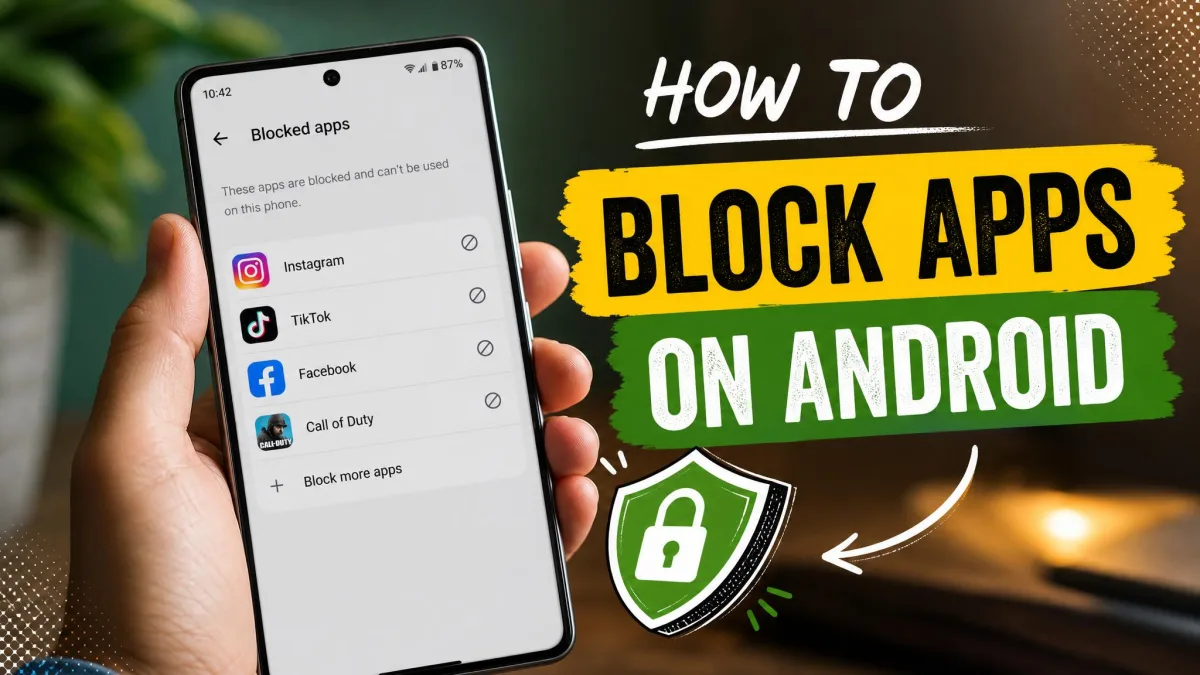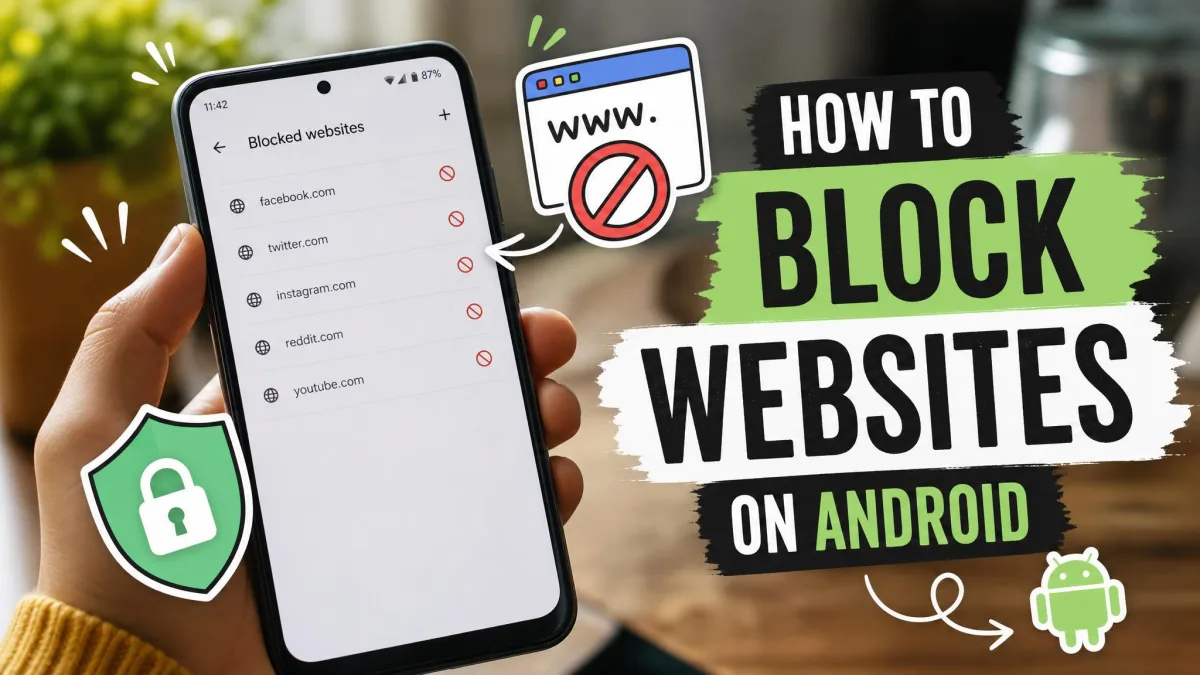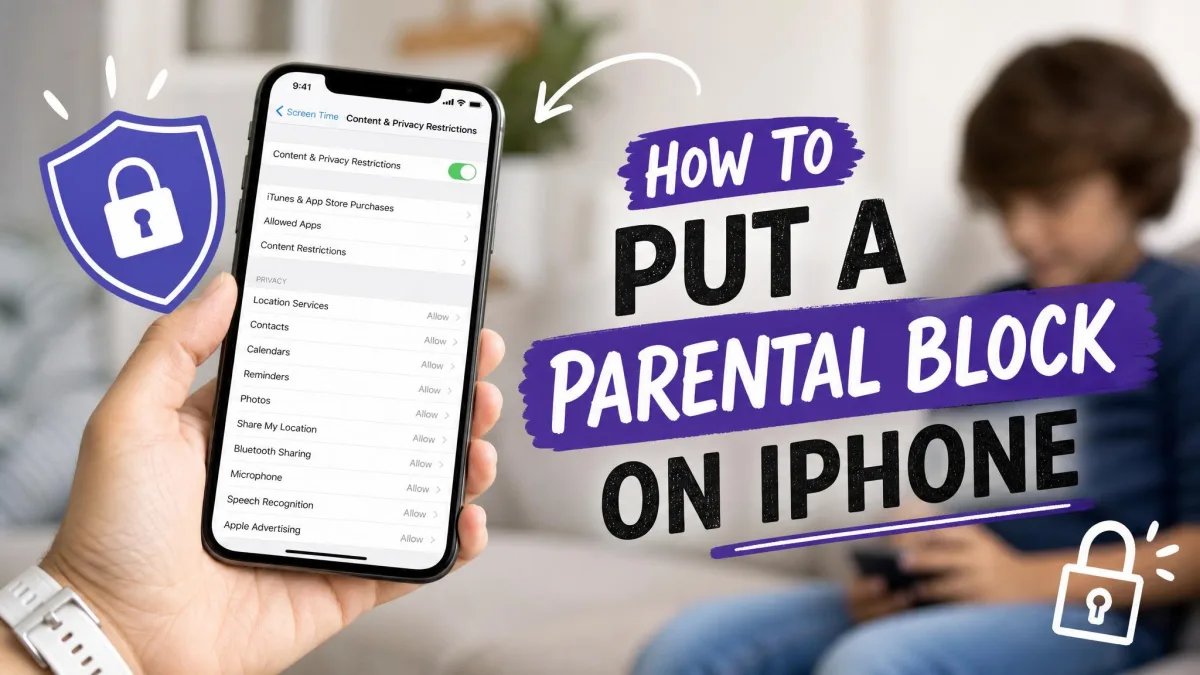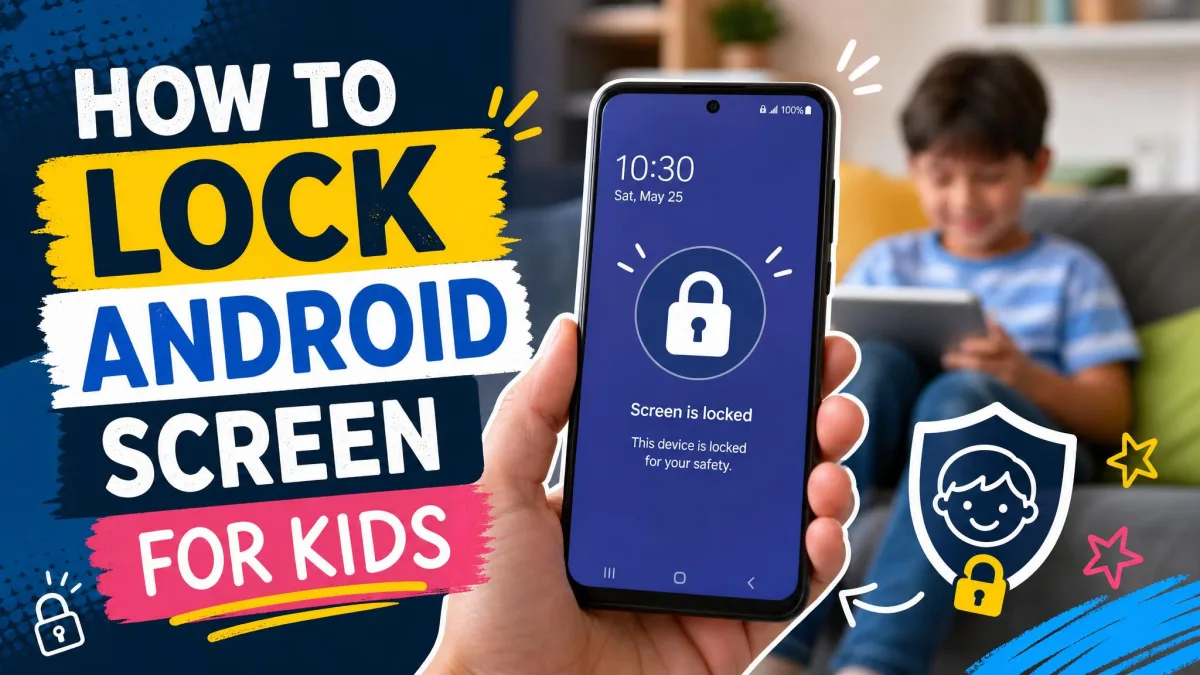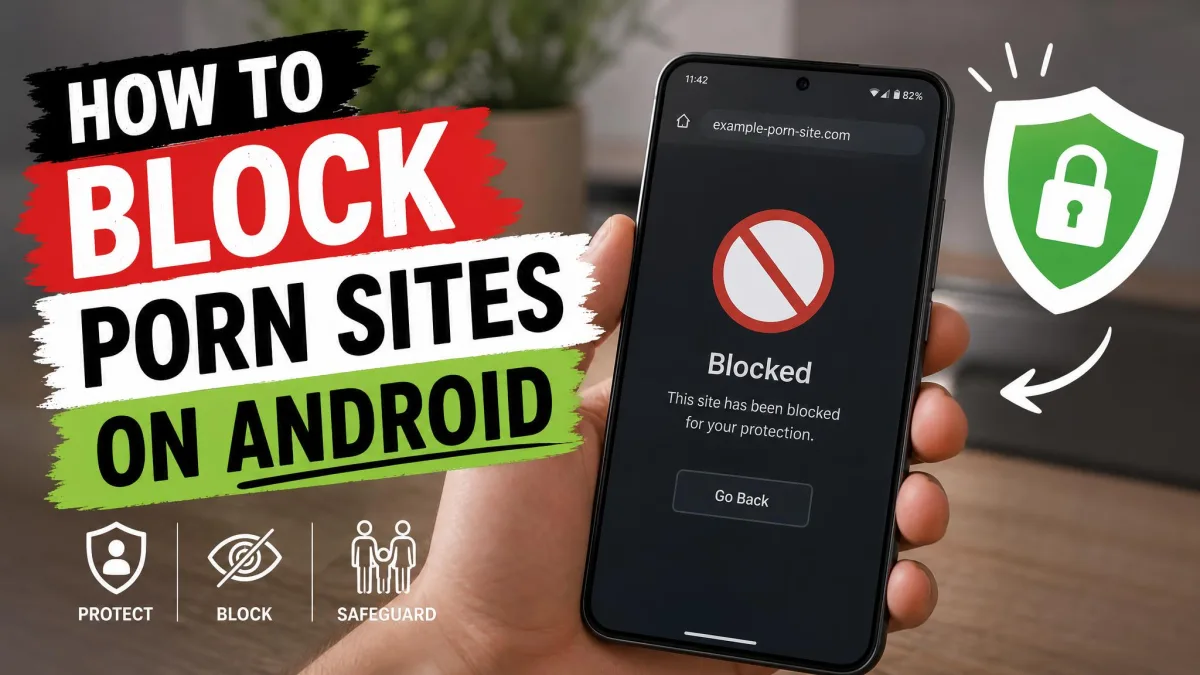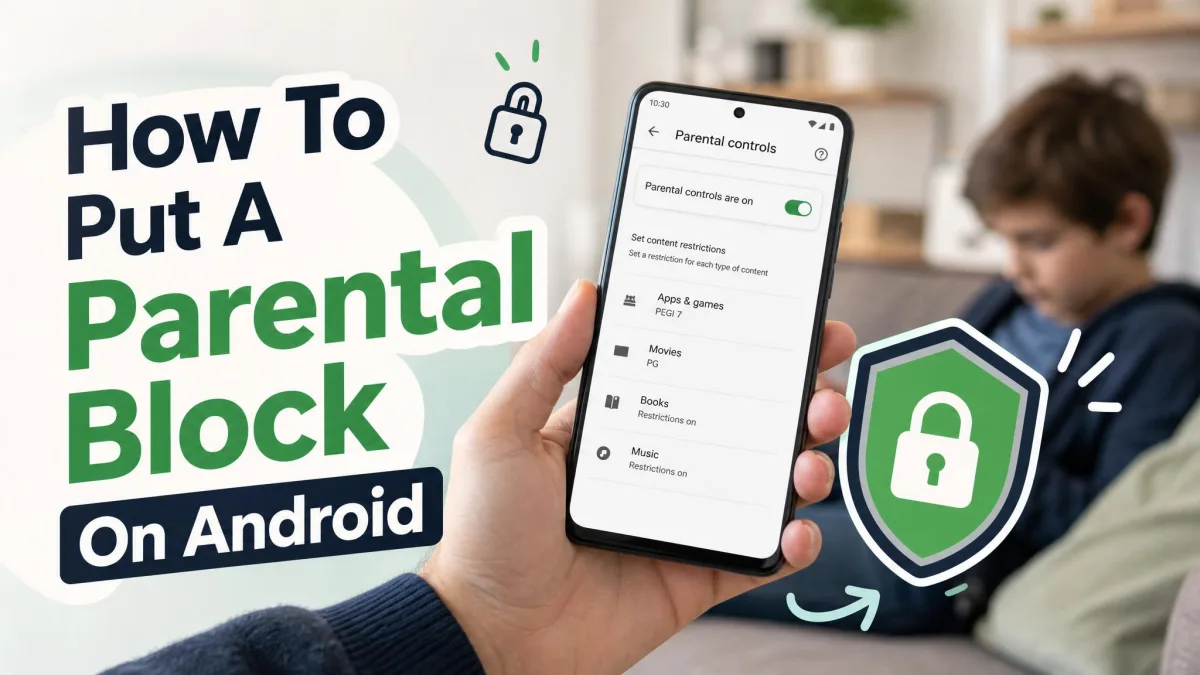
A parental block on Android is a set of restrictions you lock behind a PIN so your child cannot change them. It can cap daily screen time, block or limit individual apps, stop new downloads, and filter explicit content in Search and Chrome.
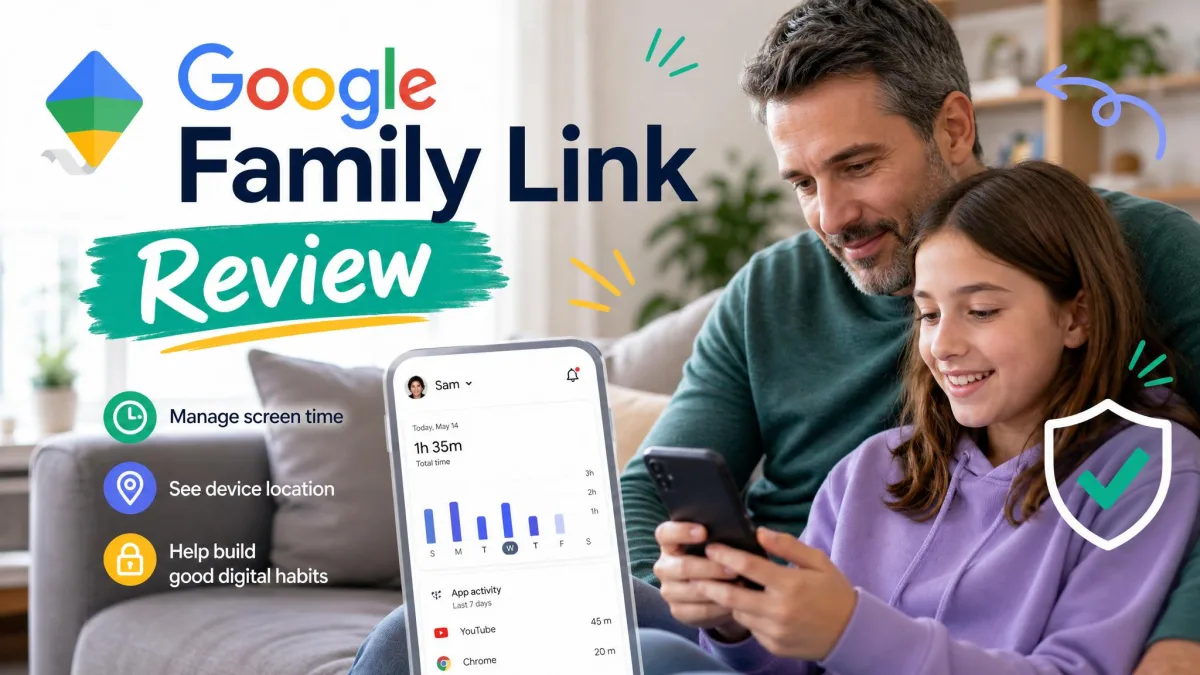
There are two routes, and they work well together. The first is the built-in parental controls that live in the Settings app on the child's device, with no app to download. The second is Google Family Link, a free app that lets you manage the same kinds of limits remotely from your own phone.
Here is how to set both up, step by step.
What a Parental Block on Android Actually Blocks
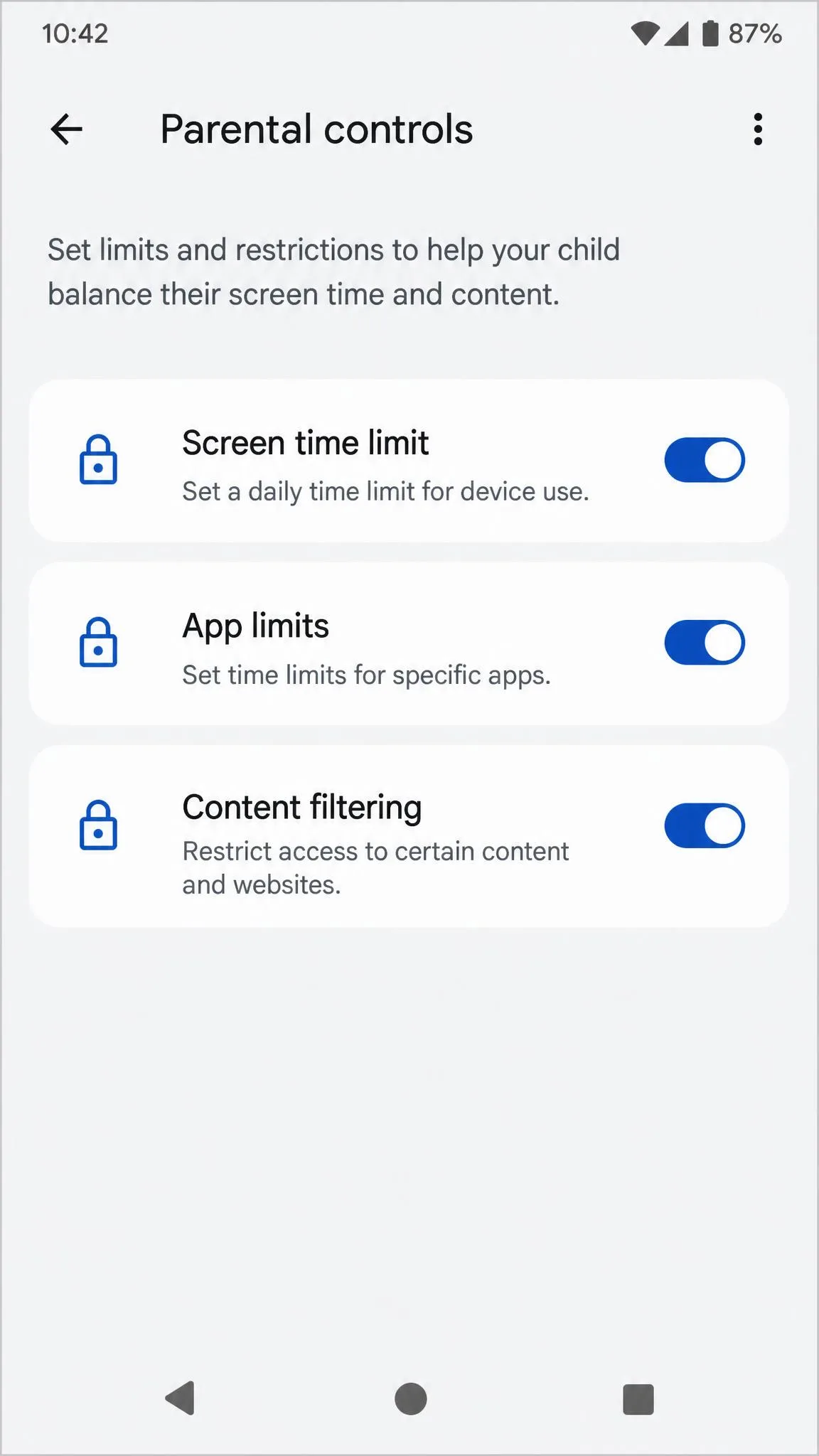
The built-in controls cover the parts of the phone Google owns. You get a daily screen time limit that locks the device, a downtime schedule, per-app time limits, app blocking, Play Store content-rating restrictions, explicit-content filtering in Search and Chrome, and a bonus time option for when you want to make an exception.
What they do not cover matters just as much. Content controls apply to Google services, so apps like TikTok and Instagram need their own in-app parental settings. Family Link also never shows you your child's screen, search history or browsing history.
The web filtering is coarse compared with paid apps, and some borderline sites still get through. Treat it as a broad net, not a seal.
What You Need Before You Start
You need a few things in place first, and one of them trips people up.
- The child's Android phone or tablet, unlocked and in your hands.
- A recent version of Android on that device.
- A Google account for yourself, and one for your child if you plan to use Family Link.
- A PIN you will remember, at least 4 digits long.
- About 5 minutes of quiet time with the device.
Google's own pages do not line up on versions. Google's official Android parental controls guide says the on-device controls need Android 17 or later, while Android's overview describes them as arriving with Android 16, so check the setting exists on your handset first. Older devices can still use Family Link.
One hard blocker: the controls will not turn on if the device already has a second user profile or a private space. Remove those first.
Web filtering has its own floor. You need Google Search 16.42 or newer, Chrome 140.0.7332.0 or newer, and Android System WebView 139 or newer.
How to Set Up Android's Built-In Parental Controls
This is the fastest route, and it needs no app download. Work through it on the child's device.
Step 1: Open Parental Controls in Settings
- Open the Settings app on your child's device.
- Scroll to the Digital Wellbeing or Google section, depending on the manufacturer.
- Tap Parental controls.
- Tap Get started, then choose the option to set up controls on this device.
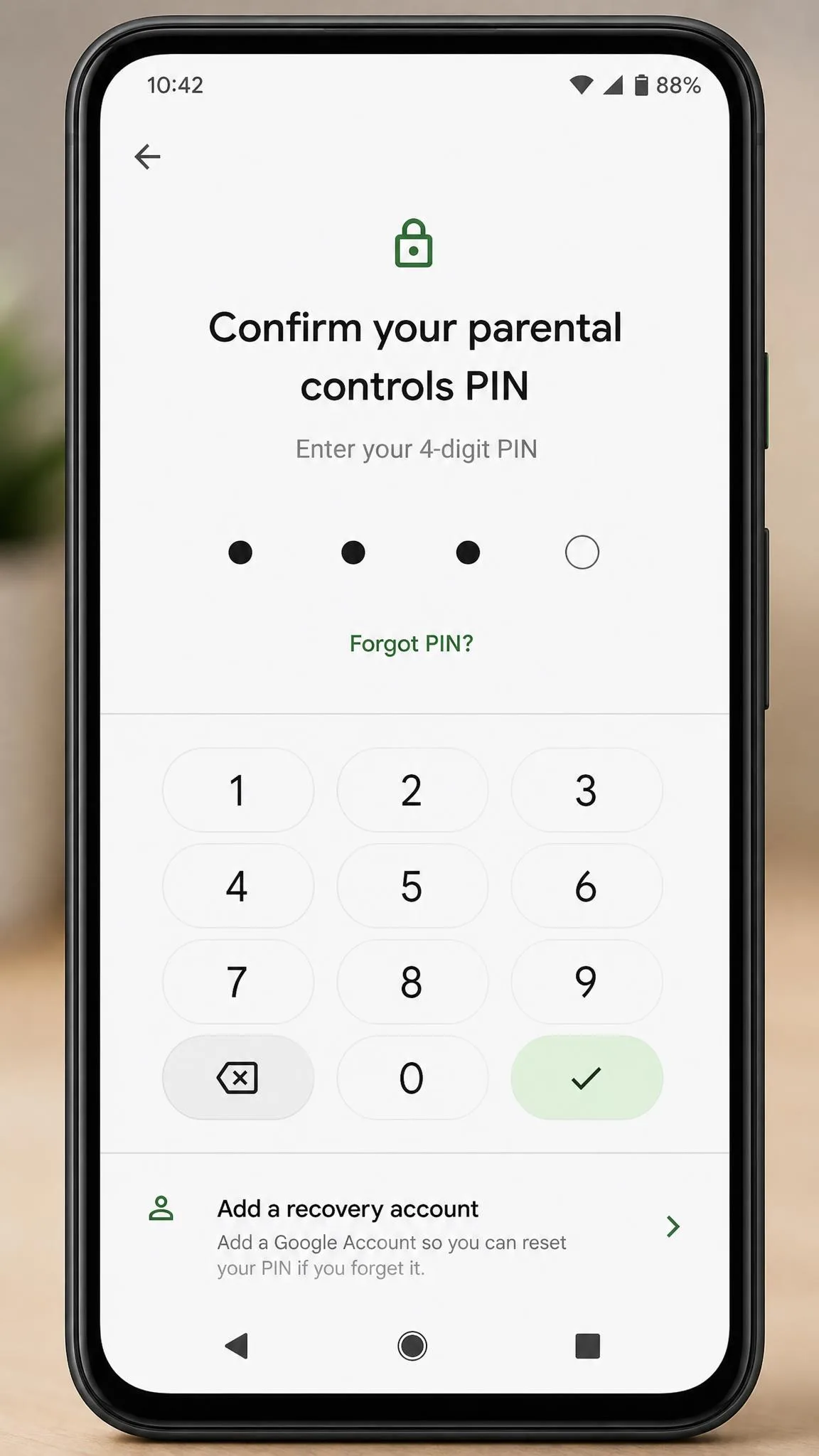
Step 2: Create a Parental Controls PIN
- Enter a PIN of at least four digits.
- Confirm the same PIN on the next screen.
- Note that this one PIN covers every on-device control feature, and it applies to all users on the device.
Choose something your child will not guess. A birthday or a house number is the first thing they try.
Step 3: Add a Recovery Account
- Tap the option to add a recovery account when prompted.
- Sign in with your own Google account, not your child's.
- If you skipped this, go back into Parental controls and add it later.
The recovery account is the only way to reset a forgotten parental controls PIN. If you set a PIN and skip the recovery step, a lost PIN locks you out of your own settings, and the way back involves a factory reset.
How to Set Screen Time Limits and Bedtime Downtime
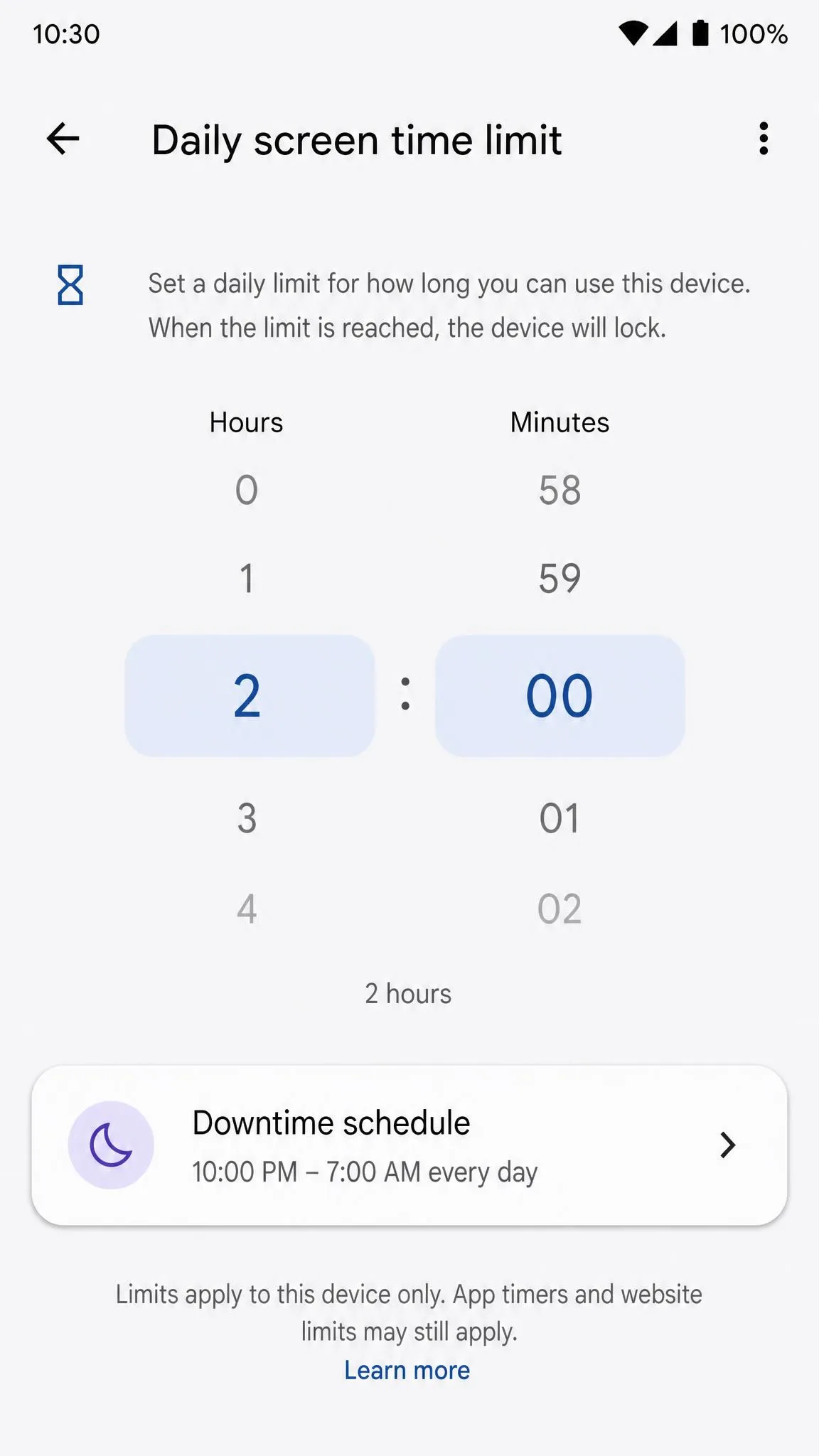
Screen time is the control most parents want first, and it comes in three parts: a daily cap, a nightly schedule, and an escape valve for the days when the rules should bend.
Setting a Daily Screen Time Limit
- In Parental controls, tap Screen time.
- Tap Daily limit.
- Choose the number of hours and minutes you want to allow each day.
- Enter your PIN to save.
When the limit runs out, the device locks. There is no preset default, so the number is yours to choose. Our screen time limits by age chart gives a starting point. The American Academy of Pediatrics' media guidance suggests building a family media plan around sleep, school and activity rather than one universal hour count.
Scheduling Downtime
- Tap Downtime in the screen time settings.
- Set a start time and an end time, for example bedtime through the school-morning alarm.
- Choose which days the schedule applies to.
- Enter your PIN to confirm.
Granting Bonus Time
- Tap Bonus time on the locked device or in Parental controls.
- Enter your PIN.
- Specify the extra minutes you want to add.
Bonus time is the feature we lean on most. It hands back minutes without removing the underlying limit, so a movie night does not undo the schedule. Children can also request extra time from the lock screen, and you approve or deny it from your phone.
How to Block Apps and Set App Limits
App controls are more precise than a blanket screen time cap, and they let you keep messaging or homework apps open while everything else is closed.
Blocking a Specific App
- Open Parental controls and tap App limits.
- Find the app you want to block in the list.
- Tap Block, then enter your PIN.
Leave the Google app itself alone. Blocking it makes other parts of the phone misbehave, so it is the one app to skip.
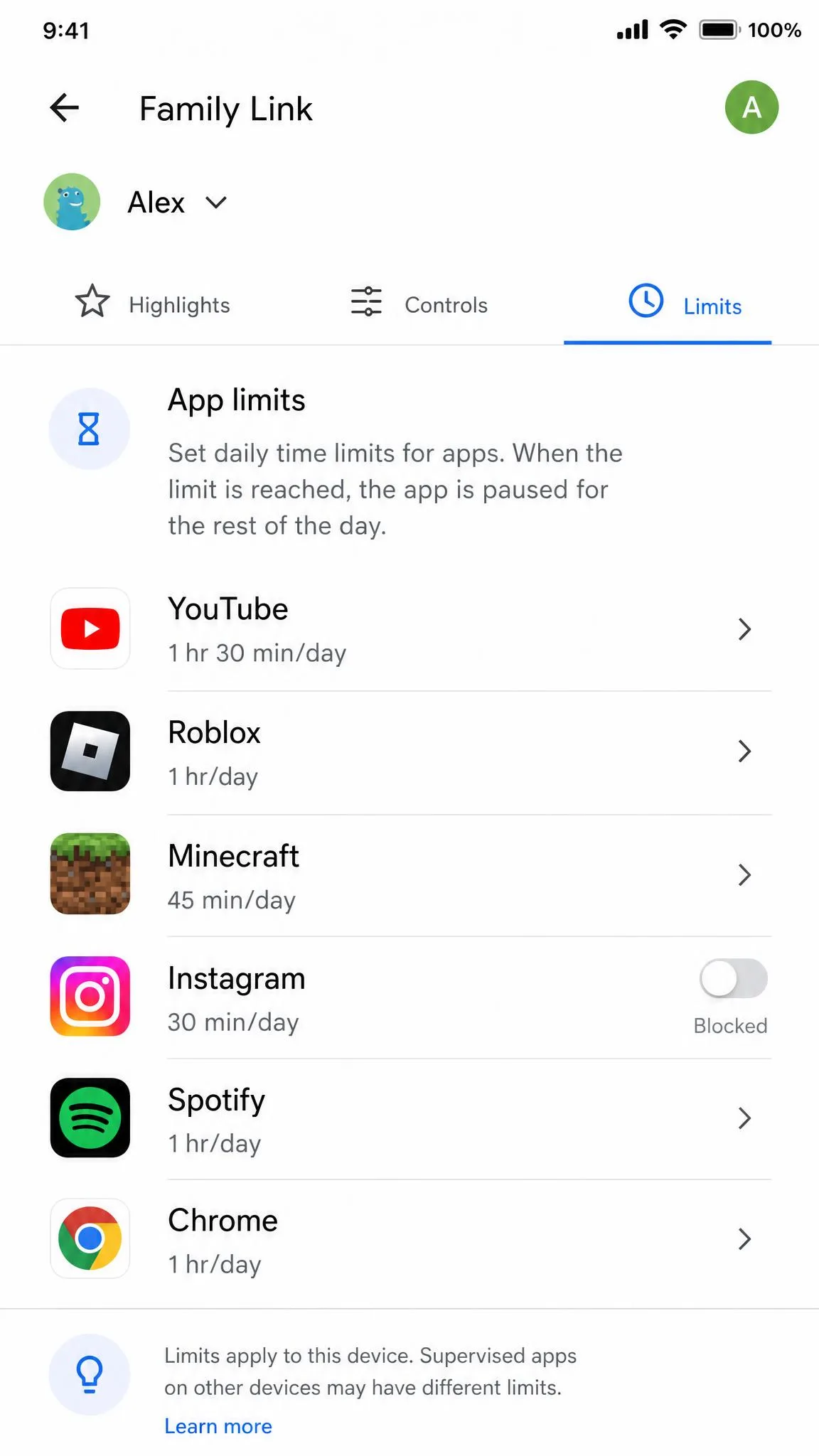
Setting a Daily Limit for One App
- Tap the app name in App limits.
- Choose a daily time allowance for that app.
- Save with your PIN.
Requiring Approval Before New Installs
- In Family Link, open your child's profile.
- Tap Controls, then Content restrictions, then Google Play.
- Turn on approval for app downloads and in-app purchases.
Approval requests arrive as a push notification, so you can approve or reject them without touching the child's device. Turn on every alert at once and the notification volume gets tiring fast. Keep install approvals on and switch most of the rest off.
How to Put a Parental Block on the Google Play Store
The Play Store is where most unwanted content arrives, so it deserves its own lock.
Setting the Play Store PIN
- Open the Play Store on your child's device.
- Tap the profile icon, then Settings, then Family.
- Tap Parental controls and turn them on.
- Enter a PIN when prompted.
New setups use the Android parental controls PIN for Play content restrictions. If you already had a separate Play content restrictions PIN, you keep using that one, which is why two different behaviours are live at once. Resetting a forgotten Play PIN means clearing the Play Store app's data.
Filtering Apps, Games, and Media by Content Rating
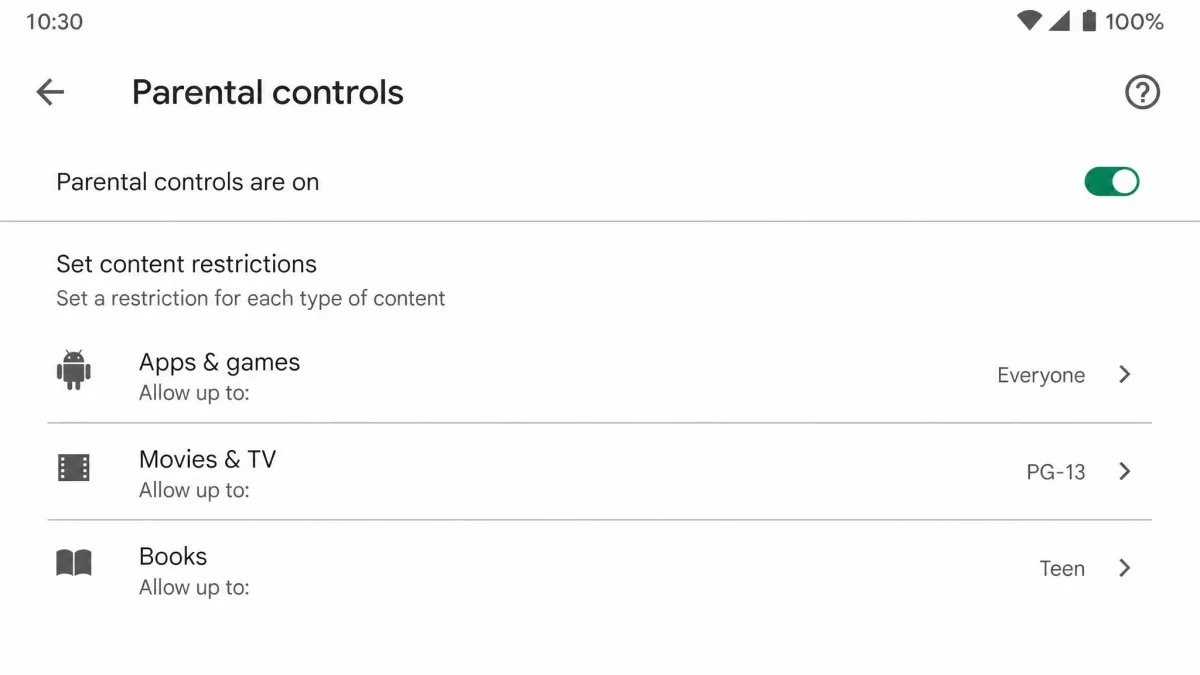
- Tap Apps and games, then choose the highest content rating you want to allow.
- Tap Movies and TV, then set the highest allowed rating.
- Tap Books and choose whether to restrict sexually explicit content.
Know the limit here. Google Play content ratings restrictions block downloads and purchases only. Restricted titles still appear in search results or through a direct link, and anything already installed stays accessible.
How to Filter Web and Video Content
Chrome Site Restrictions
- In Family Link, open your child's profile and tap Controls.
- Tap Content restrictions, then Google Chrome.
- Choose to try to block explicit sites, or to allow only sites you approve.
- Add specific sites to allow or block by hand.
YouTube and YouTube Kids
- Open Content restrictions and tap YouTube.
- Choose the restricted experience appropriate for your child.
- For younger children, install YouTube Kids and set the content level inside that app.
Filtering catches the obvious material well, and the gaps show up at the edges. Pair it with a conversation rather than trusting it alone.
How to Add Google Family Link for Remote Control
Family Link is free on Android, iOS and the web, and it is what turns on-device settings into something you can manage from anywhere. Install Family Link on your phone first.
Linking a Child Account (Under 13)
- Open the Family Link app and tap the plus icon to add a child.
- Create a Google account for your child, or sign in with their existing one.
- Pick up the child's device and follow the on-screen linking prompts.
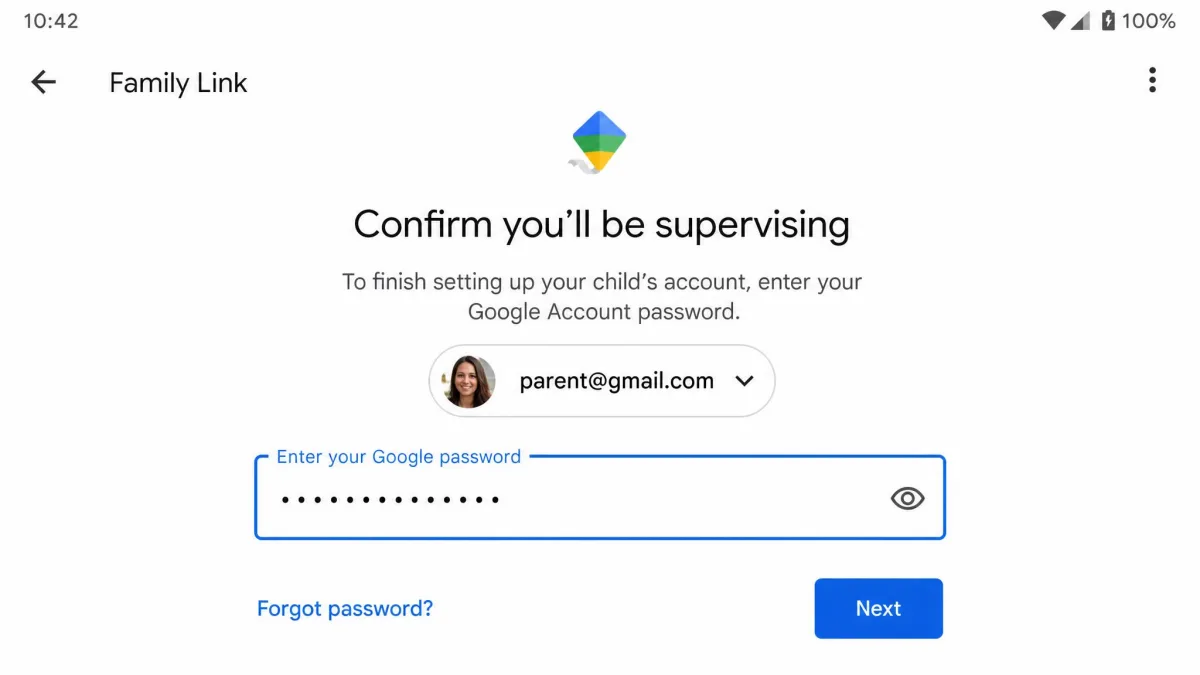
- Enter your own Google password on the child's device to confirm supervision.
- Choose the initial limits and approvals when prompted.
Supervision is built for children under 13, or the applicable age in your country. Parent and child accounts also need to be in the same country.
Linking a Teen Account (13+)
- Send a supervision invitation from Family Link to the teen's Google account.
- Ask them to accept it on their own device.
- Set limits and approvals as you would for a younger child.
At 13 a child can choose to manage their own account without supervision, and you are notified if they do. These tools suit primary-school-age children best and fit older teenagers less comfortably.
What Family Link Adds Over On-Device Controls
Family Link adds remote daily time limits, School Time and Downtime schedules, per-app limits with unlimited time for chosen apps, remote device lock, install approvals, controls for Chrome, Search and YouTube, and location on a map with arrival and departure alerts. Google's expanded Android parental controls have narrowed the gap, but location and off-device management stay Family Link's alone.
Parents need Android 7.0 or newer, or iOS 16 or newer. The stated Android floor differs between Google's current page and older guides, so check it for your handset.
Account linking is the fiddliest part for non-technical parents. The daily settings afterwards are simple, so push through that first sitting.
Changes do not always apply instantly. If a new limit has not reached the child's device, check that device's internet connection or restart the app before assuming something is broken.
Built-In Controls vs Family Link vs Third-Party Apps
| Row | Built-in Android controls | Google Family Link | Third-party app |
|---|---|---|---|
| Cost | Free | Free | Paid subscription |
| Remote management | No, on-device only | Yes, from parent's phone | Yes |
| App blocking | Yes | Yes | Yes |
| Screen time limits | Yes, daily limit plus downtime | Yes, plus School Time schedules | Yes |
| Web filtering | Chrome and Search explicit-content filter | Chrome, Search and YouTube controls | Finer-grained filtering |
| Location | No | Yes, map plus arrival and departure alerts | Yes |
| Works off the child's device | No | Yes | Yes |
| Age fit | Any age on the device | Under 13 supervised, 13+ can opt out | Any age |
| Setup time | About 5 minutes | Longer, account linking required | Longer |
Paid apps such as Qustodio and Bark add social-media monitoring and finer web filtering on a subscription. For most families the free pair is enough. Reach for a paid app only if you need social-media oversight or tighter filtering than Chrome's toggle provides.
Restricted Profiles and Kids Mode on Samsung and Tablets
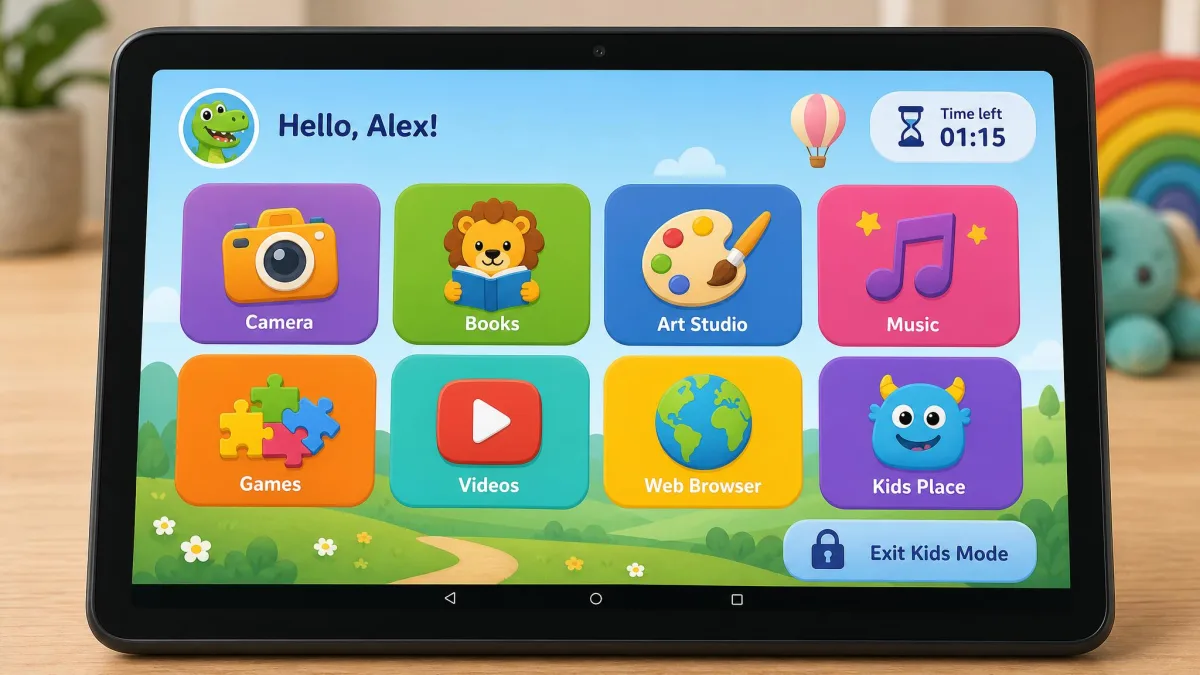
Tablets are often shared, which changes the picture. Samsung ships Samsung Kids, a PIN-locked sandbox with its own launcher, an approved-apps-only list, calling limited to approved contacts and daily playtime limits you can set per day of the week. It needs Android 9.0 or higher, runs on most Galaxy phones and tablets, and supports up to 6 child profiles on one device. Whether it comes preloaded or has to be added first through the Samsung Kids Installer LITE in the Galaxy Store varies by carrier and handset, so check the app drawer before assuming it is missing. Exiting the sandbox needs the PIN, so a child cannot drop back to the normal home screen on their own, but the settings stay on that one Galaxy device and do not follow the child to another phone or tablet. It also leaves YouTube and the open web untouched outside its own walls, which makes it a walled garden rather than a whole-device filter.
Restricted profiles are the other tablet option, and they are less dependable than the documentation suggests. Google still lists them as a tablet-only feature that limits which content a secondary user can see, but support varies by tablet maker and One UI build, and the Users menu under Settings, Accounts and backup is missing entirely on some current Galaxy tablets. Even where the menu exists, third-party apps often fail to appear inside the profile after you enable them.
Remember the conflict. On-device controls cannot be enabled where multiple user profiles or a private space exist, so on a shared tablet you have to choose one approach. If the tablet is your child's, use the on-device controls. If it is shared, a restricted profile fits better.
What to Do When Your Child Works Around the Block
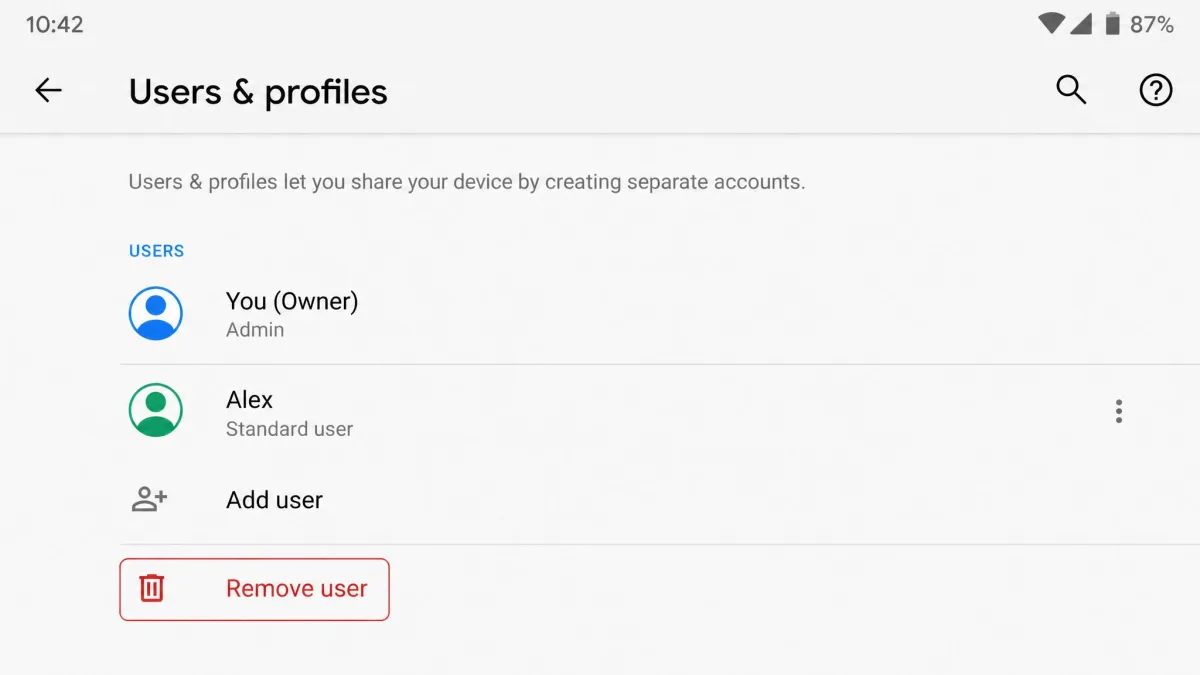
The most common frustration parents raise is that children eventually find a way around the block. Expect it rather than reading it as a failure of the software. The usual workarounds are predictable, and so are the fixes.
- Check whether a second user profile or guest account has appeared on the device, and remove it.
- Look for a browser you did not install, since a blocked Chrome does nothing about a sideloaded one.
- Confirm the Play Store PIN still holds by trying to download a restricted title yourself.
- Watch for a device factory reset, which wipes on-device controls entirely.
- Check that the child has not simply moved to a friend's phone or a games console.
If a limit stops applying, sync is the first thing to rule out. Confirm the child's device has a working connection, then restart the app before changing any settings.
Frequently Asked Questions
Are Android parental controls free?
Which Android versions and devices have them?
Can my child turn the controls off or uninstall them?
Do I need the Family Link app, or are built-in settings enough?
How do I change or remove a limit later?
Does this work on a tablet?
What happens when the child turns 13?
The Bottom Line
Putting a parental block on Android takes about five minutes and one decision: local or remote. Create the parental controls PIN, add a recovery account so you can never lock yourself out, set a daily limit and a downtime window, then filter the Play Store by content rating.
Add Family Link when you want to manage all of that from your own phone, plus location and install approvals. Neither route is airtight, and children do find the edges, so keep these tools as the floor of a conversation rather than the whole of it.