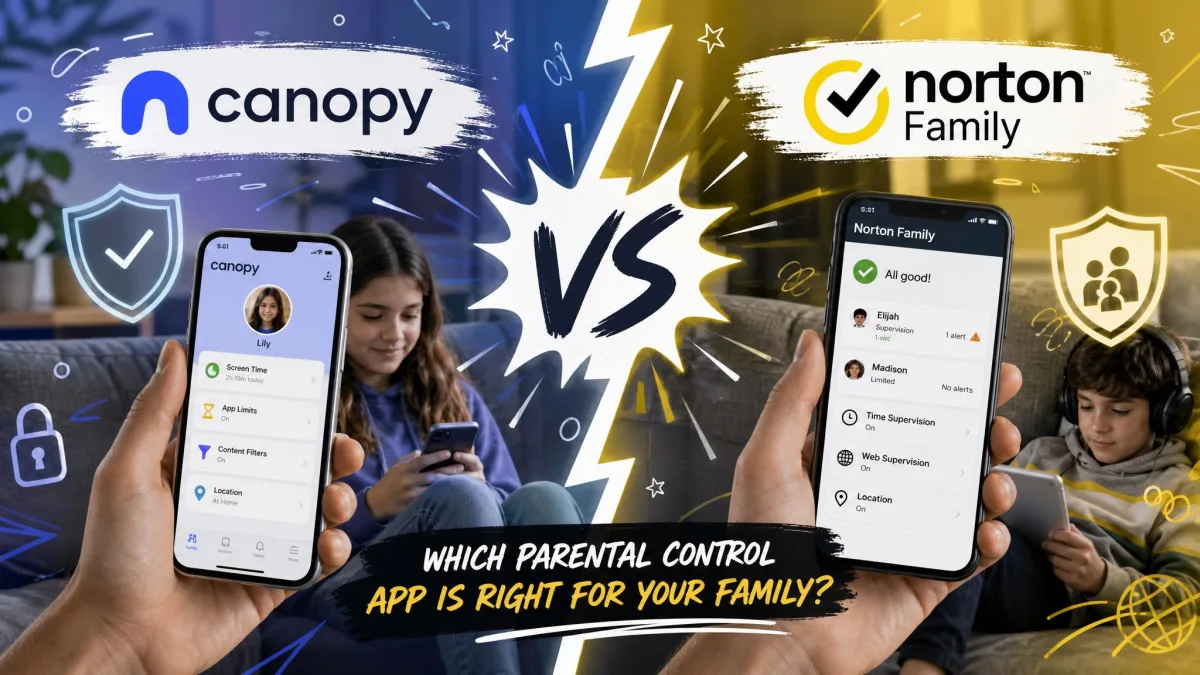
Most parents shopping for a parental control app are trying to solve two different problems at once, and the two apps in this comparison each solve only one of them well. Canopy exists to stop a child seeing explicit images, including the ones that arrive unannounced in a message thread. Norton Family exists to supervise where a child goes online across a whole houseful of devices without charging per handset. Picking the wrong one means paying for a feature set that never touches the thing that worried you in the first place.
We compared the two on the things that decide the purchase: how each filter actually behaves, what screen time management you get, which platforms are genuinely covered, what alerts reach you, and what a year costs per child. Our evaluation rests on both vendors' current published specifications and on documented hands-on findings for each app across iPhone, Android and Windows, including the awkward parts neither company advertises.
Canopy vs Norton Family at a Glance
Canopy is a filtering-first app built around artificial intelligence that inspects images and video as a page loads and removes nudity before it reaches the screen. Norton Family is a supervision-first app built around category blocklists, activity reporting and time limits, sold as part of the wider Norton security family.
The practical difference shows up in the price structure. Canopy charges by device count and starts at $99.96 a year for a single device. Norton Family charges $49.99 for the first year and covers an effectively unlimited number of devices, which makes it dramatically cheaper for a household with three or four children.
| Feature | Canopy | Norton Family |
|---|---|---|
| Real-time content filtering | Yes, AI filtering on pages and images | Yes, category blocklists |
| Sexting and image blocking | Yes, nudity removed before display | No |
| Screen time limits | Yes, limits and schedules | Yes, Time Supervision plus School Time |
| App blocking | Yes, weaker on iOS | Android and Windows only |
| Website blocking | Yes | Yes |
| Location tracking | Yes | Yes, 30-day history |
| Geofencing | Yes, alerts unreliable in practice | Yes |
| Text and social monitoring | No | No |
| Removal prevention | Removal alerts, VPN blocking | Android device-admin PIN, tamper alerts |
| Supported platforms | iOS 12, Android 9, Windows 10, macOS 10.13, ChromeOS | iOS, Android 8, Windows 11, no macOS |
| Devices covered | 1, 3 or 10 by plan | Unlimited, practical ceiling around 50 |
| Price per year | $99.96, $119.88 or $150 | $49.99 first year |
| Free trial | 7-day | 30-day |
| Money-back guarantee | 30-day | 60-day |
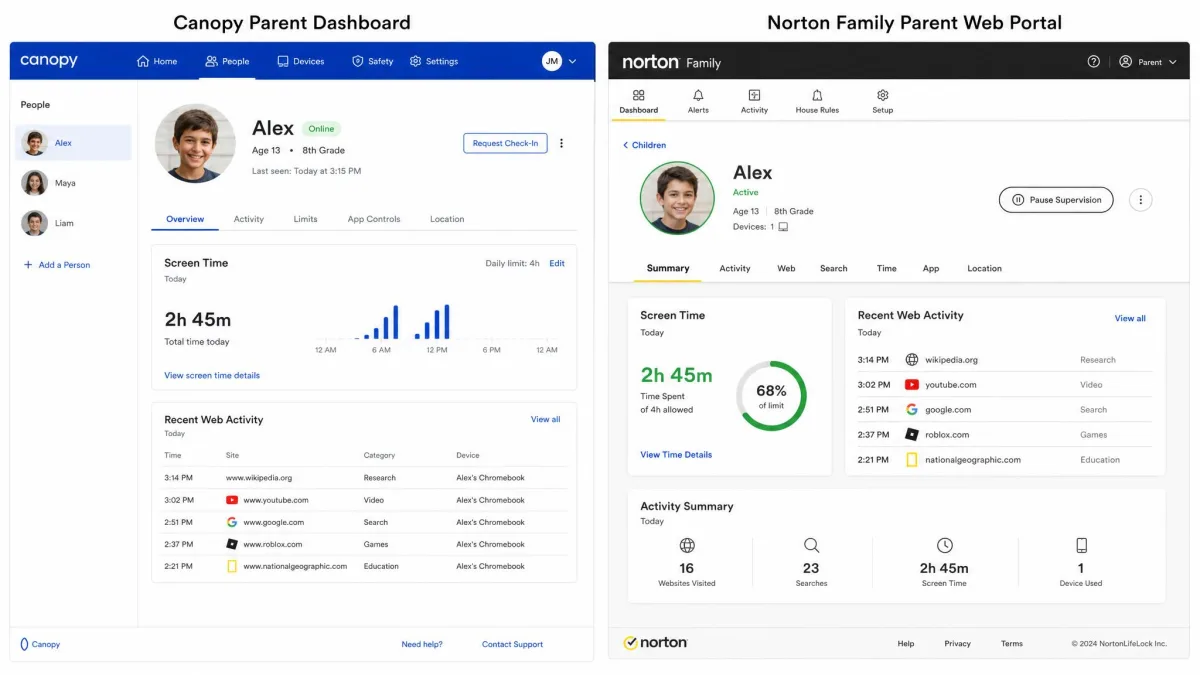
Before you weigh any feature, take an inventory of the screens in your house. A Mac or a school-issued Chromebook in the mix rules one of these apps out entirely, and no amount of comparing filters will change that.
Content Filtering: Real-Time AI vs Category Blocklists
Filtering is where these two apps stop resembling each other. One inspects the picture on the page, the other checks the address of the page. Both approaches block a great deal of adult content, and both let things through. However, they fail in opposite directions, and knowing which failure you can live with is the whole decision.
The scale of the underlying problem is not in dispute. Common Sense Media research found that most teenagers have encountered online pornography, and a substantial share first ran into it accidentally rather than by searching for it. An address-based filter is built for the deliberate visit. Accidental exposure is a harder target.
How Canopy Filters Content
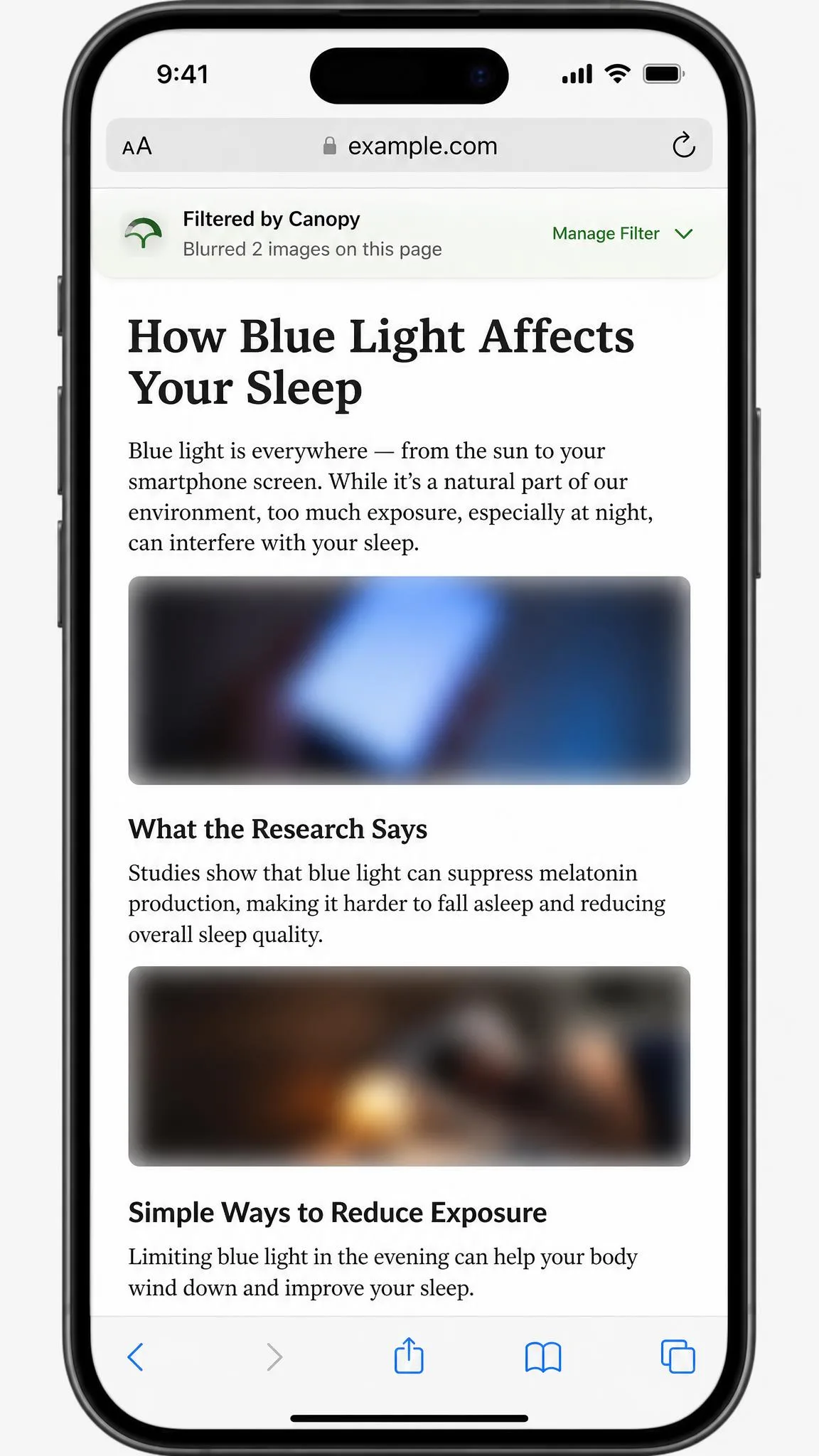
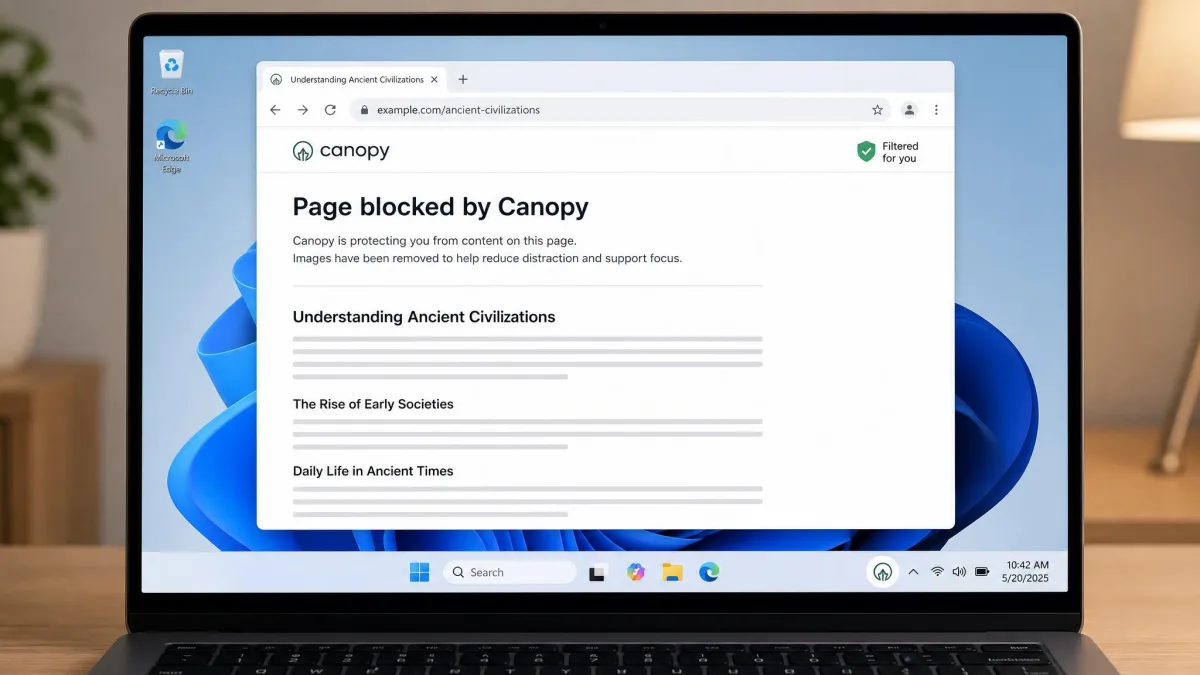
Canopy runs what it calls smart filtering. As a page loads, the app analyses images and video in real time and removes nudity before it renders, so the child sees the page with the offending content stripped out rather than a blocked-site notice. The same engine powers sexting prevention, which watches outbound images and alerts a parent when one is flagged, and app removal alerts, which tell you when the app has been taken off a device.
That approach has a cost we should be honest about. The filter throws false positives, blurring benign images such as medical photos or artwork often enough that a parent needs to review flagged items from time to time. A teenager researching a health topic for school will hit that friction. No published figure exists for how often it happens, so treat it as an occasional annoyance rather than a constant one.
How Norton Family Filters Content
Norton Family works from categories. Web supervision checks each site a child visits against a category list and blocks or monitors it according to the rules you set, with age-based presets to save you configuring dozens of categories by hand. Search supervision records search terms, and video supervision logs YouTube viewing so you can see what a child has been watching.
Two limits matter here. The video supervision only captures YouTube watched in a browser, not what a child watches inside the YouTube app, which is where most viewing actually happens. And Norton Family does not scan images at all. Among mainstream parental control apps only a small group including Canopy inspects image content, and Norton is not in that group.
Which Filter Blocks More
For a child who might stumble into explicit imagery on an otherwise ordinary site, or receive it in a message, Canopy blocks more. It is the only one of the two that can act on the picture itself. Its sexting prevention is not airtight, though. Even on the Strict setting a bikini photo can still go out over text, so treat it as a strong deterrent rather than a guarantee.
For a child whose risk is browsing to the wrong place, Norton Family's category blocking does the job at less than half the price. The weak spot is platform-specific rather than conceptual: on Windows its web filtering, video tracking and search tracking are comparatively easy to sidestep, and on iPhone the filtering only applies inside Norton's own browser, so a child who opens Safari or Chrome browses completely unfiltered.
Content filtering is not the same as monitoring conversations. Neither Canopy nor Norton Family reads text messages or social media DMs. If that is the capability you are shopping for, neither of these apps provides it.
Screen Time Limits and Scheduling
Both apps let you cap daily use and carve out protected parts of the day, and both stop short of the per-app granularity that Apple Screen Time and Google Family Link give away for free. If daily totals and schedules are all you need, either one will serve.
Canopy's Screen Time Controls
Canopy gives you a daily time allowance and recurring schedules, so you can shut down internet access at bedtime and during homework hours across every device on the plan. Alongside those you get website and app blocking, which lets you keep a single app off a device permanently rather than merely rationing it.
The reporting is where we would set expectations. On Android, Canopy's screen time reporting lags behind actual usage rather than updating live, so the number you check at four in the afternoon is not the number your child has already spent. It catches up, but it is not a live meter, and that matters if you are trying to enforce a limit in the moment.
Norton Family's School Time and Time Supervision
Time Supervision handles the daily limits and the weekly schedule grid, and it applies across the devices linked to a child's profile rather than to one handset at a time. Instant Lock does what it says, cutting off access immediately from the parent portal when you need to end a session.
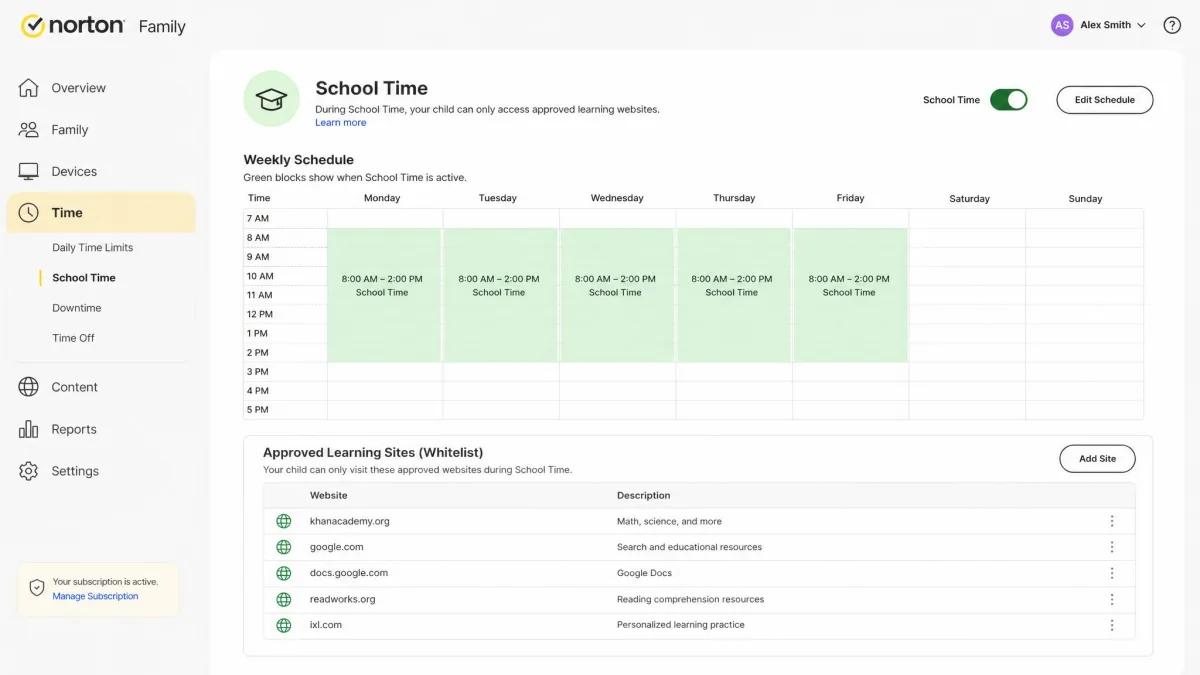
School Time is the feature with no equivalent on the Canopy side. During a School Time window the child is held by default to educational web categories and sites, and you build a standalone rule set of allowed categories, permitted website addresses and blocked sites that applies only inside that window. It runs on Windows, Android and iOS, and you can trigger it instantly for a chosen stretch or leave it on a recurring schedule, which suits an unplanned study session as well as a timetabled school day. A child who hits a block can send an access request to you from the Norton app rather than being stuck. Two limits are worth knowing before you lean on it: the filtering applies to browser traffic, so streaming and video apps such as YouTube or Hulu used outside a browser stay unfiltered, and the device time spent during School Time is counted separately from the daily allowance only on Windows and Android, with iOS potentially behaving differently.
App and Website Blocking
Platform limits shape blocking too, and they split it in an odd way. Website blocking is a wash: neither app will help you here more than another, because both block by address or category on every platform they support, and both let you build allow and block lists by hand on top of the presets you pick during setup.
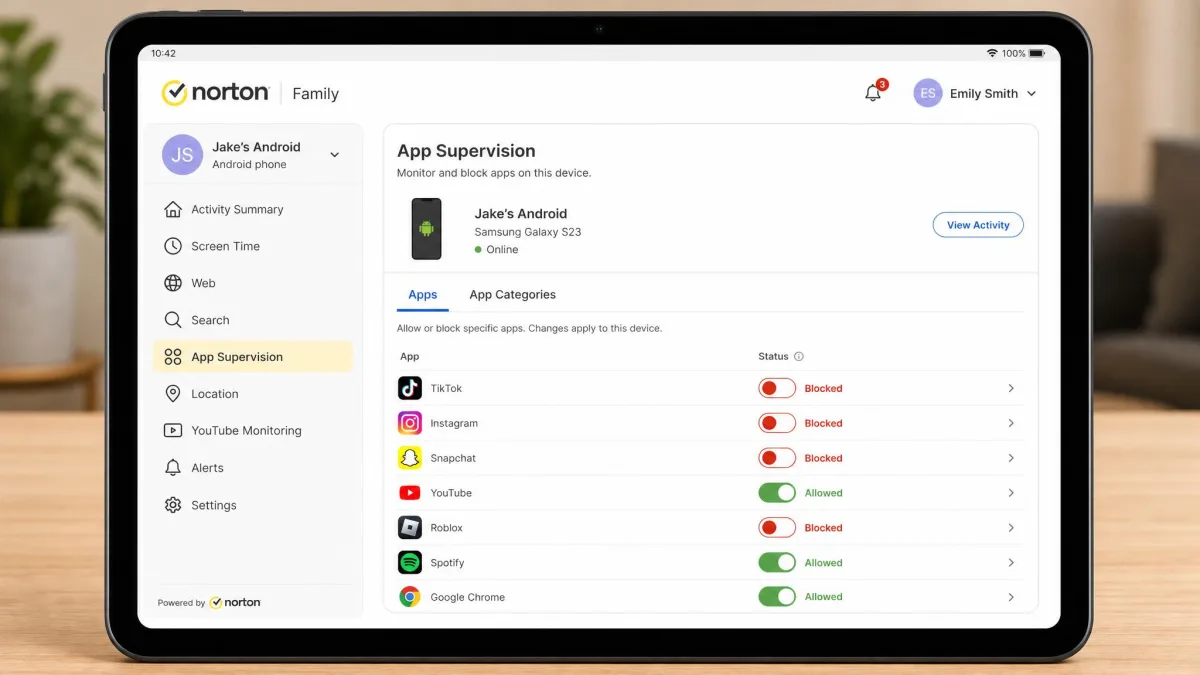
App blocking is not a wash. Norton Family supervises and blocks apps on Android and Windows only, and does far less on iOS than on Android because Apple's platform rules curtail app monitoring and blocking for every third-party developer. Canopy blocks apps across its supported platforms on paper, but in practice its app blocking, geofencing alerts and downtime schedules can all fail to fire on iPhone. The app is noticeably more reliable on Android.
Apple restricts what any third-party app can see and control on iOS, which is why every parental control app in this category, not just these two, does less on an iPhone than on an Android phone. Pairing either app with Apple's built-in Screen Time closes part of that gap at no extra cost.
Device and Platform Support
Since so much of the blocking story came down to what each operating system allows, platform coverage deserves a section of its own. It decides more purchases than any feature comparison. One of these apps has no macOS client at all, and the other cannot be installed on an ARM-based Windows machine.
iPhone and iPad
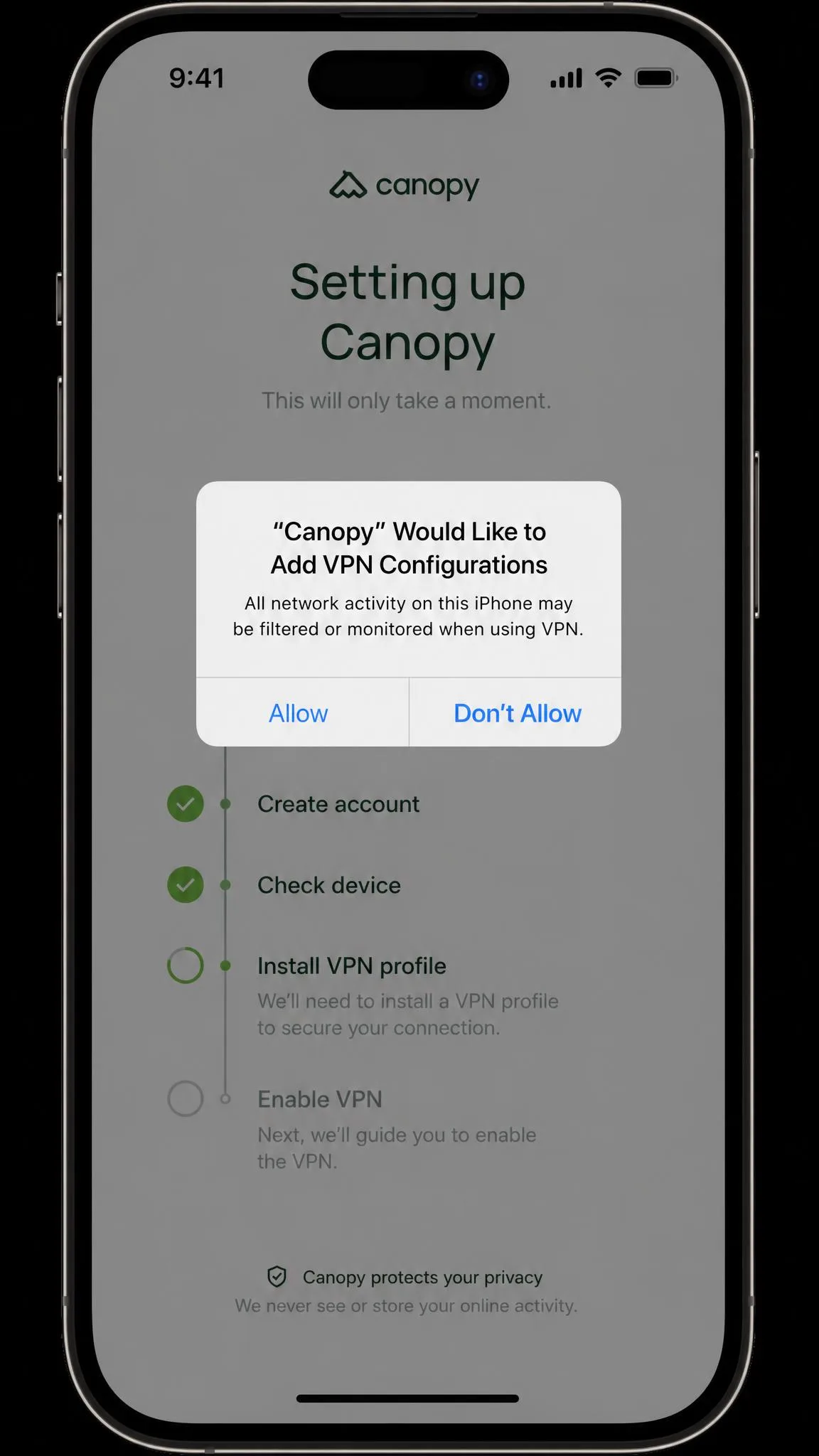
Canopy requires iOS 12 or higher and is available from the App Store. Its filtering works across browsers because traffic is routed through a VPN profile, which is exactly why it can catch images anywhere rather than in one sandboxed browser.
Norton Family runs on iPhone and iPad too, but its web filtering only applies inside its own browser. A child who taps the Safari icon is browsing unsupervised, and recent iOS feedback also points to trouble adding devices and to sites ending up monitored rather than blocked. On iPhone, Canopy is the stronger of the two despite its own reliability wobbles.
Android Phones and Tablets
Canopy needs Android 9 or higher and installs from Google Play. Norton Family needs only Android 8, which keeps older hand-me-down tablets in play. Both apps are at their best on Android, where the platform grants the access each one needs to supervise apps properly.
Windows, Mac and Chromebook
Canopy supports Windows 10 or higher, excluding ARM-based systems, along with macOS High Sierra 10.13 or higher and ChromeOS devices. Norton Family supports Windows, Android and iOS only, covering Windows 7, 8, 8.1, 10 and Windows 11 but excluding S Mode, and it has no macOS client at all, so a Mac in the house simply cannot be supervised. ChromeOS is the same story: Chromebooks are unsupported, as are Huawei and Amazon Fire devices, so a household on school-issued Chromebooks gets nothing from the subscription on those machines.
If your family runs on Macs or Chromebooks, that single line settles the comparison before any other consideration.
Location Tracking and Geofencing
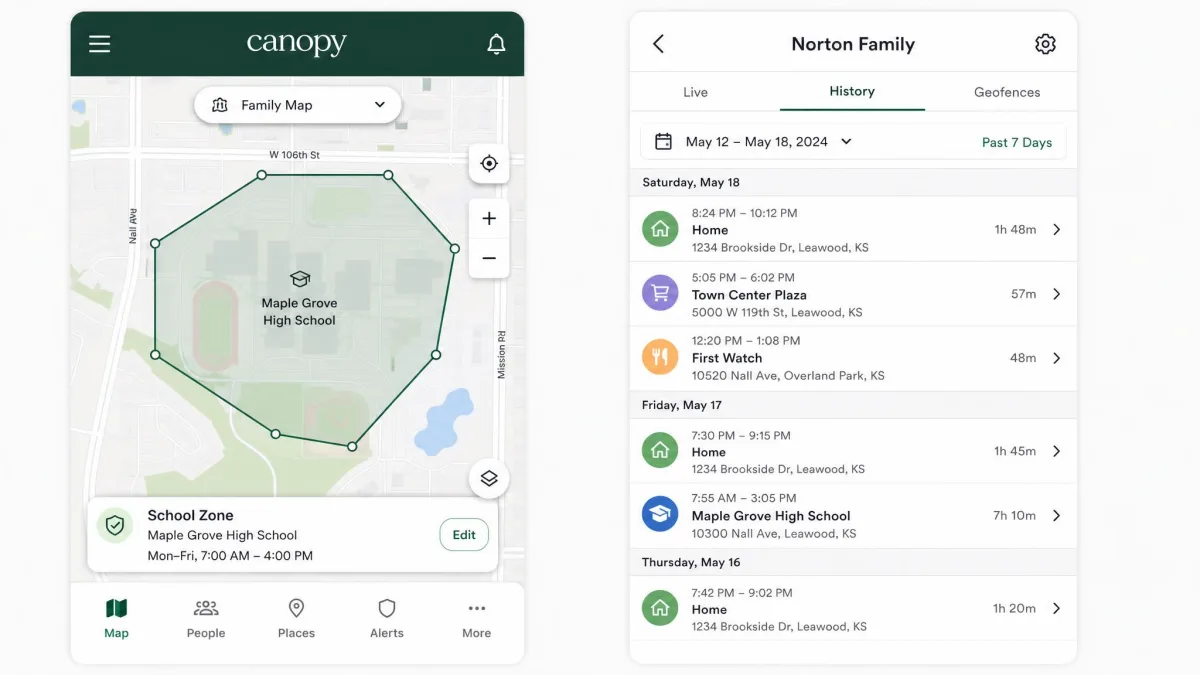
Location is the one area where the platform gap narrows. Both apps track a child's device location and both support geofenced areas that trigger an alert on arrival or departure. Norton Family adds 30-day location history on Android and iOS, so you can look back over the past month rather than only at the current pin.
Reliability separates them. Norton Family's location tracking and geofencing hold up on the road, arriving when they should. Canopy's geofencing alerts are among the iPhone features that can quietly fail to fire, which makes it hard to rely on for the one job a geofence has. If knowing when a child reaches school matters to you, Norton Family is the safer pick here.
Alerts, Notifications and Reporting
Tracking a child only helps if the app tells you something. Alerts are the part of a parental control app you actually live with day to day. Everything else is configuration you touch once, so the quality of the notifications is what decides whether the app keeps helping you a month after setup.
Canopy's Sexting and Removal Alerts
Canopy's alerting is built around two events that no category filter can see. The first is an outbound image flagged by sexting prevention, which reaches you as it happens rather than in a weekly summary. The second is removal of the app from the child's device.
The removal alert is weaker than it sounds. Canopy can be uninstalled from a child's phone, and the notification is easy to miss, so the app can sit deleted for days before a parent notices. Support is a bright spot: replies come quickly and agents are patient, though phone coverage stops outside business hours.
Norton Family's Weekly and Monthly Reports
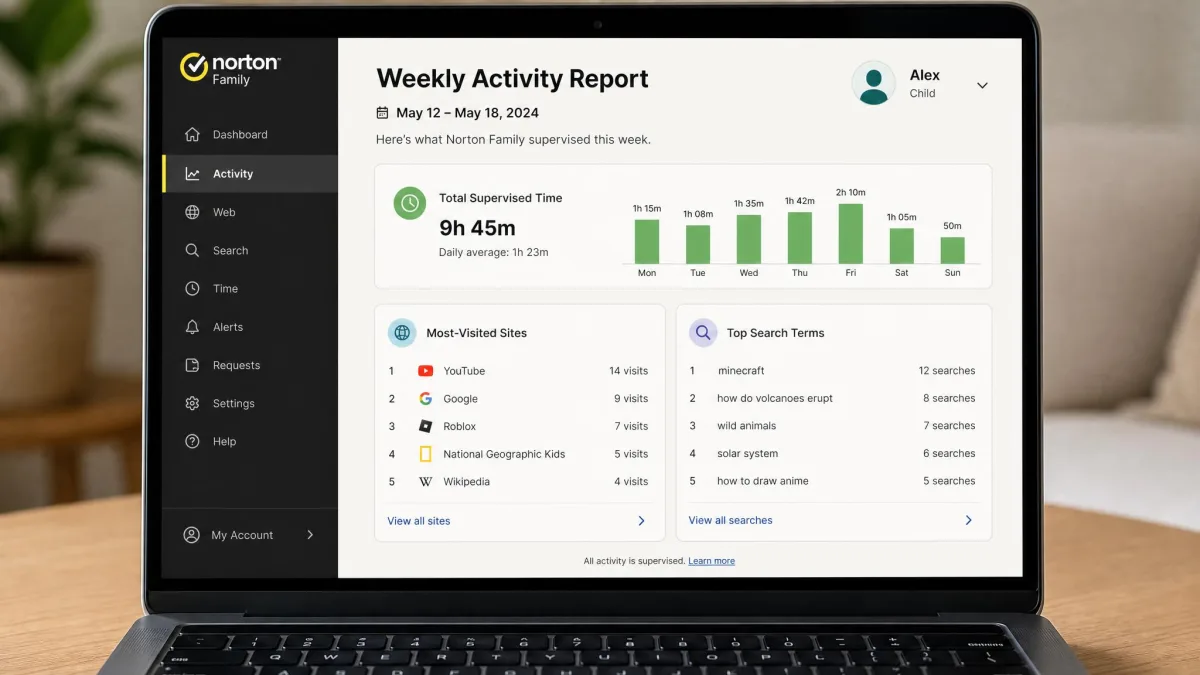
Norton emails you when a child tries to reach a blocked site, and those alerts arrive instantly rather than on a delay. Underneath the real-time layer sit weekly and monthly activity reports that summarise sites visited, searches run and time spent, which is the format most parents find easiest to review with a child rather than about them.
Text, Social Media and Message Monitoring
Neither app does this, and it is worth stating plainly because both are frequently shortlisted alongside apps that do. Canopy has no social-media DM or text-message logging. Norton Family has no text message, email or social media conversation monitoring either.
Canopy gets closer in one narrow sense. Its sexting prevention inspects images leaving the device, so it can act on the content of a picture in a message thread even though it never reads the words around it. If you want message content, both of these are the wrong shortlist, and you should look at apps built for that job.
Reading a teenager's private messages carries a real cost to the relationship, and clinicians who work with families are cautious about it. Child Mind Institute's guidance on how much to monitor your teen's social media is worth reading before you buy any monitoring tool, not after.
Pricing and Plans Compared
Feature by feature the two apps have traded blows fairly evenly. This is the section that changes minds, because the two apps are not priced in the same universe, and the gap widens with every extra child.
Canopy Pricing
Canopy sells three annual tiers. Essential runs $8.33 a month billed annually, which is $99.96 a year and covers one device. Plus runs $9.99 a month billed annually, or $119.88 a year, for up to three devices. Premium runs $12.50 a month billed annually, or $150 a year, for up to ten devices. Every plan includes a 7-day free trial and a 30-day money-back guarantee from account creation, and email and phone support come with all three.
Older plan names and prices still circulate online. Treat only the Essential, Plus and Premium tiers above as current, since those are what Canopy publishes today.
Norton Family Pricing
Norton Family is $49.99 for the first year as a standalone subscription, with a 30-day free trial and a 60-day money-back guarantee. It is also included at no extra cost with Norton 360 Deluxe and Norton 360 Premium, so a household already paying for one of those security suites may own it already without knowing.
The catch sits at renewal. Norton publishes the introductory year only, and the renewal figure is not fixed on the product page, so budget for a step up in year two rather than assuming $49.99 repeats.
| Plan | Devices covered | First-year price | Free trial |
|---|---|---|---|
| Canopy Essential | 1 device | $99.96 | 7-day |
| Canopy Plus | Up to 3 devices | $119.88 | 7-day |
| Canopy Premium | Up to 10 devices | $150 | 7-day |
| Norton Family | Unlimited, practical ceiling around 50 | $49.99 | 30-day |
Which Is Better Value Per Child
For one child on one device, Canopy costs roughly twice what Norton Family does in year one. For three children with a phone and a laptop each, Canopy's Premium tier at $150 covers the six devices while Norton Family covers them for $49.99, and the gap becomes hard to argue with on features alone.
Norton Family's device allowance is described as unlimited but carries a practical per-account ceiling, reported as around 15 children across 50 devices. No normal family will meet it. The honest framing is that Canopy is priced as a specialist tool for a specific worry, and Norton Family is priced as household infrastructure.

Setup and Ease of Use
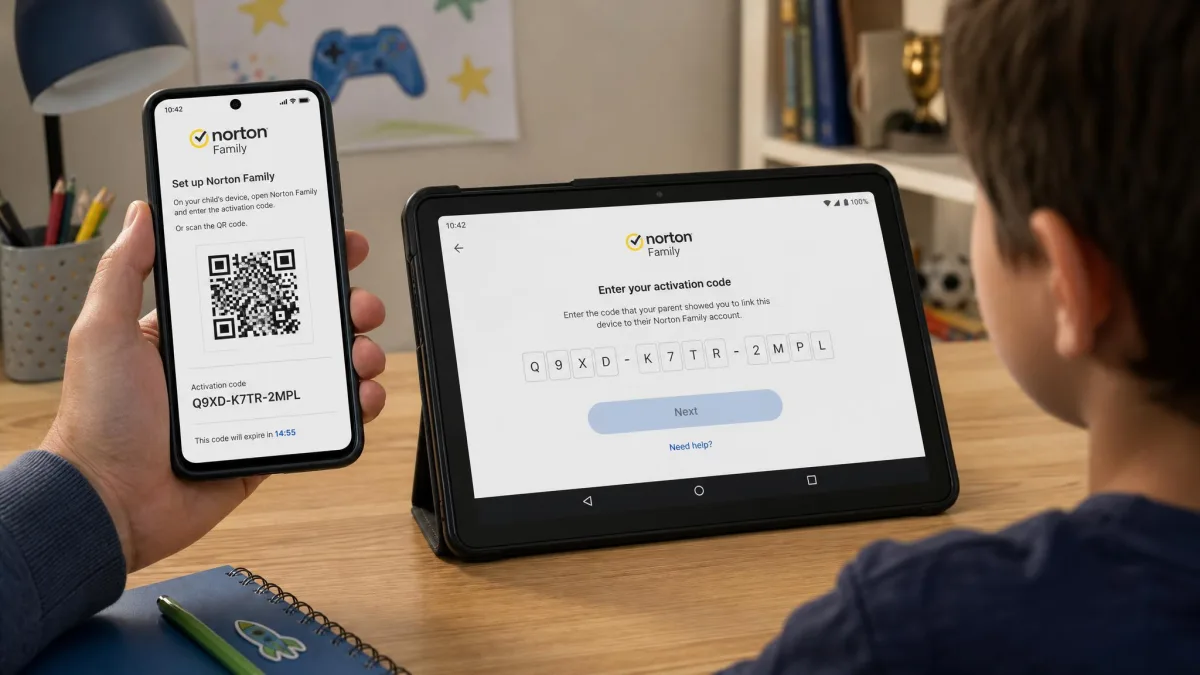
Norton Family's onboarding is the smoother of the two. It runs through QR-code linking and activation codes with age-based preset restriction levels, and it finishes without any technical know-how on the parent's part. Choosing a preset by age gets you a working configuration in one step instead of dozens.
Canopy's setup splits by platform. On Android the on-screen instructions are accurate and child-device setup takes roughly 5 minutes. On iPhone it is fiddlier, and it is easy to spend twenty minutes hunting through Settings for the anti-theft options the app wants enabled.
There is one setup consequence worth planning for. Canopy routes traffic through a VPN profile, and that architecture conflicts with any other VPN app already installed, so a household running a privacy VPN has to pick one or the other. The same VPN layer can slow a connection noticeably, and on iPhones it can leave the device sluggish enough to be frustrating.
Can Kids Bypass or Uninstall Either App?
Every parental control app can be defeated by a determined teenager. The question is how much effort it takes and whether you find out.
Canopy blocks VPN apps to stop the obvious workaround and sends an alert when it is removed. Two things undercut that. The app can be uninstalled from a child's phone, and the removal notification is easy enough to miss that it can sit deleted for days before anyone notices. Uninstalling is awkward in its own right, because the app needs Wi-Fi to open while its own VPN interferes with the connection, which produces support tickets from parents rather than from children.
Norton Family is stronger on Android, where the app holds device-administrator rights so removal needs the parent PIN, and any tampering triggers a notification. On Windows the picture reverses: its web filtering, video tracking and search tracking are comparatively easy to sidestep. Neither app survives contact with a factory reset.
Tell your child the app is there and what it does. Every app in this category is discoverable, and a control your child finds by accident does more damage to trust than the control was ever worth. Involving your child in the rules costs you nothing and buys you a control that survives the first argument.
Canopy Pros and Cons
Pros
- Real-time AI image and video filtering removes nudity before it reaches the screen
- Sexting prevention alerts you to flagged outbound images
- Supports macOS and ChromeOS as well as Windows, iOS and Android
- Blocks VPN apps to close the most common bypass route
- Support replies quickly and agents are patient
Cons
- Costs $99.96 a year for a single device, roughly twice Norton Family
- The smart filter blurs benign images such as medical photos and artwork
- App blocking, geofencing alerts and downtime schedules can fail on iPhone
- Its VPN layer slows connections and conflicts with any other VPN app
- Trustpilot's community rates it 1.9 out of 5, in the Poor band
Norton Family Pros and Cons
Read Norton Family's ledger against the one above rather than on its own, because the two apps rarely fail in the same place. Where Canopy's weaknesses are mostly about reliability and cost, Norton Family's are about reach. The things it does, it does dependably, and the things it cannot reach it cannot reach at all. That difference is what makes the two lists worth reading side by side.
Pros
- $49.99 first year covers an effectively unlimited number of devices
- School Time whitelists learning sites and blocks the rest during class hours
- Blocked-content alerts arrive instantly, with weekly and monthly reports
- Location tracking and geofencing hold up, with 30-day location history
- Included at no extra cost with Norton 360 Deluxe and Premium
Cons
- No macOS client, so Mac computers cannot be supervised at all
- No image scanning, so explicit pictures pass through the filter
- On iPhone, filtering only works inside Norton's own browser
- YouTube supervision misses everything watched in the YouTube app
- Renewal price is not published, so year two is an unknown
How to Choose Between Canopy and Norton Family
Start with the two questions that eliminate one app outright: which devices are in your house, and what specifically worries you. Everything else is a preference you can live with either way.
Choose Canopy If
Choose Canopy if the thing keeping you up is explicit imagery rather than time management, because it is the only one of the two that inspects pictures. Choose it if you have a Mac or a Chromebook to cover, since Norton Family has no client for either. And choose it if you are supervising one or two younger children, where per-device pricing stays reasonable and the false positives are less likely to collide with schoolwork.
Choose Norton Family If
Choose Norton Family if you have three or more children, where the flat subscription is decisive. Choose it if you want School Time, activity reports you can review together, and location history you can look back through. And check your existing subscriptions first, because if you already pay for Norton 360 Deluxe or Premium, you own it.
Alternatives Worth Considering
If neither app fits, three alternatives cover the gaps. Bark takes the opposite approach to both, scanning texts, email and social media for signs of trouble and alerting you to concerning content instead of blocking sites wholesale, which suits an older teenager. Qustodio sits between these two on price and offers per-app time limits neither one provides. Mobicip covers Chromebooks well and is worth a look for a school-issued fleet.
Do not overlook the free built-in options either. Apple Screen Time and Google Family Link both handle app limits, downtime schedules and basic content restrictions at no cost, and Family Link manages Chromebooks too. Run one of them for a month before you buy anything. Plenty of families find the free tools cover their needs, and the ones that do not will at least know exactly which capability they are paying to add.
Frequently Asked Questions
Is Canopy better than Norton Family?
Which is cheaper over three years, not just year one?
Does Canopy work on Android, and which Android version do I need?
What happens to supervision when my child turns 18 or leaves the plan?
Does either subscription transfer to a replacement phone or laptop?
Can School Time be triggered on the spot, or only on a schedule?
Will Canopy's VPN profile clash with a school-issued device management profile?
Can I run Canopy and Norton Family together on the same device?
Does Norton Family come free with Norton 360?
Final Verdict
Norton Family takes this comparison for most families, on coverage and price rather than on any single feature. It supervises every device in a household for $49.99 in year one, sets up through QR codes in a few minutes, alerts you the moment a blocked site is attempted, and gives you weekly and monthly reports that make a reasonable basis for a conversation with your child. Its gaps are worth naming: no image scanning, and an iPhone version that only filters its own browser.
Canopy wins on one axis, and for some parents it is the only axis that matters. Nothing else in the mainstream category removes nudity from a page before a child sees it or watches outbound images for sexting. If that is your reason for shopping, pay the premium, install it on Android where it performs best, and accept the occasional over-block and the VPN slowdown as the cost of the capability.