The real decision here is narrower than the marketing suggests. Canopy watches images and video as they load and blurs explicit content before a child sees it. Net Nanny reads the text of a page as it renders and scores it against 14 preset categories. One is built around what a picture contains. The other is built around what a page says, and it reports the day back to you afterwards.
That difference drives everything else. It decides which devices each app covers, what you pay per child, and where each one quietly fails. We spent our comparison work on the setup flow, the filtering behaviour, the parent dashboard and the tamper resistance of both apps. Then we checked every price and platform claim against the vendors' own pages rather than a reseller listing.
Neither app is a clean winner, and we are not going to pretend otherwise. Both draw genuine complaints from paying parents. What follows is the head-to-head, with the pricing maths for a large family and a verdict that names who each one is actually for.
Canopy vs Net Nanny at a Glance
Here is the side-by-side before we get into the detail. Every row below reflects what each vendor currently publishes plus what we found using the software day to day.
| Product | Canopy | Net Nanny |
|---|---|---|
| Content filtering | Real-time AI filtering of images, video and text on any site | Page text scored as the page loads, across 14 categories |
| Sexting and image detection | Yes, flags risky photos before they are sent | No image-level sexting detection |
| App blocking | Yes | Yes |
| Website blocking | Yes | Yes, whitelist and blacklist |
| Screen time limits | Internet downtime schedules by day and week | Device-wide only, in 15-minute increments |
| Activity reports and alerts | Parent alerts, approval queue, bullying and drugs alerts | Family Feed, search reporting, YouTube history |
| Anti-tampering | Removal prevention plus VPN blocking | Weak: disabled with the account email and password, no alert |
| Device limit | 1, 3, or up to 10 devices by plan | 1, 5, or 20 devices by plan |
| Supported platforms | iOS, Android, Windows, macOS, Chromebook | Windows, macOS, iOS only |
| Free trial | 7-day | 3-day |
| Starting price | $8.33/month billed annually | $39.99/year |
What Is Canopy?
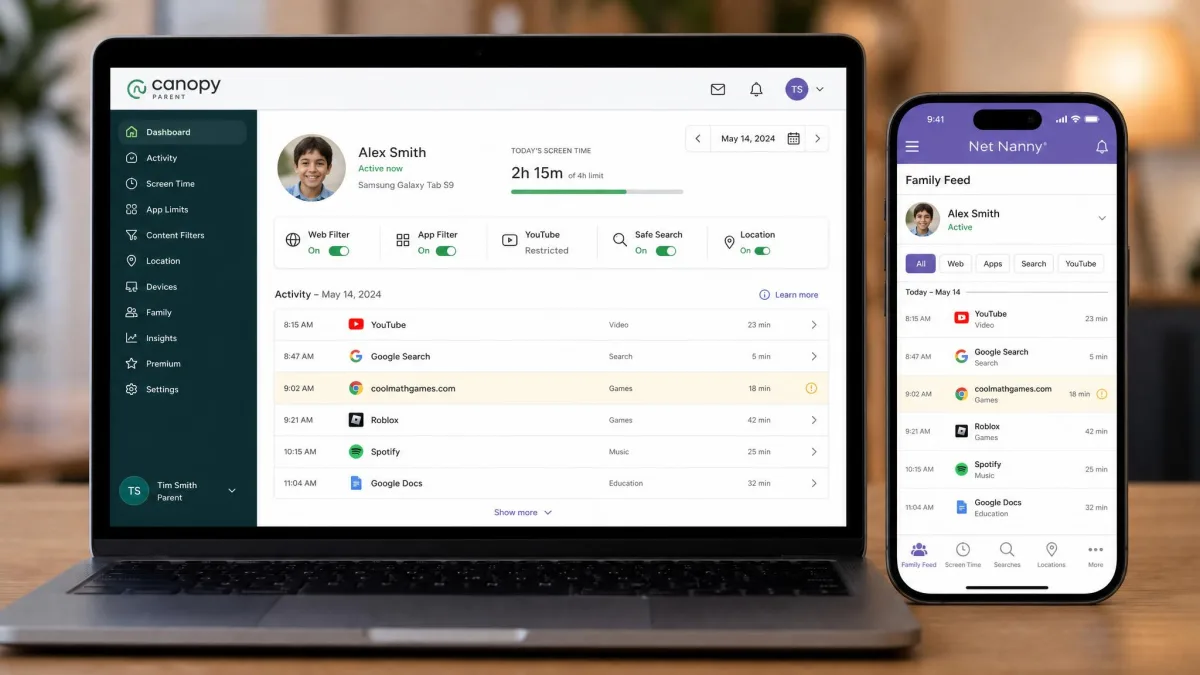
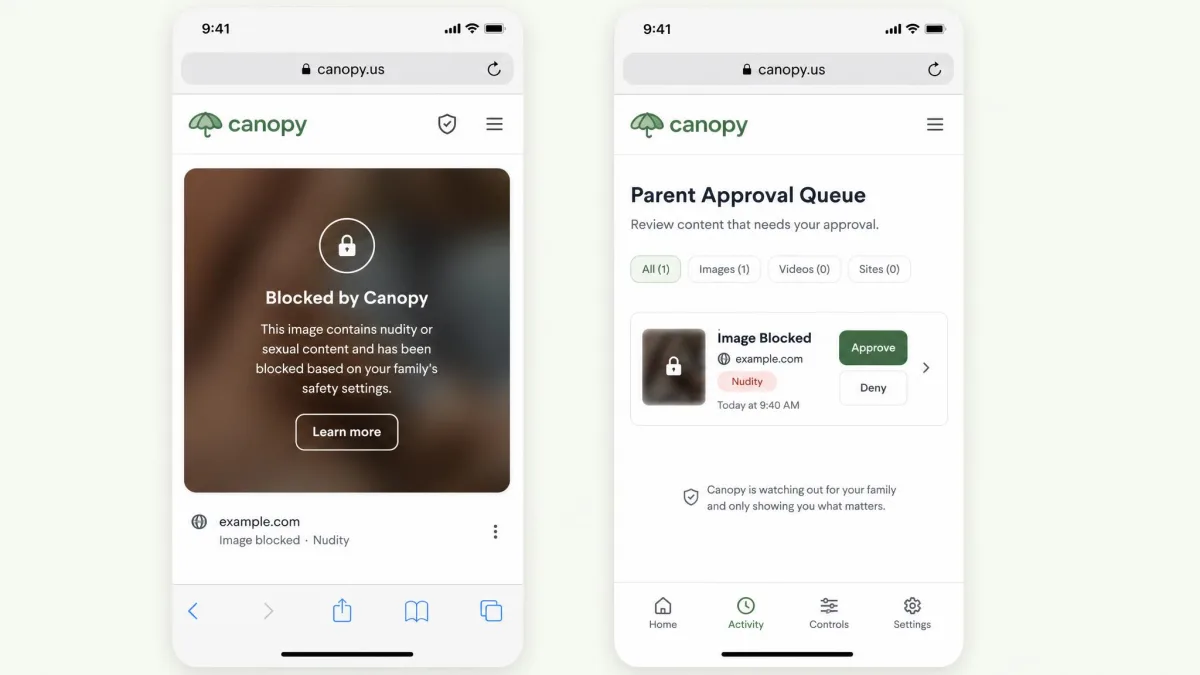
Canopy is a parental control app built around one idea. It stops explicit images and video from ever reaching the screen. Instead of matching a web address against a blocklist, it inspects visual content in real time and blurs anything it judges to be pornographic before the page finishes rendering.
Alongside the core filter, Canopy blocks apps and websites and schedules internet downtime by day and by week. It also filters lingerie and swimwear imagery and screens AI chatbot content from ChatGPT, Gemini, Claude and Grok. Parent alerts cover topics such as bullying, drugs and alcohol. Location alerts and geofencing come in too, along with per-child settings so a nine-year-old and a fifteen-year-old are not stuck with the same rules.
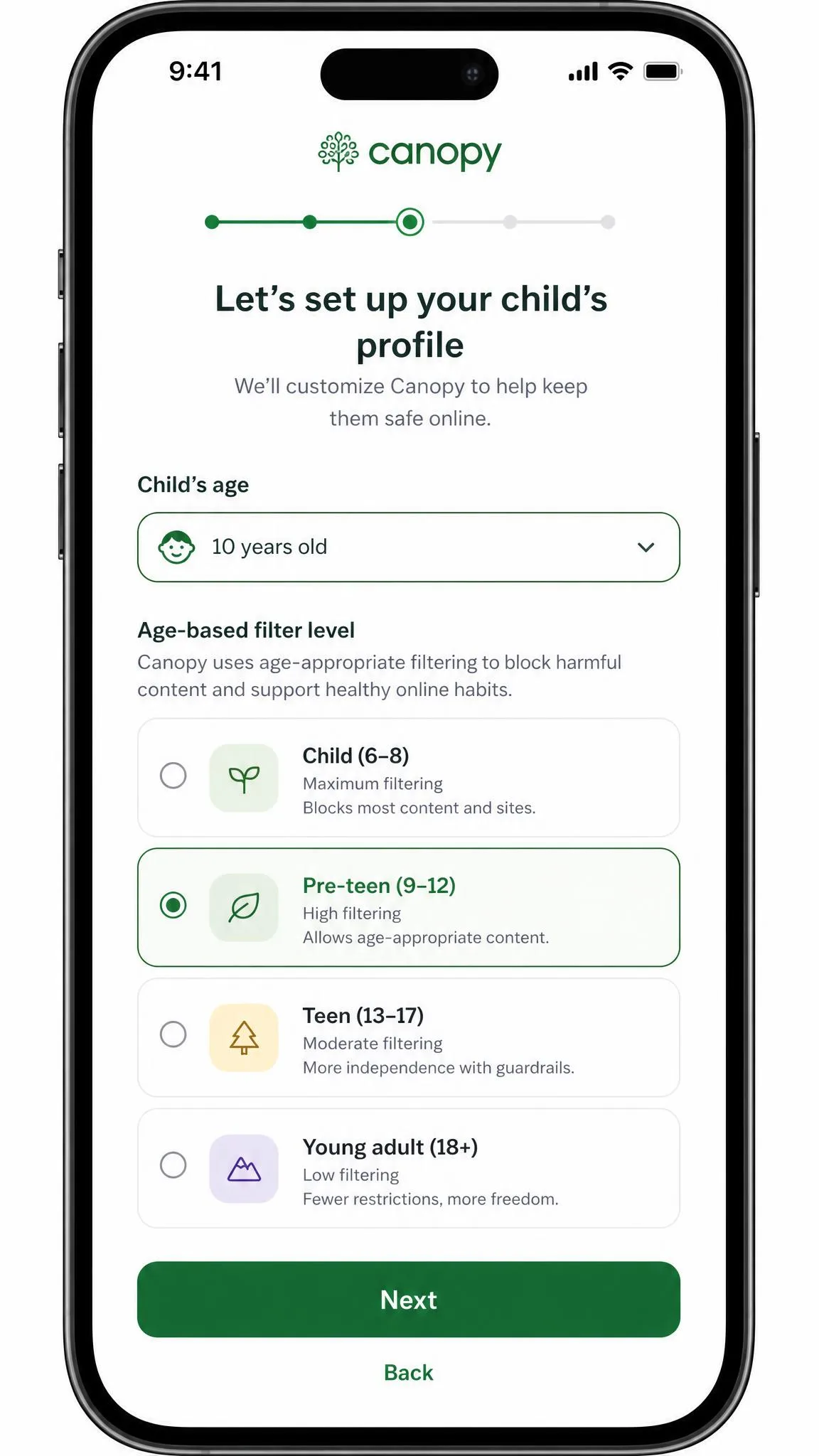
In our setup pass, Canopy took roughly five minutes to install on a child device. The wizard walked us through child profiles and filter levels without burying us in options. Once configured it runs quietly in the background, and most families can leave it alone after that first pass.
Canopy filters in real time by routing the child's traffic through a VPN profile. That is how it inspects images before they render, and it is also why internet speeds can drop and why the app conflicts with any other VPN installed on the same device.
What Is Net Nanny?
Net Nanny has been on the market since 1996, which makes it one of the oldest names in the category, and its approach reflects that heritage. It analyses the text of a page as the page loads and scores it against 14 preset content categories. Custom keyword filters layer on top for anything the categories miss.
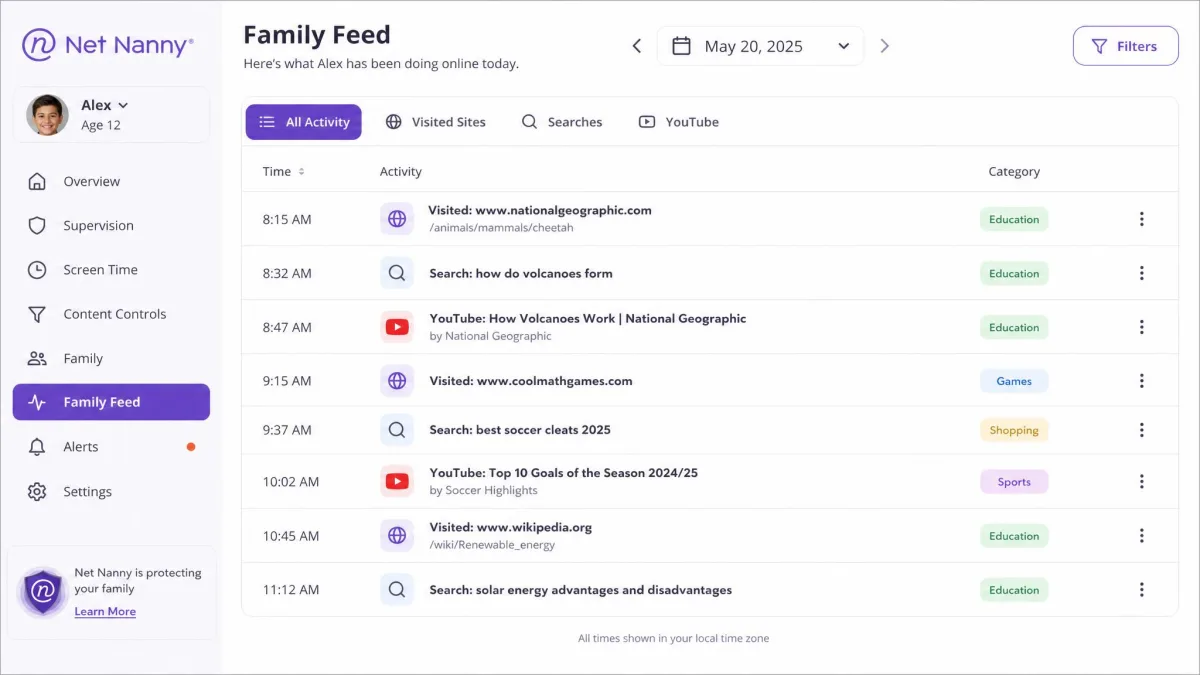
Around that filter sits a fuller monitoring suite than Canopy offers. You get website whitelists and blacklists, app blocking, and screen time management and scheduling. A Family Feed shows what your child has been doing, with search-term reporting and YouTube watch history beside it. Real-time location tracking on iOS, social media protection and parent alerts round out the set, all managed from one multi-device dashboard.
Installation is clean. Building the protection out afterwards is the slow part, because custom blocklists have to be assembled site by site, one entry at a time.
Feature-by-Feature Comparison
Content Filtering and Pornography Blocking
This is the clearest split between the two apps. Canopy's filter looks at the picture, so a page it has never seen before still gets filtered on the strength of what is actually on it. Net Nanny's filter looks at the words. A page with explicit imagery and innocuous text can slip through, while a page discussing a blocked topic in clinical language gets stopped.
For blocking pornography specifically, Canopy is the stronger tool, and it is not close. Its AI filter also catches the softer end of the spectrum, blurring lingerie and swimwear content that a keyword filter never registers.
The cost of that sensitivity is false positives. Canopy blurs medical images, some artwork and fitness content often enough that you will want to review what it has caught. Blocked items land in a parent-approval queue you can clear in a few taps.
Net Nanny's category filtering, meanwhile, is uneven in ways that are hard to predict. Switching off anime blocked Crunchyroll for us. Switching off gambling did not block online casinos. Custom keywords were no more dependable. Blocking terms such as casinos or bulimia still left related content reachable, and vulgar song lyrics went straight through.
Canopy judges the picture and Net Nanny judges the paragraph, and that single design choice explains almost every difference in how the two apps behave.
Sexting Prevention and Image Detection
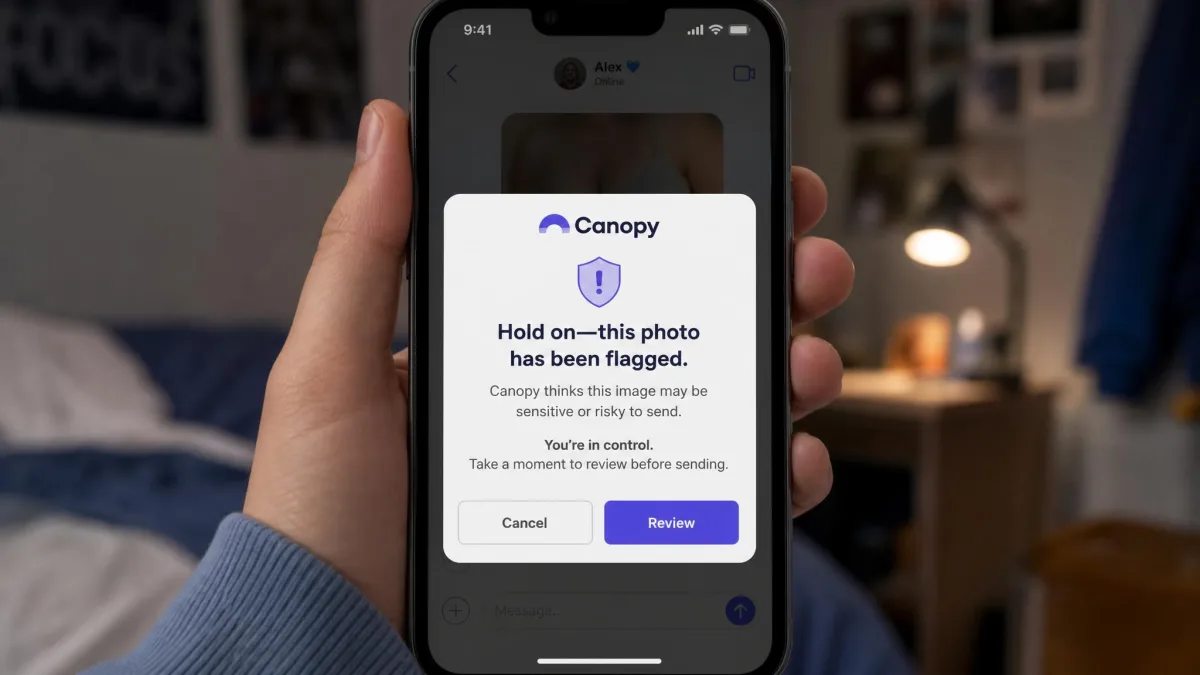
Canopy owns this category outright. Its sexting prevention watches the child's own camera roll and outgoing messages, and flags a risky photo before it leaves the device. For parents of a tween who has just been handed a phone, this is frequently the reason to buy.
Net Nanny has no image-level detection at all. Its social media protection watches for concerning content but does not read conversations, so bullying or coercion inside direct messages goes unseen.
Be clear-eyed about Canopy's limits here too. Its image filtering does not reach inside native apps like TikTok, Instagram, Snapchat or Discord. It only works in the browser versions of those services. Once a social app is open, Canopy also cannot read text-level risk signals, so direct-message risk goes unseen there as well.
Neither app monitors direct messages inside native social apps. If reading your child's chats is the requirement, a filtering tool is the wrong category of software and you should be looking at a dedicated monitoring app instead.
App and Website Blocking
Both apps block specific apps and specific websites, and both do it competently. Canopy pairs blocking with per-child profiles, so each child gets their own list rather than a household default.
Net Nanny adds an explicit whitelist alongside its blacklist. That is genuinely useful if you want a young child restricted to a small set of approved sites rather than turned loose on a filtered internet. The catch is the labour. Every site you want to allow or block is added by hand, and for a long list that is a tedious evening.
Screen Time Limits and Scheduling
Net Nanny handles screen time in 15-minute increments and lets you build a schedule across the week. What it will not do is set a per-app time budget. Limits apply to the whole device, so an hour of screen time is an hour, whether it goes on homework or on YouTube.
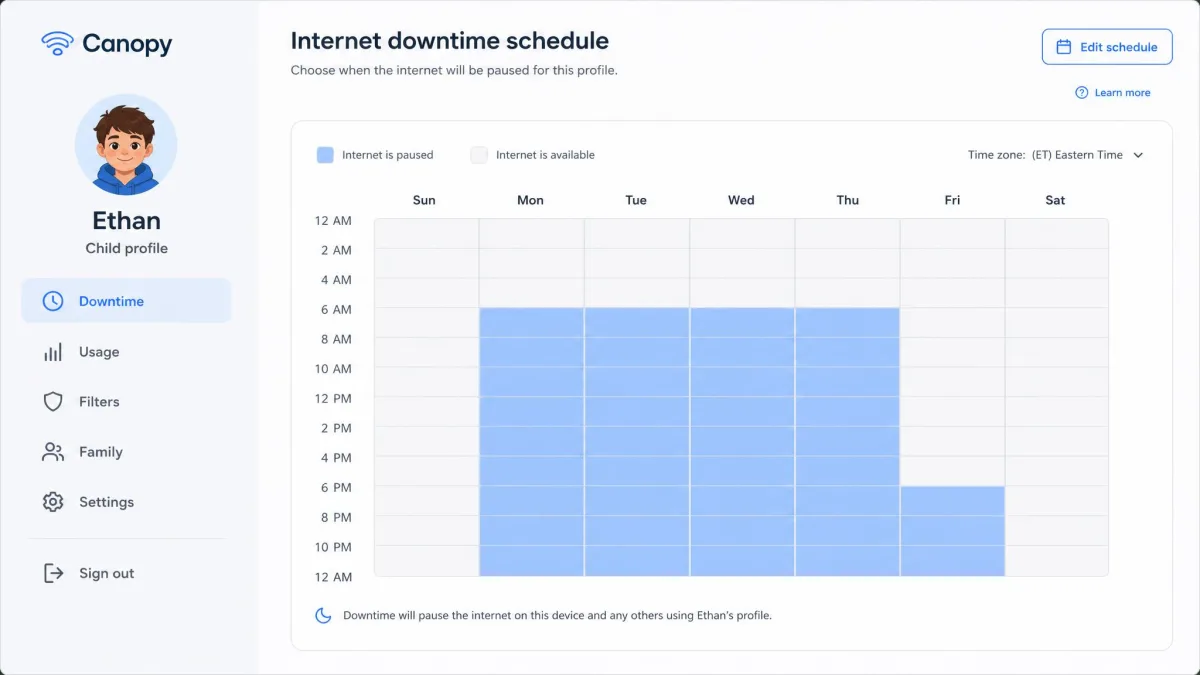
Canopy approaches the same problem as internet downtime. You schedule the hours the internet is off, by day and by week, and the filter holds the line the rest of the time. It is a blunter instrument in one sense and a calmer one in another, because it removes the nightly argument about how many minutes are left.
If your main goal is capping time rather than capping content, neither app is best in class. Weigh the built-in controls on the device itself before paying for either.
Activity Monitoring, Alerts, and Reporting
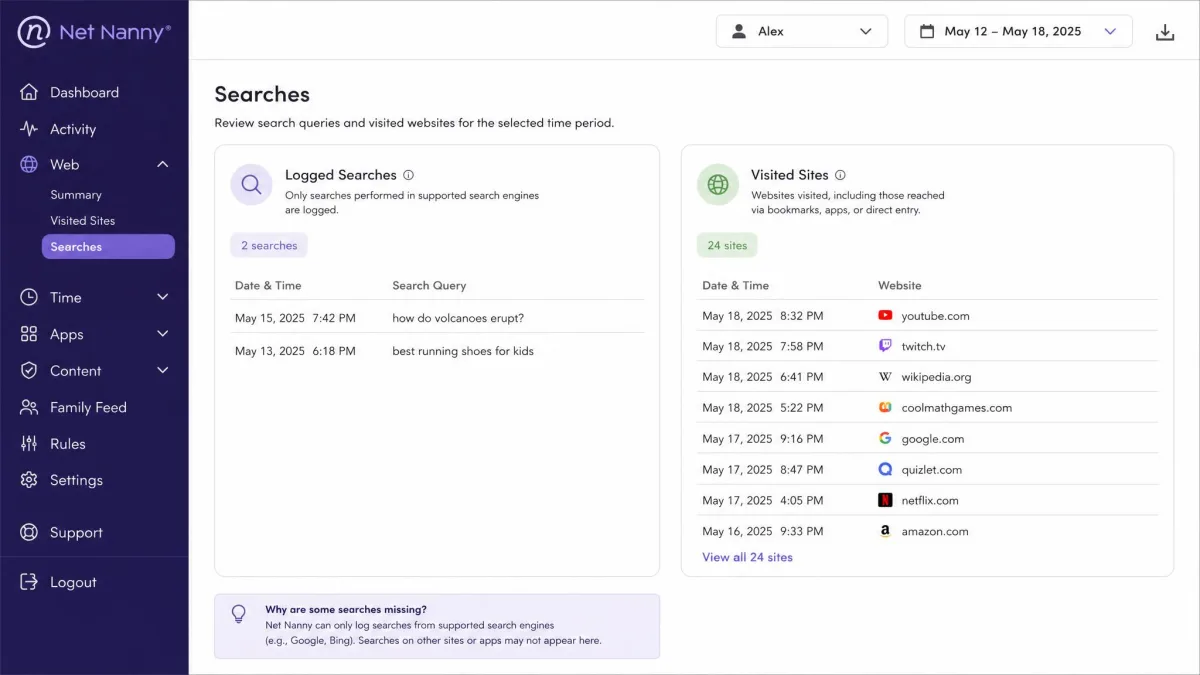
Net Nanny markets this as its strength, and on paper it is. The Family Feed collects visited sites, search terms and YouTube watch history in one timeline, and it is more detail than Canopy surfaces.
In practice the reporting is slower and thinner than the pitch. The Searches tab takes days to populate and misses a lot of queries, which means the Family Feed is not a dependable record of what a child actually looked for. Treat it as a general sense of the week rather than a log.
Canopy's reporting is narrower and more alert-driven. It notifies you when something is blocked, queues blurred content for your approval, and raises alerts on topics such as bullying, drugs and alcohol. There is no equivalent of the full activity timeline. If you want to see everything your child visited, Net Nanny is the one that tries.
Both approaches have a privacy cost worth thinking through. Wired's reporting on monitoring apps is a useful reality check on how surveillance-style oversight lands with older teenagers. The Pew Research data on teens and screens is worth a look before you decide how much monitoring your household actually needs.
Anti-Tampering and Removal Prevention
Canopy wins this one comfortably. It runs removal prevention on the child device and blocks VPN apps outright, which closes the most common bypass route kids try. There is still a soft spot on iOS. Canopy's protection rides on a VPN profile that a child can switch off unless the device is supervised through management software.
Net Nanny's removal protection is thin by comparison. The app can be disabled with nothing more than the account email and password, and no tamper alert reaches the parent when it happens. On an iPhone, pulling Net Nanny's management profile takes a few taps in Settings, and the controls stop entirely.
Whichever app you choose, put the child device into a supervised or managed state first, and keep the parent account password off any device your child uses. That single step does more for tamper resistance than any in-app toggle.
Device and Platform Support
Platform coverage is where a lot of families make the decision for themselves. Canopy runs on iOS, Android, Windows, macOS and Chrome or Chromebook, with iOS 12 and later and Android 5.0 and later as the minimums.
Net Nanny is narrower. It supports Windows 10 and 11, macOS 10.13 through 11.x, and iOS 11 or higher. It does not run on Android, and support gives no release date for Android compatibility. There is no Chromebook or Kindle build either.
The Mac ceiling deserves a note of its own. That 11.x figure is what the vendor still publishes on both its product page and its Mac FAQ. Neither page has been refreshed for the macOS releases that came after, so the stated requirement may simply lag what the app actually runs on rather than mark a tested limit. We would not read it as a promise of support on a newer macOS, nor as confirmation that it will refuse to run.
The Android gap is more confusing than it should be, because Net Nanny's dashboard still displays Android-specific settings even though the app does not run on Android. Setting up a mixed-device household, we found that genuinely misleading, and we would not buy the software on the assumption that an Android phone will be covered later.
If your children are on Android phones or school-issued Chromebooks, this section ends the comparison. Canopy is the only one of the two that will protect those devices.
Ease of Setup and Day-to-Day Use
Canopy's install took about five minutes per child device and the wizard did the explaining for us, which is the right amount of effort for software a parent sets up once. After the initial configuration it stays out of the way.
Net Nanny installs cleanly too, but the surrounding experience feels dated. Account signup only works from the mobile app. The dashboard home screen starts blank, and reaching the settings you want takes about three clicks every time. Add the manual blocklist building and the first evening with Net Nanny is a long one.
Day to day, the maintenance load flips slightly. Canopy asks you to clear its approval queue when the AI over-blocks something harmless. Net Nanny asks you to keep tuning categories and keywords when something gets through. Pick the chore you mind less.
Canopy Pros and Cons
Pros
- Best-in-class blocking of explicit images and video, in real time and on sites it has never seen
- Sexting prevention flags a risky photo before a child sends it
- Covers iOS, Android, Windows, macOS and Chromebook
- Removal prevention plus VPN blocking closes the usual bypass routes
- 7-day free trial and a 30-day money-back guarantee
Cons
- False positives on medical images, artwork and fitness content need occasional review
- Image filtering does not work inside native TikTok, Instagram, Snapchat or Discord
- The VPN-based filter can slow the connection and conflicts with other VPN apps
- No full activity timeline of everything a child visited
- Battery drain and billing confusion recur in the lowest-rated store reviews
Canopy sits at about 3.8 out of 5 on Google Play and 3.3 out of 5 on the App Store, though store ratings move with every release, so the current averages may differ from these figures.
Net Nanny Pros and Cons
Pros
- Real-time page-text analysis across 14 categories plus custom keywords
- Family Feed, search reporting and YouTube history give a fuller activity picture
- Website whitelisting suits younger children who need a small approved set of sites
- Cheaper per device on the larger family plans
- Screen time scheduling in fine 15-minute increments
Cons
- No Android, Chromebook or Kindle support
- Removal protection is weak and sends no tamper alert
- Category and keyword filtering is uneven, and some blocked topics stay reachable
- The Searches tab is slow to populate and misses queries
- Screen time is device-wide only, with no per-app budget
- The dashboard feels dated and shows Android settings that do nothing
Billing has misfired for some customers too. Duplicate charges have occurred after auto-renew was switched off, spanning more than one card on file.
Pricing and Plans Compared
Canopy Pricing
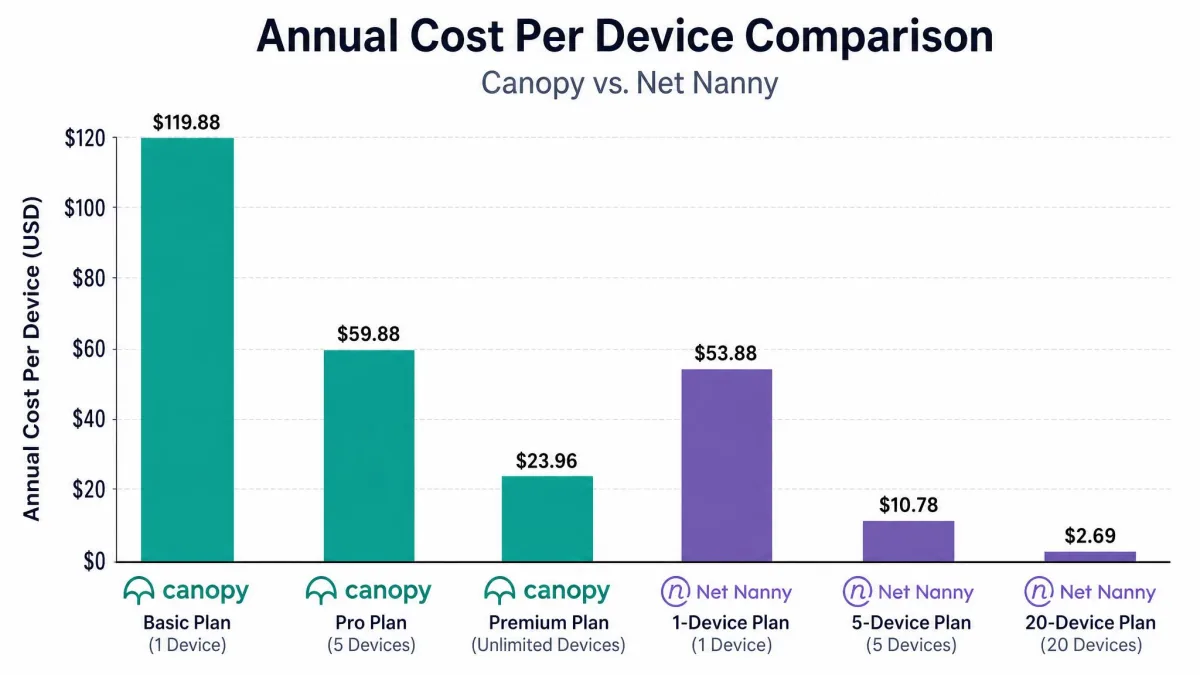
Canopy's pricing tiers are billed annually and quoted as a monthly equivalent. Essential is $8.33 per month and protects 1 device. Plus is $9.99 per month and protects up to 3 devices. Premium is $12.50 per month and advertises unlimited devices, with a footnote capping that at 10.
There is a 7-day free trial you can cancel before the period ends, and a 30-day money-back guarantee running from account creation.
Canopy publishes only annual-billed monthly equivalents, so budget for the full year up front rather than a rolling monthly charge.
Net Nanny Pricing
Net Nanny prices by device count and bills yearly. The 1 Desktop plan is $39.99 per year against a $49.99 list price and covers one PC or Mac. The 5-device Family Protection Pass is $54.99 per year against a $79.99 list. The 20-device pass is $89.99 per year against a $129.99 list. Current Net Nanny pricing sits below list because of a site-wide 30% off promotion. That is a limited-time offer, so checkout can revert to the higher list prices at any point.
The trial is 3 days, there is no free tier, and the money-back window is 14 days.
Which Is Cheaper for a Large Family?
Net Nanny, and by a wide margin, provided every device in your household is a Windows PC, a Mac or an iPhone.
Run the numbers per device. Net Nanny's 20-device pass works out to under $5 per device per year, and the 5-device pass to about $11 per device per year. Canopy's Premium plan costs $12.50 per month billed annually and caps out at 10 devices. A household using all 10 slots is therefore paying roughly $15 per device per year, and a household using three is paying far more than that.
The maths flips the moment an Android phone or a Chromebook enters the house, because Net Nanny cannot cover it at any price. A cheaper plan that leaves two of your four children unprotected is not the cheaper plan.

Which Should You Choose?
Choose Canopy If Your Priority Is Blocking Explicit Images
If the thing that keeps you up at night is pornography reaching a young child, Canopy is the app to buy. Nothing in Net Nanny's toolkit addresses that problem at the image level, and no keyword list keeps pace with sites that appear faster than anyone can categorise them.
Accept two trade-offs in exchange. You will clear a few false positives each week, and native social apps sit outside the filter's reach. Both are manageable if the browser is where your child spends most of their time, and neither is fixable by a setting.
Choose Net Nanny If Your Priority Is Family-Wide Monitoring
If you want to see where your children have been rather than stop every image, and every device in the house runs Windows, macOS or iOS, Net Nanny covers more of them for less money. The Family Feed, search reporting and YouTube history give you conversation starters that Canopy's alert-only model does not.
Go in knowing the limits. The reporting lags behind the day it describes, the filtering is inconsistent across categories, and the protection is easier to switch off than most parents expect.

Frequently Asked Questions
Which blocks explicit content better, Canopy or Net Nanny?
Which is cheaper for a large family?
Does Canopy offer search-activity reporting like Net Nanny's Family Feed?
Can kids uninstall either app?
Do both support Chromebooks?
Is there a free trial?
Can I run both together?
Final Verdict
Before the verdict itself, it is worth naming what would change it. If Net Nanny ships a working Android build and pairs it with a tamper alert, the gap between these two narrows to filtering philosophy alone, and the price advantage starts to matter a great deal more. Android support has been promised before without arriving, so we would judge it on a shipped app rather than a roadmap.
There is also a household for which neither app is the answer. If your children are teenagers whose online life happens inside native social apps, both tools are watching the wrong surface. A filter will buy you less than an honest conversation and the device's own built-in controls. The same goes for families whose main worry is hours rather than content, since neither app manages time as well as the operating system already does for free.
Everyone else is choosing between two clear temperaments. One app tries to prevent the moment; the other tries to record the day.