Downloading a VPN means installing a small app from the provider's official site or your device's app store, then signing in and connecting to a server. It is a quick, straightforward process that usually takes only a few minutes on any device. In our testing, the hardest part is not the download at all, but knowing which service to pick and confirming the connection is actually live once the app opens.
This guide walks through the whole process from start to finish. We cover how to choose a VPN, how to install it step by step, and how to get it running on Windows, Mac, Android, and iPhone. We also show you how to check that your VPN is working once it is connected.
We put dozens of VPN apps through their paces on our own Windows laptops, MacBooks, Android phones, and iPhones, downloading and installing each one the way you would at home. The notes below reflect what we ran into during those installs, not a spec sheet.
What Is a VPN and Why Download One?
A VPN, or virtual private network, is a service that routes your internet traffic through an encrypted tunnel to a remote server. Your real IP address is hidden, and your data is scrambled so your network, your internet provider, and anyone watching a public Wi-Fi hotspot cannot read it.
People download a VPN for a few common reasons. Some want privacy on public networks. Others want to secure sensitive work, keep their browsing private from their internet provider, or reach a service while traveling. Whatever your reason, the app does the heavy lifting once it is installed.
Before You Download: Choosing a VPN
The app you install matters more than the install steps, which are nearly identical across services. Pick the VPN first, then download it. The two questions worth settling up front are whether a free plan is enough for you and what features you actually need.
Free vs. Paid VPNs
A free VPN costs nothing and is fine for light, occasional use. Proton VPN, for example, offers a free plan with no data limits and no ads, which is rare among free services. The trade-off is that free plans usually limit you. Proton's free tier connects only one device at a time, so a second device connects only after you disconnect the first, and its free servers cover a limited set of countries.
Paid plans remove those limits. They give you more servers in more countries, faster speeds, and more device slots. NordVPN and Avast SecureLine both let you protect up to 10 devices on one account, and Surfshark allows unlimited simultaneous connections. Most paid services also let you try before you commit: NordVPN offers a 30-day money-back guarantee, Surfshark includes a 7-day free trial with its longer plans, and Avast SecureLine has a 60-day free trial.
Be cautious with unknown free VPNs. Some free apps make their money by logging and selling your browsing data, which defeats the purpose of using one. Stick to reputable providers with a clear no-logs policy and, ideally, an independent audit.
What to Look For in a VPN
A few features separate a solid VPN from a weak one. Look for a strict no-logs policy, ideally one that has been independently audited, so the provider is not keeping records of what you do. A kill switch is important too, because it cuts your internet if the VPN connection drops, preventing your real IP from leaking. DNS and IPv6 leak protection do the same job at the network level.
Beyond security, check the practical details: how many devices you can connect at once, which platforms the app supports, and how many server locations you get. If you want to stream or use BitTorrent, confirm the service supports it, since some plans reserve those for paid tiers.
| Service | Free option | Simultaneous devices | Money-back |
|---|---|---|---|
 |
Free plan, unlimited data | 1 free / 10 paid | 30-day (paid) |
 |
No free plan | 10 | 30-day |
 |
7-day trial | Unlimited | 30-day |
 |
60-day trial | 10 | See vendor |
How to Download and Install a VPN (Step by Step)
The core process is the same on every device. You create an account, download the app, install and log in, then connect to a server. Here is each step in order.
Step 1: Create an Account
Most VPNs ask you to create an account before you can use the app, so it is easiest to start there. Go to the provider's official website, choose a plan (a free plan counts), and sign up with your email address. Paid plans ask for payment at this stage. Keep your login details handy, because you will need them when the app opens.
You can usually download the app first and create the account inside it, but signing up on the website first tends to be smoother, especially for paid plans where you enter payment details on a full-size screen.
Step 2: Download the VPN App
Download the app only from the provider's official website or your device's official app store. On desktop, the website detects your system and offers the right installer. On phones and tablets, search for the app by name in the App Store or Google Play. Avoid third-party download sites, which sometimes bundle unwanted software with the installer.
The safest download is always the official one. Type the provider's web address yourself or open your device's app store directly, rather than clicking a link from an email or a search ad that could point somewhere else.
Step 3: Install and Log In
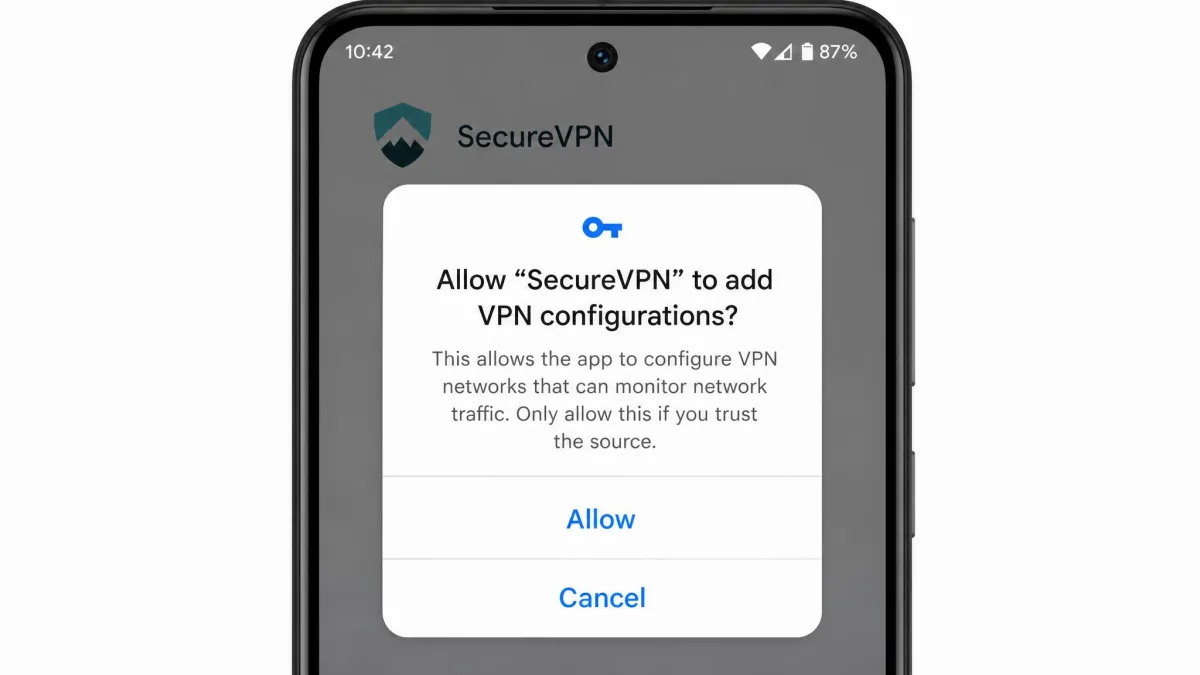
On desktop, open the downloaded file and follow the installer prompts. On a phone or tablet, the app store handles the install for you. Once it finishes, open the app and sign in with the account you created. The first time you connect, the app asks permission to add a VPN configuration to your device. This prompt looks intimidating, but you have to approve it: declining it stops the app from creating the connection, and the install appears to fail even though nothing is wrong.
Step 4: Connect to a Server
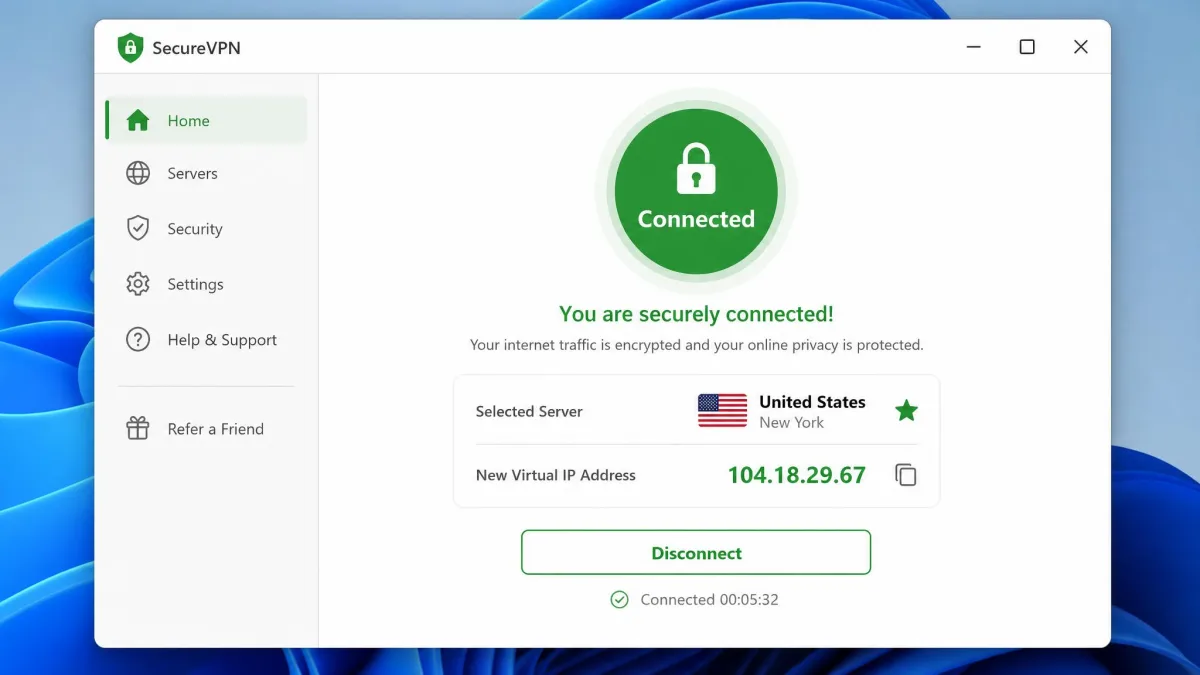
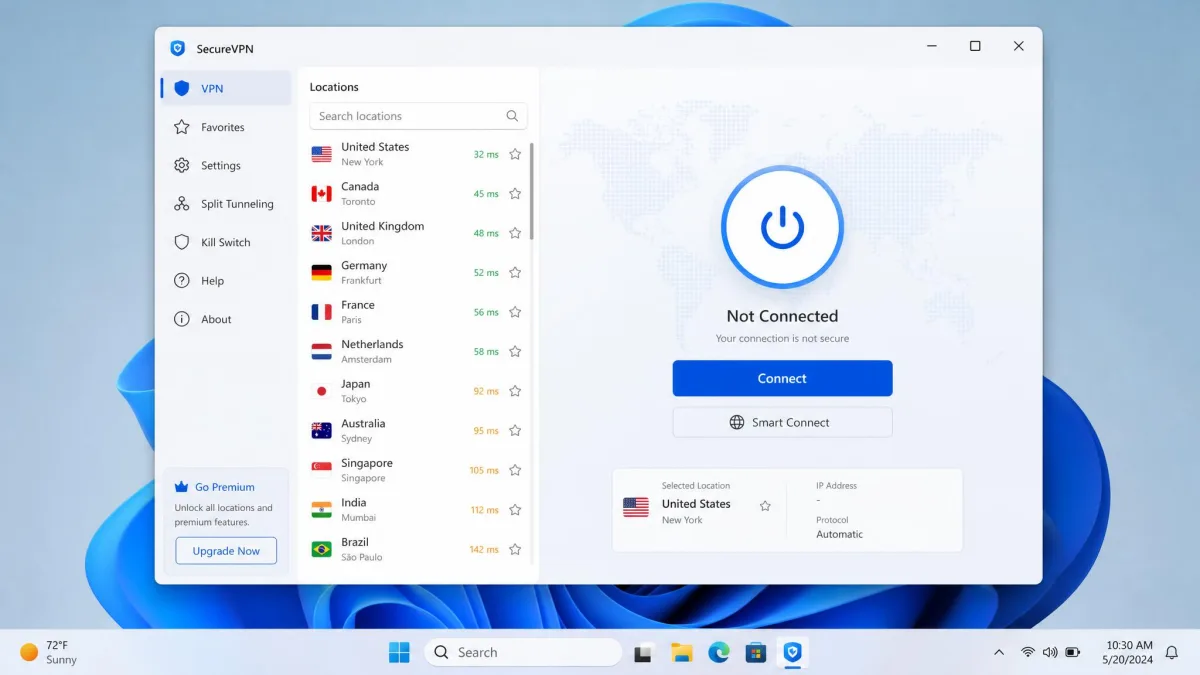
With the app open and permission granted, tap or click the main Connect button. The app picks a fast nearby server automatically, or you can choose a specific country from the list. Within a few seconds it should show a Connected status. That status is the part that matters: installing the app, and even signing in, does not protect you until the connection is actually live.
How to Download a VPN on Windows
On Windows, go to your chosen provider's website in a browser. The site detects Windows and offers a .exe installer. Download it, open it, and follow the setup wizard, which takes a minute or two. Open the app, sign in, approve the VPN permission prompt, and click Connect.
Windows also has a built-in VPN client for manual setup. Open Settings → Network & internet → VPN if your provider gives you configuration details to enter by hand. In our testing, though, the provider's own app is far smoother than manual configuration, because the app fills in all the server details for you.
How to Download a VPN on Mac
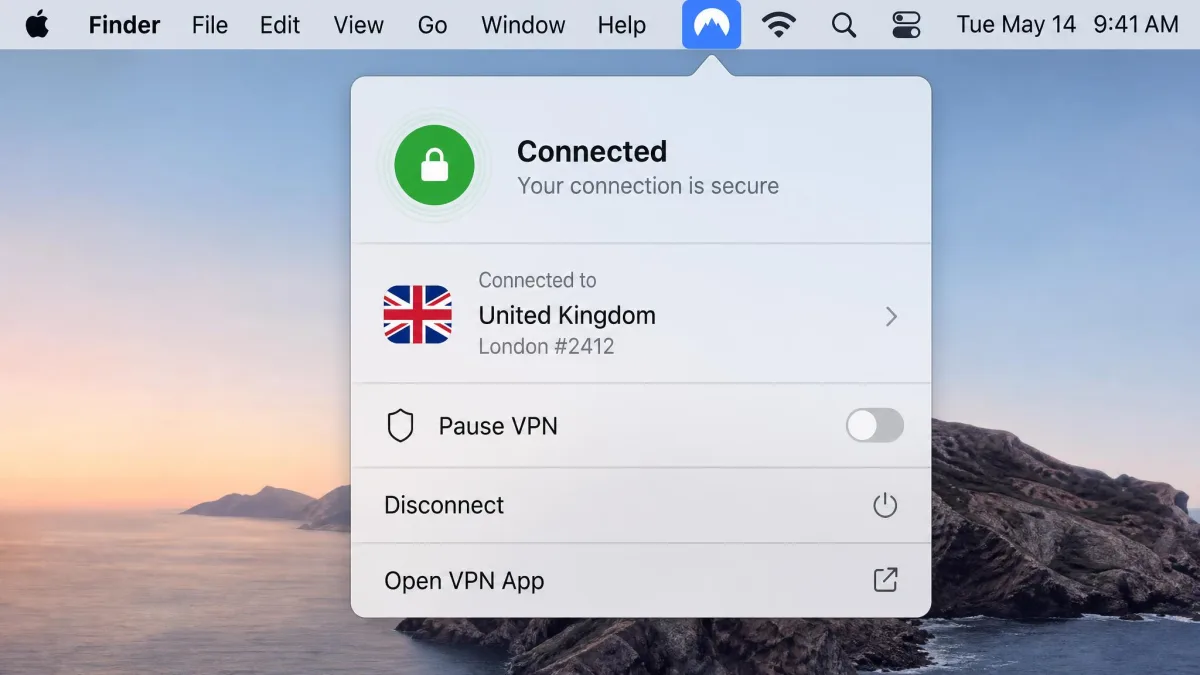
On a Mac, you can download the app from the provider's website or the Mac App Store. From the website, download the .dmg file, open it, and drag the app into your Applications folder. From the App Store, click Get and the install runs automatically. Open the app, sign in, and approve the configuration prompt, which macOS routes through a system settings dialog the first time.
Once approved, click Connect. The menu bar icon shows whether you are connected, so you can check your status at a glance without opening the full window.
How to Download a VPN on Android
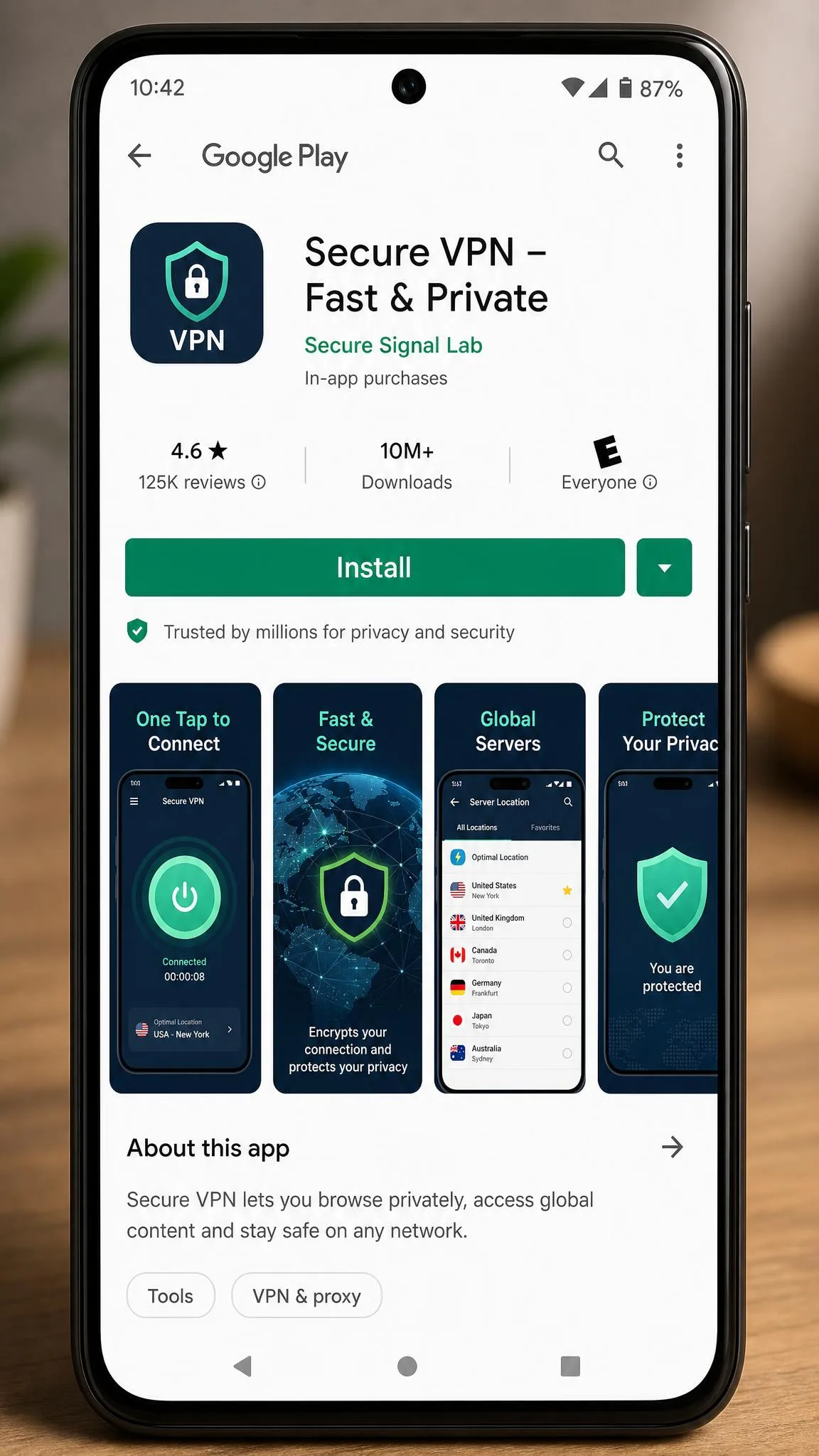
On Android, open Google Play and search for your VPN by name. Tap Install, wait for it to finish, then open the app and sign in. The first connection triggers Android's VPN permission request; tap OK to allow it. After that, tap Connect and wait for the Connected status.
If you ever set up a VPN manually on Android instead of using an app, be aware that on some phones the Add VPN profile option is tucked behind the three-dot menu rather than shown as a visible Add button. The app route avoids that entirely.
How to Download a VPN on iPhone / iPad
On an iPhone or iPad, open the App Store, search for your VPN, and tap Get to install it. Open the app, sign in, and when prompted, allow the VPN configuration to be added. iOS asks you to confirm with Face ID, Touch ID, or your passcode. Then tap Connect.
If you configure a VPN manually rather than through an app, iOS keeps the settings under Settings → General → VPN & Device Management → VPN → Add VPN Configuration. Some manual setups also require importing a certificate file first, which you download through Mail or Safari before the profile will work. For most people, the app store route is simpler and skips all of that.
How to Download a VPN on Other Devices (Smart TVs, Routers, Chromebook)
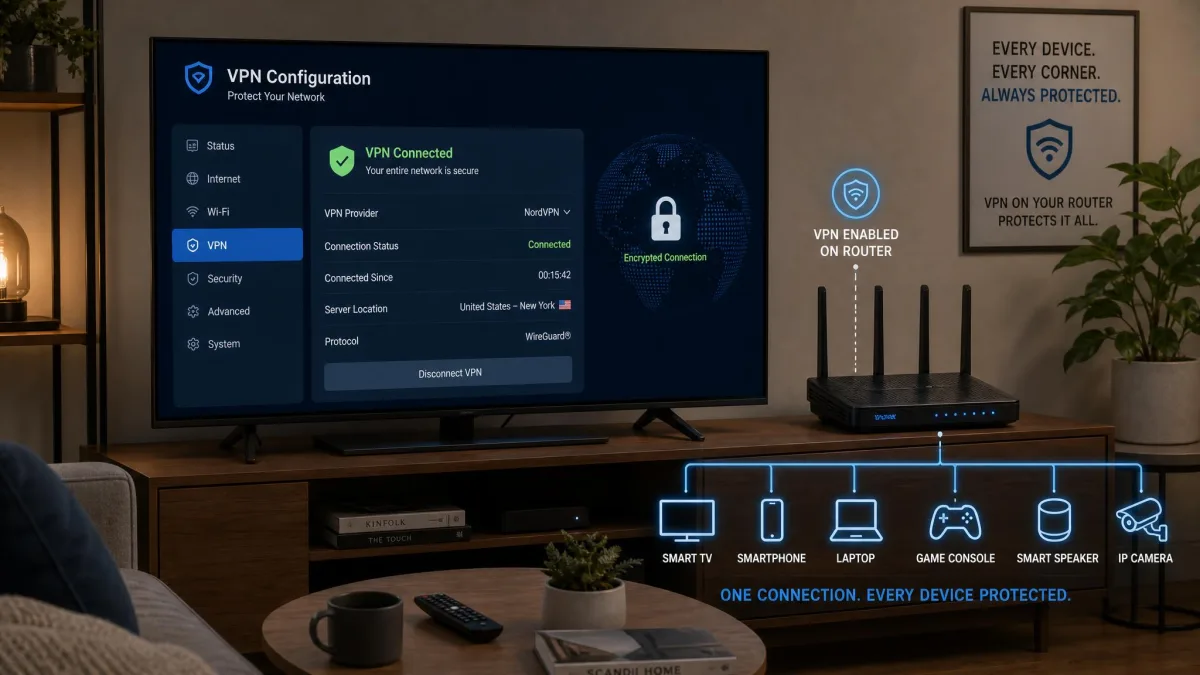
Beyond phones and computers, many VPNs run on more of your devices. Services like Surfshark and Proton VPN offer apps for Android TV, Apple TV, and Amazon's Fire TV Stick, which you install straight from the device's app store the same way you would on a phone.
For devices without a native app, such as a games console or a smart TV that lacks one, you can install the VPN on your router instead. That protects every device on your network at once, though router setup is more involved and worth following your provider's specific guide for. On a Chromebook, you can usually install the Android app from Google Play or add the provider's browser extension.
How to Confirm Your VPN Is Working
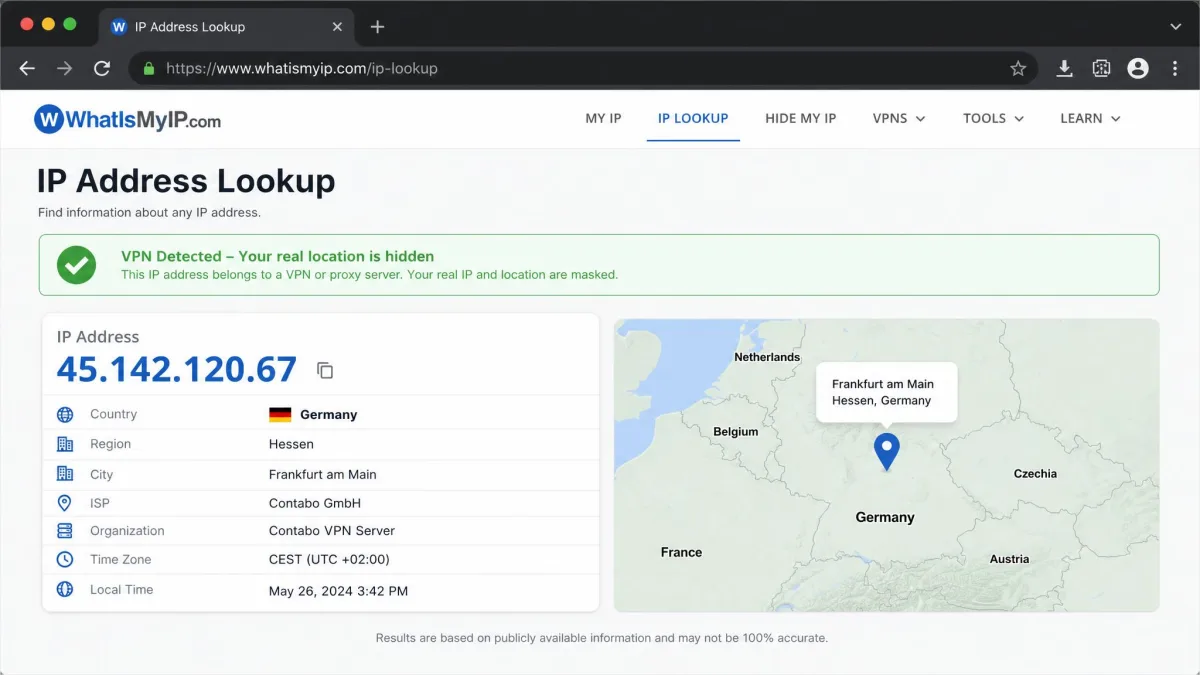
Once connected, it is worth a quick check that the VPN is doing its job. First, look at the app itself for a clear Connected status and the server location you chose. Then open a browser and search for "what is my IP address." The result should show the VPN server's location and IP, not your real one.
If the app will not reach a server after install, the cause is usually a server overload or a restriction on your network rather than a broken app. Switching to a different server or restarting the app normally clears it. And if the download or install itself failed, the most common reason is a dropped internet connection partway through, since a stable connection is needed to pull down and install the app. Reconnect to Wi-Fi and try again.
Frequently Asked Questions
How do I download a VPN for free?
Do I need an account before downloading?
How long does it take to install a VPN?
Can I download a VPN on my iPhone?
Is it safe to download a free VPN?
How do I know my VPN is working?
Why did my VPN download or install fail?
Final Thoughts
Downloading a VPN is one of the simpler pieces of software you will install. Pick a service that fits your needs, get the app from the official website or your device's app store, sign in, approve the permission prompt, and connect. The one habit worth keeping is checking for that Connected status every time, because the app only protects you once the connection is live.
If you want to go further, our guides on how to set up a VPN and how to check if your VPN is working pick up right where this one leaves off.