Sometimes you just need your VPN off for a minute. Maybe a banking site keeps blocking you, a streaming app refuses to load, or your work printer has gone invisible on the local network. Whatever the reason, turning a VPN off should take seconds, and on most devices it does.
The tricky part is not the switch itself. It is knowing where that switch lives on each platform, and making sure the connection is actually off afterward. We test VPNs for a living, and in our work we have seen an app claim it is disconnected while traffic still runs through the tunnel. So this guide covers both halves: the step-by-step disconnect on every major device, and the quick checks that confirm you are really back on your normal connection.
We put each of these paths through the current versions of Windows, macOS, Android, and iOS on our own test machines, so the menus below match what you will see in 2026.
Quick answer: how to turn off a VPN
The fastest route is almost always the VPN app itself. Open it and tap the large Disconnect or power button on the main screen. On a phone the connection drops in a second or two, and the little VPN badge in your status bar disappears.
If you cannot find the app, go through your system settings instead. Every platform keeps a network or VPN panel with a toggle. Here is the short version for each device, with the full walkthroughs further down.
- Windows: Open Settings > Network & internet > VPN, select the connection, and click Disconnect.
- macOS: Open System Settings > VPN, then toggle the active connection to Off.
- Android: Open Settings > Network & internet > VPN, then tap Disconnect.
- iPhone or iPad: Open Settings > General > VPN, then toggle the switch to Off.
Disconnecting is temporary and reversible. It leaves your VPN installed and your saved server list intact, so you can reconnect later with a single tap. Removing a profile is a separate, more permanent step we cover per platform below.
Why (and when) you might want to disable your VPN
A VPN is worth keeping on most of the time, but a handful of everyday situations call for turning it off for a few minutes. Knowing the reason helps you decide whether to disconnect briefly or reach for a gentler option like split tunneling.
The common ones we hear about, and run into ourselves, are troubleshooting a flaky connection, reaching a website or bank that blocks VPN traffic, and getting to devices on your own local network such as a printer or a media server. Speed is another one. A VPN adds a hop and some encryption overhead, so switching it off can free up a little bandwidth.
You might also disconnect to load location-specific content or to log into a service that flags logins from an unfamiliar country. In each case the fix is short: turn it off, do the one thing you need, then turn it back on.
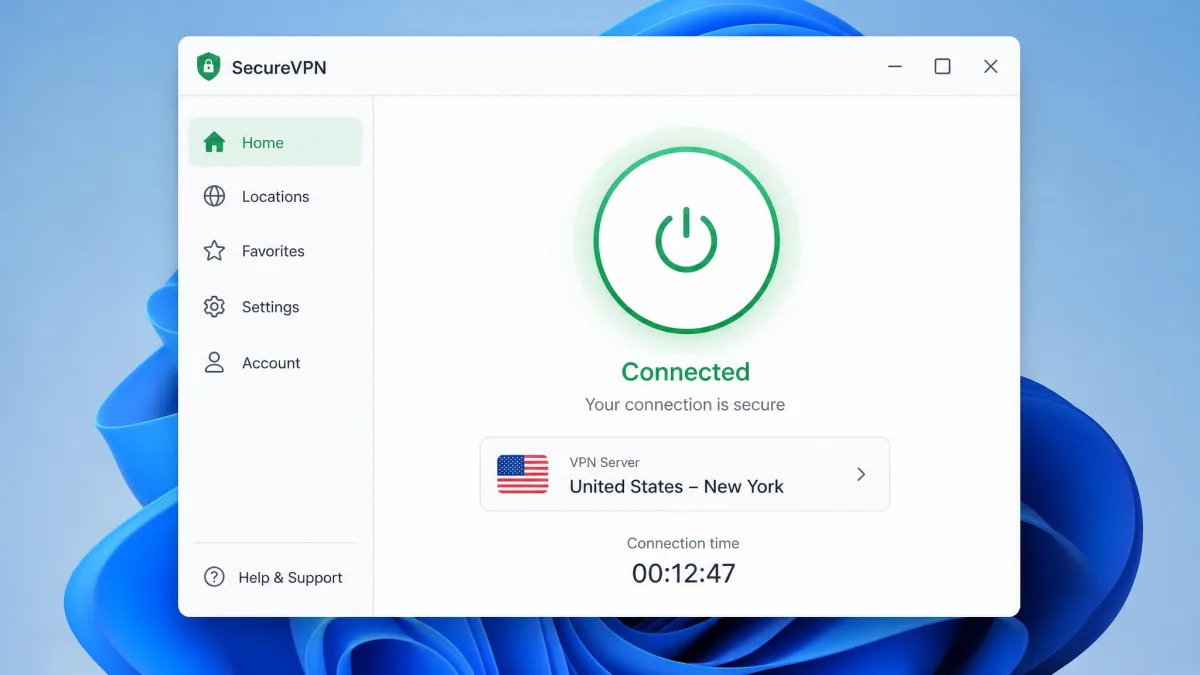
How to disable a VPN on Windows
On Windows 10 and 11 you have two easy paths, and both take only a few clicks.
The quickest is the system tray. Right-click your VPN app's icon in the tray at the bottom-right of the screen, then choose Disconnect or Exit. If the app is not pinned there, open it normally and click the Disconnect button on its main screen.
For a VPN added directly to Windows rather than through an app, press Win+I to open Settings, then go to Network & internet > VPN. Select the active VPN connection and click Disconnect. The status next to it changes from Connected to Disconnected right away.
If you want it gone for good, open Settings > Network & Internet > VPN, select the connection, and click Remove. That deletes the saved profile, so only do this if you no longer plan to use that server.
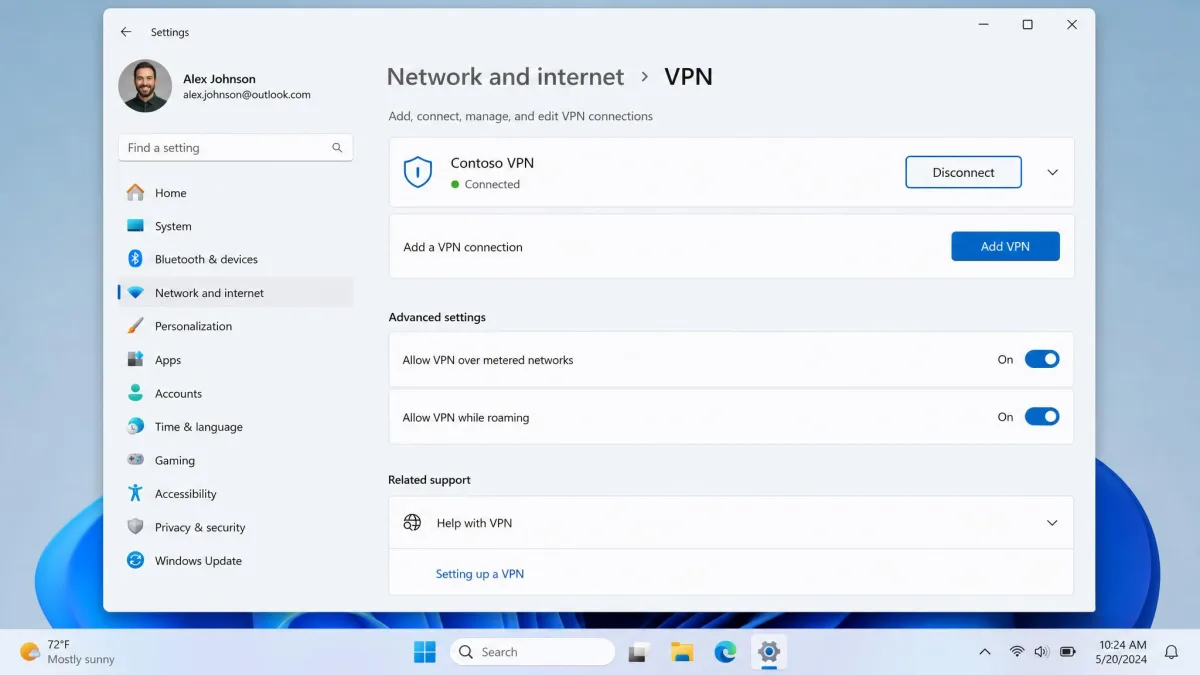
A disconnected app is not always a removed profile. If Windows still routes through a VPN after you close the app, check Settings > Network & internet > VPN for a leftover connection and disconnect it there too.
How to disable a VPN on macOS
On a Mac the menu bar is your friend. Click your VPN app's icon in the top-right menu bar and choose Disconnect. The connection drops immediately and the icon usually changes color or disappears.
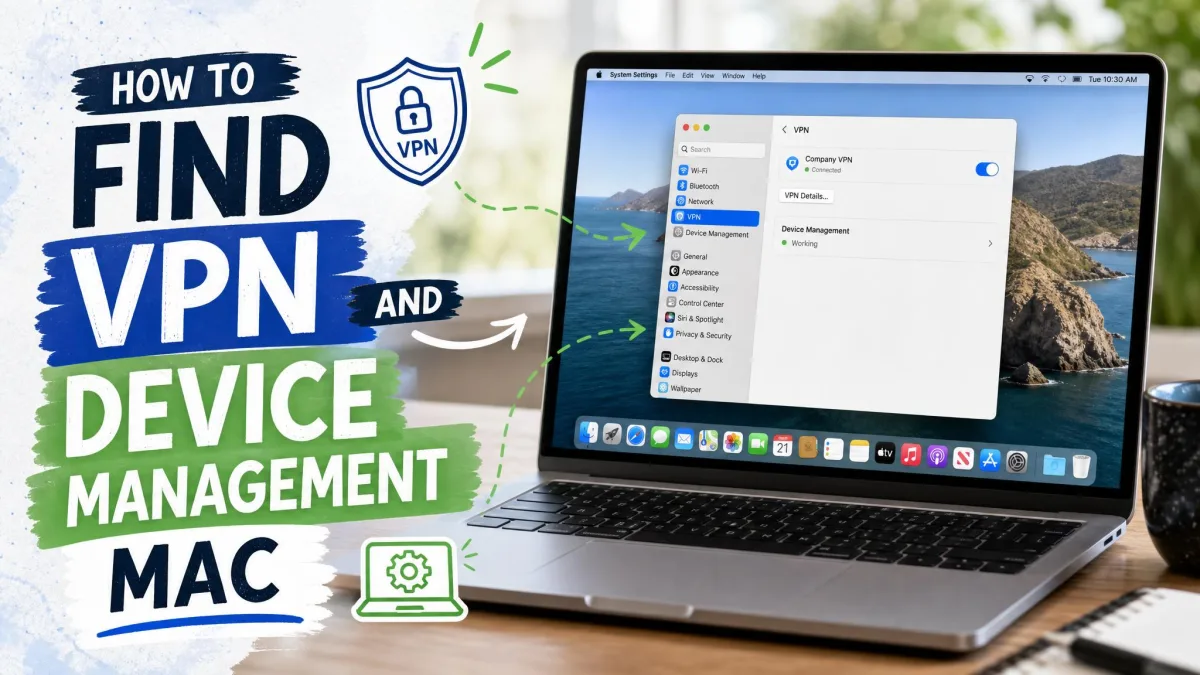
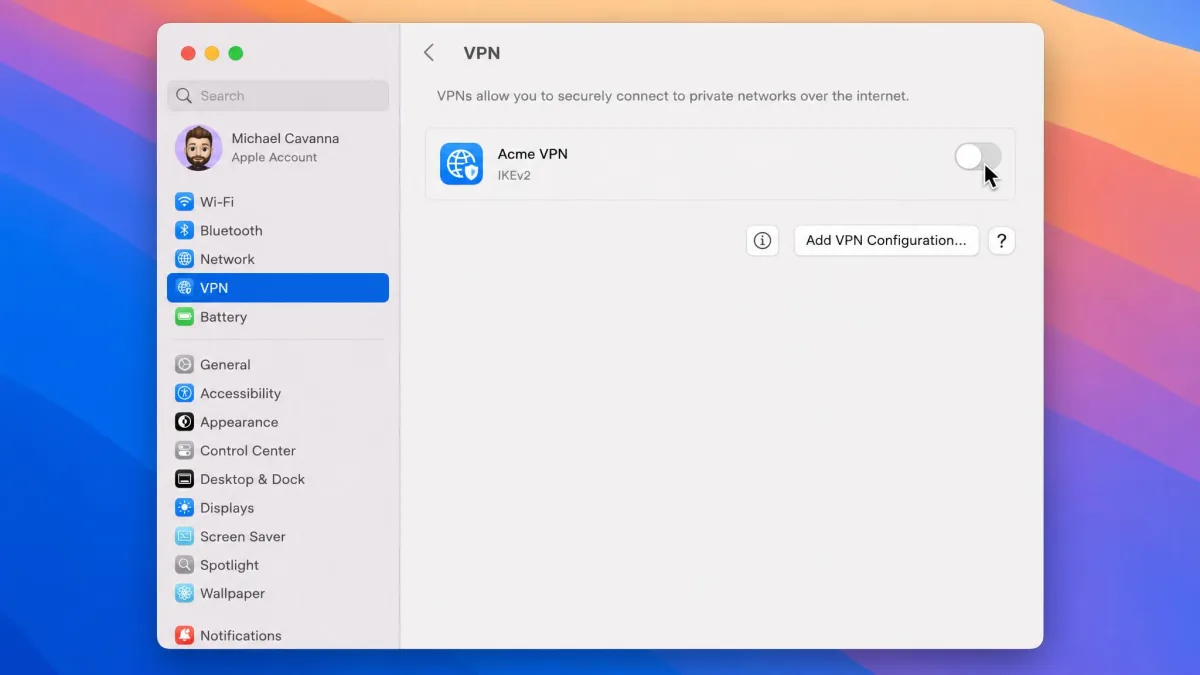
To turn off a VPN that macOS manages itself, open System Settings and click VPN in the sidebar under Network. Toggle the switch next to the active connection to Off. That is all it takes to stop the tunnel.
If you want to delete the configuration entirely, open System Settings > Network, select the VPN profile, then click the lowercase "i" icon next to the VPN name. Click Remove Configuration and confirm. Your Mac then behaves as if the VPN was never set up.
How to disable a VPN on Android
Android hides the VPN controls a little differently depending on who made your phone, but the idea is the same everywhere.
The simplest method is the app. Open your VPN app and tap Disconnect on the home screen. The key-shaped VPN icon in your status bar disappears once the tunnel closes.
To use the system settings, open Settings > Network & internet > VPN. On a Samsung phone that path is Settings > Connections > More connection settings > VPN instead. Tap the gear icon next to the active VPN, then toggle it Off or tap Disconnect.
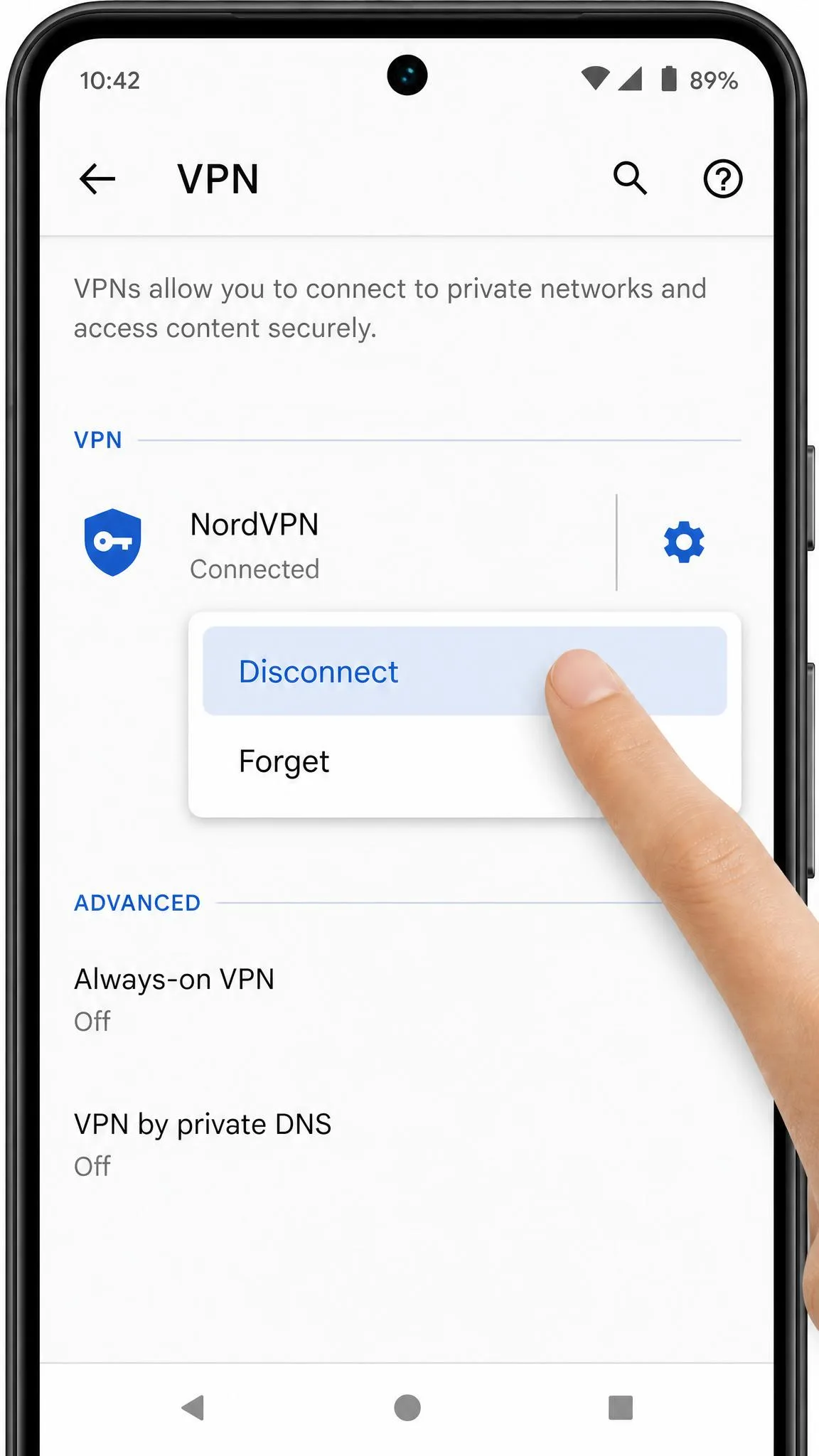
Menu labels vary by manufacturer. If you cannot find "Network & internet," use the search bar at the top of Settings and type VPN. It jumps you straight to the right screen on any Android skin.
How to disable a VPN on iPhone & iPad
On iOS the switch is refreshingly simple once you know where Apple put it, though the location shifts slightly between versions.
Open Settings and look for VPN in the main list. Toggle the switch to Off and you are done. On some devices the option is nested instead, so open Settings > General > VPN & Device Management > VPN and toggle it there. Both spots do the same thing.
To delete the profile completely, tap the "i" icon next to the VPN name, then tap Delete VPN and confirm. This removes the configuration so iOS stops offering to reconnect.
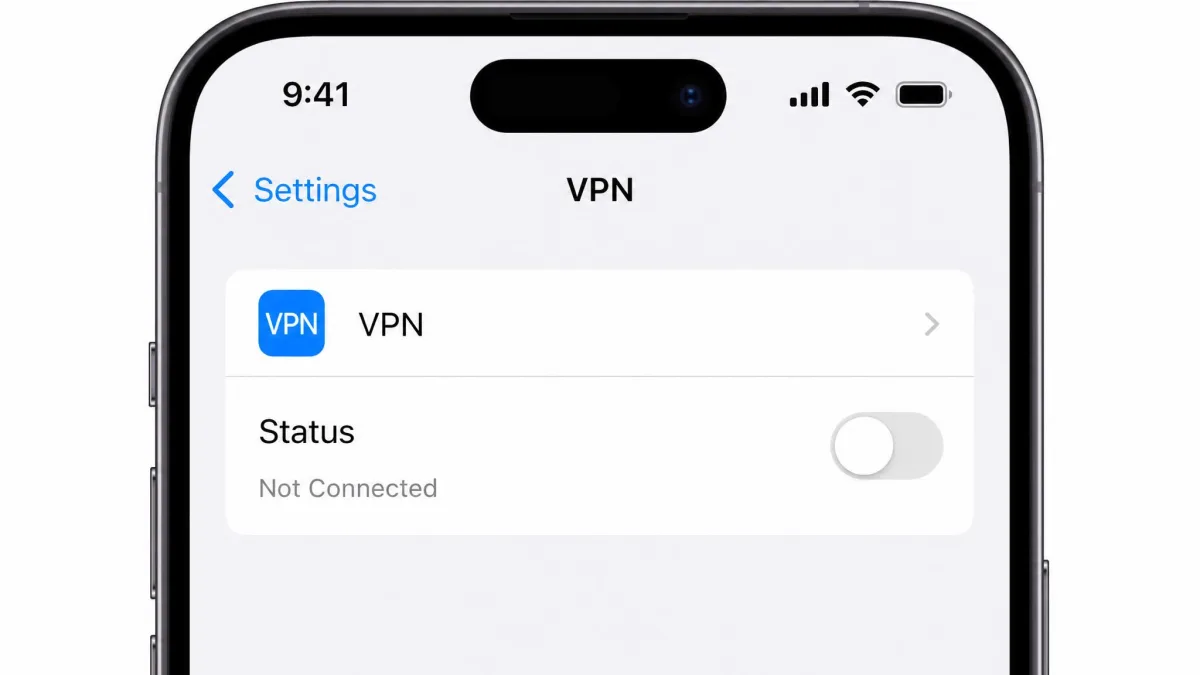
A leftover configuration profile can keep the tunnel active even after you close or delete the app. If your iPhone still shows the VPN badge with no app running, remove the profile manually in Settings before you assume it is off.
How to disable a VPN on Linux
On a desktop Linux setup the graphical route mirrors the others. On Ubuntu or another GNOME desktop, open Settings > Network and toggle the VPN connection to Off. The top-bar indicator clears once it disconnects.
If you run your VPN from the command line, two commands cover the common cases. For OpenVPN, run sudo systemctl stop openvpn@<config-name>. For WireGuard, run sudo wg-quick down <config-name>. Swap in your own configuration name, and the tunnel comes down at once.
How to disable a VPN on a router
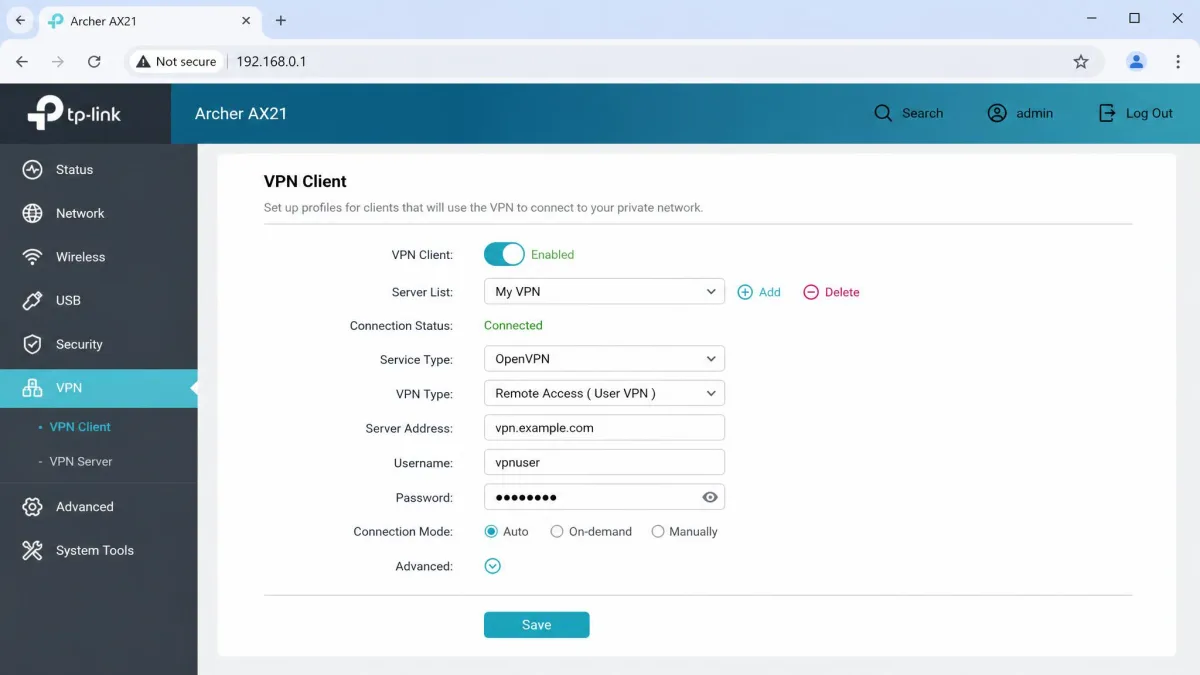
A router-level VPN protects every device on your network, so turning it off is a bigger deal and takes a few more steps. Log into your router's admin panel, usually at http://192.168.1.1 or http://192.168.0.1, using your admin password.
Find the VPN section, which routers tuck under Advanced, Security, or WAN settings depending on the brand. Disable or disconnect the VPN client there, then save your changes and restart the router if it asks. Every device on the network returns to your normal connection at that point, so remember to switch it back on when you are done.
How to turn off a browser-extension VPN
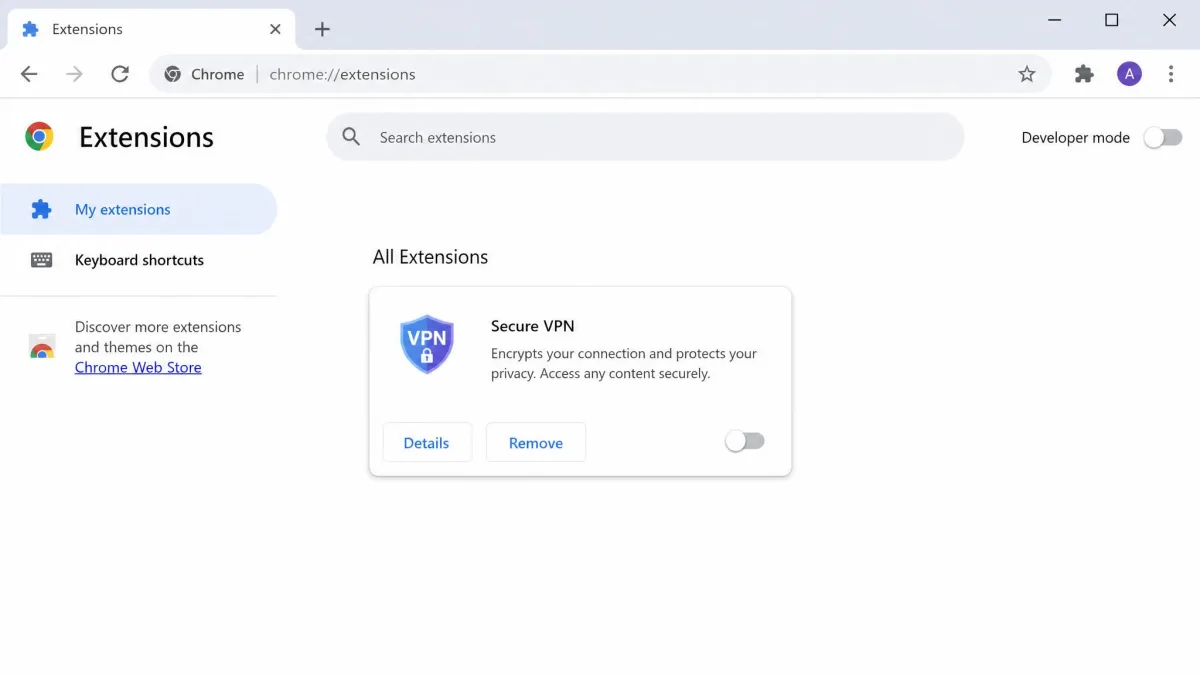
A browser VPN extension runs on its own, separate from any app on your computer. In our testing a disabled desktop VPN app does nothing to stop a browser extension, and the reverse is true too, so you have to switch off each one you use.
- Chrome, Brave, or Vivaldi: Click the puzzle-piece extensions icon and hit disconnect, or open
chrome://extensionsand toggle the VPN extension switch off. - Firefox: Open Add-ons > Extensions and toggle the extension's blue switch off.
- Safari: Open Settings > Extensions and uncheck the VPN extension in the left sidebar.
If your IP still looks wrong after closing a desktop app, an active browser extension is the usual culprit.
When you should NOT disable your VPN (the risks)
Turning a VPN off is easy, which is exactly why it is worth pausing before you do it. The moment the tunnel closes, your traffic loses its encryption and your real IP address becomes visible again.
That trade is fine at home for a quick task. It is riskier on public WiFi, where an unprotected connection can expose what you are doing to anyone else on the network. It is riskier still if you are about to log into a bank, email, or another sensitive account while disconnected.
Regular, everyday disconnecting is not a habit we recommend. If you only need to bypass the VPN for one site, use split tunneling instead so the rest of your traffic stays protected. Reserve a full disconnect for short, deliberate moments, then turn protection back on.
How to verify your VPN is actually off
This is the step most people skip, and it is the one that matters most. An app can report itself as disconnected while your system still routes through the tunnel, so the app's own status is not proof on its own.
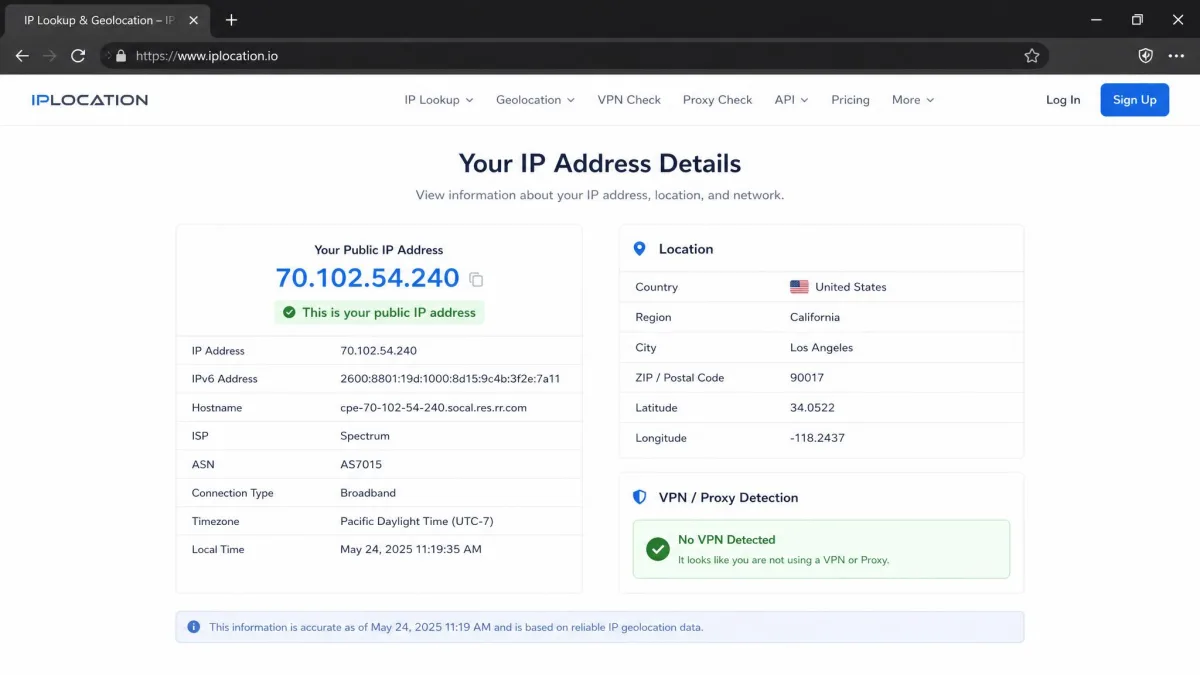
The dependable check is an IP-lookup tool. Open any "what is my IP" site in a browser and confirm the address and location it shows match your real ones, not your VPN server's. If they match your true location, the VPN is genuinely off.
As a second signal, glance at your status bar. Android shows a small key icon and iOS shows a VPN badge while a tunnel is active, and both vanish when the connection truly drops. When the status bar and the app disagree, trust the IP-checker.
Alternatives to disabling: split tunneling & pausing
A full disconnect is often more than you need. Two gentler options let you solve the problem while keeping most of your protection in place.
Split tunneling lets you route specific apps or sites outside the VPN while everything else stays encrypted. It is ideal when one banking app or local device is the only thing giving you trouble. You set it up once in the VPN app's settings, then that single app bypasses the tunnel without exposing the rest of your traffic.
Many VPNs also offer a timed pause. Instead of a hard off, you pause protection for five or ten minutes, and the app reconnects on its own. It is a tidy way to handle a quick task without forgetting to switch protection back on afterward.
When we need to reach a stubborn local printer or a bank that dislikes VPNs, we reach for split tunneling first. It fixes the one thing that is broken and leaves the rest of the connection protected, which beats flipping the whole VPN off and hoping we remember to turn it back on.