
Yes, Windows includes a built-in VPN client, but it is not a VPN service. That distinction is the whole answer, and it shapes everything else in this guide. The client is a connection manager baked into Windows 10 and Windows 11. It knows how to speak the common VPN protocols, but it does not come with any servers of its own.
In this guide we explain what the built-in client actually gives you, when it is enough, and when you are better off with a third-party app. Then we walk through setting up a connection step by step, connecting, verifying it works, and fixing the issues that trip people up. We set up the client ourselves on both Windows 10 and Windows 11 to check each step against the current interface.
Windows provides a VPN client, not a VPN service. You still need a server or provider to connect to, whether that is a paid VPN company or your workplace network.
Does Windows have a built-in VPN? The short answer
Windows has shipped a native VPN client for years, and it is present in both Windows 10 and Windows 11. You do not install anything to get it. Open Settings and the VPN section is already there, waiting for a connection profile.
What Windows does not include is a VPN service. Microsoft does not run VPN servers, and there is no "turn on privacy" button that routes your traffic through Microsoft. The client is the software that manages the tunnel; the server on the other end has to come from somewhere else.
Think of it like an email app versus an email account. Windows gives you the app. You still need an account, which here means a VPN provider or a corporate server address plus credentials.
Built-in VPN client vs. a VPN service: what Windows actually gives you
A VPN service is the full package most people picture: an app, a network of servers around the world, a one-click connect button, and a subscription. Companies like these handle the servers, the apps, and the maintenance for you.
The Windows client is only the first piece. It is a native connection manager that stores profiles, speaks several tunneling protocols, and exposes a quick on/off toggle. In our testing it behaved exactly as advertised: an empty connection manager that does nothing at all until you feed it a server address, credentials, and a protocol from a provider or workplace.
| Feature | Windows built-in VPN client | Typical third-party VPN app |
|---|---|---|
| What you get | Connection manager only, no servers | Full service with a server network |
| Cost | Free, needs an external server | Paid subscription, some free tiers |
| Protocols | IKEv2, SSTP, L2TP/IPsec, PPTP, Automatic | Often adds WireGuard and OpenVPN |
| Kill switch | No | Usually yes |
| Server selection | One manual server at a time | Large picker with auto-selection |
| Setup | Manual entry of server and credentials | One click after install |
| Leak and obfuscation protection | None built in | Common |
Advantages and limitations of the built-in Windows VPN client
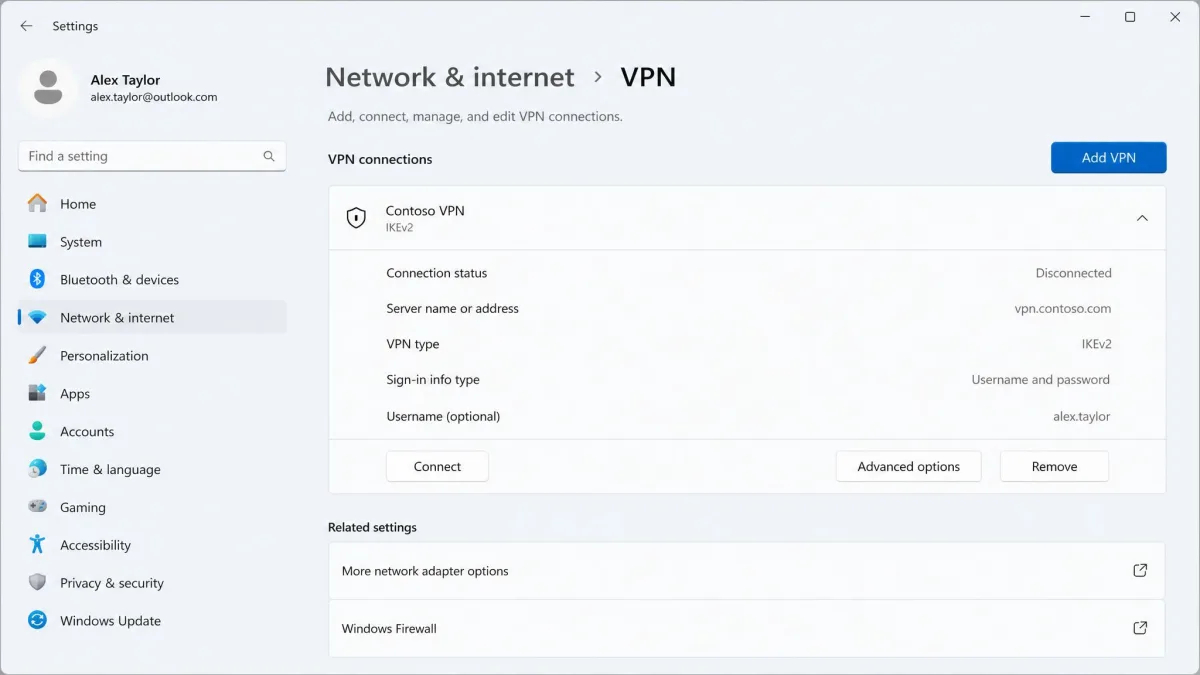
The client has real strengths. It is free and already installed, so there is nothing extra to download. It supports IKEv2, SSTP, L2TP/IPsec, and PPTP, plus an Automatic option that tries each protocol in turn until one connects. Once a profile exists, the Quick Settings taskbar panel gives you a fast on/off toggle, so day-to-day connecting is a single click. We also liked that an IKEv2 connection stayed up when we switched from Wi-Fi to a phone hotspot mid-session, without dropping, thanks to a feature called MOBIKE.
The limits matter just as much. There is no kill switch, so if the tunnel drops, your traffic silently falls back to your regular internet connection with no warning. There is no WireGuard or OpenVPN support, no built-in leak protection, and no server list. Streaming services slipped past the connection easily in our testing, so it is a poor choice if your goal is unblocking catalogs. You also configure a single manually-entered server at a time, and the client is Windows-only, unlike commercial apps that sync across your devices.
The built-in client has no kill switch. If the connection drops, Windows keeps sending your traffic over your normal internet link with no alert, so do not rely on it for high-privacy tasks.
When to use a third-party VPN instead
The built-in client suits occasional use and corporate device-to-site connections. If your employer hands you a server address and credentials, this is often exactly what you are meant to use. It also works fine for the odd secure session on an untrusted network.
Reach for a third-party service when you want the things the client lacks: a kill switch, DNS-leak protection, a wide choice of servers, WireGuard speeds, or reliable streaming access. It also falls short for constant torrenting or for regions with active VPN blocking, where obfuscation is required. For those jobs a full VPN app earns its subscription.
What you need before you start (server address, credentials, protocol)
The client cannot invent a connection for you, so gather these details first. Having them ready is what turns setup into a two-minute job.
- A server name or address. This comes from your VPN provider or your IT department, and it is the destination the tunnel connects to.
- Sign-in credentials. The client supports a username and password, a one-time password, a certificate, or a smart card. Your provider tells you which one to use.
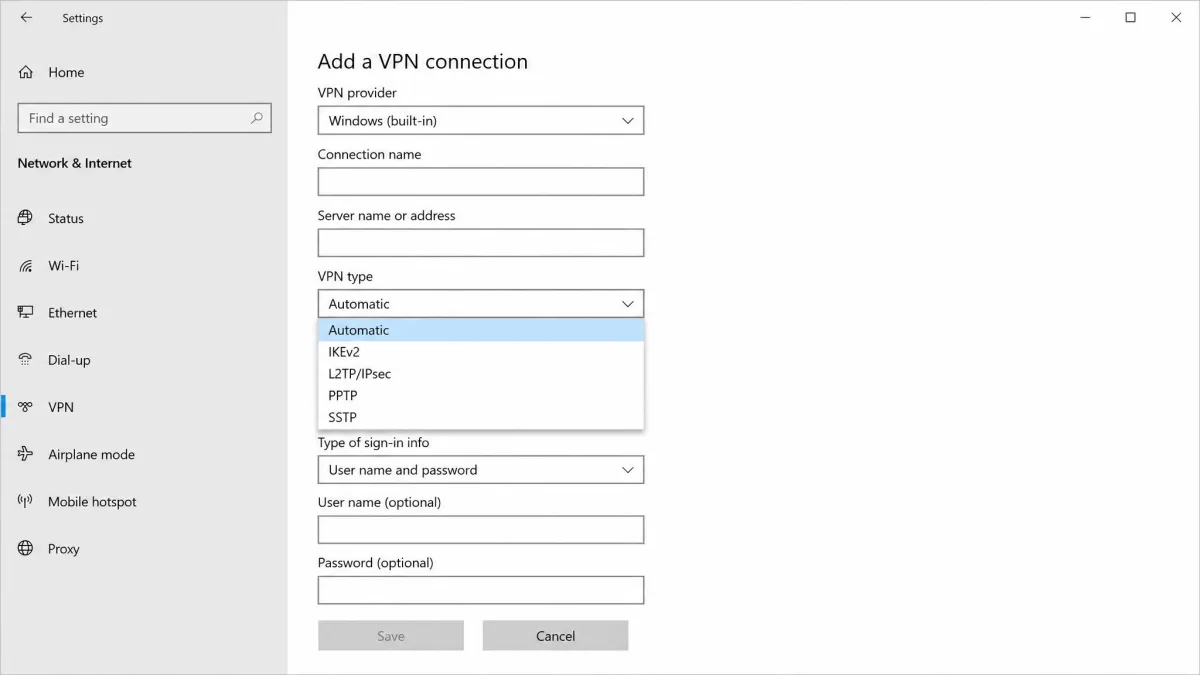
- A VPN protocol. IKEv2 is a strong default. Microsoft recommends SSTP and IKEv2 over the older PPTP and L2TP, both of which are being deprecated. PPTP in particular is fast but cryptographically weak, so avoid it unless nothing else is available.
If you are unsure which protocol to pick, choose Automatic. Windows tries each built-in protocol from most secure to least secure until one succeeds, so you get the strongest option your server supports.
How to set up the built-in VPN on Windows 10 and 11
The flow is nearly identical on both versions. When we set it up, entering a paid provider's IKEv2 details took only a couple of minutes; free servers like VPN Gate or VPNBook need a few more manual steps.
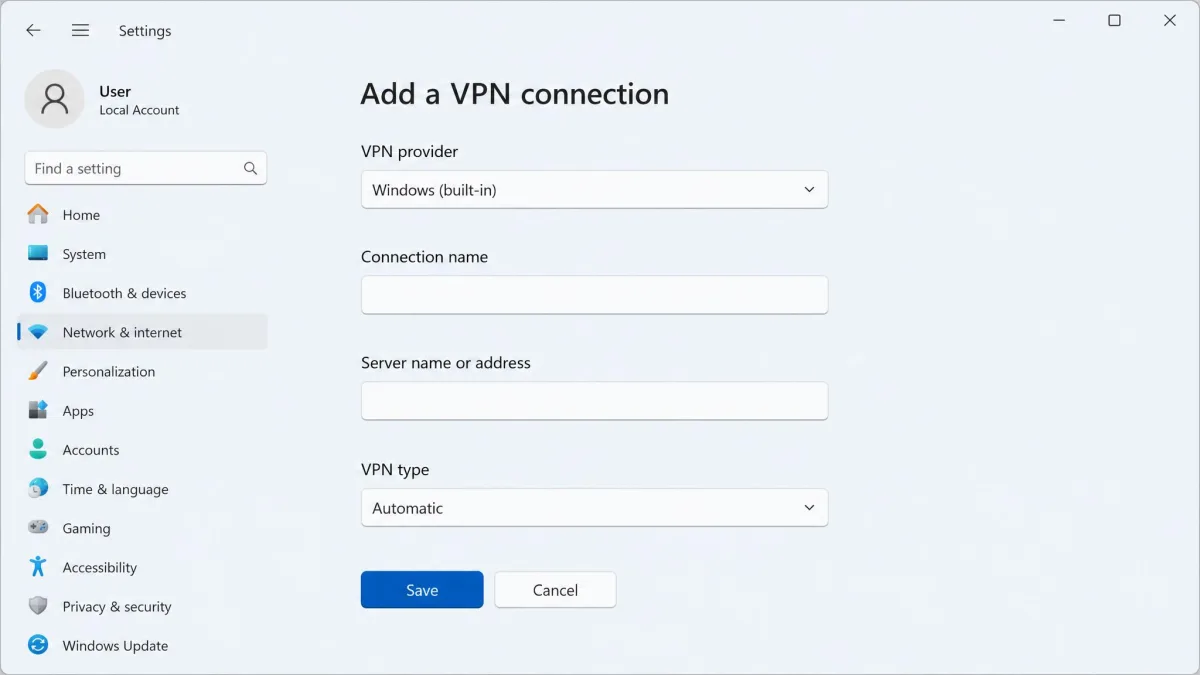
Step 1: Open Network & Internet settings
Open Settings, then go to Network & internet > VPN. On both Windows 10 and Windows 11 this is where every VPN profile lives. You will see any existing connections here, along with the button to add a new one.
Step 2: Add a VPN connection
Click Add VPN (labelled "Add a VPN connection"). A form opens with a short list of fields. Set VPN provider to Windows (built-in). This tells Windows to use its own client rather than a third-party plug-in.
Step 3: Configure and save the connection
Fill in the form using the details you gathered. Enter a Connection name you will recognize, then type the Server name or address from your provider. Set VPN type to your protocol, such as IKEv2, and choose the Sign-in info type, most often username and password. Enter your credentials, then click Save. The new profile now appears in your VPN list.
How to connect to and verify your VPN
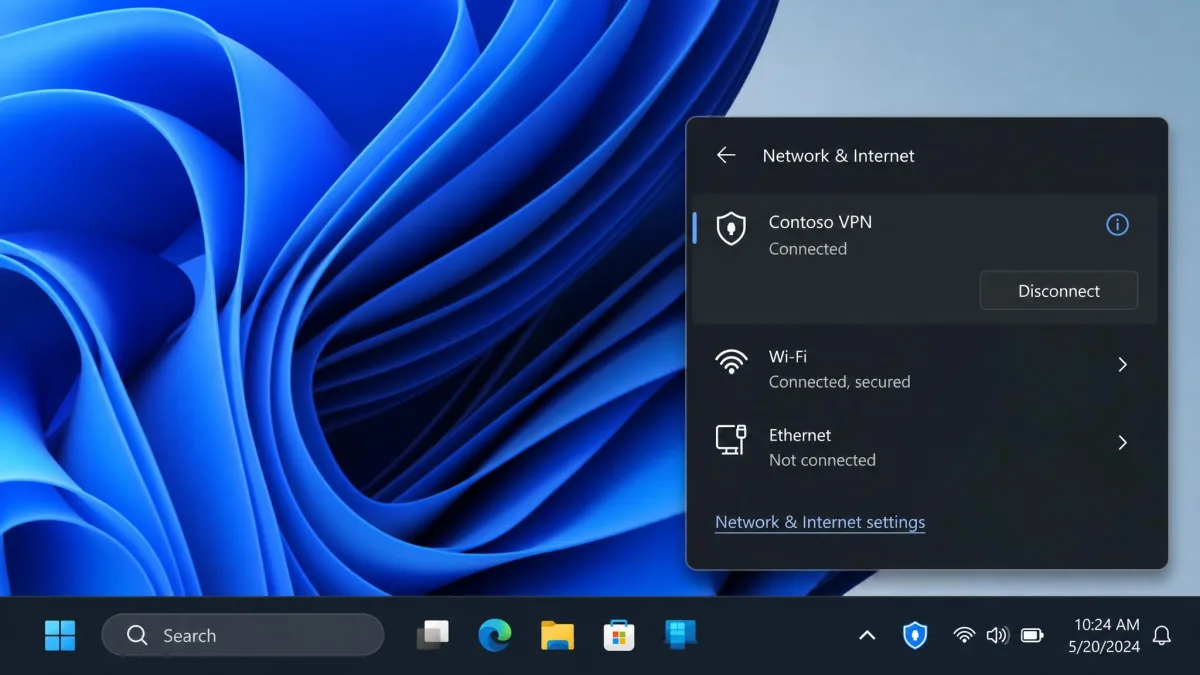
To connect, open the Network icon on the taskbar, select your VPN, and click Connect. You can also open Settings > Network & internet > VPN and connect from there. Once a profile exists, the taskbar route is the fastest.
To verify it worked, check that the connection shows Connected and look for the blue shield icon on the taskbar. For extra certainty, open a browser and search for your IP address; it should show the VPN server's location, not your own. We run this check every time, because a profile that saves cleanly can still fail to authenticate.
Troubleshooting common built-in VPN issues
Most failures trace back to one of a few causes. Work through these before assuming the client is broken.
- Wrong protocol. If the connection times out, switch the VPN type to Automatic and try again, or confirm which protocol your server expects.
- Bad credentials or server address. A single typo in the server name or password stops the connection cold. Re-enter them carefully.
- Firewall or port blocking. Some networks block VPN ports. IKEv2 and SSTP tend to pass through restrictive firewalls more reliably than L2TP.
- The connection drops silently. Remember there is no kill switch, so if privacy matters, reconnect manually and confirm the shield returns before you continue.
Frequently asked questions
Is the built-in Windows VPN free?
Is the built-in Windows VPN safe and good enough?
Does Windows 11 include a VPN service?
Do I need a subscription to use the built-in VPN?
Which protocols does the built-in client support?
Final thoughts
So, does Windows have a built-in VPN? Yes, a capable VPN client that is free, always available, and genuinely useful for occasional or corporate connections. What it is not is a VPN service, so it will not hand you servers, a kill switch, or one-click streaming access.
If you have a server address and credentials, the built-in client is ready in a couple of minutes and worth using. If you want privacy features, a server network, and reliable unblocking, a dedicated third-party app is the better tool. You can read Microsoft's official guide to connecting to a VPN in Windows for the current setup screens, and Microsoft confirms Windows ships a VPN client, not a VPN service in its own support answers.