Setting up a VPN on a Firestick sounds fiddly, but it rarely is. We install and test VPNs on Fire TV hardware for a living, and most people are streaming through an encrypted tunnel within five minutes. This guide walks you through every method, from the one-tap Amazon Appstore install to sideloading an APK and even running the VPN on your router.
There is one 2026 twist worth knowing before you start. Amazon's newest Fire TV Stick models ship with a Linux-based system called Vega OS instead of the older Fire OS. Vega OS breaks many Android-based apps, and that includes most VPNs. We flag exactly which method works on which device as we go, so you do not waste time installing an app that refuses to launch.
Our recommendations below come from hands-on testing on Fire TV hardware. We ran speed tests, checked streaming across Netflix and Disney+, and lived with the setup friction of typing logins with a remote. If you just want the short version, the quick picks are next, and our full best VPNs for Firestick ranking goes deeper. If you want the full walkthrough, every method is spelled out step by step further down.
Best VPNs for Firestick (Quick Picks)
We tested each of these on Fire TV hardware for speed, streaming reliability, and how painless the setup was. All three offer a native Fire TV app, a kill switch, and a 30-day money-back guarantee, so you can try one risk-free.
NordVPN
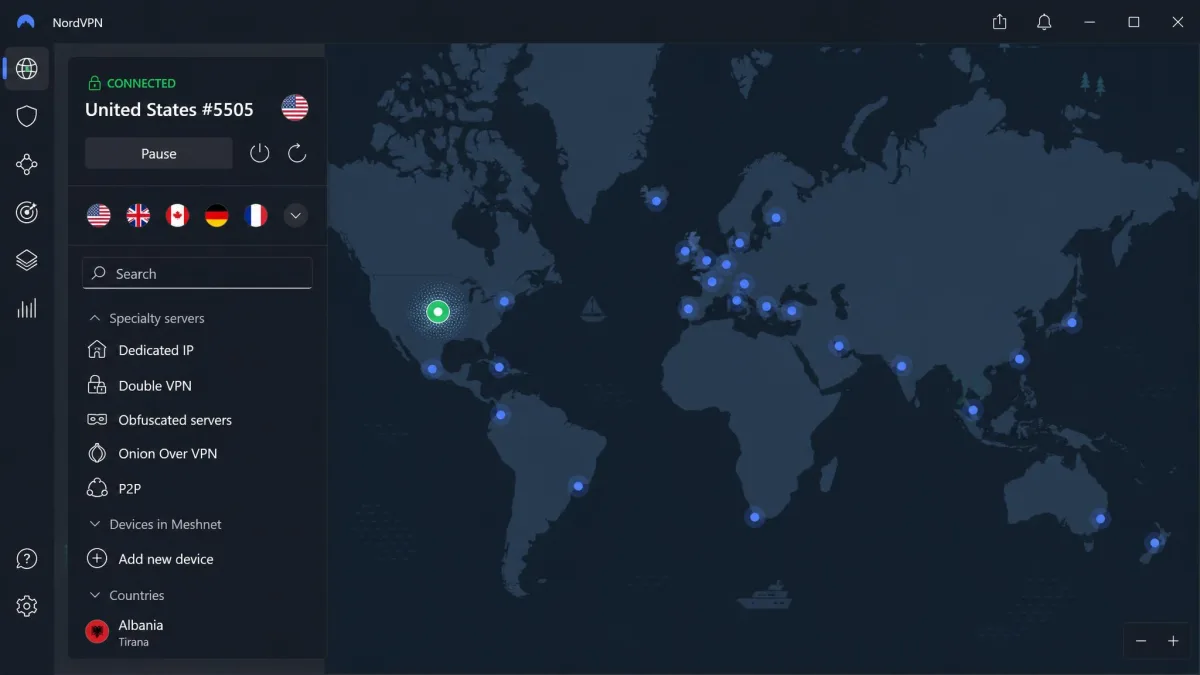
NordVPN was the fastest performer on our Fire Stick. It lost under 6 percent of download speed with the tunnel active, and that headroom matters on a small streaming device. When we hopped to distant servers, 4K playback still stayed smooth. It is also one of the first VPNs with a native Vega OS app, so it runs on the 2026 Fire TV Stick as well as older Fire OS models.
Setup is quick. You can log in from your phone or computer instead of pecking out a password with the remote. The Fire TV app lives right in the Amazon Appstore. NordVPN's streaming-optimized servers are built for unblocking the major libraries, and its Threat Protection feature and kill switch add a privacy layer on top. Pricing lands around $3.49 a month on the two-year plan. The exact rate shifts with promotions, so treat it as a ballpark.
Pros
- Fastest speeds in our Fire Stick testing, with smooth 4K
- Native app for both Fire OS and 2026 Vega OS devices
- Log in from a phone or computer instead of the remote
Cons
- Not the cheapest option month to month
- Interface has a lot of features to wade through
Surfshark
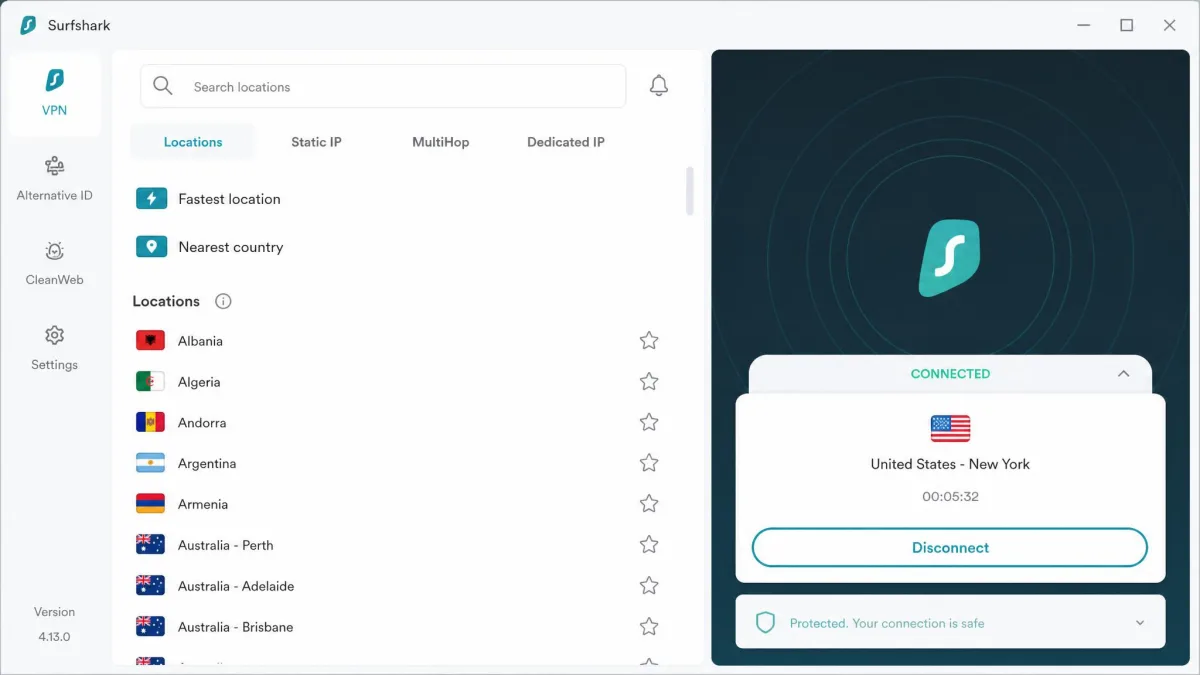
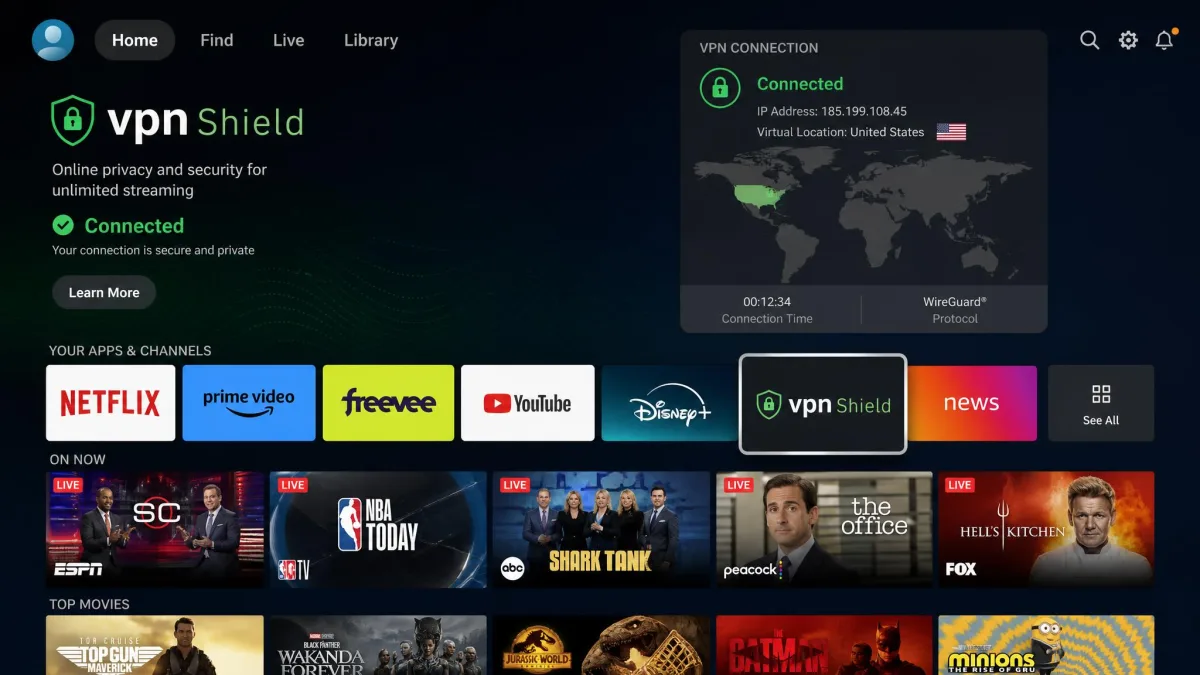
Where NordVPN leads on raw speed, Surfshark leads on value, and it is the pick we reach for when a household shares one account. It allows unlimited simultaneous connections, so every Fire Stick, phone, and laptop in the house can run at once. Like NordVPN, it has a native app that works on both Fire OS and the newer Vega OS. You can also authorize the Fire TV app from a phone to skip the remote typing.
Surfshark unblocked international Netflix and Disney+ libraries during our testing, though not on every single attempt. Across our sessions it reached Netflix roughly 87 percent of the time, so expect to switch servers occasionally. The built-in CleanWeb ad blocker also trims some of the pop-ups you would otherwise sit through. Pricing hovers around $2.49 a month on the two-year plan, often with a few free months. The headline rate varies by promotion, so check before you commit.
Pros
- Unlimited simultaneous connections on one account
- Works on both Fire OS and 2026 Vega OS Sticks
- Built-in CleanWeb ad blocker and a kill switch
Cons
- Netflix needed the occasional server switch to connect
- Cheapest rate requires a long upfront term
ExpressVPN
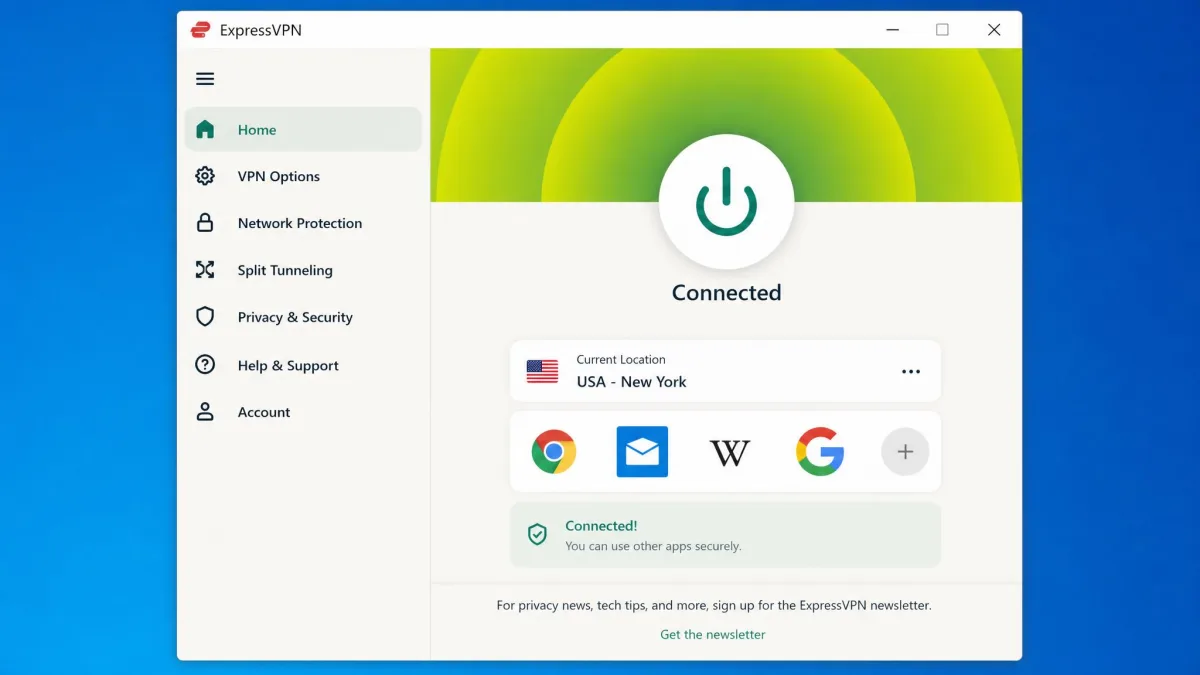
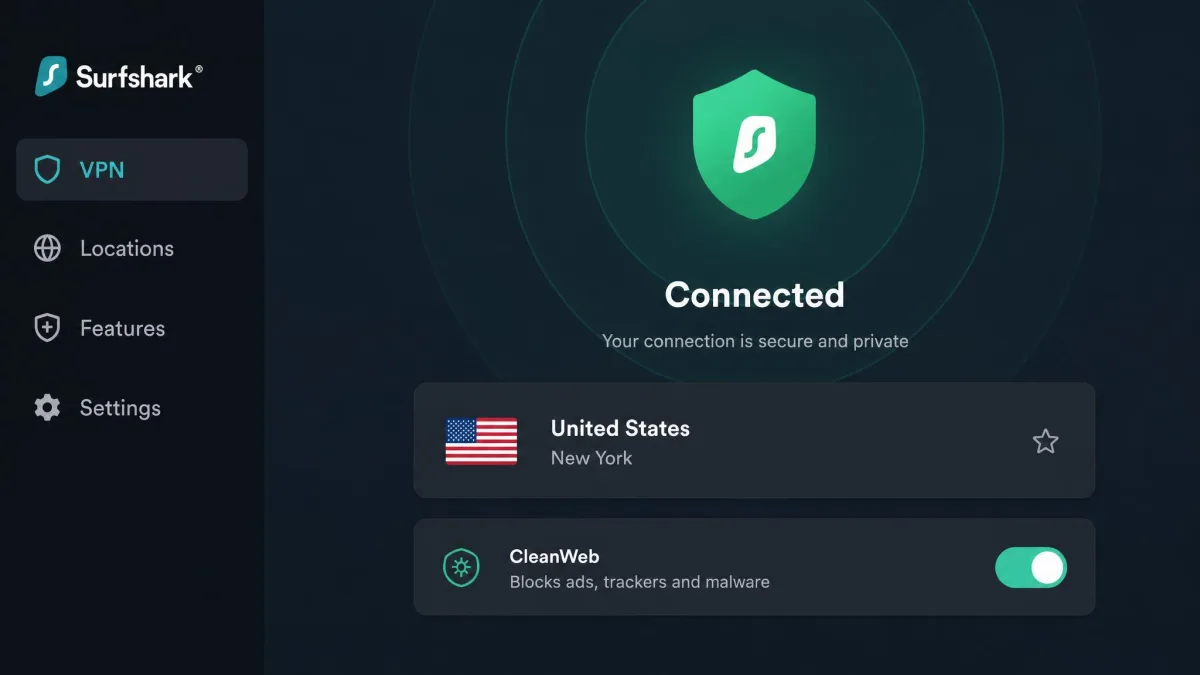
Where both NordVPN and Surfshark run on the newest hardware, ExpressVPN is the pick we reach for on an older Fire OS device that wants a polished, no-clutter app. Its Lightway protocol connects fast, the Network Lock kill switch is dependable, and it unblocks a wide range of streaming services. The dedicated Fire TV app sits in the Amazon Appstore and installs in a couple of taps.
There is one important limit in 2026. When we loaded the app onto a new Vega OS Stick, it downloaded and installed from the Appstore without complaint, then refused to launch. It opened to nothing every time we selected it. That is a nasty surprise if you just bought the latest hardware. On any Fire OS Stick, though, it runs beautifully. Effective pricing swings widely with bundled free months and promotions, so check the current offer before you commit.
Pros
- Clean, fast app with the Lightway protocol
- Reliable Network Lock kill switch
- Strong streaming unblocking on Fire OS devices
Cons
- Does not launch on 2026 Vega OS Sticks
- Effective price is hard to pin down between promotions
Here is how the three compare at a glance, with our overall rating for each.
| VPN | Buy | Works on 2026 Vega OS | Money-back | Simultaneous devices | Approx. price/mo |
|---|---|---|---|---|---|
 |
Check price → | Yes | 30-day | Multiple (per plan) | ~$3.49 (varies) |
 |
Check price → | Yes | 30-day | Unlimited | ~$2.49 (varies) |
 |
Check price → | Not yet | 30-day | Multiple (per plan) | Varies by promo |
Before You Start: Check Compatibility & Change Your Region
A minute of checking now saves a frustrating install later. First, confirm which Firestick you own. Fire OS still runs on the Fire TV Stick 4K, 4K Max, Lite, and every 2nd-generation or later device. On those, both Appstore VPN apps and APK sideloading work. The newest 2026 models run Vega OS, where you need a VPN with a native Vega OS app.
The Fire OS versus Vega OS split is the single most important thing to sort out first, because it decides every method that follows. Fire OS is Android-based, so it accepts standard Android VPN apps and sideloaded APK files. Vega OS is a different, Linux-based system that Amazon built from the ground up. It does not run Android apps. That is why so many VPNs that worked for years suddenly do nothing on the new hardware. If your Stick is more than a year or two old, you almost certainly have Fire OS and the widest range of options.
Most VPN apps also require a 2nd-generation Fire TV Stick or newer. First-generation devices are incompatible with several services. If you are running very old hardware, check your VPN's requirements before subscribing. You can see the full range of devices on the Amazon Fire TV lineup page if you are unsure which one you have.
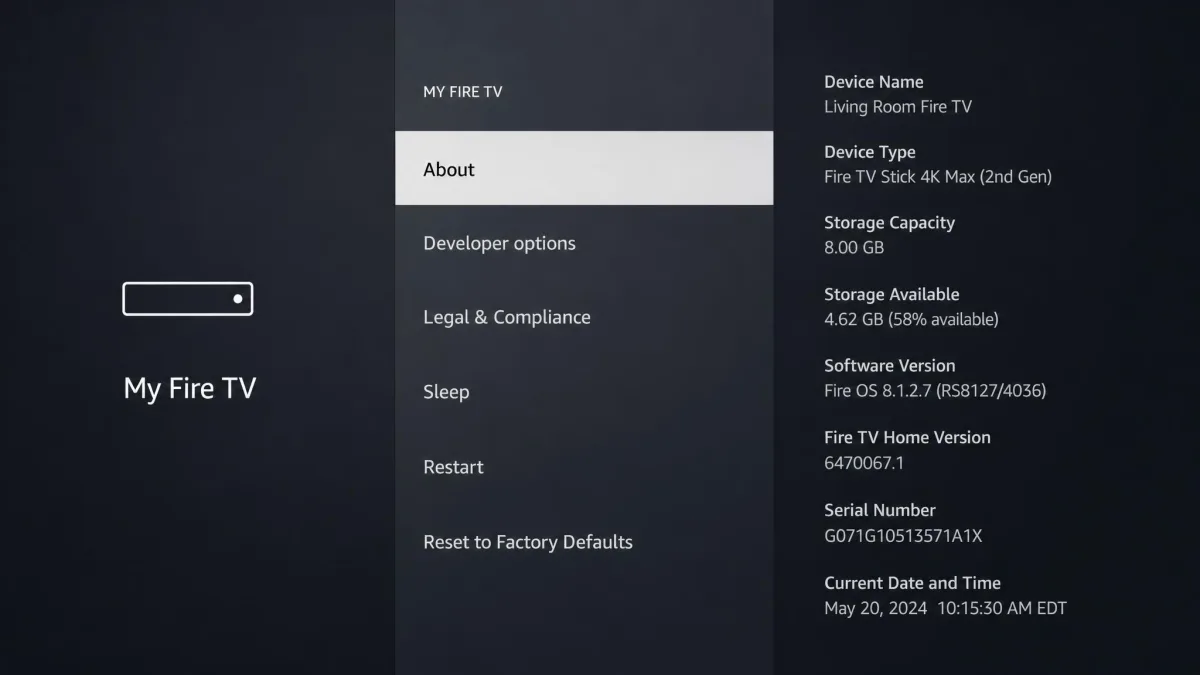
Not sure which model you own? Open Settings, then My Fire TV, then About. The device name and generation are listed there.
Changing your Amazon region is a separate step from installing the VPN, and it trips people up. Your Firestick is tied to the Amazon account region it was registered under, which controls which apps appear in your Appstore. If a VPN app is missing from your store, you may need to update your account's country in your Amazon settings on the web, then restart the device. The VPN handles your streaming location. The account region handles which apps you can download. Keep the two ideas separate and the whole process gets much clearer.
It helps to think of the two settings as answering different questions. Your account region answers "which apps am I allowed to see and install?" Your VPN server answers "which country does my streaming traffic appear to come from?" You can leave your Amazon account on its home country and still watch another region's Netflix, because the VPN alone reroutes the stream. You only need to touch the account region when a specific app is missing from your store entirely. Confusing the two is the most common reason people think their VPN is broken when it is actually working fine.
Method 1: Install a VPN From the Amazon Appstore (Easiest)
This is the method we recommend for almost everyone. If your VPN has a native Fire TV app, and all three of our picks do, installing it takes under five minutes.
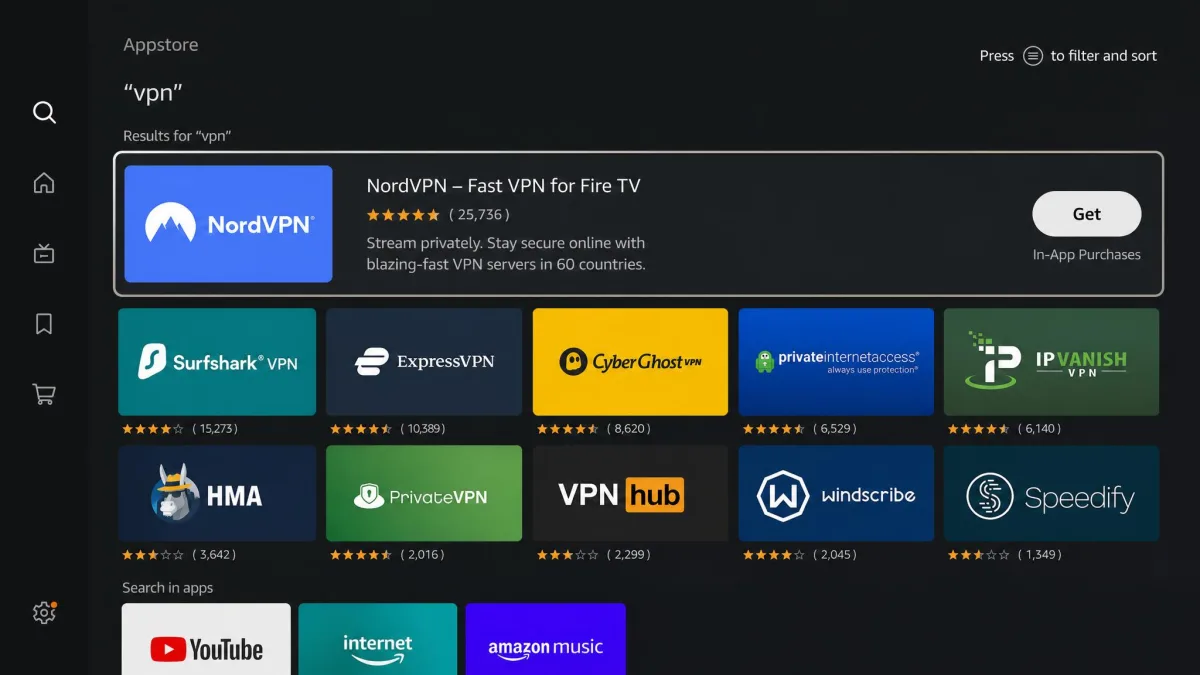
Start on the Fire TV home screen. Select the search icon in the top-left corner and type the name of your VPN, for example NordVPN or Surfshark. Choose the app from the results, then select Download or Get. Wait for the install to finish, then open the app.
Now you sign in. Typing a long password with the remote is slow and genuinely painful, so use the shortcut if your VPN offers one. NordVPN and Surfshark both let you authorize the Fire TV app from a phone or computer, which is far quicker than the on-screen keyboard. You scan a code or enter a short login token, and the app signs itself in. Once you are in, pick a server and connect.
If you already use the VPN on your phone, install it there first. On NordVPN and Surfshark you can then approve the Fire TV login from that phone in seconds, skipping the remote entirely.
On a 2026 Vega OS Stick, this same method works only if the VPN has a Vega OS app. NordVPN and Surfshark do. ExpressVPN's app will appear in the store and install, but it will not open on Vega OS, so do not install it there expecting it to work. If you already bought the latest Stick, this is the detail that decides which provider you should pick.
Method 2: Sideload a VPN APK With the Downloader App
Sometimes the native app is missing for your device, or an older version is stuck in the store. On Fire OS models, sideloading the APK through the Downloader app is the reliable workaround, and we lean on it whenever a native app falls short. This method installs the Android version of the app directly.
One caveat up front: we could not confirm that sideloading works on the new Vega OS Sticks, and the platform is built differently. Treat sideloading as a Fire OS method only. If you own a 2026 Vega OS device, stick with a native Vega OS app instead.
There is a good reason to be careful about where the APK comes from. When you sideload, you are installing software that never passed through Amazon's store checks. That is exactly why you should only ever download the file from your VPN provider's own official website. A file from a random forum or a third-party APK mirror can be tampered with. On a device that lives on your home network, that is not a risk worth taking. Every reputable VPN publishes a Fire TV or Android download link on its support pages, so there is no need to look anywhere else.
Enable Apps From Unknown Sources
Before you can install anything outside the Appstore, you have to allow it. Open Settings, then My Fire TV, then Developer Options. Turn on Apps from Unknown Sources, or enable installs specifically for the Downloader app when prompted.
If you do not see Developer Options, it is hidden by default on newer software. Go to Settings, then My Fire TV, then About, highlight your device name, and press Select seven times. A message confirms that developer mode is unlocked, and the menu appears.
Only enable unknown sources to install apps you trust, and download APKs from the VPN's official site. Sideloaded files bypass Amazon's checks, so an APK from a random third-party host can carry malware. Turn the setting back off once you are done.
Download and Install the APK
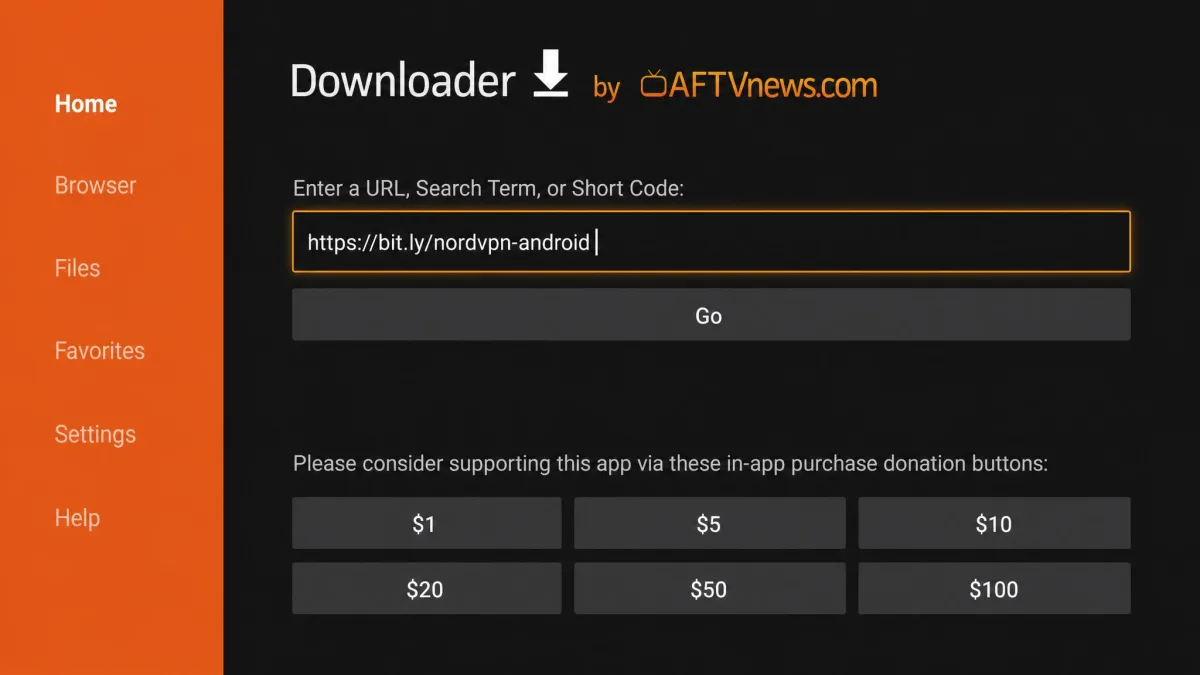
Install the free Downloader app from the Appstore first. Open it, select the URL field, and type the address of your VPN's Fire TV APK, which you can find on the provider's official download page. Select Go.
The file downloads, then Downloader prompts you to install it. Choose Install, wait for it to finish, and open the app. From there you sign in and connect exactly as you would with an Appstore app. If you own an Android phone, some people prefer the Apps2Fire route, which pushes an app from your phone to the Firestick over the same network.
One small habit saves trouble later. Once the app is installed and working, go back and turn Apps from Unknown Sources off again. Leaving it on is a standing security hole, since any app or script could then install software without asking. You only need the setting enabled during the install itself, so switching it back is quick and keeps the device locked down for everyday use.
Method 3: Set Up a VPN on Your Router
Running the VPN on your router covers every device on your network at once, including a Firestick that cannot install a VPN app. This is the route to consider for a 2026 Vega OS Stick when your VPN has no native app you can use. You set it up once, and the Firestick connects normally while the router does the encryption.
There are two ways to do this, and they suit different budgets and comfort levels.
Virtual Router
A virtual router turns a Windows laptop or PC into a Wi-Fi hotspot that shares its VPN connection. You install the VPN on the computer and connect it. Then you create a mobile hotspot in your system settings and enable connection sharing through the VPN adapter. Your Firestick joins that hotspot like any other network. It is free if you already own the computer, but the machine has to stay on while you stream, which makes this a stopgap rather than a permanent fix.
Physical VPN Router
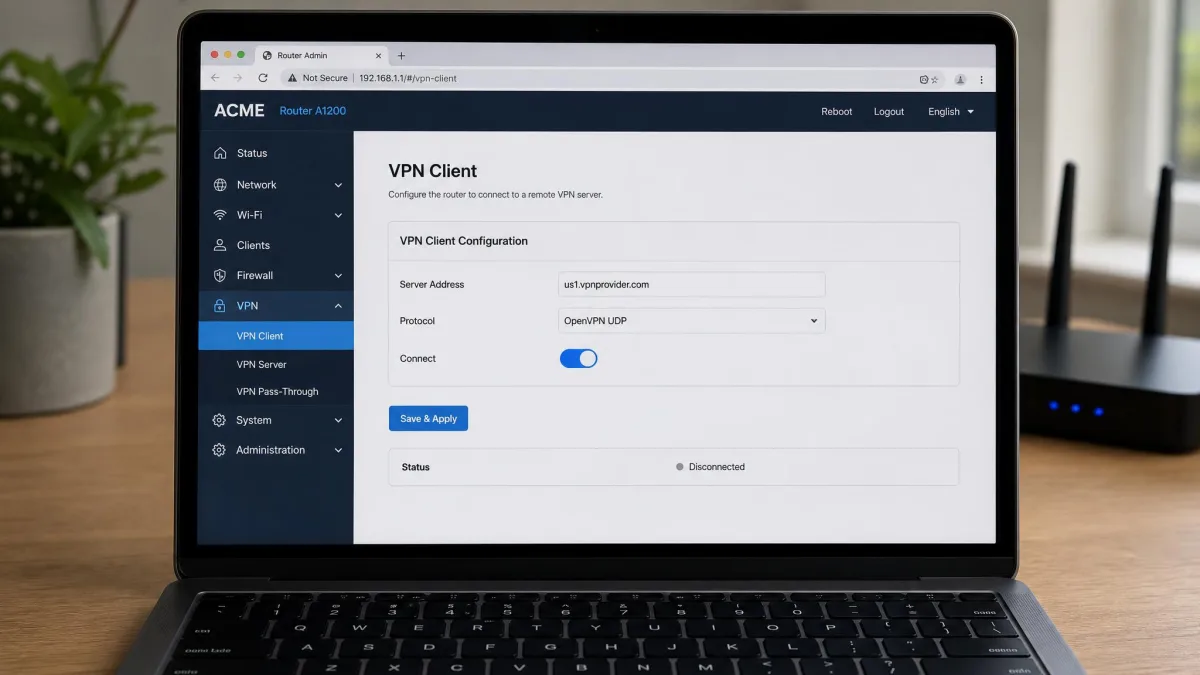
A physical VPN router is the more permanent option. You either buy a router that supports VPN client connections or flash compatible firmware onto one you own, then enter your VPN's configuration details in the router admin panel. After that, every device on the network is protected automatically. The trade-off is cost and a slightly more technical setup, and speeds can dip because the router handles all the encryption.
Some VPNs offer pre-configured router apps or setup guides for specific models. Check your provider's support pages before buying hardware, since a supported model saves a lot of manual configuration.
How to Connect and Verify Your VPN Is Working
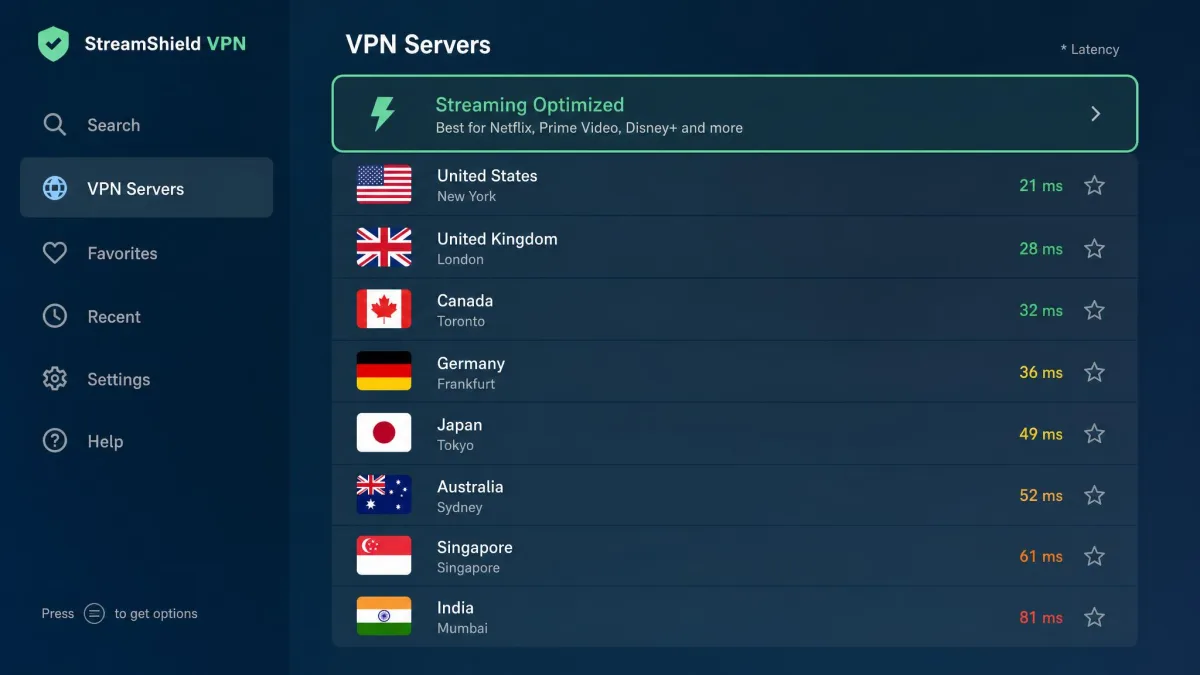
Connecting is the easy part. Open the VPN app, choose a server in the country whose content you want, and select Connect. A confirmation appears once the tunnel is live, usually a status banner or a color change. For streaming, pick a server close to you or one labeled for streaming, since a nearer server usually means faster, more stable playback.
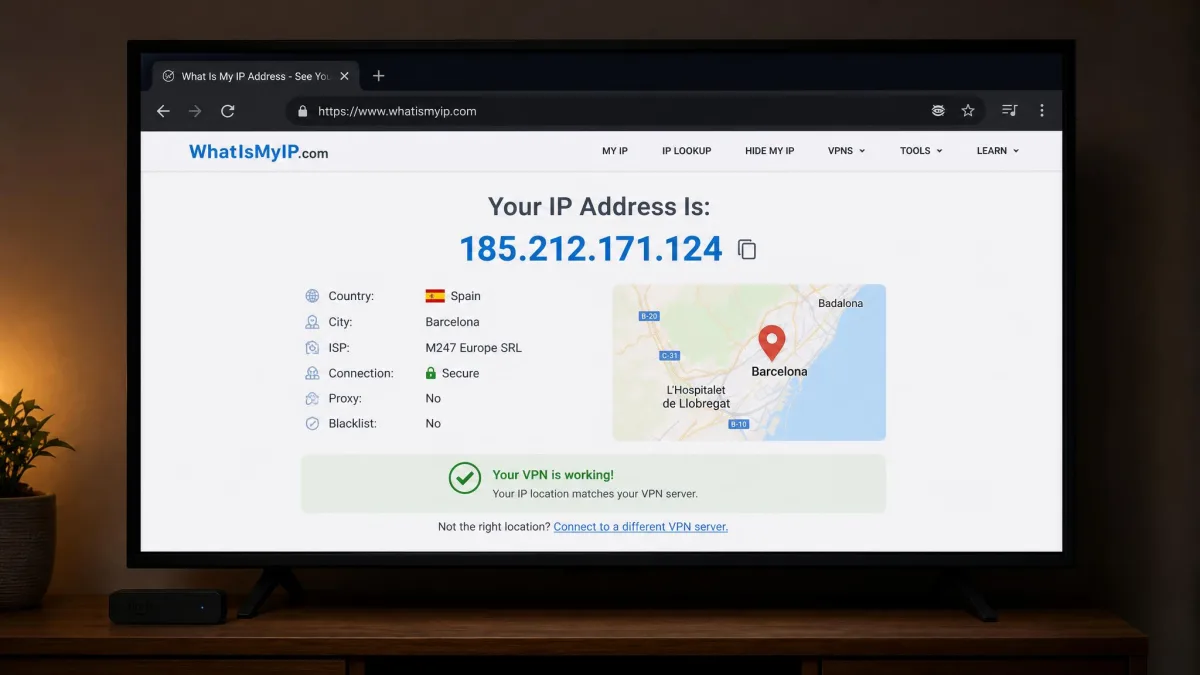
Verifying is the step people skip, and it matters. A VPN can show as connected while your real location still leaks, so confirm your VPN is actually working. Open a browser on the Firestick, or on another device joined to the same VPN, and search for "what is my IP address." If the location shown matches your chosen server country, the VPN is doing its job.
Then run a real-world check: open your streaming app and load a title that is only available in that region. If it plays, you are set. For 4K streaming, aim for at least 25 Mbps with the VPN active, because encryption adds a little overhead and low speeds cause buffering.
Why Use a VPN on Your Firestick?
A VPN earns its place on a Firestick for three reasons, and streaming is only one of them.
The first is access. A VPN lets you unblock geo-restricted content by routing your connection through a server in another country, so a show that only appears in one Netflix or Disney+ region becomes available. In our testing, Surfshark reached international Netflix and Disney+ libraries this way, though a congested server occasionally needed a switch. The same trick works for sports coverage and regional catalogs that would otherwise be off-limits from your home country. It is the reason most people install a VPN on a Firestick in the first place.
The second is privacy. Without a VPN, your internet provider can see the services you connect to and, in many places, log or throttle that traffic. A VPN encrypts everything leaving the device, so your provider sees an encrypted tunnel instead of your streaming habits. That also matters on shared or public networks, where you have no control over who else is watching. If you travel with your Firestick and plug it into hotel or rental Wi-Fi, that encryption is doing quiet, useful work every time you connect.
The third is a smoother connection in some cases. If your provider throttles video traffic, routing it through a VPN can stop them from singling out streaming and slowing it down. Throttling often kicks in during evening peak hours, exactly when you want to watch, and it shows up as sudden drops to lower resolution. Because a VPN hides which service you are using, the provider cannot tell streaming apart from ordinary browsing and cannot target it. The gain is not guaranteed, but on a throttled line it is noticeable. Add a dependable kill switch, which cuts your traffic if the VPN drops, and you avoid leaking your real location mid-stream.
Can You Use a Free VPN on a Firestick?
You can, but we would not lean on one for regular streaming. Reputable free tiers exist, including Proton VPN, Windscribe, and TunnelBear, and they are fine for the occasional light task. The problems show up fast when you point them at video.
Free plans impose server limits and monthly data caps, often just a few gigabytes. Video eats through that in an hour or two, so a free tier burns its cap fast and then cuts you off mid-show. Free servers are also weaker at unblocking, and in our experience they frequently fail to open the major streaming libraries at all.
There is a safety angle too. Some free VPNs fund themselves by logging and selling user data, which defeats the point of using one. If budget is the concern, a paid plan on a 30-day money-back guarantee is the safer route: you can test it fully and get a refund if it does not deliver.
Avoid unknown free VPNs that ask for broad permissions or have no clear privacy policy. A VPN that logs and sells your data is worse for privacy than using no VPN at all.
Troubleshooting: VPN Won't Connect or Work
Most Firestick VPN problems fall into a few patterns, and each has a quick fix.
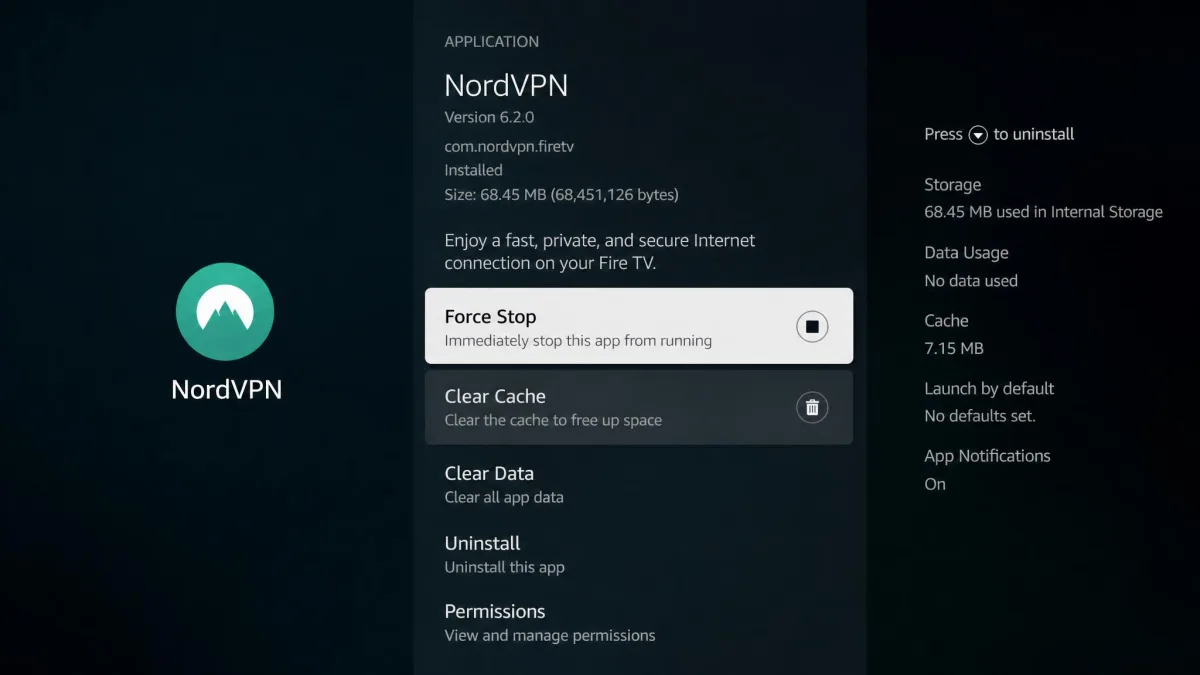
If the VPN will not establish a secure link, or it keeps disconnecting, start simple. Force-stop the app, reopen it, and try a different server. If that fails, reinstall the app or reboot the Firestick. That sequence clears the large majority of connection failures we run into.
If the VPN shows as connected but streaming stays unreliable, the connection itself may be the weak point. A Firestick on Wi-Fi can struggle to hold a VPN tunnel steady. A wired Ethernet connection, using an adapter on the Firestick, is noticeably steadier and often ends the buffering.
If a streaming service still throws a region-lock error while the VPN is on, its servers have likely flagged that VPN IP address. Switch to a different server in the same country, which gives you a fresh address. If it still refuses, clear the VPN app's cache and data, then reconnect. That clears the blacklisted IP in most cases.
If streams buffer or drop to low resolution, the server is probably congested. Switch to a streaming-optimized server or one geographically nearer to you, and speeds usually recover.
There is one more pattern worth naming, because it catches out anyone with the newest hardware. If you own a 2026 Vega OS Stick and your VPN app installs but never opens, the app is almost certainly not Vega OS compatible yet. This is the exact trap ExpressVPN users hit, since its app appears in the store and downloads but refuses to launch on Vega OS. The fix is not a reboot or a reinstall. Switch to a VPN with a native Vega OS app, such as NordVPN or Surfshark, or run the VPN on your router so the Stick never needs its own app. No amount of clearing cache will make an incompatible app start.
How to Update or Uninstall Your Firestick VPN
Keeping the app current avoids a lot of grief, since an out-of-date VPN app is a common cause of connection trouble. To update, open the Appstore, go to your library or the Appstore settings, and check for updates. Enabling automatic updates in the Appstore settings means the app stays current without you thinking about it. For a sideloaded APK, you update by downloading and installing the newer APK through Downloader the same way you installed it.
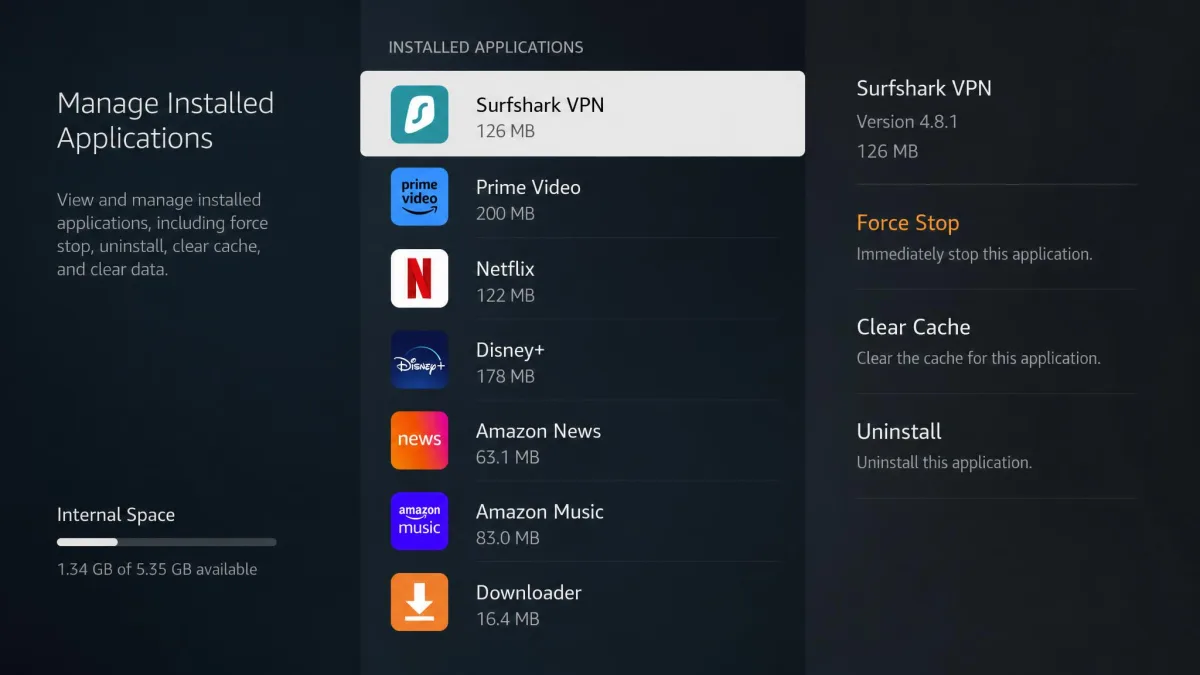
To uninstall, go to Settings, then Applications, then Manage Installed Applications. Select your VPN from the list, then choose Uninstall. If you also enabled Apps from Unknown Sources earlier for sideloading, this is a good moment to turn that setting back off. Removing the app does not cancel your subscription, so if you are done with the service entirely, cancel it through the provider's website or the app store you signed up with.