A router VPN protects every connected device on your network at once, from phones and laptops to smart TVs and game consoles that cannot run a VPN app of their own. The catch is that not every router supports one, and the setup path changes depending on the hardware you own.
That trade-off is the whole story of a router VPN. Install it once, and the protection is always on for the entire home. Get it wrong, and you can waste an afternoon or, in the worst case, damage the router.
We set up VPNs across built-in router clients and custom firmware to map out what actually works. This guide walks through it step by step: how to check compatibility, what you need before you start, how to enter the configuration, and how to confirm the tunnel is live. Along the way we flag where the process gets risky and where a shortcut saves you the trouble.
What Is a Router VPN (and Why Set One Up)?
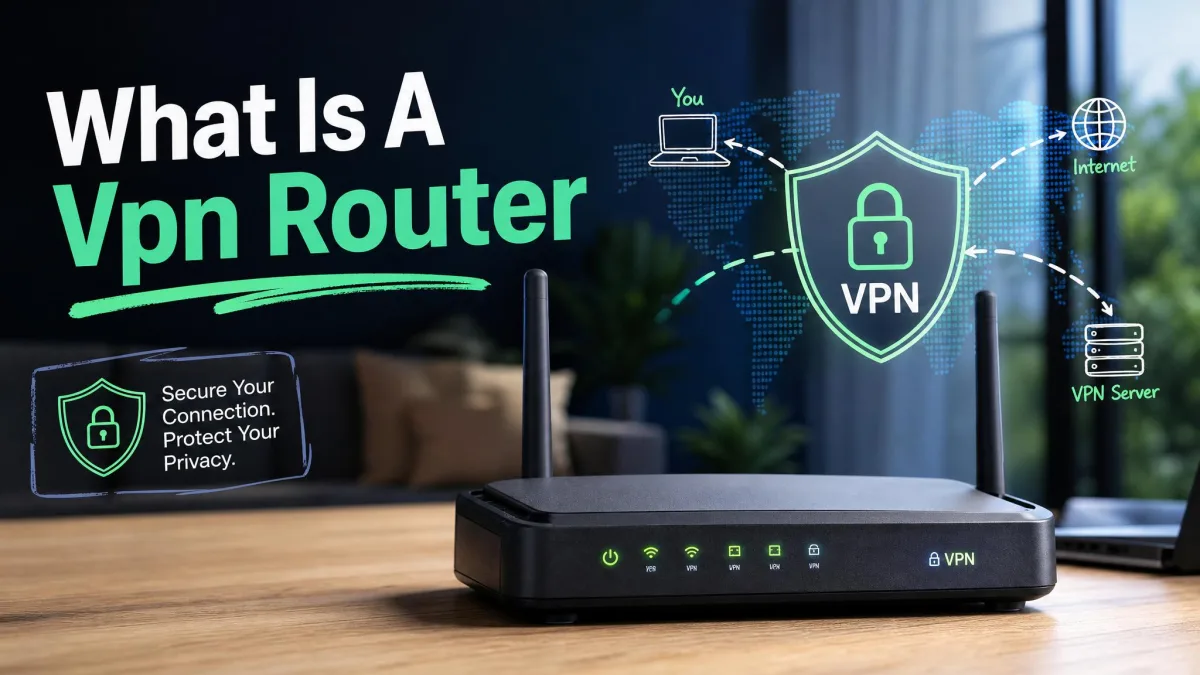
A router VPN moves the VPN connection off your individual devices and onto the router itself. Instead of running a separate app on each phone or laptop, you configure the tunnel once, and everything that connects to that network routes through it automatically.
Benefits: whole-home protection for every device
The biggest draw is coverage. A single VPN subscription usually limits how many devices you can protect at once. Set the VPN up on the router, and it counts as one connection while covering every device behind it.
That includes hardware that has no VPN app at all. Smart TVs, streaming sticks, game consoles, and most smart-home gadgets cannot install a VPN client, so a router VPN is the only practical way to protect them. Guests on your Wi-Fi are covered too, without you touching their devices.
You also get consistency. There is no app to forget to switch on, because the protection is always running at the network level.

How a VPN works at the router level
At the device level, a VPN app builds an encrypted tunnel from that one device to a VPN server. At the router level, the router itself becomes the endpoint of that tunnel, and it encrypts the traffic for the whole network before it reaches your internet provider.
Your ISP still sees that a connection exists, but it can no longer read the destinations or content of your traffic. Every device on the network shares that same tunnel and appears to use the VPN server's location.
Keep in mind that this shared tunnel is also the main limitation. Because the router applies one server location to everything, you cannot put different devices on different countries at the same time without extra work. The whole network moves together.
Is Your Router VPN Compatible?
Compatibility is the first thing to settle, because it decides how much work the rest of the setup will be. Routers fall into three broad groups: those with VPN support built in, those that need replacement firmware, and those that will not run a VPN client at all.
Routers with built-in VPN support
Many newer routers ship with a VPN client already in the firmware. You enable it from the admin settings, enter your provider's details, and connect, with no flashing required. This is by far the easiest path.
Support varies by brand and protocol. In our experience the split looks like this: ASUS handles OpenVPN and WireGuard, Linksys covers OpenVPN plus L2TP and PPTP, Netgear leans on OpenVPN, and TP-Link models often support OpenVPN, WireGuard, PPTP, and L2TP/IPsec. If your router supports WireGuard, prefer it: it is faster than OpenVPN while keeping strong security.

Routers that need custom firmware (DD-WRT, Tomato, OpenWRT)
If your router has no built-in client, you may still be able to add one by replacing the stock firmware. Custom firmware that adds VPN support includes DD-WRT, Tomato, and OpenWrt. These are free, community-maintained systems that unlock VPN features the manufacturer left out.
This route is more powerful but more demanding. You need a router the firmware actually supports, and enough memory to store the VPN configuration. DD-WRT needs a minimum of 32 KB of NVRAM to hold the OpenVPN certificates and keys, and 64 KB if you want to store multiple VPN profiles.
How to check your router's compatibility
Start with your router's model number, printed on a label on the underside of the unit. Note the exact hardware revision too, such as v1 or v2, because it matters more than most people expect. The same model name can ship in two revisions with different chips, and flashing the wrong build for the wrong revision will brick the device.
Once you have the model and revision, you have two options for confirming support. First, look up that model in your manufacturer's support pages to find whether a VPN client is already built in, which is the easiest outcome. If it is not, check the DD-WRT router database or the OpenWrt equivalent to confirm your specific model and revision are supported before you go any further. Between those two lookups you can settle compatibility in a couple of minutes, and the best time to do it is before you pay for a subscription, not after.

One warning up front: most ISP-provided routers do not support VPNs at all, because of firmware restrictions the provider locks in place. If that is your situation, you will likely need a second router or a dedicated VPN router rather than a workaround.
If you would rather skip the technical setup entirely, a pre-configured VPN router such as ExpressVPN's Aircove arrives ready to go. You avoid firmware flashing, config files, and the compatibility guesswork, at the cost of buying new hardware.
Before You Begin: What You'll Need
Setup goes smoothly when you gather the pieces first. You need a compatible router, an active VPN subscription that supports router use, your router's admin login, and the configuration details from your VPN provider.
Choosing a router-compatible VPN provider
Not every VPN is built for routers, so this choice matters. Look for a provider that publishes router setup guides and supplies the manual configuration files your router needs, such as OpenVPN config files or WireGuard keys.
The major providers used for router setups are ExpressVPN, NordVPN, and Surfshark, all of which document the process. NordVPN, for example, connects on routers through OpenVPN or its NordLynx build of WireGuard, depending on what your router supports, and provides a NordVPN router setup guide for each path. That points to the two options worth weighing before you subscribe: a manual OpenVPN config, which almost every router can load but which pastes in the most fields, and native WireGuard, which is quicker to set up and noticeably faster but is only offered on newer firmware. Choose a provider with strong, up-to-date documentation, because the router side of any VPN gets less attention than the desktop apps.
Finding your router's IP address and admin login
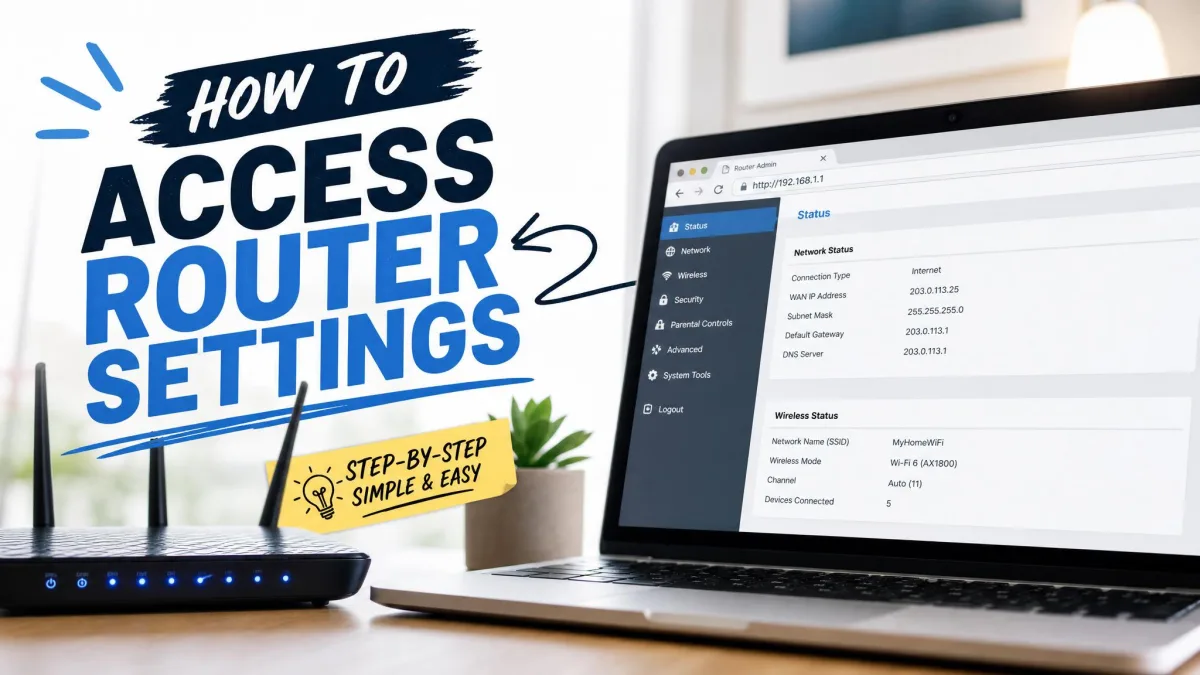
To change any settings, you first need to reach the router's admin panel. You do that by typing the router's IP address into a web browser on a device that is connected to the network.
On Windows, open Command Prompt and run ipconfig; the "Default Gateway" line is your router's IP address. On a Mac, the router IP appears under System Settings, Network, Details, TCP/IP. Common defaults are 192.168.1.1 or 192.168.0.1.

The admin username and password are usually printed on the router label, unless you changed them. If you have never set your own, change the default password once you are in, because it is a common weak point on home networks.
How to Set Up a VPN on Your Router (Step by Step)
The exact screens differ by brand, model, and firmware version, so no single walkthrough matches every router perfectly. The sequence below is the pattern nearly all of them follow, and we tested it across both built-in clients and custom firmware.
Step 1: Log in to your router's admin settings
Open a browser and enter your router's IP address in the address bar. Log in with the admin username and password from the previous section.
Once you are in, look for a section named "VPN", "VPN Client", or sometimes "Advanced Settings". This is where the VPN client lives on routers that support one natively.

Step 2: Flash custom firmware (if required)
Skip this step entirely if your router already has a VPN client. You only flash firmware when the stock software cannot run a VPN.
If you do need to flash, download the exact build that matches your router's model and hardware revision from the DD-WRT, Tomato, or OpenWrt site. Then follow that firmware's install instructions to upload it through your router's admin panel. Do not interrupt the process once it starts.
Flashing custom firmware can void your router's warranty and, if it goes wrong, permanently brick the device. The biggest risks are downloading the wrong build for your hardware revision, or losing power mid-flash. Most people complete the flash without a problem, but back up your current settings first and never flash over an unstable power connection.
Step 3: Enter the VPN client / OpenVPN configuration
With a VPN-capable router in front of you, open the VPN client tab and start a new profile. Your VPN provider supplies the configuration, so log in to your VPN account and open its manual router or OpenVPN setup page.
Download the OpenVPN configuration file for the server location you want, or copy the WireGuard details if your router supports that protocol. Some routers let you upload the config file directly; others ask you to paste the server address and settings into the fields manually.

Step 4: Enter your VPN credentials and connect
Enter the VPN account credentials your provider lists for manual setup: the username, password, and server address. These are often different from the username and password you use to log in to the VPN's website, so copy them from the provider's manual setup page exactly.
Save the profile, then enable or activate the VPN connection. The router will attempt to build the tunnel, and after a few moments its status should change to "Connected".
Step 5: Test that your VPN is working
Do not assume the tunnel is live just because the router says "Connected". On a device connected to that network, open a browser and run a leak test to check for leaks. It should show the VPN server's location and IP address, not your own.

If the test still shows your real IP or your home city, the tunnel is not carrying your traffic. Double-check the credentials and server address, then reconnect. To turn the VPN off later, return to the VPN client tab and uncheck the enable option.
Pros and Cons of a Router VPN
A router VPN is powerful, but it is not the right answer for everyone. Weigh the whole-network coverage against the flexibility you give up.

Pros
- Protects every device on the network, including TVs and consoles that cannot run a VPN app
- Counts as a single connection while covering an unlimited number of devices
- Always on, with no app to remember to switch on
- Covers guests on your Wi-Fi without configuring their devices
Cons
- The whole network shares one server location at a time
- VPN encryption slows the connection, and routers have weaker processors than phones or laptops
- Turning the VPN off or switching countries means logging back into the router
- Setup can be technical, and flashing firmware carries a bricking risk
How to Optimize a VPN Router (Speed & Performance)
Speed is the honest downside of a router VPN. VPN encryption noticeably slows a router connection, and the drop is worst when several devices stream or download at the same time. Because routers run weaker processors than phones or laptops, the same VPN runs slower on a router than it does in a single-device app.
The slowdown can be dramatic on underpowered hardware. On one DD-WRT router we tested, a direct connection of 80 to 90 Mbps fell to around 25 Mbps once the traffic was routed through the VPN. That is the kind of gap a slow processor produces under encryption.
A few changes claw back most of the loss. Switching from OpenVPN to WireGuard, where the router supports it, is the single easiest way to recover lost speed. Connecting to a VPN server that is geographically close to you helps as well, since distance adds latency and lowers throughput.
Hardware matters too. If you hit slowdowns with multiple devices on the network, a router with a dual-core 1.5GHz or faster processor handles the encryption load far better than an entry-level model.

Best VPNs for Routers
If you want the whole-network benefits without the manual configuration, a pre-configured VPN router is the simplest route. ExpressVPN's Aircove is the clearest example. It is plug-and-play, setting up in a few minutes with no config files or encryption tweaking, and it skips the config-file pasting that trips people up on manual setups.
The Aircove is a Wi-Fi 6 (AX1800) router with a quad-core processor and protects unlimited devices, with a free 30-day ExpressVPN trial included. It costs around $200. In testing its VPN throughput reaches up to 330 Mbps across multiple devices at once, though that figure swings with distance: speeds hold up close to the router but fall off notably as you move away from it.

Co-branded VPN routers from ExpressVPN, NordVPN, and Surfshark generally run from roughly $200 to $400. If you already own a compatible router, though, you do not need new hardware at all. A provider like NordVPN or Surfshark set up manually on your existing router gets you the same whole-home coverage for the price of the subscription alone.
When you are choosing which service to run, the best pick usually comes down to two things rather than raw speed claims: how much access you get to a provider's server network, and how well that network is documented for router use. A wide server list gives every device on the network more locations to reach, and clear per-server config files or WireGuard keys are what make that access usable from a router in the first place. A provider with a huge network but thin router documentation is harder to live with than a smaller one that publishes exactly what your firmware needs, so weigh both before you commit.
| Approach | Upfront cost | Setup effort | Firmware flashing |
|---|---|---|---|
| Manual setup on existing router | Subscription only | Moderate to high, varies by firmware | Sometimes required |
| ExpressVPN Aircove | $200 | Plug-and-play, few minutes | None |
| Co-branded routers (general) | $200 to $400 | Low, pre-configured | None |

Conclusion
Setting up a VPN on your router is the most complete way to protect a home network, because it covers every device at once, including the ones that could never run a VPN app. The work involved depends almost entirely on your hardware.
If your router has a built-in VPN client, the setup is a short session in the admin panel: log in, enter your provider's configuration, connect, and confirm with a leak test. If it does not, you are choosing between flashing custom firmware, with the small but real risk that carries, and buying a router that arrives ready to go.
Whichever path you take, check compatibility before you start, choose a VPN with solid router documentation, and always verify the tunnel with a leak test once you are done. Get those three things right and the protection quietly runs for the whole home from then on.