A machine that took eight seconds to open a browser last year now takes thirty, and the fan spins up before you have typed anything. That kind of slowdown feels like hardware failure, but it almost never is. Most of the fixes below are free, live inside settings you already have, and take a couple of minutes each.
We work through slow Windows 11 and Windows 10 machines the same way every time, starting with the free changes that cost nothing to reverse and ending with the hardware that genuinely moves the needle. The order matters. If your computer is sluggish because forty programs launch at boot, no amount of new memory will fix the underlying clutter.
Start Here: Find What's Actually Eating Your Resources
Before you change a single setting, find out what the machine is busy doing. Guessing wastes an afternoon on the wrong fix.
Reading Task Manager's Processes Tab
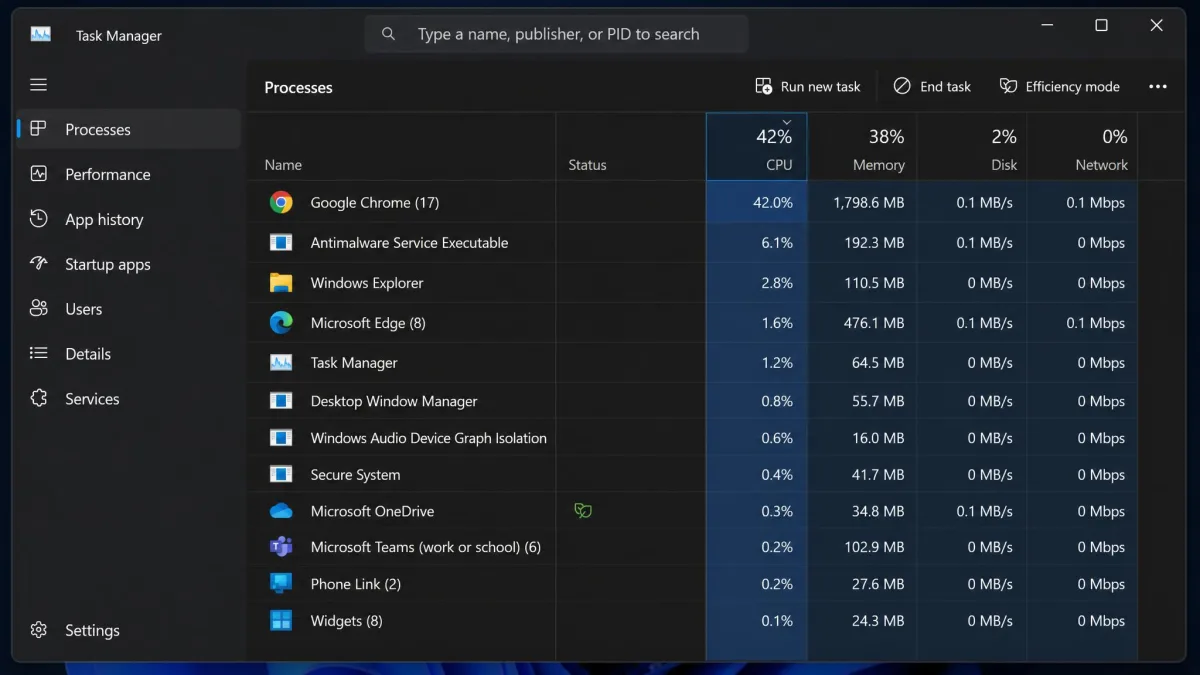
Press Ctrl, Shift and Esc together to open Task Manager, then choose the Processes tab. Click a column header to sort by that resource, and the heaviest applications rise to the top. This single screen is the fastest way to tell which of the four bottlenecks you actually have, because a pegged column points at a specific culprit rather than a general feeling that the system is slow.
CPU, Memory, Disk, and Network: What "100%" Means in Each Column
Each column tells a different story, so read them separately.
- CPU at 100% usually means one program is stuck in a loop, or a background scan is running. Find the top process and close it.
- Memory at 100% means Windows has run out of RAM and is swapping to your drive. That is the classic cause of stuttering when you switch between windows.
- Disk at 100% on an older machine normally points at a mechanical hard drive that cannot keep up with everything asking it for files at once.
- Network at 100% rarely slows the computer itself, but it does slow anything that waits on a download, including updates and cloud sync.
Write down whichever column is pinned. It tells you which of the fixes below will pay off first.
1. Restart Your PC Properly
Shutting the lid is not a restart. Windows 10 and Windows 11 both use fast startup, which saves part of the system state to disk instead of clearing it, so a shutdown followed by a power-on can carry the same memory leaks and stuck drivers straight back into your next session.
Choose Restart from the Start menu rather than Shut down, and give it a full cycle. Microsoft's own performance guidance puts closing apps and restarting on its list of 12 tips for the same reason: a genuine restart clears memory that nothing else reclaims.
If your computer only feels slow after several days of sleep and wake cycles, make a habit of a real restart once a week. It is the cheapest maintenance there is.
2. Disable Startup Programs
Startup programs are the applications that launch with Windows, and they quietly eat your memory before you open anything yourself. Chat clients, updaters, printer helpers and store apps all install themselves here without asking.
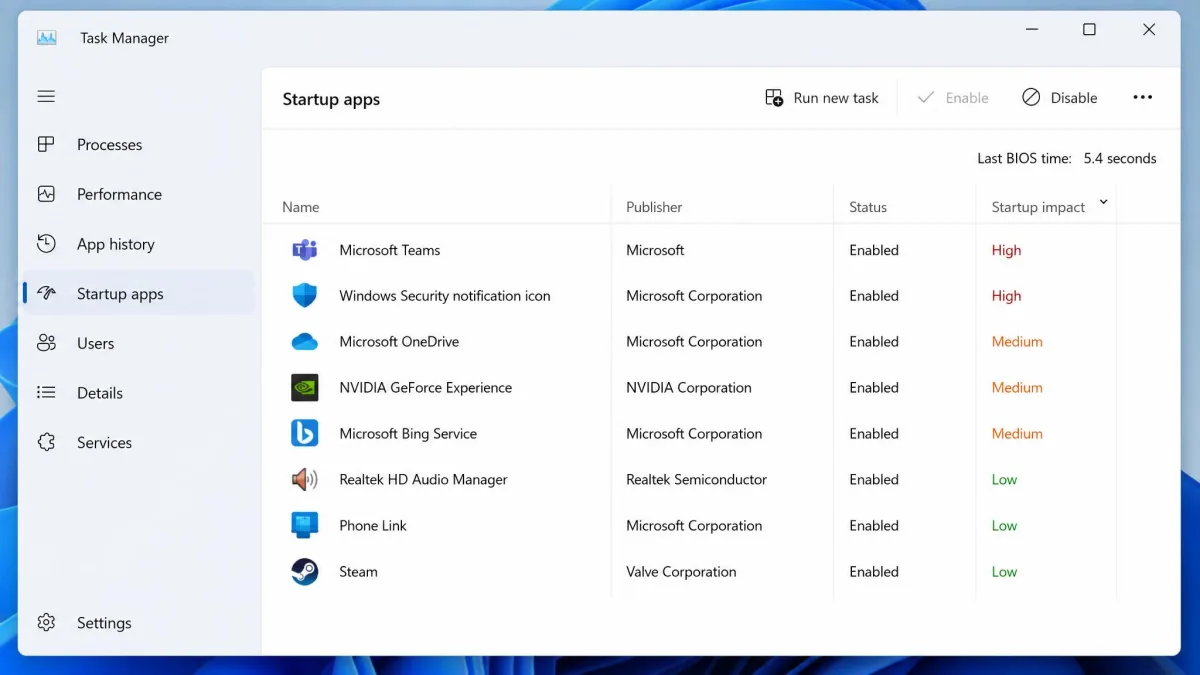
Open Task Manager and choose the Startup apps tab, or open Settings, go to Apps, then select Startup. Each entry carries a startup impact rating. The items marked High and Medium are the ones worth disabling first, because they free the most memory and cost the most boot time. Microsoft explains how to configure startup applications in Windows if you want the full list of places an app can hide.
Leave anything you actually rely on at login, such as your antivirus, your backup client or your VPN. Everything else can start when you open it.
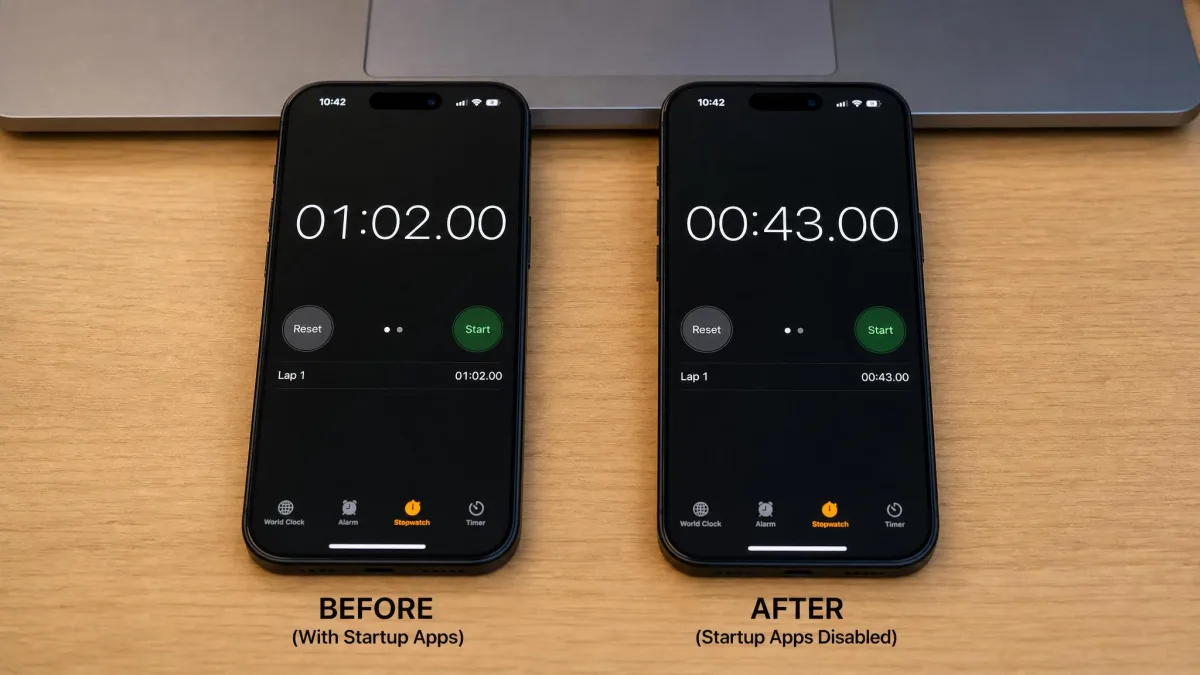
Trimming startup apps produces the most consistently measurable boot-time gain of any free software change we make. In one controlled test, a selective trim that kept essential apps enabled saved about 11 seconds of boot time, and disabling everything saved 19 seconds. The gap between those two numbers is small, which is the useful finding: you capture most of the benefit without disabling the software you depend on. The saving depends on how many apps launch at boot and whether the machine runs a hard drive or an SSD, so it ranges from a few seconds to a full minute. The payoff is dramatic on an older hard-drive machine and modest on an SSD system.
3. Free Up Disk Space with Storage Sense and Disk Cleanup
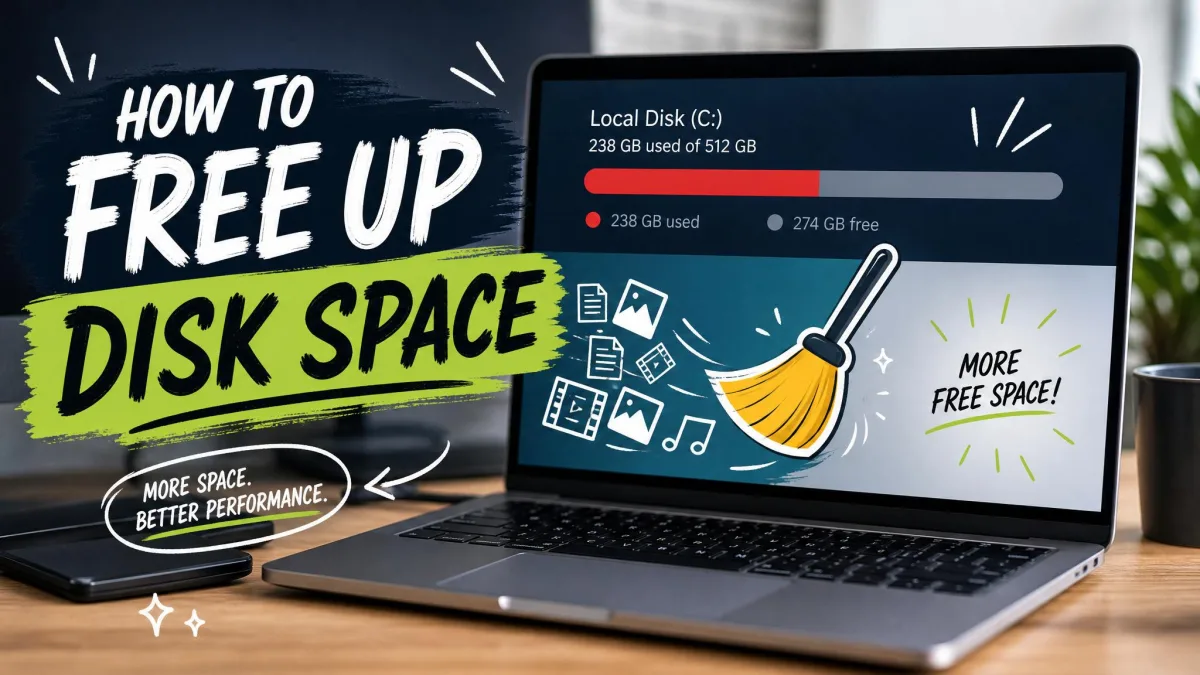
A cluttered drive slows a computer in two ways. Windows needs working room for its page file and temporary files, and a nearly full solid-state drive loses write speed because the controller has no space left for housekeeping.
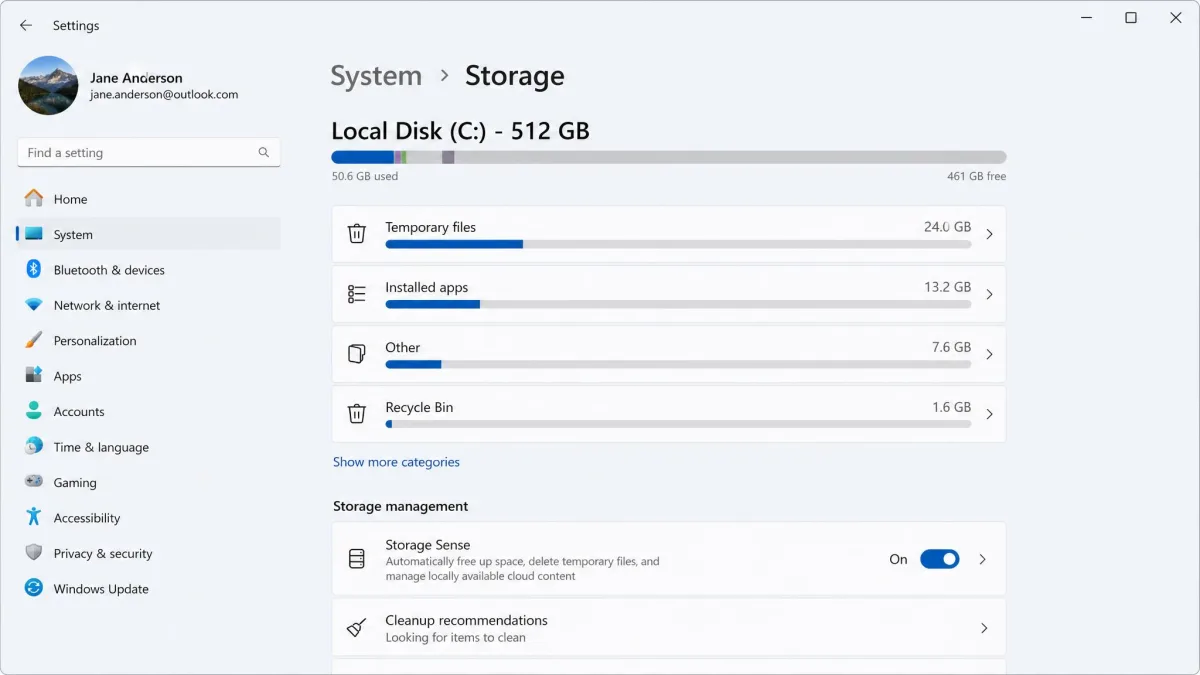
Storage Sense automatically frees drive space by removing temporary files and Recycle Bin contents. Open Settings, go to System, then select Storage to turn it on and choose how aggressive it should be. You can set it to run when disk space is low, to delete Recycle Bin files after a set age, and to clear unopened files from Downloads. The classic Disk Cleanup tool is still the quicker route to old Windows update files.
Aim to keep roughly 15 percent of the drive free. Published headroom recommendations span 10 to 25 percent, and modern drives with generous overprovisioning cope fine at the low end. Letting a solid-state drive fill to the brim slows writes noticeably, so the last few percent of capacity costs you speed.
Windows 11 version 22H2 and later turn OneDrive cloud files into online-only copies once they have gone 30 days without being opened. That reclaims space quietly, but it also means those files need a connection before they will open. On Windows 10 you manage the same behaviour through the OneDrive settings rather than Storage Sense.
4. Uninstall Programs and Bloatware You Never Use
Where step 3 clears files, this step clears the software creating them. Trial antivirus suites, manufacturer utilities and games you finished two years ago all keep background services running.
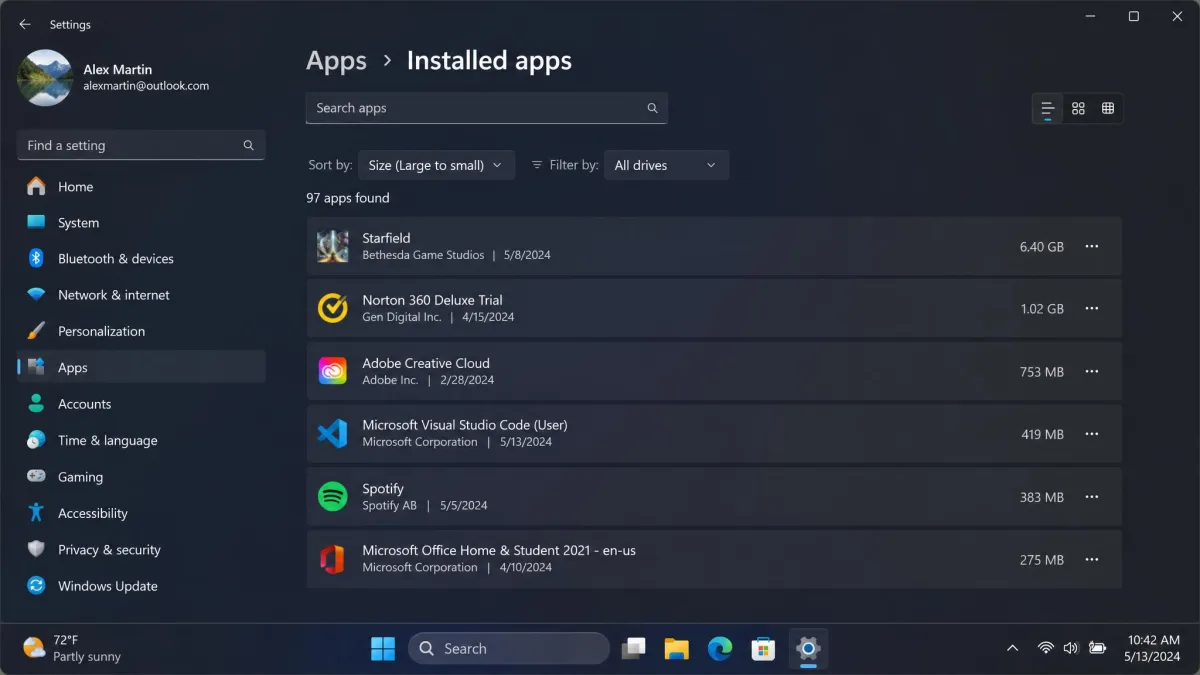
Open Settings, go to Apps, then select Installed apps. Sort by size to find the heavy installs and by install date to find the factory bloatware that shipped with the machine. Uninstall anything you do not recognise and do not need, then restart once you are done.
Be a little careful with entries from your hardware vendor. Graphics control panels and touchpad utilities look like bloat but sometimes carry drivers with them.
5. Scan for Malware and Adware
Removing malware and adware produces a real, sometimes startling improvement on an infected machine, which is why we run a scan early in the sequence rather than saving it for last. Browser hijackers and coin miners are written to consume exactly the resources you are trying to reclaim.
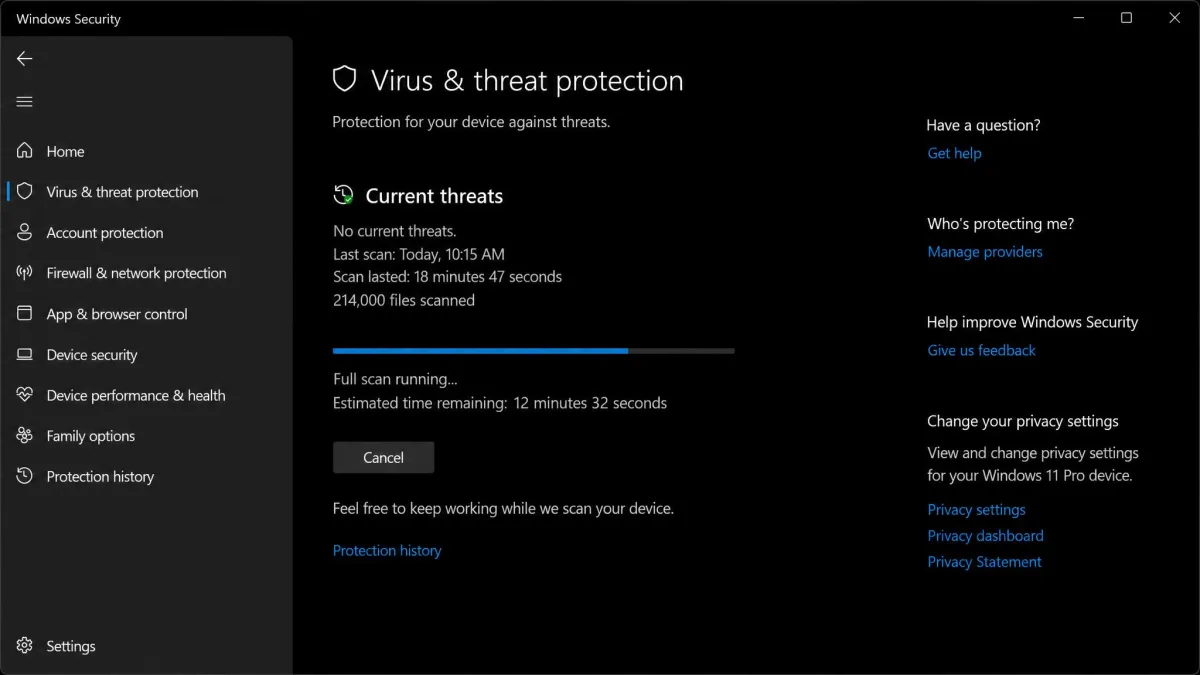
Windows Security is built in and good enough for this job. Open it from the Start menu, choose Virus and threat protection, then run a full scan rather than the quick one. Microsoft documents how to start a scan in Microsoft Defender, including the offline scan option that catches things which hide while Windows is running.
6. Install Windows Updates and Driver Updates
Updates get skipped because they are inconvenient, and then they cost performance. Open Settings, go to Windows Update, and let it install pending Windows updates before you judge how fast the machine is.
Optional driver updates are easy to overlook, because Windows Update hides them behind a separate Advanced options screen. Graphics and storage drivers are exactly where a stale version costs you speed, so check that list even if the main update page says you are up to date.
7. Turn Off Visual Effects and Animations
Windows spends a small amount of graphics work on animations, shadows and translucency. Turning them off makes the desktop feel more responsive immediately, though the improvement is mostly perceptual rather than a throughput change.
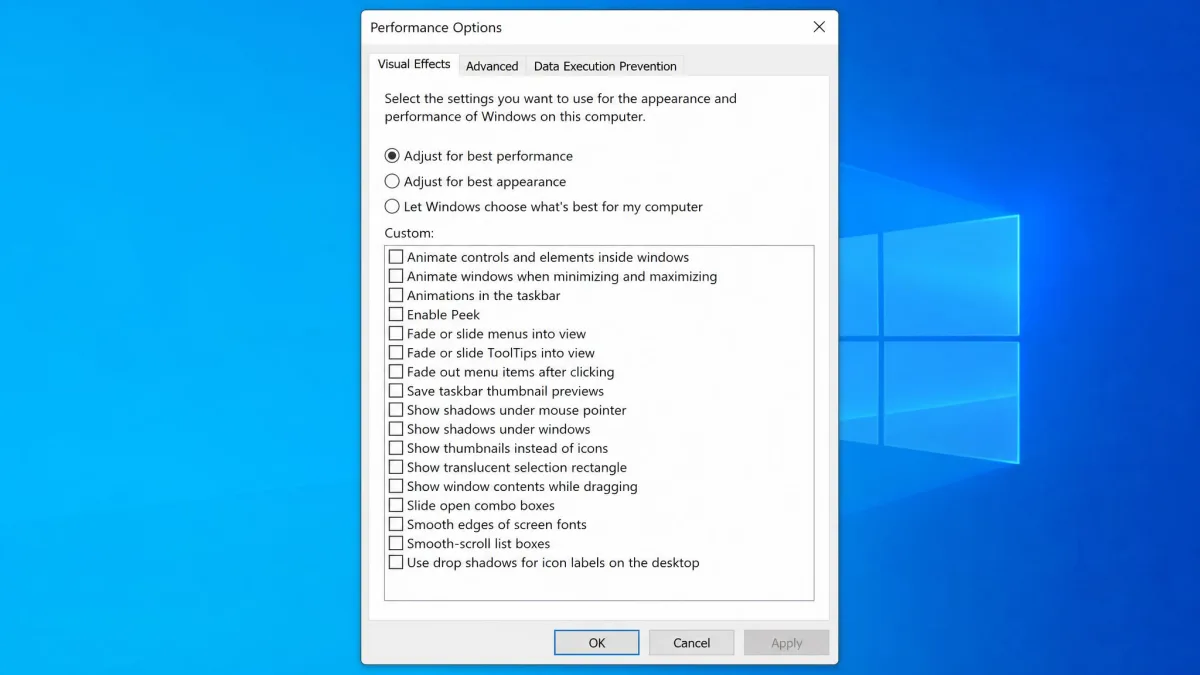
Search for "adjust the appearance and performance of Windows" from the Start menu, then choose Adjust for best performance. If the result looks too stark, switch back to Custom and keep only "Smooth edges of screen fonts" ticked.
On a machine with 4 GB of memory this is one of the few settings changes you can feel straight away, because animations compete with applications for the same limited graphics memory.
8. Set Your Power Mode to Best Performance
Laptops ship set to balanced or power-saving, which caps processor speed to protect battery life. Open Settings, go to System, then select Power and battery, and change the power mode to Best performance while the machine is plugged in.
Desktops benefit too, since some manufacturers ship the same conservative profile. The trade is straightforward: more heat, more noise, shorter battery runtime, faster response.
9. Shut Down Background Apps, OneDrive Sync, and Notifications
System tray and background applications are the quiet drain most people miss, because they keep running long after their window is closed. Look at the tray at the bottom right, expand the hidden icons, and quit anything you are not using.
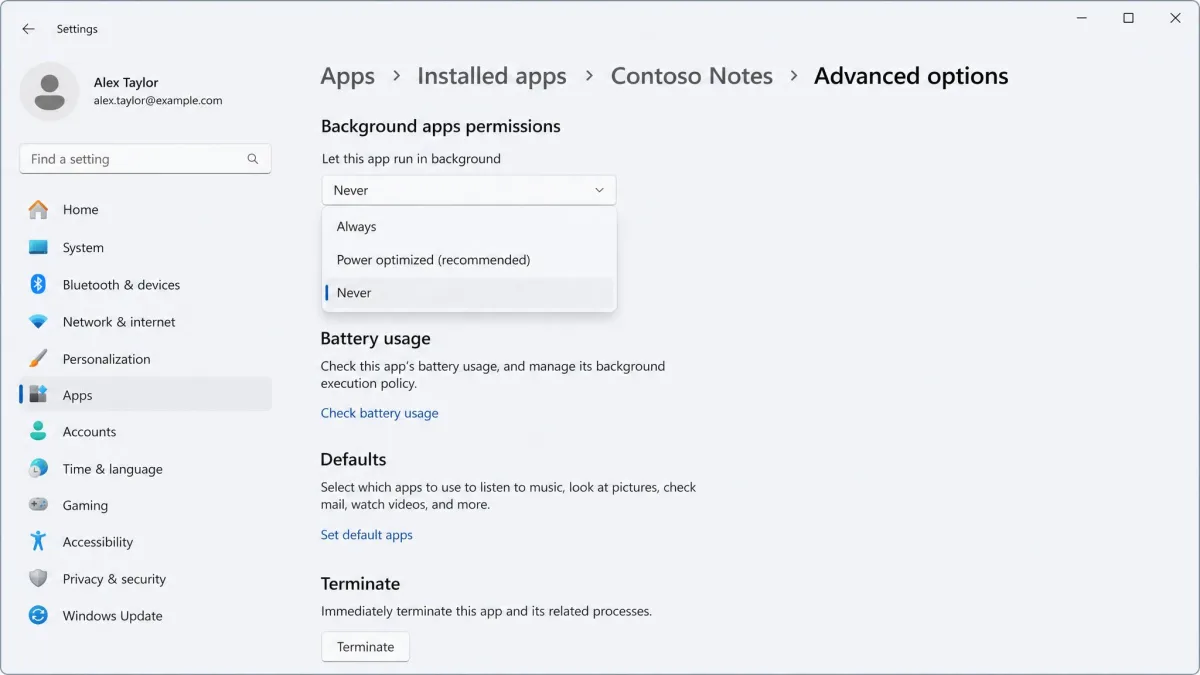
In Settings, go to Apps, select Installed apps, choose an app's advanced options, and set its background app permission to Never. Pausing OneDrive sync while you work on something demanding is a reasonable habit too, since indexing and uploading compete for the same disk your applications want.
10. Tame Your Browser: Tabs, Extensions, and Hardware Acceleration
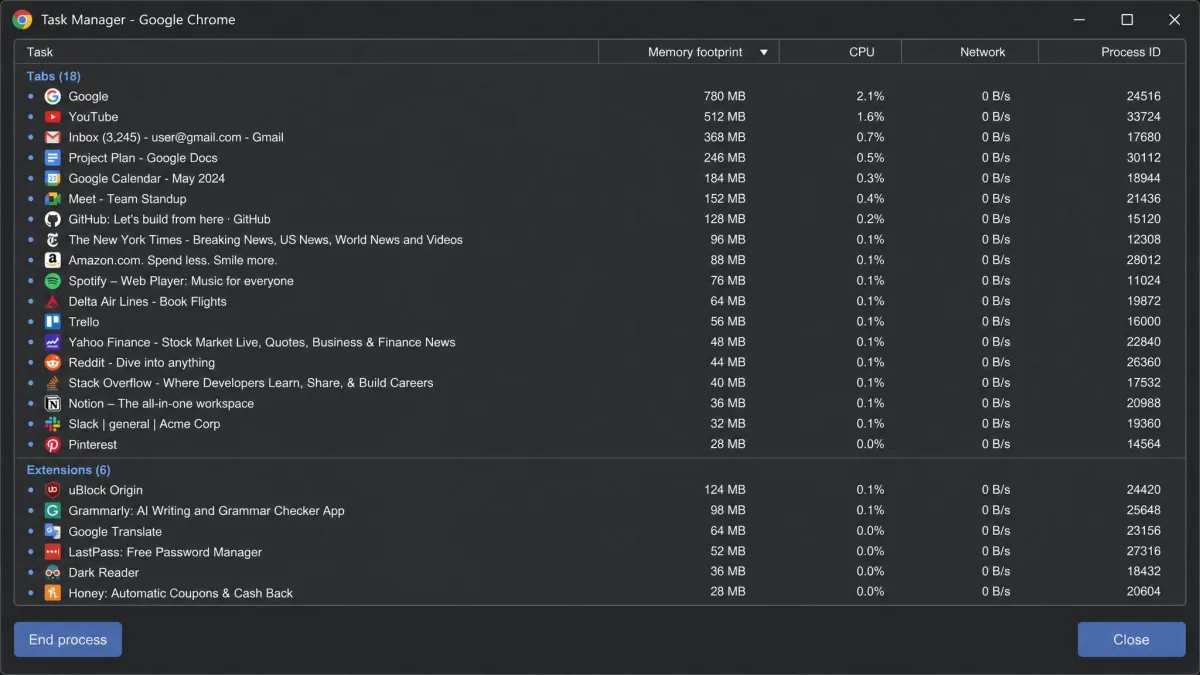
For most people the browser is the heaviest program on the computer. Open tabs and installed extensions consume genuine memory, so pruning them addresses real consumption rather than a placebo.
Work through your extensions list and remove anything you have not deliberately used this month. Ad blockers and password managers earn their place; the rest usually do not. If pages stutter while scrolling or video tears, try switching hardware acceleration off and then on again in your browser settings, since a mismatched graphics driver often shows up here first.
11. Optimize Your Drive (and Why Never to Defragment an SSD)
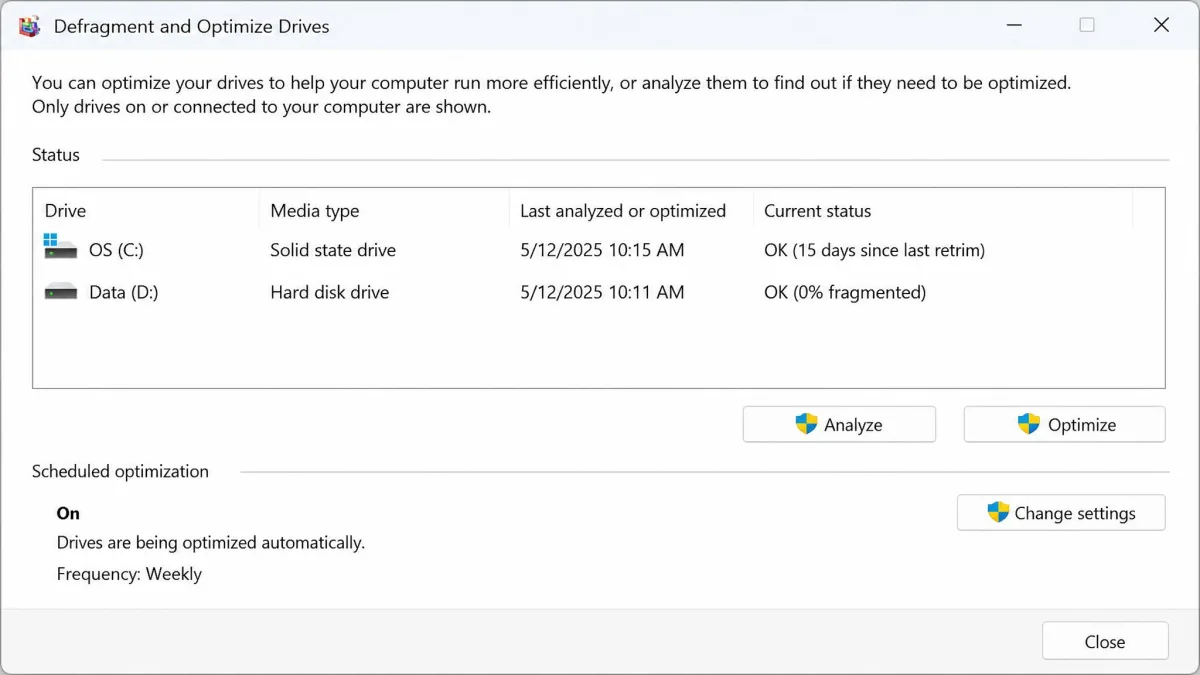
Manual defragmentation is a wasted afternoon on modern Windows. The system already schedules the job for mechanical drives and correctly skips solid-state drives, sending them a TRIM command instead. You can confirm the schedule is running by searching for "Defragment and Optimize Drives" and checking the status column, and Microsoft's page on how to optimize your drives explains what each media type gets.
One practical note for mechanical drives: Windows wants at least 15 percent free space to run a full defragmentation pass. That floor applies to mechanical drives and is not enforced identically across every Windows build, so clear space first if the job keeps stopping short.
Never run a third-party defragmenter against a solid-state drive, and be equally wary of registry cleaners and general "PC cleaner" utilities. Microsoft doesn't recommend registry cleaners, does not support them, and warns that the damage they cause can require reinstalling Windows with no guarantee your data comes back. We have seen these tools leave a machine unstable enough to need exactly that reinstall.
12. Turn Off Search Indexing (Only If You Don't Use Search)
Indexing keeps Start menu search instant by scanning your files in the background. On a modern machine that cost is invisible. On an old hard drive with a pegged disk column in Task Manager, it is worth reclaiming.
Open Settings, go to Privacy and security, then select Searching Windows, and switch from Enhanced to Classic so only your libraries and desktop are indexed. Turning indexing off entirely through the Services console is possible, but search then becomes slow enough that most people reverse it within a week.
Hardware Upgrades That Actually Make a Difference
Software tweaks hit a ceiling on genuinely old hardware. Past a point the machine needs a faster drive or more memory rather than another settings change, and Microsoft says as much on its own performance page: older PCs with outdated hardware may not see significant improvement from any of the steps above.
| Option | Typical cost | What it fixes | Who should do it |
|---|---|---|---|
| SSD upgrade | Low to moderate for a SATA drive | Slow boots, slow app launches, general disk-bound lag | Anyone still running a mechanical hard drive |
| RAM upgrade | Low for a single module | Stuttering with many tabs and apps open, constant swapping to disk | Anyone at or near 4 GB, or at 8 GB with heavy multitasking |
| New PC | Highest | Everything, including a processor that no longer keeps up | Machines that fail Windows 11's 1 GHz dual-core and TPM 2.0 requirements |
Swap the Hard Drive for an SSD
This is the single biggest improvement available to an ageing computer, and nothing in software comes close. A typical SATA solid-state drive reads sequentially at roughly 550 MB/s, while a 7,200 RPM hard drive tops out somewhere near 160 MB/s. Sequential throughput varies widely by platter density and where on the platter the data sits, so a modern high-capacity drive can reach around 200 MB/s while an older one stays near 100.
The sequential figures undersell it anyway. Booting and launching applications are random-read work, and there a solid-state drive delivers something like 50 to 100 times more operations per second, with latency measured in microseconds instead of milliseconds. The multiplier swings with queue depth and drive model, so treat it as an order-of-magnitude gap rather than a fixed number.
Add More RAM
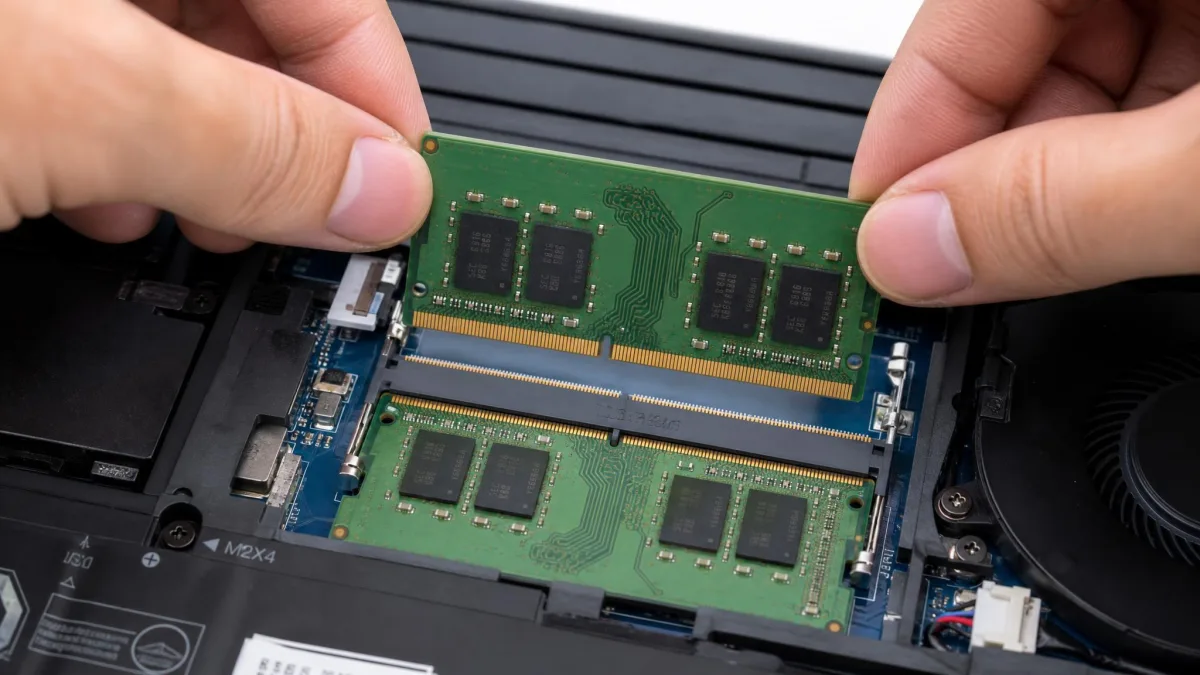
Memory is the other upgrade worth paying for. Windows 11 requires a minimum of 4 GB of RAM, and a machine sitting at that floor spends its day swapping to disk. No amount of startup pruning fixes that. If Task Manager shows memory pinned near 100% during ordinary work, more memory is the answer.
Check what your machine takes before you buy. Crucial's compatibility scanner matches modules to your specific model, which saves you decoding module types and speeds by hand.
What Not to Waste Money On
Registry cleaners, "RAM booster" utilities and driver-updater subscriptions sell the promise of the upgrades above without delivering any of the improvement. If you have a mechanical hard drive and 4 GB of memory, the money is better spent on parts.
The Last Resort: Reset Windows
If you have worked through all 12 fixes and the computer is still slow, a reset gives you a clean Windows install without the years of accumulated software.
Back Up First
A reset can fail partway through with a "There was a problem resetting your PC" message, which is why a backup before you start is not optional. Copy your documents and photos to an external drive or a cloud account, and check that the copy opens before you continue.
Reset this PC with the Keep my files option removes every installed desktop application and restores system settings to their defaults. Your documents, photos and videos stay put, but there is no option to keep the applications. Only Microsoft Store apps reinstall automatically, and Windows leaves a list of the others for you to reinstall by hand.
Reset vs. Clean Install
Reset is the right choice for most people, because it keeps the manufacturer's drivers in place. A clean install from a USB drive goes further, wiping the recovery partition and any factory software with it, but you take on the job of finding drivers yourself. Choose it only if the reset fails or the machine is being passed on.
Why Your Computer Slowed Down in the First Place
Computers slow down over time for two entirely different reasons, and the fix depends on which one you have.
Software Bloat vs. Aging Hardware
Software bloat is cumulative. Every application you install adds startup entries, background services and files, so the drive fills while the memory that used to be spare gets committed. Ageing hardware is different. The parts have not degraded, but the software they run has grown heavier, so a processor and drive that were comfortable in 2018 now sit at their limits doing the same work.
How to Tell Which One You're Dealing With
Task Manager settles it. If a handful of named applications sit at the top of the CPU or memory columns, you have a software problem, and the free fixes will help. If the disk column stays near 100% with nothing obvious running, or memory is pinned with only a browser open, you have a hardware limit and the upgrades section is where to look.
How Much Speed Should You Expect to Gain?
Set your expectations by the fix. Startup trimming reliably returns 11 to 19 seconds of boot time on the machines where it matters most. Clearing disk space and removing malware can transform a badly clogged system or do almost nothing on a clean one. Visual effects and power mode change how quick the computer feels more than how much work it does per second.
The upgrades are the only changes with a floor under them. Moving from a mechanical hard drive to a solid-state drive improves every disk-bound operation the machine performs, which on an old laptop is most of them.
Keep It Fast: A Simple Maintenance Routine
None of this holds unless you repeat a little of it. Ours is deliberately short.
- Weekly: restart properly once, and close the browser tabs you are not using.
- Monthly: check Task Manager's Startup apps tab for anything new that added itself, and run a full malware scan.
- Quarterly: review installed applications and uninstall what you no longer open, then confirm Storage Sense is still keeping the drive under about 85 percent full.
- Yearly: check for optional driver updates, and ask honestly whether the hardware is still up to the work you give it.
Frequently Asked Questions
Why did my computer suddenly get slow rather than gradually?
Will adding RAM or an SSD make more difference?
Are PC cleaner and registry-cleaner apps safe?
How often should I restart my computer?
Does deleting files actually speed up a PC?
Is it worth speeding up an old computer or should I replace it?
The Bottom Line
Work the list in order and stop when the computer feels right. In practice most people find their answer in the first five steps, because startup programs, disk clutter and malware account for the majority of slowdowns we see. Those fixes are free, reversible, and take a single evening between them.
If you reach the end and the machine is still struggling, that is useful information rather than a failure. It means the software is no longer the limit, and a solid-state drive or a memory module will do what no setting can.